
Herdr is a terminal workspace manager built for coding agents. It splits one terminal window into tabs and panes, like tmux, and its sidebar lists every coding agent it recognizes, with its state: working, blocked and waiting for you, done, or idle. Herdr also has a command line that agents can use, so one agent can open panes, start other agents, send them prompts, and read their answers.
This guide runs that setup on Omarchy 4.5, which includes Herdr. A Claude Code session acts as the lead. It asks Codex for a code review, hands the fixes to Grok, starts two Claude Code cloud sessions, and changes Herdr’s settings when we ask. Every prompt we gave the lead is here, so you can copy them, along with the settings each request produced and the commands you run yourself.
What you need
You need Omarchy 4.5 (a release candidate as of October 2026) or Herdr installed on another Linux system. Omarchy 4.5 includes Herdr 0.9.1. Our Omarchy 4.5 overview shows how to switch an existing install to the release candidate.
You also need the coding agents, each signed in to its own account: Claude Code for the lead, and Codex and Grok for the helpers. On Omarchy 4.5, the claude, codex, and grok commands install themselves the first time you run them. The cloud sessions section also needs a GitHub repository that Claude Code on the web can reach. We used a small public demo repository, herdr-demo-word-count: a Python word counter with two planted bugs and ten tests, eight of which fail before the fix. To follow along, fork it to your own GitHub account, so the cloud sessions can open pull requests there, and clone your fork with git clone https://github.com/<your-account>/herdr-demo-word-count ~/Projects/word-count.
Omarchy uses the Super key for its shortcuts, which is the Windows key on a PC keyboard. If the Omarchy shortcuts are new to you, start with our list of Omarchy shortcuts to learn first.
Install Herdr outside Omarchy
On other Linux systems and on macOS, Herdr’s install page gives this script, which puts the herdr binary on your PATH:
curl -fsSL https://herdr.dev/install.sh | shThe same page lists brew install herdr, mise use -g herdr, Nix, and a manual download from the GitHub releases. The current upstream release is 0.9.5, from October 14, 2026. Herdr shows a “Herdr v0.9.5 available” toast on Omarchy, with a hint to run herdr update, but Herdr’s docs say to use herdr update only for installs from its own script. On Omarchy, Herdr is a package from Omarchy’s repository, so it updates with Omarchy.
Open Herdr and set up the lead agent
Press super ctrl enter to open Herdr. Omarchy sets up Herdr with tmux-style keys, and its prefix key is ctrl space : most Herdr shortcuts are ctrl space followed by one more key. Herdr’s own welcome card says ctrl b , which is the prefix outside Omarchy. super ctrl k opens Omarchy’s searchable list of Herdr shortcuts.
Herdr reads each pane’s screen to tell what an agent is doing. Its agent integrations add hooks that tell Herdr which conversation each agent is in, so Herdr can resume that conversation after a restart. For Claude Code, Codex, and Grok on 0.9.1, the working and blocked states still come from reading the screen. Install them once, after you have signed in to each agent:
herdr integration install claude
herdr integration install codex
herdr integration install grok
The Grok integration needs Grok’s settings folder, so run Grok once before you install it. On Herdr 0.9.1, the next Codex start shows “Hooks need review”; we chose Trust all and continue.
In the first pane, run cd ~/Projects/word-count and start Claude Code. The lead in this guide runs in auto permission mode, which lets it run Herdr commands without asking each time; Omarchy’s cx alias starts Claude Code that way. Then give it Herdr’s instructions for agents:
You are running inside Herdr. Run herdr --skill and read it, so you can drive Herdr for me. Reply with one word: ready.herdr --skill prints how an agent should control Herdr: splitting panes, starting agents with herdr agent start, prompting them with herdr agent prompt, and reading their output with herdr agent read.
Ask for sidebar job labels and pane names first
Two settings make the rest easier to follow. One adds a line under each agent’s name in the sidebar for a job label, and the other prints the agent’s name on each pane border. To have the lead set them up, ask:
In ~/.config/herdr/config.toml, add a second sidebar row under each agent's name that shows a $summary token, turn on agent labels on pane borders and the outer pane borders they need, then check the config and reload Herdr.The settings it should end up with:
[ui]
pane_outer_borders = true
show_agent_labels_on_pane_borders = true

[ui.sidebar.agents]
rows = [["state_icon", "agent"], ["$summary"]]
On Herdr 0.9.1, border labels show only with pane_outer_borders = true, which Omarchy’s default settings turn off. If three panes feel cramped, a narrower sidebar helps: sidebar_width = 16 under [ui], with a terminal font size of 12, leaves room for three panes with readable line lengths.
Have the lead start Codex for a code review
The first request opens a pane, starts Codex in it, and labels its sidebar row. Herdr’s --skill text does not mention herdr pane report-metadata, the command that sets a label, so the prompt names it. Without it, Claude renamed the pane instead.
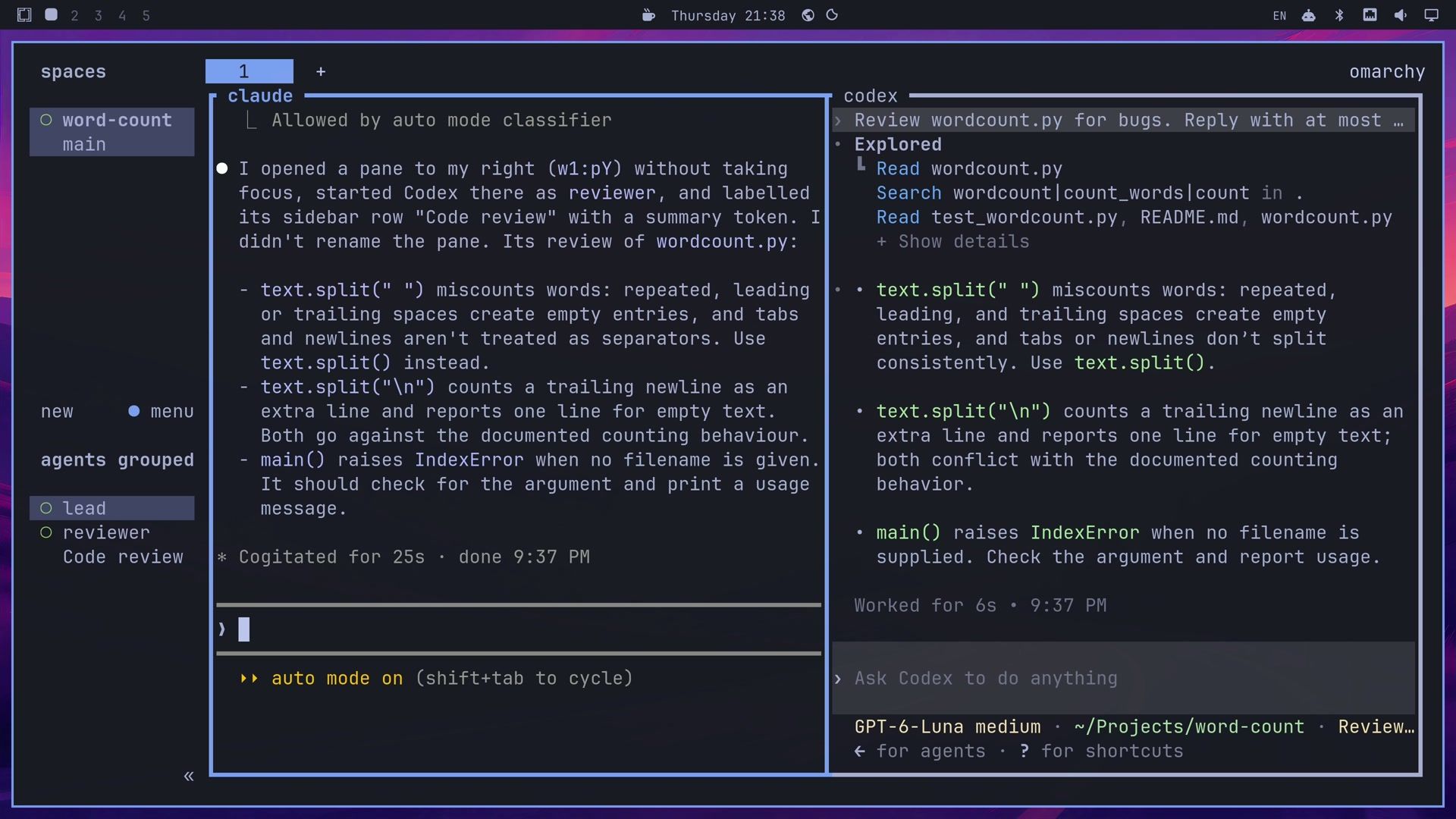
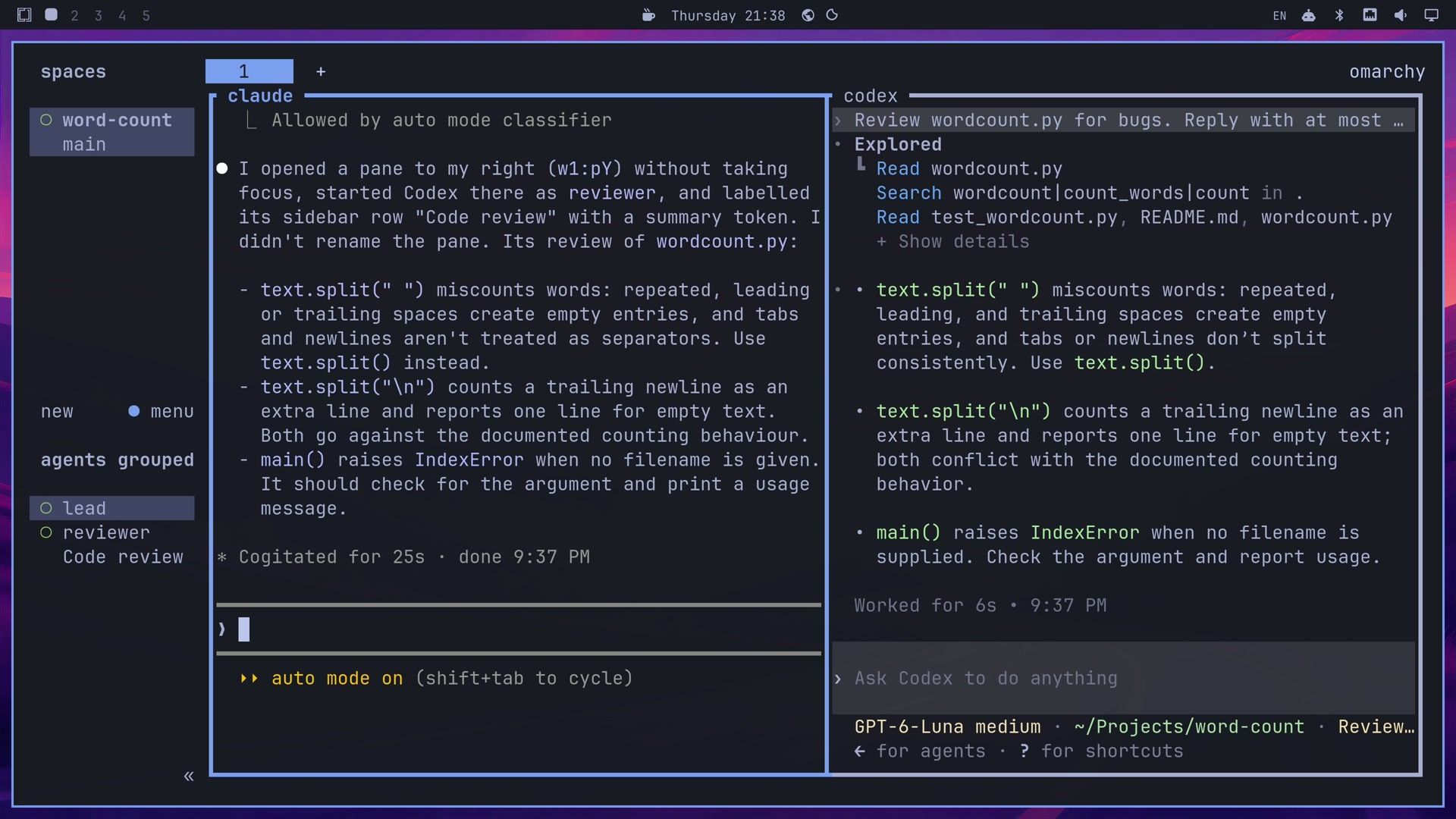
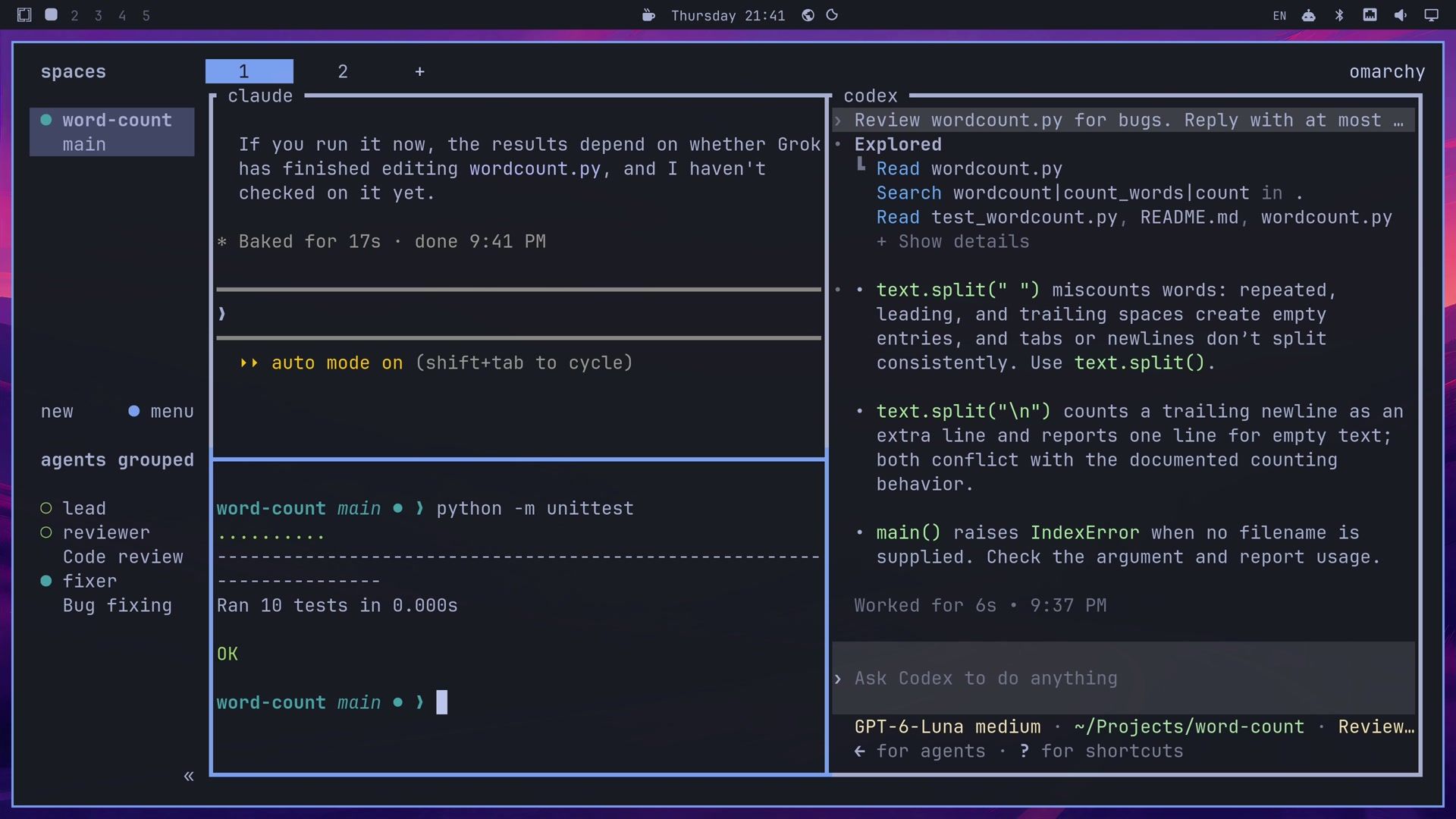
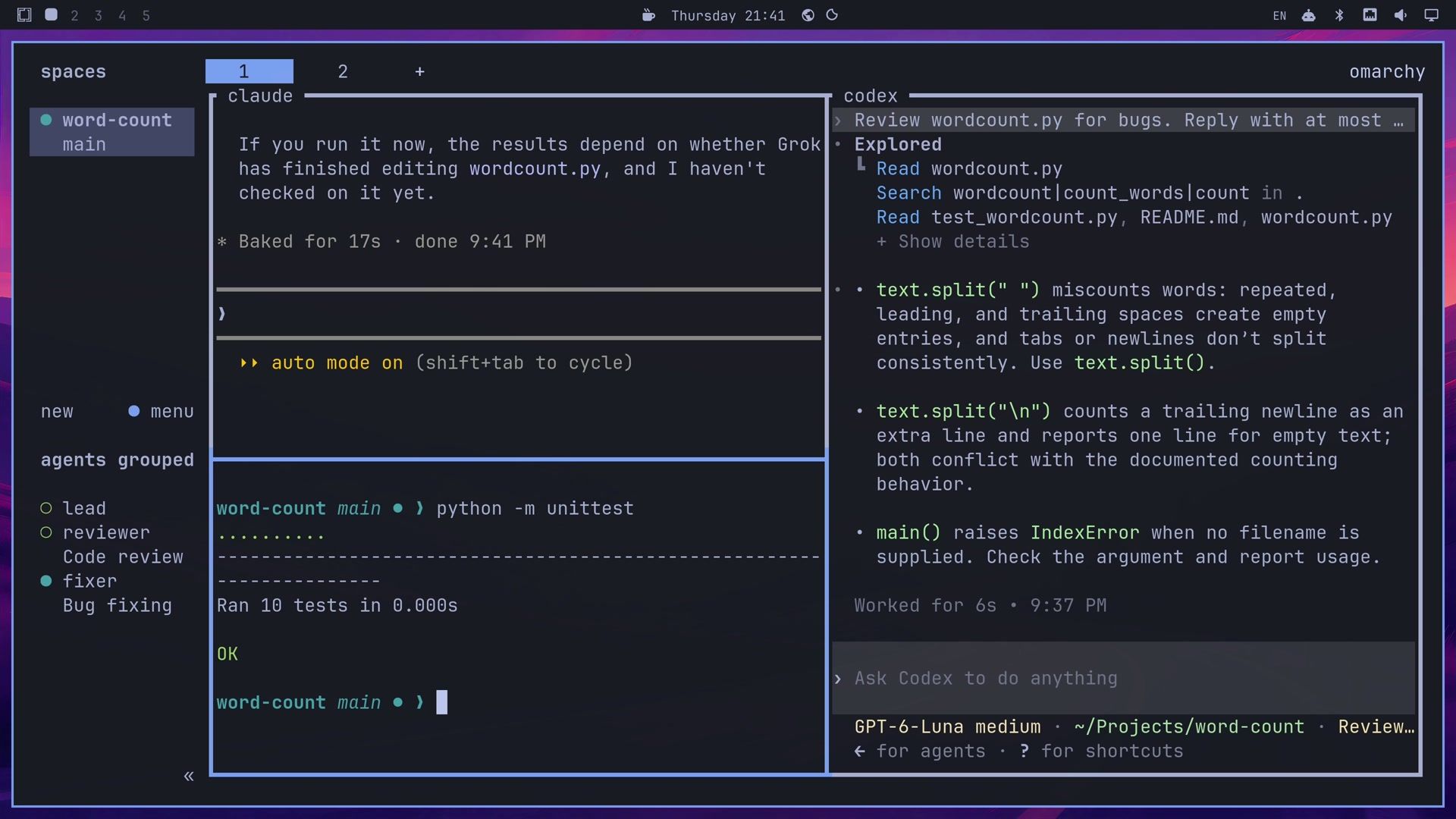
Open a pane to your right without taking focus, start Codex there as an agent named reviewer, and ask it to review wordcount.py for bugs in at most three short bullets. Label its sidebar row with its job in two words, using herdr pane report-metadata with a summary token, and don't rename the pane. Wait for its answer and tell me the bullets here, with no usage or quota notes.The pane opened on the right while the cursor stayed in the lead’s pane. The lead ran herdr agent start reviewer --kind codex in it, set the label with herdr pane report-metadata <pane> --source claude --token "summary=Code review", and sent the review request with herdr agent prompt. Codex worked for six seconds, and the lead had its answer in under half a minute.
Codex found three bugs, one more than the two we planted. text.split(" ") miscounts words when there are extra spaces, text.split("\n") counts a trailing newline as an extra line, and main() raises an IndexError when no file name is given. The lead repeated the three bullets in its own pane.
Hand the fixes to Grok in a background tab
The second request starts Grok in a new tab and does not wait for it. The prompt says “the bugs” rather than a number, so it works however many Codex finds.
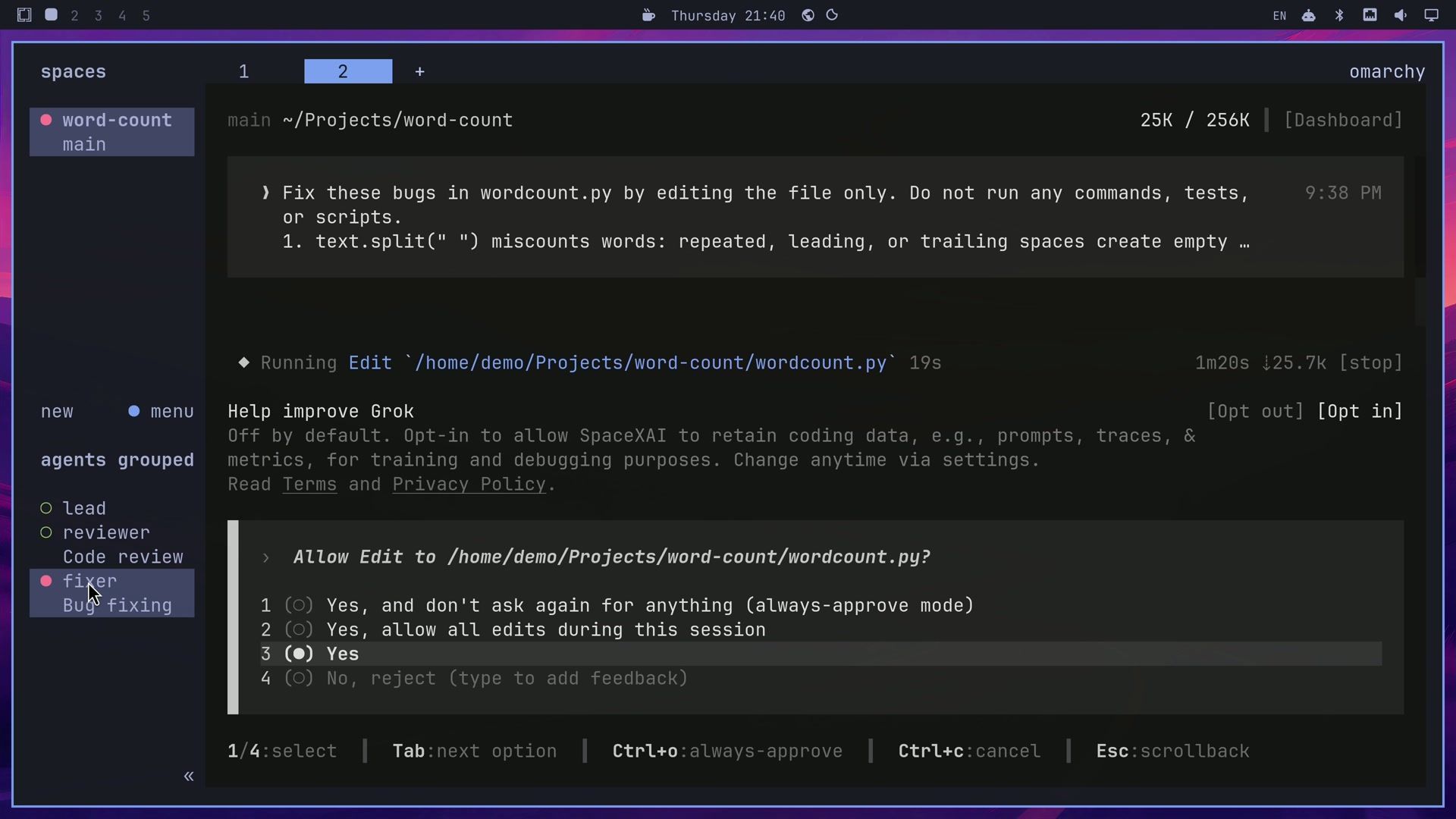
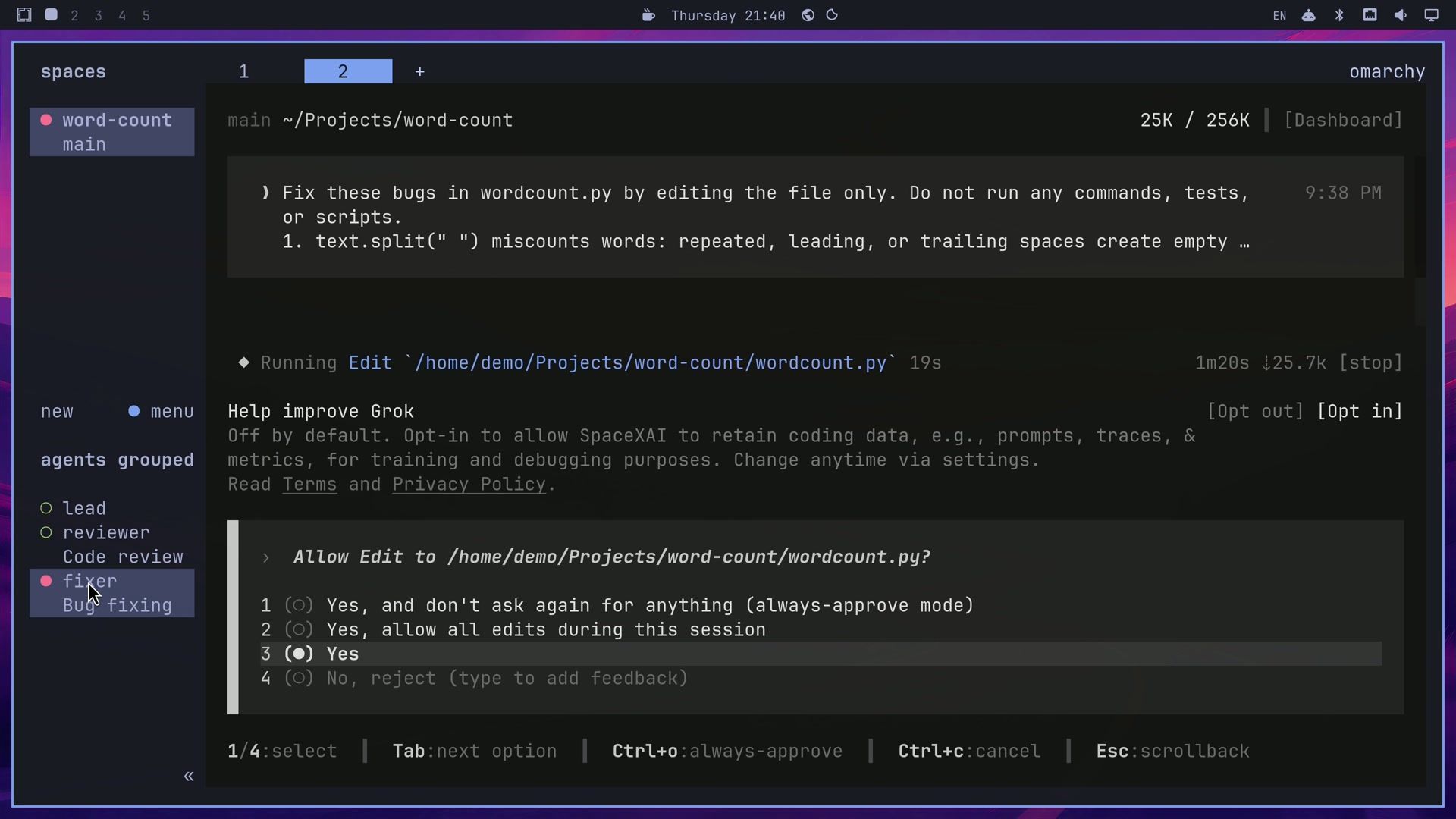
Now open a new tab without switching to it, start Grok there as an agent named fixer, and ask it to fix the bugs Codex found in wordcount.py without running anything. Label its sidebar row with its job in two words, using the summary token again. Don't wait for Grok.A tab named 2 appeared, and the fixer row read “Bug fixing” with an orange dot while Grok worked. About a minute later, the dot turned red: Grok was blocked, waiting for permission to edit wordcount.py. A click on the red row in the sidebar opens that agent’s tab. We chose “Yes, allow all edits during this session”, and back in tab 1 the fixer’s dot turned teal once Grok was done.
Grok changed the word split to text.split(), dropped the last line entry when the text ends in a newline or is empty, and added a usage message to main(). To confirm the fix yourself, ask the lead to type the test command without running it:
Split a pane below yours without taking focus and type the short command that runs the tests into it, without -v, but don't press Enter. I'll run it myself.The lead typed python -m unittest into a new pane and left it there. Click that pane and press enter . All ten tests passed after Grok’s fixes.
Move between panes and agents
A few keys help once several agents are open:
- ctrl space then z zooms the focused pane to fill the tab, and the same keys put it back.
- ctrl space then g opens Go To, a list of every tab, pane, and agent to jump to.
- A click on any agent row in the sidebar jumps to that agent’s tab.
Omarchy also adds a shell command, hsl, that fills a pane with a grid of panes all running one command. hsl 3 grok, run in the test pane, turned it into three Grok panes, and the sidebar listed three new Grok rows. Type /exit in each of the three Grok panes and close them before you go on, which leaves an empty shell pane below the lead.
Launch Claude Code cloud sessions from a Herdr pane
Cloud sessions run Claude Code on claude.ai instead of on your computer, against a GitHub repository. The lead can start several at once, each in its own pane:
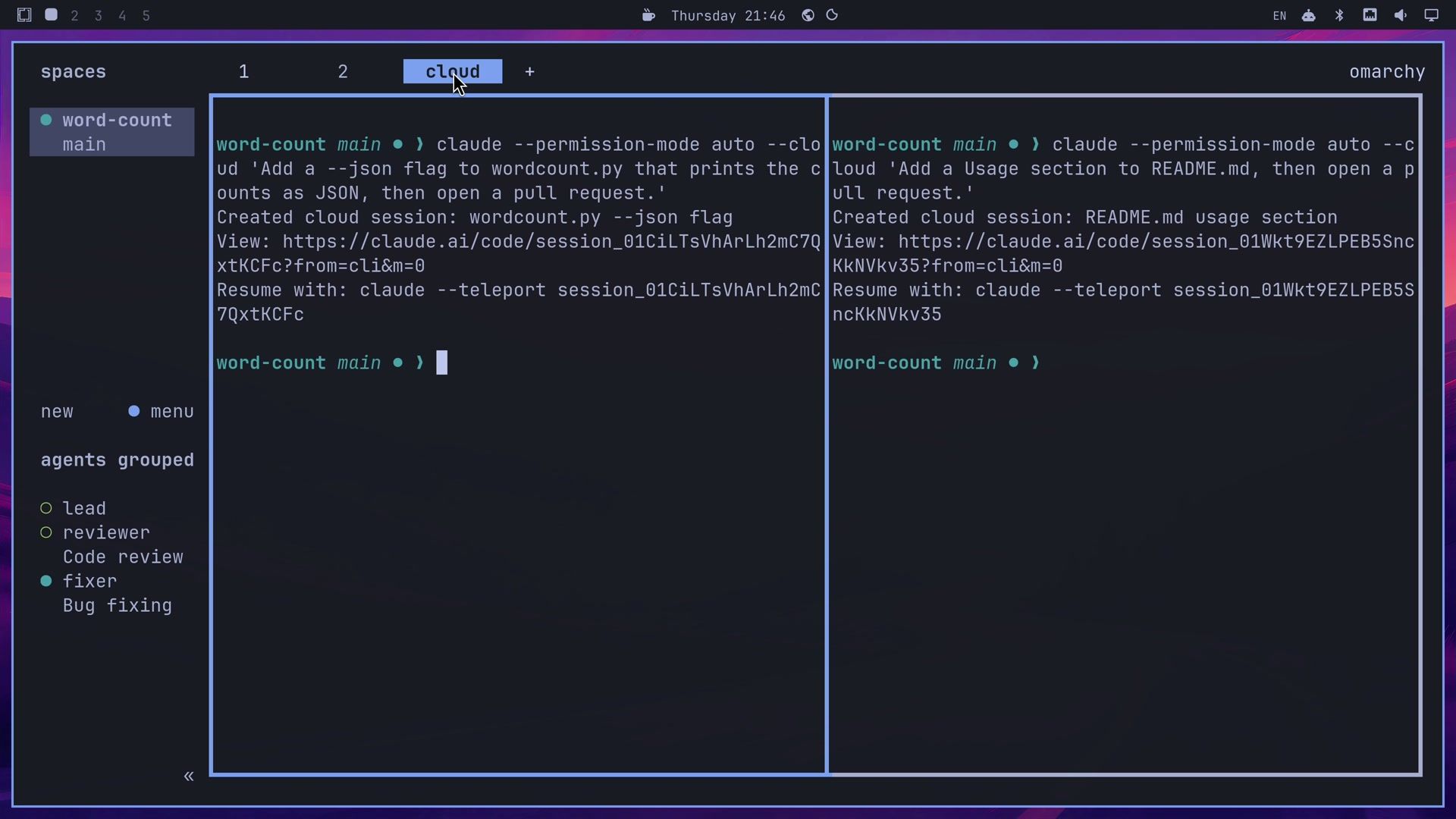
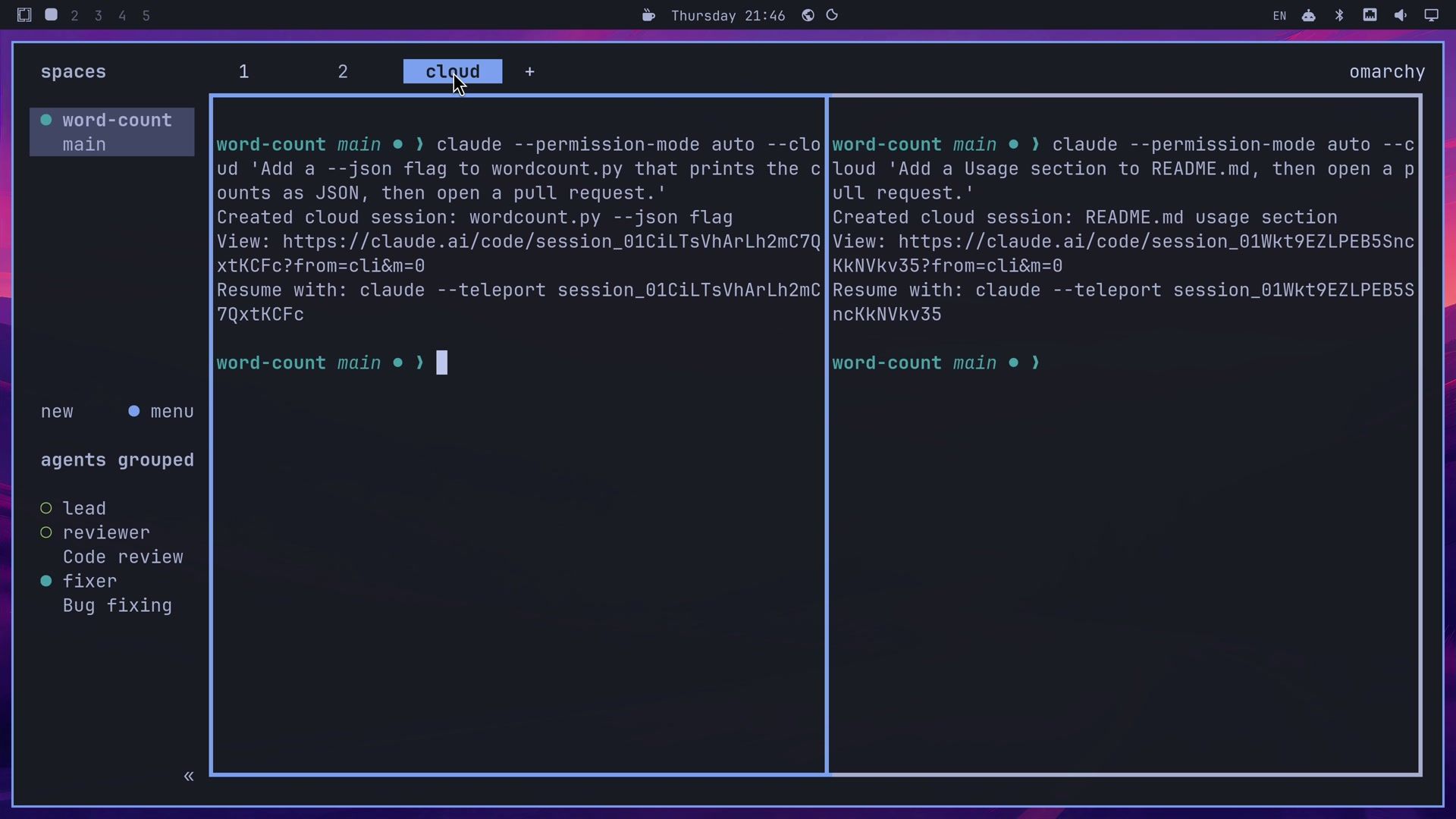
Start two Claude Code cloud sessions on this repo with claude --permission-mode auto --cloud, each in its own pane in a new tab named cloud, without switching to it. Task one: add a --json flag to wordcount.py. Task two: add a Usage section to the README. Each one should open a pull request. Tell me their session ids in a short table.The lead ran these two commands, one per pane:
claude --permission-mode auto --cloud 'Add a --json flag to wordcount.py that prints the counts as JSON, then open a pull request.'
claude --permission-mode auto --cloud 'Add a Usage section to README.md, then open a pull request.'
Each command returned at once with a session title, a claude.ai link, and a “Resume with: claude —teleport session_…” line. Both pull requests were open on GitHub within a minute of the launch.
Pull a cloud session back with claude —teleport
claude --teleport <session id> brings a cloud session’s conversation and branch to your computer. It switches the git branch of the folder it runs in, so run it in a second clone of the project, not in the folder where your other agents work. Clone your fork a second time with git clone https://github.com/<your-account>/herdr-demo-word-count ~/Projects/word-count-cloud, then ask:
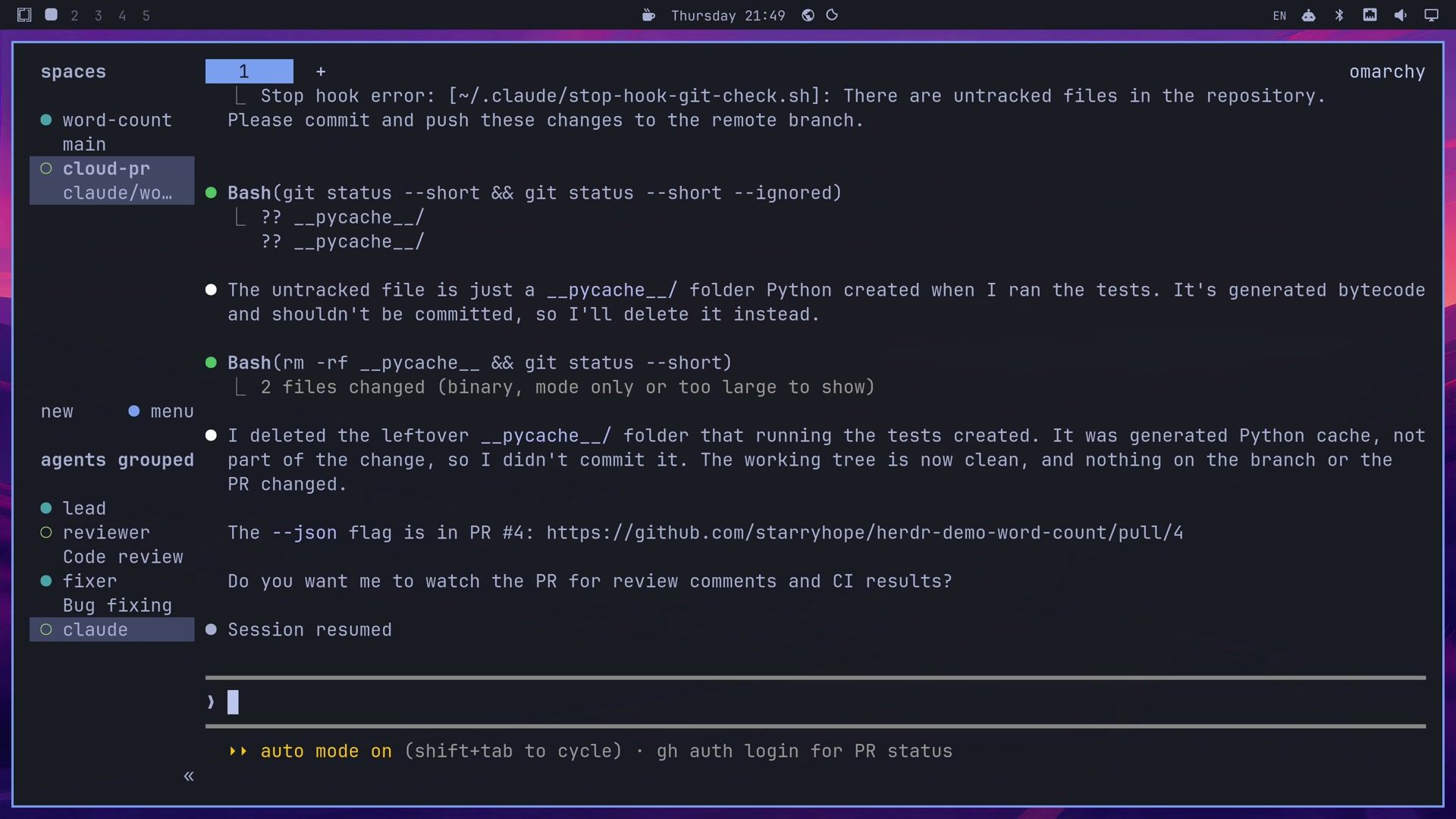
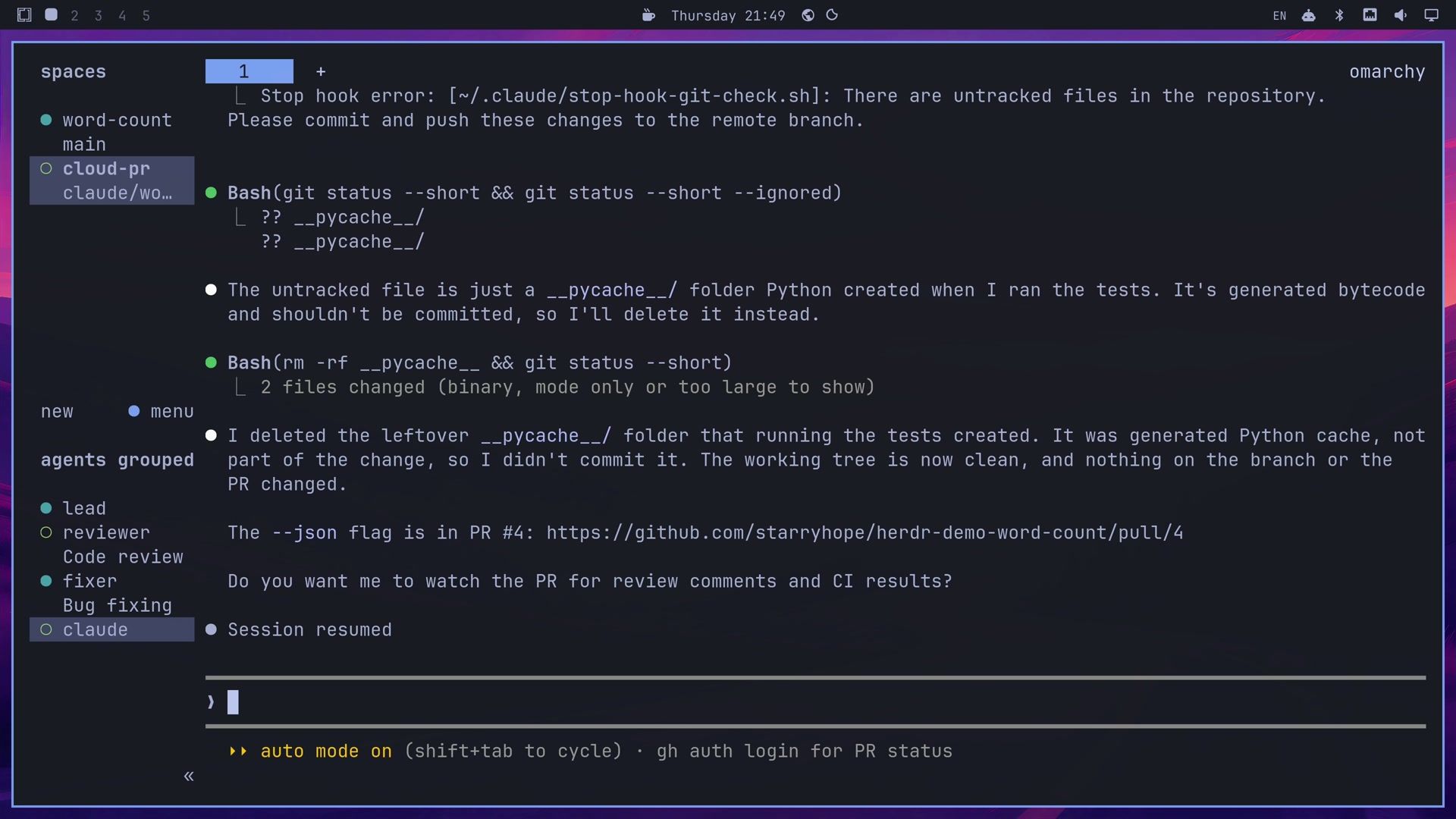
Make a new Herdr workspace for ~/Projects/word-count-cloud labeled cloud-pr and switch to it. In its pane, type the teleport command for the --json session, but don't press Enter.A new cloud-pr workspace opened with claude --teleport session_... typed into its pane. We pressed enter , and the cloud conversation came back, marked “Session resumed”. Its last answer said the --json flag was in pull request number 4. The cloud session had also switched the argument handling to Python’s argparse, which adds a --help option. In the sidebar, the cloud-pr workspace showed the session’s branch.
Customize Herdr by asking the lead
Herdr’s settings live in ~/.config/herdr/config.toml, and an agent can edit them. Herdr’s agent guide tells agents to read herdr --default-config rather than guess setting names, and the lead read it before it edited anything. One request covered four changes:
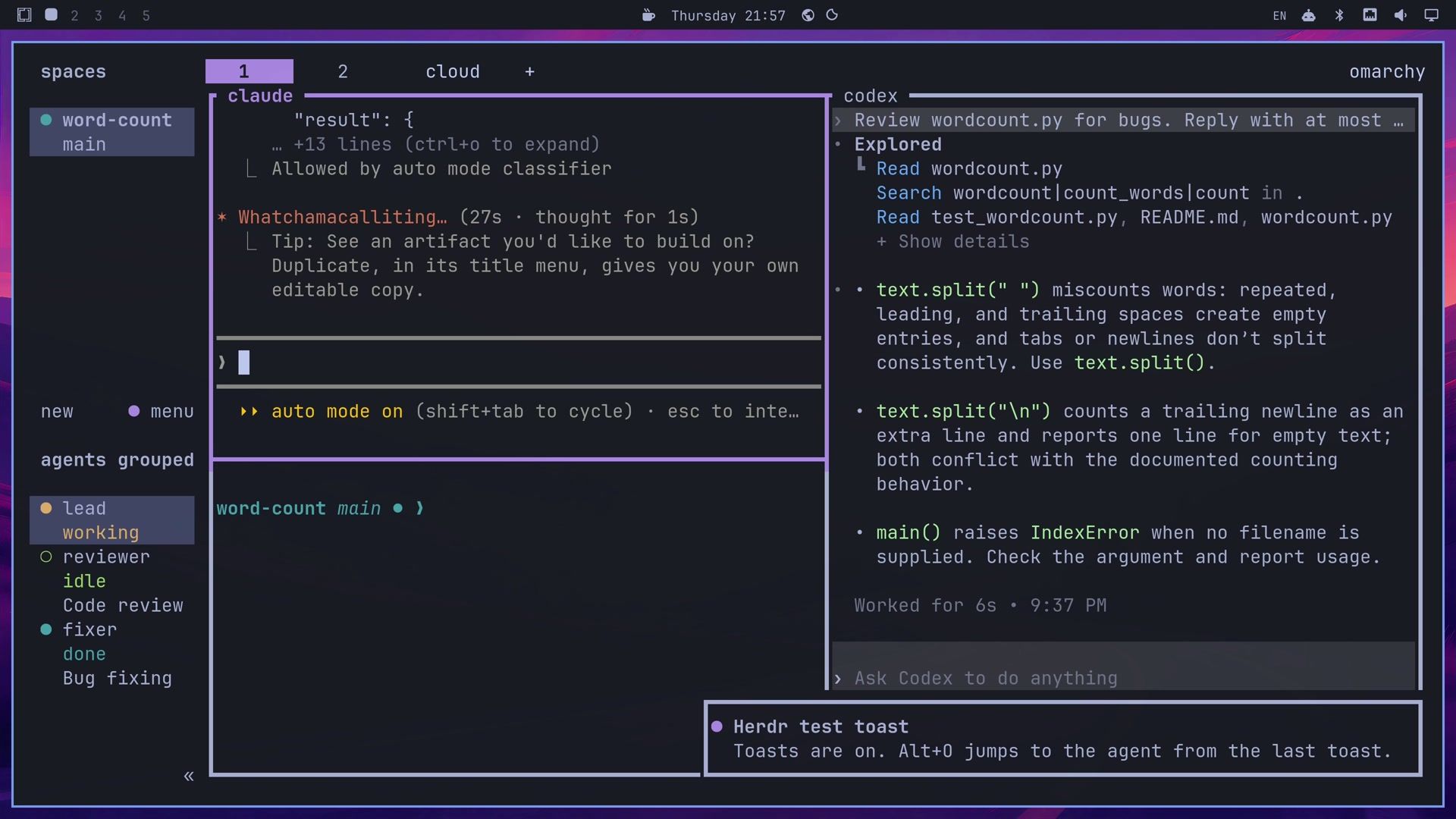
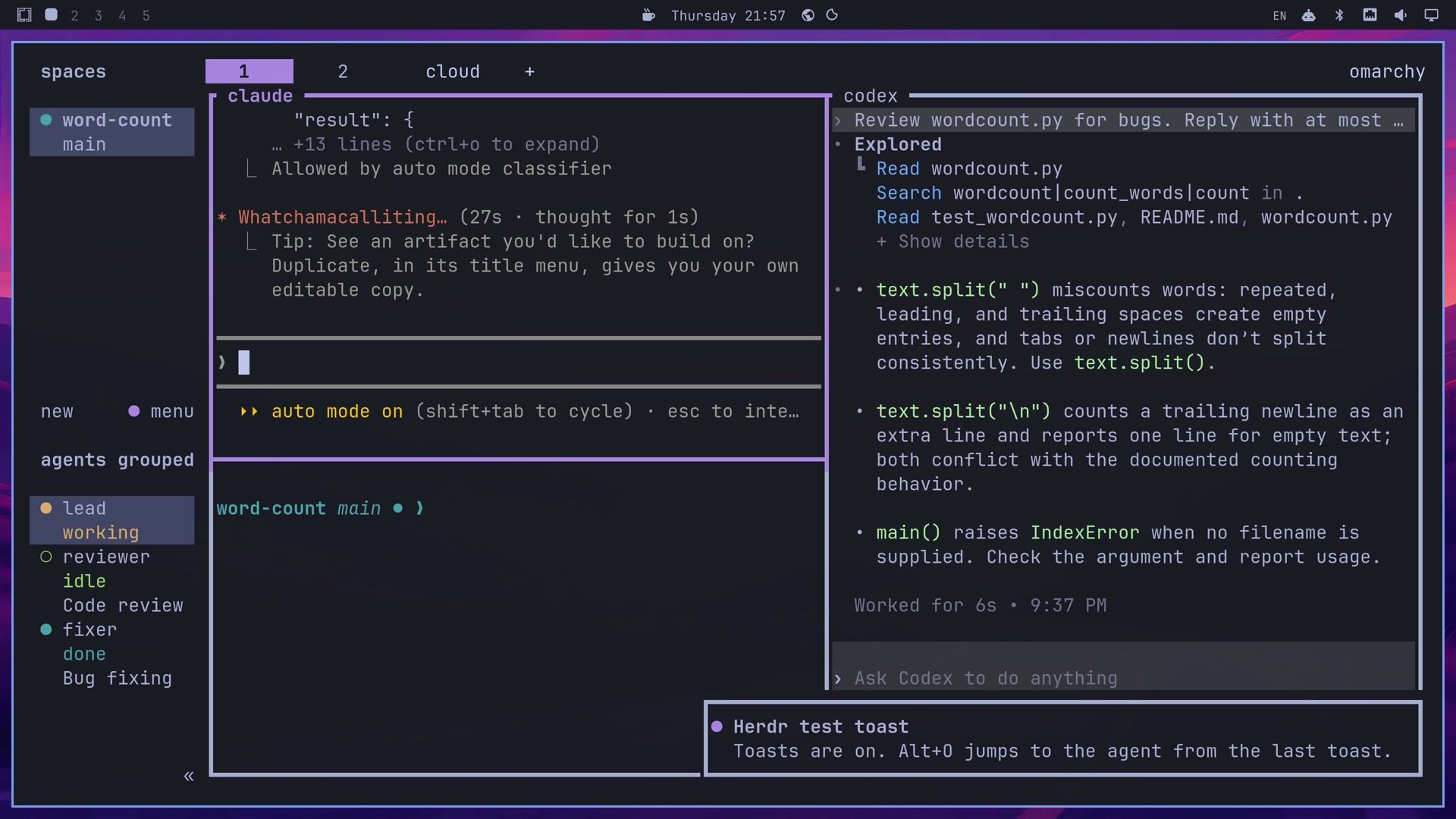
Customize Herdr in ~/.config/herdr/config.toml. In the sidebar, show each agent's state as a word on its own line under its name, above the job label. Keep the colored state dot next to each name. Turn on Herdr's own toasts, so a toast tells me when an agent in another tab finishes or needs me. Make the accent magenta, and add Alt+O to jump to the agent from the last toast. Use named colors only, no hex, so Herdr keeps following my Omarchy theme. Check the config, reload Herdr, and send me a test toast.The lead saved a backup copy, edited the file, ran herdr config check and herdr server reload-config, and sent a test toast, in 29 seconds of work. The changes it made:
[ui]
accent = "magenta"

[keys]
open_notification_target = "alt+o"

[ui.sidebar.agents]
rows = [["state_icon", "agent"], ["state_text"], ["$summary"]]

[ui.toast]
delivery = "herdr"
The tabs and pane borders turned magenta, and each sidebar row gained a state word: working, blocked, done, or idle. In an earlier run without the “Keep the colored state dot” sentence, the lead’s new rows dropped the dot, so keep that sentence in the prompt. Setting open_notification_target to alt+o replaces Herdr’s default ctrl space then o for that action.
Named colors keep Herdr in step with Omarchy themes. Omarchy’s Herdr settings use Herdr’s terminal theme, which takes its colors from the terminal’s palette, and Omarchy changes that palette when you switch themes. A hex color stays fixed. We opened Omarchy’s theme menu with super ctrl shift space and picked Gruvbox, and Herdr, Claude Code, and the top bar all changed within about a second. On Gruvbox, the magenta accent is pink.
To see a toast at work, ask the lead to prompt a background agent and not wait:
Ask fixer for a one-line summary of its change, without running anything. Don't wait for it.When Grok answered, a “grok finished” toast showed in the corner. Press alt o while the toast is up to switch to Grok’s tab. Herdr shows toasts only for agents in tabs you are not looking at. The new alt o also shows up in the super ctrl k shortcut list, as Open notification target.
Add a key that opens lazygit in a popup
Keys can also open programs. Lazygit is a terminal app for git, and Omarchy includes it.
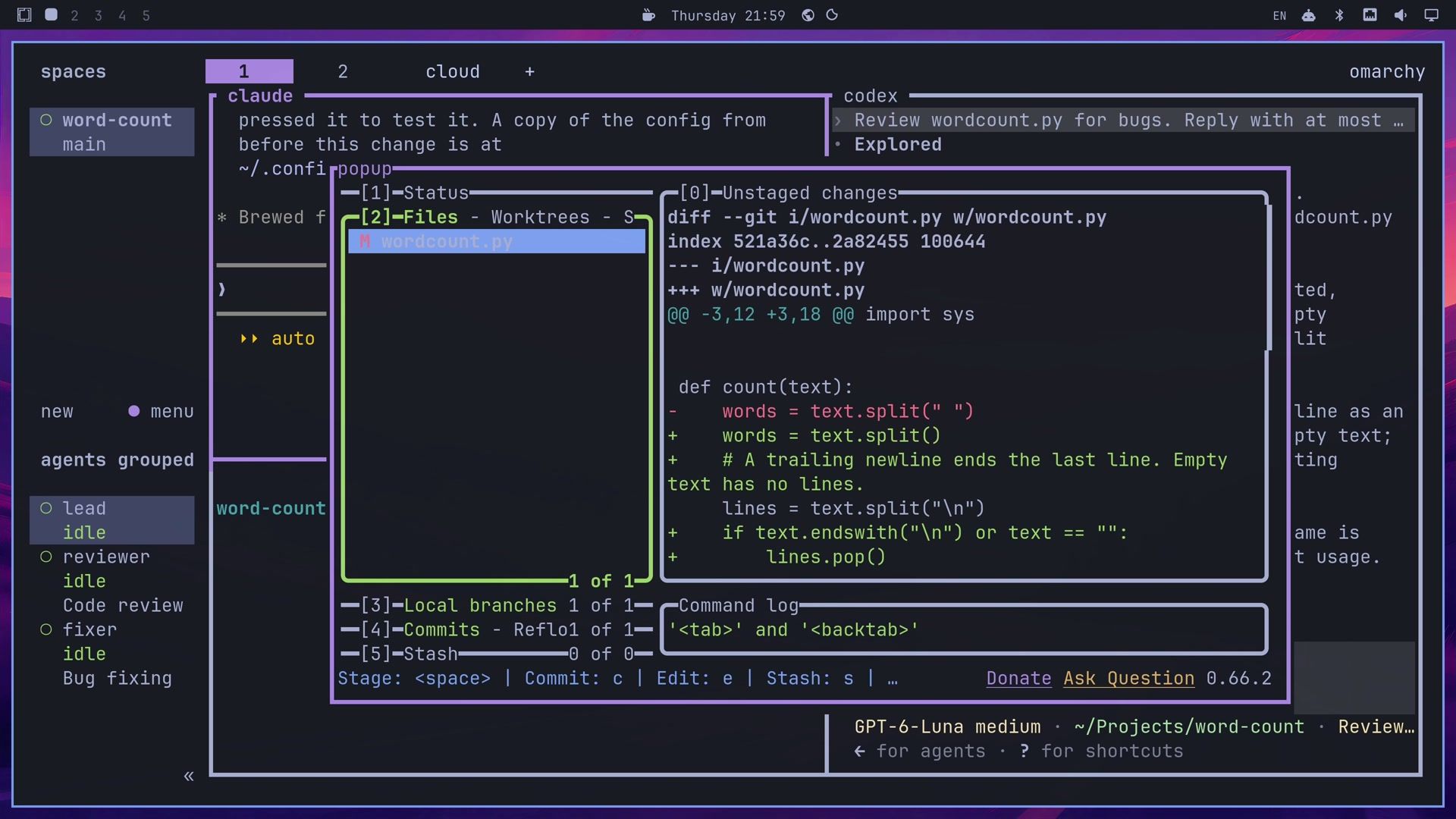
Add a Herdr key, Alt+G, that opens lazygit for this project in a floating popup over my panes. Check the config and reload Herdr.The lead added this to the settings file, with the project’s full path in the command (yours will differ):
[[keys.command]]
key = "alt+g"
type = "popup"
command = "lazygit -p /home/you/Projects/word-count"
width = "80%"
height = "80%"
alt g then opened lazygit over the panes, with wordcount.py listed as changed and Grok’s edits in the diff. Press q to close it, and the layout stays as it was. Because the path is fixed, this key always opens that one project.
Add another computer over SSH
Herdr can show workspaces from other computers in the same sidebar. The other computer needs normal SSH access from yours and must run Linux or macOS (on x86_64 or ARM) or Windows (on x86_64 only). If Herdr is missing on the other computer, machine add offers to install it, and it asks before it replaces anything, as Herdr’s connecting machines docs explain. Because it can ask questions, run it yourself in a plain shell pane, with the other computer’s SSH host name:
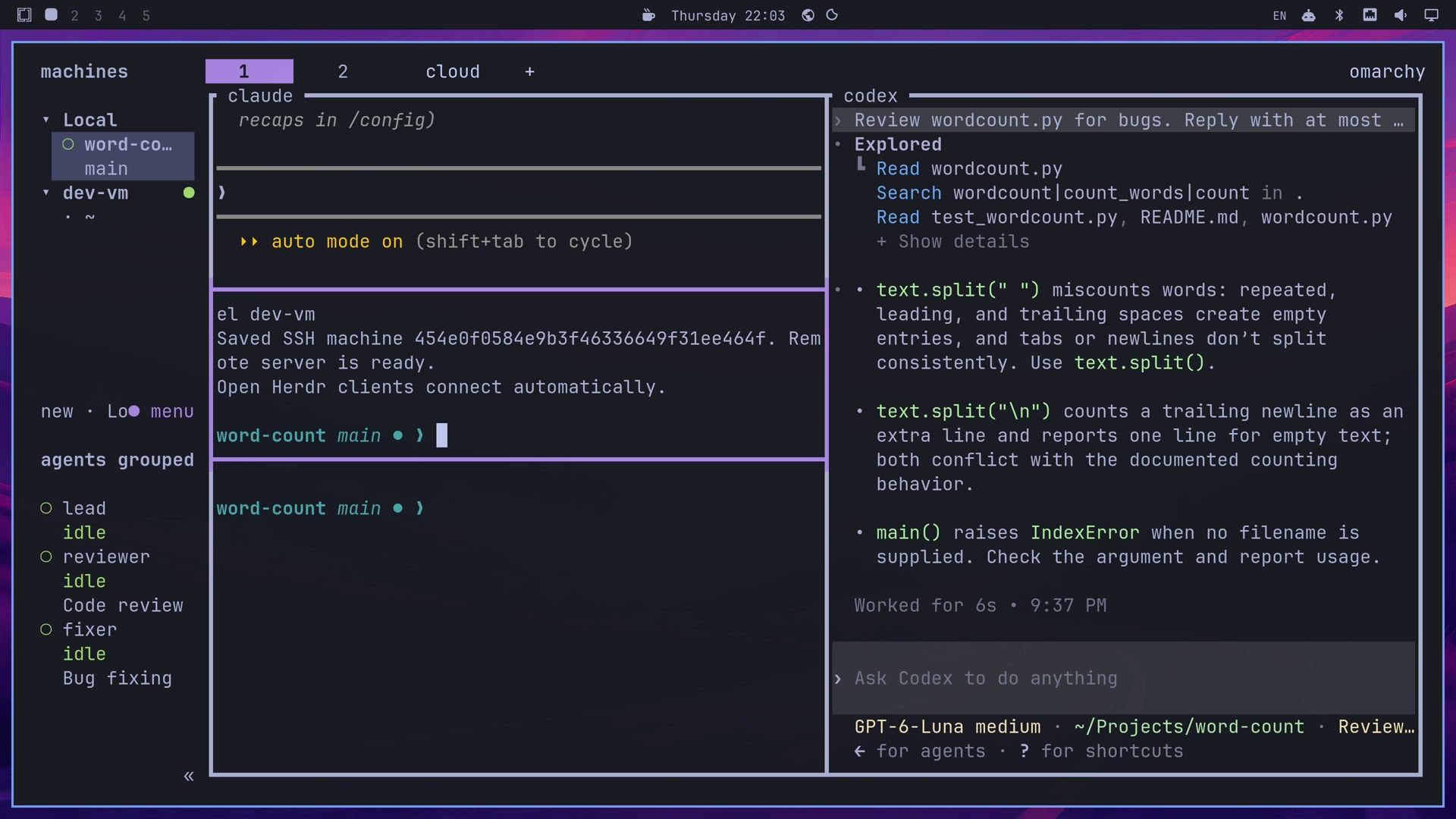
herdr machine add <ssh-host> --label dev-vmHerdr answered “Saved SSH machine … Remote server is ready.” The sidebar heading changed from “spaces” to “machines”, with a Local group and a dev-vm group. A click on the remote workspace opened a terminal on that computer, and fastfetch there showed the other machine’s details. herdr machine list shows saved machines, and herdr machine remove <id> removes one.
Restart Herdr and get your agents back
Herdr runs a server behind the window, and the server saves the layout as it changes. Stopping the server closes every pane and every program in it, including the lead, so ask the lead to type the command into the empty shell pane below it and run it yourself:
Type the command that stops the Herdr server into the bottom pane, but don't press Enter. I'll run it myself and then reopen Herdr.Close Codex before you stop the server. On Herdr 0.9.1, Codex did not resume after a restart: its pane came back as a plain shell, while Claude Code and Grok came back. Type /exit in Codex’s pane, and Codex prints a codex resume <id> command you can use later to continue that conversation. We did not test whether newer Herdr releases fix this.
Then click the pane with herdr server stop and press enter . The window closes. Press super ctrl enter to start Herdr again. The tabs and splits came back, the lead’s Claude Code conversation resumed, and Grok’s conversation in tab 2 was there too, with its one-line summary. The job labels in the sidebar were gone; the lead can set them again with herdr pane report-metadata.
Review a plugin with Codex, then install it
Herdr plugins add features, and they run code on your computer. Herdr does not review third-party plugins. We tried herdr-tab-sidebar, version 0.1.0, which turns the sidebar’s agent list into a list of tabs grouped by workspace. Its minimum Herdr version is 0.9.1. Before the install, the lead had Codex read the code:
Open a pane to your right without taking focus, start Codex there as an agent named reviewer, and ask it to clone tyamanak/herdr-tab-sidebar to /tmp and review it for anything unsafe: what it runs, what it writes, any network use. Three bullets. Codex will ask to reach GitHub; I'll approve that myself. Wait for its answer and show it to me. No usage or quota notes.Codex’s sandbox blocks network access, so Codex asked before it ran git clone --depth 1 https://github.com/tyamanak/herdr-tab-sidebar /tmp/herdr-tab-sidebar. The reviewer row turned red. Click Codex’s pane and press y to allow it once. In a test run, the lead tried to answer that prompt for us, and Claude Code’s auto mode blocked it, so plan on approving it yourself.
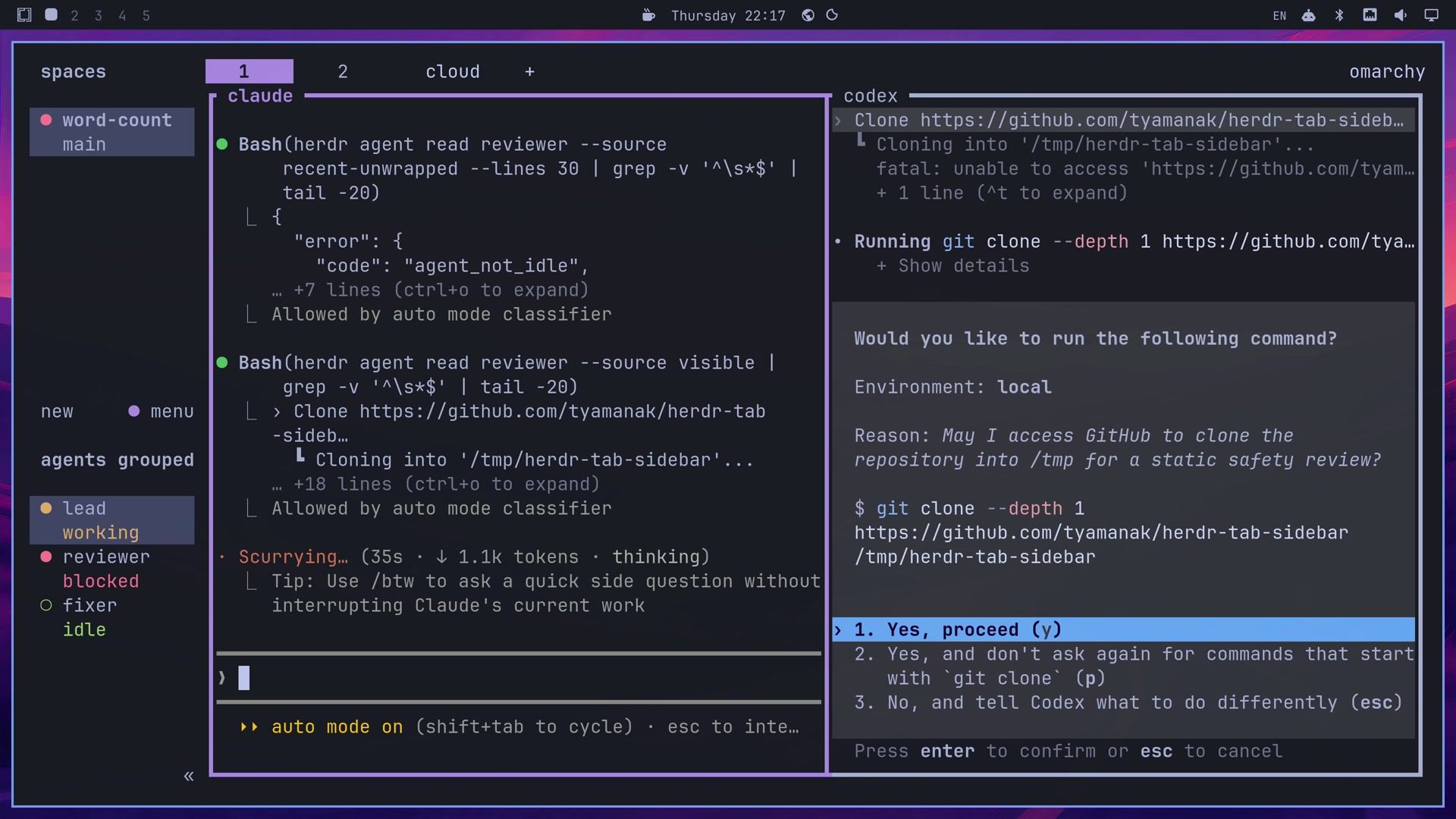
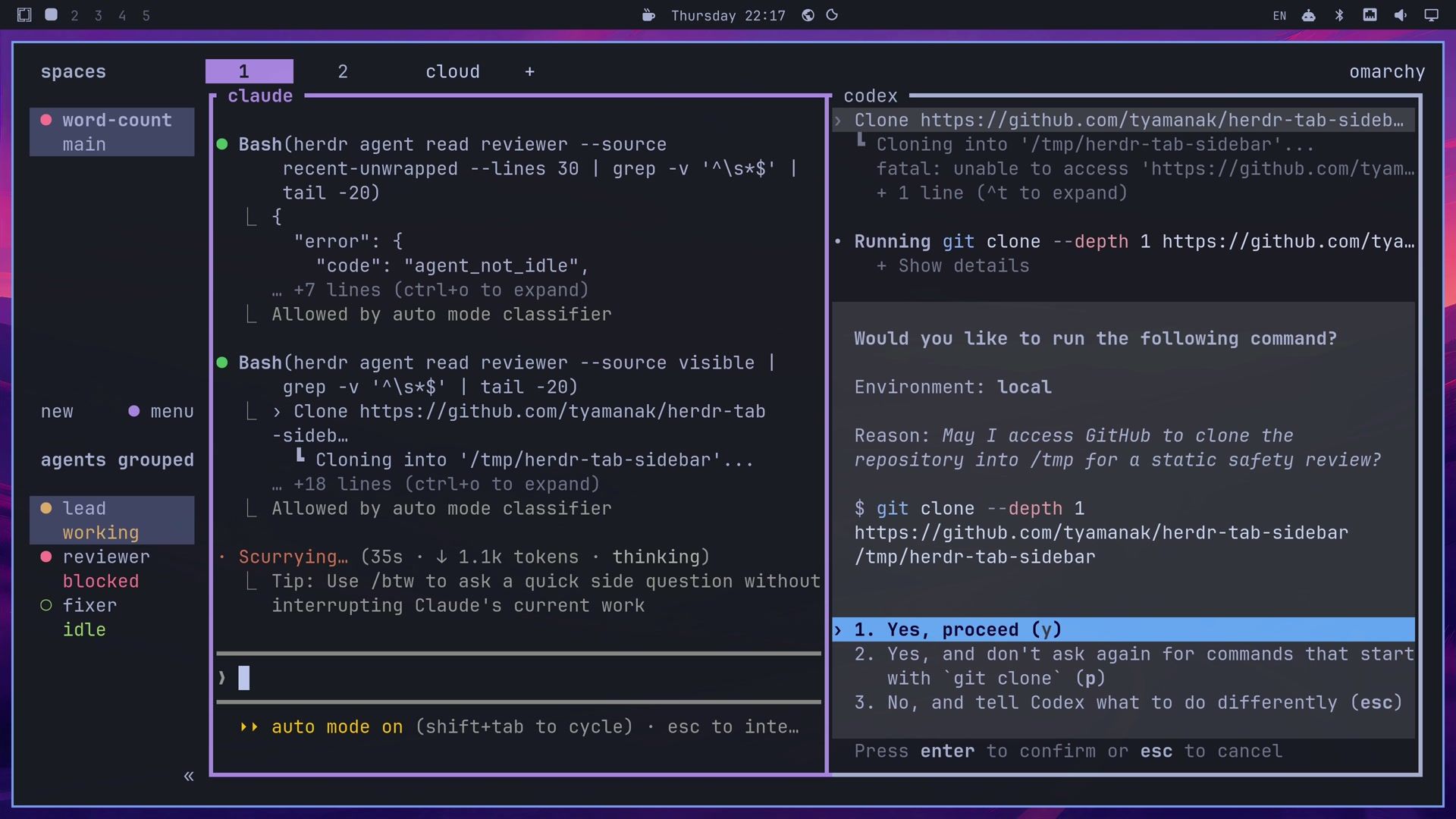
Codex reported three findings. The plugin runs python3 main.py when Herdr starts and on tab, pane, and agent events, and its actions run apply, release, resync, and status. Its apply step edits Herdr’s config.toml after saving a backup, and it writes its own state files. It talks to Herdr over a local Unix socket, and Codex found no internet requests in its code. When you review any plugin, ask the same three questions: what it runs, what it writes, and whether it uses the network.
The plugin adds its own sidebar rows, so our custom rows had to go. The second request turns them off and prepares the install:
If nothing is unsafe, comment out my [ui.sidebar.agents] table in ~/.config/herdr/config.toml so the plugin can add its own rows, then open a pane below Codex without taking focus and prefill the plugin's install and apply commands there for me to run. No usage or quota notes.The lead commented out the table, opened a pane, and typed the install command from the plugin’s README, with one addition: --ref pins the install to the exact commit Codex reviewed, so a later change to the repository cannot slip in.
herdr plugin install tyamanak/herdr-tab-sidebar --ref 0760c919eadd33cf54cc05469d8caf2f02fbf217 && herdr plugin action invoke tyamanak.tab-sidebar.applyIf you review the code yourself, pin the commit you read instead: git rev-parse HEAD in the cloned folder prints it. Run the command, and Herdr prints a preview of the plugin’s id, version, and commit, plus every command it will run, then asks “Install this plugin? [y/N]”. In a short pane the top of the preview scrolls away, so zoom the pane first if you want to read it all.
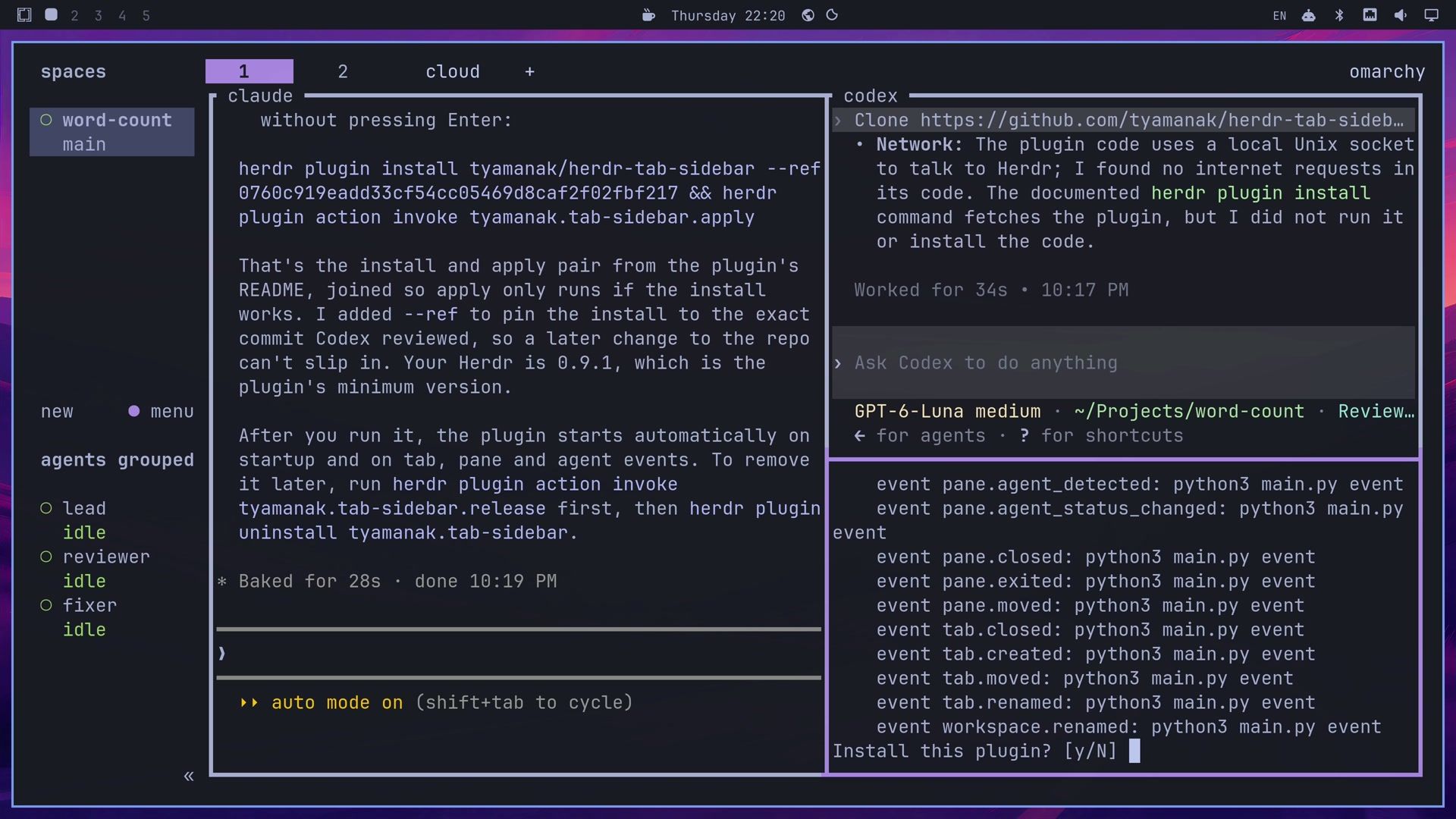
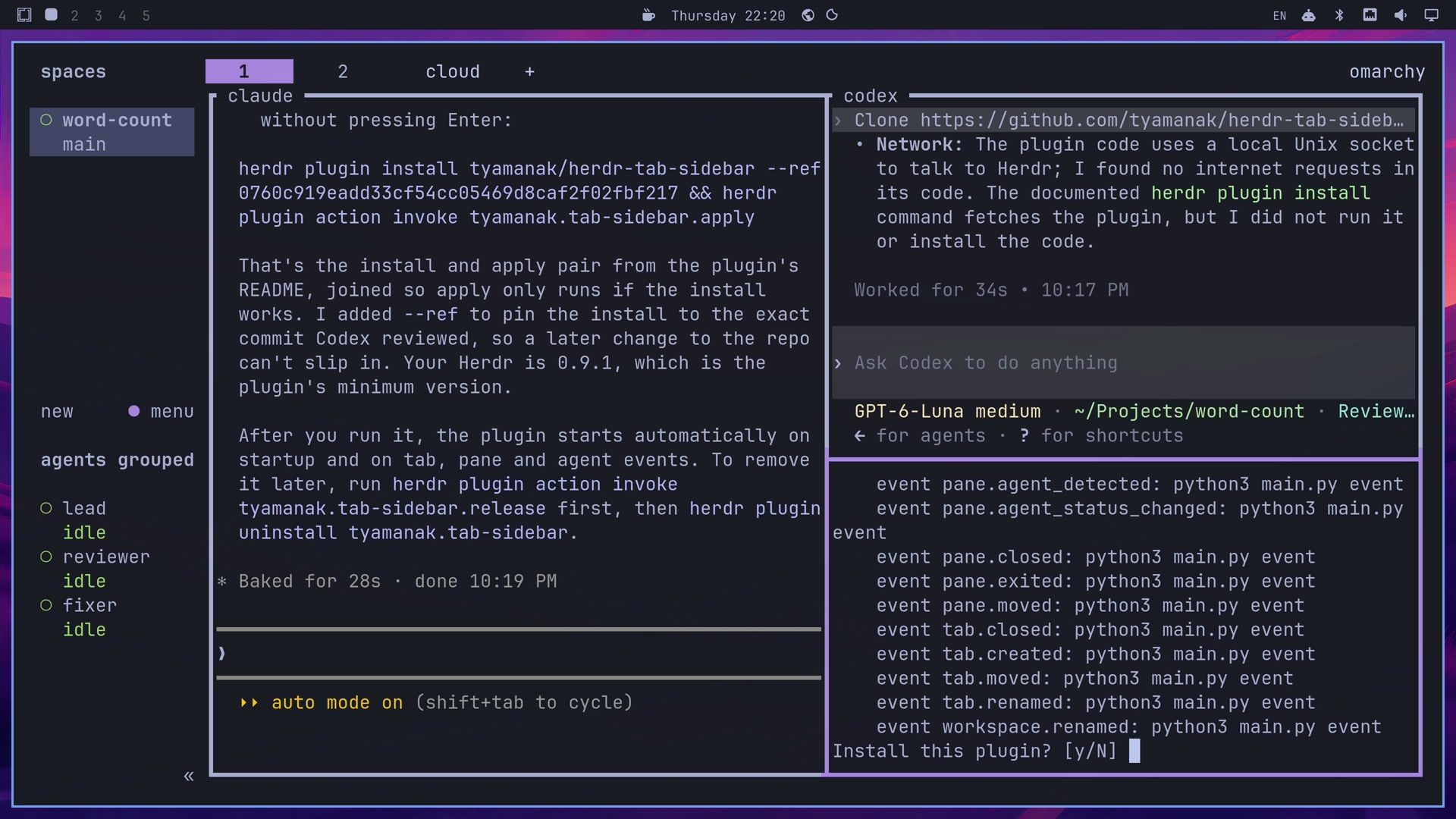
Press y and then enter . The apply step ran at once, and the sidebar heading changed to “agents tabs”, with one row for each tab that has an agent, under the workspace name. To remove the plugin, run its release action first, check that its status action reports state: released, as the plugin’s README says, then uninstall it:
herdr plugin action invoke tyamanak.tab-sidebar.release
herdr plugin action invoke tyamanak.tab-sidebar.status
herdr plugin uninstall tyamanak.tab-sidebar
On Herdr 0.9.1, herdr plugin install reinstalls a plugin rather than updating it; a plugin update command arrived in 0.9.4.
Troubleshooting
The lead renames the pane instead of labeling the sidebar row. Name herdr pane report-metadata and the summary token in the prompt, as in the prompts above, and make sure your sidebar rows include $summary. The label disappears after a server restart.
The Herdr window does not close after herdr server stop. On 0.9.1, a window that has connected to a saved SSH machine, even one you removed later, stays open with “Local server is shutting down; reconnecting”, and super ctrl enter then opens a second window. Close the Herdr window and open a fresh one before you stop the server.
A toast never shows. Herdr shows toasts only for agents in tabs you are not looking at, and only with [ui.toast] set to delivery = "herdr" (or "system" for desktop notifications). alt o works only while the toast is on screen.
Herdr stops following the Omarchy theme. A hex color in the settings, or a built-in theme picked in Herdr’s own settings ( ctrl space then s ), stays fixed. Ask the lead to switch back to named colors and the terminal theme, or run omarchy-refresh-herdr to reset Herdr’s settings to Omarchy’s defaults. That reset also removes your other changes.
Where to go next
Herdr’s documentation covers worktrees, named sessions, sounds, and the full settings list, and herdr.dev links the plugin marketplace. The demo repository we used, herdr-demo-word-count, still has its two planted bugs on the main branch if you want to repeat the review and fix steps.
To add your own Omarchy keys outside Herdr, see our guide to custom Omarchy keybindings. For long-term memory across coding agent sessions, our look at Hindsight memory for coding agents covers a self-hosted option. If you are new to Omarchy, start with what Omarchy is.


