
Goose is a free, open source AI agent. You describe a chore in plain words, and Goose does the steps itself: it runs terminal commands, reads and moves files, and calls extra tools, using the AI model you connect. It comes in two forms, a desktop app and a command line tool called goose, and both read the same settings.
This guide installs Goose on Omarchy, connects a model, and goes through the tasks we tried in each form: sorting a Downloads folder, reading the total from a PDF receipt, asking about a spreadsheet, and saving a fact with the Memory extension.
What you need
You need Omarchy and about 1 GB of free disk space for the package. Omarchy uses the Super key for its shortcuts; on a PC keyboard that is the Windows key. If the Omarchy shortcuts are new to you, our list of Omarchy shortcuts to learn first covers the menu, the terminal, and closing windows.
You also need a model for Goose to use. We used an Anthropic API key, which you create in the Anthropic console and pay for by use. Goose works with many other providers too, such as OpenAI, Google Gemini, and OpenRouter, and with models that run on your own computer through Ollama or LM Studio. The Goose providers page has the full list.
Who makes Goose now
Goose started at Block, the company behind Square and Cash App. Block released it as open source on January 28, 2025, under the Apache 2.0 license.
On December 9, 2025, the Linux Foundation announced the Agentic AI Foundation, a home for open source agent projects that no single company controls. Block gave Goose to the new foundation, and its other two founding projects came from Anthropic (MCP, the Model Context Protocol, a standard that connects AI models to tools) and OpenAI (AGENTS.md). Goose’s extensions are MCP servers, so most MCP servers work as extensions. In April 2026 the code moved to the foundation’s own GitHub organization, at github.com/aaif-goose/goose, and the documentation moved to goose-docs.ai.
The project’s MAINTAINERS file lists six core maintainers, who set its direction, with Bradley Axen, Goose’s creator, among them. Several maintainers work at Block, including at least one of the six core maintainers. Block is also one of the foundation’s platinum members, alongside Anthropic, OpenAI, Google, Microsoft, and others.
Install Goose from the AUR
Goose has no package in Arch Linux’s official repositories, which Omarchy is built on. The upstream project ships a .deb file for Debian and Ubuntu, a .rpm file for Fedora, a Flatpak bundle, and a command line installer script. For Arch, the AUR (the Arch User Repository, where users share build scripts for packages) has goose-desktop-bin, a community package built from Goose’s official Vulkan .deb (goose_1.55.0_amd64-vulkan.deb). On October 21, 2026, the package was at version 1.55.0-1, the same version as Goose’s upstream release from October 16.
Because a community member maintains the package, read its build file before you install it, or have an AI coding agent read it for you. The build file is called a PKGBUILD, and the AUR page links it under View PKGBUILD. The 1.55.0-1 version downloads two files from Goose’s own releases at github.com/aaif-goose/goose, the desktop .deb and the command line tool’s archive, checks them against fixed checksums, and unpacks them into place. The package is for x86_64 computers only.
To install it, press super space to open the Omarchy menu and choose Install, then AUR. The AUR entry sits near the end of the Install list. It opens a terminal with a search of every AUR package. Type goose-desktop-bin, and the list narrows to the one package, with a preview of its version, description, license, and source address. In this preview, alt b shows the PKGBUILD.
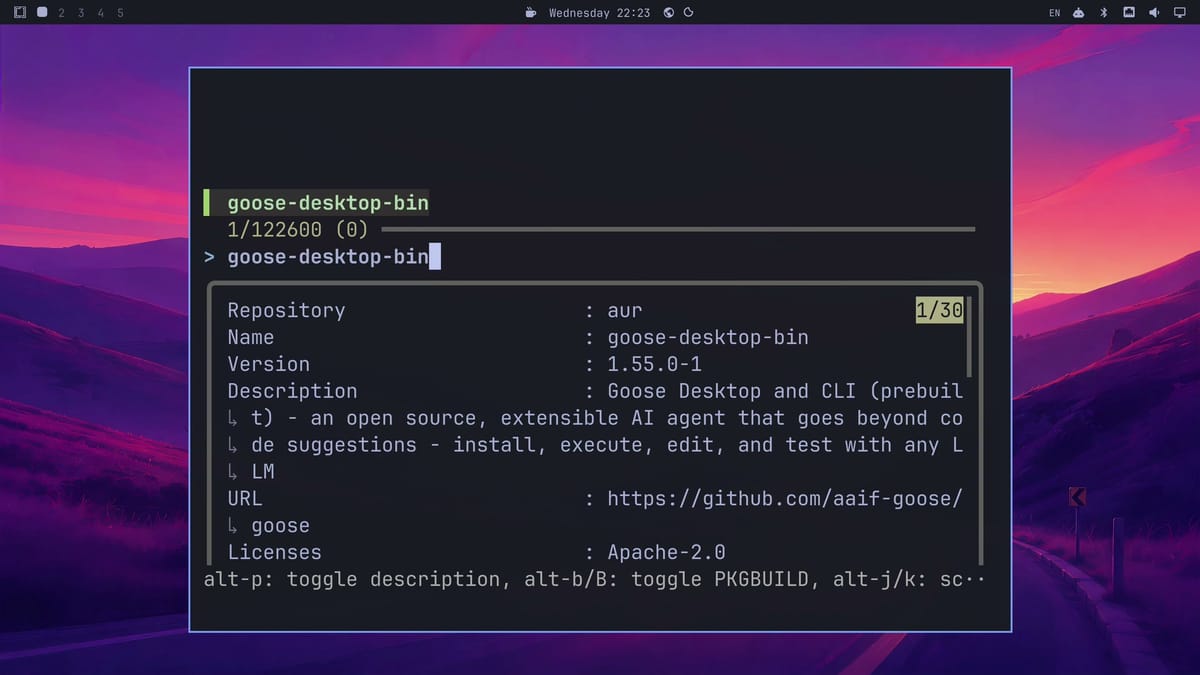
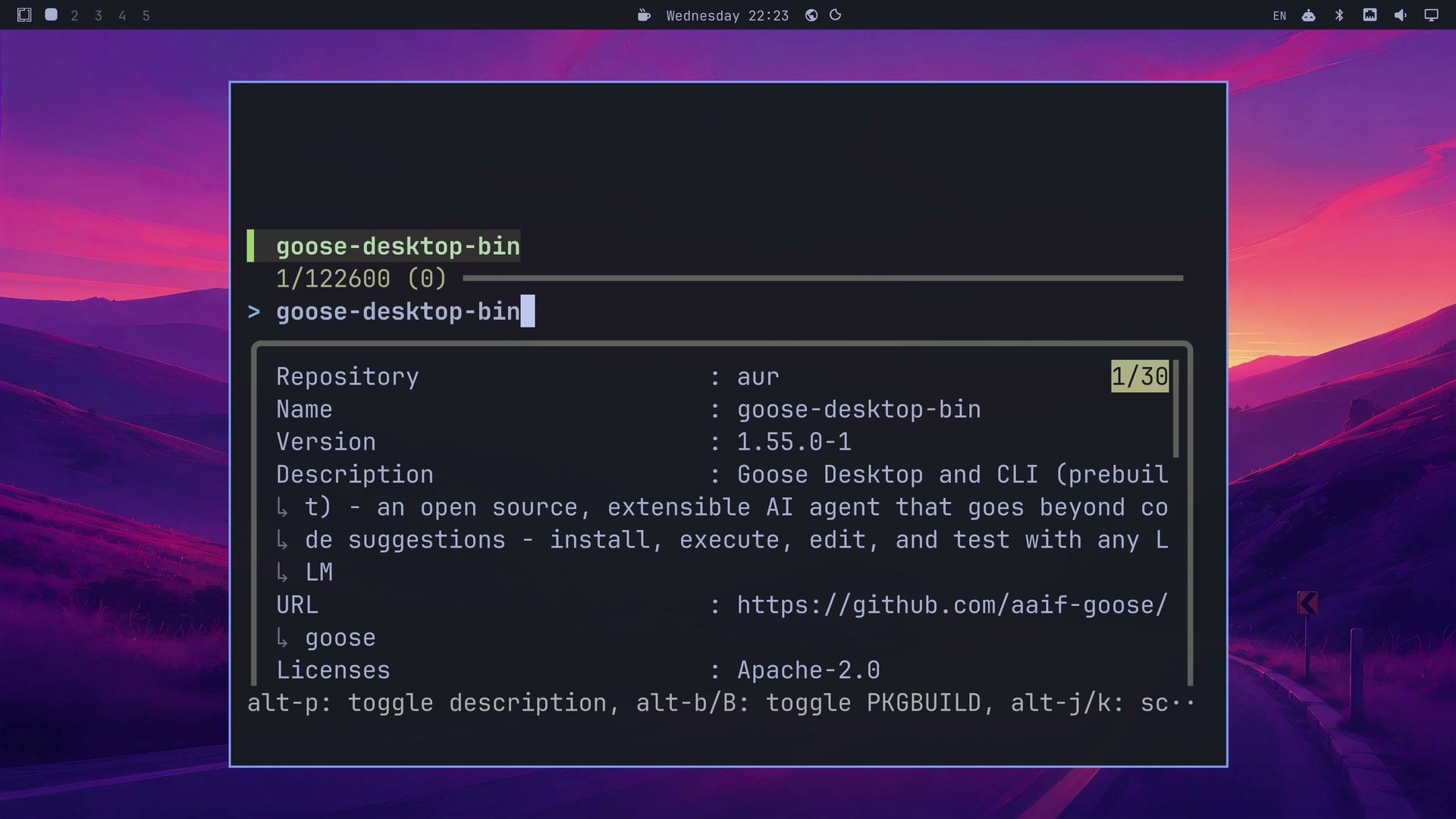
Press enter to install. Omarchy runs yay, the AUR helper it ships with, and the install asked us no questions; type your password if sudo asks for it. It pulled in three small dependencies (trash-cli, python-psutil, and python-six) and finished in about 45 seconds. The installed package takes about 930 MiB. When the terminal says “Done! Press any key to close…”, press a key.
The one package installs both forms of Goose: the desktop app, named Goose Desktop in the menu, and the goose command. If you prefer a terminal, yay -S goose-desktop-bin does the same install. For the command line tool alone, the AUR also has goose-cli-bin.
Install Goose on other Linux distributions
On other distributions, take the files from the Goose releases page or follow the Goose install guide. Ubuntu and Debian use the .deb file, and Fedora uses the .rpm file. Each comes for x86_64 and arm64, plus a “vulkan” build for running local models on a graphics card. The Flatpak is a bundle file on the releases page, not an app on Flathub.
For the command line tool alone, Goose has an install script:
curl -fsSL https://github.com/aaif-goose/goose/releases/download/stable/download_cli.sh | bashThe script starts goose configure when it finishes. Add CONFIGURE=false before bash to skip that, and run goose update later to update the tool.
Connect a model in the terminal, not in the app
Open Goose Desktop from the menu: press super space , type goose, and choose Goose Desktop. The first screen reads “Welcome to goose” and offers two cards, Use a Local Model (download a model and run it on your computer, with no account) and Connect to a Provider.
Click Connect to a Provider, and a list opens with Anthropic, ChatGPT Codex (a sign-in with a ChatGPT subscription), Google Gemini, and more. Type Anthropic to filter it and click the row. The app asks for an “Anthropic API Key” and says the key is stored in the system keychain.
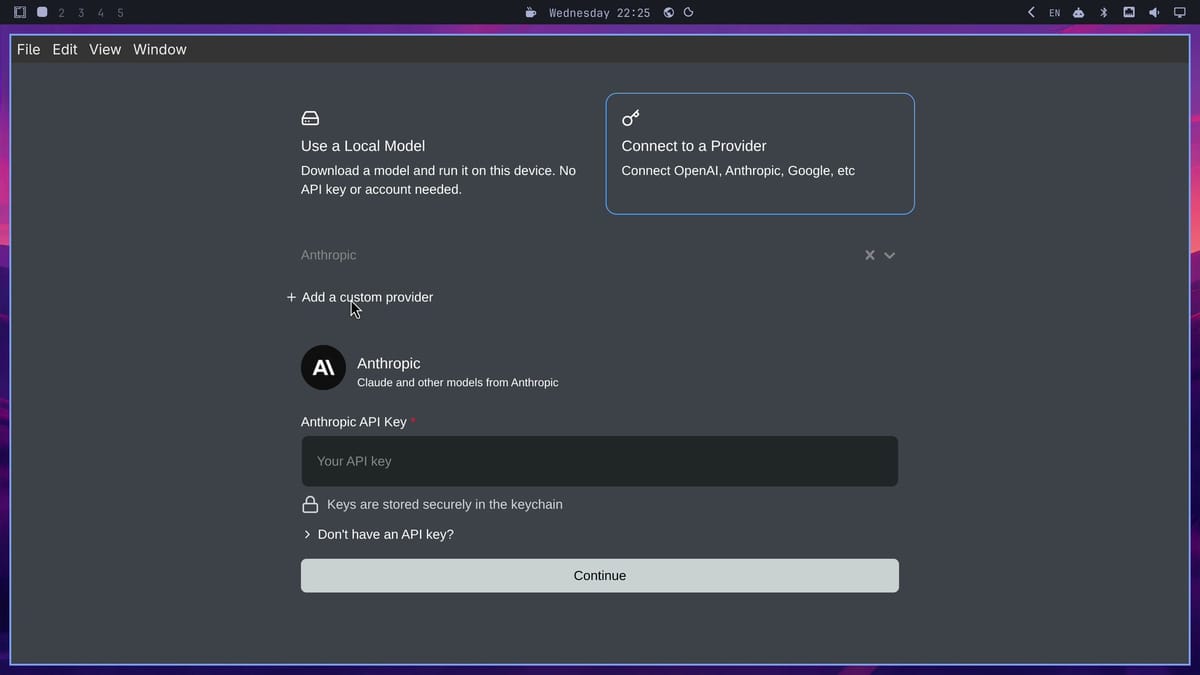
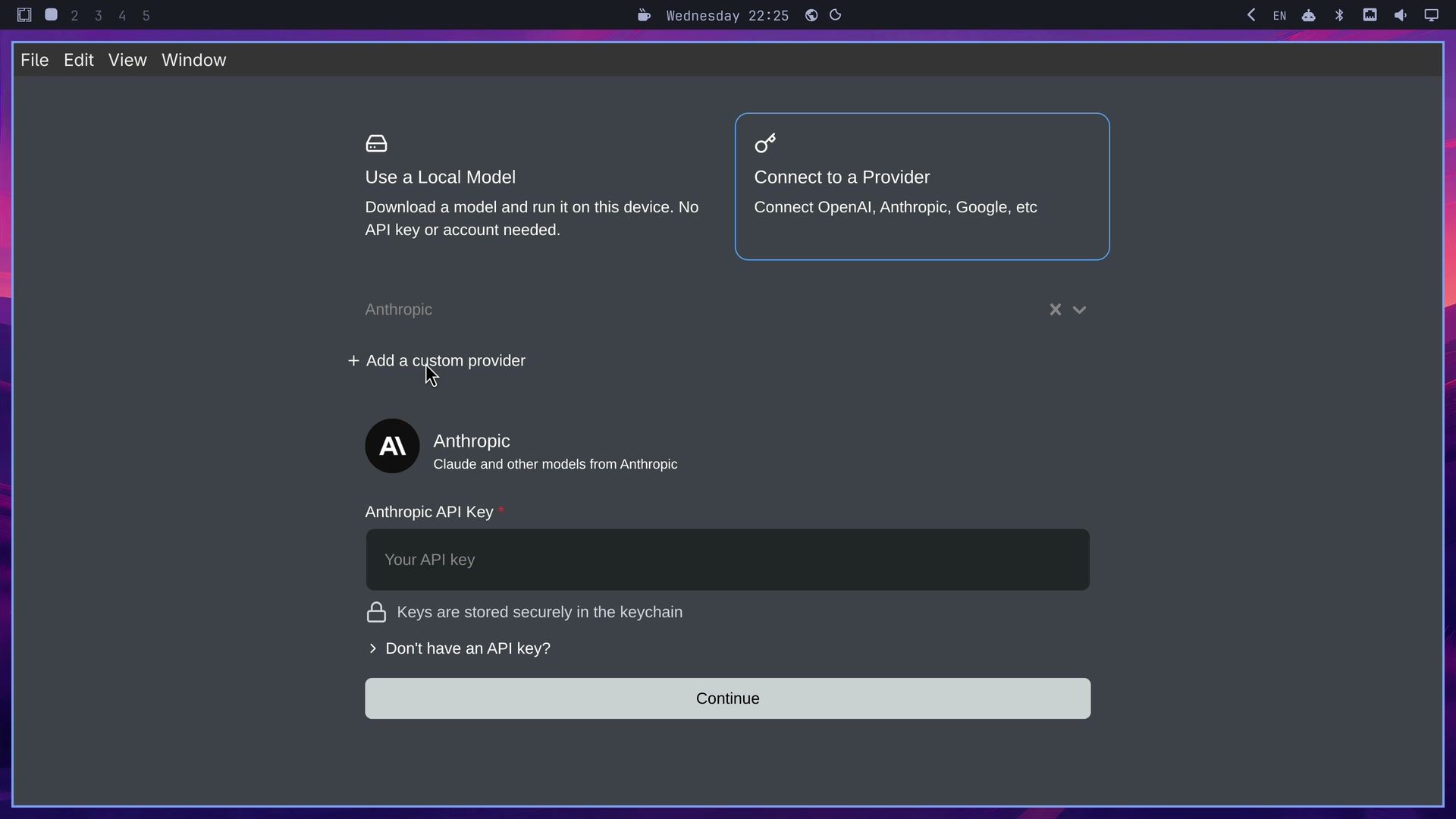
Do not paste your key here. In Goose 1.55.0 this field shows what you type in plain text, so anyone who can see your screen, or a screen recording, can read the key. The terminal setup hides the key as you type it, and the app reads the same settings, so we did the connection there. Close the app with super w , then press super enter to open a terminal and run:
goose configureOn a fresh install, this runs a first-time setup. Step through it like this:
- “Share anonymous usage data to help improve goose?” starts with Yes selected. The screen lists what Goose collects (your operating system, versions, the provider and model, extension and tool usage counts, session metrics, and error types) and says it never collects your conversations, code, or personal data. To turn sharing off, press to select No and press enter .
- “How would you like to set up your provider?” lists OpenRouter Login (Recommended), Tetrate Agent Router Service Login, and Manual Configuration. Select Manual Configuration and press enter . The first row starts an OpenRouter sign-in instead.
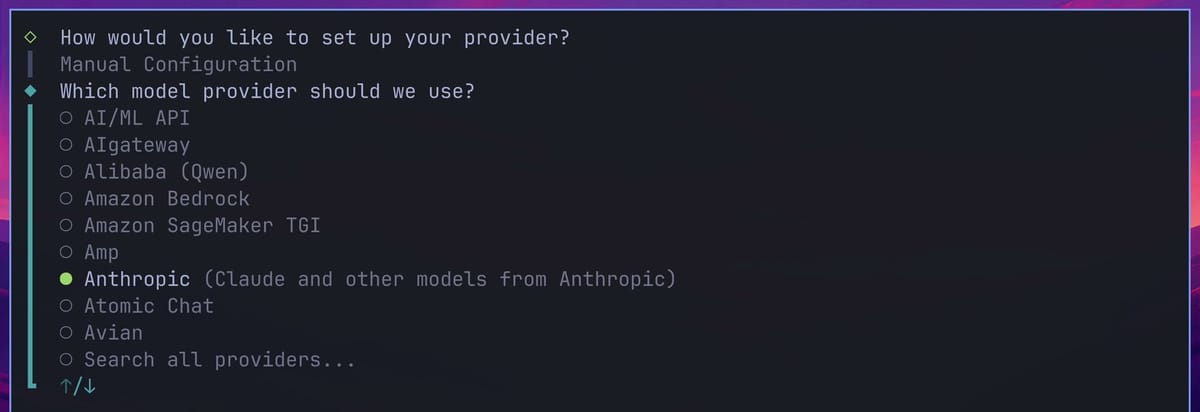
- “Which model provider should we use?” is an alphabetical list, and typing does not filter it. Select Anthropic and press enter .
- At “Provider Anthropic requires ANTHROPIC_API_KEY, please enter a value”, paste your key and press enter . The prompt shows a dot for each character.
- “Would you like to configure advanced settings?” starts on No. Press enter .
- Goose fetches the models your key can use and shows “Select a model:”. Pick the Claude Sonnet entry that Goose marks Recommended and press enter .
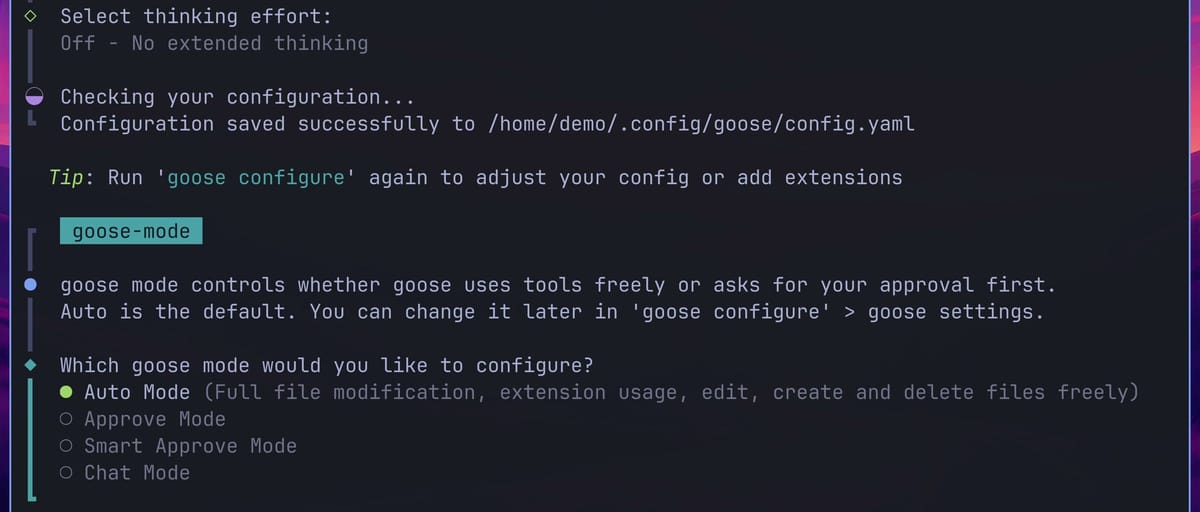
- “Select thinking effort:” starts on Off. We kept Off, which answers faster and uses fewer tokens.
- Goose prints “Configuration saved successfully” with the path of its settings file,
~/.config/goose/config.yaml. The key itself goes to the system keyring, not to that file.
The last question sets the goose mode, which decides whether Goose uses tools freely or asks you first. Auto Mode, the default, lets Goose create, edit, and delete files without asking. We kept Auto for the tasks below; the section on modes further down covers how to change it.
If you opened Goose Desktop before you ran goose configure, the first-time setup does not run: the app already wrote a settings file. You get the menu “What would you like to configure?” instead. Choose Configure Providers and go on from step 3. The app may then ask about usage data itself, in a “Help improve goose” prompt; choose No thanks to keep it off.
Sort a folder from the desktop app
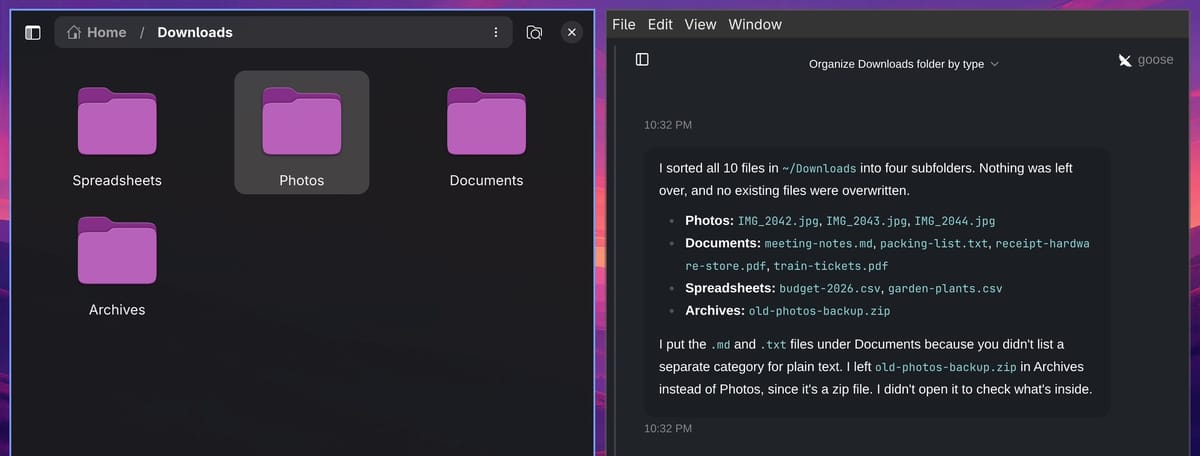
Open Goose Desktop again. After the restart it reads the new settings and opens on the chat home, with the model, the working folder, a running cost of $0.00, and the number of extensions in the footer. The example here uses a Downloads folder, open in Files, with ten loose files: three photos, two PDFs, two CSV spreadsheets, a Markdown note, a text file, and a zip archive.
Type a request like this one and press enter :
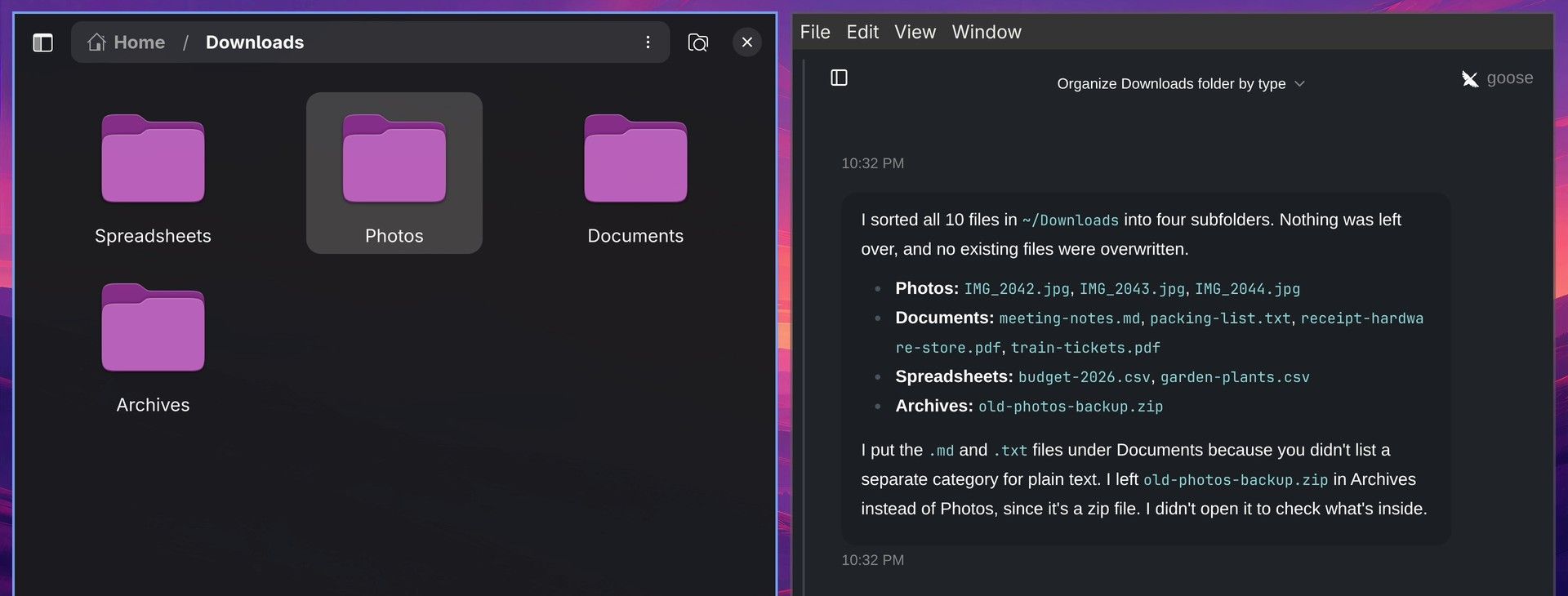
Sort the files in my Downloads folder into subfolders by type: Photos, Documents, Spreadsheets and Archives.Goose listed the folder, then ran one command that made the four folders and moved the files. The new folders appeared in Files. The reply listed every file under its new folder and explained two choices: it put the Markdown and text files under Documents, because we had not named a category for plain text, and it left the zip file in Archives without opening it.
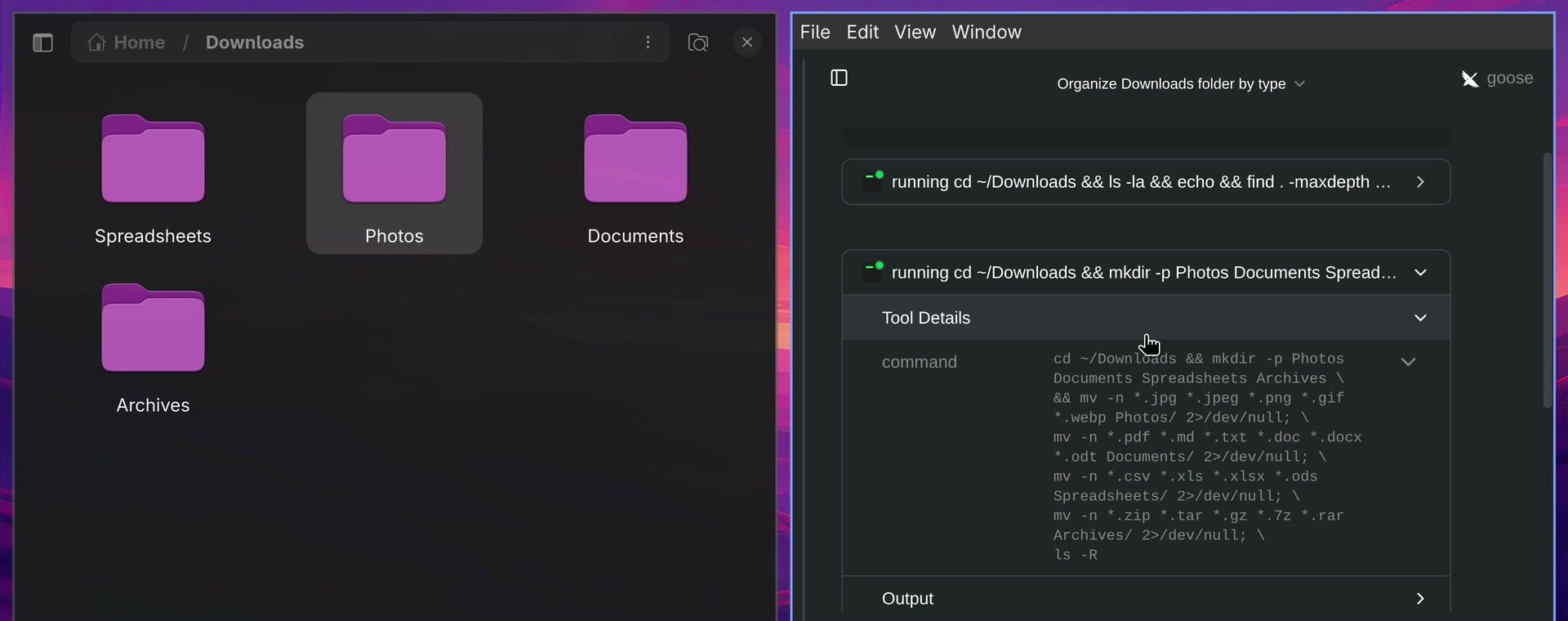
Each command Goose runs shows in the chat as a tool call, with a green dot when it worked and a red dot when it failed. Click the arrow at the end of a tool call, then Tool Details, then the command, to read the whole command. Ours was a mkdir -p for the four folders and one mv -n per category; the -n flag means no existing file gets overwritten.
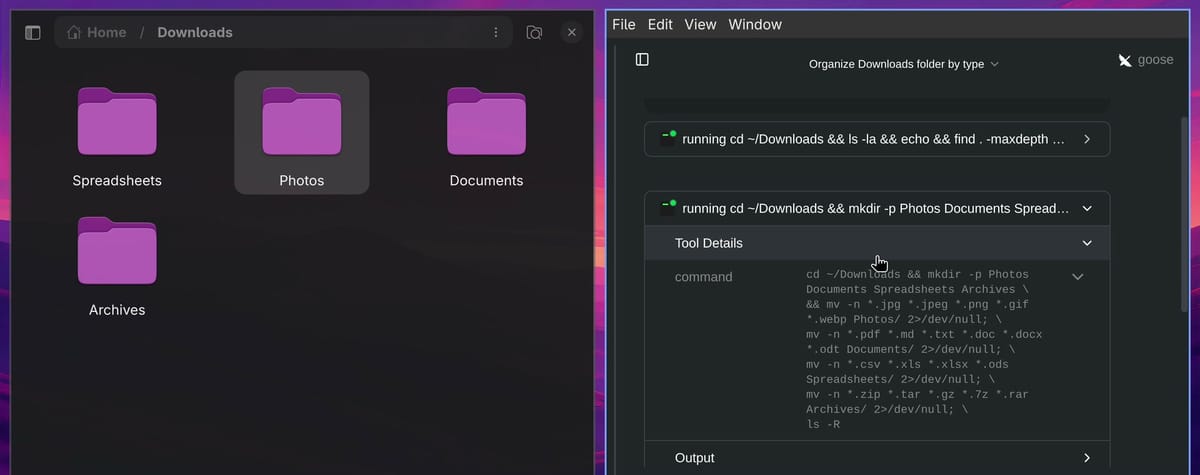
Reading these tool calls is the way to check what Goose did to your files. A request like this one is easy to undo, but a vague request in a folder you care about can move or delete more than you meant.
To start a fresh chat, open the sidebar with the icon at the top left and click New Chat. ctrl n opens a second Goose window instead.
Read a PDF with the Computer Controller extension
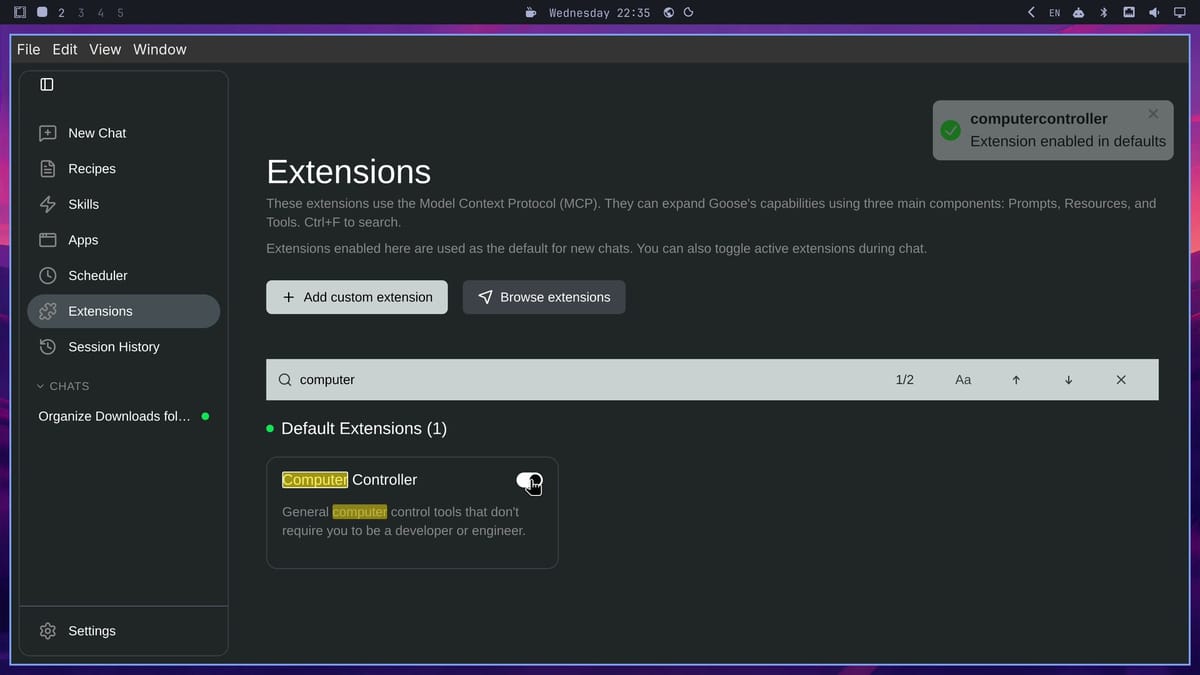
That sort used the Developer extension, which lets Goose run terminal commands. Extensions are how Goose gets its tools, and they use MCP. To see them, open the sidebar and click Extensions. Seven are on by default.
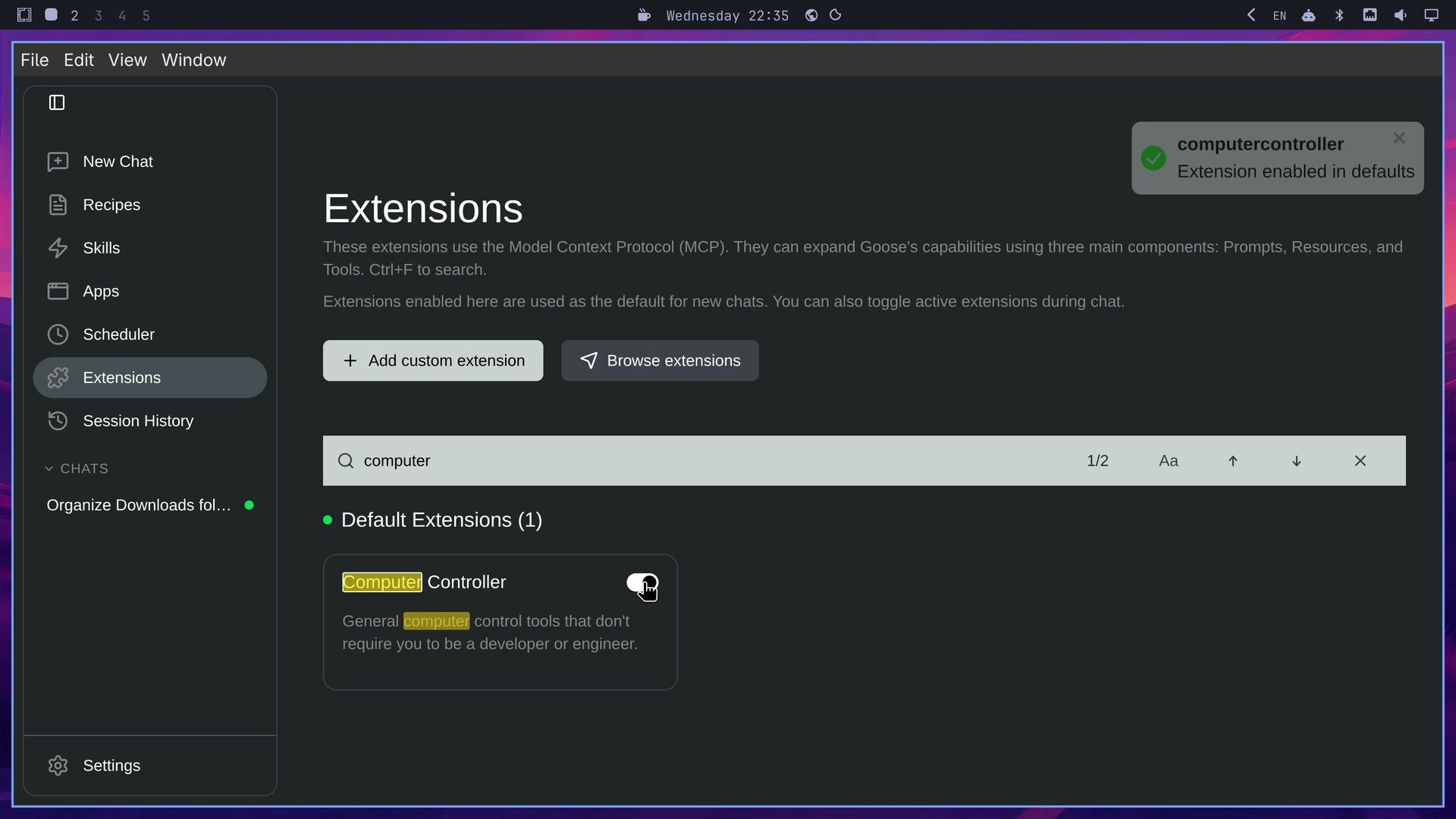
Press ctrl f and type computer to find Computer Controller, then click its switch. A message confirms “Extension enabled in defaults”, which means it applies to new chats. On Linux, Computer Controller adds tools for PDF, Word, and Excel files. Its mouse and app-control tool works only on macOS; on Linux, the extension tells the agent to use shell commands for automation instead.
Click New Chat in the sidebar so the extension loads, and the footer’s extension count goes from seven to eight. We asked:
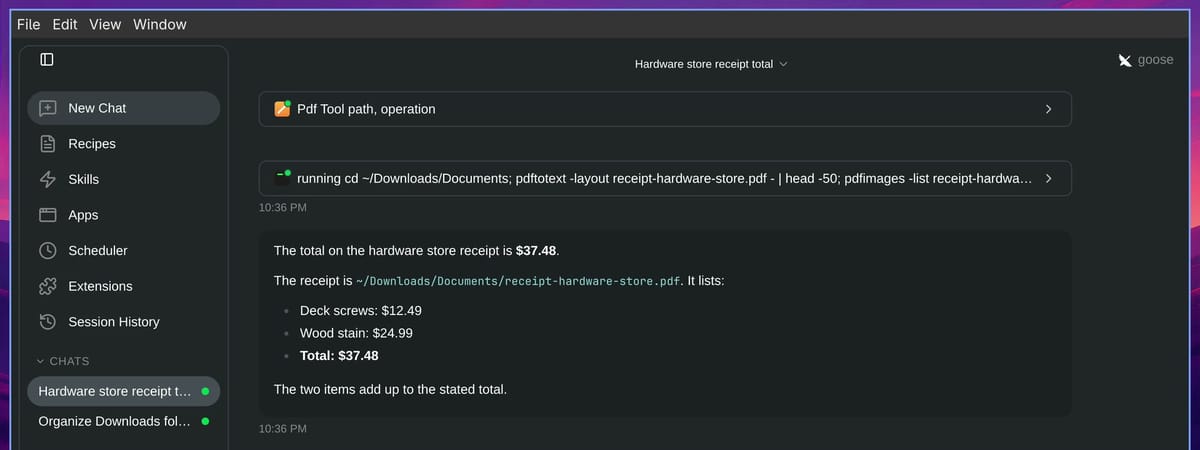
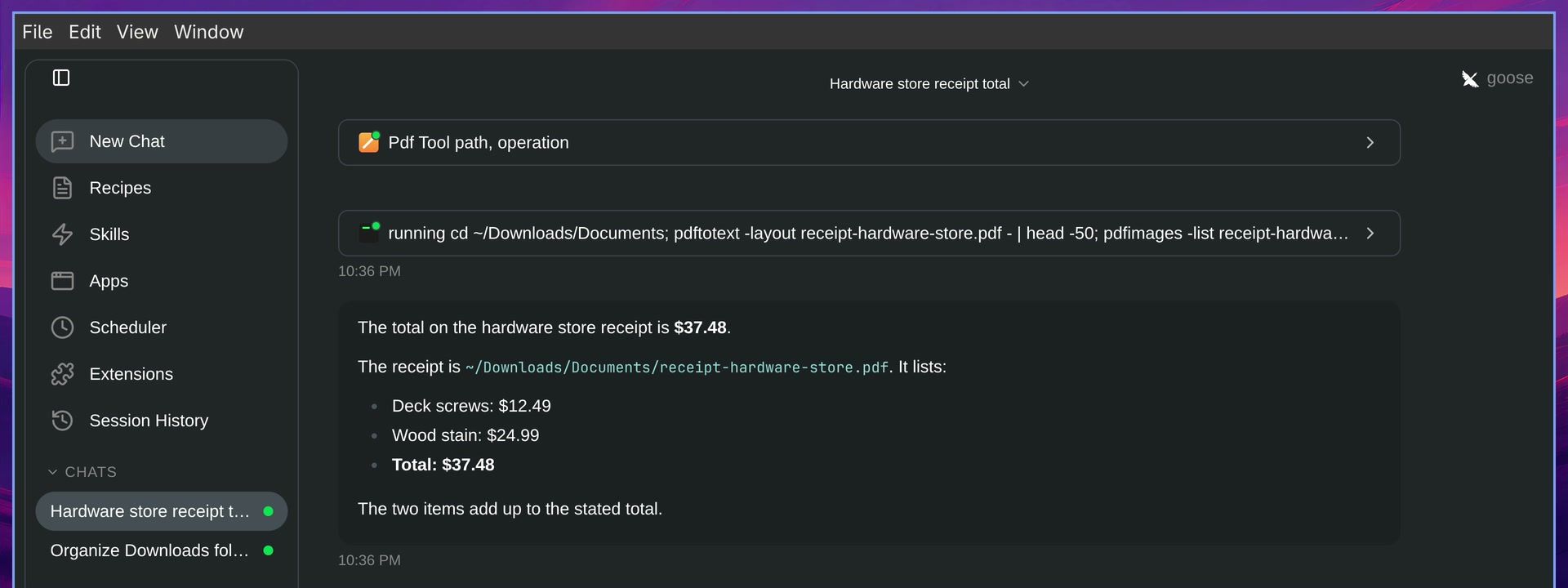
What is the total on the hardware store receipt in my Downloads?Goose found the receipt in the new Documents folder and answered “The total on the hardware store receipt is $37.48”, with the two items it listed adding up to that total. The first tool call shows Computer Controller’s Pdf Tool, and a second one runs a shell command with pdftotext. The model picks the tools for each step, so it may use the extension, a shell command, or both. A request to turn a CSV file into an Excel file may use shell commands alone.
Use Goose from the command line
In a terminal, start a chat with:
goose sessionThe header shows the provider and model from goose configure, a session ID, and the working folder. Type a request and press enter ; ctrl j adds a new line instead. We asked “Which month had the highest grocery spending in my budget spreadsheet?” Goose searched the home folder for spreadsheets, printed the CSV file, and answered that January had the highest grocery spending, at $420, in about five seconds.
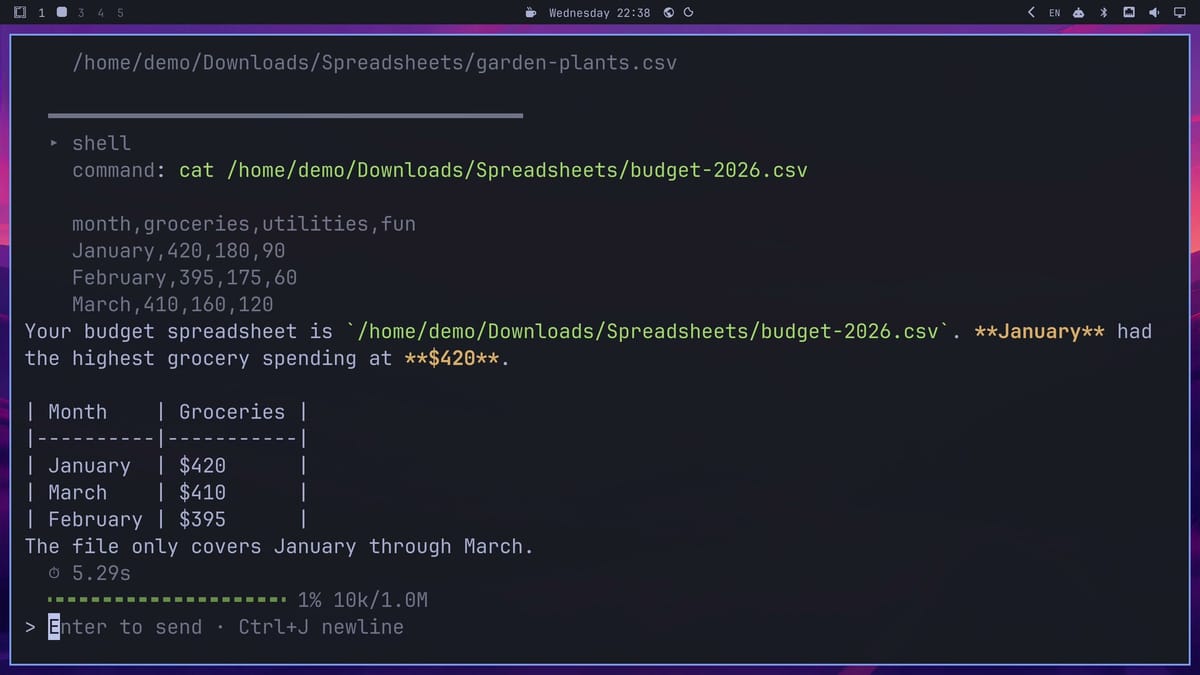
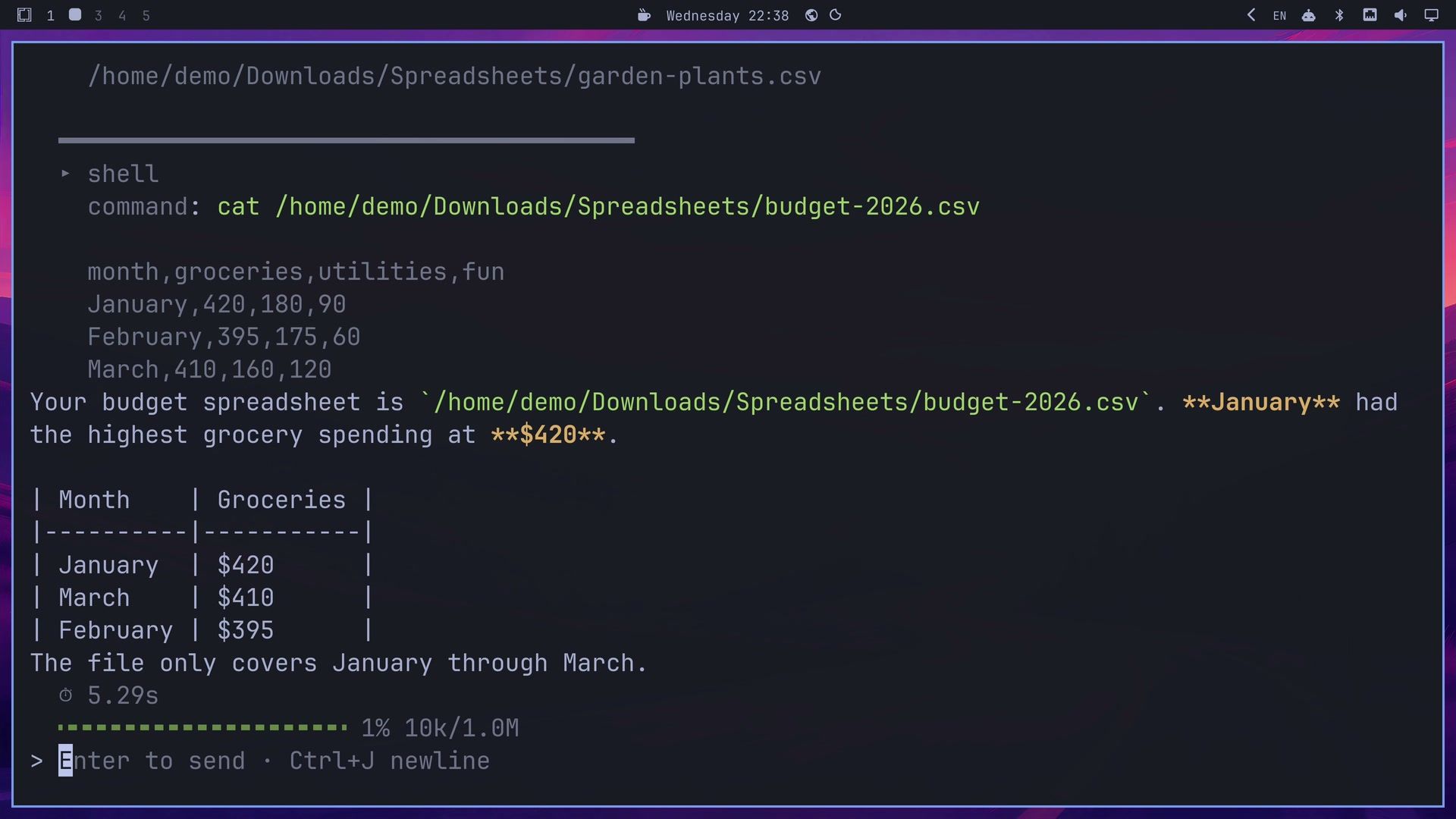
In the terminal, each tool call prints in full, with its command and its output, where the app shows each call as one line you can open. The terminal also prints Markdown as plain text, so bold words show with ** around them and tables show their pipes. Type /exit to leave a session.
Keep facts between sessions with Memory
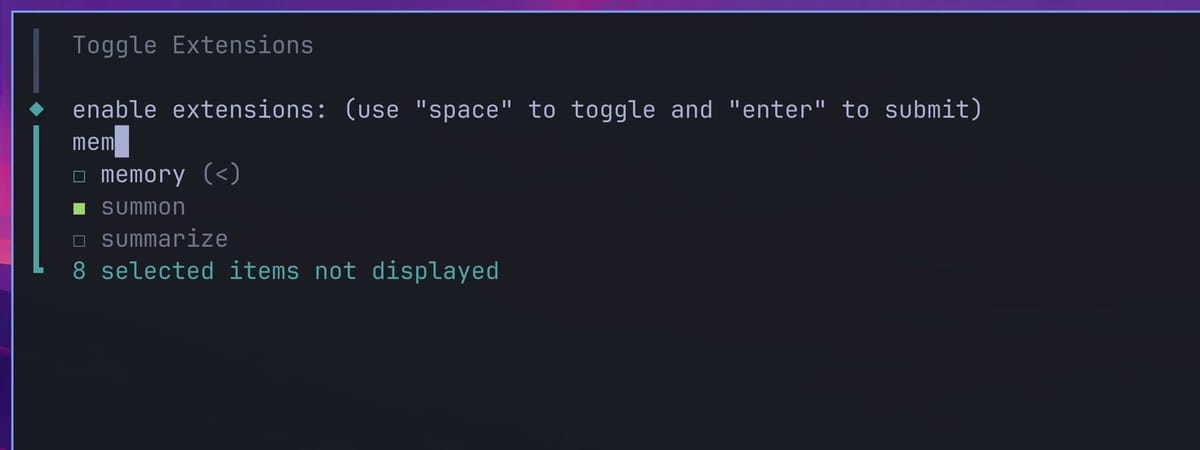
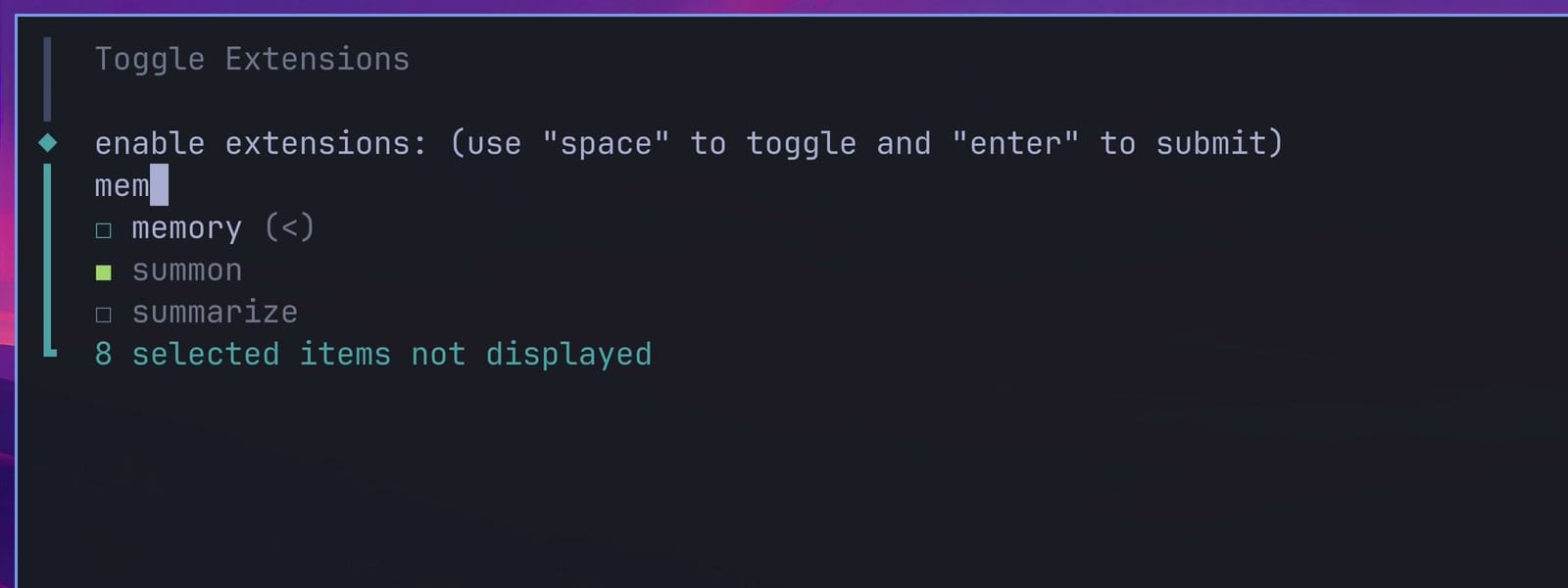
The Memory extension lets Goose save facts and recall them in later sessions. It is off by default. You can turn it on in the app’s Extensions page or in the terminal:
- Run
goose configureand select Toggle Extensions and press enter . - Type
memto filter the list. - Press space to tick memory, then press enter to save.
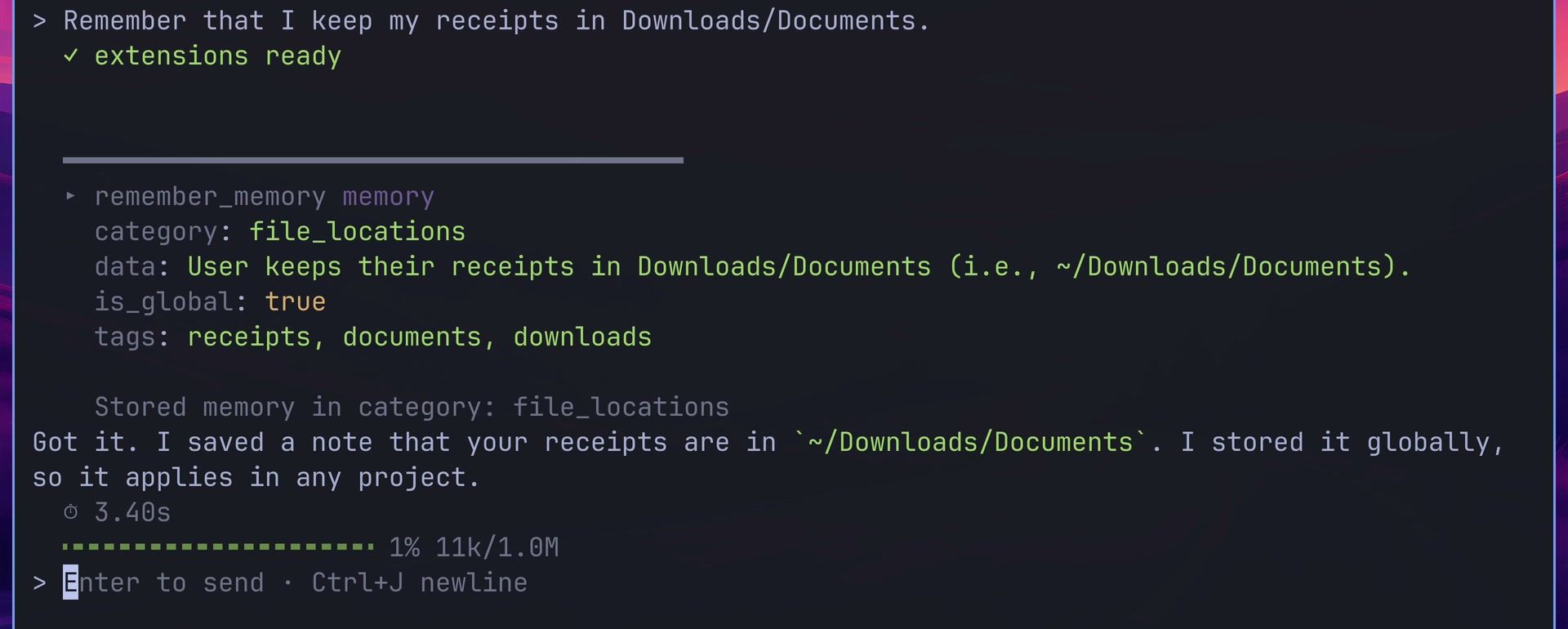
We started a new session with goose session and typed “Remember that I keep my receipts in Downloads/Documents.” Goose called the remember_memory tool, stored the note in a category it named file_locations, and marked it global, so it applies in any folder you start Goose from.
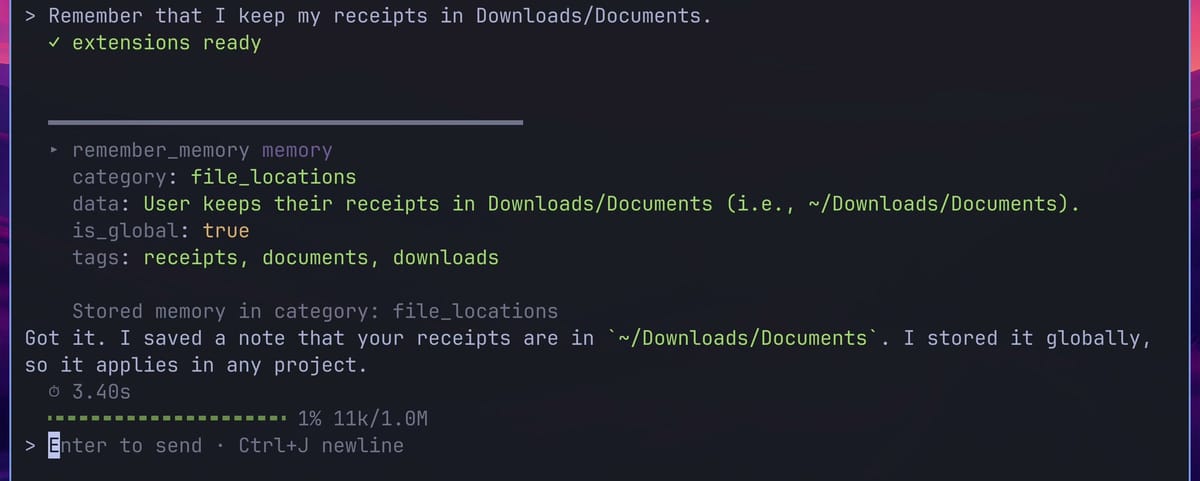
To test it, we left with /exit, started another session, and asked “Where do I keep my receipts?” The new session answered from memory: “You keep your receipts in ~/Downloads/Documents.”
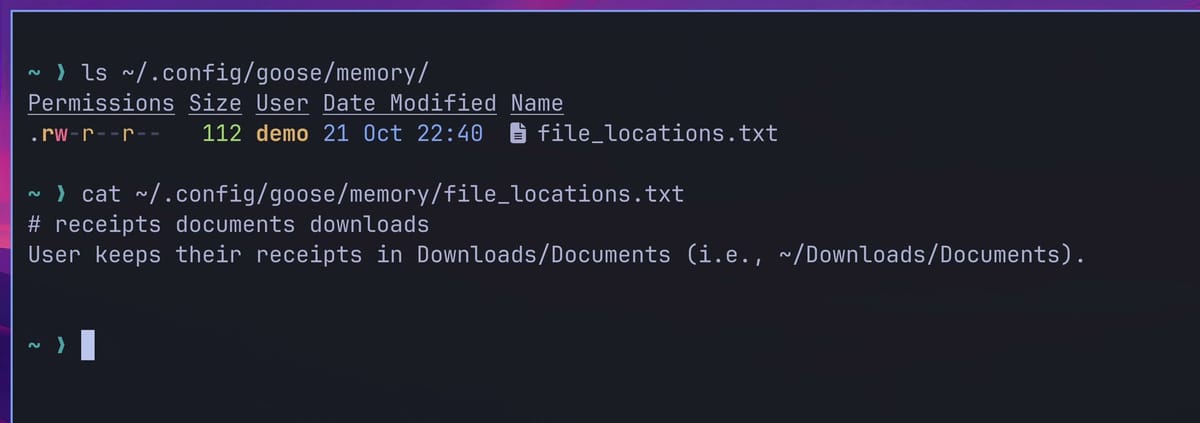
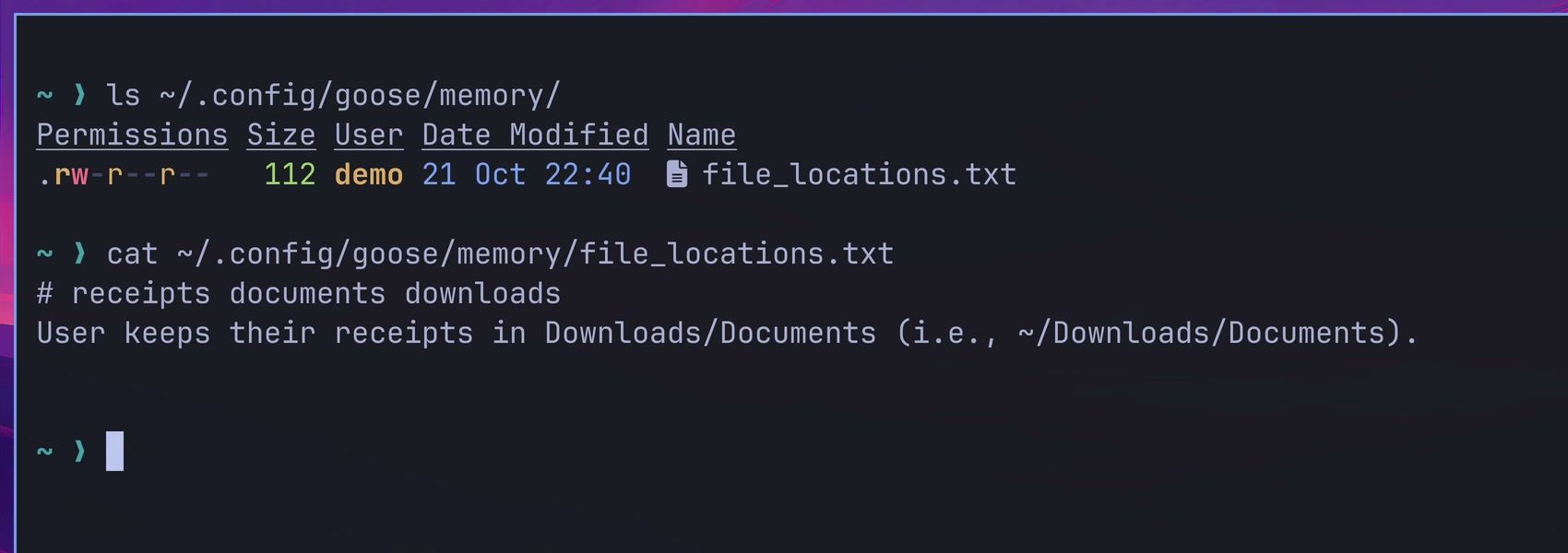
Global memories are plain text files, one per category, in ~/.config/goose/memory/. Ours was file_locations.txt, with the tags on the first line and the note below. Open these files to see what Goose has saved, or edit or delete them. Memories for a single project go to .goose/memory/ inside that project’s folder instead.
Choose when Goose asks before it acts
Every task in this guide ran without a single approval prompt. Goose’s default mode, called Auto in the terminal and Autonomous in the app, lets it run commands and change files freely. That is quick for a test folder, and it is the main setting to check before you point Goose at files you care about.
In the app, open the sidebar, click Settings at the bottom, then the Chat tab. The Default Mode section has four choices:
- Autonomous: edits, creates, and deletes files freely. The default.
- Manual: asks for your approval before every tool, extension, and file change.
- Smart: asks only for the actions it judges risky.
- Chat only: talks with the model without using any tools.
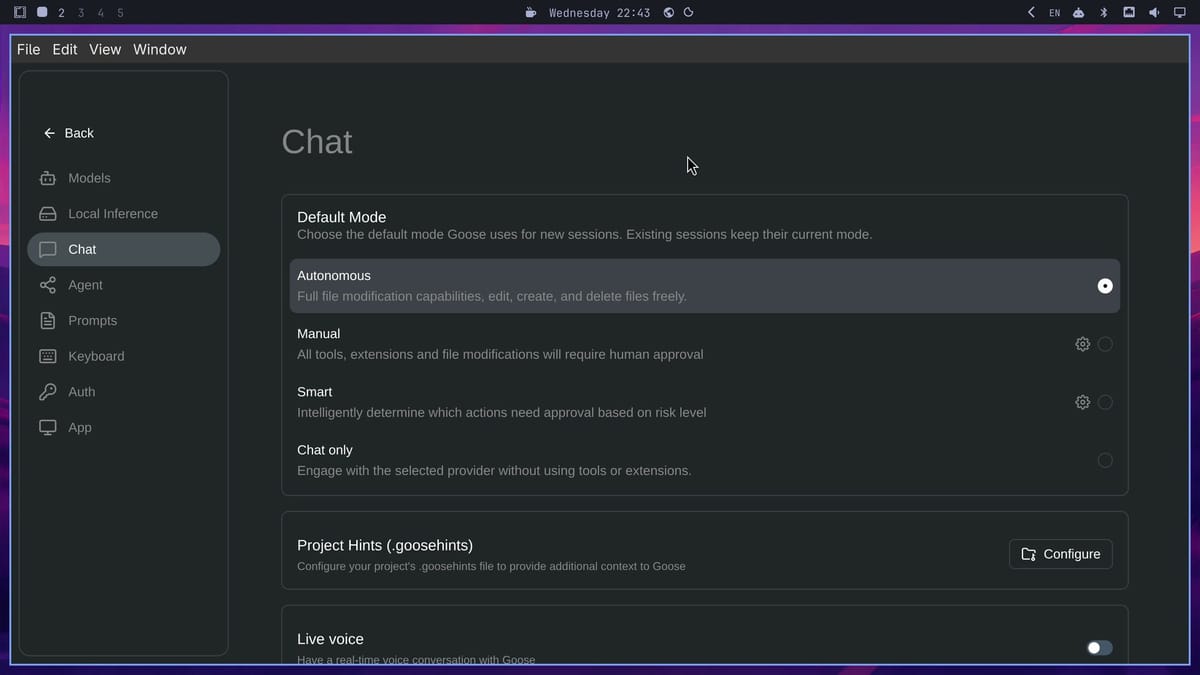
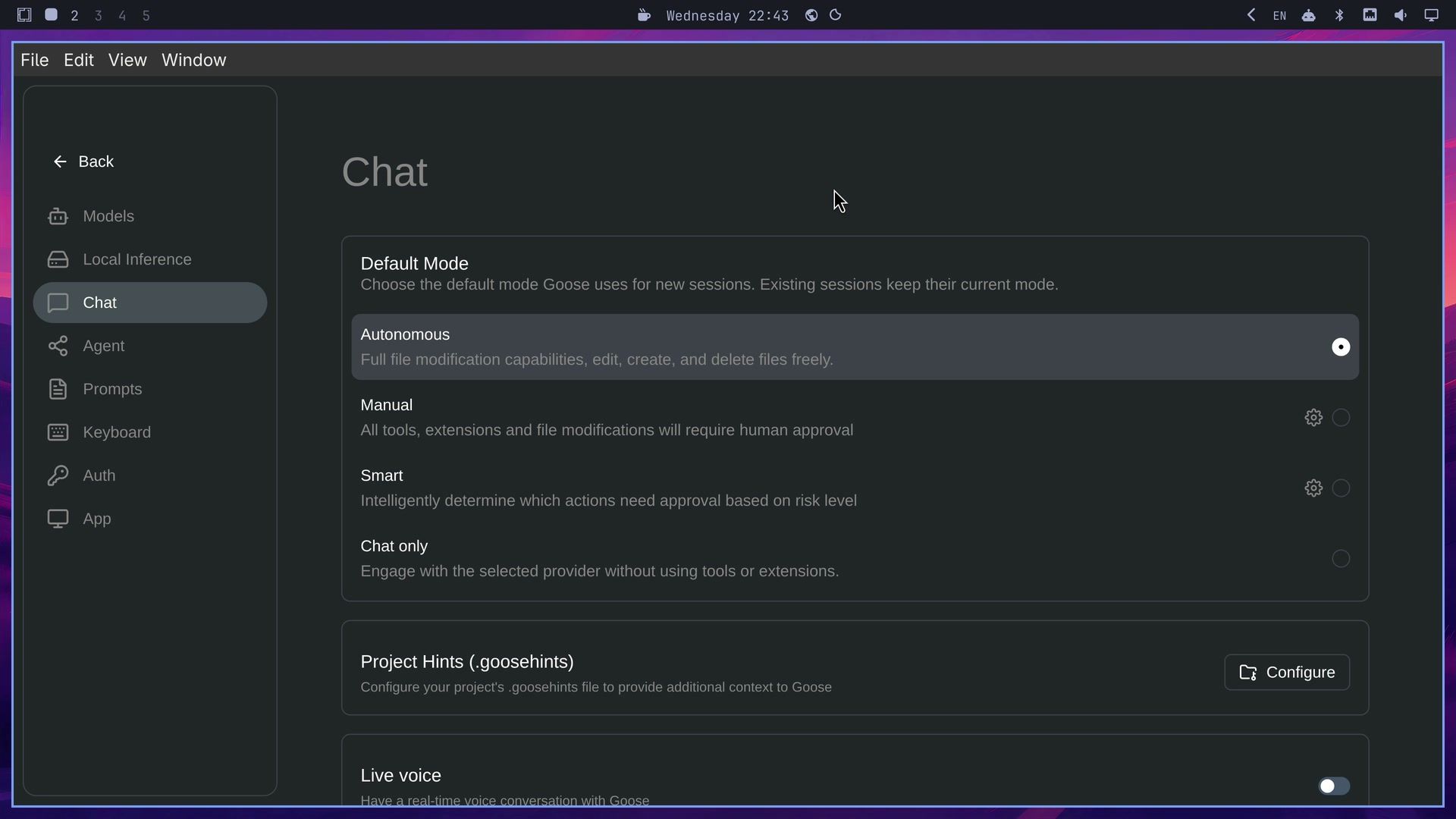
A change here applies to new sessions; chats that are already open keep their mode. In Manual and Smart, Goose shows Allow and Deny buttons on a tool call before it runs. In Smart, the split between read-only and file-changing actions is the model’s best-effort guess, as the Goose permissions docs say. If a wrong guess would cost you files, Manual mode asks before every change.
In the terminal, run goose configure, choose goose settings, then goose mode, and pick Approve Mode or Smart Approve Mode. Inside a running session, /mode approve switches that session to Manual at once.
What Goose costs
Goose itself is free and open source. The model provider bills you for what you use, and the app’s footer shows each chat’s running cost. With Claude Sonnet through the Anthropic API, the folder sort cost $0.03 and the receipt question $0.04.
A model that runs on your own computer through Ollama or LM Studio costs nothing beyond the hardware, but it needs a capable machine to answer well; our guide to mini PCs for running local LLMs covers what that takes. The Goose docs also list free starting points, such as the Gemini API’s free tier.
Remove Goose
To remove the package, run sudo pacman -Rns goose-desktop-bin in a terminal. Your settings, chats, and memories stay in ~/.config/goose, ~/.local/share/goose, and ~/.local/state/goose, and the desktop app keeps its own settings and logs in ~/.config/Goose (with a capital G). Delete those folders if you want them gone too. The API key stays in your system keyring, so if you are done with it, revoke it in your provider’s console as well.
Newer versions may look different
Goose ships a new minor release about once a week, and its provider list and menus change often. This guide follows Goose 1.55.0 from the AUR package goose-desktop-bin 1.55.0-1, on Omarchy 4.5 RC1. Labels, the default extensions, and the order of the setup questions may differ in your version. The Goose documentation covers the current release.
Where to go next
For other AI agents on Omarchy, see our guides to Hermes Desktop, which installs from Omarchy’s own Install > AI menu, and OpenClaw and its security settings. Five Omarchy plugins that bring AI to your desktop covers smaller AI tools, and our look at self-hosted memory with Hindsight covers long-term memory for coding agents in more depth. If you are new to Omarchy, start with what Omarchy is.


