
Omarchy uses the Hyprland window manager, which arranges your windows as tiles. Each new window takes its own part of the screen, and you move between them with the keyboard. If you come from a Mac or Windows, you are used to windows that overlap and a dock or taskbar to click. Omarchy’s Dev channel now adds a floating layout: windows that you drag around, each with a titlebar, plus a dock at the bottom of the screen.
Our video, embedded above, shows each step. Below, you switch one workspace to floating, use the titlebar buttons and the dock, and then make floating the default for new workspaces. Super L cycles any workspace back to tiling. The video is a preview from the Dev channel, and details may change before the final release.
On October 20, 2026, after the video, these features shipped in the first Omarchy 4.5 release candidate. omarchy-channel-set rc switches to the RC channel and installs Omarchy packages instead of linking a source checkout. Our guide to what’s new in Omarchy 4.5 covers the rest of that release.
What you need
You need Omarchy on the Dev channel, as in the video, or on the RC channel. When the video was made, 4.0.4 was the current release, and it does not have these features. The 4.0.5 and 4.0.6 updates do not add them either. The Familiar Desktop plugin adds a dock and window buttons to Omarchy 4.0, but its author ended feature development on October 13, 2026 and no longer recommends new installs. The labels and messages below match the Dev channel as of October 15, 2026.
Most shortcuts here start with the Super key, which is the Windows key on a PC keyboard. If Omarchy’s shortcuts are new to you, start with our list of Omarchy shortcuts to learn first.
Switch to the Dev channel
The Dev channel links your Omarchy install to a copy of the source code. When you switch, Omarchy prints this warning: “The dev channel links Omarchy directly to a checkout of the source in ~/omarchy. It’s exclusively intended for developers working on Omarchy itself.” A second prompt asks “Switch to dev channel?”, and No is selected by default.
Make a snapshot first, so you can go back to a working system from the boot menu. Our guide to Omarchy snapshots and Limine rollback shows how. Then open a terminal with super enter and run:
omarchy-channel-set devThe command shows the warning and waits for your answer. Pick Yes to continue. It downloads the source into ~/omarchy, asks for your password, updates the system, and marks a reboot as needed. Reboot when it finishes.
The simplest way back is the snapshot. The command omarchy-channel-set stable also switches the packages back. If it stops with a message that tells you to run omarchy update, run that in a new terminal, then reboot.
Cycle a workspace with Super L
Start on a workspace in the usual tiling layout, with two or three windows open. Press super l once, and the workspace switches to scrolling, where the windows line up as columns. Press it a second time, and the workspace floats. The windows overlap, each one gets a titlebar, and the dock appears at the bottom. A notice in the corner says “Workspace layout set to floating”.
The mark for the current workspace in the top bar shows the layout: a square for tiling, a circle for scrolling, and a triangle for floating. A click on that mark also cycles the layout, as Omarchy’s manual describes. A third press of super l takes the workspace back to tiling, and super alt l goes through the three layouts in the other direction. Super L changes only the workspace you are on, and your other workspaces keep their own layouts.
Use the titlebar buttons
On a floating workspace, every window has a titlebar with the app’s name on the left. Drag a titlebar to move its window. A floating window stays where you put it. Drag any edge or corner to resize it.
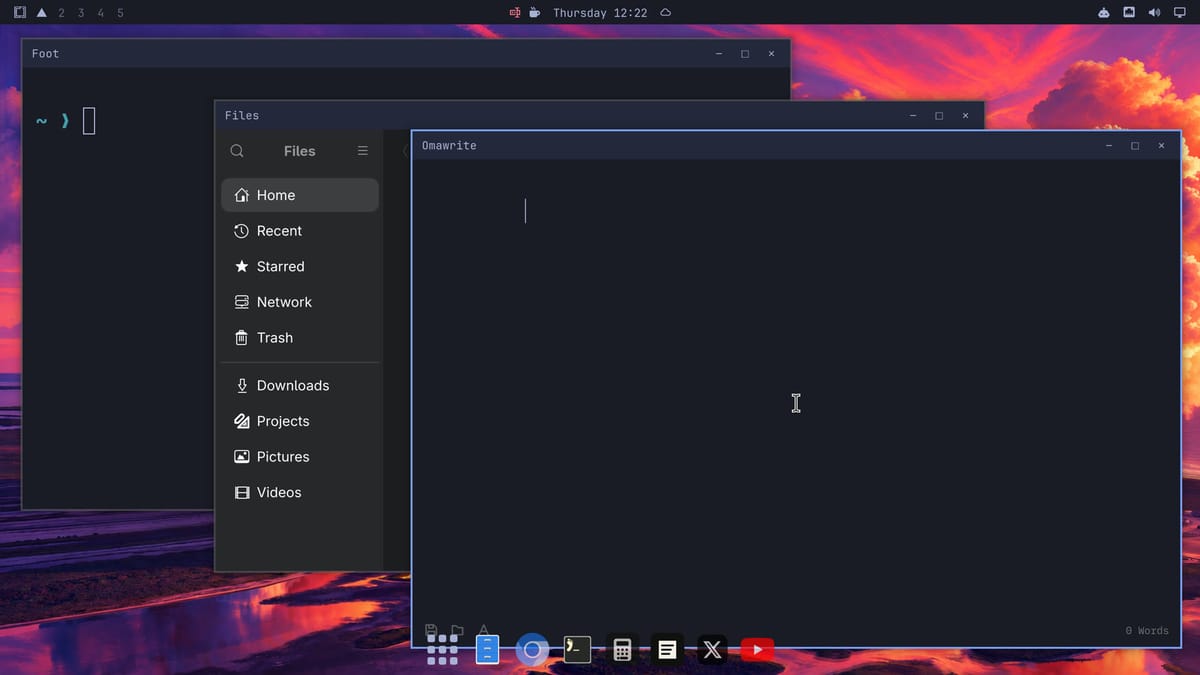
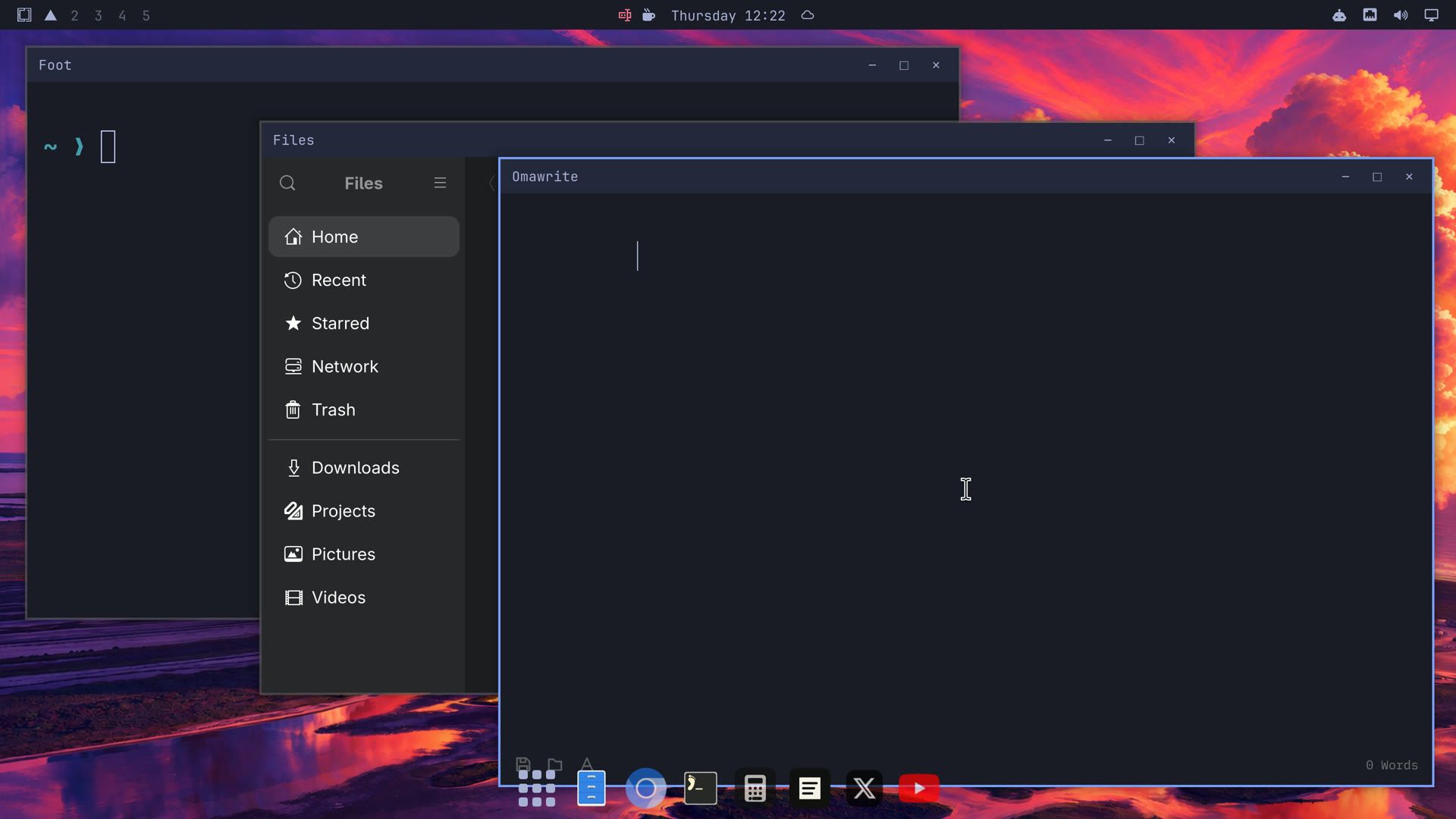
The three buttons on the right of each titlebar are minimize, maximize, and close. Minimize sends the window to the dock, where its icon stays bright because the app is still running. Click the icon to bring the window back. From the keyboard, super m minimizes the window you are in.
Maximize fills the screen below the top bar. The titlebar stays, and the dock tucks away until you move the pointer to the bottom edge. Click the same button again, or double-click the titlebar, to get the old size back.
Open apps from the dock and the app grid
The dock holds your pinned apps and every app that is running. The default pins are Files, Chromium, the terminal, Omacalc, Omawrite, X, and YouTube. A pinned app that is not running looks faded. Click any icon to open the app, or to bring its window forward.
The button on the left end of the dock, with nine dots, opens a grid of all your apps. super alt space opens the same grid, and so does Apps in the Omarchy menu. Type to filter the grid, and press enter to open the selected app.
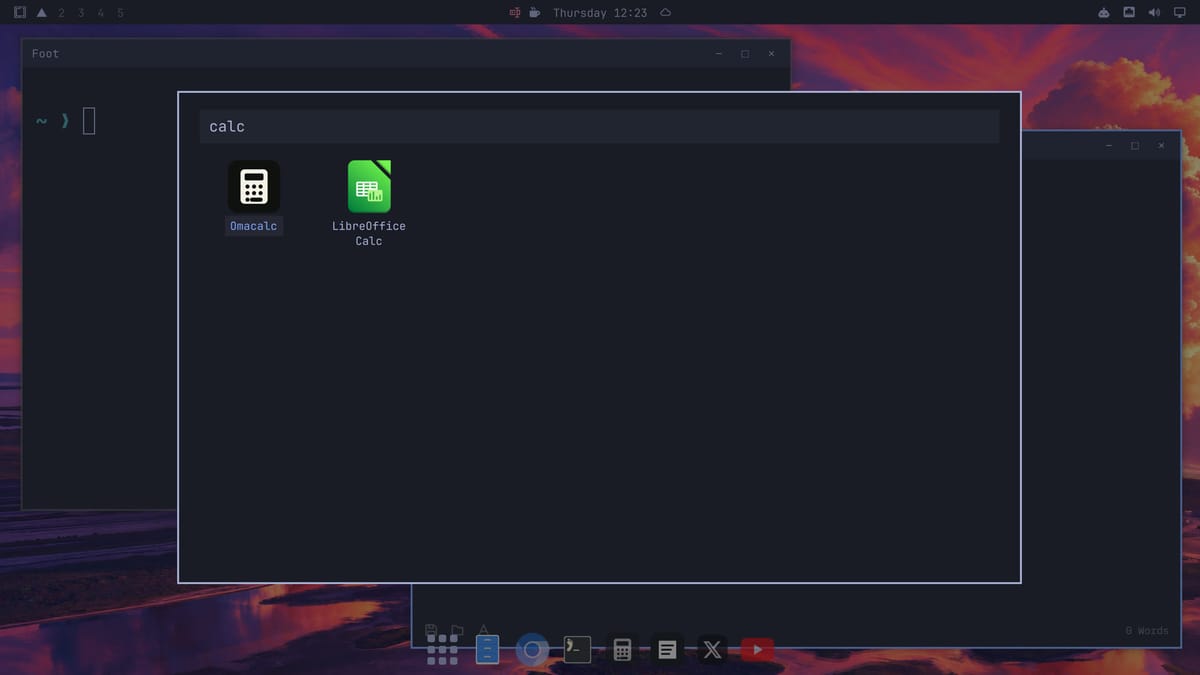
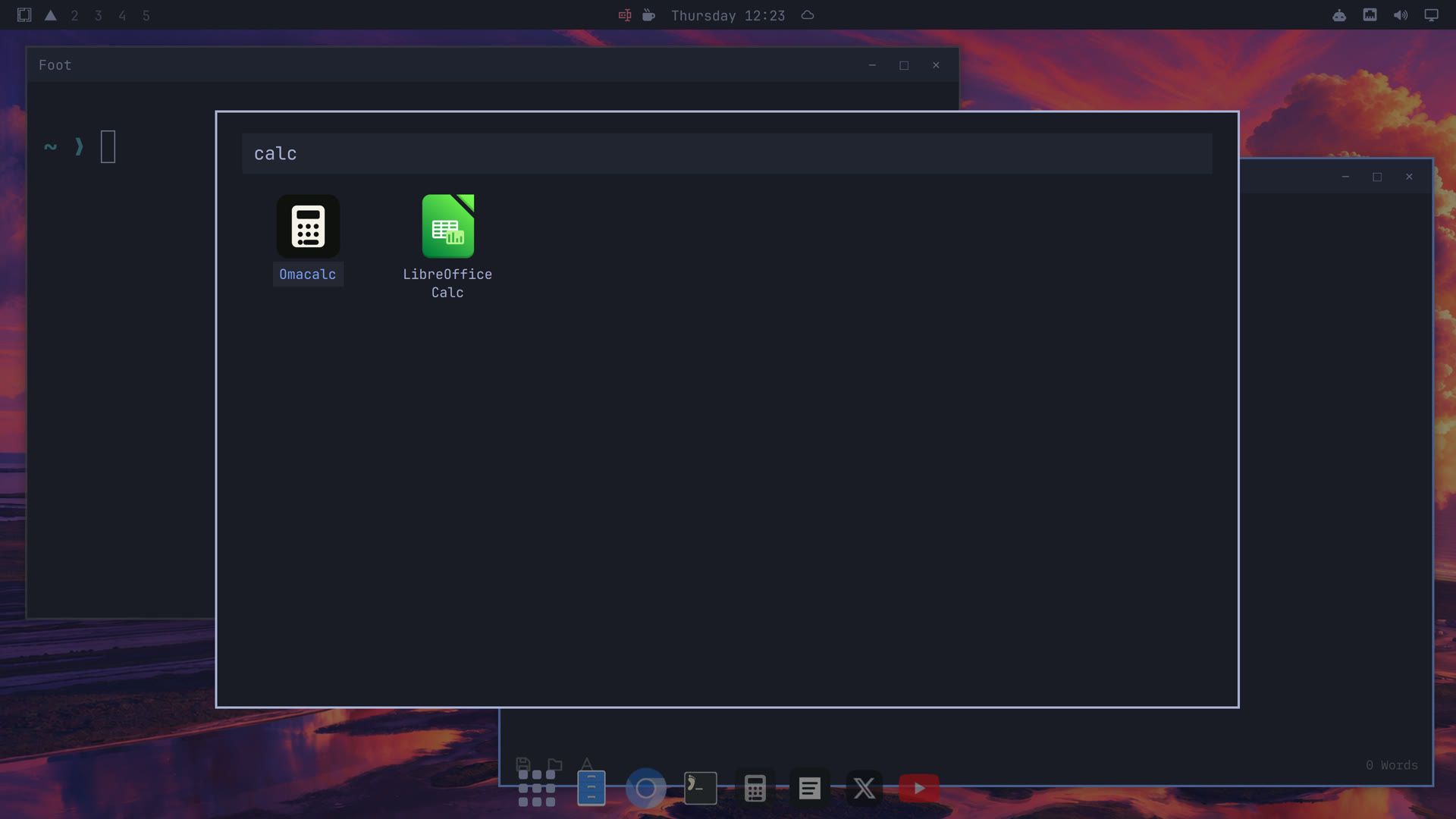
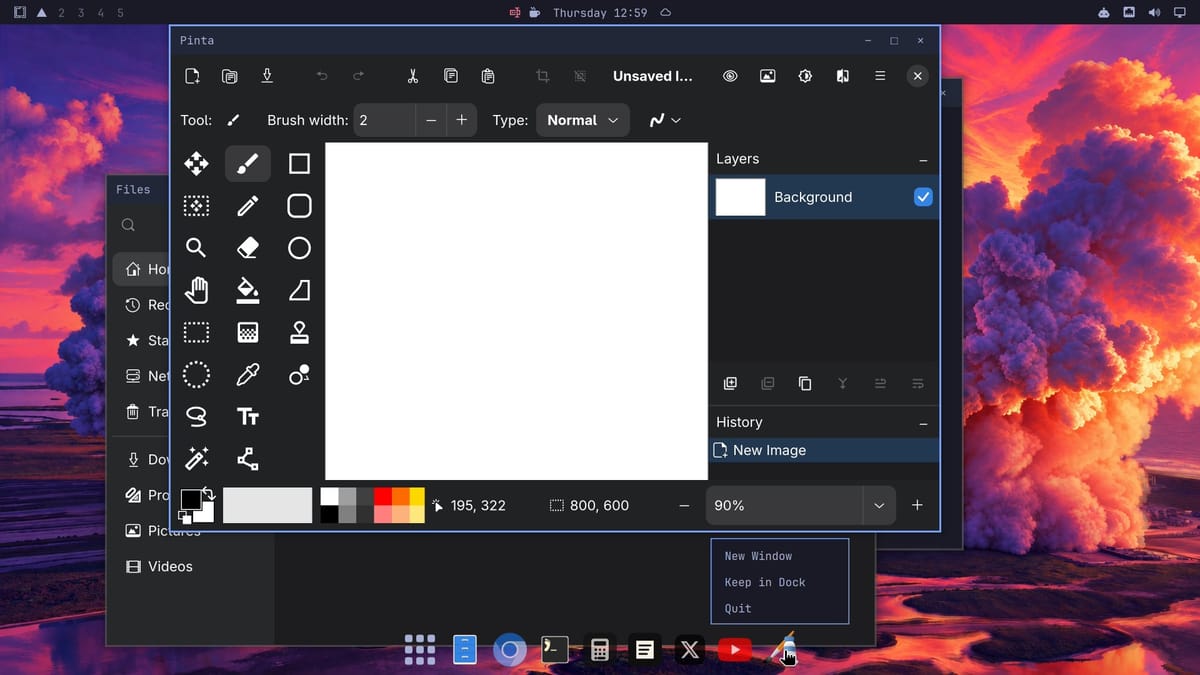
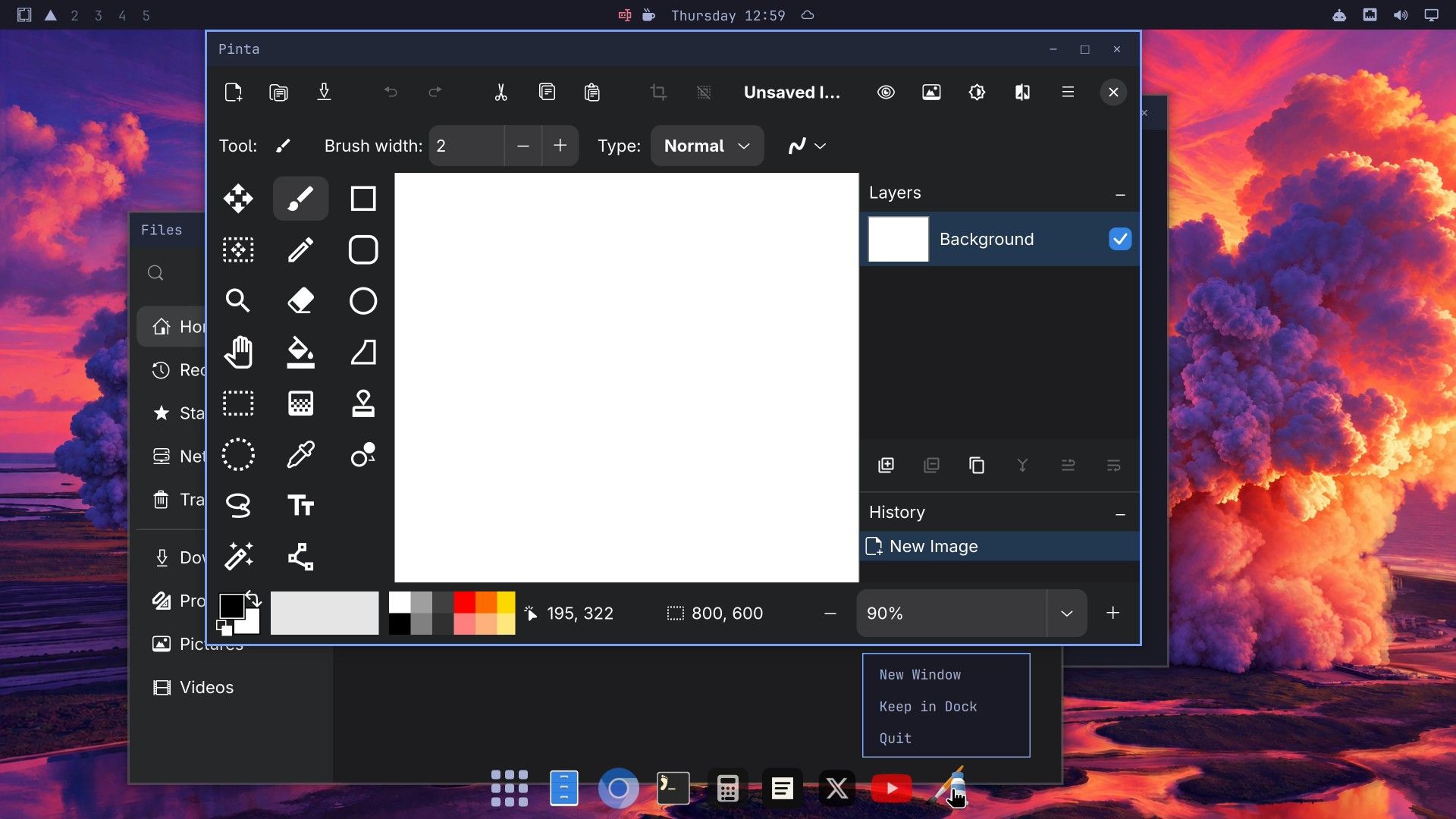
An app that is not pinned joins the end of the dock while it runs. Right-click its icon for a short menu: New Window, Keep in Dock, and Quit. Keep in Dock pins the app, so its icon stays after the app closes. On a pinned app, the same menu says Remove from Dock instead. Quit closes the app, and a pinned app’s icon stays in the dock, faded.
Move the dock or hide it
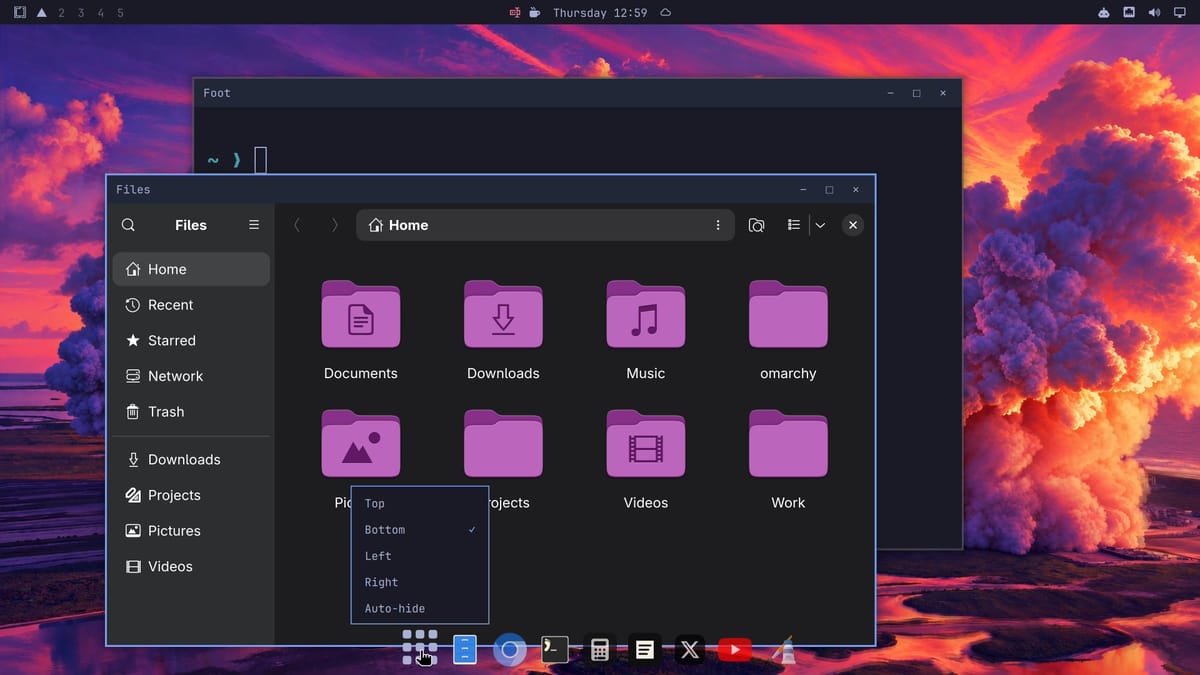
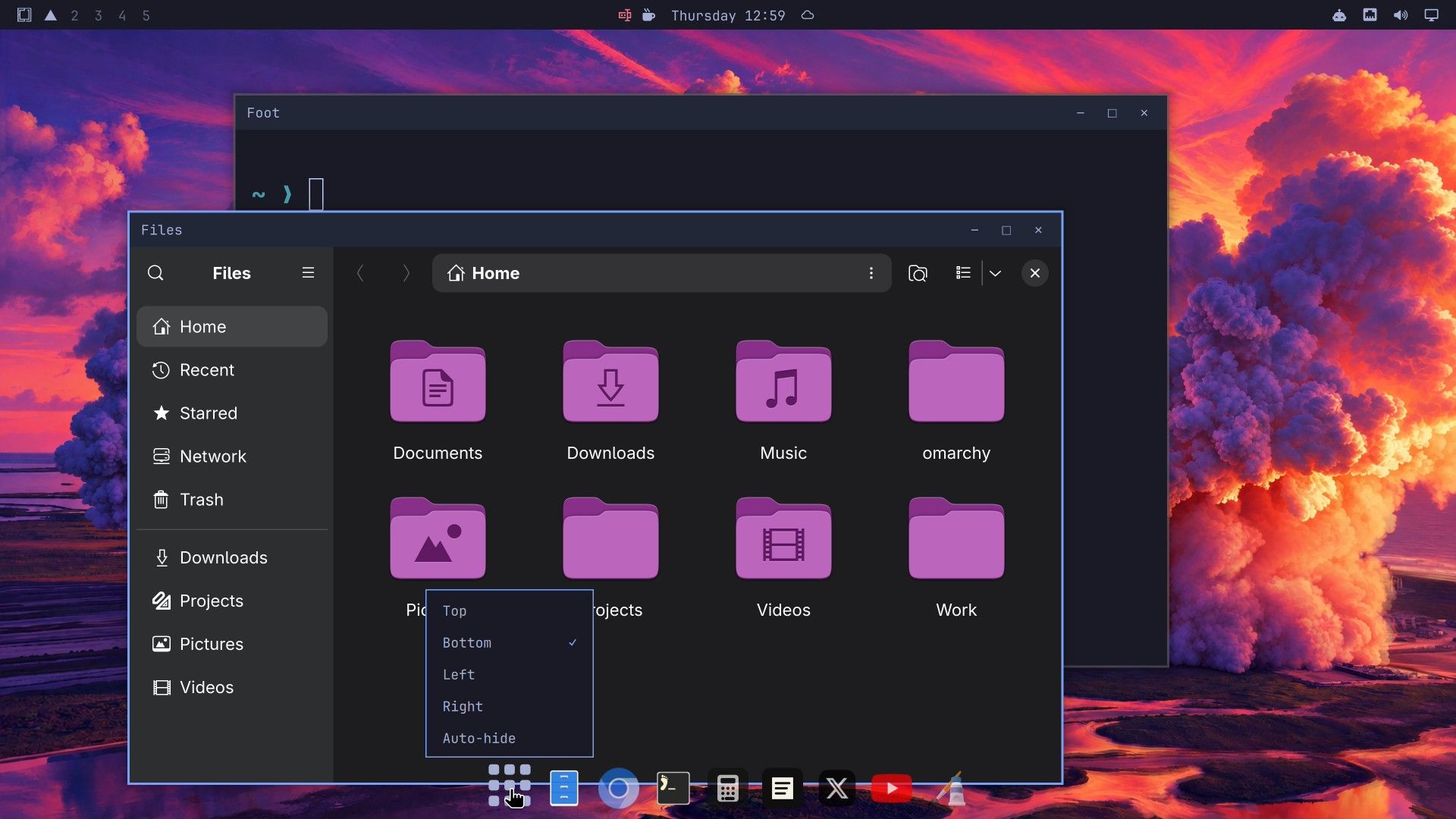
Right-click the apps button to move the dock. The menu has Top, Bottom, Left, and Right, with a check mark on the current edge. Auto-hide in the same menu keeps the dock out of sight until the pointer reaches its edge of the screen.
The same settings are in the Omarchy menu under Trigger, Appearance, Dock. You can also set them from a terminal:
omarchy dock position left
omarchy dock autohide on
The first command moves the dock to the left edge at once and prints “Dock position set to left”. The position can be left, right, top, or bottom.
Make floating the default
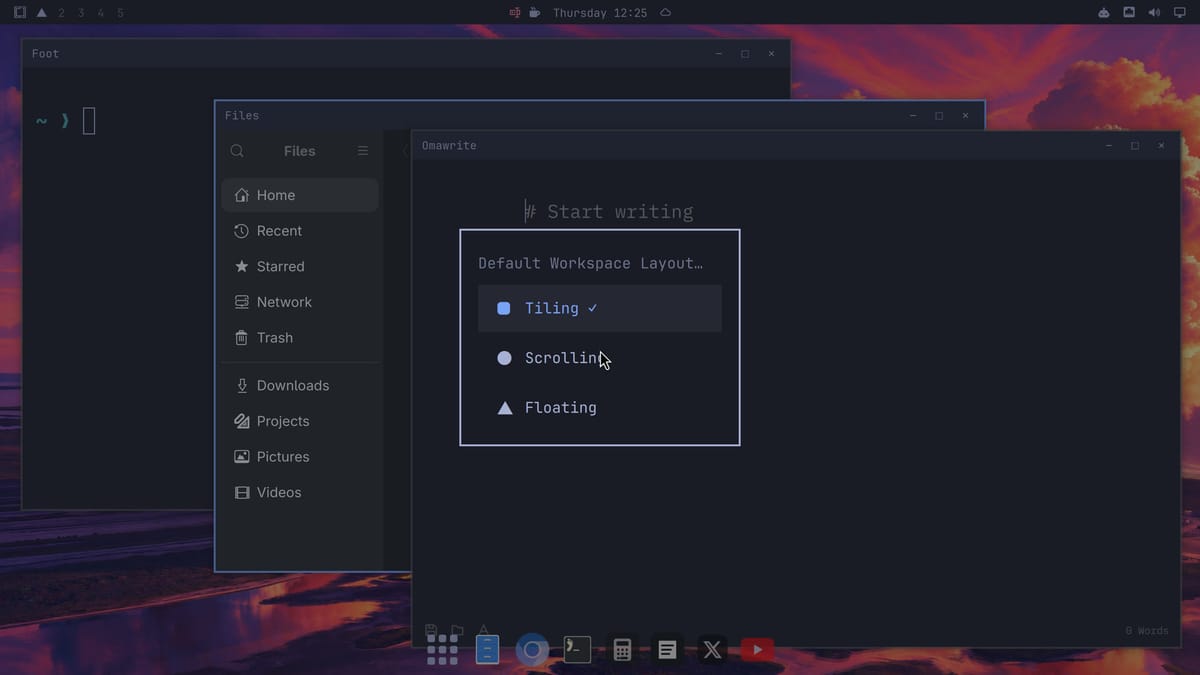
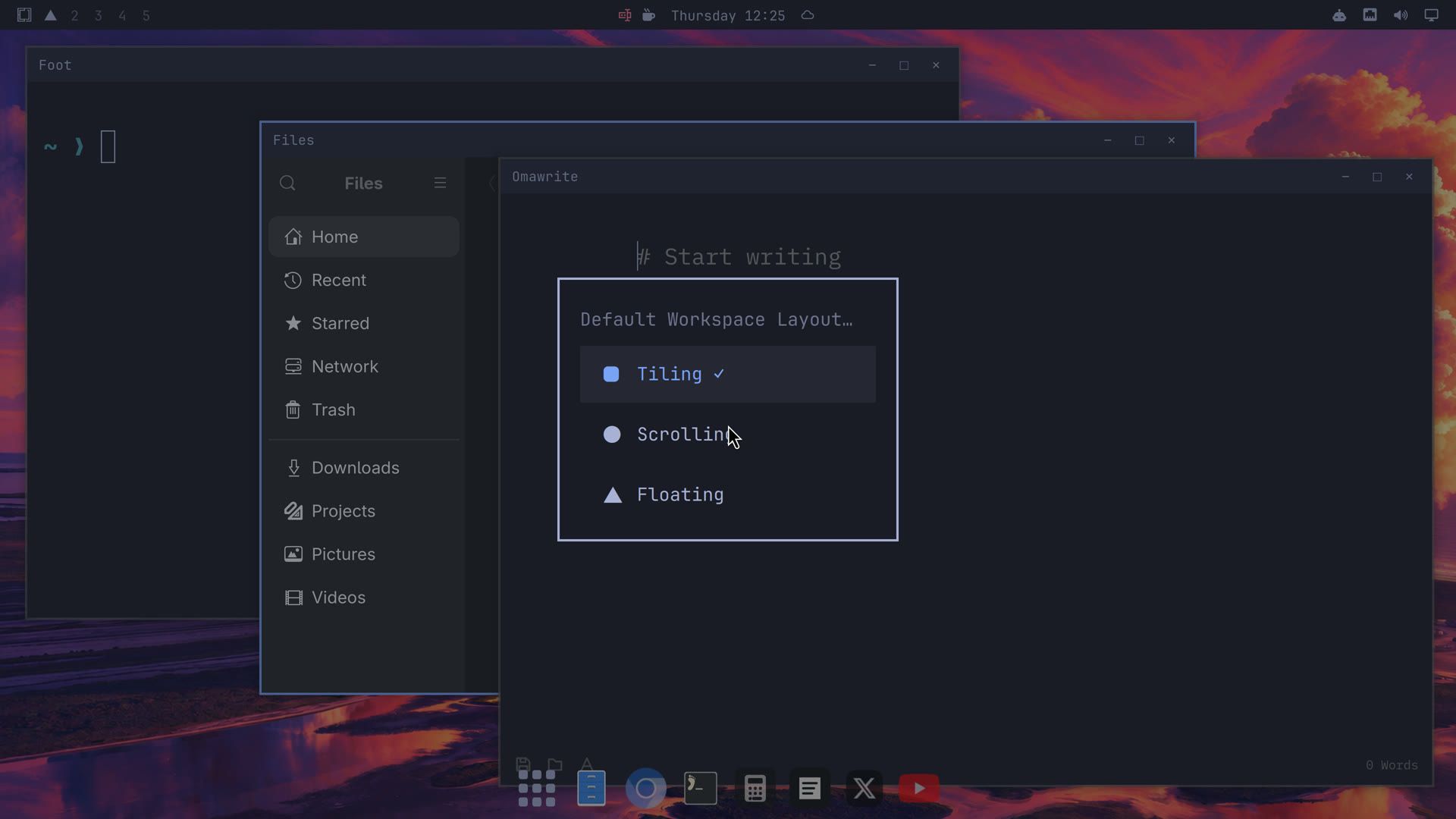
New workspaces use the default layout. Press super space to open the Omarchy menu, then click Trigger, Appearance, and Workspace Layout. The list, titled “Default Workspace Layout…”, has Tiling, Scrolling, and Floating, with a check mark on the current default. Click Floating, and a notice says “Default layout set to floating”.
To set it from a terminal, run:
omarchy-hyprland-workspace-layout-default floatingGo to an empty workspace, for example with super 3 , and the dock is already there. A terminal opened with super enter floats with its own titlebar. Workspaces that already have windows keep the layout they had. To go back to tiling for all new workspaces, pick Tiling in the same menu.
Troubleshooting
A minimized window is gone after you switch to tiling. Tiling workspaces have no dock, so a minimized window has nowhere to come back from. Before you switch a workspace back to tiling, click each minimized app in the dock to bring its window back. If a window is already hidden, switching the workspace to floating again should bring back its icon in the dock; click it.
The dock is not there. The dock shows only on floating workspaces. A fullscreen window hides it, and a maximized window tucks it away until the pointer reaches the screen edge. Check for the triangle in the top bar. If a maximized window is in the way, move the pointer to the dock’s edge or click the maximize button again.
Super L locks the Windows PC in a virtual machine. If you try the Dev channel in a virtual machine on Windows, Windows also takes super l and locks its screen, even though the key reaches Omarchy too. Click the layout mark in the top bar to cycle the layout instead.
The window has no titlebar. Titlebars appear only on floating workspaces. A window on a tiling or scrolling workspace has none.
More Omarchy guides
The full description of floating workspaces is in Omarchy’s manual, in the navigation chapter of its source. If a label here does not match your screen, check that page. For other ways to change how Omarchy looks and works, see how to find, check, and install Omarchy plugins.


