
If there’s an app you open many times a day, or a command you type over and over, a keyboard shortcut of your own puts it on a key combination you choose. In this guide we add two: one that opens an app, and one that runs a command. Then we check that both work, remove one again, and look at how to change a shortcut Omarchy already uses.
This is the written companion to our video on adding your own Omarchy shortcuts, embedded above, with every line the video types. Everything here was done on Omarchy 4.0.4.
What you need
You need a working Omarchy install. Omarchy uses the Super key for most shortcuts, and on a PC keyboard that is the Windows key. If the built-in shortcuts are new to you, our list of Omarchy shortcuts to learn first covers the shortcut list, the menu, and closing windows, which this guide uses.
The file opens in Neovim, Omarchy’s default editor. Each Neovim key you need is given in the steps.
Your shortcuts go in a file that updates leave alone
Omarchy’s own shortcuts live in system files under /usr/share/omarchy/default/hypr/bindings/. Those files belong to the Omarchy package, so every update replaces them, and anything you change there is lost. Your shortcuts go in a separate file in your home folder instead:
~/.config/hypr/bindings.luaOmarchy loads this file after its defaults, so your lines add to the built-in shortcuts and can replace them. Omarchy’s manual warns that Update > Config > Hyprland in the menu, or omarchy reinstall configs in a terminal, puts your config files back to the defaults. Keep a copy of your lines before you run either one.
Check that a combination is free with Super K
Press super k to open the list of every shortcut on the system. It’s a long list, and the arrow keys move through it. As you read it, note that the list calls the Enter key Return.
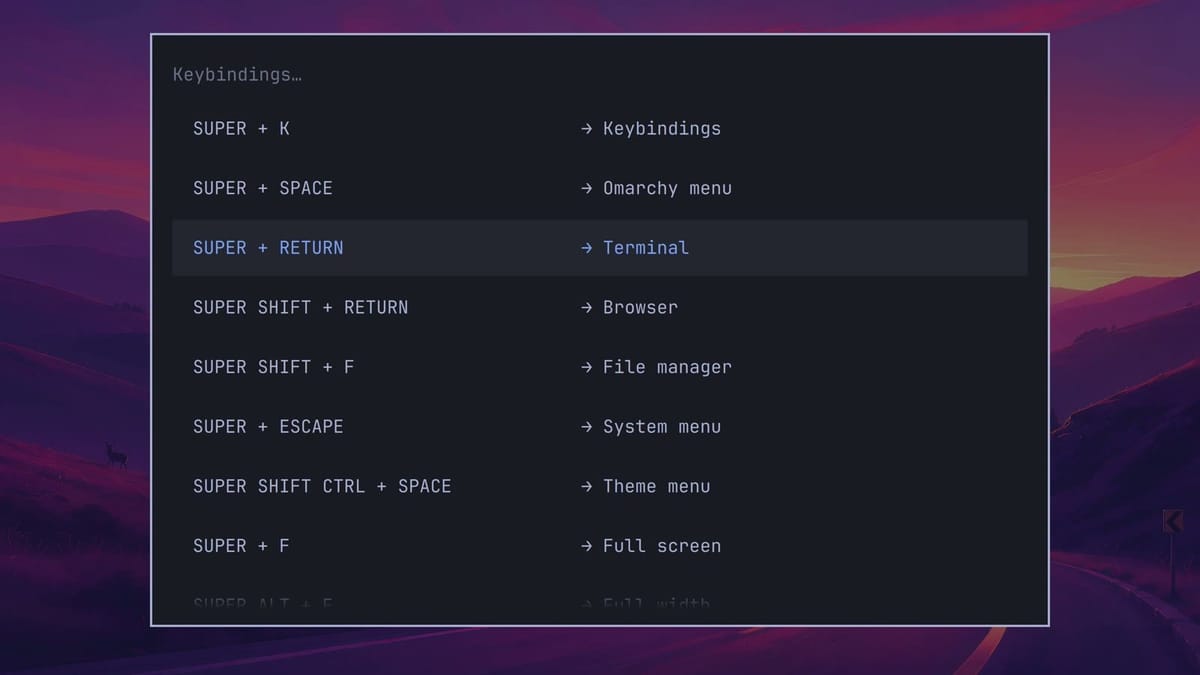
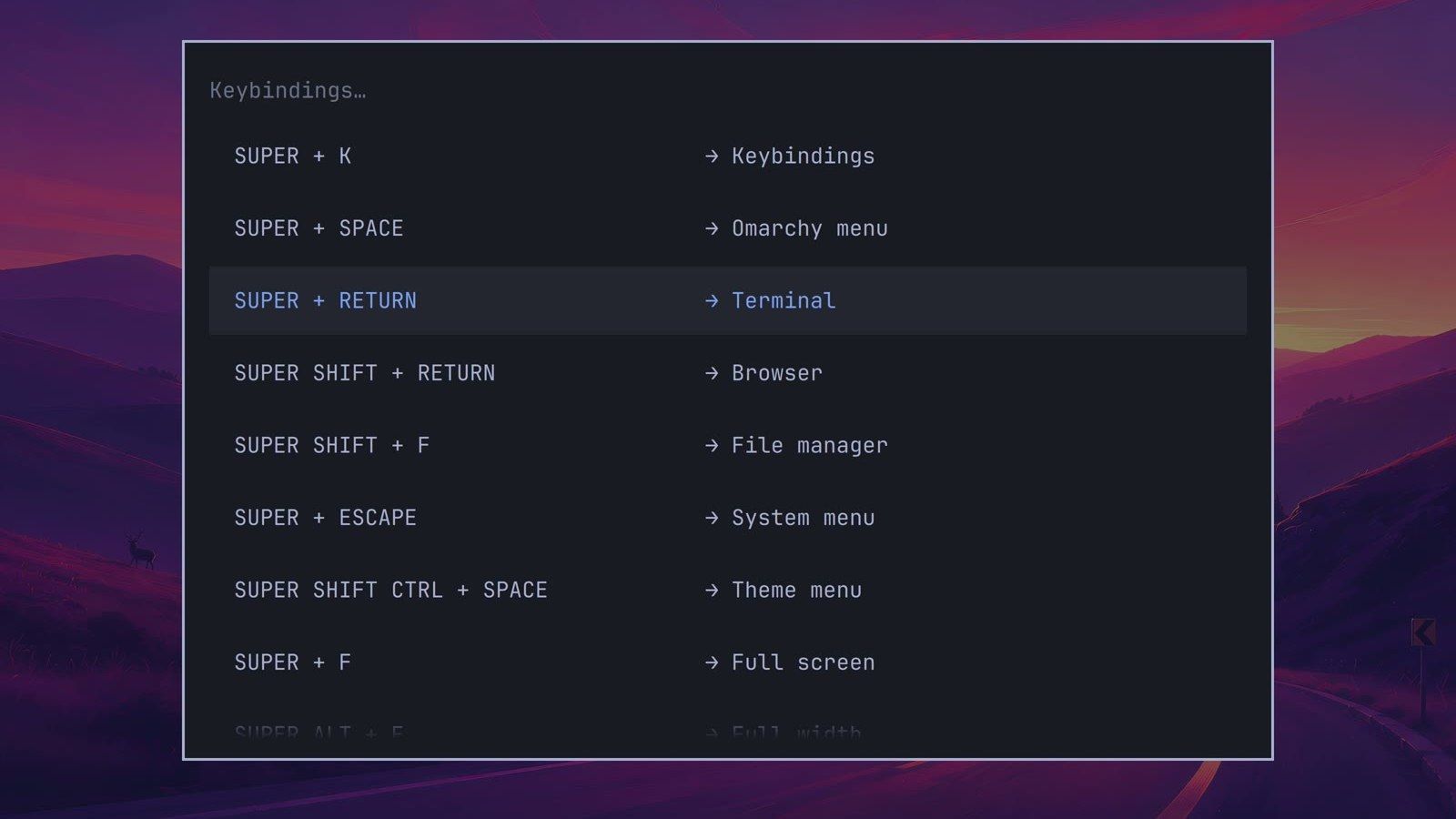
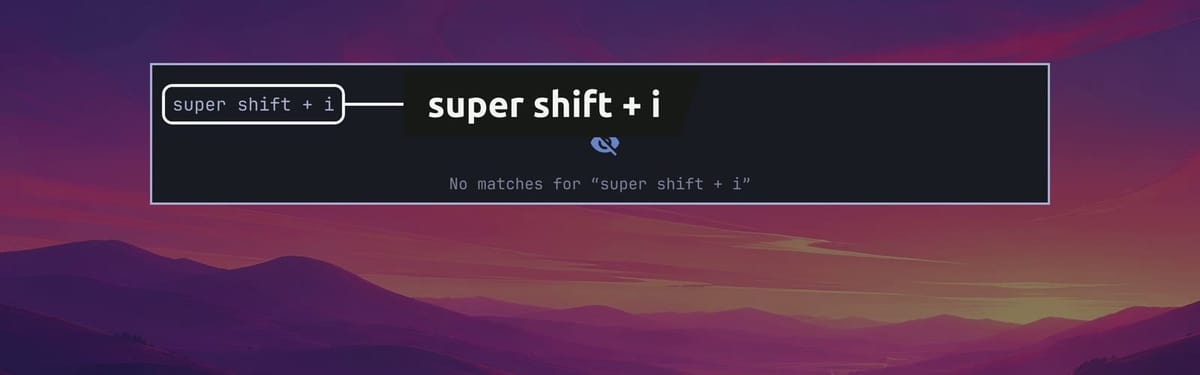
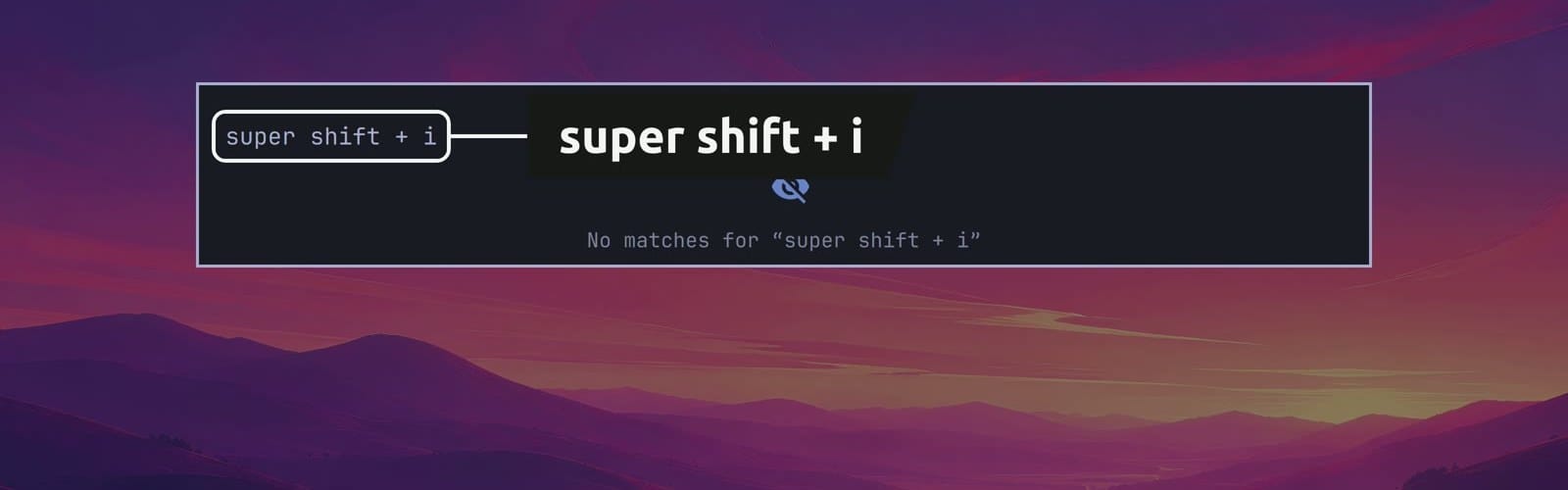
Typing filters the list. We wanted Super Shift I for an image editor, so we typed this, with the plus, the way the list writes combinations:
super shift + iThe filter matches the text of each row, so super shift b finds nothing even though Super Shift B opens the browser, while super shift + b finds it. For Super Shift I, the list answered “No matches”, so that combination is free.
Press esc twice to close the list. The first press clears the filter text, and the second closes the list.
Open your keybindings file from the Omarchy menu
The menu has an entry that opens the right file, so you don’t need to remember the path. Press super space to open the Omarchy menu and type:
keybindingsThat narrows the menu to four rows, and two of them are called Keybindings. The first, under Learn, opens the same list as Super K. We want the second one, Keybindings under Setup, so press once and then enter .
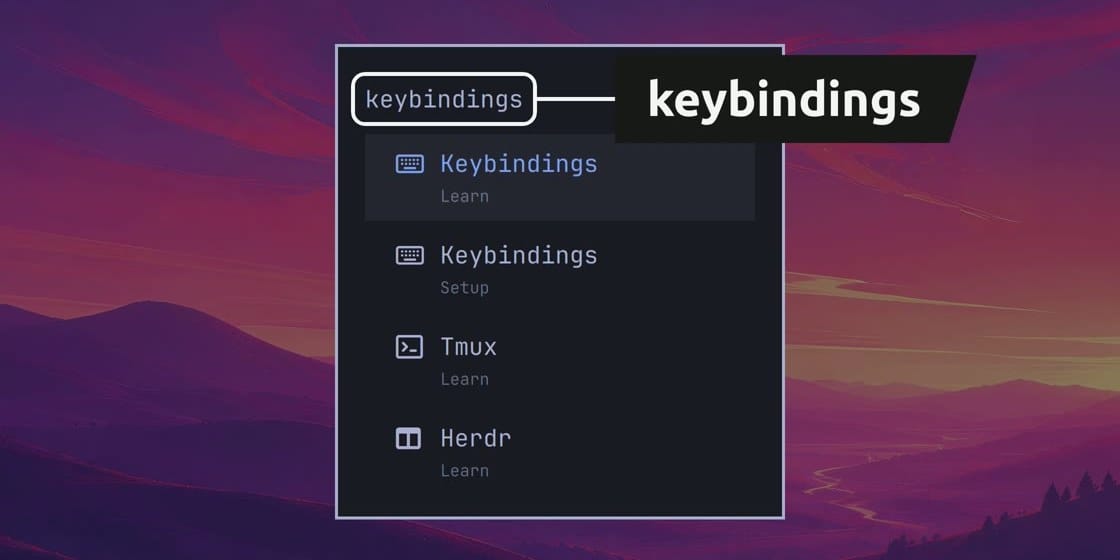
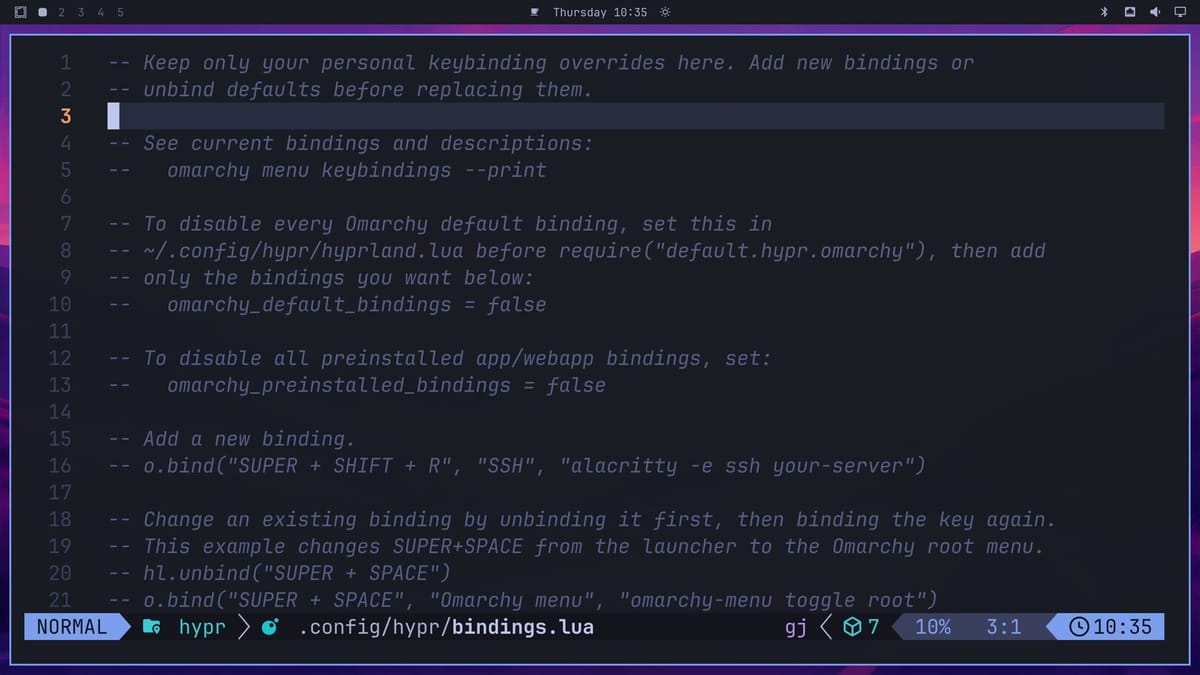
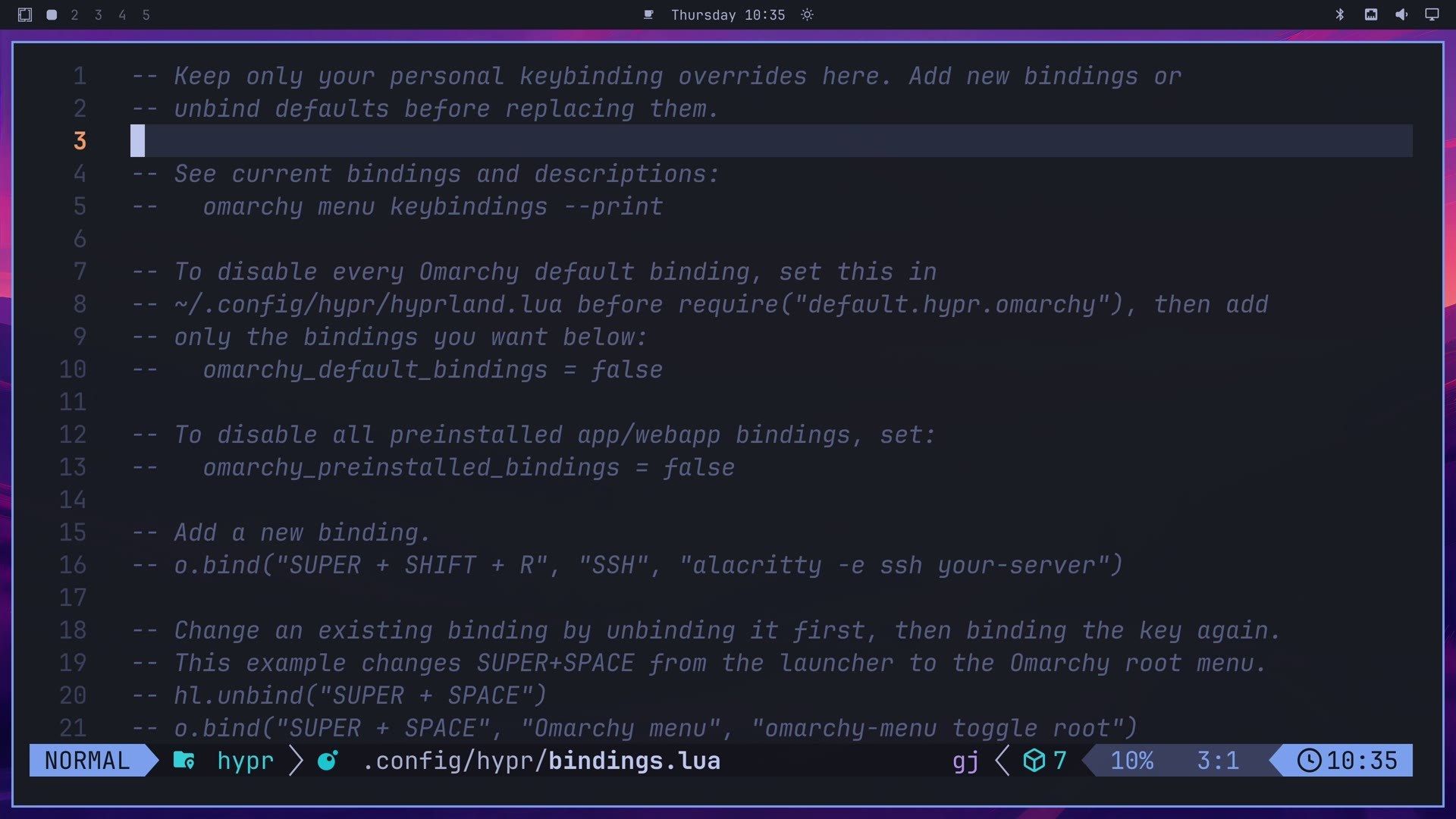
The file opens in Neovim, and a small “Editing config file” notice shows its path for a moment. Right now the file holds only comments, the lines that start with two dashes. They explain how the file works and include examples for adding, changing, and removing shortcuts. Nothing in a comment runs, so the file starts out with no shortcuts of its own.
Add a shortcut that opens an app
Your new line goes at the bottom, so press shift g to jump to the end of the file. Then press o to open a new line below it in insert mode, where typing puts text into the file.
Neovim starts that new line with two dashes and a space, the comment marker, because the line above it is a comment. We want a working shortcut, not a comment, so press ctrl u to clear them.
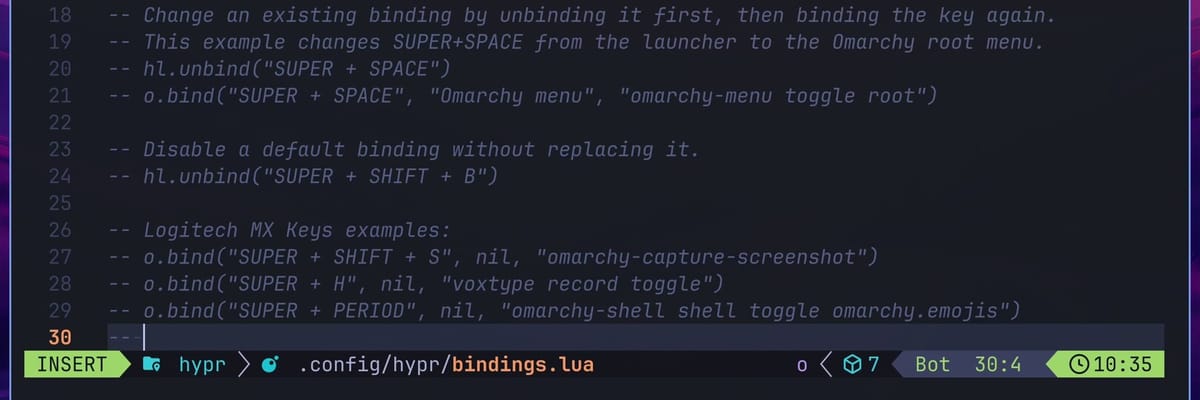
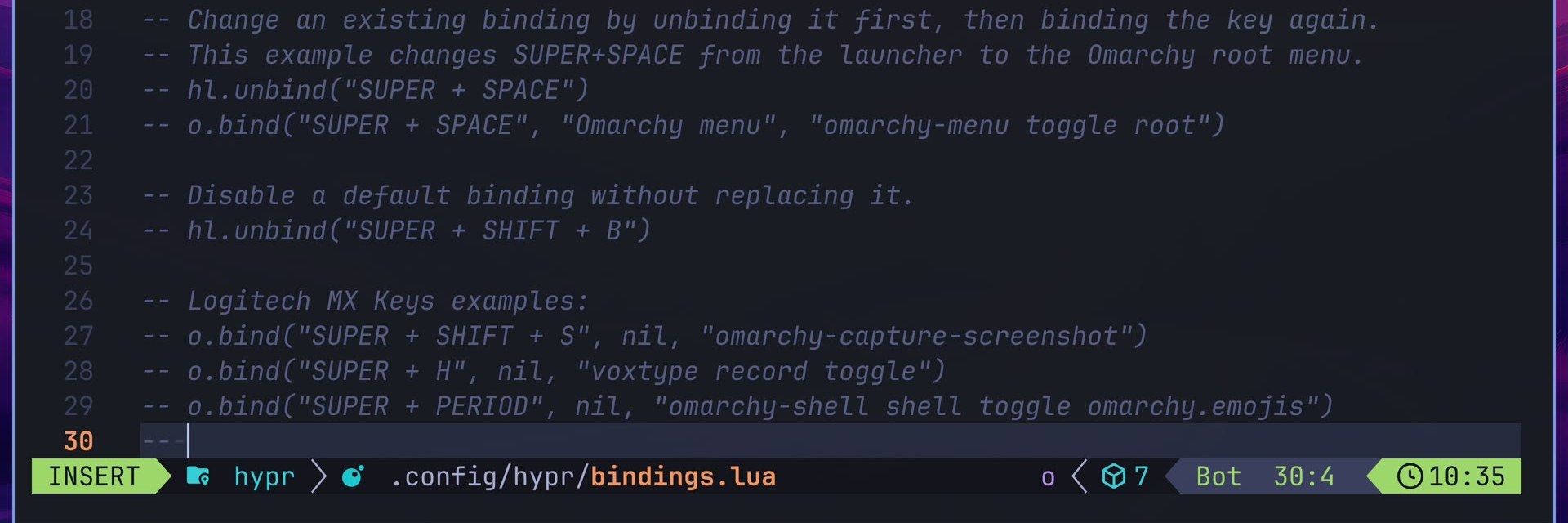
Each shortcut is one line. It starts with o.bind, then the keys, a name for the Super K list, and the command, each in quotes. This one binds Super Shift I to Pinta, the image editor that comes with Omarchy:
o.bind("SUPER + SHIFT + I", "Pinta", "pinta")Neovim closes brackets and quotes for you as you type, but typing the closing ones yourself overwrites them, so the line comes out exactly as written. When it’s done, press esc to leave insert mode. To save, type :w and press enter :
:wThe desktop reloads its settings when you save a config file, so the shortcut works right away.
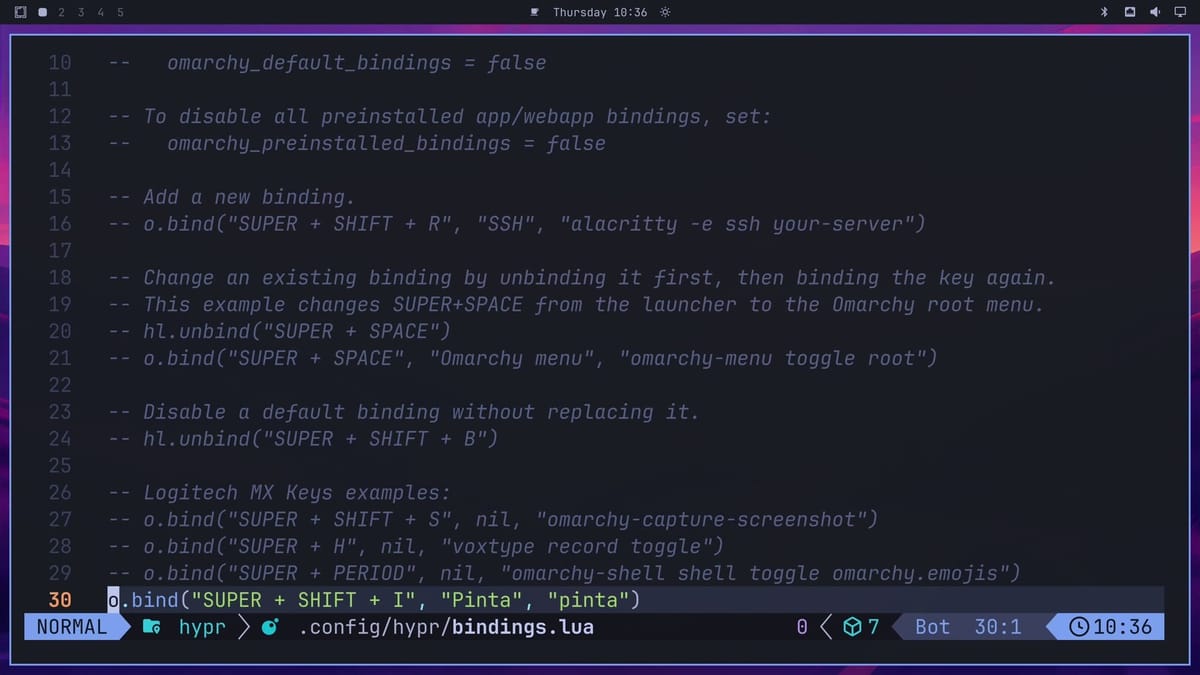
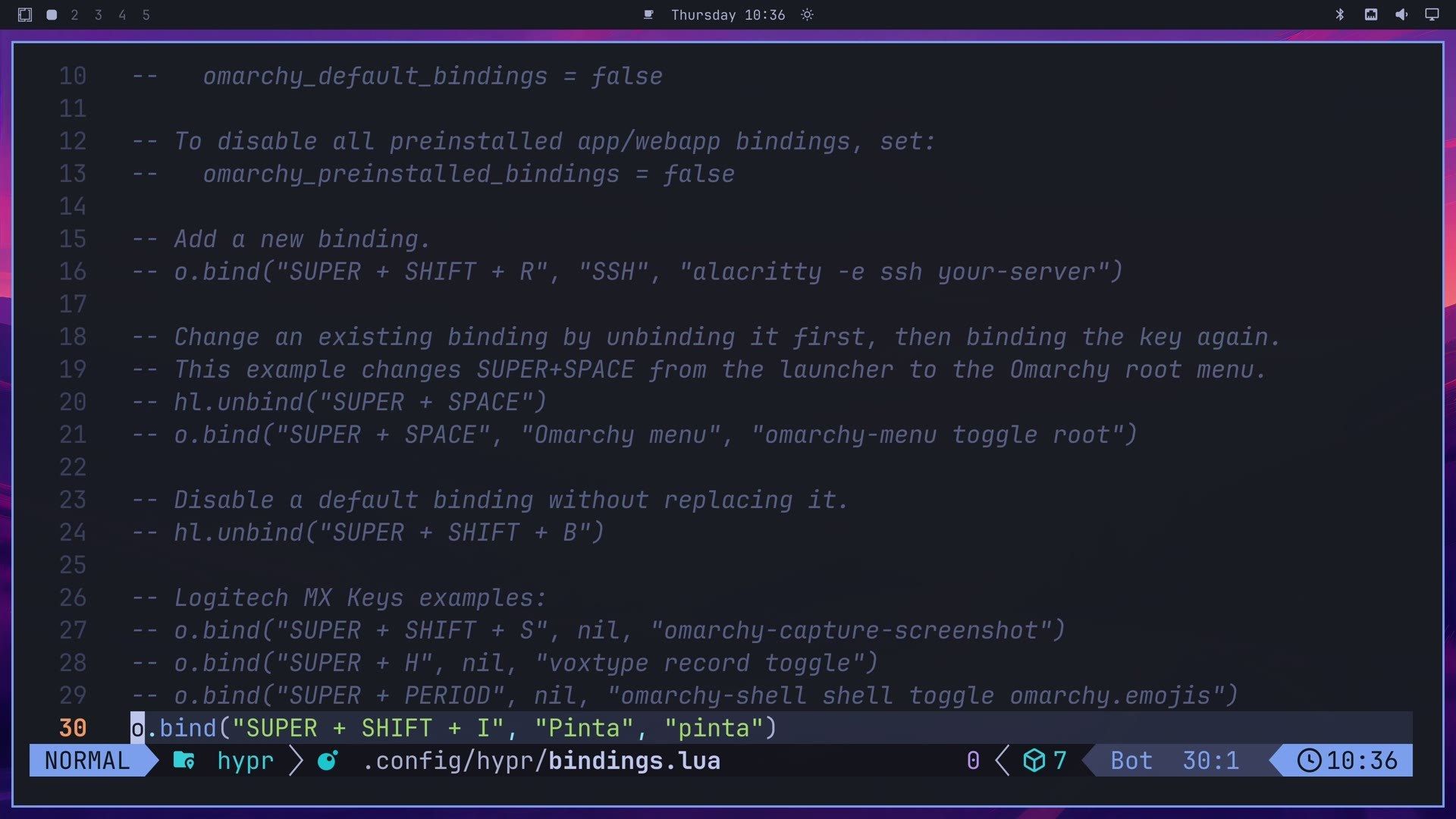
Now check that it worked: press super shift i . Pinta opens next to the editor with a blank canvas. Press super w to close it, and you’re back in the file.
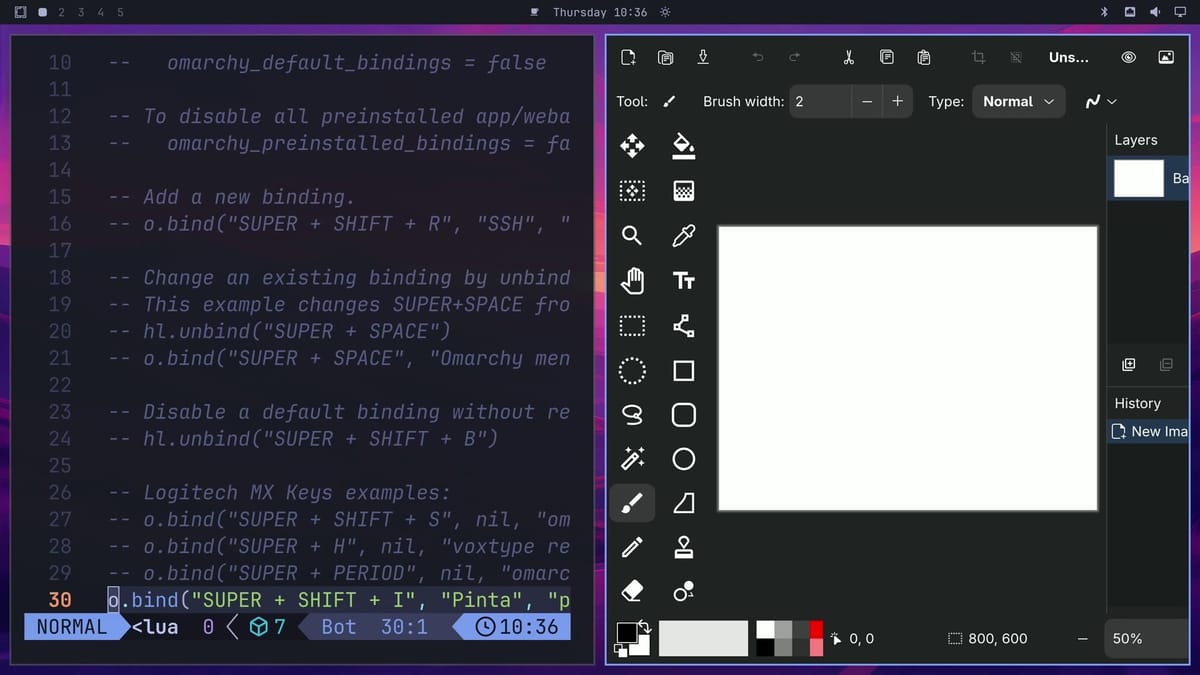
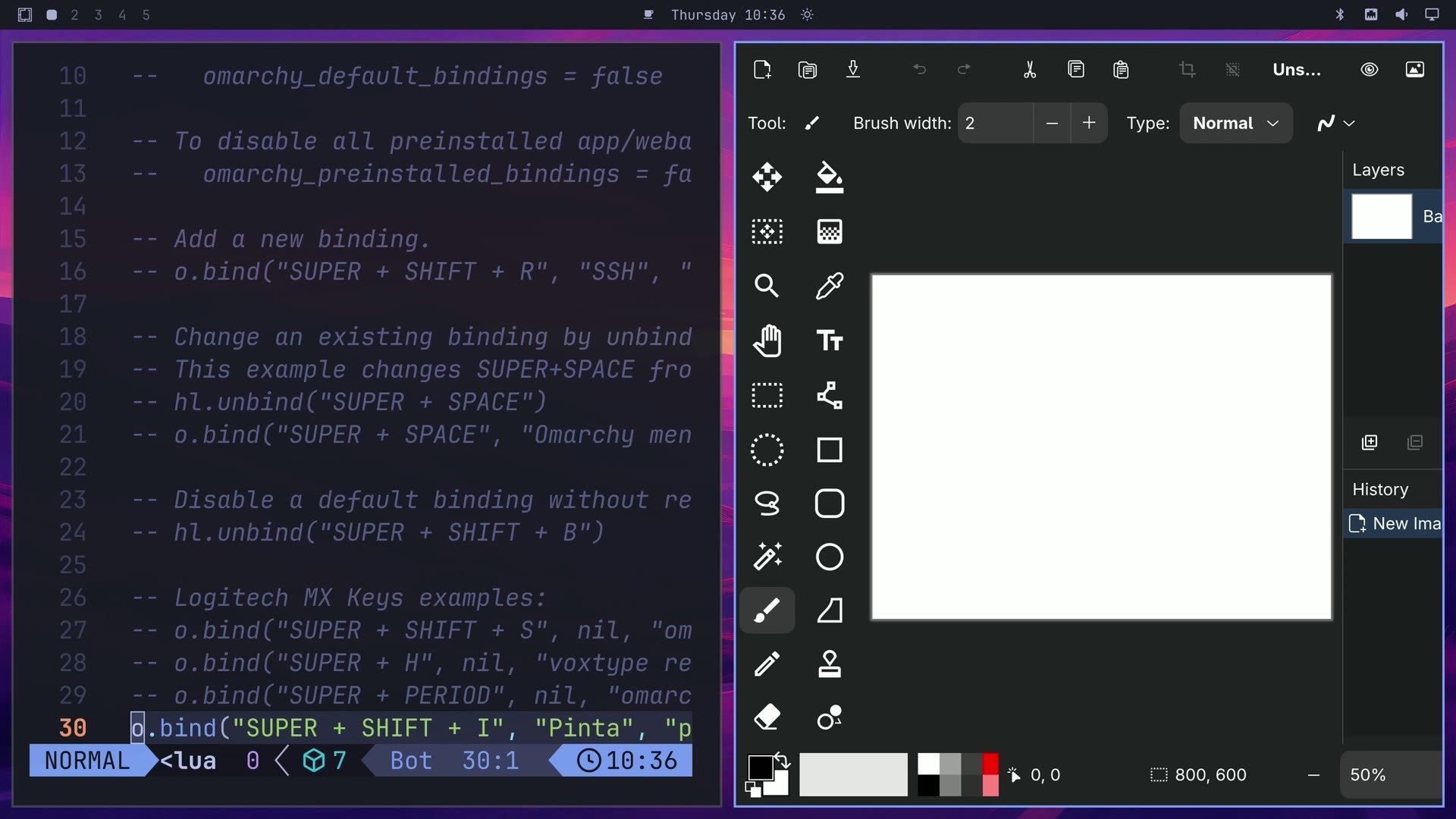
Any app works the same way. Put the command that starts it in the last pair of quotes; the name in the middle is only the label you’ll see in the Super K list.
Add a shortcut that runs a command
Press o for another new line. This time there are no dashes to clear, because the line above is code, not a comment. Don’t press Ctrl U here: on a line with no dashes, it joins the new line onto the one above.
This shortcut is Super Shift T, named Copy date. Its command pipes today’s date into wl-copy, which puts it on the clipboard:
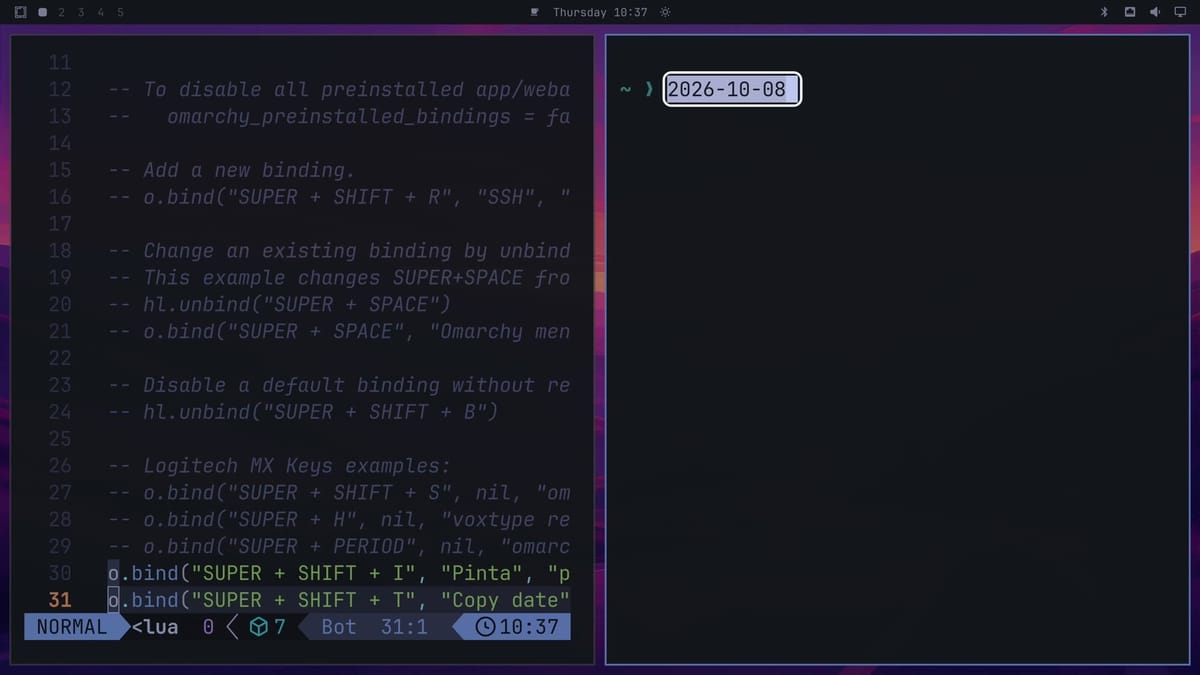
o.bind("SUPER + SHIFT + T", "Copy date", "date +%F | wl-copy -n")date +%F prints the date as year, month, and day (2026-10-08 on the day we recorded). The -n tells wl-copy to leave off the line break that date adds at the end, so a paste gives you only the date. Press esc to leave insert mode, then save with :w and enter .
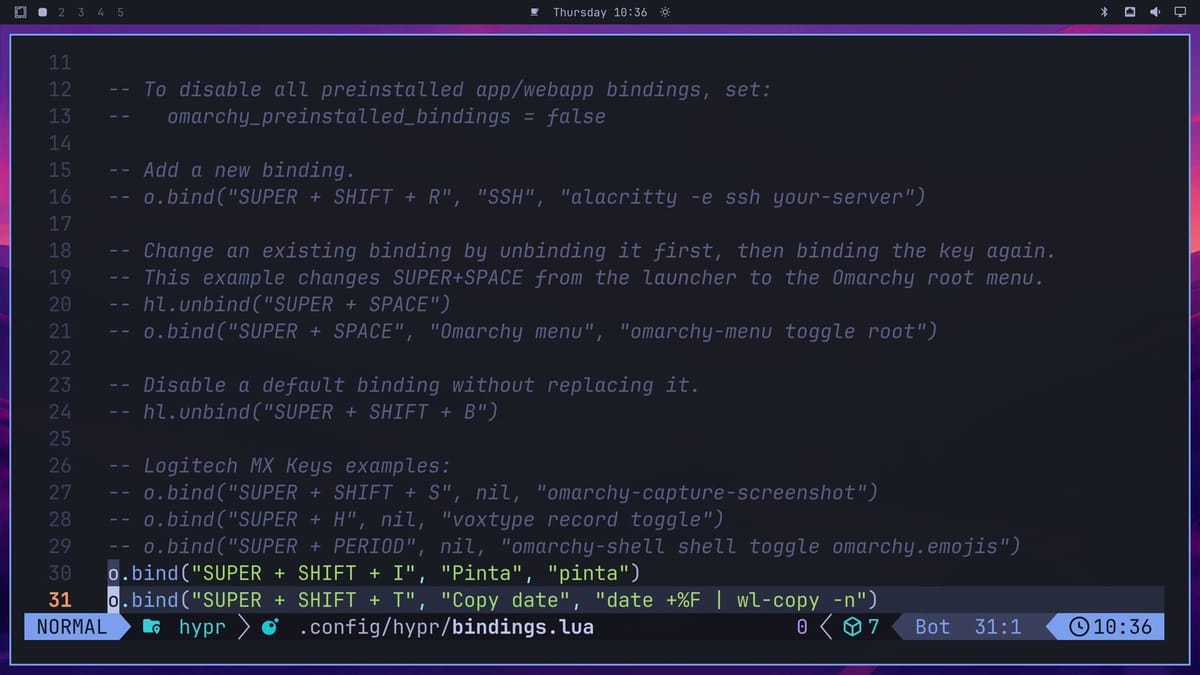
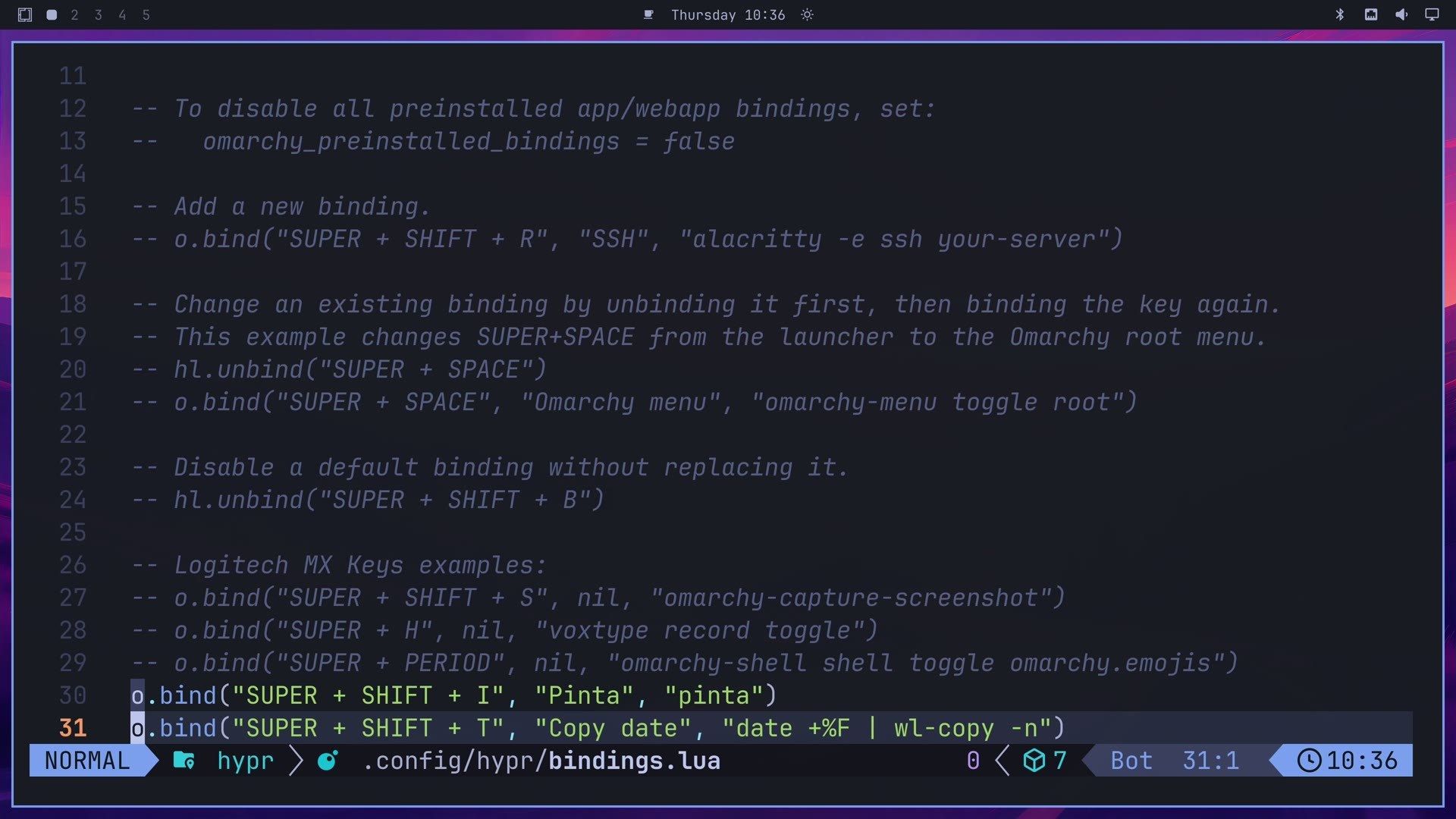
Press super shift t to copy the date. Nothing pops up, because the date went to the clipboard. To see it, open a terminal with super enter and press super v to paste into it. Today’s date appears at the prompt. Close the terminal with super w .
Remove a shortcut by deleting its line
Back in the editor, move the cursor to the shortcut’s line (the arrow keys work in Neovim), press d twice to delete it, then save with :w and enter . The shortcut stops working as soon as the file saves, and its keys are free again. In the video above, the cursor was still on the Copy date line, so pressing d twice removed that one.
Change a built-in shortcut with unbind, then bind
To change one of Omarchy’s own shortcuts, add an hl.unbind line for its keys first, then bind the same keys again on the next line. The file’s own example unbinds Super Space and binds it again to the Omarchy root menu:
hl.unbind("SUPER + SPACE")
o.bind("SUPER + SPACE", "Omarchy menu", "omarchy-menu toggle root")
In the file, both lines start with two dashes, so they’re only an example. To use a pair like this, write it on new lines without the dashes, with your own keys and command, unbind line first. To turn a built-in shortcut off without replacing it, use the unbind line on its own, as the file’s example for Super Shift B shows. An unbind and rebind pair takes effect when you save, the same as a new shortcut.
When you’re done, type :q and press enter to close the editor:
:qTroubleshooting
The shortcut does nothing. Open the file again and look at the line. If it starts with two dashes, it’s still a comment: Neovim added them when you opened the line under a comment, so delete them and save. Check that the keys, the name, and the command each sit in their own pair of quotes, with commas between them. Then press super k and type the shortcut’s name; if it shows up in the list, the line loaded, and the problem is the command itself.
The app or command doesn’t start. Open a terminal with super enter and run the command from the last pair of quotes on its own. App commands are usually the app’s name in lower case, like pinta. If the command fails in the terminal, it will fail from the shortcut too.
Super K finds a match for your combination. Something already uses it. Pick other keys, or replace the built-in shortcut with the unbind-then-bind pair above.
A new line joined the line above it. That’s Ctrl U on a line with no dashes. Press esc , then u to undo it, then press o again and start typing straight away.
Where to go next
The Omarchy shortcuts to learn first guide covers the built-in shortcuts worth knowing before you add your own. For more ways to change Omarchy, the plugins guide finds, checks, and installs plugins, and the snapshot guide shows how to roll the system back from the boot menu if a change goes wrong.


