
Omarchy 4 plugins are small add-ons for the Omarchy desktop: a bar widget, a panel, a timer, or a pixel pet. There are more than 4,000 of them in the marketplace, anyone can publish one, and a plugin runs as your user account with no sandbox around it. This is the written companion to our Omarchy plugins video, with every command we ran, so you can follow along on your own machine.
We used two plugins. Notification Center keeps a month of notifications in a panel that opens from the top bar. Omagotchi is a pixel pet that hatches from an egg in your bar. Everything below was done on Omarchy 4.0.4 with Notification Center v1.1.0 and Omagotchi v0.1.0.
What an Omarchy plugin can do
Since version 4 rebuilt the desktop, Omarchy runs as a single long-lived program called omarchy-shell, and the Omarchy manual says almost everything you see on screen is a plugin inside it, the bar included. Third-party plugins load into that same process. The manual says a plugin “isn’t a config file,” it is “code that runs for as long as your session does, with everything your user account can reach.”
In practice, a plugin can read your files, run commands, and talk to the network the same way you can. According to the manual, omarchy plugin add clones the files, checks the plugin’s manifest, and turns it on, and it never runs an install hook or asks for sudo. The risk is in what the plugin’s own code does once it is loaded. Omarchy 4.0.3 restricted plugin access to authentication services, which closes one path.
Find a plugin at plugins.omarchy.org
Omarchy has no menu entry for the marketplace, so open the browser with super shift b and go to plugins.omarchy.org. Click Browse Plugins. When we recorded, the catalog listed 4,341 community plugins.
Type what you want into the search box (we searched for notification), then change the sort menu from Recently added to Install rate. Install rate compares how often people copy a plugin’s install command with how often its page is viewed, so plugins that people end up installing rise to the top. Search first, because the sort alone ranks all 4,000-plus plugins together. With the search term, the list dropped to 148 results and Notification Center by @jankeesvw came first.
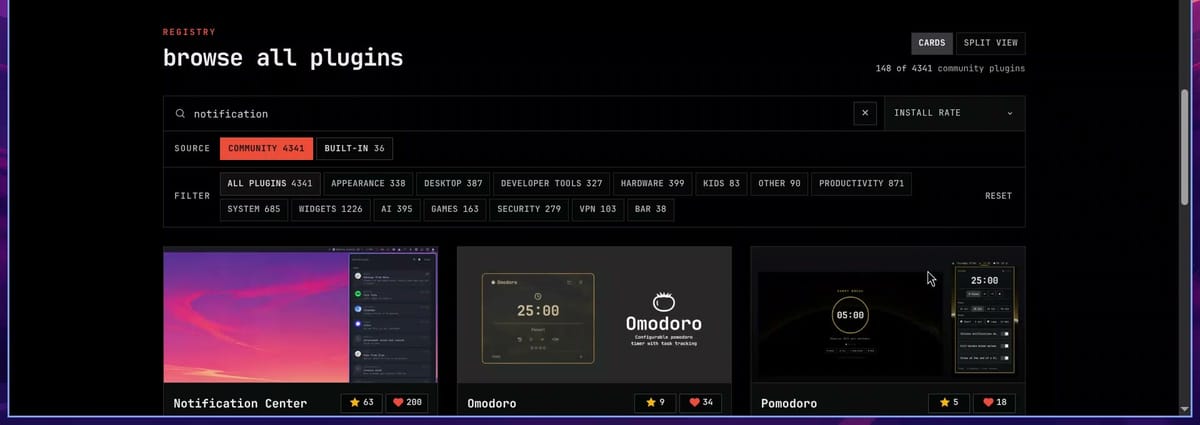
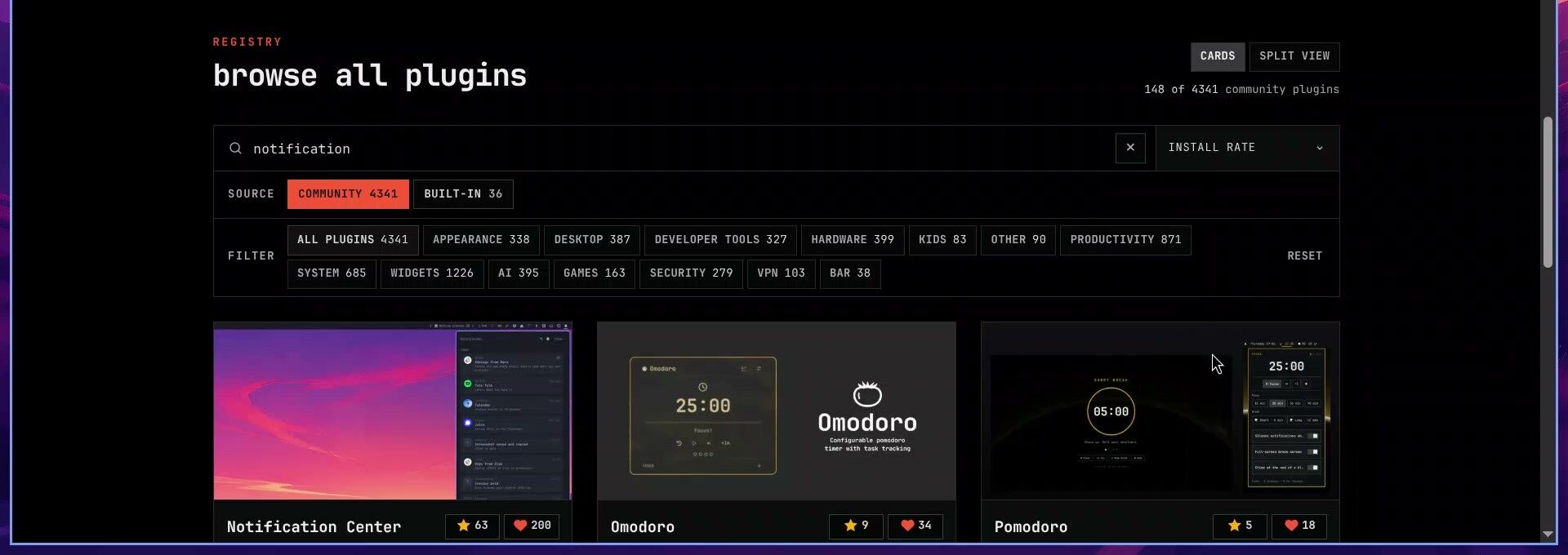
Look for the green Verified tag on the card. It means the marketplace checked a specific commit of the plugin. Two other plugins in the same results are also named Notification Center, from different authors and without the tag, so check the author name as well as the title.
Read the security note on the plugin page
Open the plugin’s page and click Install in the page contents on the right. The install block shows the command, and under it is a Security Notice. Read it before you copy anything.
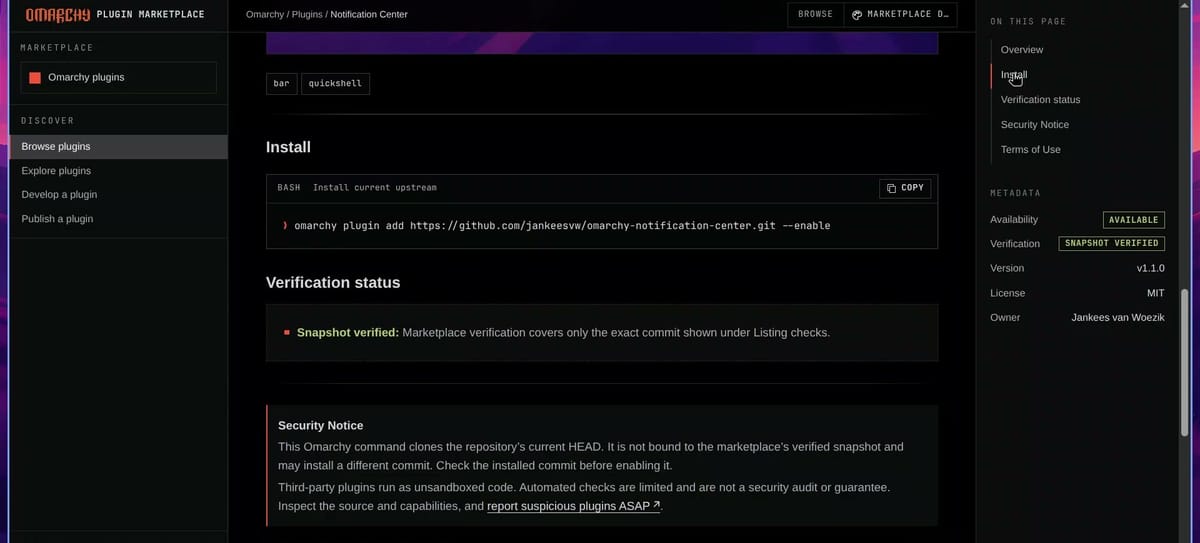
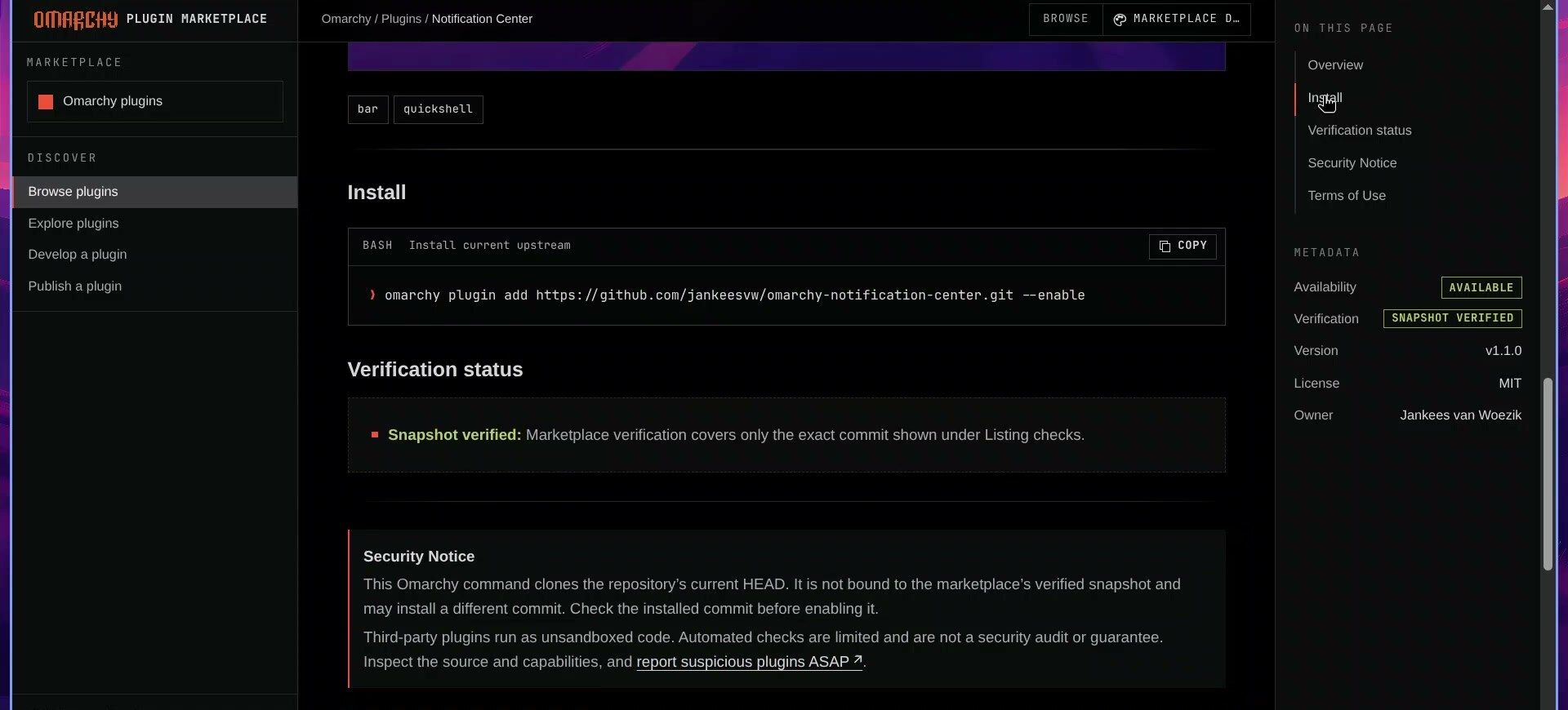
The notice says the command “clones the repository’s current HEAD. It is not bound to the marketplace’s verified snapshot and may install a different commit.” The Verified tag covers the commit the marketplace checked, and the install command grabs whatever is newest on GitHub. For Notification Center, the page listed the checked commit and the verified snapshot as the same (e4c4568), with no upstream changes. The page also lists the version, the license, and the owner in its metadata column.
Check the code yourself, or ask a coding agent
Scroll to the bottom of the plugin page and click View Source to open the GitHub repository. Notification Center is a few QML files for the panel plus one shell script, bin/notification-center, that does the storage work. The script is about 700 lines, and most of the top is comments that explain what it does.
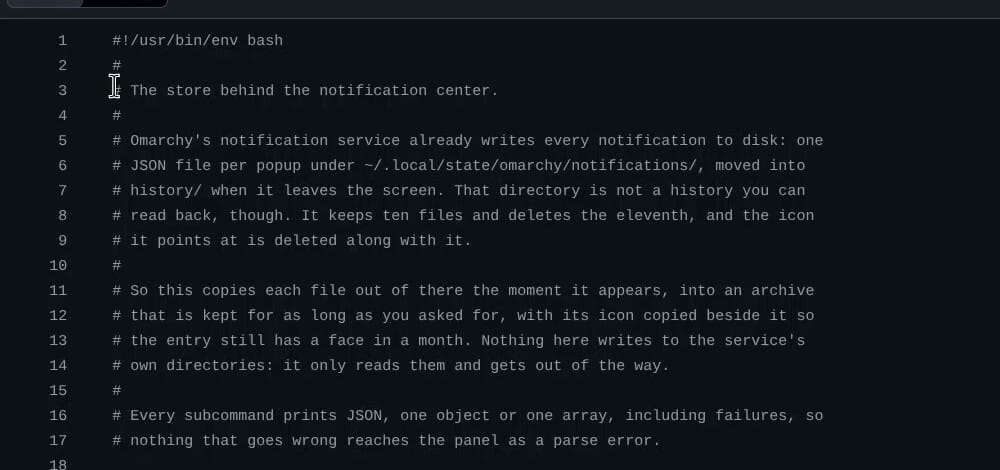
There is no curl, wget, or sudo anywhere in the script. The header explains the approach: Omarchy’s notification service already writes one JSON file per notification under ~/.local/state/omarchy/notifications/ and keeps only ten, and this script copies each one into its own archive as it appears. It only reads Omarchy’s files; it never writes to them.
You do not need to read every line. Look for commands that download or run code (curl, wget, bash -c, eval), anything that asks for sudo, and network addresses that have no reason to be there. If you do not read code, paste the repository link into a coding agent and ask it what the plugin runs, what it reads, and where it sends data, before you install.
Install the plugin from a terminal
Back on the plugin page, click Copy in the install block. For Notification Center, the command is:
omarchy plugin add https://github.com/jankeesvw/omarchy-notification-center.git --enableOpen a terminal with super enter and paste with super v . That is Omarchy’s universal paste, and super c is the matching universal copy in any app. ctrl shift v also pastes in the terminal. Press enter to run it.
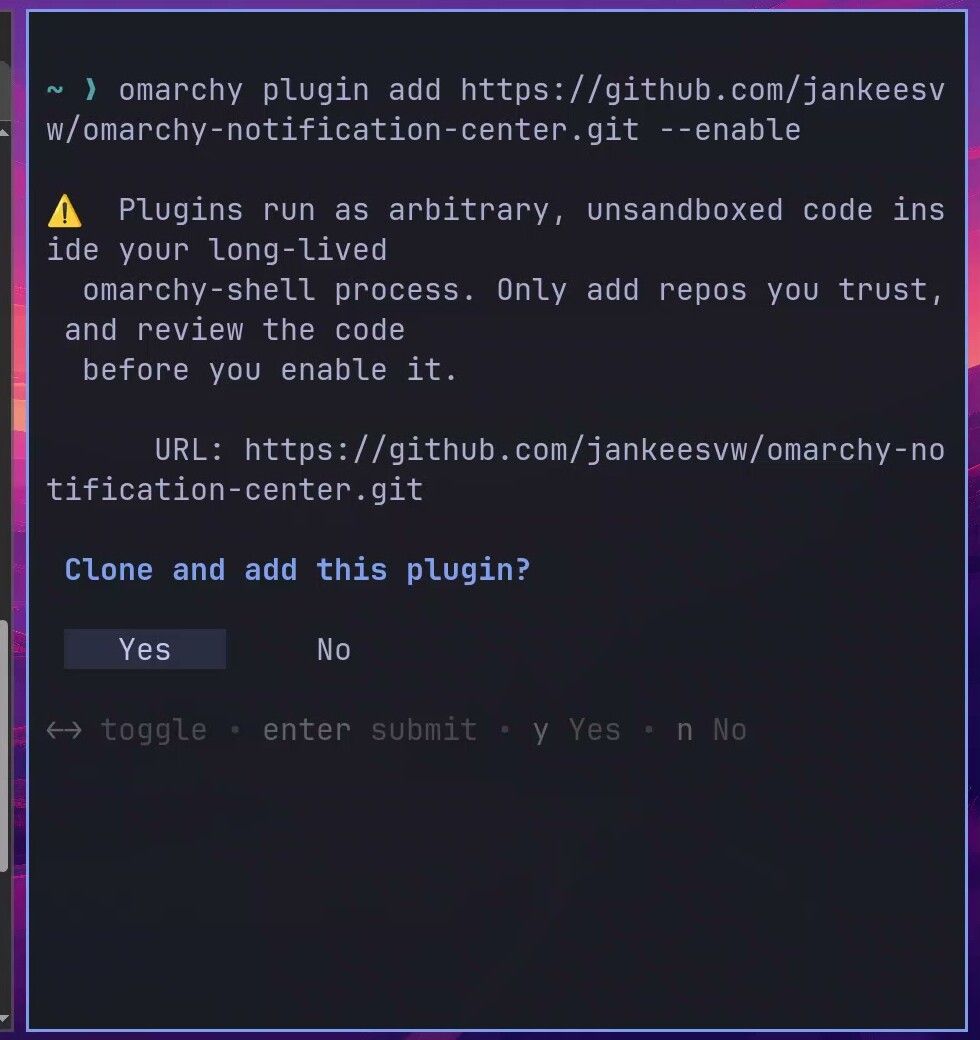
Omarchy warns you first: “Plugins run as arbitrary, unsandboxed code inside your long-lived omarchy-shell process. Only add repos you trust, and review the code before you enable it.” Then it asks Clone and add this plugin? with Yes selected. We had read the code, so we pressed enter on Yes. The clone took a couple of seconds, and the plugin landed in ~/.config/omarchy/plugins/jankeesvw.notification-center.
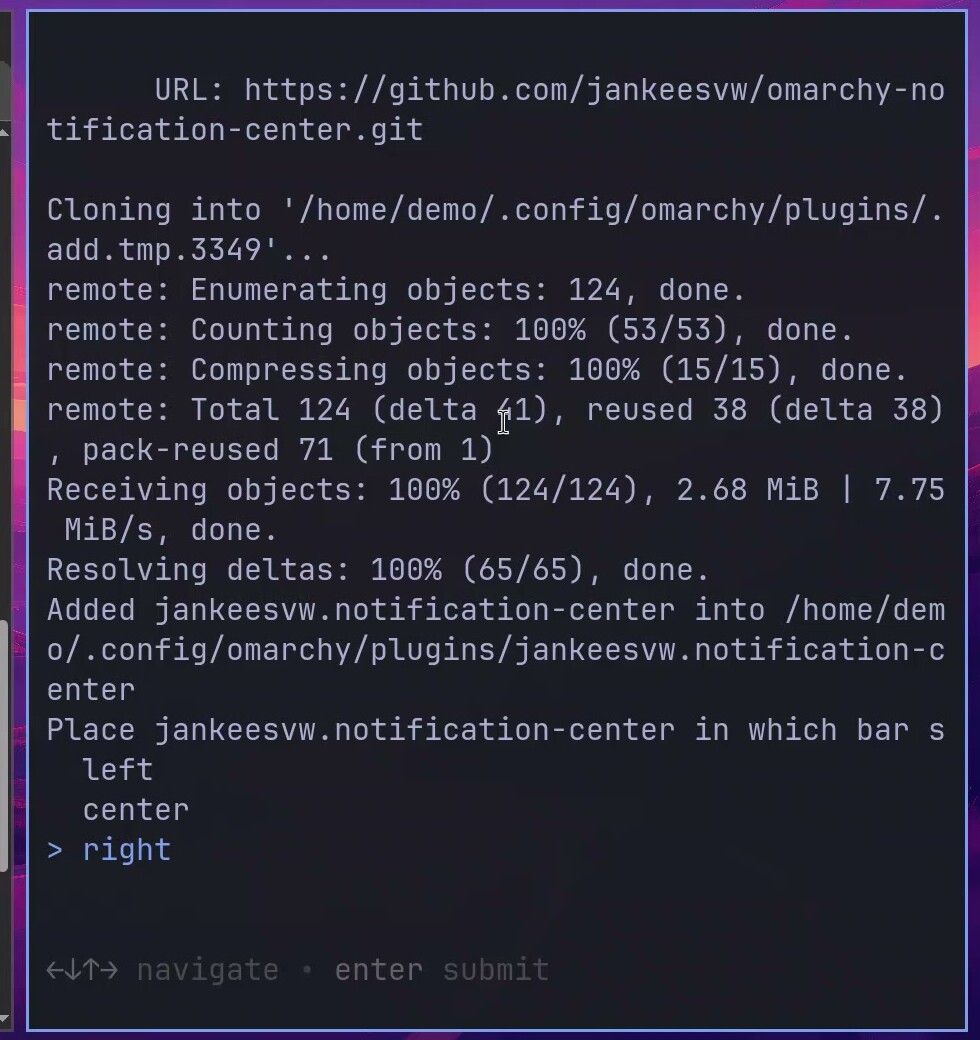
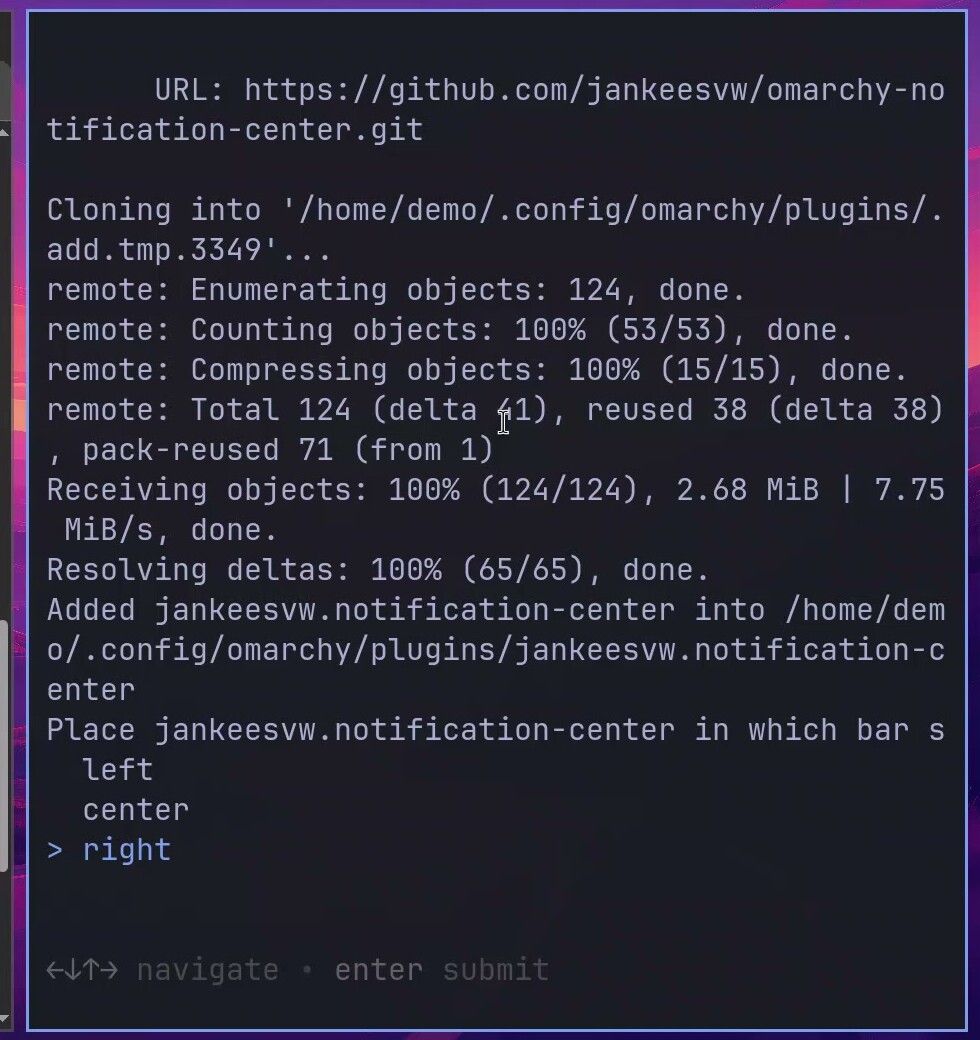
Next, it asks which bar section to put the widget in: left, center, or right. The Notification Center panel is pinned to the right edge of the screen, and the plugin’s README says to keep the bell at the far right, so we left it on right and pressed enter . The terminal printed “Enabled and moved jankeesvw.notification-center,” and a bell appeared in the top bar next to the Bluetooth icon.
Use Notification Center
To try it, we sent four test notifications from the terminal. The -a option sets the app name the notification appears to come from:
notify-send "Download complete" "omarchy-4.0.4.iso saved to Downloads"
notify-send "Build finished" "my-project deployed to staging"
notify-send -a Calendar "Team standup in 10 minutes" "Tuesday 9:30, video call"
notify-send -a Signal "Message from Sarah" "Are we still on for lunch tomorrow?"
Each one pops up as usual, and a small dot appears on the bell. Click the bell, and the panel opens on the right with every notification grouped under Today, newest first.
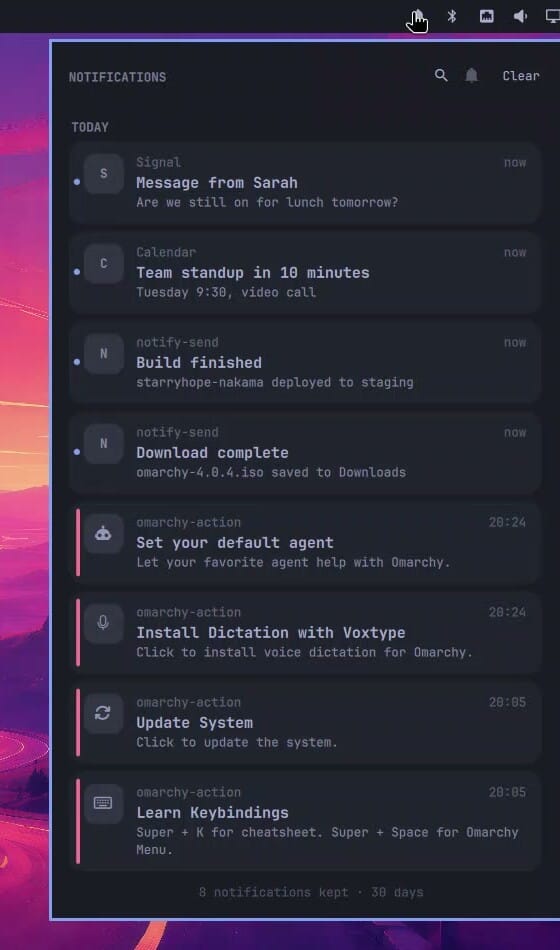
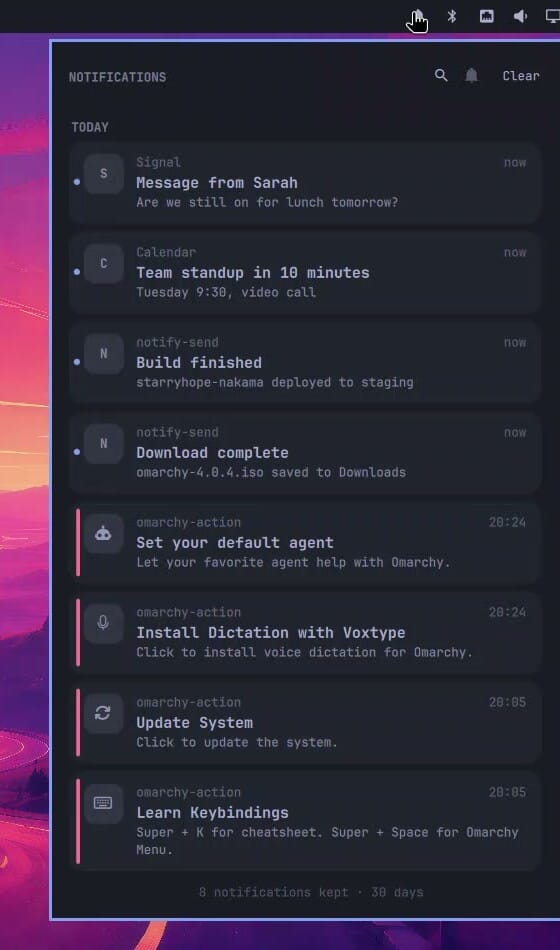
Older Omarchy notices were in the list too, from before we installed the plugin. The plugin copied the notifications Omarchy had already saved, so you start with a short history rather than an empty panel. The footer shows how many are kept and for how long (30 days by default).
The magnifier at the top opens a search box ( / does the same), and it filters as you type. Searching for build left only the Build finished message. esc closes the search and brings the full list back.
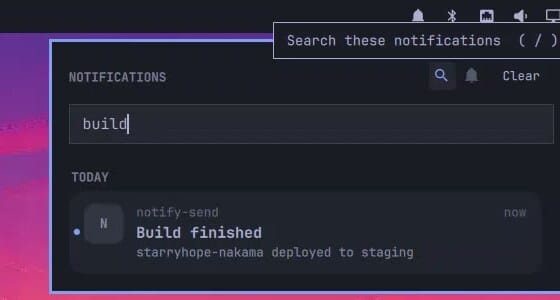
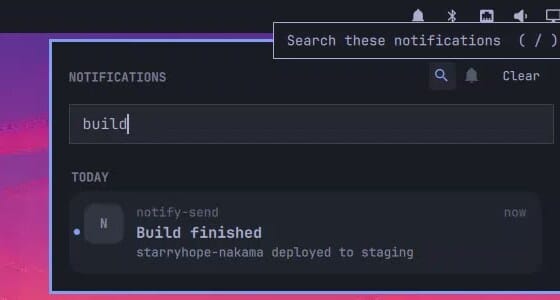
Hover over a card and its timestamp turns into a small x; click it to dismiss that one notification. Clear empties the whole list at once, with no confirmation. Clear only hides what you have seen, though. The notifications stay saved on disk and age out after the retention period, and removing the plugin does not delete them either.
The bell in the panel header is meant to turn on Do Not Disturb, but on Omarchy 4.0.4 it did nothing, and a test notification still popped up. That matches an open issue on the plugin’s repository about the toggle breaking on 4.0.3.
Install Omagotchi after checking an unverified update
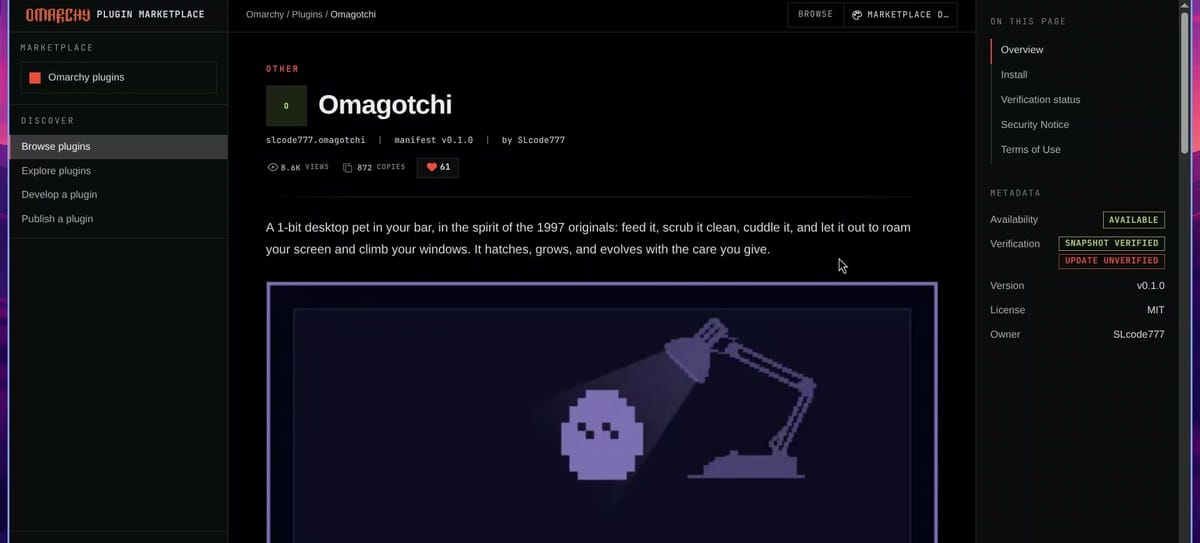
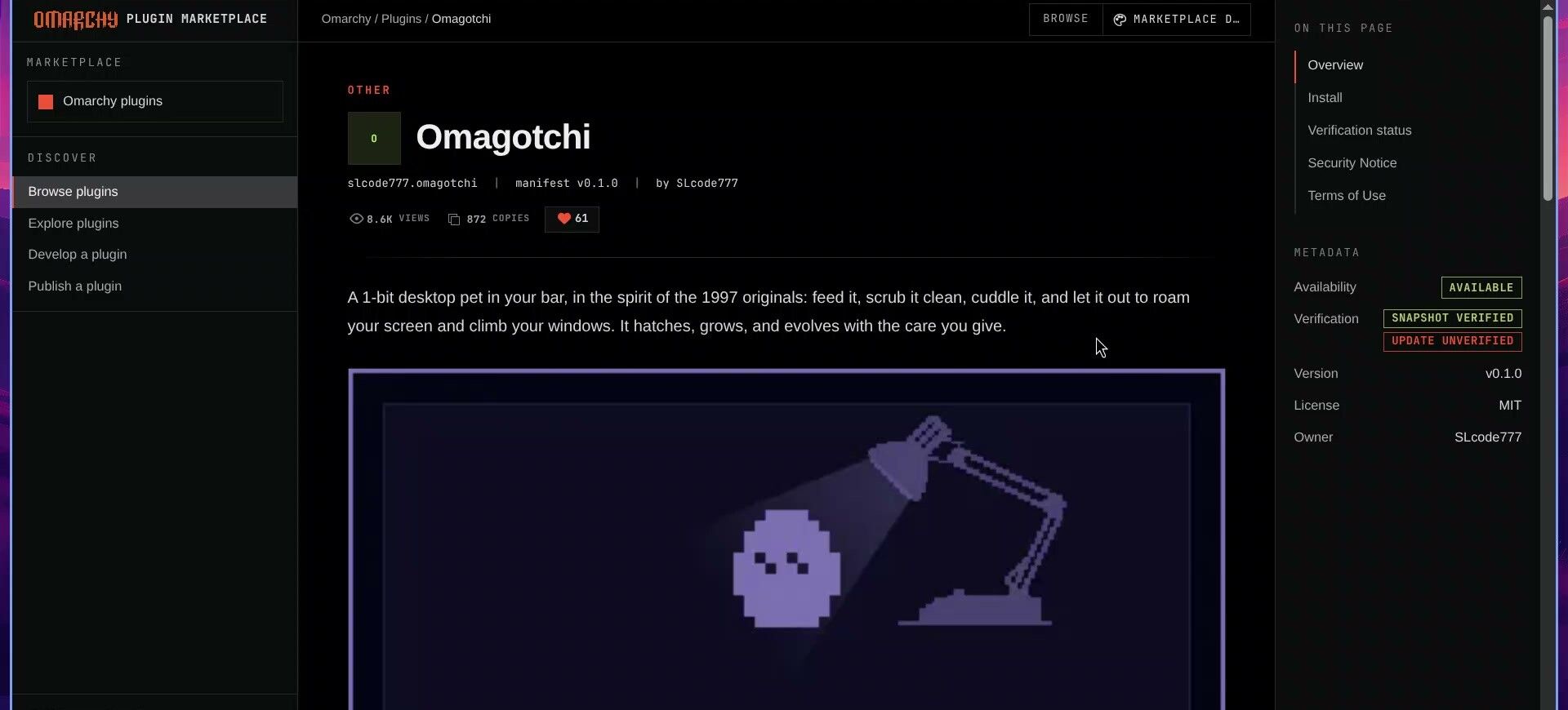
Omagotchi’s marketplace page shows Snapshot verified and, under it, a red Update unverified tag. The page explains: “The latest upstream changes have not been verified.” The code on GitHub has changed since the marketplace last checked it, and since the install command pulls the newest commit, the check is on you.
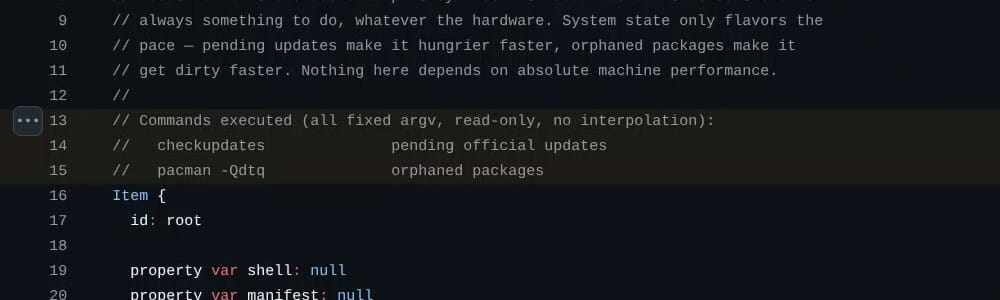
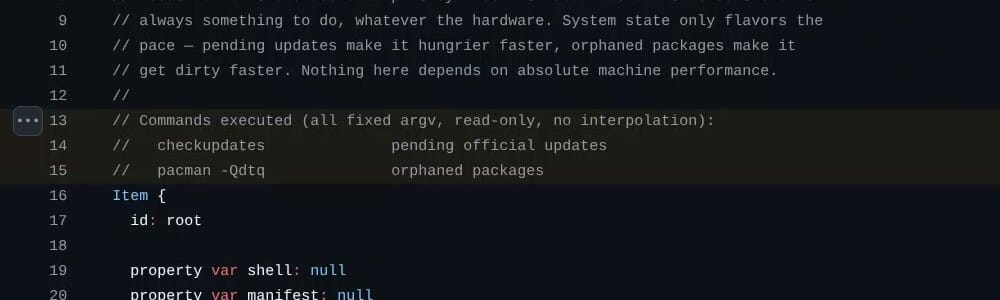
The pet’s logic lives in Service.qml, and the file lists the outside commands it runs right in its header comment (lines 13 to 15): checkupdates for pending official updates and pacman -Qdtq for orphaned packages. Both only look at your packages; neither installs or removes anything. (checkupdates does download fresh package lists into a temporary folder to compare, so it contacts the Arch mirrors.) The pet uses those counts to set its pace: pending updates make it hungrier faster. The rest of the code plays its sounds, sends its own notifications, and writes two save files.
That looked fine, so we installed it the same way: Copy on the plugin page, then paste and run in a terminal.
omarchy plugin add https://github.com/SLcode777/omagotchi.git --enableThe same prompts follow. We chose right again at the placement question, and an egg appeared in the bar next to the bell.
Hatch, feed, and play with the pet
Click the egg to open its panel. The egg sits under a little desk lamp, with bars for hunger, hygiene, energy, fun, and affection. Feed and Go play are greyed out while it is still an egg.
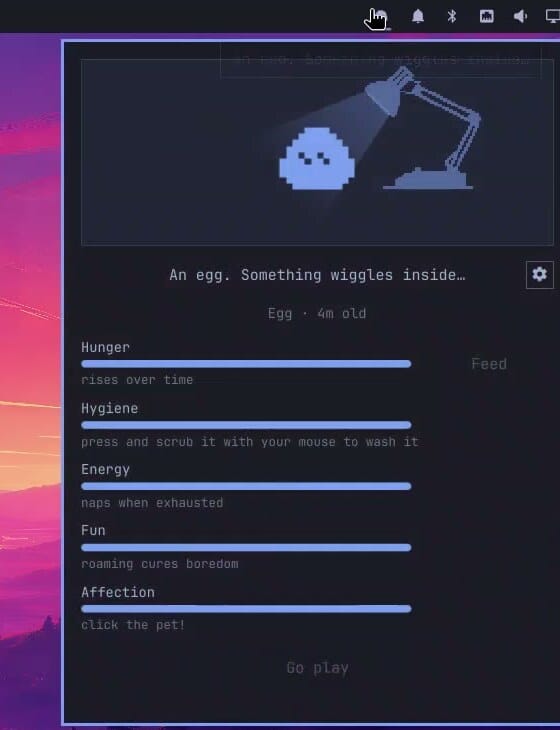
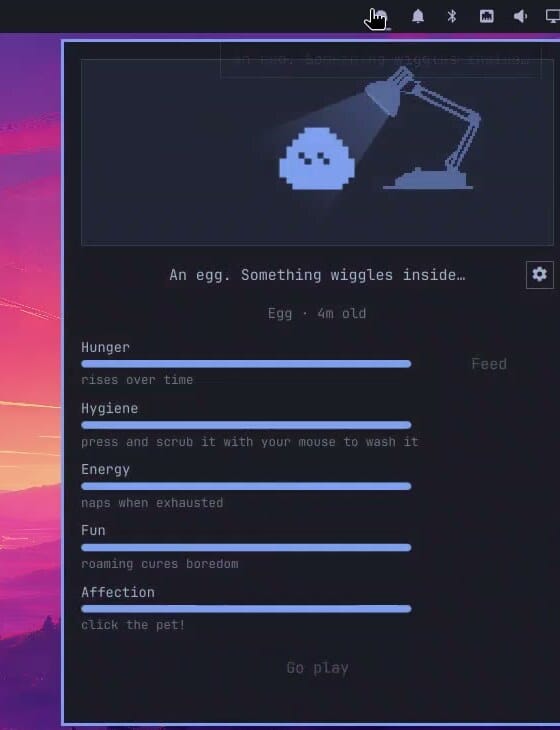
The pet ages only while you use the computer. After about five minutes of use, the egg hatches, and a notification says “The egg hatched!” A while later the baby gets hungry and says so in the panel, with a drumstick in a thought bubble. Click Feed, and the hunger bar fills back up in two or three seconds. Right after that it wanted a bath: you wash it by pressing on the pet and scrubbing with the mouse. Clicking the pet makes a little heart pop above it.
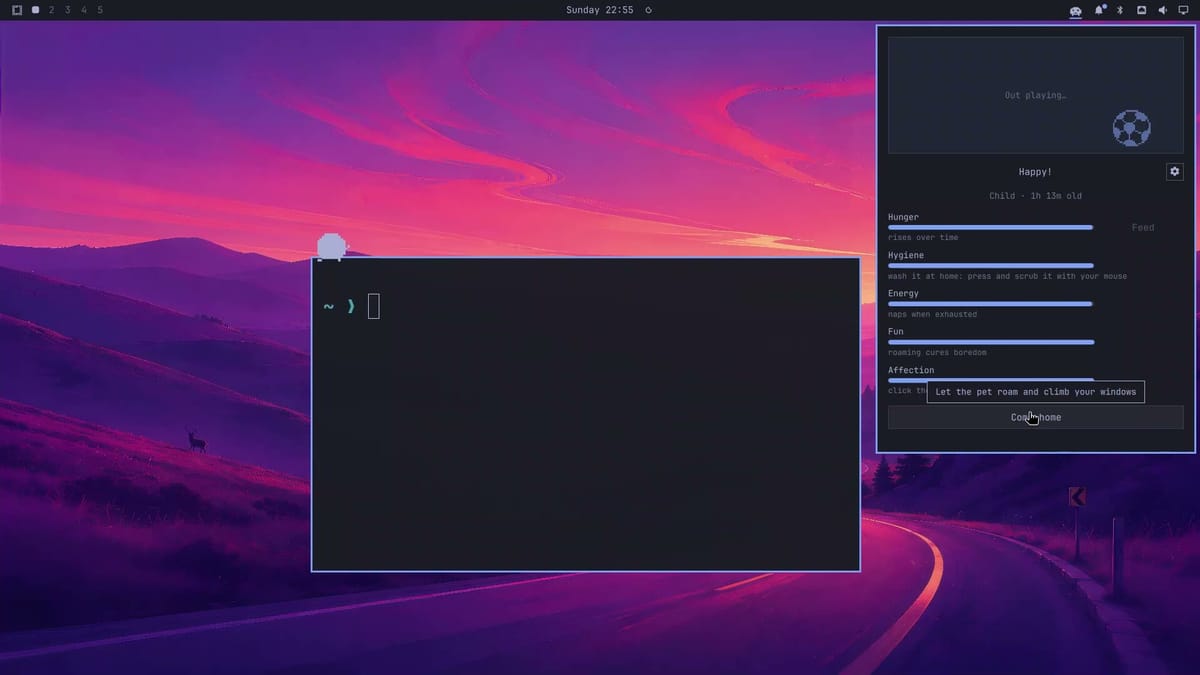
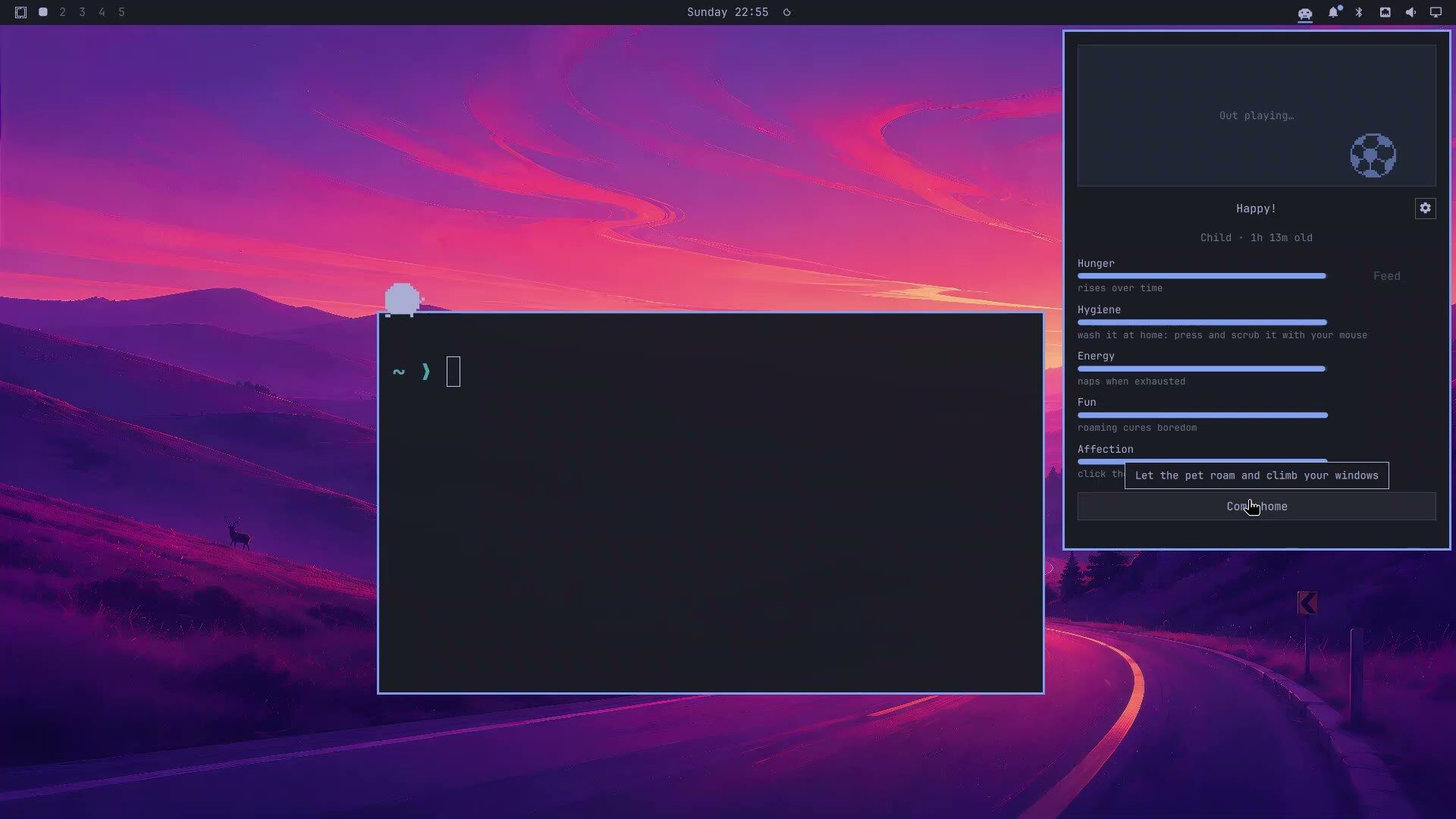
After a little over an hour of use (about 70 minutes), the baby grows into a child and Go play unlocks. Click it, and the pet leaves the panel and walks along the bottom of the screen. It even climbs the side of a floating window and walks across the top. Come home pulls it back into the panel with a beam of light.
Remove a plugin from the Omarchy menu
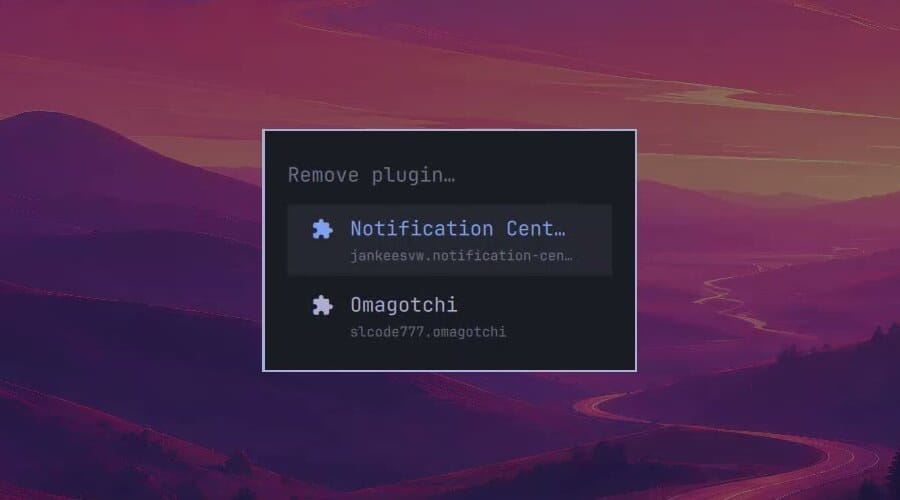
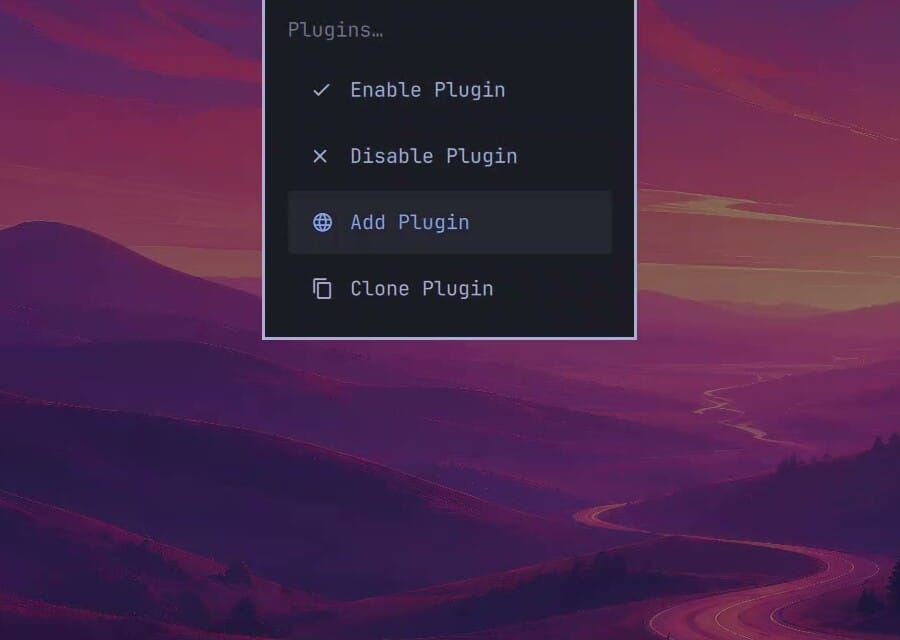
Press super space to open the Omarchy menu, go to Setup, then Plugins, and pick Remove Plugin. (That entry only shows up when at least one third-party plugin is installed.) The list shows each plugin by name and ID; we picked Omagotchi.
A small terminal opens and asks “Delete ‘slcode777.omagotchi’? Its git repo remains upstream.” with Yes selected. Press enter . It prints “Removed slcode777.omagotchi.” and the egg is gone from the bar. The screen may flash for a couple of seconds while omarchy-shell unloads the plugin.
If you only want a plugin out of the way for a while, the same Plugins menu has Disable Plugin, which turns it off without deleting it.
Delete the pet’s save files
Removing Omagotchi leaves its two save files behind in the Omarchy state folder, ~/.local/state/omarchy/: omagotchi-settings.json and omagotchi-state.json. The plugin’s README lists both as safe to delete. One command removes them:
rm ~/.local/state/omarchy/omagotchi-*.jsonRemove Notification Center from the terminal
The terminal route uses omarchy plugin remove plus the plugin’s ID, which is the author’s name, a dot, and the plugin name (it is also shown on the plugin’s marketplace page):
omarchy plugin remove jankeesvw.notification-centerIt asks the same “Delete …? Its git repo remains upstream.” question. Press enter on Yes, and it prints “Removed jankeesvw.notification-center.” The bell leaves the bar.
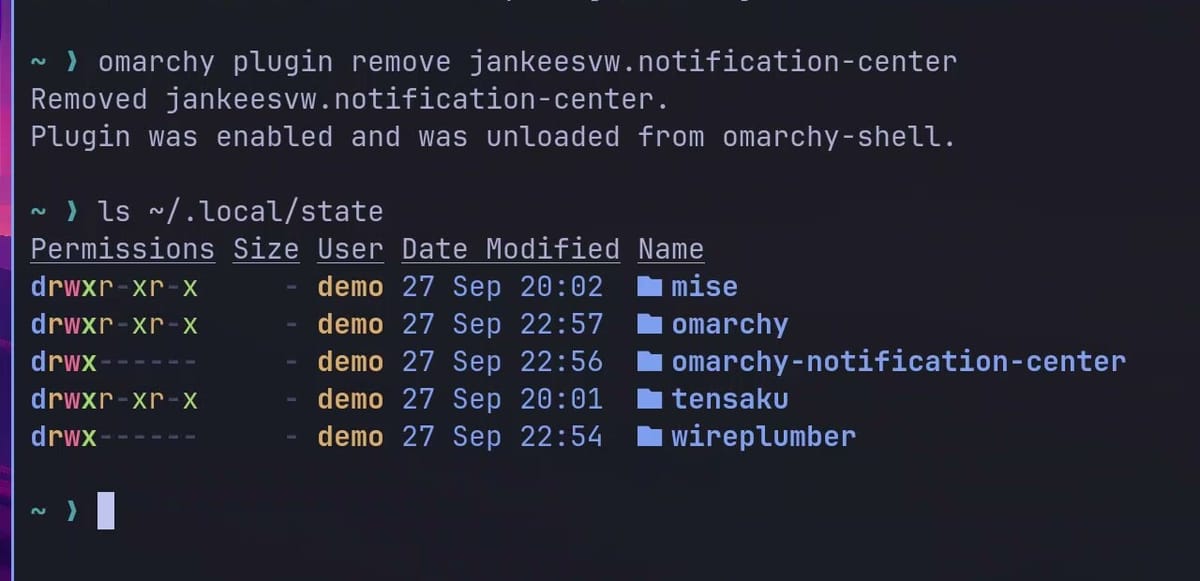
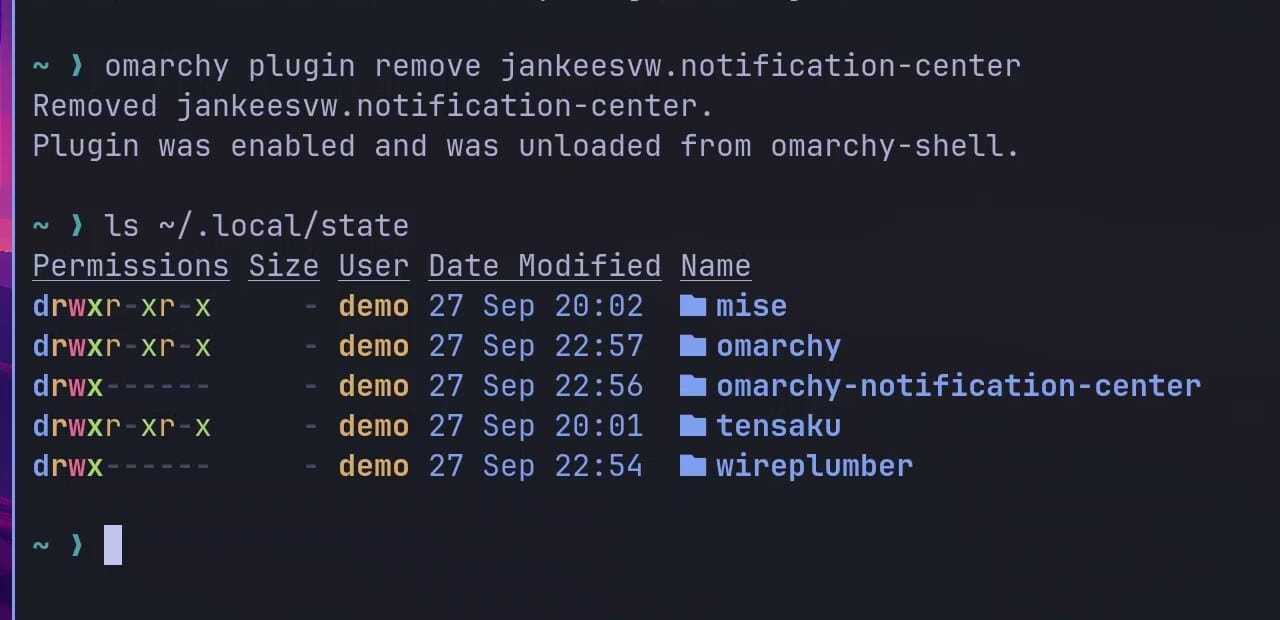
The plugin’s archive is still there. List the state folder, and omarchy-notification-center is in it:
ls ~/.local/stateThat folder holds every notification you received while the plugin ran, which can include chat messages and two-factor codes. The README says the plugin leaves it on purpose when you remove it, and gives the cleanup line. Delete it:
rm -rf ~/.local/state/omarchy-notification-centerrm -rf deletes the folder and everything in it without asking, so check the path before you press enter . If you keep Notification Center installed instead, its Keep notifications for setting limits how far back that archive goes; the README calls one day “a perfectly reasonable answer.”
Add a plugin from the menu instead
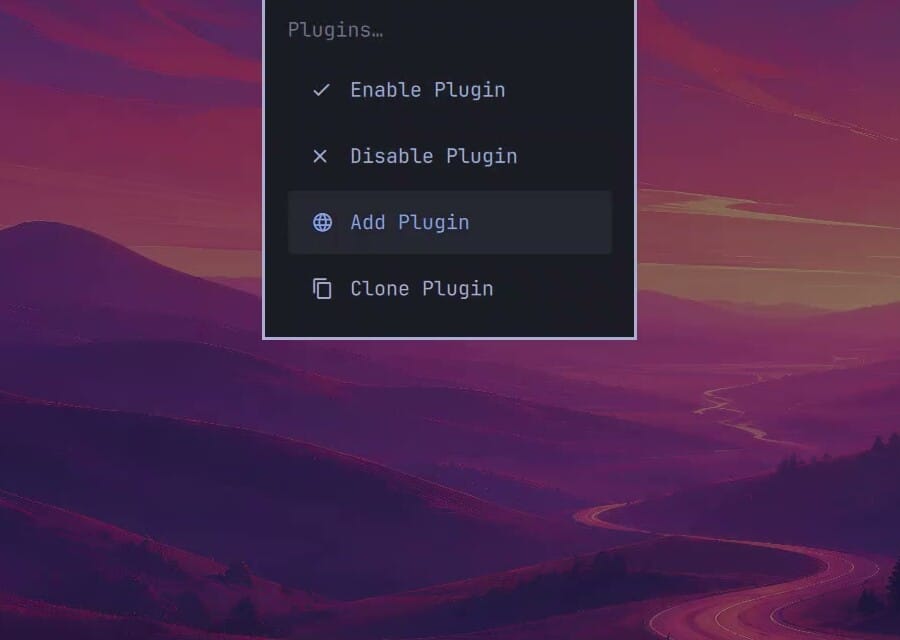
The same Plugins menu ( super space , Setup, Plugins) also has Add Plugin. It opens a small terminal that asks for the plugin’s Git URL, so you can paste a GitHub link there instead of typing the full command. The same prompts follow.
Troubleshooting
The paste did nothing in the terminal. Try ctrl shift v , the terminal’s own paste. Also check that the Copy button on the plugin page worked: the command should be on your clipboard before you open the terminal.
The panel opened in the wrong place. Notification Center’s panel is pinned to the right edge of the screen. If you placed the bell on the left or in the center, remove the plugin and add it again, choosing right at the placement question.
Remove Plugin is missing from the menu. It only appears when a third-party plugin is installed. If omarchy plugin remove says the ID is unknown, check the ID in the Remove Plugin list or in ~/.config/omarchy/plugins/.
Go play is greyed out. The baby is too young to go out alone. It unlocks when the pet becomes a child, after about 70 minutes of use.
Where to go next
If you are still picking hardware for Omarchy, our Omarchy 4 hardware guide covers the mini PCs and laptops that run it cleanly. After you remove any plugin, check ~/.local/state for anything it left behind.


