
Hermes Agent is a free, MIT-licensed AI agent from Nous Research. Hermes Desktop is its app: a window for chats, skills, and settings, with a local backend that runs on your own computer while the model itself runs at the provider you connect. Omarchy 4.0.4 lists Hermes Desktop in its menu under Install > AI, builds the whole Hermes runtime for you, and hands the app your Omarchy theme colors.
The steps below cover the install, the terminal sign-in for a ChatGPT subscription that the video does off camera, and each request we typed to change the desktop. Everything below was done on Omarchy 4.0.4 with the hermes-desktop 2026.8.31-3 package from Omarchy’s repository, which is Hermes Agent v0.21.0.
What you need
You need Omarchy 4.0.4 and about 3.6 GB of free disk space. The install downloads close to a gigabyte from GitHub, so a fast connection helps. Omarchy uses the Super key for its shortcuts; on a PC keyboard that is the Windows key. If the Omarchy shortcuts are new to you, our list of Omarchy shortcuts to learn first covers the menu, the terminal, and closing windows.
To chat with Hermes, you also need an AI provider. You can install and explore the app without one, and connect a provider later.
Install Hermes Desktop from the Omarchy menu
Press super space to open the Omarchy menu, then choose Install, AI, and Hermes Desktop. You can also type ai as soon as the menu opens: typing filters every level of the menu, so “AI” in the Install section comes up first. The AI list also has ChatGPT Desktop, Dictation, Grok Bot, T3 Code, and OpenClaw, among others.
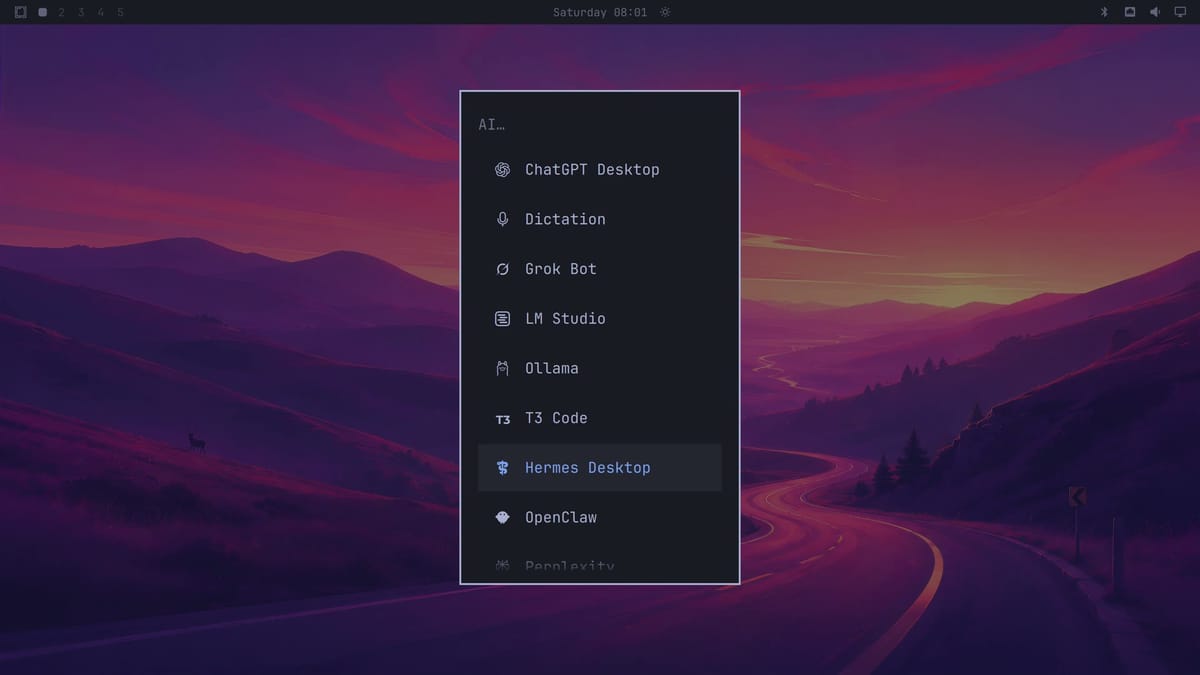
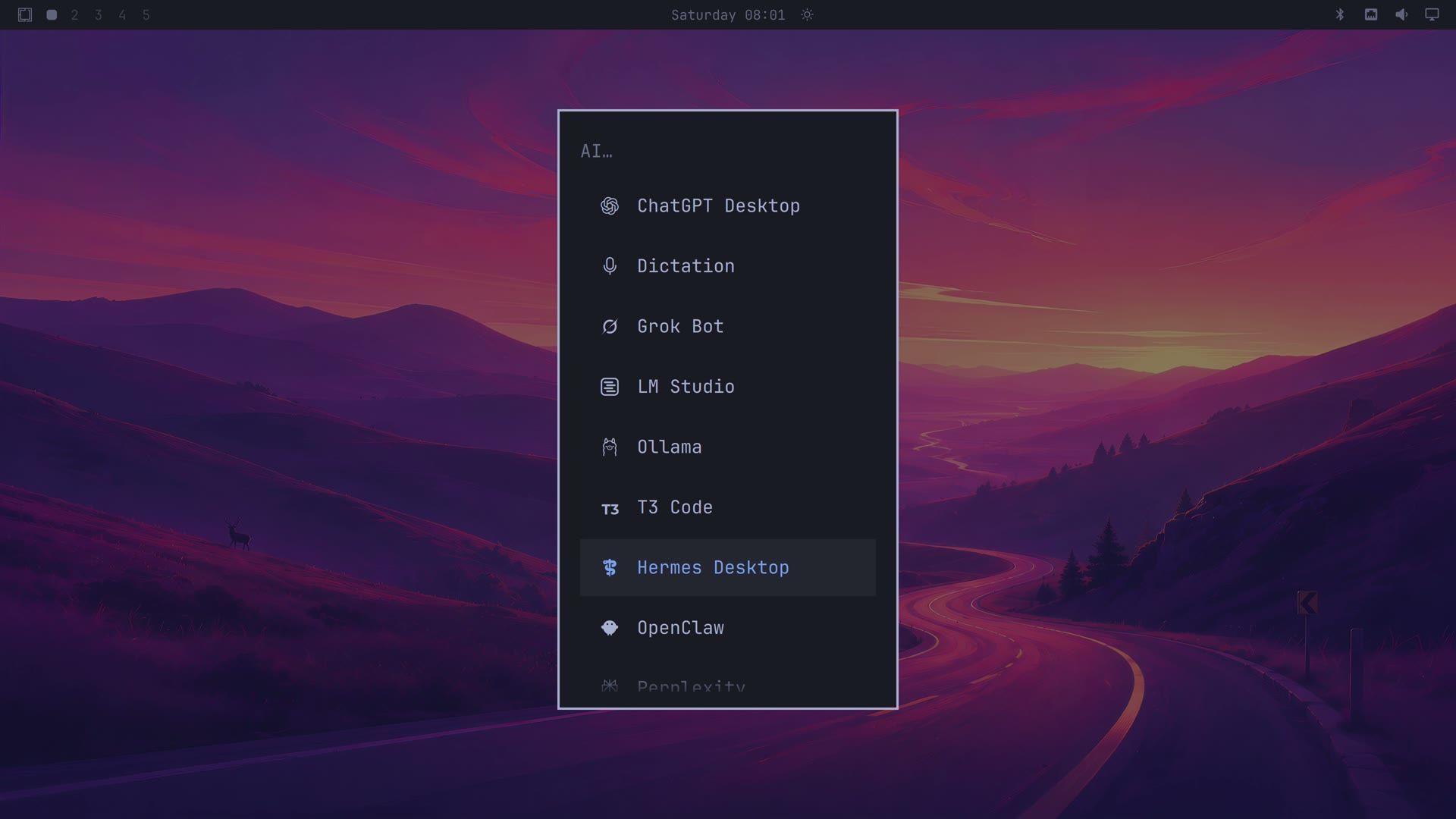
A floating terminal opens and does the rest. The terminal asks for your sudo password first. The install then runs in two stages:
- The package. pacman installs
hermes-desktop(a 128.6 MiB download, 337.8 MiB installed in/opt/hermes-desktop) along with Node.js, npm, and a few libraries they need. This step takes a few seconds. - The Hermes runtime. Omarchy then prints “Setting up the Hermes runtime…” and runs the Hermes installer that ships in the package. It clones the Hermes Agent repository from GitHub into
~/.hermes/hermes-agent, installs its Python packages and the Node.js packages for its browser tools, downloads the Chromium browser engine that Playwright drives (into~/.cache/ms-playwright), and installs the Cua driver. It then fetches the full history of the repository’s main branch (about 753 MiB).
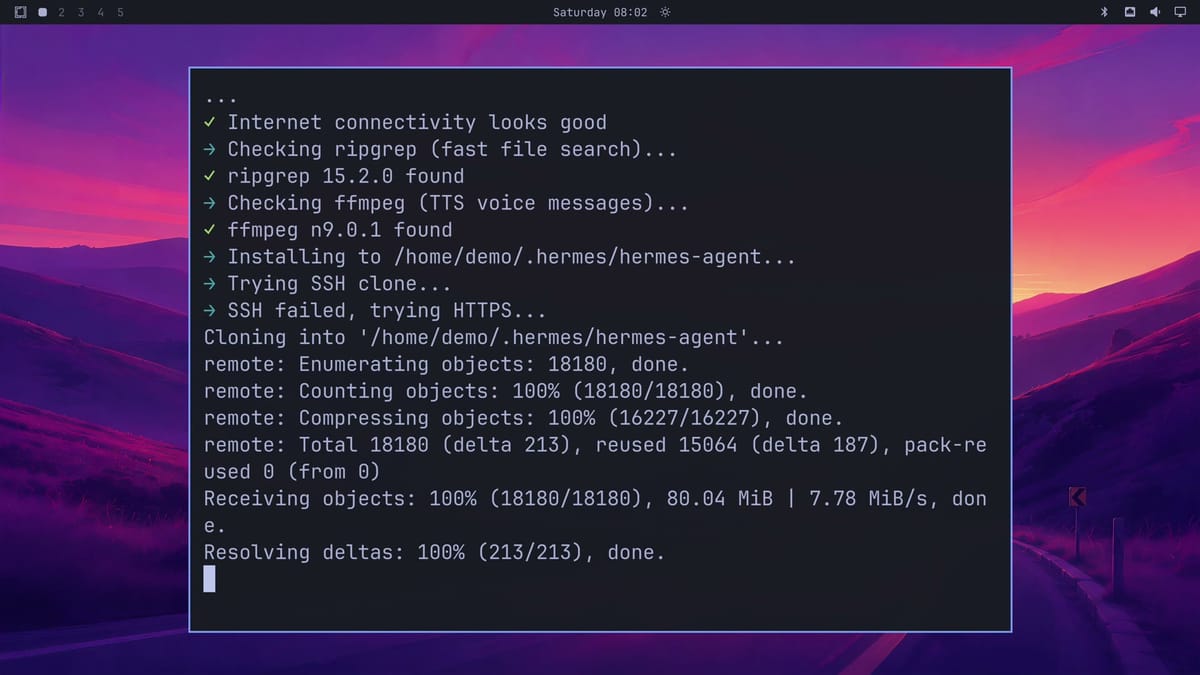
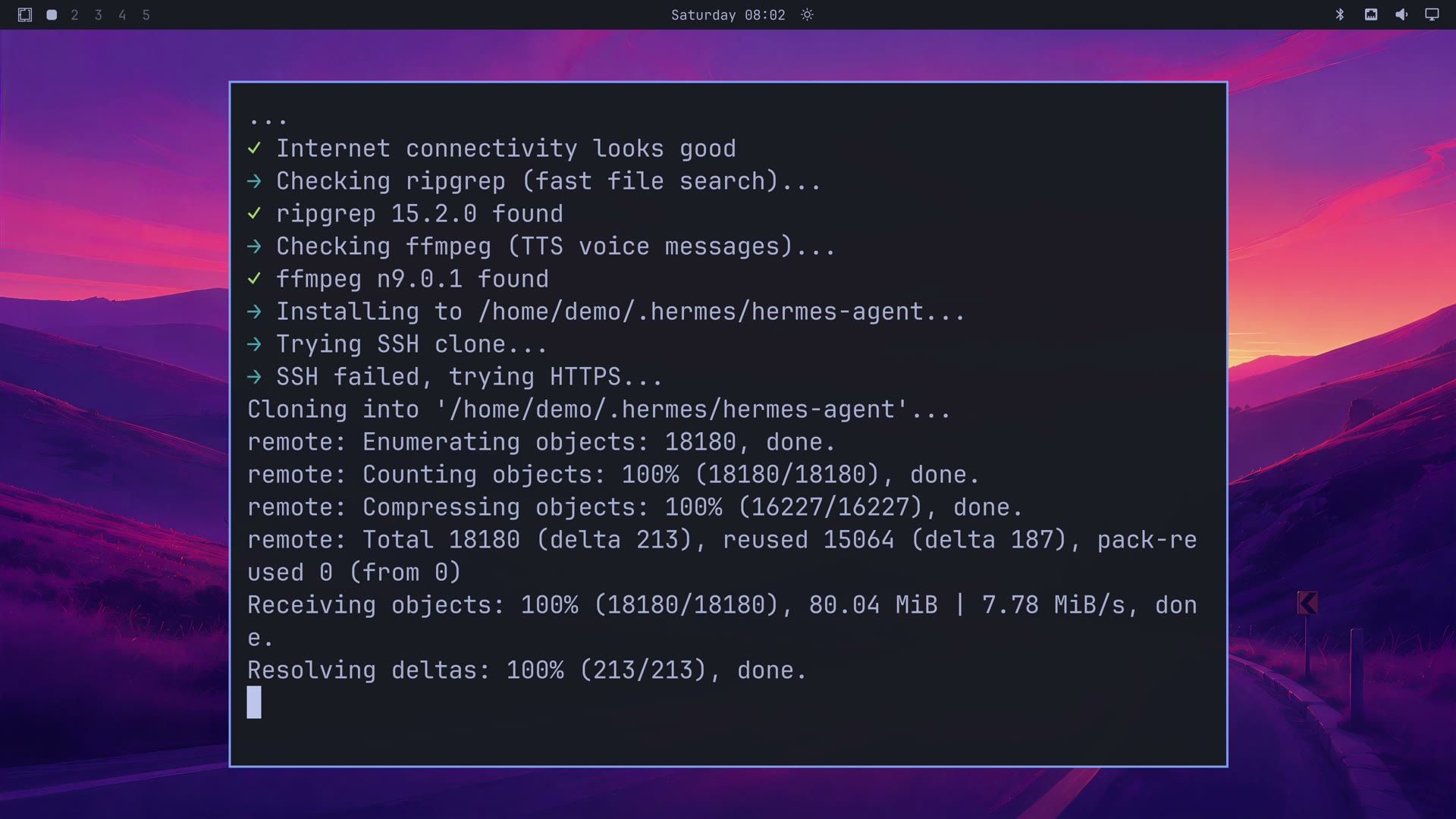
The install asks one question, about two and a half minutes in: “Need to install the following packages: playwright@1.63.0 Ok to proceed? (y)”. Press y , then enter , and it carries on.
On our Intel N100 mini PC with a home connection at about 7.7 MiB/s, the install took about six minutes, most of it downloading. When it finishes, the terminal says “Hermes Desktop has been installed.” and “Done! Press any key to close…”, and the Hermes window opens behind it.
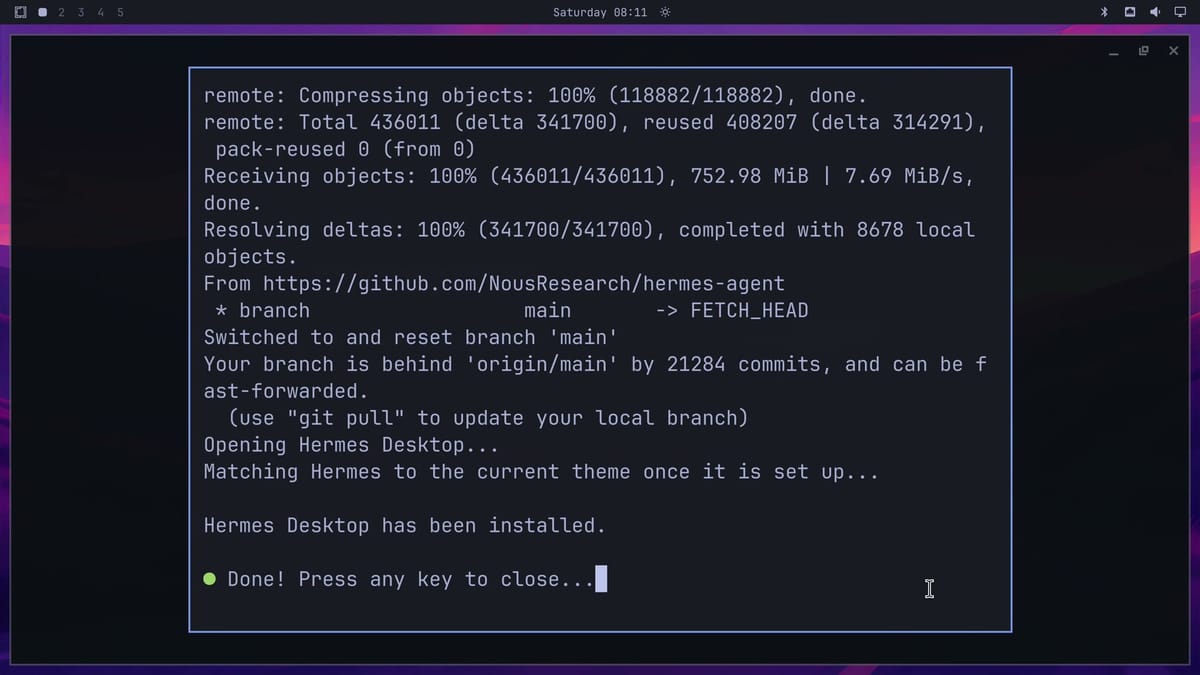
The keyboard goes to the Hermes window at that point, not to the terminal. Click inside the terminal first, then press any key to close it.
All in, the install used about 3.6 GB of disk on our machine: 2.5 GB in ~/.hermes (the git history, a Python environment, and Node packages make up most of it), 338 MiB for the app in /opt/hermes-desktop, 658 MiB for the Playwright browser files, and 59 MiB for the Cua driver. With the app open and idle, used memory went up by about 830 MB.
Turn off the Cua driver’s usage reporting
The Cua driver comes from the Cua project and lets an AI agent see and use the apps on your screen. The Hermes installer fetches Cua’s own install script from GitHub and runs it. That script installs the driver in your home folder (~/.cua-driver, with a link at ~/.local/bin/cua-driver), with no sudo and no background service.
The driver turns on usage reporting by default. Its installer says so in the output: it sends a pseudonymous installation ID and what it calls bounded, content-free usage metadata. To turn that off, press super enter to open a terminal and run:
cua-driver telemetry disableIt answers with:
Telemetry disabled. The local installation ID was retained; run `cua-driver telemetry reset-id` to erase it.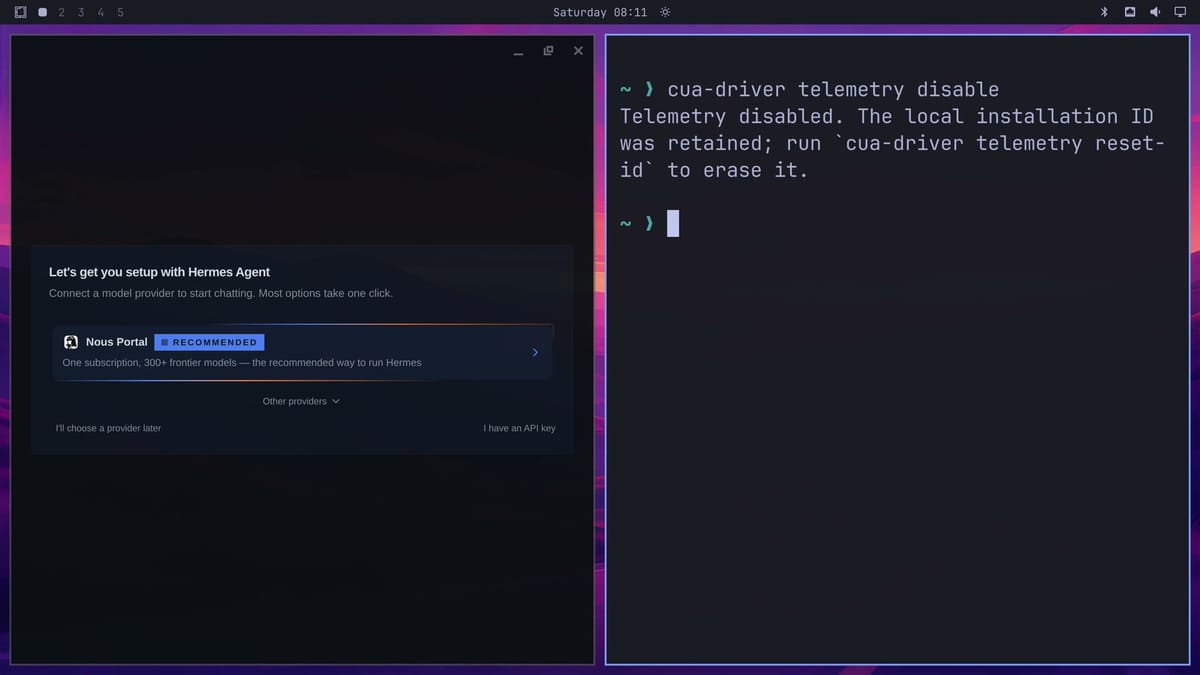
Run cua-driver telemetry reset-id as well if you want the stored ID gone. The setting stays off until you turn it back on. Close the terminal with super w .
Pick a provider now or choose one later
The first time Hermes opens, it shows a card titled “Let’s get you setup with Hermes Agent” and asks you to connect a model provider. Nous Portal sits at the top, marked RECOMMENDED. It comes from Nous Research too, and it is a subscription that covers many models; in October 2026 its paid plans started at $20 a month (see portal.nousresearch.com for current plans).
Click Other providers to see the rest. The list in v0.21.0 has Fireworks AI, ChatGPT or Codex Subscription, MiniMax, Qwen Code, xAI Grok, Anthropic API Key, Anthropic OAuth (which needs a Claude Max plan plus extra usage credits you buy on top of it; Claude Pro cannot use it), GitHub Copilot (ACP), and OpenRouter. The ChatGPT or Codex Subscription row opens a verification page in your browser, and the same sign-in also works from a terminal, as shown below.
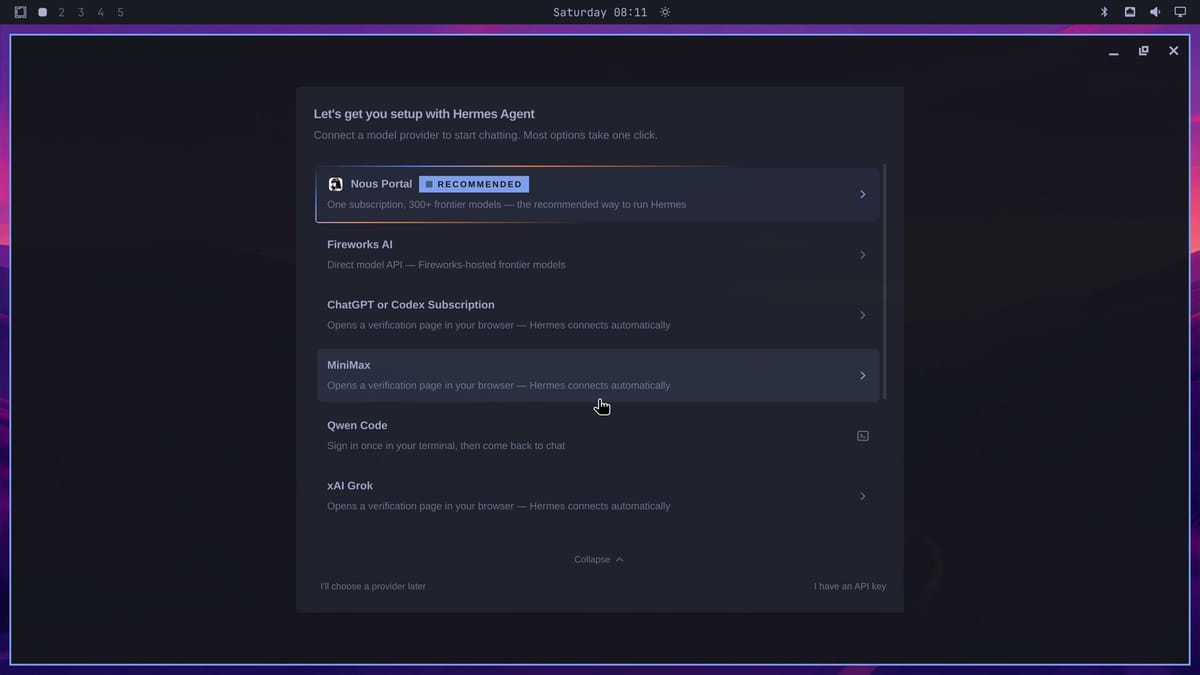
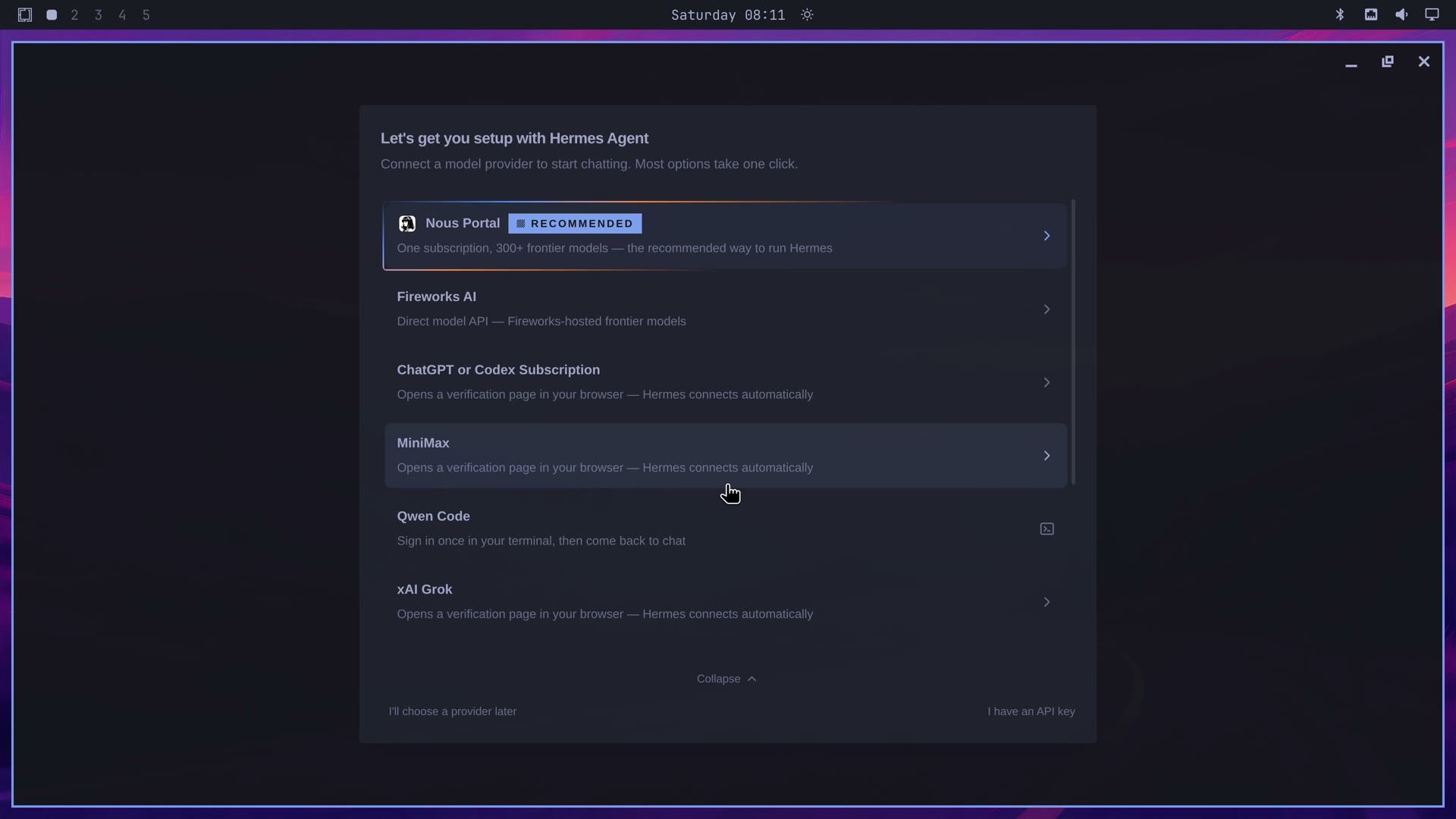
At the bottom left is I’ll choose a provider later. Click it to go straight to the app. The next two sections work without a provider; everything after them needs one for chat. Until you connect one, the footer reads “Gateway inference unavailable”.
Find the Omarchy skill in Capabilities
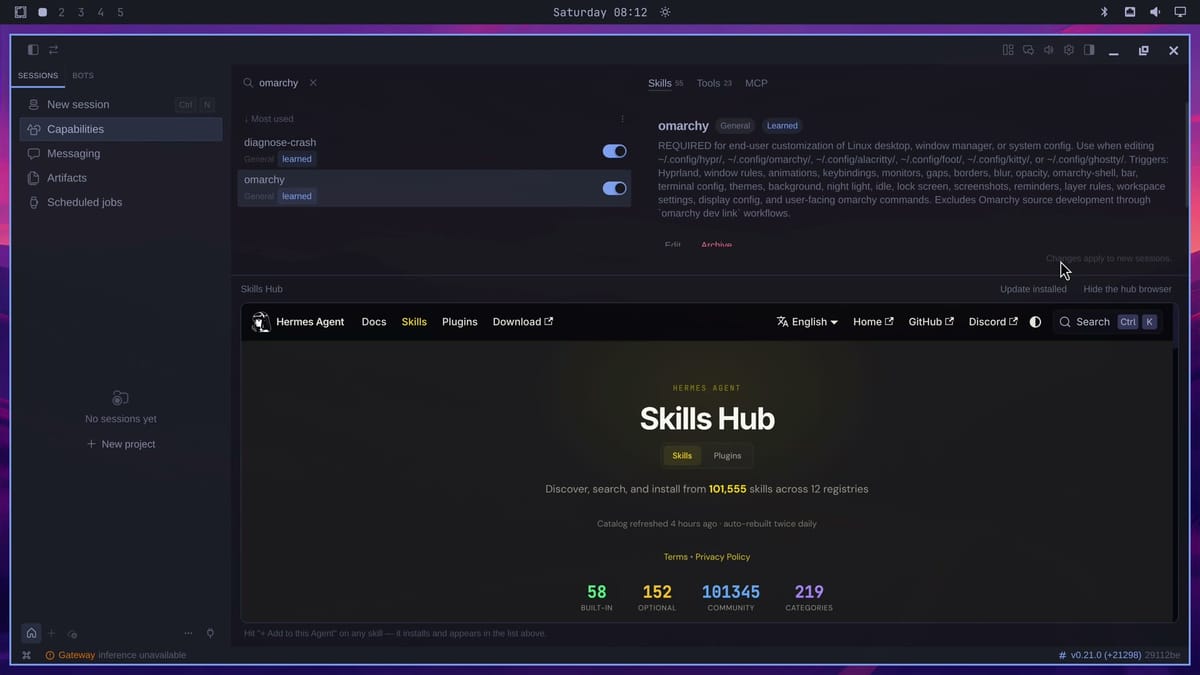
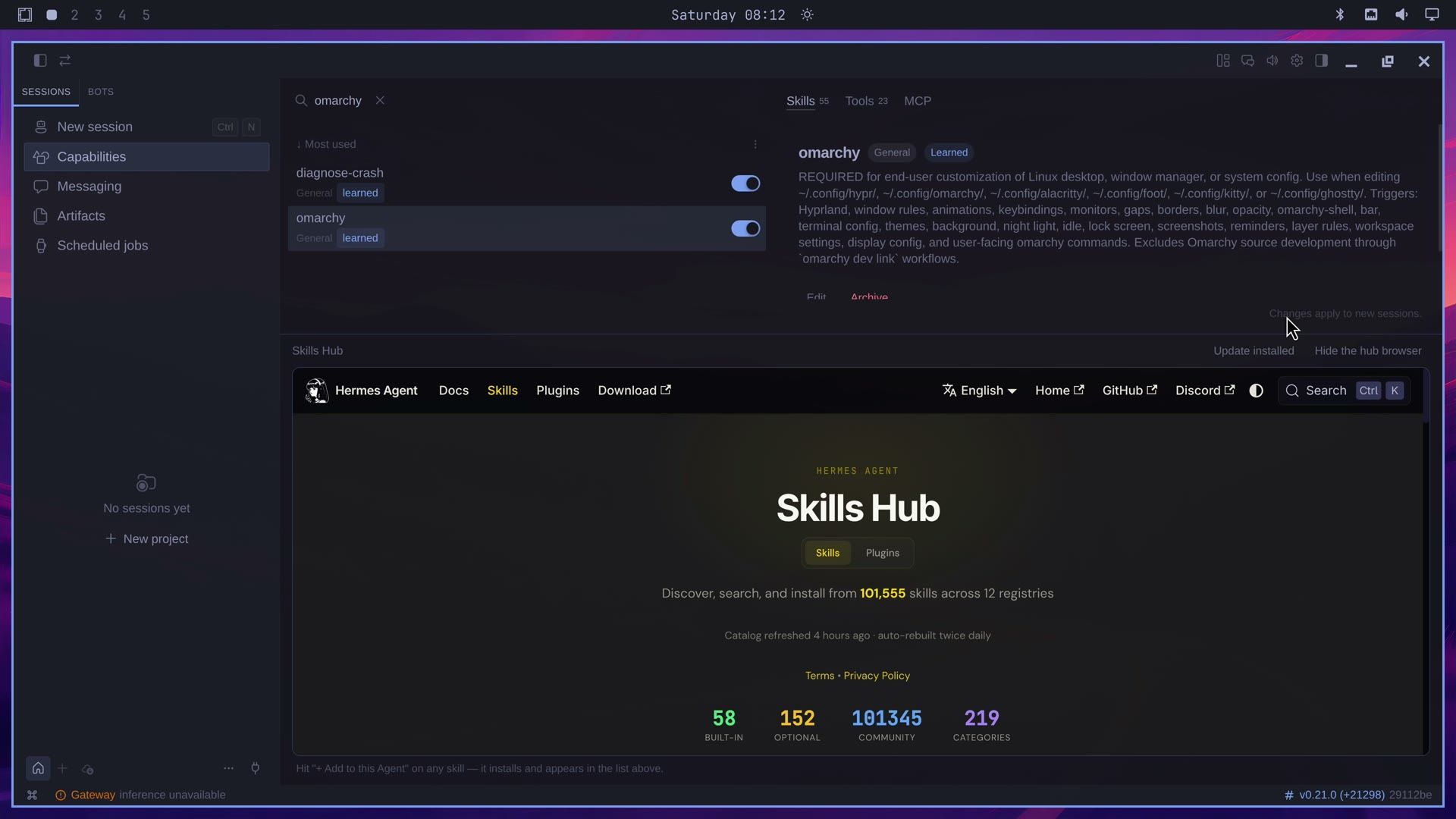
Skills are instructions Hermes reads before it does a kind of task. Click Capabilities in the left sidebar to see them: our install had 55 skills and 23 tools, each with its own switch, and a Skills Hub below the list for adding more.
Omarchy links a skill of its own into Hermes. Type omarchy in the search box at the top and click the omarchy result. Its description lists what it covers: Hyprland settings, window rules, keybindings, monitors, the bar, themes, the background, night light, the lock screen, and the omarchy commands. That is how Hermes knows to use Omarchy’s own tools when you ask it to change your desktop.
Check Settings: approvals, appearance, and the update offer
Click the gear icon at the top right to open Settings. The Model section is where you pick the model once a provider is connected, and the list on the left also has Voice, Memory & Context, Providers, and more.
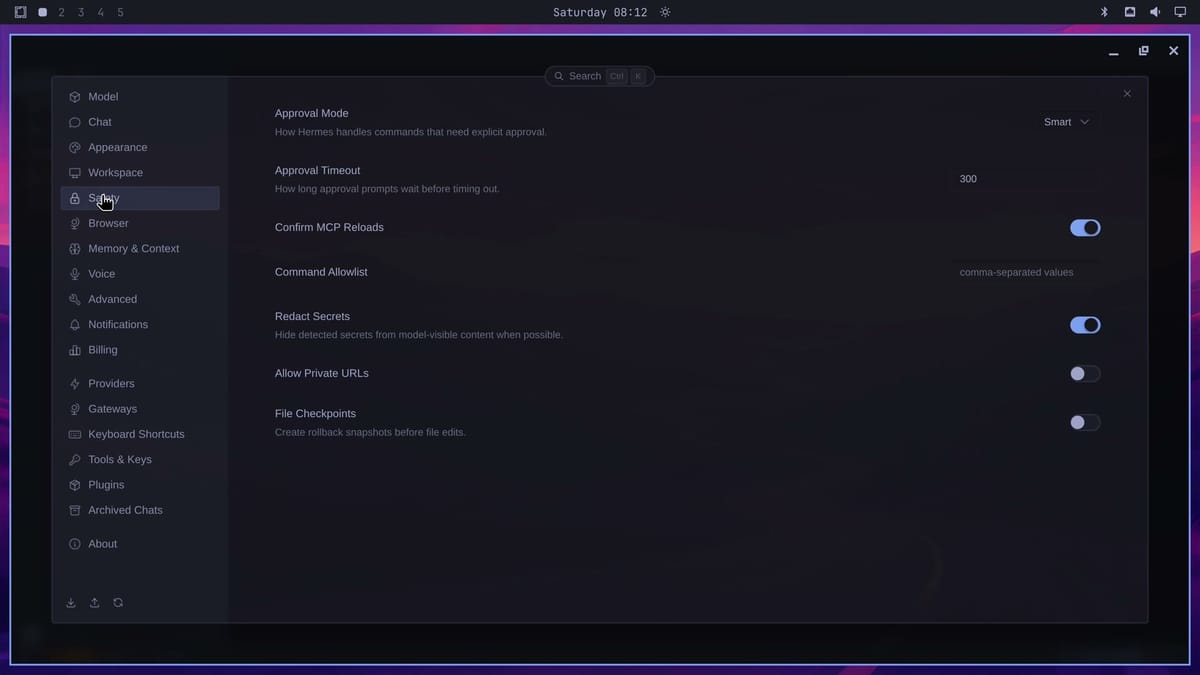
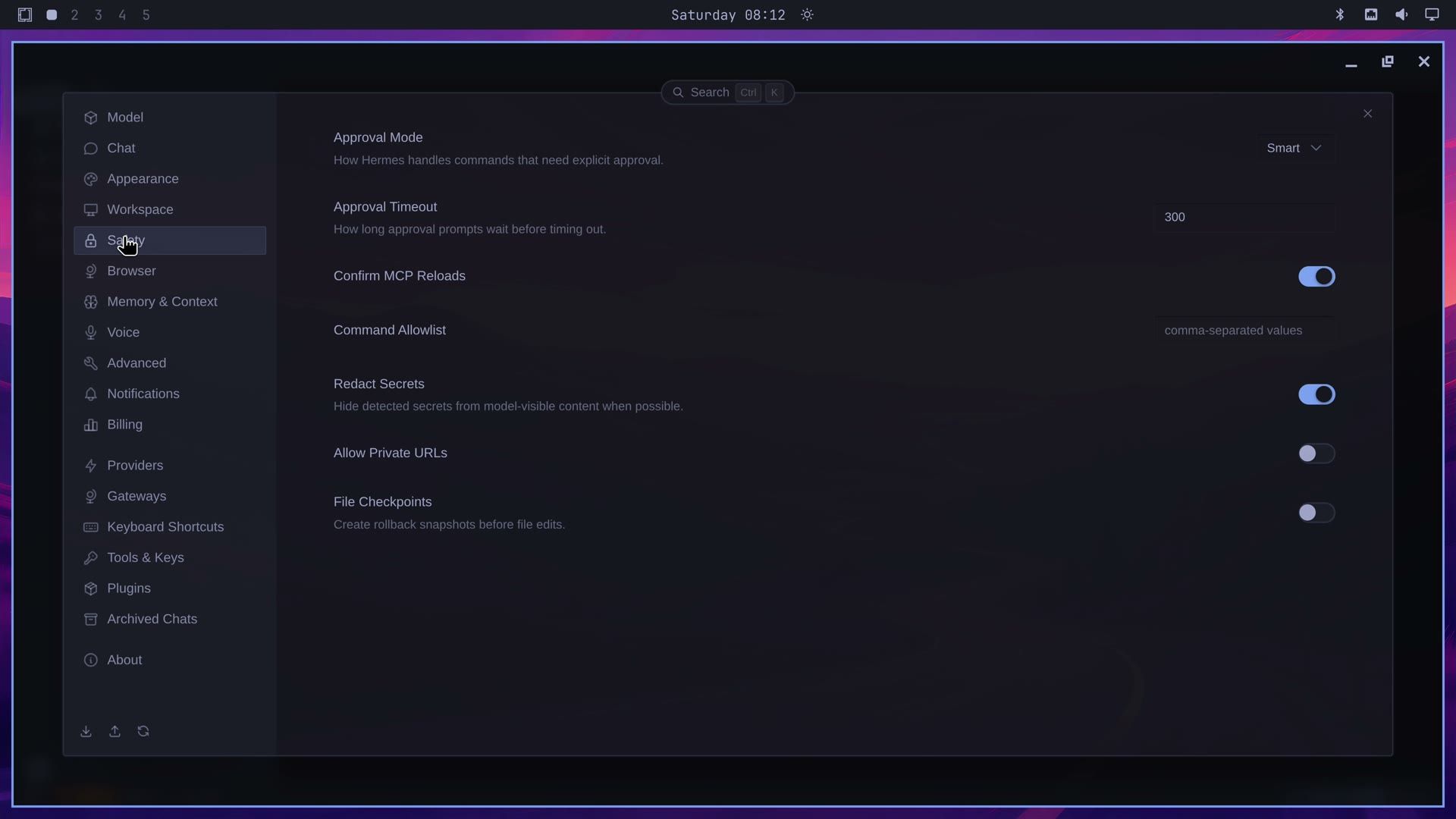
Safety sets how Hermes treats commands that need your approval. The Approval Mode starts at “Smart”, and the same page has an approval timeout set to 300, a command allowlist, and Redact Secrets, which is on.
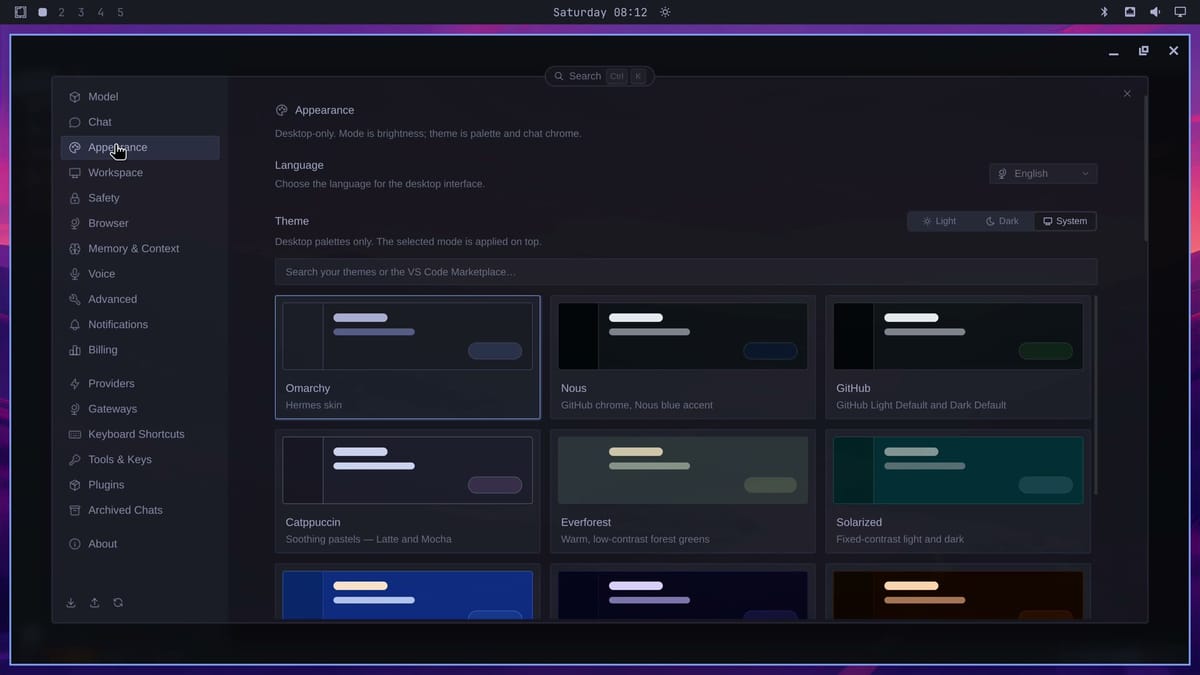
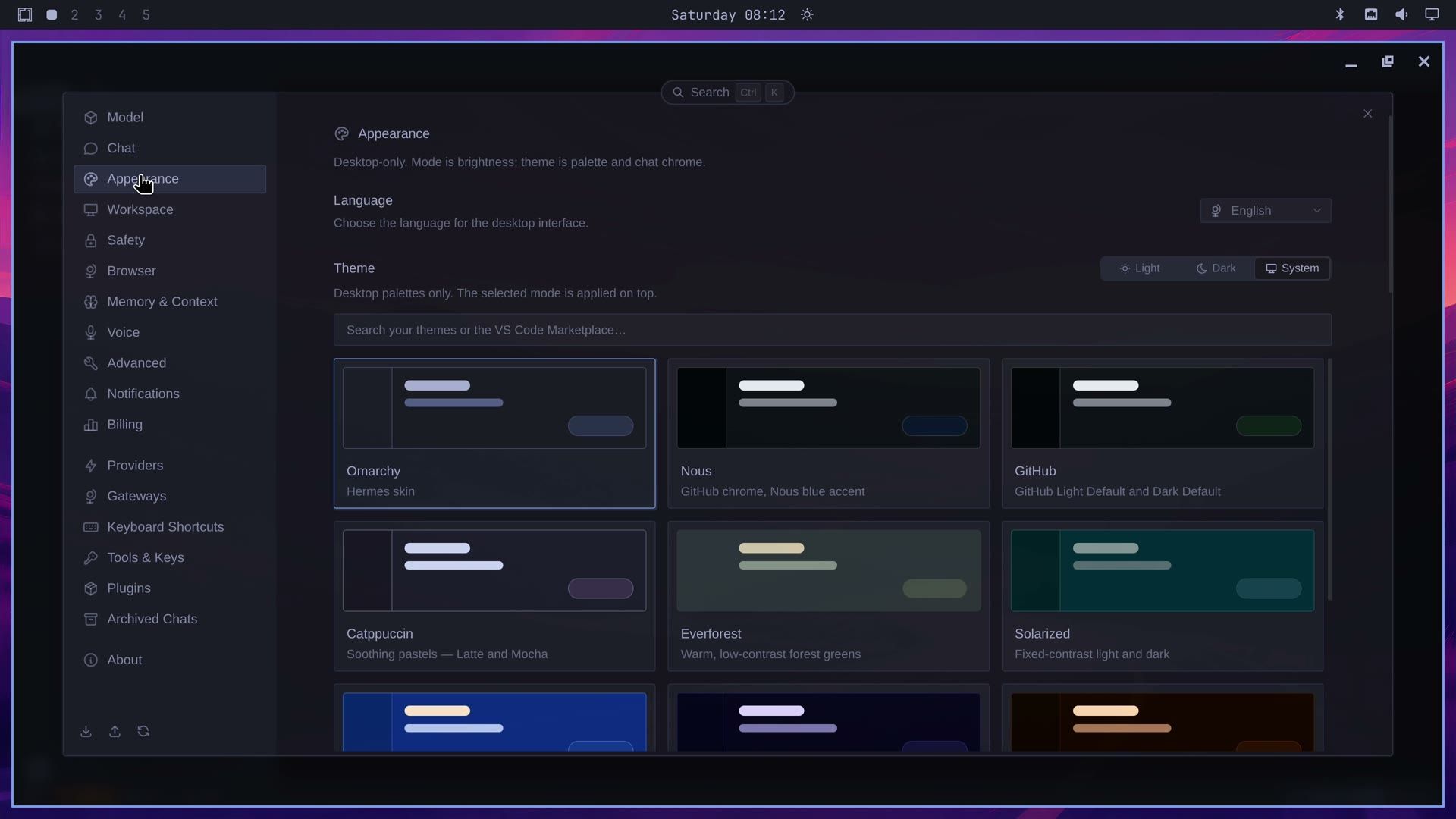
Appearance shows the theme cards, and the selected one is “Omarchy / Hermes skin”, the skin Omarchy writes from your current theme. If you would rather have one of Hermes’ own themes, such as Nous, GitHub, Catppuccin, or Everforest, pick its card here.
About shows “Version 0.21.0” and, from the first launch, “A new update is ready” with a count of changes, plus Check now, Update now, and See what’s new buttons. The same count shows in the app’s footer next to the version, for example “v0.21.0 (+21298)”. It goes up as Nous Research adds commits, so yours will differ.
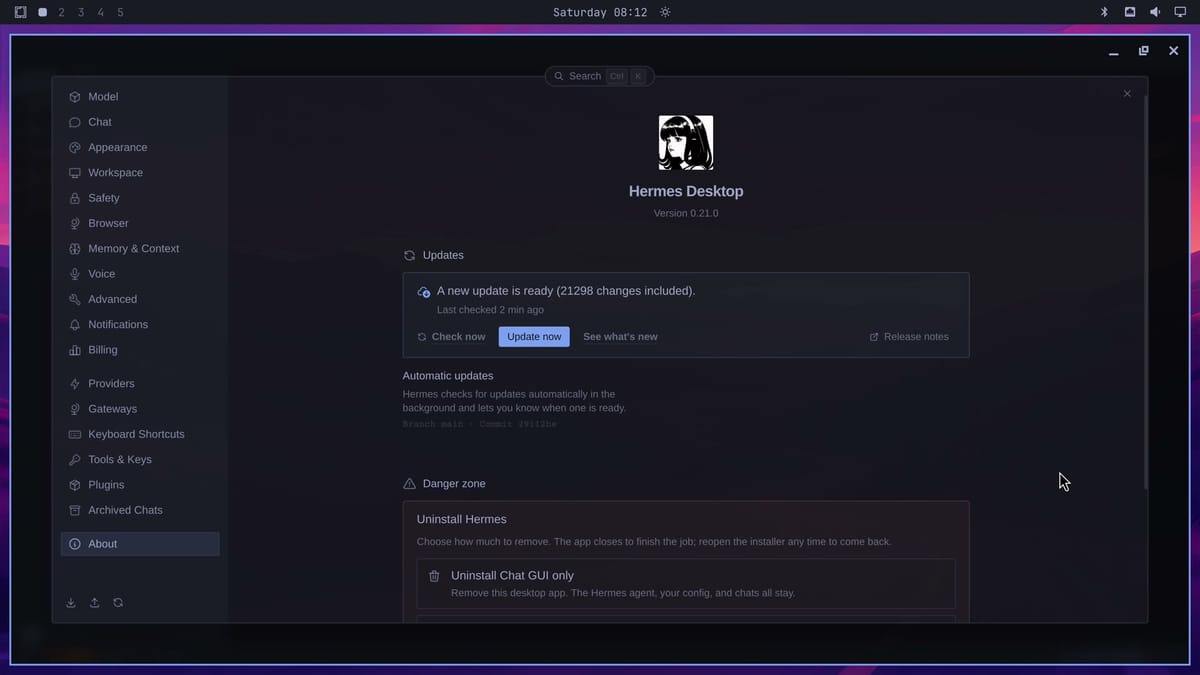
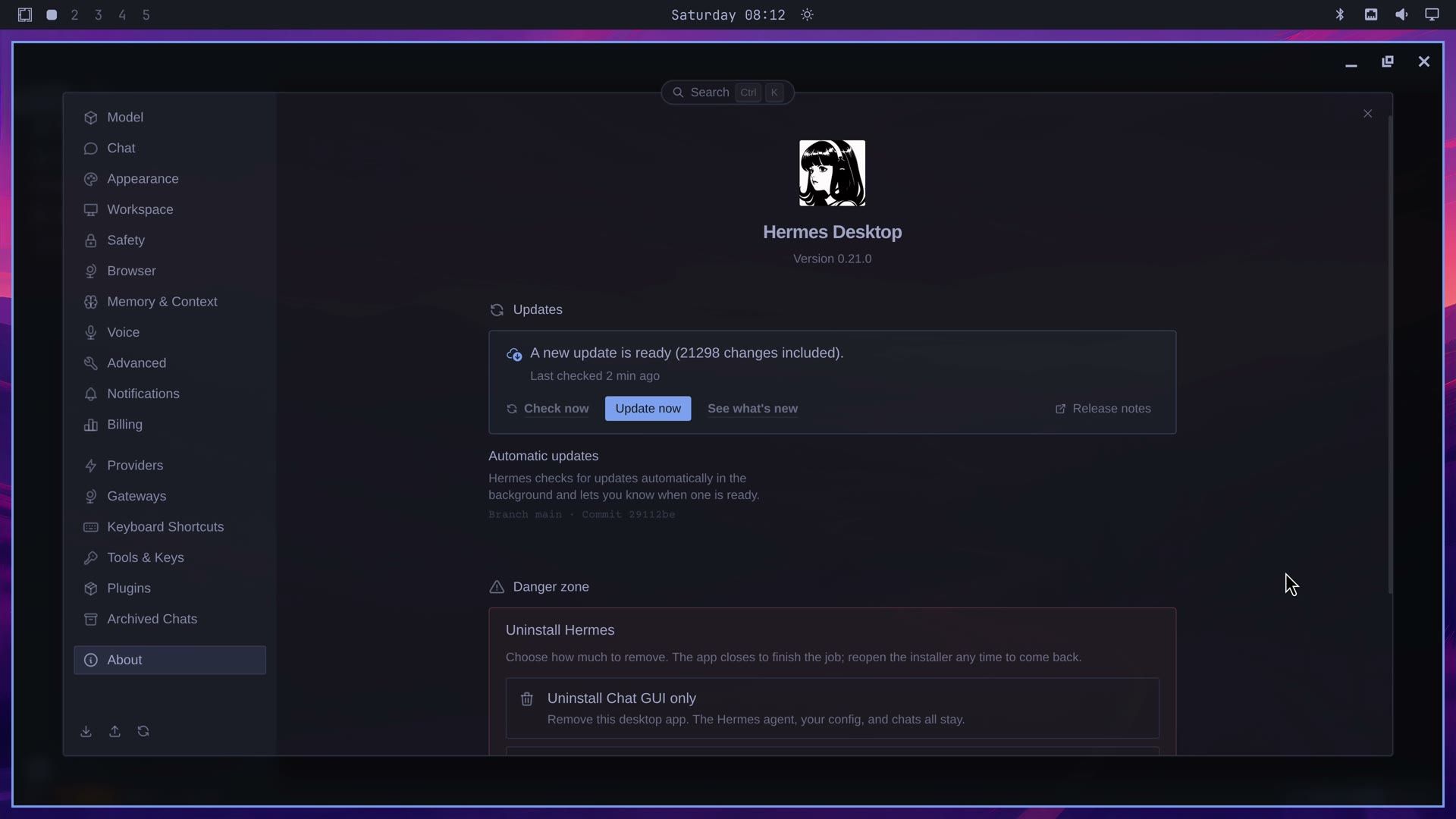
The Omarchy package installs a fixed Hermes release (v0.21.0 here), but the runtime in ~/.hermes/hermes-agent is a git checkout of the main branch with its full history. The count is the number of commits on main that your copy does not have yet. The Update now button is Hermes’ own updater, separate from Omarchy’s system updates. We left the update alone, so everything in this guide is v0.21.0.
Sign in with a ChatGPT or Codex subscription
To chat, connect a provider. We used a ChatGPT subscription, which Hermes calls “ChatGPT or Codex Subscription”. The app’s row for it opens a verification page in your browser; we used the terminal instead. Press super enter for a terminal and run:
hermes model- “Select provider:” opens with Nous Portal highlighted. Press seven times to the row “OpenAI (ChatGPT/Codex subscription or direct OpenAI API)” and press enter .
- “Select OpenAI provider:” shows two rows. “ChatGPT or Codex Subscription” is highlighted; press enter .
- The terminal prints “Signing in to OpenAI Codex…”, then a web address,
https://auth.openai.com/codex/device, and a one-time code. It waits with “Waiting for sign-in… (press Ctrl+C to cancel)”. - Open
https://auth.openai.com/codex/devicein a browser on any device, sign in to your ChatGPT account, and type the code. Hermes waits up to 15 minutes for you to enter it. - The terminal prints “Login successful!” and shows a list of models. Pick one with the arrow keys and press enter . It confirms with “Default model set to:” and the model name.
Hermes keeps this sign-in in its own file, ~/.hermes/auth.json, and leaves any Codex CLI login you already have alone. If you already use the Codex CLI, Hermes first says it found your Codex CLI credentials and asks “Import these credentials? (a separate login is recommended) [y/N]”. Press enter to keep the default No and do the separate sign-in above. Which ChatGPT plans qualify, and how Hermes use counts against your plan’s limits, are not documented in the Hermes provider docs yet.
To reopen Hermes Desktop after the sign-in, press super space , type hermes, and choose the Hermes row marked Apps. The reopened app reads “Gateway ready” in the footer and shows the model you picked in the message box. It may open in Hermes’ default dark colors instead of your Omarchy colors. If it does, press super ctrl shift space to open the Omarchy theme menu and pick your current theme again.
Ask Hermes to change your Omarchy theme
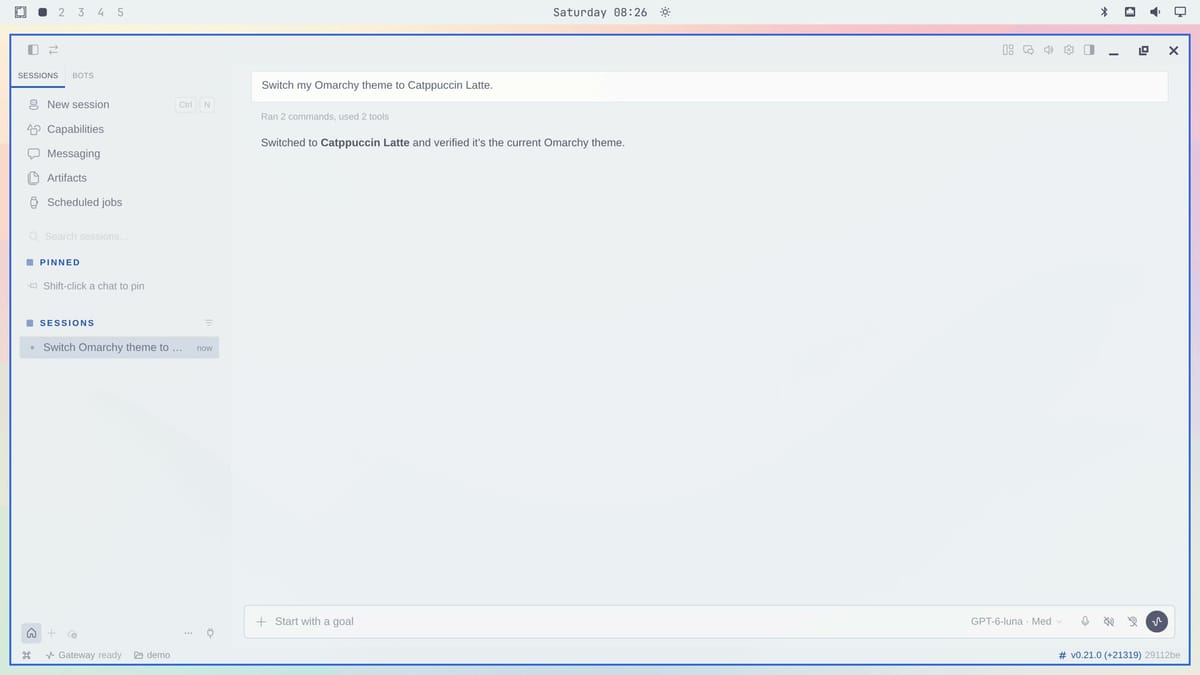
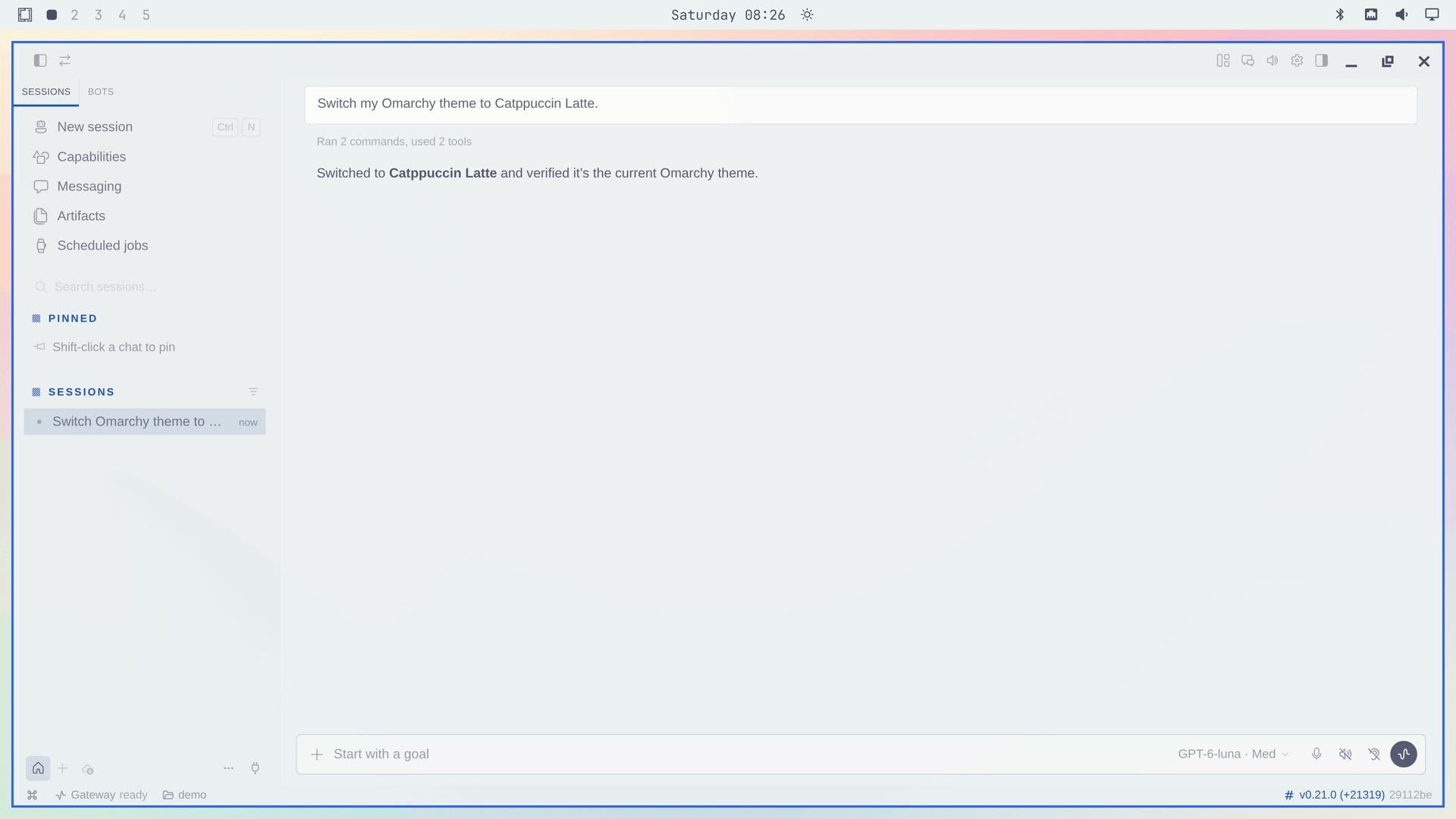
Press ctrl n for a new session, click the message box, and type a request. We typed “Switch my Omarchy theme to Catppuccin Latte.” and pressed enter .
Hermes read the Omarchy skill, listed the installed themes with Omarchy’s omarchy theme list command, and set the theme. About 17 seconds after we pressed Enter, the bar, the wallpaper, and the Hermes window all turned light together, and Hermes replied “Switched to Catppuccin Latte and verified it’s the current Omarchy theme.” With the Approval Mode on Smart, it did not stop to ask before running the theme command.
You can also change the theme yourself. Press super ctrl shift space to open the Omarchy theme menu, type tokyo (typing filters the list), and press enter . Hermes repainted to Tokyo Night with the rest of the desktop within about a second, with no restart. Omarchy rewrites Hermes’ “omarchy” skin file on every theme switch, and the app redraws when that file changes.
Move the bar to the bottom of the screen
Each request below starts in a new session: press ctrl n , type the request, and press enter . We typed “Move the bar to the bottom.” Hermes ran Omarchy’s omarchy bar position bottom command, and the bar dropped from the top of the screen to the bottom. The command omarchy bar position top puts it back.
Turn on night light
Night light takes one short request: “Turn on night light.” Hermes ran omarchy toggle nightlight, and the screen turned warmer, with a night light icon in the bar next to the clock. The command is a toggle, so running it a second time turns night light off again.
Add a keyboard shortcut for the file manager
To add a shortcut, describe the keys and what they should open. We typed “Add a keyboard shortcut: Super Alt E opens the file manager.” Hermes edited Omarchy’s keybindings file, bindings.lua, and the chat shows the change as a diff marked “bindings.lua +1” with the one line it added:
o.bind("SUPER + ALT + E", "File manager", { launch = "nautilus" })The shortcut works right away. Press super alt e , and the file manager opens next to Hermes. Close it with super w .
Add Excalidraw as a web app
Omarchy can turn a website into an app with its own launcher and window, and Hermes knows the command for it. We typed “Add Excalidraw as a web app.” Excalidraw is a whiteboard that runs in the browser. Hermes ran omarchy webapp install Excalidraw https://excalidraw.com excalidraw and replied that the launcher is installed at ~/.local/share/applications/Excalidraw.desktop and opens https://excalidraw.com.
To open it, press super space , type excalidraw, and press enter on the Excalidraw row marked Apps. Excalidraw opens in its own window next to Hermes.
Save a scheduled job from a blueprint
Scheduled jobs let Hermes run a prompt on a timer. Click Scheduled jobs in the left sidebar. The page says “No scheduled jobs yet” and lists Blueprints, ready-made jobs such as Morning briefing, Important-mail monitor, and Weekly review. Click Morning briefing to open the “New cron job” form. It fills in the time (08:00 AM) and delivers to This desktop; click Schedule it.
A “Blueprint scheduled” message pops up, and the job page shows Morning briefing marked Scheduled, its next run, and Pause and Trigger now buttons. Hermes saves the job right away, but it won’t run until the Hermes gateway is started. The gateway is Hermes’ background service for scheduled jobs and messaging; the Hermes scheduled tasks docs start it with hermes gateway in a terminal, or install it as a user service with hermes gateway install.
The sidebar has two more pages. Messaging connects Hermes to apps such as Telegram, Discord, and Signal, and each one needs its own account. Artifacts collects the links, images, and files your sessions make; ours listed the excalidraw.com link from the web app session.
Make an orange version of Tokyo Night
Hermes can also make a theme of its own. We typed “Make me a new theme based on Tokyo Night but with orange accents, and switch to it.” Hermes copied the Tokyo Night theme into ~/.config/omarchy/themes, swapped in an orange accent color, and switched to the new theme, which it named Tokyo Night Orange. The window borders and Hermes’ highlights, such as the PINNED and SESSIONS labels and the version number, turned orange.
To undo the bar, night light, and theme changes in one go, ask for all three in one request. We typed “Put the bar back on top, turn off night light, and switch back to Tokyo Night.” When Hermes finished, the bar was back on top, night light was off, and the colors were plain Tokyo Night again.
Remove Hermes Desktop
Close Hermes Desktop first; the remover stops with a message if Hermes is still running. Then press super space and choose Remove, AI, Hermes Desktop (or type hermes desktop and pick the row marked Remove > AI). Enter your password when sudo asks.
The remover uninstalls the package and the Node.js packages that came with it, and deletes the runtime: the git checkout, the Python environment, and Hermes’ own copies of its tools. It then asks “Also delete ~/.hermes and ~/.config/Hermes” with the size, followed by “chats, memories, skills, connections and tokens”. The default is No, which keeps your chats and sign-ins for a later reinstall. Press y to delete them too.
Two things from the install stay behind either way: the Cua driver (59 MiB) and the Playwright browser files (658 MiB). If no other tool on your computer uses them, remove them with:
rm -rf ~/.cua-driver ~/.local/bin/cua-driver ~/.cache/ms-playwrightThe ~/.cache/ms-playwright folder is shared by any Playwright tool, so leave it in place if you use Playwright for something else. Hermes’ About page also has its own uninstall options under Danger zone > Uninstall Hermes; we used the Omarchy menu, because Omarchy installed it.
Newer versions may look different
This guide follows Omarchy 4.0.4 and the hermes-desktop 2026.8.31-3 package, which is what Omarchy’s stable channel offered in early October 2026. Hermes Agent v0.21.5 was already out upstream on September 24, and the update count in the app climbed by a few commits within minutes while we worked. A newer Omarchy release may install Hermes differently, and an updated Hermes may move menus and settings. The Hermes Desktop docs cover the current app.
Where to go next
To build a theme from a photo instead, see our guide to making an Omarchy theme from your wallpaper with Aether. To add features to Omarchy itself, see how to find, check, and install Omarchy plugins. Our look at self-hosted memory with Hindsight covers long-term memory for agents and includes reports from Hermes users who tried it. For hardware, the Omarchy 4 hardware guide lists mini PCs and laptops that run Omarchy well. We used a GMKtec NucBox G2 for this guide.


