
Grok Build and Grok Bot are the two agents from xAI. Grok Build is a coding agent for the terminal, in the same family as Claude Code and Codex: it reads your project, writes files and runs commands on your computer. Grok Bot is a desktop app where you give each Bot a job, and the Bots do that work on a computer of their own in the cloud. Omarchy has both: Grok Build comes with it, and Grok Bot is one entry in the install menu.
This guide gives Grok Build a small job first. It plans and builds notify-done, a script that runs any command and then shows an Omarchy notification with the command, pass or fail, and how long it took. Then Grok hooks that script into its own workflow, so a notification tells you when Grok has finished answering. After that, a Bot reads a web page on its cloud computer and runs a command on the Omarchy machine in front of us. Every prompt is here as we sent it, with what each round cost.
We followed these steps on Omarchy 4.5.0-3 with Grok Build 1.0.89 and Grok Bot 1.1.0-1 in November 2026. Grok writes new code each time, so your script will differ a little from ours, but the steps hold.
What you need
You need Omarchy 4.5 and a Grok plan that includes Grok Build and Grok Bot. xAI’s pricing page lists which plans include them; our account was on X Premium+, and both agents ran on it. Grok Build and Grok Bot each keep their own usage meter, covered below.
Start Grok Build
Grok Build’s command is grok. Omarchy sets it up through mise, the tool manager Omarchy uses, so there is nothing to install: the first time you type grok, mise installs Grok Build and starts it. That took about six seconds on our machine.
Sign in once with your grok.com account. We used grok login --device-auth, which prints a short code to enter in a browser, on this computer or another one.
Grok Build works inside the folder you start it in, so make a new project folder and start it there:
mkdir -p ~/Work/notify-demo && cd ~/Work/notify-demo
grok
The first launch in a folder may show a Help improve Grok banner that asks whether to share data; it is off by default, and Opt out keeps it off. The footer under the prompt box shows the model and the mode. Grok starts in Auto-review, where it goes ahead with steps it judges safe and asks about the rest.
shift tab cycles through the modes: Auto-review, Always-Approve, Normal and Plan. Each press prints the new mode’s name. Normal asks before every edit and command, and Always-Approve asks before none of them. In Plan, the prompt box turns gold, and Grok reads your files and writes a plan, but edits nothing until you approve that plan.
Grok Build also has an optional sandbox. This guide runs without it, because inside its workspace profile Grok could not reach Omarchy’s notification service and could not write its plan in plan mode.
Round one: plan notify-done
Long builds and agent jobs often finish while you are in another window. notify-done is a small script for that: put it in front of any command, and when the command ends, a notification says whether it passed and how long it took.
Press shift tab three times to reach Plan, then send this request:
Write a small bash script called notify-done in this folder. It runs any command I give it, then shows a desktop notification with the command, whether it passed or failed, and how long it took. Test it yourself with ./notify-done sleep 3 and ./notify-done false. Do not switch workspaces or press keys on the desktop. Keep your final reply short.The line about workspaces and keys keeps Grok from pressing keys on your desktop while it tests the script.
Grok looks around before it plans. In plan mode it asks before each shell command, even a read-only one. Our run asked twice: once to check which notification tools exist and once to find the program that shows notifications. Grok found notify-send and noted that Omarchy’s Quickshell desktop shows the notifications.
Then the plan review opens on a file called plan.md. Grok’s plan was a short bash script that keeps the command’s exit status, formats the time as 3.0s or 12ms, and calls notify-send with the summary passed or failed. It also sends a failure as a critical notification, which stays on screen until you click it. We did not ask for that part.
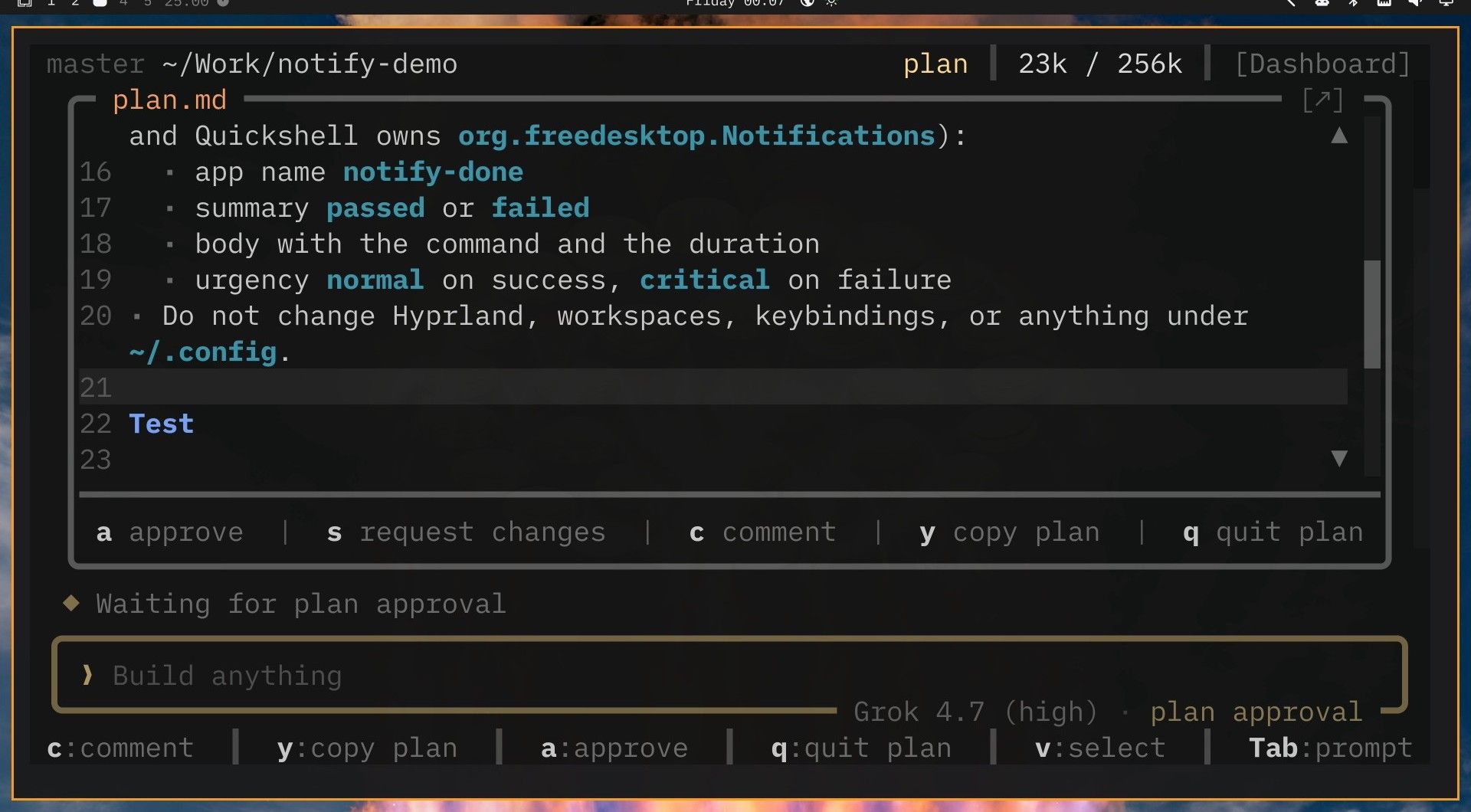
The keys along the bottom are a to approve, s to request changes, c to comment on a line, y to copy the plan and q to quit the plan. Planning took about a minute. Press a , and Grok leaves plan mode and starts building.
Round one: the build
After you approve a plan, Grok works in the Normal mode, so it asks before each edit and each command. At the first edit card, pick Yes, allow edits in notify-demo/ for this session; Grok then edits files in this folder without asking again until you quit. Answer the shell cards as they come. Our build asked for one edit and two commands.
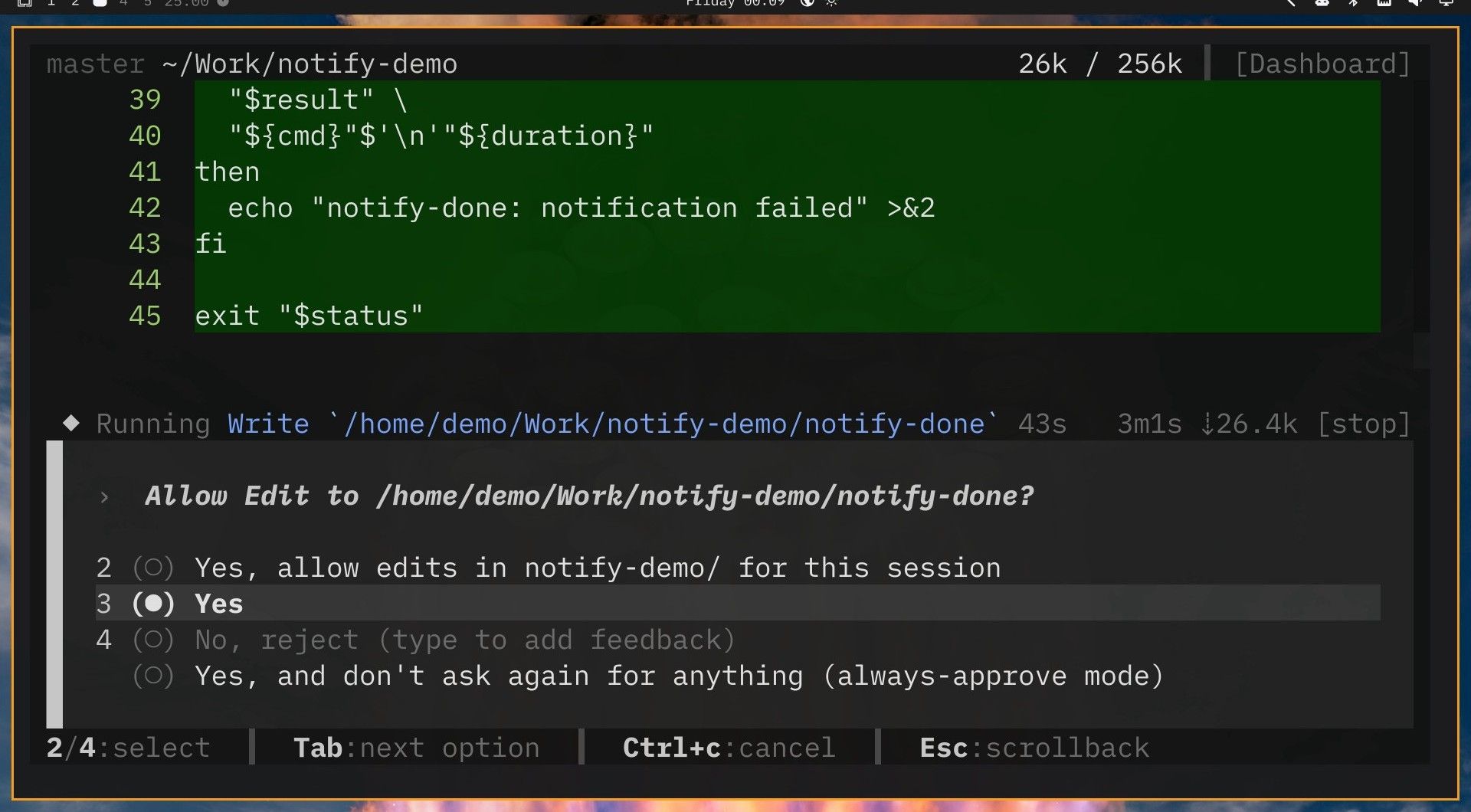
Grok wrote the script and ran both tests itself, watching the desktop’s message bus to see the notifications arrive. Its summary: ”./notify-done sleep 3 exited 0. The notification was passed, command sleep 3, 3.0s. ./notify-done false exited 1. The notification was failed, command false, 1ms.” The build took 3 minutes 45 seconds, and the failed test’s notification was still in the top right corner when it finished.
Check it yourself
You can run the script without leaving Grok. A line that starts with ! runs as a shell command, and its output lands in the transcript:
!./notify-done ping -c 10 archlinux.org
!./notify-done ping -c 3 no-such-host.invalid
The first ping took about 9 seconds, and a notification said passed, with the command and 9.1s. It closed by itself after four or five seconds. The second fails at once, because the host does not exist, and its notification says failed.
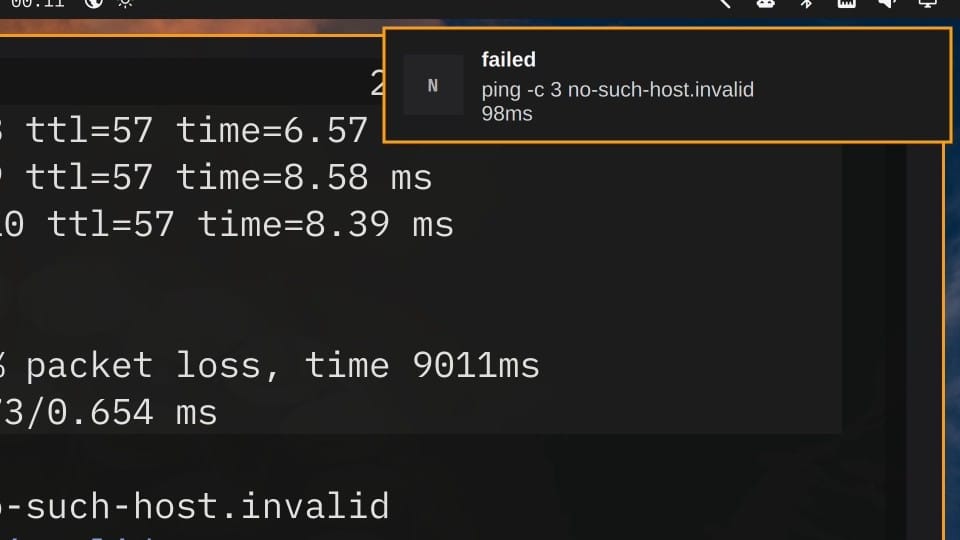
Apart from that word, the two notifications look the same: same icon, same dark card, same border. The difference is that the failed one stays until you click it, because the script sends it as critical.
Round two: Grok tells you when it is done
Grok Build has hooks: commands of your choice that it runs at set points in its work. A Stop hook runs each time Grok finishes answering a request. xAI’s hooks page lists the other events, such as PreToolUse before a tool runs. Personal hooks live in ~/.grok/hooks/ and apply to every project; project hooks live in .grok/hooks/ inside one project.
Our second request puts notify-done to work on Grok itself. Press shift tab twice to go from Normal back to Auto-review, then send:
Now wire notify-done into your own workflow. Add a Grok hook to this project that shows a desktop notification each time you finish a turn, titled "Grok finished", with the first line of your last reply. Your docs are in ~/.grok/docs. Do not switch workspaces or press keys on the desktop. Keep your final reply short and tell me what I need to do to turn the hook on.Grok Build keeps its own manual in ~/.grok/docs, so the request points it there. In Auto-review, Grok read its docs and ran a command without asking. It did ask before each hook file and before one test command, and the edit cards carry a note: “This edit contains changes to hooks, which can be executed as code on later sessions without a separate execution approval.” A hook runs every time Grok finishes, so read it before you keep it.
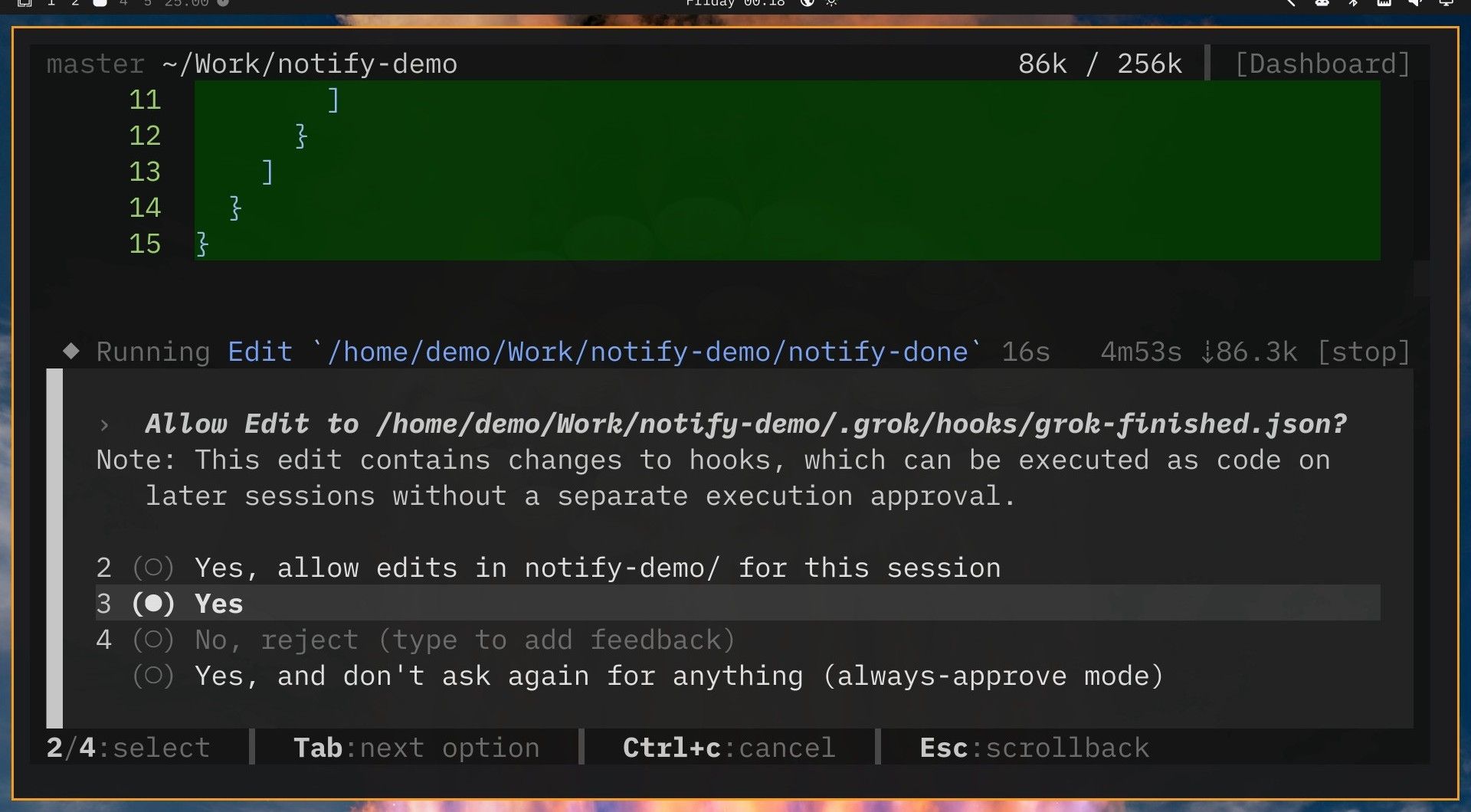
Grok edited three files in 5 minutes 22 seconds. It wrote the hook definition, .grok/hooks/grok-finished.json:
{
  "hooks": {
    "Stop": [
      {
        "hooks": [
          {
            "type": "command",
            "command": "grok-finished.sh",
            "timeout": 10
          }
        ]
      }
    ]
  }
}
It wrote .grok/hooks/grok-finished.sh, a short bash script with a block of Python that reads what Grok sends when a turn ends, takes the first line of the reply, and skips turns from subagents. And it gave notify-done a new --notify mode, so the hook can post a notification without running a command. Here is the script after both rounds:
#!/usr/bin/env bash
# Run a command, then post a desktop notification with the result and duration.
# notify-done --notify TITLE [BODY] posts that notification and does not run a command.
set -u

if [[ "${1:-}" == "--notify" ]]; then
  if [[ $# -lt 2 || $# -gt 3 ]]; then
    echo "usage: notify-done --notify TITLE [BODY]" >&2
    exit 2
  fi
  if ! notify-send --app-name=notify-done --urgency=normal -- "$2" "${3:-}"; then
    echo "notify-done: notification failed" >&2
    exit 1
  fi
  exit 0
fi

if [[ $# -lt 1 ]]; then
  echo "usage: notify-done COMMAND [ARGS...]" >&2
  exit 2
fi

cmd="$*"
start_ns=$(date +%s%N)
"$@"
status=$?
end_ns=$(date +%s%N)

elapsed_ns=$((end_ns - start_ns))
if ((elapsed_ns < 0)); then
  elapsed_ns=0
fi

if ((elapsed_ns < 1000000000)); then
  duration="$((elapsed_ns / 1000000))ms"
else
  tenths=$(((elapsed_ns + 50000000) / 100000000))
  duration="$((tenths / 10)).$((tenths % 10))s"
fi

if ((status == 0)); then
  result=passed
  urgency=normal
else
  result=failed
  urgency=critical
fi

if ! notify-send \
  --app-name=notify-done \
  --urgency="$urgency" \
  "$result" \
  "${cmd}"$'\n'"${duration}"
then
  echo "notify-done: notification failed" >&2
fi

exit "$status"
Trust the folder to turn the hook on
Grok’s summary said the hook was in place but off, because this folder was not trusted yet. It told us to “Run /hooks-trust, then press r in /hooks or start a new session.”
The first step did not work for us. In Grok Build 1.0.89, the slash menu had no /hooks-trust command, and the /hooks panel said only “Hooks are off until you trust this folder.” xAI’s hooks page lists /hooks-trust and a --trust launch flag; we did not try the flag. Project hooks are code that comes with a folder, so Grok runs them only in a folder you trust. Grok asks about trust when it starts in a folder that has hooks, and our hook did not exist when this session started.
A new session works. Type /quit to close Grok ( ctrl q did not quit for us), then reopen the same conversation:
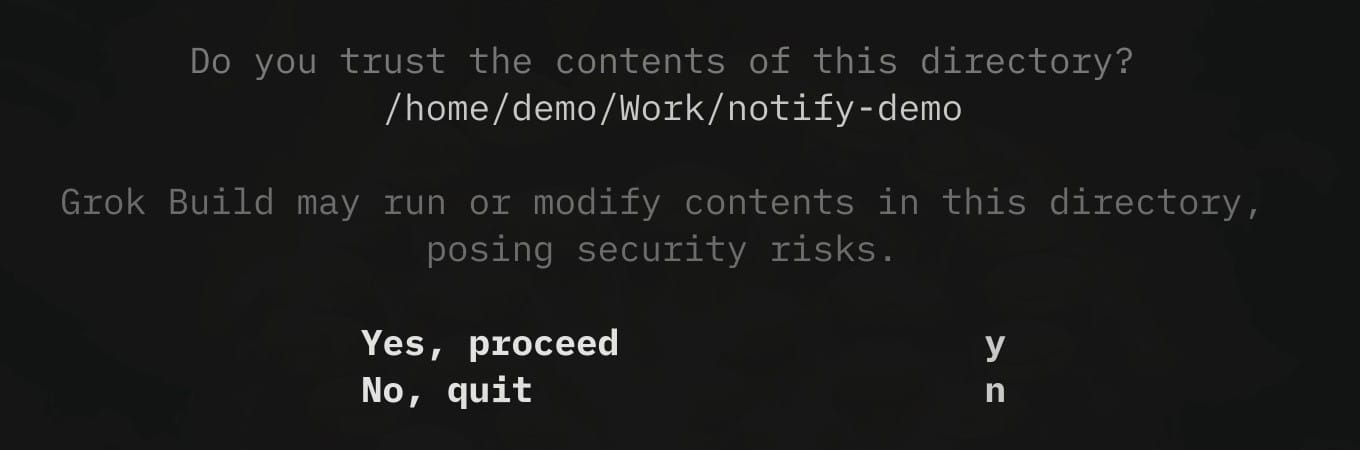
grok --continueThis time a full-screen prompt asks whether you trust the contents of this folder and warns that Grok may run or change what is in it. Press y , and the hook loads. Grok stores the answer in ~/.grok/trusted_folders.toml, so it does not ask again for this folder.
To try the hook, we asked Grok to use notify-done itself:
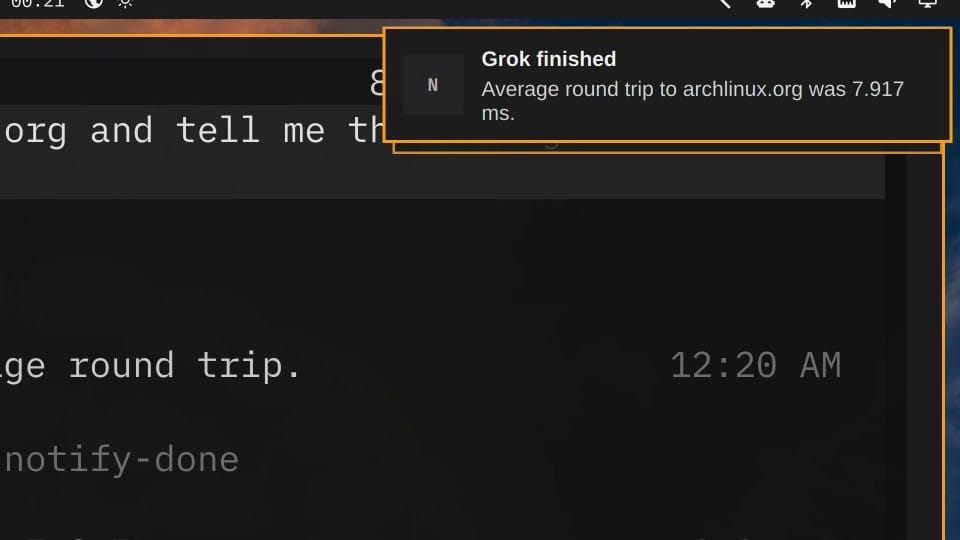
Run ./notify-done ping -c 10 archlinux.org and tell me the average round trip in one line.Two notifications arrived, one after the other. The first came from notify-done, for the ping. The second was titled Grok finished, with the first line of Grok’s answer: “Average round trip to archlinux.org was 7.917 ms.” The turn took 21 seconds. From now on, any request in this folder ends with a notification, so you can work in another window and still see when Grok is done.
To turn the hook off: delete the .grok/hooks folder in the project. To remove everything from this guide’s Grok Build part, delete ~/Work/notify-demo.
What the two rounds cost
Type /usage in Grok to see the cost. It opens a panel with three tabs; Usage limit shows your plan’s weekly meter and the tokens, model calls and cost of the session. The session numbers count from the start or the last resume, so they reset when you reopen a conversation with --continue. Read them before you /quit.
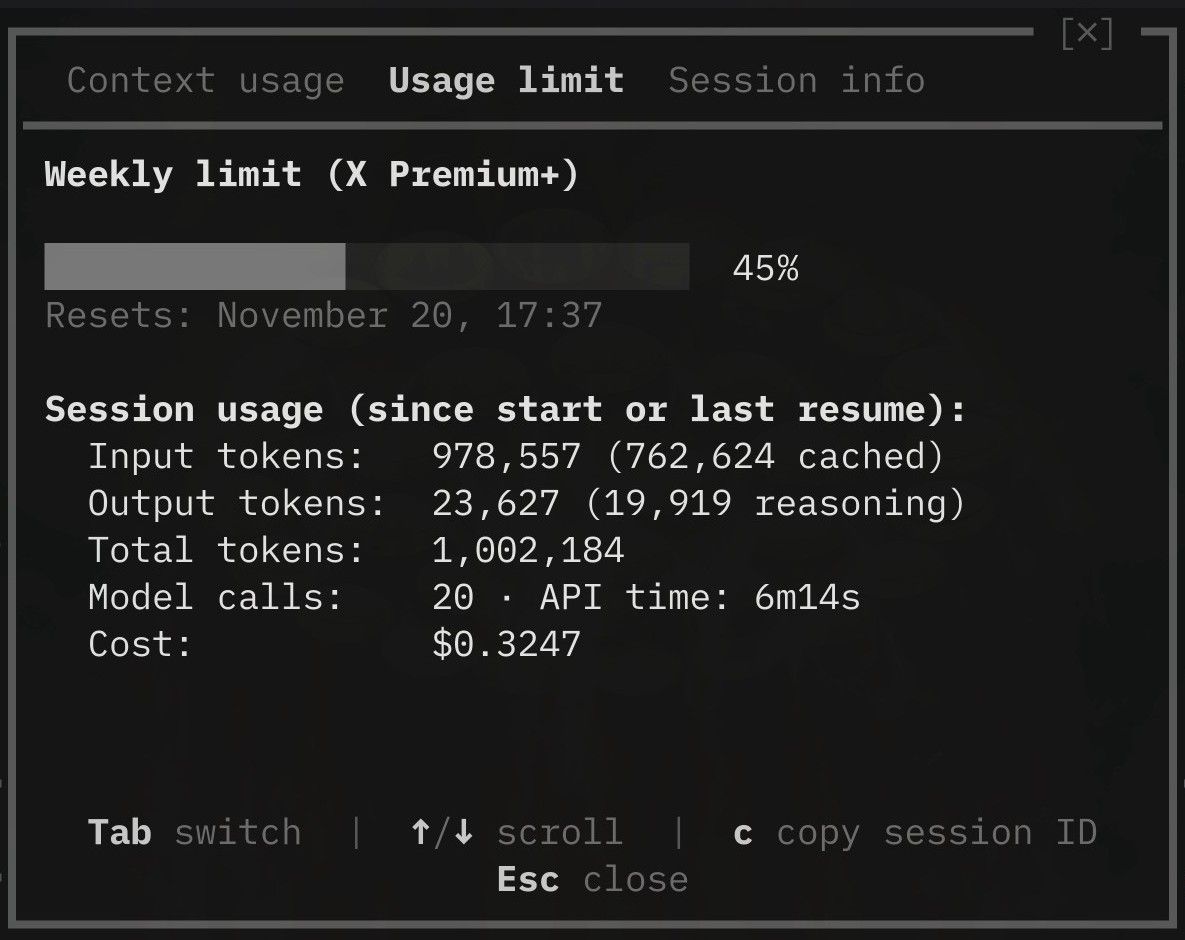
We read it three times: after round one, before the restart, and after the hook test.
| Request | Model calls | Cost |
|---|---|---|
Round one: plan and build notify-done | 8 | $0.08 |
| Round two: the hook | 12 | $0.24 |
| Hook test after the restart | 2 | $0.08 |
| Total | 22 | $0.40 |
Both rounds together moved the weekly meter on our X Premium+ plan from 44 to 45 percent. The tab also shows the date and time the meter resets. Omarchy’s Agents panel in the top bar shows the same weekly meter on its Grok row.
Install Grok Bot
Grok Bot is in the Omarchy menu: press super space , then pick Install, AI and Grok Bot. A terminal installs the package from Omarchy’s own package repository, asks for your password, and then starts the app. The install took about 30 seconds on our machine.
Sign in from the app. It opens a Grok Bot login page in the browser, with Google, X, Apple, GitHub and email options. After a few onboarding pages, the app opens a chat with your first Bot.
The + button near the bottom of the left column, above your avatar, creates a new Bot, not a new chat; each Bot has its own chat and its own job. We made a Bot named Errands and asked:
Open omarchy.org on your own computer and tell me the headline.Watch a Bot’s cloud computer
Each Bot works on a cloud computer with a browser, a command line and files, and xAI’s Grok Bot docs say the work continues while your own computer is closed. The Bot’s name at the top of the chat opens a side panel. Its Computer thumbnail opens a live view of the Bot’s Linux desktop. The buttons under the view say Watching and Take control, for when you would rather drive that computer yourself.
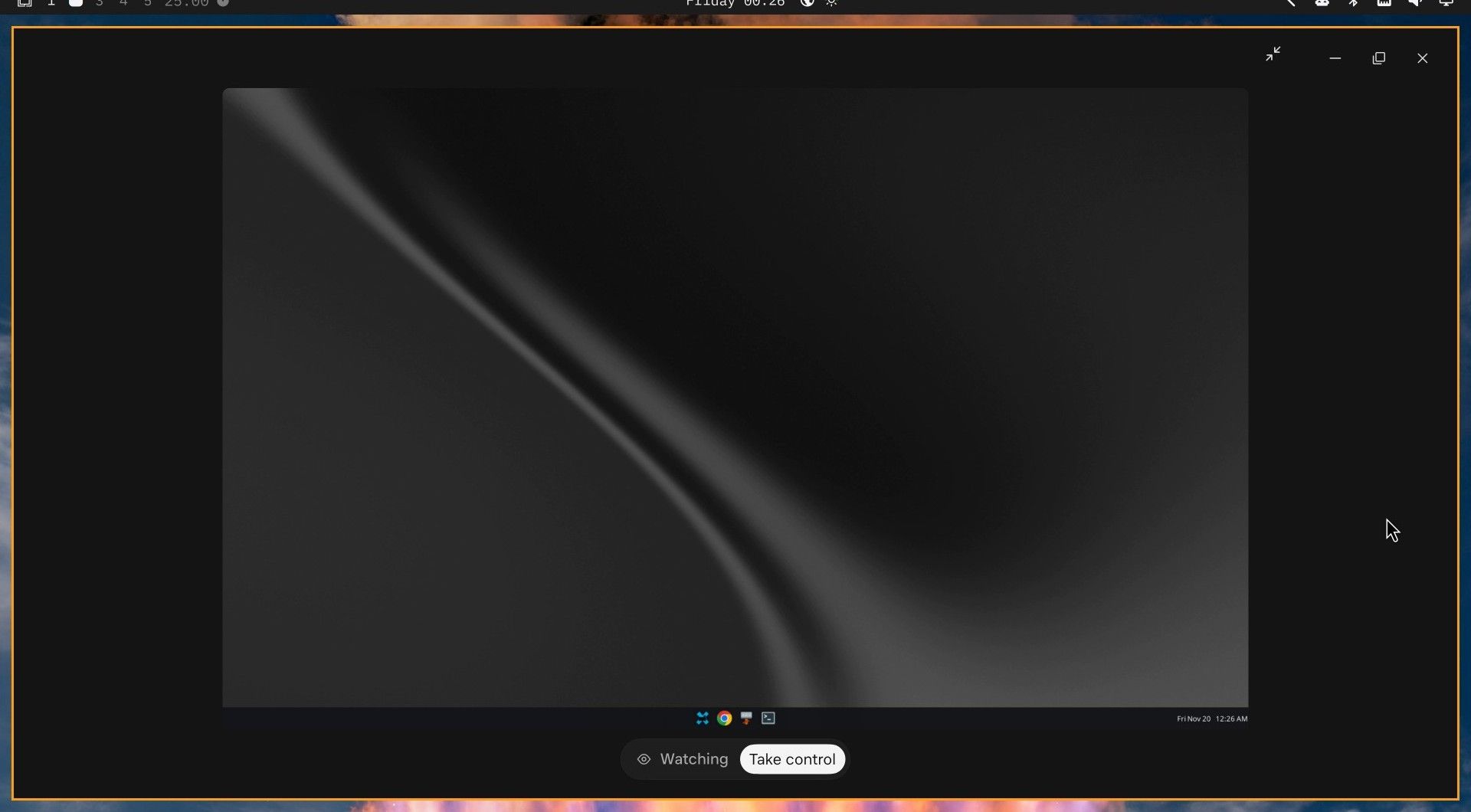
In our run, the desktop showed only a taskbar, with no browser window open. Back in the chat, Errands quoted the site’s headline: “Omarchy: Beautiful, fun & agentic Linux by DHH.”
Grok Bot keeps its own meter, separate from Grok Build’s. Click your avatar at the bottom left to see it; ours read X Premium+ 1% used before and after these tasks. Omarchy’s Agents panel had no Grok Bot row with only the app signed in, so check the meter in the app.
In Settings, Computer, the switch Route traffic through this computer sends the Bot’s web traffic out through your own network. It was on when we installed the app, and we turned it off.
Let a Bot run a command on Omarchy
A Bot can also run commands on the computer in front of you. xAI’s approvals page describes this for “the Mac or Windows computer in front of you”, so we tried it on Omarchy:
On my own computer (the Omarchy desktop, not yours), run omarchy-version and uname -rBefore anything ran, an approval card asked: “Allow Grok Bot and all Bots to run commands on your local computer?” It named our machine, showed the exact command, and offered Never, Always allow and Allow once.
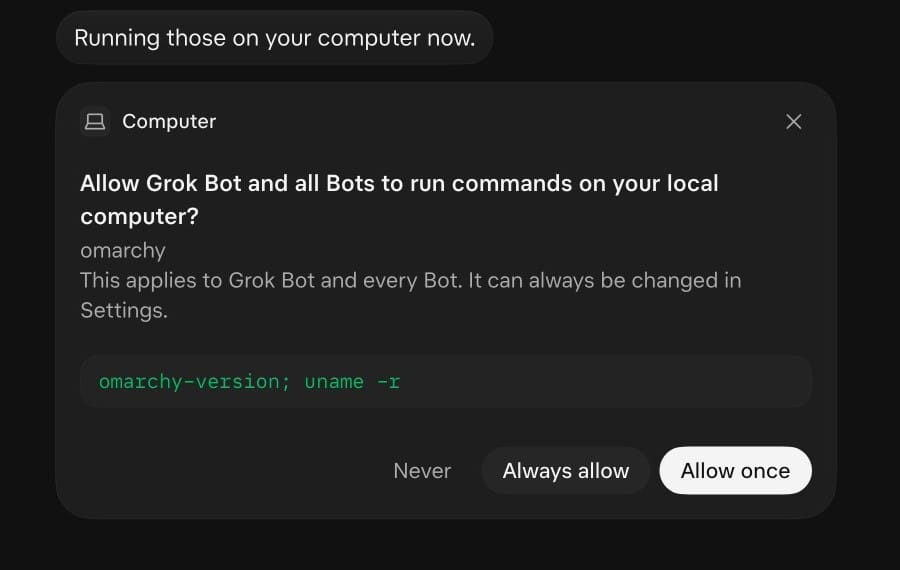
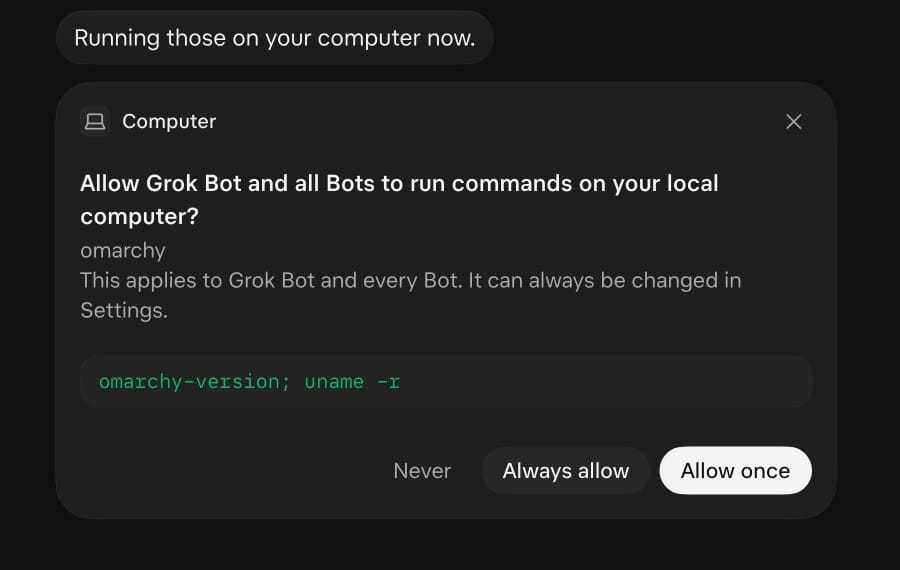
Always allow covers every Bot, not only this one, so we picked Allow once. Errands answered: “Your Omarchy desktop is on Omarchy 4.5.0-3, running kernel 7.2.15-1-omarchy.” Both match this machine. The whole exchange took about half a minute.
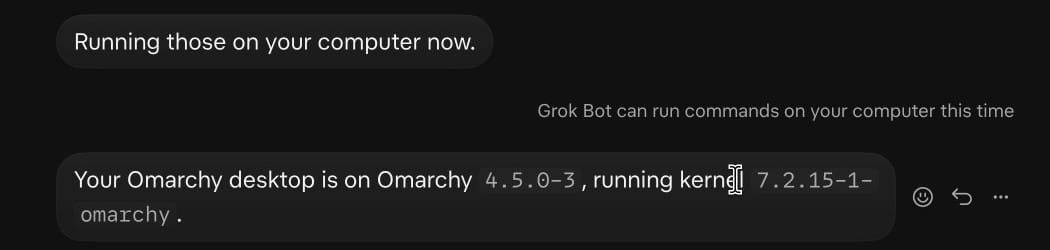
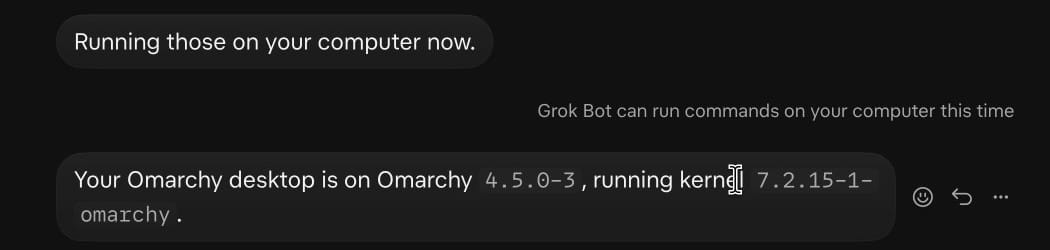
The default for this lives in Settings, Computer, under Execution on this computer: Ask every time. Allow once does not change it. The same page lists your machine under the devices the app can reach.
To undo: nothing stays after Allow once. To remove Grok Bot, run omarchy-remove-ai-grok-bot in a terminal. It removes the package and deletes the app’s settings in ~/.config/Grok Bot and ~/.grokbot, which also signs you out. It leaves ~/.grok, which belongs to Grok Build.
Which one to use
Grok Build fits coding in a project folder, where you approve the plan and the steps it asks about, and its hooks run on your own machine. Grok Bot fits jobs you would rather hand off: each Bot works on its own cloud computer, and it asks before it uses yours.
Troubleshooting
/hooks-trust is not in the slash menu. In Grok Build 1.0.89 it was missing. Quit with /quit, start again with grok --continue, and answer y at the trust prompt.
ctrl q does not quit Grok. Type /quit instead. Grok prints a grok --resume line with the session id when it closes.
The cost in /usage dropped. The session numbers reset when you resume a conversation. Read them before each /quit.
A notification will not go away. A critical notification stays until you click it. notify-done sends failures as critical.
Grok Bot has no new chat button. The + in the left column makes a new Bot with its own chat. Pick an existing Bot in the left column to go back to its chat.
Related guides
To compare Grok Build with other terminal agents on Omarchy, see our guides to Codex on Omarchy, Crush building a terminal game and Claude Code on Omarchy. DeepSeek Harness also wrote a notification plugin for itself, through its own plugin system instead of a hook.


