
DeepSeek Harness is the coding agent from DeepSeek. You work with it through a page in a browser window instead of a terminal screen, and every feature in it is a plugin, down to the tools that run shell commands and edit files. That design lets the agent write new plugins for itself. Omarchy offers DeepSeek Harness as one of its default agents.
This guide follows the video embedded above. We set the harness up, then give it three jobs that each end with something new on the desktop: a clock page in the theme’s colors, a plugin that sends an Omarchy notification when a task finishes, and a clock that follows theme changes. Then we look at what those jobs cost and what the harness sends to DeepSeek. Last, Omarchy itself hands the harness two jobs: a focus timer for the top bar from the Agents panel, and a fix for a program that crashed. Every prompt is here as we typed it.
We made this guide with DeepSeek Harness 0.2.2-rc.1 on Omarchy 4.5, with DeepSeek’s Flash model, in November 2026. DeepSeek still calls the harness a developer preview and warns of breaking changes. As of November 16, 2026, the newest preview on GitHub is 0.2.2-rc.3, while the npm latest tag that Omarchy installs still points to 0.2.2-rc.1. A newer release may move some labels, such as the Plugins entries in the sidebar.
What you need
You need Omarchy 4.5. If you’re on an older release, update from a terminal with omarchy update.
You also need a DeepSeek API key with some prepaid credit, from the DeepSeek Platform. The harness bills by the token at DeepSeek’s API prices. Off-peak rates are half the peak rates. Peak hours are 01:00 to 04:00 and 06:00 to 10:00 UTC, Monday to Friday; every other hour is off-peak. All our runs fell in off-peak hours.
You don’t have to install the harness first. Omarchy installs it with mise the first time you pick it, from the @deepseek-ai/dsh package on npm. The command name is dsh. If you’d rather run it outside Omarchy, the README starts it with npx @deepseek-ai/dsh web once Node.js is installed.
Set DeepSeek Harness as your agent
Open a terminal with super enter and run:
omarchy default agent dshThis makes DeepSeek Harness your default agent and starts it at once, installing it first if it’s missing. A new terminal window runs the harness, and its page opens in a Chromium window beside it. On the very first start, the page shows a Preview Notice; click Continue.
The terminal prints the page’s address, which ends in ?token= and a long string. That token is the page’s login for this session, so don’t paste the address into chats, bug reports or screenshots. Once the page loads, the address bar shows only 127.0.0.1:3080.
To give the page the whole screen, click it and press super shift 2 . That moves the window to workspace 2 on its own. Super is the Windows key on a PC keyboard.
Add your DeepSeek API key
Open More at the bottom of the sidebar, then Settings, then the Models tab. Click Edit on the DeepSeek card and paste your key into the API key field. The harness stores the key in its own folder, ~/.dsh, and uses it without a restart. If you’d rather keep the key in an environment variable, leave the field blank: the card says it then uses DEEPSEEK_API_KEY.
A green dot beside DeepSeek shows the key is in place.
The home page and its chips
The home page is titled Into the Unknown, with a Preview badge. Under the title, a box takes your request, with a few chips around it.
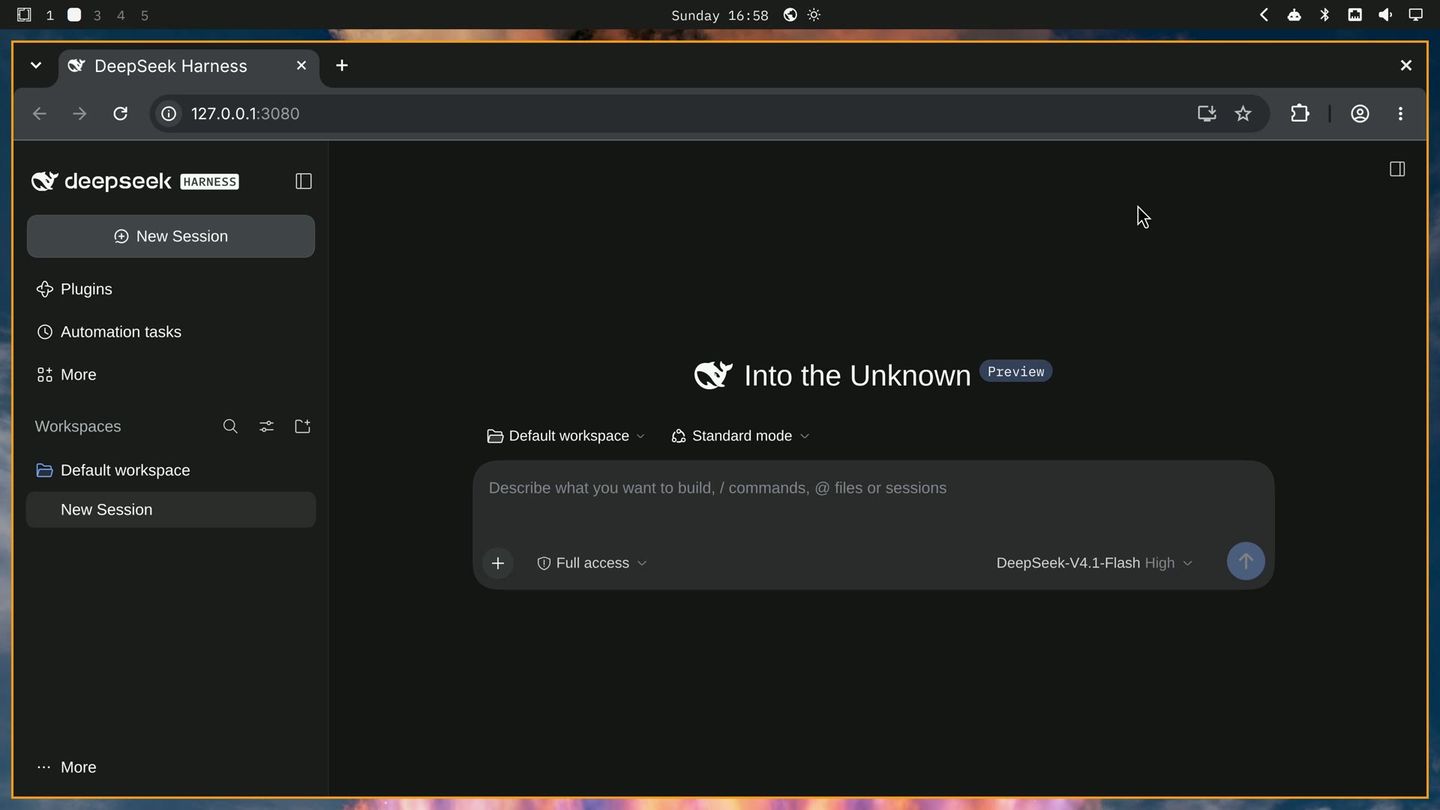
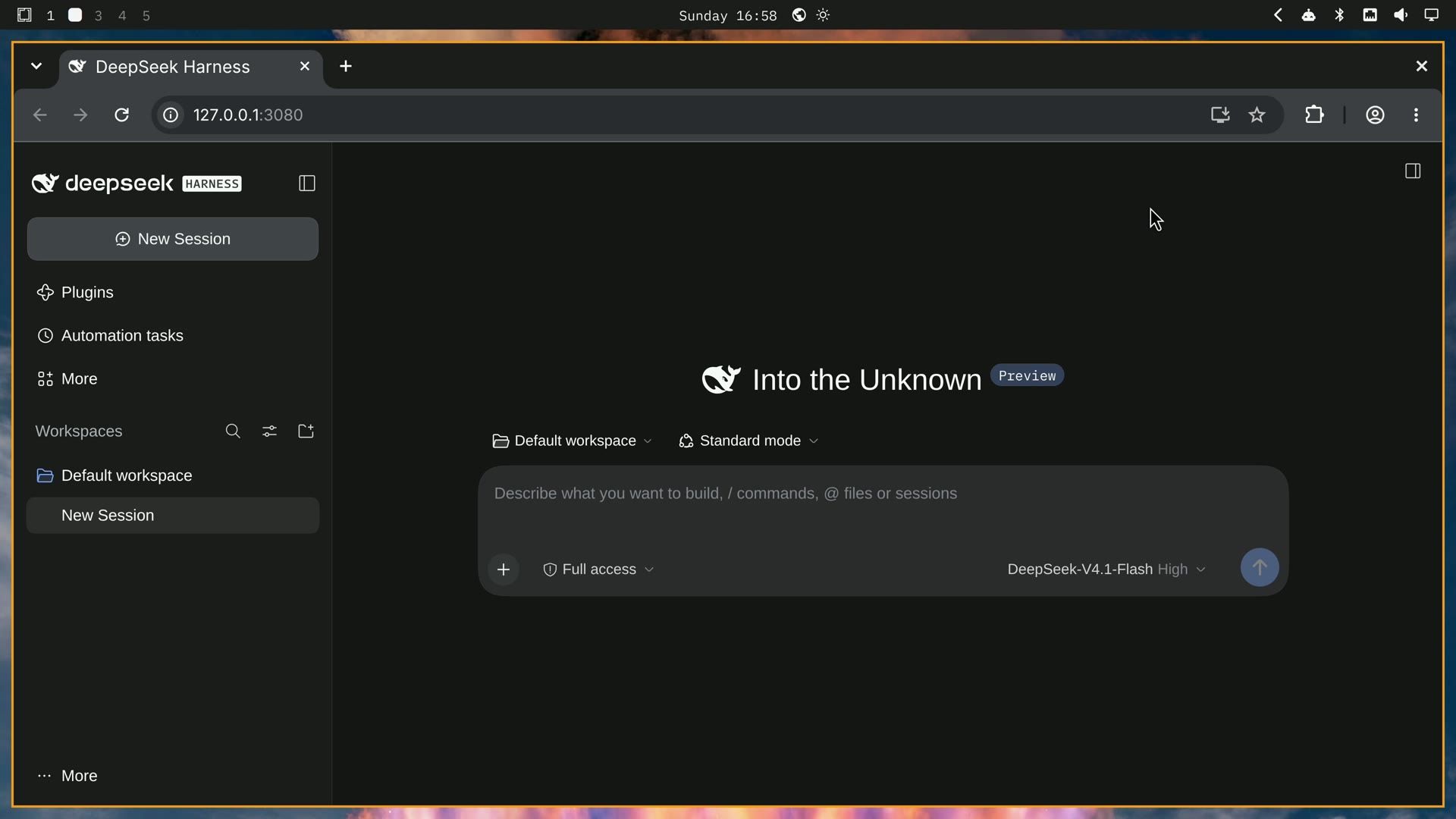
Default workspace is the folder the agent works in, ~/Documents/deepseek-harness/default-workspace. Standard mode is the default agent preset: the set of plugins and instructions a session starts with. Full access means the agent runs commands and opens windows without asking first; Omarchy starts the harness in that mode. The model chip reads DeepSeek-V4.1-Flash High, the default model at High effort. Its menu also offers DeepSeek’s larger Pro model.
Build a clock page in your theme’s colors
Paste this into the request box and press enter :
Build a single-file web page, clock.html, with a large analog clock that fills the window and has a smooth second hand, drawn in the colors of my current Omarchy theme. Then open it in a new Chromium window, and leave the DeepSeek Harness window open. Do not print environment variables, tokens, or keys in any command or output.The prompt doesn’t say where Omarchy keeps the theme. The agent found the theme files by itself and wrote the whole page as one file, clock.html, in the workspace folder. Before it reported back, it took screenshots of the page and read them to check its own work. Then it opened a new Chromium window beside the harness.
The clock filled its window in the dark grey and orange of the Starship theme, with an orange second hand that sweeps around smoothly. The job took 5 minutes 22 seconds, ran 41 steps, used 1.9 million tokens and cost about four cents.
We added the last sentence of the prompt to keep keys out of the chat, and it did not cover everything. With Full access, the agent runs commands without asking, and a command that lists running programs can show the page’s address with its token. In our run, an early command the agent used to find the Chromium window printed that address into its chat log. The agent’s summary pointed this out and offered to help rotate the token. The token lasts only while the harness runs, so stopping the harness and starting it again gives you a new one.
Have the harness write itself a notification plugin
The second job is a plugin for the harness itself, and Creator mode is the preset where the agent writes plugins that add features to the harness. Open Plugins in the sidebar, click the small arrow beside Add plugin, and pick Let the agent create a plugin. That opens a new session in Creator mode. The Add plugin button itself opens the dialog for third-party plugins instead.
Paste this request:
Make a DSH plugin that shows an Omarchy desktop notification each time you finish a task. Title: DeepSeek Harness. Body: the session title, how long the task took, and how many tokens it used. Keep the notification on screen for 10 seconds. Install it and turn it on, and leave the DeepSeek Harness window open. Do not print environment variables, tokens, or keys in any command or output.The agent started by querying the running harness for the events and services a plugin can use. Then it read how Omarchy sends notifications and wrote the plugin: a handful of files in a folder named omarchy-task-notify, including package.json, index.js, cordis.patch.yml, an icon and a README. Last, it installed the plugin and switched it on. Along the way it sent itself a few test notifications.
When the task finished, the new plugin sent its first real notification, about the task that built it: DeepSeek Harness, the session title, and “6m 6s · 8,662,332 tokens”. No reload or restart was needed. That run cost about seven cents.
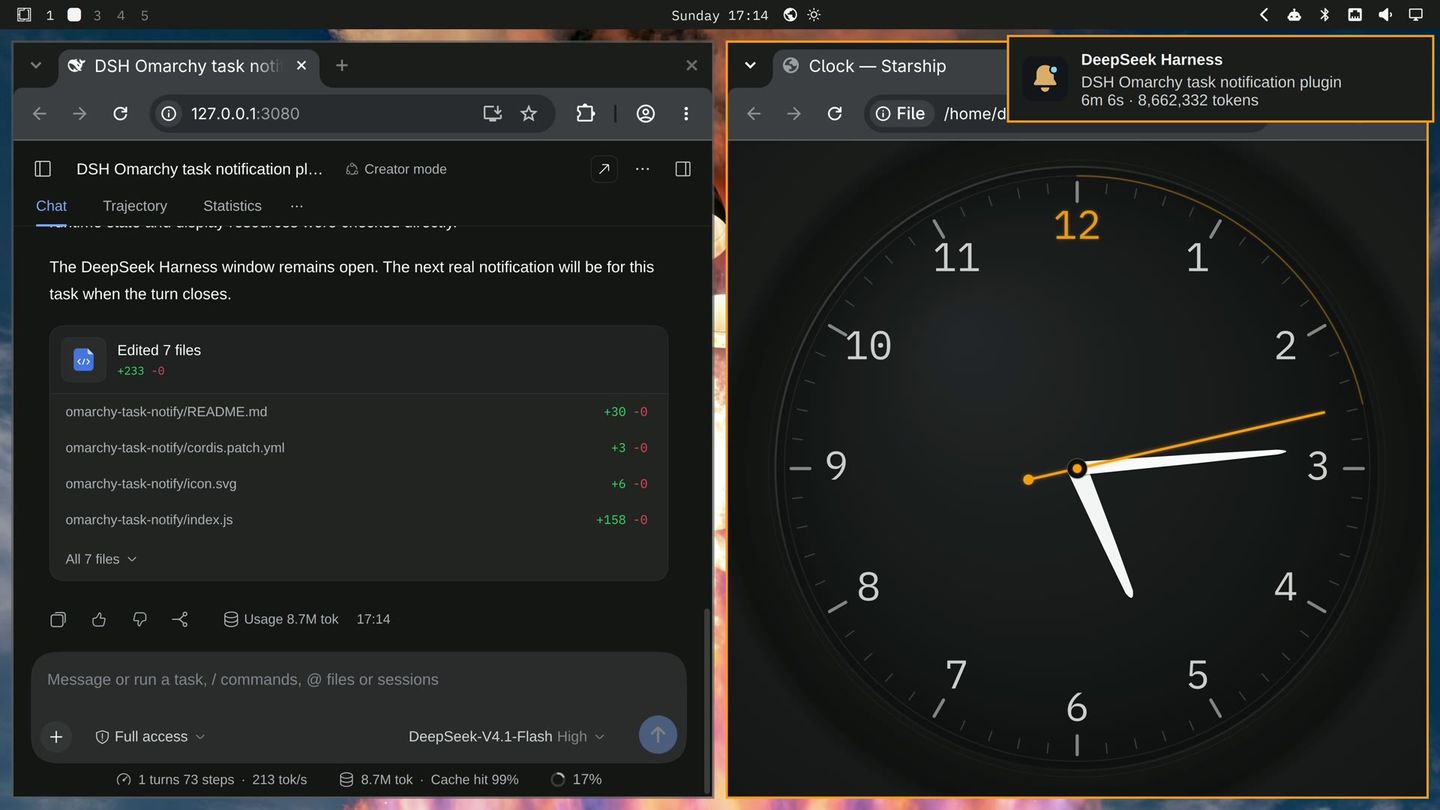
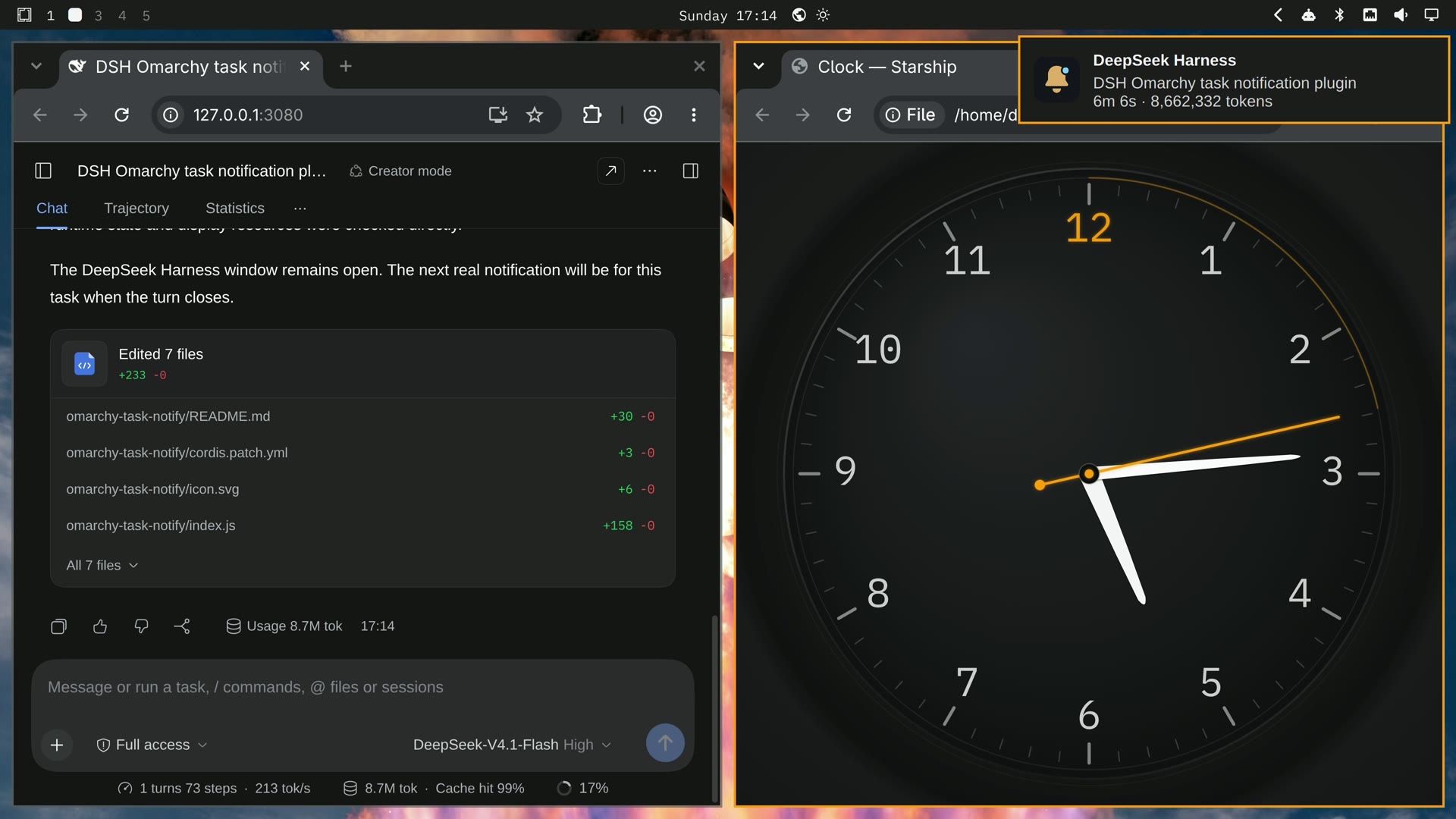
Under Plugins, the plugin now shows in a new Installed plugins section with its switch on. The agent picks the name each run; ours was called Omarchy task notifications. Its detail page lists one component, running, and an Uninstall button.
Make the clock follow theme changes
The first clock’s colors are fixed inside the page, so a theme switch leaves it unchanged. Open the clock session again from the sidebar and send:
Make the clock follow my Omarchy theme. When I switch themes, the open clock should repaint in the new theme colors within a few seconds, with no manual reload. Leave the DeepSeek Harness window open. Do not print environment variables, tokens, or keys in any command or output.The agent’s answer was a small Omarchy theme hook, a script that runs each time the theme changes. Ours went to ~/.config/omarchy/hooks/theme-set.d/clock-theme-hook.sh. It reads the colors of the new theme and writes them to a stylesheet, ~/.local/state/omarchy/clock/theme.css. The clock page re-reads that file about every two seconds and repaints in place. The clock stays a plain file in the browser, with no server behind it.
To test it, the agent painted only the clock page in two real theme palettes, Tokyo Night and the light Catppuccin Latte, then set it back to Starship. When the task finished, the notification plugin fired again: “Omarchy-themed analog clock page”, 8 minutes 2 seconds and 6,831,369 tokens. This round cost about seven cents.
Agents don’t always build this the same way. In an earlier run of nearly the same prompt, the agent wrote a small local web server that fed the colors to the page instead. Read the summary to see which design you got, because a server keeps running in the background and a hook does not.
Now switch the Omarchy theme. Press super ctrl t for the theme picker, type tokyo, and press enter . Within a few seconds the clock repainted in blue, and its window title changed to name Tokyo Night.
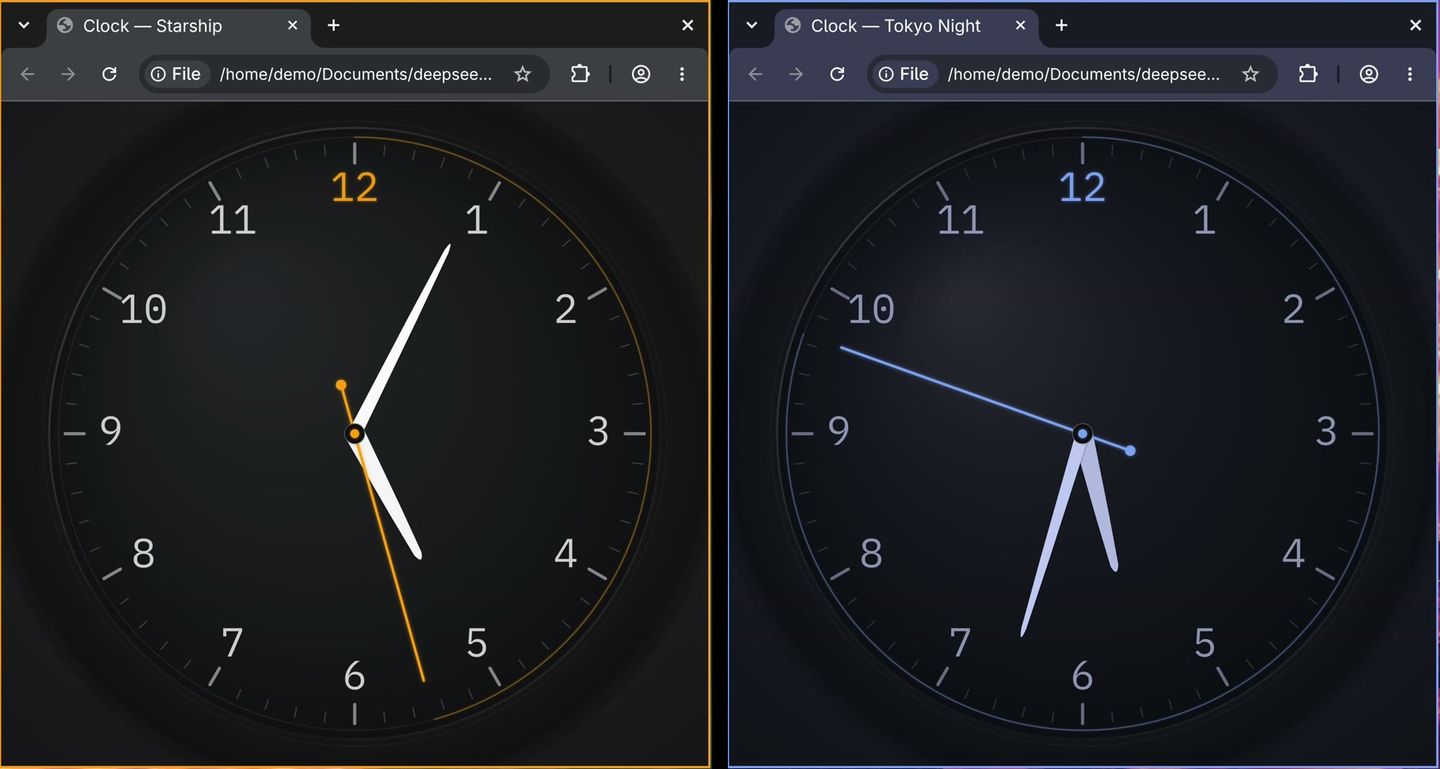
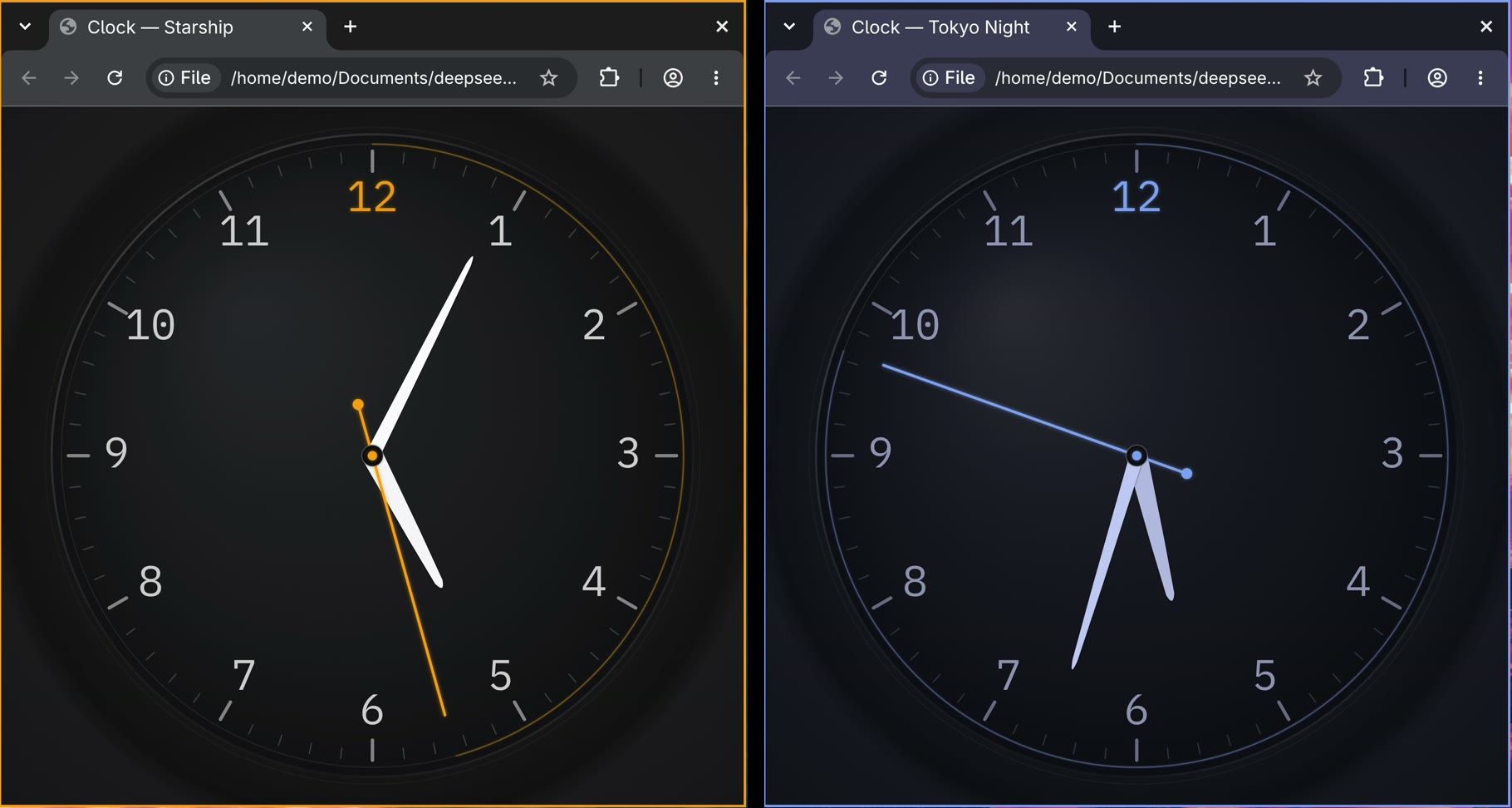
While it tested this round, the agent also switched workspaces on its own, and Omarchy’s System menu ended up open on screen. Full access lets it press keys and move between workspaces. If that matters to you, say so in the prompt; our later focus timer request asked the agent to stay on its workspace.
What the three jobs cost
Each session has a Statistics tab with the numbers behind the work. The tab comes from Developer tools, an experimental plugin: open Plugins, find Experimental plugins, open More, and switch on Developer tools. The table is cramped at half width, so press super f to make the window full screen. It lists every step with its context size, its output, its cache hit rate and its timing. The Show total row switch adds a line for the whole session.
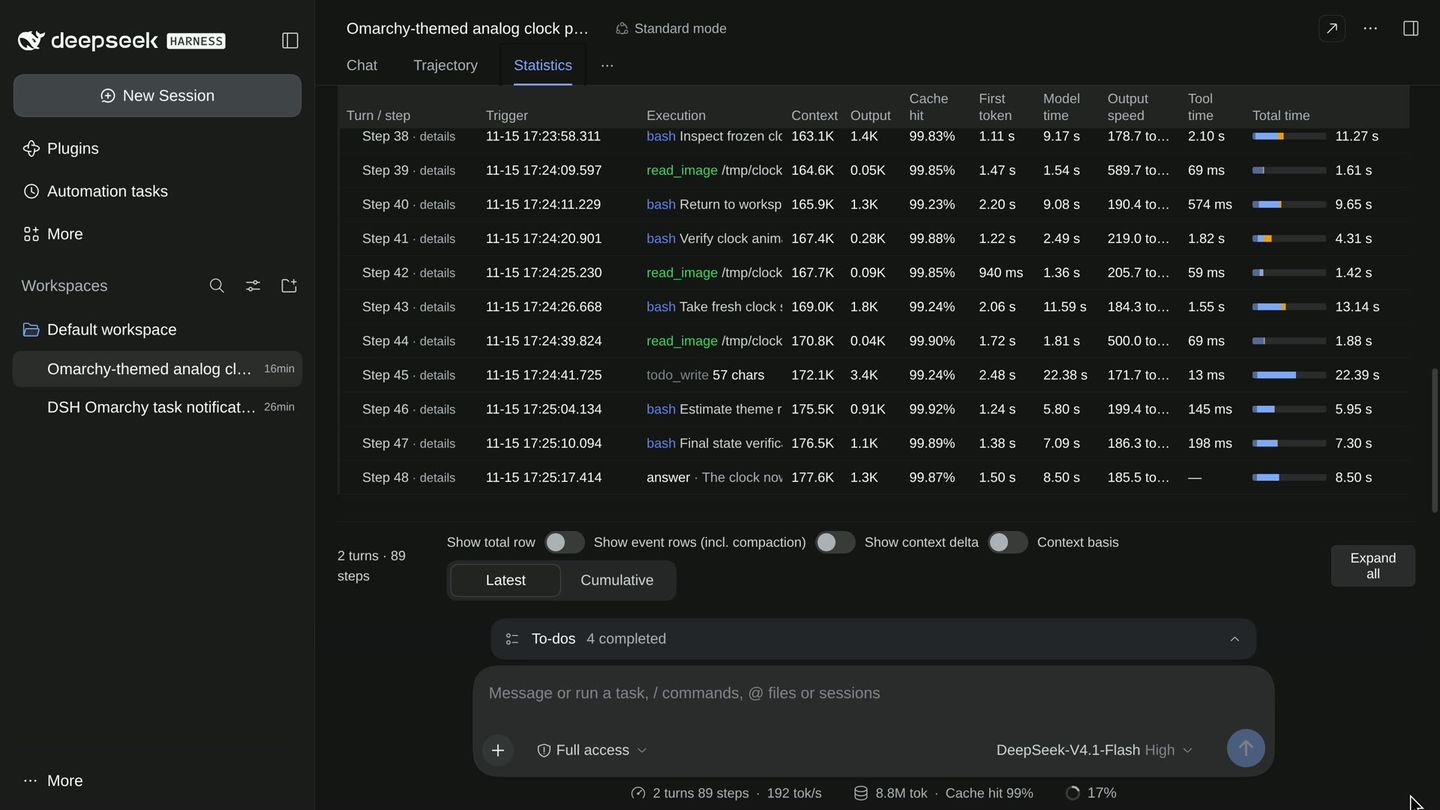
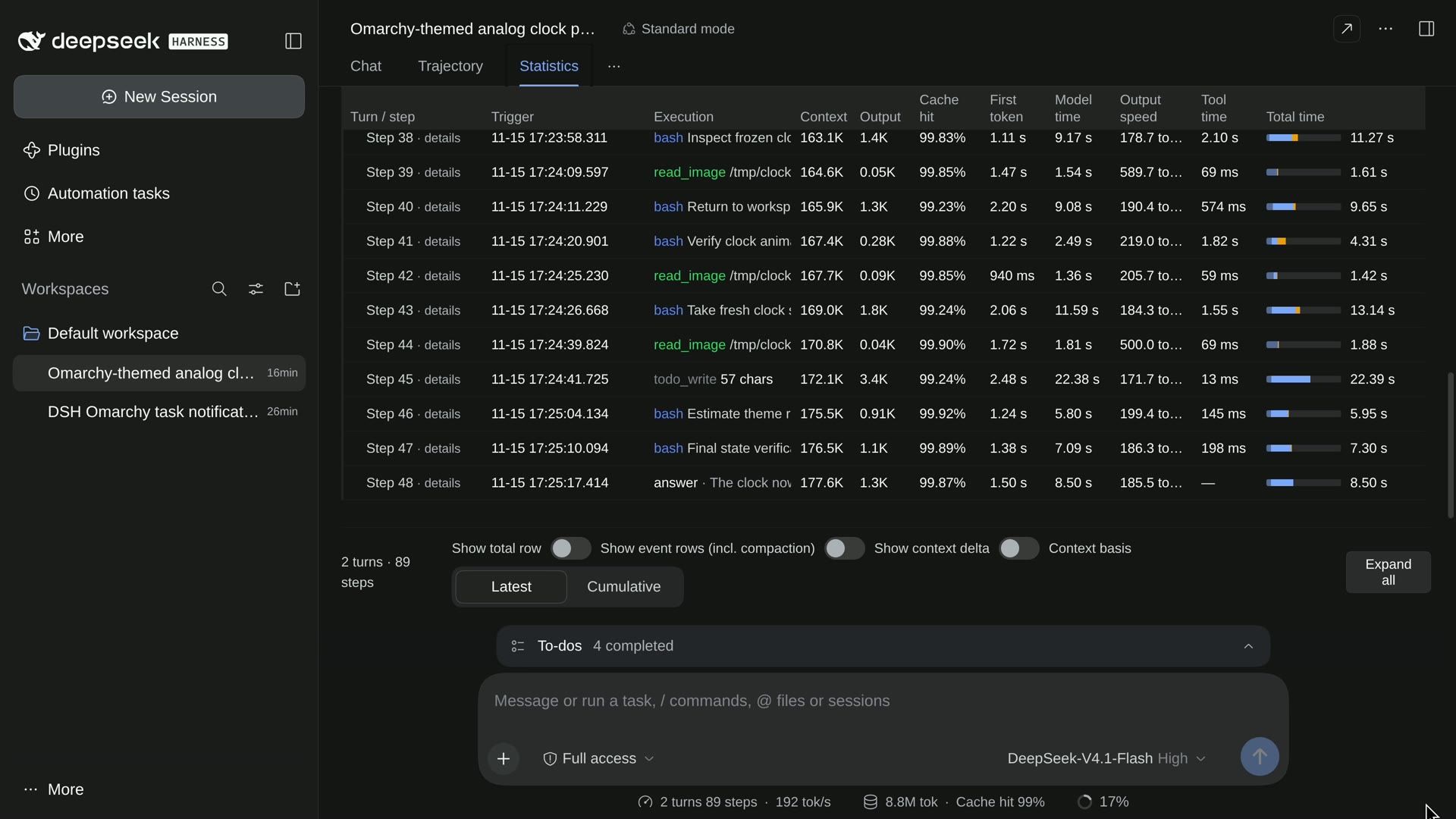
Developer tools also starts a Node.js inspector in the background. Requests it captures can include your API key, so keep that inspector panel off any screenshot or screen share.
The cache hit rate is the main reason the bill stays low. When the agent sends the same start of a conversation again, DeepSeek serves those tokens from its cache. Our sessions hit the cache 98 to 99 percent of the time. At DeepSeek’s off-peak price for the Flash model, a cached input token costs $0.003 per million and a fresh one $0.15 per million, so a cached token costs about a fiftieth as much.
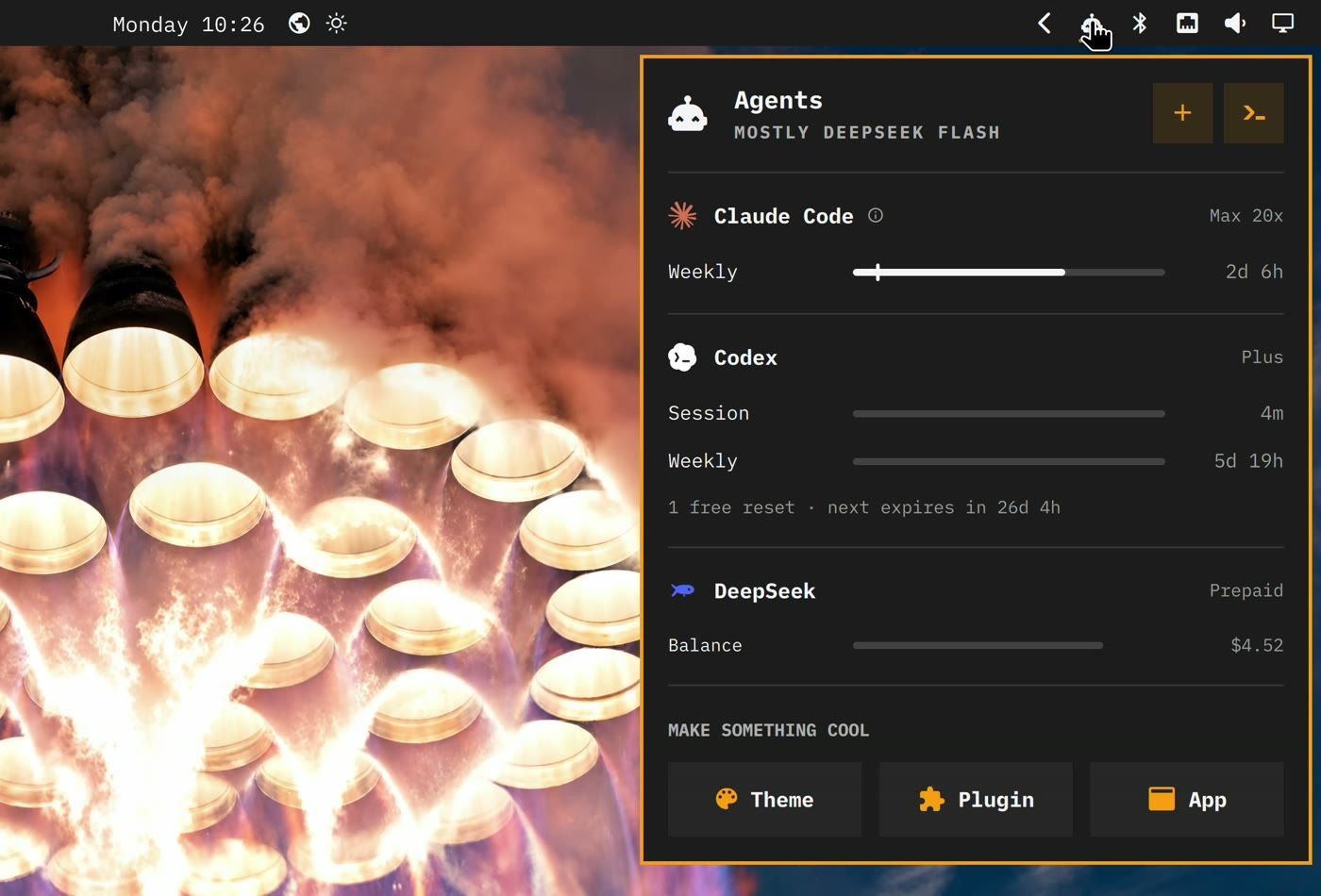
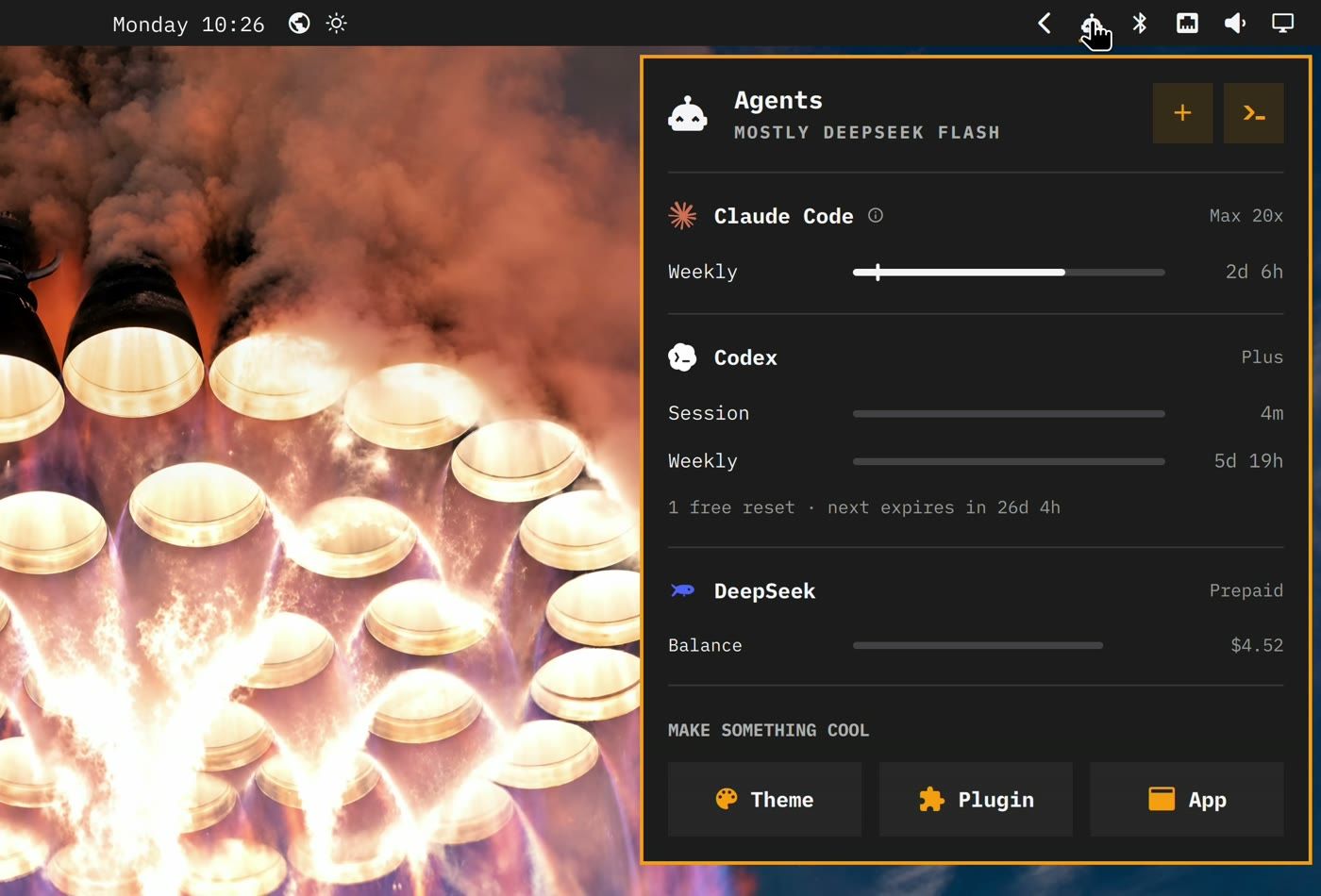
The Agents panel, behind the robot icon in Omarchy’s top bar, shows your prepaid DeepSeek balance. Ours went from $4.70 to $4.52 over the three jobs:
| Job | Time | Tokens | Cost |
|---|---|---|---|
| Clock page | 5m 22s | 1.9 million | about 4 cents |
| Notification plugin | 6m 6s | 8.7 million | about 7 cents |
| Clock follows the theme | 8m 2s | 6.8 million | about 7 cents |
| Total | about 20 minutes | about 17 million | about 18 cents |
Those runs fell in DeepSeek’s off-peak hours. At peak rates, the same work would cost about twice as much.
What goes to DeepSeek
The harness runs on your computer, but your prompts, the files the agent reads and its screenshots go to DeepSeek’s API. The screenshots are of your desktop, not only of the page it built, so keep anything private off the screen while the agent works. DeepSeek’s privacy policy says it collects, processes and stores personal data in the People’s Republic of China.
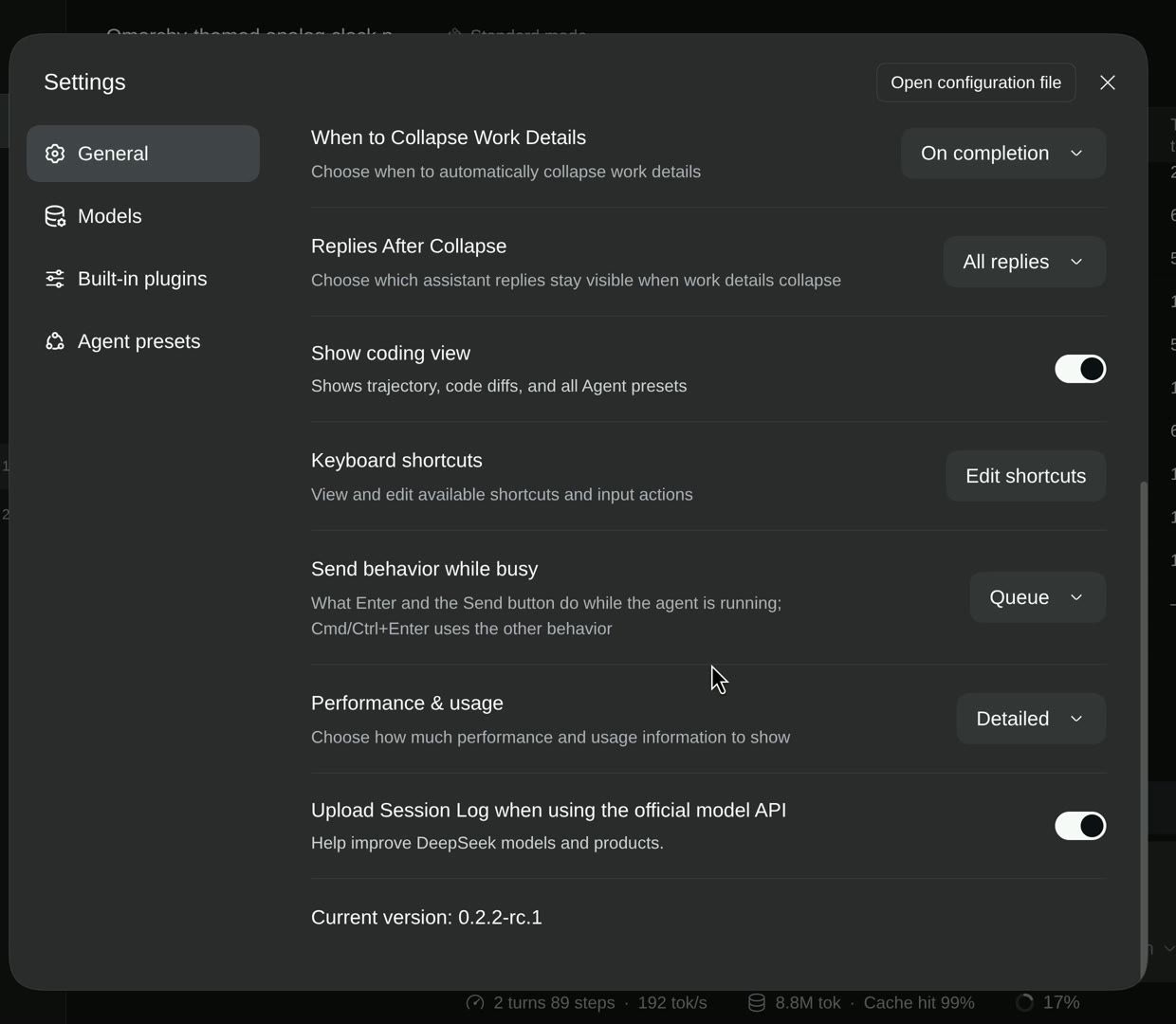
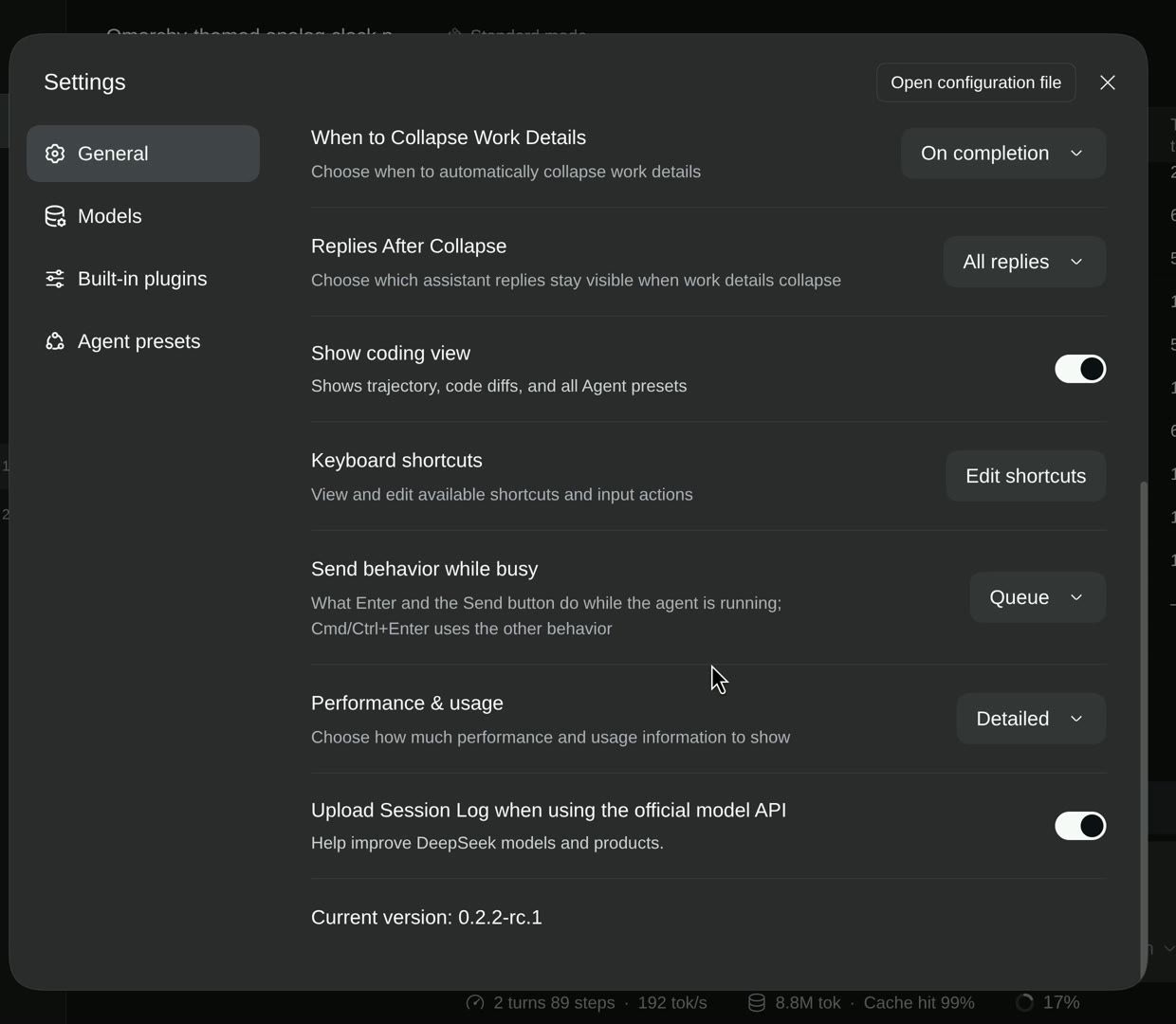
The harness also uploads its session log to DeepSeek by default. To stop that, open More, then Settings, stay on General, and scroll to the bottom. Turn off Upload Session Log when using the official model API. The same screen shows the version you’re running.
Build a focus timer from the Agents panel
Omarchy can also hand the harness jobs. Click the robot icon in the top bar to open the Agents panel. Under Make Something Cool, it has three tiles: Theme, Plugin and App. Each tile starts your default agent with a fixed prompt from Omarchy.
Close any harness that’s already running first (press ctrl c in its terminal window). A second copy can’t start while the first one holds its port, and the tile then only opens a terminal full of errors.
Click Plugin. The harness starts in a new terminal and opens its page on a new session, and a notification says “DeepSeek Harness takes no starting prompt” and “Your prompt is on the clipboard. Paste it into the session.” Click the request box and press ctrl v . Omarchy’s prompt reads:
Make me a new Omarchy shell plugin. Ask me what I'd like it to do, then build it following the Omarchy skill's plugin guide and enable it.After a space, we typed our request, so the agent had no question to ask:
Make it a focus timer for the top bar: a click starts a 25 minute countdown and another click stops it. Send an Omarchy notification when it ends, and stay on this workspace while you test.An Omarchy plugin is different from the harness plugin in the last job. It’s a small piece of QML code that runs inside the Omarchy shell, and each one lives in a folder under ~/.config/omarchy/plugins/. The Omarchy manual covers the format.
The agent read the plugin guide and some of the widget code that ships with the shell, then wrote three files in ~/.config/omarchy/plugins/focus-timer/: the widget, a manifest and an English text file. It turned the plugin on and tested it by itself with a one-minute session, which ended with a “Focus session complete” notification, then set the length back to 25 minutes. The job took about seven minutes, used about six million tokens and cost about five cents.
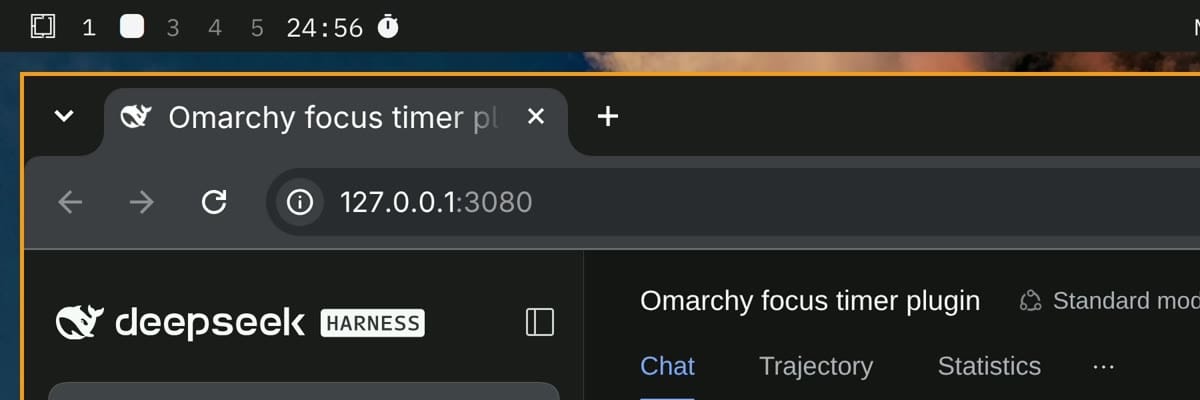
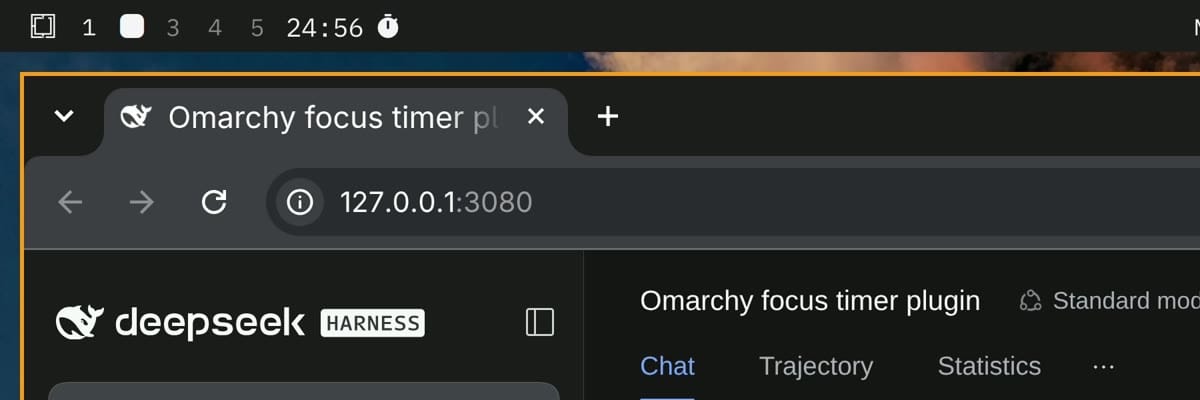
The timer sits in the top bar beside the workspace numbers, as a dim “25:00” and a stopwatch icon. One click starts the countdown, and the digits turn bright. A second click stops it and resets it to 25:00.
To check it from a terminal, run:
omarchy plugin list | grep focusOurs showed demo.focus-timer enabled third-party bar-widget Focus Timer. The agent’s summary also gave the command to change the length, for example to 30 minutes:
omarchy bar set demo.focus-timer minutes 30Your plugin’s id may differ, since the agent picks it; use the one omarchy plugin list shows.
Fix a crashed program from Omarchy’s notification
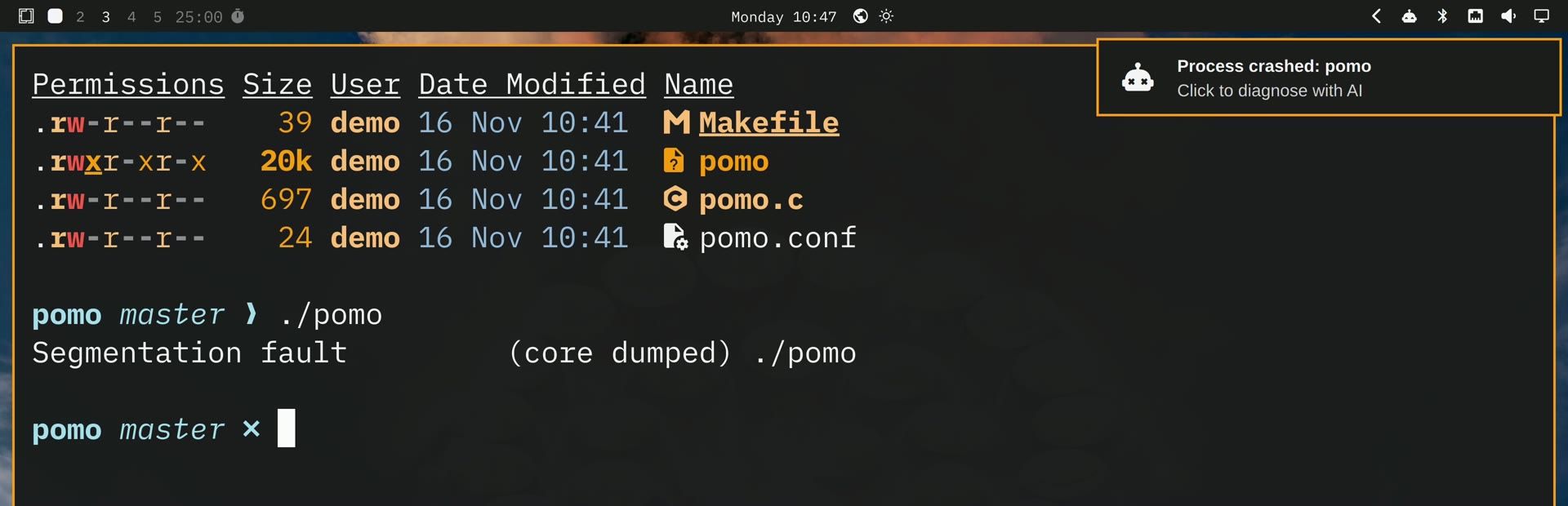
Omarchy 4.5 watches for programs that crash. When one does, a notification reads Process crashed: and the program’s name, with Click to diagnose with AI under it. To try it, we broke a small program of ours, pomo, on purpose. It reads its timer length from a settings file, but the file said mins=25 where the code looks for minutes.
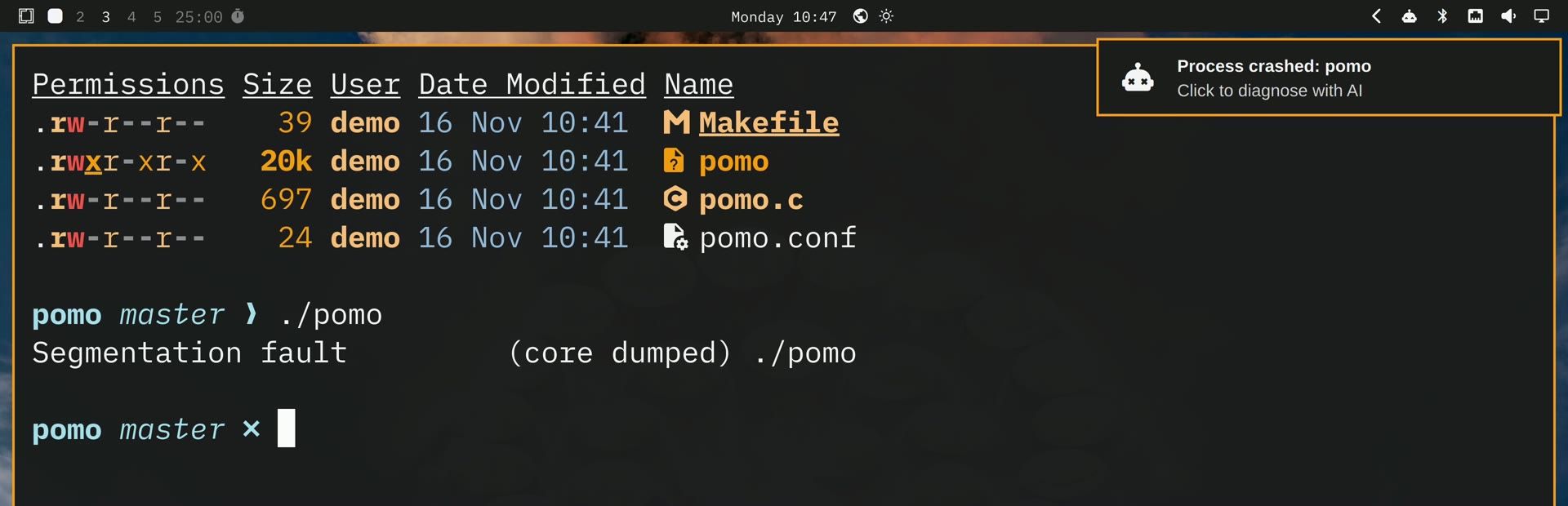
As with the tile, close a running harness first. Click the notification. The harness starts on a new session with the diagnose prompt on the clipboard; paste it with ctrl v . Omarchy’s prompt names the program, its process number, its path, the signal and the time of the crash, and asks the agent to use Omarchy’s diagnose-crash skill. That skill only diagnoses: it says “Diagnosis reads; it does not fix”. So after the pasted prompt we added one sentence:
This is my own program in ~/projects/pomo, so please fix the bug and rebuild it.The agent read the crash dump with gdb and traced it to line 18 of pomo.c. The lookup for minutes found nothing and returned NULL, and the program passed that NULL straight to atoi, which crashed. It fixed the code so a missing setting prints an error instead of crashing, made it accept both minutes and mins, and rebuilt it. After the fix, ./pomo printed “Focus for 25 minutes.” and the break time. This round took about a minute and a half and cost about two cents.
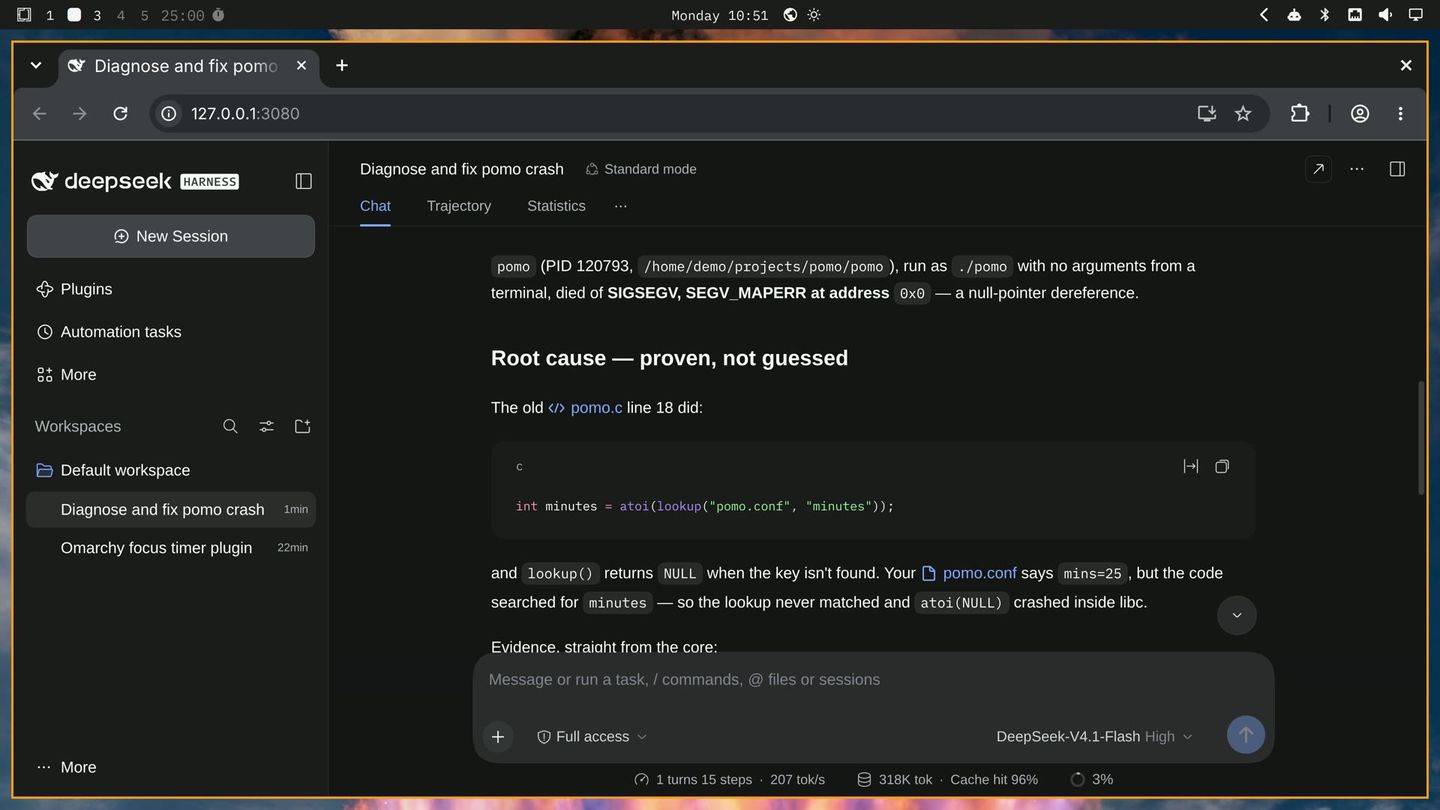
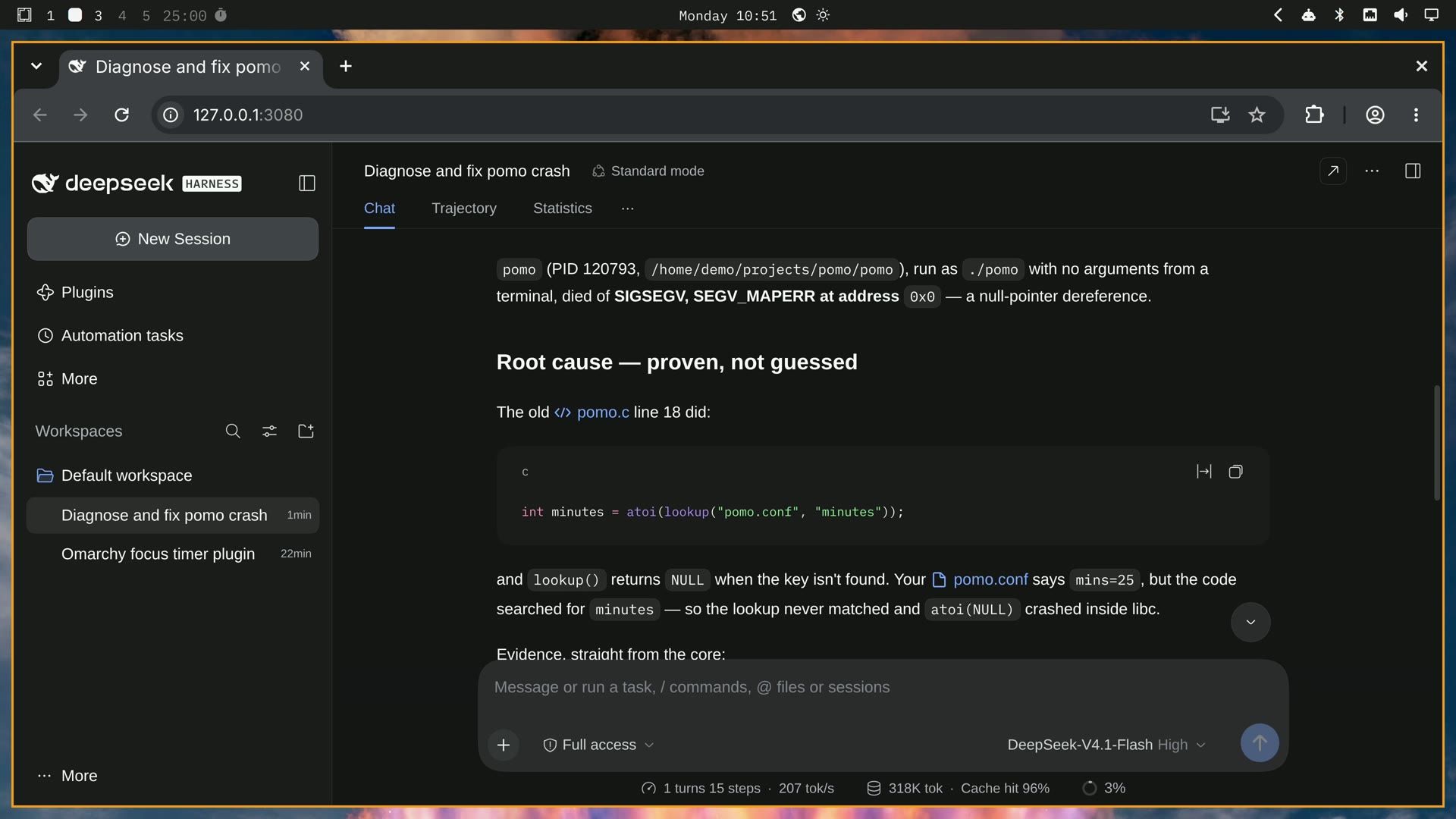
The fix was longer than it needed to be, at 46 lines added: the agent also guarded against a second bug it found, a line with no = sign. Read the change with git diff before you keep it. The answer also mentioned omarchy-crash-mute, which stops the crash notification for one program.
Undo everything
- The clock: delete
clock.htmlfrom~/Documents/deepseek-harness/default-workspace, and the hook and its colors withrm ~/.config/omarchy/hooks/theme-set.d/clock-theme-hook.shandrm -rf ~/.local/state/omarchy/clock. If your run built a server instead, the summary names it; archiving the session asks to stop it. - The notification plugin: Plugins, Installed plugins, click the plugin, Uninstall. Then delete its folder from the workspace folder.
- The focus timer:
omarchy plugin remove demo.focus-timer, with your plugin’s id. - The upload switch: Settings, General, at the bottom.
- The default agent: pick another with
omarchy default agent <name>. Like the first time, the command also starts that agent. - The key: clear it on the DeepSeek card under Settings, Models, or delete it on the DeepSeek Platform.
Troubleshooting
A tile or crash notification opens a terminal full of errors. A harness is already running and holds port 3080. Press ctrl c in the terminal window that runs it, then click again.
The notification says the harness takes no starting prompt. That’s expected. Omarchy put the prompt on the clipboard; click the request box and press ctrl v .
The crash diagnosis explains the bug but changes nothing. The diagnose-crash skill only reads. Add a sentence that asks for the fix, as above.
There’s no Statistics tab. Turn on Developer tools under Plugins, Experimental plugins, More.
The Statistics columns are cut off. The table needs the full width. Press super f on the harness window.
The clock page doesn’t change with the theme. Open the clock session and read the agent’s last summary for the design it chose, then switch themes once more and wait a few seconds. A page opened before the change keeps its old fixed colors until the agent rewrites it.
Related guides
Our other agent guides on Omarchy cover Crush, Codex, Pi writing its own extension and Claude Code. For more on Omarchy plugins, see how to find, check and install them and how to build one with an AI coding agent.


