
Pi is a coding agent for the terminal, and it ships small on purpose. It leaves out features such as sub-agents and plan mode, and its docs suggest you ask Pi to build what you want instead. What Pi builds for itself is called an extension: a TypeScript file that runs inside Pi and reacts to what Pi is doing.
This guide sets Pi up as Omarchy’s default agent and then has it write itself an extension called omarchy-presence. While Pi works, the window borders glow in the theme’s colors, the bar shows the command it is running, and Omarchy’s on-screen display shows a progress meter. When it finishes, a notification with a Back to pi button takes you straight back to its window. It took three requests to get there, and every prompt we used is below, word for word.
We ran this on Omarchy 4.5.0 with Hyprland 0.56.2 and Pi 1.5.0 on November 8, 2026. Pi writes new code each time, so your extension will not match ours line for line, but the prompts and the steps around them hold.
What you need
You need Omarchy 4.5 and an account with an AI provider that Pi supports. Pi does not have to be installed first; Omarchy installs it the first time you pick it. We used an Anthropic API key with Claude Opus, so every request was billed by the token. The whole session, test runs included, came to $4.35 (the breakdown is near the end). A subscription plan bills differently, so check your provider’s terms before a long build.
Make Pi your default agent
Press super shift ctrl a . This shortcut opens your default coding agent, and until you choose one, it opens a Default Agent… picker instead. Type pi to narrow the list, and press enter on Pi.
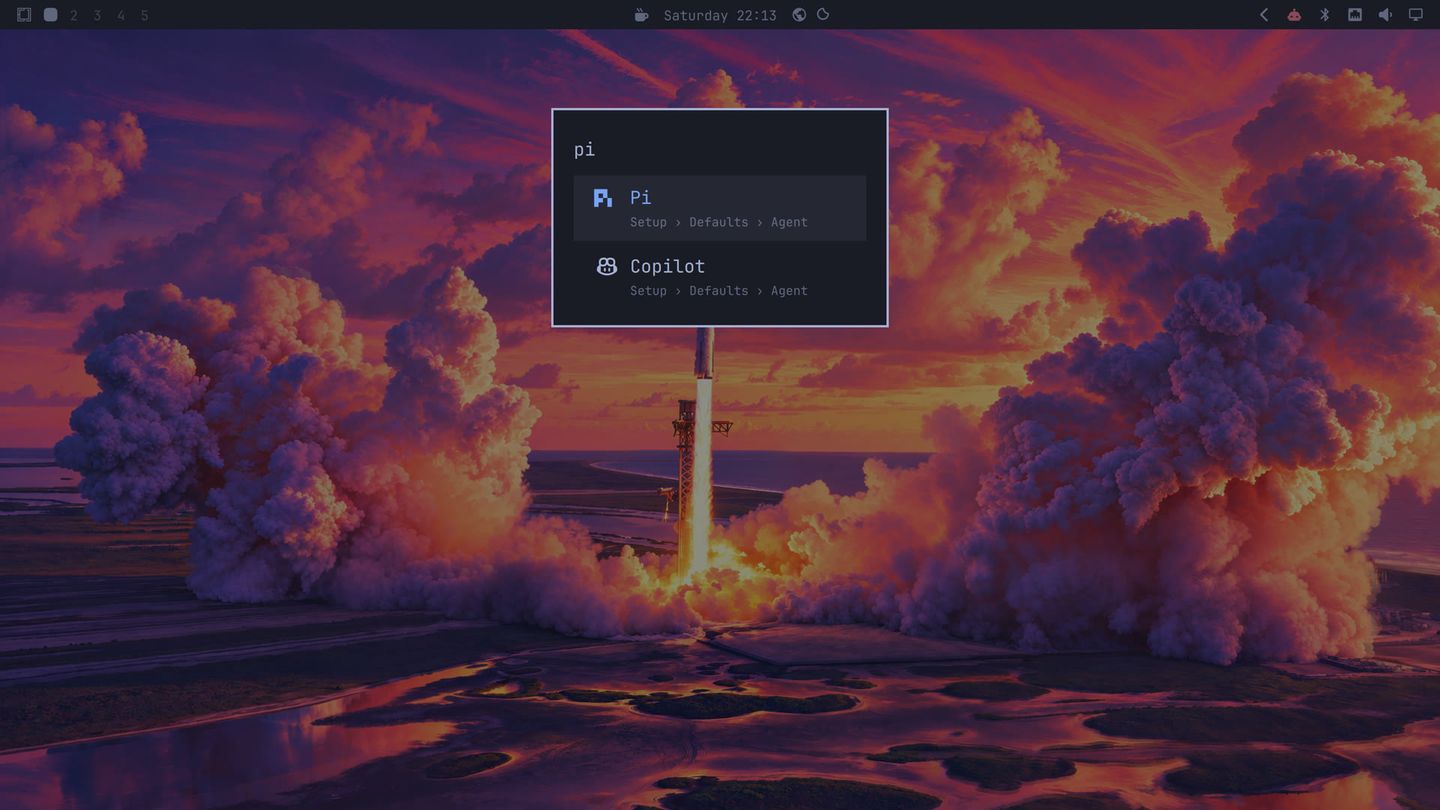
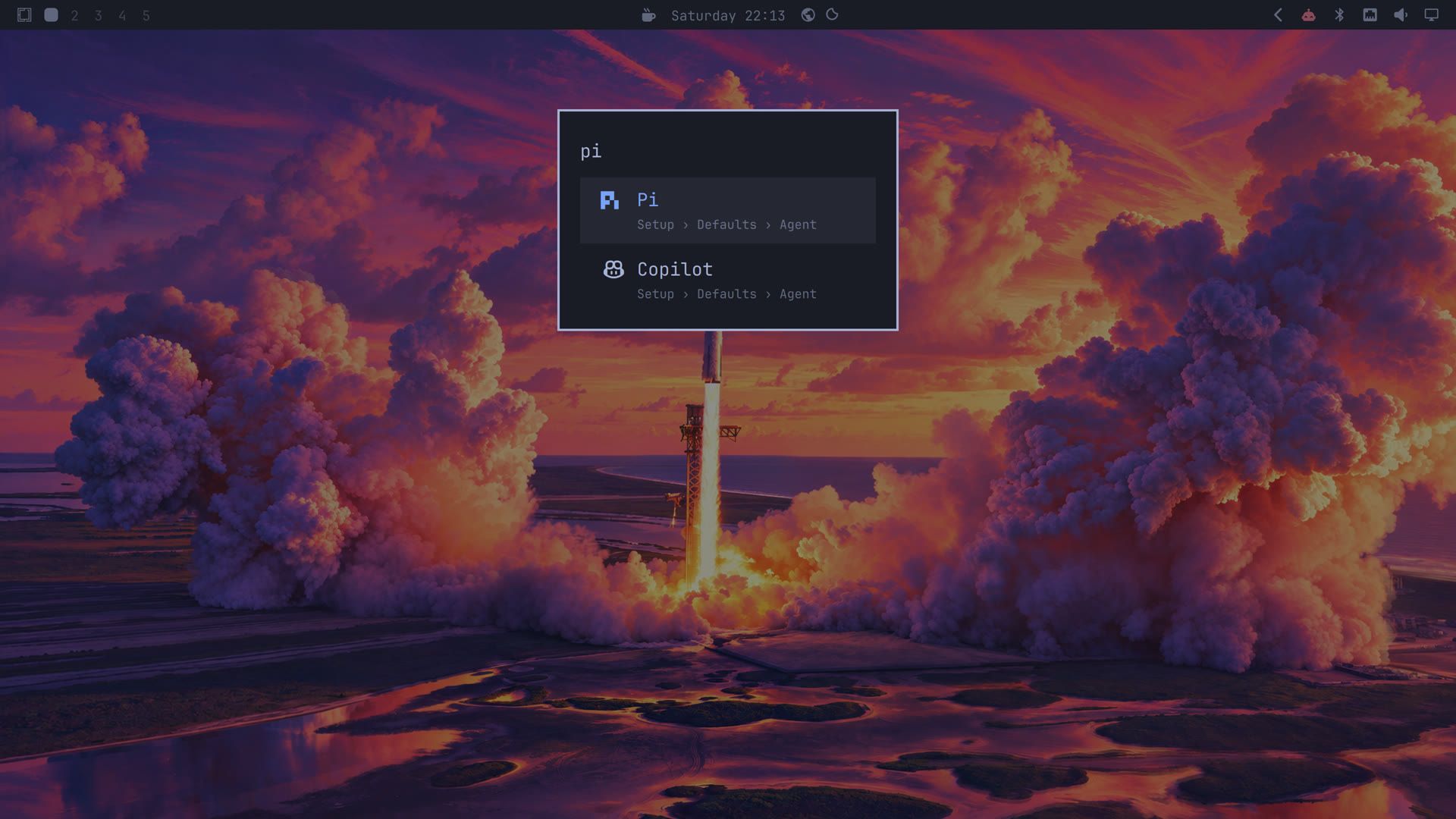
The first time, Omarchy opens a floating terminal, installs Pi with mise (about 12 seconds for us), and then starts Pi in that same window. Press super t to tile it so Pi fills the screen. It starts in your ~/Work folder. From then on, the same shortcut opens Pi directly. You can also set it from a terminal with omarchy default agent pi, or in the main menu under Setup, Defaults, Agent; the AI page of the Omarchy manual lists the other agent shortcuts.
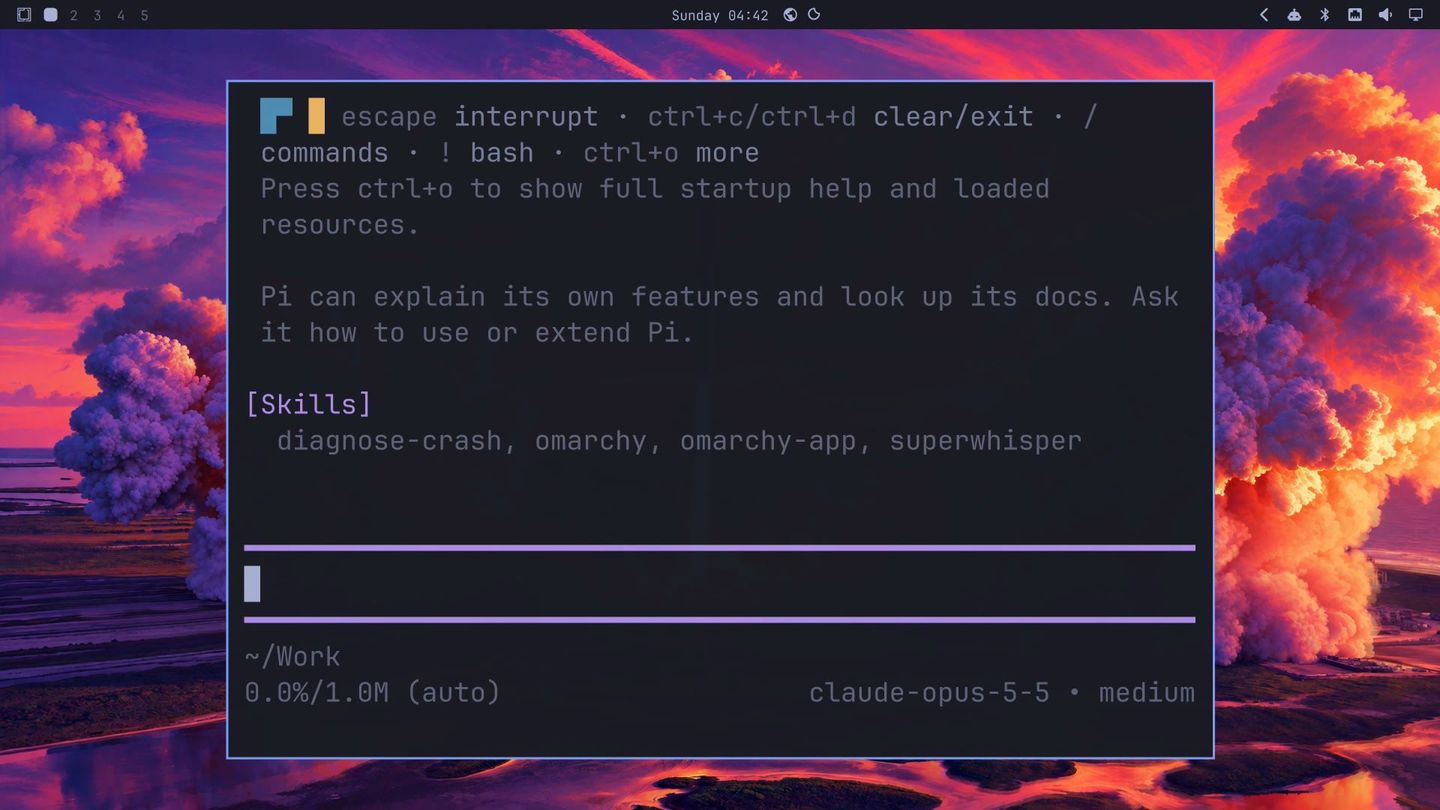
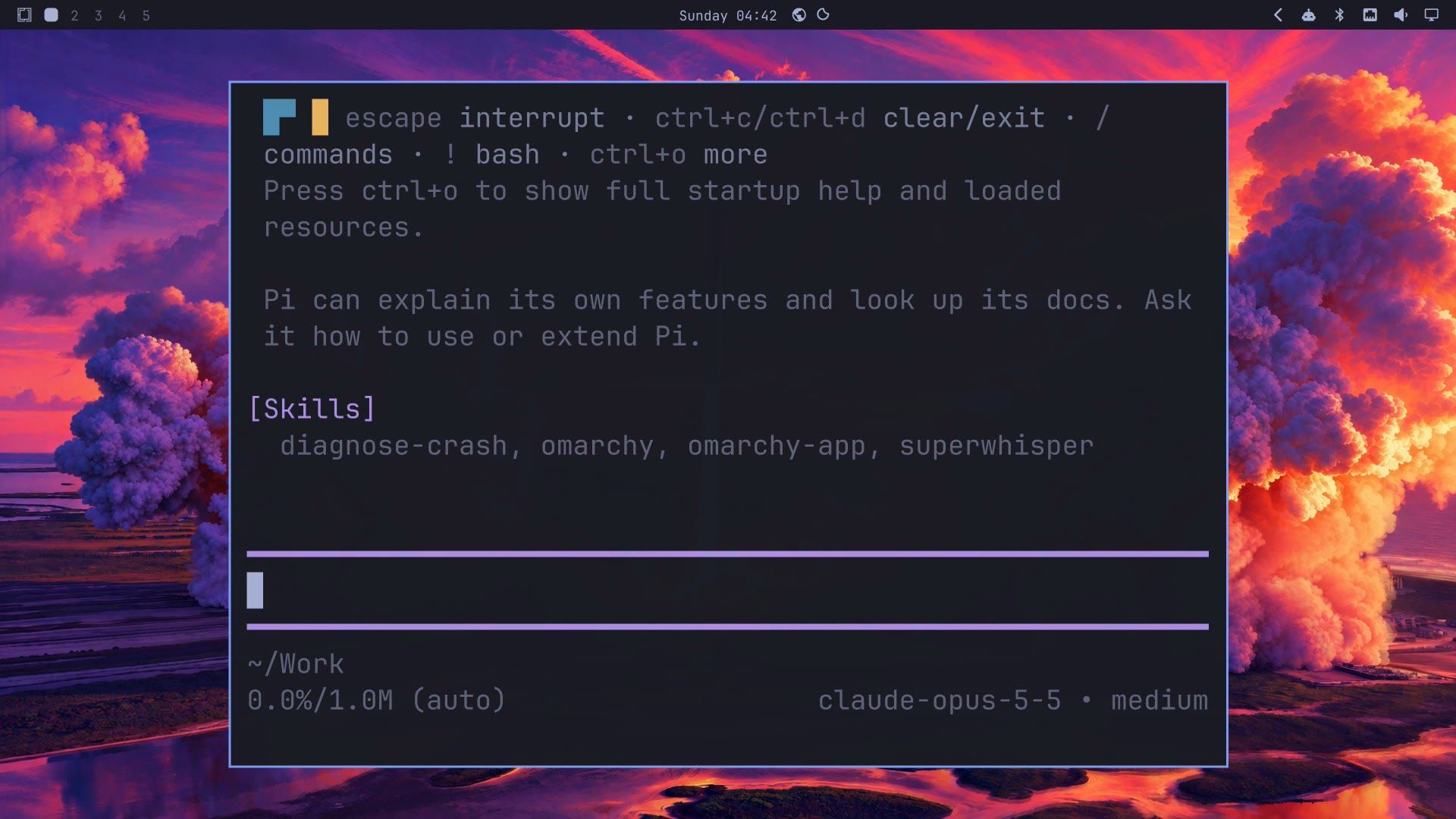
The start screen lists the skills Pi loaded. A skill is a set of instructions an agent reads for one kind of job, and one of these is Omarchy’s own omarchy skill, which describes Omarchy’s commands and settings. That is why Pi can find its way around the desktop without being told where things live.
If Pi has no provider yet, type /login to add one. To choose the model, type /model, filter the list, and press ctrl s on a model to save it as the default for new sessions.
Where extensions live and how /reload works
An extension is a TypeScript file that exports one function, and that function registers handlers for Pi’s events. Pi loads extensions from two places, according to its extensions docs:
~/.pi/agent/extensions/for global extensions, which load in every Pi session.pi/extensions/inside a project, for that project only
Either place takes a single .ts file or a folder with an index.ts. There is no build step. After you add or change an extension, type /reload in Pi, and it reloads extensions, skills, prompts and themes in the running session.
Pi fires an event each time its work reaches a set point, and an extension can run code on any of them. Our extension ended up using these:
| Event | When it fires | What the extension did with it |
|---|---|---|
agent_start | Pi starts on a request | Light up the window borders |
tool_execution_start | A tool such as a shell command starts | Show the command on the bar |
tool_execution_end | That tool finishes | Clear the command from the bar |
turn_end | One round of thinking and tool calls ends | Move the progress meter along |
agent_settled | Pi is done and waiting for you | Restore the borders, send the notification |
It also used session_start and session_shutdown to set up and clean up, and ui_prompt_start and ui_prompt_end, which fire around a dialog that waits for your answer, such as a confirm or select prompt. turn_start refreshes the bar at the start of each turn. Each handler is an ordinary async function, so it can run any command, Omarchy’s own included.
Ask Pi to write the extension
We pasted this as one line into Pi:
Write yourself a global extension called omarchy-presence. While you work, make the window borders glow in a gradient of this theme's accent, show your progress in Omarchy's on-screen display, and keep a status line on the bar saying what tool you are running. When you finish, put the borders back and send me a plain-text Omarchy notification with a button that jumps back to your window. Then tell me to run /reload.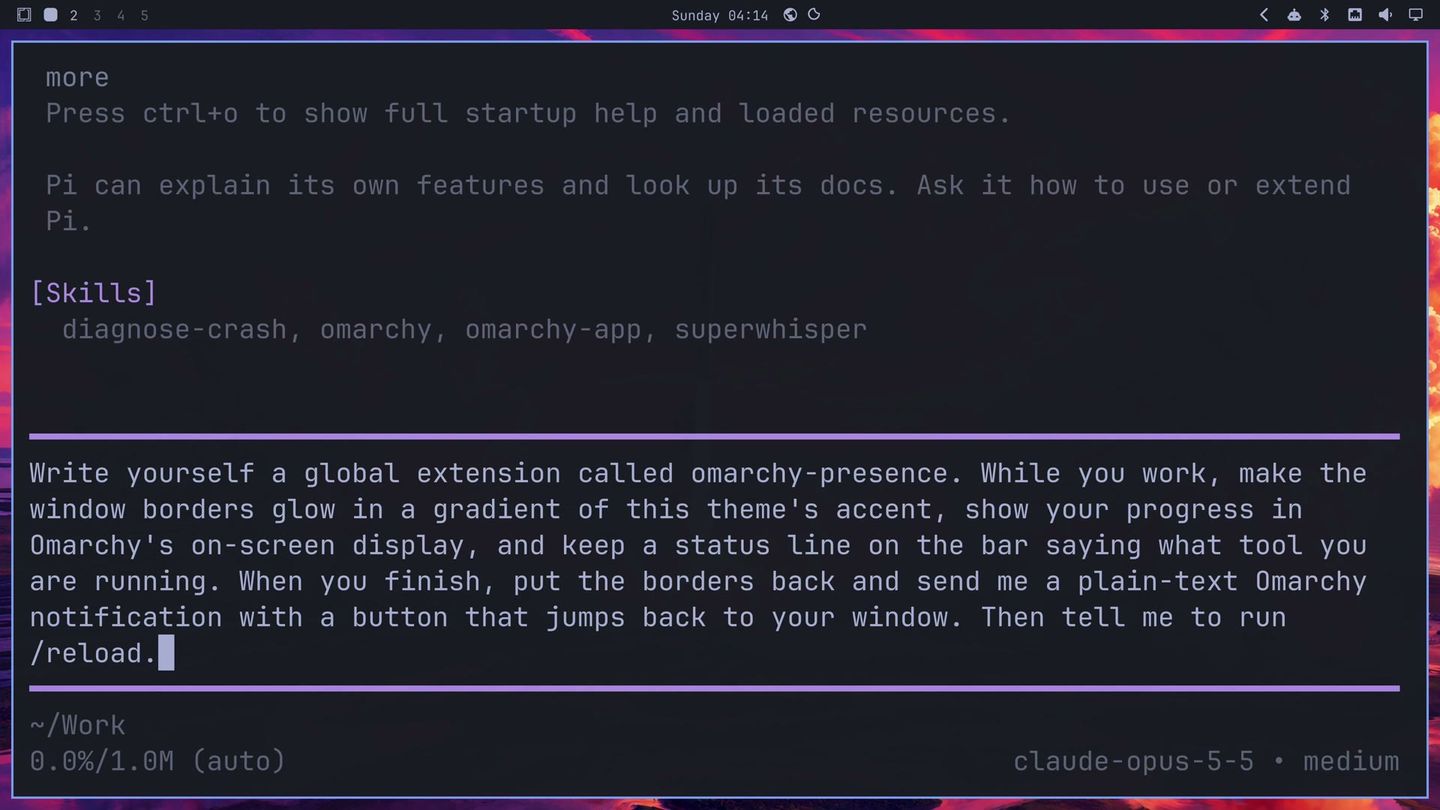
Wait until Pi’s start screen has drawn before you paste. If the paste lands while the install is still running, the terminal prints it as plain text instead of putting it in Pi’s input box.
Pi started by reading. It opened its own docs on extensions, then Omarchy’s code for the on-screen display, the notifications and the bar. Then it wrote ~/.pi/agent/extensions/omarchy-presence.ts, plus a small Omarchy bar plugin in ~/.config/omarchy/plugins/omarchy-presence/ that draws the status line, and it turned that plugin on. Omarchy knows the plugin by the id pi.presence, which comes from its manifest.json. Before it called the job done, it tested the extension outside Pi by feeding it simulated events. The build took 4 minutes 23 seconds and cost $1.59. Pi ended with “Run /reload to load the extension.”
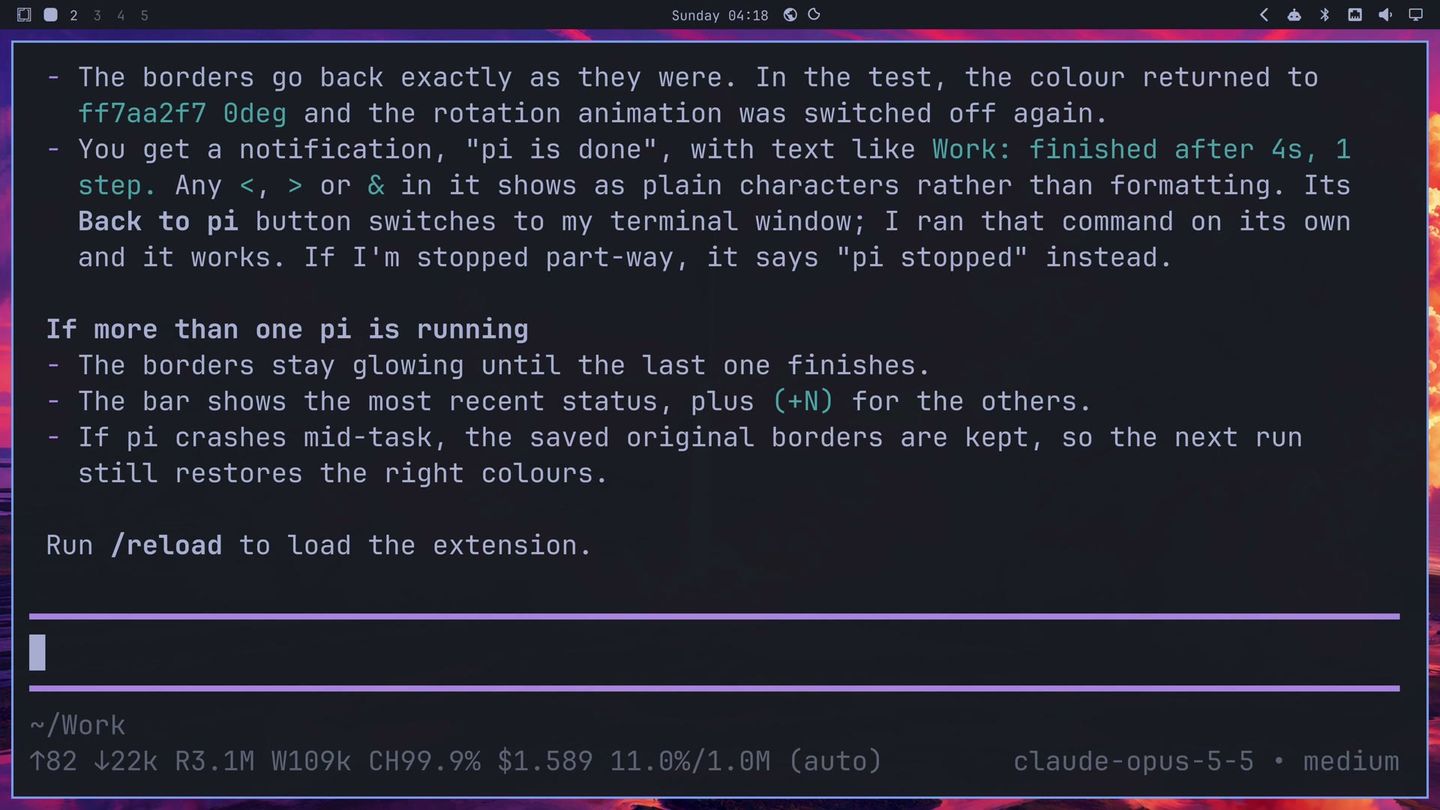
Type /reload and the extension is live. To see it work, give Pi an ordinary job. We had a small Python project with one failing test and asked:
Run the tests in textstats and fix whatever fails.As soon as Pi started, the border around its window lit up in a thin gradient of light blues. The bar, next to the workspace numbers, showed the command Pi was running, and the on-screen display popped up to name each step. Pi found the bug (the code split words on spaces only, so words on either side of a line break stuck together), changed one line, and all five tests passed. Then the borders went back to normal and a notification said pi is done, with the folder, the time taken and the number of steps. Its Back to pi button switches to Pi’s window from any workspace.
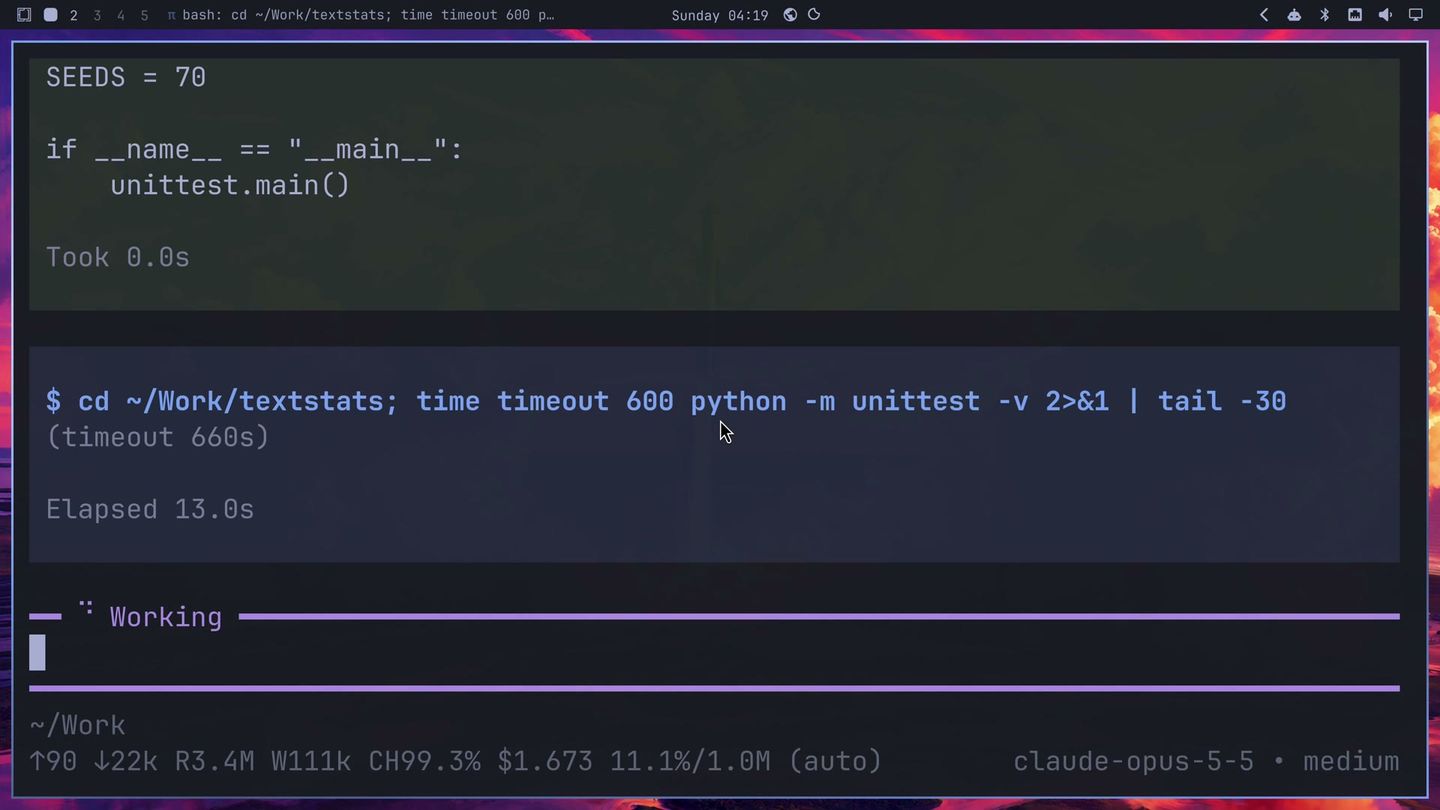
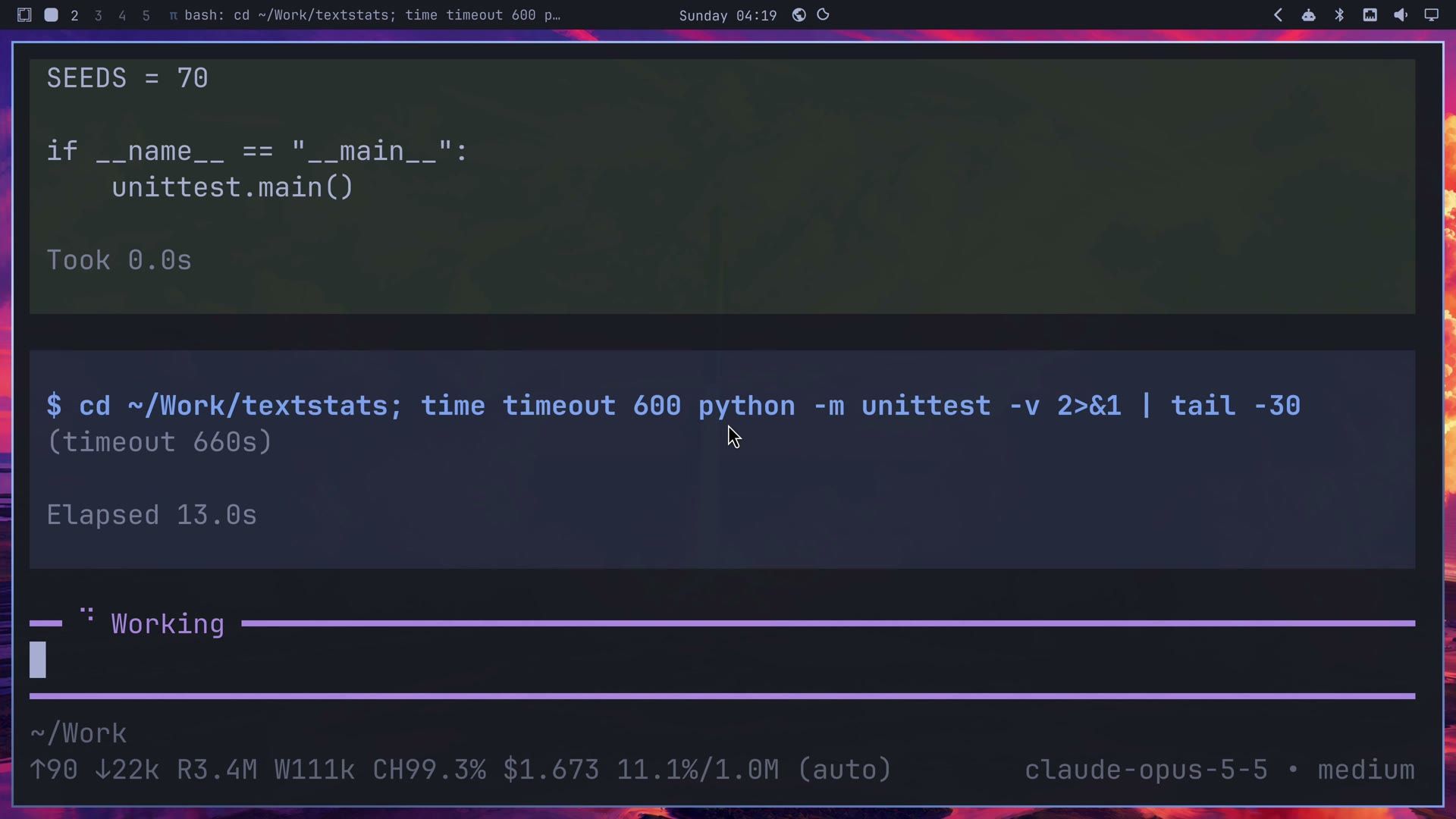
The border was thin and easy to miss, and it stayed still, although Pi’s summary said the gradient would rotate around the window. The on-screen display showed a muted speaker icon where a progress meter should be.
Ask again for bolder borders
The next request asks for something more fun to watch. Pi opens its own extension and edits it from inside the same session that is running it:
The glow is too faint on camera. Make it fun to watch: while you work, use thick borders with a bright gradient from the accent to the theme's orange. When you finish, flash the borders in the theme's green a few times, then keep them amber until I come back to your window, and only then put the old borders back. On the bar, put a small spinning glyph before the tool name. Then tell me to run /reload.This round took 3 minutes 34 seconds and cost $1.04. Along the way, Pi restarted the Omarchy shell to load its new bar plugin, so the bar blinked once. After another /reload, we gave it a small task:
Add a test that an empty string counts zero words, then run the whole suite.While it ran, we pressed super 2 to switch to a workspace with the file manager open. The thick border followed the focus onto the file manager window, in a gradient from the theme’s blue accent to its orange, and a spinner turned in front of the command on the bar.
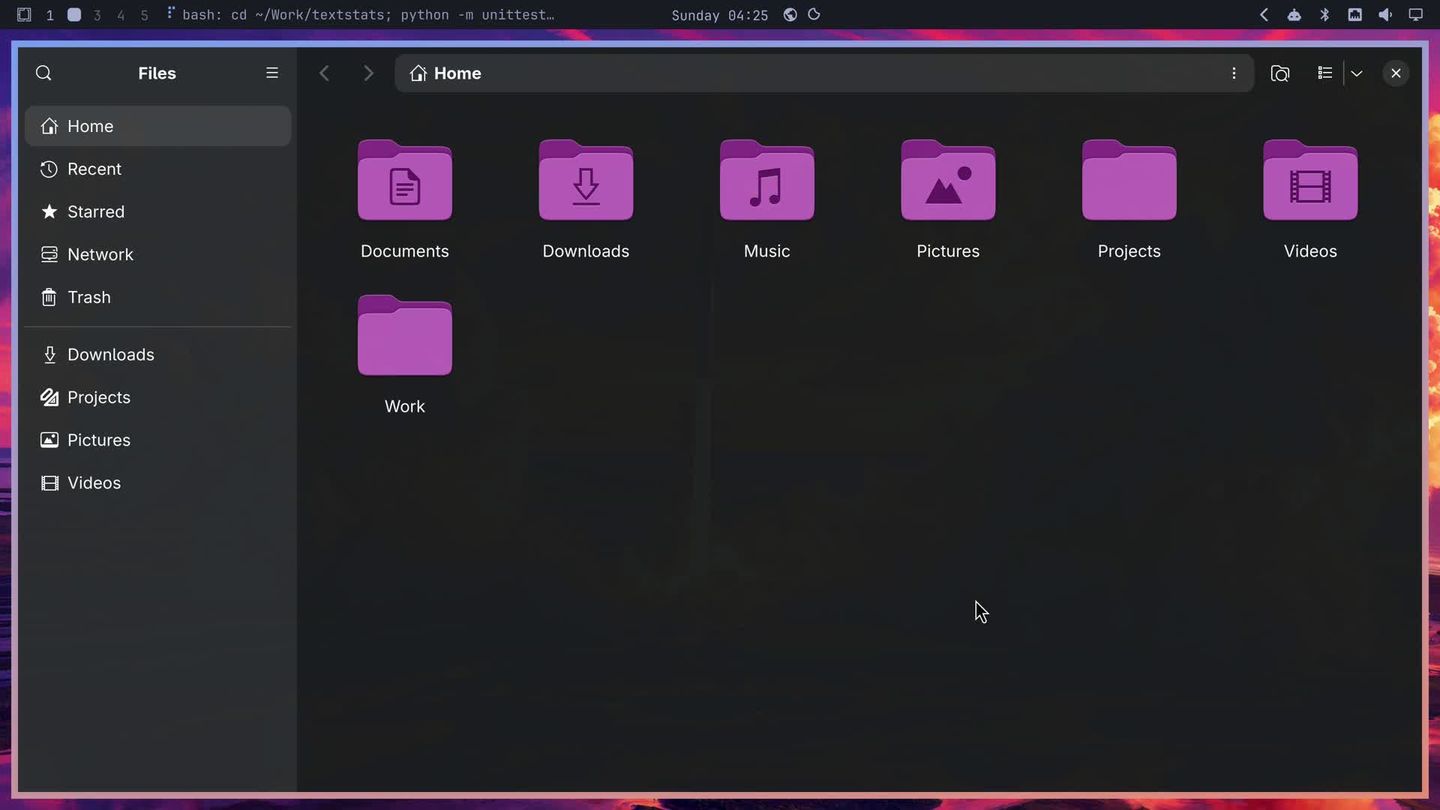
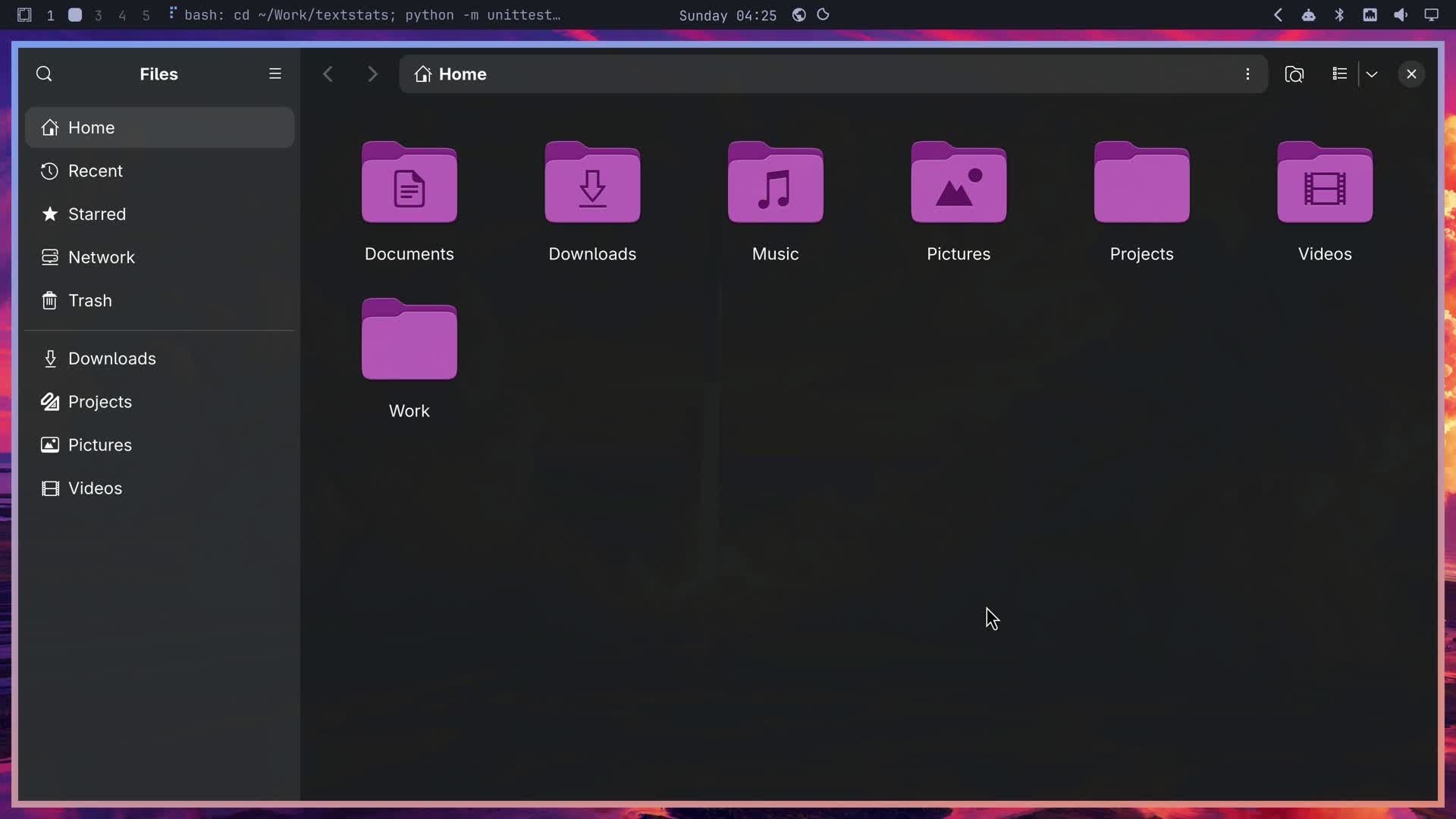
When Pi finished, the borders flashed green four times, then turned amber and stayed amber on whatever window had focus. Amber means Pi is waiting for you. Clicking Back to pi in the notification switched back to workspace 1, and the borders returned to normal as soon as Pi’s window had focus.
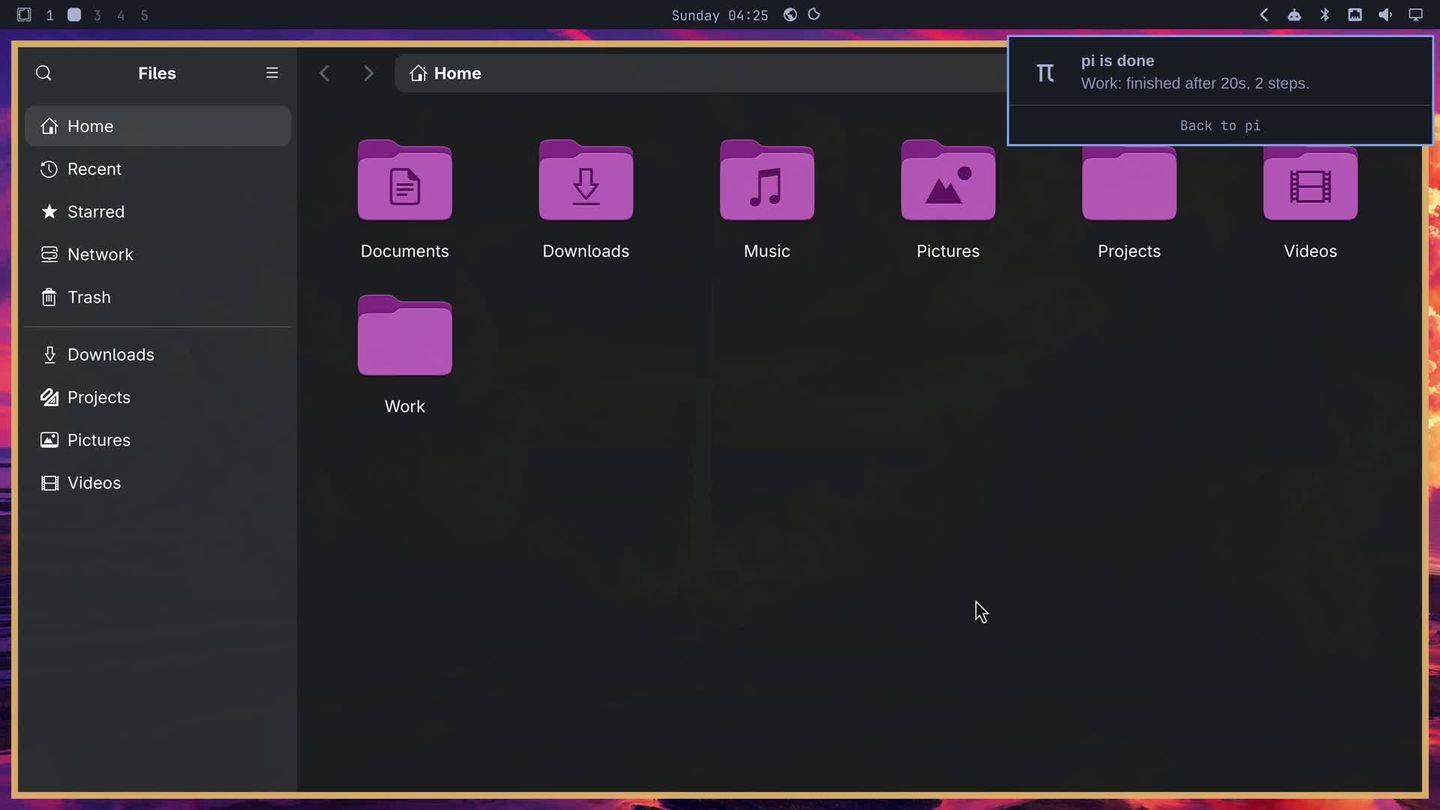
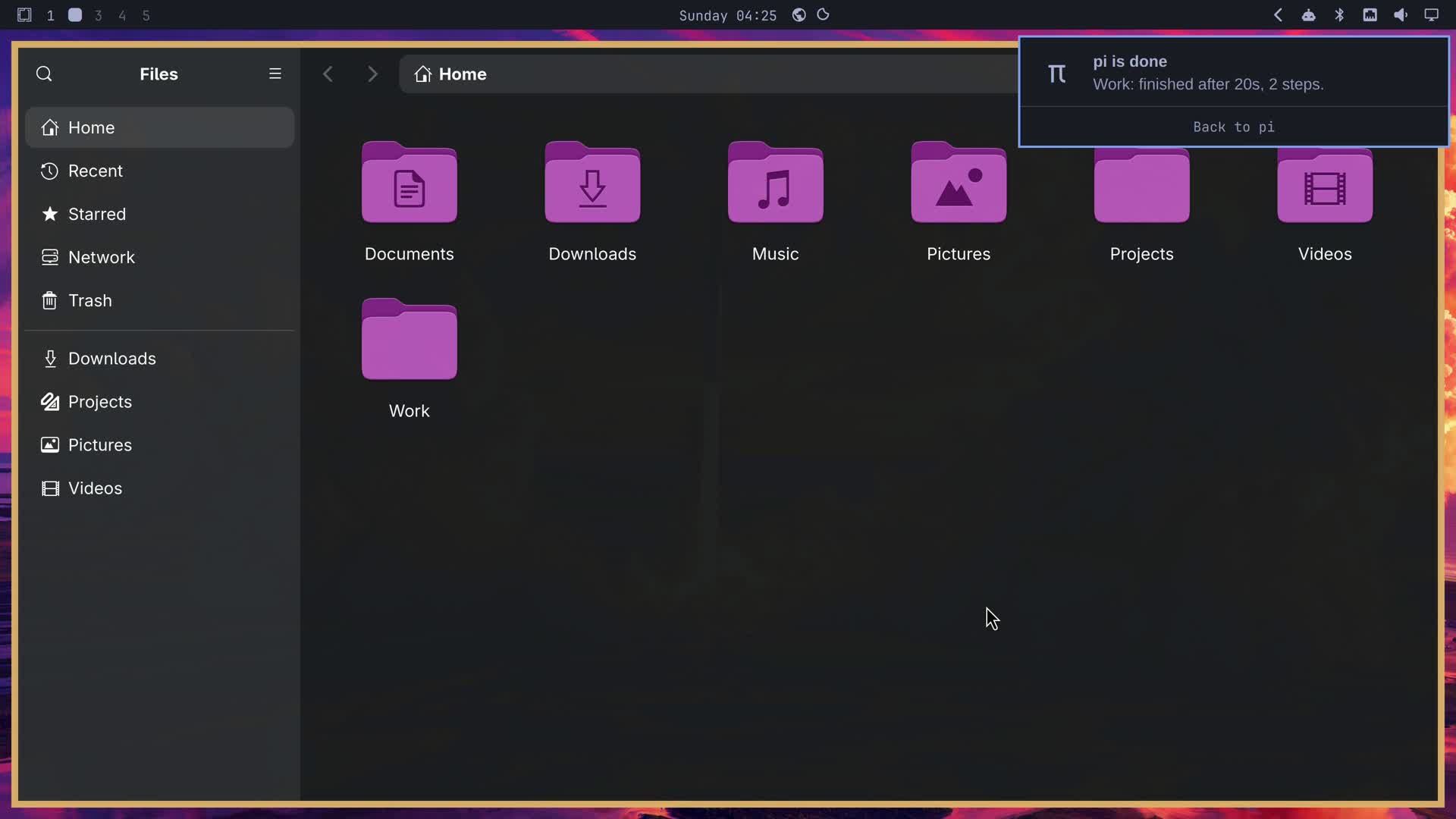
A second run of the suite looked the same. The gradient still did not turn, and the popup still showed the muted speaker.
Fix the turning border and the progress meter
Pi had tried to turn the gradient with Hyprland’s border loop animation (borderangle with the loop style). Hyprland starts that loop only on windows that open after the animation is turned on. Pi turned it on each time it started work, when the windows on screen were already open, so the loop never started on them. The popup problem comes from omarchy osd: it draws its meter only when it gets a progress value and no message, and any message hides the meter.
Our third request names both problems and the fix for each. One sentence in it gives the wrong reason for the border: Hyprland 0.56.2 can run the loop, but not on windows that are already open. The fix it asks for, stepping the angle on a timer, works on every window either way. Here it is as we sent it:
Two things still look wrong on camera. The on-screen display shows a muted speaker and no meter: omarchy osd draws its meter only when you pass -p without -m (any message hides the bar), and -i takes any glyph, so send -i π with -p and no message, and fill the meter a little more at the end of each turn. And the border gradient never moves: Hyprland 0.56.2 does not run the borderangle loop animation, so turn the gradient yourself by stepping its angle on a timer about ten times a second while you work. Then tell me to run /reload.If you write your own version, drop the sentence about Hyprland 0.56.2 and keep the request to step the angle on a timer.
This round took 1 minute 43 seconds and cost $1.30. After a /reload, we asked Pi to run the suite once more:
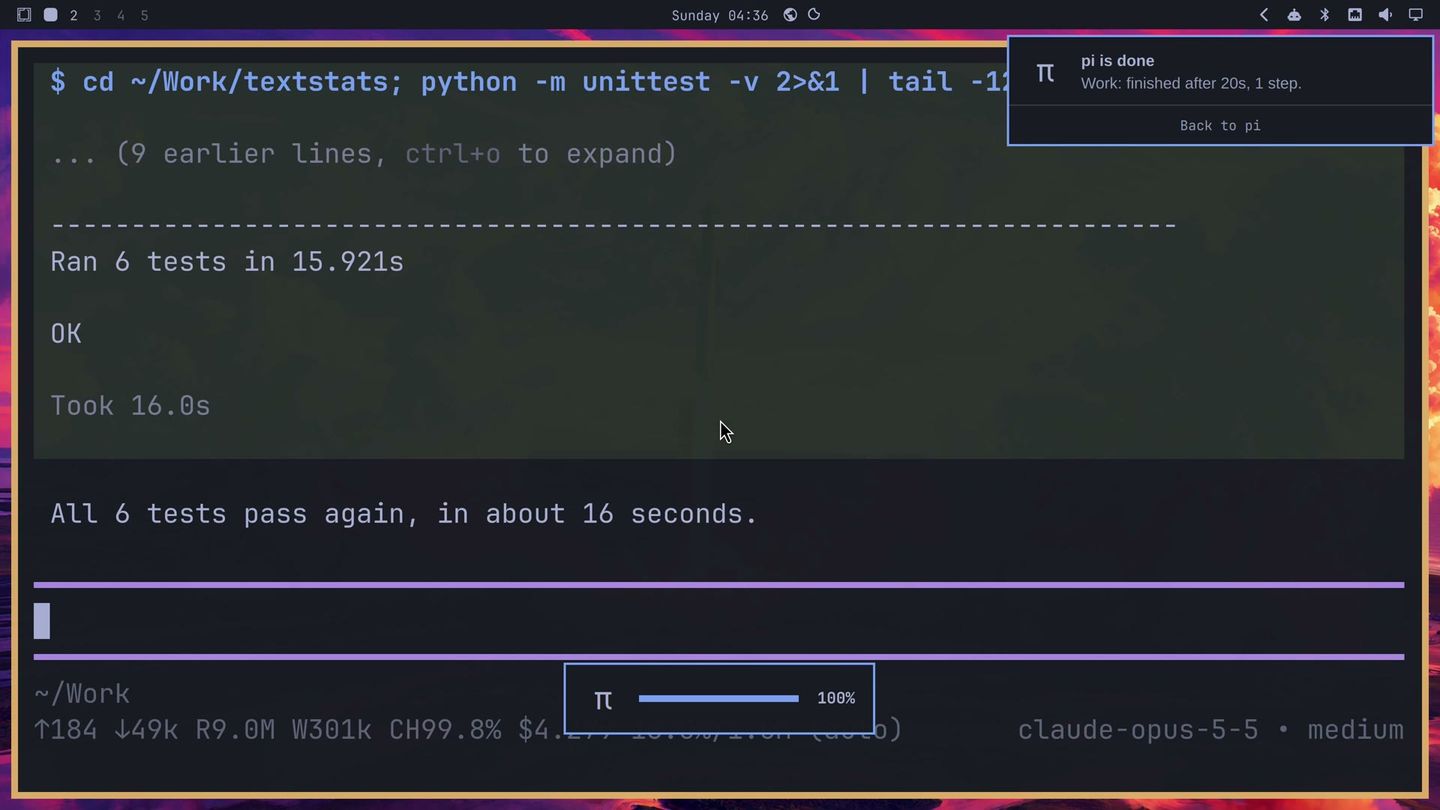
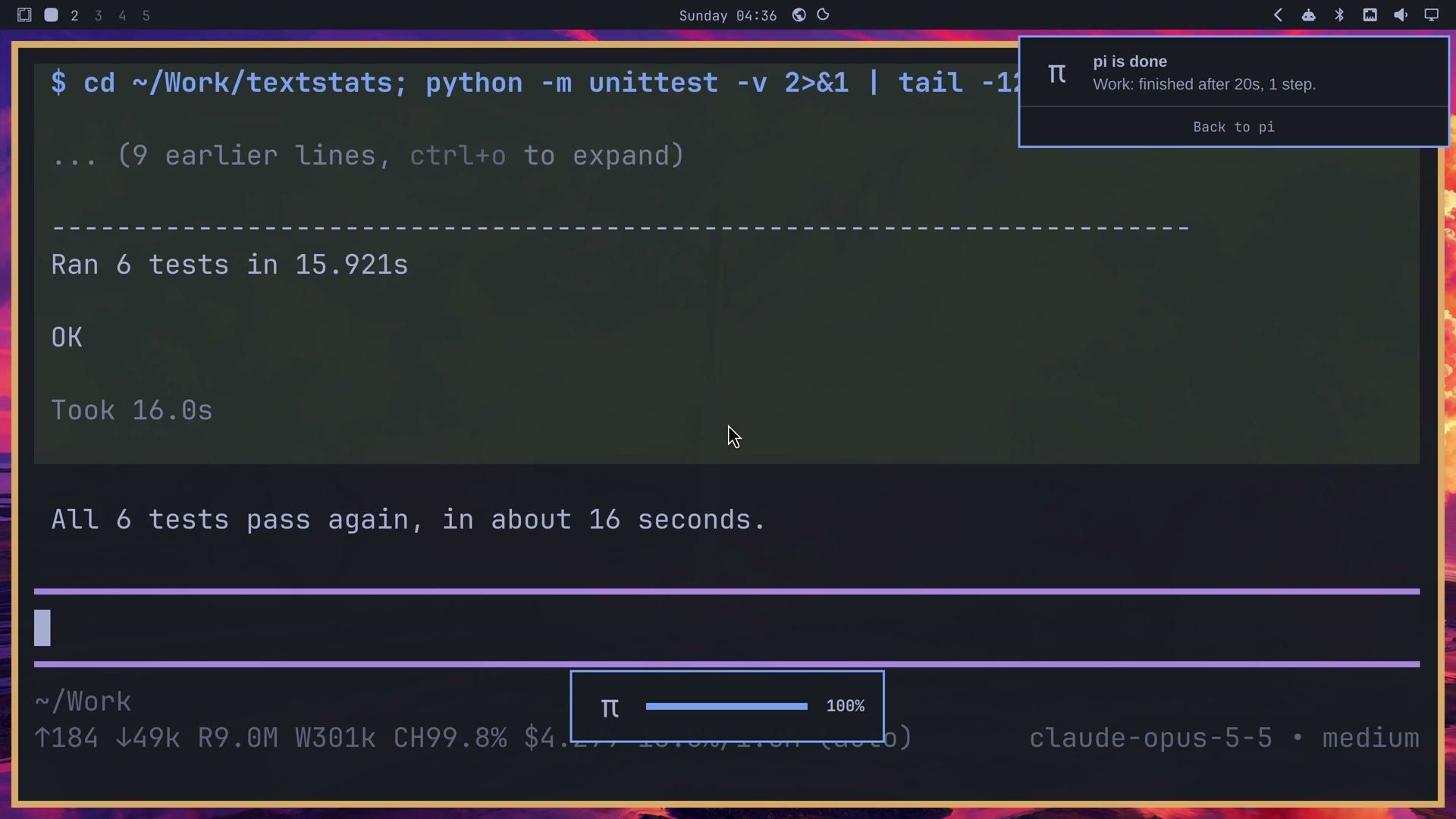
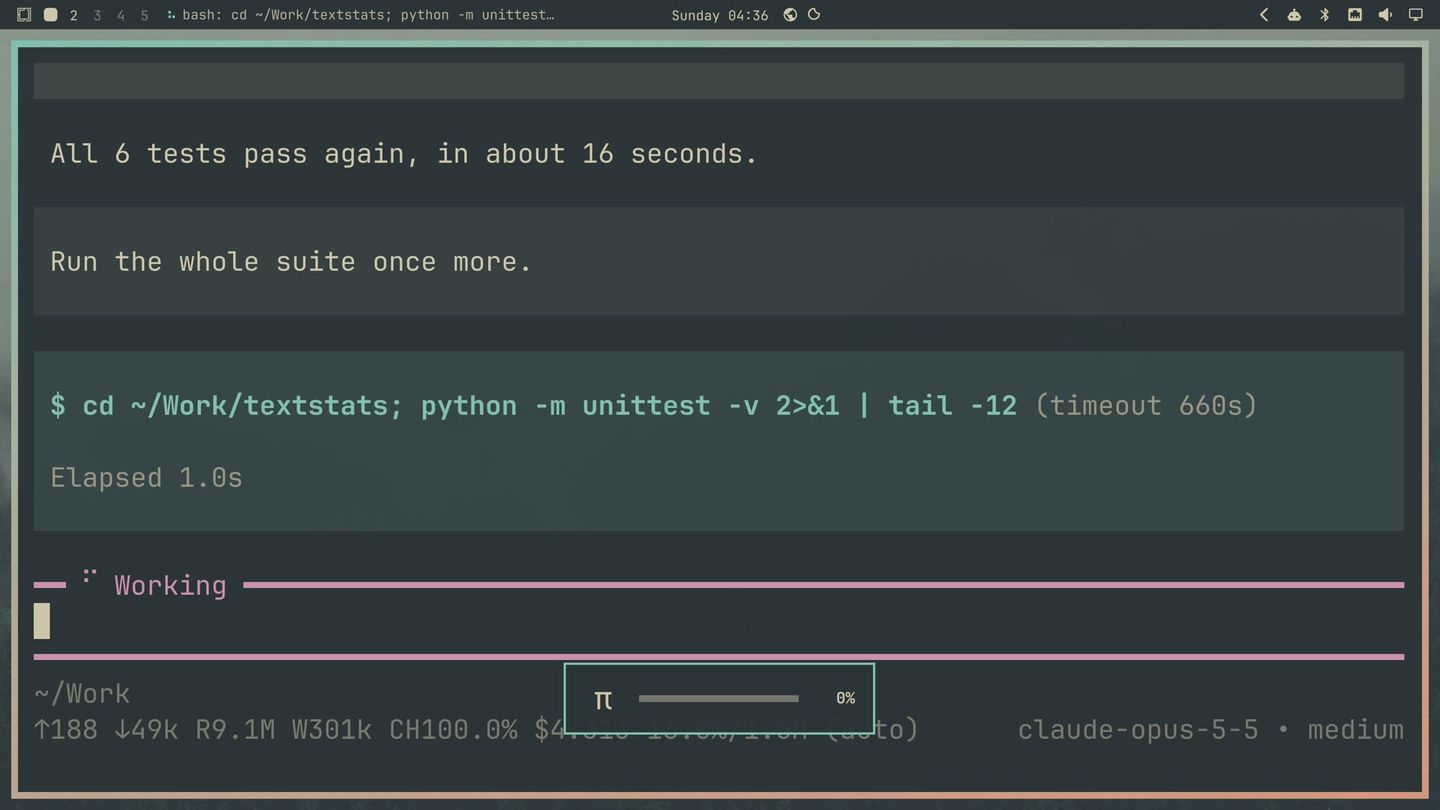
Run the whole suite once more.This time the gradient turned around Pi’s window while it worked: the extension steps the angle 9 degrees every tenth of a second, so it goes all the way round in about four seconds. At the end of each turn, the popup showed the pi symbol and a meter that filled a little more, and it reached 100% at the finish, along with the green flash, the amber border and the notification.
Change the theme
The extension reads the accent, orange, green and yellow from the current Omarchy theme on every run; the theme’s yellow is the amber. Press super shift ctrl space to open Omarchy’s theme picker, type ever, and press enter for Everforest. Pi repaints at once, because its own theme follows Omarchy’s. On the next run, the turning gradient went from Everforest’s soft teal to its orange, and the popup and the notification came out in Everforest too, since Omarchy draws them in the current theme.
What it cost
These are Pi’s own counts from the session log, on an Anthropic API key with Claude Opus:
| Request | Run time | Cost |
|---|---|---|
| First prompt (build) | 4 min 23 s | $1.59 |
| Test task after the build | 46 s | $0.15 |
| Second prompt (bolder) | 3 min 34 s | $1.04 |
| Two test runs after it | 20 s each | $0.13 |
| Third prompt (fix) | 1 min 43 s | $1.30 |
| Two test runs after it | 20 s each | $0.14 |
| Total | $4.35 |
The three prompts account for $3.93 of that. The footer of Pi’s window shows the running total for the session as you go.
Read the code before you keep it running
An extension runs inside Pi with your own permissions. Pi’s docs put it this way: “Extensions run with your full system permissions and can execute arbitrary code.” This one changes your Hyprland borders, runs omarchy commands, edits your bar layout, and starts every time Pi works. Pi also ran its own tests on the live desktop while it built the extension, so expect a test notification or a stray window during a build. Open ~/.pi/agent/extensions/omarchy-presence.ts and the bar plugin’s files and read them before you leave the extension in place. A summary from Pi can say something works when it does not, as the turning border showed, so check the screen yourself too.
To remove it, delete the extension file and type /reload in Pi. Then remove the bar plugin with omarchy plugin remove pi.presence, or delete ~/.config/omarchy/plugins/omarchy-presence. If your borders stay changed after a crash, hyprctl reload puts back the ones from your Hyprland config.
Troubleshooting
Pi says the extension is not active. After the first task, Pi told us the extension “wasn’t active during this task” and needed a /reload. It was active: the borders, the bar and the notification all fired. Trust the screen, and run /reload only after a change to the extension.
The popup shows a muted speaker and no meter. The extension is calling omarchy osd with a message. Ask Pi to send only an icon with -i and a progress value with -p, as the third prompt does.
The border gradient does not move. The extension is relying on Hyprland’s borderangle loop, which only starts on windows opened after it is turned on. Ask Pi to step the gradient’s angle on a timer instead.
Related guides
For more coding agents on Omarchy, see how to let an AI agent run your computer with Claude Code, how we built an Omarchy plugin with a coding agent, and how to run several coding agents from one terminal with Herdr. If you want to add plugins other people wrote, our guide to installing Omarchy plugins covers the marketplace and removal.


