
By default, Omarchy draws terminals and a few other windows 98.5% solid when focused and 96% solid without focus. You will not notice the first, but a bright wallpaper can show faintly behind an unfocused window. A new Window Opacity setting lets you keep that default, make those windows fully solid, or pick a glassy look that blurs the wallpaper behind the terminal and keeps the text sharp. A second setting does the same for the top bar: solid, glassy, or no background at all.
Both settings are on Omarchy’s Edge channel only. Edge gets new features before they reach a stable release, and the newest stable release, 4.0.4 from September 15, does not have these menus. Every step below was done on Edge build 4.0.0.r7026 with Hyprland 0.56.2. At the end there is a hand-made recipe for stable 4.0.4 that copies the same blur settings, which we have not tested.
What you need
You need Omarchy on the Edge channel. If your machine is on stable, the next section shows how to switch and how to switch back. The menus open from super space ; Super is the Windows key on a PC keyboard. If the Omarchy menu is new to you, our list of Omarchy shortcuts to learn first starts there.
The setting changes only windows that Omarchy marks for transparency: terminals and terminal apps, the Files app (Nautilus), LocalSend, 1Password, Omawrite, and any window you mark yourself with the transparency shortcut. Browsers and other apps stay solid in every mode.
Make a snapshot, then switch to Edge
Edge is a development channel, so make a snapshot first. Open a terminal and run:
omarchy snapshot createThat snapshot shows up in the Limine boot menu, and you can boot it and restore it if Edge gives you trouble. Our guide to Omarchy snapshots and rollback from the Limine boot menu walks through the restore. Omarchy keeps only the five newest numbered snapshots, and each update makes a new one, so after a few updates on Edge the snapshot from before the switch is gone. Note its number, and decide within a few updates whether you want to stay.
To switch, press super space and go to Update, then Channel, then Edge. The same menu is on stable 4.0.4. It opens a terminal that runs omarchy-channel-set edge: it points the package manager at the Edge repository, upgrades the system, replaces the omarchy package with omarchy-dev, and runs Omarchy’s update steps. Expect a few hundred package changes, including a new kernel (linux-omarchy-bore). Reboot when it finishes.
Our switch stopped once with “Something went wrong during the update!”. The step that failed adds a world clock to the bar, and it ran while the bar was restarting. A minute later the same step worked, and running omarchy update again finished the rest. If yours stops, read the error, then run the update again.
To go back, the same menu has Update, then Channel, then Stable. It runs omarchy-channel-set stable, which points the package manager back at the stable repository and syncs every package to the stable versions, downgrading the newer Edge ones. We have not tested that path. The snapshot you made above is the way back we recommend.
Pick Opaque, Transparent, or Glassy windows
Press super space , then go to Trigger, Appearance, and Window Opacity. Three choices come up:
- Opaque Windows: fully solid. No wallpaper shows through.
- Transparent Windows: the default, with no blur, at the 98.5% and 96% values above.
- Glassy Windows: the terminal background turns to frosted glass with the wallpaper blurred behind it.
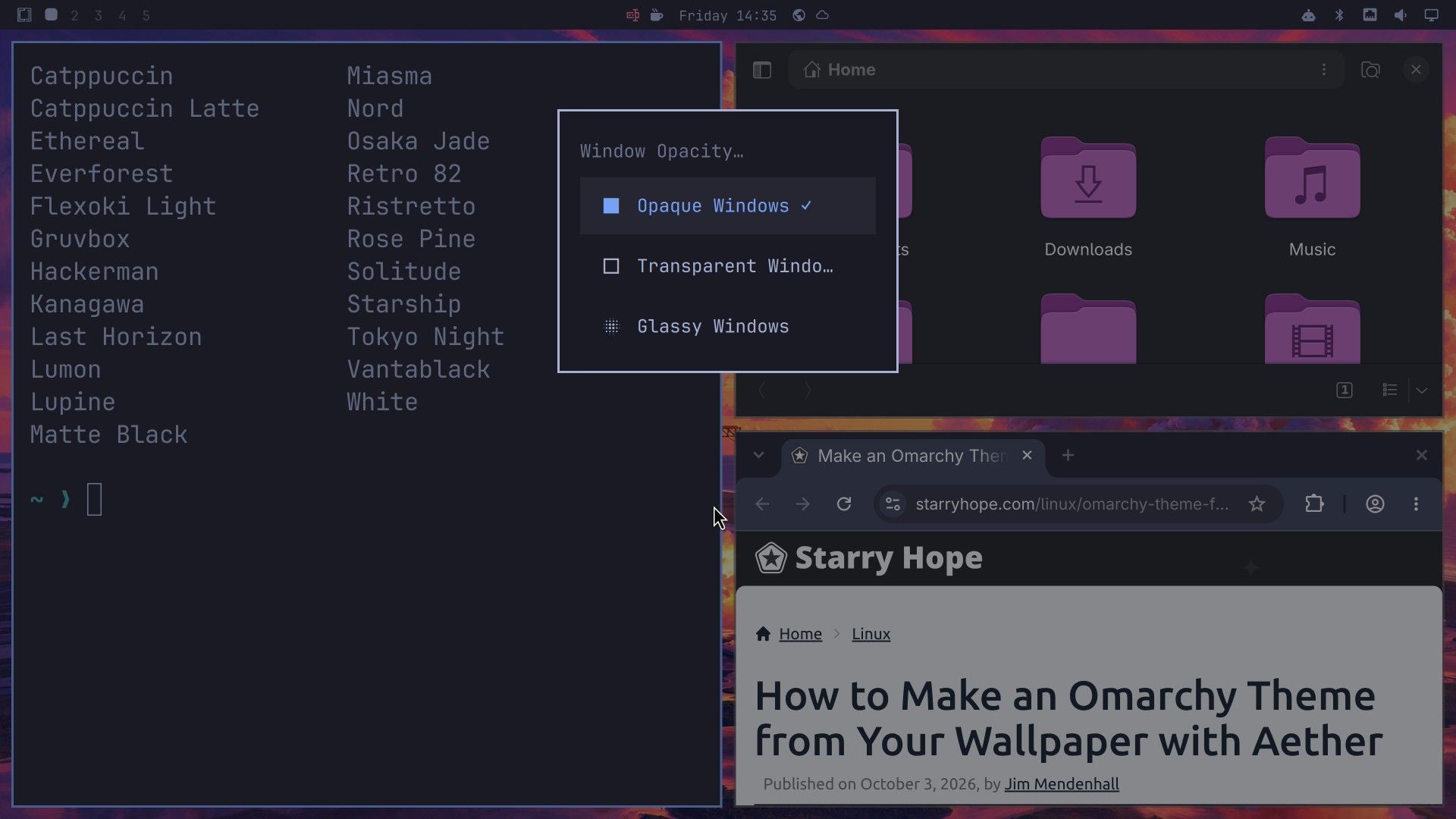
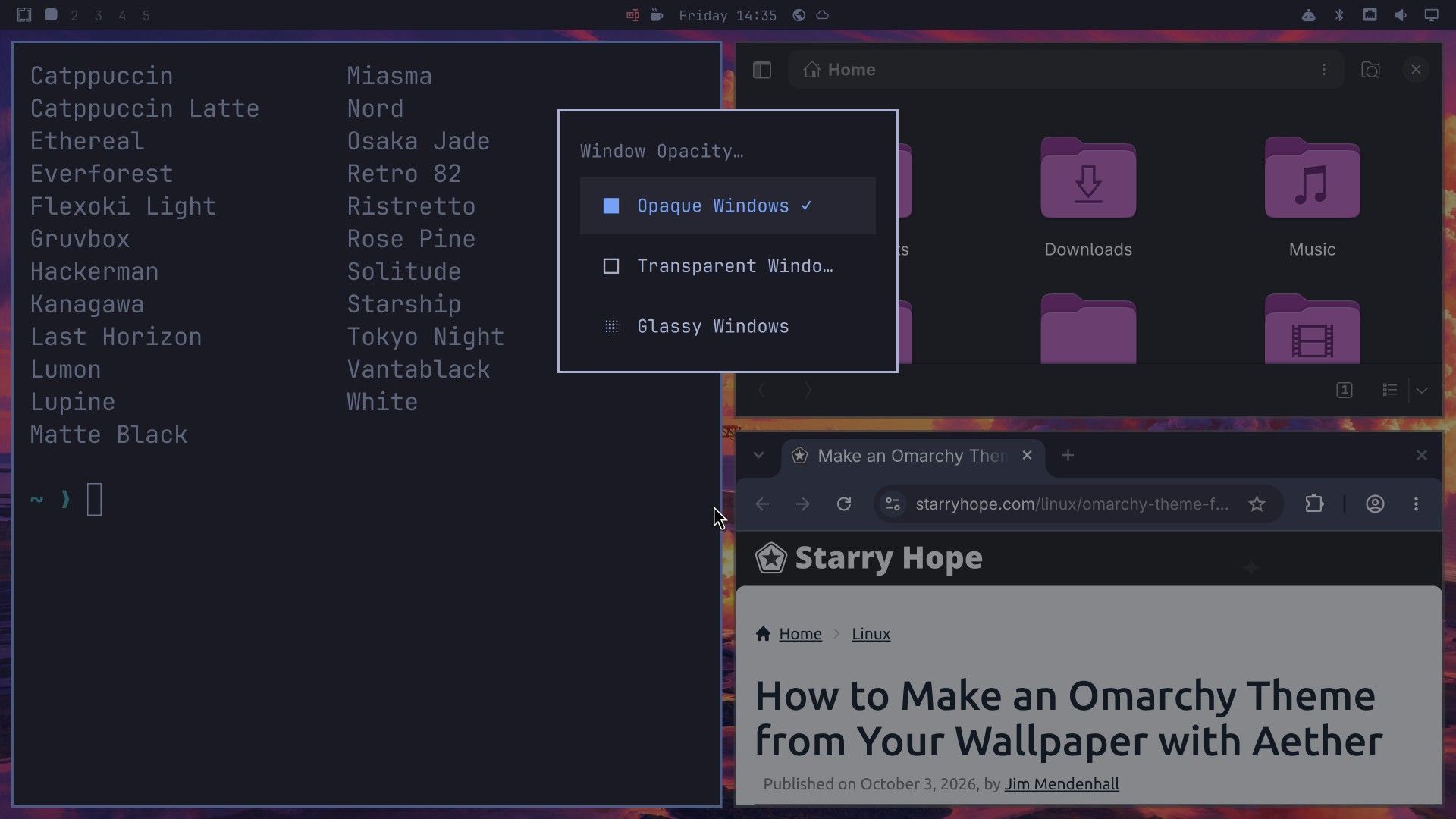
A check mark sits next to the current choice. The Transparent row’s label is cut off at “Transparent Windo…”, so its check mark does not show; if neither Opaque nor Glassy is checked, you are on Transparent. The change applies about a fifth of a second after you click, with no notification.
Glassy lowers the terminal’s own background to 65% and turns on Hyprland’s blur, so only the background goes see-through and the text keeps full contrast. The Files app turns see-through too, but on our screen it did not blur: the wallpaper’s lines showed through it sharp.
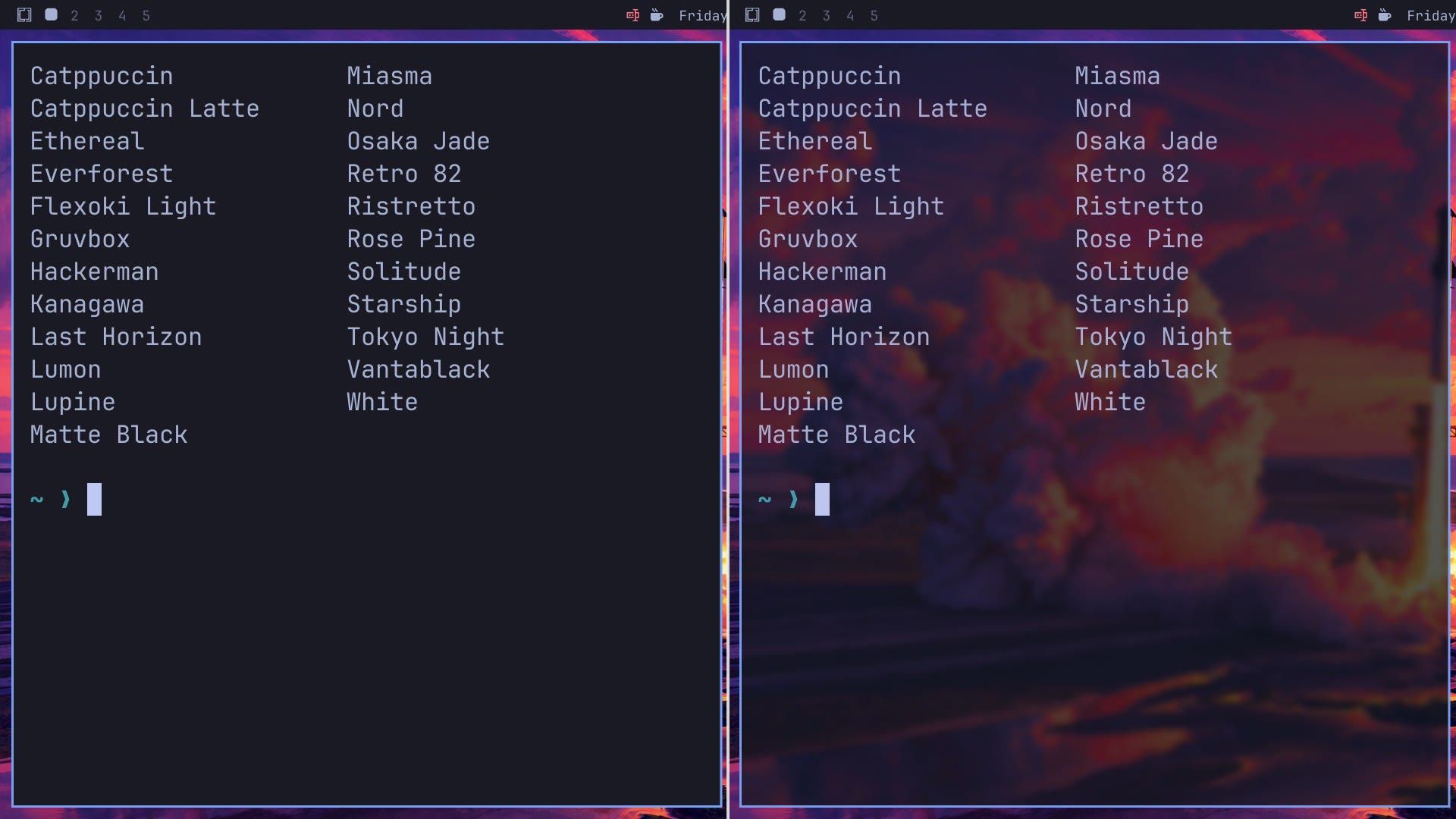
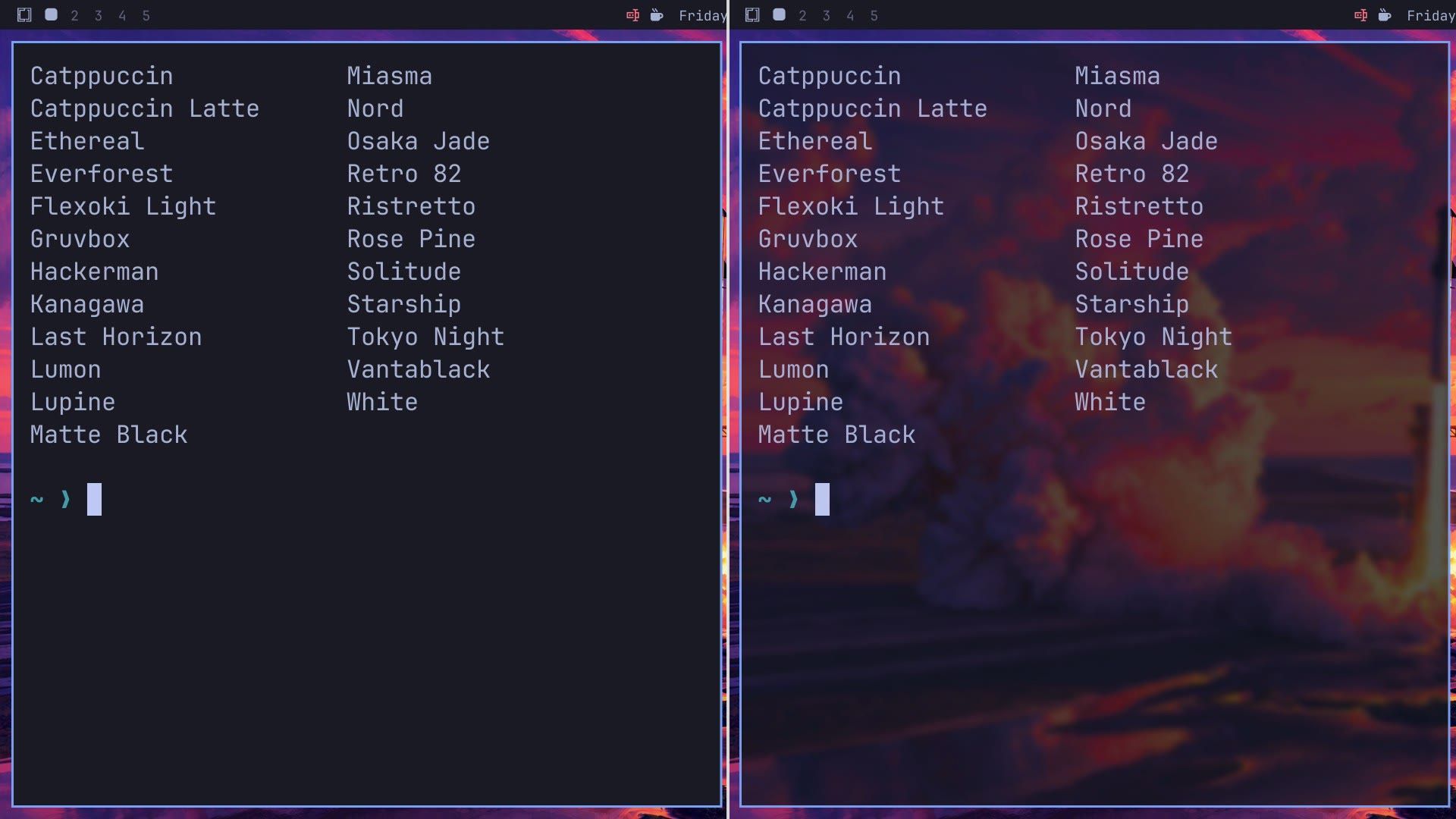
The same setting has a command, which also prints the current mode when you run it without an argument:
omarchy-hyprland-window-transparency glassy
omarchy-hyprland-window-transparency          # prints opaque, transparent, or glassy
Pick an opaque, glassy, or clear top bar
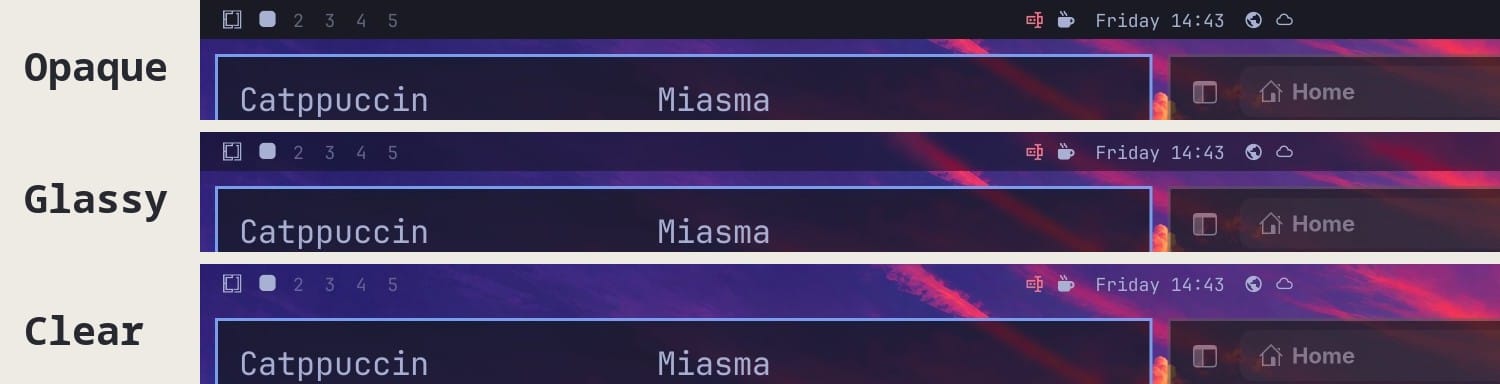
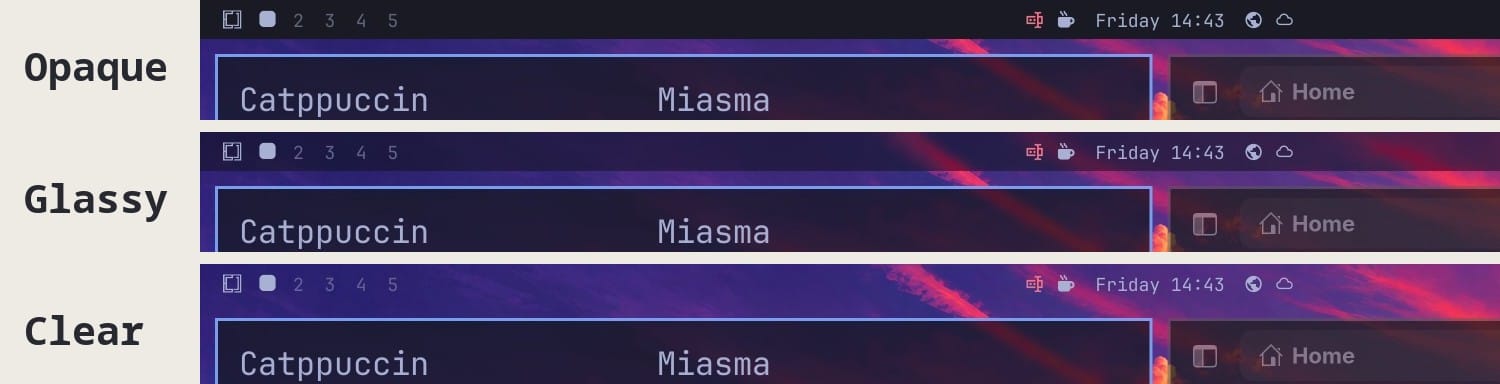
The bar has its own setting. Press super space , then go to Trigger, Appearance, Menu Bar, and Bar Background. The choices are Opaque Bar (the default), Glassy Bar, and Clear Bar.
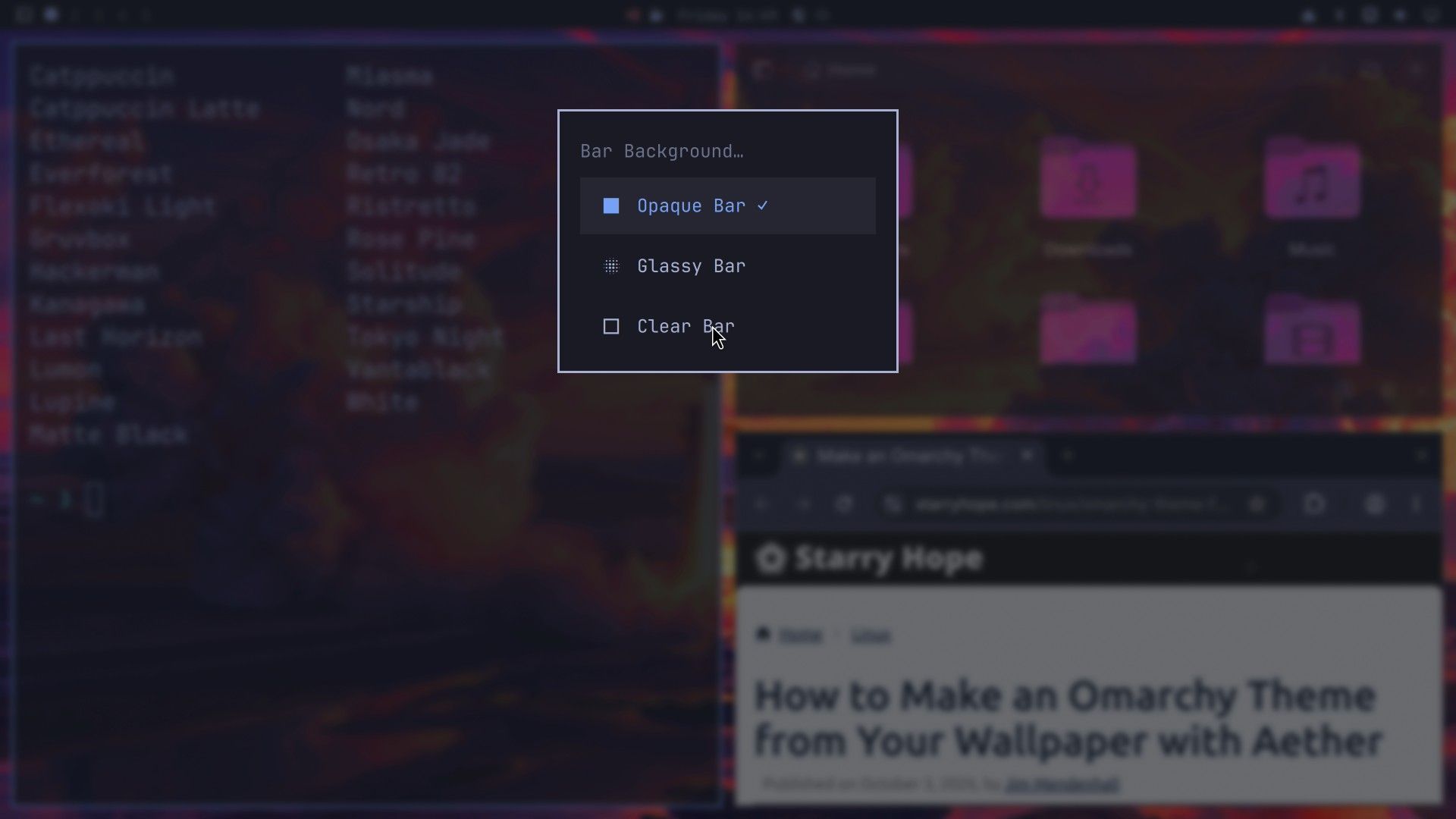

Glassy Bar draws the theme’s bar color at 35% and blurs the wallpaper behind it. Clear Bar drops the background, and the clock and icons sit right on the wallpaper. With Glassy Windows on, the Omarchy menu also blurs the whole desktop behind it.
Double-click the bar to switch
A double-click on an empty part of the bar moves it to the next look, in the order Clear, Glassy, Opaque, and back to Clear. Aim between the workspace numbers and the clock. The current workspace shows a layout icon in place of its number, and a click on that icon switches the workspace’s layout, so a double-click there changed our workspace to the scrolling layout (“Workspace layout set to scrolling”) and changed the bar look as well. Omarchy pull request #14649, not merged as of October 2026, would stop a double-click on a bar widget from changing the bar look. If your layout changes, press super alt l to step that workspace back to its previous layout.
The command for the bar takes opaque, glassy, none (Clear), or cycle, and prints the current look with no argument:
omarchy bar background glassy
omarchy bar background        # prints opaque, glassy, or none
The settings stay on when you change themes
Press super ctrl shift space to open the theme menu, type part of a theme name to filter the list, and press enter . The new theme loads in about a second, and your Window Opacity and Bar Background choices stay as they were.
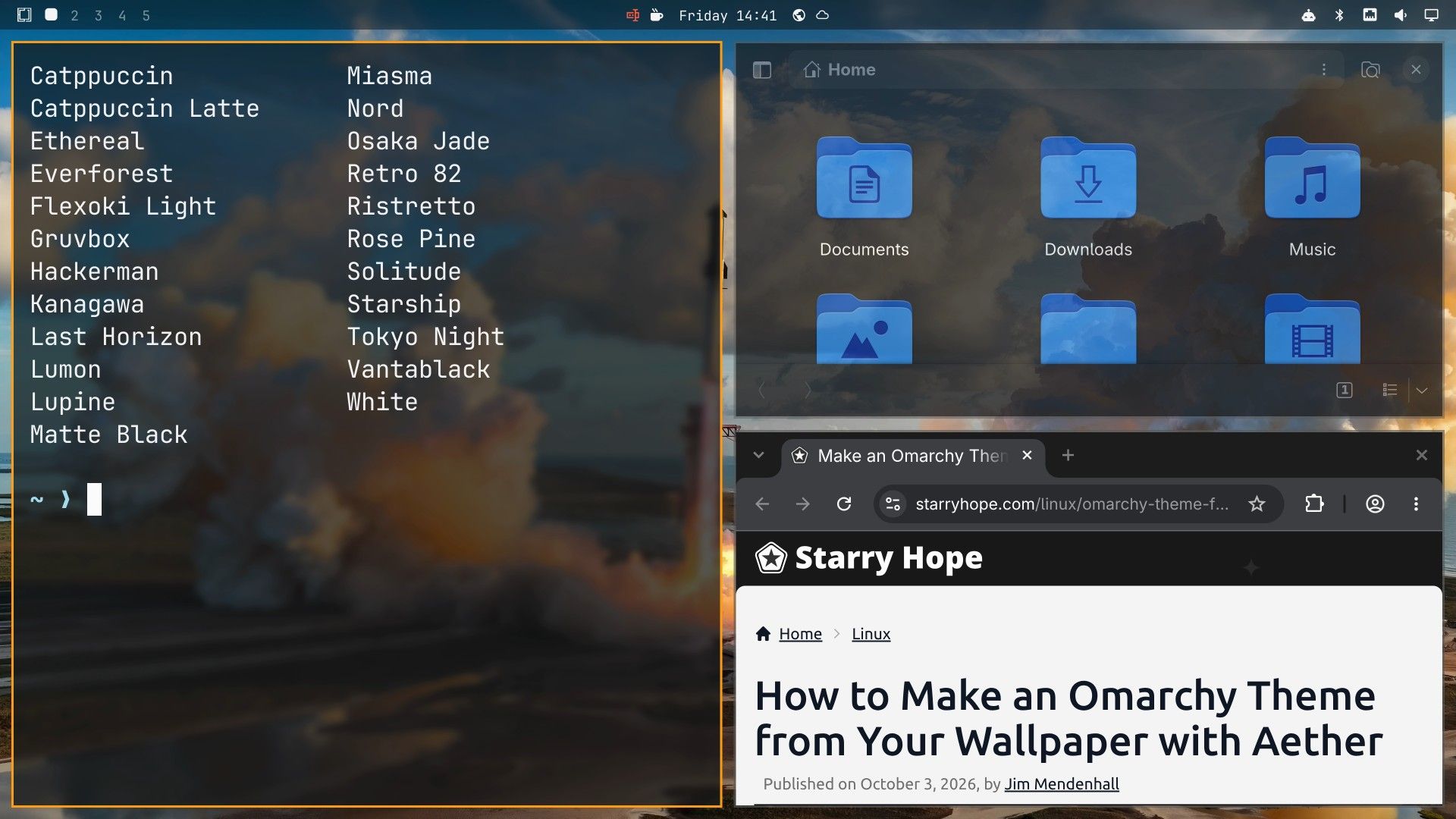
The glassy look began as a change to the Starship theme (pull request #14726) before it became a setting for every theme. Its rocket launch photo shows the blur clearly.
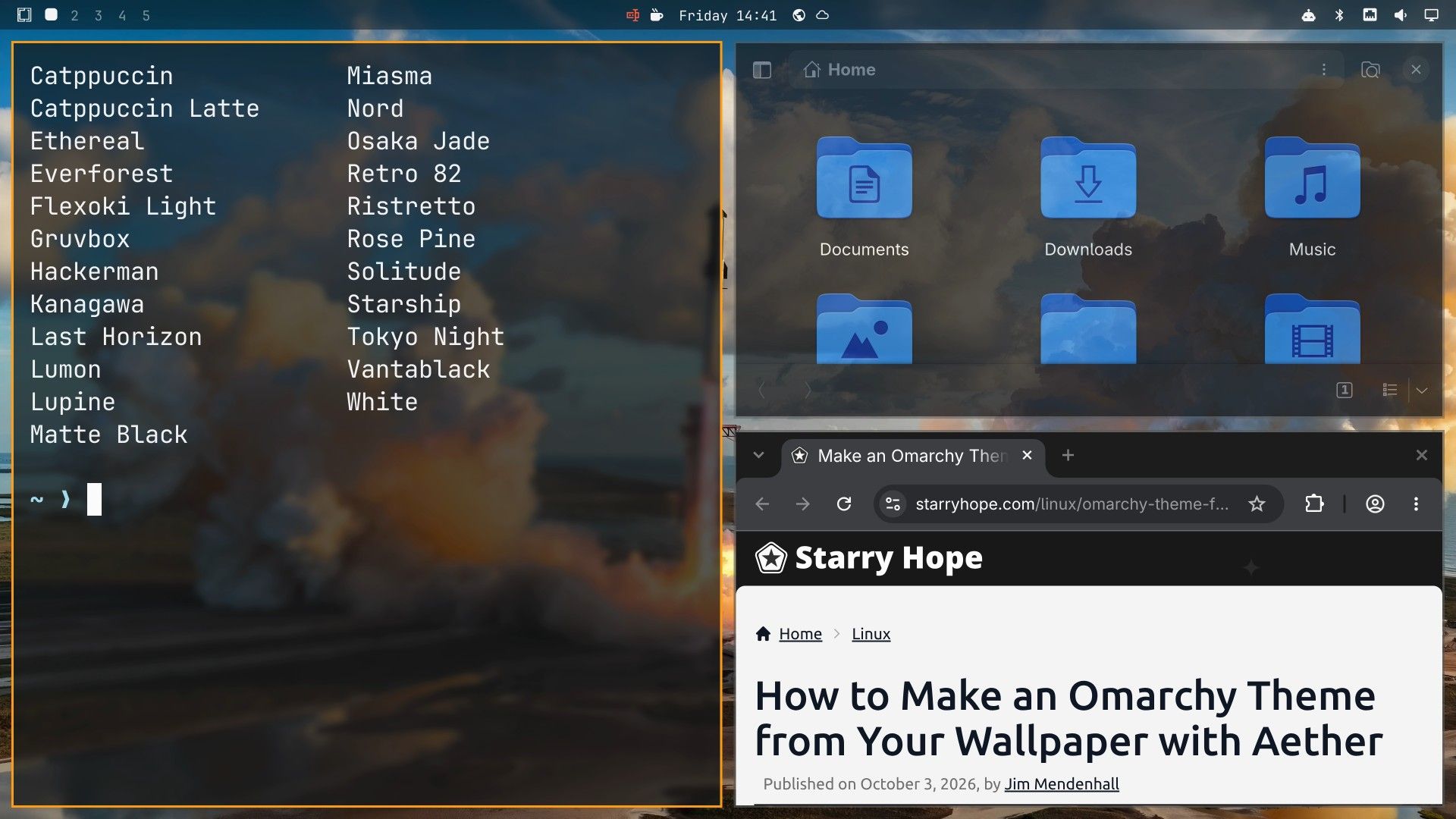
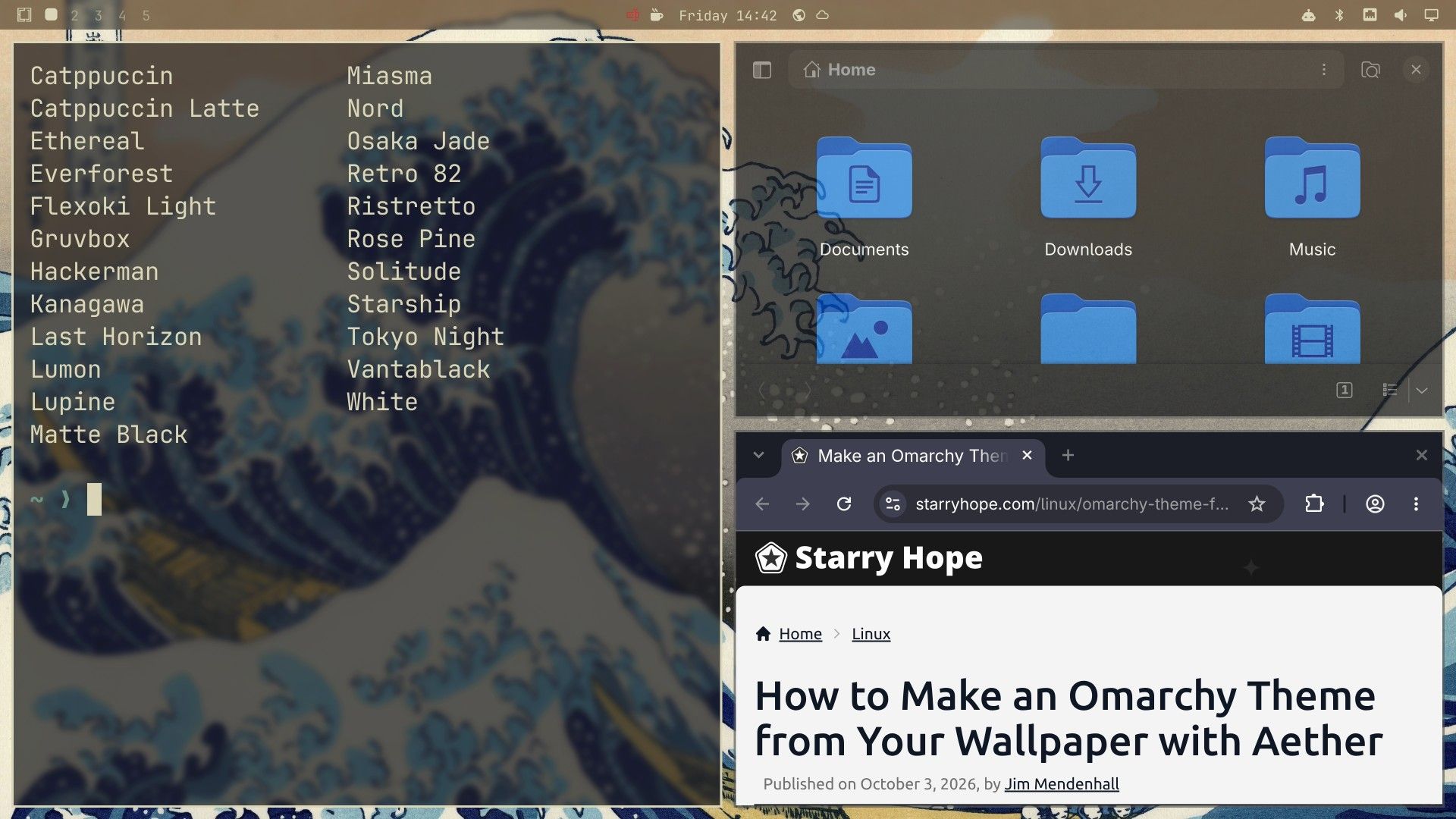
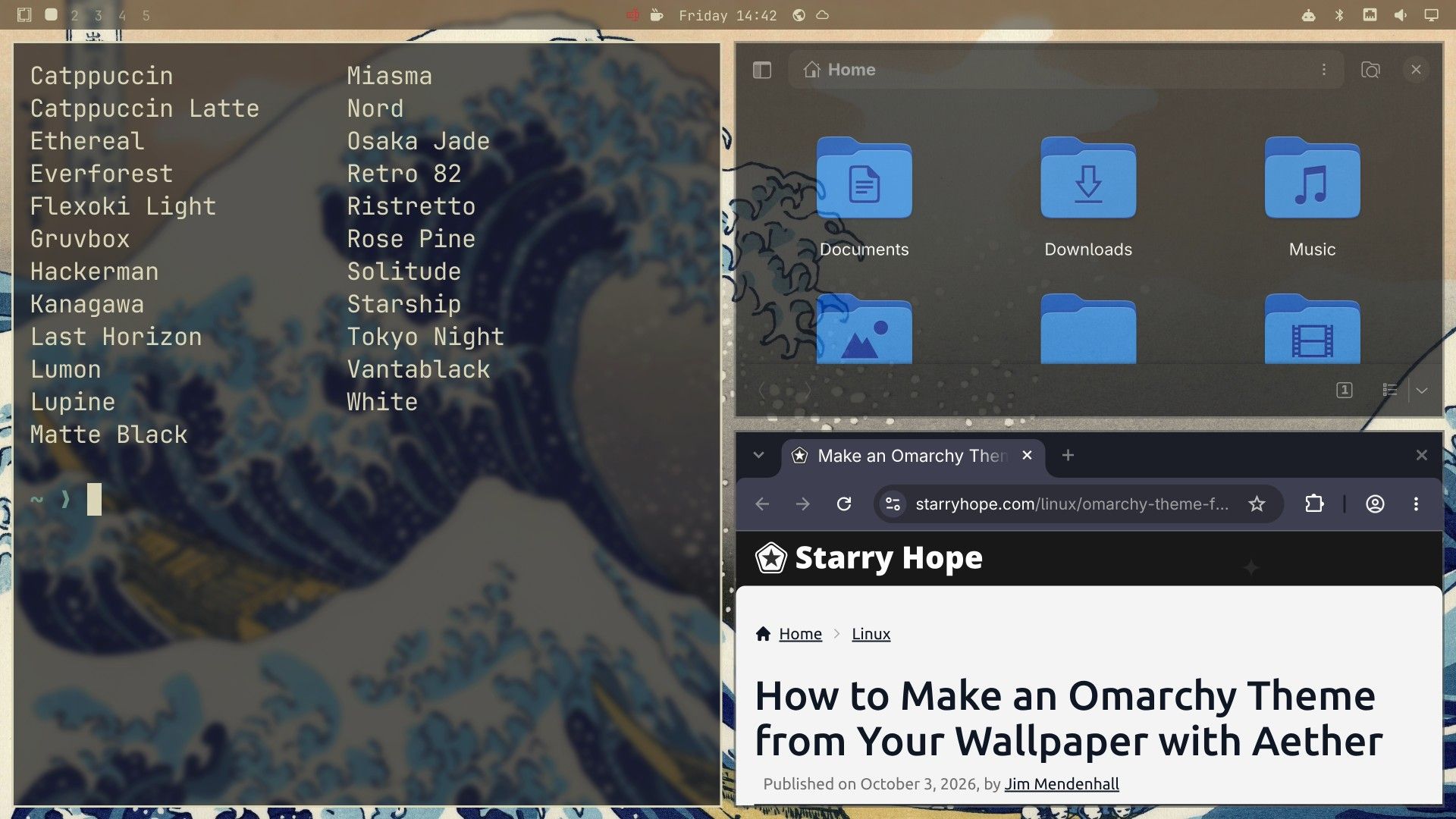
Kanagawa, with Hokusai’s Great Wave as its wallpaper, has its own opacity value: it makes the terminal 99% solid when focused (98.5% without focus) under Transparent, so on that theme Transparent looks solid, while Glassy shows the wave blurred behind the terminal. Terminal text over the white crest of the wave has less contrast than over the dark parts.
Blur costs battery
Both glassy looks turn on blur, which adds work for the graphics chip. The Hyprland performance page lists turning blur off among the settings to change on a laptop to save battery. We did not measure the cost. On a laptop running on battery, Transparent or Opaque is the safer choice.
To go back to the default look, pick Transparent Windows under Window Opacity, and Opaque Bar under Bar Background (or double-click the bar until it is solid). Leaving Glassy removes the lines it added to your terminal theme files.
Set it by hand on stable 4.0.4
We have not tested this on stable. It copies the blur values from Edge’s own settings into the user config files that stable 4.0.4 already has. Make a snapshot first, as in the Edge section above.
Add this to ~/.config/hypr/looknfeel.lua:
-- Glass blur, same values as Edge's default/hypr/glass.lua
hl.config({
  decoration = {
    blur = {
      enabled = true,
      size = 4,
      passes = 2,
      new_optimizations = true,
      xray = false,
      contrast = 1.0,
      brightness = 0.75,
      noise = 0.01,
      vibrancy = 0.35,
      vibrancy_darkness = 0.35,
      popups = true,
      special = true,
    },
  },
})
Then give the terminal a see-through background. Stable uses Foot by default; add these lines at the end of ~/.config/foot/foot.ini:
[colors-dark]
alpha=0.65
blur=yes
For Alacritty, set opacity = 0.65 under [window] in ~/.config/alacritty/alacritty.toml. Edge writes these lines into the theme’s generated files, which a theme switch rewrites; on stable, your own config file is the place that survives a theme switch. Stable’s bar has only on and off transparency (omarchy bar transparent toggle, or a double-click on the bar), so there is no glassy bar on stable.
For solid windows instead, stable tags most windows default-opacity and sets them to 98.5% solid when focused and 96% when not; browsers and a few apps opt out, and browsers get 100% and 98.5%. This line in looknfeel.lua makes those windows fully solid:
o.window({ tag = "default-opacity" }, { opacity = "1 1" })To apply a change, or to undo one after you delete the lines you added, run hyprctl reload and open a new terminal.
Troubleshooting
A double-click on the bar changed my window layout. The double-click landed on the current workspace’s layout icon, where a click switches the layout. Press super alt l to step that workspace back to its previous layout, and double-click only on empty bar space.
Clear Bar workspace numbers are hard to read. On our three themes the clock and icons stayed readable, but the inactive workspace numbers were dim gray on bright skies. Issue #14732 tracks Clear Bar contrast. Glassy Bar keeps a tinted background behind them.
Transparent looks the same as Opaque. That is expected on most themes, since the default is nearly solid. On Kanagawa it looks fully solid because of the theme’s own value.
The browser never turns glassy. Browsers are not on Omarchy’s list of see-through windows, so they stay solid in all three modes.
Pair it with a theme from your wallpaper
If you want a new theme to go with the glass, our guide to making an Omarchy theme from your wallpaper with Aether builds one from a photo.


