
A fresh Omarchy install comes with web apps like Google Maps and Zoom, desktop apps like LibreOffice and OBS Studio, two terminal apps, and small launcher commands, most of them for AI coding agents. If you never use them, they crowd your app list and take up over a gigabyte of disk space. The Remove section of Omarchy’s main menu takes them out one at a time or all at once, and the Install section brings them back.
This guide has every step from our video, embedded above. It uses four Remove rows: one web app, one terminal app launcher, one package, and then all of them together. The last step restores it all. Everything here is from Omarchy 4.0.4, and every step uses the menus.
What you need
You need Omarchy 4.0.4 on the stable channel, close to a fresh install. The Dev channel can ship a different app list, so some rows below may look different there.
If your machine has Omarchy’s snapshots set up, you can also roll the system files back from the boot menu if a removal goes wrong. Launchers in your home folder are not part of that rollback. Our guide to Omarchy snapshots and Limine rollback covers that. For the full cleanup below you will not need it, because Install > Preinstalls is its undo.
See what comes with Omarchy
Press super space to open the main menu. Super is the Windows key on a PC keyboard. Apps is the first row, and it lists everything you can open. On a fresh install it has 38 entries.
Web apps sit mixed in with the desktop apps. Disk Usage and Docker, near the top, are terminal apps. Google Contacts, Maps, Messages, and Photos each get their own row, and the list ends with YouTube and Zoom.
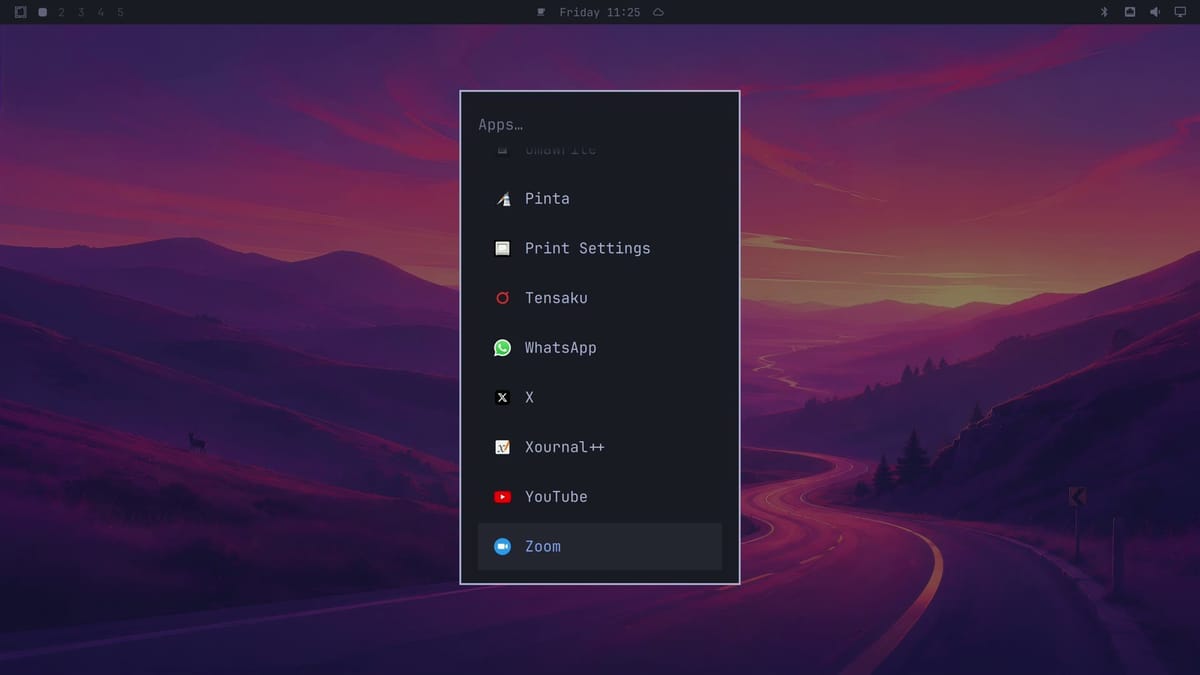
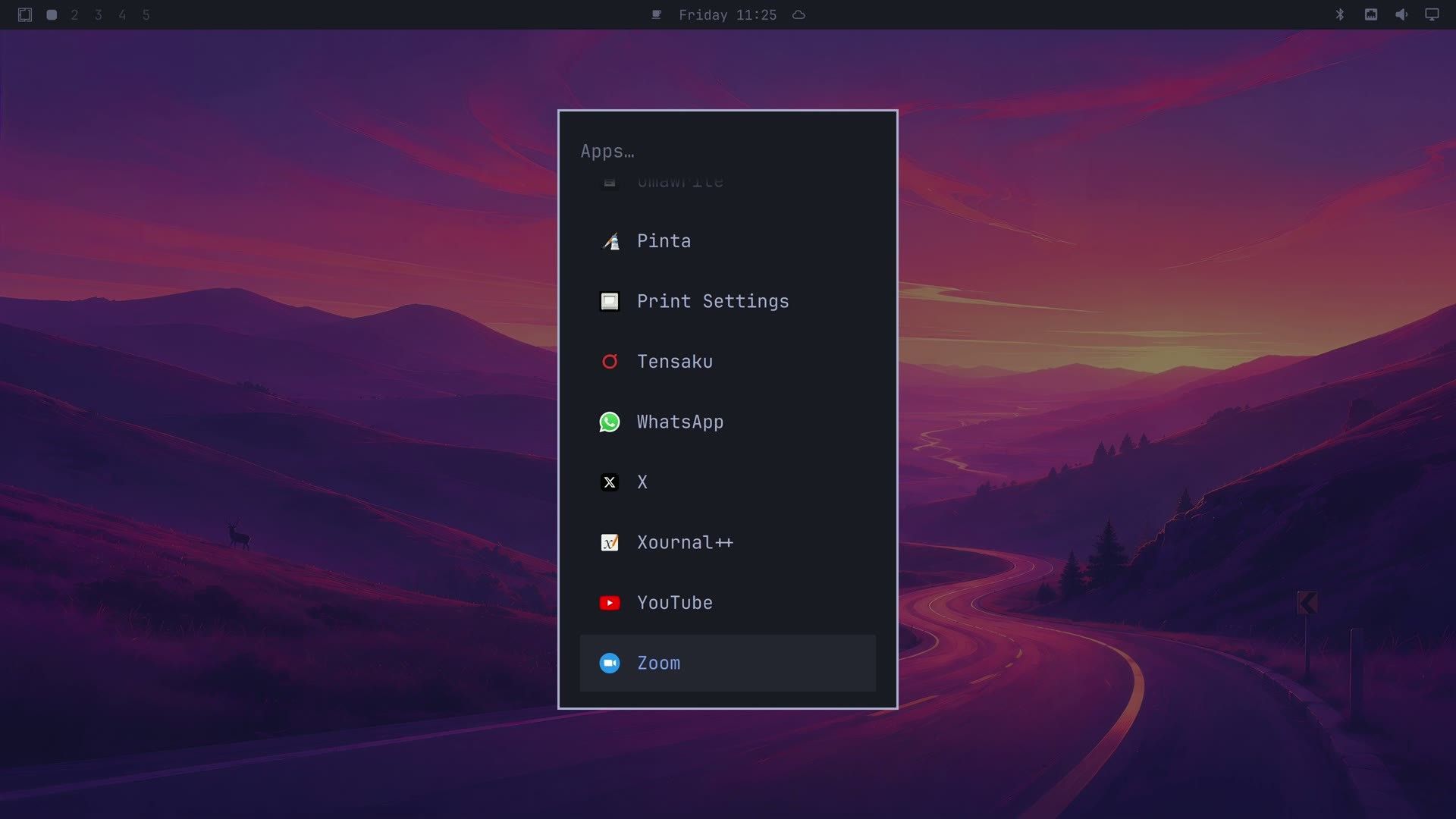
Here is the full list on a fresh 4.0.4 install, by type:
| Type | Entries |
|---|---|
| Web apps (open in Chromium) | Basecamp, Discord, Google Contacts, Google Maps, Google Messages, Google Photos, HEY, WhatsApp, X, YouTube, Zoom |
| Terminal apps | Disk Usage, Docker |
| Desktop apps | Aether, Chromium, cliamp, Disks, Document Viewer, Files, Foot, Image Viewer, Kdenlive, LibreOffice Calc, LibreOffice Impress, LibreOffice Writer, LocalSend, Media Player, Moonlight, Neovim, OBS Studio, Obsidian, Omacalc, Omacut, Omawrite, Pinta, Print Settings, Tensaku, Xournal++ |
The AI commands do not show in this list. They are small scripts in ~/.local/bin with names like claude, codex, gemini, and opencode, and each one downloads its tool the first time you run it.
Remove one web app
A web app here is a launcher that opens a website, like Zoom’s, in the Chromium browser. Press esc twice to close the Apps list, press super space again, and click Remove. Web apps, terminal apps, and packages each get their own row.
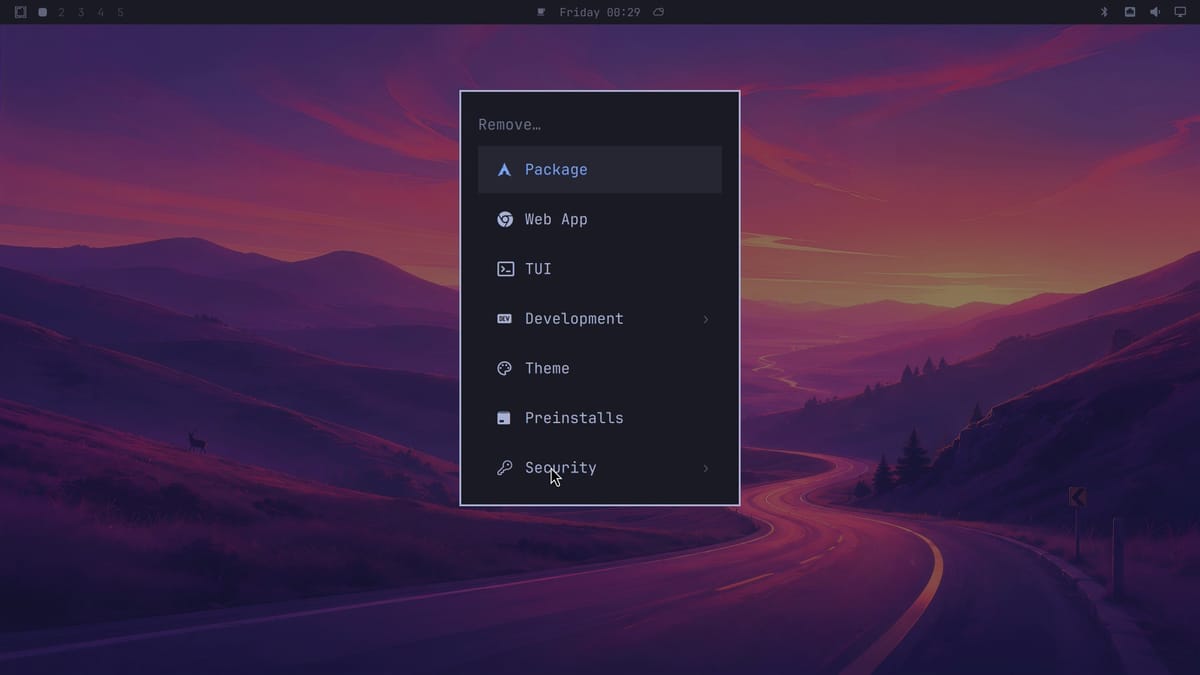
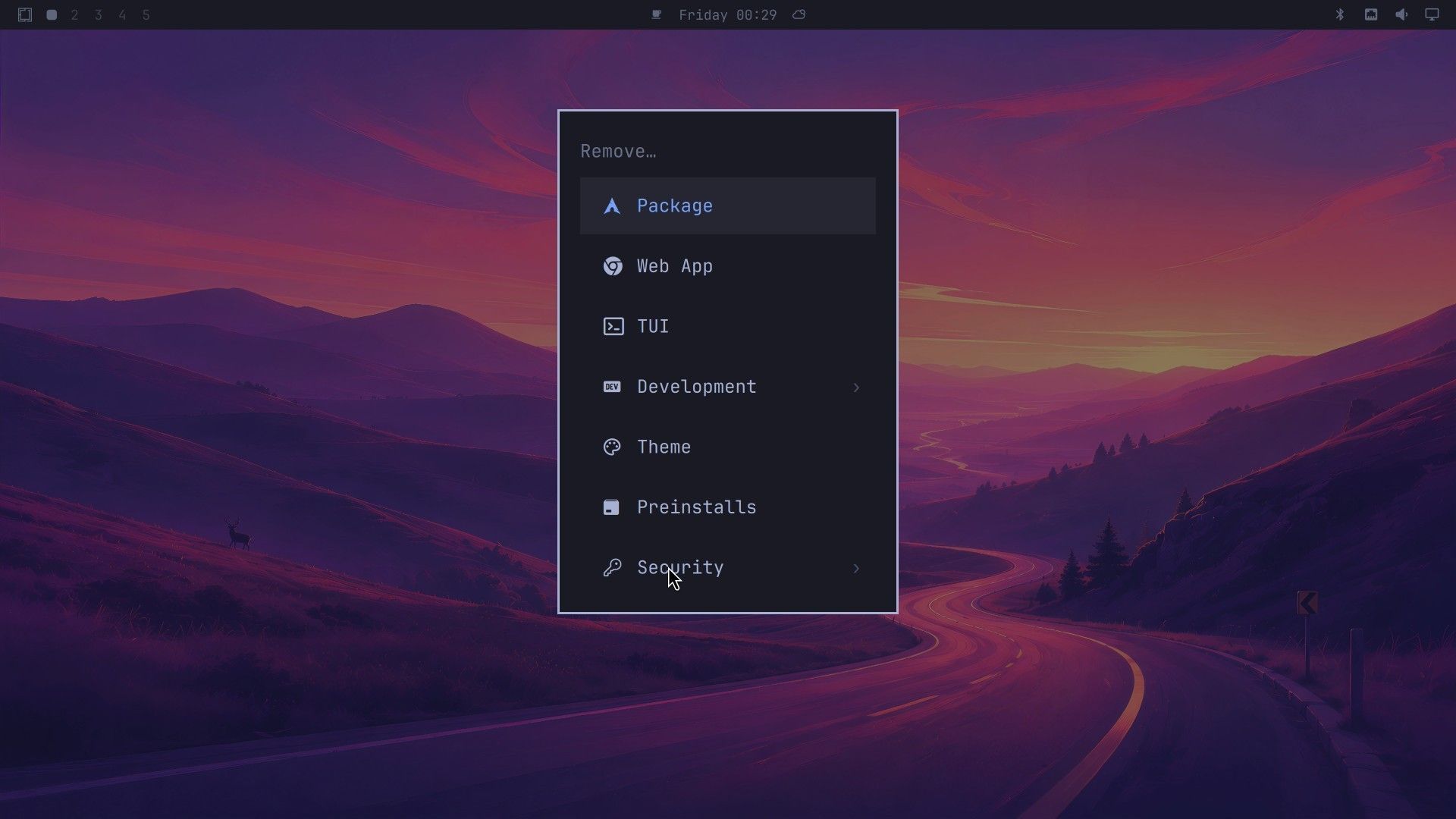
Click Web App to list every web app. The list filters as you type, so type zoom to leave one row.
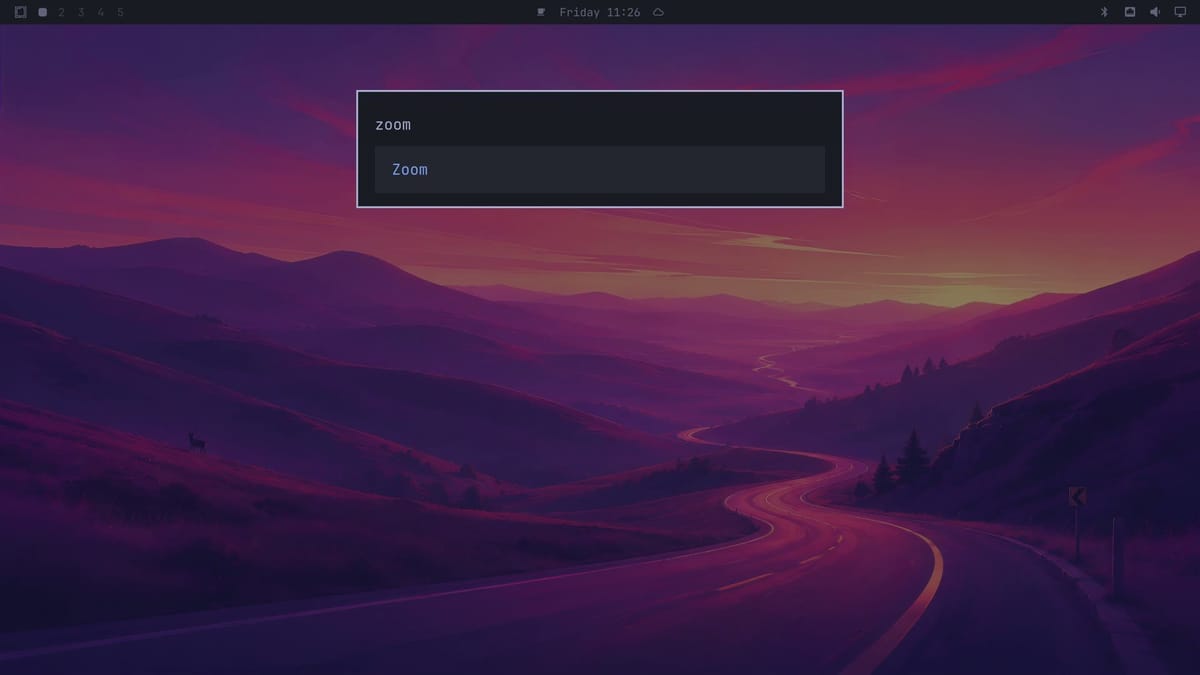
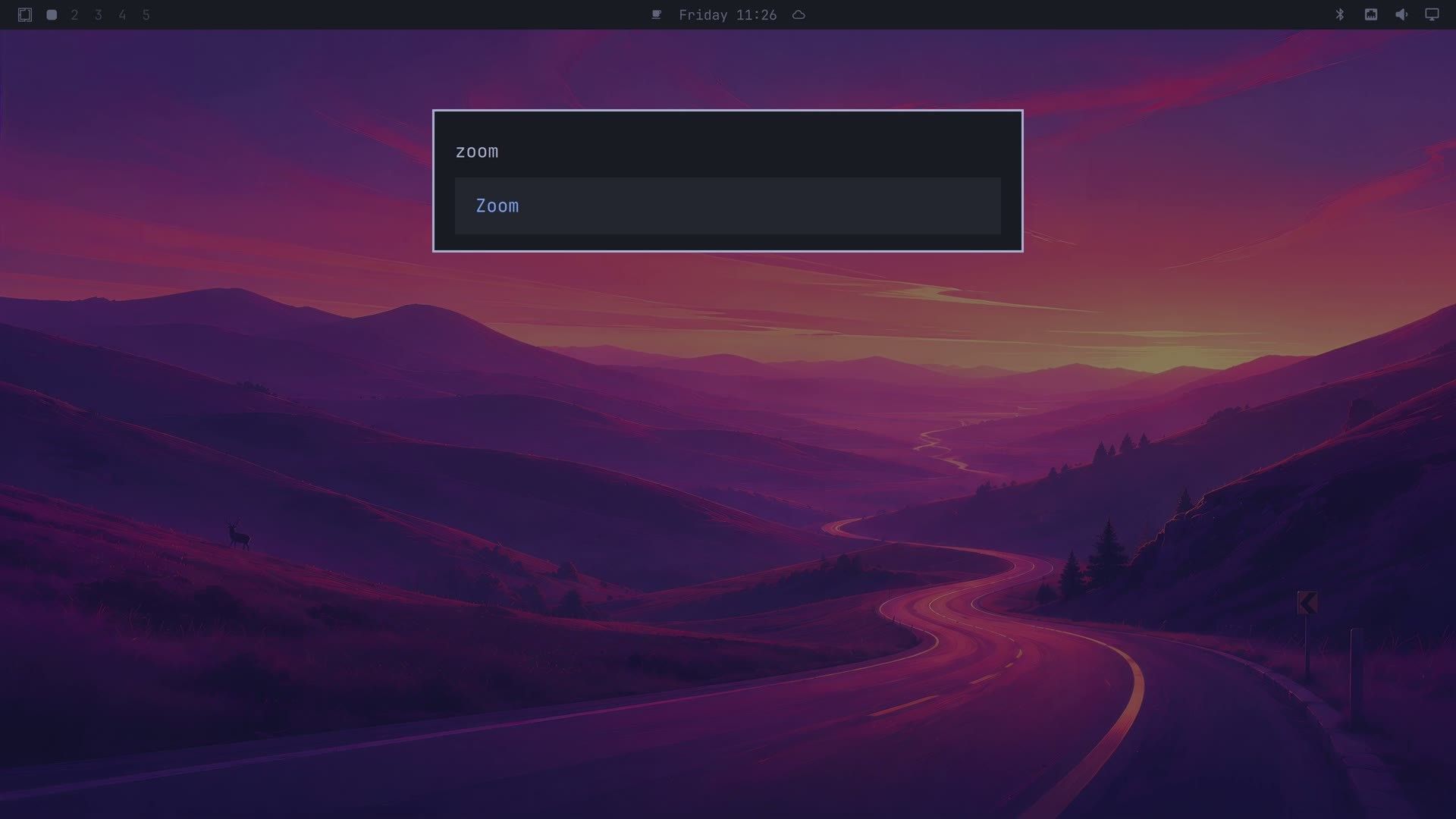
One click on Zoom removes it. There is no confirmation first, so check the row before you click. A notice in the top right corner says “Web app removed” with the app’s name. Only the launcher goes; if a keyboard shortcut opened that web app, the shortcut stays.
Remove a terminal app launcher
TUI stands for terminal user interface: an app that runs inside the terminal. Open the main menu with super space , click Remove, then TUI. A fresh install has two here, Disk Usage and Docker.
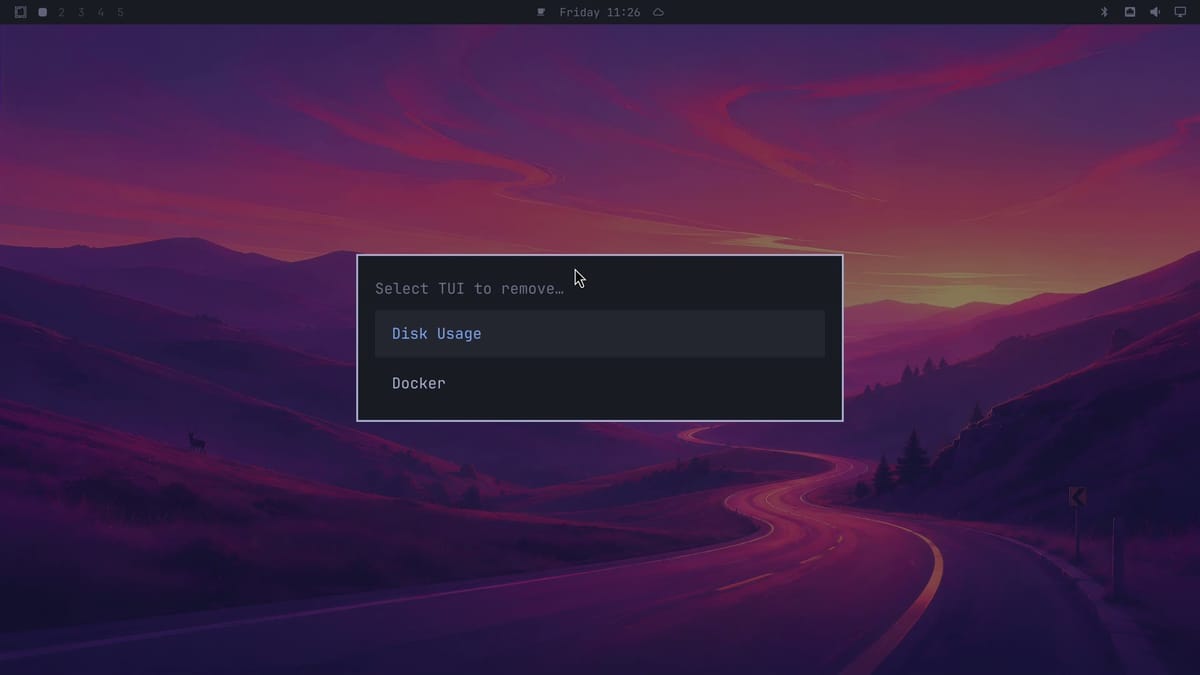
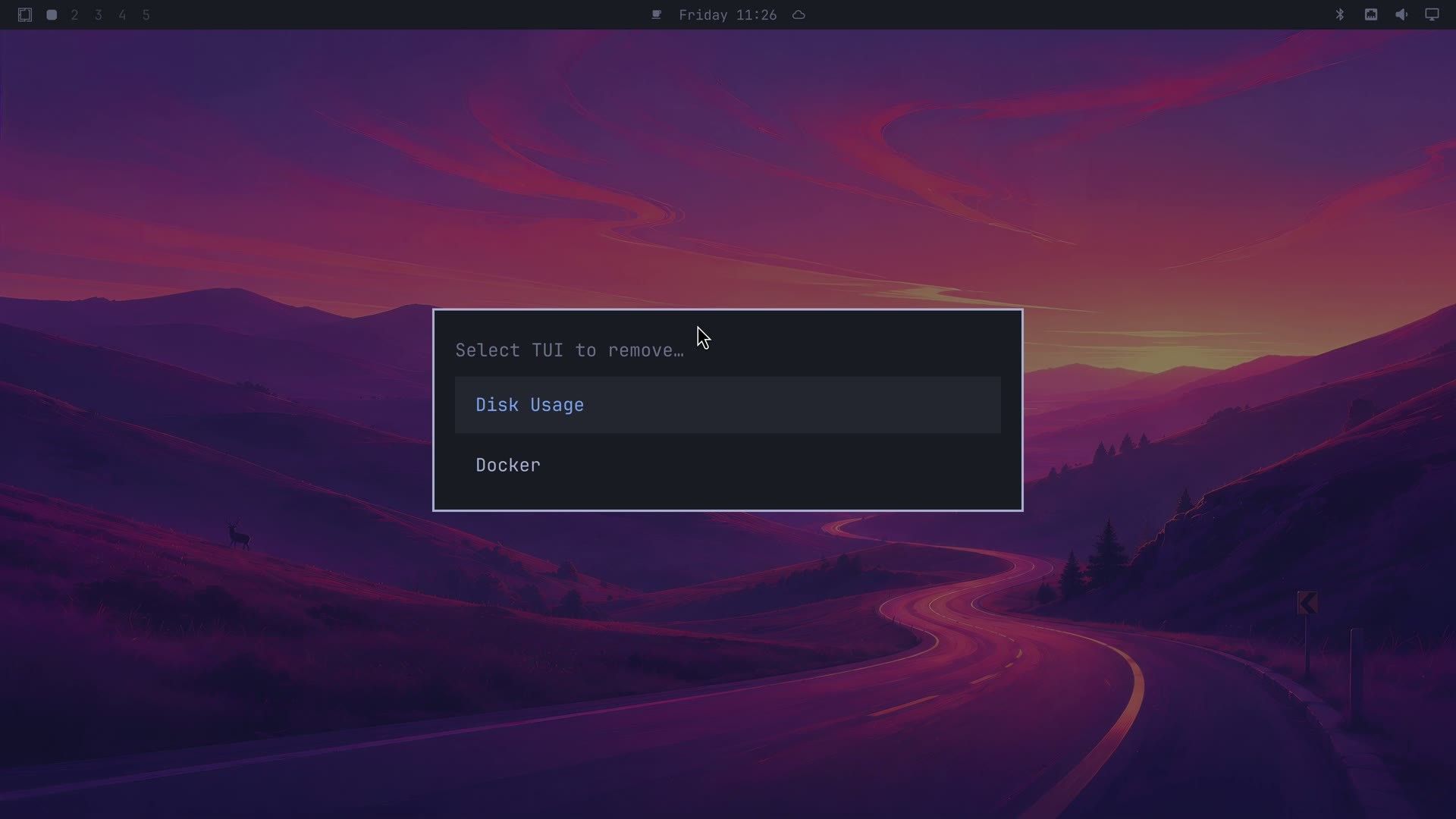
Click Docker. The notice says “TUI removed”, but only the launcher is gone. Lazydocker, the program behind it, stays installed, along with Docker itself and the super shift d shortcut that opens it.
Remove a package
To remove a program itself, use the Package row. Open the main menu, click Remove, then Package. A terminal opens with a searchable list of the explicitly installed packages (164 on a fresh install), with details for the highlighted one underneath.
Type the name to filter the list. For Pinta, a paint program, type pinta.
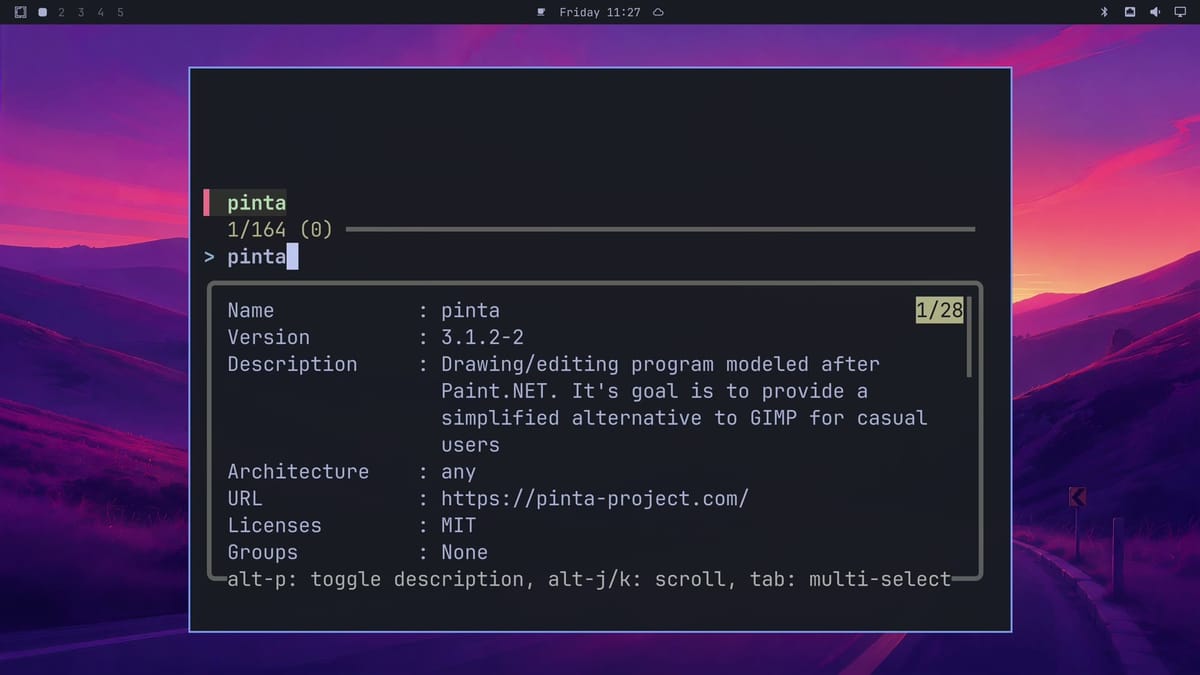
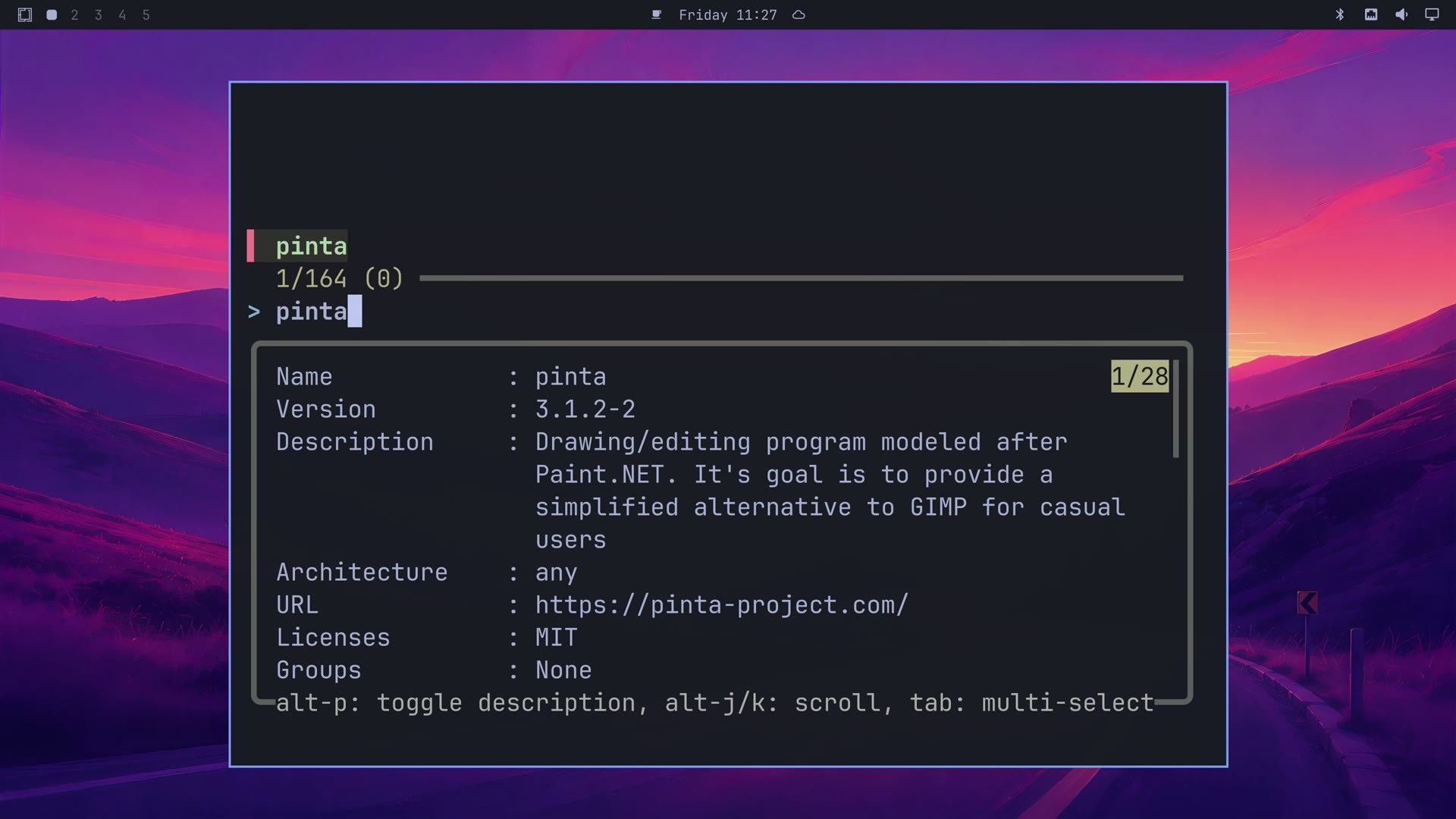
Press enter to remove Pinta, along with anything only Pinta needed. Then pacman prints its usual “Do you want to remove these packages?” question and answers yes on its own, so Pinta is gone in about a second. Press esc to close the window. To remove several packages in one go, press tab on each one before Enter.
Remove all preinstalled apps at once
Open Remove and click Preinstalls. A terminal asks once: “Are you sure you want to remove all preinstalled web apps, TUI wrappers, and desktop applications?” The window is narrow, so the line is cut off on screen.
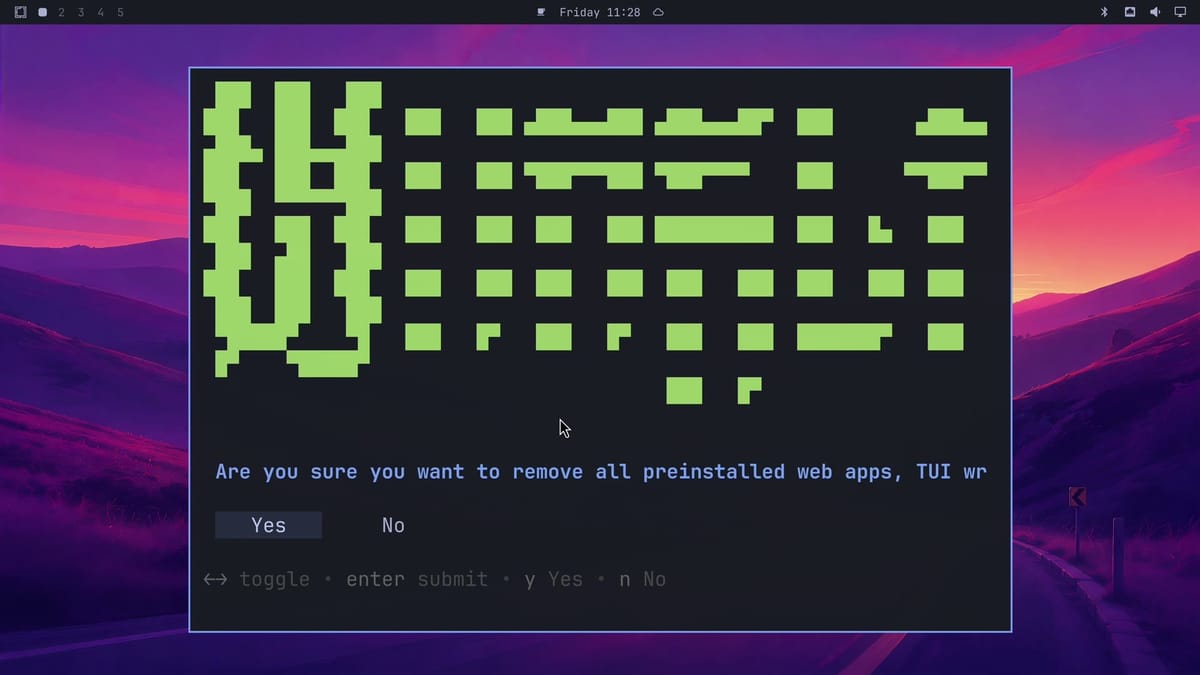
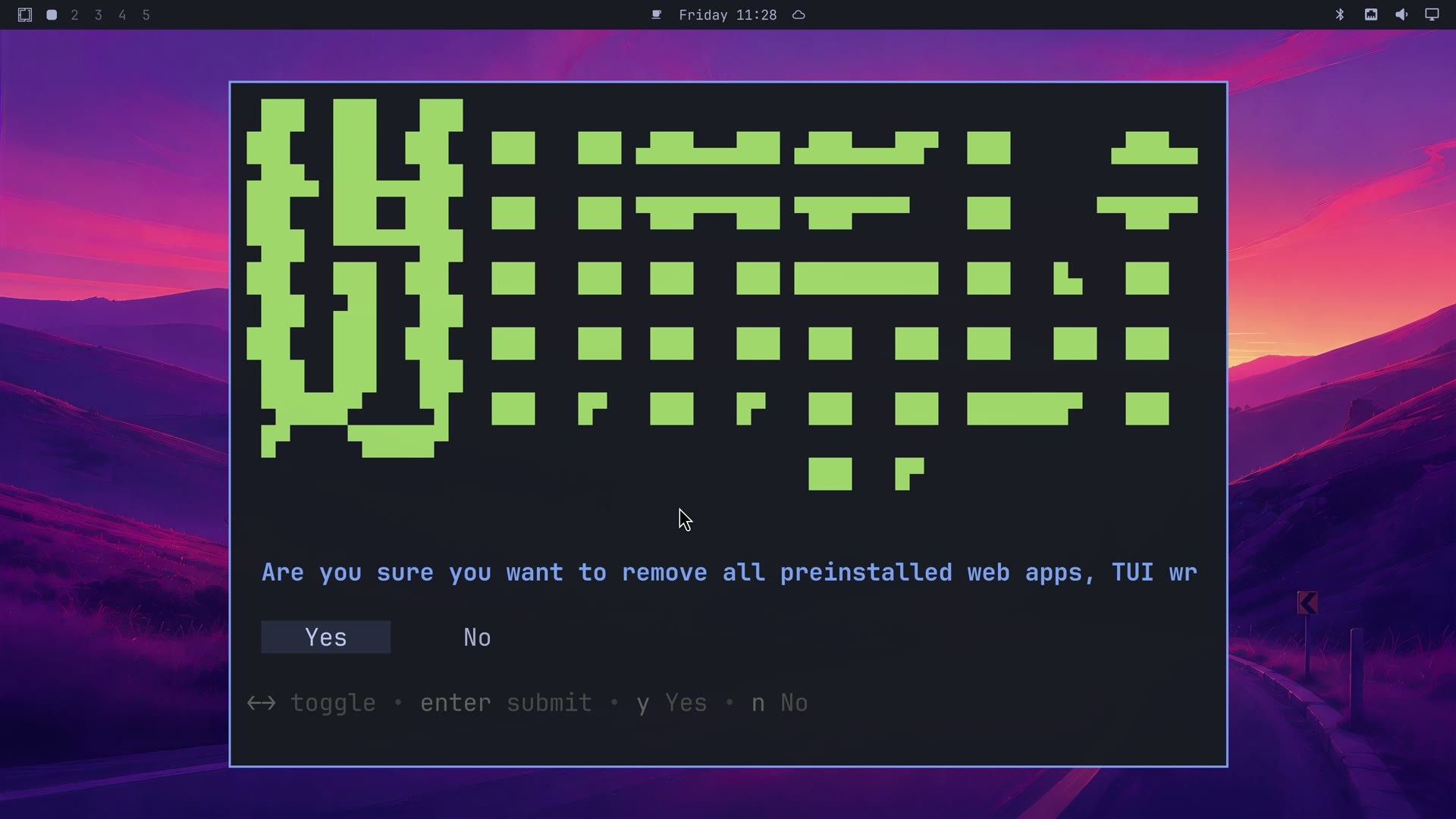
A click on Yes does nothing here, because this question takes only keys. Yes is already selected, so press enter to start, or n to back out. The removal output scrolls past in about three seconds and ends with “Done! Press any key to close”.
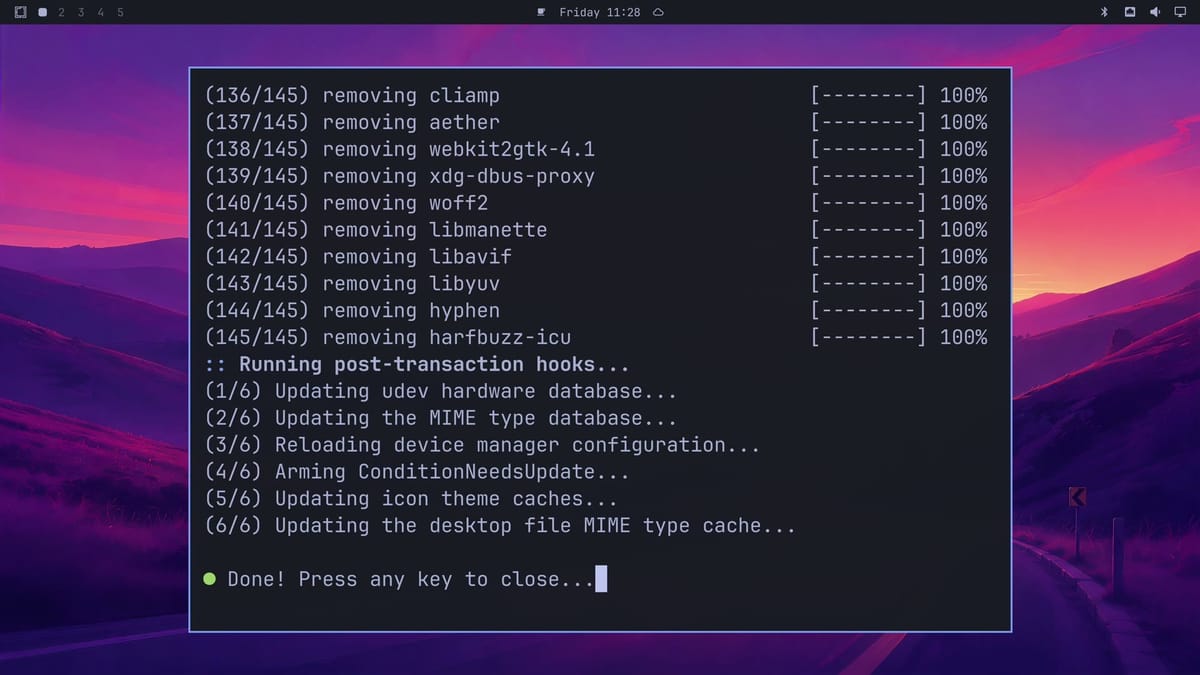
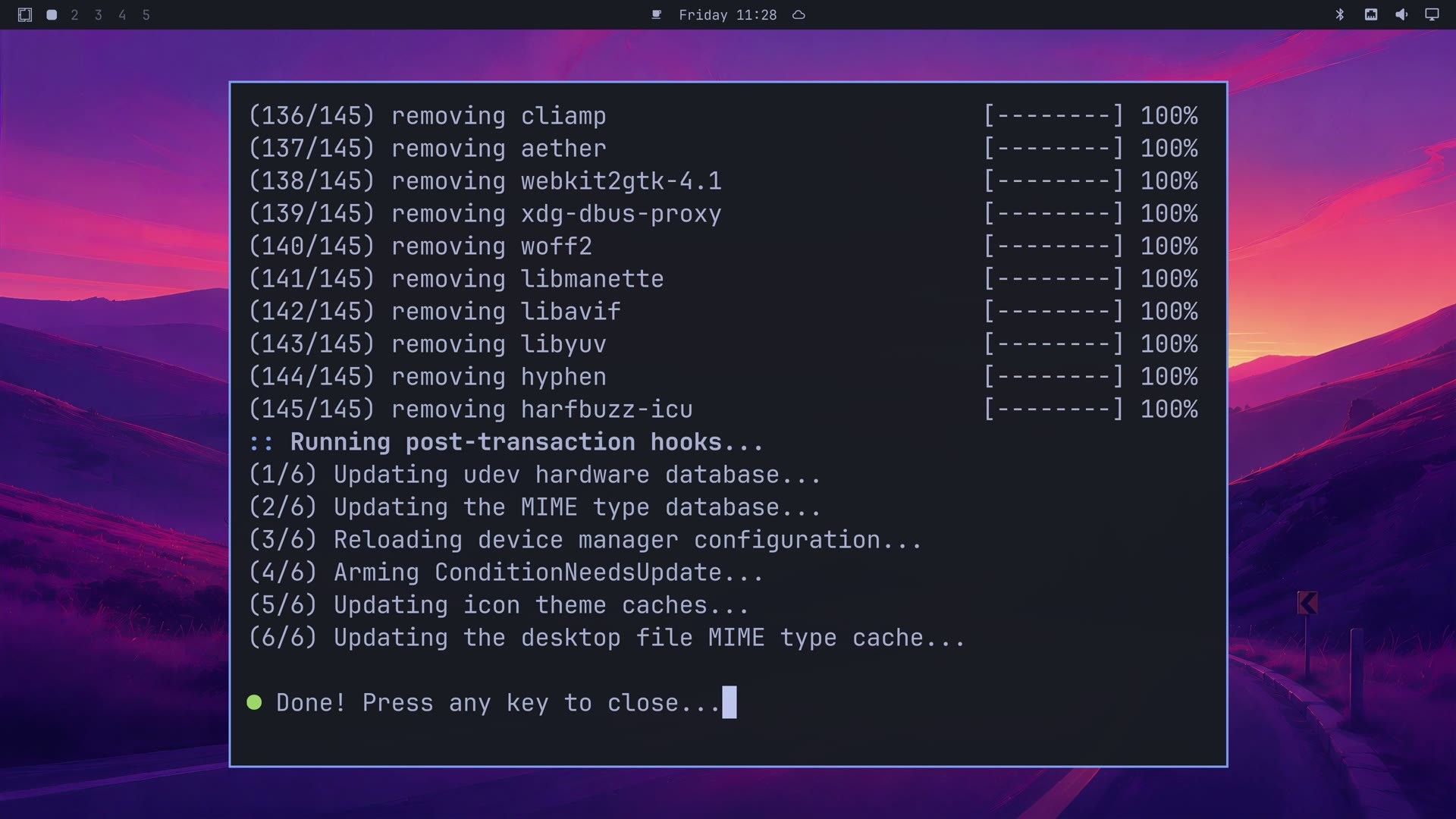
Here is what goes:
- every web app launcher (all 11) and both terminal app launchers
- the AI launcher commands in
~/.local/bin - 13 apps and everything only they needed: Aether, cliamp, LibreOffice, Xournal++, Pinta, Obsidian, OBS Studio, Kdenlive, Moonlight, lazydocker, Omacut, Omacalc, and Omawrite
- the preinstall keyboard shortcuts, including the ones for ChatGPT and Grok, which are web apps with a shortcut and no launcher
On a fresh install, pacman counts 146 packages and close to 2 GB (145 if you already removed Pinta in the step above). That is the installed size. The free space you get back can be smaller. Omarchy’s file system compresses files, and on our install free space went up about 1.2 GB. Omarchy also takes a system snapshot before each update, and files that an older snapshot still holds stay on disk until that snapshot is cleaned up. If snapshots from before the removal still exist, much of that space will likely come back only then, not right away.
The cleanup runs omarchy-remove-preinstalls, so you can read the exact list before you press Enter. Running omarchy-remove-preinstalls in a terminal does the same job.
See what is left, and keep Chromium
Open Apps again. The list is down from 38 entries to 11: Chromium, Disks, Document Viewer, Files, Foot, Image Viewer, LocalSend, Media Player, Neovim, Print Settings, and Tensaku.
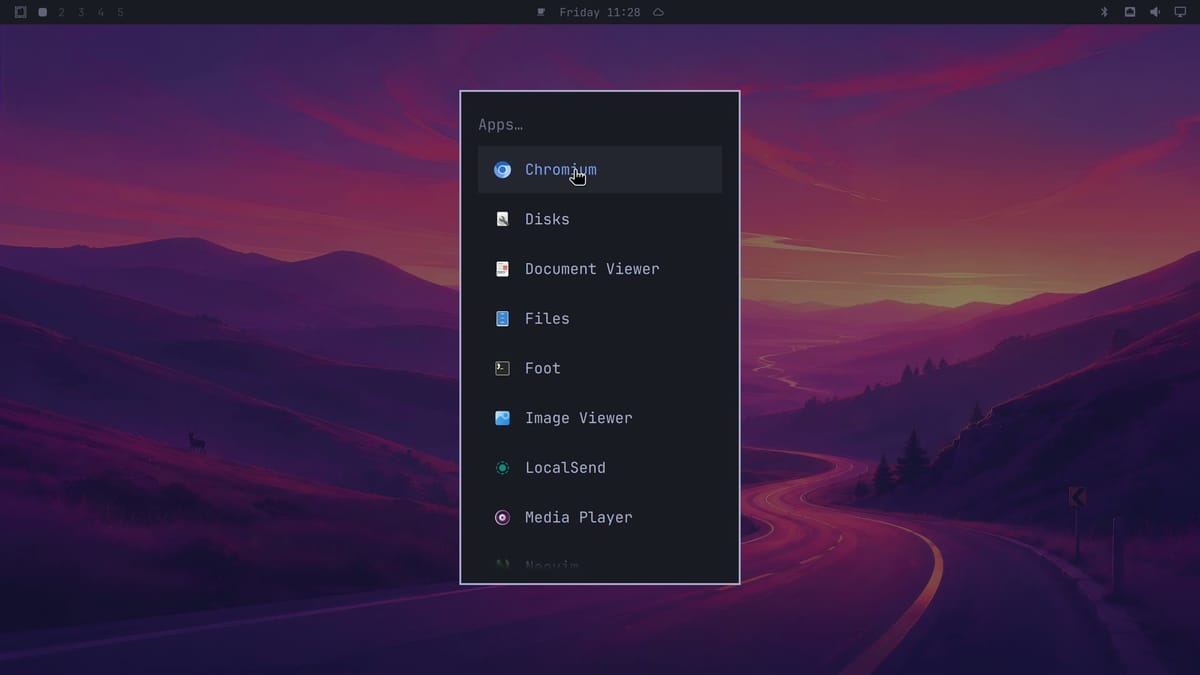
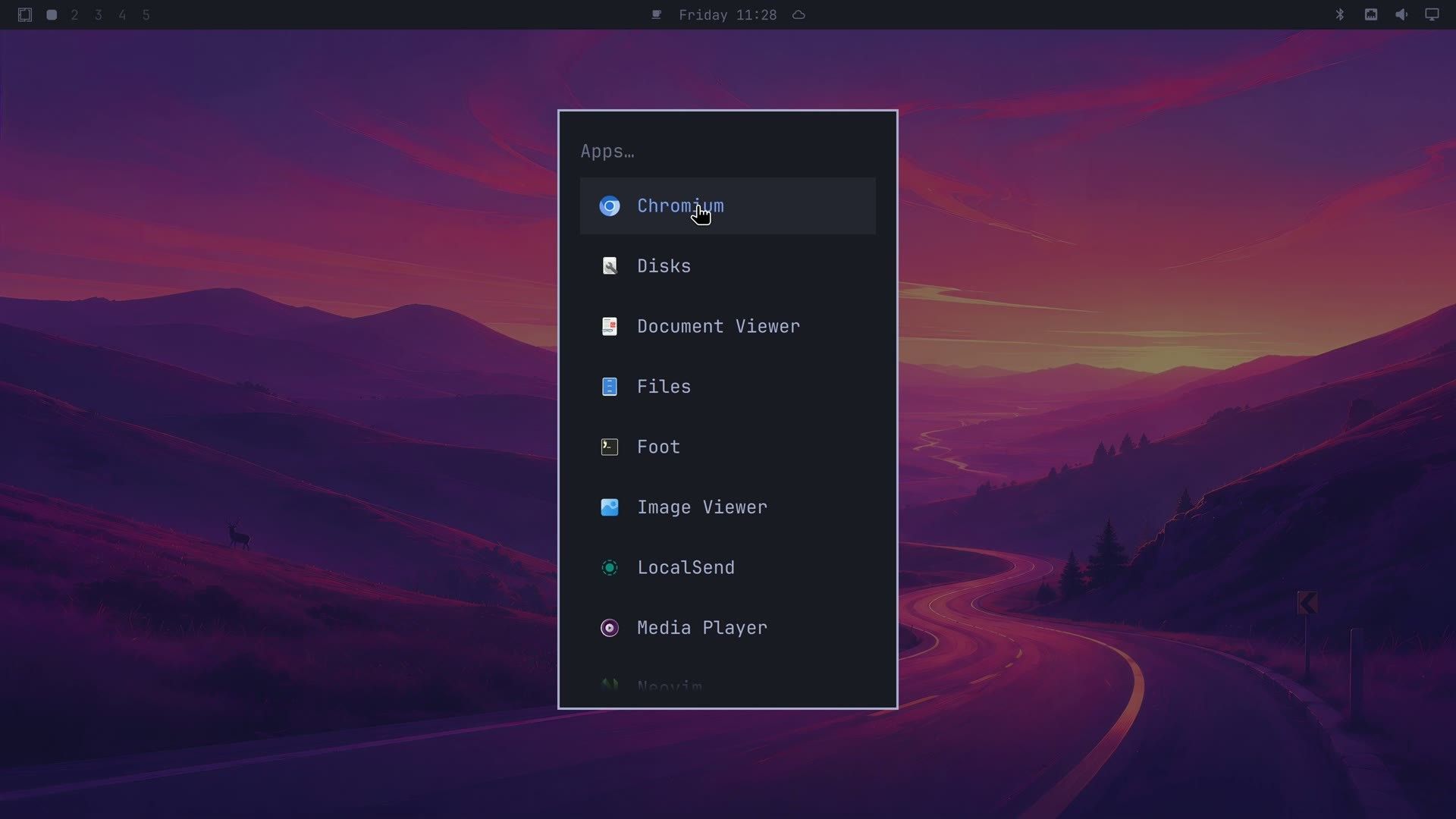
Chromium is worth keeping, since every web app opens in it unless you made another Chromium-based browser, like Chrome or Brave, your default. Omarchy protects the desktop itself and the snapshot tools: the omarchy package depends on Hyprland, snapper, and Limine, so pacman stops with a “breaks dependency” error. Chromium has no such guard, and the Package row will remove it if you pick it.
Bring everything back
Removing the preinstalls also adds a Preinstalls row to the Install menu. It shows up only after the full cleanup, not after single removals. Open the main menu and click Install. The Install menu is long, so type pre instead of scrolling, and click Preinstalls.
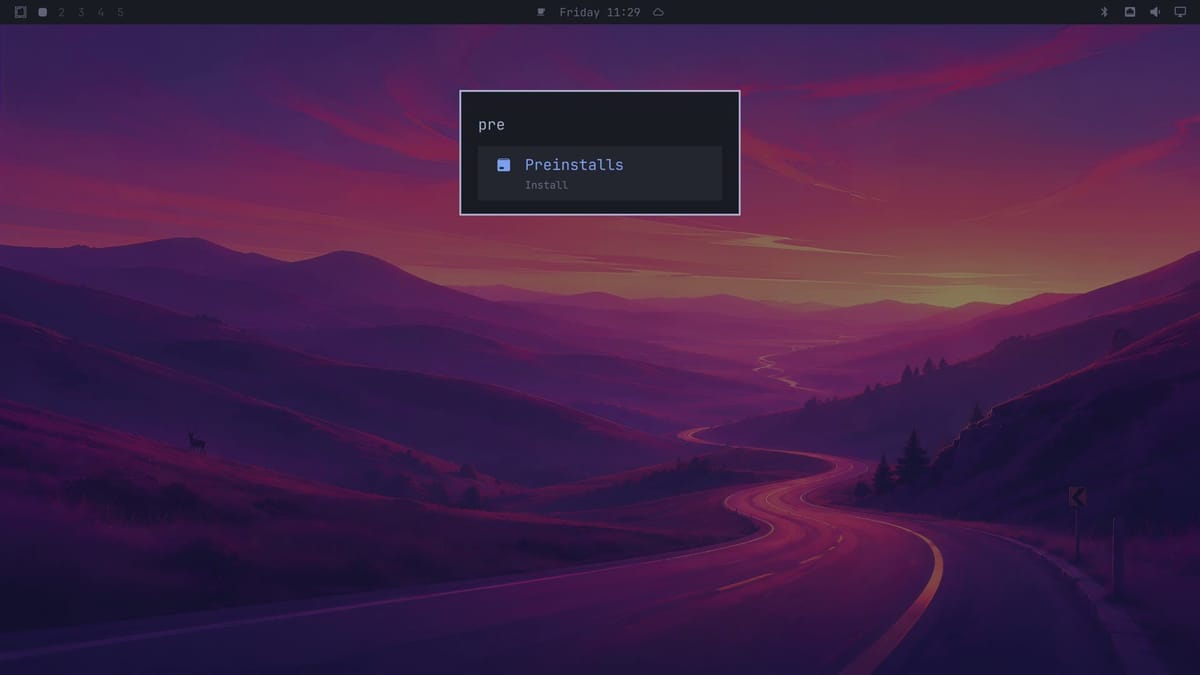
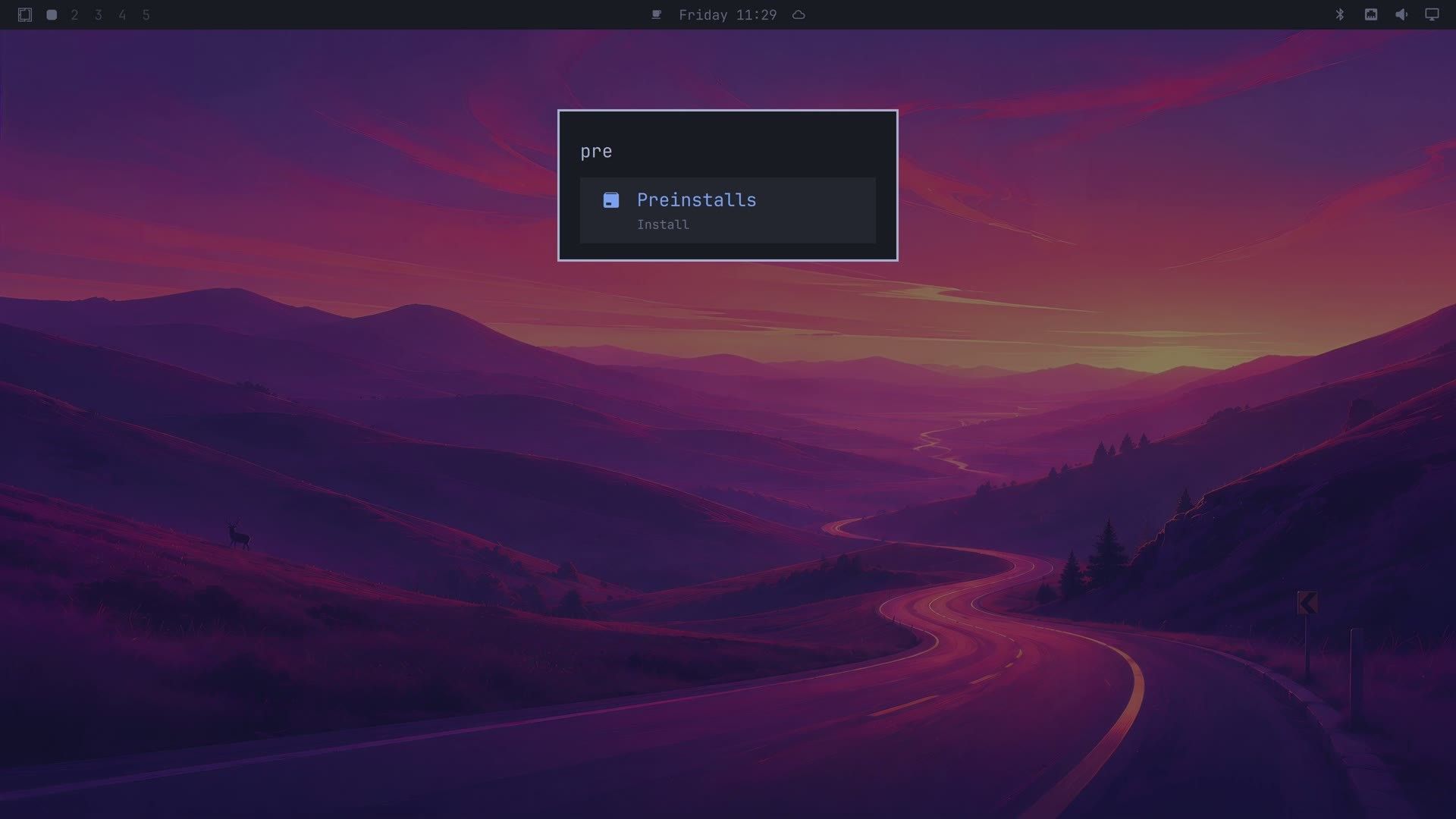
A terminal asks whether you are sure you want to restore all the preinstalled apps. Press enter to start. This part takes longer, because every package has to be installed again: 20 to 35 seconds on our machine.
Everything returns, including the three items we removed one by one: the Docker launcher, Pinta, and Zoom. The Apps list is back to 38 entries, and the keyboard shortcuts work again.
Troubleshooting
Clicking Yes does nothing. The Remove Preinstalls and Install Preinstalls questions only take keys. Press enter for Yes, or n for No.
Preinstalls is missing from the Install menu. That row appears only after Remove > Preinstalls has run. After a single removal, add the one item back yourself: Install > Package reinstalls a package, and Install > Web App and Install > TUI create a new launcher.
A shortcut still opens an app you removed. Remove > Web App and Remove > TUI delete only the launcher, so shortcuts like super shift d keep working. Only Remove > Preinstalls takes the preinstall shortcuts out.
Free space went up less than pacman said. pacman reports the uncompressed size, and Omarchy’s file system stores files compressed. Files still held by a snapshot also stay on disk until that snapshot is removed.
Where to go next
If you are new to Omarchy, our guide to the first Omarchy keyboard shortcuts covers the main menu and the rest of the basics. Once the app list is down to what you use, our guide to finding and installing Omarchy plugins shows how to add bar widgets, panels, and other add-ons.


