
TMOG is a task manager from Dave Plummer. On the TMOG site he writes, “Over 30 years ago, I wrote the original Windows Task Manager.” TMOG runs on Windows, macOS, and Linux, and the Linux build is a native Qt 6 app. A task manager shows which program is using the processor, the memory, or the disk when a computer slows down, and lets you stop it.
This guide installs TMOG on Omarchy and uses its free edition to find the programs slowing a machine down. Everything below was done on Omarchy 4.5 RC1 with TMOG 1.0.0 on an Intel N100 mini PC.
What you need
You need Omarchy (or another Arch-based system with yay) on an x86_64 machine; the tmog-bin package and the AppImage below are the x86_64 builds. TMOG’s site lists glibc 2.35 or newer as the Linux requirement, which any current Arch install meets. Omarchy uses the Super key for its shortcuts; on a PC keyboard that is the Windows key. If the Omarchy shortcuts are new to you, our list of Omarchy shortcuts to learn first covers the menu and the terminal.
TMOG is free, but it is not open source. The license file in the download says “All rights reserved” and grants a personal license to use the free edition. The TMOG Pro upgrade costs $39.95 once.
Read the tmog-bin recipe before you install it
TMOG’s site offers three Linux downloads: an AppImage, a Debian package, and a .tar.gz archive. On Omarchy, the simplest route is the AUR package tmog-bin, which downloads that official archive from tmog.org and adds TMOG to the app menu. Anyone with an account can upload a recipe to the AUR, and nobody reviews it first, so read this one before you install it. Our guide to installing AUR packages safely explains each check in more detail.
Open a terminal with super enter and download only the recipe, without building anything:
yay -G --aur tmog-bin
cd tmog-bin && ls -a
The --aur flag tells yay to fetch from the AUR directly. Without it, yay -G tmog-bin failed on Omarchy 4.5 RC1 with “Unable to find the following packages: tmog-bin”, because yay looked in Arch’s own package sources first.
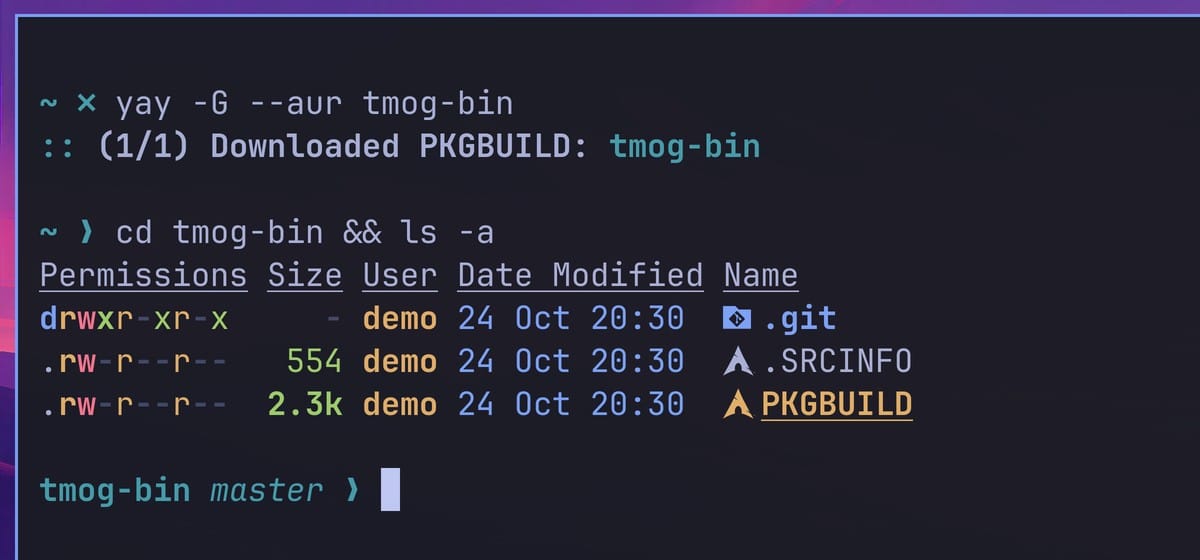
The folder holds the PKGBUILD (the recipe yay follows), .SRCINFO, and the .git folder. There is no .install file, so the package runs no install script as root. Open the PKGBUILD with less PKGBUILD (press q to close it). Its source= line points to TaskManagerOG-1.0.0-linux-x86_64.tar.gz on tmog.org, and its sha256sums= line gives a fixed checksum for that file, so the build stops if the download does not match. TMOG’s site does not publish checksums of its own. For tmog-bin 1.0.0-1, the recipe’s SHA-256 is a147c613d4a6f5c0ec16eaf52965593de523f9f0231e09c241460cc63352f325, and on October 24, 2026, the archive on tmog.org matched that hash.
If you have an AI coding agent such as the Codex CLI installed, it can read the recipe for you as a second check. We started Codex in the folder with codex and asked:
Review this PKGBUILD before I install it: what it downloads, the checksum, what it installs, and any install script. One short line each.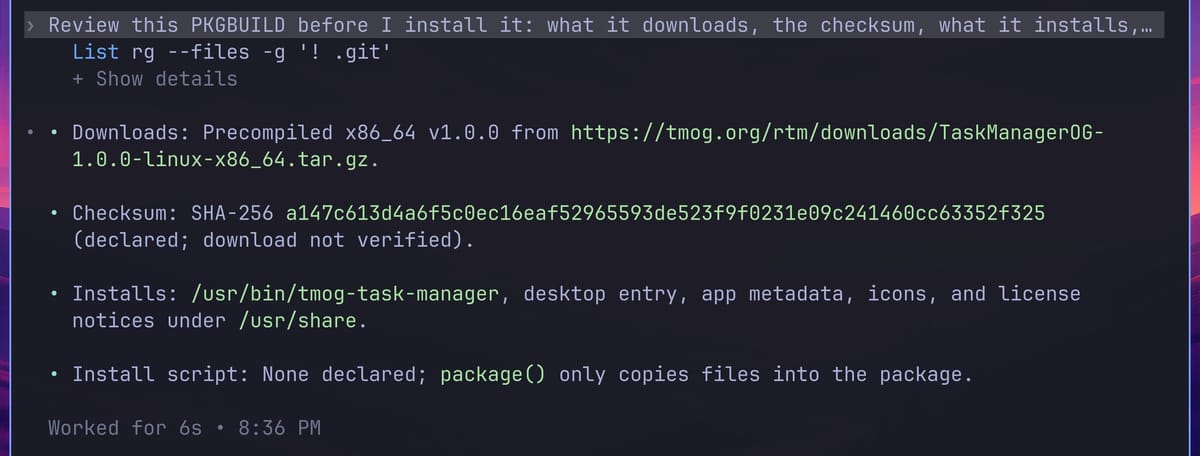
Codex reported that the recipe downloads the precompiled 1.0.0 build from tmog.org with a SHA-256 checksum. It installs /usr/bin/tmog-task-manager, a desktop entry, app metadata, icons, and the license files. It declares no install script, and its package() step only copies files. Codex also noted that it had not downloaded the file to verify the checksum itself. An agent can miss things, so treat its answer as a check next to your own reading. Close Codex with ctrl c twice.
Install tmog-bin from the Omarchy menu
Press super space to open the Omarchy menu, choose Install, then AUR. A floating terminal lists every package in the AUR, more than 122,000 of them. Type the full name, tmog-bin. With only tmog typed, a second package, tmog-appimage, sits right above it.
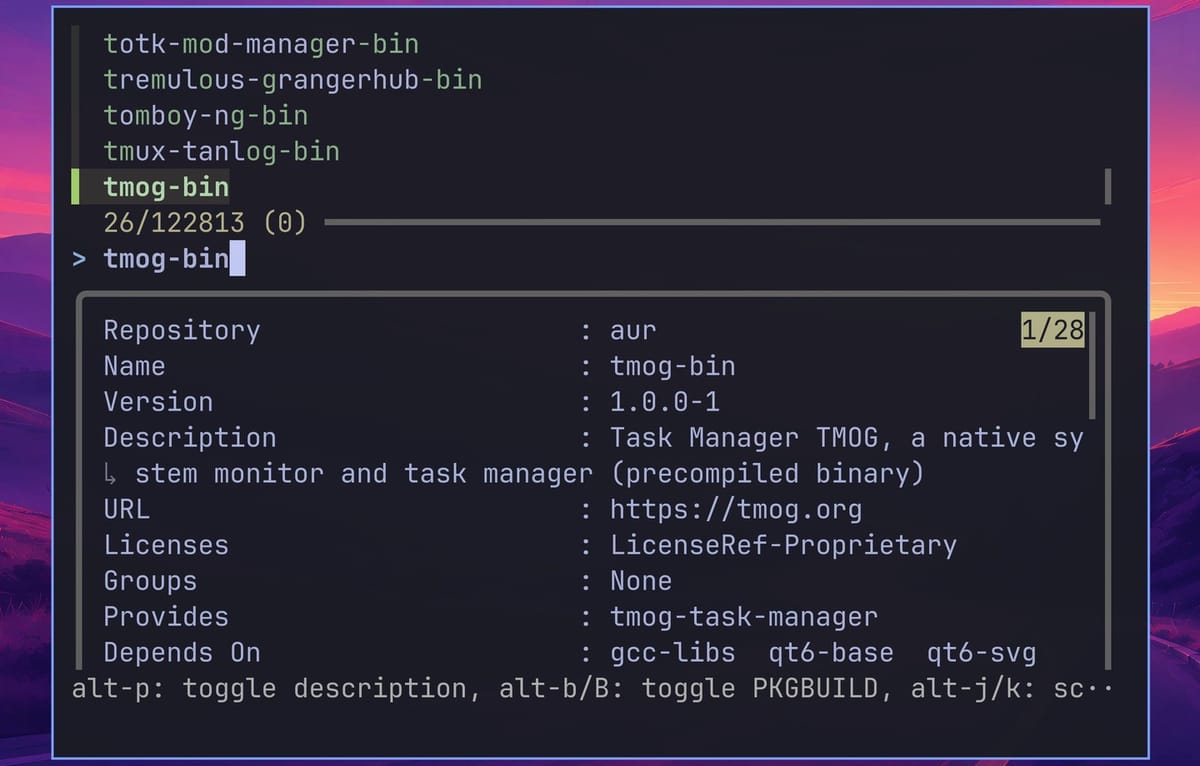
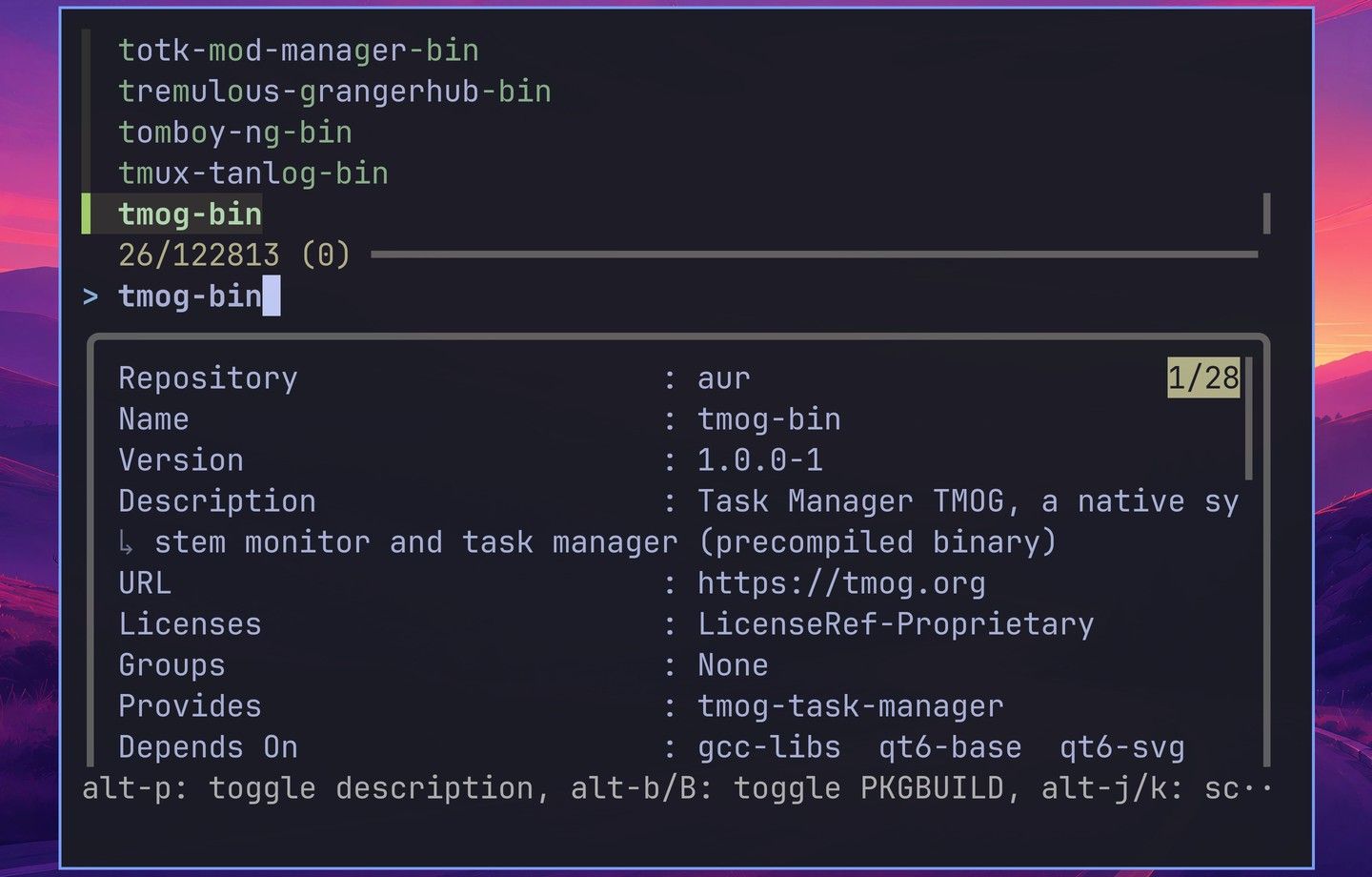
The preview shows version 1.0.0-1, the URL https://tmog.org, and the license LicenseRef-Proprietary. It depends on gcc-libs, qt6-base, qt6-svg, and systemd-libs (the preview shows the first three), which Omarchy already has, so the install pulls in no other packages. Press enter on the highlighted row, and type your password if sudo asks for it. The menu then installs with no other confirmation and no diff to read, which is why the recipe check comes first.
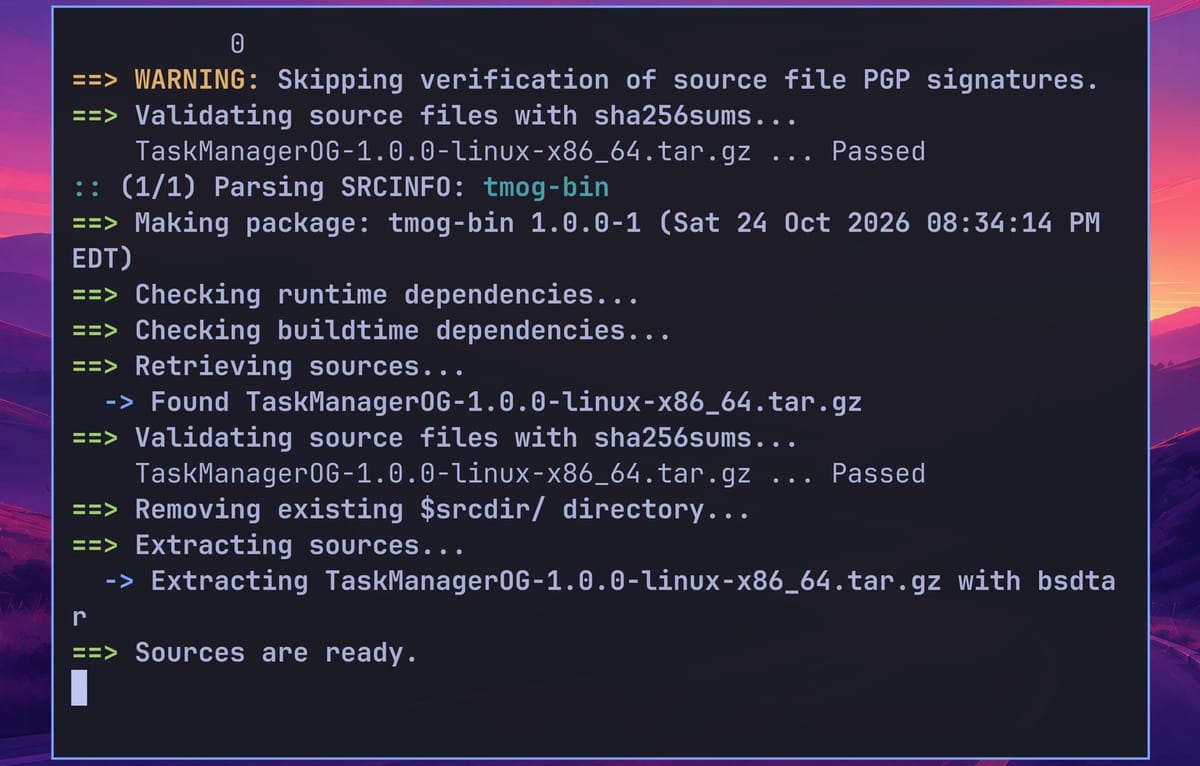
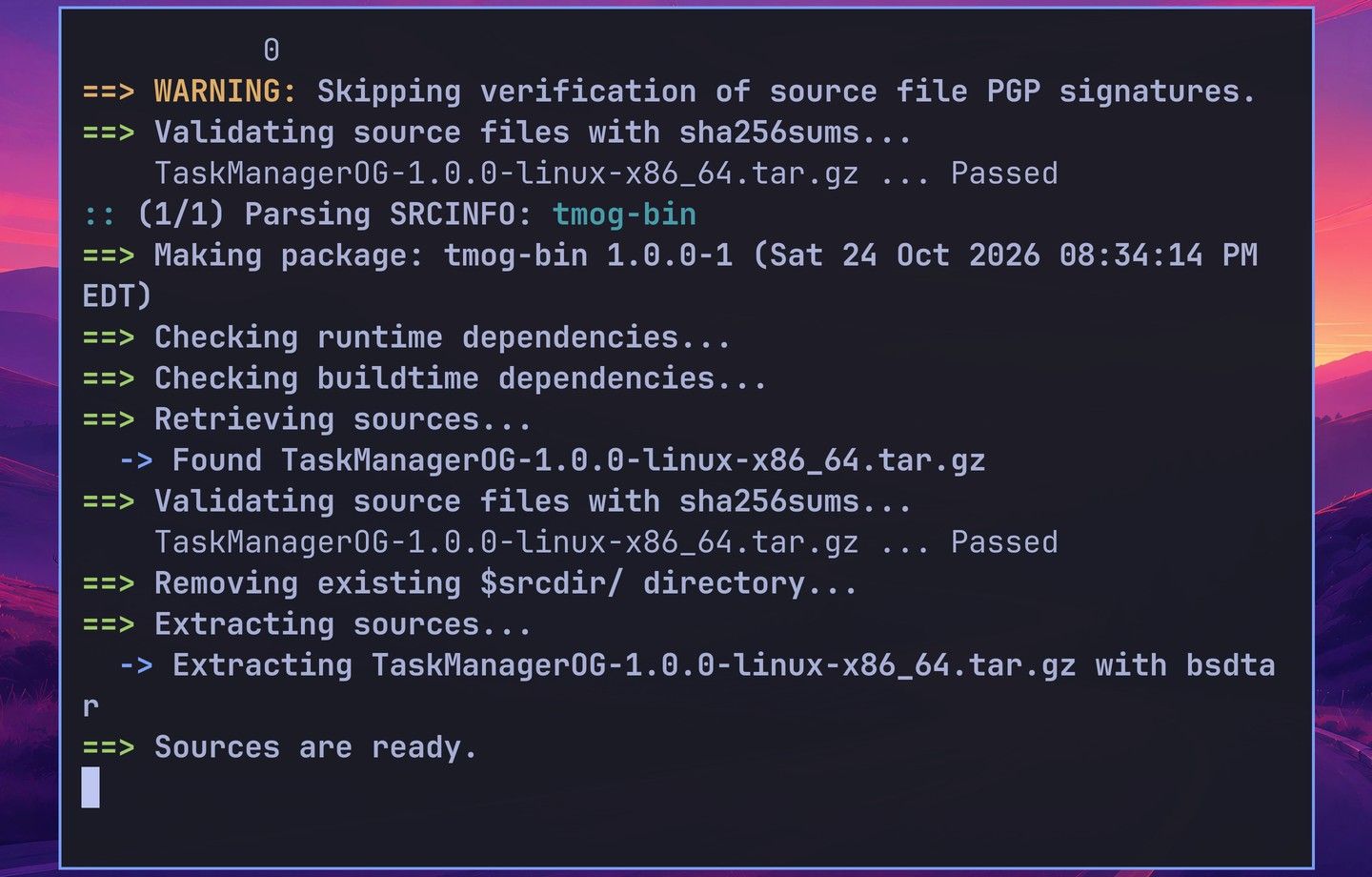
The download passes yay’s check against the checksum in the recipe: “Validating source files with sha256sums… Passed”. The warning above it, “Skipping verification of source file PGP signatures”, is normal here, because the recipe lists no signature to check. The install took about 14 seconds and added 11.76 MiB. Press enter at “Done! Press any key to close…”.
To start TMOG, press super space and type tmog. The menu shows Task Manager TMOG under Apps.
Install the AppImage instead
If you prefer not to use the AUR, download the Linux AppImage from tmog.org. The AppImage runs on Omarchy with the libraries it already has, but Omarchy has no AppImage tool, so a downloaded AppImage gets no menu entry. You would have to start it from a terminal and keep that terminal open.
The script below gives it a menu entry the way Omarchy’s own installer for the T3 Code AppImage does: it moves the AppImage into ~/.local/share/tmog/, extracts the desktop file and icons from it, and writes the entry to ~/.local/share/applications/. The mv line finds the AppImage in ~/Downloads by its name, so it works whether or not your browser added a prefix such as downloads_ to the file name.
#!/usr/bin/env bash
# tmog-desktop.sh: install the downloaded TMOG AppImage with a launcher entry, the way Omarchy's own T3 Code AppImage installer does
set -e
APP_DIR="$HOME/.local/share/tmog"
mkdir -p "$APP_DIR"
mv ~/Downloads/*TaskManagerOG-*-x86_64.AppImage "$APP_DIR/TMOG.AppImage"
chmod +x "$APP_DIR/TMOG.AppImage"
cd "$APP_DIR"
./TMOG.AppImage --appimage-extract com.tmog.taskmanager.desktop >/dev/null
./TMOG.AppImage --appimage-extract 'usr/share/icons/hicolor/*/apps/tmog-task-manager.png' >/dev/null
for icon in squashfs-root/usr/share/icons/hicolor/*/apps/tmog-task-manager.png; do
  size=${icon#squashfs-root/usr/share/icons/hicolor/}
  install -Dm644 "$icon" "$HOME/.local/share/icons/hicolor/${size%%/*}/apps/tmog-task-manager.png"
done
sed "s|^Exec=.*|Exec=$APP_DIR/TMOG.AppImage|" squashfs-root/com.tmog.taskmanager.desktop > "$HOME/.local/share/applications/com.tmog.taskmanager.desktop"
rm -rf squashfs-root
update-desktop-database "$HOME/.local/share/applications"
echo done
Save it as tmog-desktop.sh, then run bash tmog-desktop.sh. After it prints done, press super space and type tmog to find Task Manager TMOG, the same as with the AUR package. Use one route or the other, not both, or the menu shows two entries.
Read the Summary page
TMOG opens on its Summary page, which puts the whole machine on one screen. Bars on the left show processor use, clock speed, and temperature, next to a graph of the processor over time. On the right, a table lists the programs using the most processor time. Below sit memory use and tiles for System Pressure, network, disk, and the graphics chip.
To give TMOG something to find, we started three heavy jobs on purpose: a video encode with ffmpeg, a large file write with dd, and a Python program that holds 3 GB of memory. If you want to try the same, these commands start them; each one stops by itself after 15 minutes.
cd /var/tmp
setsid -f timeout 900 ffmpeg -nostdin -loglevel quiet -f lavfi -i testsrc2=size=1920x1080:rate=30 -c:v libx264 -preset slow -f null - </dev/null >/dev/null 2>&1
setsid -f timeout 900 dd if=/dev/zero of=/var/tmp/tmog-disk.bin bs=1M count=90000 oflag=direct status=none </dev/null >/dev/null 2>&1
setsid -f timeout 900 python3 -c 'x=b"a"*(3*1024**3); import time; time.sleep(900)' </dev/null >/dev/null 2>&1
The dd line writes up to about 94 GB to /var/tmp/tmog-disk.bin, so check your free space first. To stop all three early and delete the file, run pkill -x ffmpeg; pkill -x dd; pkill -f '^python3 -c x='; rm -f /var/tmp/tmog-disk.bin. The ffmpeg encode also heats the processor; on our N100 it ran at about 85 to 93 °C.
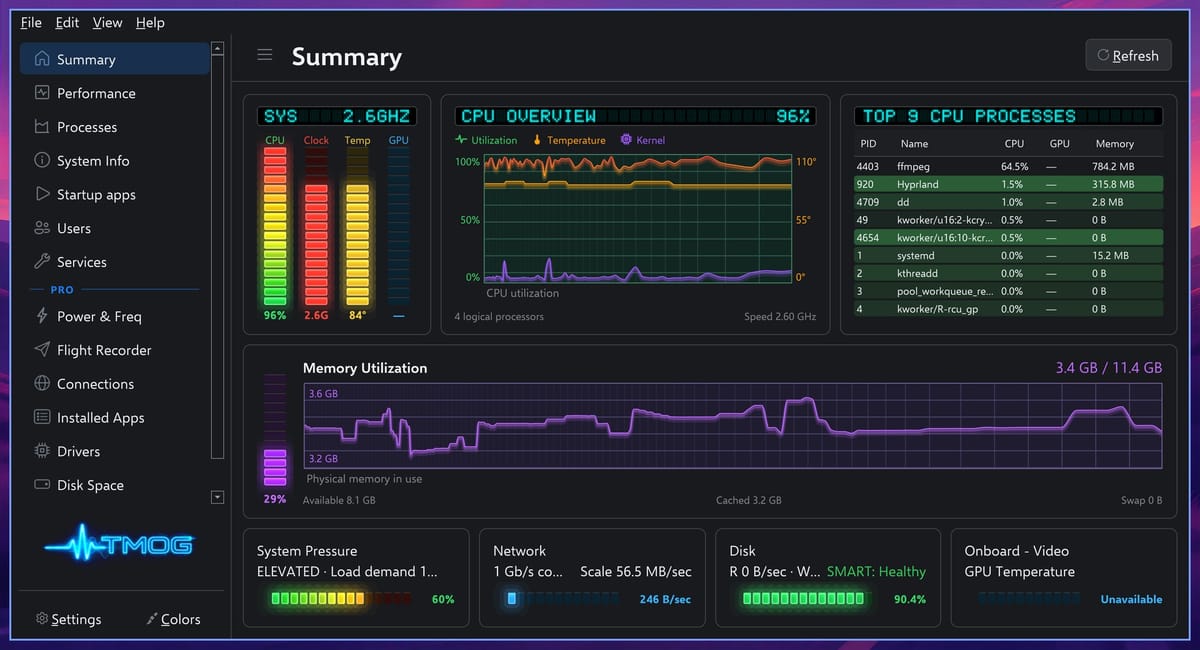
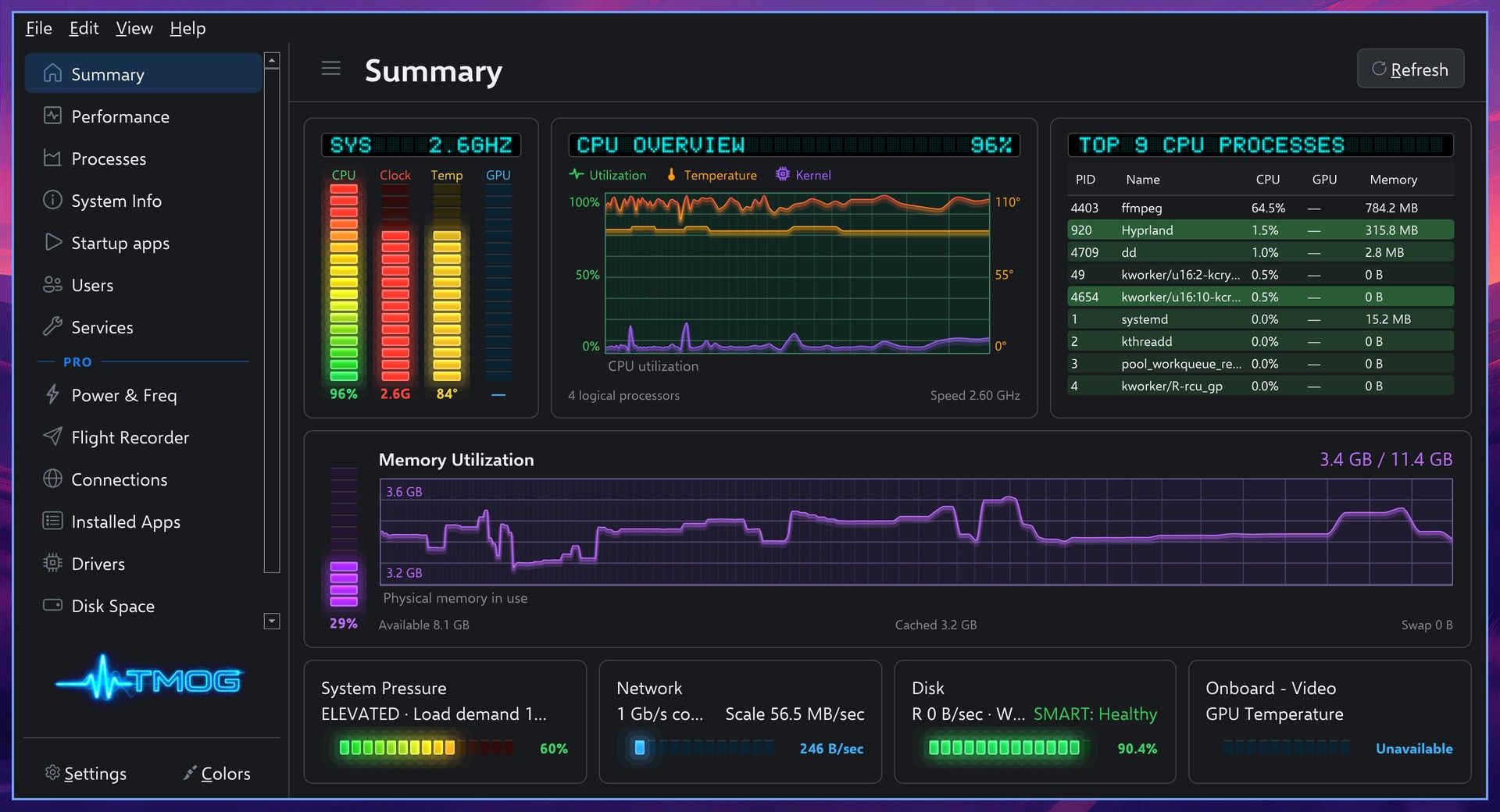
With the jobs running, the Summary page points at the encode: ffmpeg is at the top of the processor table, and the System Pressure tile changes from LOW to ELEVATED. In the sidebar, the pages above the PRO line, from Summary to Services, are in the free edition.
Turn off the process tree
The Processes page lists every program that is running. It starts as a tree under systemd, the first program Linux runs, so the busy programs sit several levels down. Open the Process View menu at the top of the page and click Process tree to switch it off. You get one flat list, and TMOG remembers the choice the next time it starts.


The same menu has Show exited processes, which keeps programs that just ended in the list for a moment. Turn it off too if the extra rows get in the way.
Find the program using the processor
Click the CPU column header twice. The first click sorts from smallest to largest, and the second puts the biggest on top. In our test, ffmpeg sat at the top at about 87 percent. TMOG counts that percent against the whole machine, not against one core.
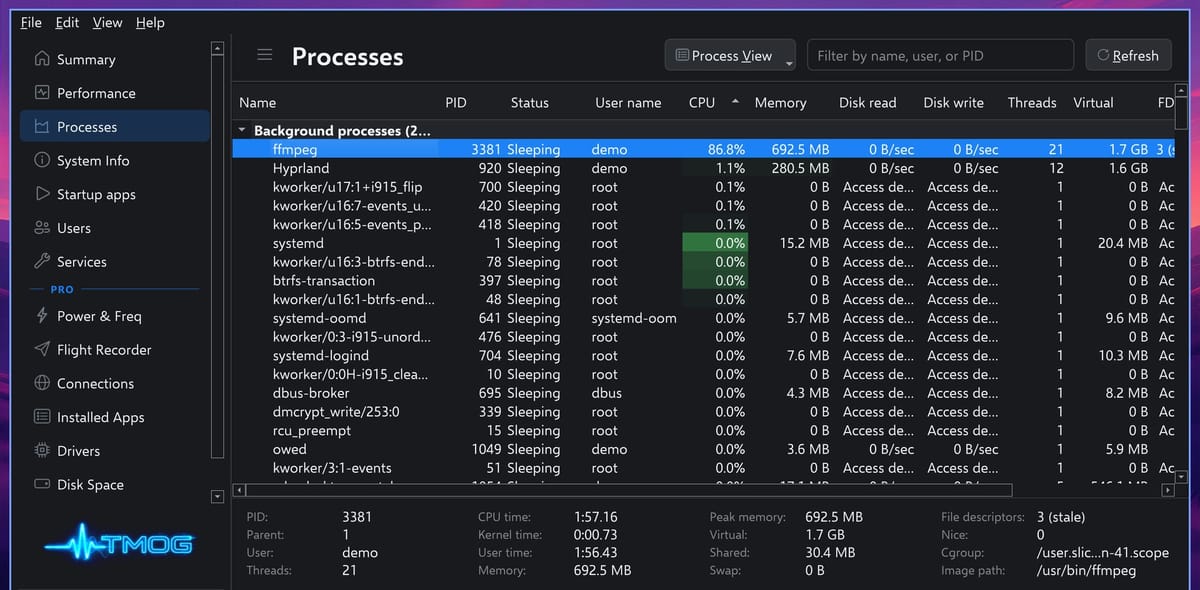
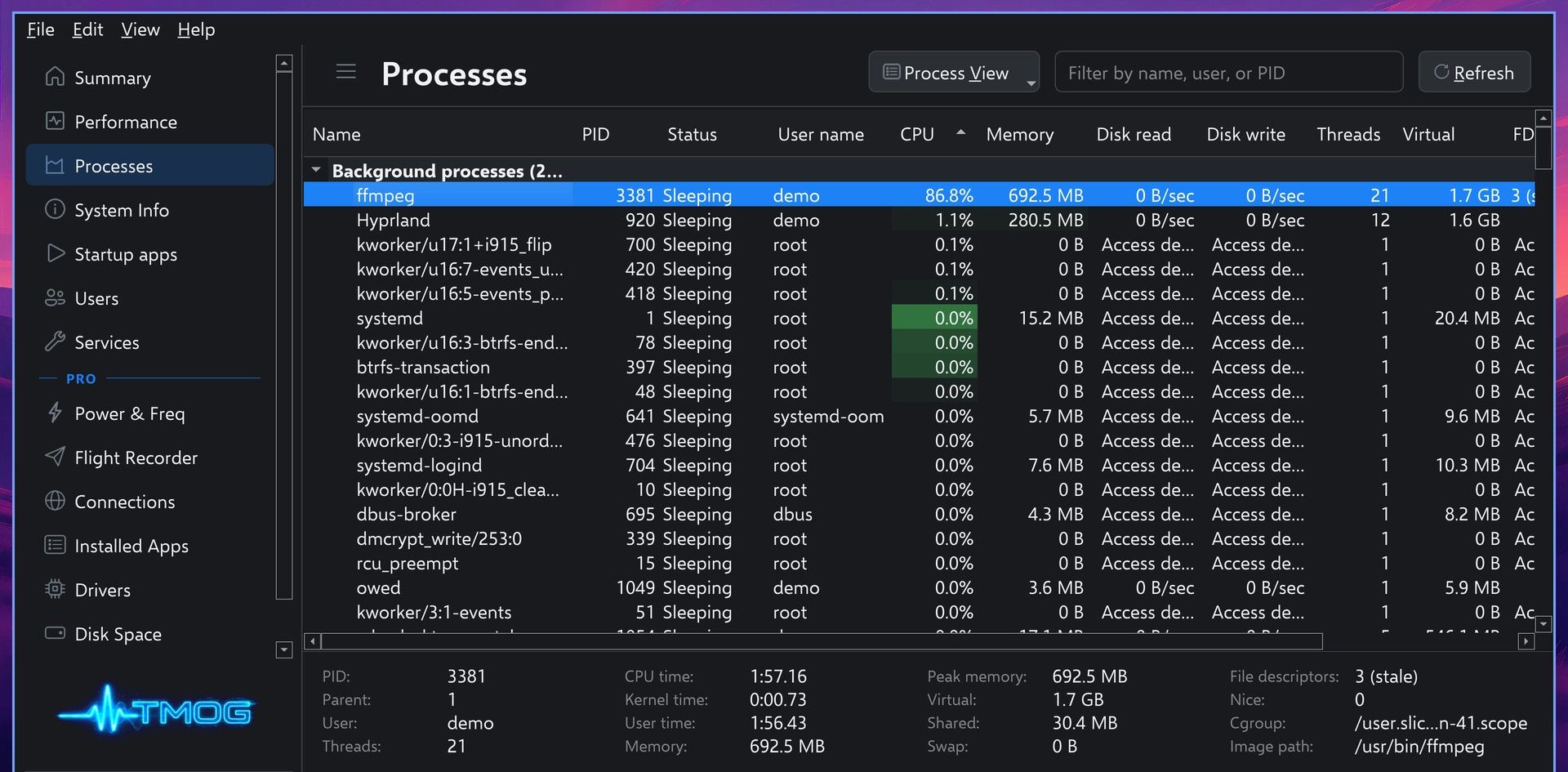
Click a row to fill the panel below with that program’s details: its processor time, memory and peak memory, threads, cgroup, and image path. The image path is the program file on disk (/usr/bin/ffmpeg here), which tells you which copy of a program is running.
TMOG runs without root and does not ask for it. For processes it is not allowed to read, mostly the ones root owns, the Disk read, Disk write, and file descriptor columns say “Access denied”. That is expected. TMOG’s Linux notes say it “does not ask for root”, and they show how to grant read access to the CPU power counters without running TMOG as root.
Stop a program from TMOG
The list re-sorts while you watch, so a row can move between a hover and a click. Type the program’s name in the “Filter by name, user, or PID” box first; ffmpeg leaves one row. Then right-click it.
In the right-click menu, Terminate (SIGTERM) asks the program to close itself, and Force terminate (SIGKILL) ends it at once. The same menu can also suspend and resume a program, send other signals, change its nice priority, and set which cores it runs on.
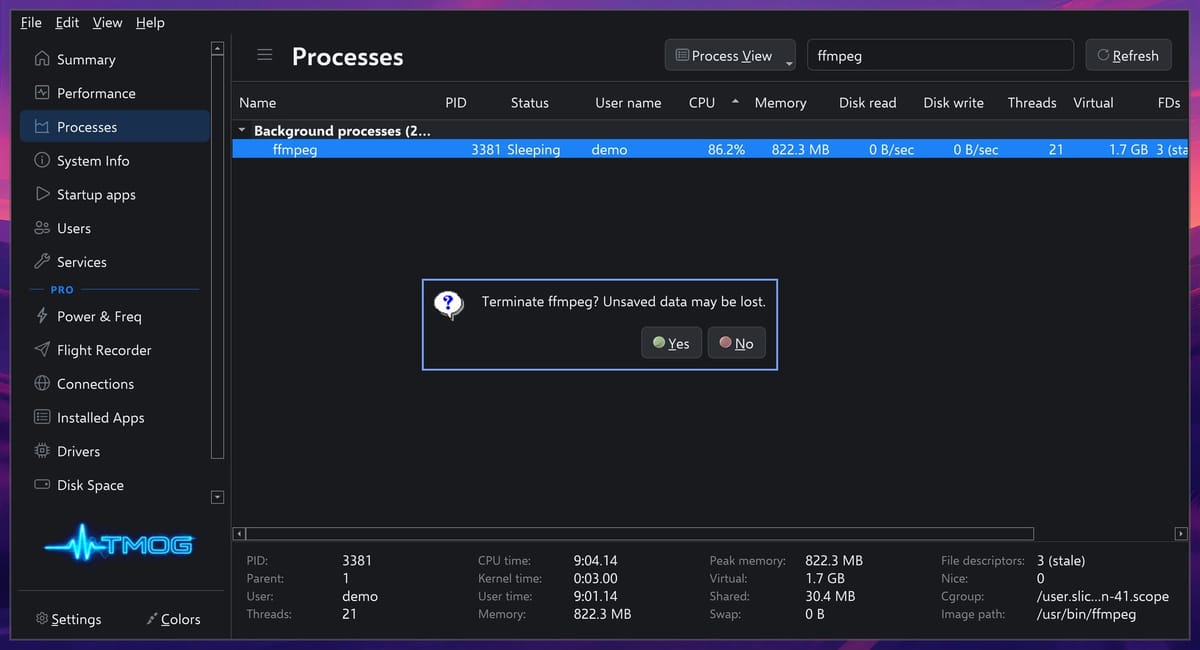
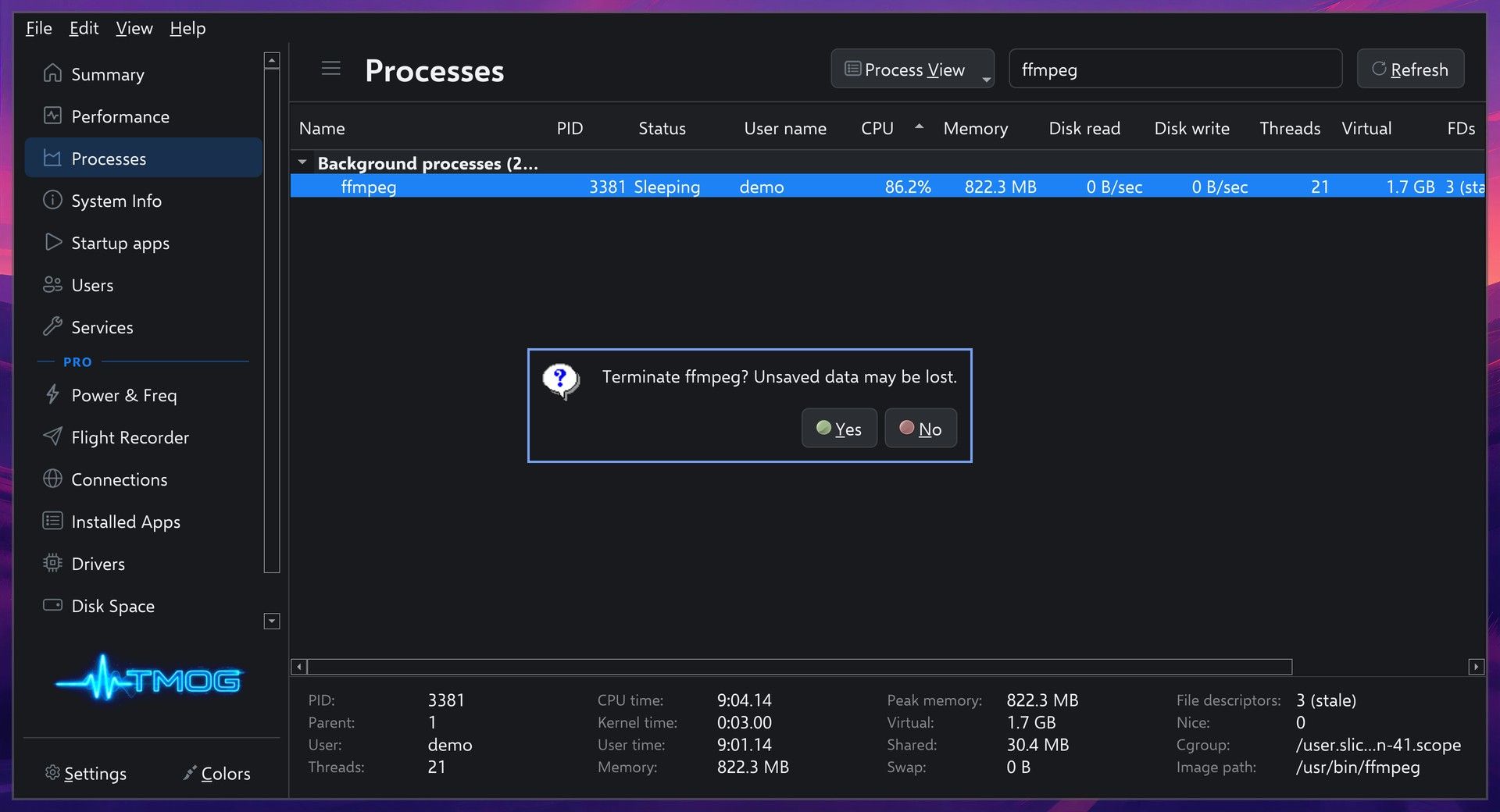
Pick Terminate. TMOG asks “Terminate ffmpeg? Unsaved data may be lost.” After Yes, the encode stops and ffmpeg leaves the list.
Find what uses memory and the disk
Clear the filter and click the Memory header twice. The Python job tops the list at 3.0 GB. It uses almost no processor time, so the CPU sort never showed it; sorting by memory is the way to spot a program like this.
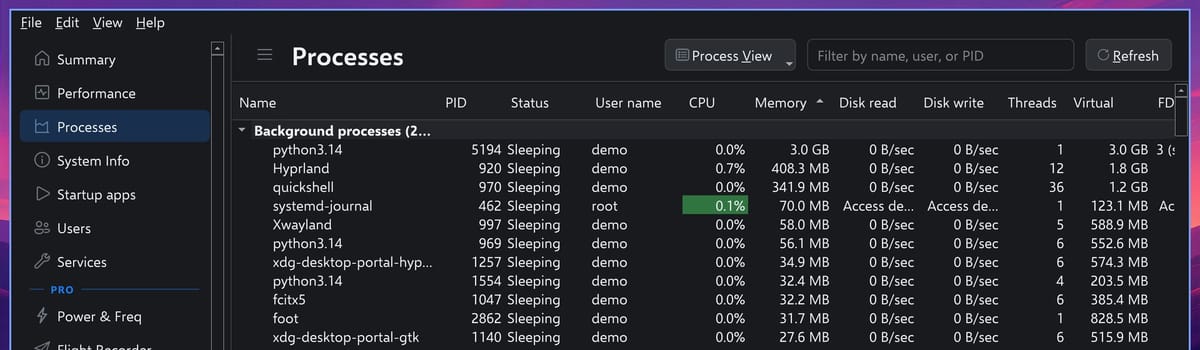
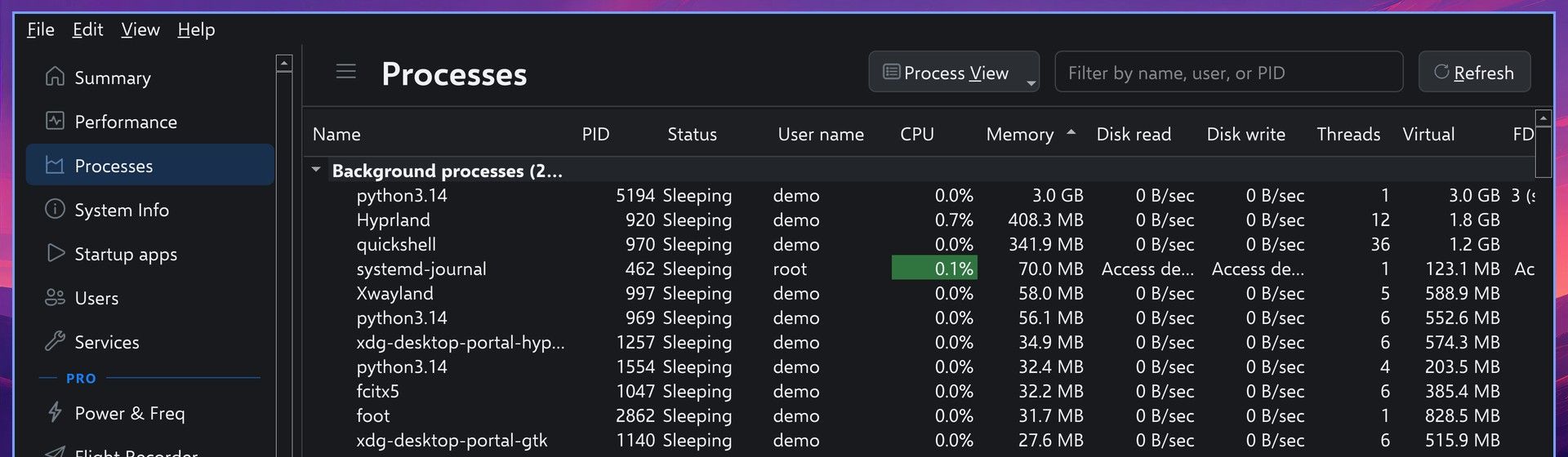
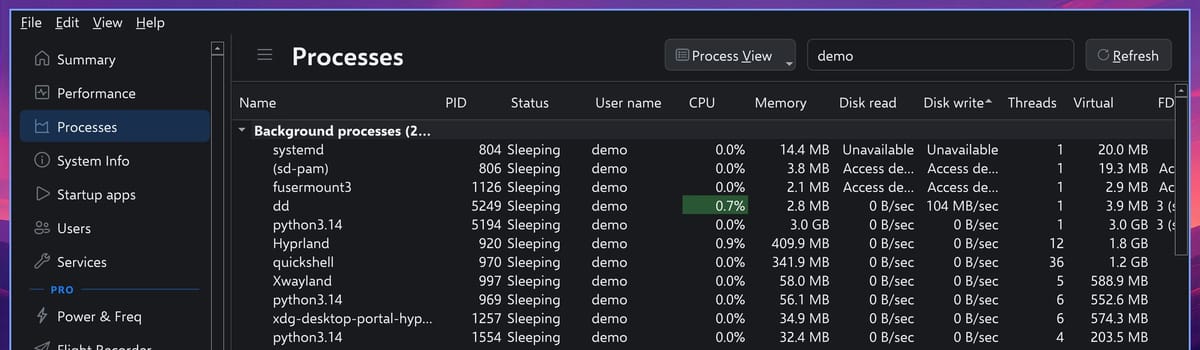
Sorting by Disk write puts the “Access denied” rows above the real numbers. Filter the list by your own user name to get past most of them; a few of your own rows can still say Access denied or Unavailable. Below them, dd wrote about 104 MB per second in our test.
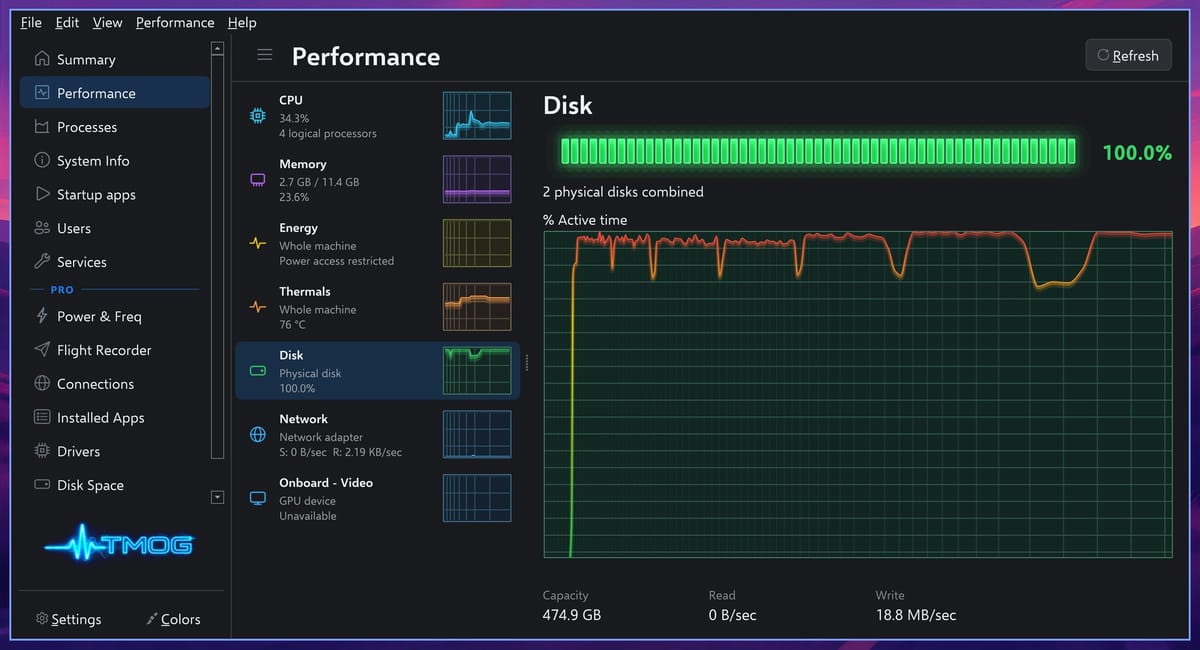
For the whole drive, open the Performance page and click the Disk card. The graph shows the share of time the drive is busy, and with dd running it sat at 100 percent.
The free edition shows network use for the whole machine only
On the Performance page, the Network card shows send and receive rates, link speed, and totals. There is no network column in the process list, so you cannot see which program uses the network.
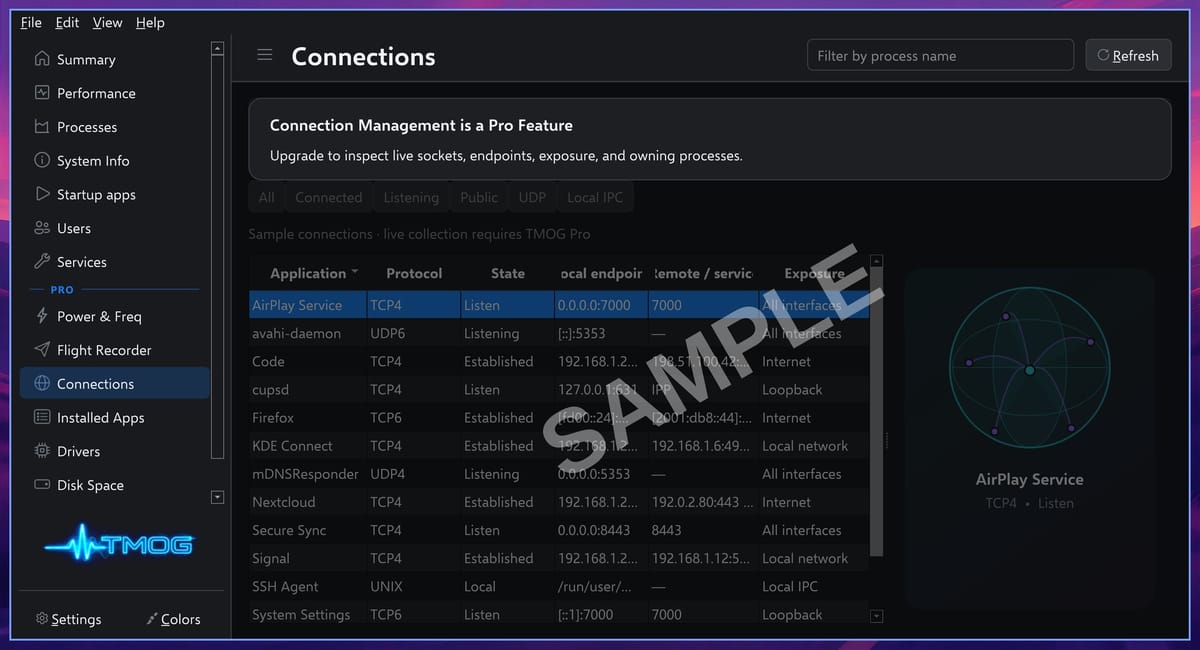
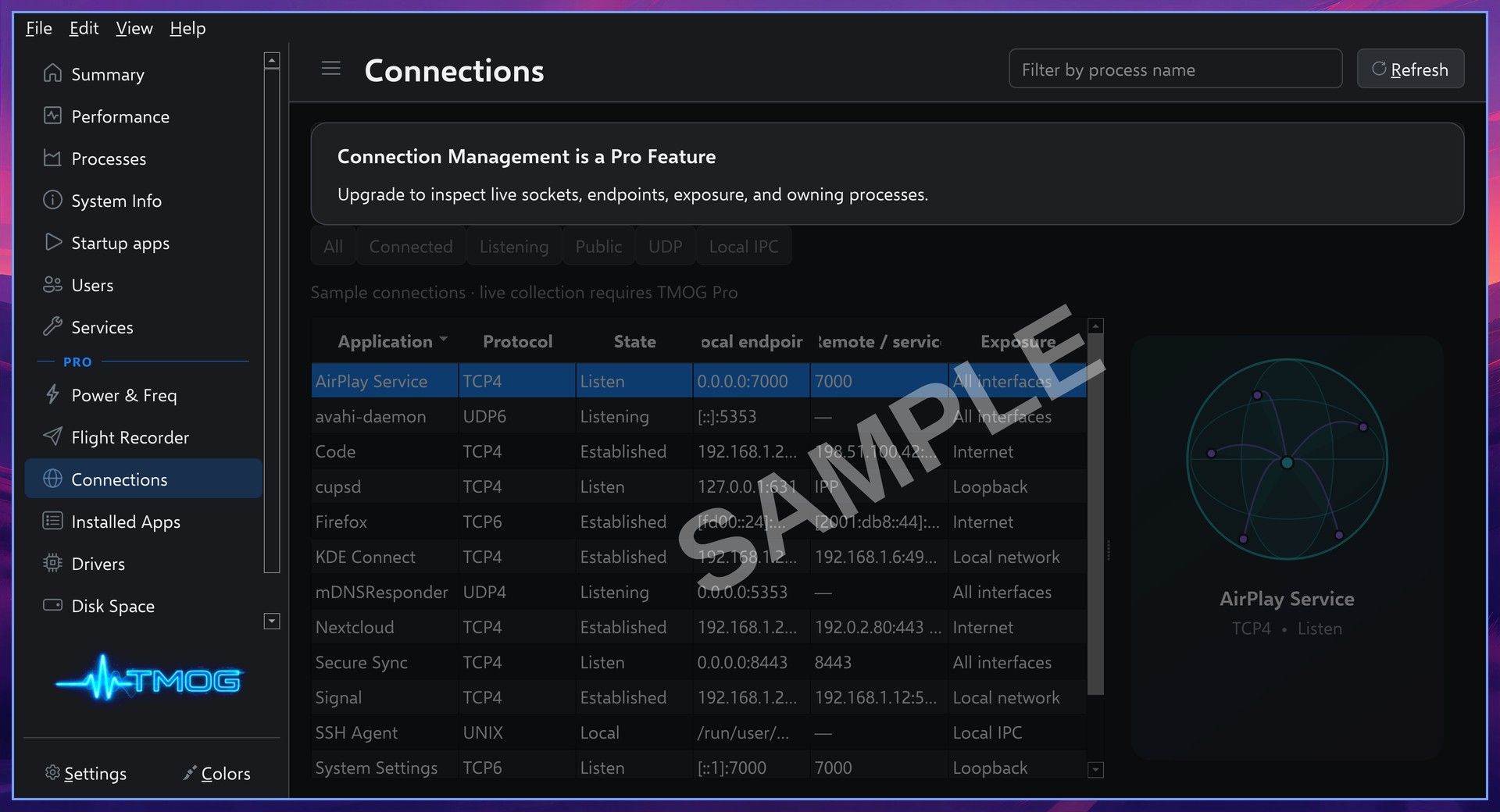
The Connections page lists which program owns each network connection, and it is part of TMOG Pro. In the free edition it shows a banner, “Connection Management is a Pro Feature”, over sample data marked SAMPLE.
What TMOG Pro adds and what it costs
Pro unlocks the pages below the PRO line in the sidebar. The TMOG store lists Flight Recorder recording and replay, Power and frequency, Connections, Installed apps, Disk space, and Benchmarks; the app also puts Drivers under PRO. The Flight Recorder records the machine’s activity so you can replay it later. In the free edition, these pages show a Pro banner over sample data.
A personal Pro license costs $39.95 once. The store says it “never renews or expires”, and it covers up to three computers at a time, in any mix of Windows, Mac, and Linux. Everything this guide used to find the three jobs is in the free edition (the Summary page, the process list, the detail panel, Terminate, and the Performance graphs).
How TMOG compares with btop
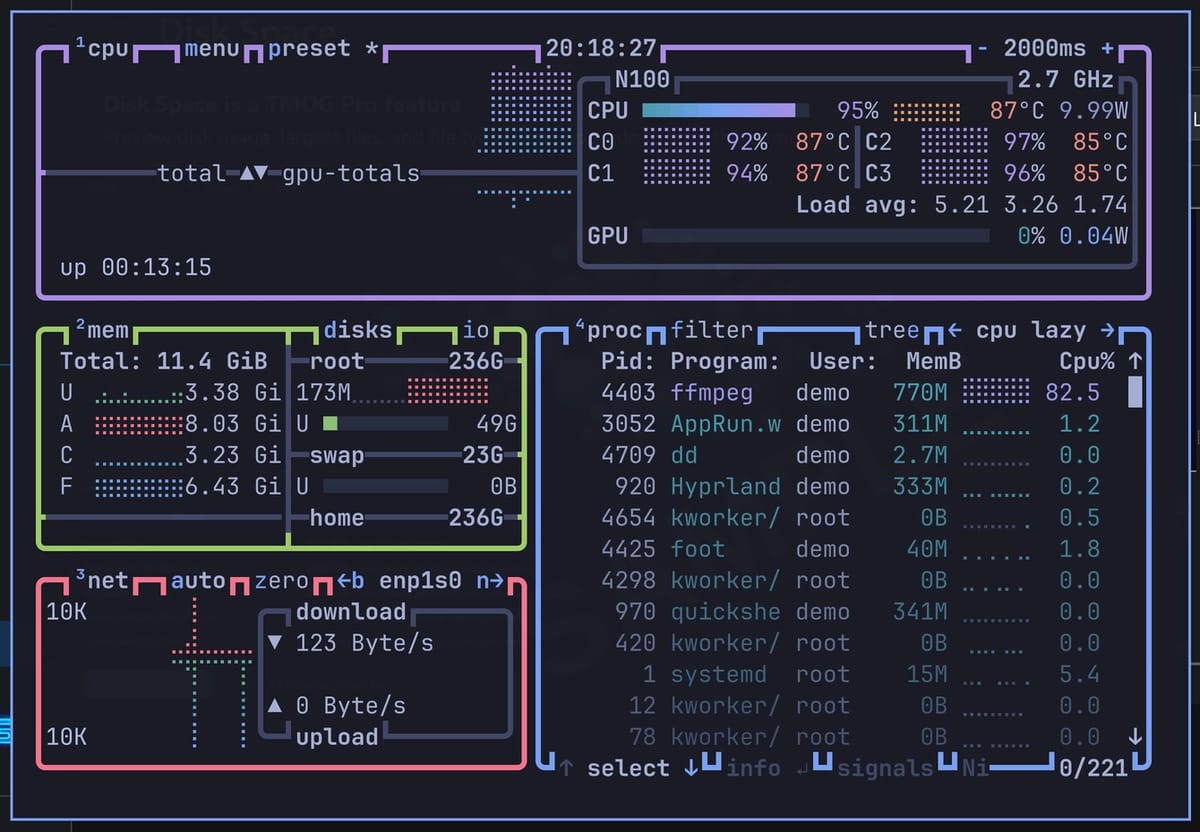
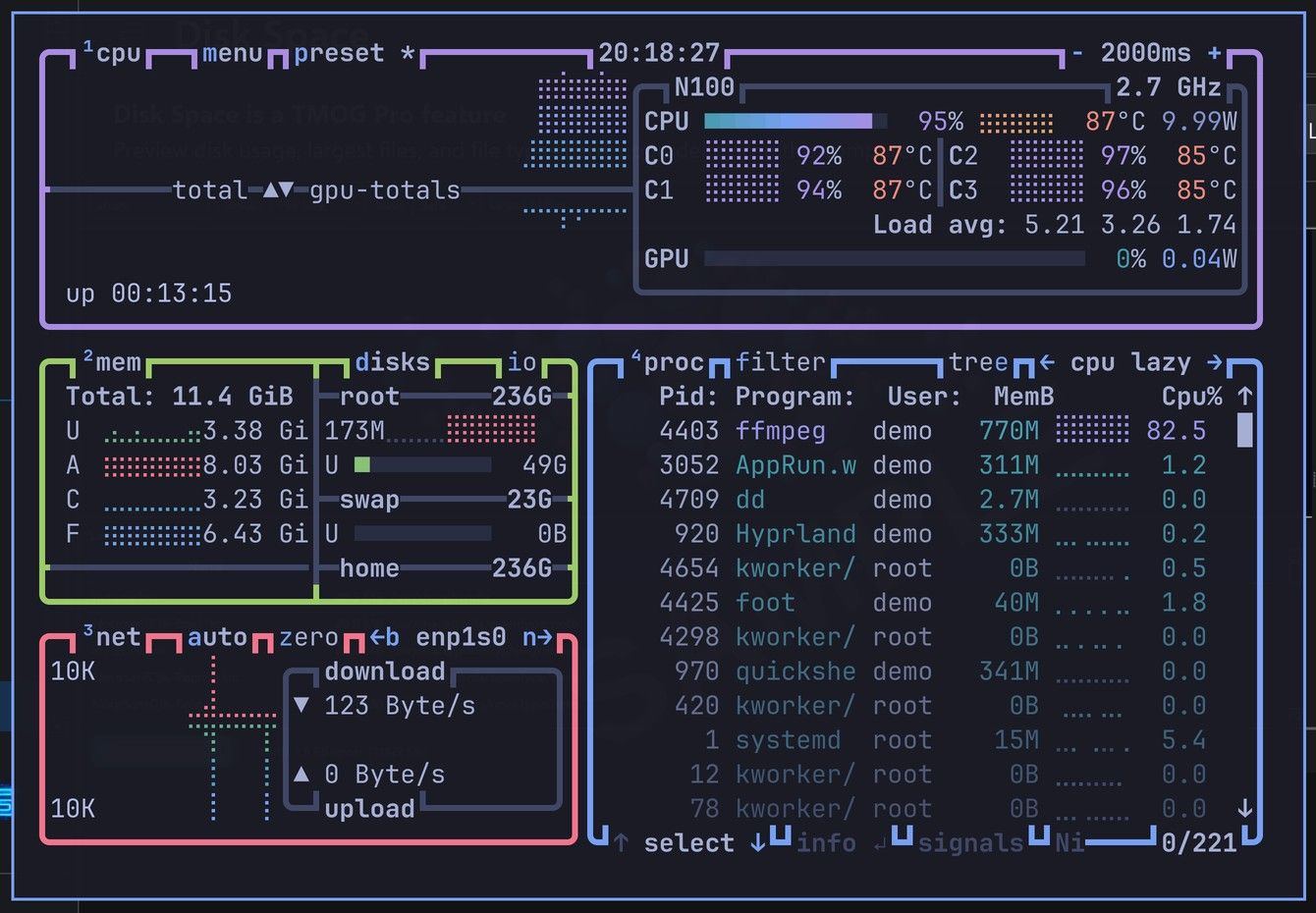
Omarchy already includes btop, and super ctrl t opens it in a floating window. With the encode running again, btop also put ffmpeg at the top of its process list. Around the list, boxes show each processor core, memory, the disks, and the network.
On a high-resolution screen, the floating window can be too small for btop, which then shows “Terminal size too small” and needs 80 by 24 characters. Press ctrl - a few times to shrink the font until btop draws.
In TMOG, disk read and disk write are columns for every program at once, so one sort ranks them all. btop shows disk reads and writes for one program at a time, in the detail view of the program you select. btop runs in any terminal, including over SSH, and its own keys can send a signal to a program or change its priority. TMOG is a desktop app you click through, with menus for the same actions. btop is already on the machine and is enough for a quick look. TMOG fits better when you want to rank every program by disk use in one sort and stop one with a click.
Update checks and what TMOG sends
TMOG goes online each time it starts: the setting Check for Updates on App Start is on by default, under Settings, General. On Linux, it sends one more request after launch to learn whether to show a link to TMOG Pro. TMOG’s privacy page says these automatic checks are HTTPS GET requests with no request body, and that they do not send the installed version, system metrics, process data, hardware inventory, user identity, email address, or license identifier. Turn the update setting off if you want TMOG to skip the update check.
Remove TMOG
For the AUR package, remove it with pacman:
sudo pacman -Rns tmog-binFor the AppImage, delete the folder, the menu entry, and the icons the script created:
rm -rf ~/.local/share/tmog
rm -f ~/.local/share/applications/com.tmog.taskmanager.desktop
rm -f ~/.local/share/icons/hicolor/*/apps/tmog-task-manager.png
update-desktop-database ~/.local/share/applications
Either way, TMOG keeps its settings in ~/.config/TMOG/; delete that folder as well if you want nothing left behind. For other apps that ship with Omarchy and how to remove the ones you don’t use, see what Omarchy installs and how to remove it.


