
On October 13, 2026, one account uploaded fifteen fake copies of yay to the AUR, the Arch User Repository. yay is a helper for installing AUR software, and Omarchy ships with it. Each fake name was one or two keystrokes away from it: yyay, yayy, yaay, ysy, and eleven more. According to the AUR team’s reply on the aur-general mailing list, the install scripts carried the attack. In the one fake a scanner report took apart, yyay, the install script ran a downloaded script as root on every install and upgrade. The AUR team banned the account and deleted the packages within about 46 minutes of the first report.
That command sat in a file you can read before anything is built. This guide walks through the checks that would have shown it: the official repos first, then the package’s AUR page, then every build file, a second read from an AI agent if you like, and yay’s diff before the install. The example app is the OnlyOffice office suite (onlyoffice-bin), which is in the AUR and in none of the official repos. Everything below was done on Omarchy 4.5 RC1 with yay 13.0.1; the yay and pacman steps are the same on plain Arch. If you are new to Omarchy, how Omarchy is built explains where Arch ends and Omarchy begins.
What the AUR is and where the risk sits
The official repos hold ready-built packages from Arch, and on Omarchy also from Omarchy’s own repo. The AUR holds build recipes instead, and anyone with an account can upload one. There is no review before a recipe goes up. The ArchWiki page on the AUR says AUR packages are user-produced content, and any use of the files is at your own risk.
A recipe is a file called a PKGBUILD. yay downloads it, builds the package on your machine as your user, and then hands the package to pacman, Arch’s package manager, which installs it as root. A package can also carry an install script, a .install file named on the PKGBUILD’s install= line. pacman runs that script as root during the install. In yyay, the install script left its functions empty, so the file looked harmless at a glance, and put the download command outside them, where it ran anyway.
Check the official repos first
An app in the official repos needs no AUR recipe at all, so look there before anything else. pacman -Si prints a package’s details, including the repo it comes from:
pacman -Si spotify
pacman -Si onlyoffice onlyoffice-bin
Spotify shows Repository : omarchy, so on Omarchy it installs from Omarchy’s own repo. For OnlyOffice, pacman prints error: package 'onlyoffice' was not found and the same for onlyoffice-bin. That search covers every repo the machine uses, so OnlyOffice is AUR only here. Chrome, VS Code, Brave, Slack, and the Zen browser are also in the Omarchy repo, so they install with pacman.
You can run the same search from the Omarchy menu. Press super space (Super is the Windows key on a PC keyboard), then pick Install and Package; that list searches the same repos.
Read the package’s AUR page
The next check is the package’s page on the AUR website, https://aur.archlinux.org/packages/<name>. Type the name with care: the fake yay packages sat one typo away from the real name.
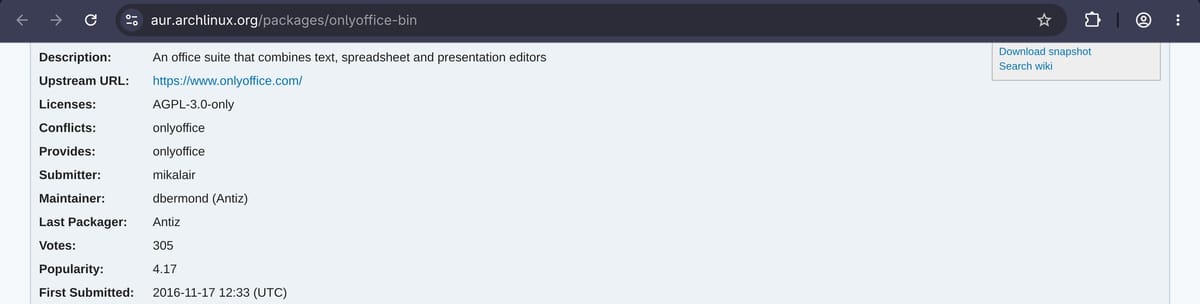
For onlyoffice-bin, the Upstream URL points to onlyoffice.com, the project’s own site. Two maintainers look after it, it was first submitted in 2016, and 305 people have voted for it. A pinned comment from a maintainer says the package ships the Desktop Editors app, not the Document Server. The server package, onlyoffice-documentserver-bin, has a similar name. Read the recent comments too; that is where users report build problems and anything odd.
A vote shows interest in a package; nobody reads the code to earn one, and an old, popular package can still change hands or get a bad update. The page does show how long a package has been around and how many people use it. For comparison, the real yay has been on the AUR since 2016 with about 2,650 votes, while the fakes were new uploads from one account, with none of that history.
Download and read the build files
yay -G downloads a package’s build files into a new folder without building anything:
yay -G onlyoffice-bin
cd onlyoffice-bin
ls -a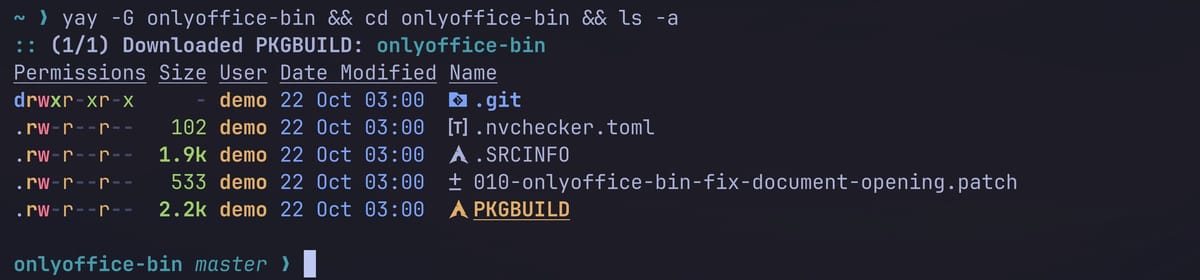
The folder holds the PKGBUILD, a patch file, and some metadata (.SRCINFO, .nvchecker.toml, and the .git folder). There is no file ending in .install, and the PKGBUILD has no install= line, so this package has no install script. If you do find one, read it line by line, including anything outside its functions.
Open the PKGBUILD in less, a plain text viewer, which is the tool the ArchWiki’s AUR page suggests:
less PKGBUILDCheck the url= line first. Here it points to https://www.onlyoffice.com/, the same site as the AUR page. The next three screens are a long depends list of packages from the official repos. Press shift g to jump to the end of the file, where the source, the checksums, and the build functions sit on one screen.
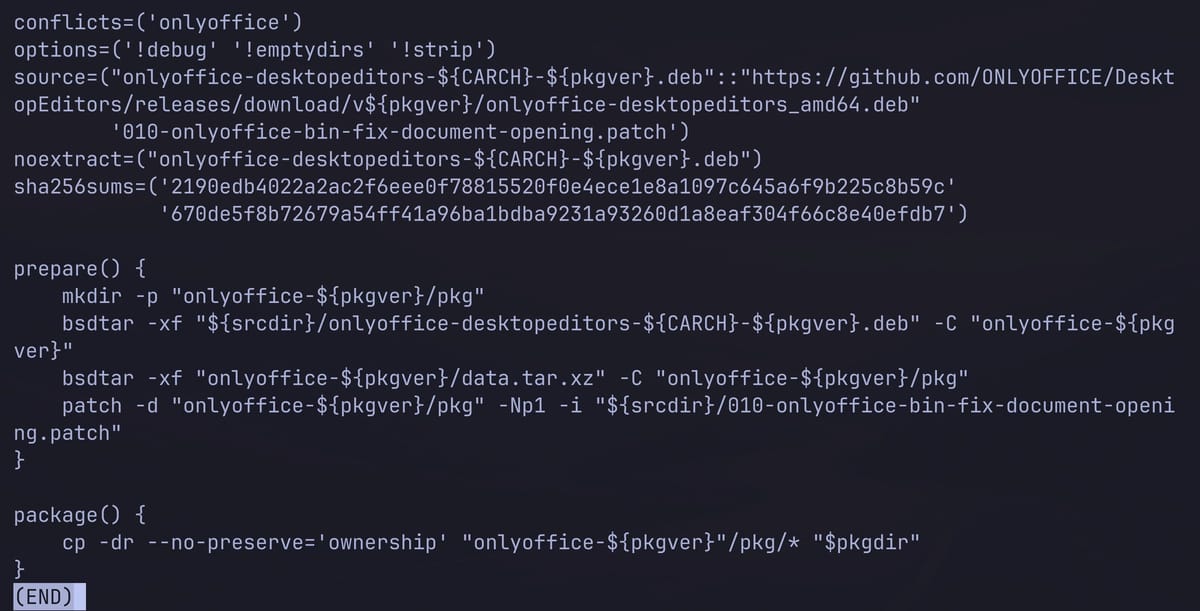
The source= line says what gets downloaded: the official Debian package from OnlyOffice’s own GitHub releases, plus the local patch file. The sha256sums= line gives a fixed checksum for each one, and the build stops if a downloaded file does not match. A checksum of SKIP means that file is not checked at all; that is normal for a -git source that follows the latest commit, which has no fixed file to hash, but worth a second look anywhere else. This PKGBUILD has no SKIP.
A matching checksum only proves you got the file the recipe names. The fake yyay passed its checksum too, because it downloaded the real yay source. The checksum says nothing about what the recipe or its install script does with that file.
The two functions at the end are the build steps. prepare() unpacks the Debian package with bsdtar and applies the patch, and package() copies the files into the package folder. Both run as your user during the build, not as root. The PKGBUILD page on the ArchWiki explains each field if you meet one you don’t know.
Read every other file in the folder as well. The ArchWiki asks you to check the PKGBUILD, any .install files, and any other files in the package’s git repository. Here that means the patch. It changes one line in the app’s launcher entry, from %U to %F, so the launcher passes documents to the app as file paths instead of links, which OnlyOffice needs to open them.
Ask an AI agent for a second read
An AI coding agent can read the same folder and explain it in plain words, which helps when a PKGBUILD uses commands you don’t know. We used the Codex CLI, started inside the build folder with codex, and asked:
Review this PKGBUILD and any .install file before I install it. What does it download, what does it run, and what does it change on my system? Keep it short.“Keep it short” makes the answer quicker to check against the files. Codex read the files and answered in about five seconds.
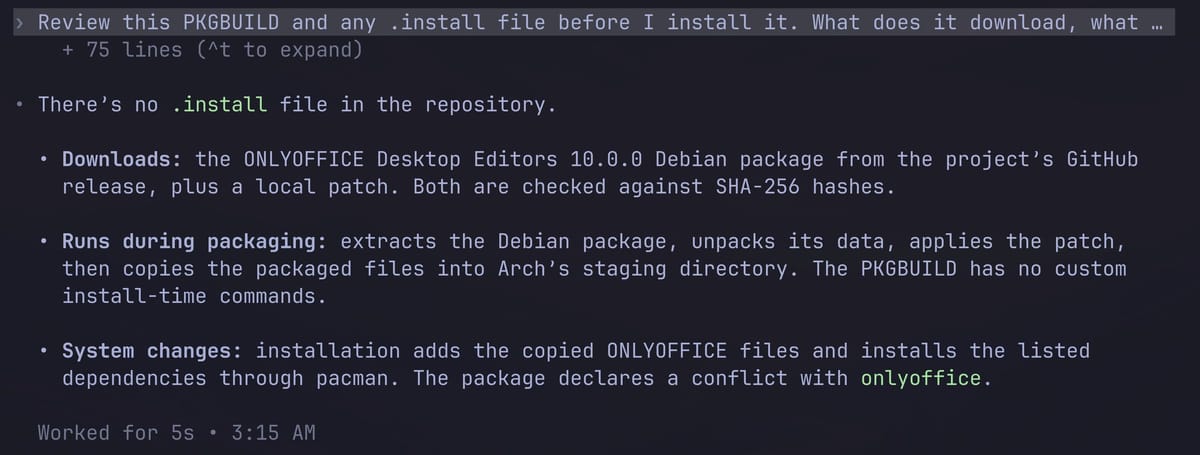
Its answer matched what we read: no .install file, a download of the 10.0.0 Debian package from the project’s GitHub release plus the local patch, both checked against SHA-256 hashes, then an unpack, the patch, and a copy into the staging folder, with no install-time commands. It did not say what the patch changes; we found that by reading the patch. An agent can miss things or be wrong, so treat its answer as a second reader next to your own, and decide for yourself whether to install.
Install with yay and read the diff
With the checks done, install from the terminal:
yay -S onlyoffice-binyay asks a few questions before it builds. Press enter at “Packages to cleanBuild?” to keep the default. At “Diffs to show?”, type A for All and press enter .
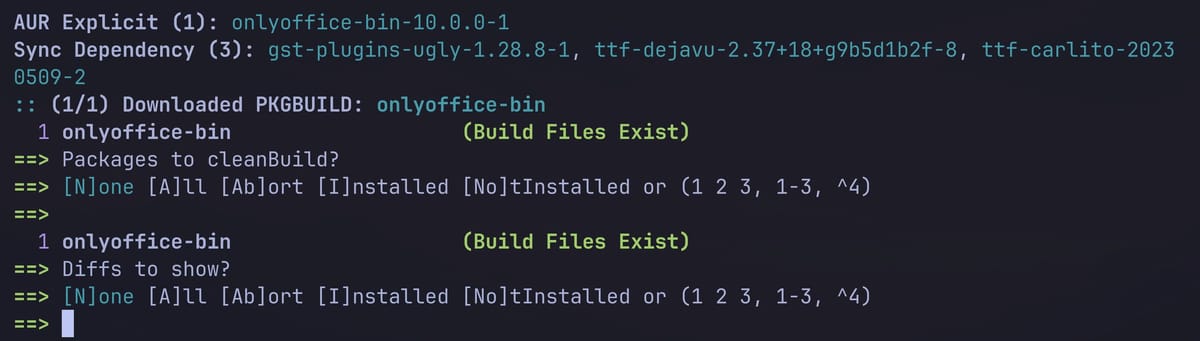
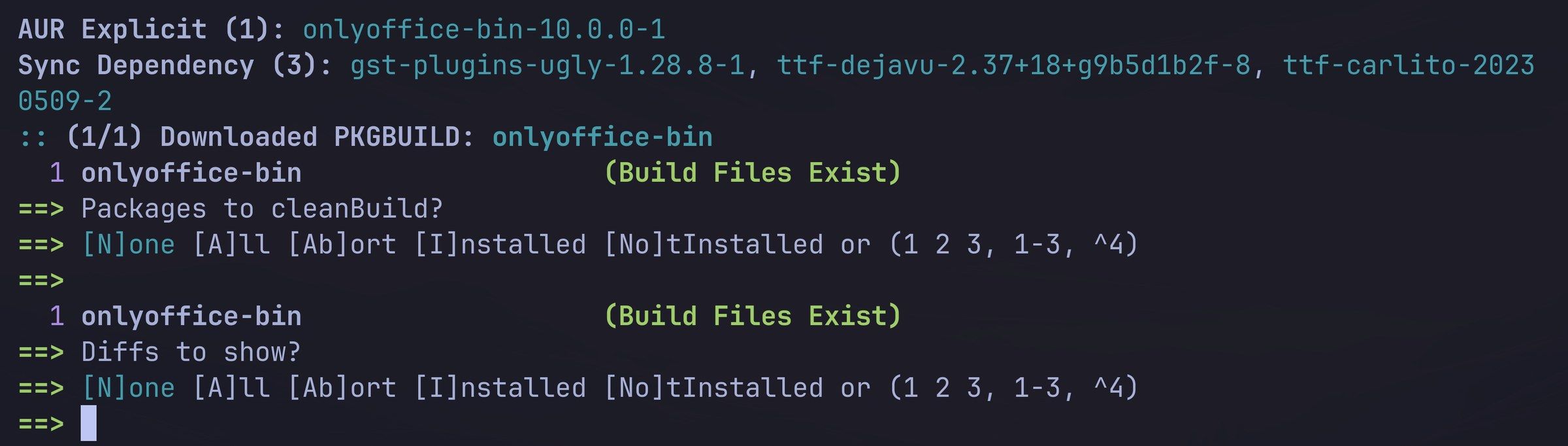
The diff opens in less and shows the build files (all but .SRCINFO), including the patch. For a package you have never installed, every line shows as new. An install script would appear here too, so this is the last place to catch one even if you skipped yay -G. Press shift g to reach the functions you read earlier and q to close the diff. yay then asks “Proceed with install? [Y/n]”; answering n stops before the app itself downloads. After y, yay downloads the 266 MB Debian package and checks both files against the checksums in the recipe.
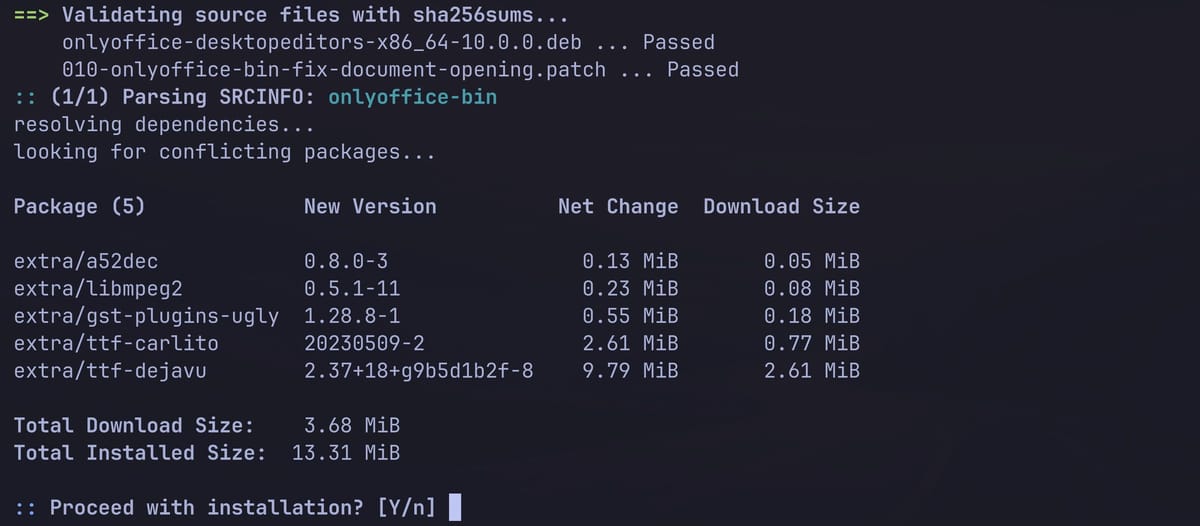
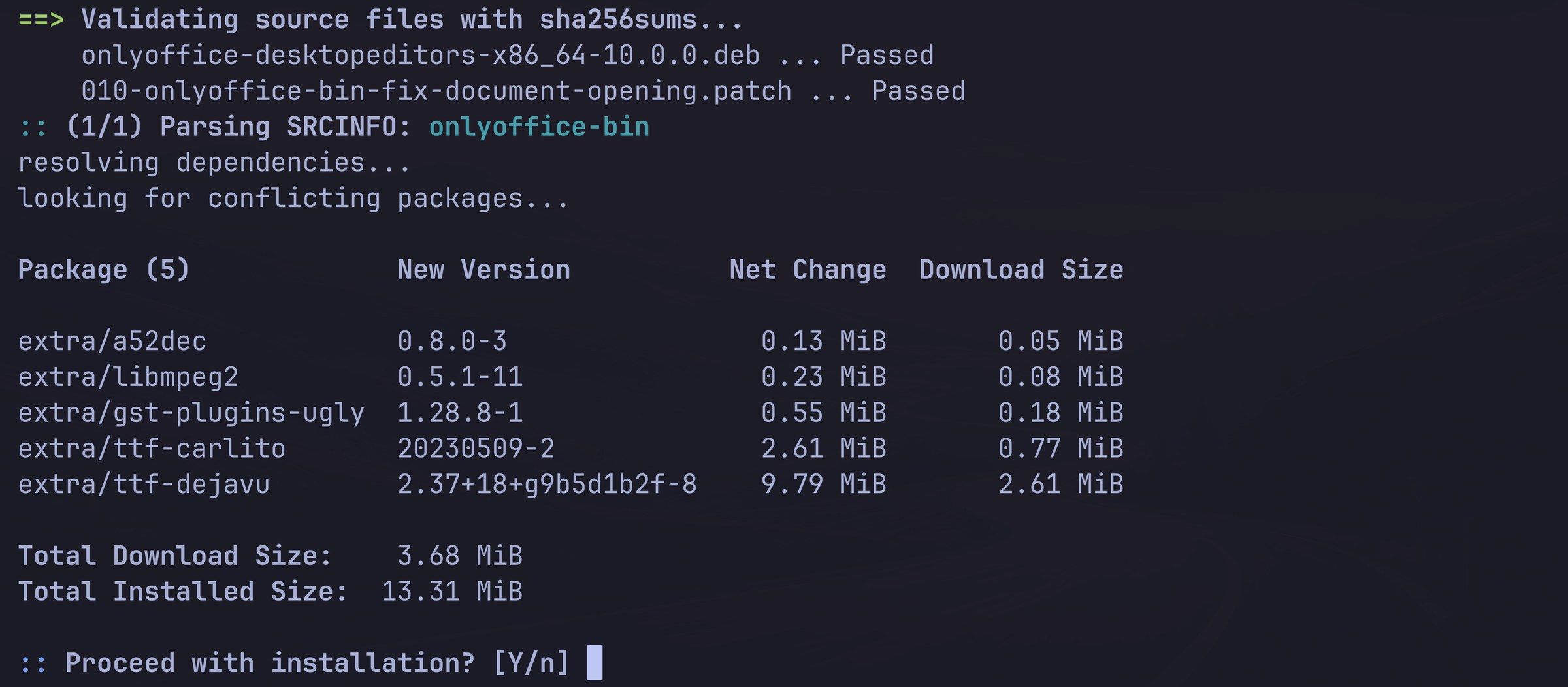
Both lines read Passed. pacman then offers five small packages from the official repos, fonts and media codecs: the three yay listed at the start plus two that one of them needs. Press enter . Building the package means unpacking and compressing about a gigabyte, which can take a minute or more on a small machine. A last pacman prompt installs OnlyOffice itself.
To open a document, use the Files app: right-click a Word file, choose Open With, and pick ONLYOFFICE. A double-click opens LibreOffice Writer, the default for Word files on Omarchy. OnlyOffice includes the spreadsheet and presentation editors in the same app. Close it with super w .
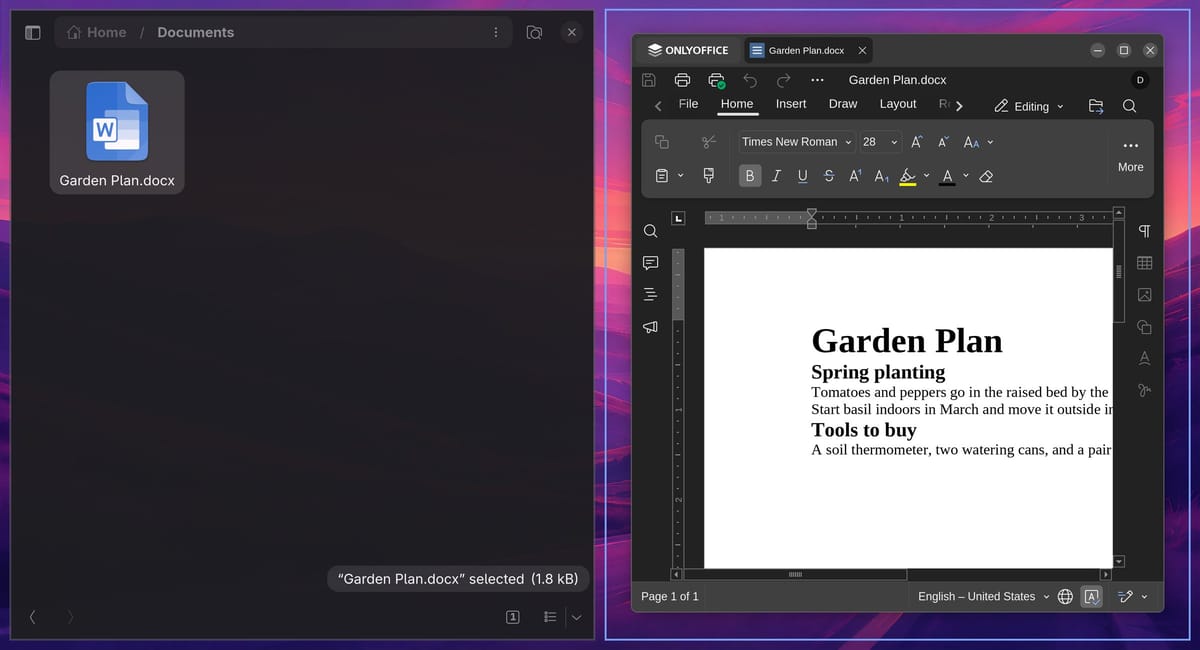
On a high-resolution screen, OnlyOffice can draw at a tiny size on Omarchy, because it runs under XWayland. Adding force-scale=2 under [General] in ~/.config/onlyoffice/DesktopEditors.conf makes it readable; the app writes that file on its first start.
The Install > AUR menu and the system update skip the diff
The Omarchy menu has a second install path: super space , then Install and AUR. It lists every package in the AUR, more than 122,000 of them, with the package’s details in a preview pane. alt b switches the preview to the PKGBUILD.
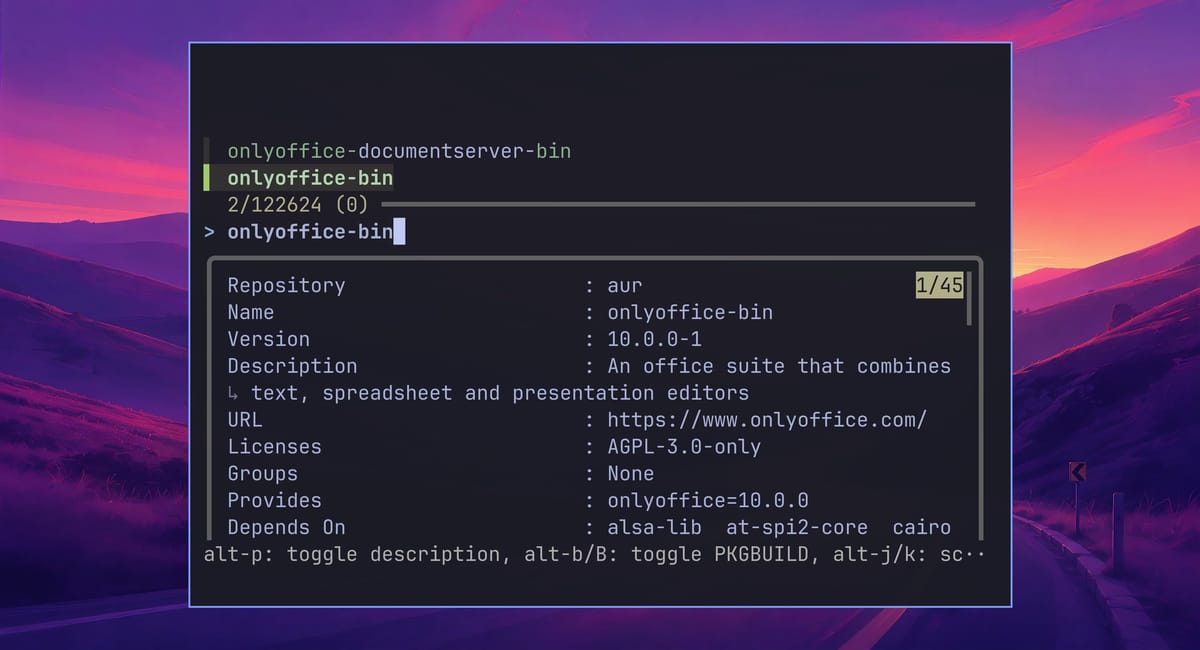
The preview shows only the PKGBUILD, not an install script or a patch file. Pressing enter on a package installs it right away: the menu runs yay -S --noconfirm, which answers each of yay’s questions with its default. The default at “Diffs to show?” is None, so no diff appears. That one-step install suits a package you have already checked. For a new package, do the checks first, then install with yay -S in the terminal, where the diff shows.
Updates work the same way. On Omarchy 4.5 RC1, the system update runs omarchy-update-aur-pkgs, which upgrades installed AUR packages with yay -Sua --noconfirm. A new version of a package you checked last month installs with no diff to read. If you want to read AUR updates first, run yay -Sua yourself before the system update, and pick All at the diffs question.
If you installed something bad
pacman -Qm lists installed packages that are not in any of the machine’s repos, which on most machines means AUR packages:
pacman -QmTo remove one, along with the dependencies nothing else needs:
sudo pacman -Rns <package>Removing the files does not undo what an install script did as root. After an earlier AUR malware case in July 2025, Arch’s advice was to remove the packages and take the necessary measures to make sure the system was not compromised. A script that ran as root could have changed anything, so treat the machine as compromised. From another device, change the passwords, SSH keys, and tokens this machine held. Then back up your files and reinstall.
Rolling back to a snapshot does not clean the machine either. Omarchy’s snapshots and Limine rollback restore the system files, but not your home folder, and a root script can write there too.
The fake yay report and the July 2025 warning were both posted on the aur-general mailing list, so following it is a way to hear about the next one. For what else ships on a fresh Omarchy install and how to remove what you don’t use, see what Omarchy installs and how to remove it.


