
Apps on a Mac connect to servers on the internet all the time, and macOS does not show you those connections. Little Snitch is a firewall that does. It lists every connection, and in its alert mode it holds each new one until you allow or deny it. Your answers become rules, so the same question does not come back. Objective Development, a company in Vienna, makes it.
Version 7 is a free public beta, and it adds the Research Assistant. When a connection alert names a server you do not recognize, the assistant explains in plain words what the app is, why it probably connects, and what would stop working if you denied it.
What you need
You need a Mac with macOS 15.7 Sequoia or later, and the password of an administrator account on it. The Little Snitch 7 beta page has the download and says the beta is “Free to use during the beta”. You do not need a license or an account.
Objective Development says beta versions “expire a few weeks after their release,” and the app always checks for newer betas, so you move from one build to the next through its own updater. If your copy has expired, download the current build from the beta page. The beta page also says Little Snitch 7 imports your Little Snitch 6 rules and settings, and that you can go back at any time: download Little Snitch 6 and install it over the beta.
Install Little Snitch and approve its network extension
Download the beta from the beta page with the Download Beta button. Safari asks once whether obdev.at may download files; click Allow. Open the disk image and drag Little Snitch onto the Applications folder. Then open Little Snitch from Applications. macOS asks whether you want to open an app downloaded from the internet and says Apple checked it for malicious software; click Open.
Accept the license agreement. Little Snitch then says the installation needs to be completed, because it must load a system extension. Click Install.
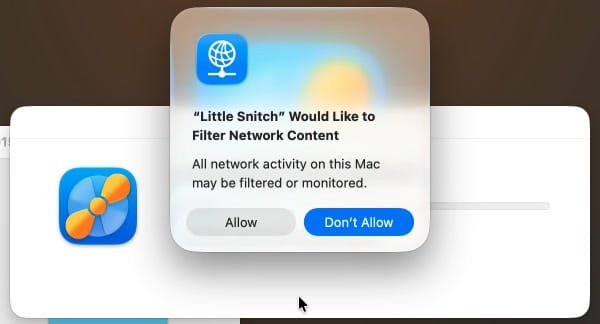
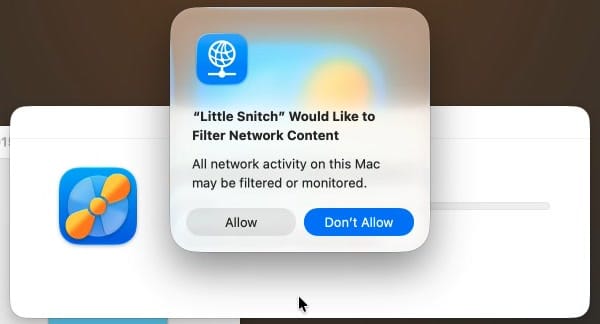
Little Snitch filters traffic through a network extension, a part of the app that runs in the background and can see all network traffic on the Mac. macOS asks twice before it lets that happen. The first prompt says “Little Snitch” Would Like to Filter Network Content. Click Allow, the grey button on the left. Don’t Allow is the blue default, so pressing enter here picks the wrong answer.
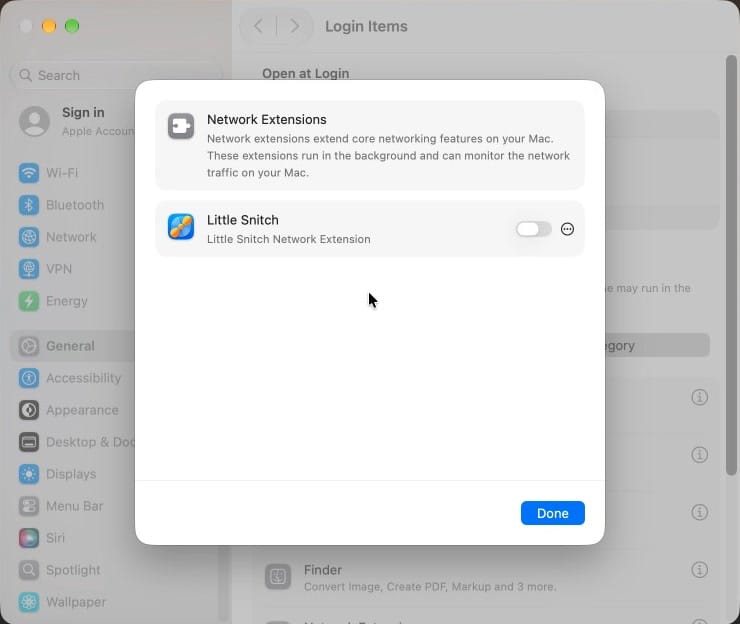
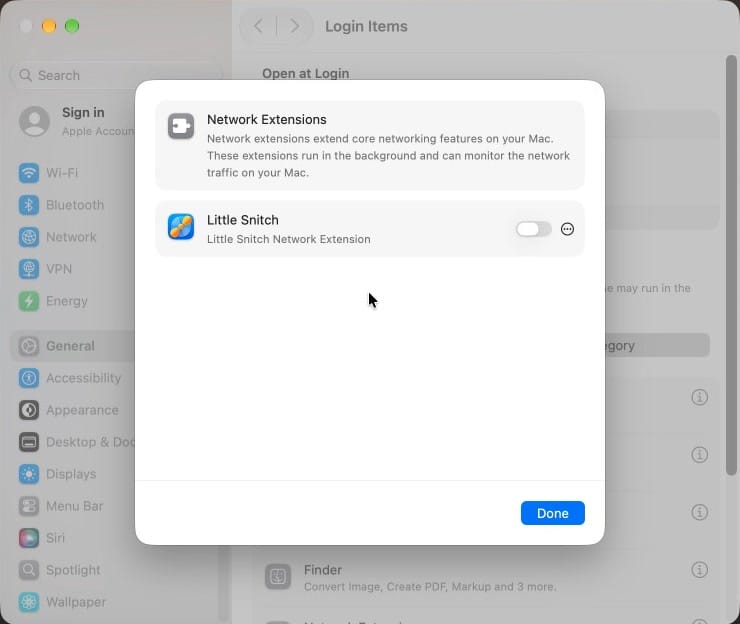
The second prompt says Little Snitch would like to use a new network extension. Click Open System Settings. Settings opens General > Login Items with a Network Extensions sheet. Turn on the switch next to Little Snitch Network Extension and enter your Mac password when macOS asks. If you clicked OK on the prompt by mistake, the Installing Little Snitch window behind it has an Open button that takes you to the same place.
Little Snitch then offers a short tour of its windows, which you can take or skip with Skip Tour.
Choose how Little Snitch handles new connections
Setup then asks three questions about how Little Snitch should behave, and you can change all three later in Settings.
The first is the operation mode. Allow Connections Silently lets every connection through and keeps a record in Network Monitor that you can review later. Show Connection Alerts asks you about each new connection as it happens. The setup screen marks the silent choice “Recommended for new users,” and the operation modes help page suggests a plan for it: run Silent Allow for a few days, confirm the connections it recorded in Network Monitor, then switch to Alert Mode, so the only alerts left are for connections your rules do not cover. The Research Assistant opens from a connection alert, so pick Show Connection Alerts if you want to use it from the start.
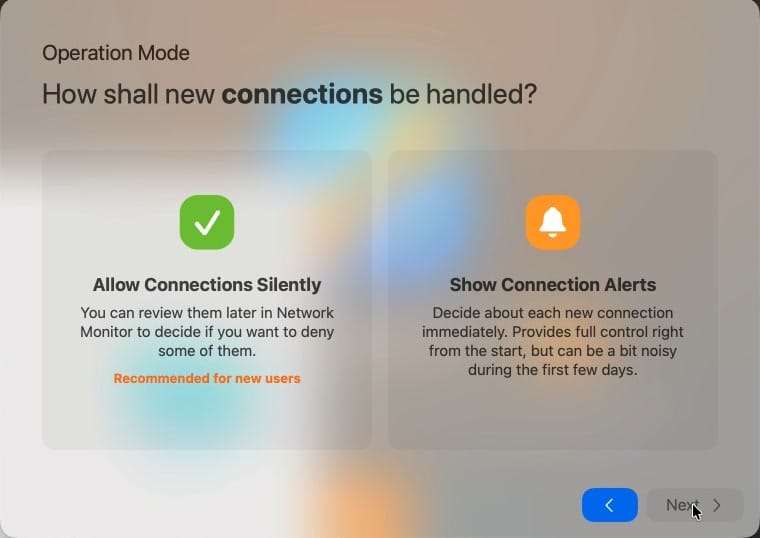
The second question is about rule groups, which are ready-made sets of rules. The two recommended groups, macOS Services and iCloud Services, keep the system’s own traffic from raising alerts; leave both ticked. The third is about blocklists, lists of servers known for ads, tracking, or malware that other people maintain. Block Ads and Trackers is preselected. Click Finish. The menu bar now shows a small traffic meter and the Little Snitch icon.
If you chose alerts and kept the blocklist, the first alert arrives at once: Little Snitch itself wants to connect to blocklists.obdev.at to fetch that list. Allow it right away. If you leave that alert waiting, the download can fail with “The blocklist for ads and trackers could not be added,” and you then have to add the list from the Rules window.
Answer a connection alert
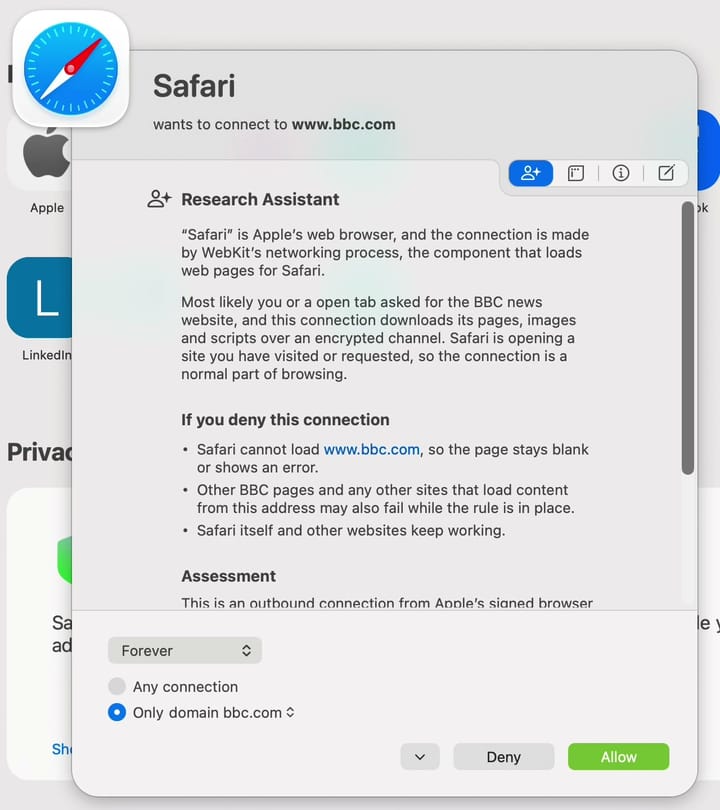
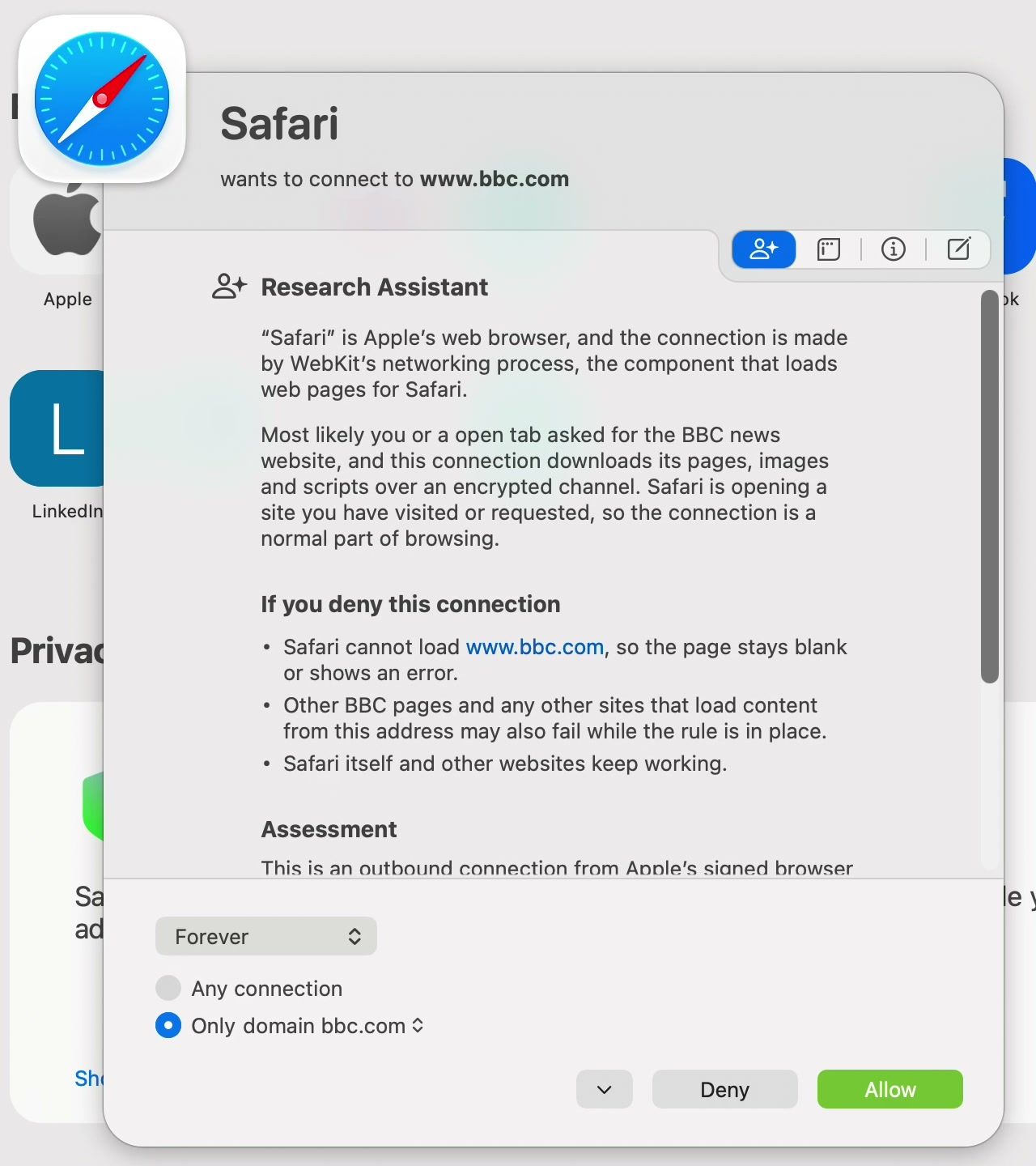
Open a website in Safari to get an alert. The alert names the app at the top (Safari) and the server it wants to reach. Little Snitch holds the connection until you answer.
Your answer becomes a rule, and two settings at the bottom of the alert shape it. The menu set to Forever controls how long the rule lasts. It also offers a set time (such as one minute), until the app quits, until restart, until logout, and once, which answers only this connection and makes no rule. The option below it sets its reach: Only domain limits the rule to that site’s domain, and Any connection covers every server the app connects to. Click Allow or Deny. enter allows and esc denies, but the alert settings help notes that Little Snitch ignores keys for the first second after an alert opens.
A news site pulls from more than one server, so expect a few alerts in a row, one for each new domain. When several are waiting, the alert shows a counter next to the Deny button.
Ask the Research Assistant about a connection
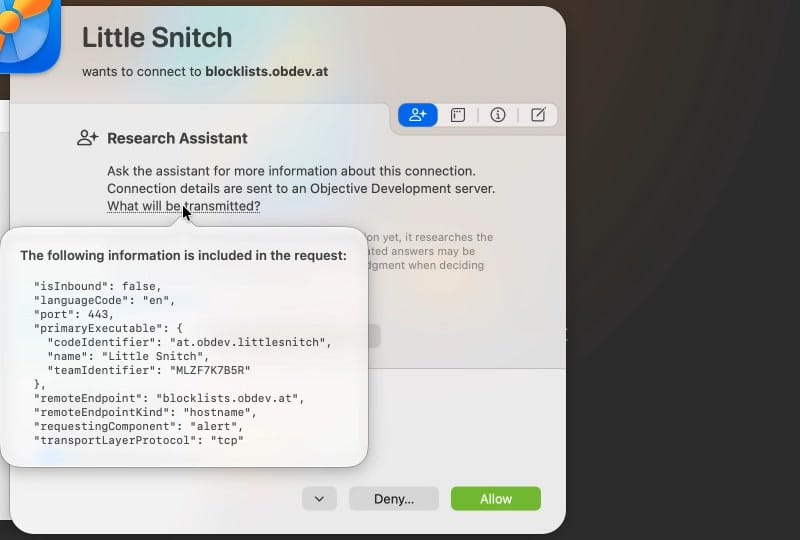
The Research Assistant opens from the first of the small icons at the top right of an alert, or with the h key. Opening the panel sends nothing. It says the connection details will go to an Objective Development server, and a link called What will be transmitted? shows the exact request.
Click Ask Research Assistant to send the question. The first time, the assistant needs a connection of its own: Little Snitch Agent wants to connect to research.obdev.at. That request goes through your rules like any other, so the panel shows an Allow button. Click it, and Little Snitch adds a rule for that server and sends the question. Later questions go straight through.
The panel shows Researching, and the answer follows within a few seconds, or at once if the server already has a stored answer for that connection. It comes in three parts: what the app is and why it connects, If you deny this connection, and Assessment, which says whether the connection looks routine. A grey note under each answer says AI-generated answers “may be inaccurate or incomplete.” The Research Assistant help page puts it the same way: “Treat the answer as a hint, not as a fact.” Read it, then allow or deny the connection yourself.
What the Research Assistant sends
The Research Assistant Privacy Statement (last updated October 28, 2026) lists the data. A request holds the process name with its code identifier and team identifier, the server’s hostname or IP address, the port, the protocol, the direction of the connection, the part of Little Snitch that asked (the alert), and a two-letter language code. Objective Development says a request contains “no file paths, no user or account name, no license key, no device or installation identifier,” and none of your traffic, other connections, rules, or settings. The developer help adds that the port goes along only when Little Snitch knows it, and that for a script inside an app, the name sent starts at the app bundle, such as Foo.app/Contents/Resources/run.sh, never the full path.
The request goes over an encrypted connection to a server that Objective Development runs in the European Union. That server keeps the answers it has given, so a question someone asked before gets the stored answer. For a new question, the server asks an outside AI service, and Objective Development says that service is currently Anthropic. Your Mac never contacts the AI provider itself, and the company says it has opted out of having the data used for training. Its access logs are kept for three months and, for these requests, record neither your IP address nor what you asked. The assistant needs no account, registration, or API key of your own.
Turn the Research Assistant off
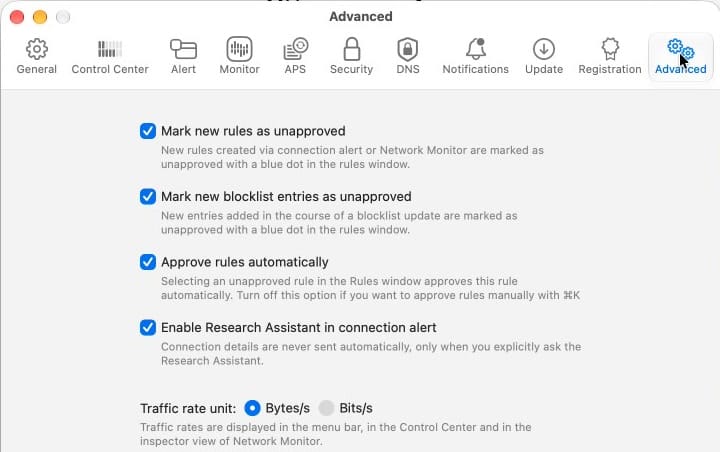
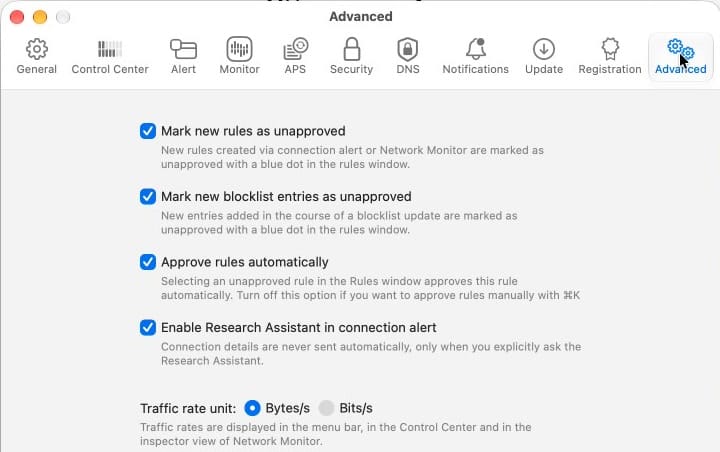
If you would rather not have the button at all, open Little Snitch Settings. It opens on the General tab; click Advanced and clear Enable Research Assistant in connection alert. It is on by default. Even when it is on, the setting’s own caption says connection details “are never sent automatically, only when you explicitly ask the Research Assistant.”
Watch traffic in the Control Center and Network Monitor
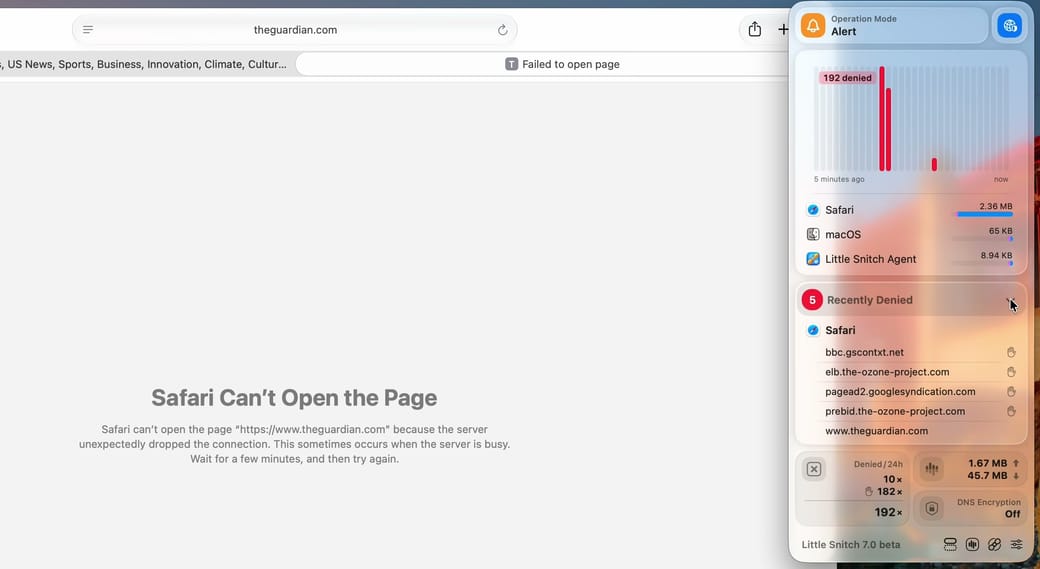
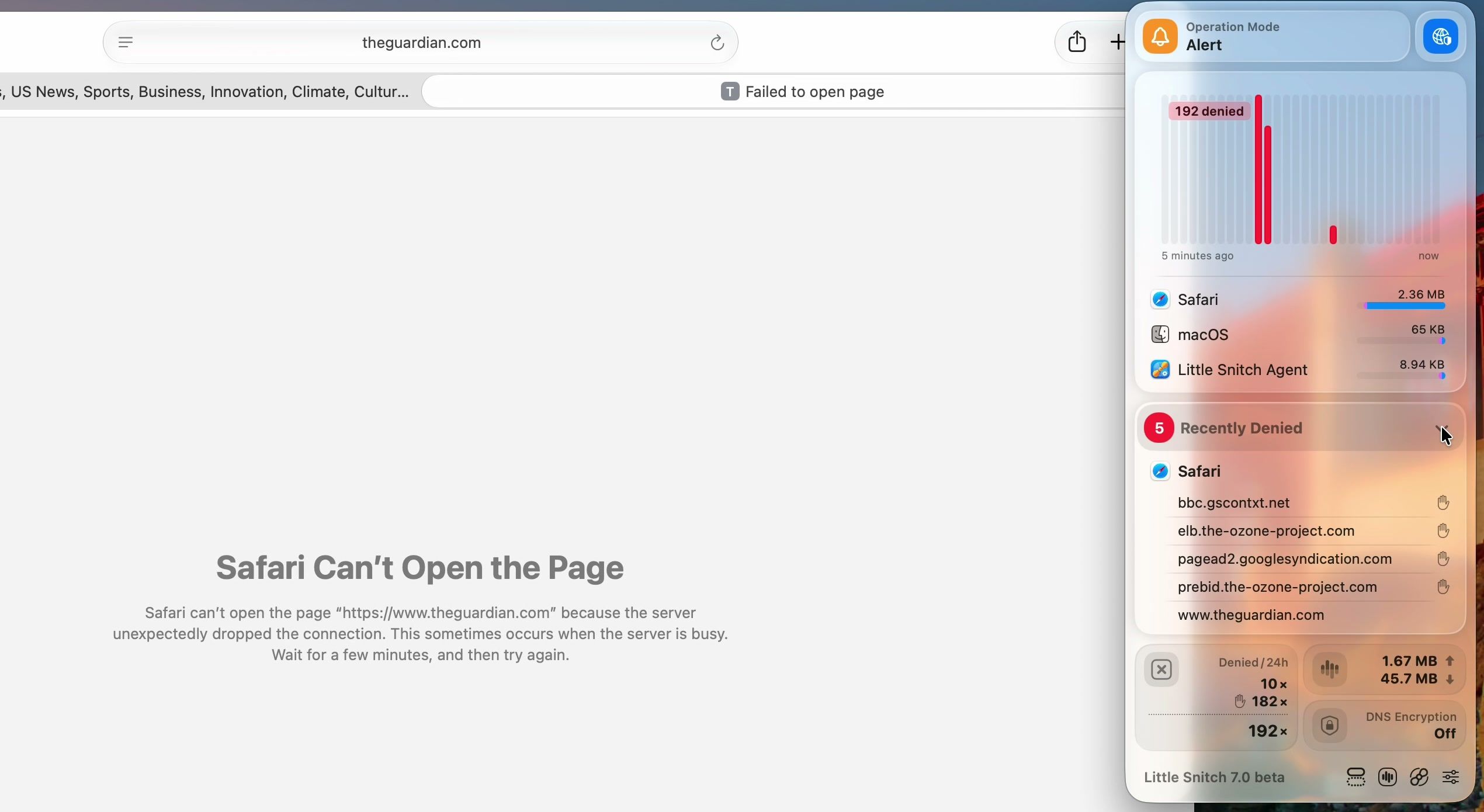
Click the Little Snitch icon in the menu bar to open the Control Center. At the top, Operation Mode switches between Alert, Silent Allow, and Silent Deny. Below it are a traffic chart for the last five minutes and the busiest apps. Recently Denied lists blocked connections by app, with the servers in alphabetical order. It also includes the servers your blocklists stopped, so a site you denied in Safari can sit below ad servers you never saw an alert for. In Safari, the denied site shows a page that says Safari Can’t Open the Page. An app’s menu in the Control Center has Deny for 5 Minutes, which blocks the app with a rule that ends by itself, and a denied entry’s menu has Allow for 5 Minutes.
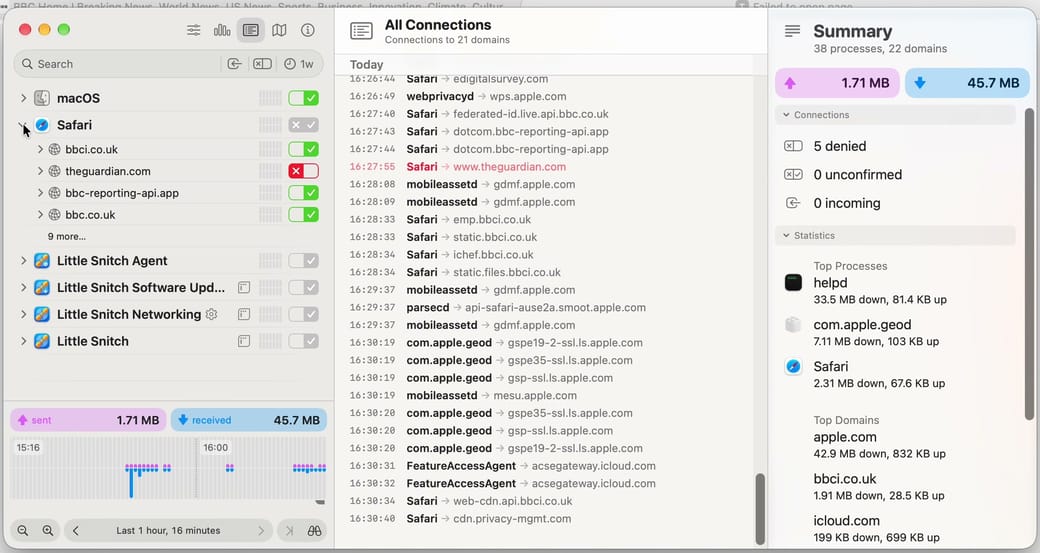
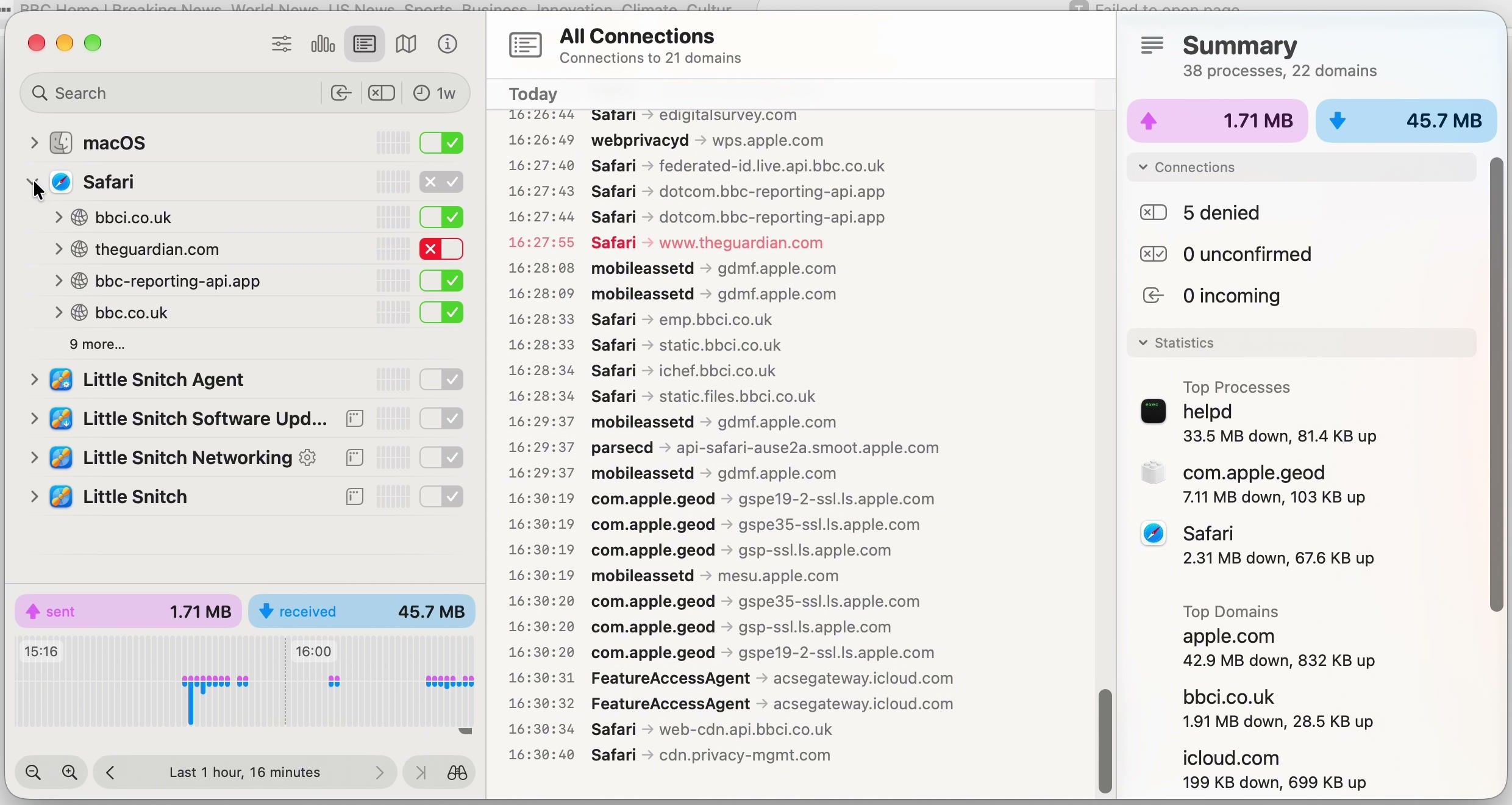
Network Monitor keeps a history of every connection, and a button at the bottom of the Control Center opens it. Each app that connected has a row; expand it to see the servers. command g switches to the Connection Log, a timestamped list of each connection in the form app, arrow, server. The map view shows where those servers are. The Network Monitor help says the locations come from databases on the Mac, “so Little Snitch doesn’t need online lookups.”
Manage rules and blocklists
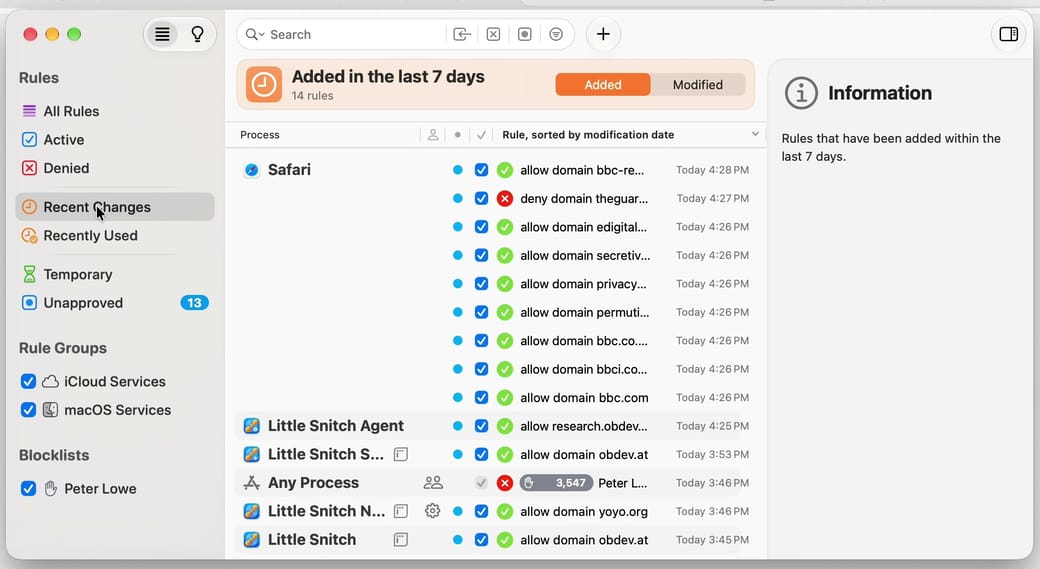
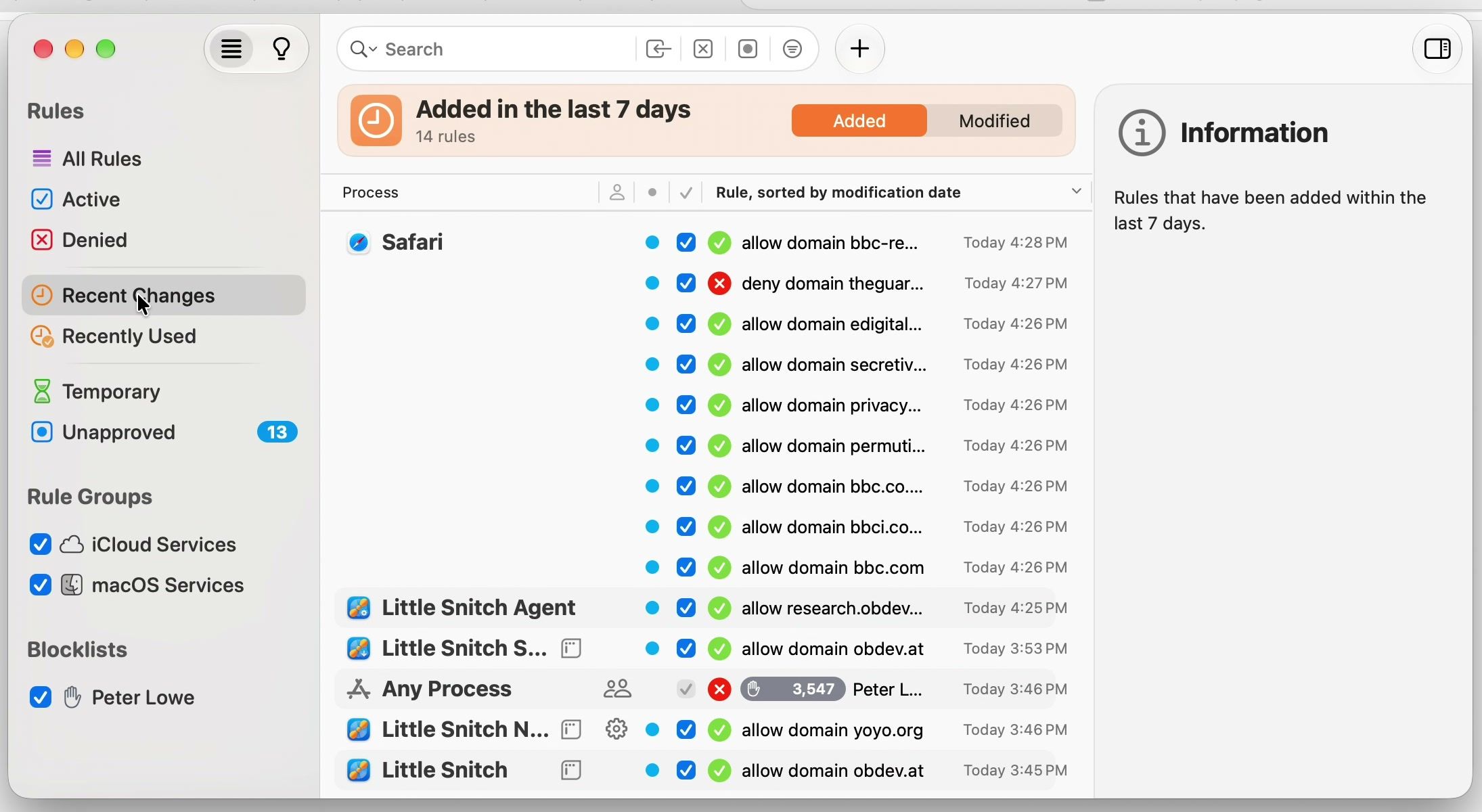
The Rules window lists every rule, including the ones your alert answers created. Opening the Little Snitch app from Applications brings it up. In the sidebar, Recent Changes shows the rules added in the last 7 days, and a switch at the top with Added and Modified options shows the rules modified in that time instead. Denied shows the rules that deny network connections, blocklists included, and Temporary shows rules that end by themselves.
To remove a rule you regret, right-click it and choose Delete. The rule goes at once, with no confirmation. Locked rules cannot be deleted. In Alert Mode, Little Snitch asks about that connection again next time.
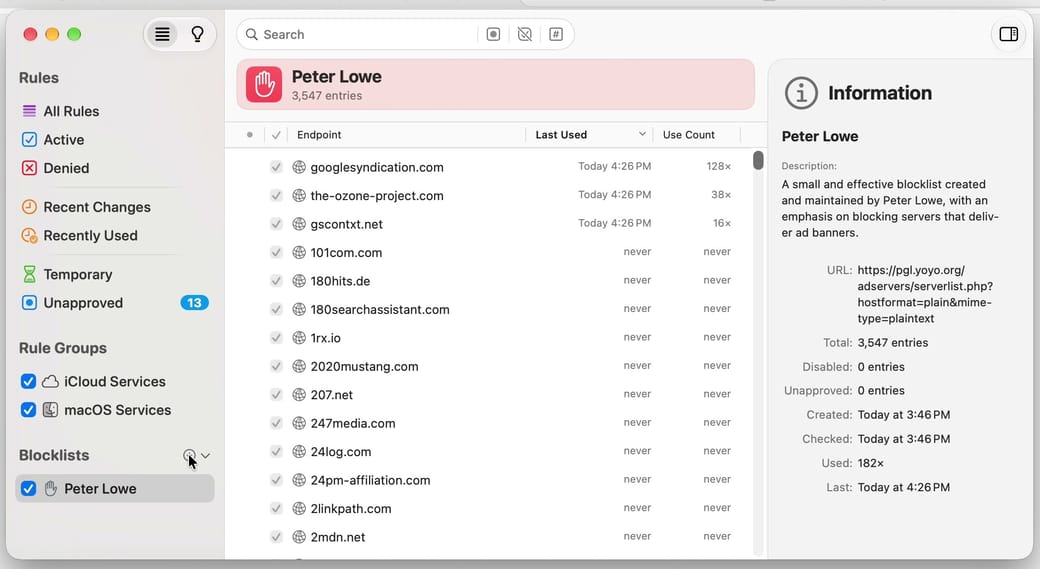
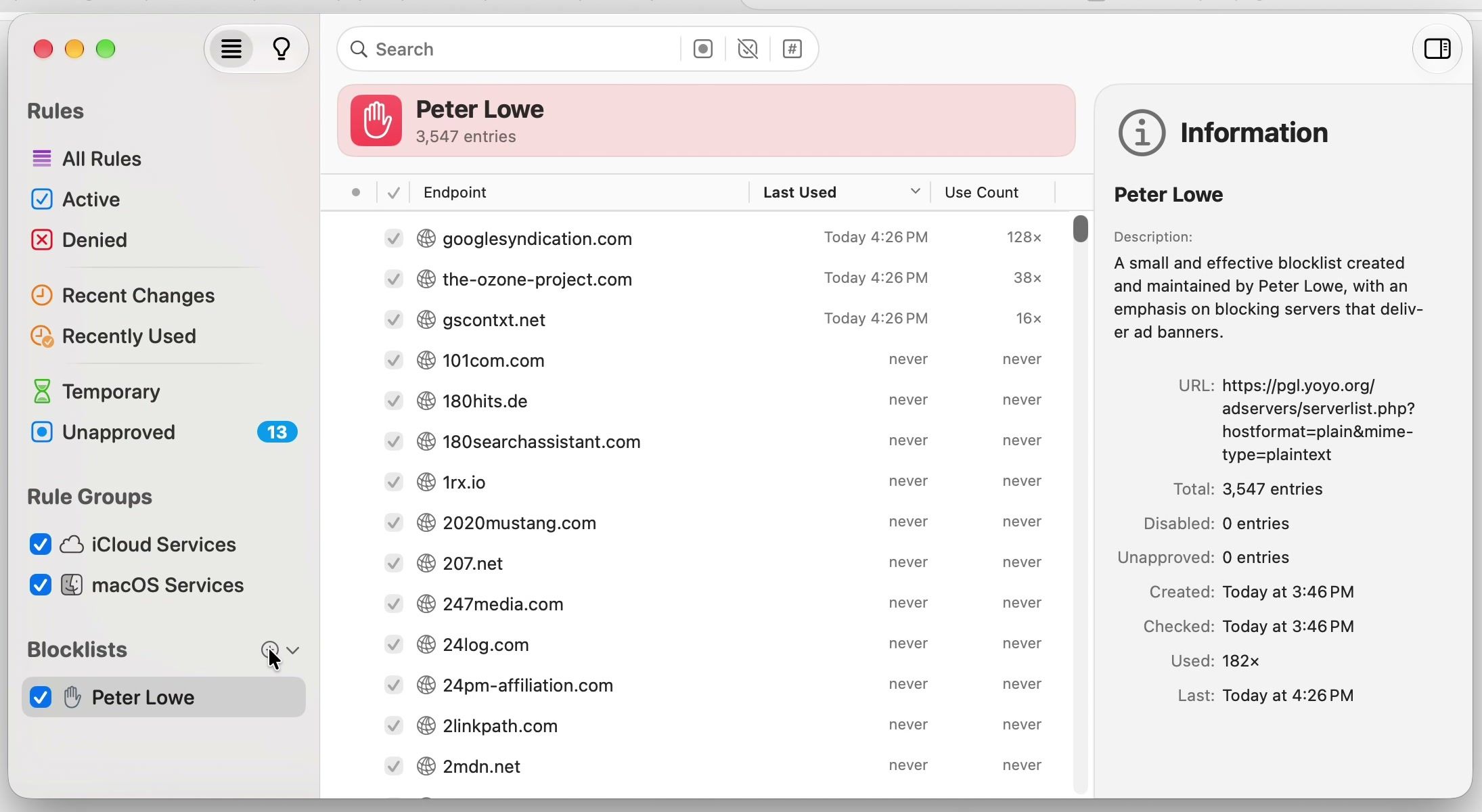
The rule groups from setup sit in the sidebar, with your blocklists below them. To add another list, hold the pointer over the Blocklists heading and click the small plus button that shows beside it. It opens a picker headed “Choose one or more blocklists,” with lists in categories such as advertising, tracking, and malware. When the sidebar has no blocklists yet, it shows an Add Blocklists row instead of the plus button. Adding one asks for an administrator password unless Allow Global Rule Editing is on in Settings > Security, because a blocklist applies to every user on the Mac. Each entry in a blocklist shows when it was last used and how many times, which helps when a list blocks something you need: clear that entry’s checkbox. The blocklists help page notes that third parties maintain these lists and Objective Development “has no affiliation with them.”
Price, demo mode, and the end of the beta
On the Little Snitch order page, a Single License costs $59 and is “Valid for both Little Snitch 7 and Little Snitch 6”; Family and Multi licenses cost more. The beta page says licenses bought on or after April 1, 2026, are already valid for version 7, older licenses can upgrade at a discounted price, and new users pay the unchanged regular price. The upgrade price shows only after you enter your license key.
Without a license, the release version runs in demo mode. The demo mode help page says the network filter turns off “after every three hours of operation” and can be turned on again as often as you like, and that Network Monitor and the Research Assistant “work only for the first 30 days after the installation.” Objective Development has not published a release date for 7.0.
LuLu is a free alternative
LuLu comes from a different developer, Objective-See, and costs nothing; its code is open source. It alerts on outgoing connections only, turns your answers into rules, supports block and allow lists, and has a passive mode that runs without alerts. It has no AI assistant. Running two network filters at once can cause connection problems, so we would not run LuLu and Little Snitch at the same time.
Troubleshooting
Enter does not allow the network filter. On the Filter Network Content prompt, Allow is not the default button. Click it with the mouse.
The blocklist from setup is missing. If the first blocklists.obdev.at alert waited too long, the list was not added. Open the Rules window and click Add Blocklists in the sidebar. If other lists are already there, hold the pointer over the Blocklists heading and click the plus button instead. Then pick a list. On a new install, allow that first alert right away and the list is added during setup.
A site or app stopped working. You probably denied one of its servers. Open the Control Center and look under Recently Denied. Its menu has Allow for 5 Minutes for a quick test. To undo the block for good, choose Show Rules in that menu and delete the rule, or, if the menu says Show in Blocklist, clear that entry’s checkbox in the blocklist.
Quitting the app did not stop the filter. Closing the Rules window or quitting the Little Snitch app leaves the network filter running in the background, and Little Snitch says so when you quit. To stop filtering, turn the network filter off in the Control Center (with the filter off, Little Snitch allows all connections and your rules have no effect), or uninstall Little Snitch as below.
Uninstall Little Snitch
Objective Development’s uninstall help says not to remove the app with Terminal or an app-removal tool, because those can leave the system extension behind. Use the built-in command:
- Open the Little Snitch app from the Applications folder.
- Choose Help > Uninstall Little Snitch.
- To remove your data too, select “Also permanently delete rules, settings and network statistics of all users.” This also deletes any license key.
- Click Uninstall and enter an administrator name and password. macOS asks once for each installed system extension.
- Read the result and click Quit. If it recommends a restart, restart the Mac, and if Little Snitch could not move the app to the Trash, do that in Finder.
More Mac guides
For more AI tools on a Mac, see how to use Raycast AI on a Mac, and if you run Windows next to macOS, our comparison of UTM, Parallels Desktop, and VMware Fusion for Windows 11 on a Mac covers the setup.


