
When you open more windows in Omarchy, the usual tiling layout gives each new one a smaller slice of the screen. The first window fills the screen, the second takes half, and the third splits that half again. By the fourth window, the newest ones are small tiles in a corner, and a file manager or a browser is hard to use at that size.
Omarchy has a second layout built in, called scrolling. New windows keep about half the screen’s width and line up as columns on a strip that runs past the edge of the screen. You slide along the strip to the window you want, so nothing gets squeezed. It comes from Hyprland, the window manager under Omarchy.
This guide has every step from our video on the scrolling layout, embedded at the top of this page, with every key we pressed and both lines we typed. We try scrolling on one workspace, then make it the default for all of them and turn off window animations in the same settings file. Everything below was done on Omarchy 4.0.4.
What you need
You need a working Omarchy install. Most of the shortcuts here start with the Super key, which is the Windows key on a PC keyboard. If the Omarchy basics are new to you, our list of Omarchy shortcuts to learn first covers the terminal, the menu, and workspaces. The settings file opens in Neovim, Omarchy’s default editor.
Start with the usual layout
To see what scrolling changes, start on an empty workspace in the usual layout. super enter opens a terminal, and it fills the screen. super shift f brings in the file manager, and the screen splits in two. The editor comes last, with super shift n , and the right half splits again.
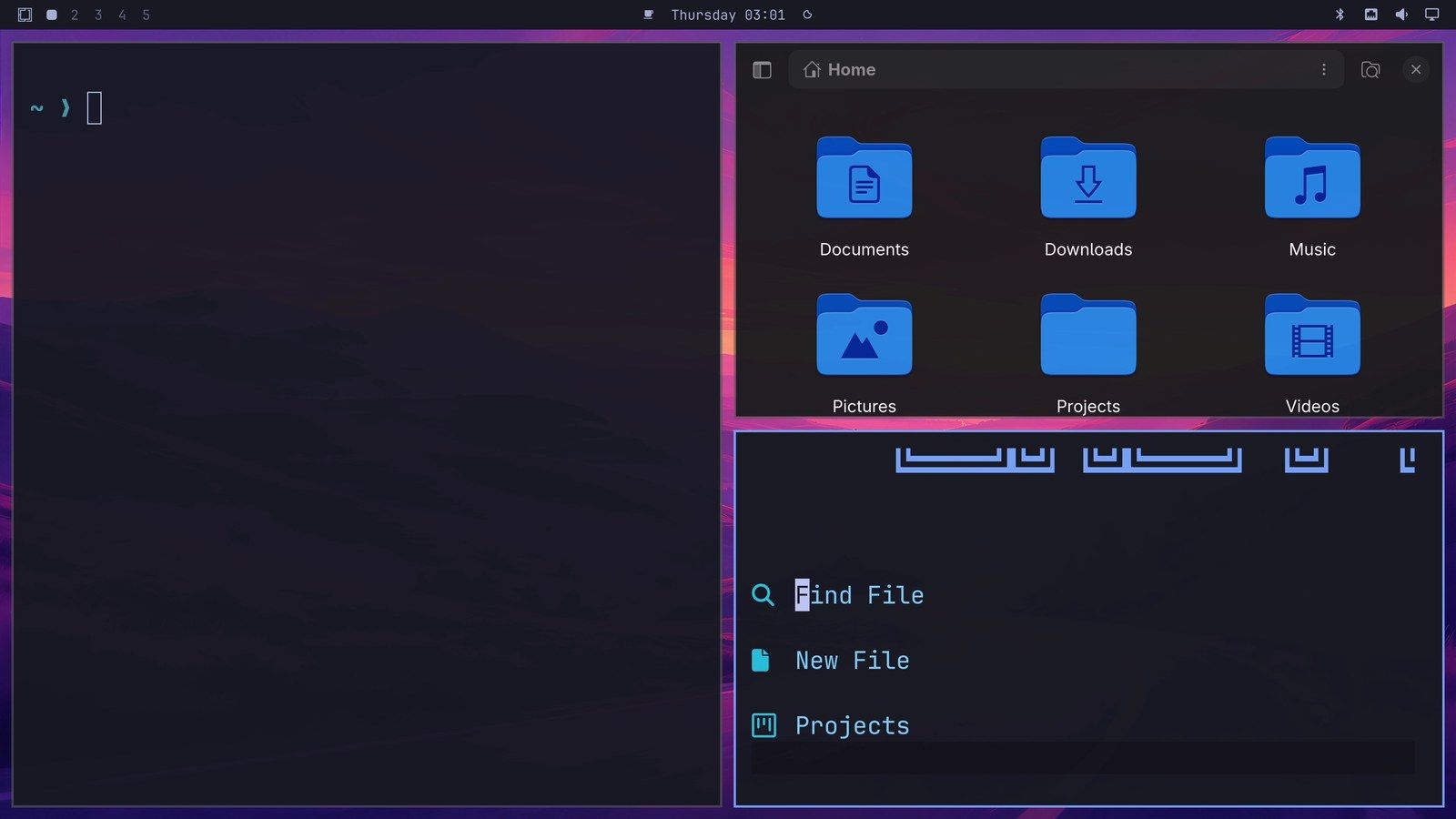
Three windows already leave the file manager and the editor with a quarter of the screen each. A fourth would split one of them again.
Switch one workspace to scrolling with Super L
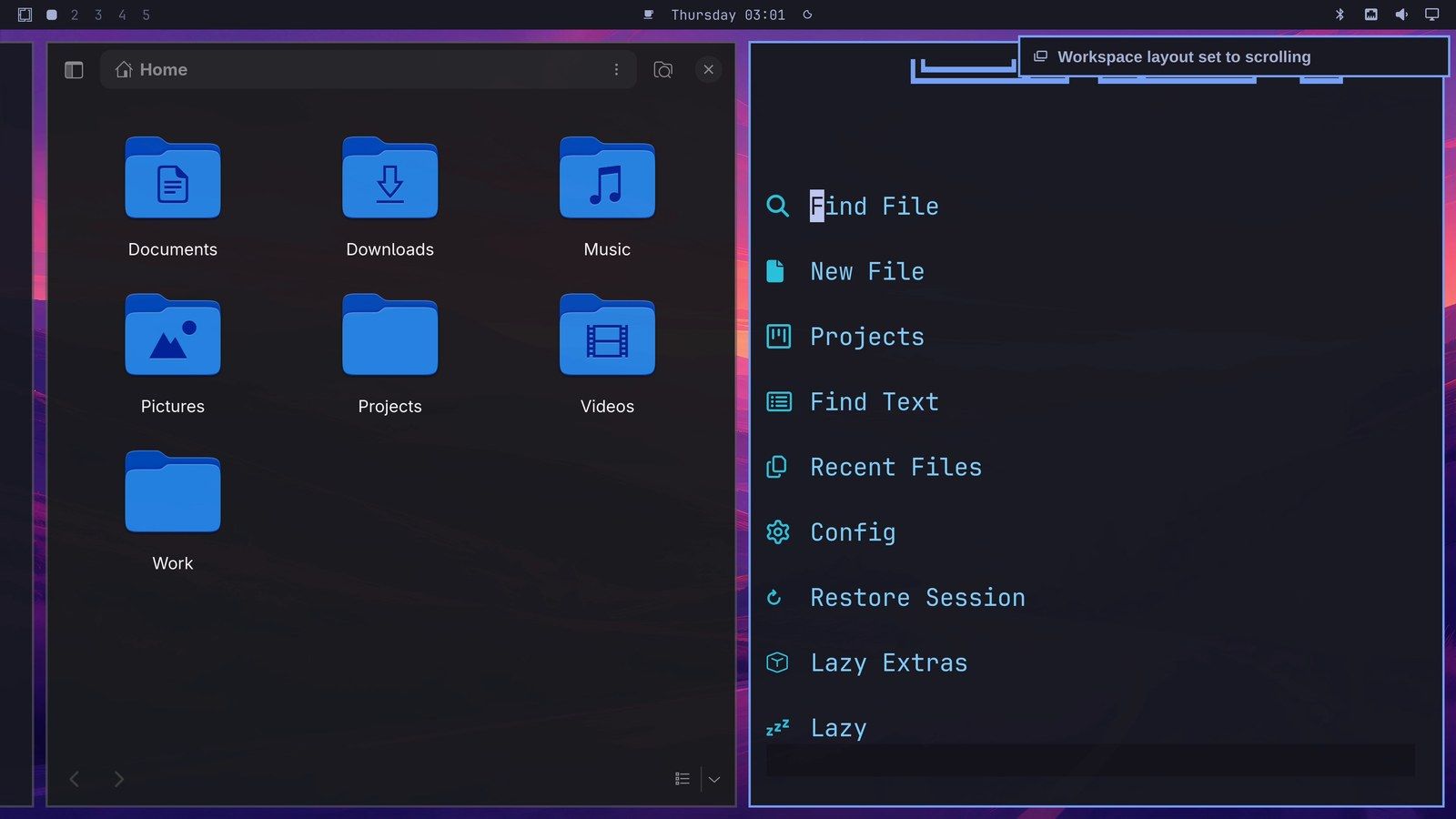
To give the windows room, press super l . The workspace switches to scrolling, and a notice in the top right corner reads “Workspace layout set to scrolling.” The file manager and the editor now sit side by side as two columns, each about half the screen wide. The terminal is still there, past the left edge of the screen. Press super l again on the same workspace, and it goes back to the usual layout.
Move along the strip
To bring the terminal back into view, press super . The first press moves the focus one column over, to the file manager, and the screen does not move. A second press moves the focus to the terminal, and the strip scrolls to show it. The editor is now the one past the right edge.
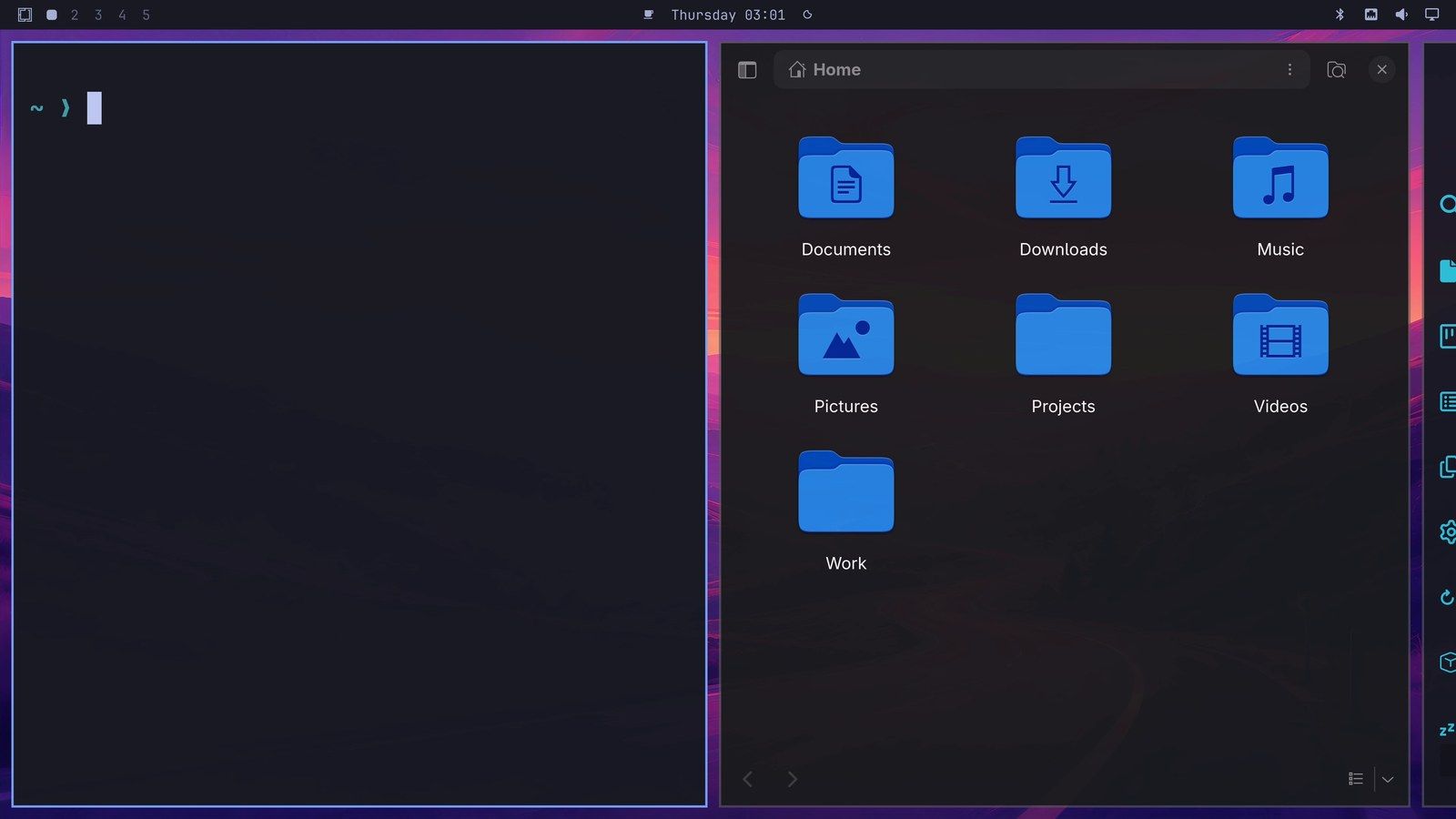
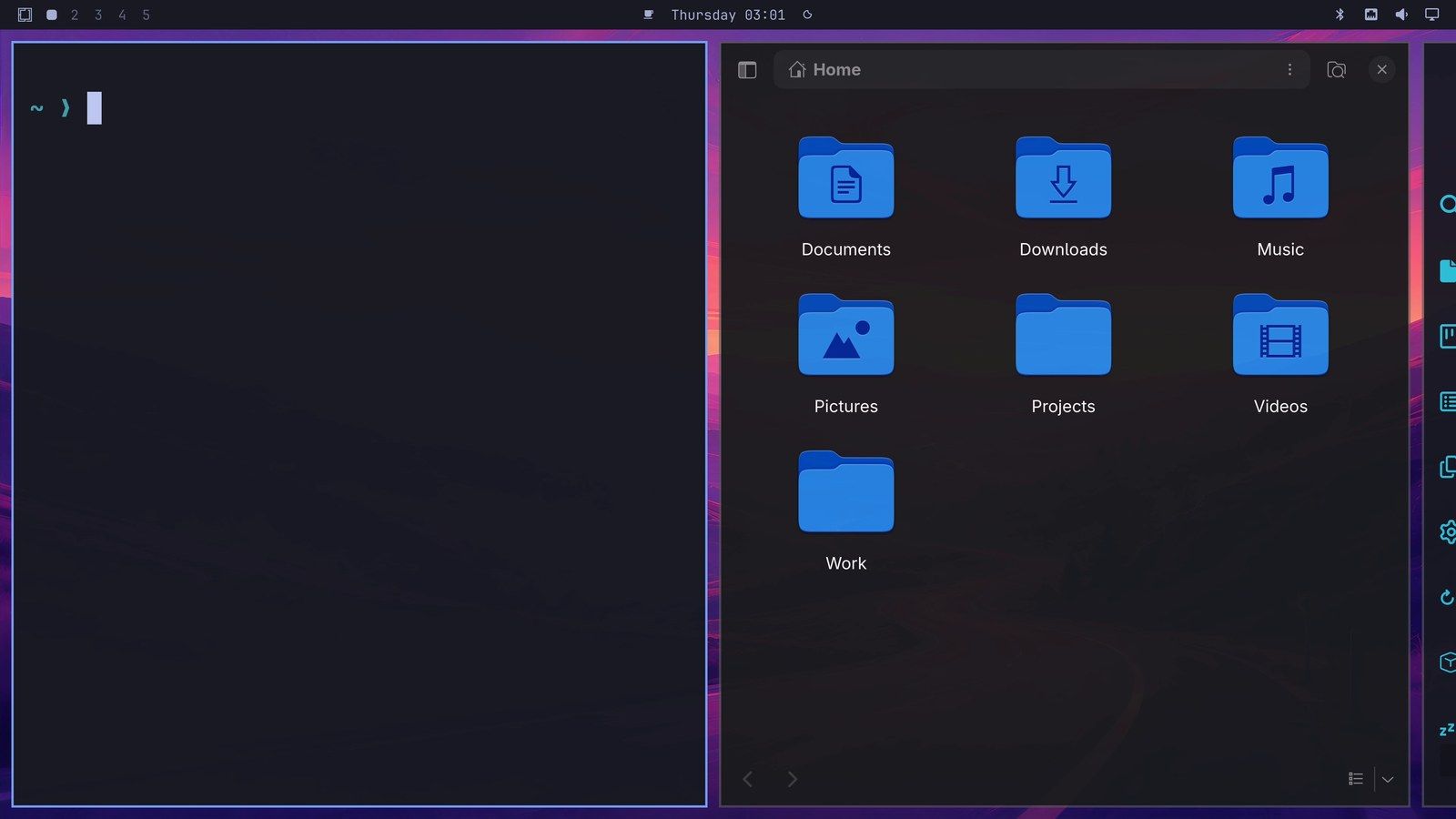
Two presses of super go back to the editor the same way. The strip scrolls only when the window you move to is off the screen.
Add, swap, and resize columns
New windows join the strip, too. With the editor focused, super enter opens a second terminal as a new column right after the editor, and the strip scrolls to show it. A new window always opens next to the one in focus, not at the end of the strip.
To trade places, press super shift . The new terminal swaps with the editor on its left. super shift moves a column the other way.
If a window needs more room, super = (Super and the equals key) widens the focused column by 100 pixels on each press. super - (Super and the minus key) narrows it again. In the usual layout, the same keys resize the focused window instead.
Other workspaces keep the usual layout
Press super 2 to go to workspace two. Open the file manager with super shift f , then a terminal with super enter . The two windows split the screen the old way, because Super L changed only workspace one.
That is useful when you want scrolling on one workspace only, for example the one with your browser and notes. To make scrolling the default on every workspace instead, add a setting to Hyprland’s look-and-feel file.
Open the Hyprland settings file
Go to an empty workspace with super 3 . The settings file opens as a new window, and on an empty workspace it gets the whole screen.
Press super space to open the Omarchy menu. Style is the fourth row, so press three times and press enter . In the Style list, Hyprland is the sixth row: press five times and enter .
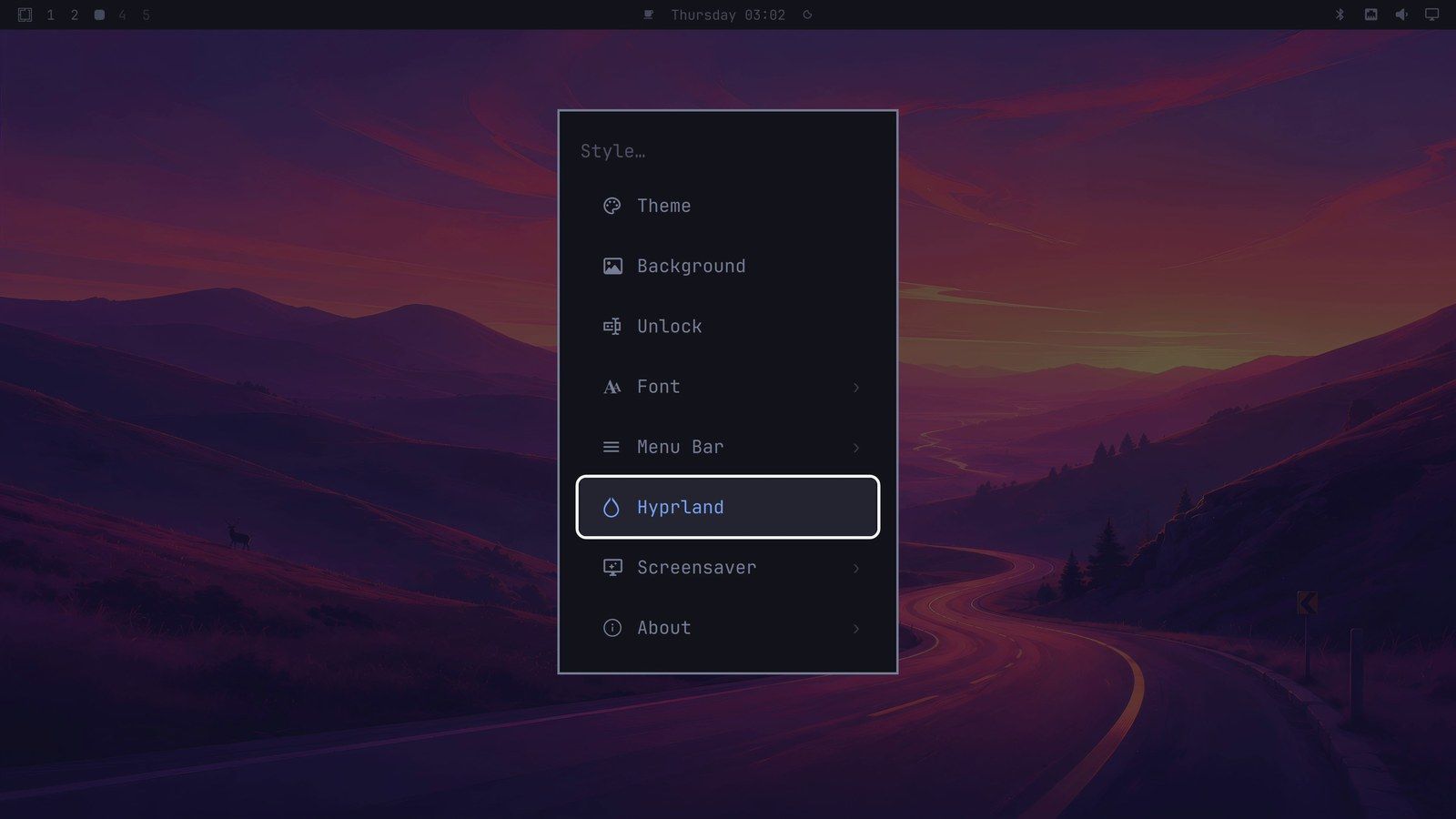
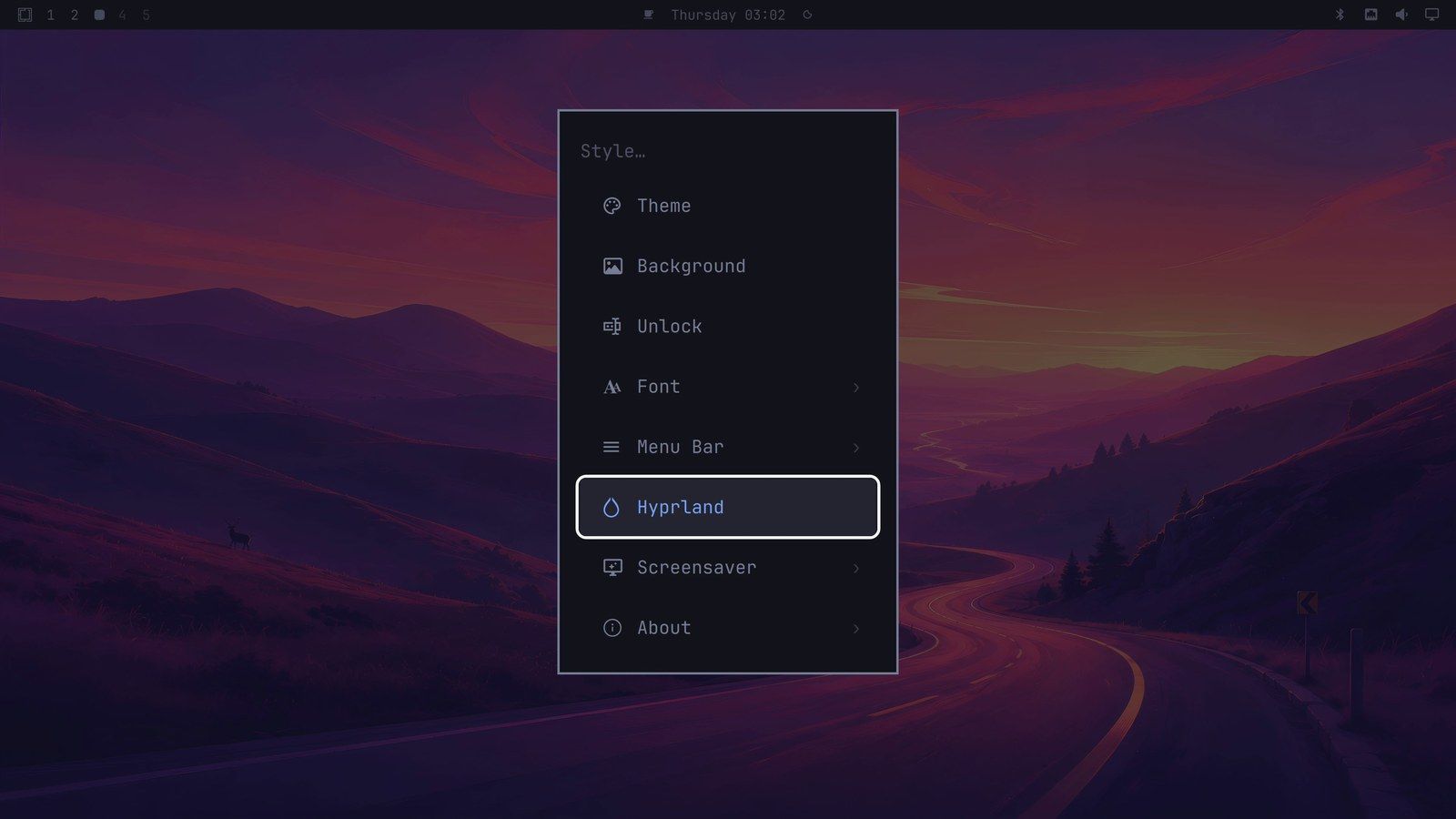
Omarchy opens ~/.config/hypr/looknfeel.lua in Neovim. This is your own copy of Hyprland’s look-and-feel settings, so changes here belong to you and stay separate from Omarchy’s defaults. Most of the file is commented-out examples, and the lines you add go at the end.
Add two lines to looknfeel.lua
In Neovim, press shift g to jump to the end of the file. Then press o , the letter, to open a new line below in insert mode. Because the last line of the file is a comment, Neovim starts the new line with the comment dashes. Press ctrl u to clear them, so the line you type is a setting and not a comment.
Type this line, which sets the general layout to scrolling:
hl.config({ general = { layout = "scrolling" } })Press esc to leave insert mode. Press o once more for a second new line. This one starts empty, so there is nothing to clear. Type the line that turns off window animations:
hl.config({ animations = { enabled = false } })Neovim may pop up word suggestions as you type; you can ignore them and keep typing. Press esc again. To save, type :w and press enter .
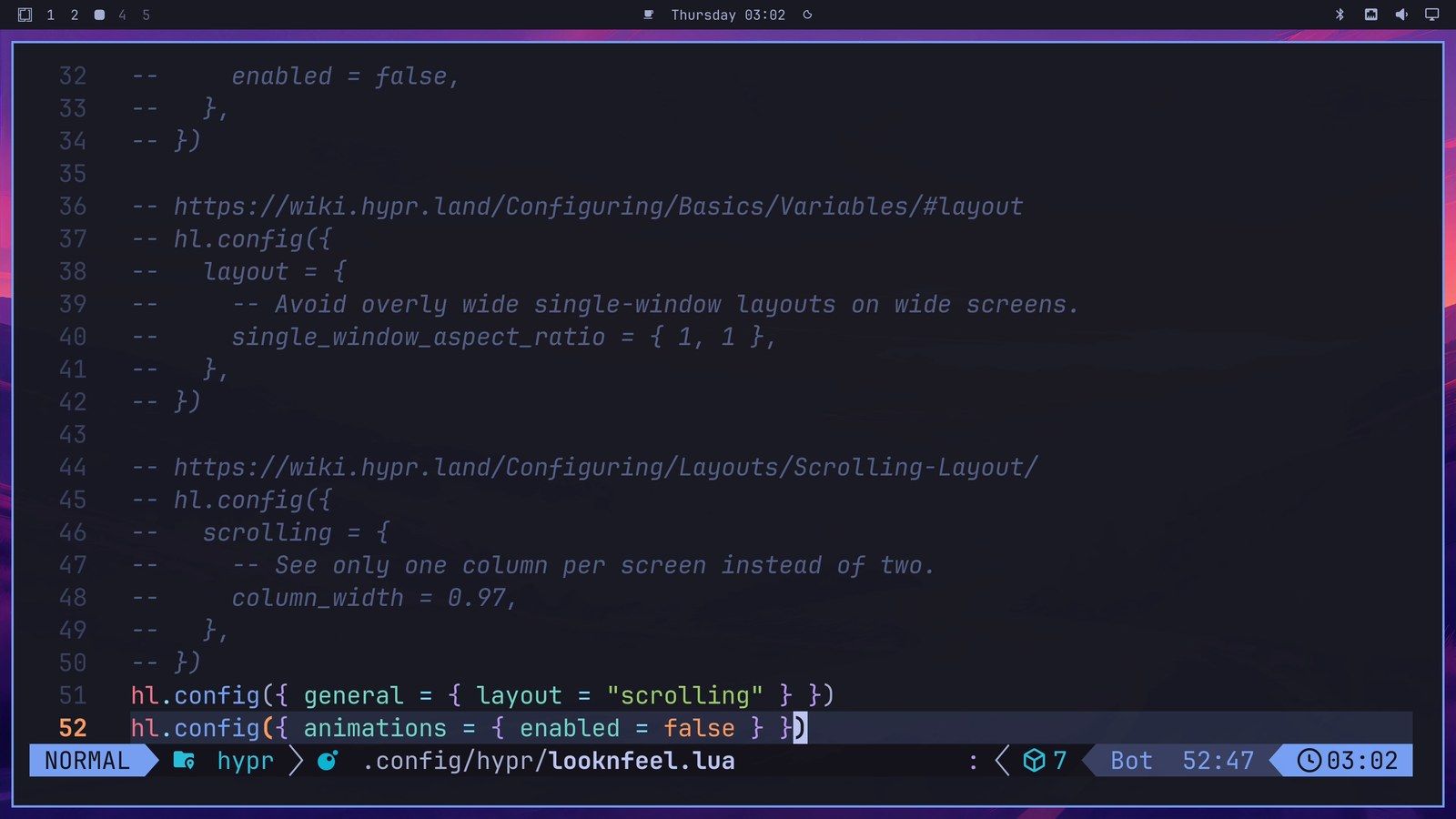
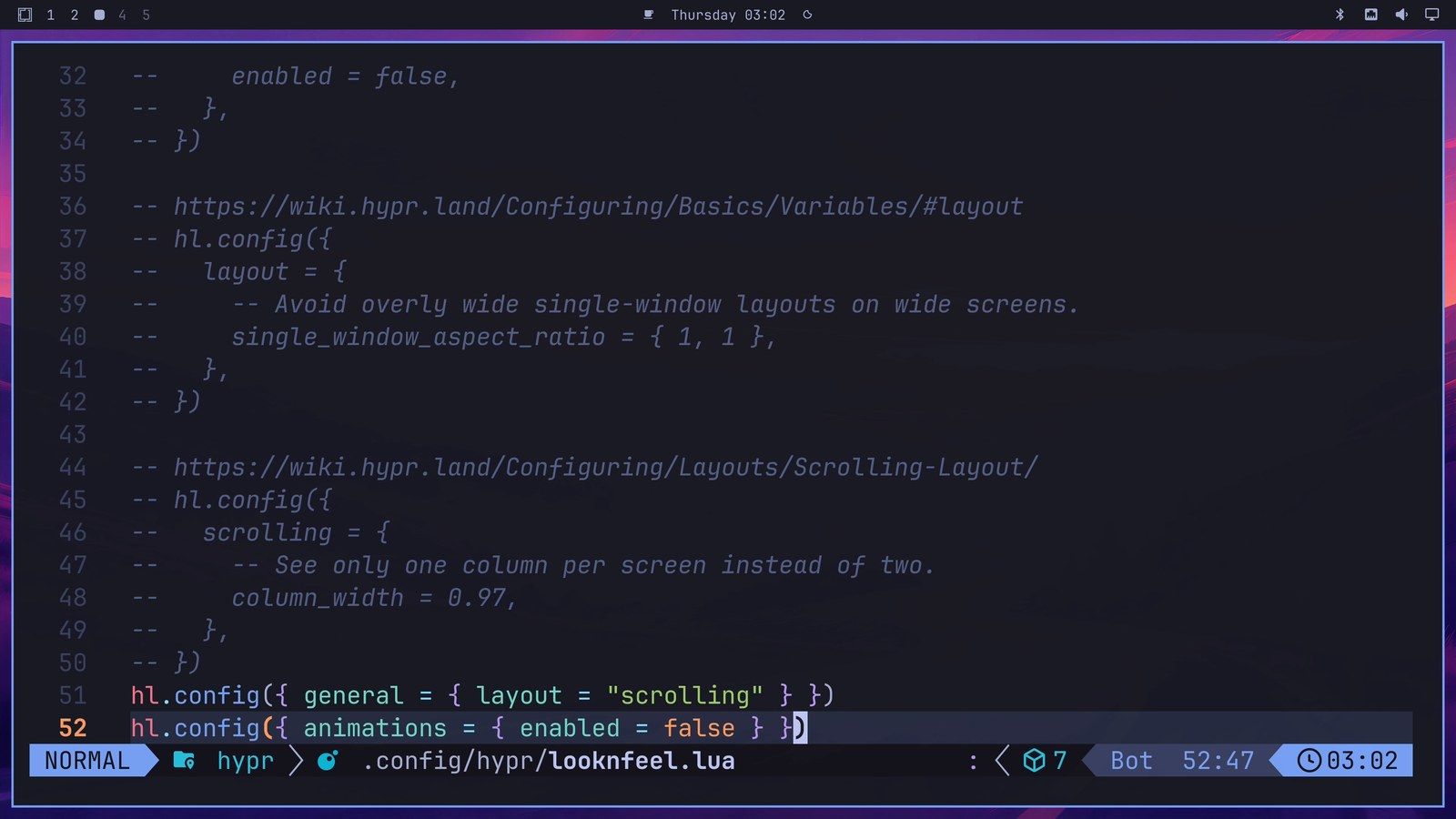
Both changes apply as soon as you save, because Hyprland reloads the file. Close Neovim with :q and enter when you are done.
Check both changes
Press super 4 to go to a fresh workspace, and open a terminal with super enter . It appears at once, without the short zoom that new windows had before. Press super enter twice more, and the two new terminals line up as columns, with the first one past the left edge. The new default applied here without Super L.
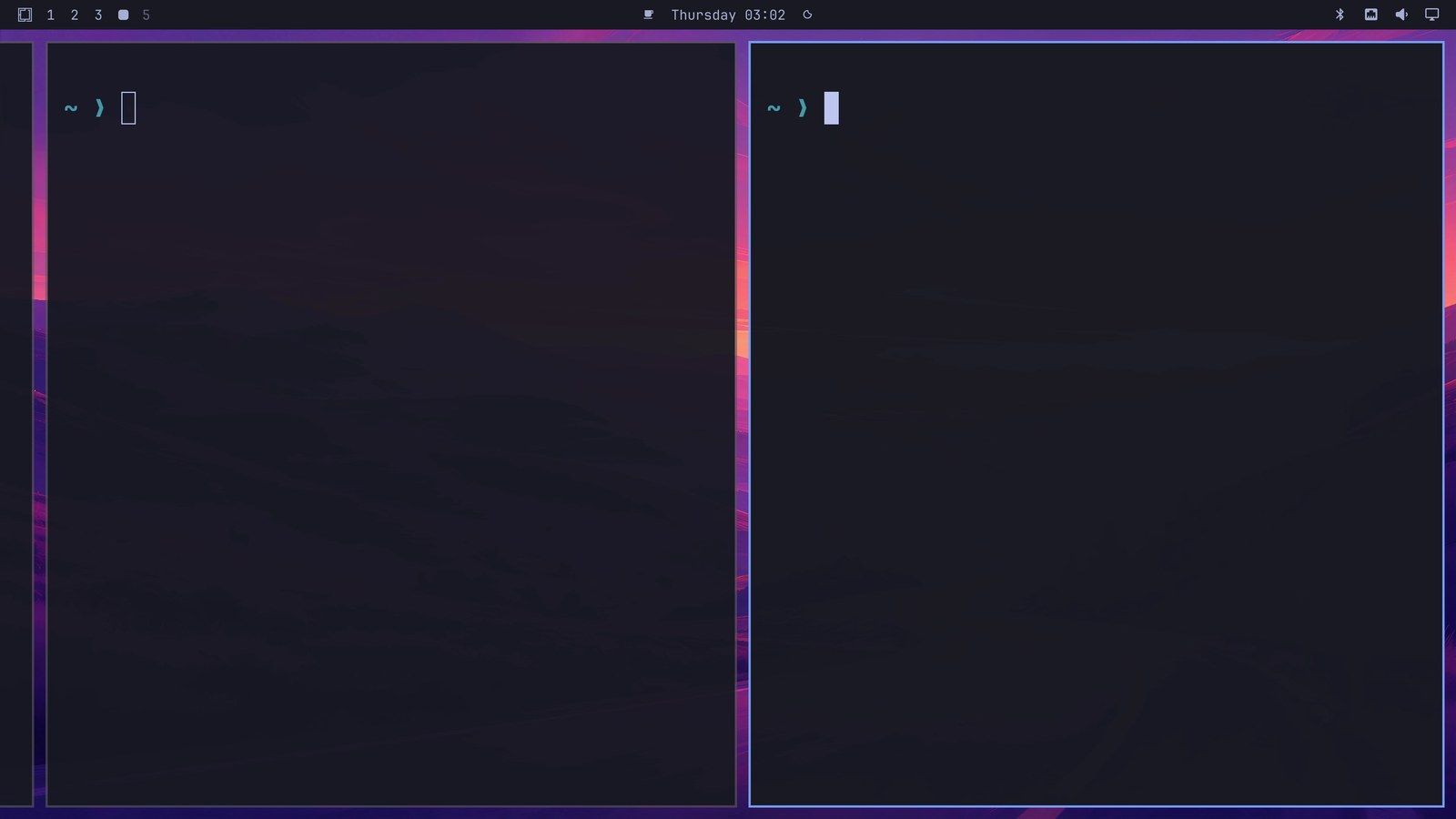
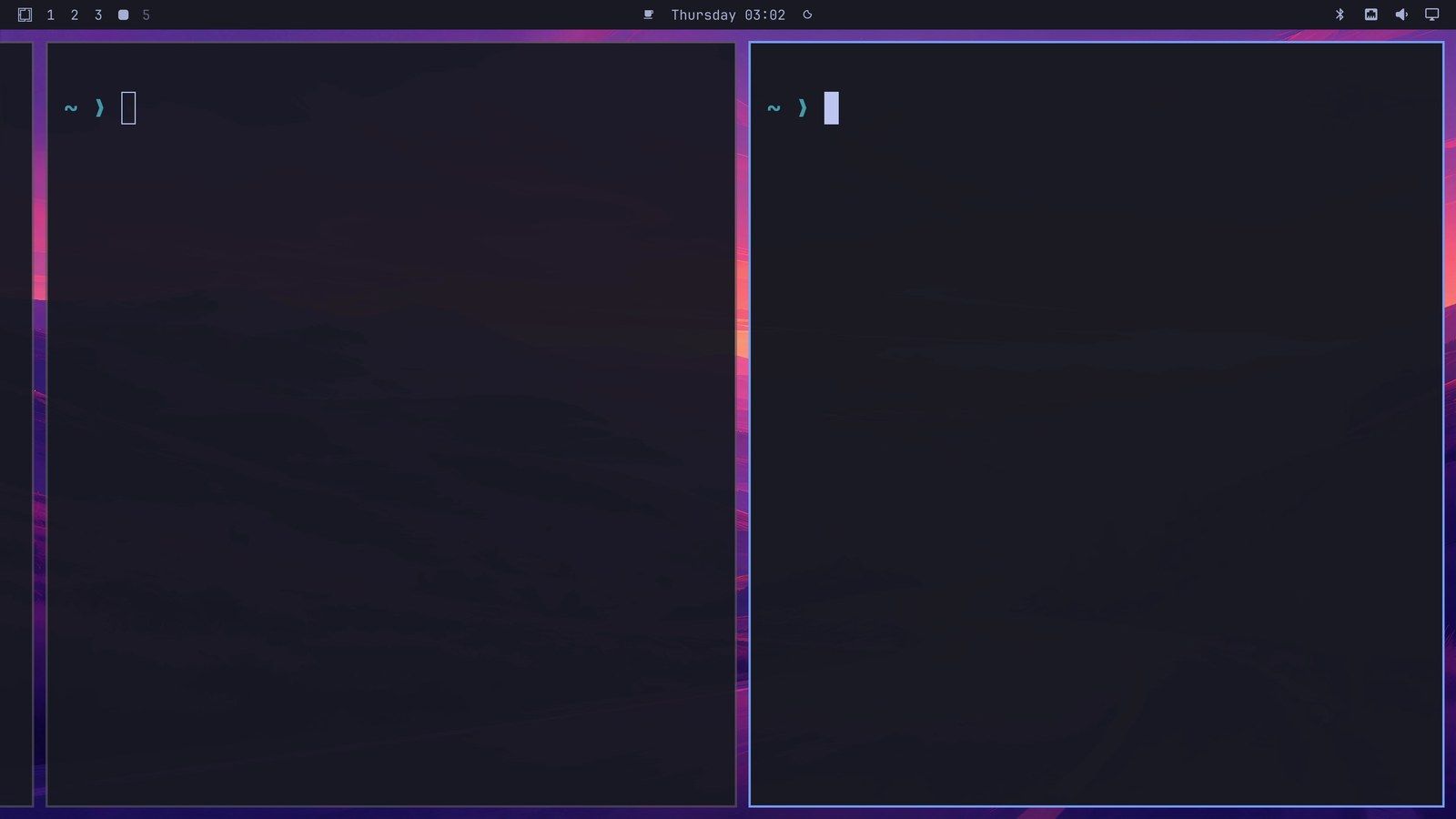
The animations setting covers windows, such as the zoom when one opens and the fades between them. On Omarchy 4.0.4, the menu and the panels do not follow this setting and keep their own animations. Switching workspaces was already instant, since Omarchy turns that animation off by default.
Switch one workspace back to tiling
With scrolling as the default, super l still works per workspace, now in the other direction. Press it, and the workspace goes back to the usual tiling layout. The notice reads “Workspace layout set to dwindle”, which is the usual layout’s name in Hyprland.
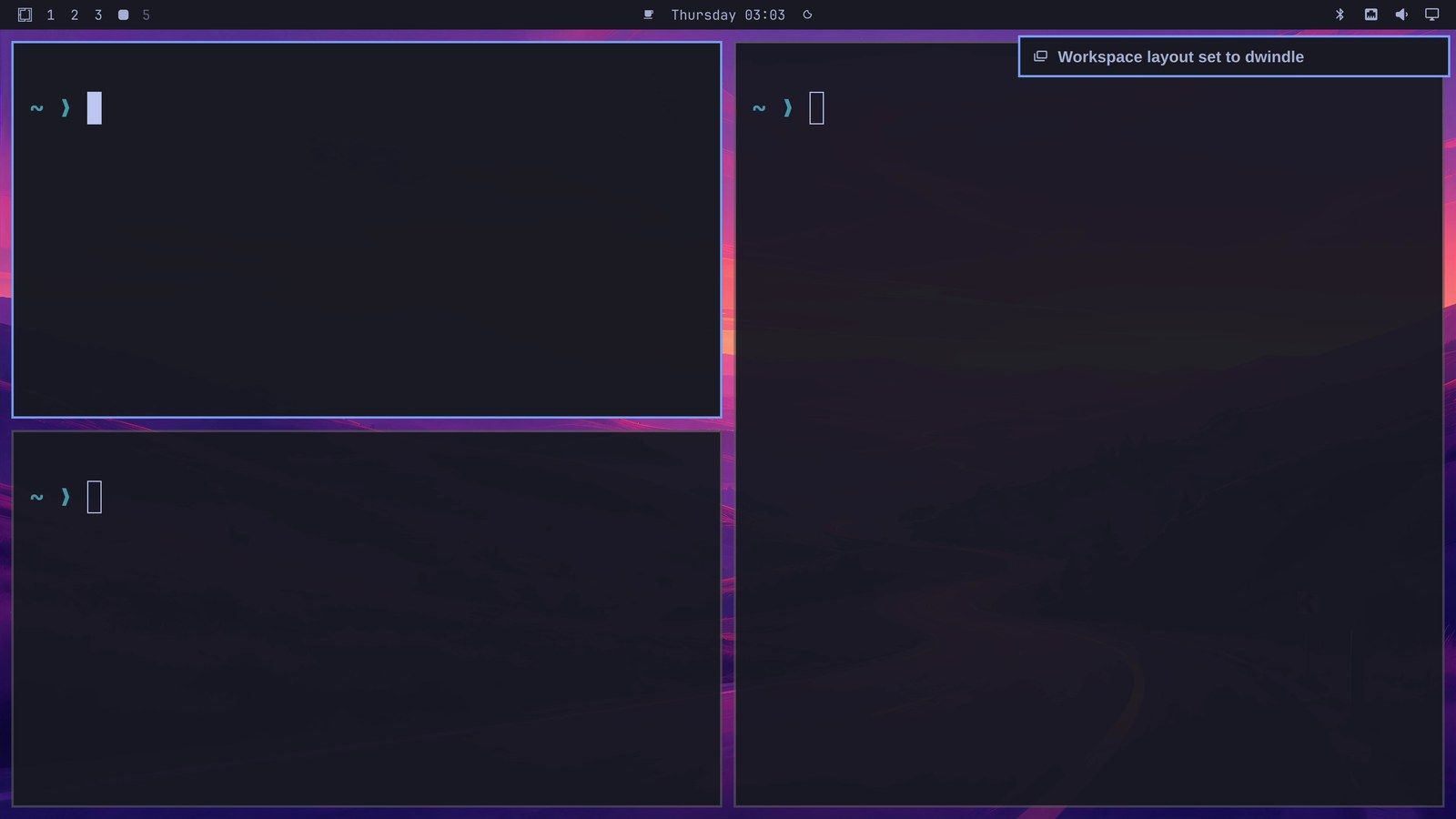
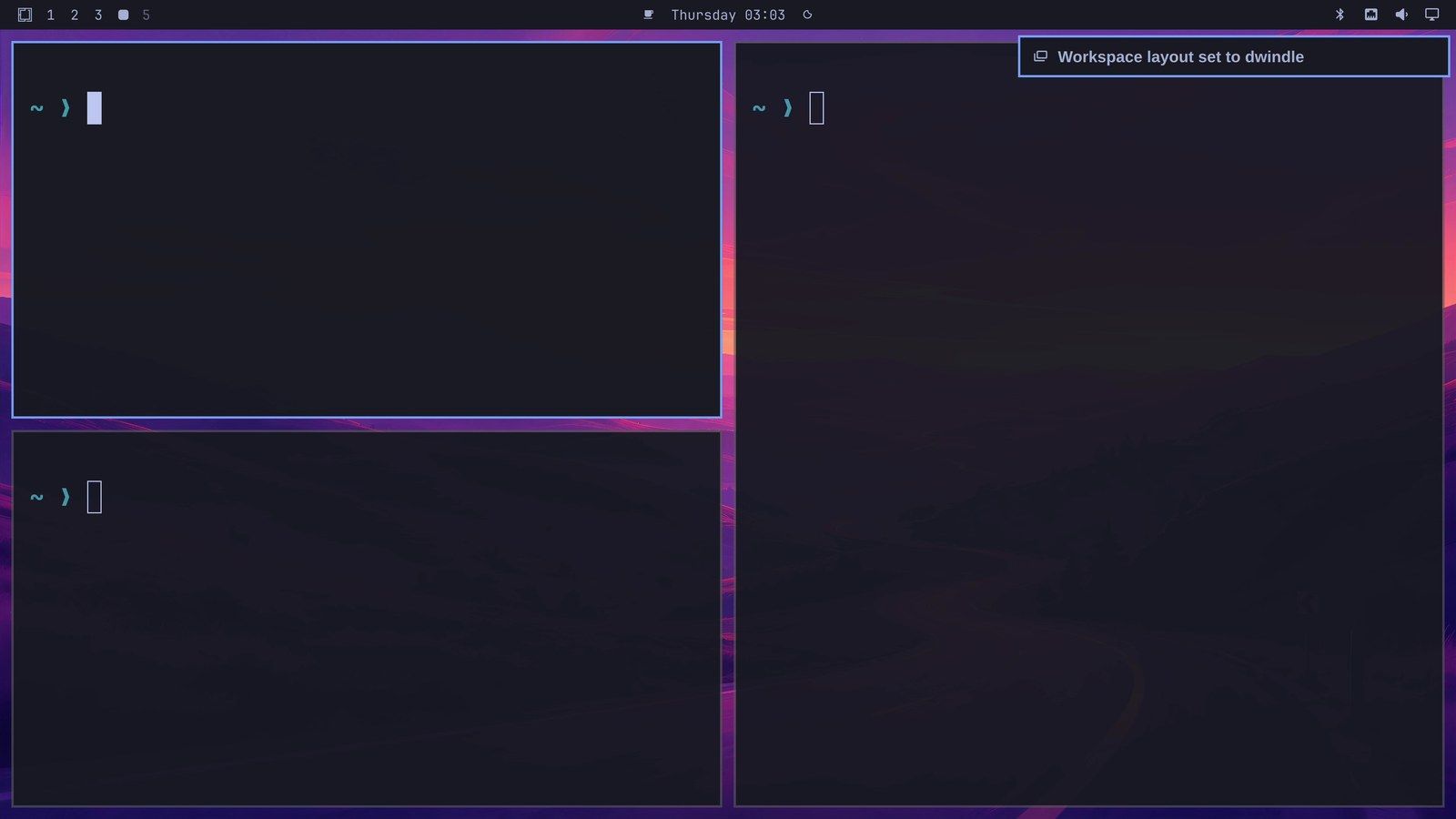
Workspaces where you pressed Super L keep that choice. Every other workspace follows the default in the file.
If something does not work
If the layout does not change after you save, look at the start of your new line in Neovim. If it still begins with --, the line is a comment and Hyprland skips it. Put the cursor on that line, press 0 to go to its start, press x three times to delete the two dashes and the space after them, and save again with :w.
If a workspace stays in the usual layout after the change, you probably pressed Super L on it earlier. That workspace keeps its own choice, so press super l on it once to switch it to scrolling.
To undo either change, open the file the same way ( super space , then Style, then Hyprland), put the cursor on the line, press d twice to delete it, and save with :w and enter . Remove the first line to make tiling the default again, or the second to bring the window animations back.
Where to go next
Our list of Omarchy shortcuts to learn first covers the menu, workspaces, and closing windows if you want more keys to go with the scrolling layout. To change more of how Omarchy looks, the Aether theme guide builds a theme from a wallpaper. And if you are still picking a machine, the Omarchy hardware guide lists mini PCs and laptops for Omarchy.


