
Omarchy can install Windows 11 for you from its main menu. Windows runs in a virtual machine (a whole computer in software, with its own disk and memory) that Omarchy sets up with Docker and KVM, the virtualization built into the Linux kernel. You see Windows in a window on your Omarchy desktop, connected over RDP, Microsoft’s remote desktop protocol. A separate project, Try Omarchy for Windows, does the reverse and runs Omarchy on a Windows PC. Neither one is a dual boot.
On our Intel N100 mini PC, we went through the whole cycle: the install and every prompt it asks, the first start, full screen, moving files between the two systems through a shared folder, adding a Windows app with winget, closing and stopping Windows, and removing it again. We edited a photo in Paint.NET, a Windows-only photo editor, and saw the change in Omarchy’s file manager a moment later.
What you need
Your computer needs KVM virtualization. Most PCs have it, but it is sometimes switched off in the BIOS (look for a setting named Intel VT-x, SVM, or Virtualization Technology). Omarchy’s Windows VM manual page says the installer tells you when KVM is off.
Plan on at least 64 GB of free disk space for Windows, plus about 10 GB for the Windows install image, per the manual. The 64 GB disk is a file that grows only as Windows fills it: after Windows Setup and a handful of small apps, ours held 13 GB. The first install also downloads Windows 11 from Microsoft, about 8.5 GB.
Windows also needs memory you can spare. Our mini PC has 11 GB of RAM in all. We gave Windows 4 GB, the installer’s default, and Omarchy kept about 4 GB free with the Windows desktop running. In a test with 8 GB for Windows, Omarchy had about 770 MB left and started to swap, so leave Omarchy at least as much as you give Windows on a small machine.
Omarchy’s shortcuts use the Super key, which is the Windows key on a PC keyboard. If they are new to you, our list of Omarchy shortcuts to learn first covers the basics.
Start the installer from the Omarchy menu
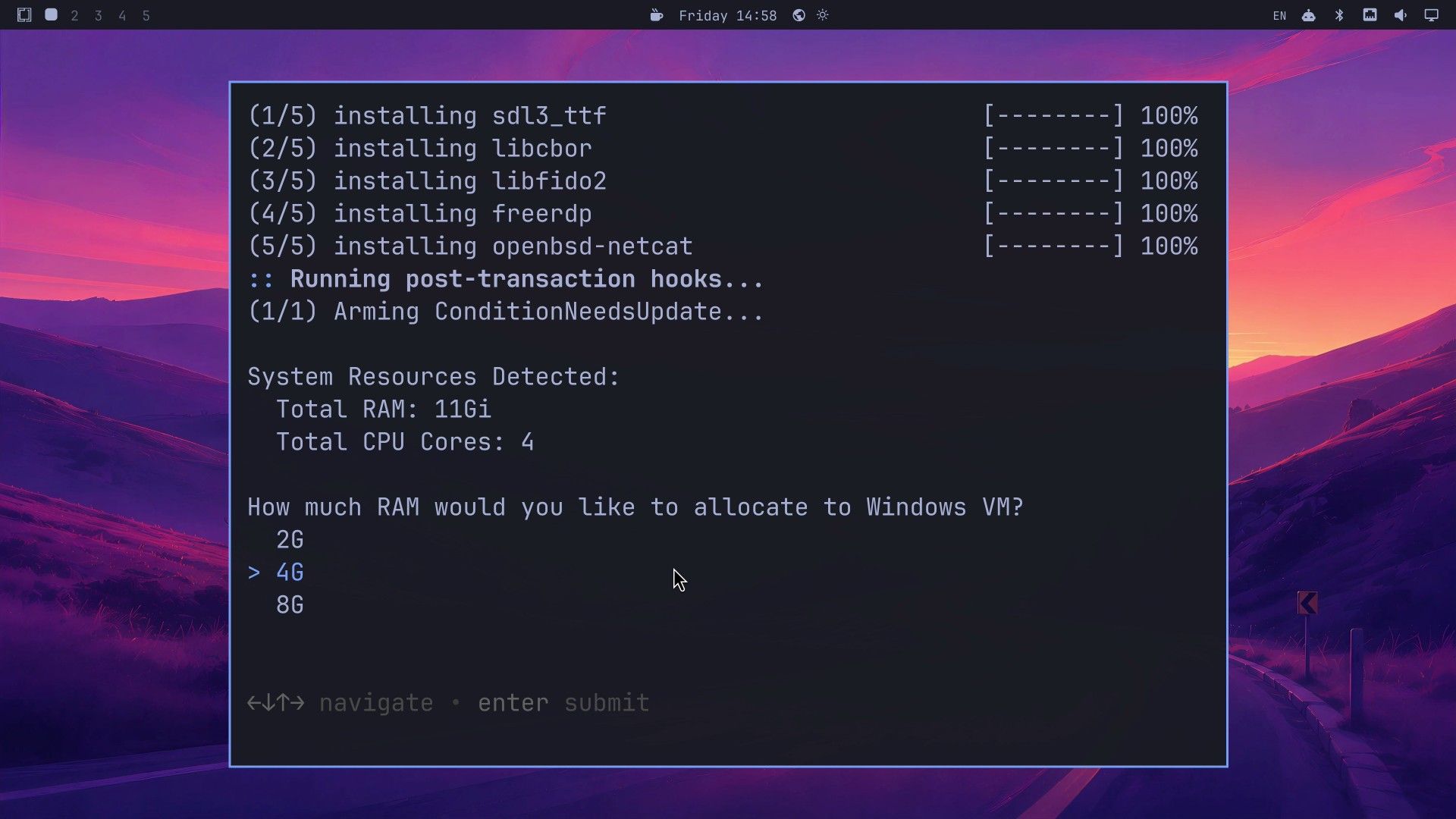
Press super space to open the Omarchy menu, then choose Install and Windows. In the Install list, Windows sits between TUI and AUR. A terminal opens, installs a few small packages (FreeRDP, the RDP client, among them) in a few seconds, and prints the RAM and CPU cores it found.
The installer then asks five questions:
- RAM. “How much RAM would you like to allocate to Windows VM?” The list offers 2G, 4G, and 8G, with 4G selected. It lists only sizes that fit your machine, so with 11 GB, 16G was not offered.
- CPU cores. The answer is prefilled with 2. Delete it and type another number if you want more. We gave Windows all 4 cores of the N100.
- Disk. The list depends on your free disk space. With 192 GB free, ours offered 32G, 64G, and 128G, with 64G selected. The installer recommends 64 GB or more.
- Username. Press enter on the empty field to keep the default,
docker. - Password. Press enter on the empty field to keep the default,
admin.
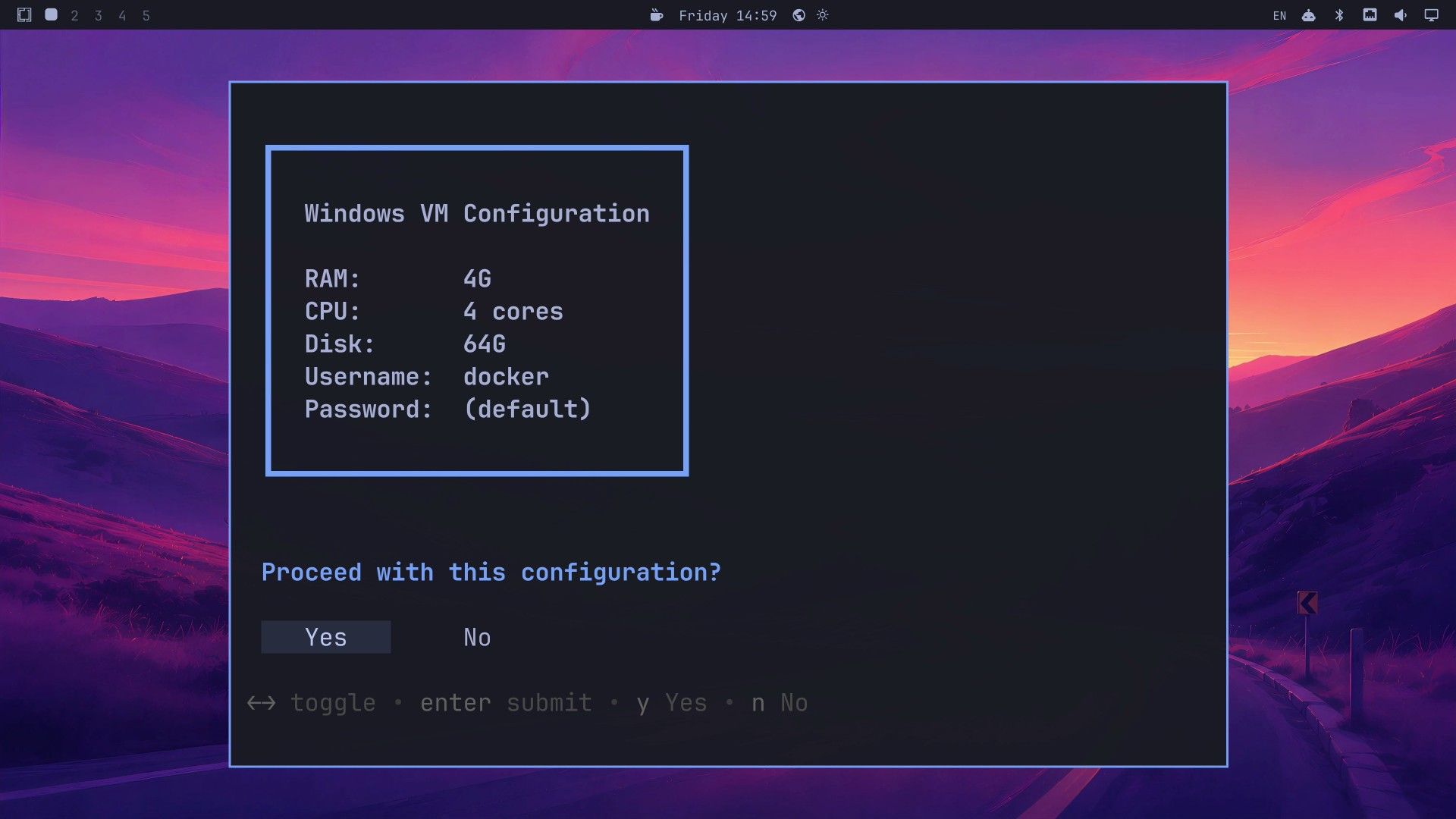
A summary box lists your answers: RAM, CPU, disk, username, and password. Choose Yes at “Proceed with this configuration?” to start.
Enter your password when Omarchy asks
Right after Yes, a password box opens over the desktop with the line “Authorize running ‘/usr/bin/omarchy-windows-vm __priv write_compose’”. Type your Omarchy login password, not the Windows one. Docker needs administrator rights to set up and start the virtual machine, and on our install the same prompt came back once more during setup, then each time Windows started, stopped, reported its status, or was removed.
After the second prompt, the installer pulls the Docker image that runs Windows (about 240 MB, under 10 seconds for us), starts the container, and opens your browser. The terminal ends with “Done! Press any key to close”. On our desktop the browser opened behind the installer terminal, so click the terminal before you press a key.
Watch Windows Setup at 127.0.0.1:8006
The browser page at http://127.0.0.1:8006 shows the Windows screen while it installs. It asks for a username and password first: these are the Windows ones, docker and admin if you kept the defaults. The VM’s ports listen on your own computer only, so nothing else on your network can reach this page or the Windows machine.
On a first install, Windows 11 downloads from Microsoft before Setup starts. The installer says the download may take 10 to 15 minutes; on our connection it took under two. Windows Setup itself then took 11 to 15 minutes on our N100 in three of four installs, and about 16 minutes in the fourth. The page shows “Installing Windows 11” with a percentage, then a black “Installing” screen while Windows restarts several times, then “Almost there.” Leave the mouse off the page while it works: the page is a live view of the VM, and a stray click can land on Setup’s Cancel button.
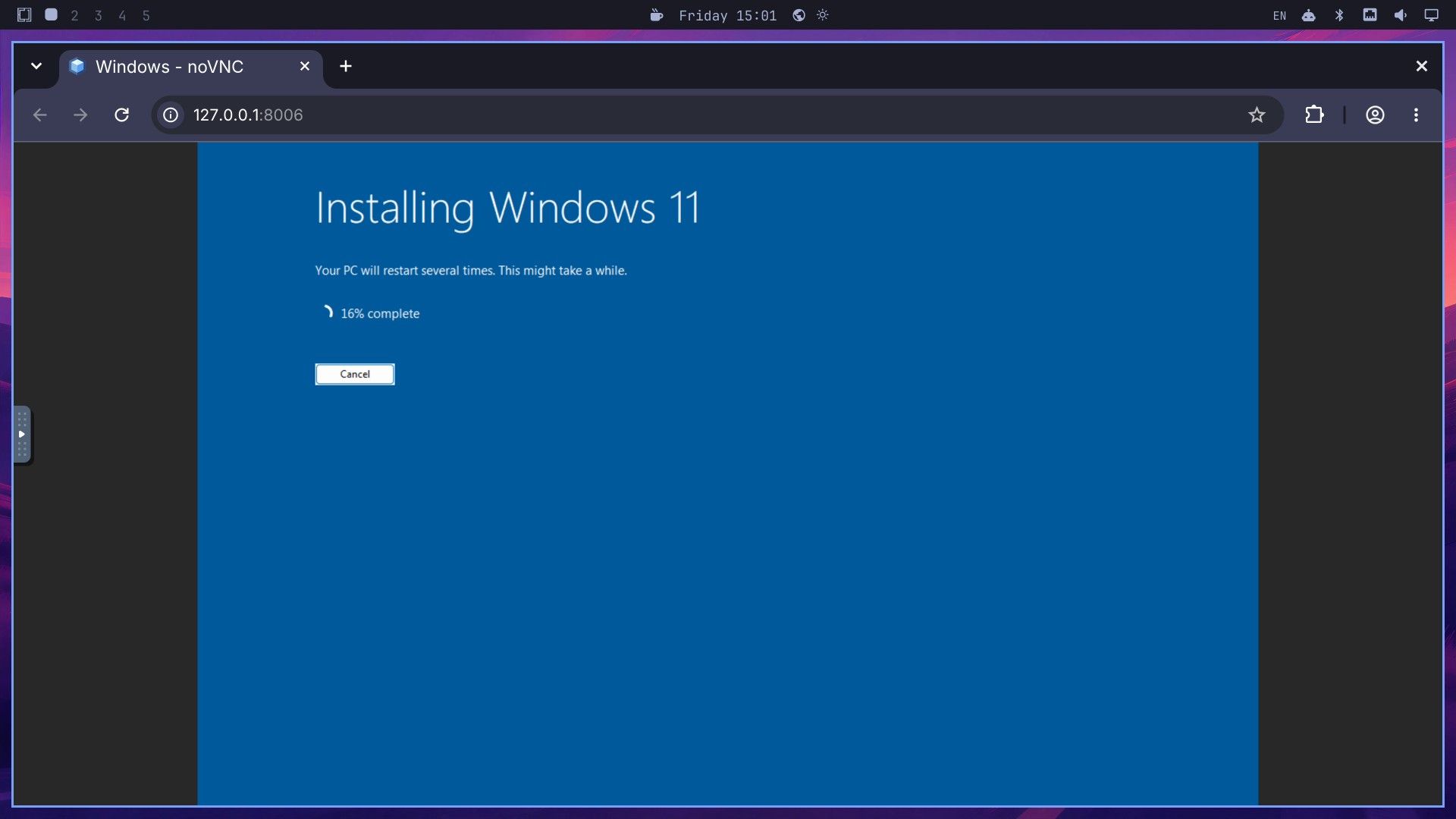
When Setup finishes, Windows signs in on its own as the docker user and shows its desktop. You can close the browser tab. From here on, you start Windows from the Omarchy menu.
Launch Windows from the menu
Press super space and type Windows. The first two entries are Windows under Apps, which starts Windows, and Windows under Remove. Choose the first one and enter your password. A “Launching Windows…” notice appears, and Windows opens in a tiled window titled “Windows VM - Omarchy”, below the top bar like any other app.
How long that takes depends on whether the VM is already running. With Windows still running in the background, the desktop filled the window in 4 to 10 seconds. From a stopped VM, it took about 45 seconds. The Windows desktop shows Recycle Bin, Microsoft Edge, and a folder named Shared.
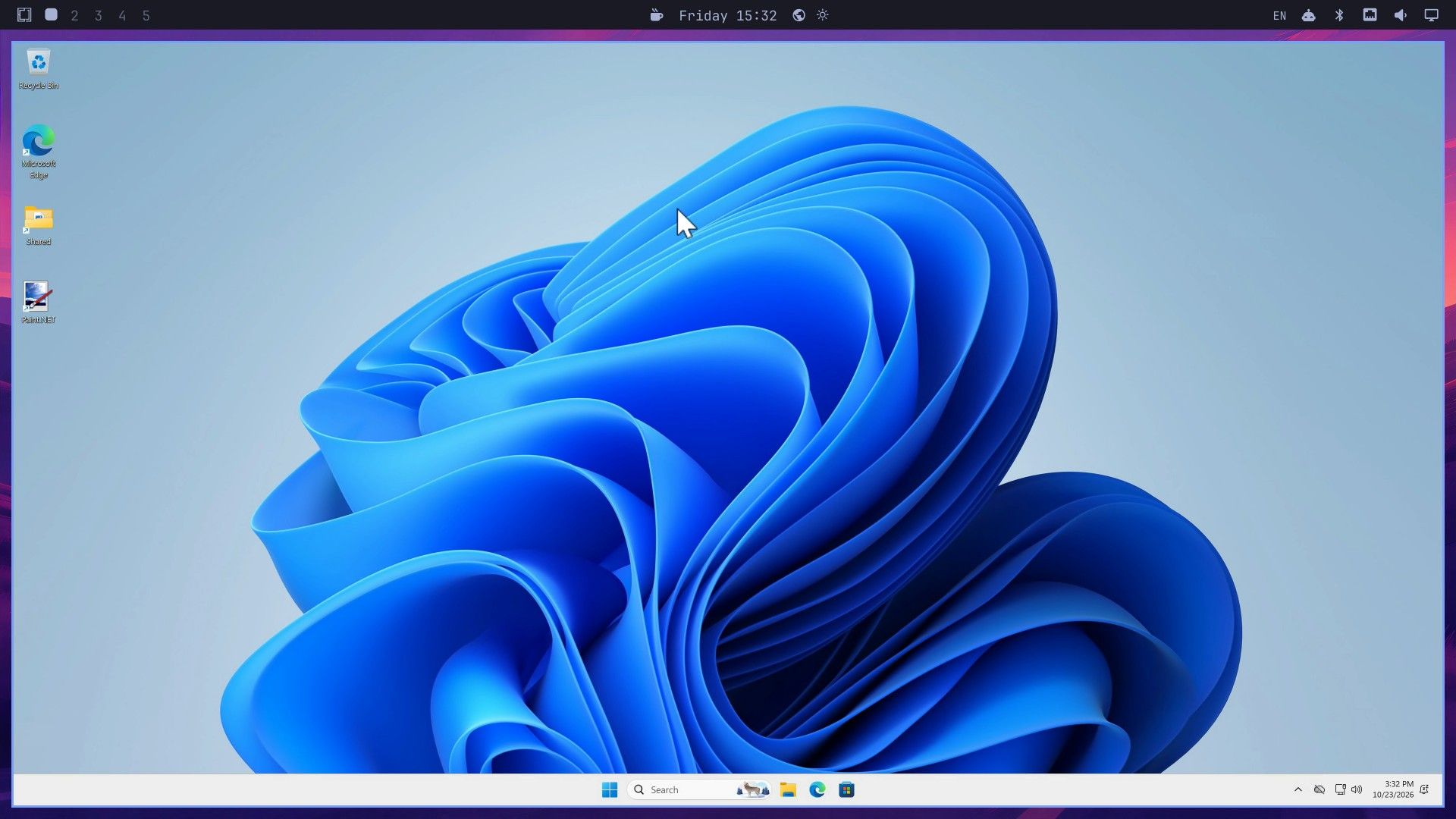
Press super f to switch the window to full screen, which hides Omarchy’s top bar. If Windows opens as a small picture in its window, the same keys make it fill the screen; press them twice if needed. While Windows has focus, the Super key on its own opens the Windows Start menu, and Omarchy’s own shortcuts still work: super 2 switches to an empty Omarchy workspace while Windows keeps running on the first, and super 1 brings you back. Omarchy’s manual says the RDP session carries sound, your microphone, and a shared clipboard, so you can copy text between Linux and Windows.
Share files through the Windows folder
Omarchy shares one folder with Windows: Windows in your home folder (~/Windows). In Windows, it is the Shared folder on the desktop, which File Explorer also shows as drive Z:. Anything you put on one side shows up on the other at once, with no sync step. The VM cannot see any other part of your Linux disk, which keeps Windows away from the rest of your files.
We copied a photo into ~/Windows in Omarchy, then opened Shared on the Windows desktop, and the photo was already there. To get your old files into Windows, copy them into ~/Windows first.
Install a Windows app with winget
Windows 11 includes winget, Microsoft’s command-line package manager, so you can add apps without hunting for installers in Edge. Open PowerShell or Terminal in Windows. Windows in this VM signs in as an administrator with the confirmation prompts off, so the window opens with administrator rights. Install Paint.NET with:
winget install -e --id dotPDN.PaintDotNetThe first winget run asks you to accept the Microsoft Store source terms; add --accept-package-agreements --accept-source-agreements to the command to accept them up front. On our N100, the Paint.NET install took a little over a minute, and its icon appeared on the Windows desktop.
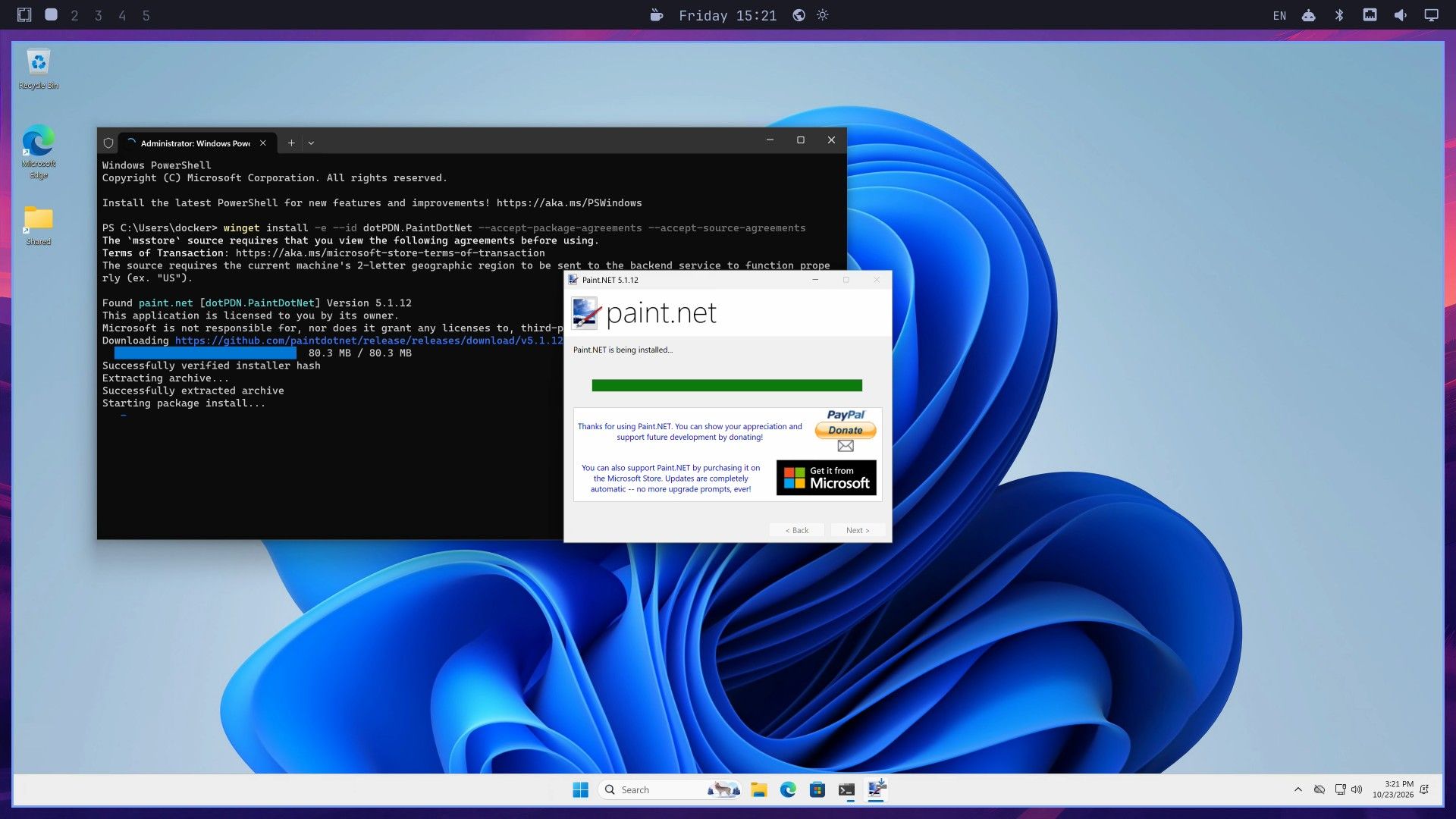
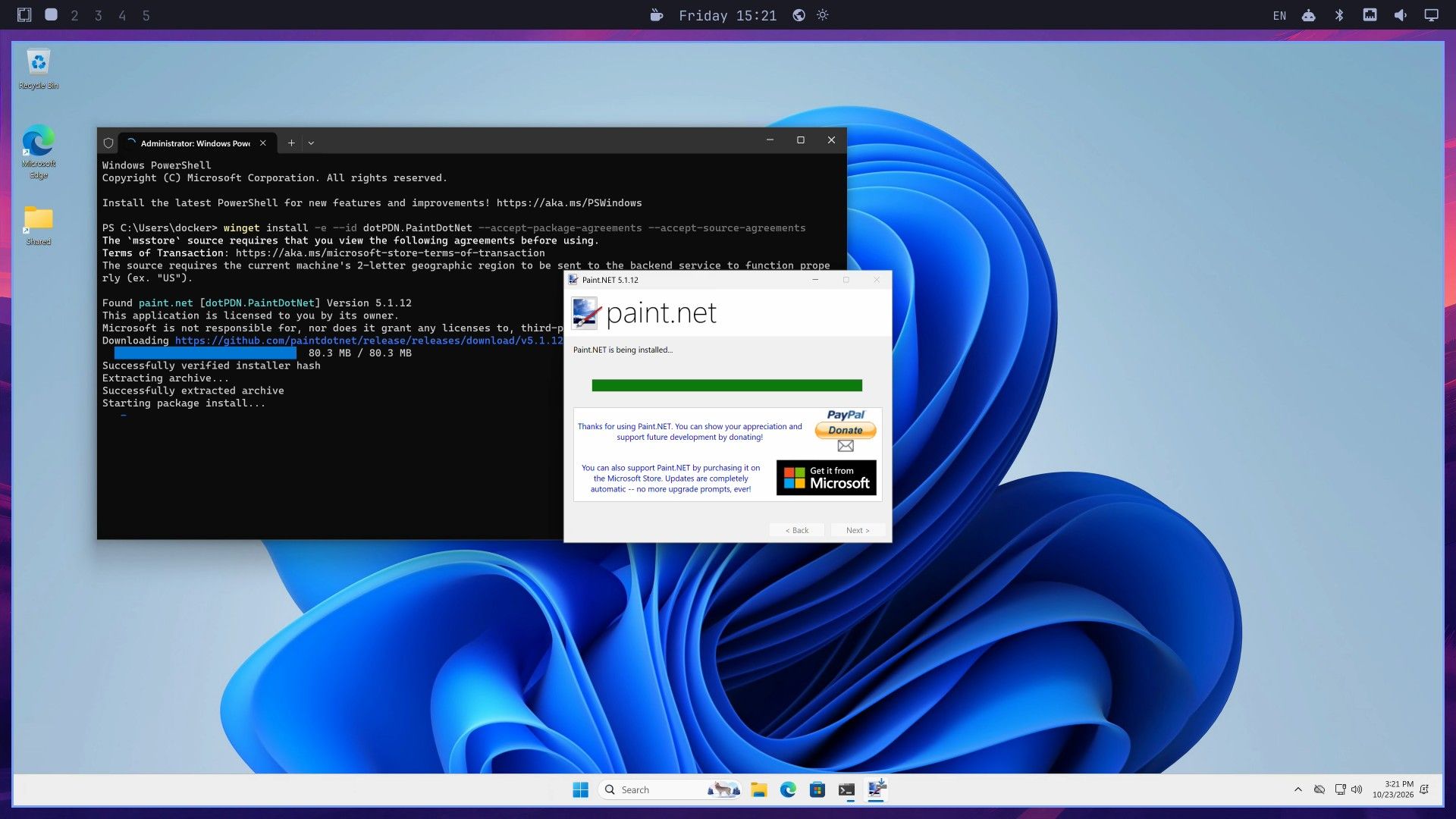
Install apps from the shell, but open your files from File Explorer. A program started from the administrator shell could not see the Shared drive in our tests: Paint.NET reported “The file could not be found” for Z:\cityscape.jpg and then stopped responding to input until we closed the Windows window.
Edit a photo in Paint.NET and check it in Omarchy
In the Shared folder, right-click the photo, choose Open with, then Paint.NET. Paint.NET opened the photo in 5 to 10 seconds.
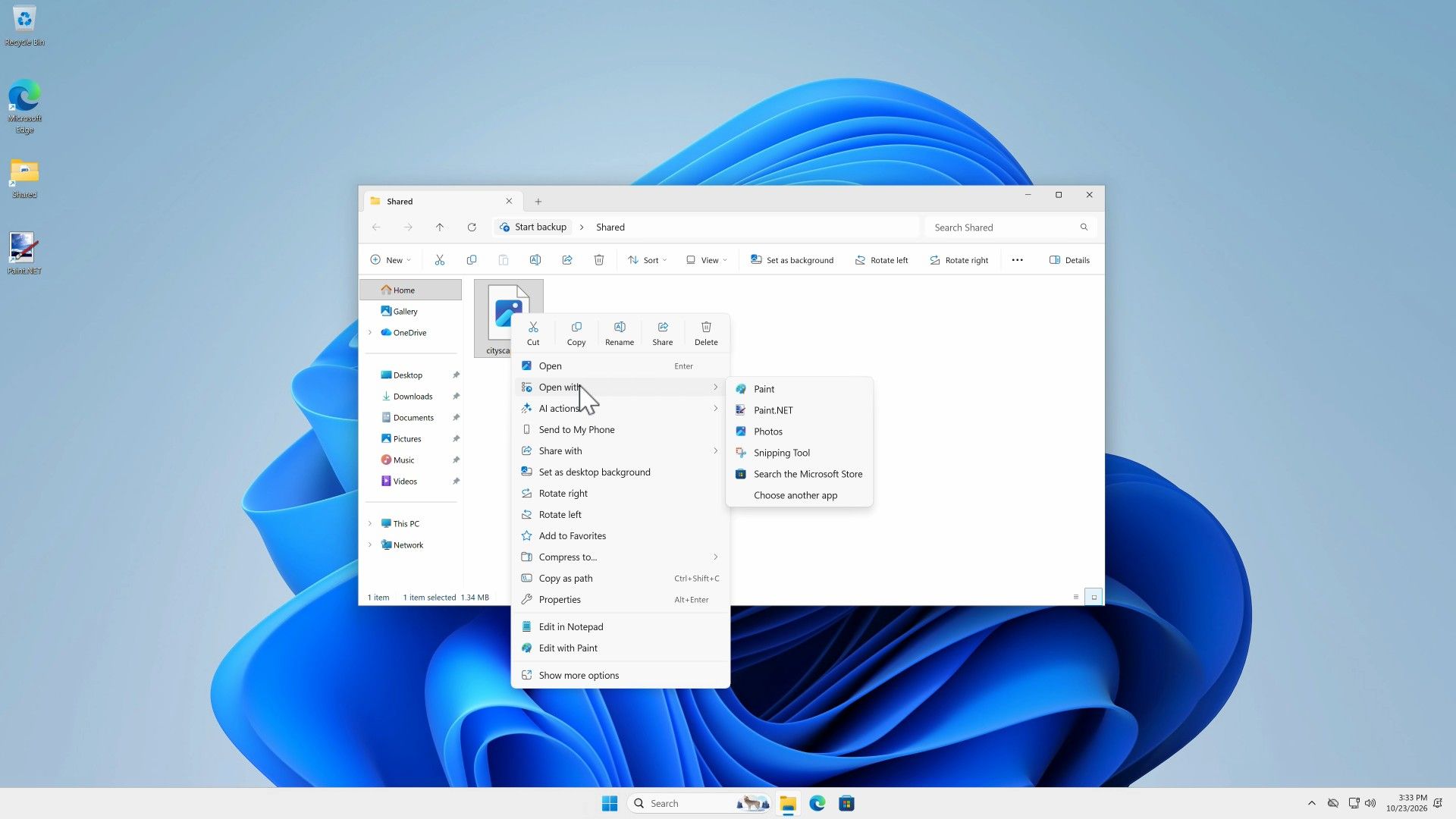
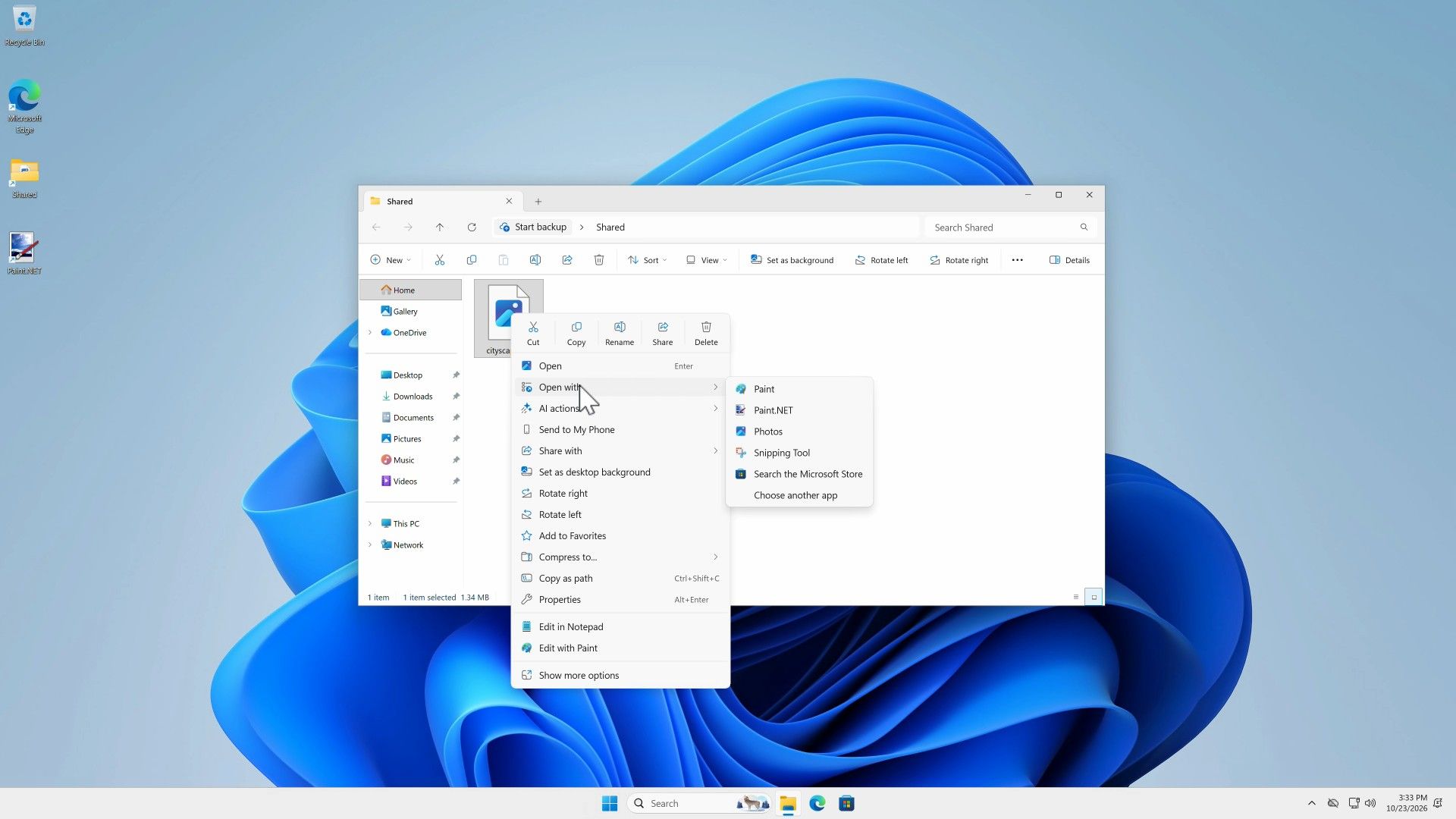
Under Adjustments, Black and White ( ctrl shift g ) turns the whole photo grey, which is easy to spot later on the Omarchy side. Press ctrl s to save over the original. Paint.NET shows a Save Configuration box with the JPEG quality, 95 by default; click OK.
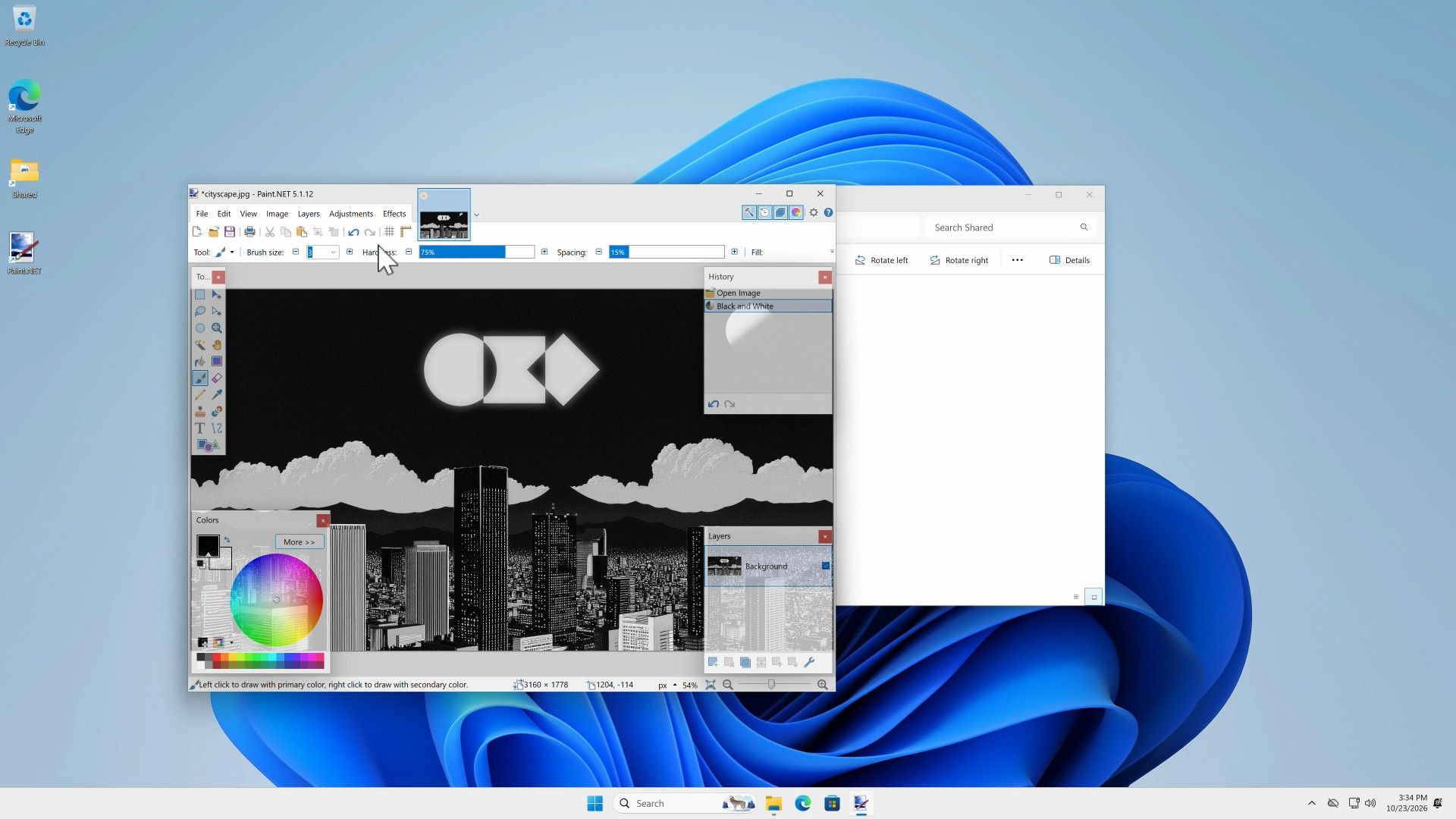
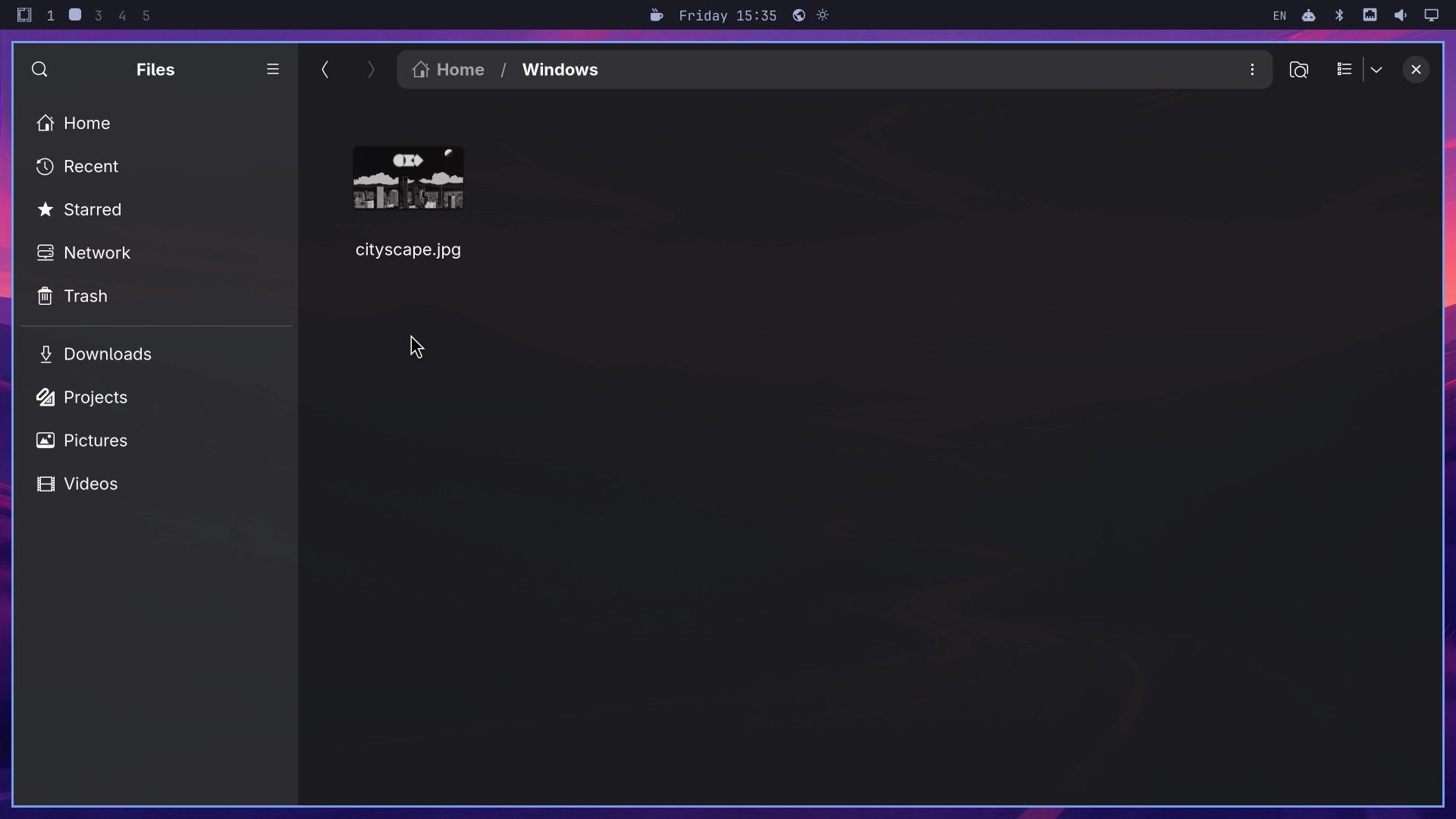
Now check from Omarchy. Press super 2 for an empty workspace, then super shift f to open Files, Omarchy’s file manager. In the Windows folder, the photo’s thumbnail was already black and white.
Close, keep running, or stop Windows
Closing the Windows window with super w asks for your password again, this time to stop the virtual machine. Enter it, and Windows shuts down within about 12 seconds. Press esc at that prompt instead, and the window closes while Windows keeps running in the background, ready for a fast launch next time. The RAM you gave Windows stays in use while it runs.
To leave Windows running on purpose, start it from a terminal with the keep-alive option. Closing the window then skips the stop prompt and prints “RDP session closed. Windows VM is still running.”
omarchy windows vm launch --keep-aliveThree more commands control the VM, and each asks for your password:
omarchy windows vm status   # is it running? Prints the web and RDP ports
omarchy windows vm stop     # shut Windows down
omarchy windows vm launch   # start Windows and open the window
The installer’s own messages print the same commands as omarchy-windows-vm stop and omarchy-windows-vm launch; both forms work. A launch from a terminal fills that terminal with FreeRDP log lines, so the menu entry is tidier for everyday use.
To change the RAM or cores later, Omarchy’s manual says to run omarchy-windows-vm install again, which rewrites the VM’s configuration from your new answers. For the disk, the dockur/windows project that Omarchy builds on says an existing disk can be made larger without losing data, and the added space shows up in Windows as unallocated until you extend the C: drive in Disk Management.
Windows here has no GPU access and no activation
Without GPU passthrough, Windows cannot use your graphics chip, so the VM suits work apps such as Paint.NET rather than games or video editing. Omarchy’s manual names Microsoft Office as the kind of software it is meant for. With 8 GB for Windows on the N100, the Windows window lagged about 1 to 3 seconds when it redrew, for example when a right-click menu opened, though typing and clicks landed where they should.
The copy of Windows 11 Pro that Omarchy installs is not activated. It runs without a license key, and we saw no “Activate Windows” watermark in about 45 minutes of use, but Windows Settings says “Windows isn’t activated” and some Personalization settings stay locked until you add a key. If your computer came with Windows, omarchy windows key prints the key stored in its firmware. Omarchy’s manual notes that this key usually will not activate the VM.
Remove Windows
To remove Windows, press super space , type Windows, and choose the Remove entry (it is also under Remove > Windows). The terminal asks “Remove Windows VM and delete all associated data?” with No selected. Move to Yes, press enter , and enter your password. Removal took under 4 seconds for us and ended with “Windows VM removal completed!”
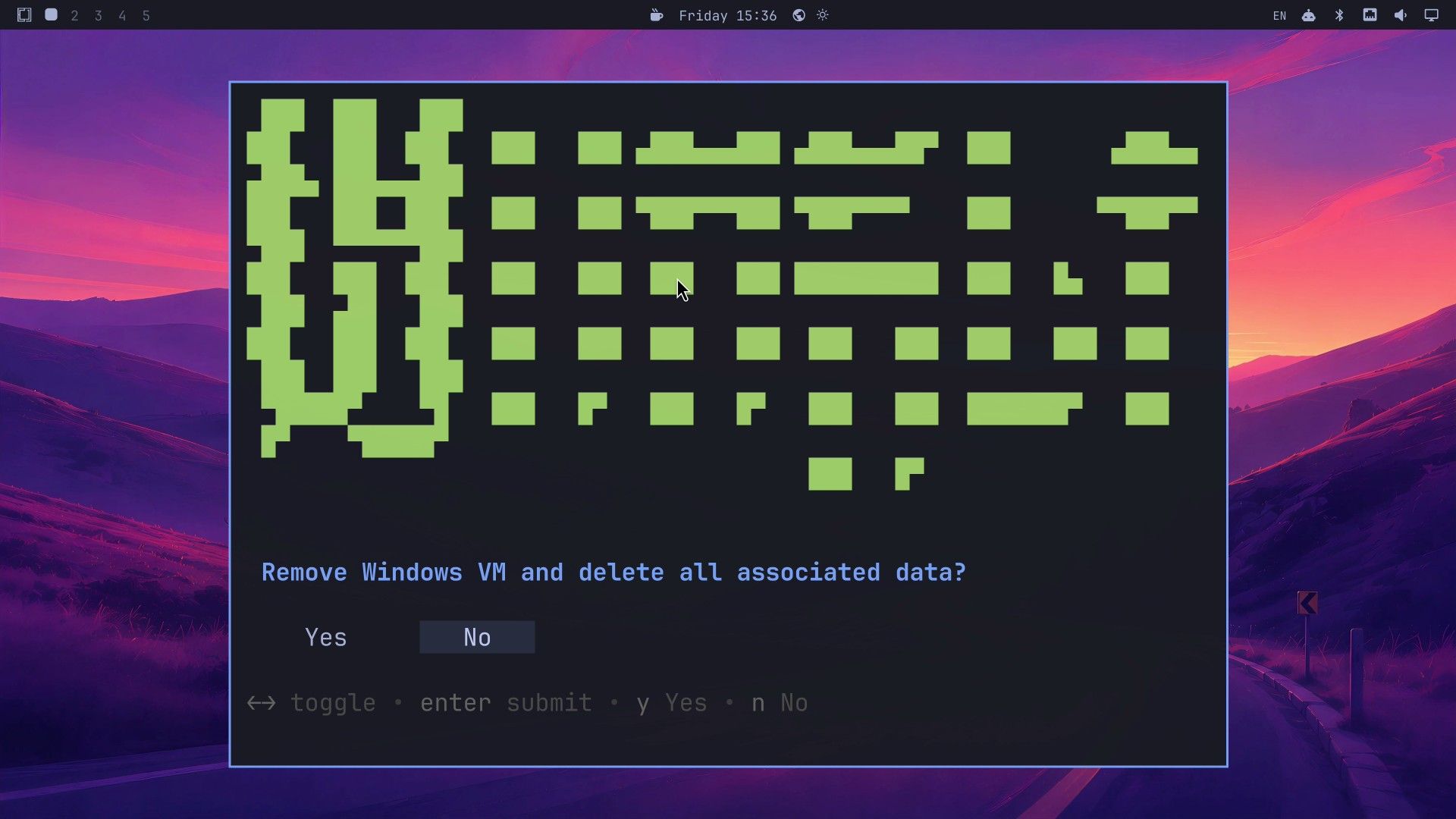
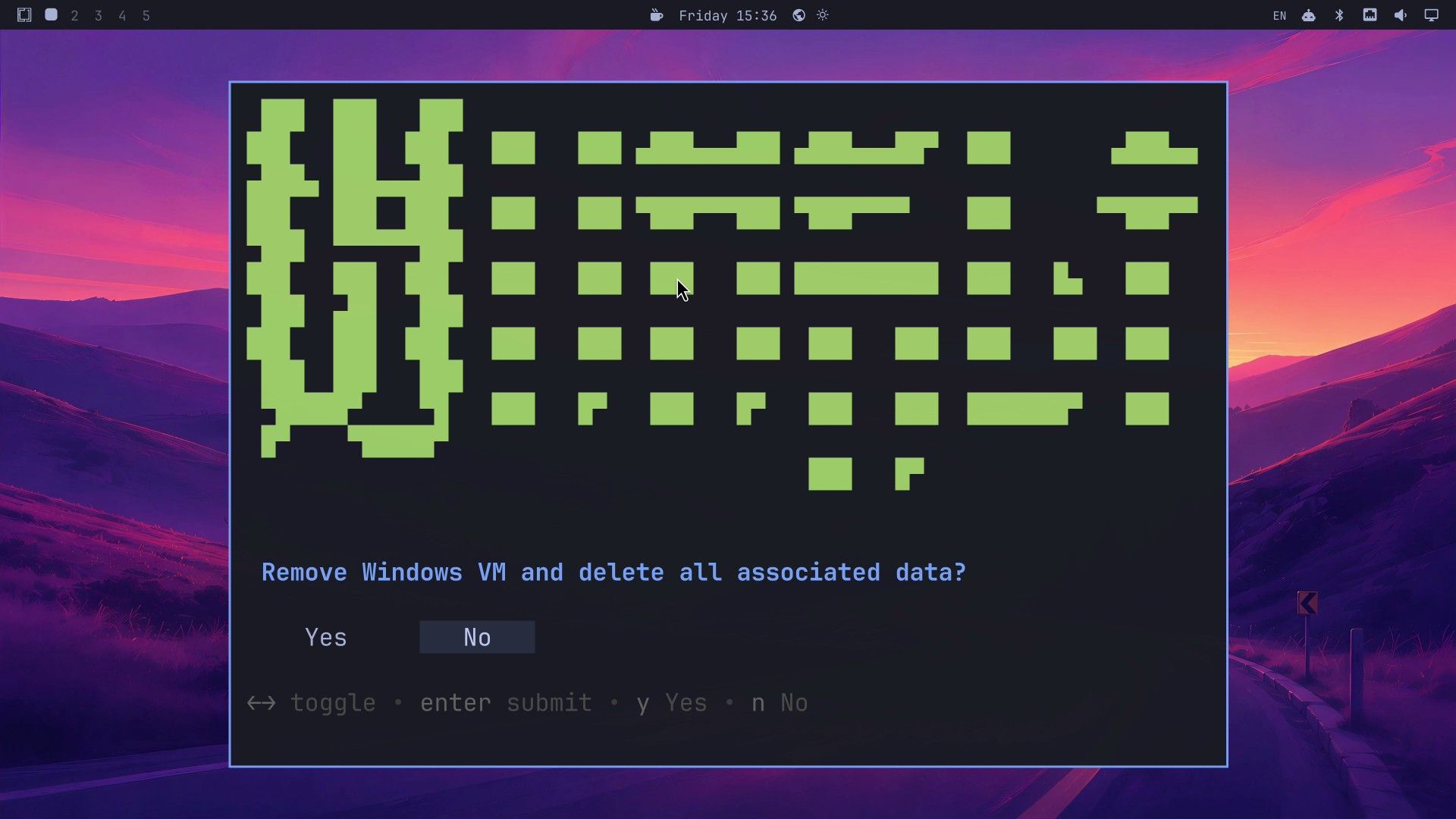
Remove deletes the Windows disk (~/.windows), so Windows and every app you installed in it are gone. It also removes the menu entry and the Docker image. It keeps ~/Windows: after our removal, the black-and-white photo was still in it. Copy anything you want to keep from inside Windows into the Shared folder before you remove it.
Troubleshooting
The installer says KVM is not available. Turn on virtualization in your BIOS or UEFI settings (Intel VT-x, AMD SVM, or a setting named Virtualization Technology), then run Install > Windows again.
Launching Windows fails with no message. On Omarchy releases before 4.0.5, launch could exit with no output when ~/Windows or ~/.windows carried the setgid permission bit, as described in the fix’s pull request. Update Omarchy to 4.0.5 or later. On an older release, chmod g-s ~/Windows ~/.windows clears the bit.
super f or super 1 also opens the Windows Start menu. With the Windows window focused, Windows can see the Super press too. Press esc to close Start.
The Windows clock is wrong on the first start. In our first session, the Windows clock ran 3 hours behind Omarchy. After one stop and launch, it showed the right time.
Omarchy feels slow while Windows runs. Windows holds the RAM you gave it for as long as it runs. Stop it with omarchy windows vm stop when you are done, or run omarchy-windows-vm install again and give it less RAM.
Where to go next
Omarchy’s Windows VM manual page covers the security design of the shared folder and how to edit the VM’s Docker setup by hand, for example to pass a USB device through. Omarchy builds on the dockur/windows project, whose page documents the options that setup accepts.
If you are new to Omarchy, start with what Omarchy is. To clear out apps you do not use after this, see our guide to removing Omarchy’s preinstalled apps.


