Pond is a Linux distribution from Butterfly Interaction, Inc. It is an Arch-based rolling release: most packages come from Arch’s own repositories, and Butterfly’s signed repository adds a kernel built from CachyOS’s linux-cachyos, CachyOS’s chwd driver detection, and Pond’s own desktop. The desktop is the niri scrollable-tiling Wayland compositor with Butterfly’s keybinds, a Quickshell sidebar down the left edge, a launcher forked from Vicinae, and an app installer called pm.
Butterfly opened Pond to anyone on October 27, 2026, and it is still labeled Early Preview. The video embedded above goes through the install, the first login, the sidebar, windows in niri, installing Brave, and snapshots. This guide also covers the installer’s choices, the full keybinding list, which source each pm app uses and when polkit asks for a password, the snapper commands, and the limits of the preview. The steps and screens below match installer 0.1.4 as of October 30, 2026. Pond is rolling, so the installer downloads a base system and then updates it to whatever the repositories hold that day.
What you need
Pond runs only on 64-bit Intel and AMD PCs. Butterfly’s install page says Secure Boot must be off, so turn it off in the firmware settings first. The installer refuses a drive with less than 22 GB, Butterfly says 1 GiB of RAM is the minimum, and the machine needs a network connection during the install, because the ISO holds only the installer.
The ISO (pond-installer-0.1.4-x86_64.iso, 1.36 GiB) boots from a USB stick and installs to a whole drive, or into free space you set aside beforehand. The other route is a Windows program, Pond Installer.exe, that sets up dual boot with Windows from inside Windows. Butterfly says it takes about five minutes and that Windows may show a “Windows protected your PC” warning when you run it. Its source is not public, and Butterfly’s Privacy Policy says it collects hardware and progress information from the moment it opens. This guide uses the ISO.
The installer has no disk encryption option, and Butterfly’s Terms of Use ask you to back up important files before installing. Treat the target drive as a spare.
Download and check the ISO
The download page at releases.butterfly.so/iso serves the current installer, and each version has a .sha256 file next to it at the same address. The install page does not link the checksum, so fetch it yourself and compare:
curl -O https://releases.butterfly.so/iso/pond-installer-0.1.4-x86_64.iso
curl -s https://releases.butterfly.so/iso/pond-installer-0.1.4-x86_64.iso.sha256
sha256sum pond-installer-0.1.4-x86_64.iso
The two hashes must match. No GPG signature is published for the ISO. Pond’s pacman repository is signed, and the live ISO’s pacman configuration requires that signature. Write the ISO to a USB stick with the tool you normally use, and boot from it. The boot menu has a normal entry and a “basic graphics” entry that adds nomodeset.
The installer’s five screens
The installer opens on “Language & timezone”, with English (US), English, and Coordinated Universal Time preselected. It does not guess your location, so pick your timezone here. If you skip it, the clock on the sidebar and the login screen shows UTC until you change it in Settings, System. On Wi-Fi, a network screen follows; on a wired connection it does not appear, and Wi-Fi networks you join here carry over to the installed system.
The next screen lists the drives. Pick one and press Next. On an empty drive, “How should Pond use this disk?” offers one choice: “Erase entire drive and install Pond”. If you shrank another system’s partition beforehand, the installer can use that free space instead, as long as the disk is GPT and the free region is one block of at least 20 GiB.
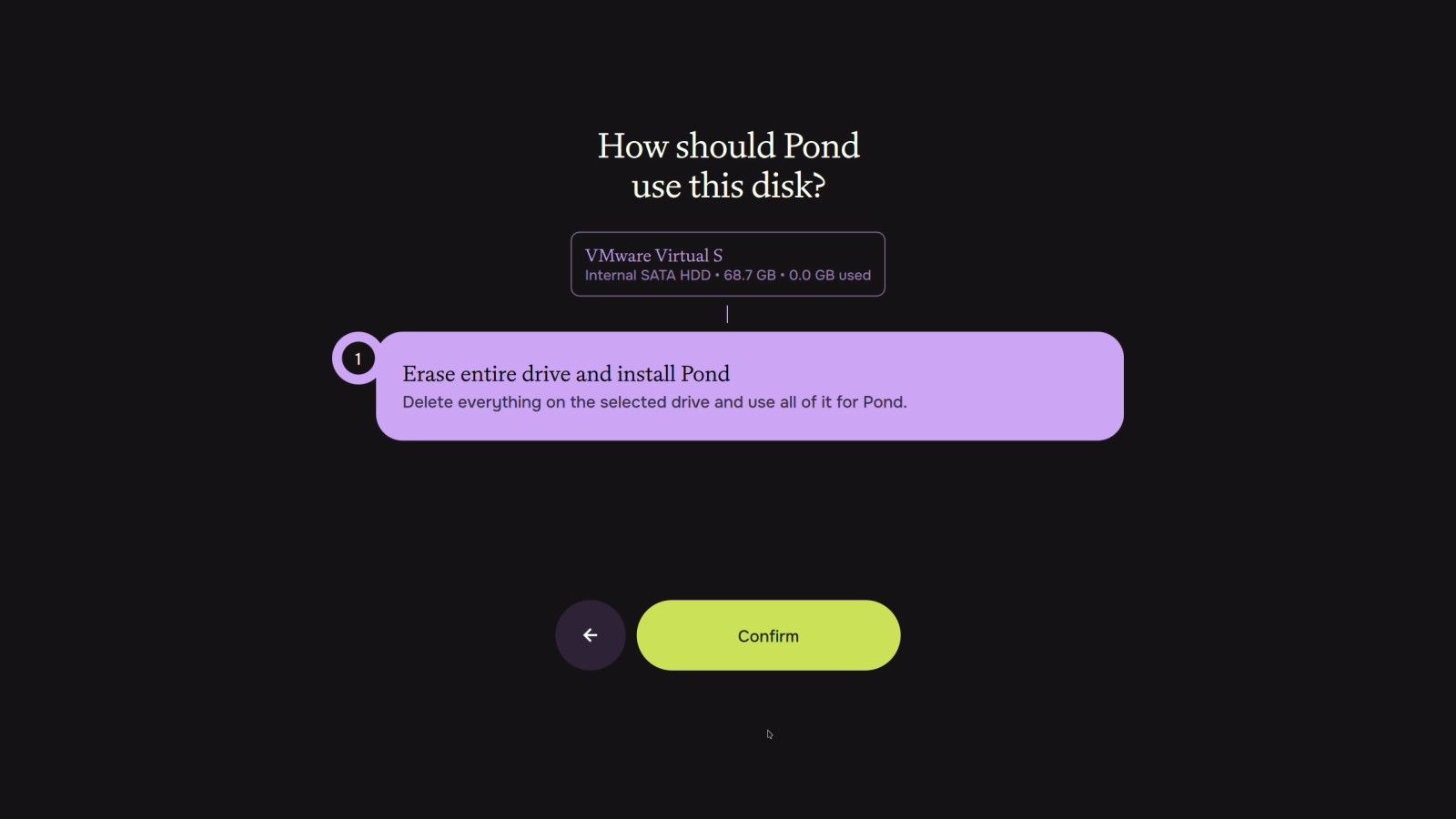
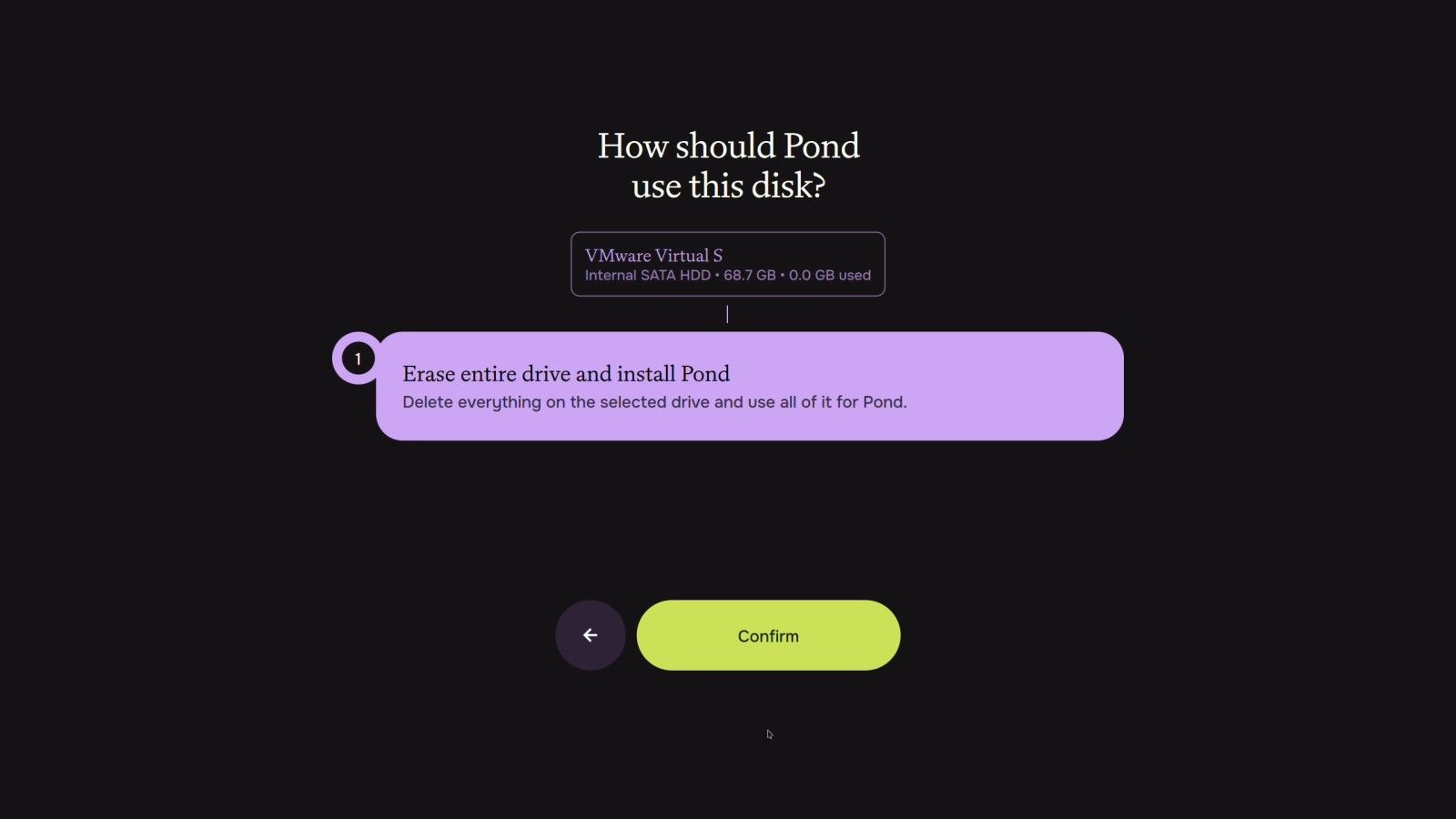
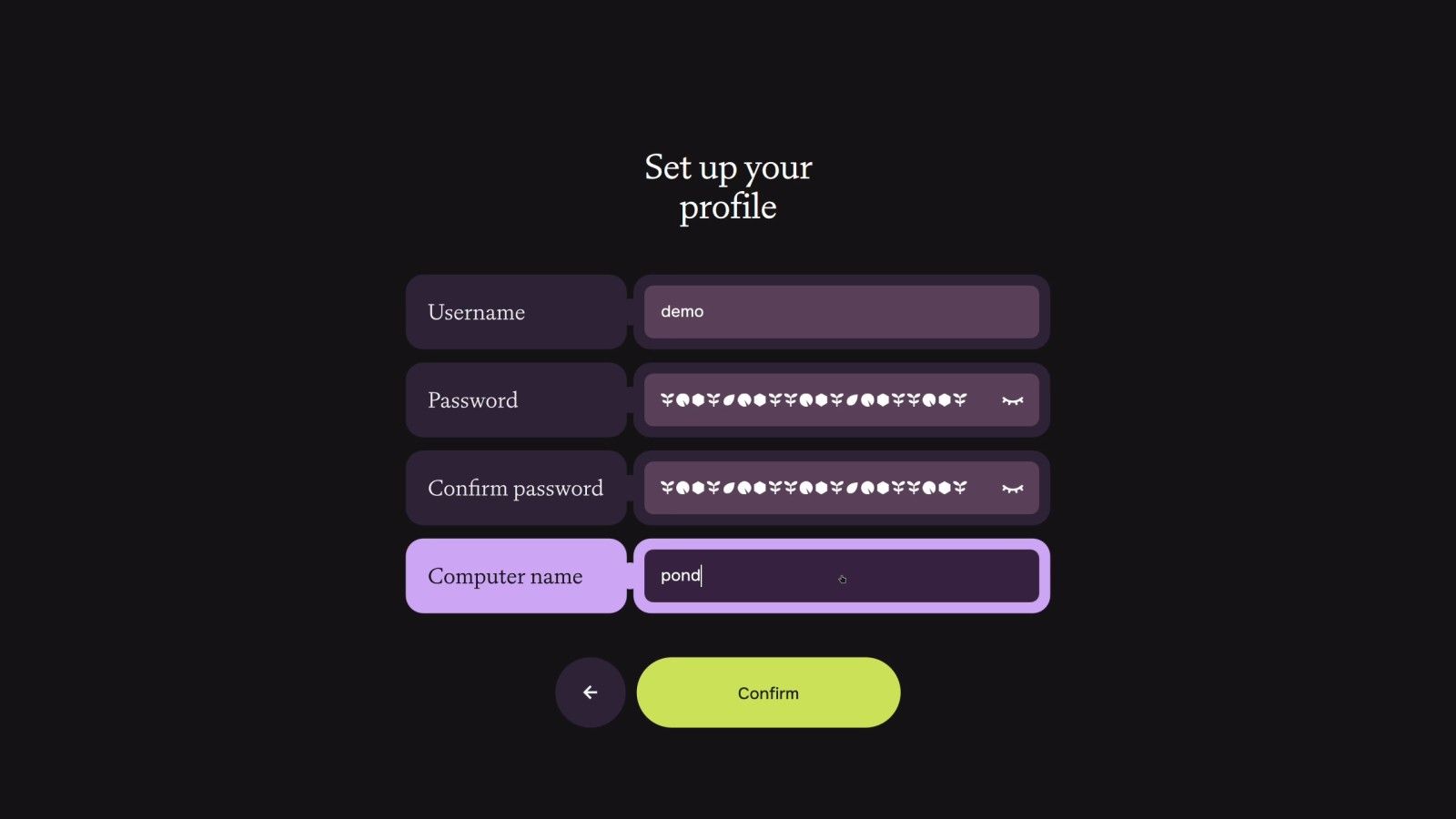
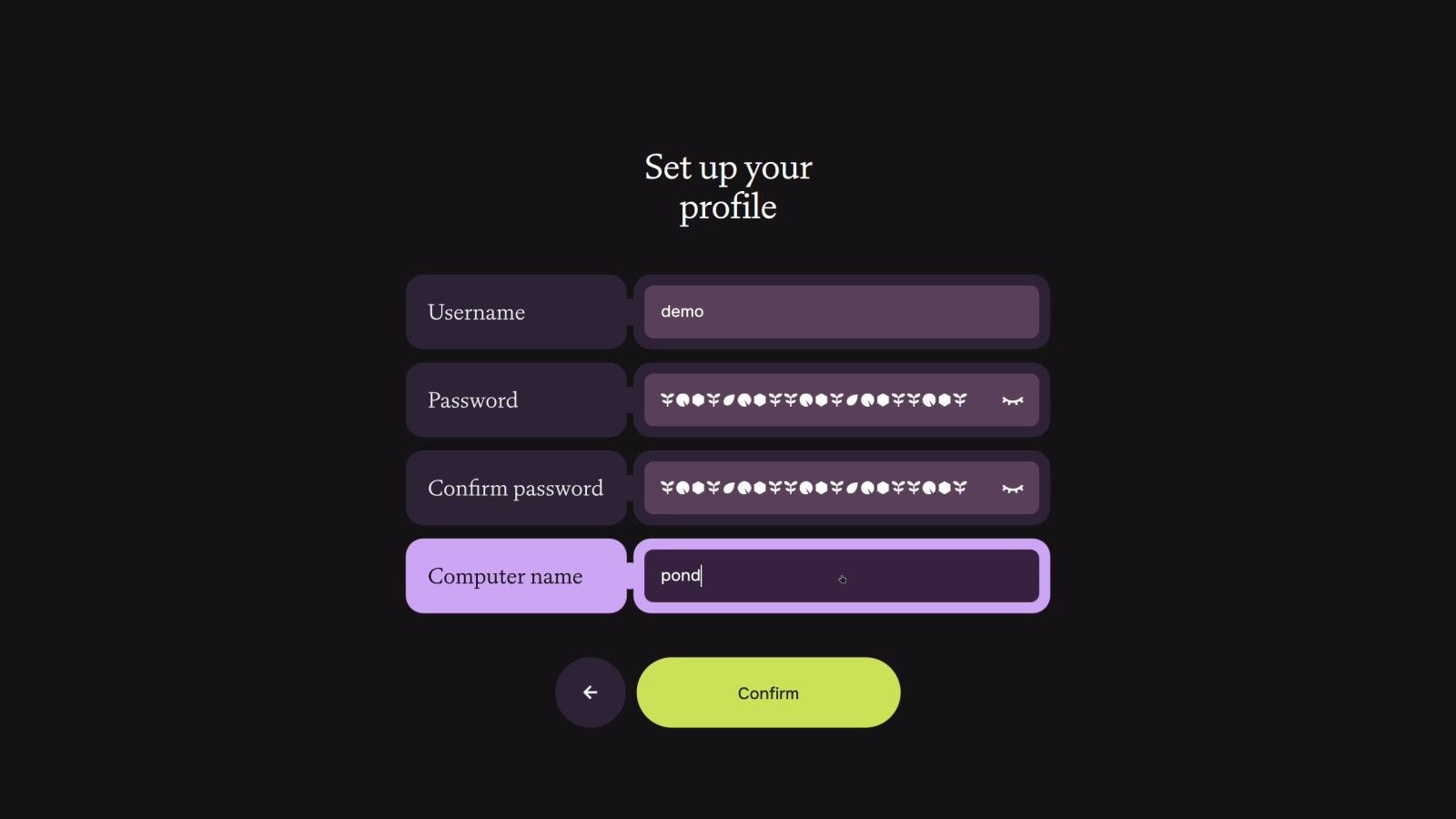
A confirmation follows (“Erase this disk and install Pond? Everything on this disk will be permanently erased.”), and then “Set up your profile”: username, password, password again, and a computer name, which has no default. Confirm stays grey until all four are filled. The password fields mask each character with a small plant, leaf, or lily pad glyph instead of a dot.
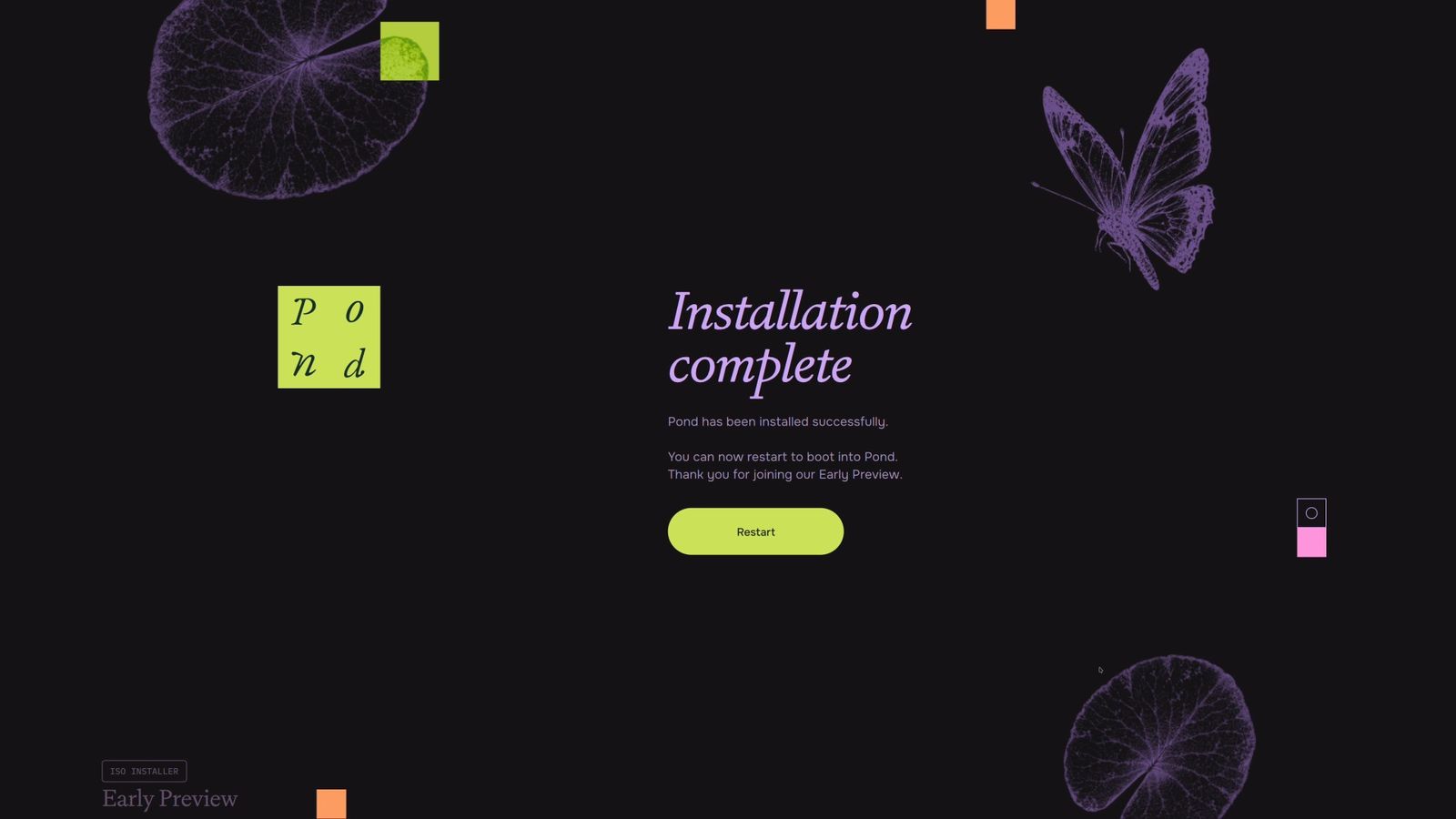
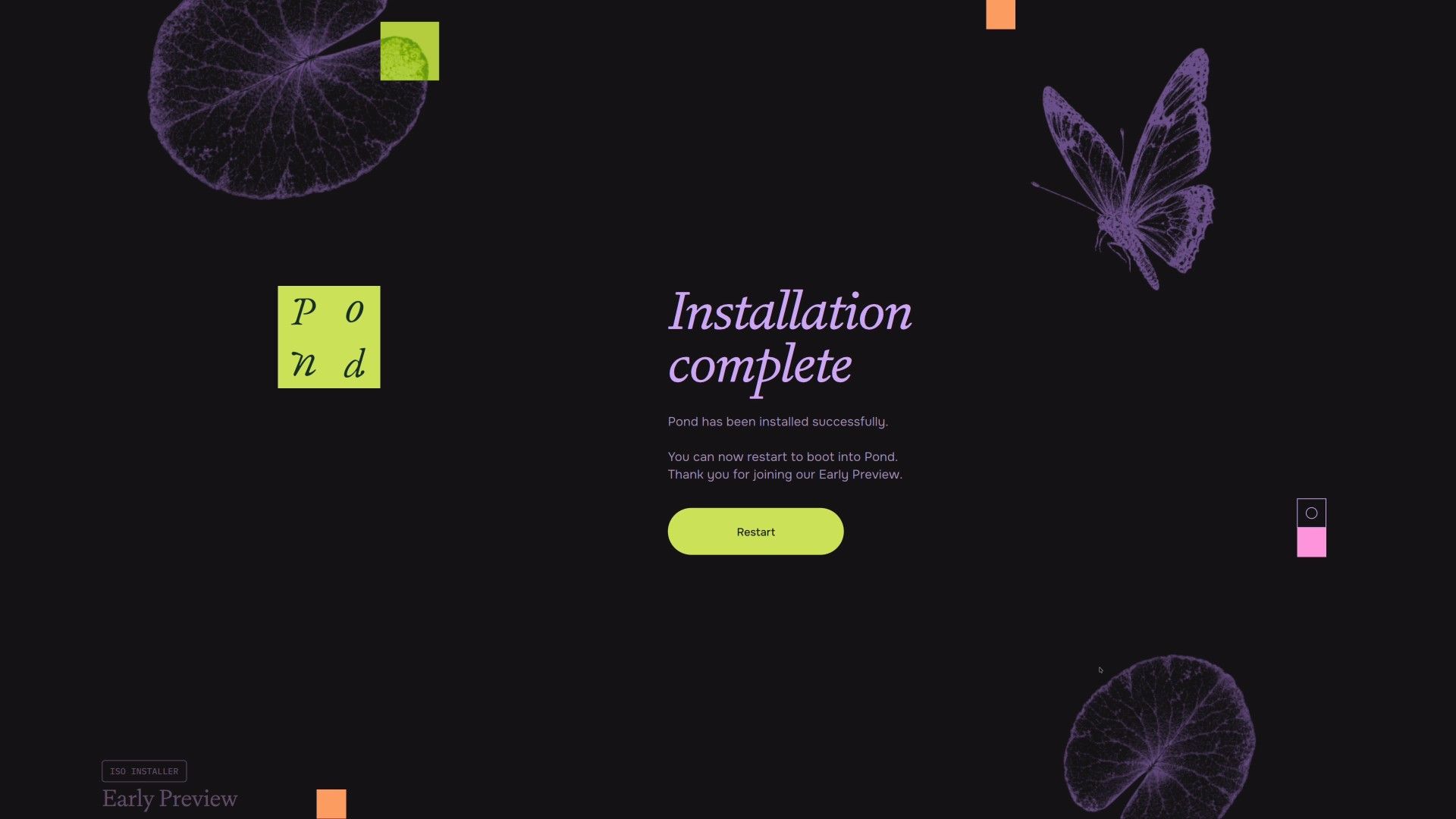
The installer downloads the 2.65 GB base system in the background while you fill in the profile, so the progress screen often starts part of the way along. After unpacking, it runs pacman -Syu against Pond’s live repositories, runs chwd --autoconfigure for drivers, and builds the initramfs. Butterfly’s README says the install usually takes under a minute depending on your connection. The last screen reads “Installation complete” and thanks you for joining the Early Preview. Remove the USB stick and press Restart.
The installer sets these up without asking: a 512 MiB EFI partition when there is none, Btrfs with zstd compression and the subvolumes @, @home, @root, @srv, @log, @cache, @tmp, @nix, @flatpak, @usr-local, and @snapshots, zram swap, two kernels (linux-pond and linux-pond-lts), GRUB, fish as the login shell, kitty, Nautilus, Flatpak, Nix, paru, ufw, and snapper with snap-pac. No web browser and no text editor app are installed.
First boot, login, and the User Manual
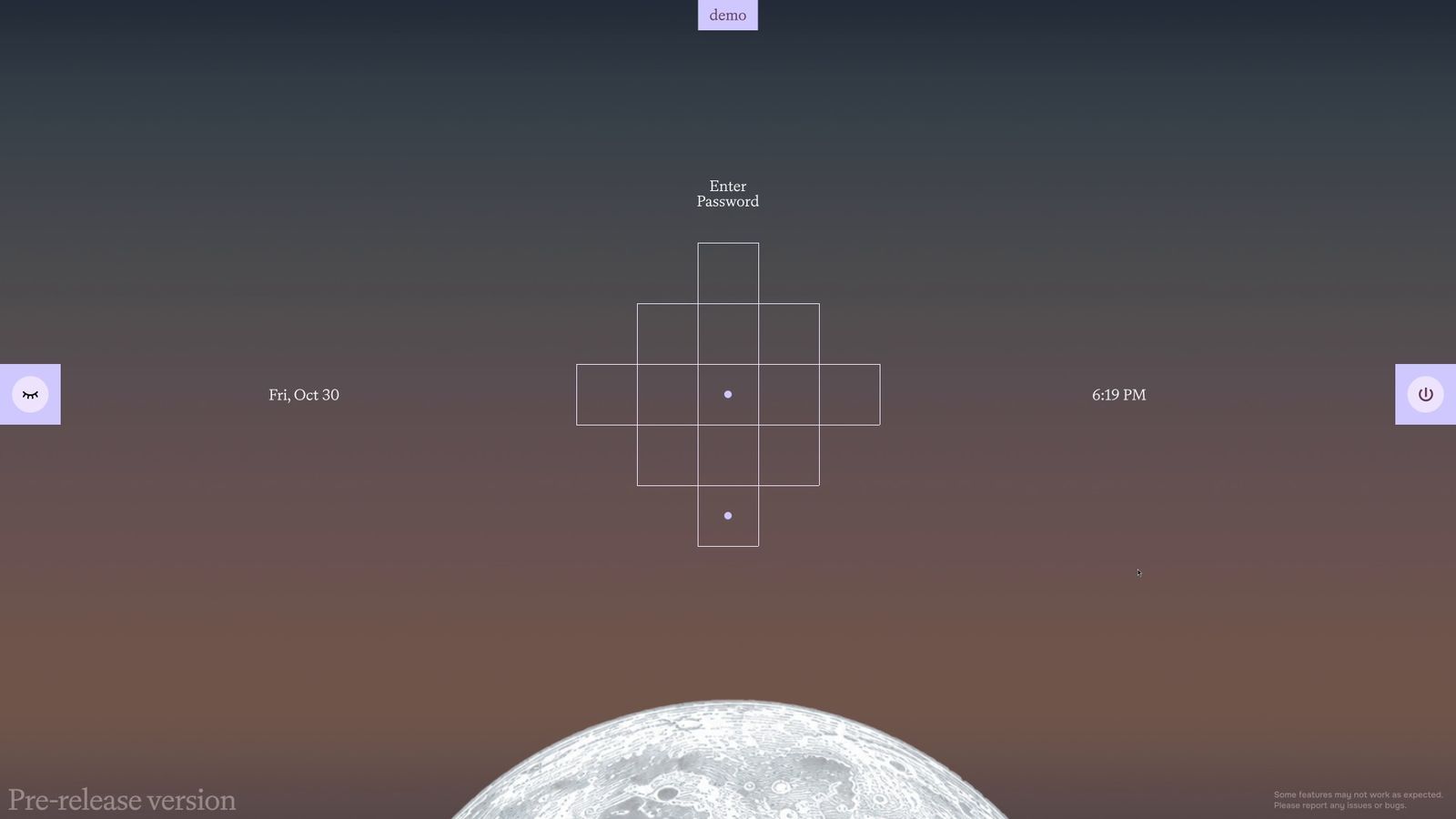
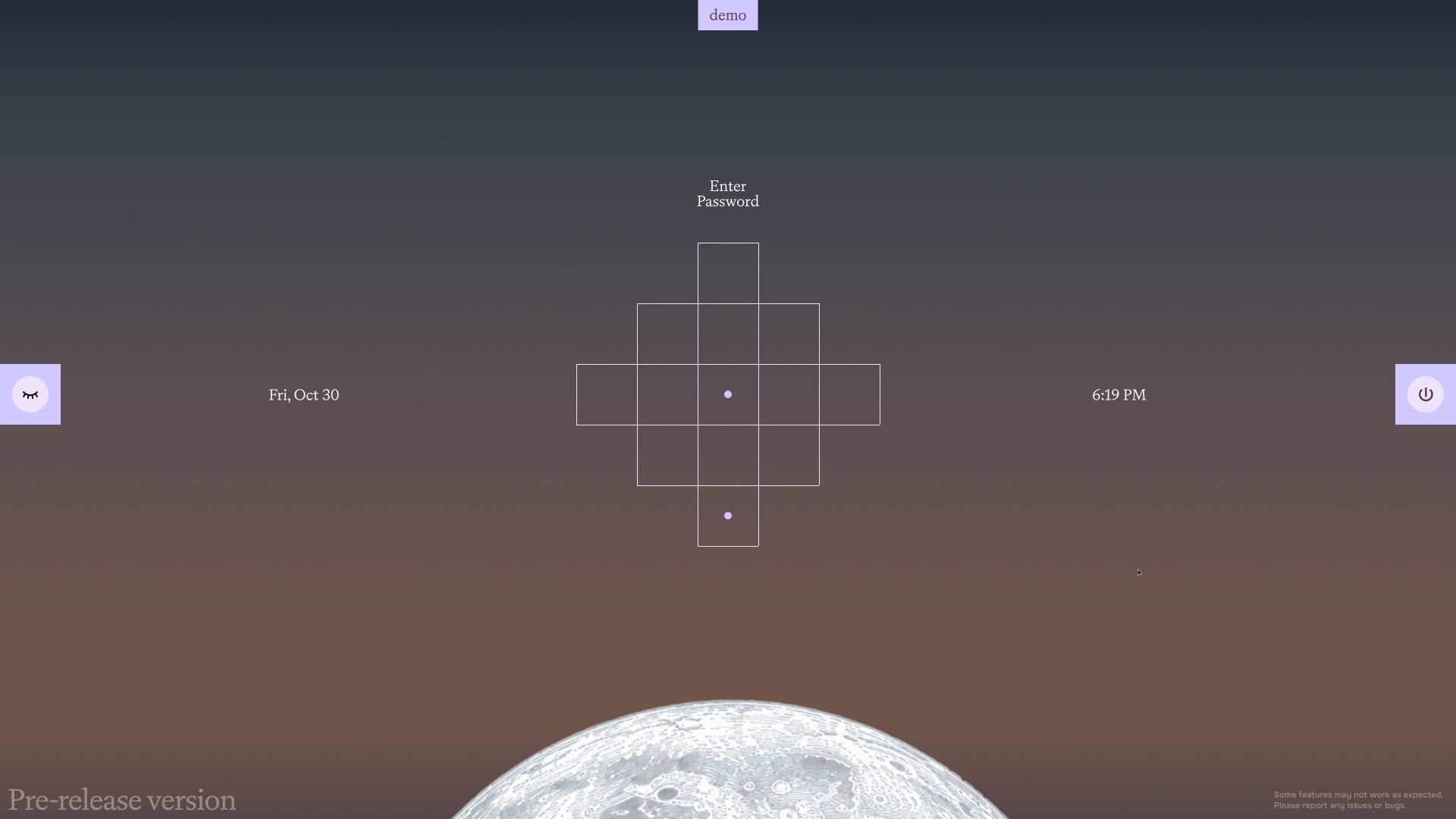
GRUB shows a themed “Boot Menu” with Pond, Pond Linux LTS (the long-term kernel), and UEFI Firmware Settings. The login screen is SDDM with Pond’s greeter, which runs inside a separate niri session. As you type the password, a cross of small squares fills with the same plant glyphs. The login screen also carries Pond’s preview notice: “Pre-release version” and “Some features may not work as expected. Please report any issues or bugs.”
On the first login a User Manual opens by itself over the desktop. It starts with the Super key (“Super (spr) is your Windows key”) and the launcher, then lists the navigation keys, the minimap, and a few other shortcuts. It ends with Discord, X, and email buttons for feedback. It opens only once, but you can open it again from Settings, Information, Manual, or from the launcher by typing “Manual”.
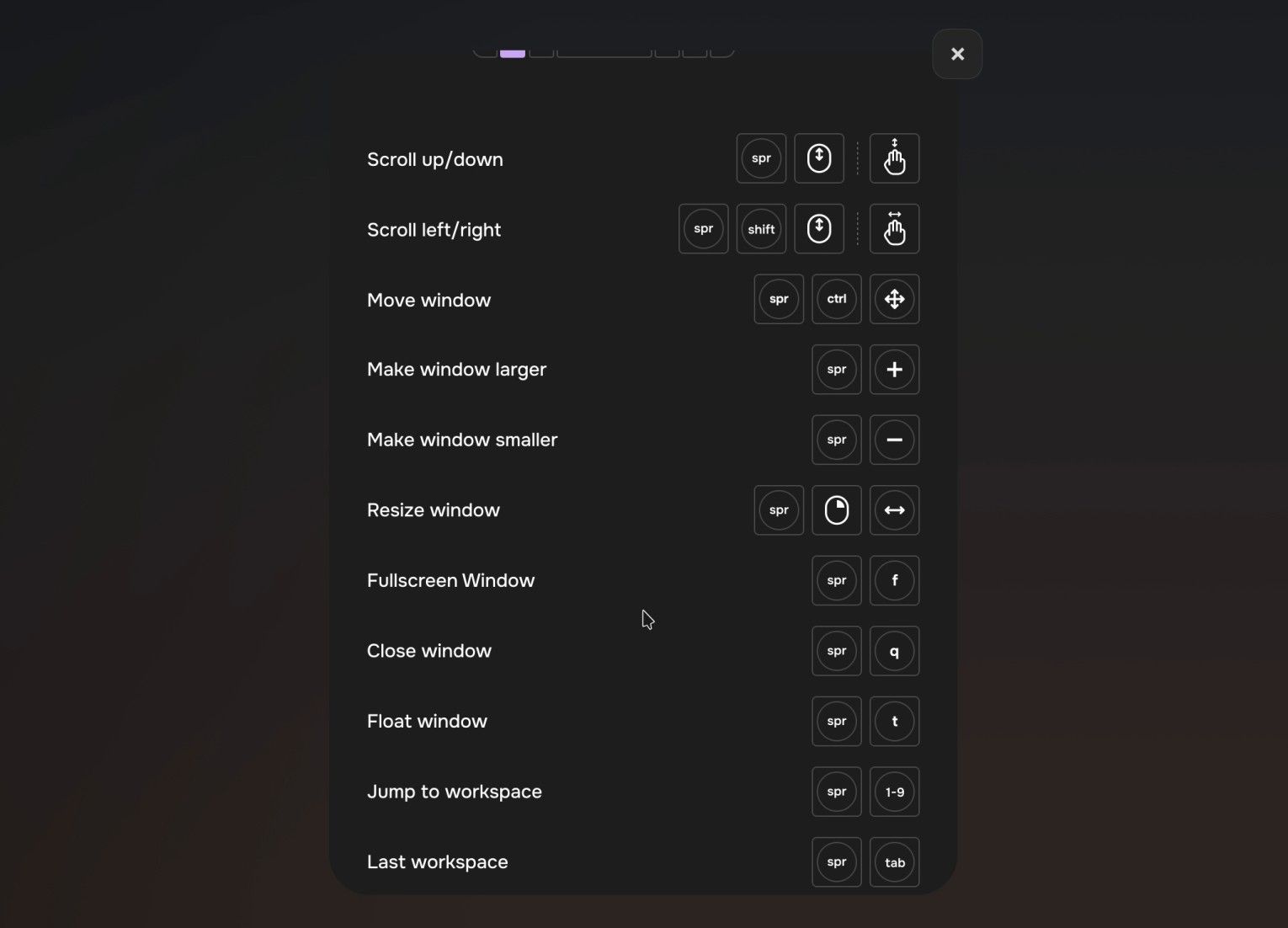
On a screen scaled to 2.5 or more, the manual can open as a blank window, because Qt refuses to load its large image at that size. Drop the output to scale 2 while you read it with niri msg output <name> scale 2 (niri msg outputs lists the names).
The sidebar and Settings
The sidebar reserves a strip on the left edge of every screen. At the top is the clock; click it for a month calendar. Under it, the minimap shows one row per workspace and one icon per window. You can drag windows between rows, and the plus on the empty row moves to that workspace and opens the launcher there. Notifications and install progress appear below the minimap, and media, keyboard layout, and brightness cards show up when they apply.
At the bottom are four buttons: network (Wi-Fi or wired, with upload and download rates on hover), sound (Output and Input tabs and a volume slider), Settings, and a collapse button that shrinks the sidebar to a narrow strip.
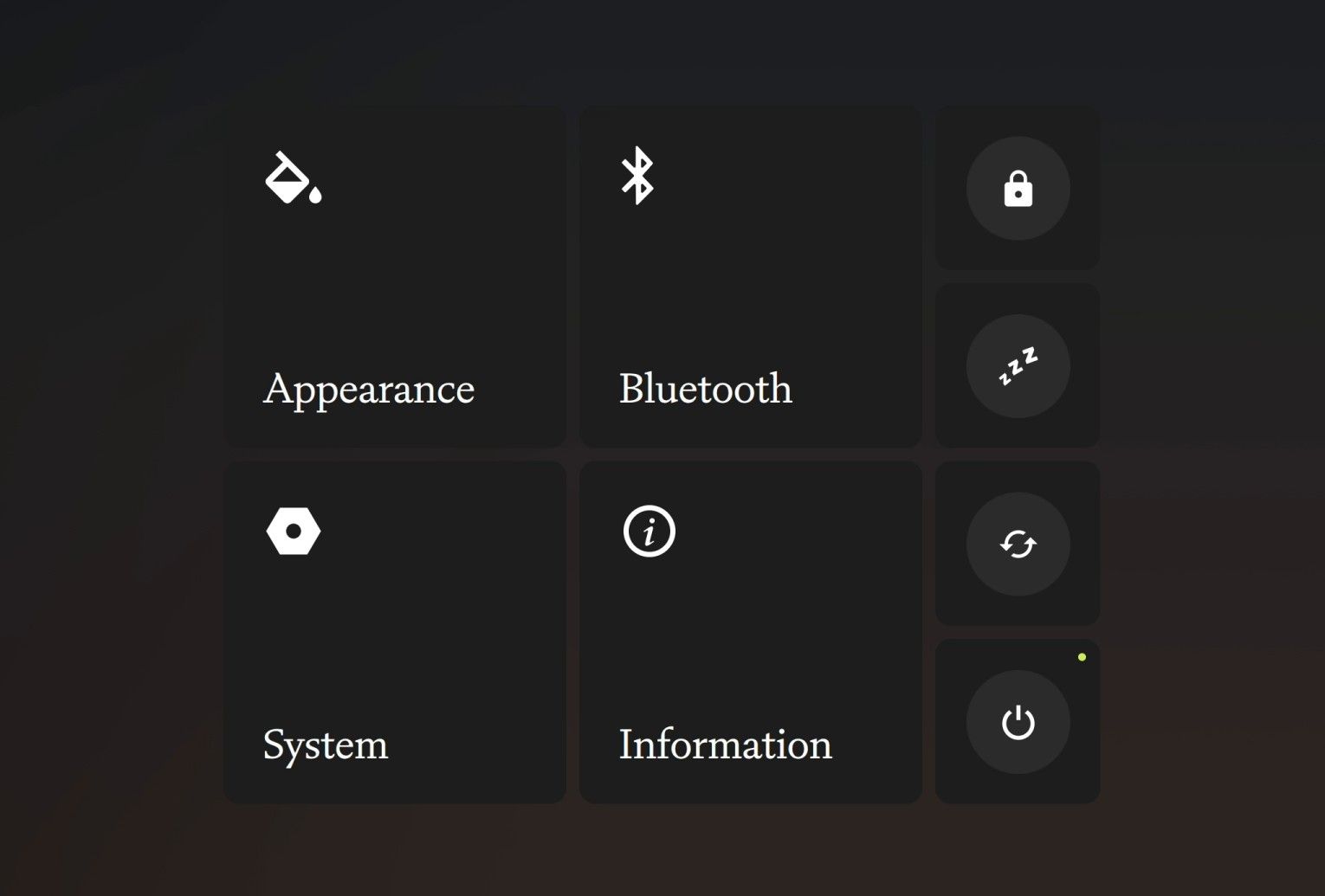
Settings opens as four tiles. Appearance picks the theme (Daylight by default, or Unthemed, with a third slot marked “Coming soon”) and the wallpaper (“Dynamic”, a sky that changes with the time of day, or “Custom”), and holds the display settings. System has mouse sensitivity, keyboard language, and the timezone. Information lists the hardware and carries the “V0.1 Early Preview” badge and the Manual button. A pill at the right edge of the screen switches between three power profiles.
Close a Settings page with its X. Pressing esc goes back to the tile view, where the lock button sits close to where the page’s X was, so a quick esc and click can lock the screen.
Pond’s niri keybindings
Butterfly rebinds several of niri’s default keys. super t floats a window instead of opening a terminal, super enter opens kitty, super space opens the launcher, and super k switches keyboard layout. There are no H, J, K, L focus keys; focus moves with the arrows. The table lists every keyboard binding in Pond’s config; the mouse and media keys follow it.
| Keys | Action |
|---|---|
| super enter | Open kitty |
| super e | Open Files (Nautilus) |
| super space | Open the launcher |
| super v | Clipboard history |
| super k | Next keyboard layout |
| super q | Close window |
| super / super | Focus column left / right |
| super / super | Focus window up / down, or the workspace above / below |
| super ctrl / super ctrl | Move column left / right |
| super ctrl / super ctrl | Move window up / down, or to the workspace above / below |
| super home / super end | Focus first / last column |
| super ctrl home / super ctrl end | Move column to first / last |
| super shift + arrows | Focus monitor in that direction |
| super shift ctrl + arrows | Move column to monitor in that direction |
| super 1 to super 9 | Go to workspace 1 to 9 |
| super ctrl 1 to super ctrl 9 | Move column to workspace 1 to 9 |
| super tab | Previous workspace |
| super o | Overview |
| super - / super = | Column width minus / plus 10% |
| super shift - / super shift = | Window height minus / plus 10% |
| super ctrl f | Expand column to the available width |
| super c / super ctrl c | Center column / center visible columns |
| super t | Float or tile the window |
| super f | Fullscreen |
| super w | Tabbed column |
| super s / super shift s | Screenshot |
| super alt l | Lock screen |
| super shift esc | niri’s hotkey overlay |
| super esc | Toggle the shortcut inhibitor |
| super shift p | Turn monitors off |
| ctrl alt delete | niri’s quit action: asks for confirmation, then ends the session |
With the Super key held, the mouse wheel moves between workspaces, Super and Ctrl with the wheel moves the column to another workspace, and Super and Shift with the wheel scrolls the strip sideways. niri’s mouse bindings also work: hold Super and drag with the left button to move a window, or with the right button to resize it. Media, volume, and brightness keys go through the shell and keep working on the lock screen.
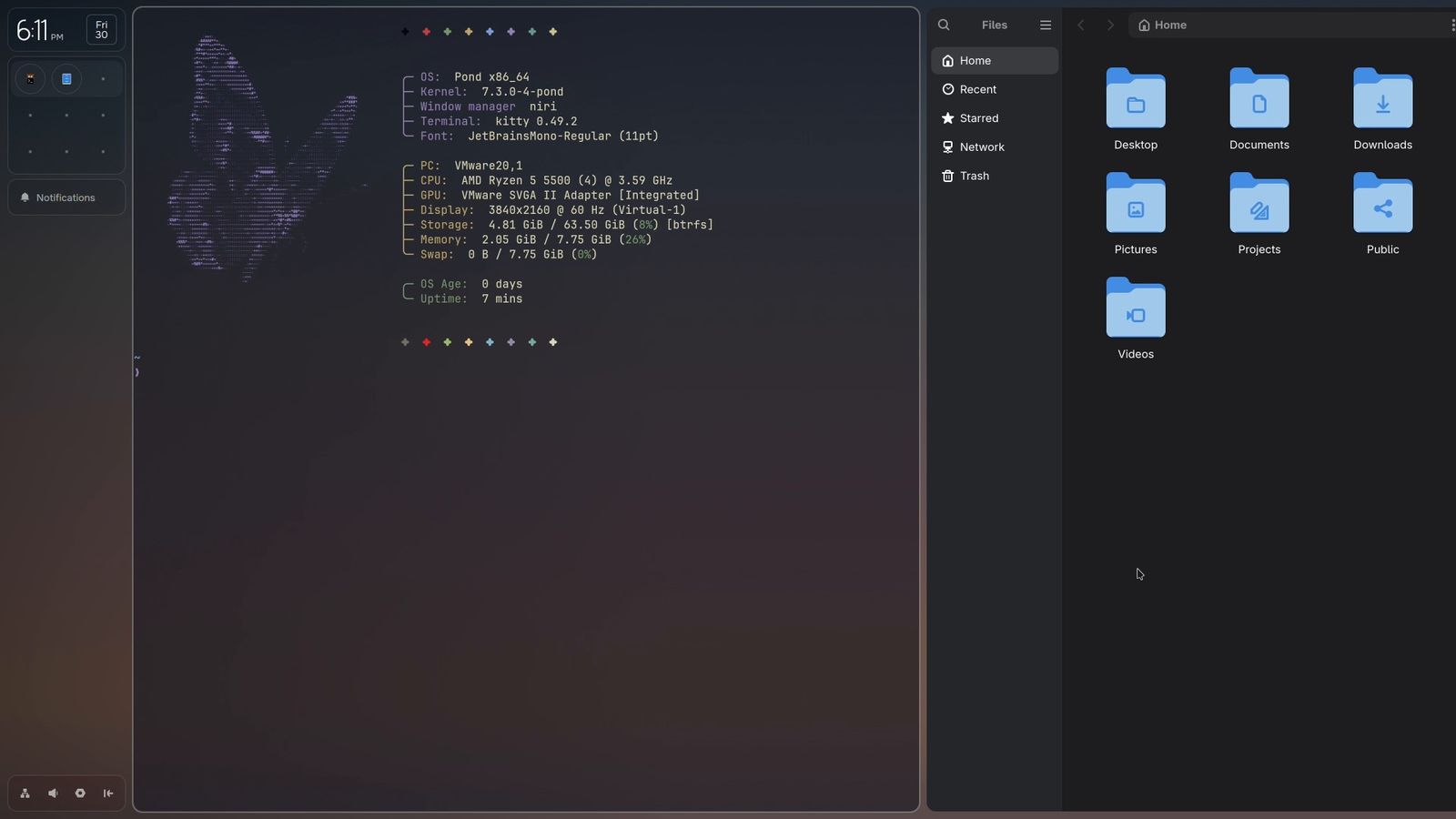
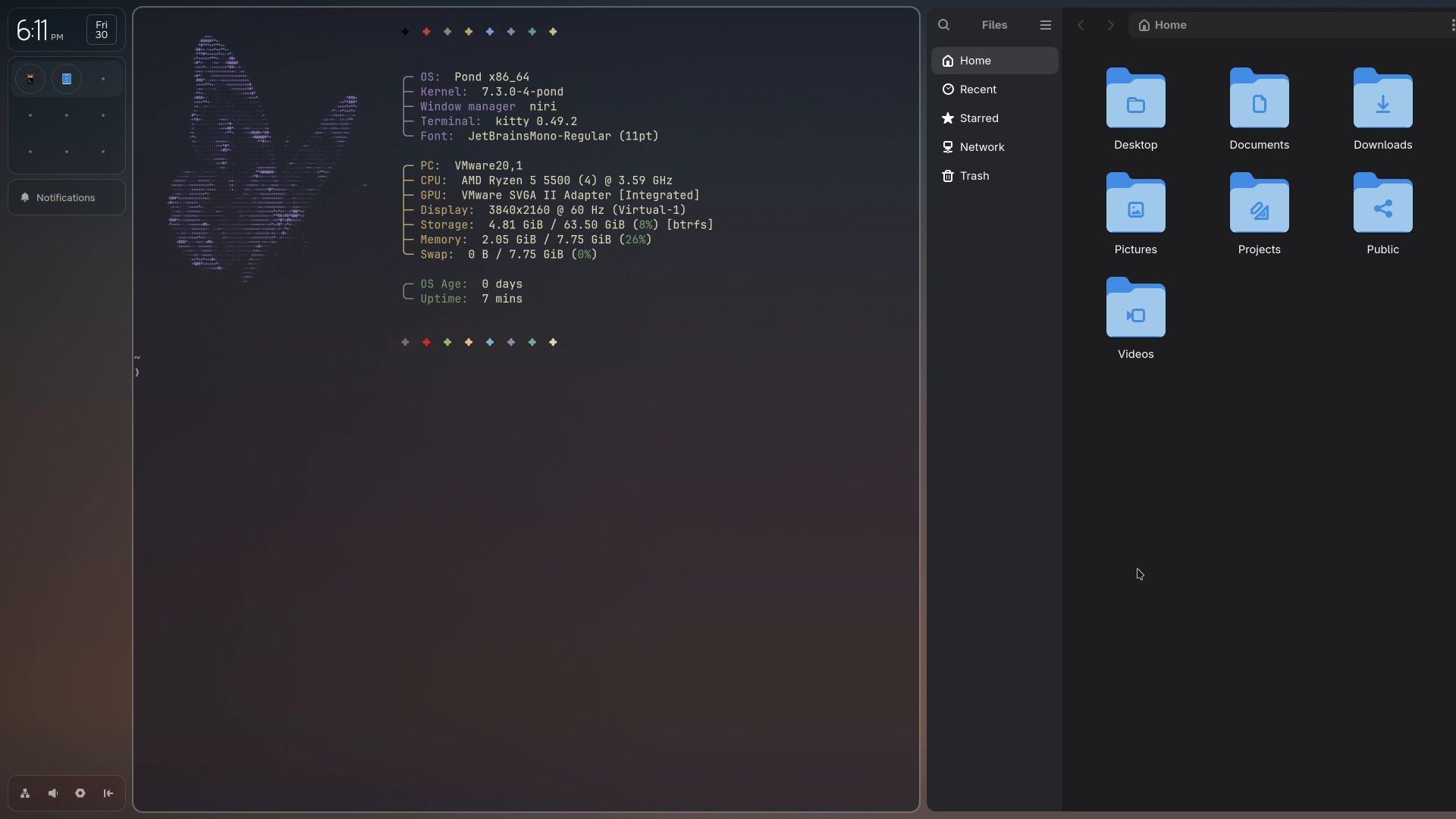
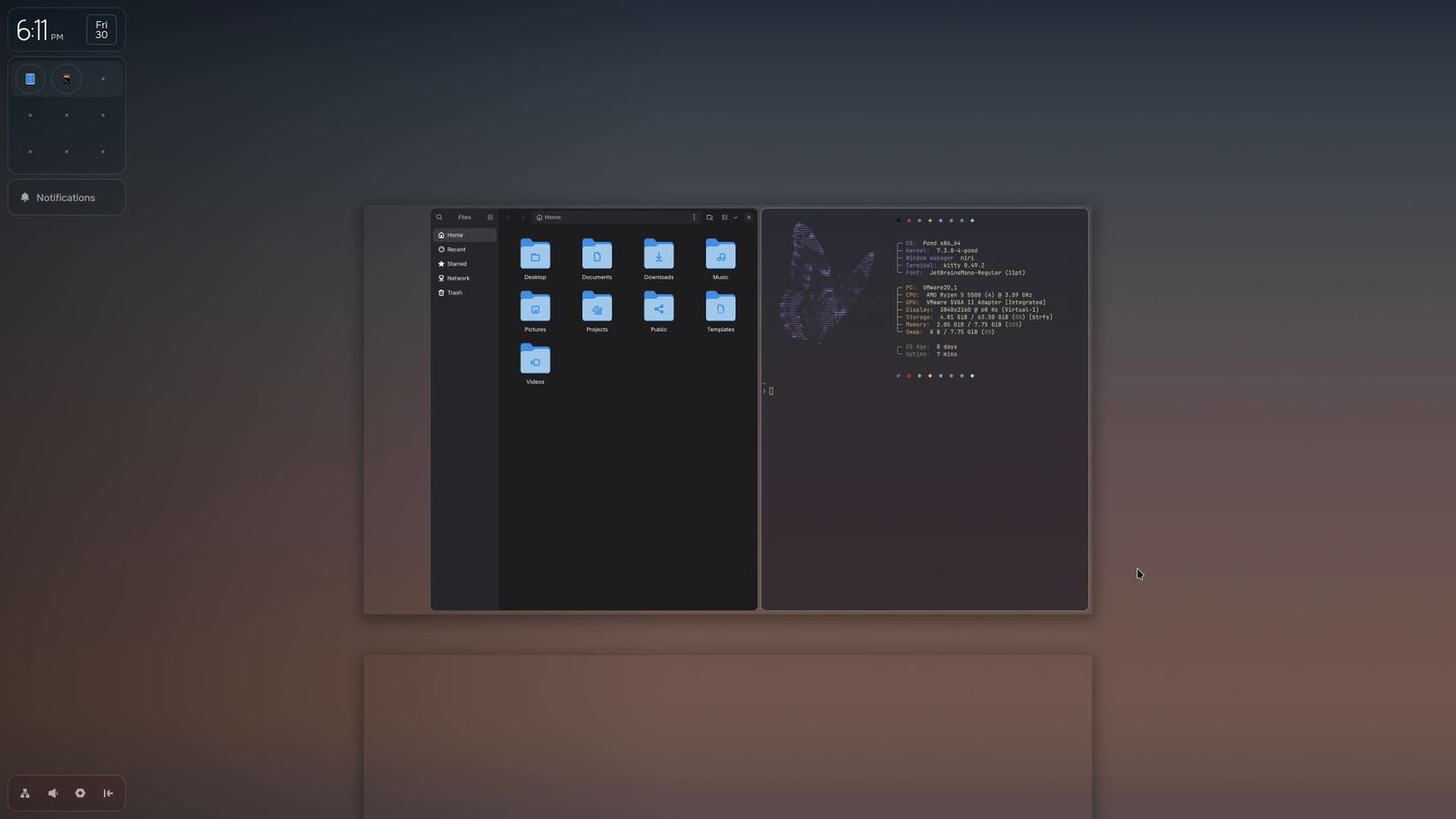
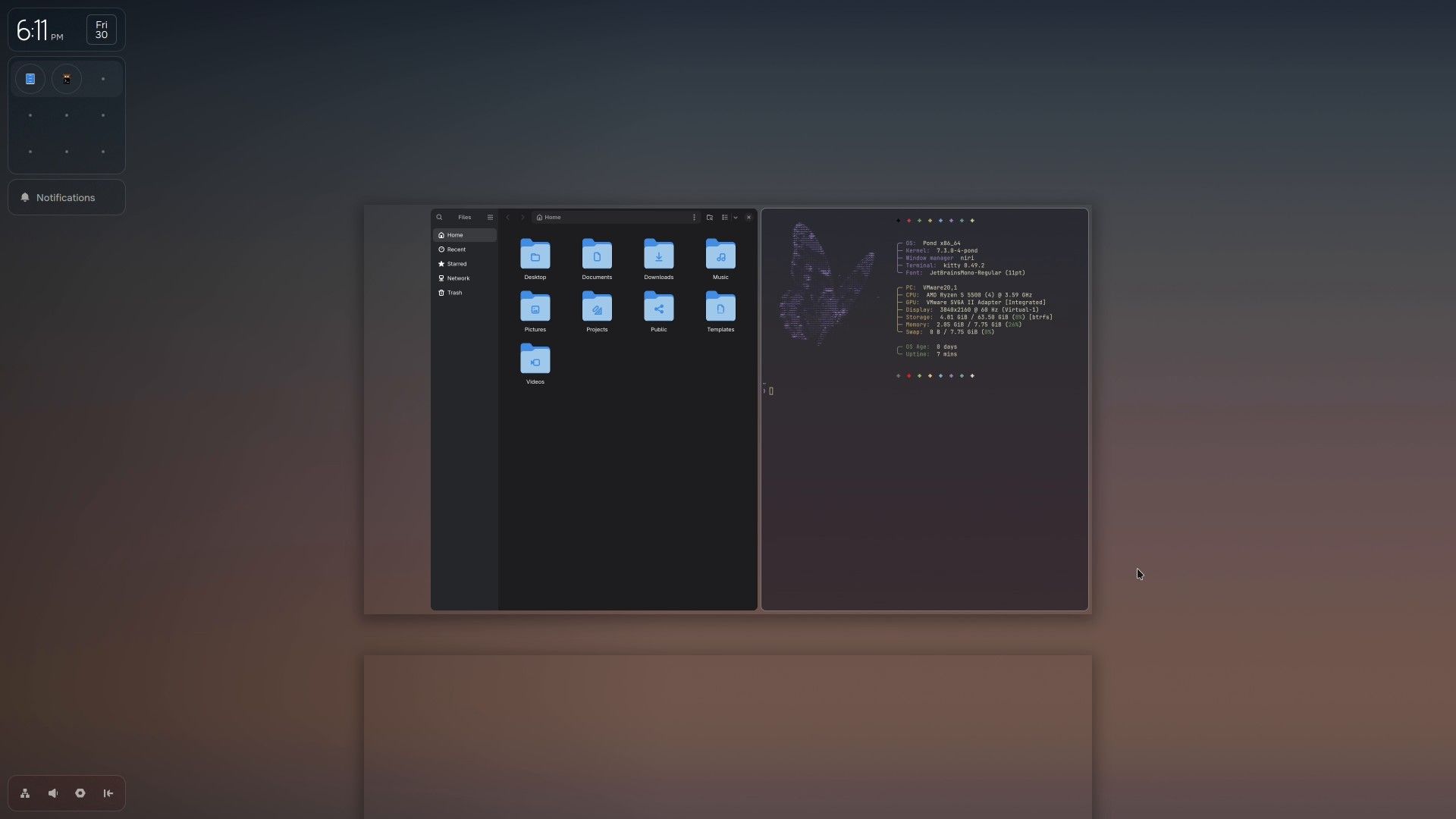
Pond’s layout defaults are gaps of 10, a 2 px grey focus ring, no borders, 12 px rounded corners, preset column widths of one third, one half, and two thirds, and a lone window centered at half width. kitty gets a background blur, hot corners are off, and screenshots go to the clipboard, not to a file. In the overview, workspaces stack vertically with an empty one below the last, as in stock niri.
Changing the keys
The config lives in ~/.config/niri/. config.kdl includes shell/config.kdl, which is a link to Pond’s own file (do not edit it), and then your personal files in cfg/: keybinds.kdl, input.kdl, display.kdl, layout.kdl, rules.kdl, animation.kdl, autostart.kdl, and misc.kdl. cfg/keybinds.kdl already holds three commented-out bindings you may want: super b to toggle the sidebar, super , for Settings, and super shift , for display settings. Remove the // in front of them, then check the file:
niri validateniri reloads its config when a file changes, so a valid edit takes effect at once.
Installing apps with pm
Pond’s app installer is pm, and the launcher’s Install apps entry is a front end for it. Press super space , open the Install apps tile (or type the “Install:” prefix), type a name, and press enter . The launcher closes and the sidebar shows a spinner and then a card with a check mark when the app is in.
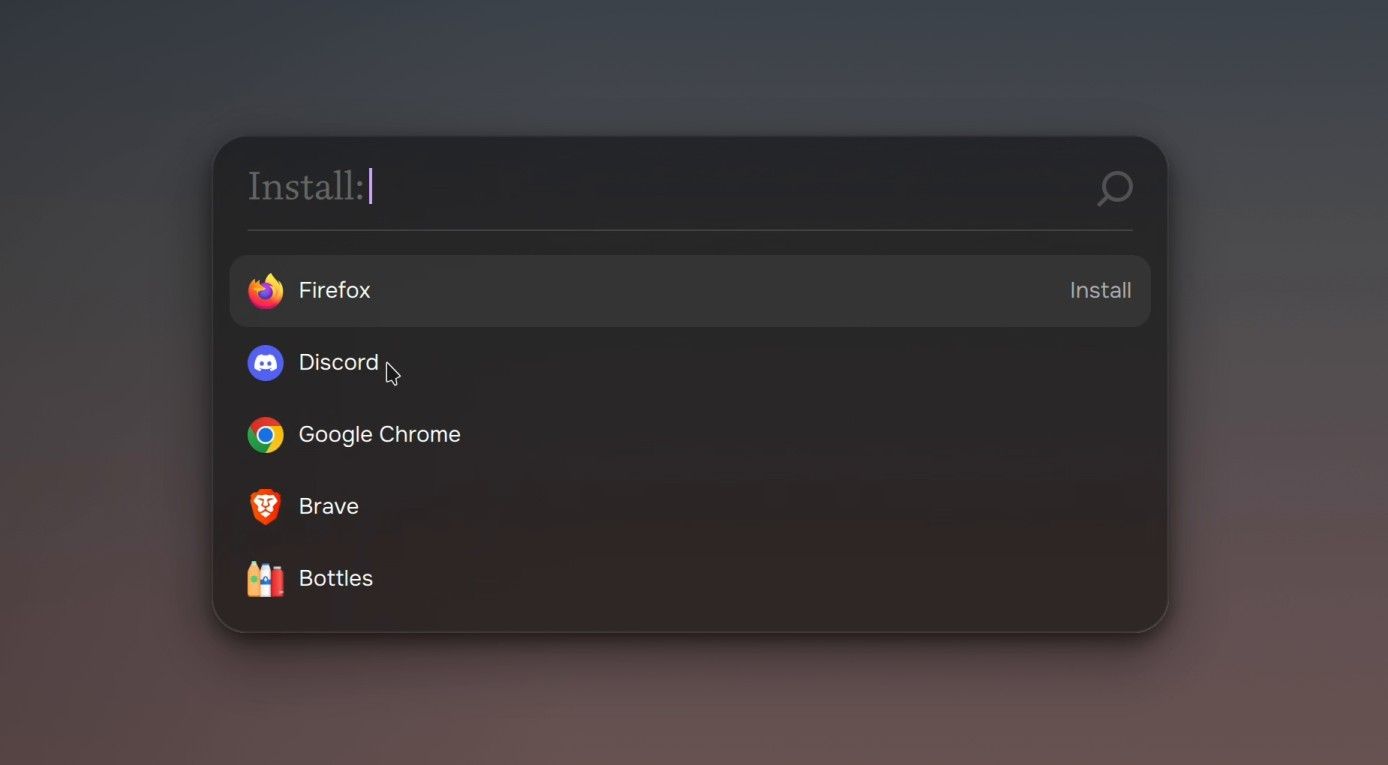
pm does not choose a source at install time. Each app in its built-in catalog names one source: Flatpak from Flathub, a pacman package, or an AUR package that it builds with paru. Of the 4,125 apps in the catalog, 3,201 are Flatpaks, 890 pacman packages, and 34 AUR packages; Firefox, Discord, Brave, and Steam are pacman, Google Chrome is AUR, and Spotify and OBS Studio are Flatpak. Neither the launcher nor the TUI shows which source an app uses. Butterfly also names Nix as a source, but no app in the catalog uses it today.
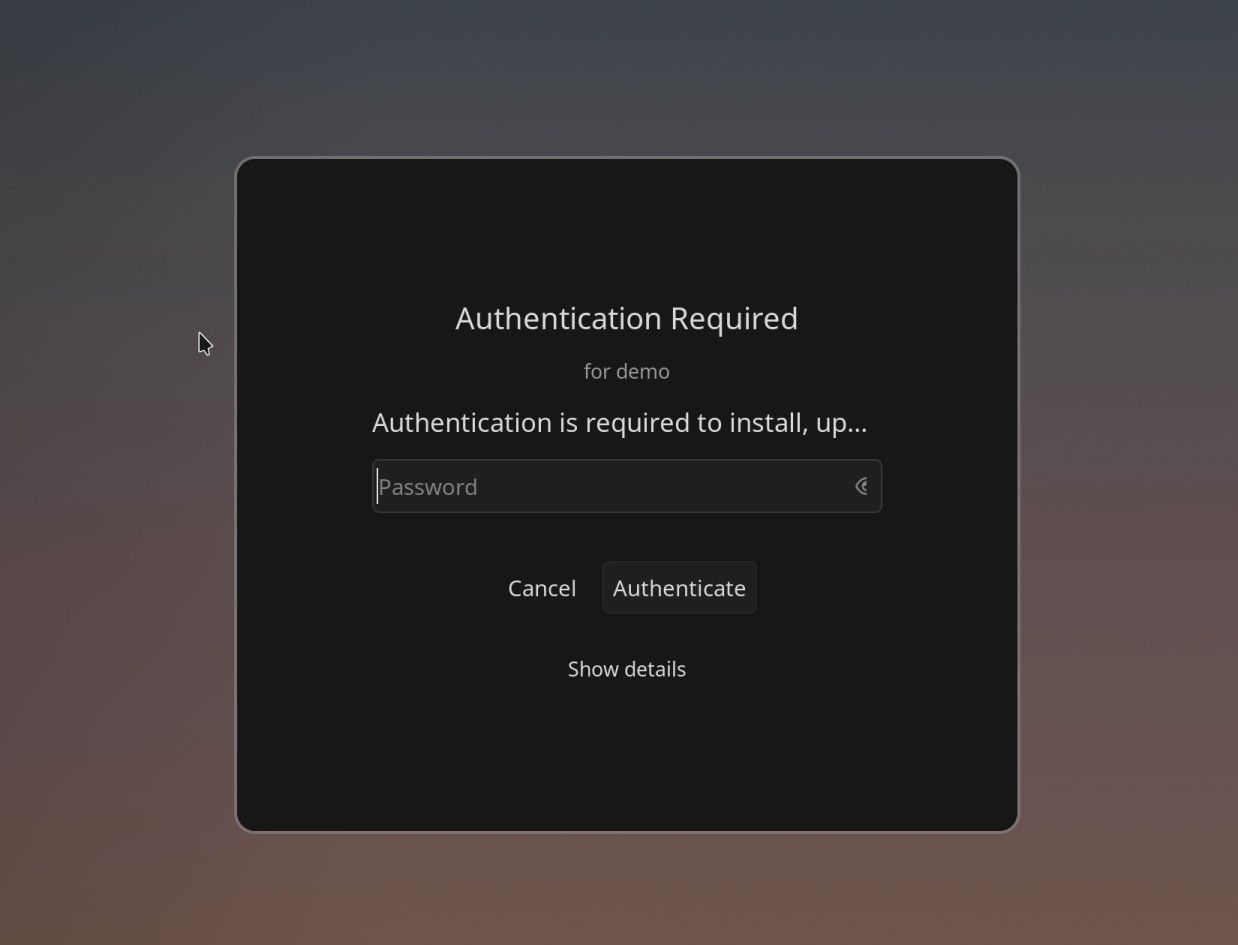
The source decides whether you get a password prompt. Pacman and AUR installs run paru --sudo pkexec, so a polkit dialog titled “Authentication Required” asks for your password every time. Flatpaks install system-wide without a prompt. The first Flatpak adds the flathub remote and pulls its runtime, which can add a gigabyte or more to that first install.
After an install, the launcher reopens in Install mode with your last search. Delete the “Install:” prefix with backspace , or press esc and open it again, to launch the new app.
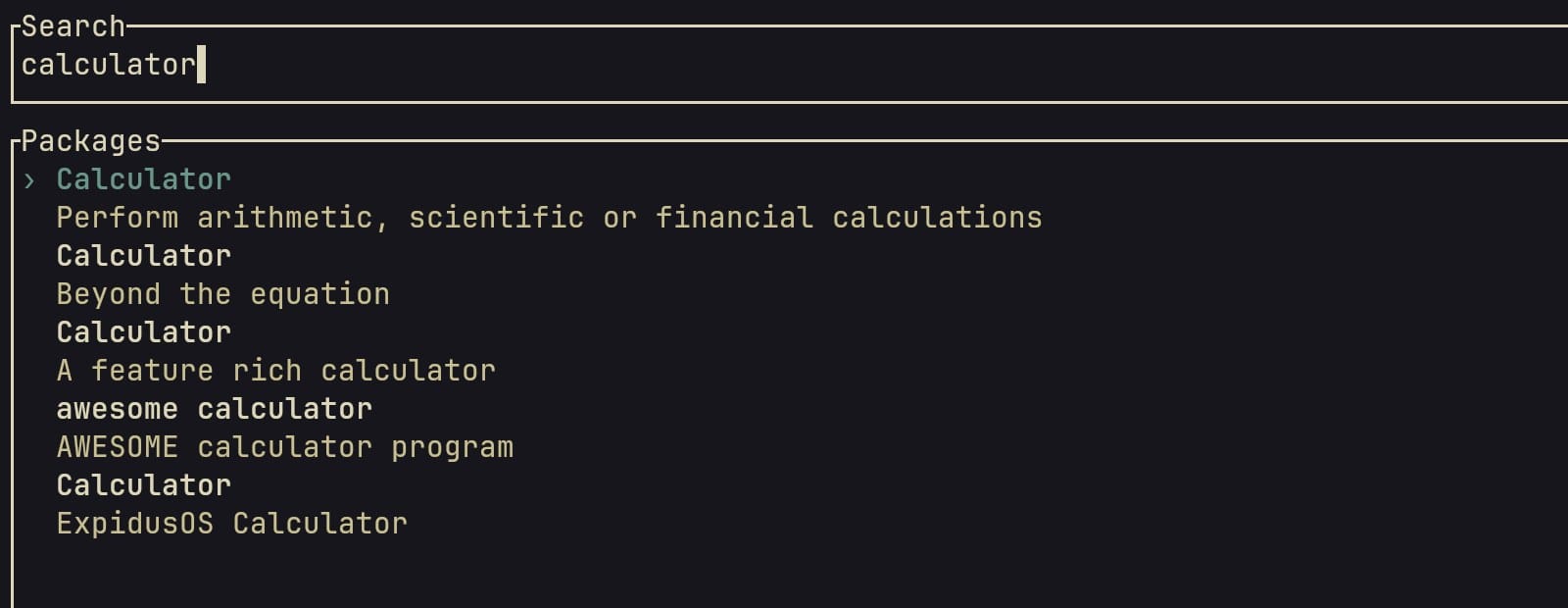
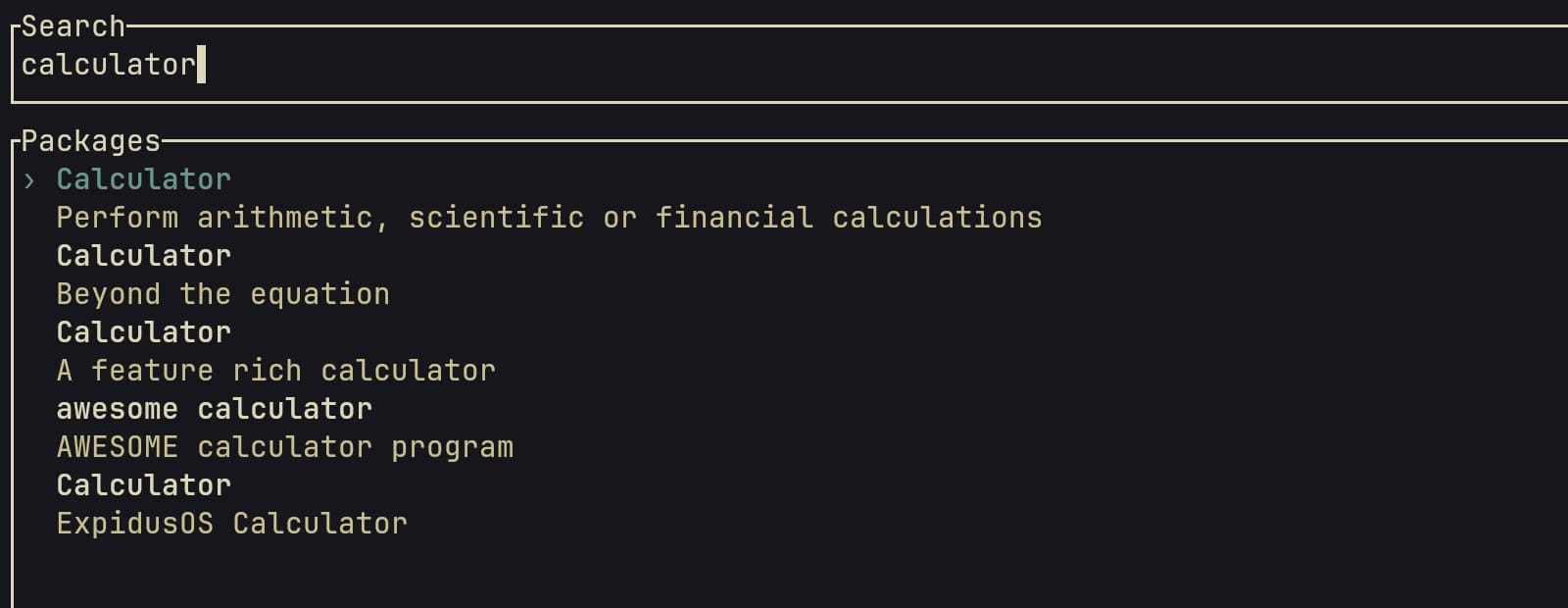
From a terminal, pm opens a full-terminal search with the top five results:
pm              # open the search
pm calculator   # open it with a search already typed
pm -a           # print true or false: are updates waiting?
pm -u           # update everything
In the TUI, arrows select, enter asks Install <name>?, enter or y confirms, and esc quits. A pacman install shows paru’s and pacman’s output in the terminal after the polkit prompt.
pm cannot remove anything. Use the tool behind the app instead: sudo pacman -Rns <package> for pacman and AUR apps (brave-bin for Brave), or flatpak uninstall <app-id> for a Flatpak. paru and pacman are there for anything outside the catalog, and our guide on installing AUR packages safely covers reading a PKGBUILD before you build it.
Updates
The shell runs pm -a at login and every 12 hours. When updates are waiting, Settings shows an Update available button that runs pm -u, which updates pacman, AUR, and Flatpak packages together (not Nix). After a kernel or NVIDIA driver update the shell recommends a restart. The check counts pending pacman updates through checkupdates and reports true only when it prints more than three lines, so one to three waiting updates do not show the button. Run pm -u yourself whenever you like.
Snapshots with snapper
Pond sets up snapper on Btrfs with snap-pac, which takes a pre and a post snapshot around every pacman transaction. That includes pacman and AUR installs through pm. Flatpak installs skip snap-pac and make no snapshot. Snapper’s timeline is off, so snapshots come only from package transactions; the config keeps the last 50 and the last 15 marked important.
The config covers only the root subvolume. @home, @flatpak, and @nix are separate subvolumes, so your files, Flatpak apps, and Nix store are not in these snapshots.
As your own user, snapper list answers “No permissions”, so use sudo. The default table is wide; the column list below fits a terminal:
sudo snapper list --columns number,type,pre-number,date,description

Snapshots 1 to 4 come from the installer’s own pacman runs. Each install after that adds a pair: here, 5 and 6 are the pre and post snapshots of the Brave install. To see what a transaction changed, and to undo it:
sudo snapper status 5..6       # files created, changed, or deleted
sudo snapper undochange 5..6   # put those files back as they were in 5
For a single package, sudo pacman -Rns is the simpler undo; undochange helps when an update breaks something across many packages. Pond installs grub-btrfs, which should add the snapshots to the boot menu, but with installer 0.1.4 on a UEFI machine the menu has no snapshot entries, so plan to roll back from a running system.
Pond in a virtual machine
niri has no software renderer, so in VMware turn on “Accelerate 3D graphics” before the first boot; without it niri fails, and so does the login screen, which runs inside niri. With 3D on, the installed desktop runs in VMware Workstation without changes. If the live installer drops to a shell with “importing the supplied dmabufs failed”, type WLR_RENDERER=pixman bash -l to restart it on wlroots’ software renderer.
What Early Preview means
Butterfly’s Terms say this build “may contain bugs, incomplete features, security issues, compatibility problems, crashes, or other unexpected behavior”, and that Butterfly may change availability, requirements, features, or builds during the preview. As of installer 0.1.4, these limits apply:
- x86_64 only. A Raspberry Pi 5 port exists, but it is unofficial.
- Secure Boot must be off, and the installer has no disk encryption.
- The installer takes a whole drive or free space you prepared; it has no manual partitioning screen.
- The live installer has no driver for some Broadcom Wi-Fi cards, such as the BCM4360 in older Macs.
- The third theme slot says “Coming soon”, and the boot menu has no snapshot entries.
Butterfly’s shell, lock screen, installer, and pm are BSD 3-Clause, the launcher is GPL-3.0, and the kernel and tuning packages are rebuilt from CachyOS projects. The “Pond Gramercy” title font is proprietary, and the Terms reserve Butterfly’s trademarks, logos, and designs. The Privacy Policy says pm “may periodically send” statistics on packages installed through it, without device identifiers; the public pm source has no network code, and Butterfly has not said whether the shipped binary does.
Where Pond fits
Pond suits someone who already likes niri’s scrolling columns and wants an Arch base with a finished sidebar, a launcher with an app catalog, and snapshots set up from the first boot. It is not ready to be the only system on a machine you depend on, and its login screen labels it a pre-release version. If you prefer Hyprland, Omarchy has a scrolling layout of its own and Limine snapshots you can boot into; our Omarchy overview covers what else it sets up.