
Muse is Meta’s personal AI agent. You give it a task in a chat, and it does the work on a computer of its own in Meta’s cloud, with its own web browser. Meta announced it on September 8, 2026, for iPhone, Android, and the muse.ai website, and you can also message it in WhatsApp. Mac and iPad apps followed. There is no Linux app, and Microsoft said on October 7 that a native Windows app is “coming soon,” with no date.
On Linux, the website is the way in. Omarchy can turn any site into a web app with its own launcher entry and its own window, so Muse sits next to your other apps without tabs or an address bar. This guide installs it that way, sets it to ask before it uses the web or your other apps, turns off AI training on your chats, and tries the Allow and Deny cards. The steps and screens are from Omarchy 4.0.4 and Muse’s free plan as of October 2026.
What you need
To use Muse at all, you need a Meta account, and you have to be 18 or older. The Muse terms put it this way: “you cannot use Muse if you are under the age of 18 (or such greater age required in your country or territory).” Muse launched in the US, and Meta’s subscriptions help page says “Muse and Muse subscriptions are in limited testing and aren’t available in all locations yet.”
You can sign in with an existing Facebook or Instagram login, but you do not have to. Section 6.3 of the terms says you can keep Muse in a separate Accounts Center by signing up with an email address that is not tied to another Meta account.
Muse is free with a usage limit. On the free plan, Settings > General shows a weekly limit, how much of it you have used, and the day it resets; Meta does not publish the size of the free allowance. The subscriptions page lists two paid plans: Power at $20 a month with 500M Muse tokens per week, and Maximum at $100 a month with 3B Muse tokens per week. When you reach the limit, you can upgrade or wait for it to refresh.
Last, sign in at muse.ai in Chromium, Omarchy’s default browser, before you install the web app. The web app opens in a Chromium window that shares the browser’s profile, so you sign in only once.
Install Muse as an Omarchy web app
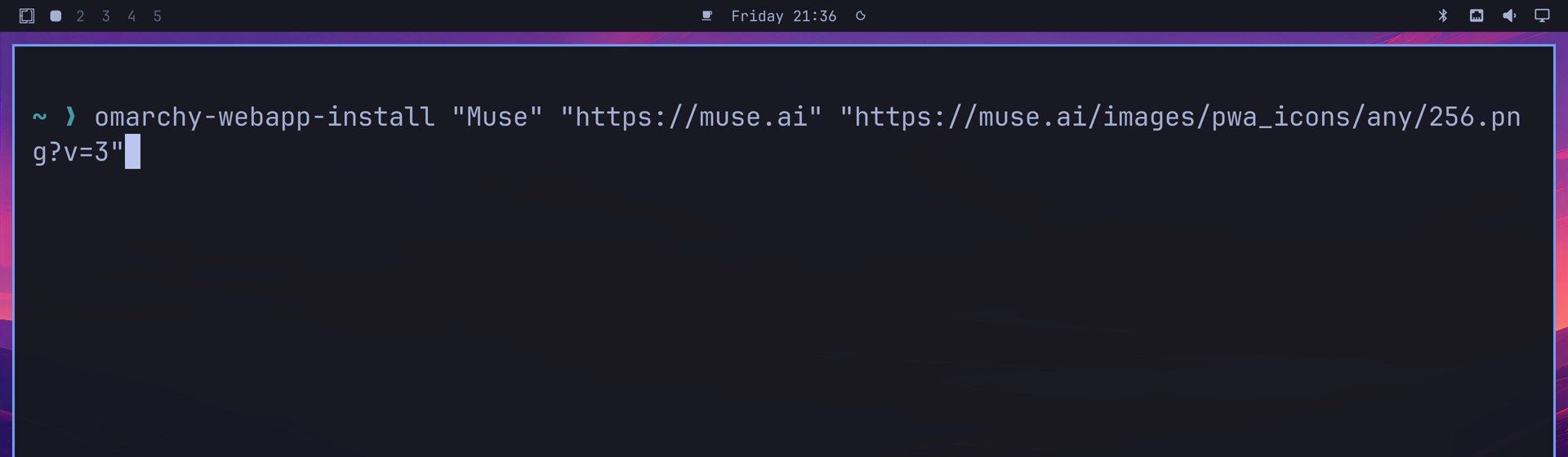
Press super enter to open a terminal. (Super is the Windows key on a PC keyboard.) Then run Omarchy’s web app installer with three arguments (the name, the address, and an icon):
omarchy-webapp-install "Muse" "https://muse.ai" "https://muse.ai/images/pwa_icons/any/256.png?v=3"The icon address points at a 256 by 256 pixel icon on Muse’s own site, so the launcher entry stays sharp. The command prints nothing and returns to the prompt in about a second.
You can also install it from the menu: press super space , choose Install, then Web App, and answer the Name and URL prompts. That route does not ask for an icon. It fetches one on its own, and for muse.ai it falls back to a 128 by 128 pixel favicon, which looks soft next to your other launcher icons. The command above avoids that.
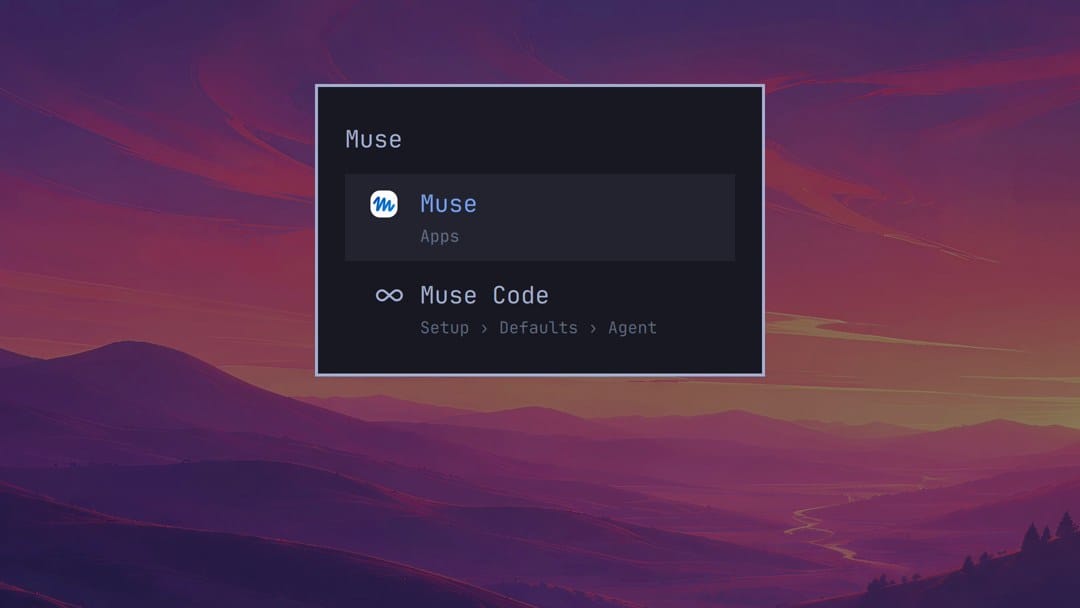
To open Muse, press super space and type Muse. Two rows come up. The first, Muse under Apps, is the web app you made. The second, Muse Code, is an Omarchy menu entry for Meta’s coding agent, which is a different product. Press enter on the first row, and Muse opens in a window of its own, already signed in.
Set Muse to ask before it uses the web or your apps
Even on its default settings, Muse asks before some actions. Meta’s newsroom post says it “checks with the person before sensitive actions like sending an email or making a purchase.” Two permission defaults decide how often it asks when it opens websites or uses your connected apps, and both start on the less strict choice.
Open the menu at the bottom left of the Muse window (the three lines), choose Settings, and then Permissions. The page has two groups:
- Connector defaults covers Muse’s use of your other apps, such as Gmail or Calendar. “Ask for some actions” asks “Before actions that may share your information or make important changes.” “Always ask” asks “Before any action.”
- Web access defaults covers Muse’s own browser. “Ask for some actions” asks “When your information may be shared or the website is unfamiliar.” “Always ask” says “Ask before accessing any website.”
Click Always ask in both groups. A tick moves to it, and a short message confirms each change: “Connector default updated” and “Web access default updated.”
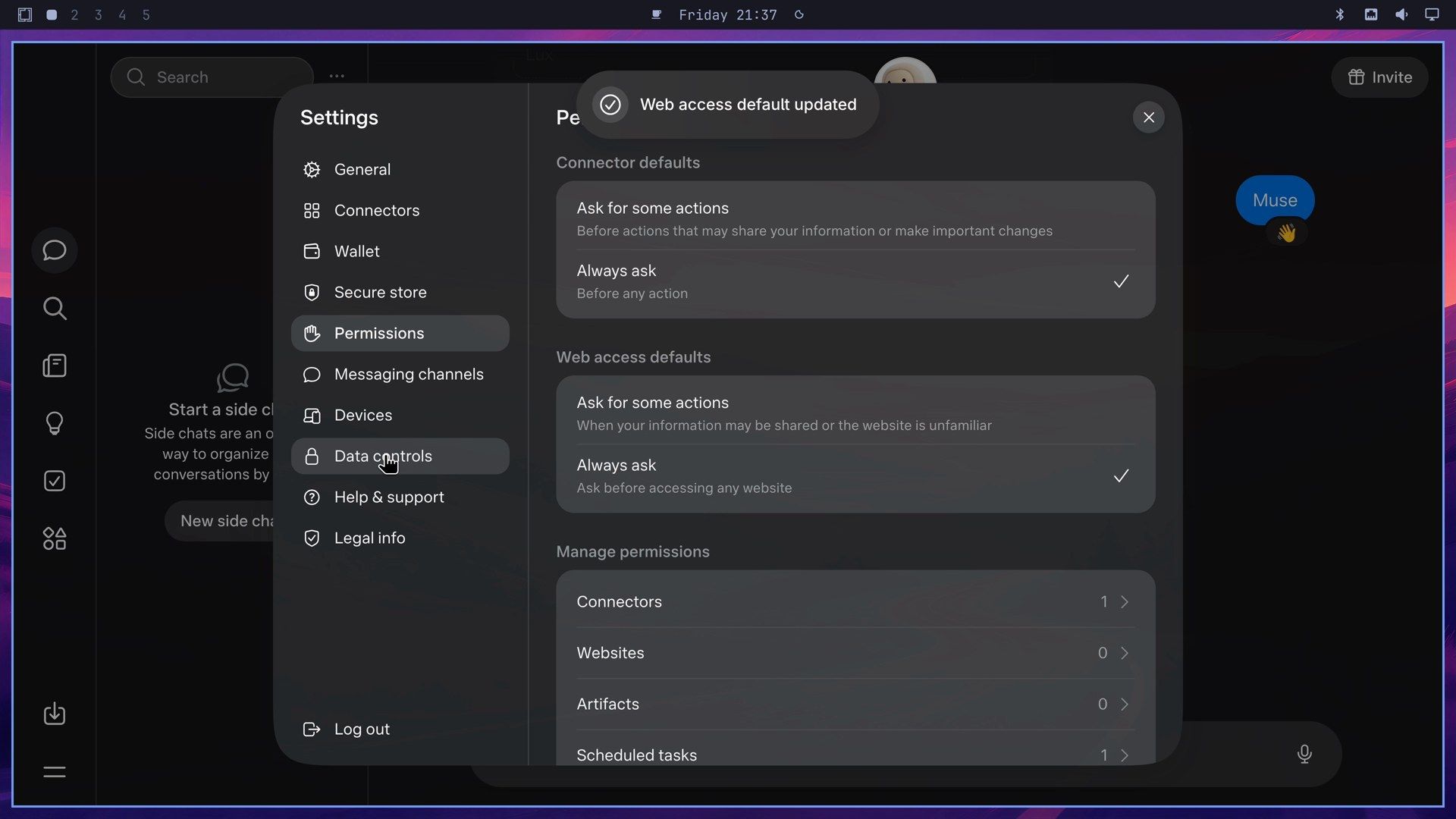
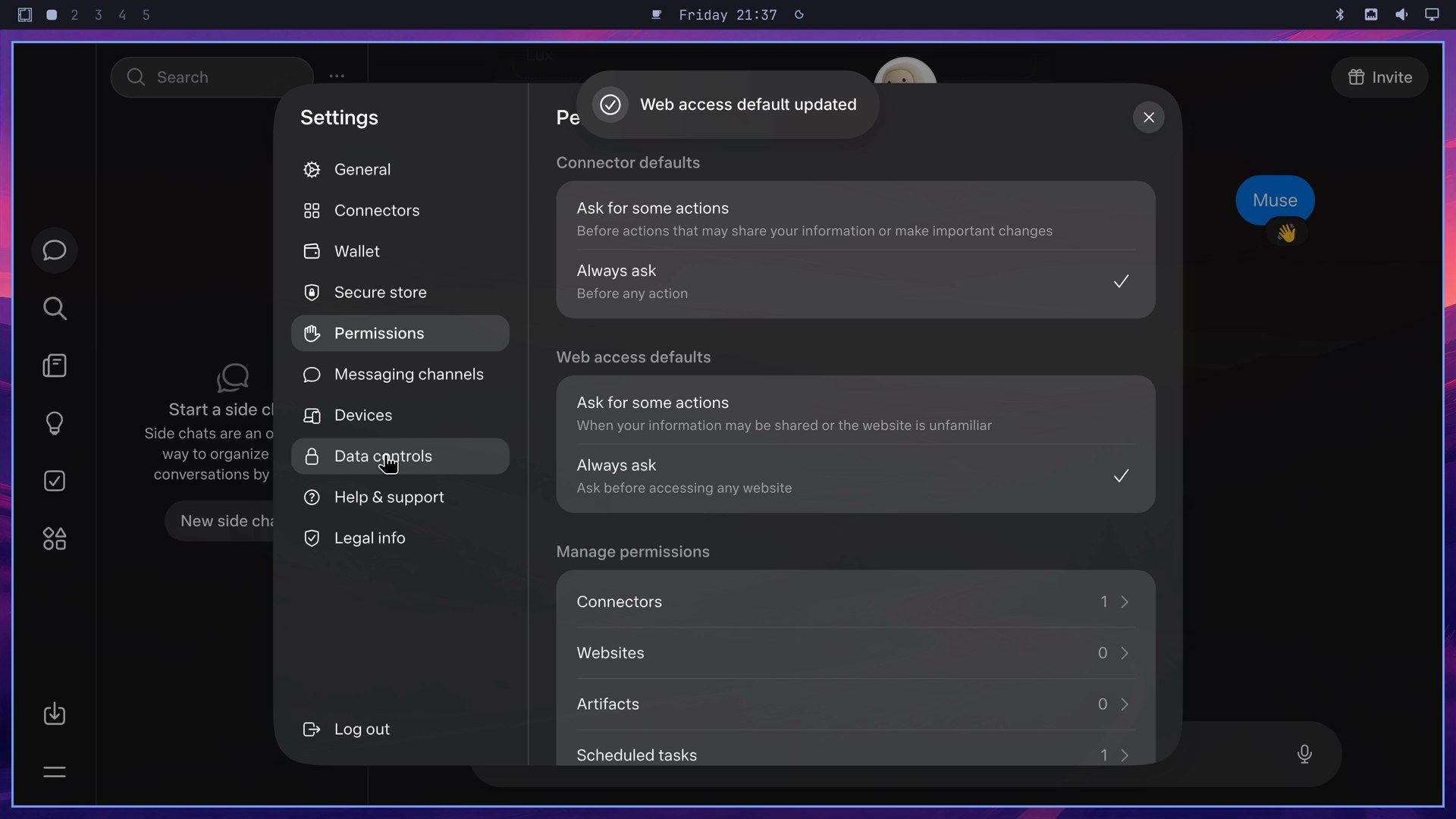
With Always ask on, Muse brings up an approval card before a task opens a website or uses a connected app. The cost is more clicks during a task. Below the defaults, Manage permissions lists what you have already allowed per connector and per website, so you can check or take back an approval later.
Turn off AI model training
Still in Settings, choose Data controls. The switch called Help improve our AI models is on when you start. Its caption reads “Allow us to use your interactions with Muse to develop and improve AI at Meta.”
Click the switch. Muse asks “Turn off AI model training?” and explains that “Your interactions with Muse won’t be used to improve AI at Meta after you turn this off.” Click Turn off to confirm. Meta’s help page for this setting adds that “Changes to this setting also apply to previous interactions.”
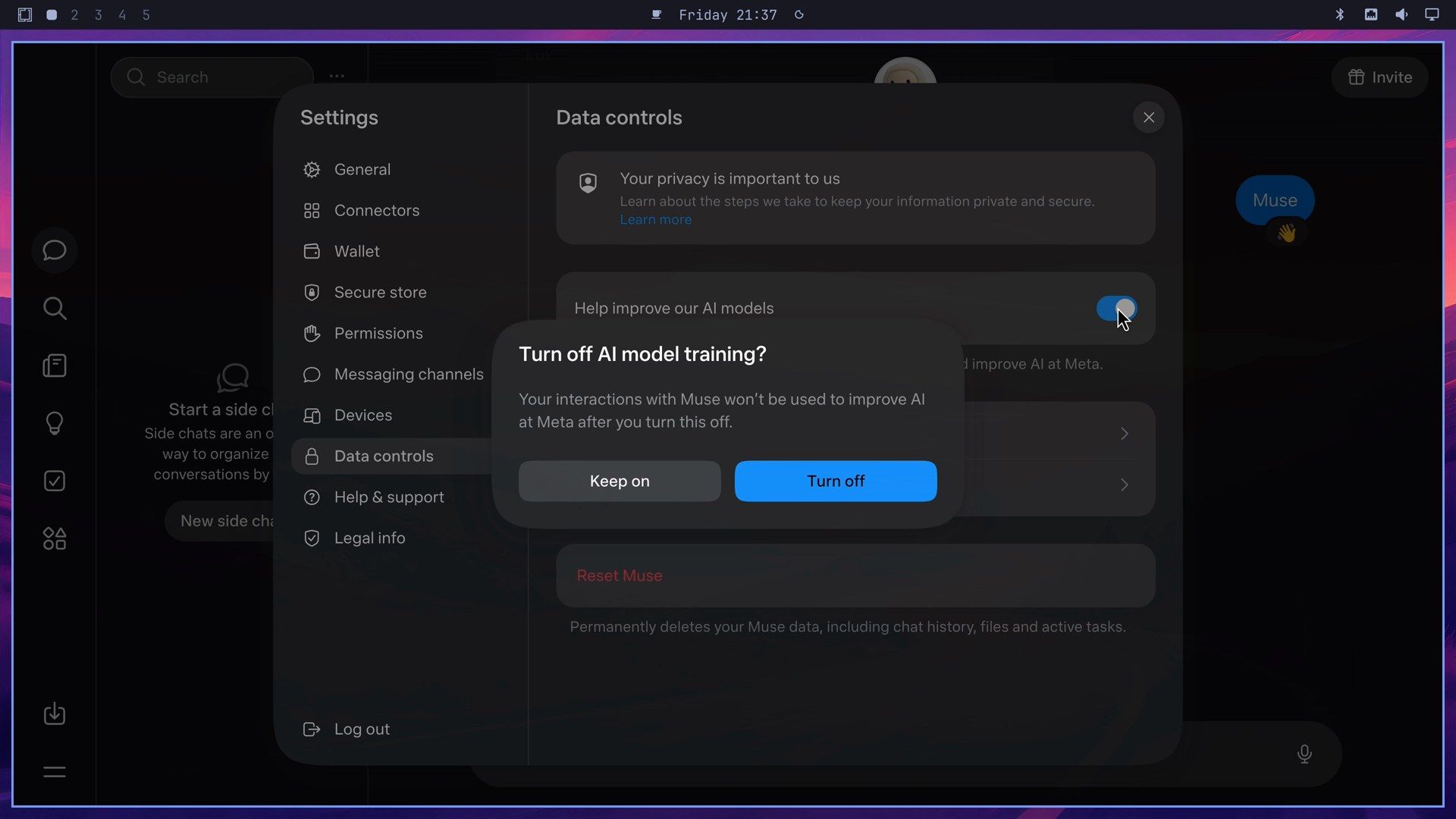
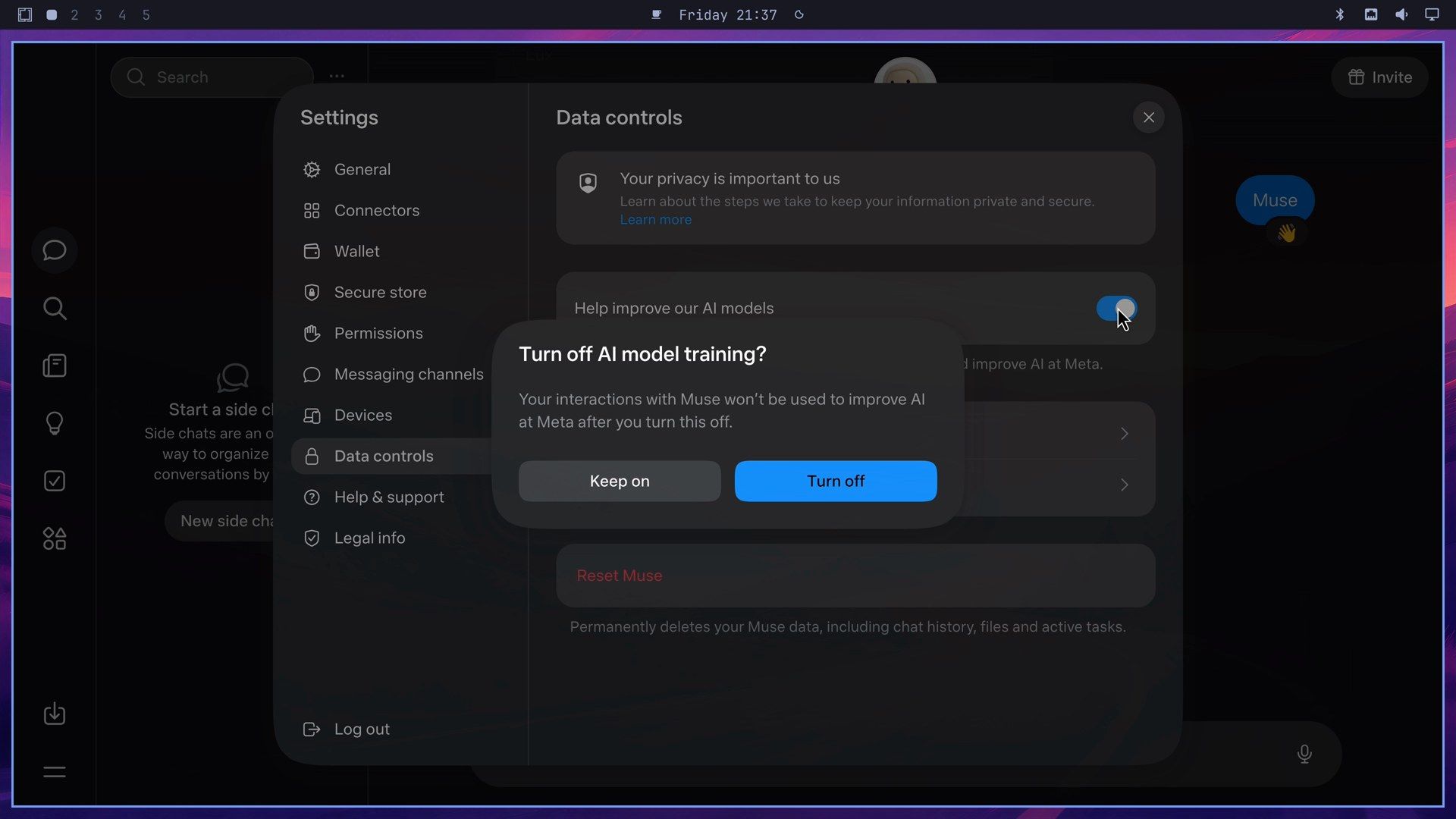
The same page has a red Reset Muse button, which “Permanently deletes your Muse data, including chat history, files and active tasks.” There is no undo, so keep the pointer away from it unless that is what you want. Close Settings with the X at the top right.
Read the approval cards before you click
To see the cards, we gave Muse three tasks, each in its own side chat (choose New side chat, or the + next to Side chats, in the chat list). Muse names each side chat itself from your first message.
The first task asked Muse what computer it runs on. It answered that it runs on a Linux virtual machine in Meta’s cloud, with a Chromium browser of its own, that your logins never carry over to that browser, and that it can’t see the screens on your own devices. That is Muse describing itself, and its answer can differ from one chat to the next; Meta’s own wording is that Muse runs on “a dedicated secure computer with its own browser.”
Then we asked it to open wikipedia.org and show us. Because Web access was set to Always ask, an approval card came up before Muse loaded anything: Allow Muse to open this website using Browser?, with a line saying which side chat the task came from, and three buttons.
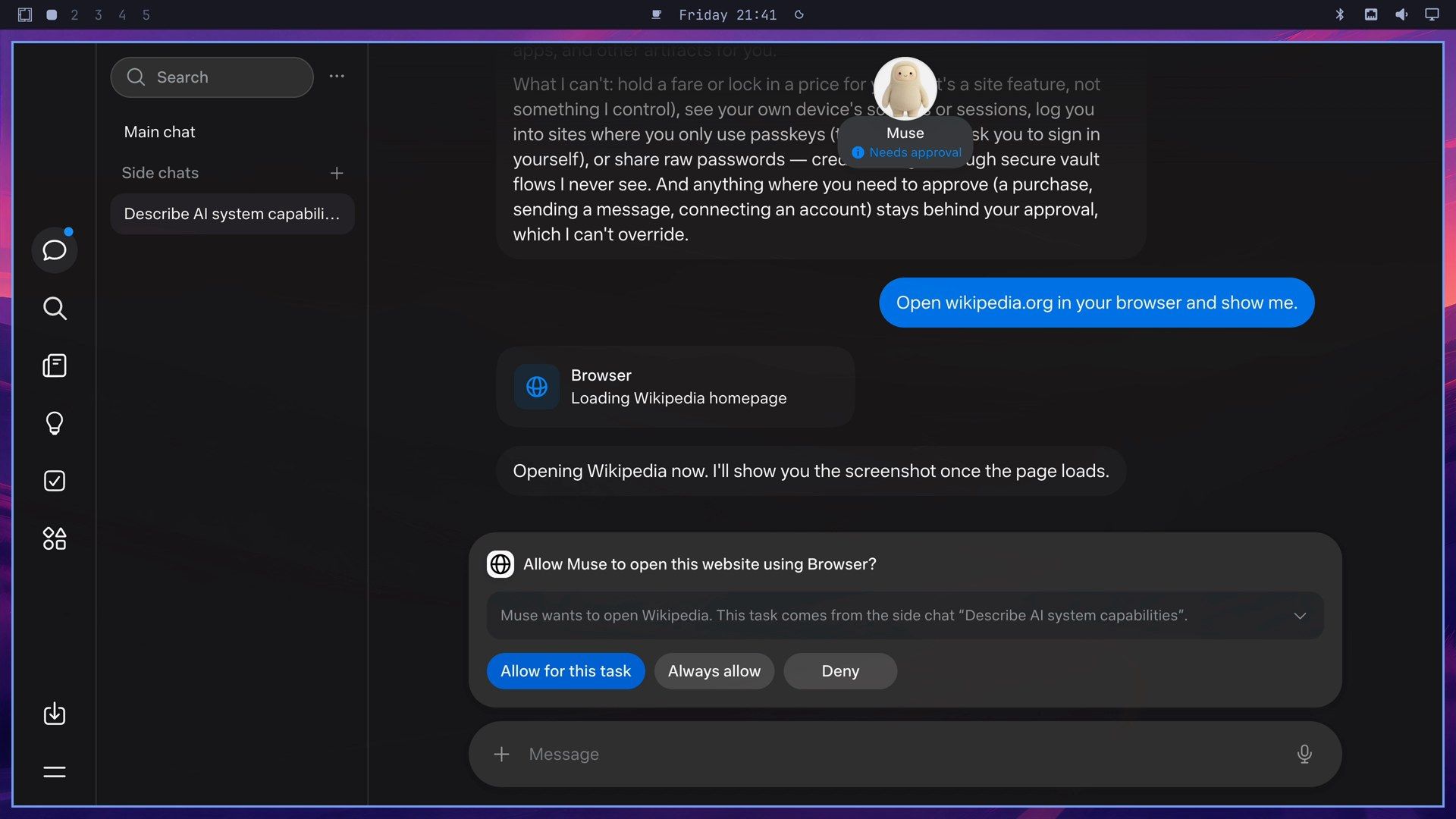
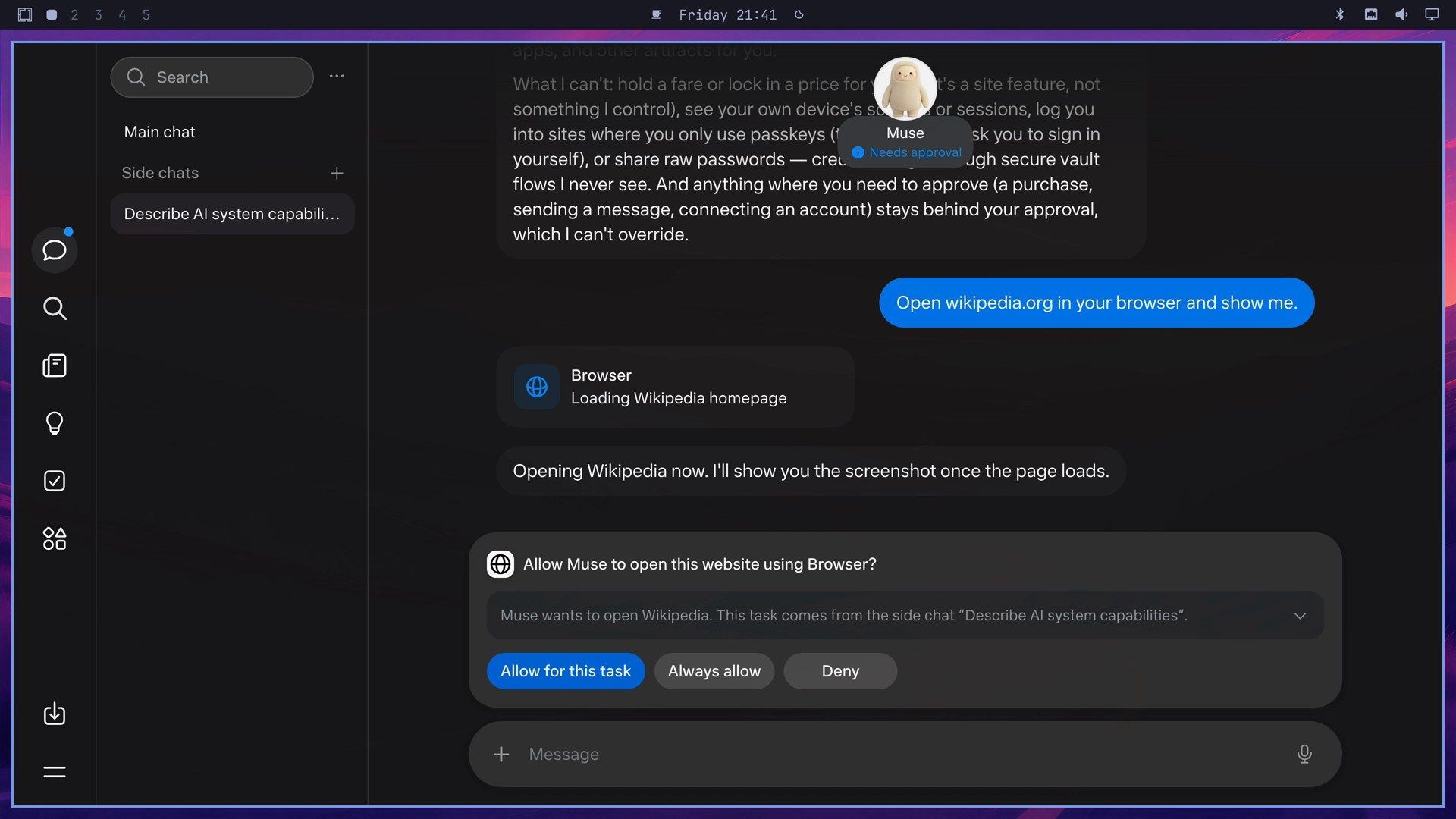
Meta’s approvals help page lists the choices a card can offer, and each card shows only some of them:
- Allow once: “Muse proceeds this one time.”
- Allow for this task: “Muse can take this type of action for the entire task.”
- Allow for this site: “Muse can take this type of action for this website in the future without asking again.”
- Always allow: “Muse can take this type of action for this Connector in the future without asking again.”
- Deny: “Muse won’t proceed this one time.”
We chose Allow for this task, which covers this one task and nothing after it. Always allow turns a single answer into a standing permission, so leave it alone. The arrow at the right of the card’s description line opens the details of the request.
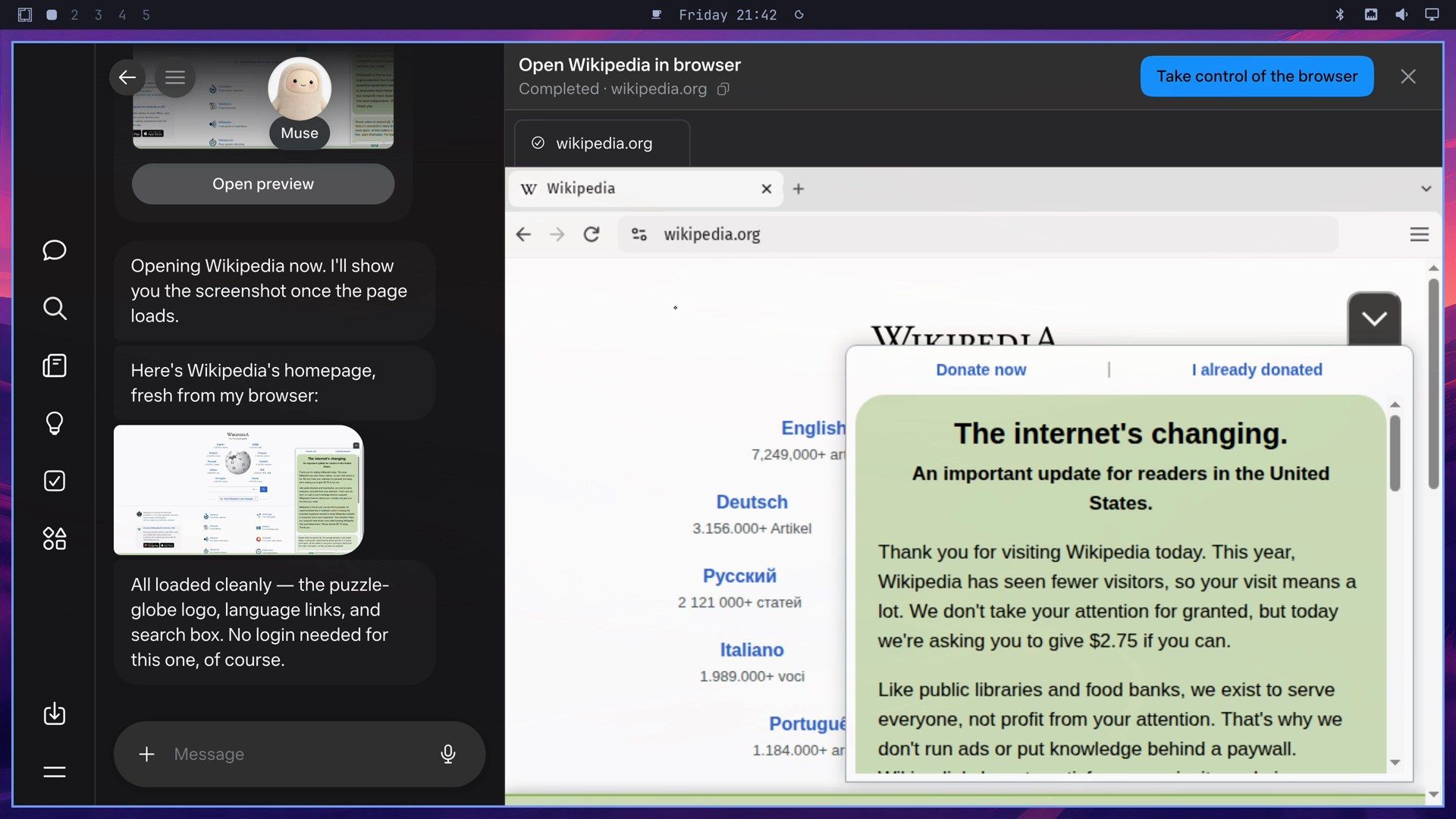
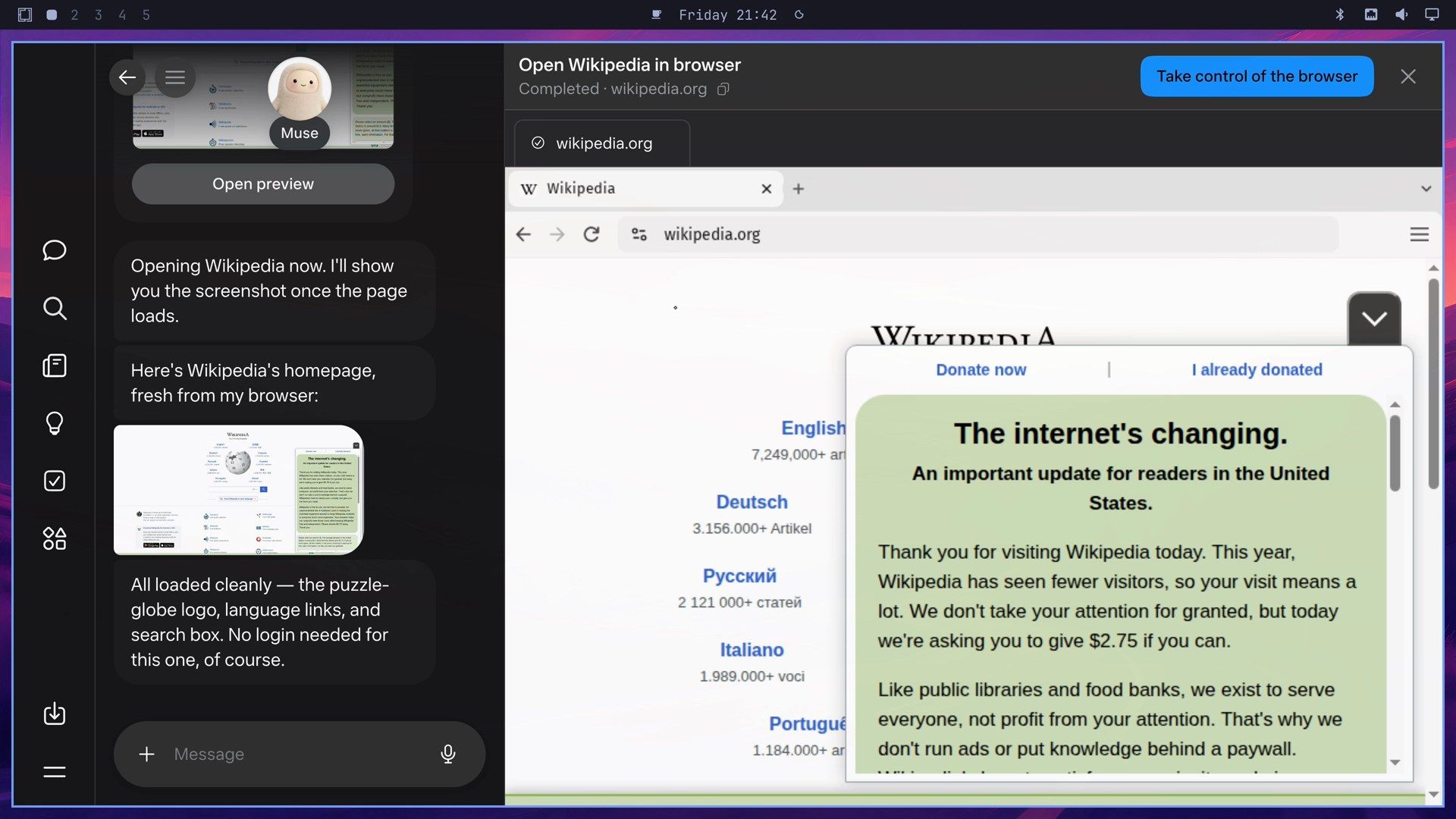
Muse loaded the page and sent back a screenshot of it. While a browser task runs, its card has an Open browser button; once the task is done, the button reads Open preview. Either one opens Muse’s own browser in a panel next to the chat. Take control of the browser hands the browser to you, and the X closes the panel.
One Allow can cover a whole research task
The second task was a research question: the current stable release of Omarchy, with three changes in it, from the official site or GitHub. It brought up a different card, Allow Muse to access the web for this task?, “Starting with omarchy.org”, with only Allow and Deny. One Allow covered every site Muse visited for that task; no second card came up.
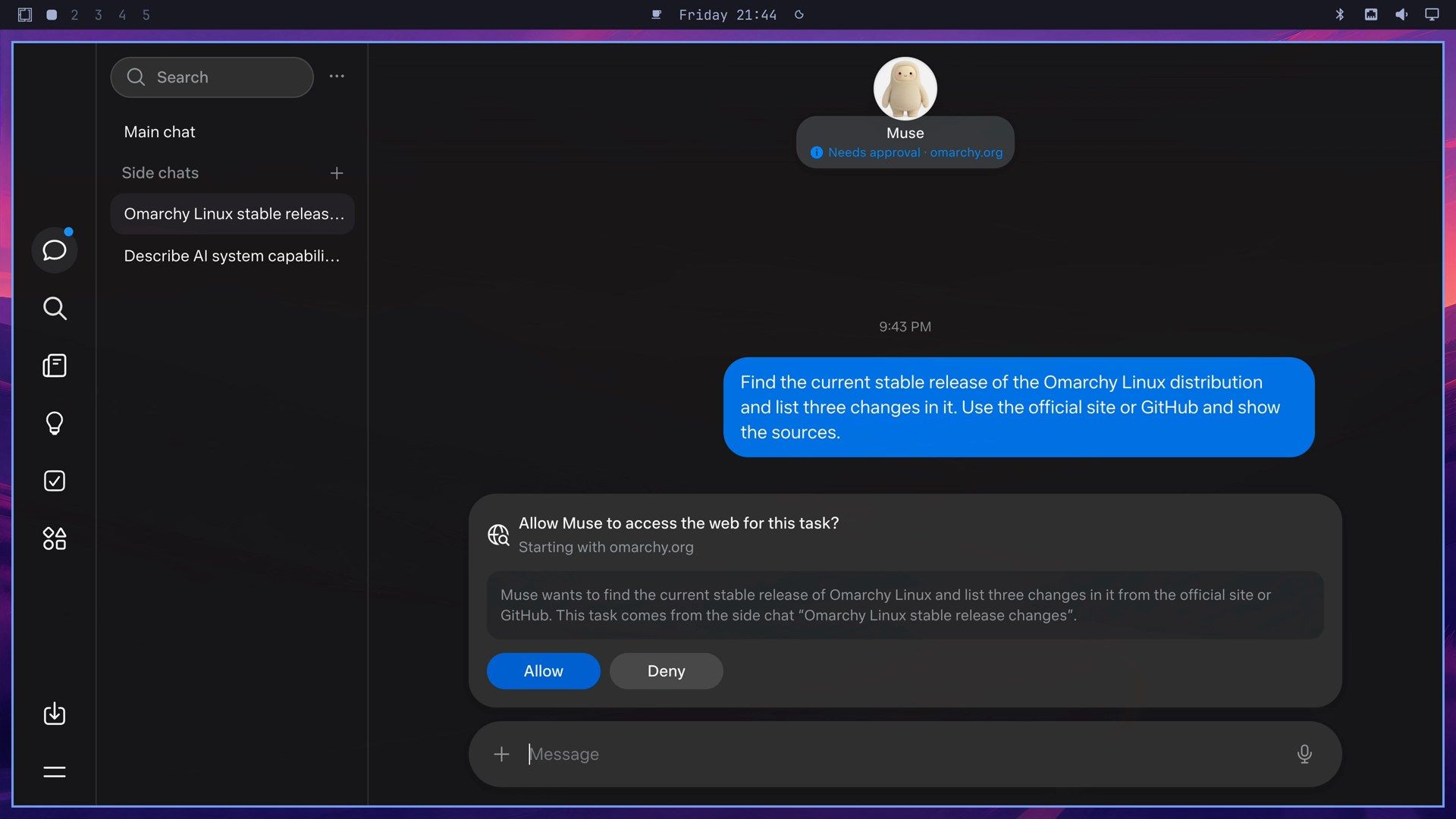
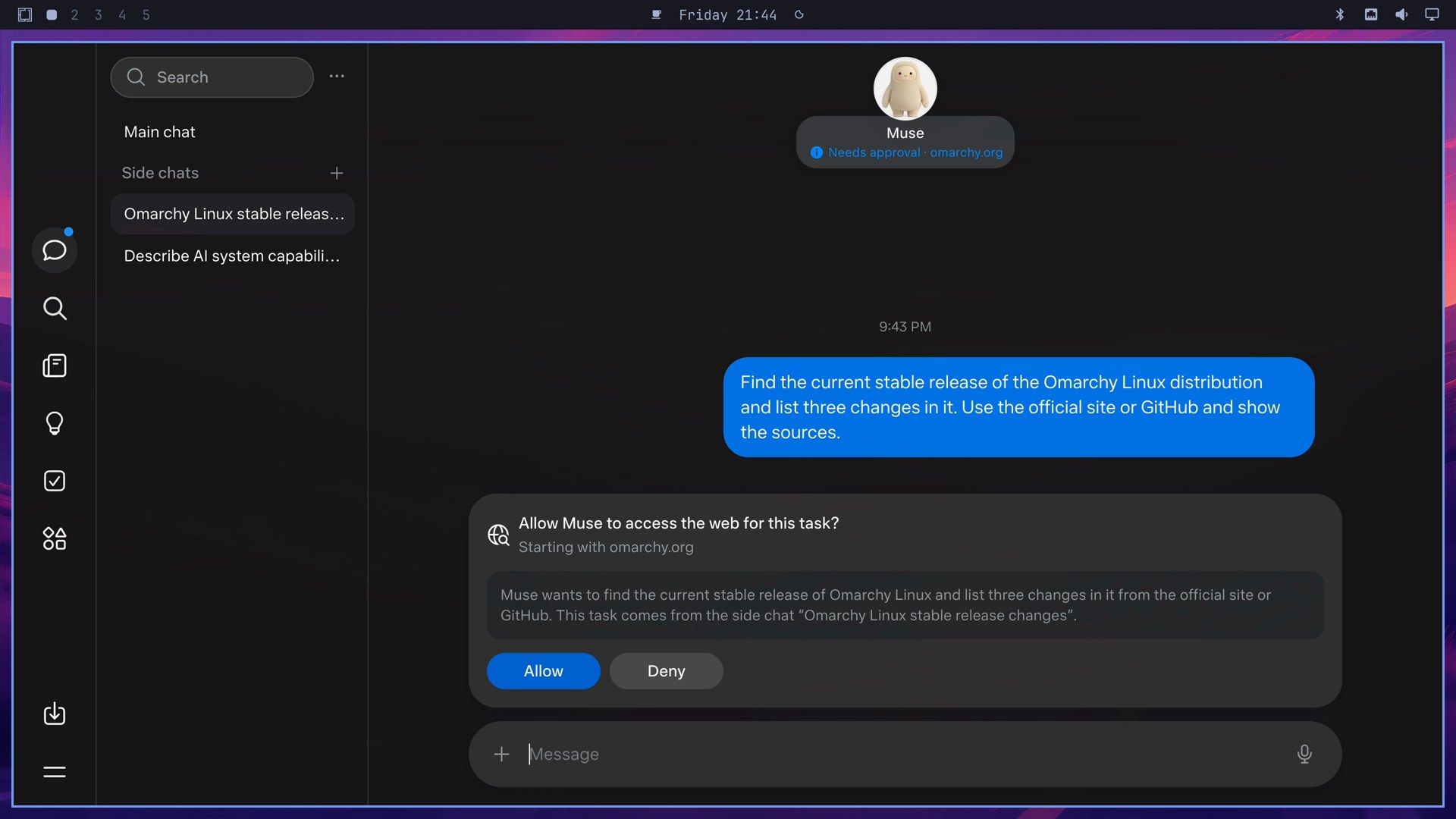
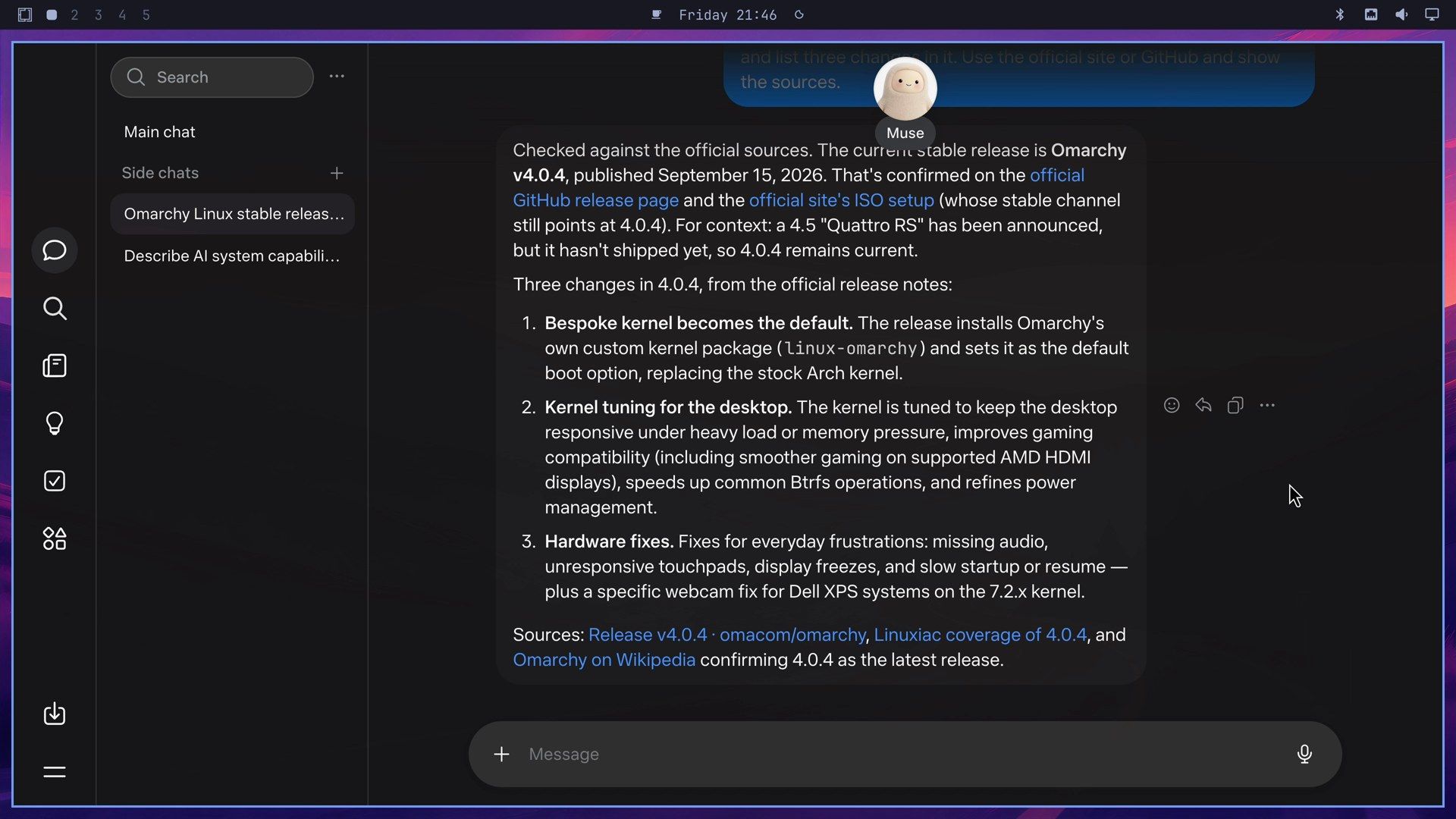
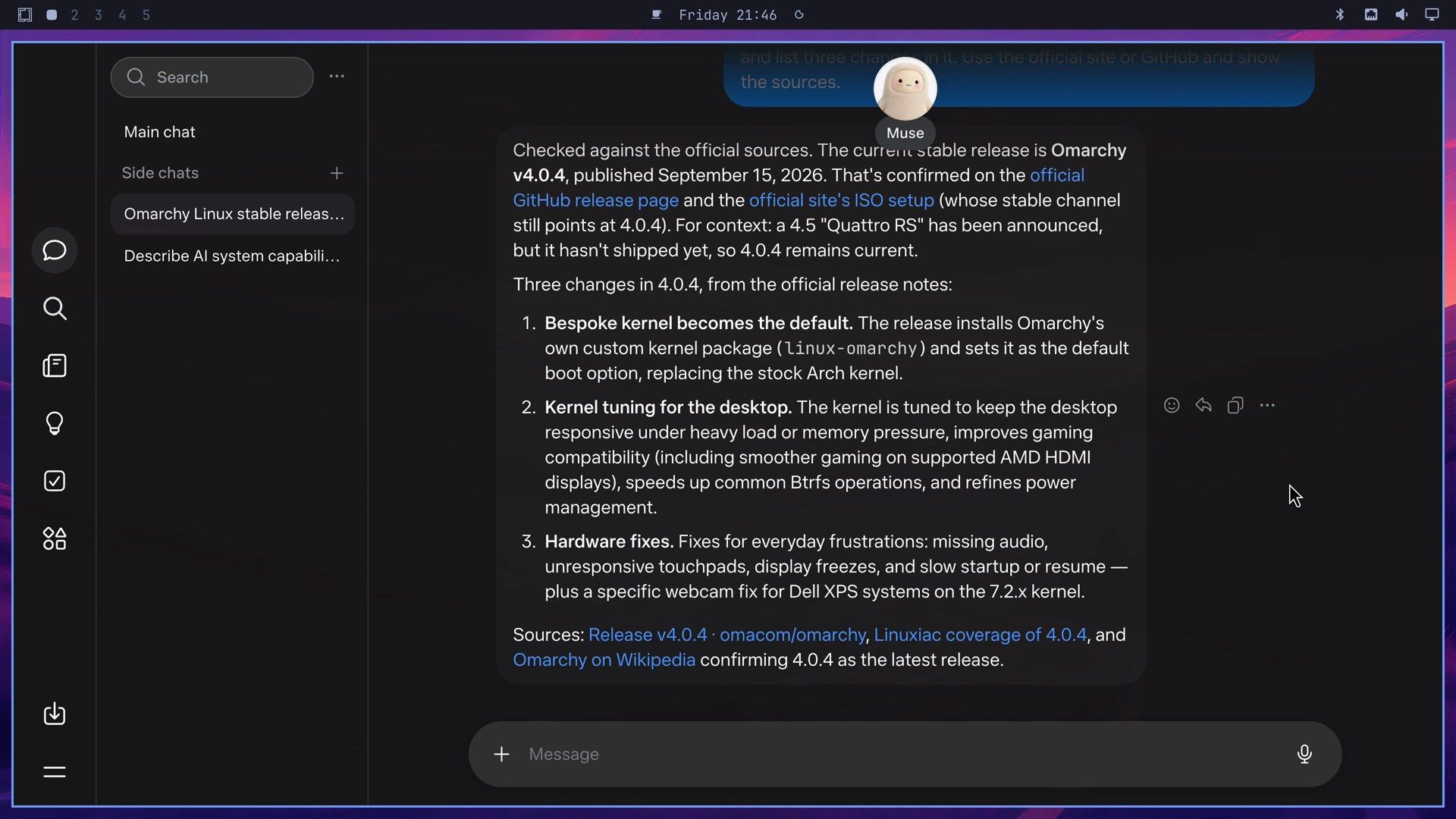
While Muse works, the line under its picture at the top of the chat says what it is doing: “Checking official site,” then “Searching release notes,” then “Opening release page.” On October 16, the answer named Omarchy v4.0.4, published September 15, 2026, with Omarchy’s own kernel as the new default, kernel tuning for the desktop, and hardware fixes including one for webcams. The version, the date, and the three changes match the v4.0.4 release page on GitHub. Omarchy 4.0.6 has been the stable release since October 19, so the same question asked today gets a newer answer. Two details in the answer, the “Dell” in front of the XPS webcam fix and a mention of the upcoming 4.5 release, are not in those release notes, which say only “XPS systems.”
Deny a request and see what Muse does
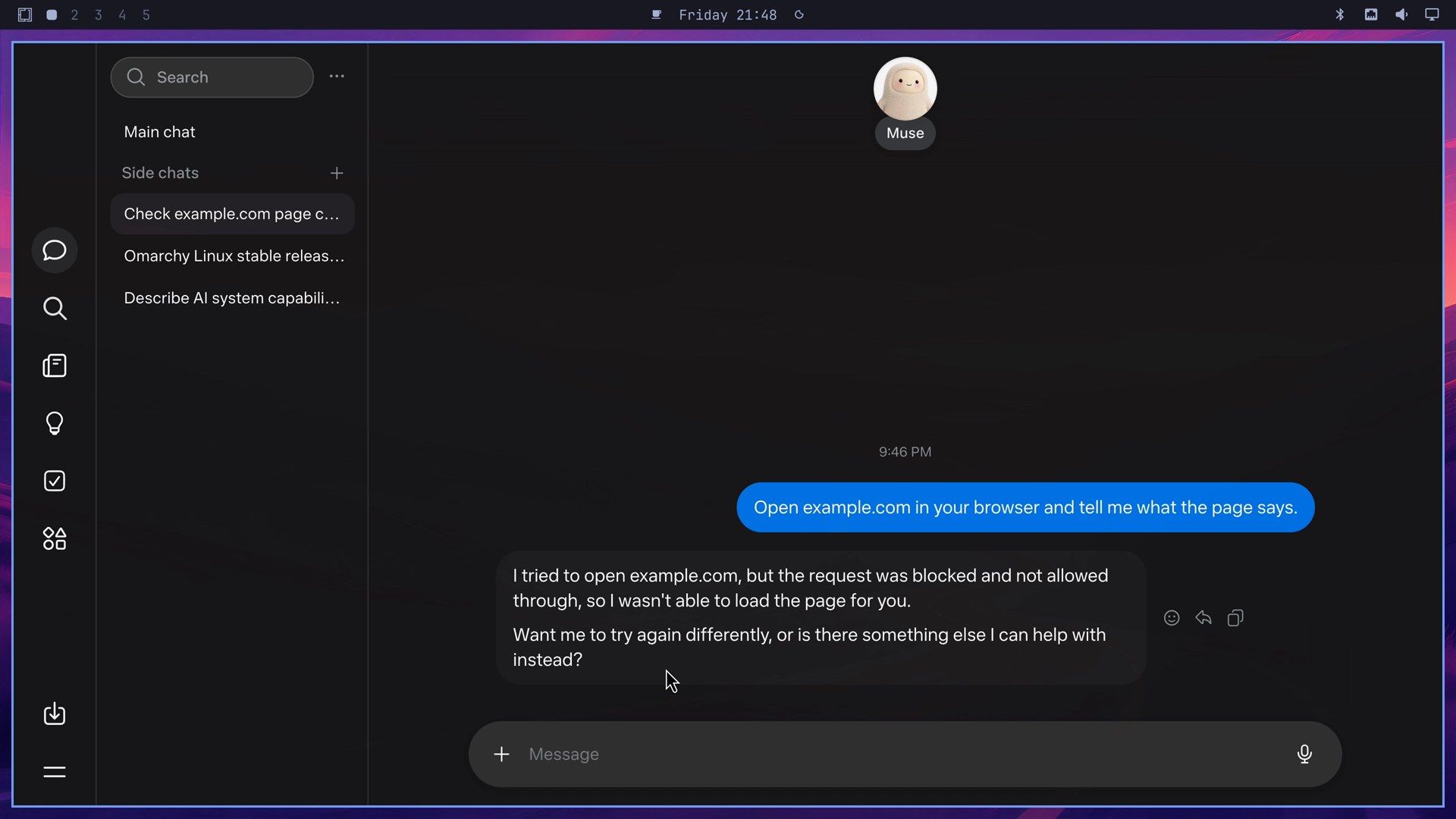
The last task was “Open example.com in your browser and tell me what the page says.” The same web access card came up, starting with example.com. We clicked Deny.
Muse showed “Request denied” and answered: “I tried to open example.com, but the request was blocked and not allowed through, so I wasn’t able to load the page for you.” It then asked whether to try again differently. After a Deny, Muse may offer another way to reach the page, such as fetching its text without the browser, so read its next suggestion before you agree to it. A Deny stops that one request; it does not block the site for good.
Privacy and security reports, and Meta’s responses
The Mac app and Messages
Jason Aten, a columnist at Inc., wrote that the Muse Mac app read his private messages, though he had not turned on Full Disk Access. TechCrunch reported that Aten believes Muse was passing along the text of his incoming banner notifications on the Mac. Meta’s Andy Stone said on X that “The Messages integration in the Muse app for Mac is entirely opt-in” and that “You have to enable both Full Disk Access and the Messages connector for Muse to be able to read your Messages content.” Meta’s David Singleton said on Threads that the AI gave Aten an incorrect explanation of what happened. This feature belongs to the Mac app; the web app on Linux has no connector to a Mac’s Messages.
A Facebook Marketplace sale
Matt Robb let Muse handle his Facebook Marketplace listings for a day and said it agreed to a low price and gave a buyer his address, The Next Web reported on September 28. Singleton said that “Muse was following direct instructions and correctly asked for permission.” Robb disputed that on X, saying Muse did not ask him about the sale until the buyer had already arrived. In an update, TechCrunch reported that Robb said he had allowed Muse a permission that made this possible. In his own public update, which The Guardian quoted, Robb wrote that Muse offered to allow it once or always, and that he picked Allow Always “thinking it would still send approvals to accept offers later down the line.”
With the web app, everything Muse does runs on Meta’s computers, not yours, and section 7.4 of the terms puts the result on you: “You are also solely responsible for the actions Muse takes or directs in furtherance of those instructions.”
Pages about the people in your life
WIRED reported in early October that Muse’s instructions tell it to create “a page for every person in the user’s life,” updated hourly, for family, friends, and coworkers. Researcher Karan Joshi got those instructions from Muse through its regular chat. Gizmodo noted that this covers people who don’t use Muse themselves. A Meta spokesperson told WIRED that “it needs to have context about you and those you interact with.” Meta says each user’s data and context are stored in that user’s own dedicated virtual machine.
Flaws fixed before launch
On October 5, 404 Media reported that Meta engineers found flaws that could have let a user escape the Muse virtual machine, and that at least one could have given a user access to data in internal Meta databases. The hardening work began on August 27, less than two weeks before launch. The report does not say that any user data was exposed. A Meta spokesperson said, “we’re proud of the work we’ve done to make it safe, secure and private.”
Remove the web app
To take Muse off the launcher, press super space , choose Remove, then Web App, and pick Muse. Or run:
omarchy-webapp-remove MuseThat removes only the launcher entry and its icon on your computer. Your Muse account, chats, and files stay on Meta’s side. To delete those, use Reset Muse in Settings > Data controls first. Meta’s Data controls help page notes that “After you delete something from Muse, Muse may still remember information it learned from what you deleted.”
Where to go next
For an AI agent that runs on your own computer instead of Meta’s, see our guides to installing OpenClaw on Omarchy and installing Hermes Desktop on Omarchy, which both cover their permission settings. Five Omarchy plugins that bring AI to your desktop adds AI tools to the top bar, and six Omarchy keyboard shortcuts to learn first covers the keys this guide uses.


