
Omarchy is DHH’s Linux desktop built on Arch Linux and Hyprland, where windows tile side by side instead of overlapping. Try Omarchy is a Mac app that runs it in a virtual machine (a whole computer in software, with its own disk and memory), so you can use Omarchy without wiping or partitioning anything. macOS keeps running as usual around the app. Try Omarchy is free and open source under the MIT license, made by Eduardo Martinez, and it uses the official Omarchy image for Macs.
This guide follows Try Omarchy 1.2.0 on an M4 MacBook from the download to a working desktop. If Omarchy itself is new to you, our overview of what Omarchy is explains how it is put together.
What you need
Try Omarchy needs a Mac with Apple’s own chip (Apple Silicon, so M1 or newer), macOS 15 or newer, and about 15 GB of free disk space, per the project’s README. Intel Macs are not supported. The app itself is a small download, about 14 MB. On the first launch it downloads the Omarchy image, about 3.2 GB, so plan for that on a slow or metered connection.
After setup, our Mac had about 10 GB less free disk space than before. The virtual machine’s disk can grow to 64 GiB by default, but it takes space on the Mac only as Omarchy fills it.
Memory is shared with macOS. On a Mac with 16 GiB of memory or more, Omarchy gets 8 GiB by default; on smaller Macs it gets 4 GiB, and at least 4 GiB always stays with macOS. Memory that Omarchy is not using goes back to macOS, so Mac apps can still use it.
Download and install the app
Open the Try Omarchy releases page on GitHub and pick the release marked Latest (1.2.0 at the time of writing). Scroll to Assets and download TryOmarchy.dmg, which GitHub lists at 13.7 MB. The three large files named omarchy-aarch64-edge.img.zst.001 to .003 in the same list are the Omarchy image, split into parts; you do not need to download them, because the app fetches them itself.
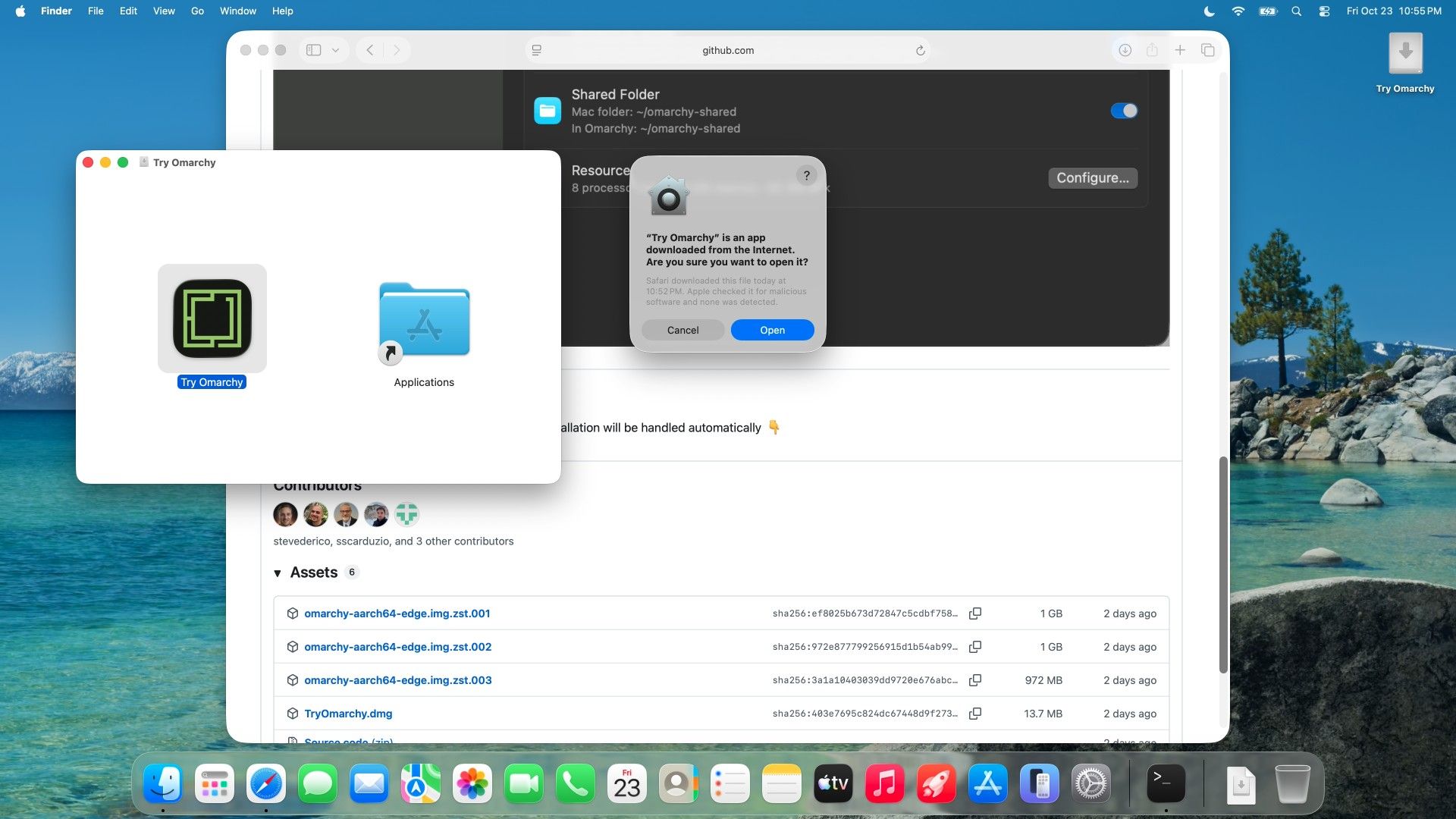
Open the disk image and drag Try Omarchy onto the Applications folder in the window that appears. Then open the app from Applications or with Spotlight. On the first open, macOS shows its usual warning for apps from the internet: “‘Try Omarchy’ is an app downloaded from the Internet. Are you sure you want to open it?” The same box says Apple checked it for malicious software and none was detected, because the app is notarized by its developer. Click Open.
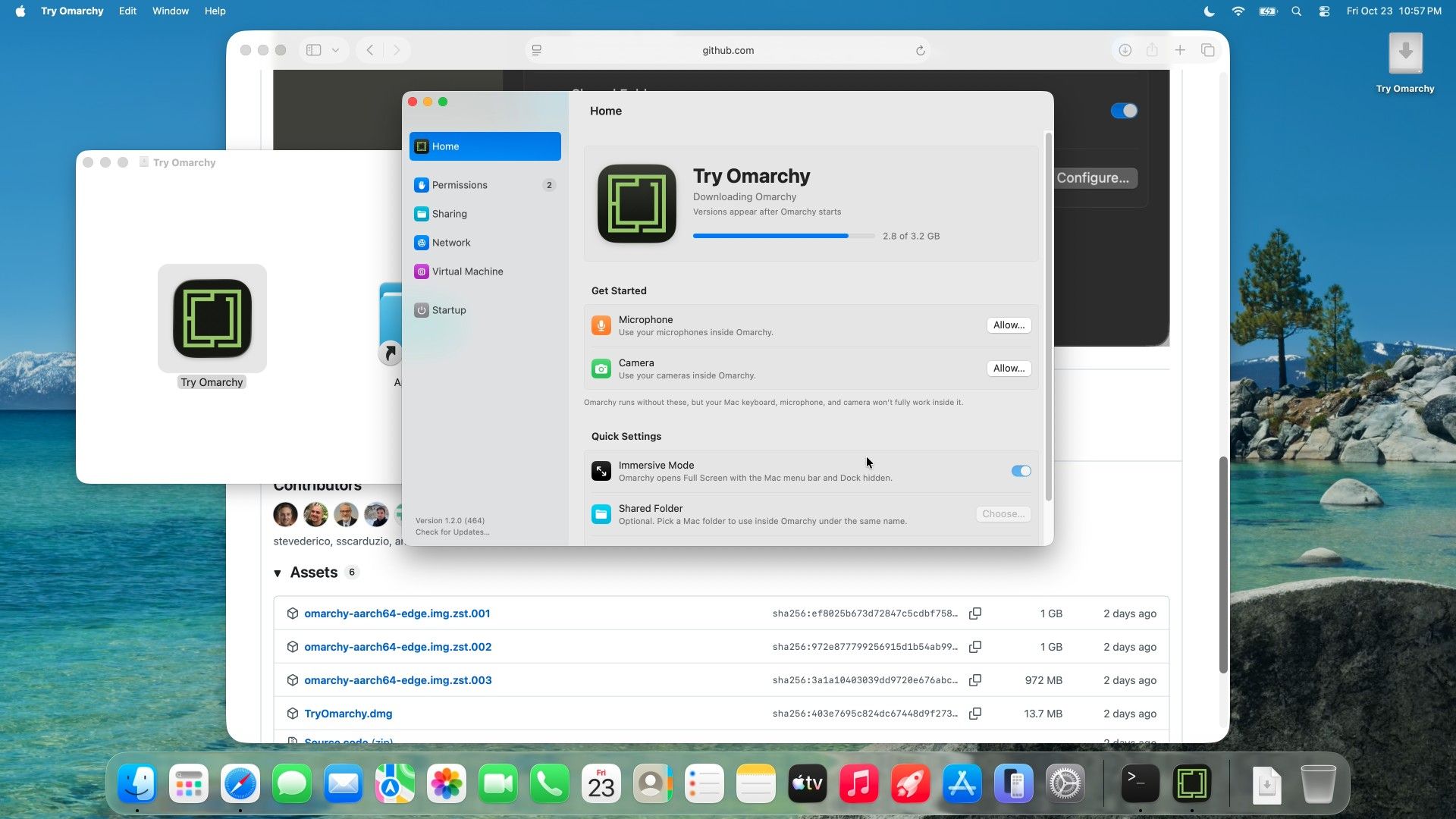
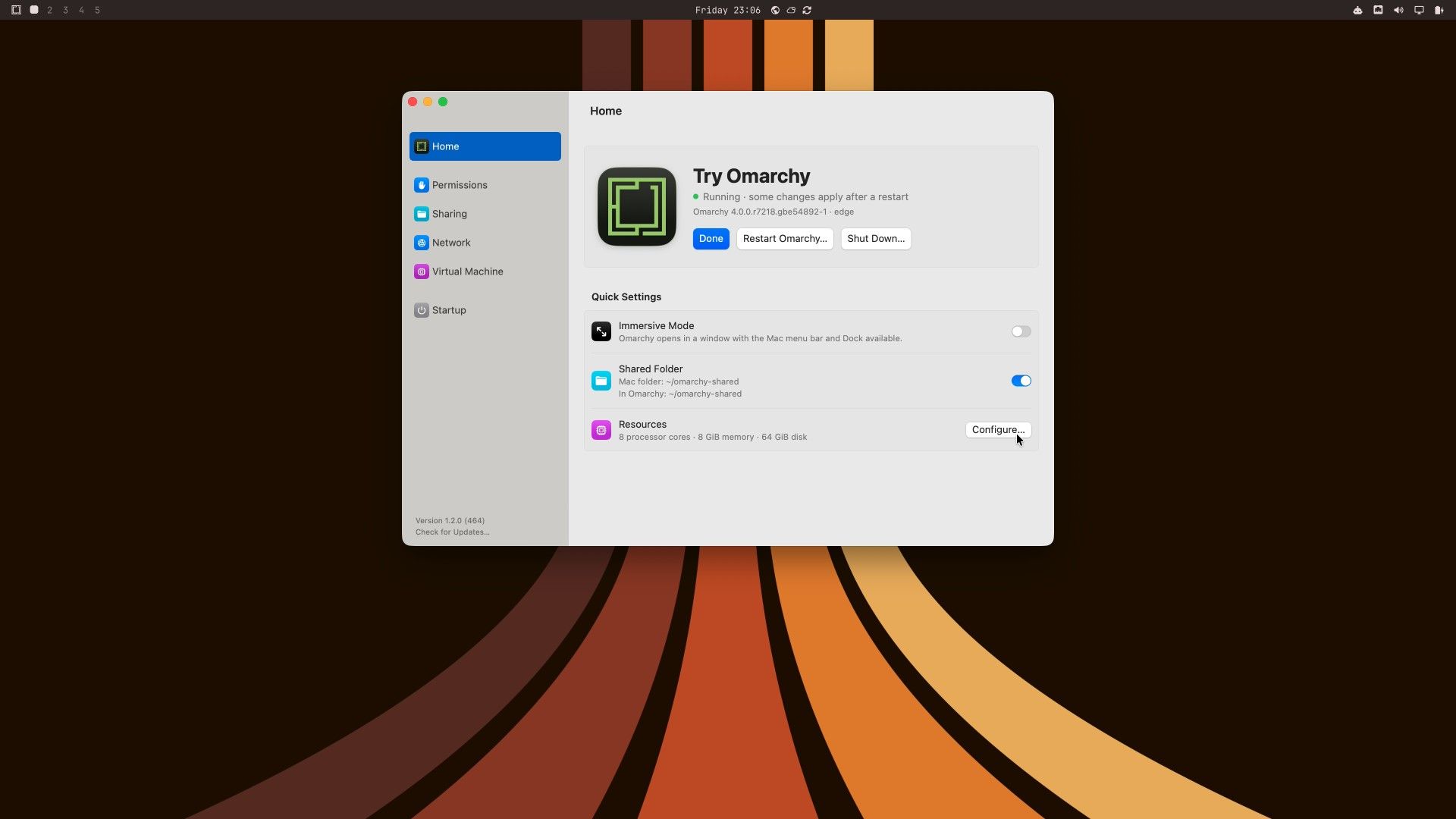
The launcher opens next. It is laid out much like the Mac’s System Settings, with a sidebar of panes: Home, Permissions, Sharing, Network, Virtual Machine, and Startup. Home shows a blue Launch Omarchy button and Quick Settings for full screen, a shared folder, and resources.
Grant Accessibility before the first launch
Click Launch Omarchy. Before it starts anything, the app shows a “Get the Full Experience” sheet with three permissions: Accessibility, Microphone, and Camera. All three are optional, and Omarchy starts without any of them. You can change them later in the launcher’s Permissions pane.
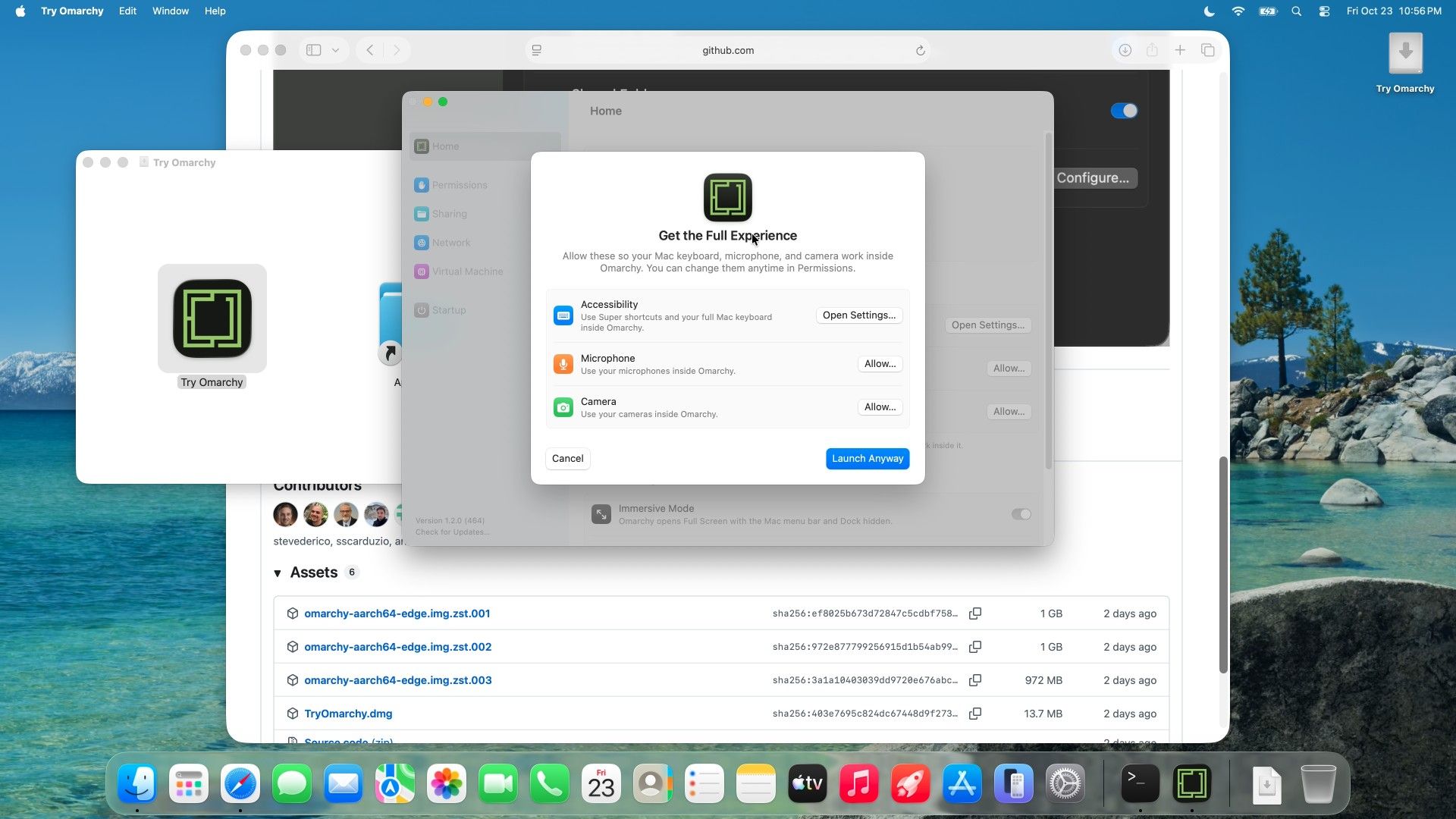
Accessibility is the one worth granting. Without it, macOS catches shortcuts such as command space (Spotlight) before Omarchy sees them, and command space is how you open Omarchy’s main menu. macOS describes this access as letting an app control the computer, so it is broad. The app’s source code is public on GitHub, so you can have an AI coding agent read it before you agree.
To grant it, click Open Settings next to Accessibility. System Settings opens on Privacy & Security, Accessibility. Turn on Try Omarchy in the list and enter your Mac password when macOS asks. Close System Settings, and the sheet shows Accessibility as Allowed. Microphone and Camera let Omarchy apps use the Mac’s microphone and camera; grant them only if you plan to record or make calls from Omarchy.
Launch Omarchy and let it download
Click Launch Anyway. The launcher’s Home pane shows each step with a progress bar: Downloading Omarchy (3.2 GB), Verifying the Omarchy image, Unpacking Omarchy, and Compacting the disk. On our connection, the download took about half a minute, and the whole run from Launch Anyway to the setup screen took 75 to 90 seconds. An interrupted download resumes where it stopped.
A window then opens full screen with the green Omarchy logo and “Press Return to Start Setup.” macOS may also ask once whether Try Omarchy can find devices on local networks; we chose Allow.
Answer the setup questions
Press enter (Return on a Mac keyboard) to start. Setup asks one question per screen:
- Keyboard layout. Pick yours from the list, for example English (US).
- Username. Use letters and numbers without spaces.
- Password. Setup uses it for your user, for root, and for disk encryption when that is on. Type it twice.
- Full name and email. Both are optional and set your git identity. Press enter to skip each one.
- Hostname. Press enter to keep
omarchy. - Time zone. “Same as macOS” is selected already.
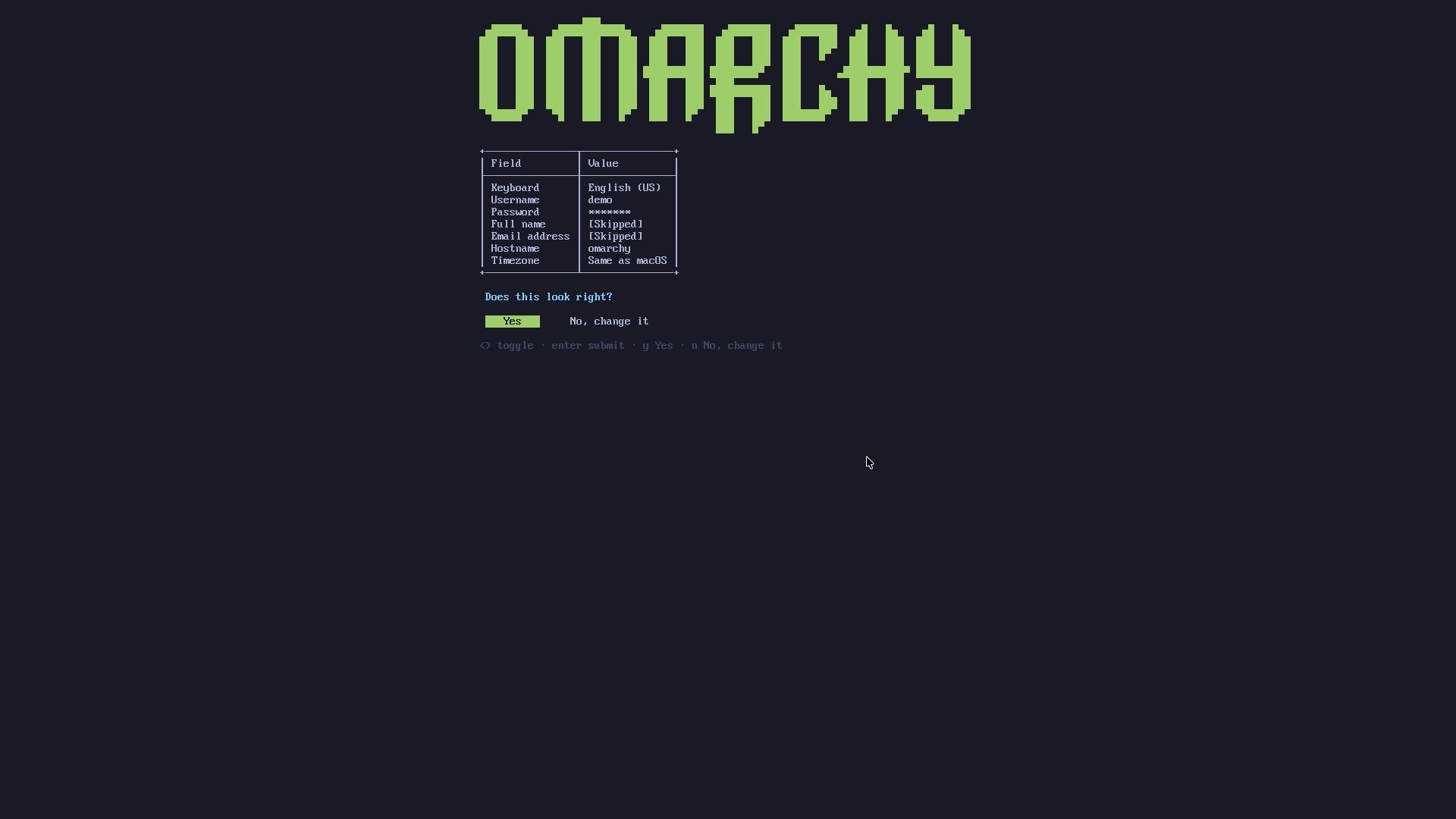
A summary table lists your answers under “Does this look right?” Choose Yes. The Omarchy desktop appears a few seconds later (about 7 seconds on our MacBook). There is no login screen; Omarchy signs you in on every start.
Two notifications appear on the first boot: one offers a system update, the other points at the shortcut list. command , dismisses them one at a time.
Use Command as the Super key
Omarchy’s shortcuts start with the Super key. On a Mac, Command acts as Super whenever the Omarchy window has focus, so the Super shortcuts in Omarchy’s documentation become Command shortcuts here (with Accessibility granted, for the ones macOS would otherwise take).
Press command space to open the Omarchy menu. It is the starting point for apps, themes, settings, installs, and updates. Choose About to see what is running: the window lists the machine as Virtualized Apple Silicon and shows the Omarchy version and its update channel, edge.
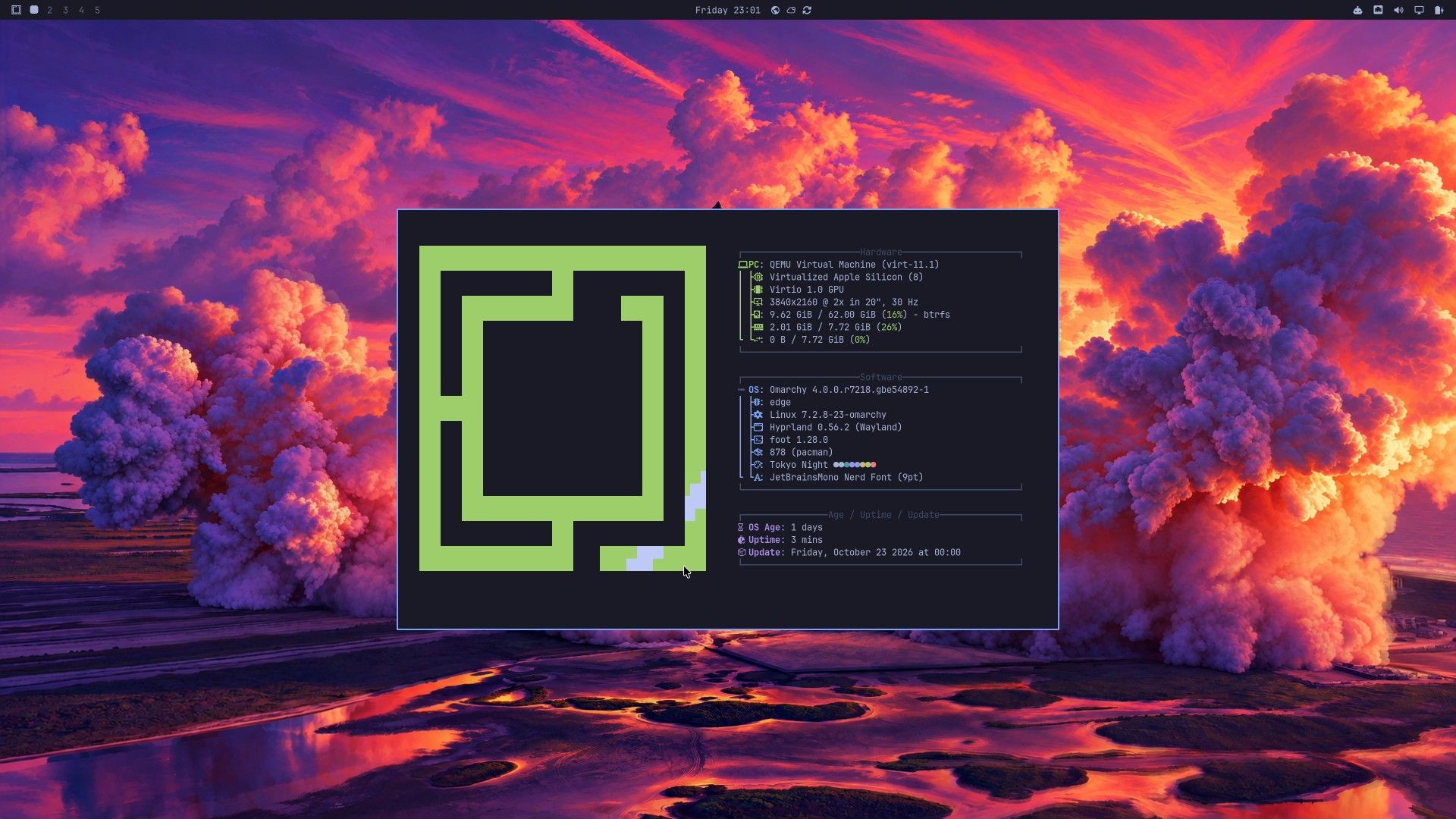
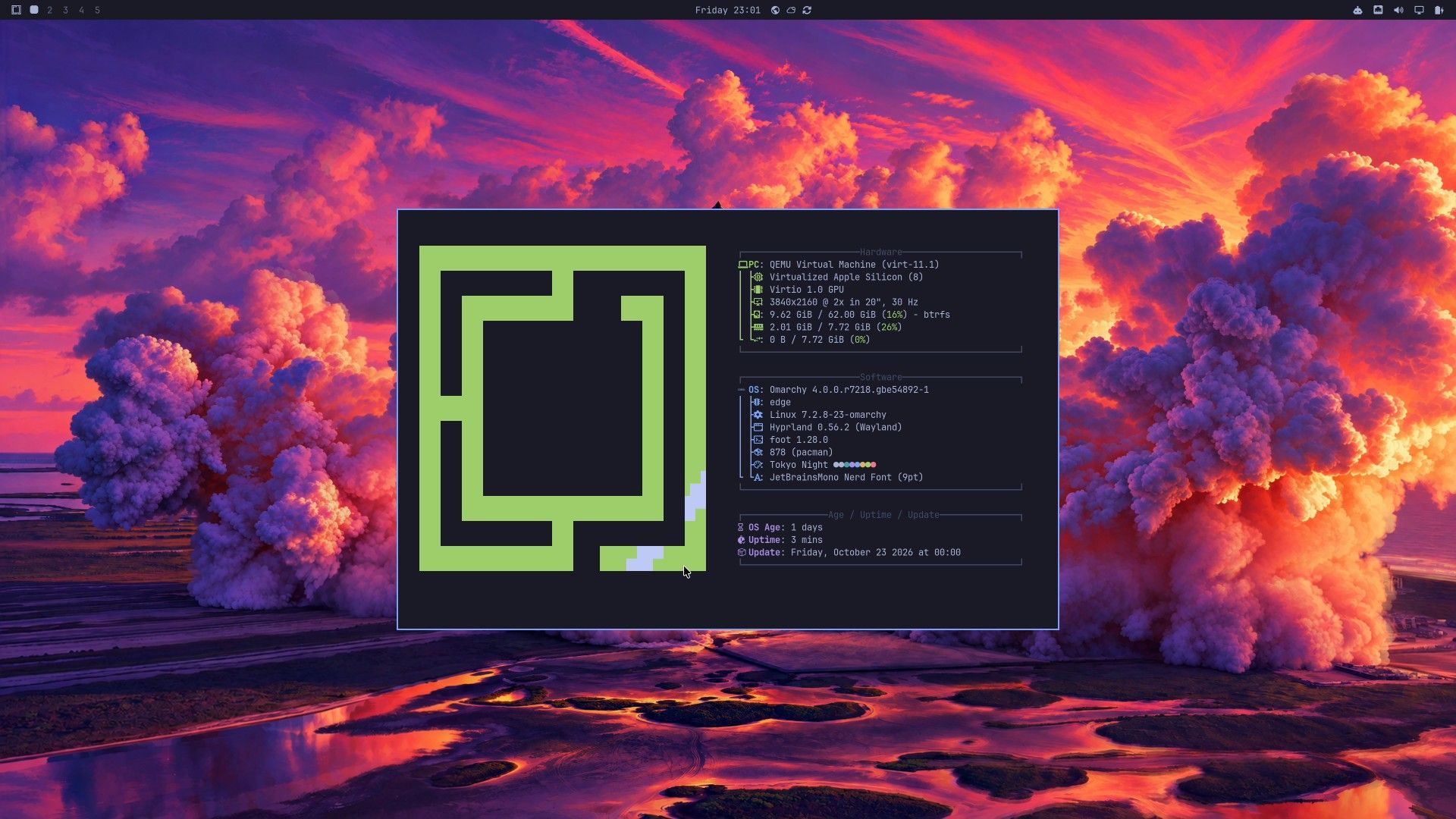
Edge is the channel with the newest Omarchy builds. Omarchy publishes its builds for ARM chips like Apple’s only on edge for now, so that is the channel Try Omarchy uses, and the project’s release notes warn that some bugs or glitches could show up there. Try Omarchy will move to the stable channel once Omarchy releases its Mac image on stable.
The rest of the basics work the same as on a PC:
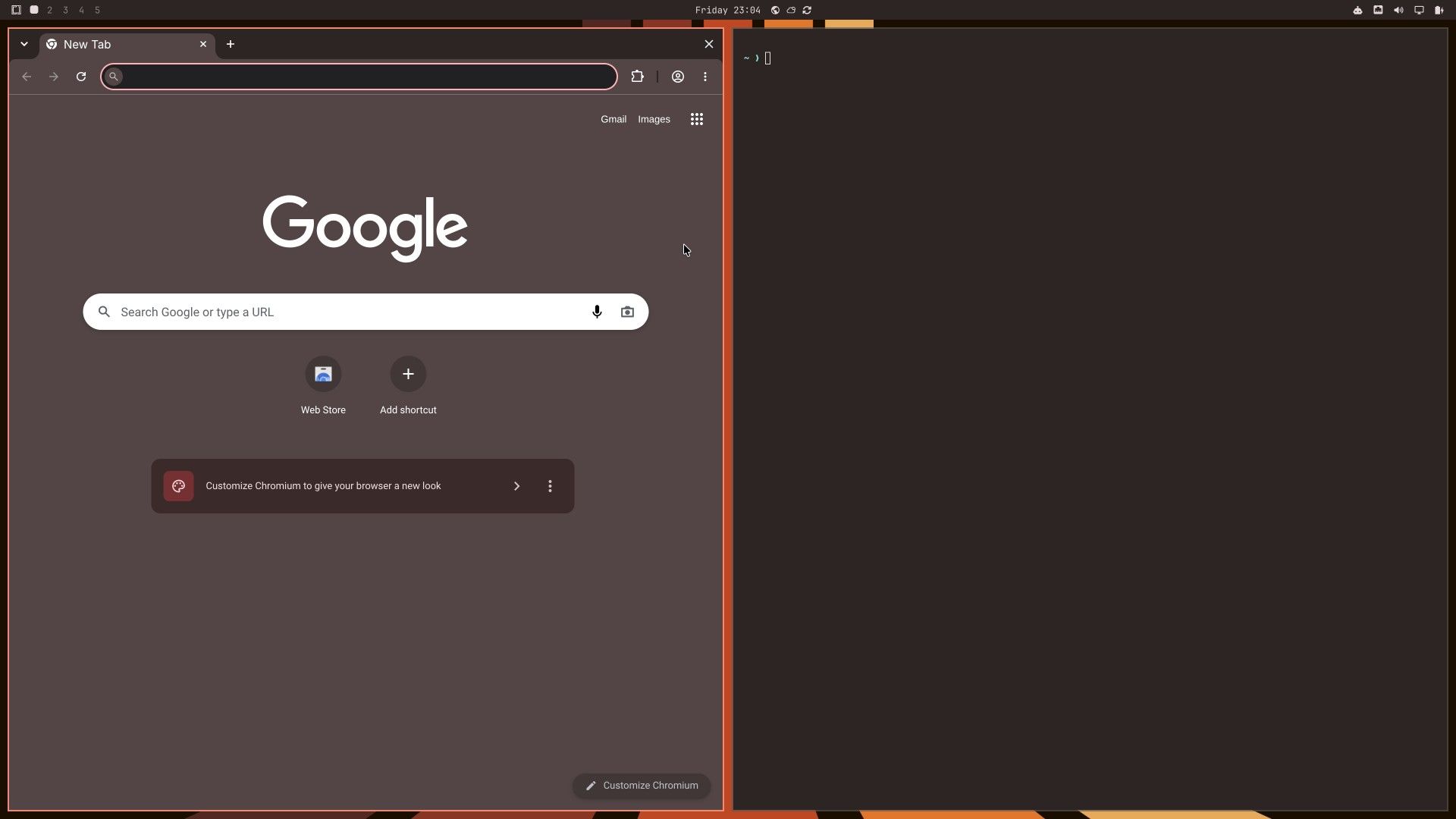
- command enter opens a terminal. Alone on the screen, it takes the whole width.
- command shift b opens the browser (Chromium), and the two windows split the screen.
- command shift swaps the two windows.
- command w closes the window in focus.
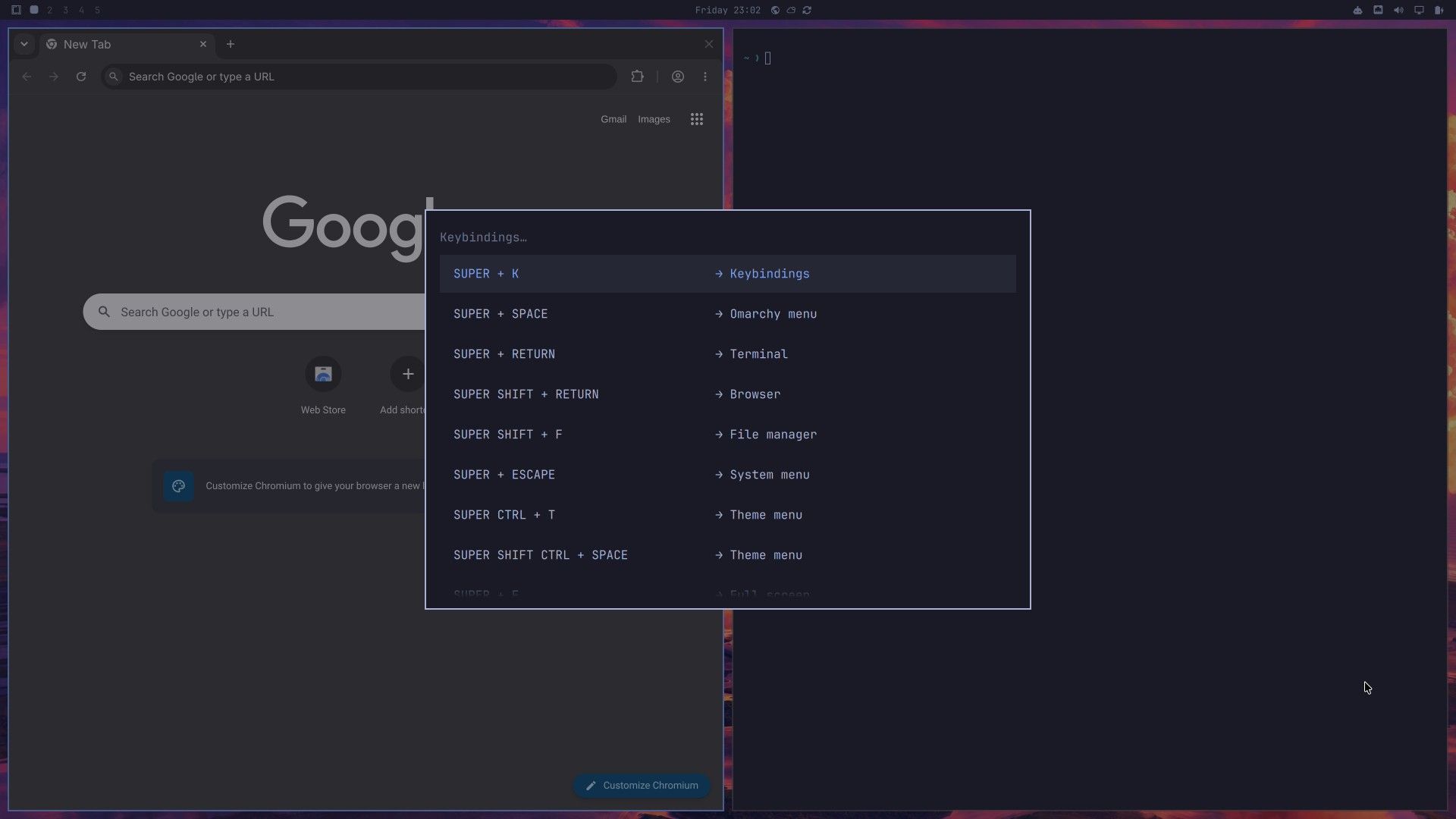
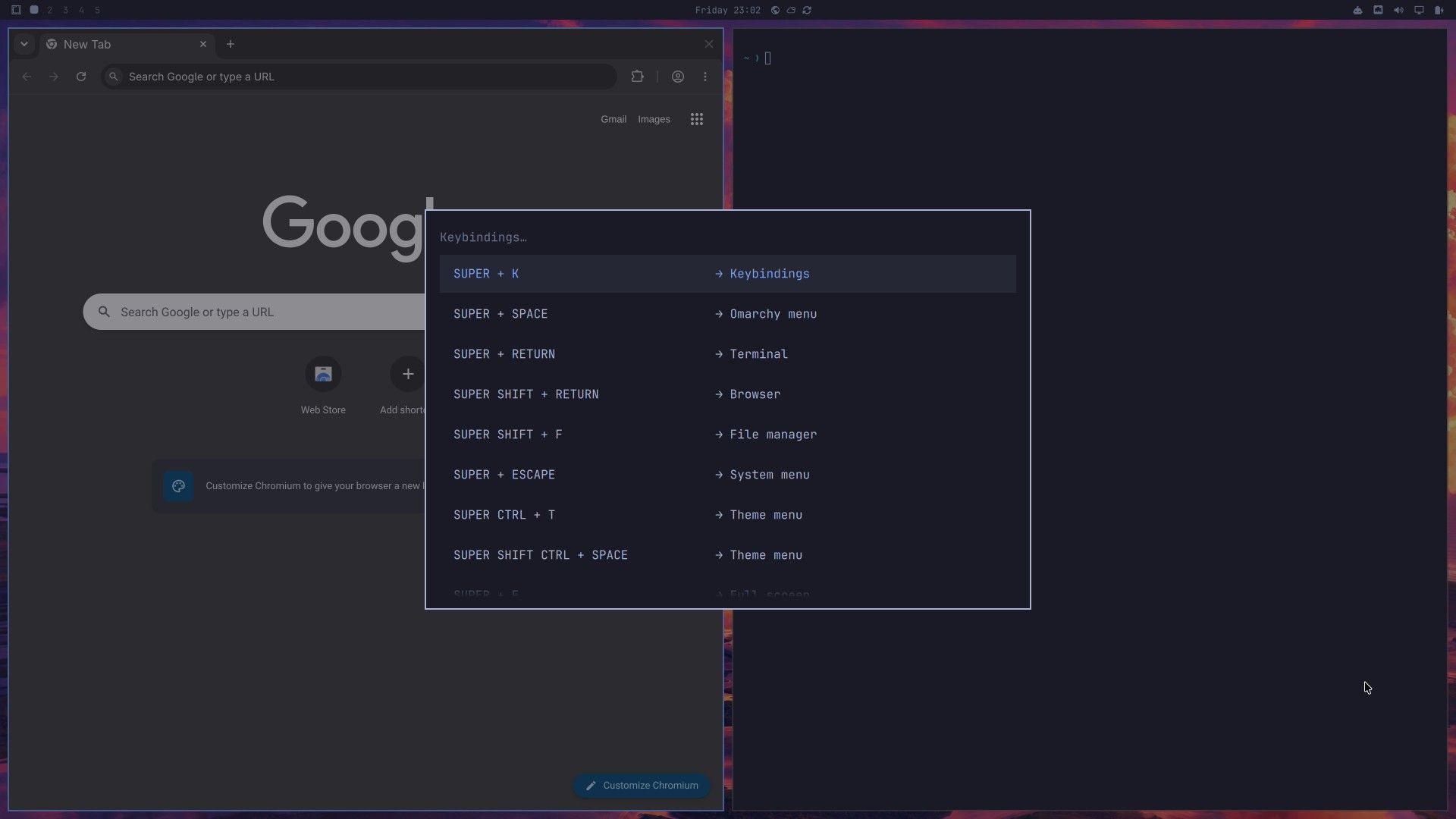
- command k lists the keyboard shortcuts.
The shortcut list says SUPER where you press Command, and it names Enter as RETURN, the label on a Mac keyboard. It lists the browser as SUPER SHIFT + RETURN; that shortcut works too. In full screen, command tab stays inside Omarchy, so it does not switch to Mac apps. Our list of Omarchy shortcuts to learn first covers the rest of the everyday keys.
Change the theme
A theme changes the wallpaper, the top bar, the window borders, and the terminal colors together. Open the menu with command space , choose Appearance, then Theme. The picker shows a preview of each theme with its name; move through them with the arrow keys and press enter to apply one. We picked Ristretto, which turns the wallpaper and the terminal warm brown with orange window borders. It applied in about a second.
Run Omarchy in a window and share a folder
By default, Omarchy runs in Immersive Mode: full screen, with the Mac’s menu bar and Dock hidden. To use it beside Mac apps, turn that off in the app’s settings, which you can open from inside Omarchy. Press command space , type try, and press enter on Try Omarchy Settings (it is also under Setup in the menu). The settings window has the same panes as the launcher.
On the Home pane, turn off Immersive Mode. In the same Quick Settings list, Shared Folder lets you pick one Mac folder for Omarchy to use: click Choose, pick a folder or create a new one, and click Share. The folder shows up in Omarchy’s home folder under the same name, so ~/omarchy-shared on the Mac is ~/omarchy-shared in Omarchy. Omarchy can read and write it, so share only files Linux apps may change. You cannot share your whole home folder, ~/Library, or system folders, and the manual says to keep databases on Omarchy’s own disk.
Both changes apply after a restart. Click Restart Omarchy on the Home pane and confirm; Omarchy comes back in a few seconds (7 to 10 seconds on our MacBook), now in a normal Mac window with the red, yellow, and green buttons. The window opens small on every start, so drag its corner to make it bigger. The green button zooms it to full screen again.
Copy, paste, and move files between macOS and Omarchy
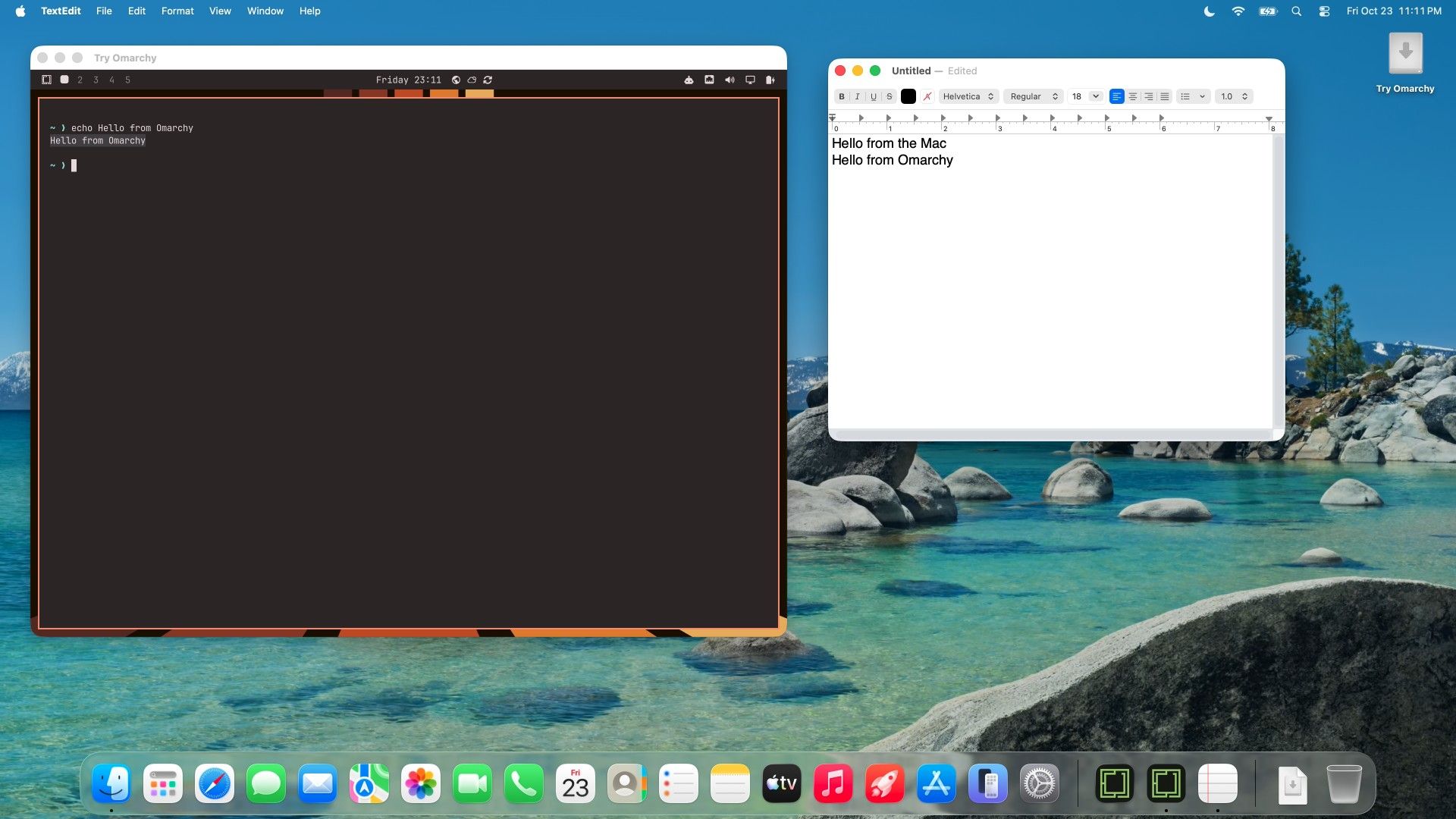
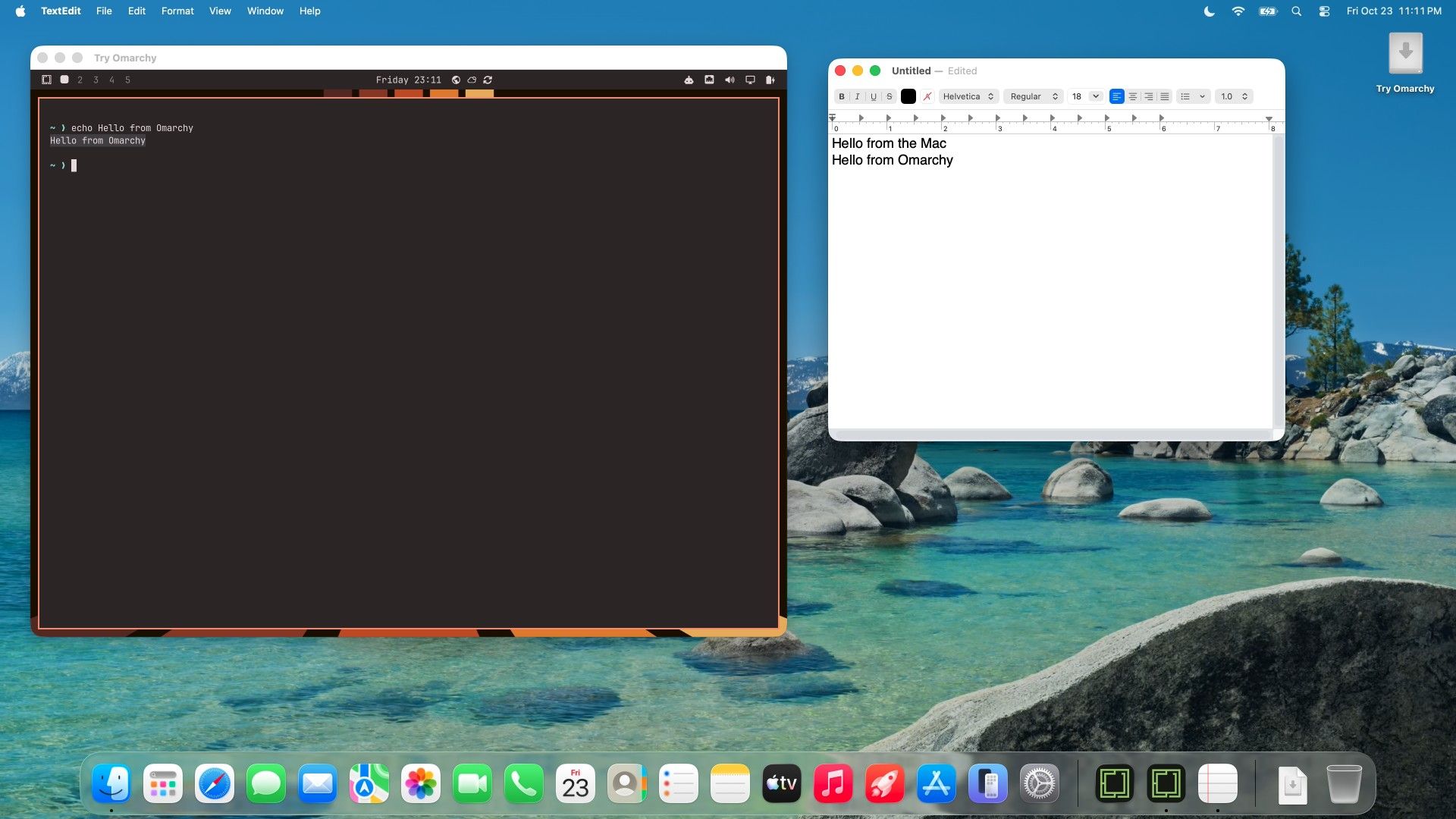
The clipboard is shared both ways, for text and images. Copy a line in TextEdit with command c , click into the Omarchy terminal, and command v pastes it. Text copied in Omarchy pastes into a Mac app the same way.
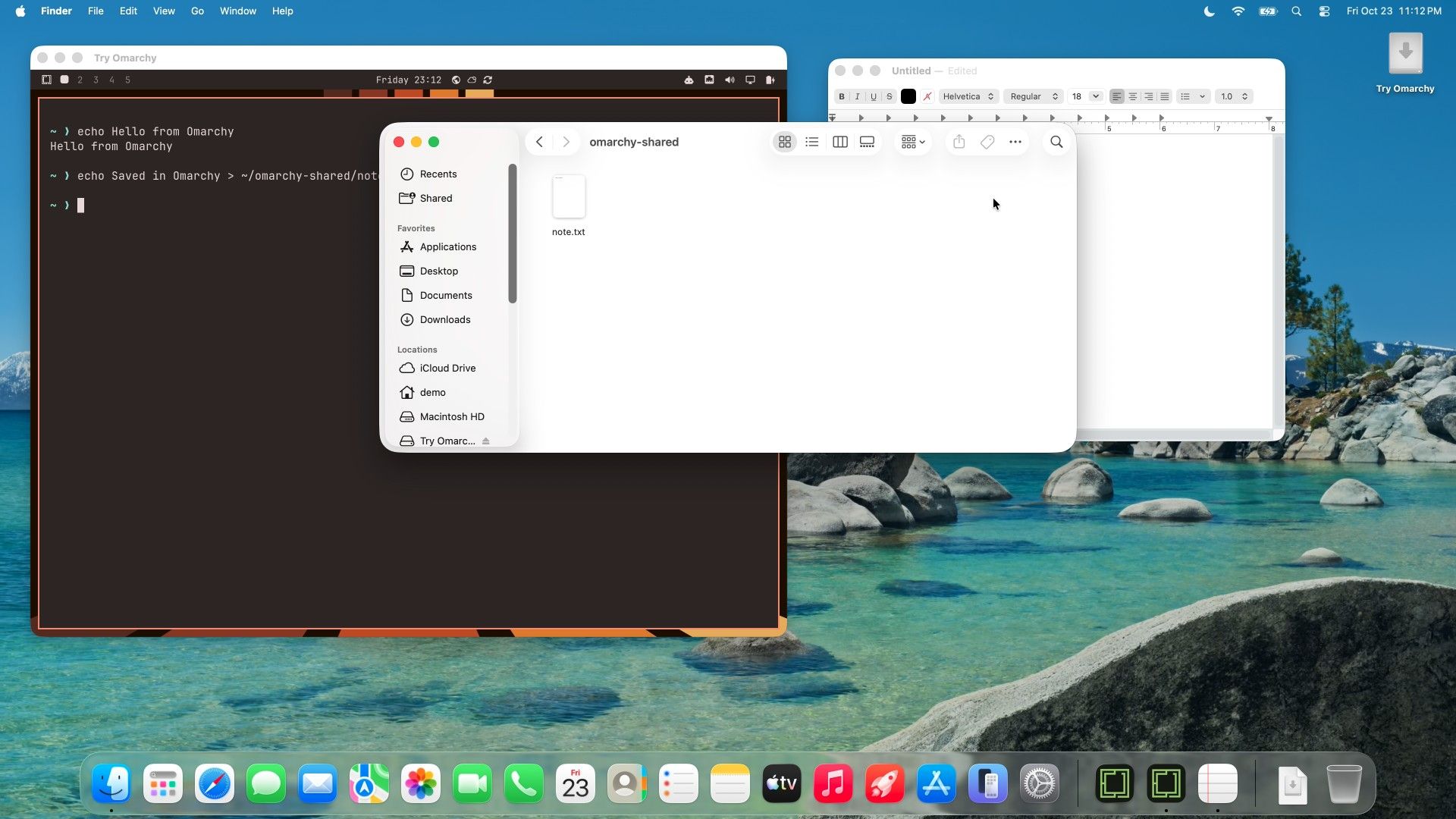
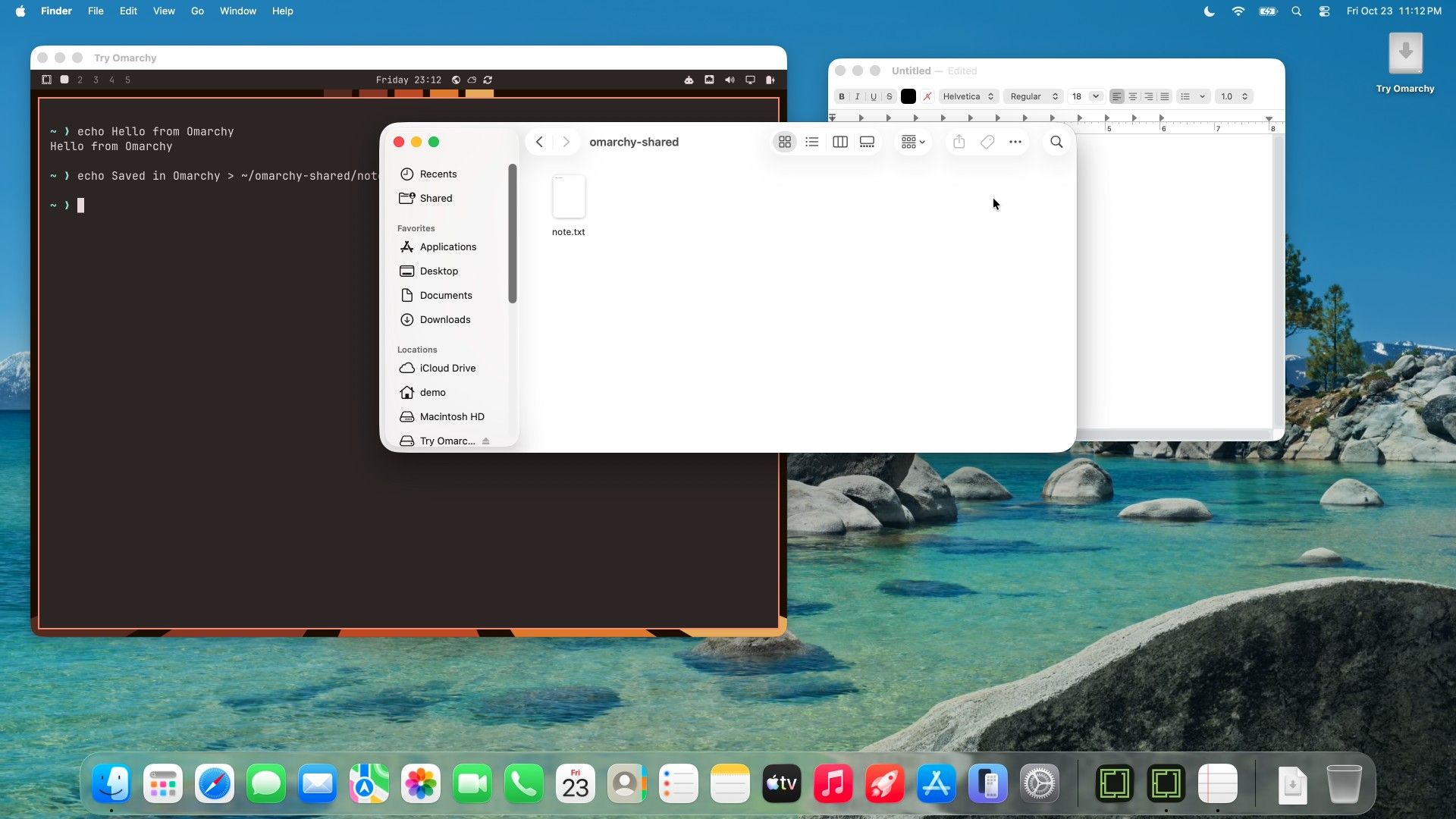
Files move through the shared folder. Save a file there from Omarchy, for example from the terminal:
echo "Saved in Omarchy" > ~/omarchy-shared/note.txtOpen your home folder in Finder ( command shift h ), then omarchy-shared, and note.txt is already there. Files you drop into the folder on the Mac show up in Omarchy the same way.
Shut down and start again
When you are done, press command esc to open Omarchy’s System menu and choose Shutdown. Omarchy turns off and the app closes within a few seconds (3 to 8 seconds in our runs). Omarchy has no suspend or hibernate here: when the Mac sleeps with Omarchy running, the virtual machine pauses with it.
Next time, open Try Omarchy and click Launch Omarchy in the launcher. Omarchy reaches its desktop in about 10 seconds on our MacBook, with no setup and no login. If you want to skip the launcher, turn on Skip launcher in the Startup pane; hold option while opening the app to see the launcher again.
Set memory and disk in Resources
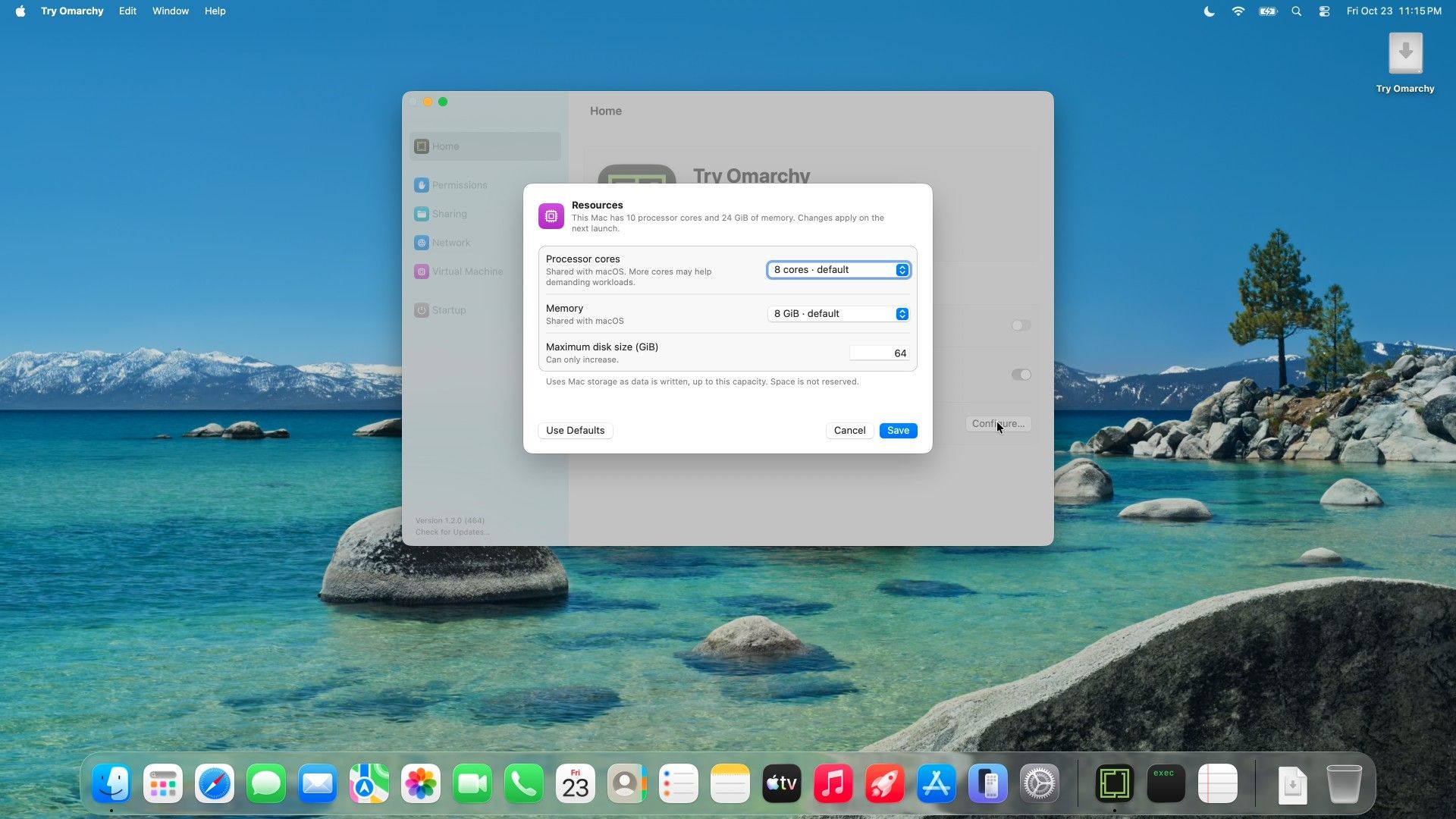
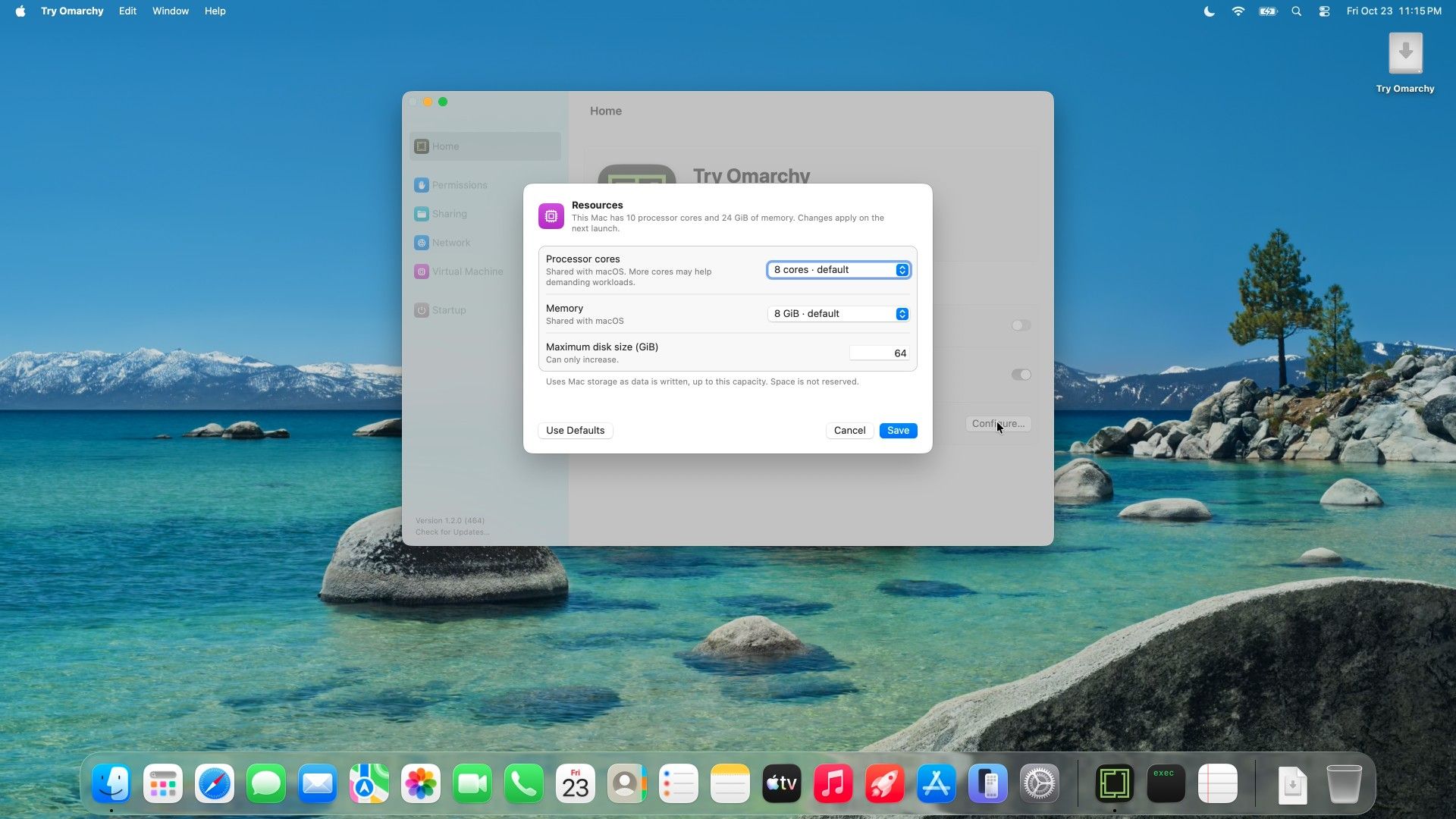
With Omarchy shut down, the launcher’s Resources row (Configure) opens the sheet for processor cores, memory, and the maximum disk size. On our MacBook, the defaults were 8 cores and 8 GiB of memory, both marked “Shared with macOS”, and a 64 GiB disk. The disk size can only increase. Changes apply at the next launch.
What does not work yet
Some things behave differently from Omarchy on a real PC, per the Try Omarchy manual:
- No Vulkan. Vulkan is a graphics interface that games and some apps use. Apps that need it, such as the Zed editor and Steam games, install but do not run.
- Video decoding runs on the processor, so high-resolution playback can stutter.
- Ghostty and Kitty draw without the GPU. They work, with less acceleration.
- Nested virtualization (a virtual machine inside Omarchy) is off.
Try Omarchy adds one package for the Mac integrations and changes no file that Omarchy owns, so the rest of Omarchy is stock.
Update Omarchy and the app, or start over
Omarchy updates itself from its own menu: command space , Update, then Omarchy, or run omarchy update in a terminal. Each update takes a snapshot first, so you can roll back from the boot menu if something breaks; our guide to Omarchy snapshots and the Limine boot menu shows how that rollback works.
The app updates separately. The launcher checks for a new release once a day, or click Check for Updates at the bottom of its sidebar. To update, quit the app, download the new TryOmarchy.dmg, and drag the new app onto the Applications folder to replace the old one. The virtual machine and its files are kept, and Omarchy installs the newer Mac integration package on its next boot.
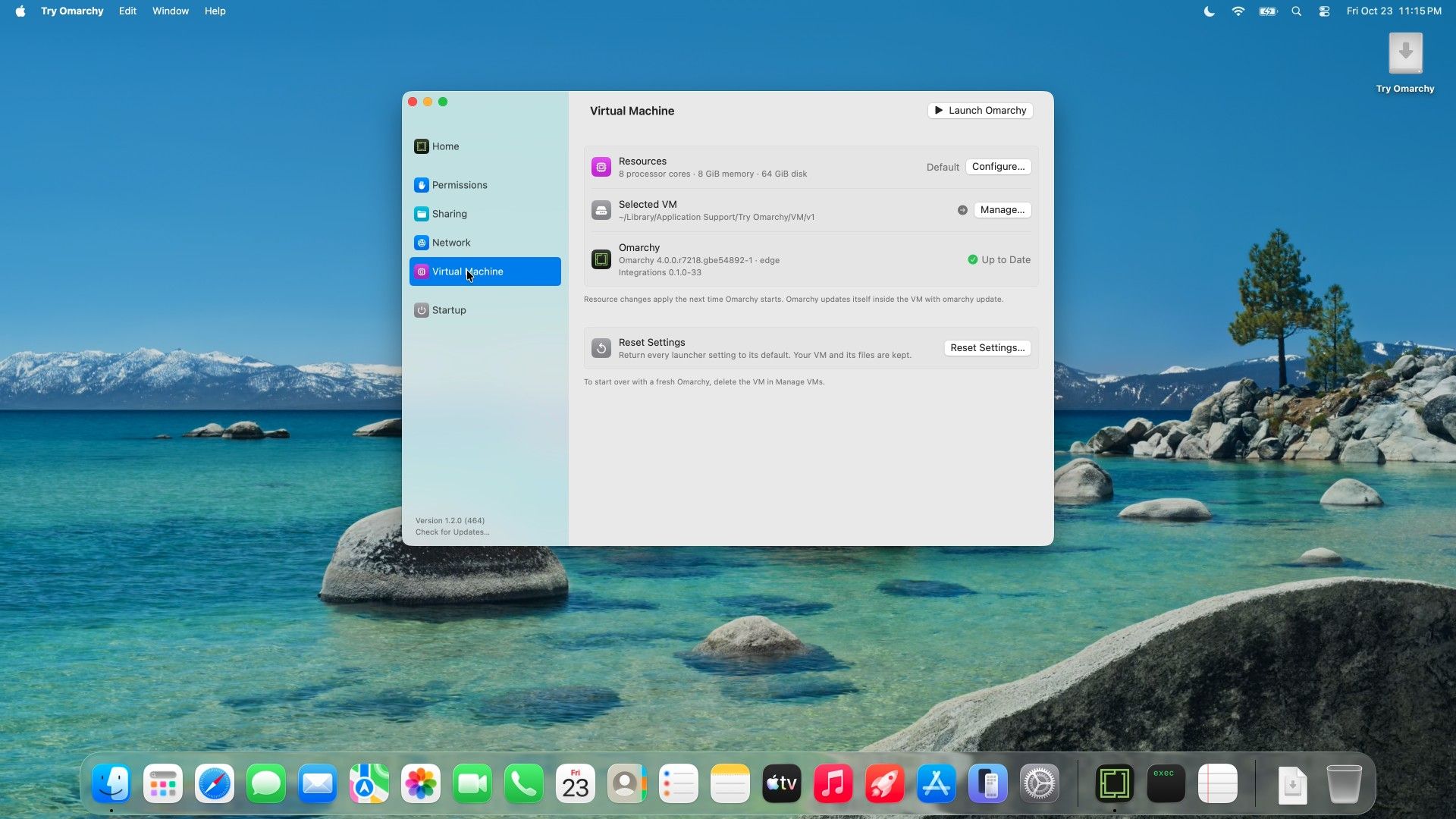
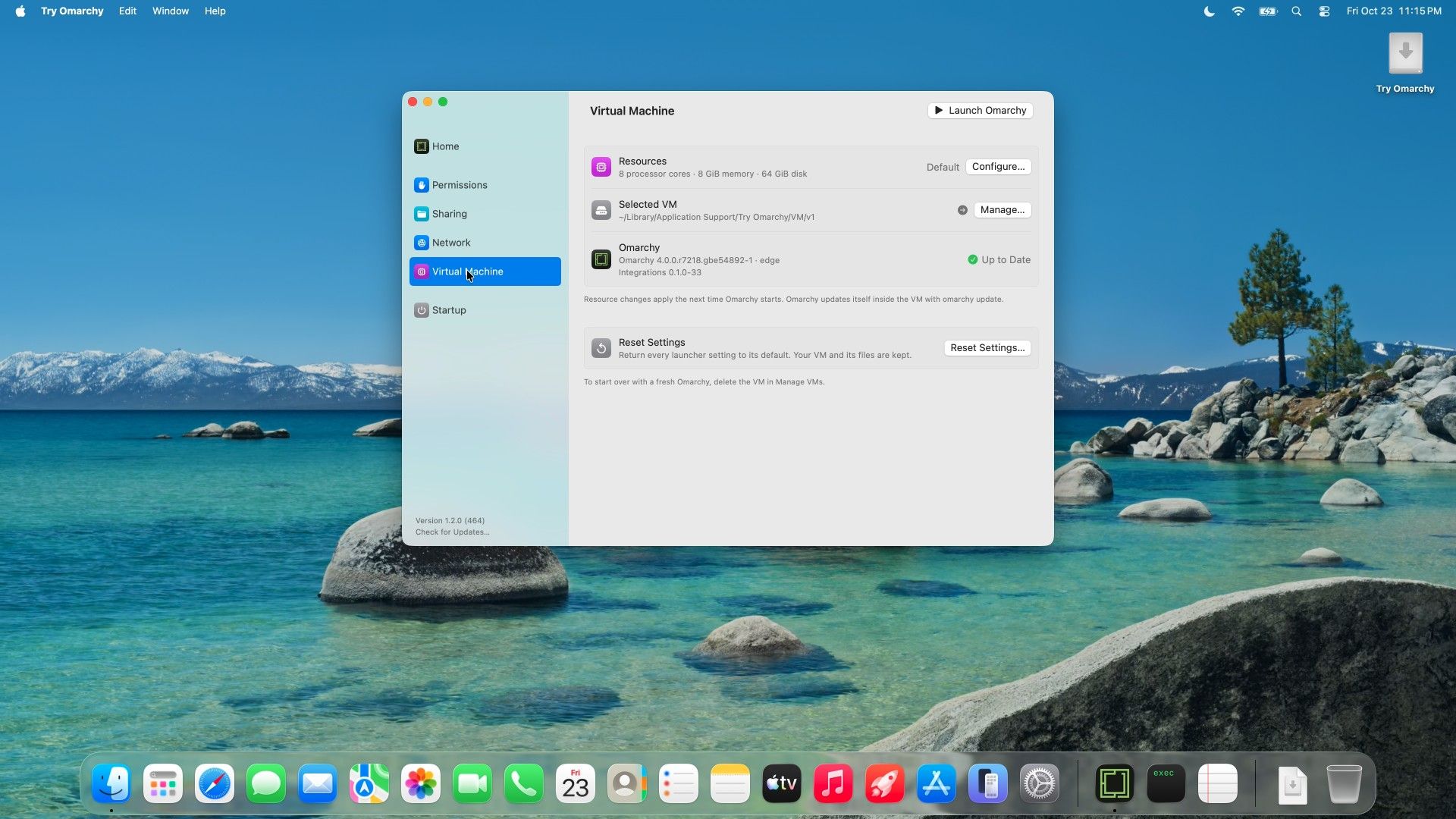
The virtual machine lives in ~/Library/Application Support/Try Omarchy/VM/v1, and deleting the app leaves it in place. For a fresh start, shut down Omarchy, open the launcher’s Virtual Machine pane, and choose Manage. Deleting the VM there moves it to the Trash (Put Back undoes it), and the next launch creates a new one from the latest image. Reset Settings in the same pane only returns the launcher’s settings to their defaults; it does not touch the VM.
Troubleshooting
command space opens Spotlight instead of the Omarchy menu. Try Omarchy does not have Accessibility access. Grant it in the launcher’s Permissions pane, or in System Settings under Privacy & Security, Accessibility.
macOS asks for Accessibility again after Restart Omarchy. After the first restart from the settings, macOS showed “‘Try Omarchy’ would like to control this computer using accessibility features” even though the switch was already on. Choose Open System Settings, check that Try Omarchy is still turned on, and close System Settings. The next start did not ask again.
Something broke after an update. Restart Omarchy and pick the snapshot from before the update in the boot menu.
Omarchy does not boot, or hangs. Read the console log at ~/Library/Application Support/Try Omarchy/VM/v1/shell/console.log; the previous launch’s log is console.log.1. Problems that also happen on Omarchy on real hardware go to Omarchy’s issue tracker; everything else goes to Try Omarchy’s, with your app version, macOS version, and Mac model.
The camera or microphone does not work in Omarchy. Grant the permission in the launcher’s Permissions pane, or in System Settings under Privacy & Security.
Where to go next
The Try Omarchy manual covers what this guide leaves out: SSH and port forwarding from the Mac, bridged networking, USB devices, and Touch ID for sudo and 1Password. Once the shortcuts feel natural, our guide to custom Omarchy keybindings shows how to add your own.


