

Listen to this article:
For certain kinds of work, a cheap Chromebook is the better travel laptop. It is light enough to carry all day, cheap enough that theft or damage becomes an inconvenience rather than a catastrophe, and secure by design in ways that matter when connecting to sketchy hostel WiFi. Battery life measured in double digits lets you work from places where there are no outlets.
When everything lives in the cloud, the device becomes a window rather than a vault. Lose a $300 Chromebook and you’ve lost an afternoon setting up a replacement. Lose a $2,000 MacBook with local files and you’ve potentially lost irreplaceable work. For nomads who prize mobility and easy replacement over raw computing power, the math favors the cheap machine.
Remote Work That Suits a Travel Chromebook
This minimalist setup works well for people whose work lives primarily in a browser: writing, email, spreadsheets, social media management, basic photo editing, video calls. Writers, content creators, virtual assistants, marketers, teachers, and customer support professionals can typically run a whole workday from ChromeOS. The same applies to anyone whose tools are web-based.
But this approach has boundaries. Video editors working with 4K footage will struggle on both performance and storage. Graphic designers dependent on the full Adobe Creative Suite need actual computing power that budget Chromebooks simply don’t provide. Software developers can make ChromeOS work with Linux apps, but it’s a workaround rather than an ideal environment. If your income depends on applications that require Windows or macOS, no amount of minimalist philosophy changes that reality.
The “budget” range here is $200-400, not the absolute cheapest $99 educational devices. Those entry-level machines work fine for basic browsing but struggle with the multiple tabs, video calls, and Android apps digital nomads rely on. You’d want at least 8GB of RAM and 64GB of storage to avoid constant friction. Around $250-350 buys enough machine for travel without investing enough to cause heartbreak if something goes wrong.
Battery, Weight, and Replaceability on the Road
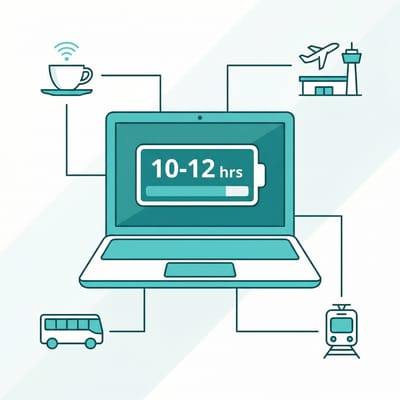
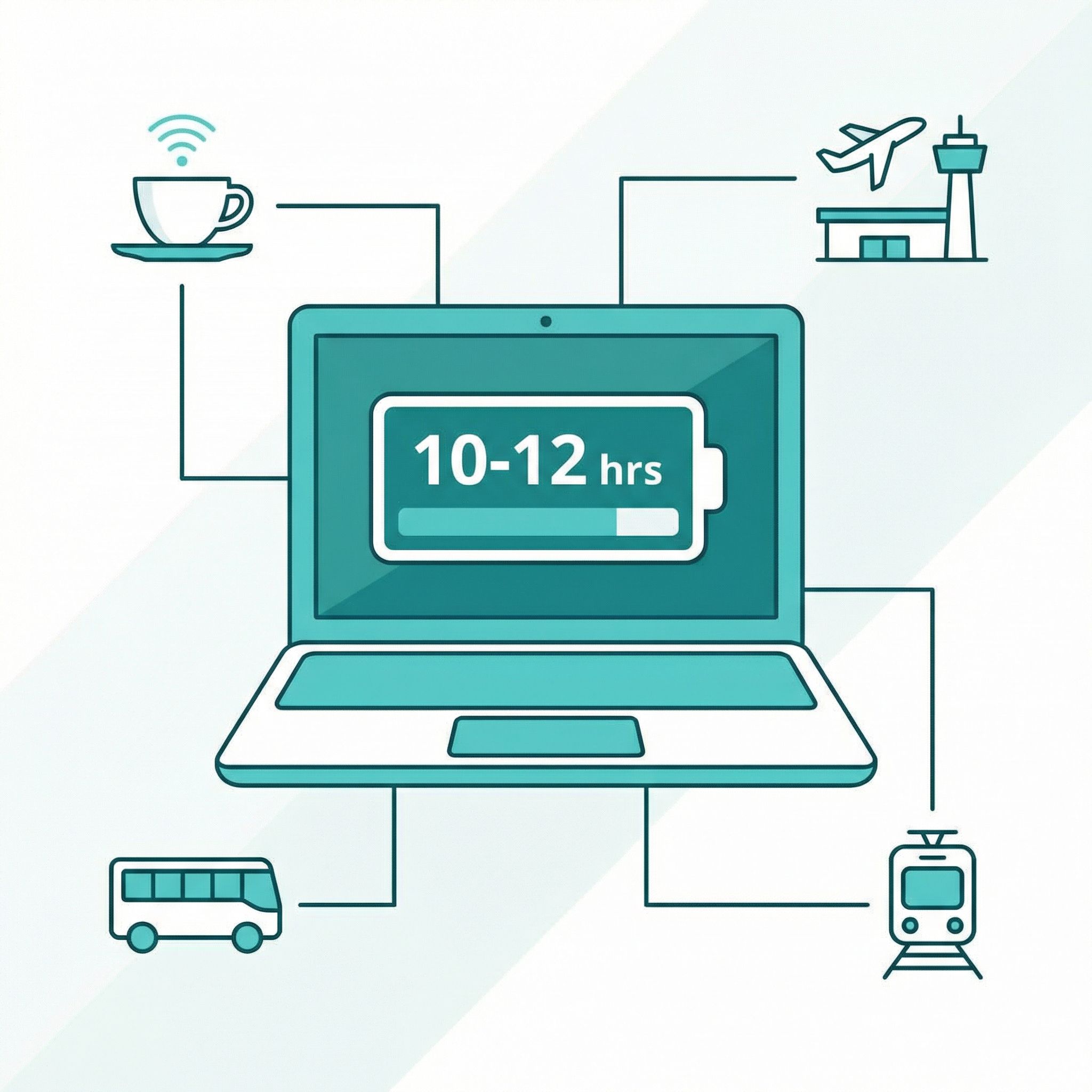
A good Chromebook delivers 10-12 hours of actual use, which means leaving the charger at the hostel and working from cafés, parks, beaches, buses, and airport terminals without hunting for outlets or negotiating for the one seat near a power strip.
Budget Chromebooks typically weigh between 2.5 and 3.5 pounds, noticeably lighter than most Windows laptops or MacBooks. That difference compounds over days of walking through cities, climbing hostel stairs, and fitting your entire life into a 40-liter backpack. The Lenovo Chromebook Duet weighs 0.99 pounds as a tablet, about 2 pounds with its keyboard folio attached, light enough to forget it’s in your bag.
The psychological weight of a cheap device matters as much as the physical weight. A replaceable laptop can sit on a café table without a second thought, come along to a street food stall where drinks could easily spill, or cross a border without worrying about valuable electronics. Losing it would cost $300 and an afternoon of setup, not $2,000 and months of irreplaceable work. It helps that the cheap tech holds up; the reliability numbers show Chromebooks fail at roughly half the rate of the average laptop, so the budget laptop on the café table is also a durable one.
Most Everyday Work Runs Fine on a Budget Chromebook
Google Docs, Sheets, and Slides run natively and sync automatically. Gmail, of course. Notion, Trello, and Asana cover project management. Canva, Figma, WordPress, the social schedulers Buffer and Hootsuite, and HubSpot for CRM all run in the browser. Video conferencing works through Zoom, Google Meet, and Microsoft Teams (you’ll want decent WiFi for this regardless of your hardware).
Android and Linux Apps Beyond the Browser
Lightroom’s mobile version handles photo editing that would have required Photoshop a decade ago. LumaFusion enables capable video editing for short-form content. Spotify, podcasts, and entertainment apps work offline. Banking apps, translation apps, and VPN apps run on your Chromebook the same way they run on your phone. For writers specifically, focused writing apps like iA Writer and Ulysses have Android versions that sync with their desktop counterparts.
Linux app support adds another layer for those comfortable with command-line tools. VS Code runs in ChromeOS’s Linux container, enabling web development with a proper code editor. GIMP handles image editing when Canva won’t cut it, and LibreOffice covers Microsoft Office compatibility for those stubborn clients who insist on .docx files. The container fills specific gaps that would otherwise require a more capable laptop. It will not turn a Chromebook into a full development machine.
Preparing for Offline Work
Google Drive, Gmail, and Calendar Offline Modes
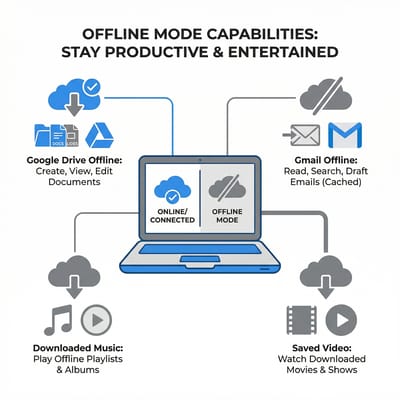
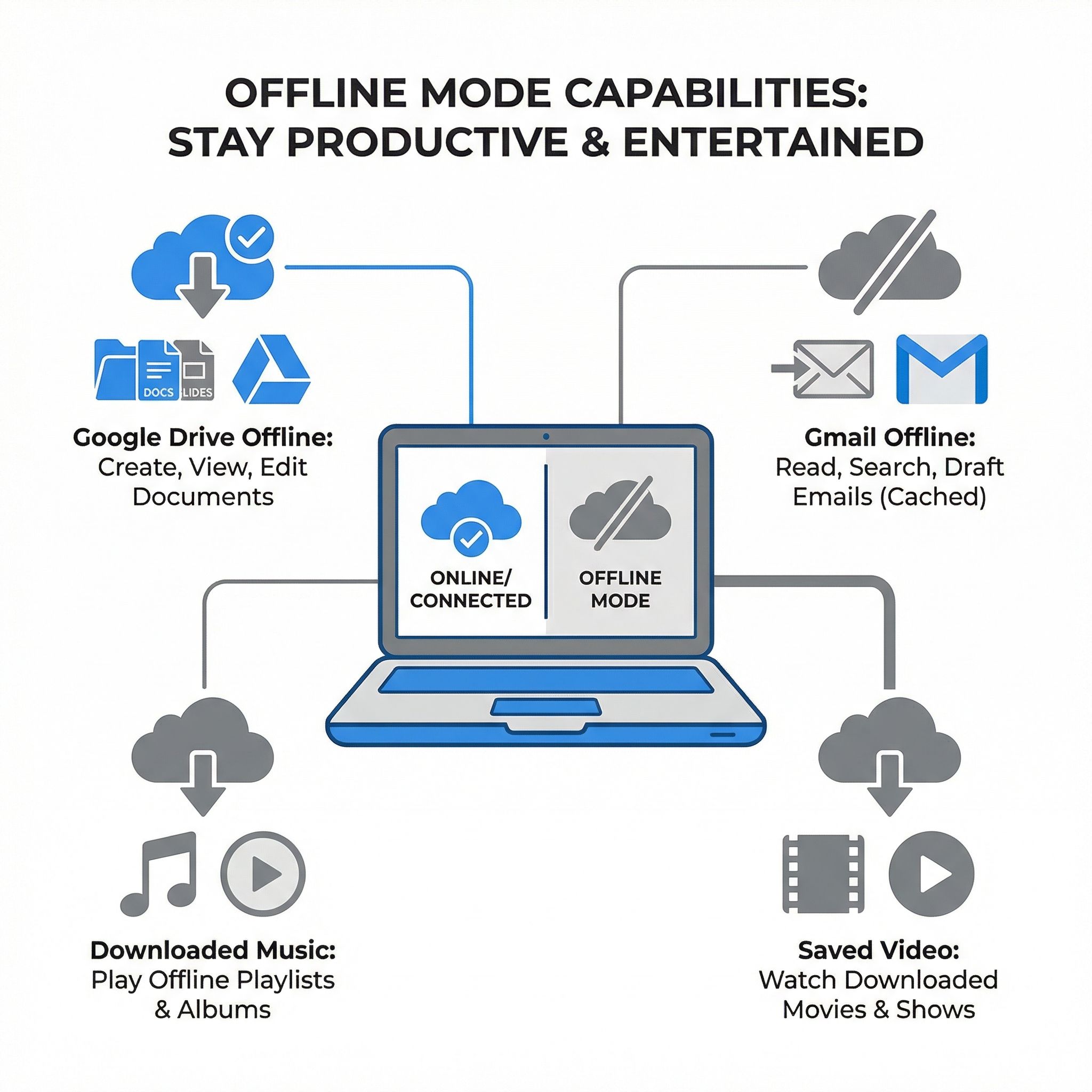
Chromebooks work offline, but the setup has to happen first. Google Drive’s offline mode is the foundation. Enable it before you need it, not while desperately trying to access documents on a plane. Right-click any file or folder in the Files app, select “Available offline,” and wait for it to download. Do this for active projects, reference documents, and anything you’ll conceivably need while disconnected.
Gmail works offline with minimal fuss. Visit mail.google.com, open settings, and enable offline access. You can read, compose, and organize messages without internet; everything syncs automatically when reconnecting. For writers and anyone who communicates heavily via email, that means clearing your inbox on a plane. The same applies to Google Calendar; check the “offline” option in settings and your schedule remains accessible.
Plan Downloads and Offline Writing Sessions
Beyond Google’s ecosystem, each app handles its own downloads. Spotify lets premium users download playlists for offline listening, essential for long flights or remote locations without reliable internet. Instapaper saves articles for later reading, building a personal library of research material that travels with you. Netflix, Amazon Prime, and other streaming services support downloads for entertainment during transit. Download everything you might need before you leave reliable WiFi, because you never know when “spotty connection” will become “no connection at all.”
For writers specifically, there are dedicated writing apps that work entirely offline. Google Docs’ offline mode handles most scenarios, but apps like iA Writer or focused writing tools create documents locally and sync when possible. Sort the work into what needs a connection and what doesn’t, then batch the offline half into its own sessions. Research and communication require connectivity; writing and editing often don’t.
Security on the Road
ChromeOS’s security model matters more for travelers than for users sitting in secure home offices. The operating system verifies its integrity at every boot, automatically reverting any tampering. Each browser tab and Android app runs in its own sandbox, preventing malicious code from escaping to compromise the system. Updates install automatically and restart takes seconds. These features exist in other operating systems, but ChromeOS makes them invisible and mandatory.
Public WiFi remains dangerous regardless of your operating system, so run a VPN on shared networks. Most VPN providers ship Android apps through the Play Store on your Chromebook. Installation is straightforward: search for your preferred provider in the Play Store, install the app, log in, and connect. The specific choice of provider matters less than actually using one; pick a service with servers in regions you’ll visit and commit to enabling it whenever you connect to networks you don’t control. The cost is trivial compared to the risk of having credentials or financial information intercepted.
Many providers offer free tiers or trial periods, which can be sufficient for basic security on untrusted networks. Upgrading to a paid plan is worthwhile if you need reliable speeds for video calls or access to servers in specific countries, but free options work for casual use. The Play Store approach means you get the same VPN app running on your phone and Chromebook, keeping your security setup consistent across devices.
Two-factor authentication protects your accounts even if passwords get compromised. Enable it on everything (Google, banking, social media, hosting providers) before you start traveling. The Google Authenticator app runs on your Chromebook, or you can use hardware keys like YubiKey for accounts that support them. Entering a code now and then beats losing access to your email or financial accounts while abroad.
Connectivity Strategies Beyond WiFi
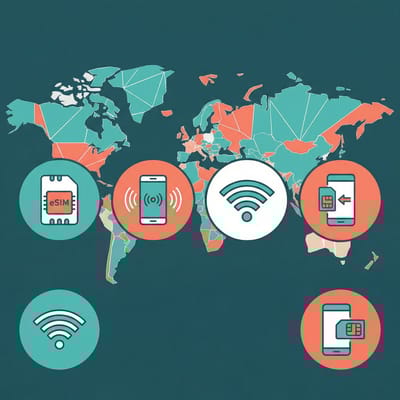
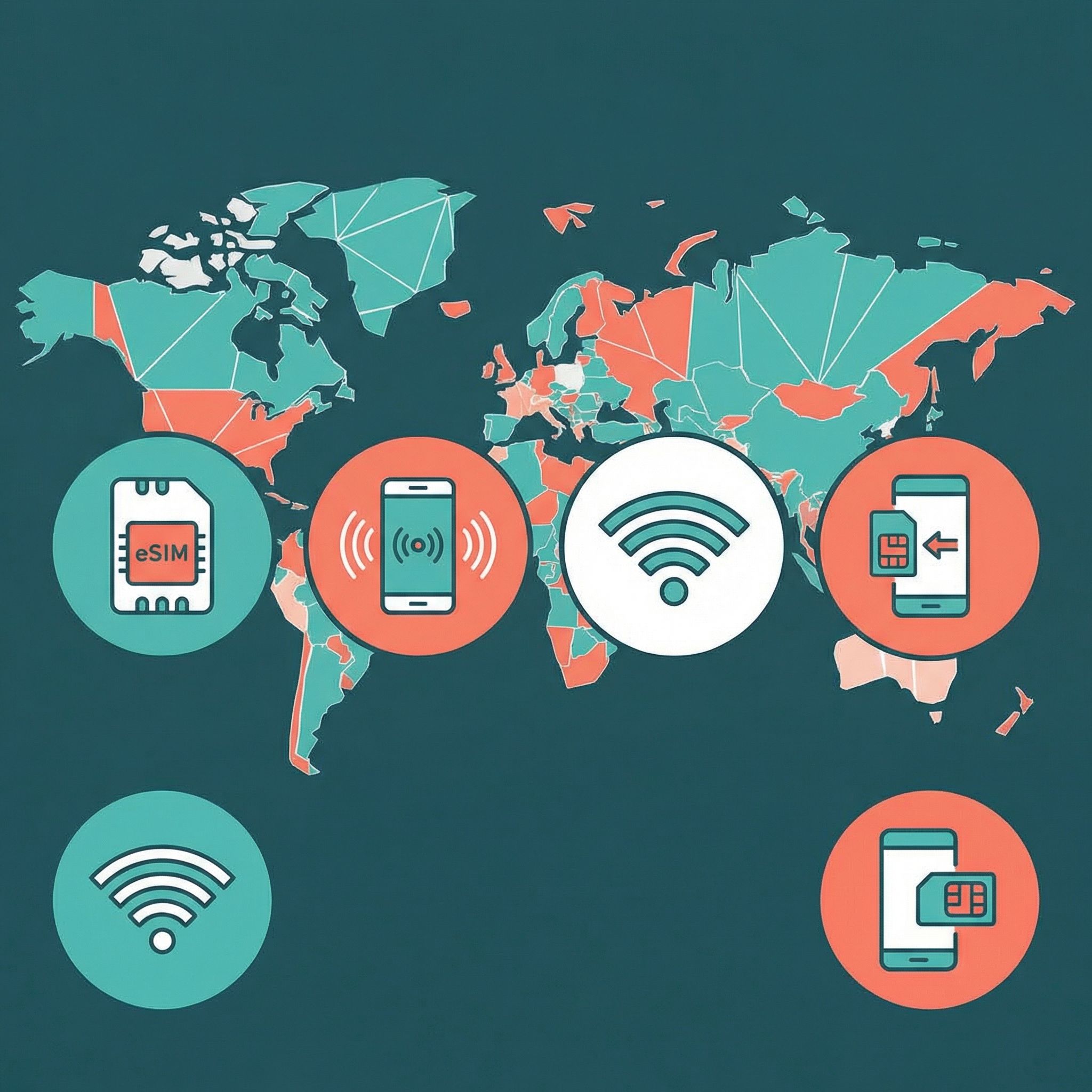
Relying entirely on hostel and café WiFi can mean missed deadlines and frustrated clients. Backup connectivity doesn’t require an expensive international data plan, just a way to stay online when shared networks fail.
eSIMs let you buy data before you land. Services like Airalo, Holafly, and Nomad sell data plans without a physical SIM card. Most Chromebooks don’t have built-in cellular connectivity, but phones do; enabling the mobile hotspot lets the laptop connect through it. Pre-purchasing an eSIM for a destination country means arriving with working data rather than hunting for SIM card shops while exhausted from travel.
For longer stays, local SIM cards remain the most cost-effective option. Most countries offer prepaid data plans that seem absurdly cheap by American standards: $10-20 monthly for generous data allocations in much of Southeast Asia and Latin America. Pop a local SIM into a phone’s second slot (most modern phones support dual SIM) and use its hotspot when WiFi disappoints. Buy the SIM on arrival, not when you already need it.
Portable WiFi hotspots (pocket WiFi devices) make sense for some travelers, particularly those with multiple devices or traveling in groups. Services like Solis (formerly Skyroam) and GlocalMe offer hardware that works across multiple countries, eliminating the need for SIM swaps. The devices add weight and another item to charge, but they provide dedicated, reliable connectivity that doesn’t drain your phone battery.
Recommended Chromebooks for Travel
Lenovo Chromebook Duet, the Lightest of the Three
At about two pounds with its keyboard cover and a price around $250-300, the Lenovo Chromebook Duet is light enough to carry everywhere without thought. The detachable keyboard lets it function as a tablet for entertainment, then snap into laptop mode for actual work. Battery life exceeds 10 hours. The screen is small at 10.1 inches, which limits productivity for extended work sessions, but for nomads who work from cafés for a few hours between adventures, that tradeoff is acceptable.
Acer Chromebook Spin 311, a Bigger Screen Without the Weight
A larger screen usually costs weight. The Acer Chromebook Spin 311 avoids most of that at 2.65 pounds, so it won’t break your back on long travel days, and it sells for around $250-350. The 11.6-inch touchscreen flips 360 degrees for tablet-style use, and the fanless design means silent operation in quiet spaces. The ruggedized build handles the inevitable bumps and drops of life in backpacks and overhead bins.
ASUS Chromebook Plus CX34, More Performance Headroom
The ASUS Chromebook Plus CX34 costs around $400-450 and runs an Intel Core i3-1215U processor. Digital Nomads World calls it “the affordable productivity machine you’ve been waiting for.” At 1.44kg with 10-11 hours of real-world battery and MIL-STD-810H durability certification for surviving rough handling, it’s built for travel. Video calls hold up with a stack of tabs open.
One Nomad Works From Airports and Boats on a Budget Chromebook
One digital nomad wrote on Medium about working “from airports, bus terminals, buses, boats, islands, and cafés” with a budget Chromebook, and noted that the battery “lasts up to 7 hours of straight use with 50% screen brightness and lasts days of on/off idle usage.” The instant sleep and wake (closing the lid puts it in standby “in split seconds”) means no waiting for the device to catch up with the nomadic pace.
For nomads connecting to dozens of unknown networks per month, automatic updates and per-tab sandboxing matter more than benchmark scores. And when income fluctuates with exchange rates and client payments, investing $300 instead of $2,000 in hardware leaves more buffer for the unpredictable expenses travel generates.
Minimalist Tech Fits the Nomad Lifestyle
Every item you own requires mental energy: worrying about its safety, maintaining it, finding space for it. Cheap, replaceable gear carries less of that weight than expensive gear does.
Cloud-based computing completes this philosophy. When your documents, photos, and work exist in Google Drive, Dropbox, or whatever service you trust, losing a device becomes inconvenient rather than devastating. Log into a replacement device and your entire digital life appears.
This doesn’t mean never backing up locally or trusting the cloud absolutely. Important documents deserve redundant backups across multiple services. Password managers like Bitwarden store credentials securely across devices. You are not attached to a specific machine, so you’re free to move through the world without protecting one.
Making the Transition From Windows or Mac
Start by tracking which applications you actually use daily. Many have web-based equivalents or capable Android versions; specialized professional software, games, and certain development tools don’t translate at all.
The best approach is trying ChromeOS before committing. Borrow a Chromebook, or buy a cheap model specifically to test your workflow. Spend a week using it exclusively for work tasks. You’ll quickly discover which tools work fine, which require adjustment, and which need traditional computing.
For the things that don’t work on ChromeOS, consider hybrid approaches. Some nomads carry a Chromebook for daily use plus a small Windows laptop or tablet for specific applications. Others use cloud-based virtual machines (services like Shadow) that let you run Windows remotely when needed.
Frequently Asked Questions
What is the best laptop for a digital nomad?
A $250-350 Chromebook covers browser-based work at 2.5 to 3.5 pounds and 10-12 hours a charge. Losing one costs an afternoon of setup instead of months of work. Nomads whose income depends on 4K video editing, the full Adobe Creative Suite, or software that requires Windows or macOS still need a traditional machine.
Are Chromebooks worth buying in 2026?
Yes, if your work happens in a browser. Google Docs, Gmail, Notion, Canva, Figma, and Zoom all run in ChromeOS, Android apps cover photo editing and short-form video, and VS Code, GIMP, and LibreOffice run in the Linux container. Chromebooks also fail at roughly half the rate of the average laptop. Software that only runs on Windows or macOS rules them out.
Which Chromebook is best for travel?
Three, at different budgets. The Lenovo Chromebook Duet is the lightest at about two pounds with its keyboard cover ($250-300). The Acer Chromebook Spin 311 trades up to an 11.6-inch touchscreen at 2.65 pounds, fanless and ruggedized ($250-350). The ASUS Chromebook Plus CX34 ($400-450) adds an Intel Core i3-1215U and MIL-STD-810H certification. Look for at least 8GB of RAM and 64GB of storage whichever you pick.
A Budget Chromebook Suits Work That Lives in the Browser
The digital nomad working from a $300 Chromebook in a Bali café trades power for portability, and premium build quality for replaceability. The person who needs a $2,000 workstation makes the opposite trade. For those who spend most of their work time in Gmail, Google Docs, Notion, and video calls (as many writers, marketers, and remote workers do), a budget Chromebook handles everything needed while costing less and weighing less than the alternatives.
The worst case is spending a few hundred dollars discovering it doesn’t work and reselling the device for minimal loss. The best case is carrying a lighter, cheaper office that covers the work.


