At WWDC 2025 Apple told Intel Mac owners something the rumor sites had been predicting for a year: macOS Tahoe 26 is the final major macOS release for any Intel Mac. The four machines that received the update will still get security patches for a while. They will not get macOS 27, or anything that comes after it. That announcement is twelve months old now, and Apple has not walked it back. WWDC 2026 opened on June 8, and Apple officially introduced macOS 27 at the keynote under the name Golden Gate. Golden Gate requires Apple Silicon; the four Intel Macs covered here are confirmed off the compatibility list.
If you own a 2019 16-inch MacBook Pro, a 2020 13-inch MacBook Pro with four Thunderbolt ports, a 2020 27-inch iMac, or a 2019 Mac Pro, this article is for you. Those four machines, and only those four, sit at the intersection of “still useful right now” and “no longer on the upgrade path.” The pattern is the same one Windows 10 owners faced in late 2025: hardware that still boots fast and handles a day of work fine, with a software vendor that has decided to stop investing in it. This guide is the Mac sequel to our Windows 10 to Linux migration piece, pointed at a different cohort with different constraints.
macOS Tahoe Is the Last Intel-Supported Release
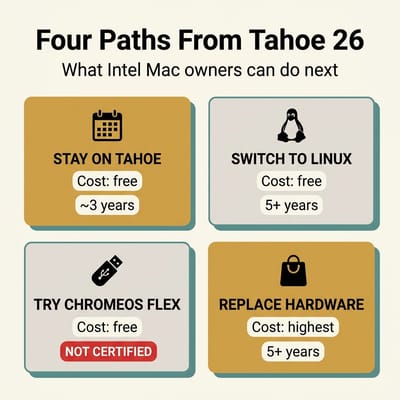
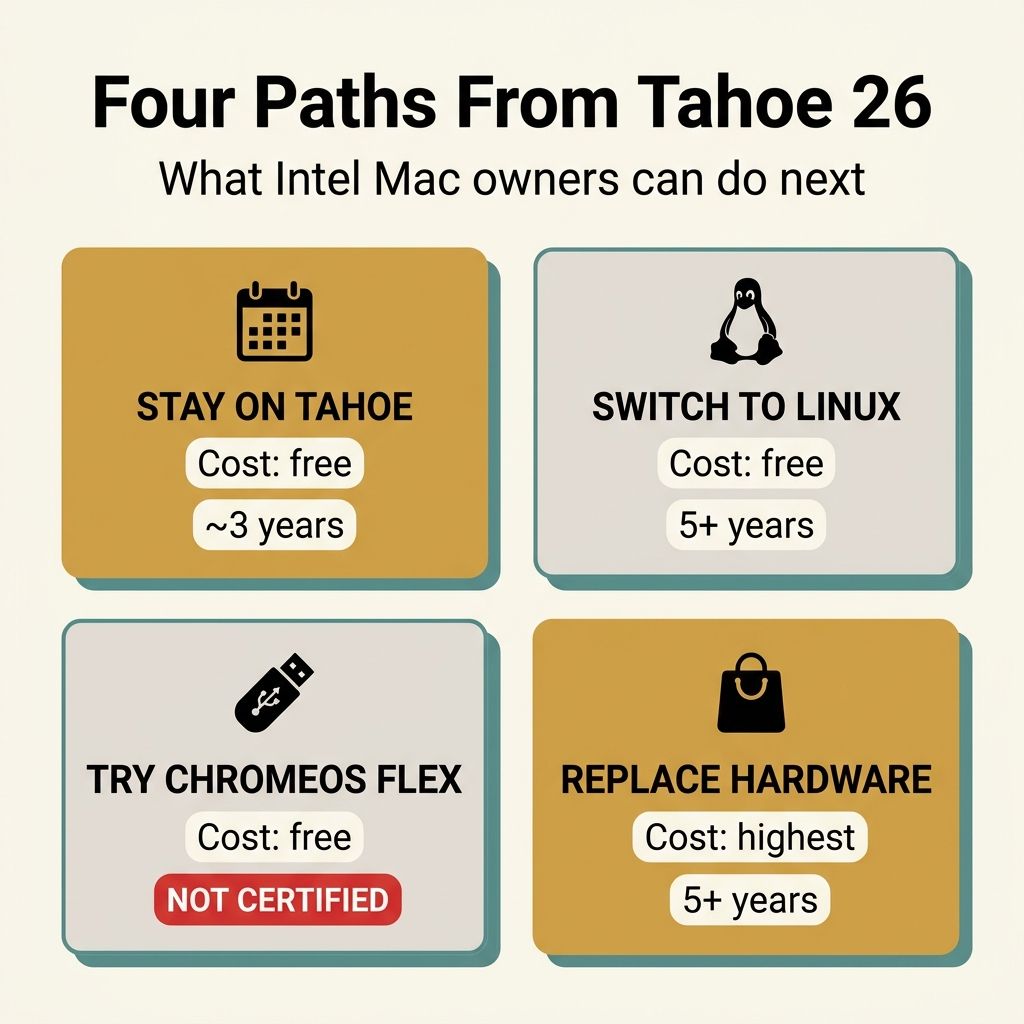
The June 2025 announcement was brief and unambiguous. macOS Tahoe (which shipped on September 15, 2025) supports the four Intel Macs listed above. The next major release will not. Security updates for older macOS versions typically continue for around three years after their final feature update, which puts the practical security window for Tahoe somewhere in the 2028 to 2029 range. Apple has never formally committed to a fixed N-2 schedule, so that figure is a pattern from Big Sur and Monterey rather than a promise. If you are planning a three-year hold, treat it as a reasonable expectation, not a guarantee.
Worth distinguishing right away: security patches are CVE backports, not feature parity. Whatever features Apple introduces in macOS 27 Golden Gate and the releases after it will not reach Tahoe, because Tahoe is the last Intel-supported version. App developers will keep supporting Tahoe for a while, but the “this app requires the latest macOS” warnings start appearing once Golden Gate ships this fall and accelerate from there. A Mac on Tahoe in 2028 will be a perfectly safe Mac for browsing and document work; it will not be a current Mac.
Path 1: Ride the Security Window on Tahoe
The simplest decision is to do nothing. macOS Tahoe is a fully supported macOS today. Patches arrive on the same schedule as every other supported version. The most recent point release, macOS Tahoe 26.5, shipped on May 11, 2026, and addressed several WebKit and kernel CVEs. Browser security, mail security, and the cryptographic primitives apps rely on are all current. Nothing about the WWDC 2025 announcement changed any of that.
This path makes sense for anyone whose computing life is stable. If you mostly write, browse, manage email, and run a small set of mature applications that already work, you have roughly three productive years before the security window closes. The same advice applies that we gave to Windows 10 holdouts: use the runway. Identify the workflows you depend on, watch for the first app that drops Tahoe support (this will probably be a creative or developer tool, not a productivity app), and start your real planning when that happens.
The trap to avoid is the one that bit Windows 7 holdouts. People who said “I will deal with this in a year” in 2019 were still saying it in 2022. By the time they actually moved, their workflow had drifted further from current macOS, the transition cost more, and the security gap had grown. Treat Tahoe as a known-end-date holding pattern, not a forever home. Set a reminder for late 2027 to evaluate seriously.
Path 2: Switch to Linux
The most useful thing to know about Linux on these four Intel Macs in 2026 is what it is not. Asahi Linux, the polished Apple-Silicon Linux project, does not support Intel Macs at all. Asahi is reverse-engineered around the M-series GPU and the Apple-Silicon boot environment; running it on a 2019 16-inch MacBook Pro is not possible and is not on any roadmap. If you have read about Asahi and thought “that solves my problem,” the answer is the opposite. You need a conventional Linux distribution, the same kind you would install on a generic PC.
The good news is that those distributions are in the best shape they have ever been. Linux Mint 22.3 “Zena” ships a Cinnamon desktop that feels familiar to anyone coming from any other operating system, with support through April 2029. Ubuntu 26.04 LTS “Resolute Raccoon” shipped on April 23, 2026, with five years of standard support; its hardware compatibility with 2019-era Intel chipsets is excellent. Fedora 44 released on April 28, 2026, and is the right pick if you want current GNOME (50) and faster kernel updates. Pop!_OS is the fourth common recommendation and the one to verify at install time; System76 has been iterating on the COSMIC desktop for a while, and you should pull whatever the current release happens to be.
The catch on all four Macs is the T2 security chip. The 2019 16-inch MacBook Pro, the 2020 13-inch MacBook Pro 4-port, the 2020 27-inch iMac, and the 2019 Mac Pro all ship with the T2, and the T2 makes Linux installation meaningfully harder than it is on a generic PC. Secure Boot is enabled by default and has to be turned off in the recovery partition before any non-Apple bootloader will run. The internal SSD is hardware-encrypted in a way that the kernel did not understand for years (it does now, but you will need a current kernel, which the LTS distros provide). On the laptops and the iMac, the internal microphone and the built-in keyboard’s special keys depend on out-of-tree drivers; the community project to watch for is t2linux, which packages those patches as kernel modules and ships installation guides for the affected models. The 2019 Mac Pro shares the T2 boot requirements but escapes most of the peripheral driver friction because it is a tower with PCIe slots, removable storage, and no built-in microphone or laptop keyboard to fight with; once Secure Boot is disabled, the install behaves more like a high-end x86 workstation than a Mac.
Be candid with yourself about what leaves with macOS. The Photos library does not migrate to Linux without exporting first; you can get the JPEGs out, but you cannot keep the on-device albums, faces, and edit history without rebuilding in something like digiKam. iMessage, AirDrop, Continuity, Handoff, and iCloud Keychain are gone. Final Cut Pro and Logic Pro are gone; DaVinci Resolve runs on Linux and is the closest substitute for video, while Reaper or Ardour replace Logic for most workflows but not without rebuilding muscle memory. iCloud Drive sync is fiddly through third-party tools and not a one-click setup. If your daily workflow is browser-based, this list is shorter than you would expect. If it is creative-pro work locked to Apple’s apps, it is the deciding factor.
The friendliest first step is the same as it was for Windows 10 holdouts: boot from a USB stick and see if your hardware works. Mint and Ubuntu both produce a “try without installing” mode that runs the whole desktop off the USB. Wi-Fi, display scaling, touchpad gestures, and the webcam are the four things to verify before committing. For the T2-equipped Macs, the t2linux project’s documentation is the right starting point; it covers exactly which kernel parameters and drivers you need for each model.
Path 3: ChromeOS Flex Is Not a Clean Option Here
ChromeOS Flex deserves its own paragraph because the Windows-10 piece of advice does not transfer cleanly to these four Macs. On a generic PC, Flex is often the lowest-friction path: boot a USB stick, install in ten minutes, and you have a Chromebook. On an Intel Mac, the calculus changes. The reason is mundane: Google’s certified models list does not include any of the four affected machines. The currently certified Apple hardware on that list is limited to a handful of much older Macs (a 2014-era Mac mini and two MacBook Air generations), and the 2019 16-inch MacBook Pro, the 2020 13-inch MacBook Pro 4-port, the 2020 27-inch iMac, and the 2019 Mac Pro are all uncertified. Several older MacBook Pro entries that used to be certified have since been moved to Google’s decertified list, so do not take a historical “it worked on a 2012 MBP” report as a proxy for current support.
“Uncertified” is not the same as “will not boot.” Flex will probably install on these machines, and many parts of it will work; modern Intel UEFI systems are usually compatible at a baseline level. The things that tend to break on uncertified Macs are exactly the things that matter day to day: Wi-Fi driver support is hit-or-miss, sleep and wake behavior is unreliable, audio output sometimes routes wrong, the webcam often fails, and the T2 chip’s boot security creates extra steps that the official installer does not anticipate. Google will not help if any of those break; the support documentation explicitly carves out uncertified hardware. You can try Flex on a USB stick to see if your particular machine behaves, but plan on Linux Mint as the realistic fallback rather than the other way around.
Path 4: Replace the Hardware
The replacement path splits cleanly along desktop versus portable, and you should think about the two cases separately because they look completely different.
For the desktop machines (the 2020 27-inch iMac and the 2019 Mac Pro), there are two reasonable destinations. The first is to stay in the Apple ecosystem with an Apple Silicon Mac: a Mac mini M4 for an iMac replacement at modest cost, or a Mac Studio Ultra for a Mac Pro replacement at significantly higher cost. The Mac Pro replacement has a real wrinkle. If you bought a 2019 Mac Pro and outfitted it with MPX modules, Afterburner cards, or a multi-GPU build, no mini PC and no Mac mini will replace that machine in role. The realistic Apple-Silicon replacement is the Mac Studio Ultra with whatever GPU and unified memory configuration matches what you had; it is the only current Mac that picks up the workstation thread.
The second desktop option is to leave the Apple ecosystem entirely and replace the iMac or Mac Pro with a Linux-capable mini PC. This makes sense if you were already considering Linux as a software path and want to skip the T2-chip configuration step by buying hardware that is already certified for Linux out of the box. A Beelink SER8 covers most of the iMac role at a lower price; a higher-end machine like the GMKtec EVO-X2 approaches the lighter end of Mac Pro workloads with AI-capable RAM configurations. These are not endorsements over Apple Silicon for everyone; they are the right choice specifically when you have already decided to leave macOS.
For the portable machines (the 2019 16-inch MacBook Pro and the 2020 13-inch MacBook Pro 4-port), the replacement question is harder. There is no mini PC that replaces a laptop in role; if you need portability, you need a portable. The clean Apple-Silicon path is a current MacBook Air M4 or a MacBook Pro M4 depending on whether you need the Pro chassis and screen. Apple’s trade-in program is worth using because both of these Macs still command meaningful trade-in values in 2026, and the credit comes off a new Apple purchase rather than as cash. If you want a Linux laptop instead of an Apple Silicon one, that is a separate buying exercise; the available options are a different category from a mini PC purchase and are not directly substitutable. Our guide on what Ubuntu certification actually means is a useful starting point for evaluating Linux laptop hardware support before you commit.
A Word on OpenCore Legacy Patcher
If you start researching this decision, you will encounter OpenCore Legacy Patcher within an hour. OCLP is a community project that has historically installed newer macOS on Macs Apple has dropped from official support. The four Intel Macs are still officially supported on Tahoe today. Apple confirmed at WWDC 2026 on June 8 that none of them are on the macOS 27 Golden Gate compatibility list. The OCLP question becomes live when Golden Gate ships this fall. At that point, OCLP is the route some owners use to keep running the visually current macOS unofficially. It works, and we are not recommending it as a primary path for two reasons. First, every macOS point release breaks something on patched installs, sometimes badly, and the fix arrives on the community’s timeline rather than Apple’s. Second, security guarantees on a patched installation are weaker than on either supported macOS or a current Linux distribution; you are inside the Apple boot environment but outside its supported configuration, which is the worst combination for an exposed personal computer.
If your eventual goal is to run the visually current macOS on a 2019 or 2020 machine after Apple drops it, OCLP is the project to bookmark and the dortania community runs the documentation well. If your goal is a stable computer for the next three to five years, every other path is more reliable.
Which Path Fits Which Mac
The decision is less about “which path is best” and more about “which path is best for your specific machine and use.” Here is the rough mapping.
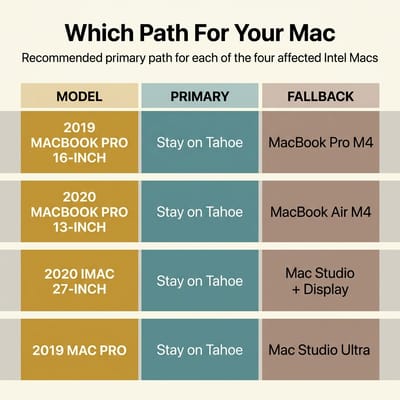
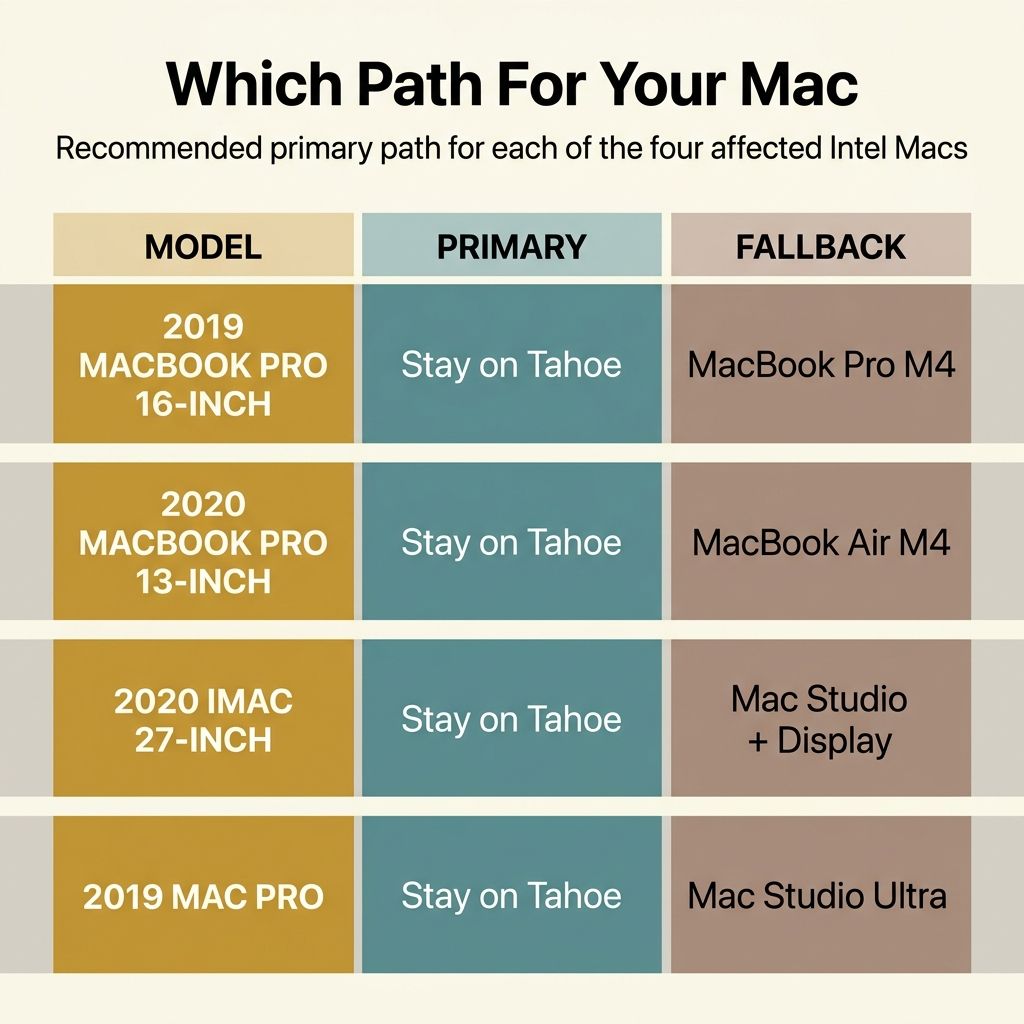
2019 16-inch MacBook Pro: the strongest of the four for a hold-then-decide strategy. The hardware is still capable for almost any workflow, the screen and keyboard are good, and the security window through 2028 gives you real planning time. Primary path: stay on Tahoe through 2027. Fallback when you do move: Linux Mint via t2linux for keep-the-hardware, or a current 16-inch MacBook Pro (M4 Pro or M4 Max) via Apple’s trade-in for replace-the-hardware. The 16-inch MacBook Pro chassis has carried forward across the Apple Silicon transition, so the visual and ergonomic continuity is intact.
2020 13-inch MacBook Pro (4-port): similar advice with one wrinkle. The 13-inch keyboard and screen are dated by 2026 standards, and the chassis runs hot under sustained load. Primary path: stay on Tahoe through 2027, then move to a MacBook Air M4 unless you specifically need the Pro chassis. Linux is viable but the T2 configuration is more friction than the machine probably justifies; consider Linux only if you want to keep using this body.
2020 27-inch iMac: the all-in-one form factor is the constraint here. The 5K display is the reason you bought it, and that display is fused to the rest of the machine. Primary path: stay on Tahoe through 2027, then either accept that the iMac becomes a Linux Mint workstation for as long as it lasts, or replace with a Mac Studio plus a Studio Display if you want a current Apple-ecosystem desktop with comparable screen real estate. Mini PC plus monitor is a viable but cosmetically very different option.
2019 Mac Pro: the special case. The T2 is present, but the tower form factor (PCIe slots, removable storage, no built-in microphone or laptop keyboard) makes Linux installation more tractable than on the laptops or iMac once Secure Boot is disabled. The real wrinkle is that the original purchase usually came with significant MPX, Afterburner, or PCIe investments that do not survive a platform change. Primary path: stay on Tahoe through 2028 and use that time to plan a Mac Studio Ultra migration that accounts for the GPU and storage configuration. Linux is a strong fit if your Mac Pro workflows were already cross-platform (rendering, scientific computing, build farms); it is a poor fit if those workflows are locked to Apple’s pro apps.
The Bigger Picture
The 2019-2020 Intel Macs are the last generation of a particular kind of computer: a Mac you could open, repair, and install another operating system on if you really wanted to. They are also, on average, very nice machines. The 16-inch MacBook Pro brought back the scissor keyboard and a usable thermal envelope. The 2020 iMac was the most refined 27-inch all-in-one Apple ever shipped. The 2019 Mac Pro is the workstation Apple makes only when its pro customers force it to. Owners of these machines were not chasing the bleeding edge; they were buying the version of each line that worked.
That is part of why Tahoe matters as a transition more than the previous Intel Mac cutoffs did. The 2014 and 2015 Macs that fell off the support list a few years ago were aging gracefully into “still works for grandparents.” The 2019 and 2020 Macs are still credible primary computers in 2026, and the people who bought them mostly still want them to be primary computers in 2028 and 2029. The choice this article maps is not “what do I do with my old computer.” It is “what do I do with the computer I am still using.”
The boring answer, for most owners of these four machines, is to keep using Tahoe through 2027, then decide between Linux Mint and an Apple Silicon Mac at that point based on whether your workflow has drifted toward web-and-document work (Linux is fine) or stayed locked to Apple’s creative apps (replace the hardware). The exciting answers exist, including OCLP for the obstinate, ChromeOS Flex for the experimental, and a Linux mini PC for the budget-conscious converts, but the boring answer is the one that gets the most people through the next three years with the least pain. The fact that there is a boring answer at all, on hardware that came out before WWDC 2019, is the part of the 2026 Linux landscape that would have surprised anyone reading a similar guide in 2014.