
Omarchy 4.5 installs five new apps. Hype makes slide decks from a Markdown file, Signed fills out and signs PDF forms, Disktree shows what fills your home folder, Monologue records your webcam, and Gliff shows another computer’s desktop in a window over SSH. Two of them replace older tools: Signed takes over from Xournal++, and Disktree replaces the Disk Usage terminal tool. Hype, Monologue, and Gliff are new.
This guide is a preview of Omarchy 4.5 RC1, the first release candidate, tested on version 4.5.0rc1-1 with Hype 0.6.0, Monologue 0.3.1, Signed 0.3.1, Disktree 0.11.0, and Gliff 0.4.0. The apps update on their own schedule, so labels and keys may change before the final 4.5 release. For the rest of the release (floating windows, the dock, notifications), see what’s new in Omarchy 4.5.
All five open the same way. Press super space to open the Omarchy menu (Super is the Windows key on a PC keyboard), type the app’s name, and press enter . If the menu does not open right after you close an app, wait a few seconds and press the keys again.
Try the release candidate
The v4.5.0-rc1 release notes say to expect bugs, rough edges, and the occasional thing that breaks outright. They suggest a test machine, or a working backup or snapshot you know how to roll back to, before you upgrade a machine you depend on. Going back is not clean yet: an open issue, #16282, reports that switching from rc back to stable (4.5.0-rc1 to 4.0.6) breaks saved workspace layouts and mise tool shims.
To switch an existing install, open the Omarchy menu and pick Update, Channel, RC. Then run Update, Omarchy from the same menu. The channel list also has Stable, Edge, and Dev, and the list highlights whichever row sits level with the pointer, so click RC directly and do not wander down to Dev.
Hype turns one Markdown file into slides
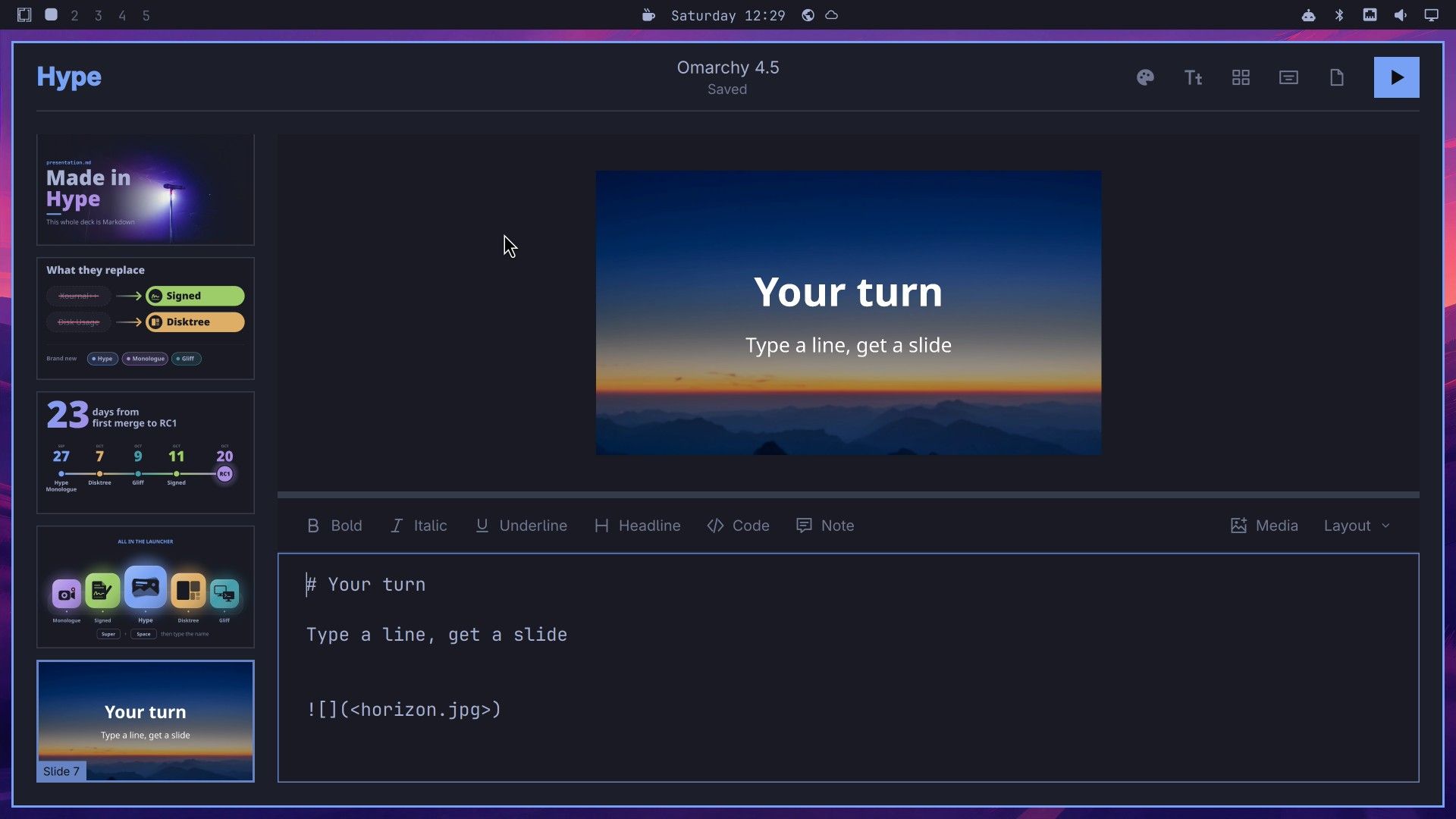
A Hype deck is one Markdown file, with its photos in the same folder. The window shows a live preview of the selected slide on top, the slide’s Markdown in an editor below it, and the slide list on the left. Hype reopens your last deck on launch. ctrl n starts a new one and ctrl o opens a Markdown file.
To add a slide, select the slide it should follow and press ctrl enter . A new slide starts with a grey # Your headline placeholder. In Markdown, a pound sign and a space in front of a line make a headline, so typing # Your turn, a blank line, and Type a line, get a slide gives a slide with a big heading and a line under it. The preview follows every key.
The Media button above the editor adds a photo or video from a file dialog. It writes a line such as  at the end of the slide, and the photo fills the slide behind the text. The Layout menu next to it switches the picture between Span and Fit, places it in a corner, or sets a blurred or plain background.
Hype saves on its own about a second after you stop typing, and it keeps every saved version in a .hype-backups folder beside the deck. A new, unnamed deck is kept as a draft until you press ctrl s and pick a file name.
Each deck has its own theme, picked from the palette icon at the top right. The list holds the Omarchy themes (Catppuccin, Gruvbox, Tokyo Night, and the rest), and it opens scrolled to the current one, so press home to jump to the top. The theme is stored in the deck file, separate from your desktop theme. Drawings made as SVG code blocks can use the theme’s colors, so they recolor along with the text. ctrl m toggles the Overview, a grid of every slide that shows a theme change on the whole deck at once.
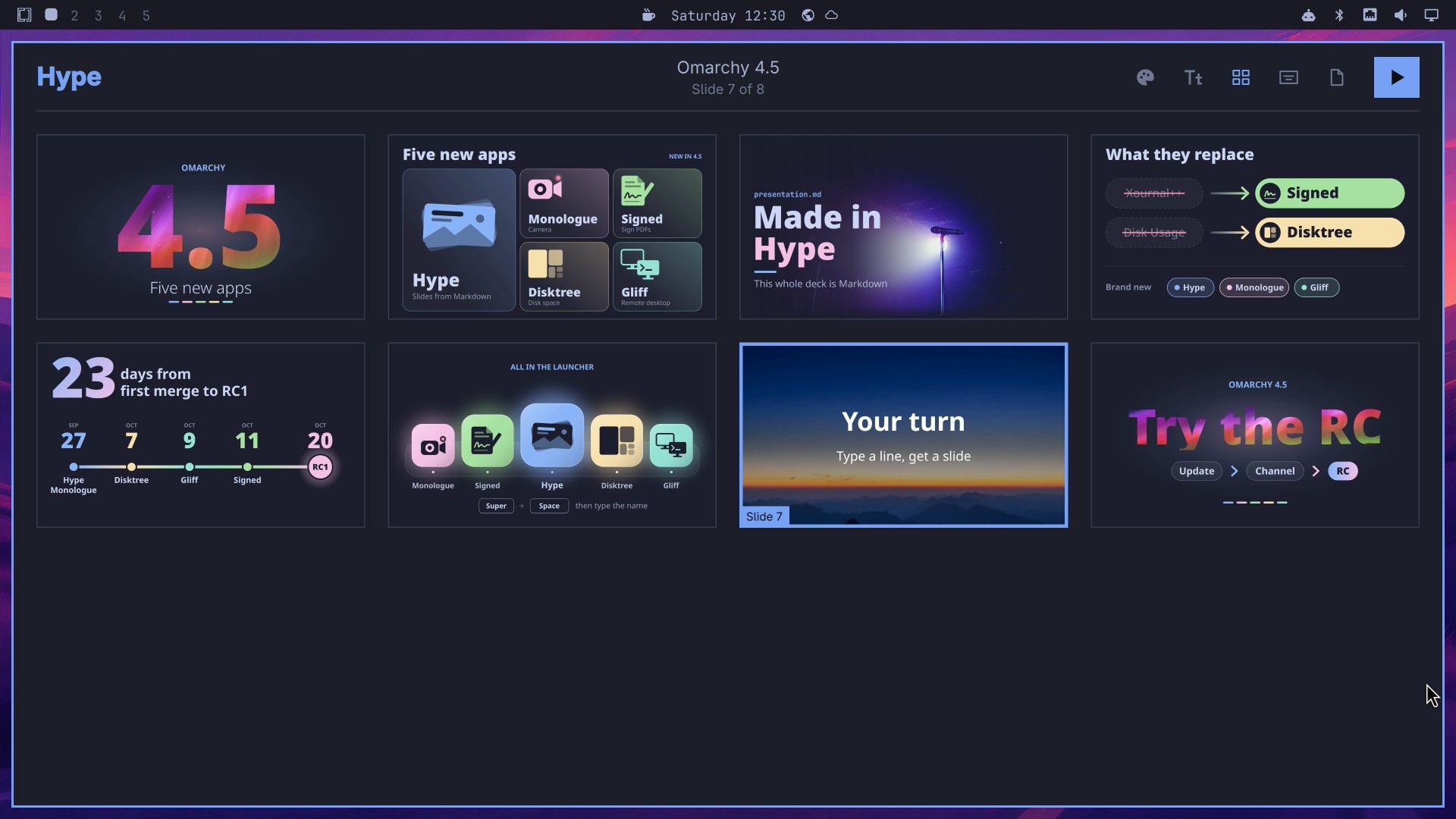

shift f5 presents full screen from the first slide, the arrow keys step through, and esc returns to the editor. The presentation keeps the deck’s theme. To share a deck, ctrl e exports a PDF and ctrl shift e a PowerPoint file; our eight-slide PDF took under four seconds. The Hype README says PowerPoint slides are stored as pictures, so they look the same anywhere but the text cannot be edited there. Press ? for the full list of shortcuts.
Signed fills out and signs PDF forms
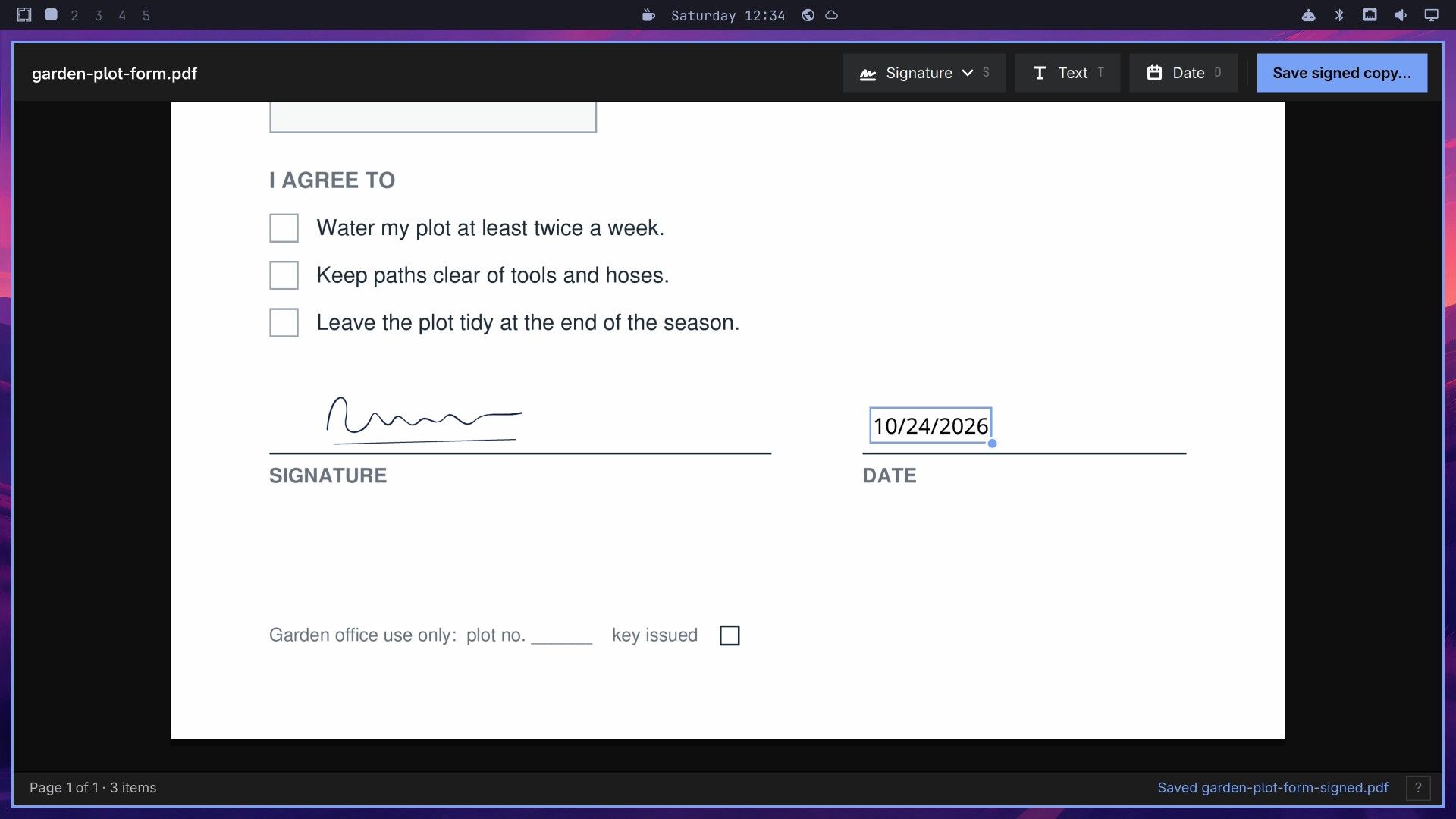
To fill out a form, you type text into its blanks, add the date, and place a saved signature. Press ctrl o to open the form, then click the page once so it takes your keys. Every placement key works at the pointer:
- t places a text box where the pointer is. Type, then press enter .
- d places today’s date in your locale’s format (10/24/2026 on our machine) with its top-left corner at the pointer.
- s places your saved signature centered on the pointer.
Drag anything you placed to move it, drag its corner or press [ and ] to resize it, and double-click text to edit it. The text sits on top of the form; the Signed README says form fields are not filled in as fields. To scroll down a long page, use the mouse wheel, since pagedown and end did not move the page in our test.
The first signature comes from a picture. Press shift s to open the Signature menu, pick Add signature, and choose a scan or a well-lit photo of your signature on white paper. The Add signature dialog shows the photo beside the cut-out ink on a checkerboard. The Paper threshold slider sets how much of the paper is removed; with a clean photo, the default was already right. Give the signature a name and press Save signature. Signed keeps it for the next form and places it on the current page right away, so drag it onto the signature line.
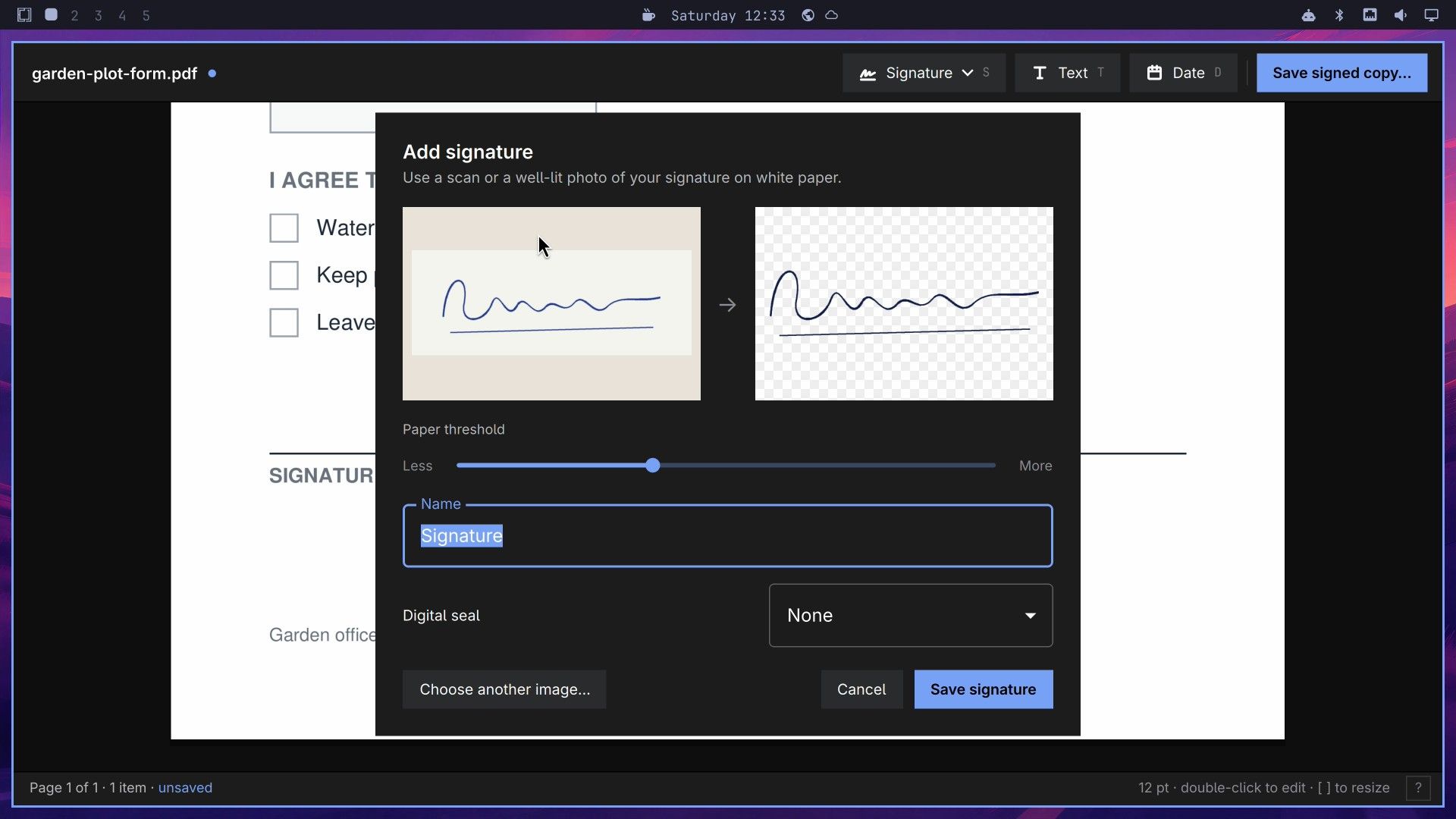

The same dialog has a Digital seal option, off by default. The README says a seal marks the saved copy so later changes show up in PDF viewers, but the certificate is self-signed: it shows the file was not changed, not who signed it.
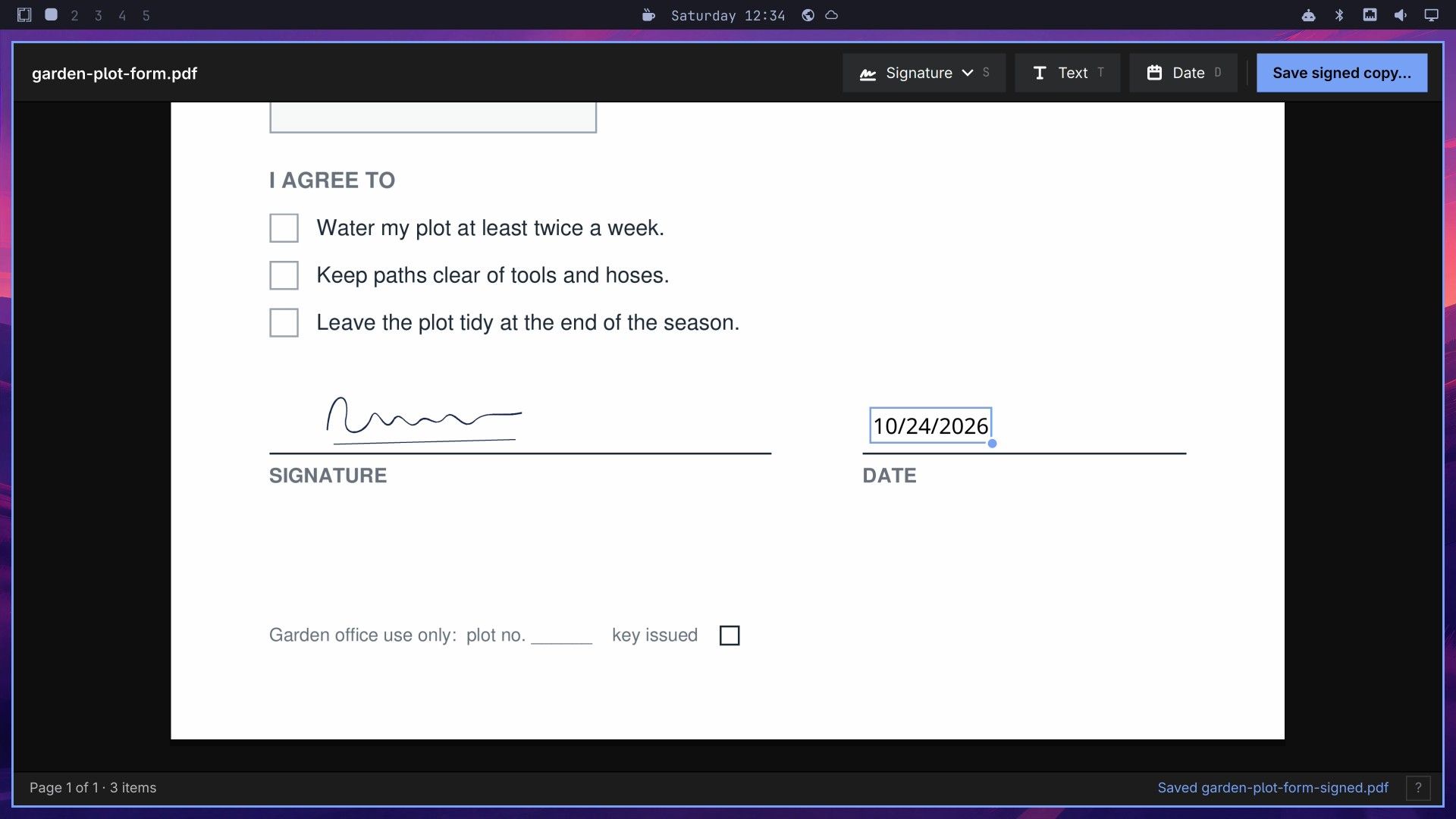
When everything is placed, click Save signed copy or press ctrl s . Signed suggests the original name with -signed added (garden-plot-form-signed.pdf) in the same folder, and the original stays untouched. The status bar confirms the saved file name.
Disktree shows what fills your home folder
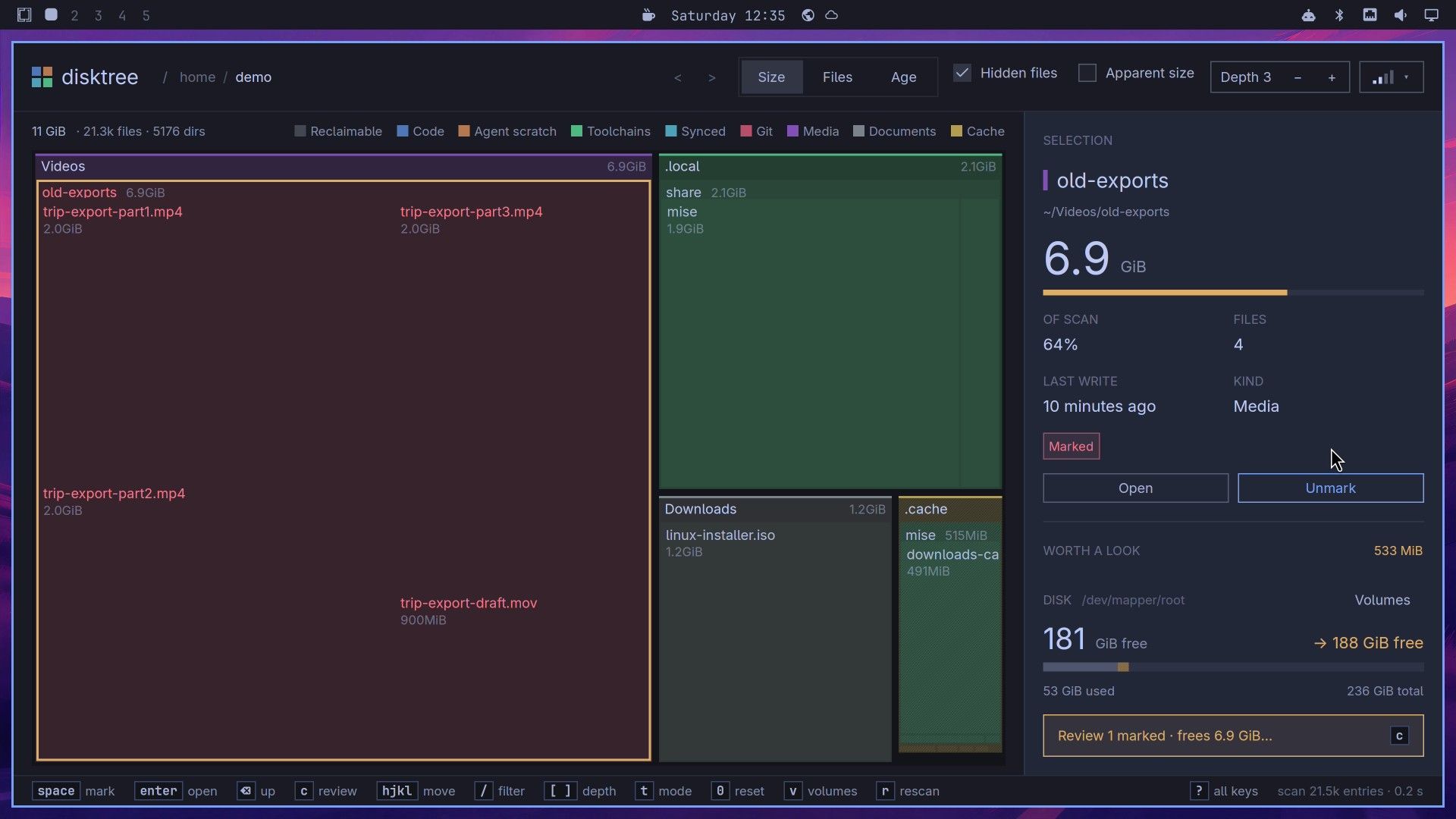
Disktree draws your home folder as a treemap: every folder and file is a block, and a bigger block takes more space. The colors mark the kind of file, with a legend along the top (Reclaimable, Code, Agent scratch, Toolchains, Synced, Git, Media, Documents, Cache). Our home folder of 21,000 files scanned in 0.2 seconds. To scan the whole disk instead, run disktree --disk in a terminal.
Hover or click a block, and the panel on the right shows its path, its size, its share of the scan, and when it was last written. Under the Worth a look label, it lists the largest things that could go, such as caches that can be rebuilt. Disktree shows sizes in GiB, the binary unit, which is about 7 percent larger than a gigabyte.
To clear something out, select its block and click Mark for removal, or press space . The marked blocks turn red, and the disk line shows the free space you would have afterward. Our marked folder of old video exports, 6.9 GiB, moved the line from 181 GiB free to 188 GiB free.

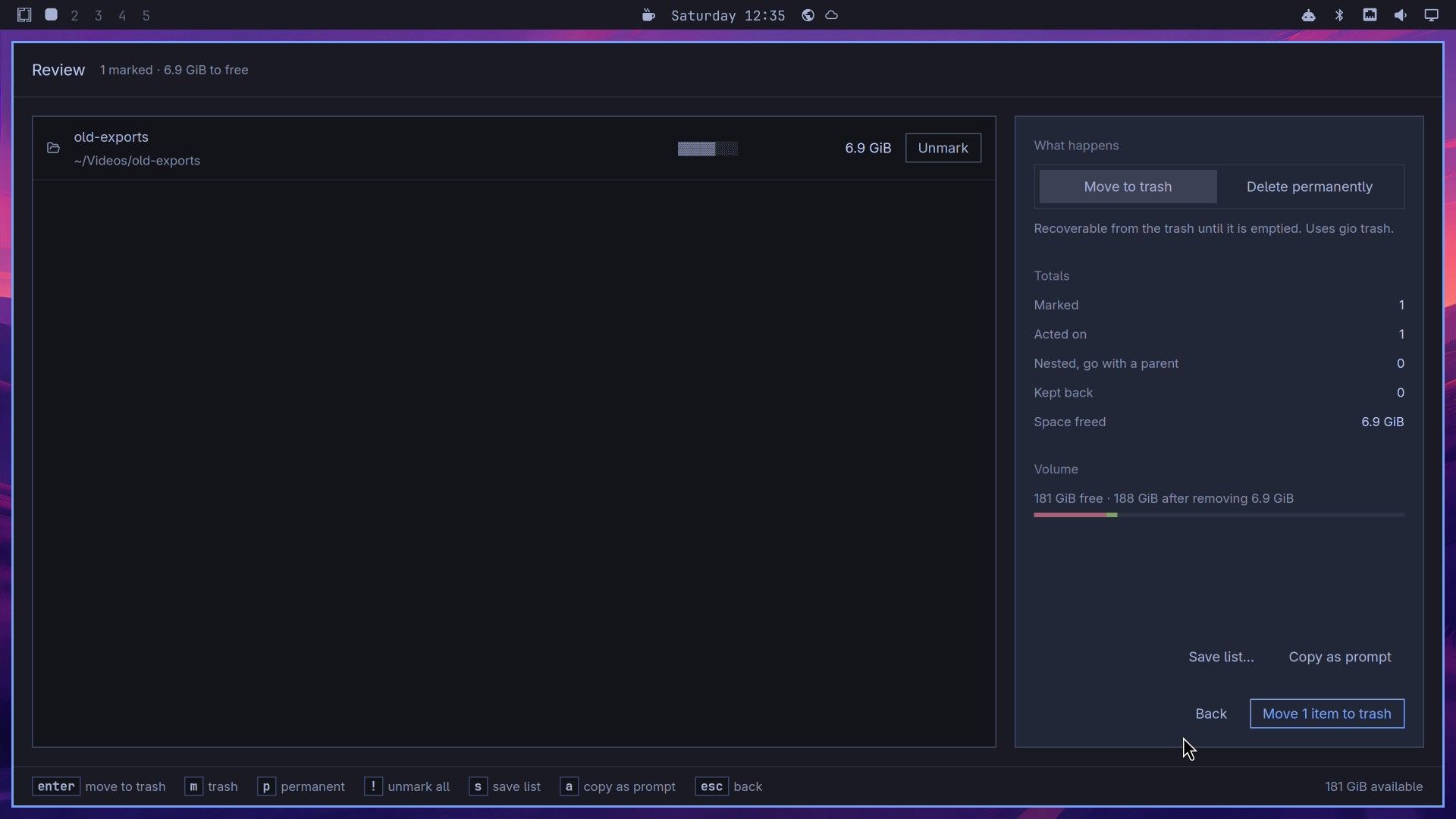
Nothing is removed until you review it. Press c or click the Review button at the bottom of the panel. The review screen lists each marked item and offers Move to trash, the default, or Delete permanently. Move to trash keeps the files recoverable until you empty the trash. Delete permanently removes them for good, and the Disktree README says it always asks first. Press enter or click the blue button to go ahead.

A Done screen follows, and the treemap scans again. After a move to the trash, the Trash folder is the biggest block, because the space comes back only when the trash is emptied. If the Done screen does not close with enter , click its Done button. Press q to quit.
Monologue records and trims webcam takes
Monologue needs a camera: without one, the window shows “Connect a camera or choose an available video source.” It has no screen source, so it does not record your desktop. The camera and microphone menus sit at the bottom left, and Monologue remembers your picks. The camera picture in the screenshot below is a sample video clip fed in as a virtual camera, since we had no webcam to film.
Recording runs from the keyboard. space starts a take, and the same key pauses and resumes, so a break stays inside one take. enter stops and opens the editor. esc throws the take away and starts over.
In the editor, the take is a filmstrip with a handle at each end and a dot where you paused. Drag the start or end handle to trim, and the cut part dims. Double-click the filmstrip to split a clip, then hover a piece and click its X to remove it. ctrl z undoes an edit. Press ? for every editing key, including s to split at the playhead.
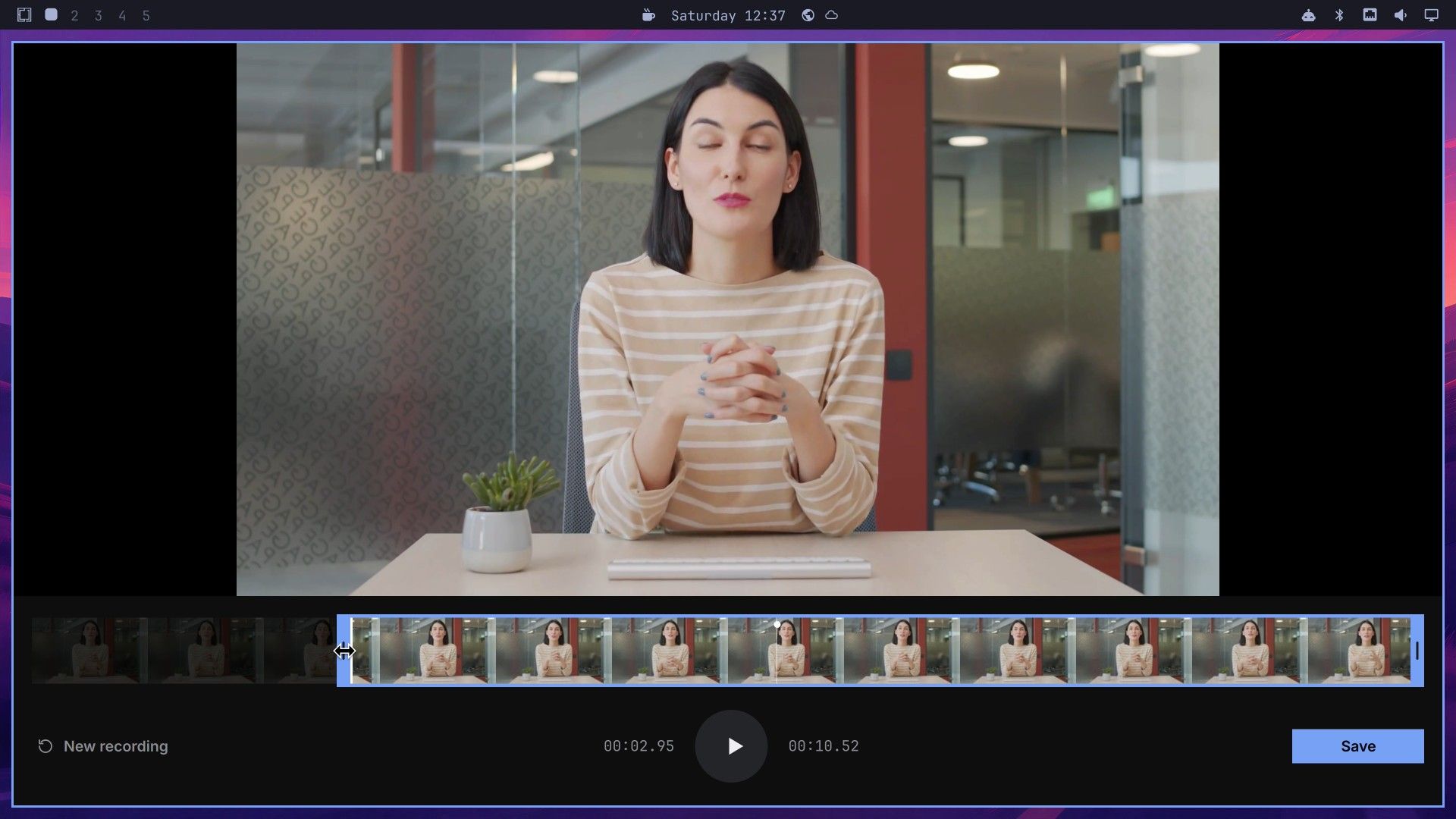
Save writes an MP4 to your Videos folder, named with the date and time. Our 10-second trimmed take saved in about two seconds. Edits never change the original, and the take is deleted when you quit, so save first: q with unsaved edits asks whether to discard the take.
Omarchy 4.5 also drops OBS Studio and Kdenlive from new installs. Monologue covers talking to a camera. For screen recording or streaming, you still need another tool.
Gliff shows another Hyprland desktop in a window
Gliff connects over SSH, and the Gliff README sets out what both sides need:
- Both computers run Hyprland, the window manager Omarchy is built on.
- The other computer has the
gliffpackage (Omarchy 4.5 installs it) and a running SSH server. - You log in over SSH as the user who is signed in to the desktop there, since Gliff attaches to that session.
Set up key sign-in first, so Gliff never stops at a password prompt. On your own computer, run:
ssh-keygen -t ed25519
ssh-copy-id user@other-computer
Check that ssh user@other-computer logs in without asking for a password. Our second computer was an Omarchy 4.5 RC1 virtual machine. Giving it a different theme (we used Gruvbox) makes the two desktops easy to tell apart.
From the Omarchy menu, open Gliff, type user@host in the address field, and press enter . That mirrors the other computer’s screen, with black bars when its shape does not match the window. From a terminal, the --headless option makes a private screen on the other computer that only Gliff shows, sized to fit your window:
gliff --headless user@other-computer &The & returns your terminal prompt. The private screen goes away when you disconnect. While Gliff is connected, the other computer’s top bar shows a red Remote session icon.
With the pointer over the picture, every key goes to the other computer, shortcuts included: super enter opens a terminal over there. Move the pointer onto Gliff’s tab bar or off the window, and keys go back to your own desktop. shift esc also releases the keyboard.
The clipboard works both ways. In our run, omarchy-version printed 4.5.0rc1-1 on the other computer. We selected that answer, copied it with ctrl shift c , and pasted it into our own terminal with ctrl shift v . Start Gliff with --no-clipboard to turn that off.


Each computer gets its own tab in Gliff’s title bar, and the + button connects to another one. Hover the green dot on a tab to get a Disconnect button. Plain gliff with no address reopens the tabs you had last time. If the window stays black, the README’s hardware notes suggest gliff --server-bin 'gliff-server --capture shm' user@host, which has the other computer’s compositor read the frames back and encodes them on the CPU.
Related guides
To take off apps you do not use, see how to remove Omarchy’s preinstalled apps. If Omarchy is new to you, start with how Omarchy is built and the first keys to learn.


