
agent-desktop is a free, open source tool from Vercel Labs, under the Apache 2.0 license. It gives a coding agent such as Claude Code a way to use the apps on your desktop: open a window, find a button, press it, turn on a switch, and read what the app shows back.
It does that through the accessibility tree. Every Mac app describes its windows and controls for screen readers such as VoiceOver: this is a button called Reload, this is a switch called ScreenSnap and it is off, this is a text label that reads “2 tabs open”. macOS exposes that description to other programs that have the Accessibility permission. agent-desktop reads the tree, gives each control a short reference, and lets the agent act on a control by its name and role instead of by its position on screen. By default it works headless: in the project’s own words, “Ref actions use the accessibility API without moving the pointer or taking focus.” Your pointer stays where you left it while the agent works.
A coding agent already handles any job that has a command or a file behind it. Some jobs on a Mac have neither, and the only way through is a settings window. This guide covers two of them, with the prompts we gave Claude Code in full, so you can repeat them with your own extension or app.
What you need
- A Mac on macOS 13 or later, Intel or Apple silicon (the README’s stated minimum).
- Claude Code, signed in, running in Terminal or another terminal app.
- Node.js with npm, or Homebrew, to install agent-desktop.
- Your password, for the moments macOS asks for it.
Install agent-desktop and connect it to Claude Code
The README on the agent-desktop GitHub page gives two install commands. With npm:
npm install -g agent-desktopOr with Homebrew, which the README says works on macOS and Linux:
brew install agent-desktopWe used the npm install. The README then suggests two checks, also quoted from it: agent-desktop status, and agent-desktop permissions --guide, which on macOS walks you through the Accessibility permission.
agent-desktop status
agent-desktop permissions --guide
agent-desktop runs as an MCP server, the standard way to add tools to an AI agent. The README gives the server as the command agent-desktop with the argument mcp. To add that server to Claude Code for every project, we used Claude Code’s own claude mcp add command:
claude mcp add --scope user agent-desktop -- agent-desktop mcp
claude mcp list
claude mcp list should show agent-desktop as Connected. The README also offers an agent skill that teaches the agent the tool’s commands, installed with npx skills add https://github.com/vercel-labs/agent-desktop --skill agent-desktop.
Give your terminal app the Accessibility permission
agent-desktop runs inside Claude Code, which runs inside your terminal app, so the permission belongs to the terminal app. Open System Settings, then Privacy & Security, and turn on your terminal app (Terminal, iTerm2, Ghostty, or whichever you use) in the Accessibility list. On macOS 27 that list is titled Device Control and Data Access.
If the agent should take screenshots with agent-desktop, turn on the same terminal app under Screen & System Audio Recording as well. agent-desktop permissions reports which permissions it has.
Load a Safari extension from its folder and fix its bug
A Safari web extension you are developing can load straight from its folder as a temporary extension, with no Xcode project and no signing. That only works through Safari’s Settings window. The Developer tab has an Allow unsigned extensions option and an Add Temporary Extension… button that adds an extension’s folder. Safari’s WebDriver has no way to install an extension, and Safari turns the unsigned extensions option off again every time it quits, so this is a settings job each session.
The Developer tab appears in Safari’s Settings once the Develop menu is on (Safari, Settings, Advanced, Show features for web developers).
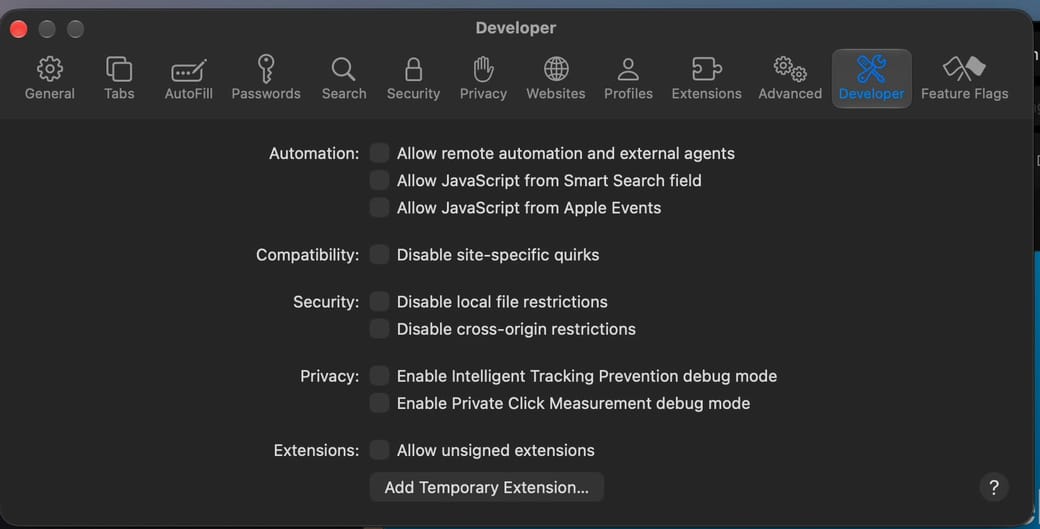
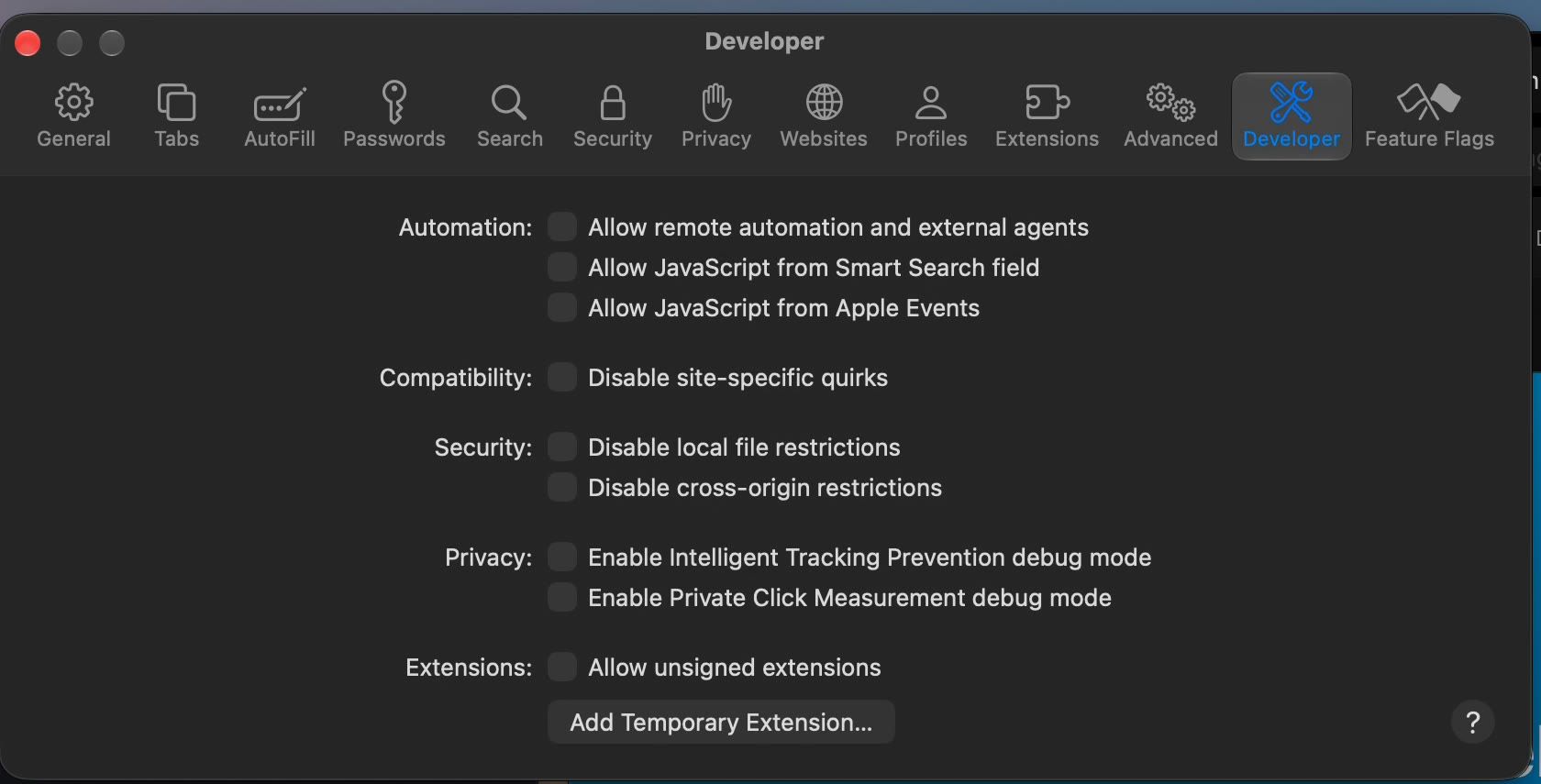
Our test extension was Tab Counter, a small extension whose pop-up shows how many tabs the window has open, with a bug we planted: it showed one fewer than the real count. Open Claude Code in the extension’s folder and give it this prompt:
My Safari extension in this folder shows the wrong tab count in its pop-up. Use agent-desktop to load it in Safari as a temporary extension, see what the pop-up shows, then fix the bug and reload it to check. If macOS asks for my password, stop and tell me.The last sentence keeps the agent from trying to get past a macOS password sheet on its own. In auto mode, Claude Code does not ask before each tool call; in the default mode it asks before each command and edit.
Here is what happened, step by step:
- Claude Code read the extension’s files first and named a likely bug in
popup.js, but said it would reproduce the problem in Safari before changing anything. - Through agent-desktop, it launched Safari, chose Settings… from the Safari menu, opened the Developer tab, and pressed Add Temporary Extension….
- macOS put up a password sheet: “Safari is trying to allow unsigned extensions.” The agent stopped there, as the prompt asked, and reported that nothing had changed yet.
- We typed the password, pressed OK, and told Claude Code:
Done, I typed the password. - Safari’s Open panel was already showing the extension’s folder. The agent pressed Select, and Tab Counter appeared in the Extensions tab, loaded and turned on.
- The agent opened the extension’s pop-up and read it through the accessibility tree: 2 tabs open, in a window with three.
- It changed one line in
popup.js. The count used the last tab’sindex, which starts at zero, instead of the number of tabs:
// before
const count = tabs[tabs.length - 1].index;
// after
const count = tabs.length;- To load the fix, it opened Settings again and pressed Reload on Tab Counter in the Extensions tab. Safari did not ask for the password a second time.
- It opened the pop-up again and read 3 tabs open, which matched the window.
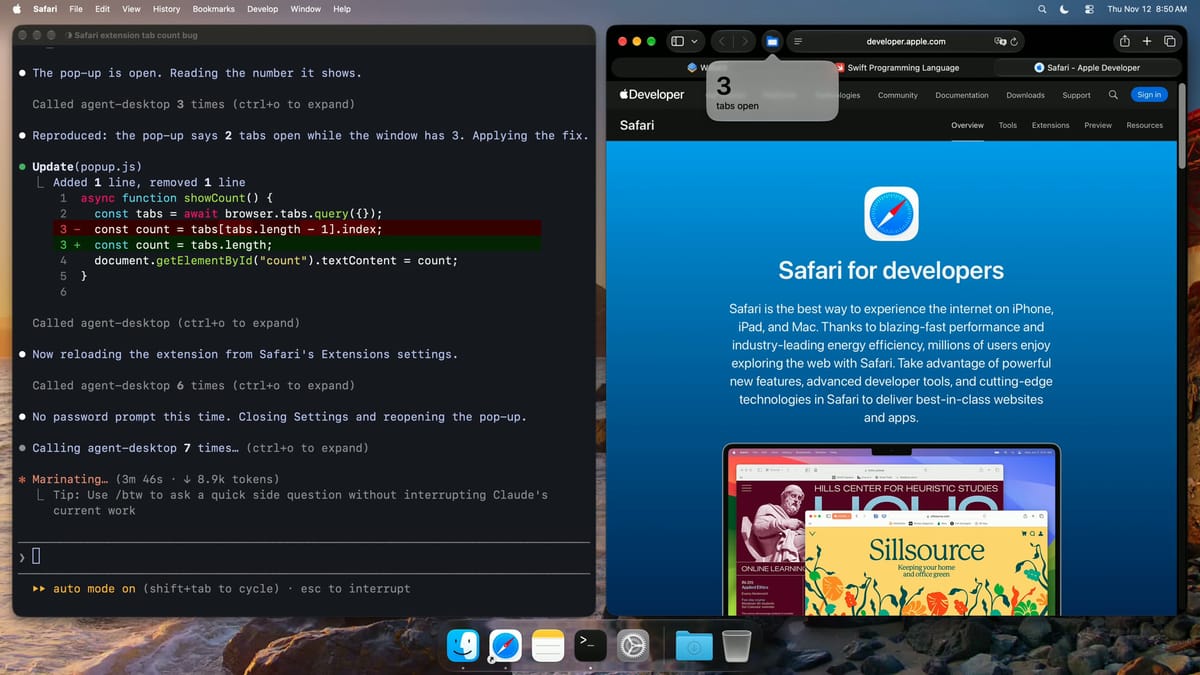
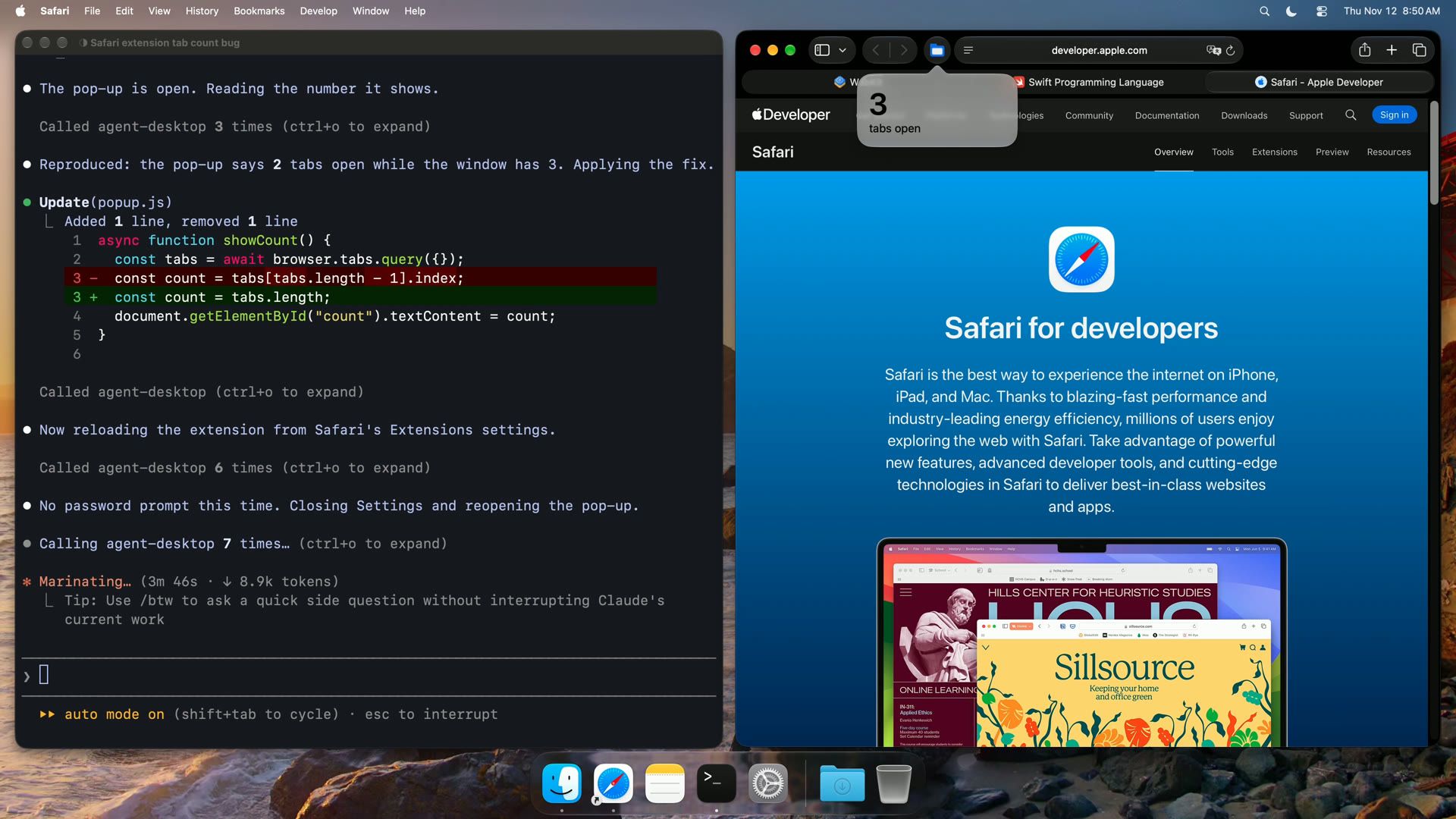
Opening an extension pop-up from the tree
Step 6 took the agent several tries. Safari’s toolbar button for an extension has no press action in the accessibility tree, so agent-desktop’s normal click on it fails. agent-desktop runs headless by default with pointer clicks turned off, so it refused the agent’s pointer click as well. What worked was giving the toolbar button keyboard focus and then pressing space , both through agent-desktop. On one try, the first space opened Safari’s Page menu instead, and a second attempt opened the pop-up.
In an earlier run, the agent took a cleaner route: the menu bar’s Edit menu has Extension Actions, with an item for each extension, and choosing Tab Counter there opens the pop-up. If your agent struggles with a toolbar button, a prompt that points it at that menu saves time. Once the pop-up is open, the agent found its text by searching the tree from the toolbar button; a search for pop-overs in general did not list it.
The README lists a global --headed flag that allows physical pointer and keyboard input. We did not test it.
Turn on Screen Recording access for a new app
Screen Recording access is another job with no command behind it. tccutil, the command-line tool for the privacy database, can only reset a grant, and a configuration profile can deny screen capture but not grant it. Every new screen tool starts with its switch off until a person turns it on in System Settings.
Our test app was ScreenSnap, a small screenshot app, installed but not yet allowed. Open Claude Code in any folder and give it this prompt, with your app’s name in place of ScreenSnap:
I just installed ScreenSnap and it needs Screen Recording access. Use agent-desktop to turn it on in System Settings, then run it once to check it works. If macOS asks for my password, stop and tell me.What happened:
- Claude Code found the app with
lsandmdfind, then opened the right pane straight from the shell with a settings link:
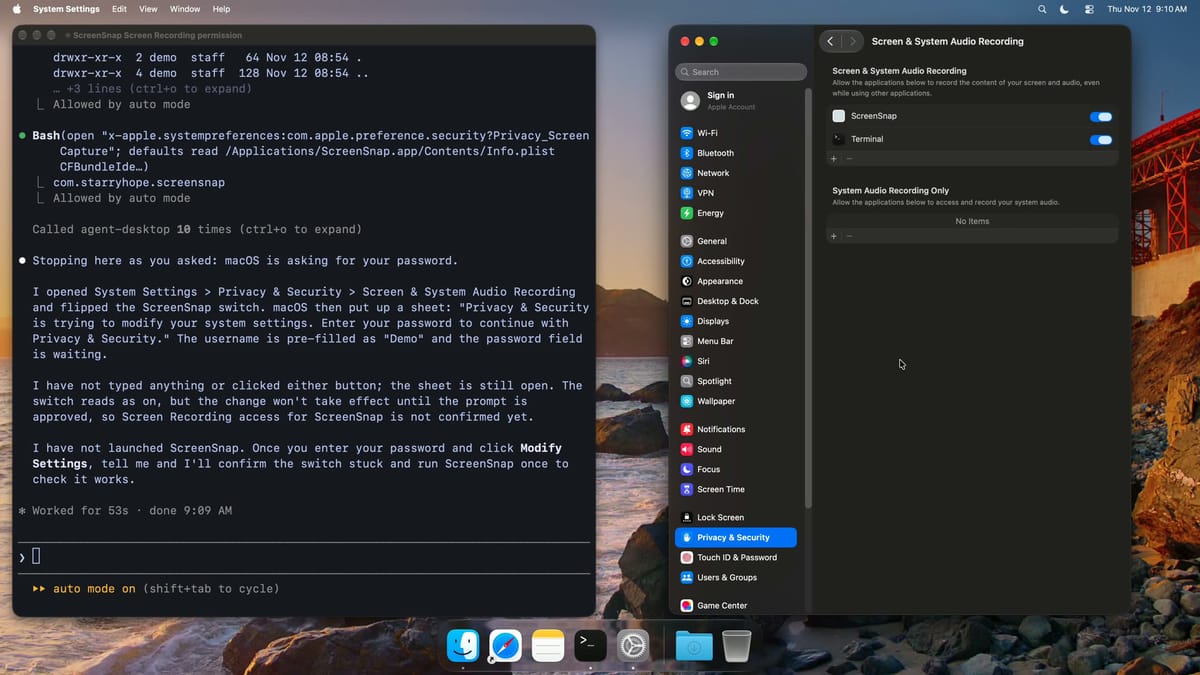
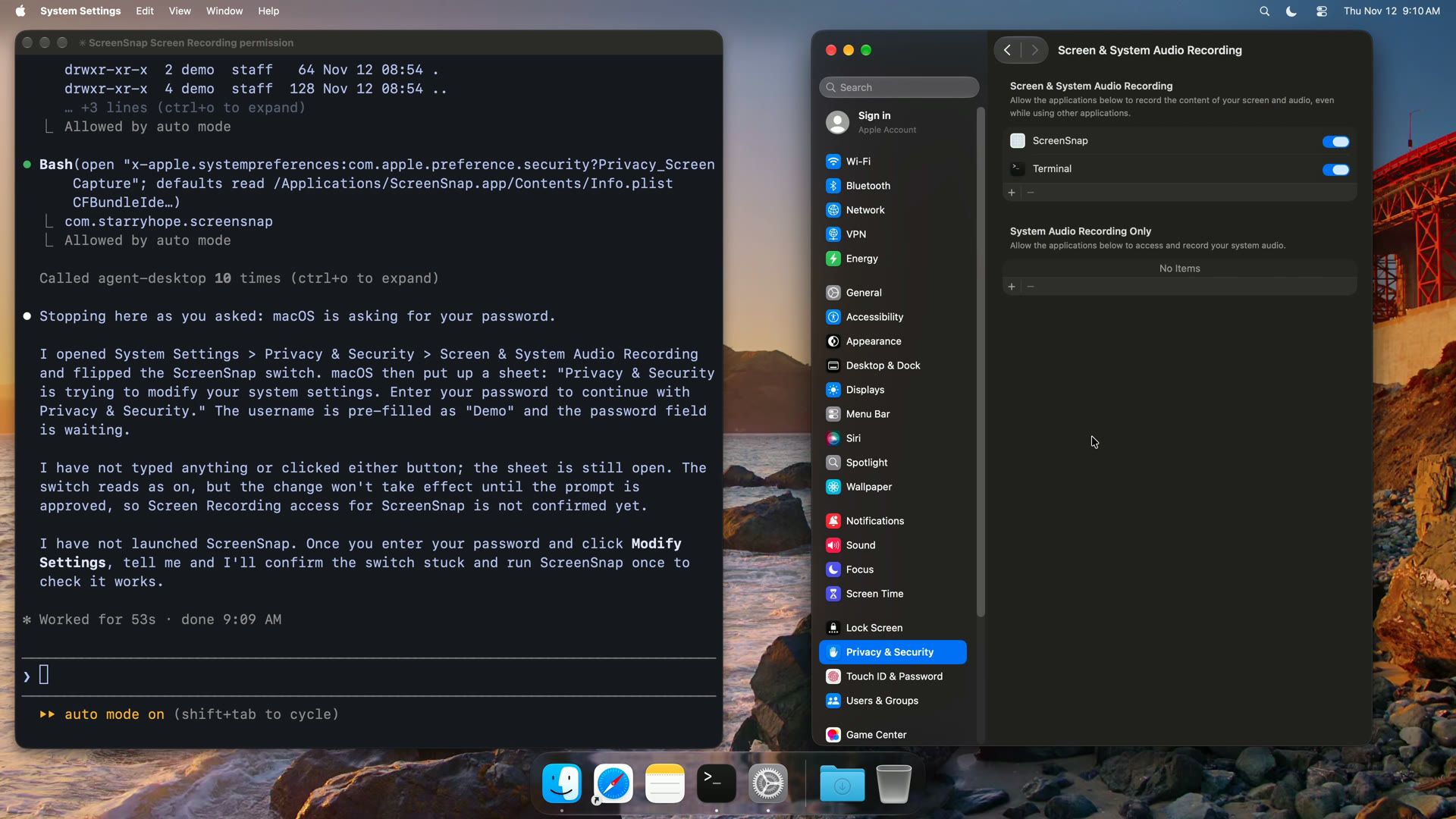
open "x-apple.systempreferences:com.apple.preference.security?Privacy_ScreenCapture"- System Settings opened on Screen & System Audio Recording. Through agent-desktop, the agent read the list of apps, found the switch for ScreenSnap, and turned it on.
- macOS put up another sheet: “Privacy & Security is trying to modify your system settings.” The agent stopped, said it had typed nothing and pressed neither button, and noted that the switch would not take effect until the sheet was approved.
- We typed the password, pressed Modify Settings, and told Claude Code:
Done, I typed the password.The switch stayed on with no second press.
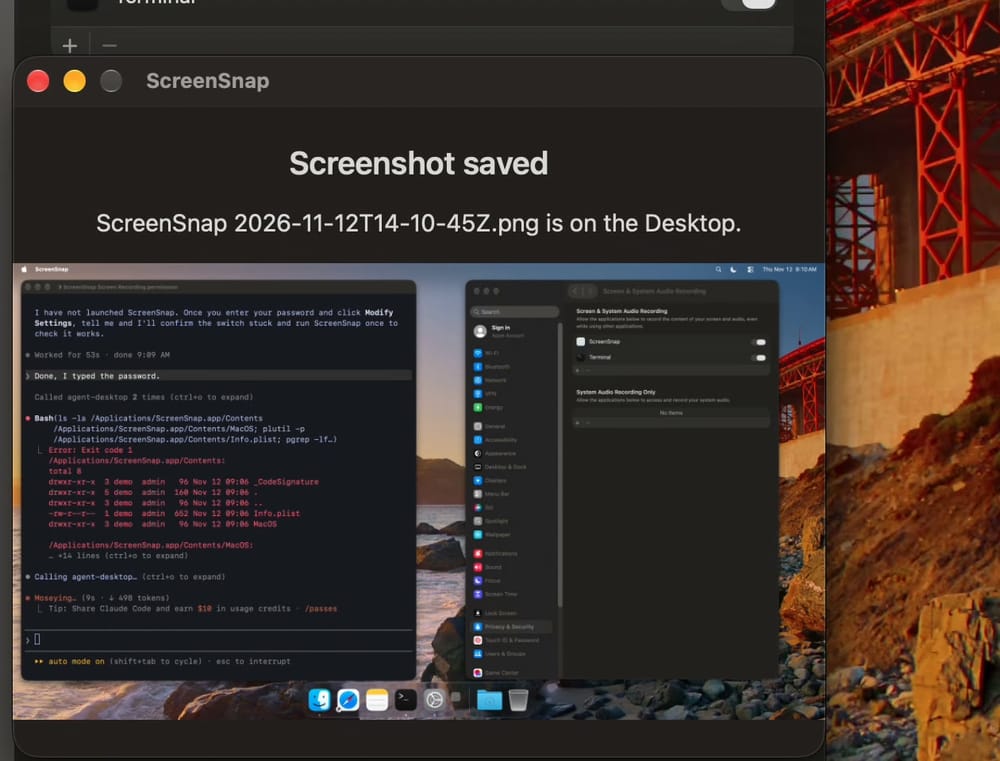
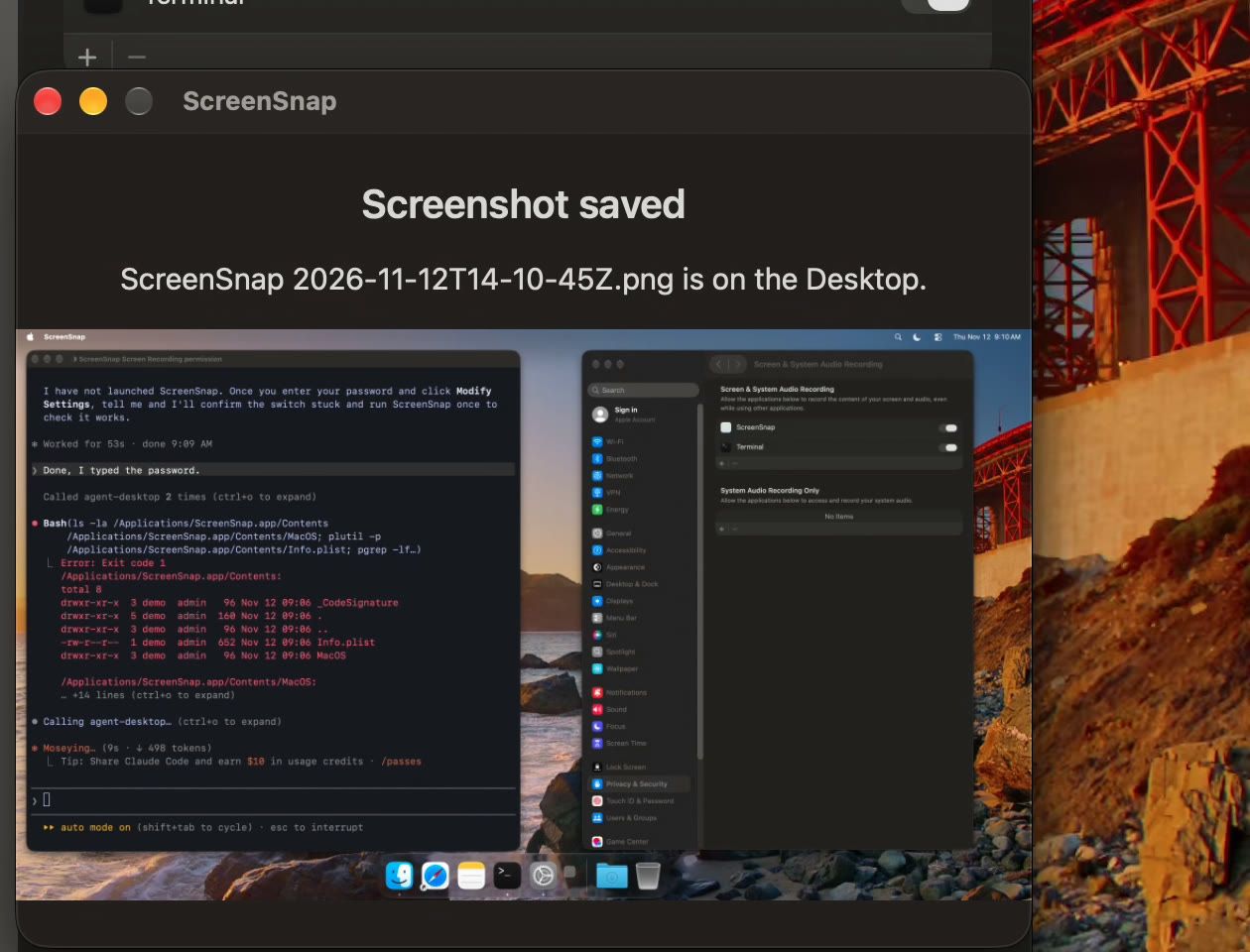
- To check the grant, the agent launched ScreenSnap, which saved a full-screen capture to the Desktop. The agent opened the image and found the Terminal and System Settings windows in it, so the grant was working.
ScreenSnap was not running when the switch changed, so macOS did not show its “Quit & Reopen” prompt. If your app is already open, macOS may ask to quit and reopen it, which is one more step for the agent.
A person types the password at the macOS sheet
Both jobs stopped once, at a macOS password sheet, and that stop is by design. The prompts told the agent to stop and report. agent-desktop could not type into the password field on these sheets either, so the agent would not have got past them without you.
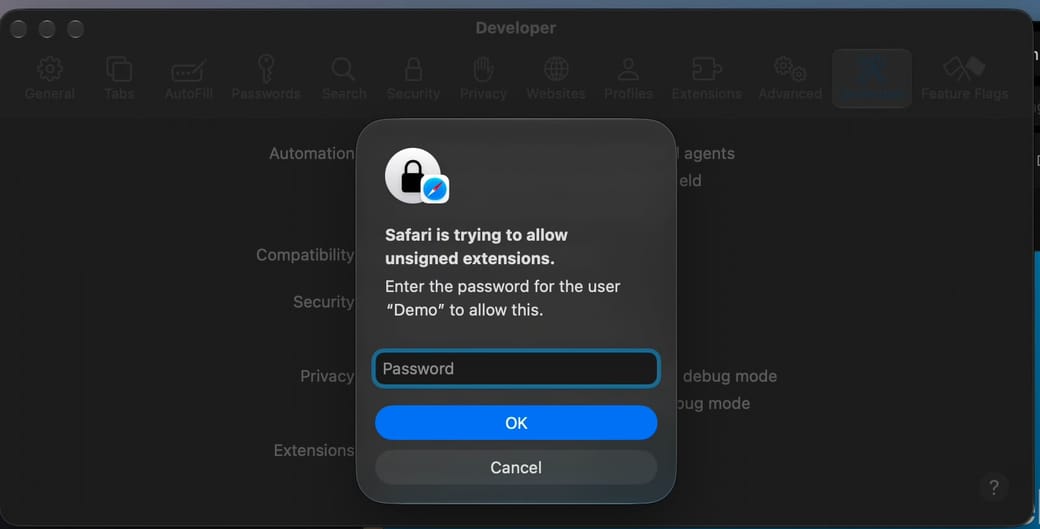
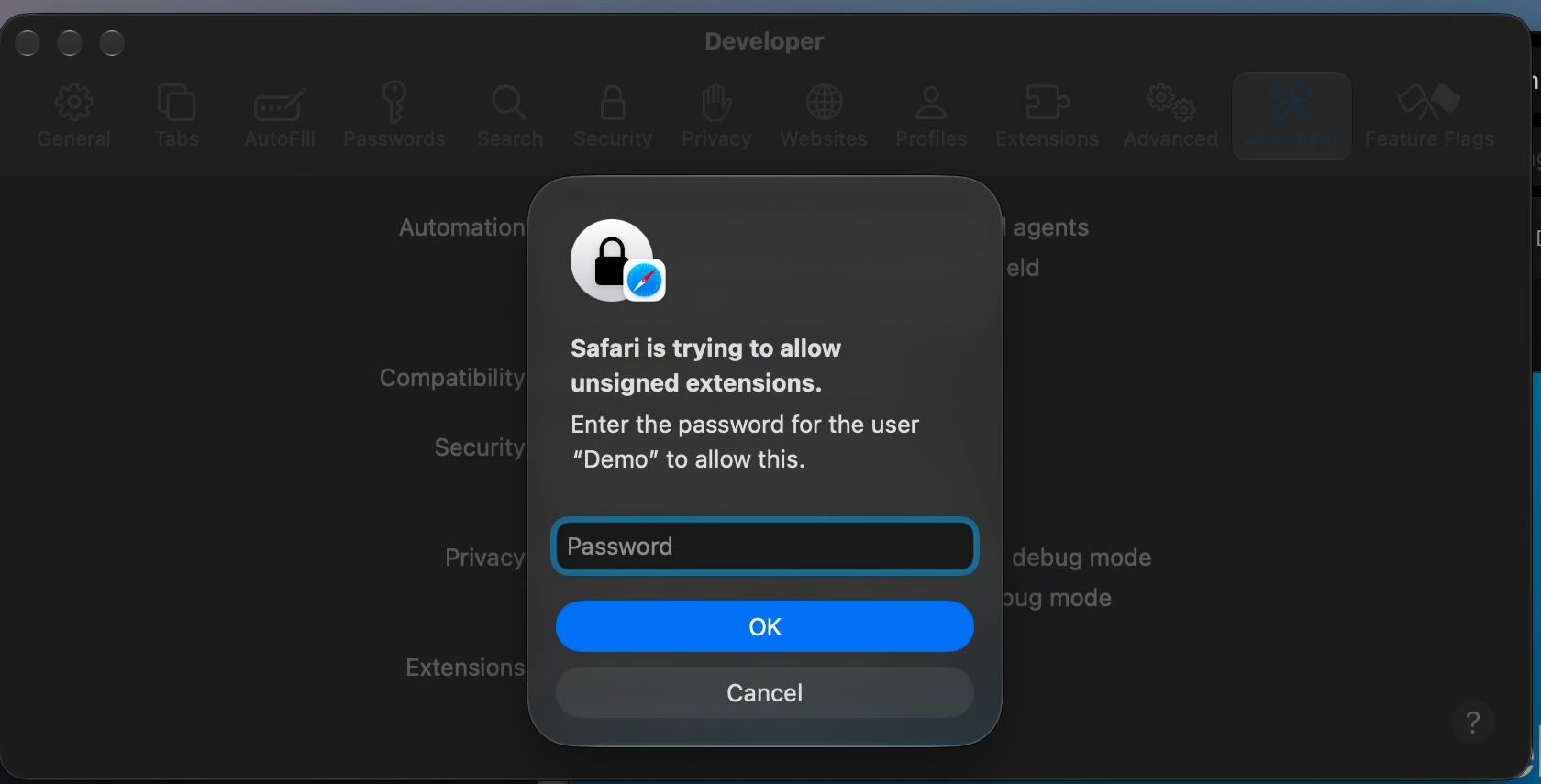
That sheet is macOS asking a person to approve a change to the system. Leave that approval with you: put your password in a prompt or a file and the agent can use it for anything else that asks. The sheet also tells you exactly what the agent is about to change, in macOS’s own words, which is a good moment to read it before you type.
Run it in a virtual machine
An agent that presses buttons can do nearly anything you can do at the keyboard, in any app on the Mac. A wrong click in System Settings or a mail app is harder to undo than a wrong line of code. Both Mac jobs in the video ran in a macOS virtual machine, and that is the setup to start with: a throwaway copy of macOS with your test apps in it and none of your accounts. Our guide to Tart shows how to make one on an Apple silicon Mac and delete it when you are done.
On your own Mac, keep the jobs narrow, and write the stop at the password into every prompt.
agent-desktop on Linux
agent-desktop also runs on Linux, where it reads apps through AT-SPI, the Linux accessibility interface, and on Windows through UI Automation. The README lists Ubuntu 24.04 or later on X11 or Wayland as the Linux minimum. We tried it on Omarchy 4.5, installed with the same npm install -g agent-desktop and added to Claude Code the same way.
There, Claude Code tested Porter, a small Qt app of ours that lists listening ports with a Kill button on each row. Porter opened on a virtual monitor that no one was looking at, while we kept typing in Neovim on the main screen. Through the tree, the agent found three Kill buttons with no names and a count label hidden from the tree. It gave the buttons names, unhid the label, rebuilt Porter, and pressed the button for port 8102 by its new name. The row disappeared but the label still read 3, so the agent fixed the count too. Focus stayed in Neovim the whole time, and Porter ended up showing the two ports left and “Listening: 2”.
That run shows a second use for the tool: an app the agent cannot read is an app a screen reader cannot read either, so the same tree that drives the agent also points out accessibility bugs. For a different approach on Omarchy, with an agent that gets its own visible pointer, see how to give an AI agent its own cursor with Cua.
Versions and getting started
Everything here ran in November 2026 with agent-desktop 1.2.0 and Claude Code 2.1.321, on macOS 27.0.1 in a virtual machine and on Omarchy 4.5. agent-desktop is young and changes quickly, so check the README for new commands before you rely on the details above, especially the pop-up workaround.
Install agent-desktop, connect it to Claude Code, and turn on your terminal app in System Settings under Privacy & Security, Accessibility (Device Control and Data Access on macOS 27). Then pick one settings window you open by hand every time you set up a project, put it in a prompt with “If macOS asks for my password, stop and tell me” at the end, and try it in a virtual machine first.


