

The connector that makes external graphics work well is soldered onto a mini PC’s board at the factory, so check for it before you buy the box.
Buy a mini PC with an OCuLink port if you think you might add a graphics card later. Do not buy one for external graphics just because it has USB4. And treat GPD’s MCIO port as promising but too new to be the default pick.
GPD’s MCIO 8i port is faster than OCuLink, but its 2 percent claim is unverified
In the spring of 2026, GPD introduced a new external GPU connector called MCIO 8i, built into a Panther Lake mini PC (the GPD BOX) and a matching graphics dock (the GPD G2). GPD said the new port would be much faster than the OCuLink ports on today’s gaming mini PCs, and it attached an eye-catching number: paired with a desktop RTX 4090, the dock supposedly gives up only about 2 percent of the card’s performance compared with plugging it straight into a desktop, as VideoCardz reported. Treat that figure with care. It is GPD’s own claim, not an independent measurement.
The headline speed also assumed a best case that the shipping hardware does not hit. GPD later clarified that interference drops the real link from the PCIe 5.0 speed it first advertised down to PCIe 4.0, roughly half the bandwidth. That is still faster than the OCuLink ports common on mini PCs today, so MCIO is progress. It is a more modest step than the launch headlines made it sound.
The BOX went on sale in June 2026 through Indiegogo crowdfunding, Notebookcheck reported, with a bundle that pairs it with the G2 dock. Only one of the two configurations has the MCIO 8i port: the Core Ultra 7 356H model, which uses Intel’s smaller four-core integrated graphics. The Core Ultra X7 358H model gets the stronger Arc B390 graphics but no MCIO port, because Intel lists fewer PCIe lanes for that chip, according to VideoCardz. If you buy the BOX for MCIO, you are buying the version that leans on an external card for its graphics.
Direct connectors keep more of the card’s performance
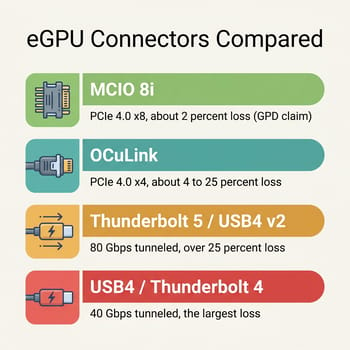
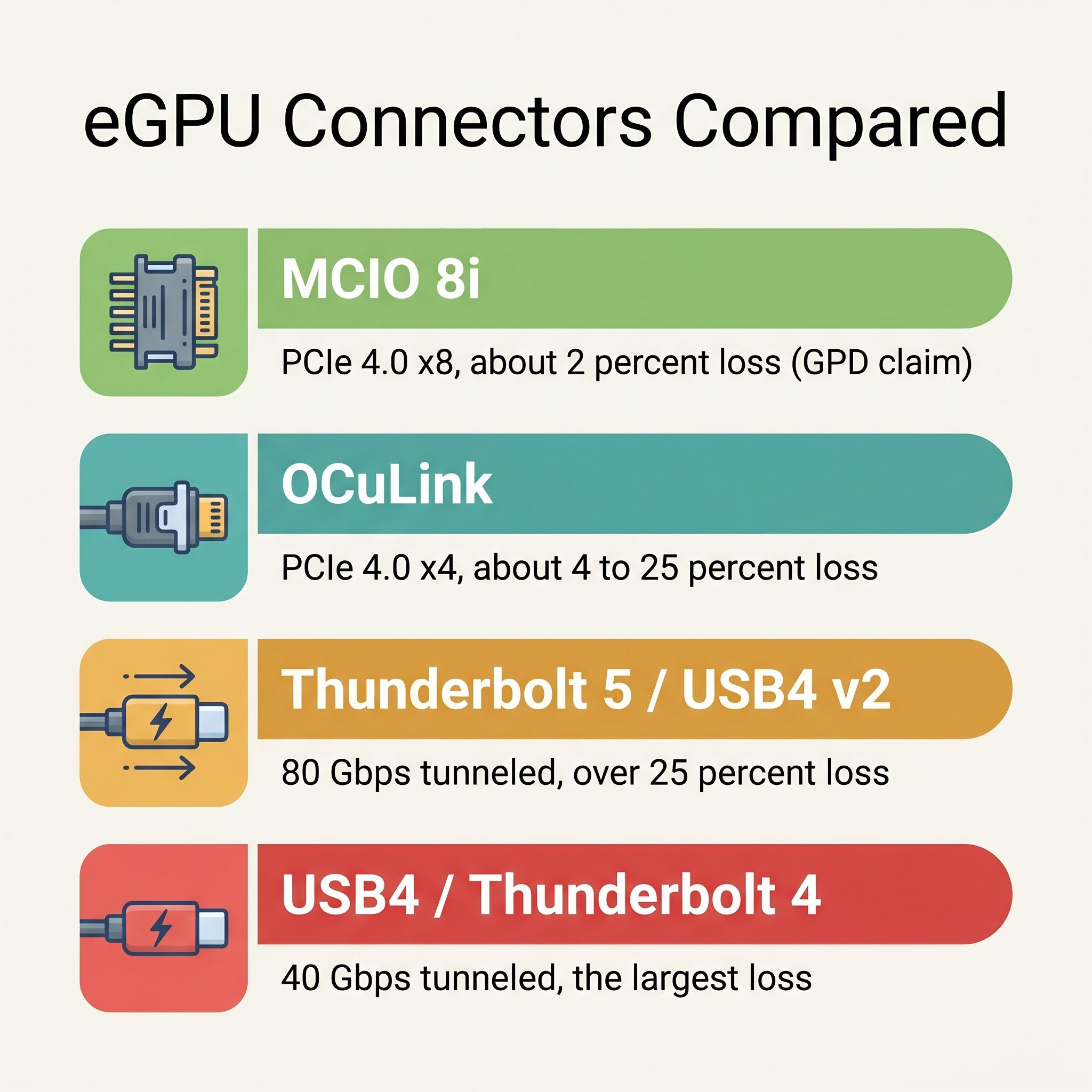
How the port connects to the graphics card matters more than its raw speed. OCuLink and MCIO are direct connectors: they give the card a link close to what it would get in a desktop motherboard slot. USB4 and Thunderbolt take a different route, squeezing the graphics data through a general-purpose port that is also juggling displays and other devices, which leaves the card less to work with and adds a little lag.
Notebookcheck puts a typical OCuLink 4.0 x4 setup somewhere between roughly 4 and 25 percent slower than a desktop slot, while Thunderbolt 5 and USB4 v2 setups can lose well past 25 percent. The same site covered a Try Some Tech comparison that ran an RTX 5070 Ti through a Thunderbolt 5 dock, over OCuLink, and in a desktop, and the Thunderbolt 5 runs came in behind both. Standard Thunderbolt 4 and USB4 links run at 40 Gbps on most current machines, and even the newest Thunderbolt 5 and USB4 v2 ports that roughly double that still trail a direct connector for feeding a GPU. So the order is simple: MCIO at the fast end, OCuLink in the sensible middle, USB4 and Thunderbolt at the back.
A USB4 port does not guarantee a working eGPU
USB4 ports are everywhere now, they look identical to the ones that do support external graphics, and the spec sheet rarely tells you whether eGPU is validated. Buy a box for its USB4 ports assuming it can take a GPU later, and the friction shows up only when you try to add the card.
The Beelink SER9 ships with a USB4 port that carries Thunderbolt 3, which on paper should support an external graphics card. In practice, TechTablets reported random crashes when running an external GPU on it, the kind of issue that turns a weekend upgrade into a driver-and-BIOS troubleshooting project. The SER9 is an excellent mini PC for plenty of reasons; it is just not the machine to buy specifically because you intend to hang a graphics card off it.
If external graphics is part of your plan, look on the spec sheet for a dedicated OCuLink port, named as such, not a general-purpose USB4 port you are hoping will cooperate. Confirm that before you check out. For a broader sense of where mini PCs hit their ceilings, our look at five things mini PCs still cannot do in 2026 puts the graphics question in context.
When an external GPU is the wrong call
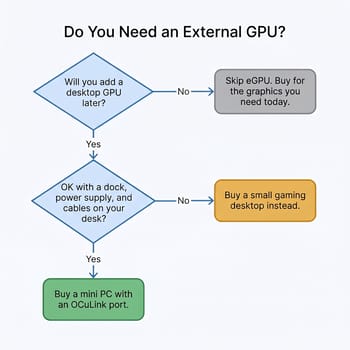
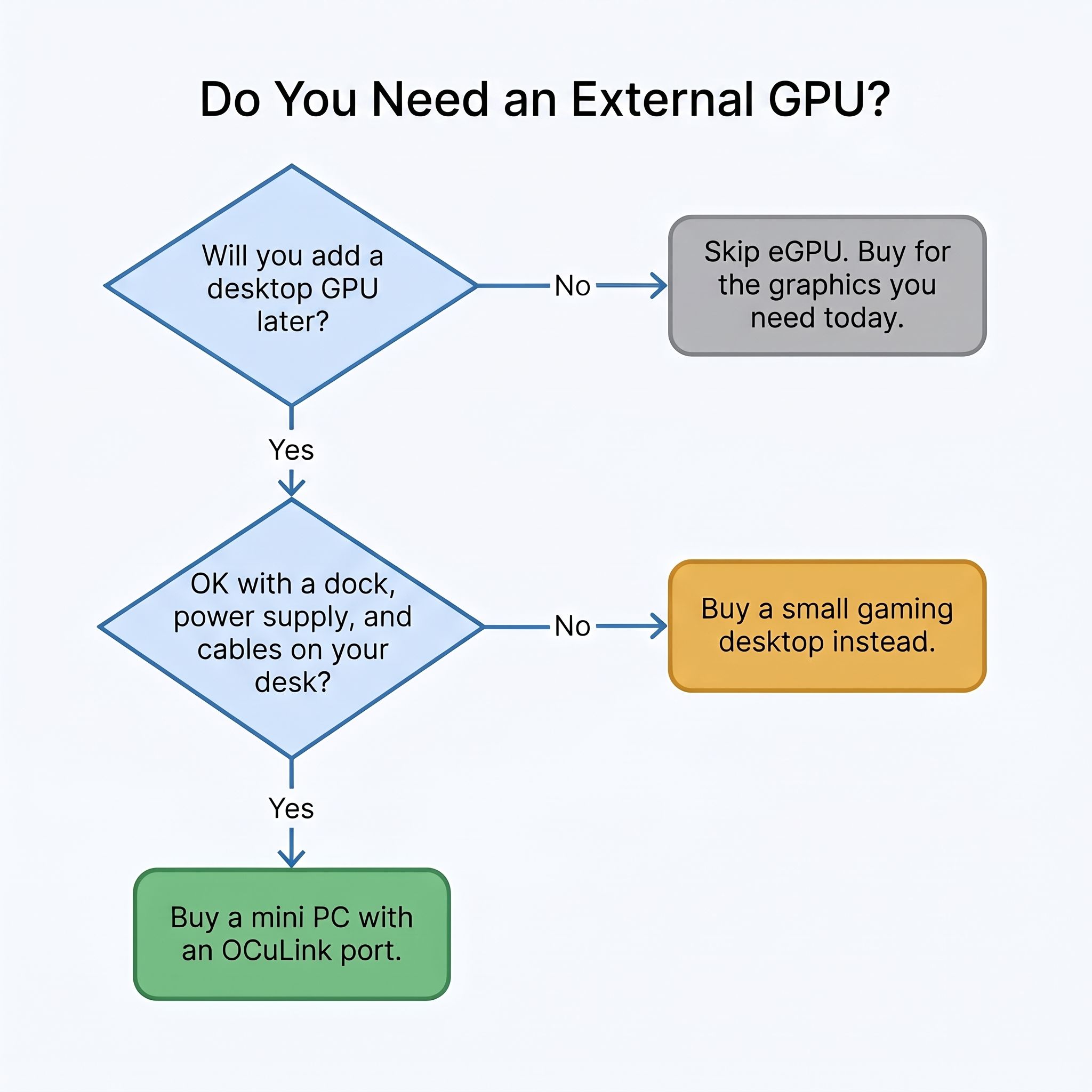
Start with the money, because an external GPU is never just the card. A real-world OCuLink build at Virtualization Howto also needed a dock, a cable, and a full 850-watt power supply to feed the card. Add it all up and the total often passes what a small gaming desktop would cost, except now it is two boxes joined by a cable.
External graphics also takes ongoing effort. It is not the plug-and-play experience the word “external” suggests. In that same build, the mini PC would not even see the dock unless it was switched on before the computer booted, so you do not casually plug a graphics card in the way you would a USB drive. Driver quirks and finicky detection are common across these setups, the opposite of the tidy, leave-it-alone appeal that drew you to a mini PC.
The whole reason to own a mini PC is that it is small, quiet, and power-sipping. Hang a dock, a desktop GPU, and a big power supply off it, and you have traded that away for a two-piece rig that takes up more room than a small tower and is no longer something you can toss in a bag. If a modern AMD or Intel chip’s built-in graphics already cover what you play, that is a far cleaner answer. The Panther Lake NUCs with the Arc B390 iGPU show how far integrated graphics have come, and for local AI work, the Strix Halo approach to on-chip inference sidesteps the discrete-card question entirely.
Buy a mini PC with a dedicated OCuLink port
OCuLink is the connector that holds onto most of your card’s performance, and docks and cables for it are sold by several vendors. These mini PCs have a built-in OCuLink port and are sold new, listed roughly from least to most expensive.
GMKtec M8
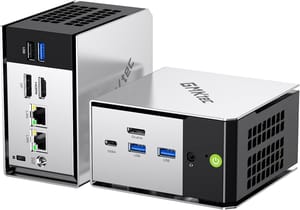
- +Front OCuLink port (PCIe 4.0 x4)
- +USB4 40Gbps
- +dual 2.5G Ethernet
- +compact metal case
- -16GB of RAM is soldered and cannot be upgraded
- -Radeon 660M is entry-level on its own
- -fan pulses under load
GMKtec M7 Ultra
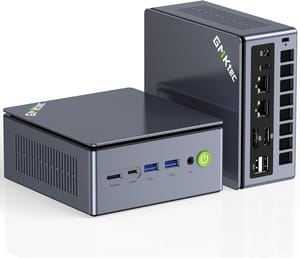
- +Dedicated OCuLink port (PCIe 4.0 x4) for external GPU
- +dual USB4 40Gbps
- +dual 2.5G Ethernet
- +upgradable DDR5 and dual M.2
- -Radeon 680M is modest on its own
- -PCIe 3.0 storage
- -no Thunderbolt despite USB4
GMKtec K12
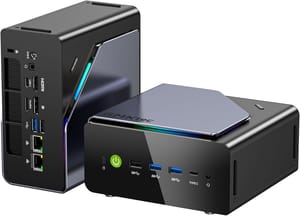
- +Rear OCuLink port (PCIe 4.0 x4)
- +three M.2 slots
- +USB4 40Gbps
- +dual 2.5G Ethernet
- -1.5-liter chassis is larger than most mini PCs
- -Robtech found its idle fan noise louder than most mini PCs
- -two of the three M.2 slots run at x2
MINISFORUM AI X1 Pro
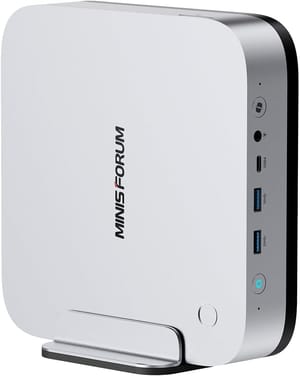
- +OCuLink PCIe 4.0 x4 plus dual USB4
- +Ryzen AI 9 HX 370 with Radeon 890M
- +three M.2 slots
- +up to 128GB RAM
- +built-in 135W power supply
- -Larger than most mini PCs
- -premium price
- -slow SD card reader
MINISFORUM also sells the AI X1 Pro-470, a refresh with the Ryzen AI 9 HX 470 in the same chassis and the same OCuLink port. Notebookcheck noted that its 32GB configurations ship with a single memory stick, which holds back the integrated graphics until you add a second one.
GMKtec EVO-T2
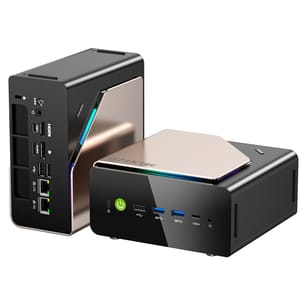
- +OCuLink Gen4 x4 port
- +16-core Intel Core Ultra X7 358H with Arc B390 graphics
- +dual USB4
- +10GbE plus 2.5GbE
- -64GB of RAM is soldered
- -two M.2 slots where the EVO-T1 had three
- -first-generation Panther Lake platform with maturing drivers
GMKtec EVO-X3
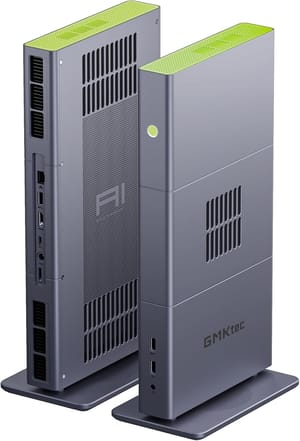
- +OCuLink with a full PCIe Gen4 x4 link
- +Ryzen AI Max+ 395 with Radeon 8060S graphics
- +128GB LPDDR5X-8000
- +USB4 40Gbps
- -Memory is soldered
- -OCuLink has no hot-plug
- -one 2.5G Ethernet port and no DisplayPort
The MINISFORUM UM880 Plus, UM890 Pro, X1 Lite-255, and M1 Pro get a PCIe 4.0 x4 OCuLink port through an adapter board that takes up one of the internal M.2 storage slots. That works for an eGPU, but you give up a drive slot, so a built-in port is the cleaner choice if you are shopping for one.
If you only ever see USB4 on the spec sheet, that is fine, as long as you are not buying for external graphics. The GEEKOM A8 Max is a strong example: dual USB4, dual 2.5G Ethernet, and a clean aluminum build that make it a fine productivity and networking machine. It has no OCuLink port, so the only eGPU route is USB4, which keeps less of a card’s speed than OCuLink; plan around what the Radeon 780M delivers.
MCIO is new. As of September 2026, the GPD BOX and TOPC’s TA255, which launched in China in April, are the only mini PCs reported with the port. OCuLink has been on mini PCs for a couple of years, and several vendors sell affordable docks and standard cables for it, so you can mix and match parts. A faster port that only two companies sell is a riskier bet than a proven one you can build around. The mini PC comparison chart filters the lineup to OCuLink-capable models; check each product page to see whether the port is built in or comes through an M.2 adapter.


