

Smart TVs sell ads now. The home screen carries sponsored rows, the remote has a button for a service nobody subscribed to, and the cheap streaming tiers that used to make a dumb box tolerable keep thinning out. Somewhere in that slow erosion, a question a lot of families thought they had settled comes back: should there just be a real computer next to the television? Not a media stick, not the TV’s own creaky app store, but something with a browser, a keyboard, and an account for each person in the house. Once you start pricing that out, two boxes dominate the shortlist, and most buying guides only mention one of them.
The omission is the Chromebox. Search “best PC for the living room 2026” and you land on listicles full of Windows mini PCs from Beelink, GMKtec, and Minisforum, with the Chromebox category treated as if it quietly died years ago. It did not. ASUS, Acer, and CTL all ship current models, and for a specific kind of household, a Chromebox is the better answer than the Windows box those guides keep recommending. The catch is that it is a specific kind of household, and the case only holds if you are candid about where ChromeOS gives out.
A Chromebox is a small ChromeOS desktop for your TV
A Chromebox is a small fanless-or-near-silent desktop that runs ChromeOS, the same operating system as a Chromebook, without the screen, keyboard, or battery attached. It sits on the media console, connects to the TV or a monitor over HDMI, and pairs with a wireless keyboard and mouse. The platform is built around web apps and the Google Play Store rather than installed Windows software, and it updates itself in the background on a roughly four-week cadence with no patch-day reboots to babysit.
Three models matter for a 2026 living room. The Acer Chromebox CXI5 is the mainstream pick: 12th-gen Intel silicon ranging from a Celeron 7305 up to a Core i7, Wi-Fi 6E, USB4, dual HDMI, and 2.5-gigabit Ethernet on the Core i7 model. Check the exact SKU’s spec sheet before you buy, because Acer’s own pages disagree about whether the cheaper Celeron configurations carry 2.5-gigabit or standard gigabit. The ASUS Chromebox 5 (the CN67 chassis) is the premium option, with the same Intel generation, Thunderbolt 4, and support for up to four 4K displays if you ever wanted this thing to do more than feed a TV. The CTL Chromebox CBx3 rounds out the field, sold mostly direct and into education, where CTL has a long track record.
The single spec that separates these from a Windows mini PC is the support window, and it is not a marketing estimate. Every ChromeOS device has a published Auto Update Expiration date from Google. The Acer CXI5, the ASUS Chromebox 5, and the current CTL CBx3 all carry an AUE of June 2032. Buy the Acer this year and Google has committed, in writing, to security and feature updates on that box for roughly six more years, with no subscription and nothing for the household to manage. A Windows mini PC has no equivalent promise; it stays current only as long as someone keeps patching it.
The real cost picture
Here is the concession the Chromebox guides usually skip: the Windows box is normally the cheaper one to buy. A Beelink Mini S13 with an Intel N150, 16GB of RAM, and a 512GB SSD lands around $200 as of mid-2026, and the GMKtec G3 Plus has typically sold in the same neighborhood. The Acer CXI5 starts near $330 in its Celeron configuration, and the ASUS Chromebox 5 climbs from roughly $400 into the $700s once you choose a Core i5 or i7. On the sticker alone, ChromeOS loses.
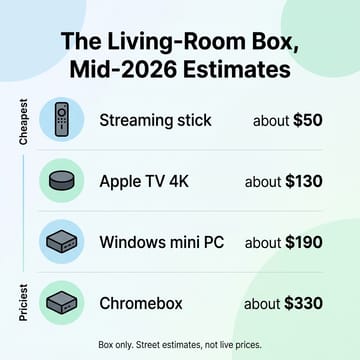
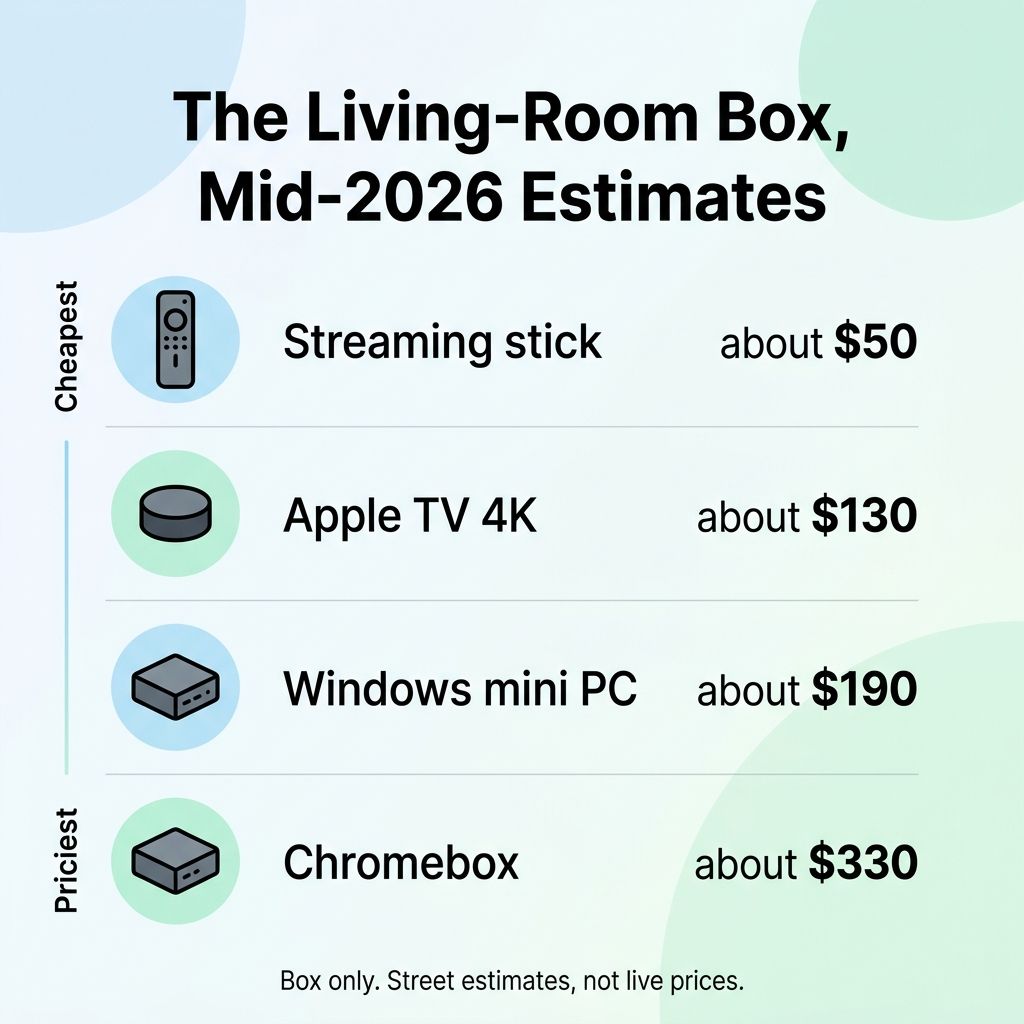
The old counterargument was that Windows tacks on hidden costs: a license, an antivirus subscription, the inevitable bloatware cleanup. That argument has aged poorly. Mini PCs ship with an OEM Windows 11 license already in the price, and Microsoft Defender is free and competent, so there is no antivirus line item to add. If you are choosing on first-year dollars, the mini PC wins, and pretending otherwise would be the kind of overselling that makes people distrust the rest of the pitch.
So the Chromebox has to win on the years after the first one, and that is where it actually does. The total household cost of a living-room computer is not the box; it is the box plus your time. The Windows machine asks for that time in small, recurring withdrawals: the update that wants a reboot mid-movie, the storage that fills with update caches, the slow accretion of startup programs, the security posture that depends on whoever in the family is least careful about what they click. The Chromebox asks for almost none of it. For a device that lives in a shared room and gets used by people who will never open a settings menu, the maintenance column matters more than the purchase column, and it compounds in the Chromebox’s favor for as long as that AUE date holds.
Living room PCs mainly need streaming and a real browser
Strip the use case down to what a family does on a TV-adjacent machine and the Chromebox covers most of it cleanly. Streaming is the obvious one: Netflix, YouTube, Disney+, Max, and the rest run as web apps or Play Store apps, and a Plex or Jellyfin client plays back your own library without complaint. A real browser means the household is not stuck inside a smart TV’s locked-down app garden or paying attention to whatever the TV maker is being paid to promote this month. That alone is the reason a lot of these setups get bought.
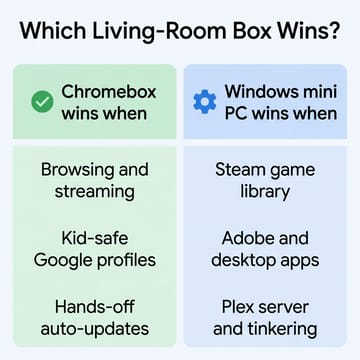
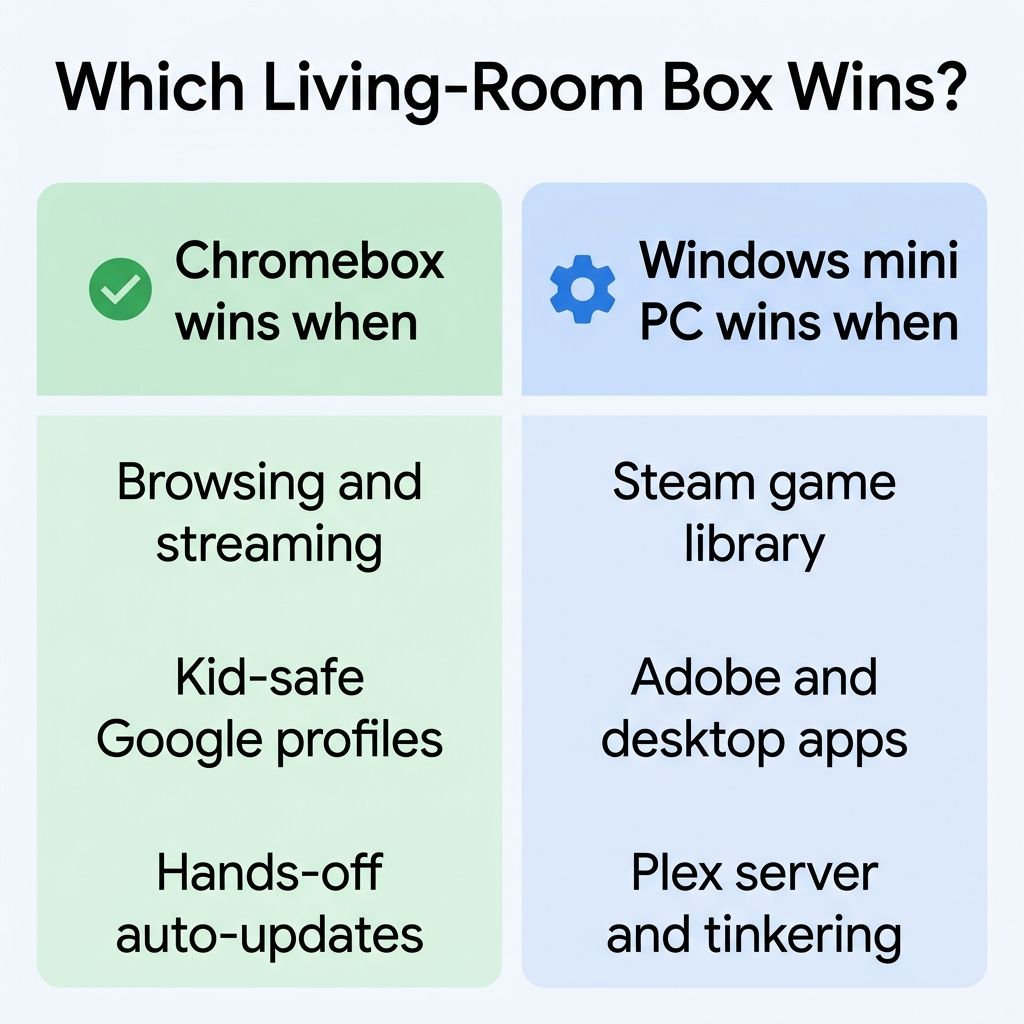
Gaming is where you have to be precise, because the situation changed at the start of this year. The native Steam client for ChromeOS, the Borealis beta that briefly promised real PC gaming on Chromebooks, shut down on January 1, 2026, and games installed through it stopped working after that date. So the 2026 reality is not “a limited Steam path”; there is no native Steam path at all. What a Chromebox does offer is cloud gaming through the browser, where GeForce NOW and Xbox Cloud Gaming stream full titles to the TV over a good connection, plus the catalog of Android games from the Play Store for the kids. For a living room, that combination covers far more of the actual demand than a local Steam library would, and it does it without a graphics card or a 200-watt power draw under the console.
The family angle is the part Windows cannot match without real administration. ChromeOS gives every household member their own Google profile, encrypted and separate, with its own bookmarks, history, and apps; switching between them on the sign-in screen takes seconds. Family Link wraps the kids’ profiles in screen-time limits and content controls that a parent manages from a phone, and the sandboxed app model means a child clicking something unfortunate cannot quietly compromise the machine the way it can on a shared Windows desktop. This is the same shared-device logic that makes ChromeOS work in classrooms, applied to the den.
Where the Chromebox gives out
The case is real, and so are the limits. There is no native Adobe suite; Photoshop and Lightroom on ChromeOS mean the web versions, which are fine for cropping a photo and frustrating for anything serious. Local, high-end gaming is out, since there is no discrete GPU and the platform is not built for it. Heavy local workloads, including the on-device AI tooling that Windows and Mac are leaning into, are not what this hardware is for. If a household member is a PC gamer with a Steam backlog, an editor who needs desktop Adobe, or a tinkerer who wants to run a Plex server with transcoding and a stack of self-hosted services, the Chromebox is the wrong tool and a Windows mini PC is the right one. Our mini PC for parents guide and the broader mini PC versus laptop comparison walk through the Windows side in more depth.
There is also a tempting third path worth naming so you can rule it out on purpose: flashing ChromeOS Flex onto a cheap Beelink or GMKtec to get Chrome-style simplicity on Windows-class hardware for less money. It works, but Flex is not the same product. It has no Google Play Store, so the Android app and game catalog disappears, and its update guarantees are different from a purpose-built Chromebox’s AUE. Flex is a fine way to revive an old laptop; it is a weak substitute for a Chromebox you are buying new for a shared room, precisely because the thing you are paying the Chromebox premium for is the managed, dated support window that Flex does not replicate.
The longevity bet, and the Aluminium OS question
The reason longevity is the whole argument deserves one caveat, because Google is in the middle of a platform transition. ChromeOS and Android are merging into a new platform Google has discussed publicly under the Aluminium OS name, with the first devices expected later in 2026. It is fair to ask whether a Chromebox bought today is on the upgrade path or a dead end.
The grounded answer is that nobody outside Google knows the exact hardware cutoff yet, and the company has not published an official compatibility list. We dug into what is actually confirmed versus inferred in our Aluminium OS compatibility guide, and the short version is this: the strongest public signal points to 12th-gen Intel and 8GB of RAM as the rough floor, which would put the Core i5 and i7 versions of the Acer CXI5 and ASUS Chromebox 5 near the likely baseline and the bottom-tier Celeron configurations on shakier ground. Whatever happens with the merger, Google’s existing commitment does not evaporate: a device keeps its ChromeOS updates through its published AUE date regardless. So the floor under an Acer CXI5 is solid through June 2032, and any Aluminium OS upgrade would be upside on top of that, not a precondition. Buy for the support window you can verify today, not the roadmap you cannot.
So which box do you buy
Walk it back to the household. If the living-room computer is for browsing, streaming overflow, cloud and Android gaming, Google Photos on the big screen, and kid-safe profiles, and nobody in the house is reaching for Windows-only software, the Chromebox is the better-shaped tool and the lower-maintenance one over its life. The Acer CXI5 is the default, the ASUS Chromebox 5 is the move if you want more horsepower or multi-display headroom, and the CTL CBx3 makes sense if you are buying through education or direct channels.
| Acer Chromebox CXI5 | ASUS Chromebox 5 | Beelink Mini S13 | |
|---|---|---|---|
| OS | ChromeOS | ChromeOS | Windows 11 |
| Typical CPU | Intel 12th-gen, Celeron to Core i7 | Intel 12th-gen, Celeron to Core i7 | Intel N150 |
| Updates until | June 2032 (AUE) | June 2032 (AUE) | You patch it yourself |
| Starts around | $330 | $400 and up | $200 |
| Best for | the default family box | premium, multi-display | Windows apps on a budget |
If instead someone needs a real Steam library, desktop Adobe, a transcoding media server, or just likes to tinker under the hood, stop reading the Chromebox section and buy the Beelink Mini S13; it is cheaper up front and it does the things ChromeOS will not. There is no universal winner here, which is exactly why the living-room guides that only show you one box are doing you a disservice. If you want to go deeper on the ChromeOS side before deciding, our piece on whether your next computer should be a Chromebook covers the platform tradeoffs, and the Chromebook and Chromebox comparison chart lets you filter the hardware directly. The right answer is the one that matches how your house actually uses the thing next to the TV.


