
What Fedora is
Fedora is a free Linux system: it runs your whole computer, the way Windows or macOS does. Fedora describes itself as “a community of people working together to build a free and open source software platform”, with contributors who are “volunteers and Red Hat employees”. Red Hat, the software company behind it, calls Fedora “the ideal testing ground for features that eventually get incorporated into Red Hat Enterprise Linux”, the version it sells to businesses.
A new version comes out about every six months. Fedora 45 arrived on November 3, 2026.
Workstation is the edition for desktops and laptops, and this tour starts from a fresh install with GNOME 51. If you haven’t installed it yet, our Fedora 45 install guide covers the USB stick, the installer, and the first setup.
The overview is the first screen you see
Open windows sit in the middle of the overview, a dock of app icons runs along the bottom, and a search box waits at the top. Fedora opens it right after you log in, and it does the job of the Start menu and taskbar on Windows, or the Dock and Spotlight on a Mac.
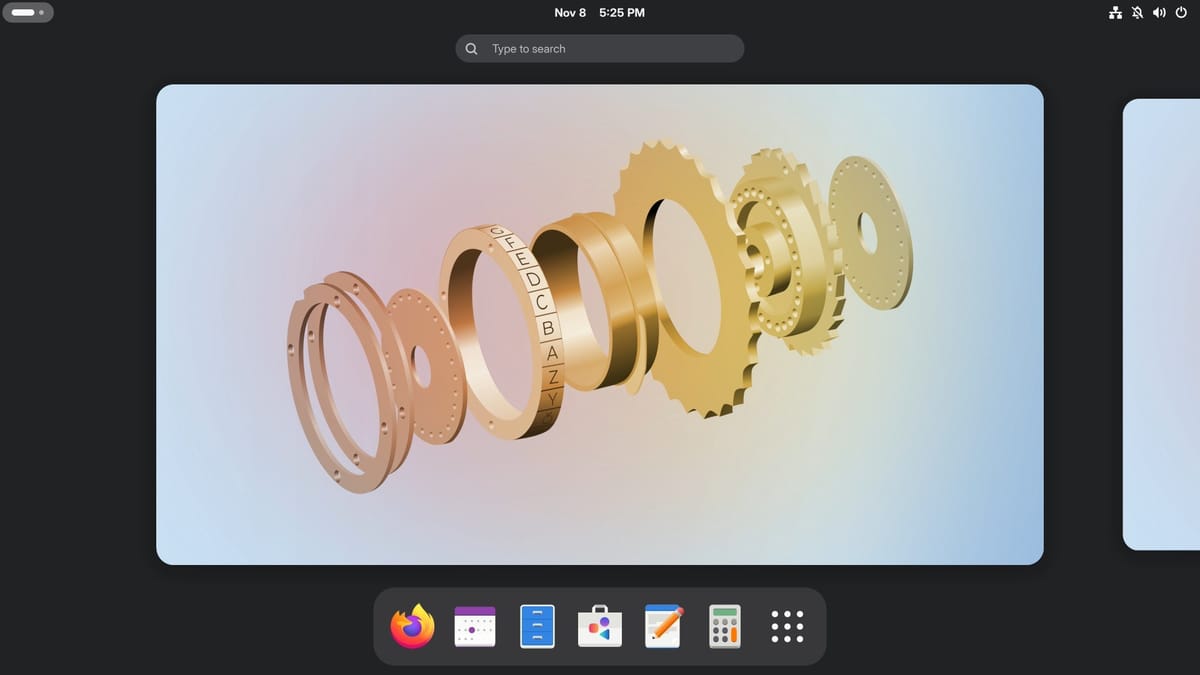
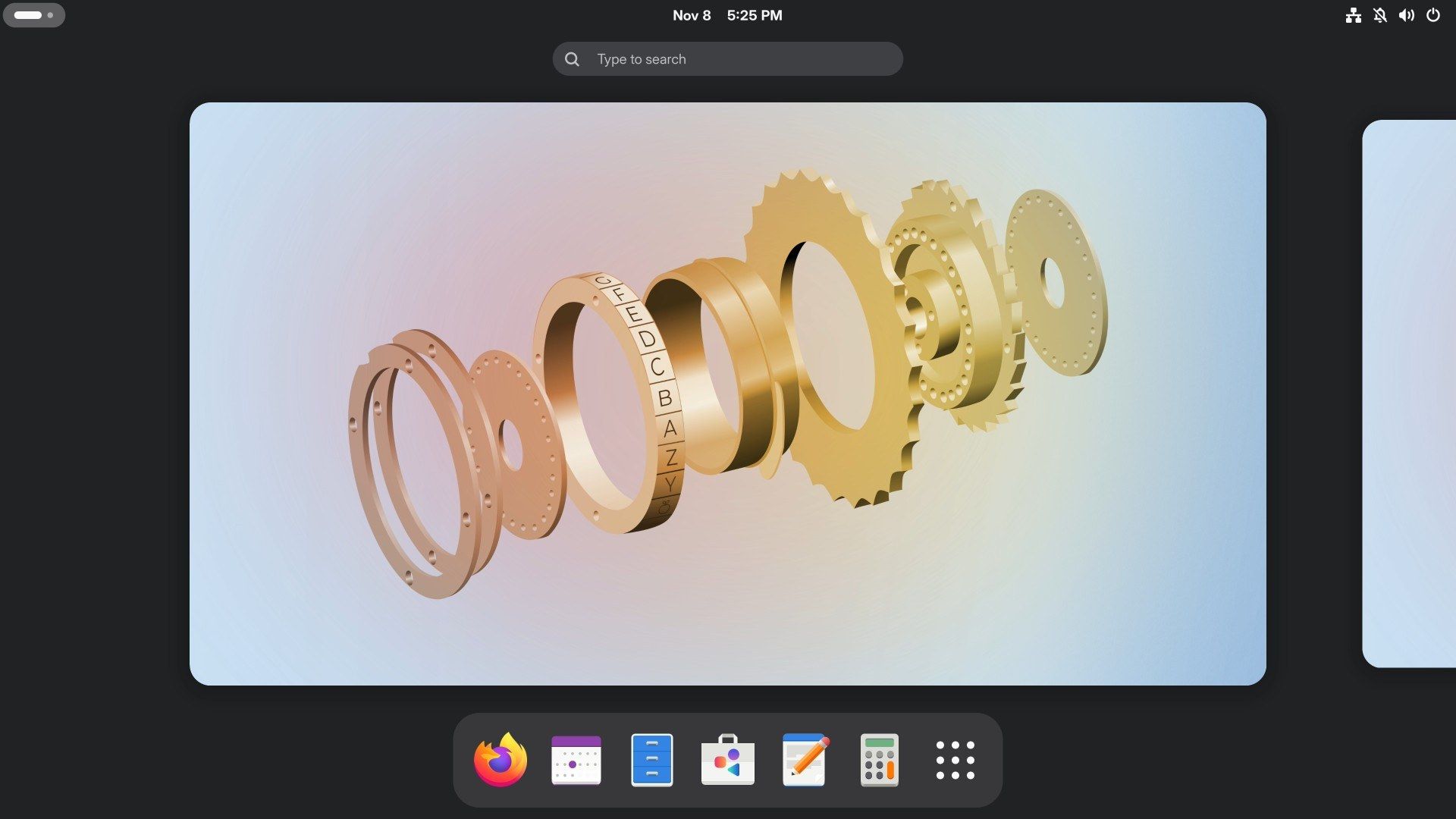
All of this comes from GNOME, the part of the system you see and click. A separate project makes it, and Fedora ships it close to how that project made it. The one Shell extension Fedora adds by default is the background logo, the faint Fedora mark in the corner of the wallpaper.
Press esc and the overview clears away. What’s left is the wallpaper with no icons and a thin bar across the top. There’s no taskbar, because the dock lives in the overview. super brings it all back from anywhere. Super is the Windows key on a PC keyboard and the Command key on a Mac keyboard.
The nine-dot icon at the far right of the dock opens the full grid of installed apps.
Type to find apps, settings, and answers
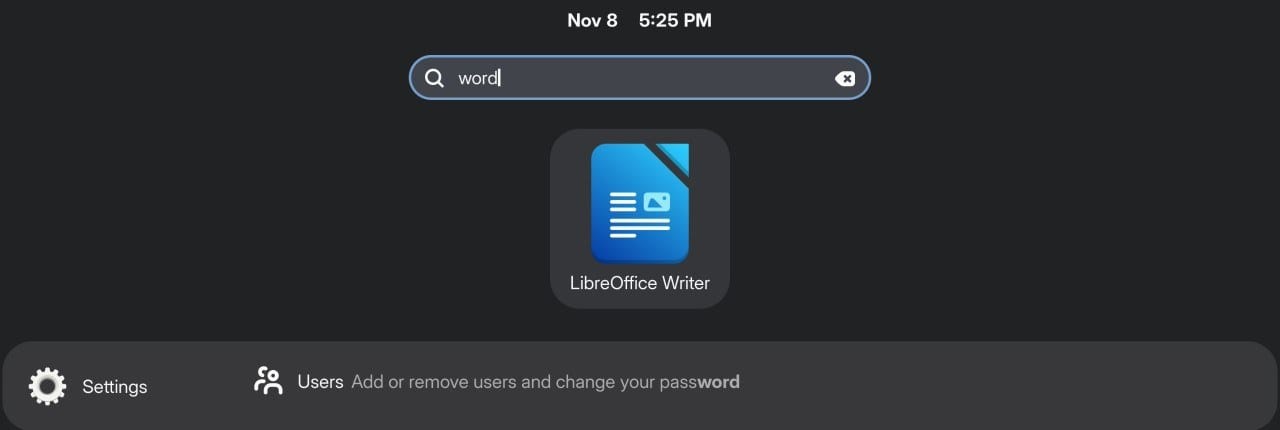
The search box in the overview takes your typing as soon as the overview opens. It understands a few names you may already use from Windows. Typing word brings up LibreOffice Writer, excel brings up LibreOffice Calc, and notepad brings up Text Editor.
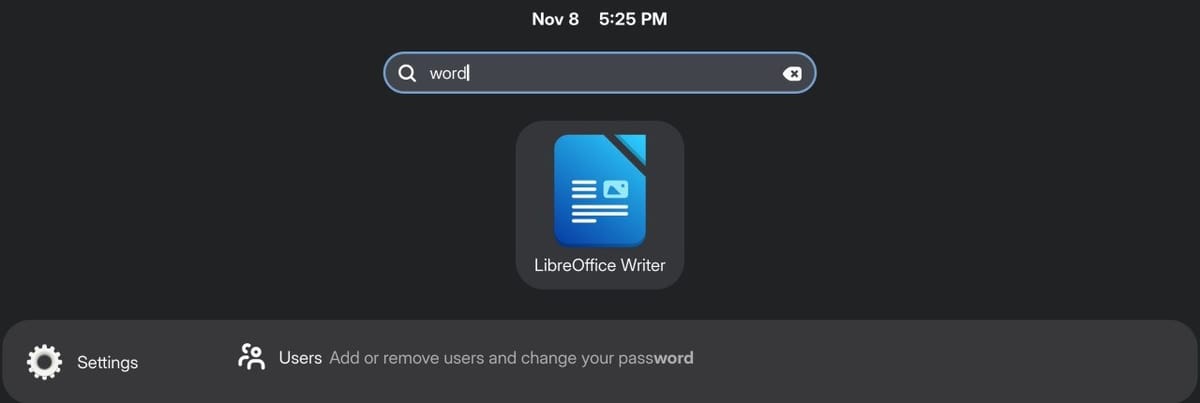
Not every Windows name has a match. Typing paint or explorer finds no installed app, and the Software row lists apps you could install instead. One of the results for paint is an app called Paint, described as “A sweet painting tool”, and it isn’t Microsoft’s. The file manager here is called Files, so type files to find it.
Search answers small questions too. Typing 12*7 shows 84 with no calculator to open. Typing dark finds the Appearance page in Settings, and wifi finds the Wi-Fi page. It finds your files by name, and by words inside them: autumn listed both of our autumn photos, and about found a text file by what it said.
The top bar holds the clock and the everyday switches
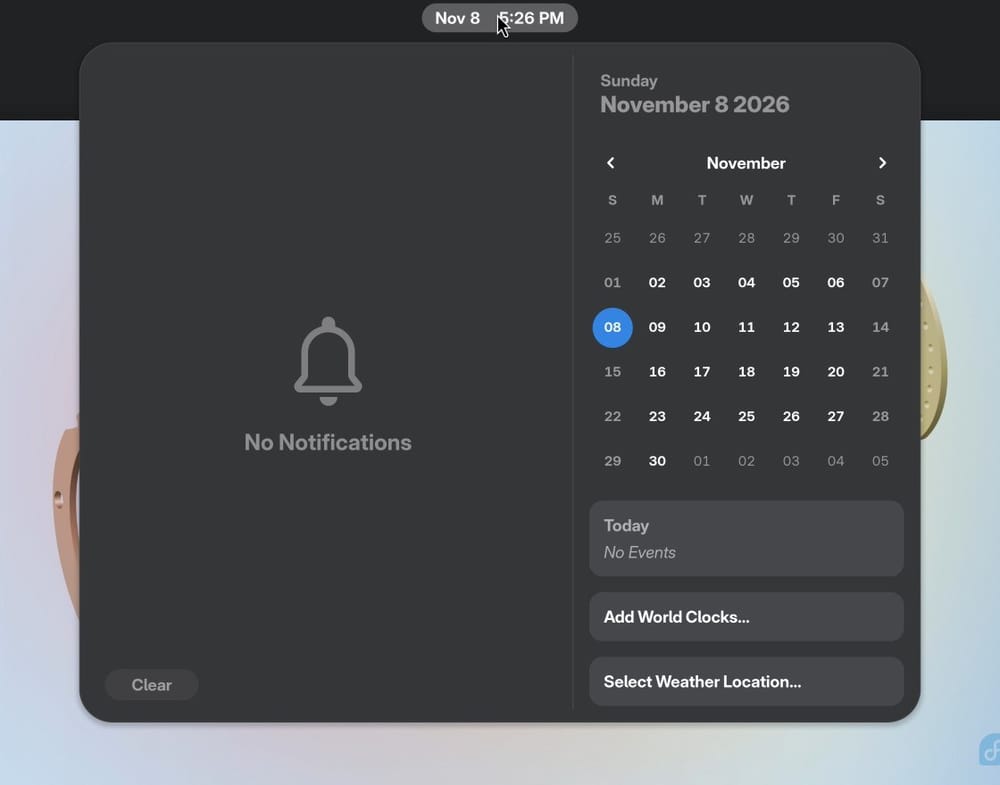
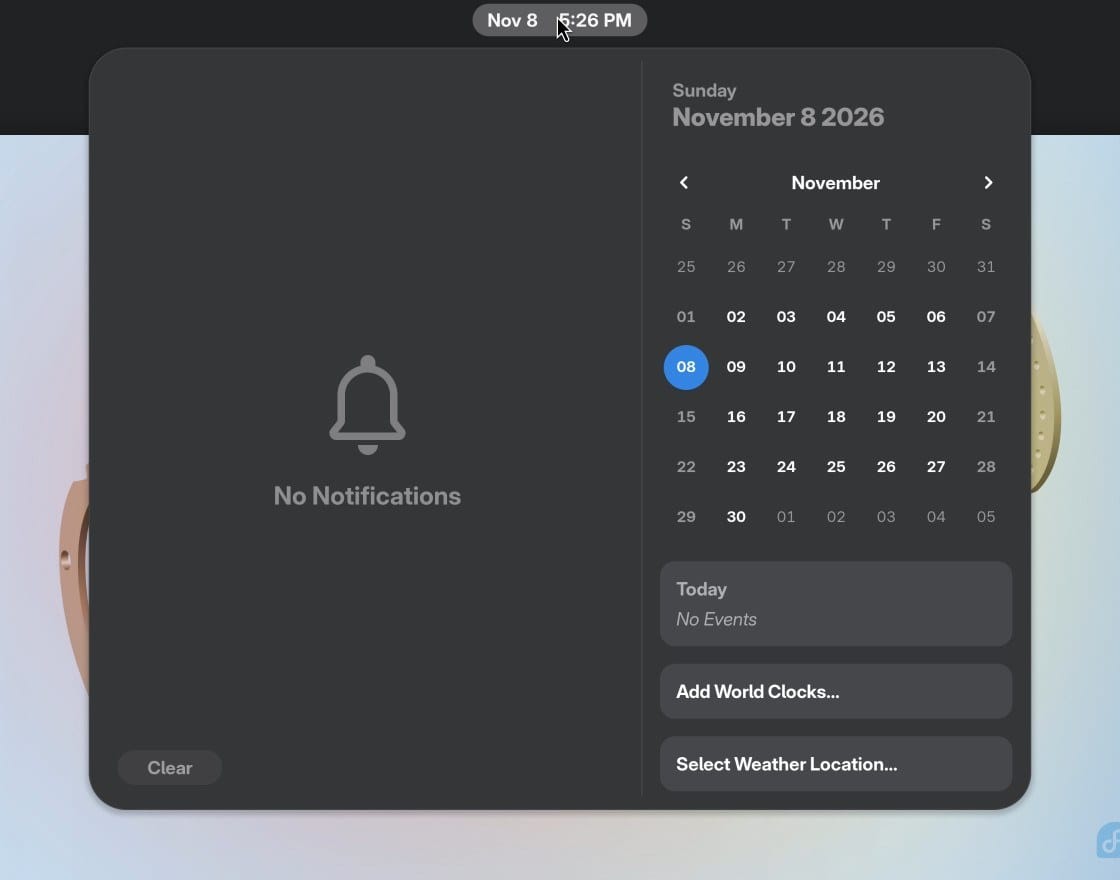
The clock sits in the middle of the bar. Click it to see the month and today’s events on the right, with buttons to add world clocks and pick a weather location. Your notifications are on the left, with a Clear button.
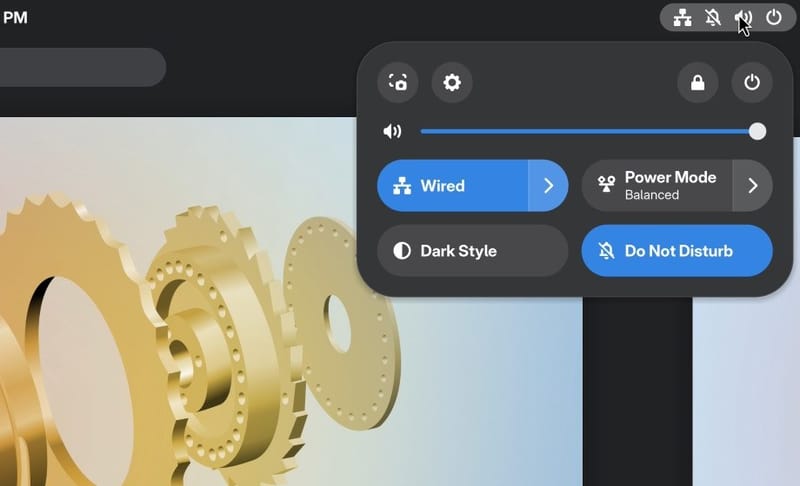
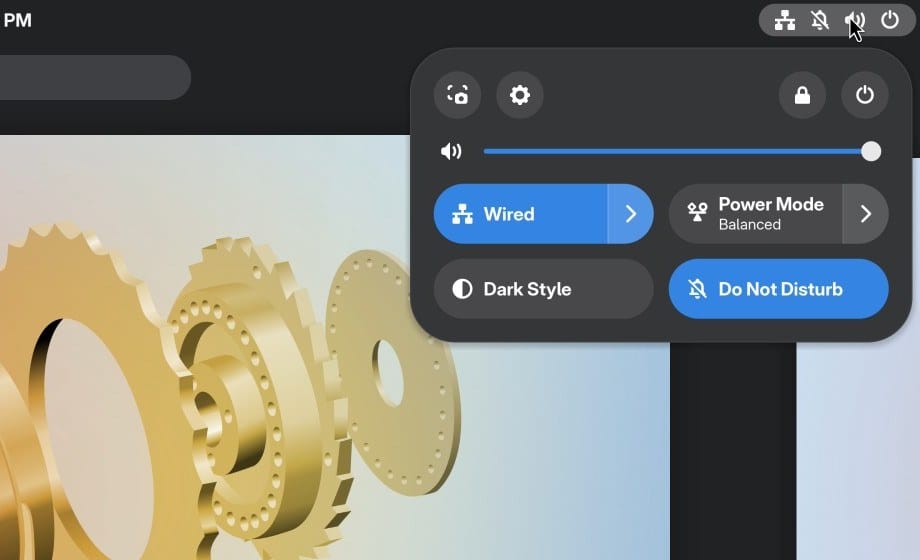
A click at the far right of the bar opens the everyday switches, the same idea as Control Center on a Mac or Quick Settings on Windows. The panel has the volume, the network, Power Mode, Dark Style, and Do Not Disturb, with buttons for Settings, Lock, and Power at the top.
The apps already here cover everyday work
Firefox is the web browser, and it opens on Fedora’s own start page with a search box and Fedora’s news.
Files does the job of File Explorer on Windows or Finder on a Mac, with your folders down its side. Select a file and press space to preview it over the window, the way Quick Look does on a Mac. esc closes the preview.
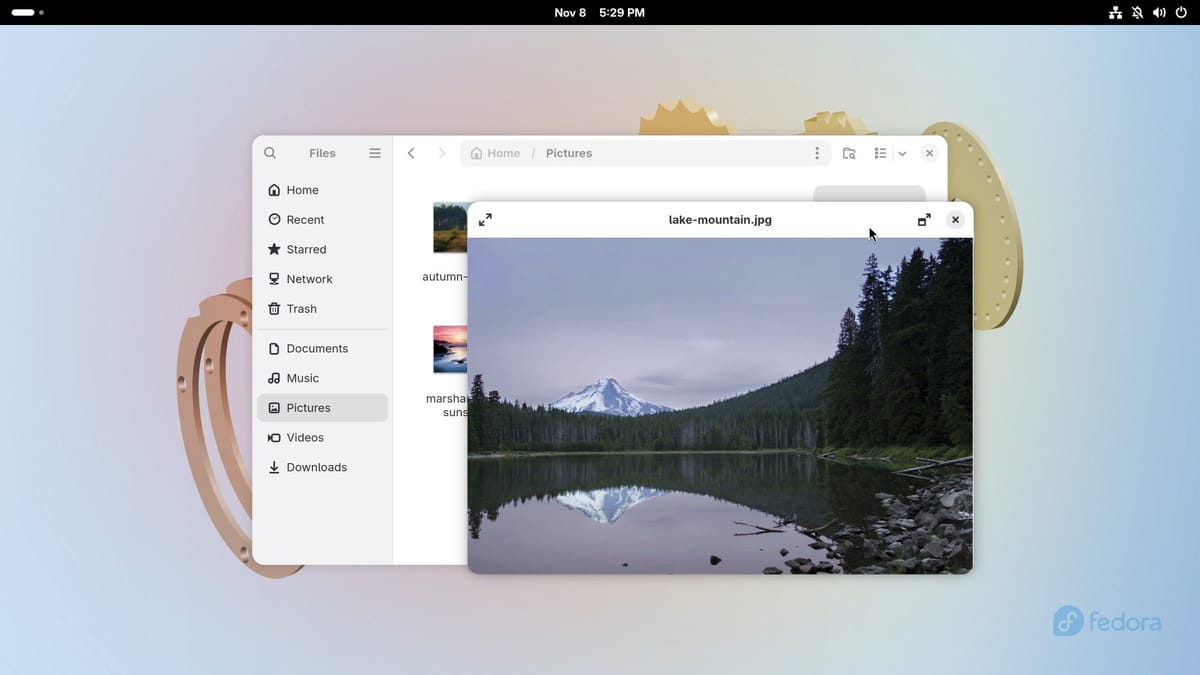
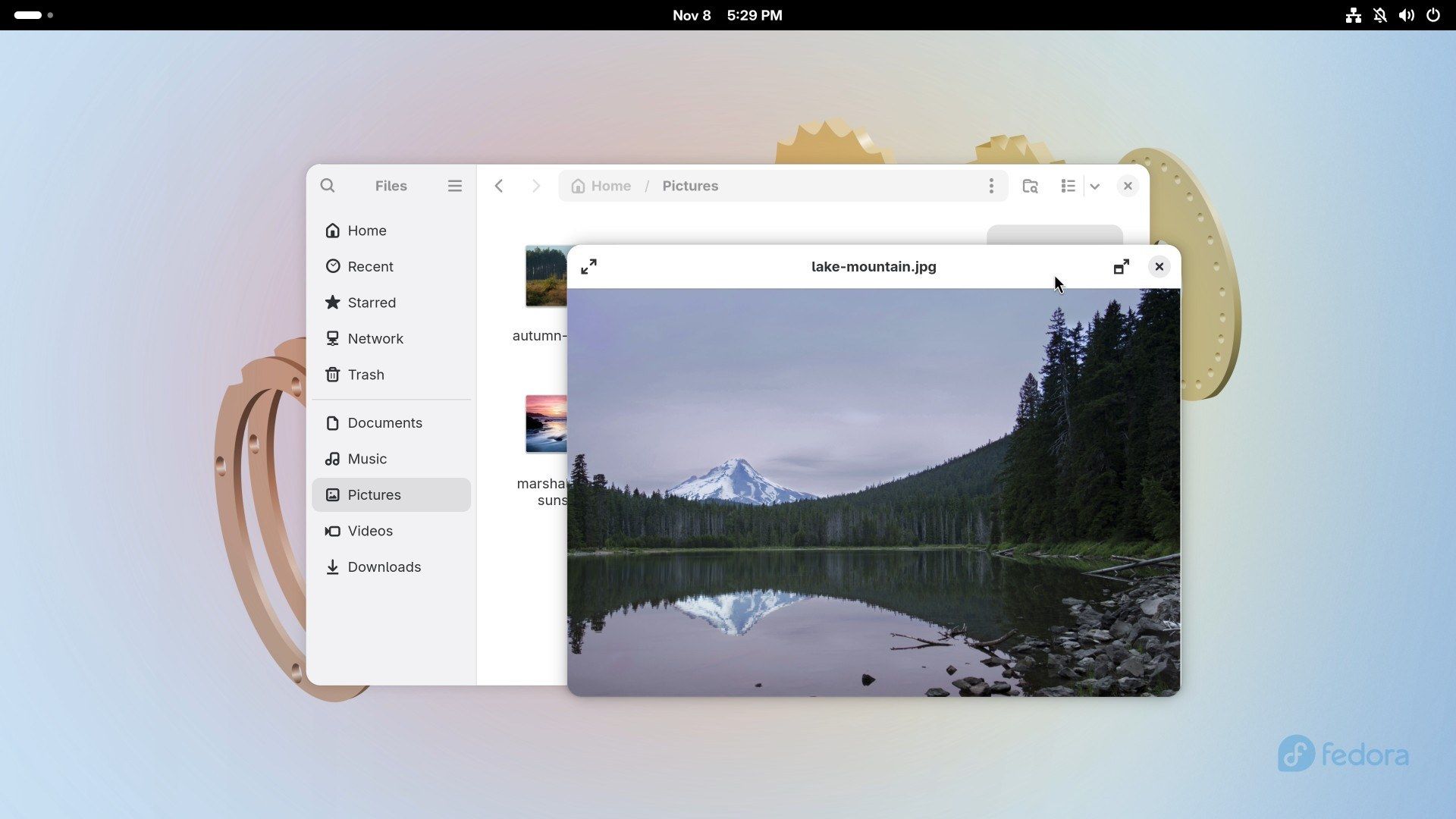
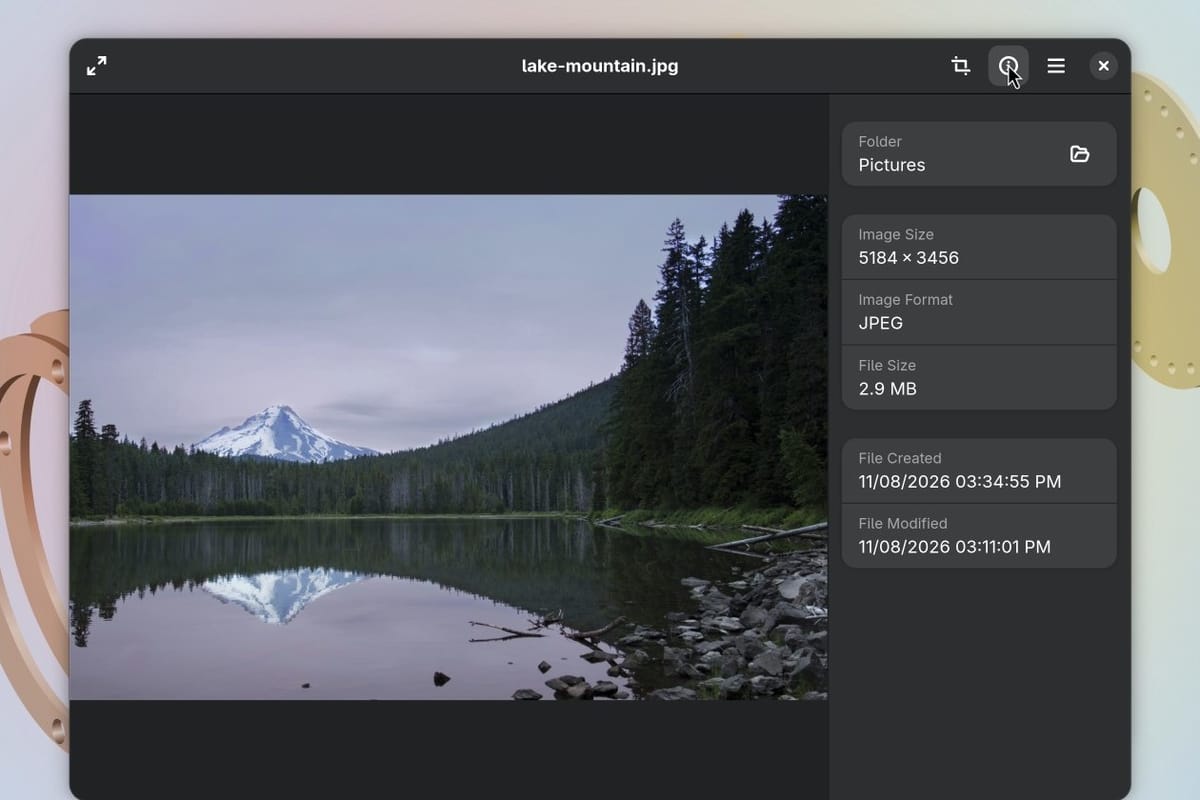
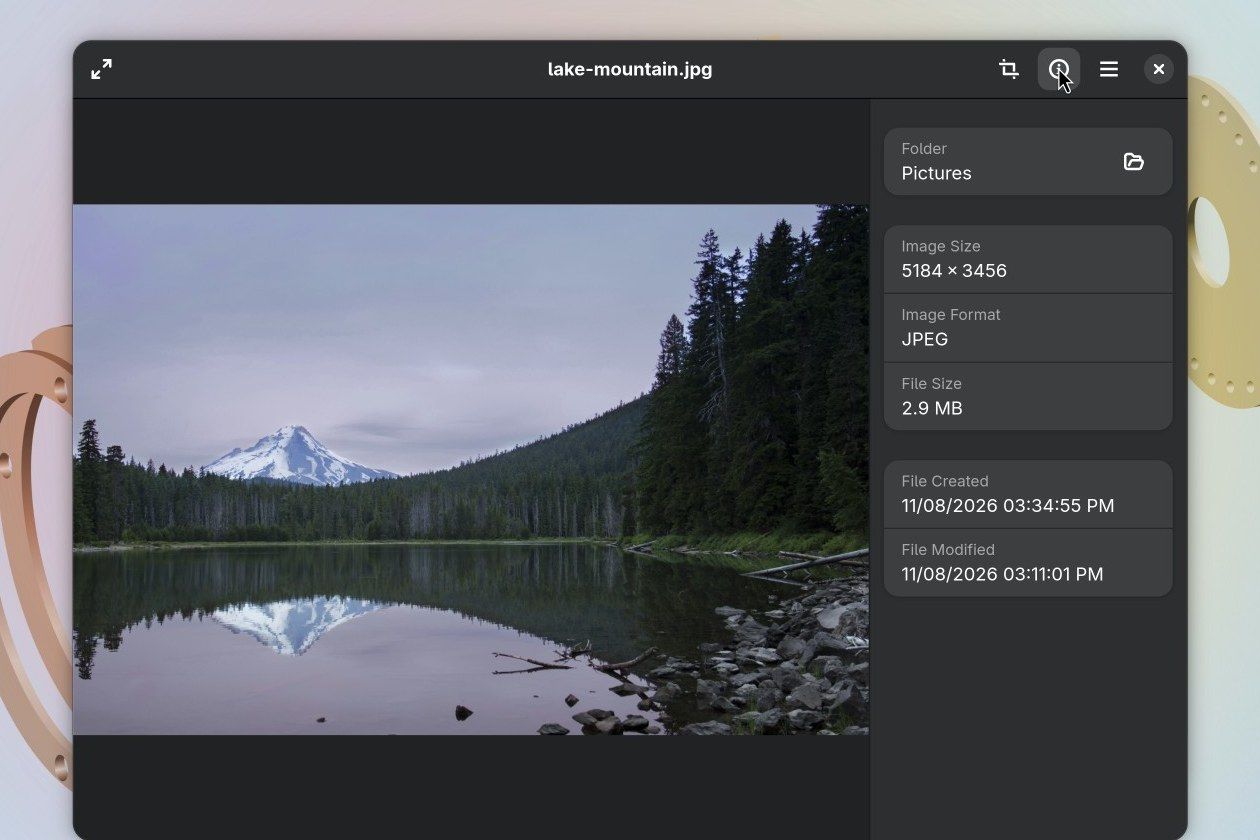
A double click opens a photo in Image Viewer. The info button at the top right lists its details, including the image size and the file size, which helps when a website limits how big an upload can be.
Video Player is the app for watching clips, and ours, a WebM file, played with nothing added. A few times, right after logging in, a double click on the clip started the player with no window. If that happens to you, search for video, press enter to open Video Player’s empty window, and double click the clip again. It then plays in that window.
LibreOffice Writer is the word processor, and Calc for spreadsheets and Impress for slides come with it at no cost. Fedora’s default set also has Text Editor, Calendar, Clocks, Weather, Maps, and Calculator.
There’s no email app on this list, so you’d read mail in Firefox the way you would on any website. Fedora also comes without a photo library app or a music library app, and Chrome and Steam wait until you turn on the third-party sources described below.
Change the look in Settings
Type dark in search to open the Appearance page in Settings. Each of the three settings there takes effect the moment you click:
- Style switches between Default and Dark. The Dark Style button in the top bar’s panel does the same.
- Accent Color is a row of nine dots. It sets the color of buttons and a few other marked items.
- Background is a grid of wallpapers. Add Picture… takes one of your own.
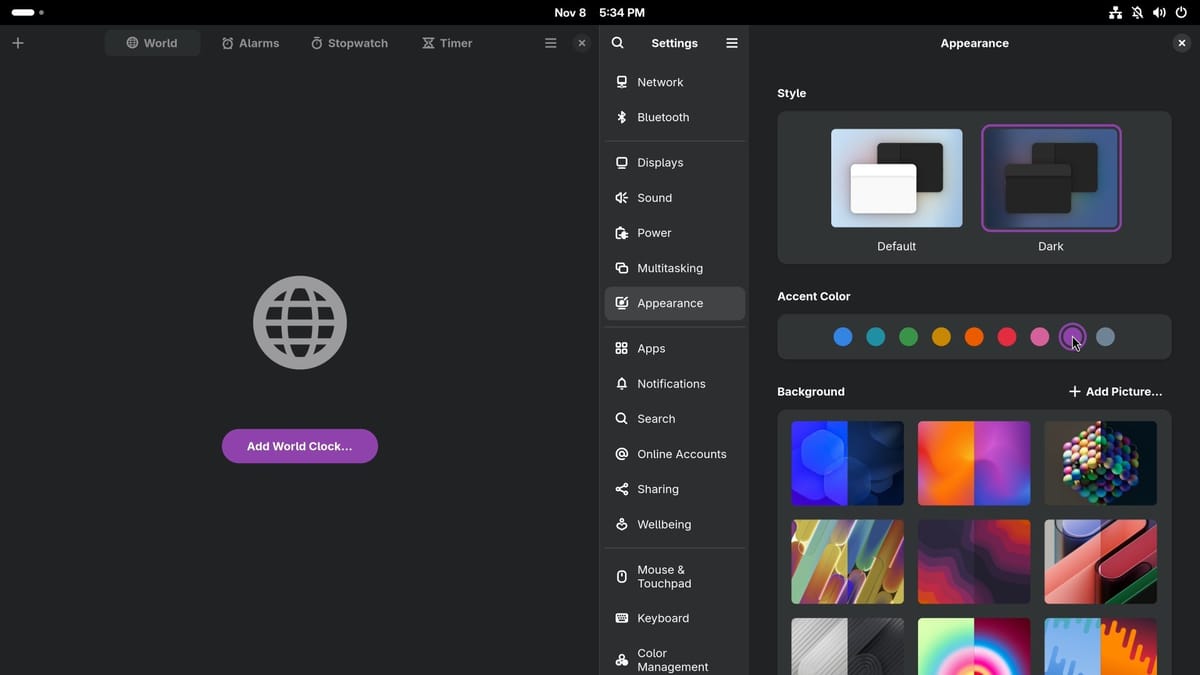
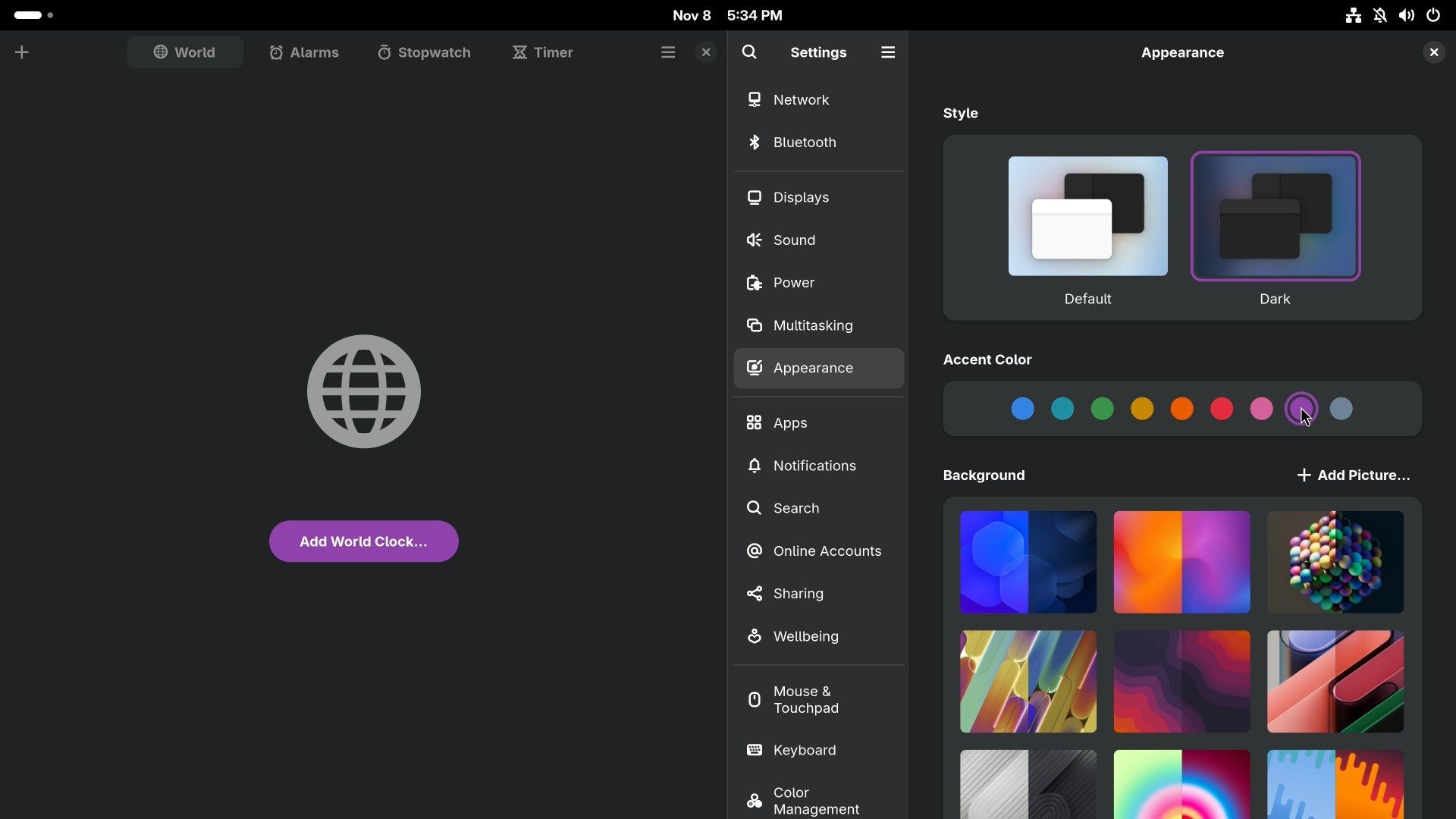
The accent color shows on solid buttons, such as Add World Clock in Clocks and Download in Software. It doesn’t change everything. Folder icons stay blue, and the sidebar and selected items in Files stay grey.
Sign a PDF in Document Viewer
Document Viewer, the PDF app that’s already installed, can add a signature you draw, with no printer, scanner, or extra app. We used a made-up library permission form.
- Double click the PDF in Files to open it in Document Viewer.
- Right click anywhere on the page and choose Add Visual Signature, then Add Signature.
- Draw your signature in the blank box with the mouse or a touchscreen. The undo button sits under the box. If you have a picture of your signature, Import takes that instead, and GNOME says the background is removed automatically.
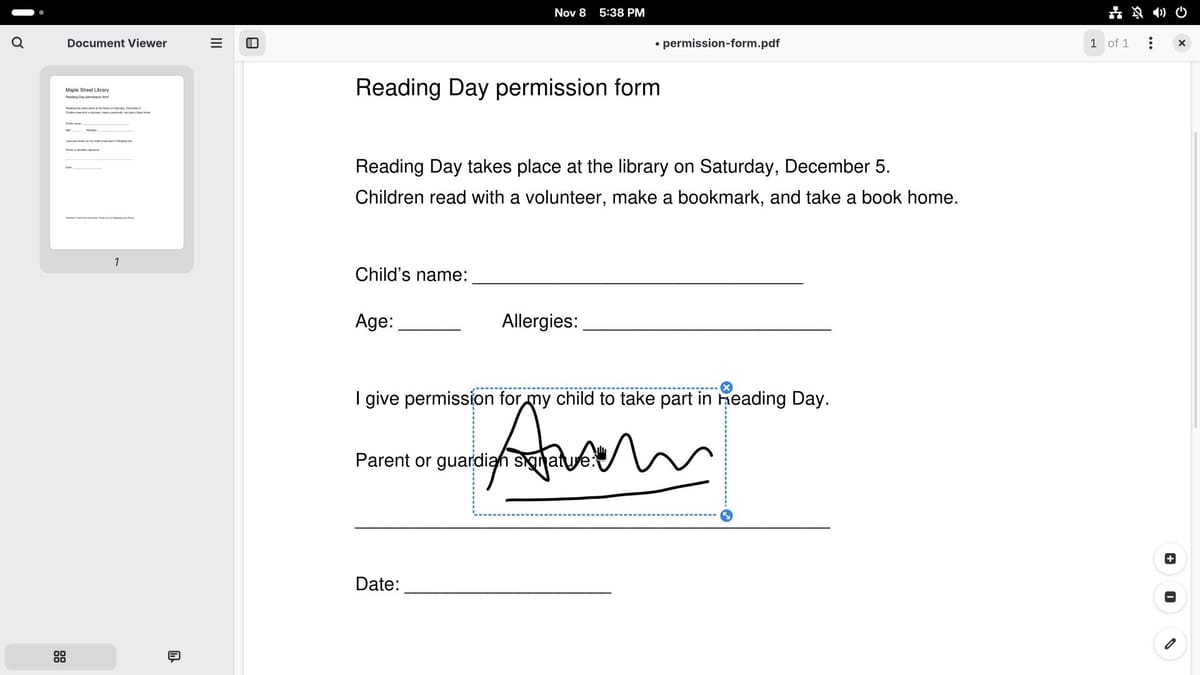
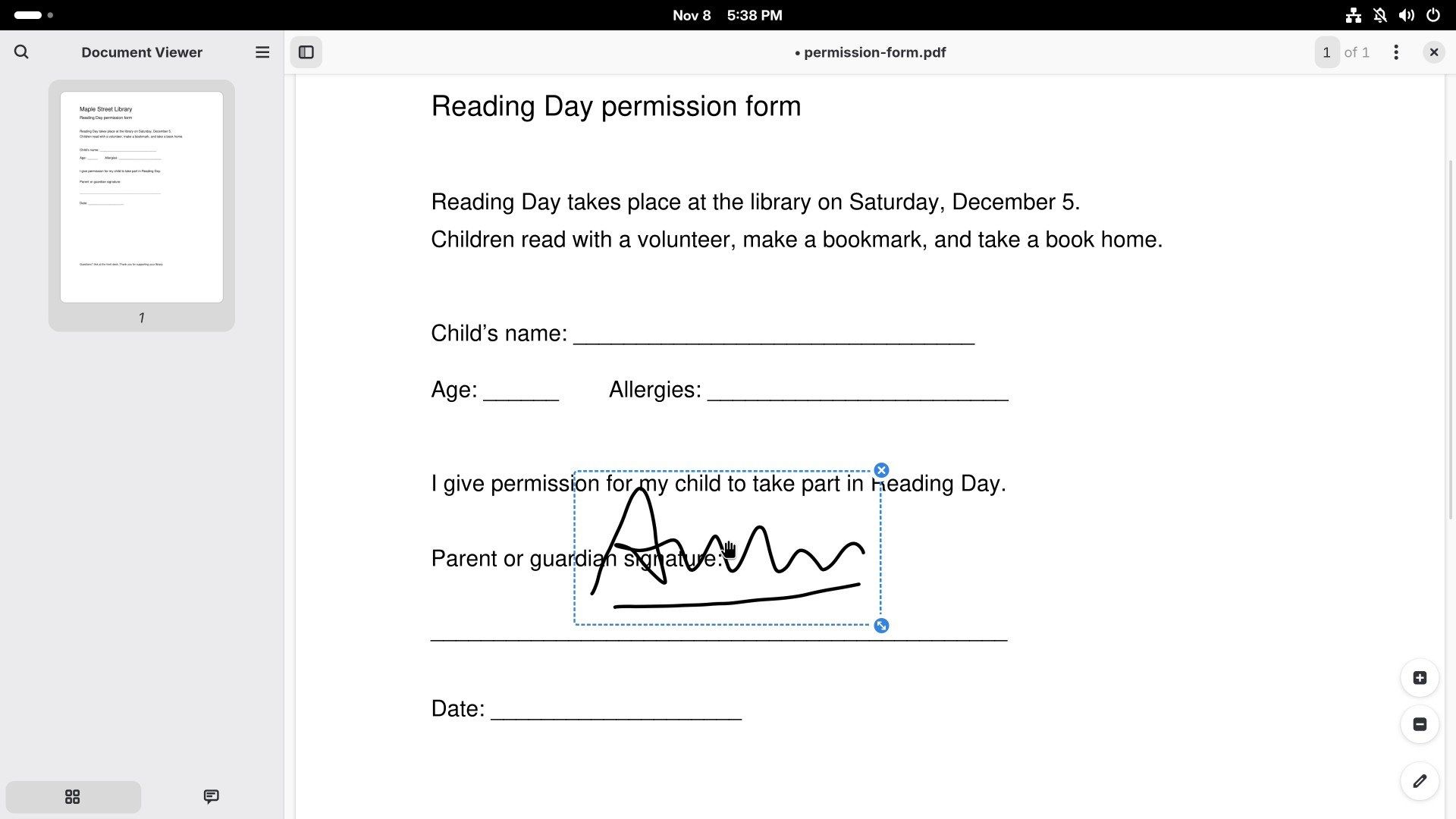
- Click Insert. The signature drops onto the page in a dashed box, not on your signature line, and a message reads “Signature added to page 1”.
- Drag the dashed box onto the line. Its corner handle resizes it, and the X removes it.
- Click an empty part of the page to clear the dashes.
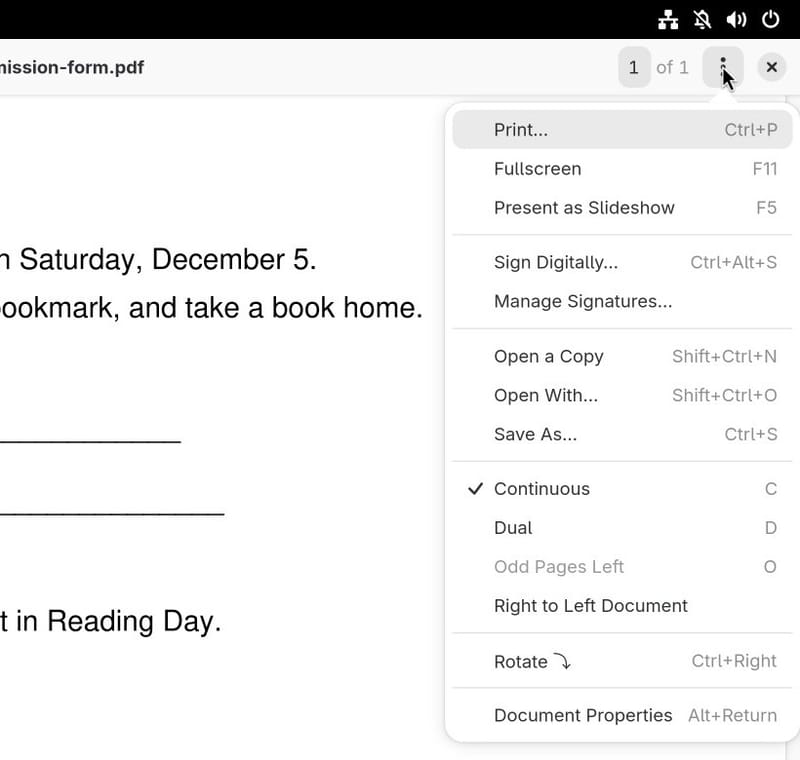
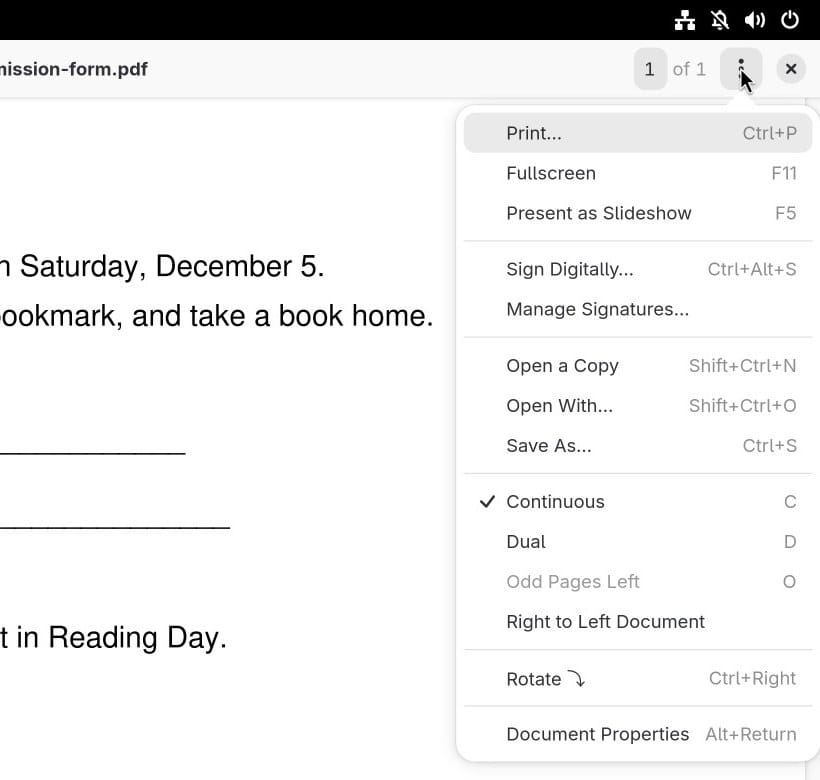
- Open the three-dot menu at the top right and choose Save As… ( ctrl s ).
- Type a new file name and click Save.
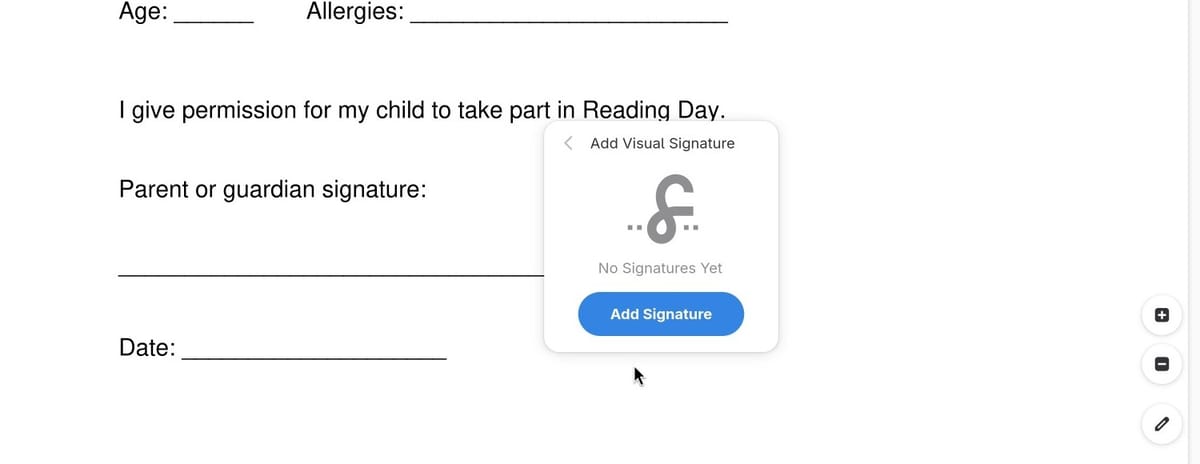
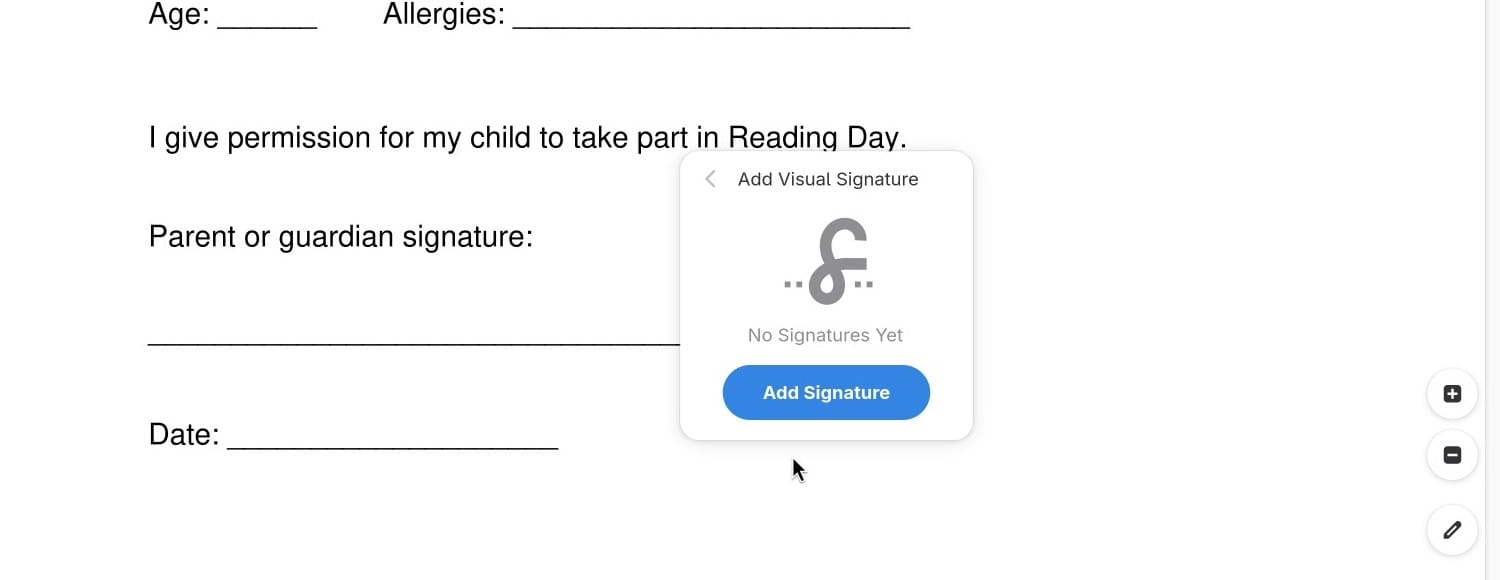
If you keep the old name, the button in that dialog reads Replace, in red, and the signed file overwrites the original. With a new name it reads Save, and the original stays unsigned.
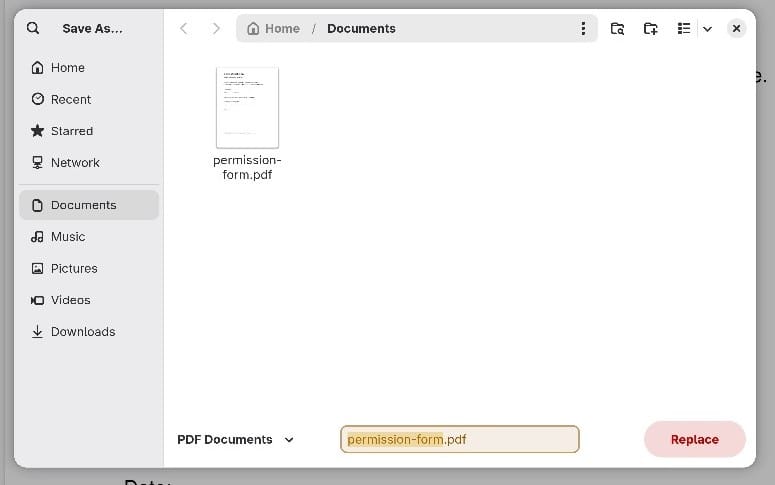
After saving, the window title kept the dot that marks unsaved changes, and closing it brought no warning. The saved copy opened again with the signature in the same spot. If you close before saving, Document Viewer asks “Save Changes to a Copy?” and offers Save a Copy, Cancel, and Close Without Saving.
Document Viewer remembers what you drew, so your signature is waiting in the same right-click menu next time, and Manage Signatures… in the three-dot menu lists what’s saved.
GNOME points out that “Unlike digital signatures, visual signatures do not guarantee the authenticity of a document”. A drawn signature suits forms that would take a handwritten one. The same menu has a separate Sign Digitally… item.
New apps come from Software
Software is Fedora’s app store, and its Explore page sorts apps into groups like Create, Work, and Play. A search for Spotify finds it, with an Install button and the word Flathub beneath that. It’s listed because Flathub is turned on, and the steps for that are below.


Flathub is a big shared shelf of Linux apps. Its apps are Flatpaks, which come packaged with what they need and run in a sandbox with limited access to your system.
How to turn on third-party repositories
A repository is a source of software. Fedora leaves the ones outside its own collection off until you agree, and that includes Flathub. There are two places to say yes:
- During the first setup after installing, on the Third-Party Repositories page, click Enable Third-Party Repositories.
- Later, in Software, open the main menu (the three lines at the top), choose Software Repositories, and switch on Fedora Third Party Repositories.
Either one turns on Flathub with its full catalog, Google’s repository for Chrome, and the NVIDIA driver and Steam repositories from RPM Fusion, a software source run outside Fedora. Fedora says of such sources that they “are not officially affiliated or endorsed by the Fedora Project. Use them at your own discretion.” This switch doesn’t add the video codecs below, which come from RPM Fusion’s main repositories.
Updates wait for a restart
The Updates tab in Software shows what’s waiting. The list had a System Updates row plus apps like Firefox, Files, and Document Viewer. The heading over it says Requires Restart, so these updates finish when you restart the computer. The button beside the heading says Download.
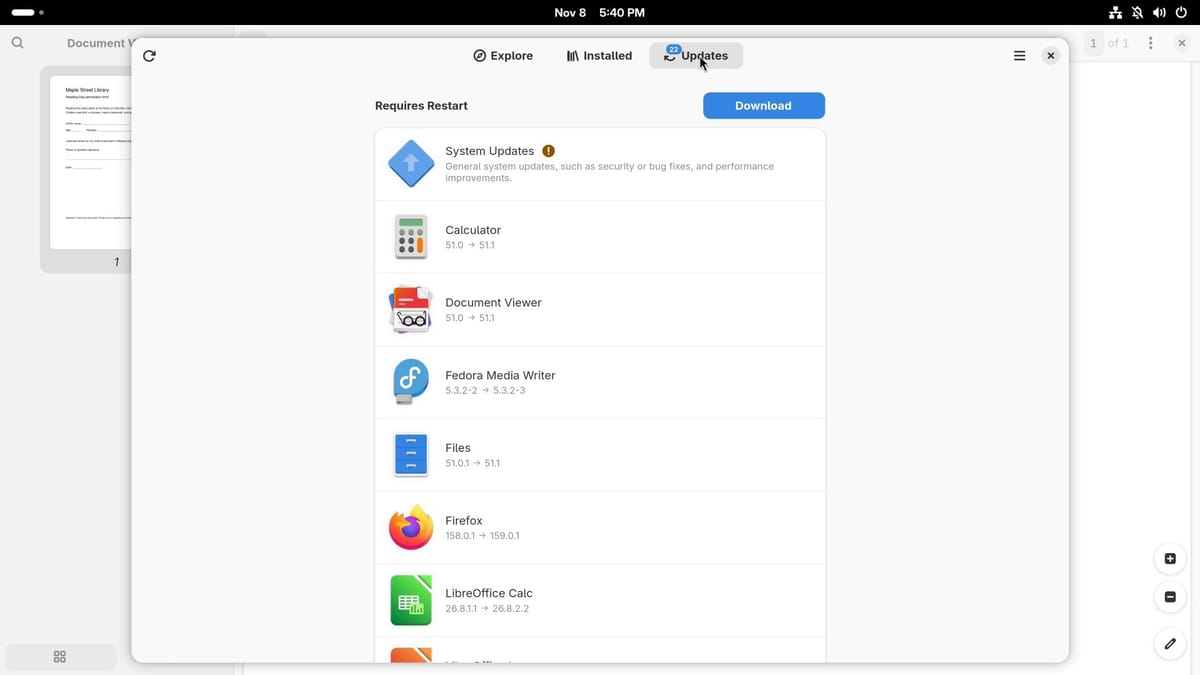
Once every update has downloaded, that button changes to Restart & Update….
Add H.264 and HEVC video playback
A codec is the software that decodes a video format, and Fedora leaves some out. H.264 and HEVC are two common formats used in MP4 files. Our WebM clip played as it was, but an H.264 MP4 file opened in Video Player with a Missing Plugin message. Fedora’s page on playback says “some codecs are not included in Fedora’s official repositories due to patent or licensing restrictions”, and it names H.264 and HEVC among them. OpenH264 from Cisco covers H.264 in video calls only, and Fedora’s page says it “does not provide general H.264 video playback.”
The fix comes from RPM Fusion. Open Terminal, the window where you type commands (press super , type terminal, and press enter ), and run these three commands from RPM Fusion’s Configuration and Multimedia pages. Each command that starts with sudo runs as administrator, so the first one asks for your password. Each one shows what it will change and waits for y, and the second also asks to import RPM Fusion’s signing key:
sudo dnf install https://mirrors.rpmfusion.org/free/fedora/rpmfusion-free-release-$(rpm -E %fedora).noarch.rpm https://mirrors.rpmfusion.org/nonfree/fedora/rpmfusion-nonfree-release-$(rpm -E %fedora).noarch.rpm
sudo dnf swap ffmpeg-free ffmpeg --allowerasing
sudo dnf install @multimedia --setopt="install_weak_deps=False" --exclude=PackageKit-gstreamer-plugin
Then restart the computer. On our install, Video Player kept showing Missing Plugin until a full restart. Our install guide has the key fingerprint to compare and more detail on each command.
NVIDIA graphics and Secure Boot
This section is only for computers with an NVIDIA graphics card. NVIDIA’s own driver comes from RPM Fusion, not from Fedora.
Check your card first, because it decides which driver to install. akmod-nvidia is for GeForce 16 series, RTX 20 series, and newer cards. GTX 745, 750, and 750 Ti cards and GTX 800, 900, and 10 series cards need akmod-nvidia-580xx instead.
Other GeForce 600 and 700 series cards and anything older have no NVIDIA driver that fits this desktop. RPM Fusion’s page says NVIDIA’s driver works under Wayland, the display system GNOME 51 uses, from driver 495 on, and those cards stop at driver 470 or earlier. GNOME no longer has the older X11 session to fall back on, and LinuxFr reports that drivers 470 and lower are no longer supported and that the free nouveau driver can be used instead.
Secure Boot is a firmware setting that only lets signed software start, and you can see whether it’s on in your PC’s firmware settings. The signing steps below apply only when Secure Boot is on. If it’s off, skip them. If it’s on, you must either turn it off or sign the driver with your own key before you install the driver. RPM Fusion’s NVIDIA page warns that skipping this “will disable the driver and result in a blank screen.”
To sign with your own key, follow RPM Fusion’s Secure Boot page:
- Install the tools:
sudo dnf install kmodtool akmods mokutil openssl - Make the key:
sudo kmodgenca -a - Queue it:
sudo mokutil --import /etc/pki/akmods/certs/public_key.der. This asks you to create a password you’ll need in a moment. - Restart. At the next start, the key enrollment screen appears. Choose Enroll MOK, then Continue, then Yes, and type the password. RPM Fusion warns that the keyboard here is mapped to QWERTY.
- Restart again when it asks.
Next, make the driver available. For akmod-nvidia, the third-party switch above is enough. akmod-nvidia-580xx is only in RPM Fusion’s full repositories, which the first codec command above adds.
Update the system with sudo dnf update -y, and restart if that installed a new kernel, the core of the system. Then install the driver for your card. This is the command for current cards:
sudo dnf install akmod-nvidiaWhen the install finishes, wait for the driver to build, which RPM Fusion says “can take up to 5 minutes on some systems”. Then check it:
modinfo -F version nvidiaA version number means it built, and you can restart. “Module nvidia not found” means it hasn’t finished yet.
Every app on this tour and what it does
| App | Also known as | What it does |
|---|---|---|
| Firefox | Web browser | |
| Files | File manager, like File Explorer or Finder | |
| Image Viewer | Loupe | Opens photos and shows their details |
| Video Player | Showtime | Plays clips |
| Document Viewer | Papers | Reads PDFs and adds a drawn signature |
| Text Editor | Plain text files, like Notepad | |
| LibreOffice Writer | Word processor | |
| LibreOffice Calc | Spreadsheets | |
| LibreOffice Impress | Slides | |
| Clocks | World clocks, alarms, stopwatch, and timer | |
| Calculator | Sums, and the answers in search | |
| Settings | Every system setting, including Appearance | |
| Software | App store and updates | |
| Terminal | Ptyxis | Where the codec and NVIDIA commands run |
What to plan for
Everything in the tour took a mouse and a little typing. The exceptions are the codec steps and, on a computer with an NVIDIA card, the driver steps, which run in Terminal.
You need to move to a new version about once a year. Each version gets updates for about 13 months, and support for Fedora 45 ends on December 8, 2027. You can skip Fedora 46, but plan to move to Fedora 47 soon after it comes out. For staying on one version for years, Fedora itself says “there is also a place for long-term stability” and points to other systems for that.
Programs that hide in a tray on Windows have nowhere to put an icon without an extension. Our install guide adds one through Extension Manager.
If yearly upgrades and Terminal steps sound like too much for a first Linux system, our guide to the best Linux distros for beginners compares Fedora with Mint, Zorin OS, Ubuntu, and Omarchy, and our guide for people leaving Windows 10 covers the move itself.


