
Fedora 45 came out on Tuesday, November 3, 2026. Workstation is the Fedora edition for desktops and laptops, and this release ships GNOME 51 with Linux 7.2. Each Fedora release gets about 13 months of updates: the Fedora 45 schedule ends support on December 8, 2027, and by then the Software app will offer you the next version as an upgrade.
The steps below cover a clean install or a dual boot next to Windows, the first setup, and the codecs for common video. If you are still deciding between Fedora and Ubuntu, our case for starting a new Linux install with Fedora lays out the tradeoffs.
What you need
Fedora’s download page recommends 40 GB of disk space and 4 GB of RAM. Workstation comes for 64-bit Intel and AMD PCs (x86_64) and for 64-bit ARM (aarch64). The installer is one ISO file of about 2.9 GB (2.7 GiB), and you need a USB stick of at least 4 GB to boot it. Writing the stick erases whatever is on it.
If the computer already has files you care about, back them up first. Installing next to Windows keeps Windows, but a wrong click on the disk screen can still erase it.
Download Fedora 45 and make a USB stick
The easiest route is Fedora Media Writer, Fedora’s own app for Windows, macOS, and Linux. It downloads Fedora Workstation for you, or writes an ISO you already downloaded, to a USB stick. Pick Fedora Workstation 45, pick the stick, and write it.
If you download the ISO yourself from the same page, check it before you write it. Fedora publishes a signed CHECKSUM file next to each ISO. On Linux, put the ISO and its CHECKSUM file in one folder, then run Fedora’s commands from its security page in that folder. The first command downloads Fedora’s signing keys; the loop checks the signature on the CHECKSUM file and then the ISO against it:
curl -O https://fedoraproject.org/fedora.gpg
for file in *-CHECKSUM; do
  gpgv --keyring ./fedora.gpg --output - "$file" | sha256sum -c --ignore-missing
done
The line you want ends in OK after the ISO’s name. On Windows, PowerShell prints the SHA256 hash of a file, and you compare it with the SHA256 line in the CHECKSUM file by eye:
Get-FileHash .\Fedora-Workstation-Live-*.iso -Algorithm SHA256To boot from the stick, plug it in, restart, and open the firmware’s boot menu. The key depends on the maker: f12 , f11 , f10 , or esc are common. The stick starts a live session: Fedora running from the USB stick, with your disk untouched. A welcome window offers Install Fedora Linux… and Not Now. If you close it, the installer is still in Activities as Install to Hard Drive.
Run the installer
The Fedora 45 installer has four screens: Welcome, Installation method, Storage configuration, and Review and install. Nothing is written to the disk until you click the button on the last one, so you can go back and change anything until then.
Welcome picks the installer’s language. Your keyboard layout is not on this screen; the Change system keyboard layout link opens GNOME Settings, where you set it.
Installation method asks “How would you like to install?” and lists the options that fit the disk you chose:
- Use entire disk removes every partition on the disk, including other operating systems. Use it on a blank disk or one you want to wipe.
- Share disk with other operating systems keeps Windows (or another system) and installs Fedora into free space for dual boot. Its Reclaim space step can shrink or delete partitions to make room. A Windows partition encrypted with BitLocker cannot be shrunk from here: the installer tells you to reboot into Windows and shrink it there first. Make room in Windows Disk Management, then come back.
- Reinstall Fedora only appears when Fedora is already on the disk. It replaces the system and keeps the files in
/home.
A link under the options, new in Fedora 45, opens the storage editor for a custom layout. It warns that its changes apply at once with no undo, so use it only when you know the layout you want.
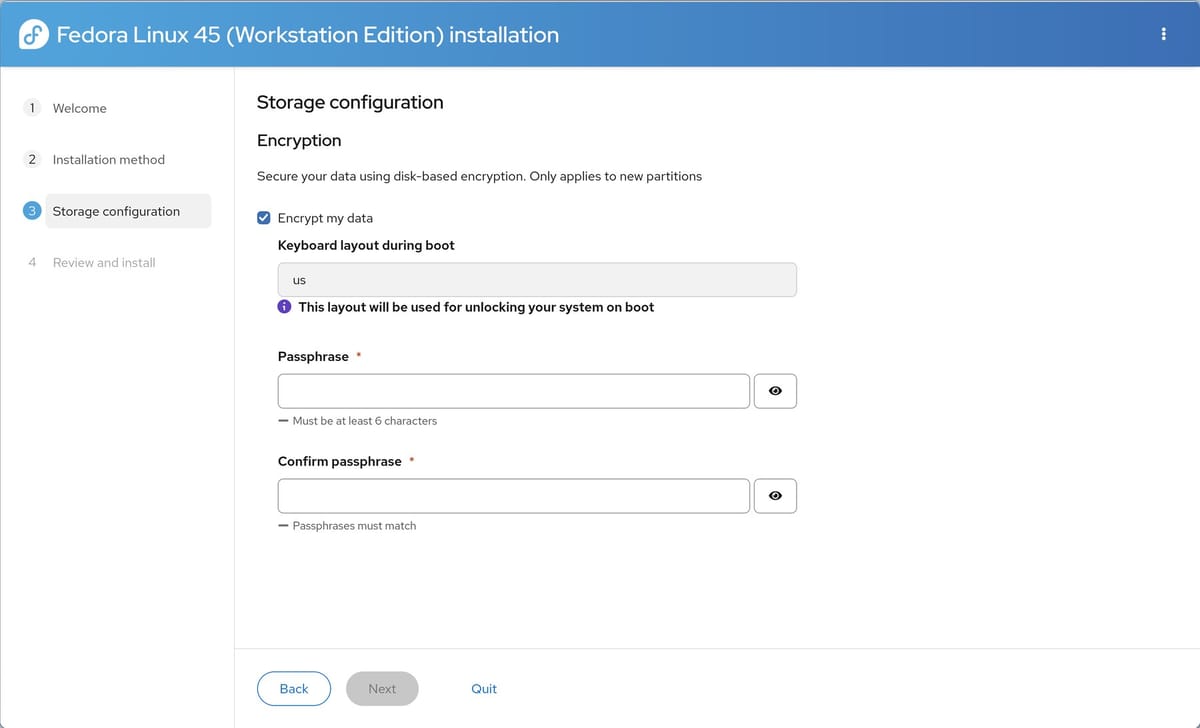
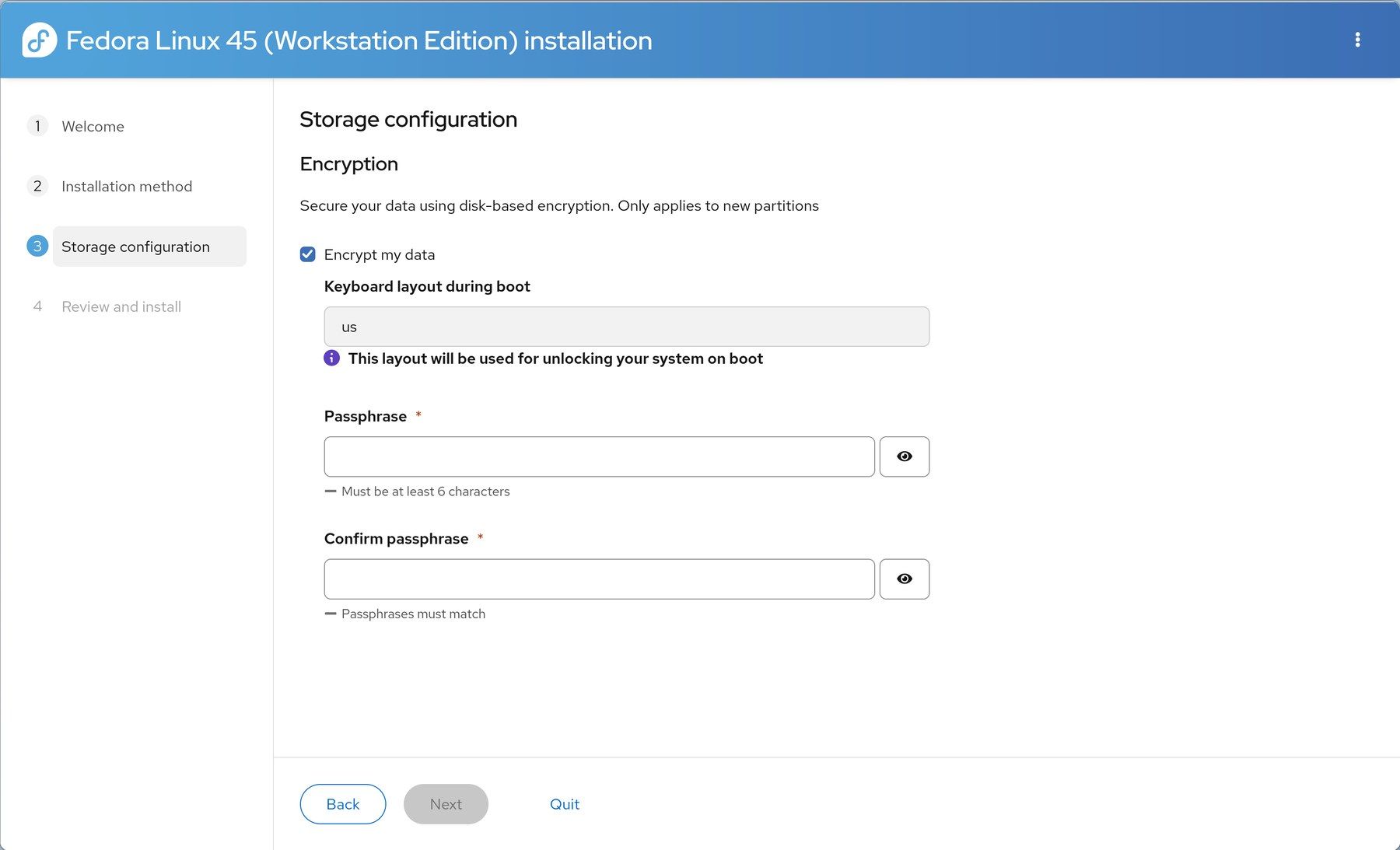
Storage configuration offers disk encryption. With Encrypt my data ticked, you set a passphrase of at least six characters and the keyboard layout used to type it. Fedora then asks for that passphrase every time the computer starts, before anything else loads. On a laptop it is worth the extra step, because a lost or stolen machine does not give up your files. Choose the boot keyboard layout with care: the passphrase prompt uses that layout, not the one you set later in GNOME.
Review and install sums up your choices. On a blank disk, Fedora’s default layout looks like this (sizes vary with the disk):
| Partition | Size | Format | Mount point |
|---|---|---|---|
| EFI system partition | 629 MB | EFI | /boot/efi |
| Boot | 2.15 GB | ext4 | /boot |
| Everything else | rest of the disk | Btrfs subvolume | / |
| Everything else | (same partition) | Btrfs subvolume | /home |
Btrfs is Fedora’s default file system. Root and home are two subvolumes on one partition, so they share the free space, and Fedora mounts them with zstd compression. The Review screen also has a Hostname row, new in Fedora 45 for this kind of install: the hostname is the computer’s name on your network, and the edit link sets one. Left empty, the network assigns a name.
You won’t create a user account in the installer. Fedora Workstation asks for it after the first restart. When the summary looks right, click Erase data and install (or Install when you are sharing the disk). On our machine the install took about eight minutes. When it says “Successfully installed”, click Reboot and remove the USB stick.
First setup and the third-party repositories
After the restart, GNOME walks you through a short first setup. The Privacy page has a Location Services switch, which is on by default and lets apps look up where the computer is. Turn it off if you don’t want that; you can change it later in Settings. With location off, the Time Zone page asks you to search for a nearby city.
The Third-Party Repositories page turns on software sources run by someone other than Fedora. Some of what they carry is not open source, so Fedora leaves them off until you agree. One click on Enable Third-Party Repositories turns on:
- Flathub, a large app store that works across Linux distros, with its full catalog
- Google’s repository for Chrome
- RPM Fusion’s NVIDIA driver repository
- RPM Fusion’s Steam repository
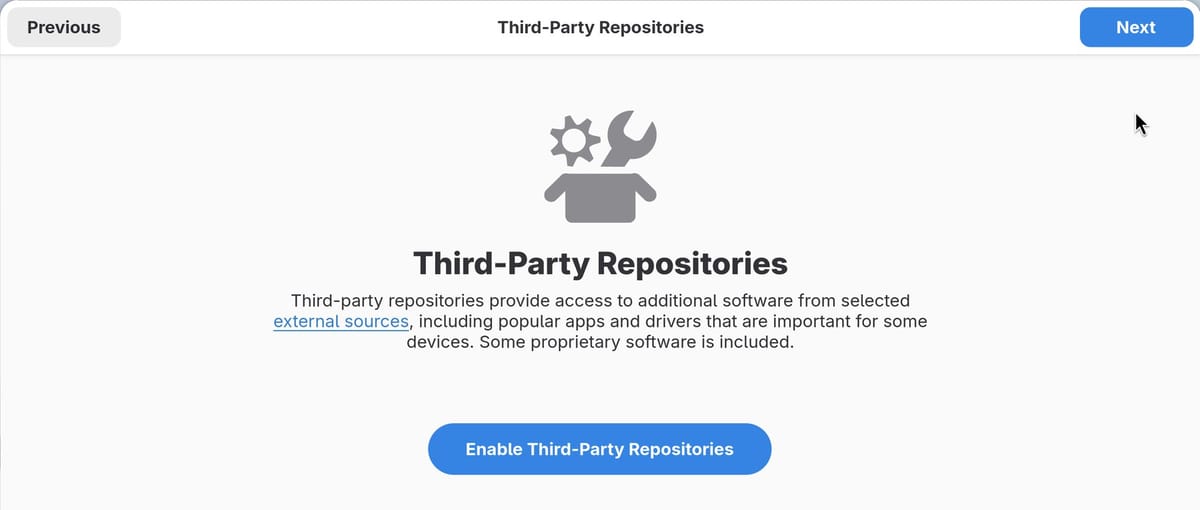
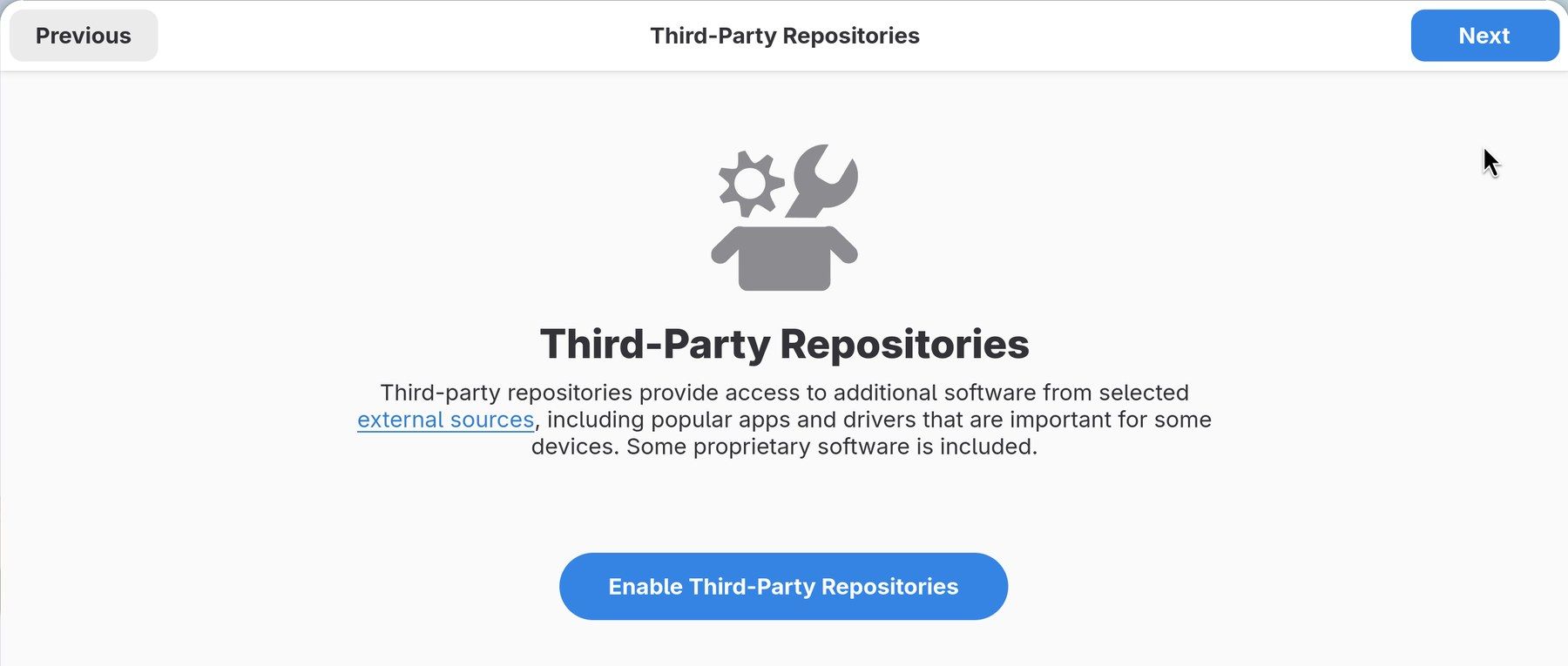
The two RPM Fusion repositories in this set do not include RPM Fusion’s main repositories, so they do not add the video codecs; the RPM Fusion section below adds them. If you skip this page, you can turn the same set on later in the Software app: open the main menu, choose Software Repositories, and switch on Fedora Third Party Repositories. From a terminal, sudo fedora-third-party enable does the same.
The About You page creates your account: type your full name and the username fills itself in. The first account is an administrator, so it can run sudo and install software. After the password, Start Using Fedora Linux finishes the setup, and GNOME offers a short tour that you can take or skip.
Install the updates first
Fixes have gone out since the ISO was built. Open Software from the dock in the Activities overview and go to its Updates tab. Updates to Fedora itself sit in a System Updates row under Requires Restart. If the button says Download, click it; when the download finishes, it becomes Restart & Update. These updates install during a restart, not while you work, and the restart takes longer than usual while they install.
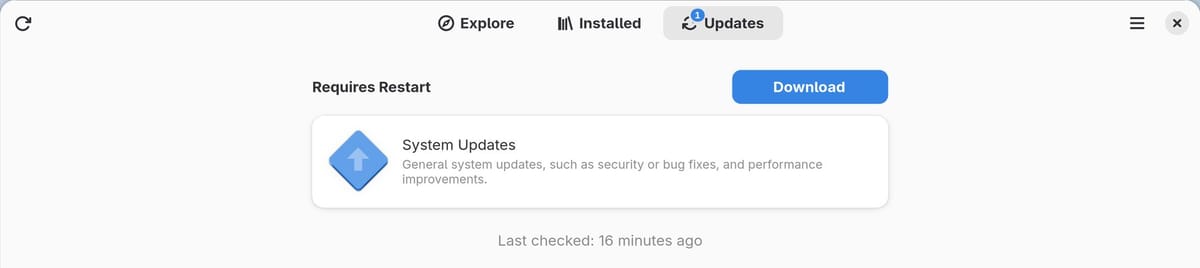
From then on, the Software app checks for updates and downloads them in the background on its own. If you prefer the terminal, this command refreshes the repository data and installs every update. Restart afterwards when it updates the kernel or core system parts:
sudo dnf upgrade --refreshWhat’s new in Fedora 45
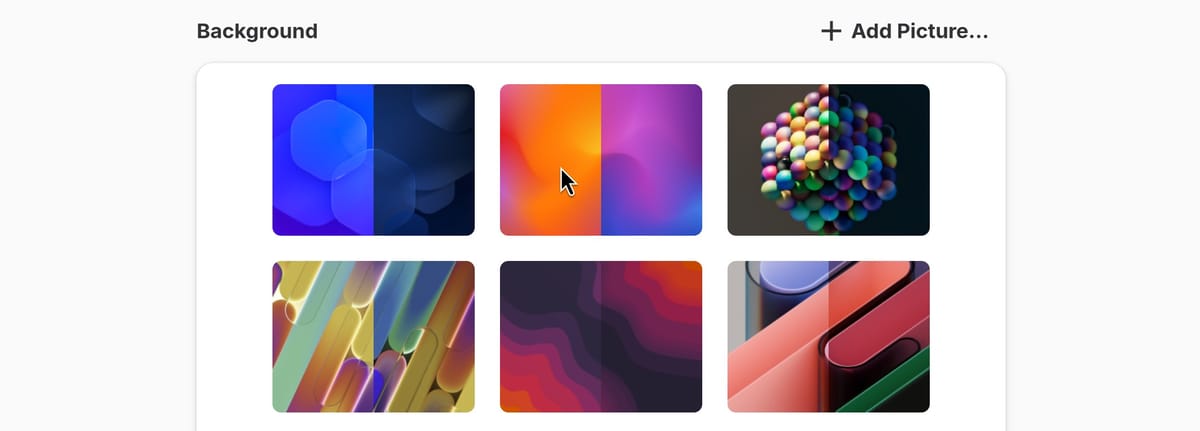
Fedora 45 ships a new wallpaper of its own and keeps it as the default. GNOME 51’s new wallpaper, Roundhex, shows blue glass hexagons, and it is the first tile in Settings, under Appearance, if you want it.
The mouse pointer is now drawn from vector images, so it stays sharp at any size. The easiest way to see it is Settings, Accessibility, Seeing, Cursor Size, at the largest size.
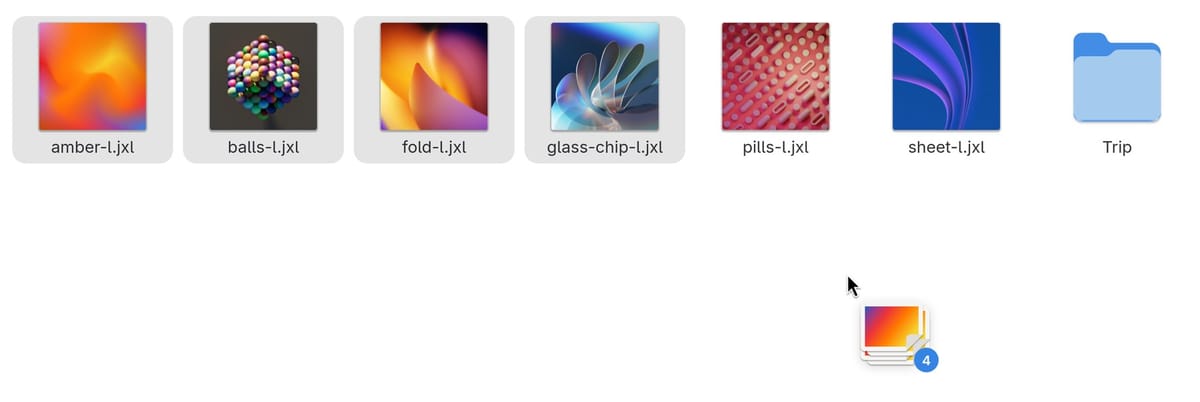
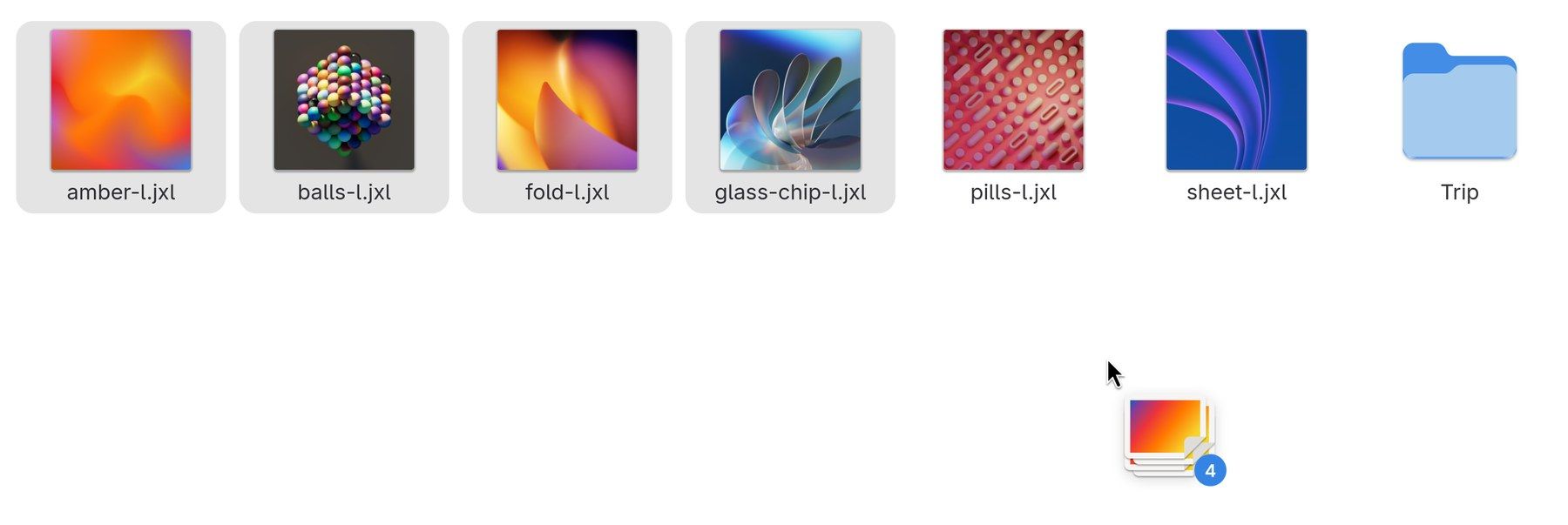
In Files, dragging several items at once shows a small badge with the count on the stack of thumbnails that follows the pointer. When you paste files into a folder, the pasted files come out selected, so you can see what arrived.
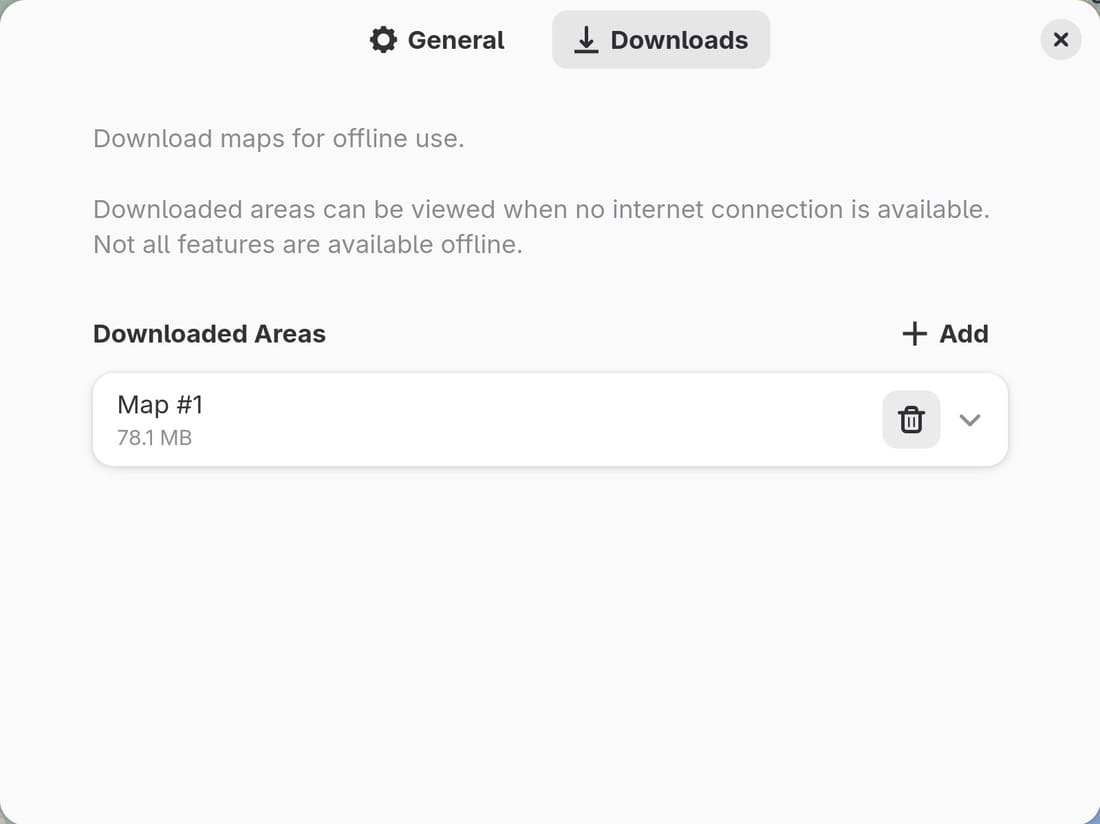
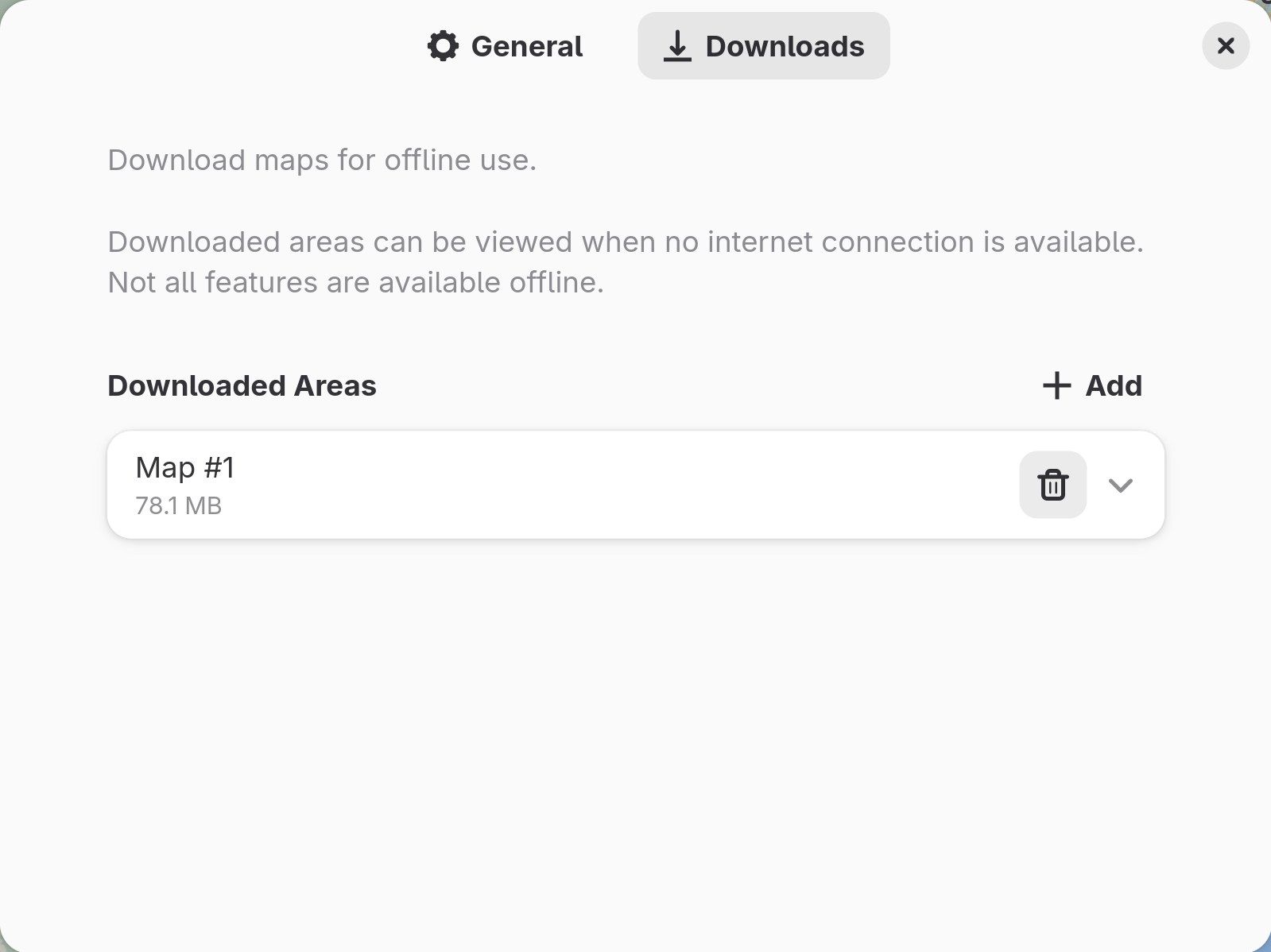
Maps can download an area for offline use. Open the main menu, choose Preferences, go to the Downloads tab, and click Add. Maps shows the area in view with its estimated size; New York City came to about 78 MB. Downloaded areas show even without a connection, though Maps says not every feature works offline.
RPM, Fedora’s package format, now refuses packages without a verified signature by default, the default that upstream RPM 6 introduced. Packages from Fedora’s repositories and from signed third-party repositories install as before. When you set up RPM Fusion below, DNF asks you to import RPM Fusion’s signing key.
Add GNOME extensions with Extension Manager
GNOME extensions are small add-ons that change how the desktop works. Extension Manager is an app for finding and installing them, and it comes from Flathub. In the Software app, search for extension manager and open it. The app page shows the developer, Matthew Jakeman, a Verified mark (the app comes from its developer or someone they approved), and the source, Flathub. Click Install. Your first Flathub app takes a few minutes, because it also downloads shared parts that later apps reuse.


Open Extension Manager and go to its Browse tab, which searches extensions.gnome.org, GNOME’s own extension site. Set the sort menu to Downloads so the most used extensions come first. Extensions run with your account’s access, so treat each one like any program you install: stick to extensions with many users, and consider asking an AI coding agent to read an extension’s code before you install it.
Two extensions add a tray and a dock, which plain GNOME does not have:
- AppIndicator and KStatusNotifierItem Support shows tray icons in the top bar. Some apps (chat apps, cloud sync tools, VPN clients) put an icon there while they run. Nothing shows until you run an app that uses one.
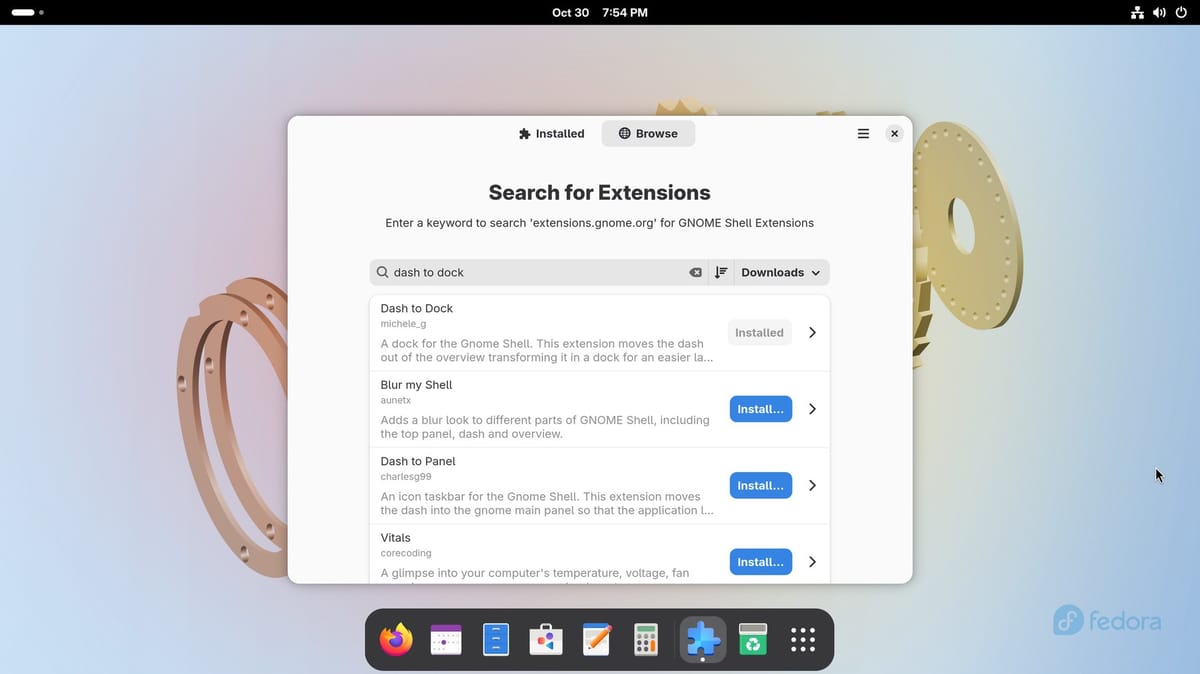
- Dash to Dock keeps the row of app icons on the desktop instead of only in the Activities overview. When a window covers it, the dock hides and comes back when the window moves away.
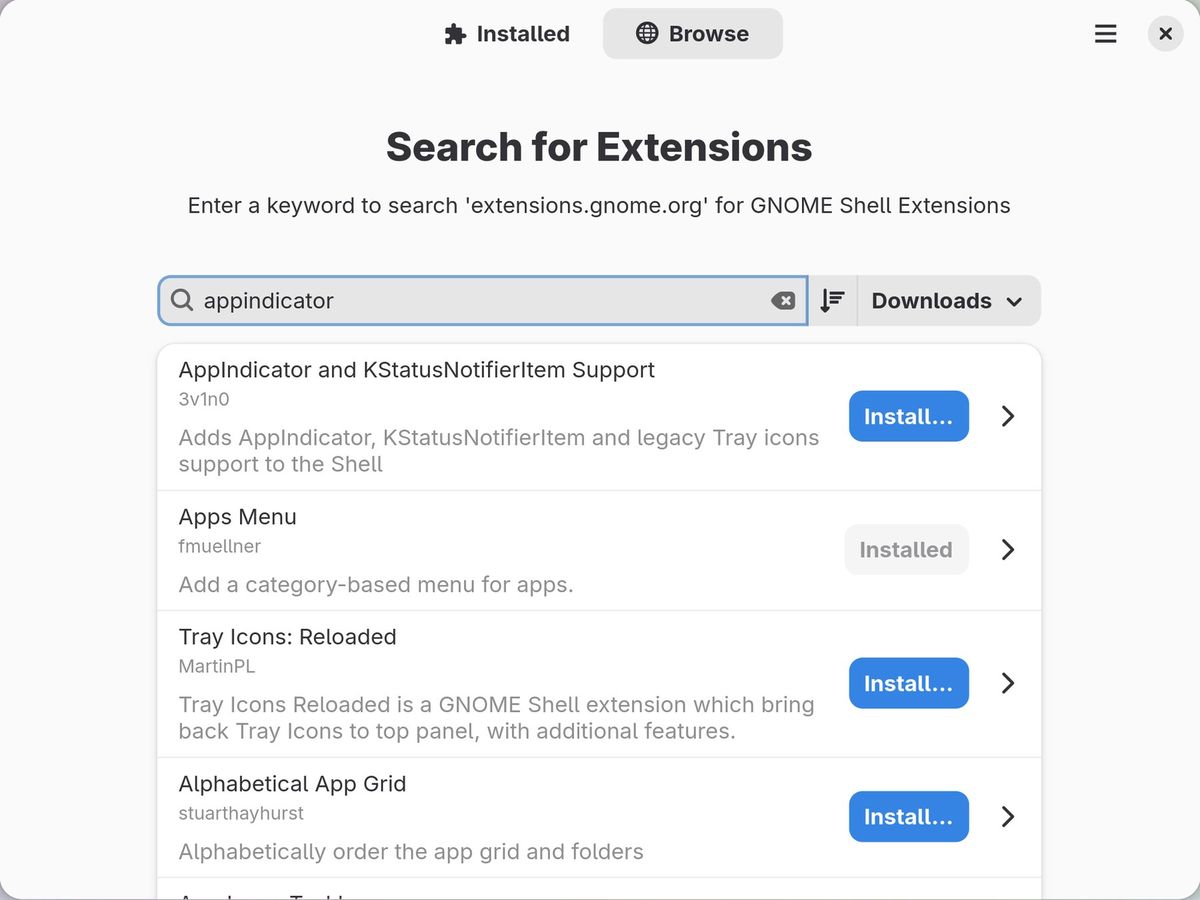
Click Install… on each, and confirm when GNOME asks whether to download and install it from extensions.gnome.org. Each one turns on at once, and its switch on Extension Manager’s Installed tab turns it off again.
Play H.264 and other common video with RPM Fusion
A fresh Fedora install cannot play some common video formats. An H.264 file, the most common format, opens in Video Player with a Missing Plugin message instead of the picture.
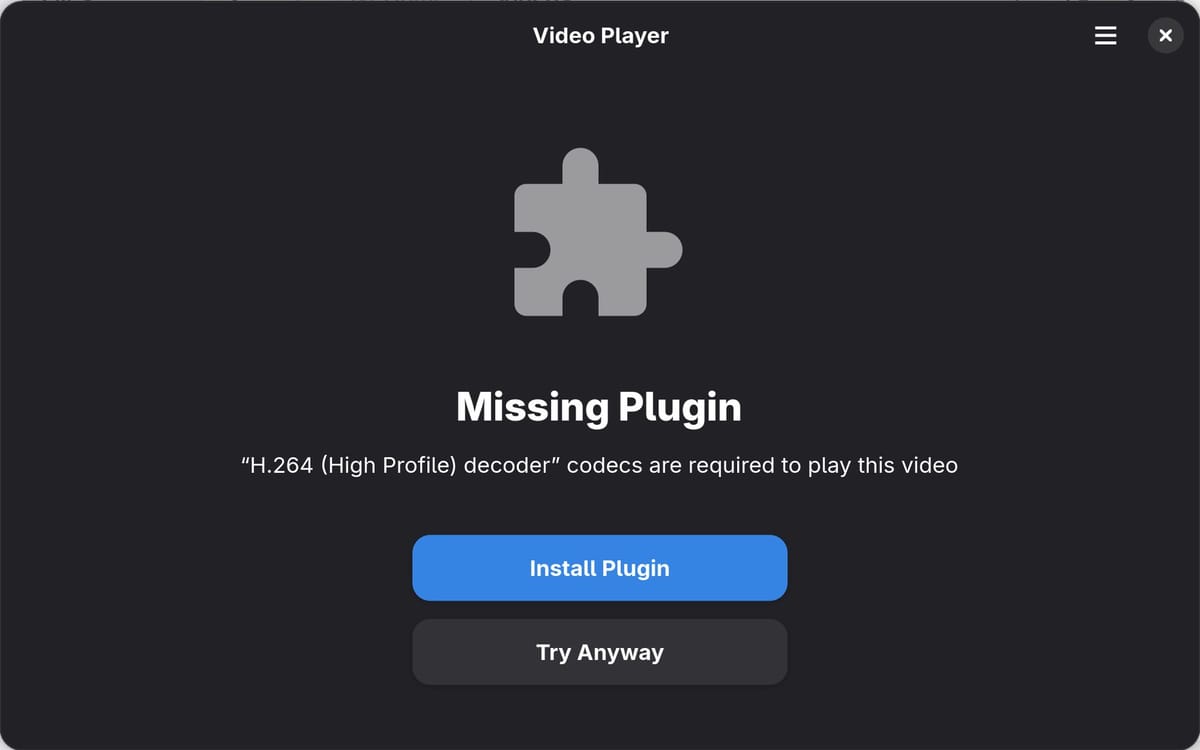
Fedora leaves out codecs that are covered by patents. RPM Fusion is a community repository that packages them, and Fedora doesn’t endorse it. Whether you may use those codecs depends on the laws where you live.
Open Terminal (press super , type terminal, and press enter ) and run these three commands from RPM Fusion’s Configuration and Multimedia pages. Each command that starts with sudo runs as administrator, so the first one asks for your password, and each one shows what it will change and waits for y.
The first command adds RPM Fusion’s two main repositories, free and nonfree. Both cost nothing. Free holds open source software that Fedora cannot ship, and nonfree holds software that may be shared but is not open source. The $(rpm -E %fedora) part fills in your Fedora version, 45:
sudo dnf install https://mirrors.rpmfusion.org/free/fedora/rpmfusion-free-release-$(rpm -E %fedora).noarch.rpm https://mirrors.rpmfusion.org/nonfree/fedora/rpmfusion-nonfree-release-$(rpm -E %fedora).noarch.rpmIt ends with this warning:
Warning: skipped OpenPGP checks for 2 packages from repository: @commandlineDNF, Fedora’s package tool, does not check signatures on packages you give it as a file or a web address, and this line says so. Fedora 45’s new signature rule does not change that for these two packages. They carry RPM Fusion’s keys, which the next command uses.
If the Software app had already downloaded updates, each command also warns that “a pending offline transaction” will be invalidated. It cancels the prepared update, not the command. Afterwards, install the updates again from the Software app, or with sudo dnf upgrade --refresh.
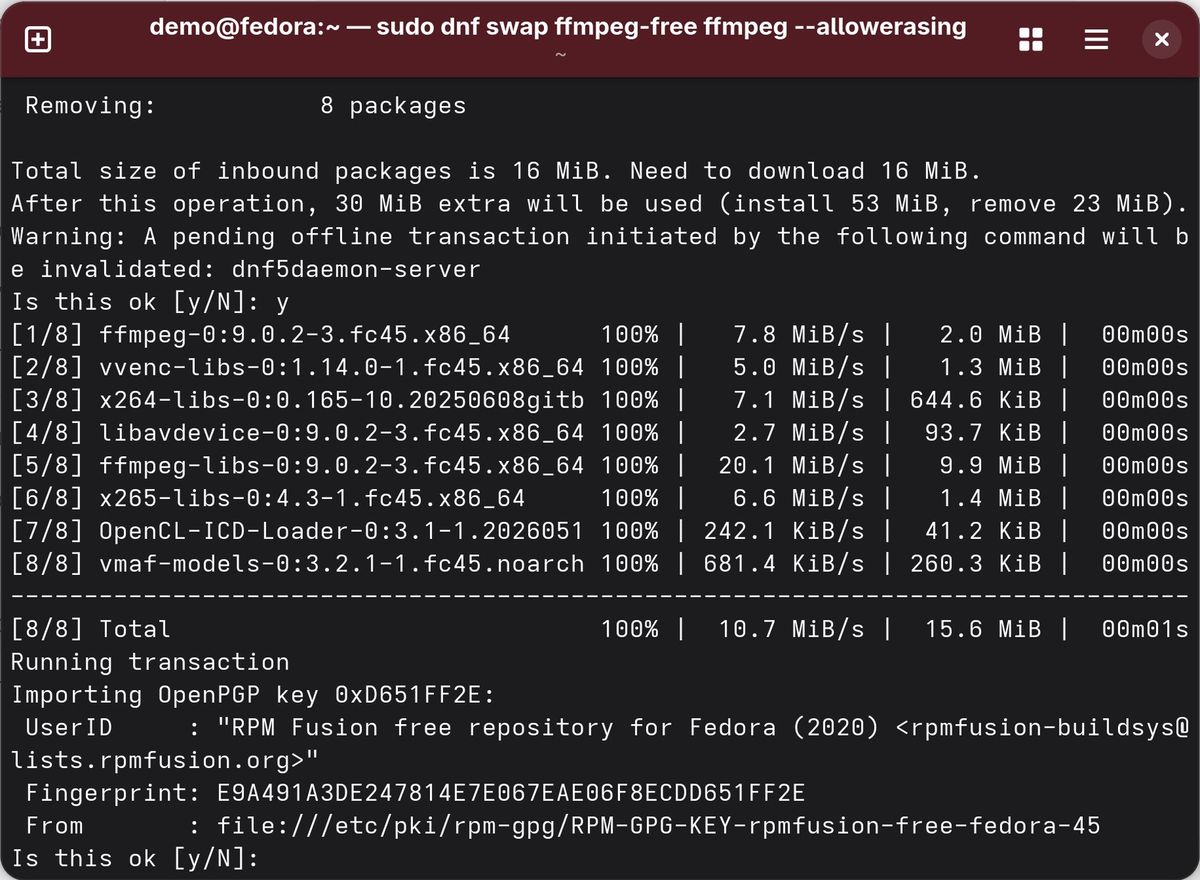
The second command swaps Fedora’s trimmed-down FFmpeg video and audio libraries for RPM Fusion’s full version:
sudo dnf swap ffmpeg-free ffmpeg --allowerasingAfter you confirm the package list, DNF asks once more, this time to import RPM Fusion’s signing key. The key proves the packages come from RPM Fusion. Compare the fingerprint with the one on RPM Fusion’s keys page before you type y; for Fedora 45 the free key is E9A4 91A3 DE24 7814 E7E0 67EA E06F 8ECD D651 FF2E.
The third command adds the rest of the multimedia codecs, the GStreamer plugins that GNOME’s apps use:
sudo dnf install @multimedia --setopt="install_weak_deps=False" --exclude=PackageKit-gstreamer-pluginWhen all three finish, restart the computer. On our machine, closing Video Player or logging out was not enough; the H.264 file kept showing Missing Plugin until a full restart, and played after it.
If your PC has an NVIDIA graphics card, RPM Fusion’s NVIDIA guide covers the driver: install the system updates first, then sudo dnf install akmod-nvidia for GeForce 16 series, RTX 20 series, and newer cards, and wait a few minutes for the driver module to build before you restart. GeForce 800, 900, and 10 series cards need the older 580xx driver instead, and older cards need older legacy drivers. With Secure Boot on, set up a signing key with RPM Fusion’s Secure Boot guide before you install the driver, or the driver will not load. The same Multimedia page lists the packages for hardware video decoding on Intel, AMD, and NVIDIA graphics.
Check the version and keep Fedora current
Settings, then System, then About shows the result: Fedora Linux 45 (Workstation Edition), GNOME 51, and the kernel version. When Fedora 46 is out, the Software app offers it as an upgrade on its Updates tab.
If you are coming from Windows and still weighing other distros, our guide to the best Linux distro for people leaving Windows 10 compares Mint, Zorin OS, and others. For new hardware, our best Linux laptops of 2026 covers Framework, System76, and ThinkPads.


