
What CachyOS is
CachyOS is a free Linux system: it runs your whole computer, the way Windows or macOS does. It’s built on another Linux system called Arch, and it’s a rolling release, so updates keep arriving with no big upgrade to a new edition.
It’s known for speed: its home page leads with “Performance-First Linux, Built on Arch”, and it rebuilds Arch’s programs for newer processors. It’s also known for gaming. In Valve’s October 2026 Steam survey, as GamingOnLinux reported, CachyOS was 16.39% of Linux players, about one in six. SteamOS is listed twice in that survey, and its two entries added together come out ahead.
We didn’t test speed or run a game. This tour covers what the system is like to use, from the login screen to changing how it looks. Everything here comes from a fresh install in November 2026 with Plasma 6.8.2, on a GMKtec NucBox G2 mini PC with a 4K screen.
Install it from a flash drive
You need a flash drive with at least 8 GB free and an internet connection during the install. Download the Desktop Edition from the CachyOS download page, then write it to the flash drive with a tool like balenaEtcher, which runs on Windows, macOS, and Linux. A plain file copy won’t start a computer, and writing erases the flash drive. The CachyOS wiki says Secure Boot must be off in the firmware settings. Start the computer from the flash drive, and a window offers to launch the installer.
The installer is a short form, and only a few pages matter:
- The drive page. This is the one to read. Erase disk replaces everything on the drive you pick, so copy your files off first. Install alongside shrinks what’s there to make room, though the wiki warns that it’s “not 100% reliable”.
- The desktop page. Plasma is already picked, and it’s the one on this page.
- Your name and password. The installer then downloads what it needs, which is why it wants internet.
- The last page. Tick Restart now, since it isn’t ticked for you.
Hello welcomes you after the first login
Leave the pointer alone on the login screen, and the sign-in box fades until only the clock and the artwork are left. Move the pointer to bring it back. After the first login, Hello opens by itself, so you aren’t dropped at an empty desktop.
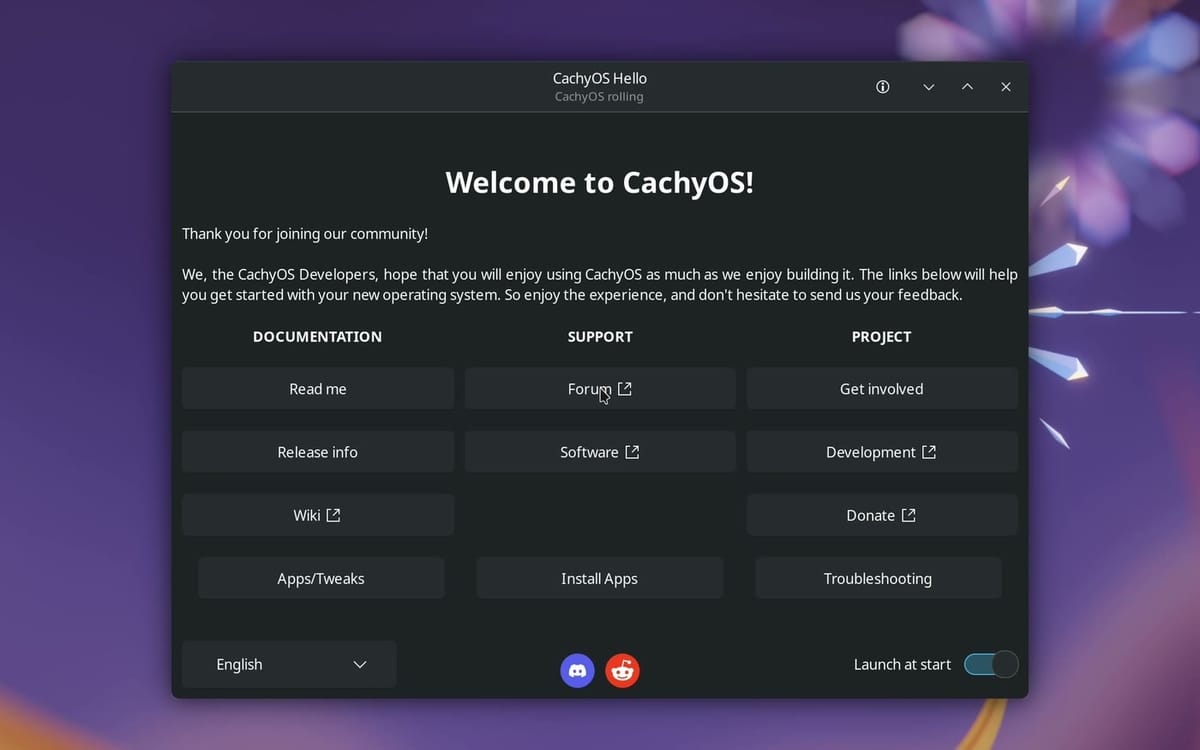
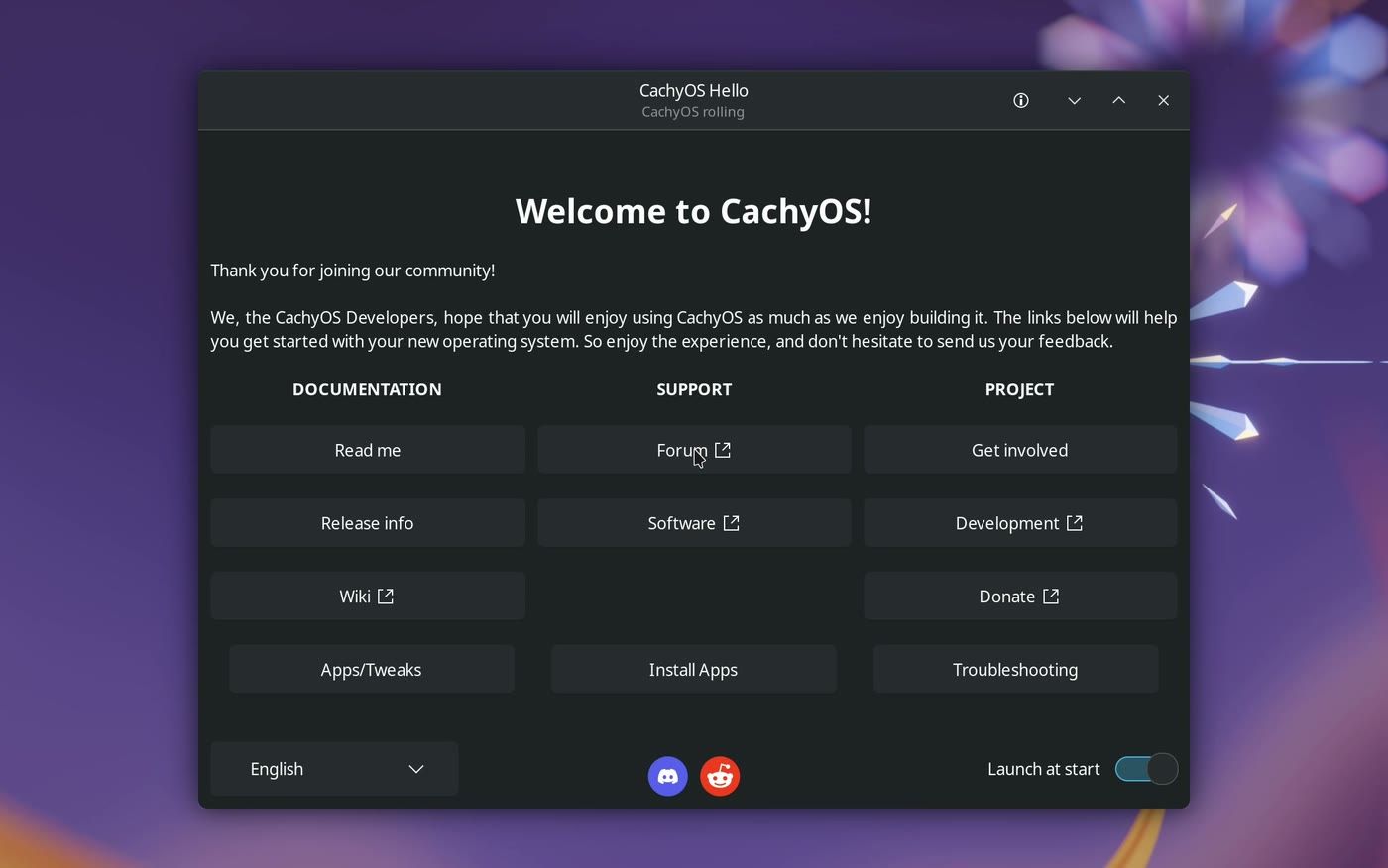
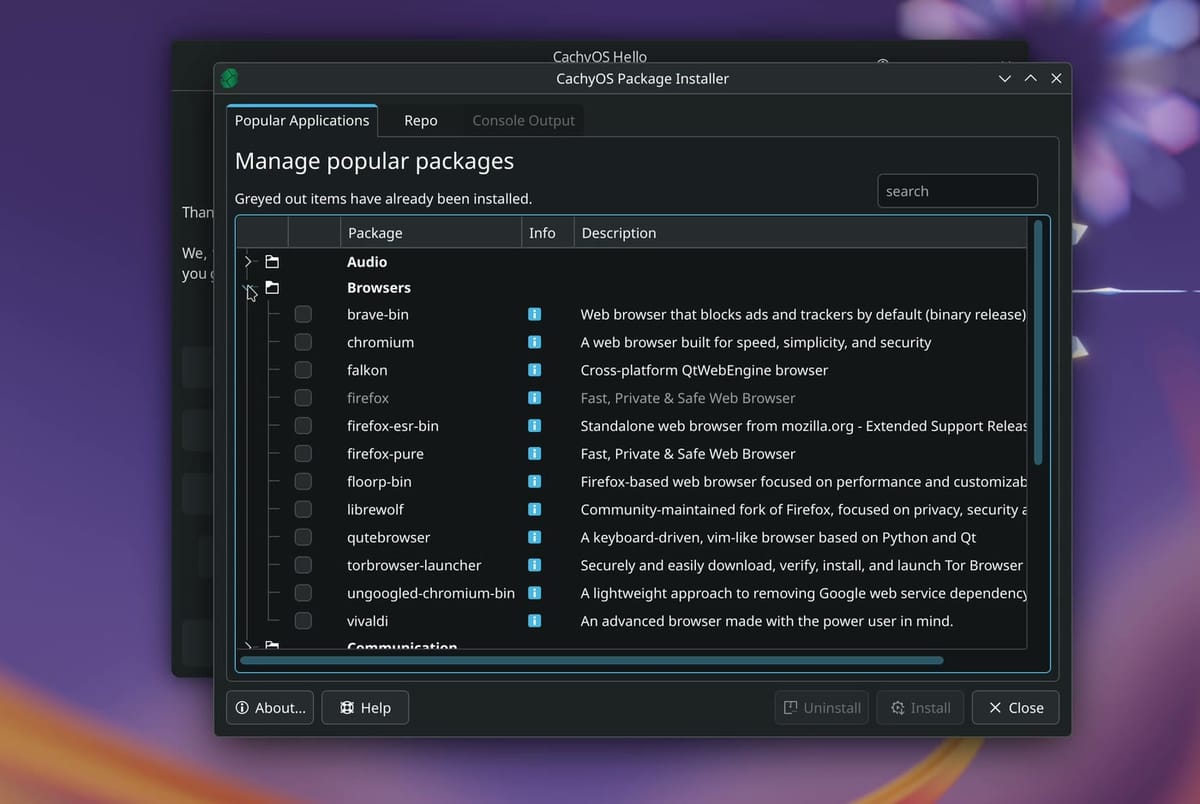
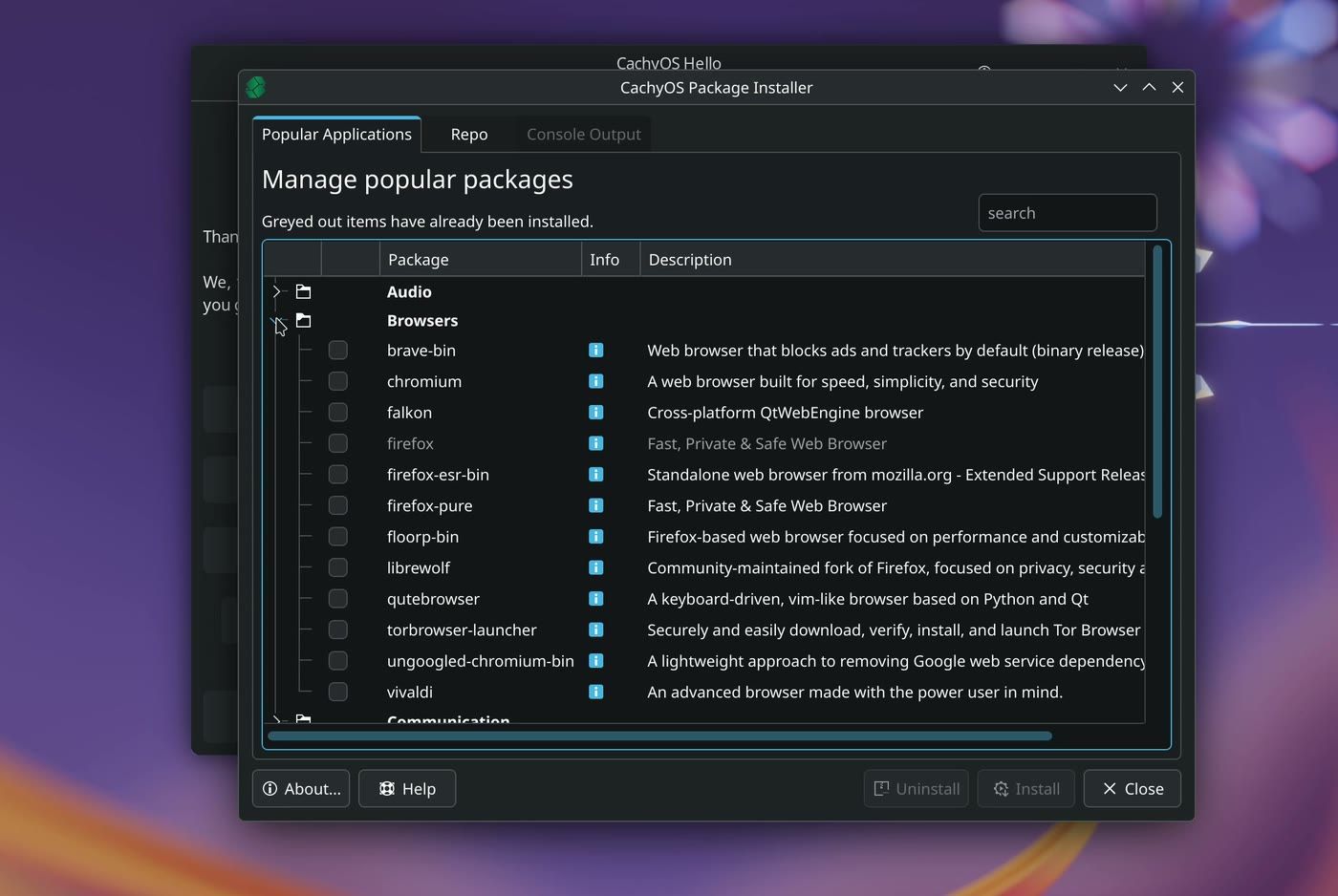
Hello is CachyOS’s own welcome window. The Wiki button opens the documentation, and the Forum button is where you can ask questions. Install Apps opens the Package Installer, a list of popular programs sorted into folders such as Browsers, Graphics, and Office. You don’t need any of this for everyday use, and the Launch at start switch stops Hello from opening at each login.
KDE Plasma is the desktop you use all day
Plasma is the menu, the bar at the bottom, the windows, and the settings. It comes from a group called KDE, and other Linux systems use it too. Jim Hillier at Dave’s Computer Tips calls it “very Windows-like, complete with Start menu and Taskbar”, and that matches what we saw.
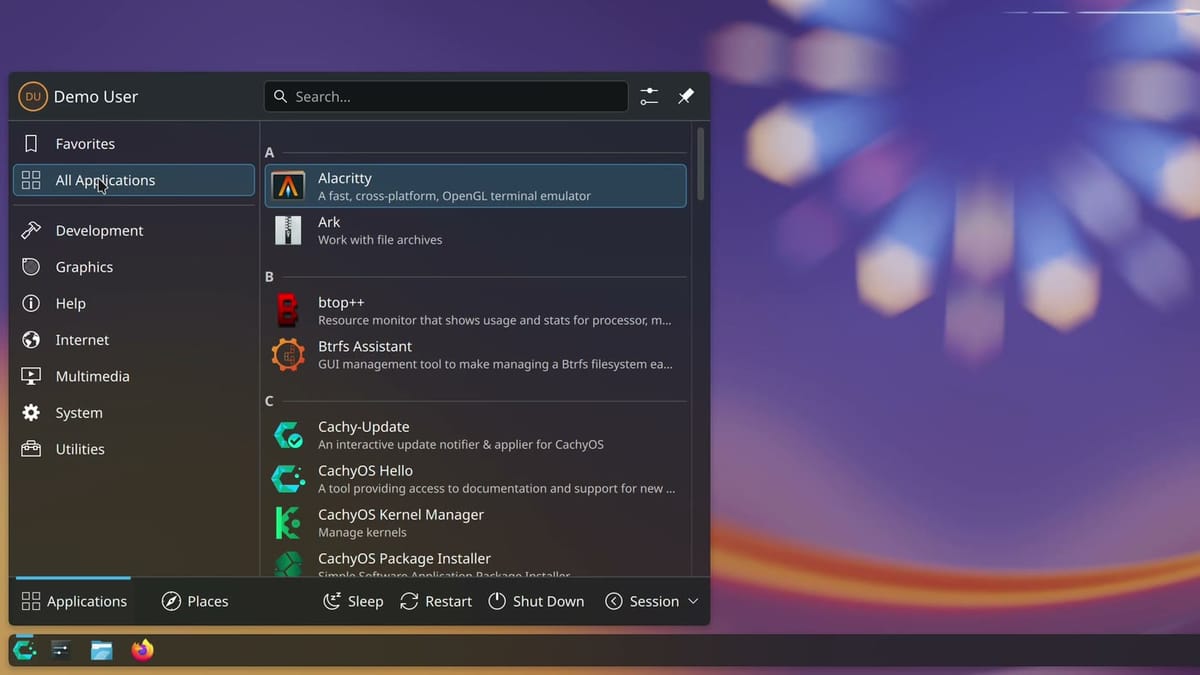
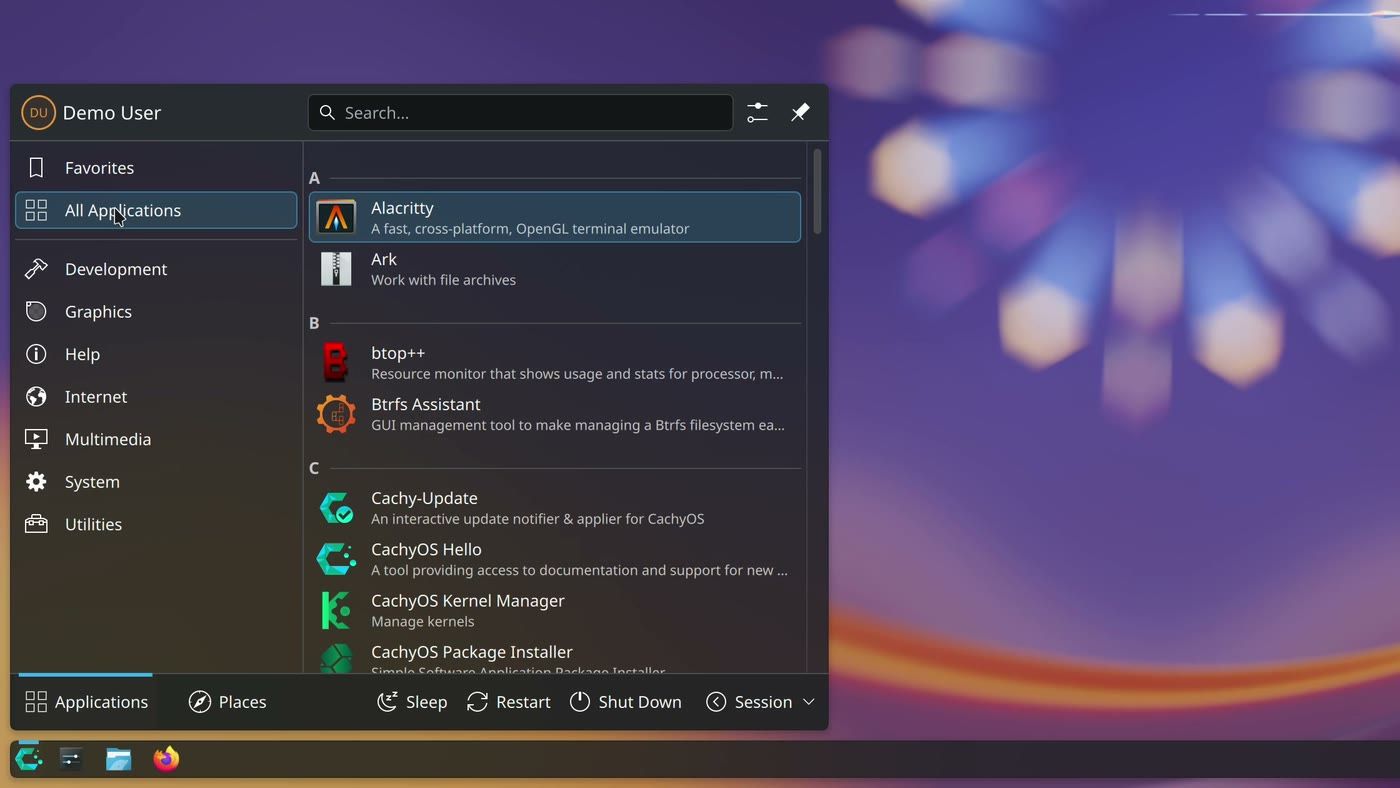
The bar works like the taskbar, with System Settings, the file manager, and Firefox pinned on the left. On the right is the tray, with the volume and a clock that opens a calendar. The logo in the corner opens the menu. Its Favorites page starts empty, so click All Applications or a category. Places lists your folders, and Sleep, Restart, and Shut Down run along the bottom.
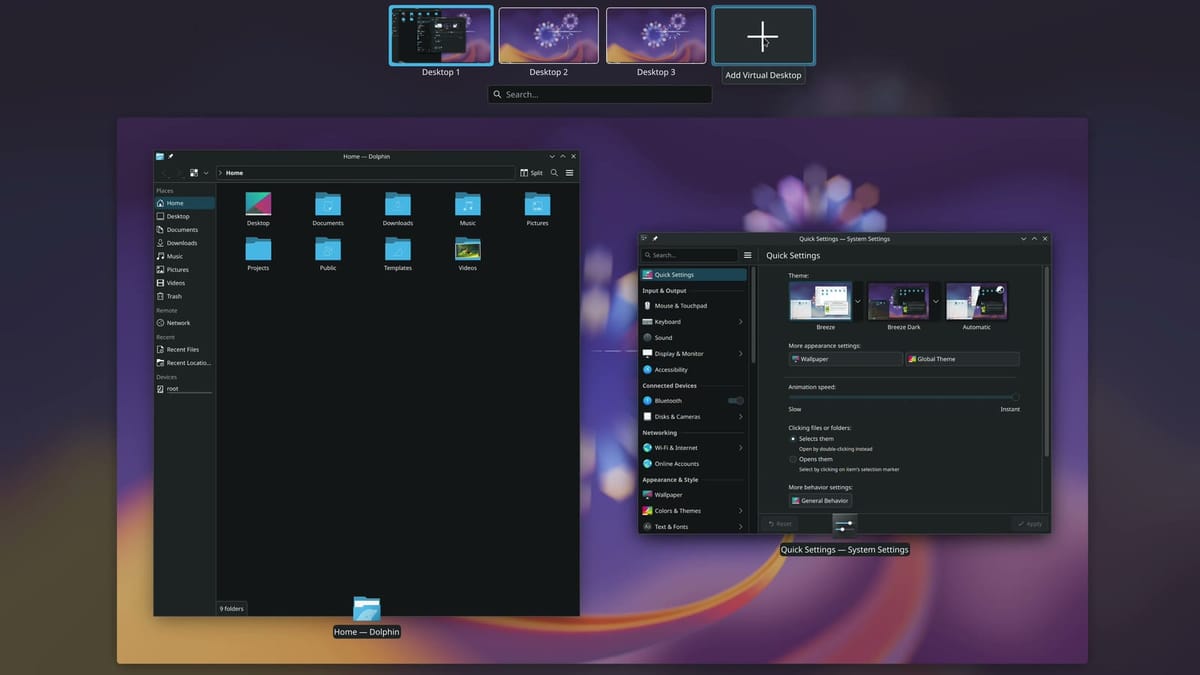
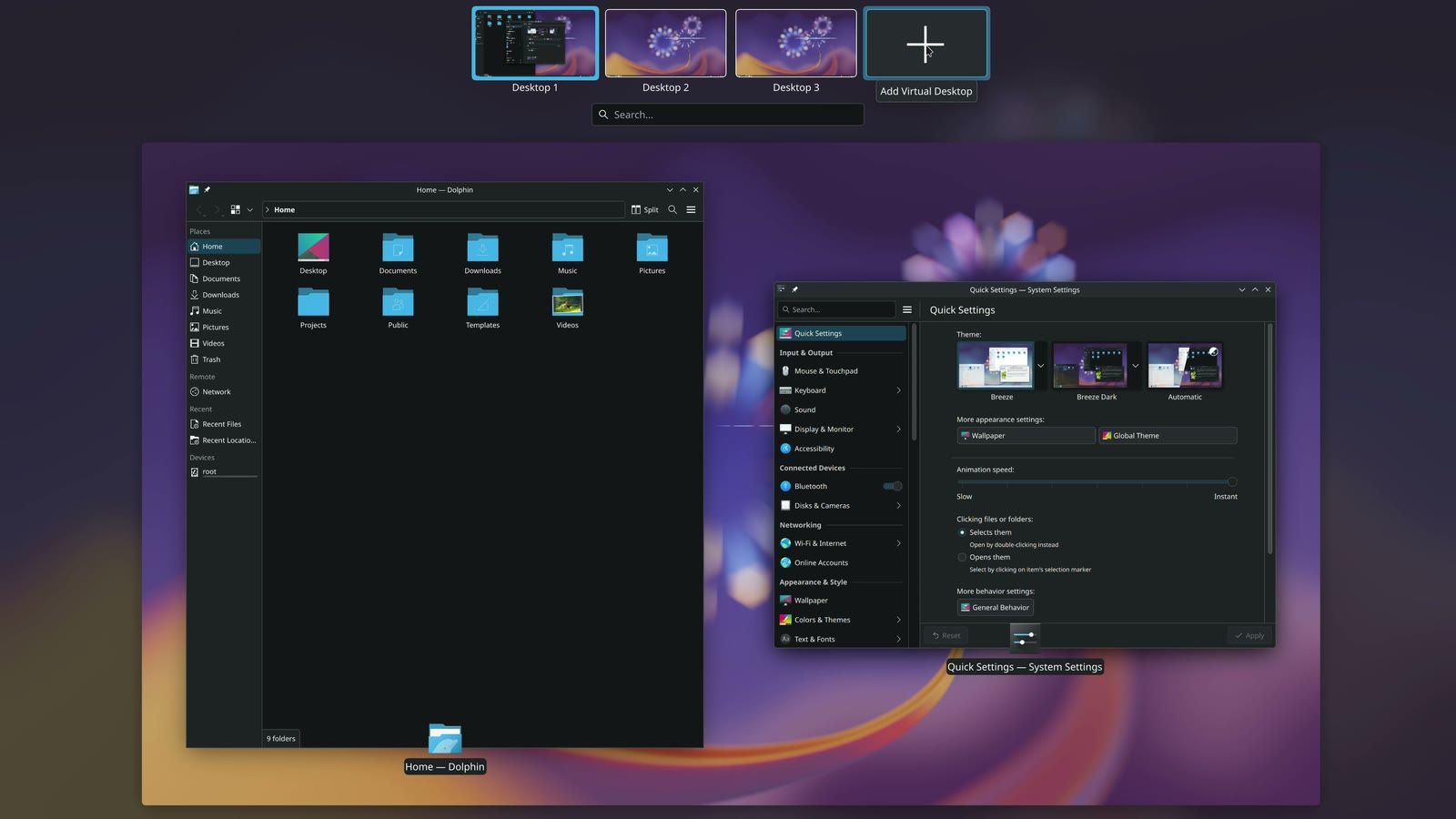
Each window has its buttons at the top right, and dragging a window to the side of the screen fills that half. super w (super is the Windows key on a PC keyboard) opens Overview, which shows every open window together, a lot like Task View on Windows. Along the top are your desktops, separate screens you can switch between, and the plus box adds another.
Type to find apps, settings, and answers
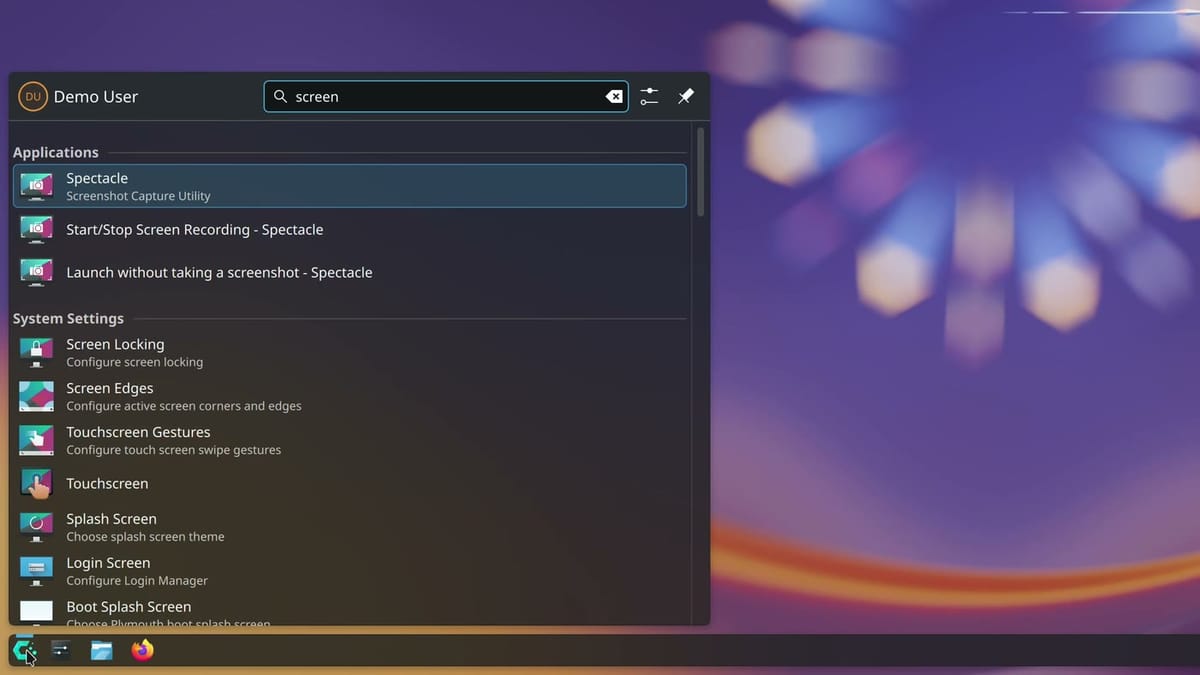
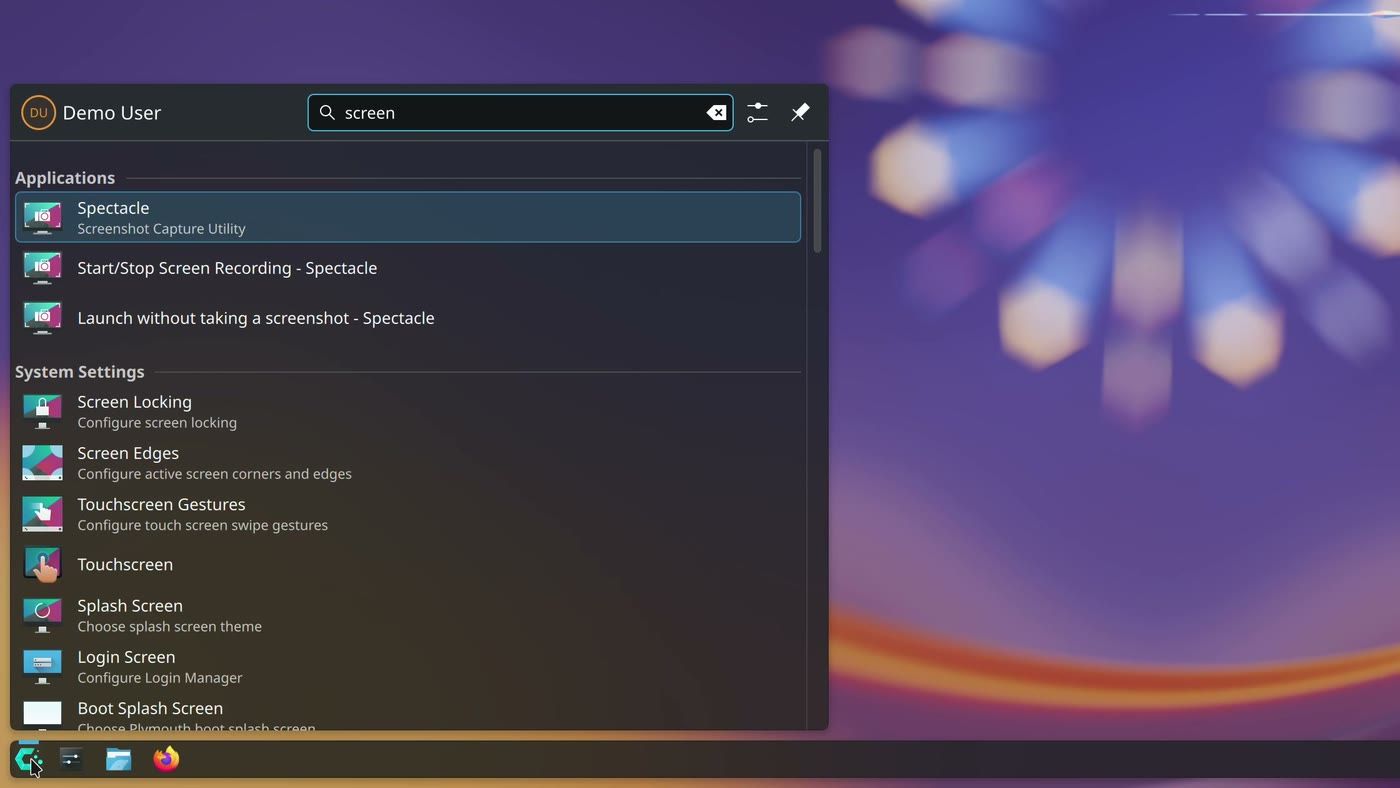
Open the menu and start typing, because the search box already has focus. You don’t need an app’s name. The word screen finds Spectacle, the screenshot app. The word wallpaper finds the wallpaper setting, and 12*7 gives 84. If nothing matches, pressing enter can start a web search in Firefox, which is what gimp did when no app by that name was in the menu.
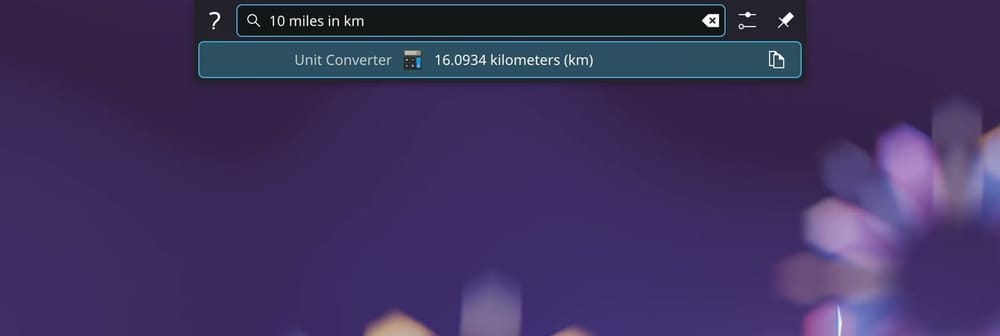
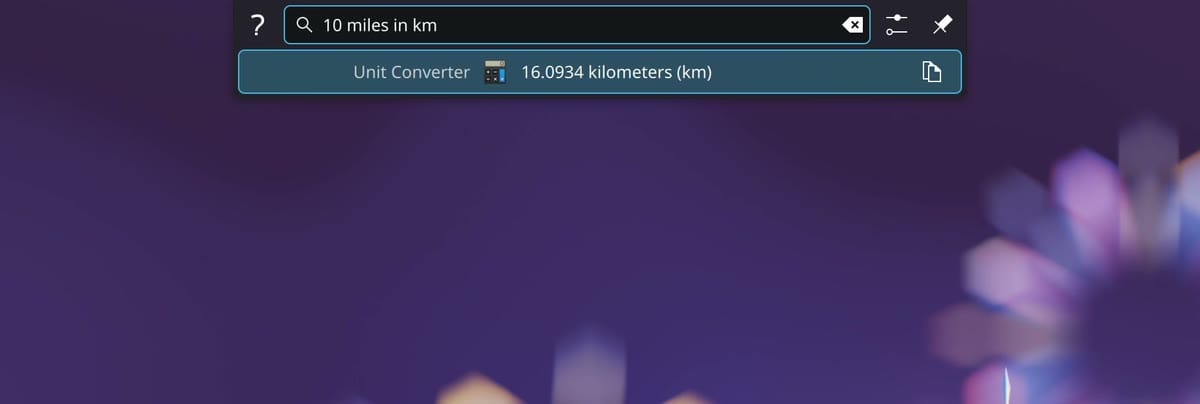
alt space opens KRunner, a search bar at the top of the screen that answers small questions as you type. 10 miles in km came back as 16.0934 kilometers, and time tokyo showed the hour there.
A short list of apps is already here
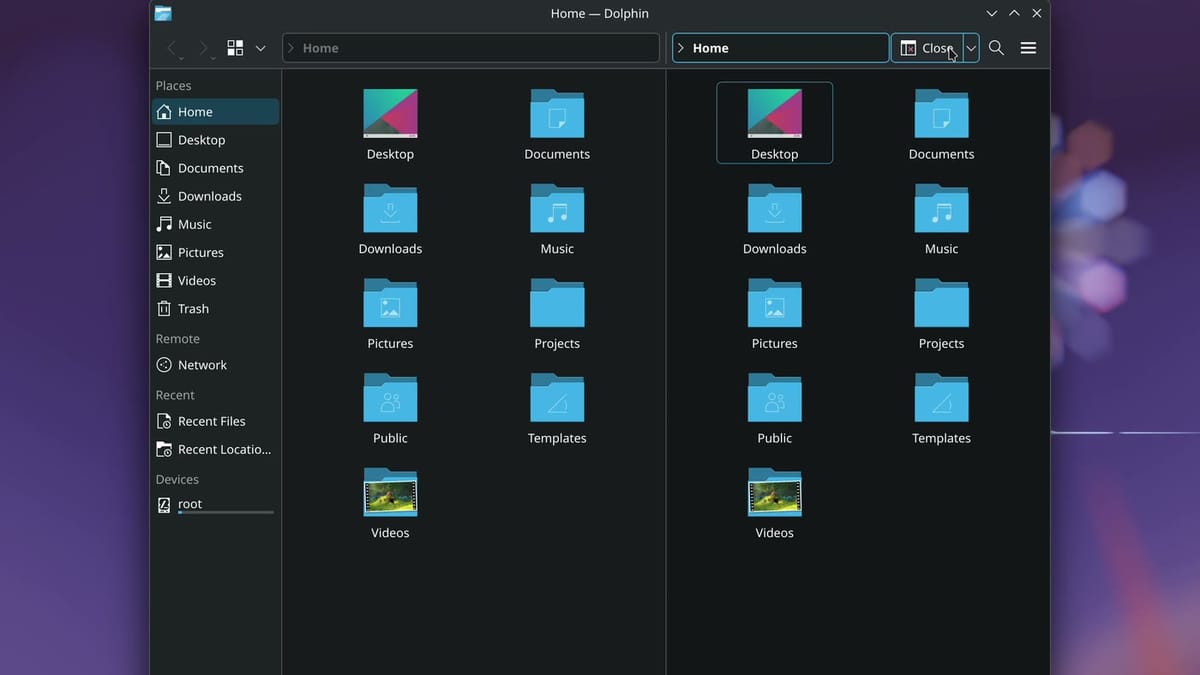
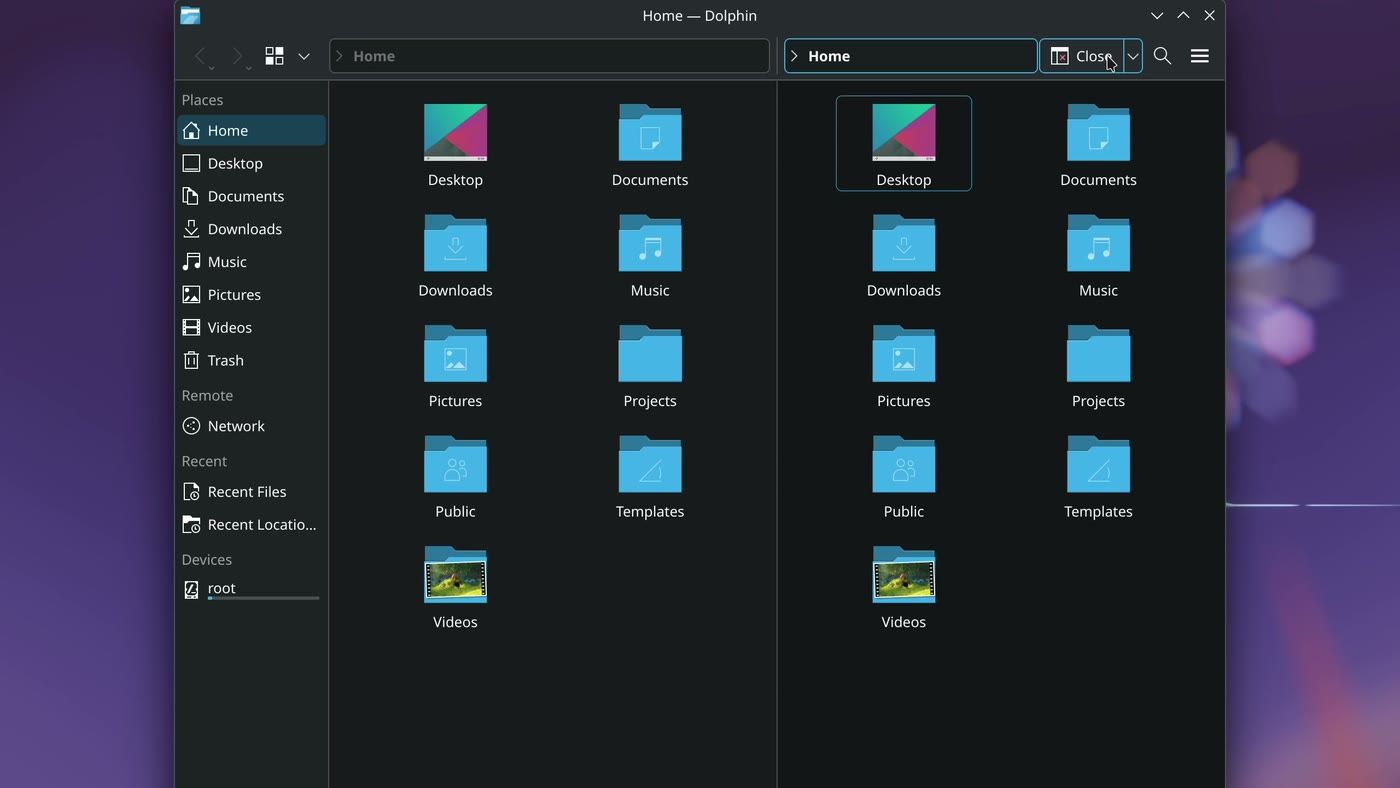
Firefox is the browser. Dolphin is the file manager, the job File Explorer does on Windows, and its Split button shows two folders side by side, which helps when you’re sorting files.
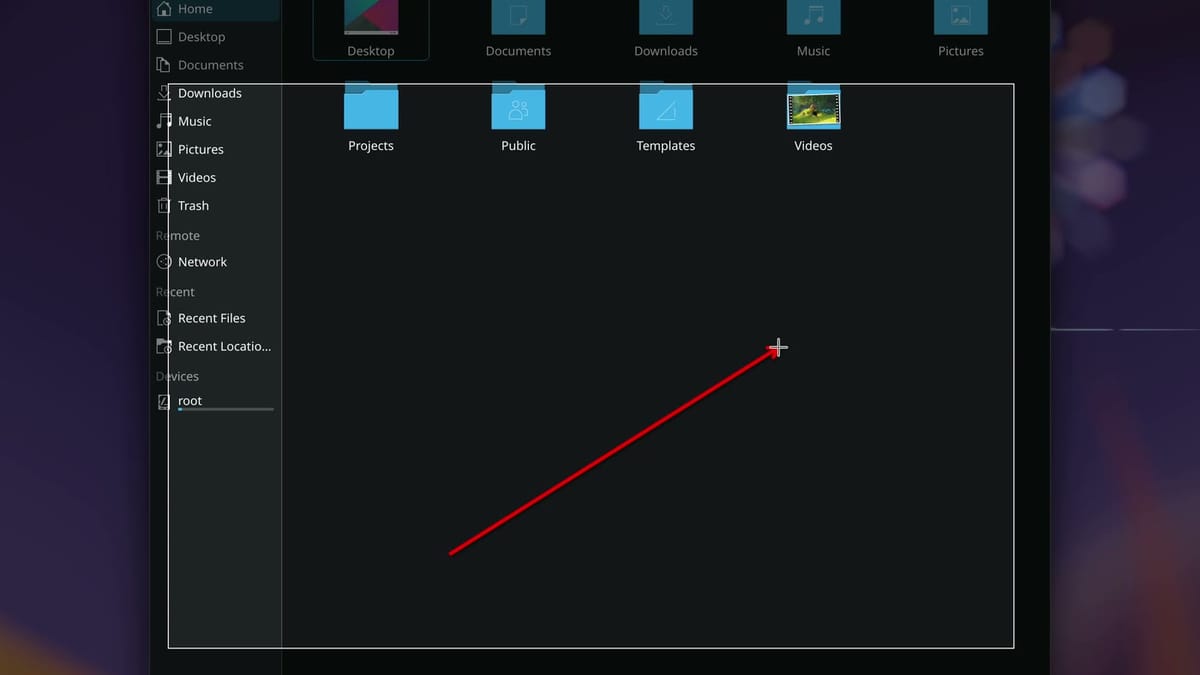
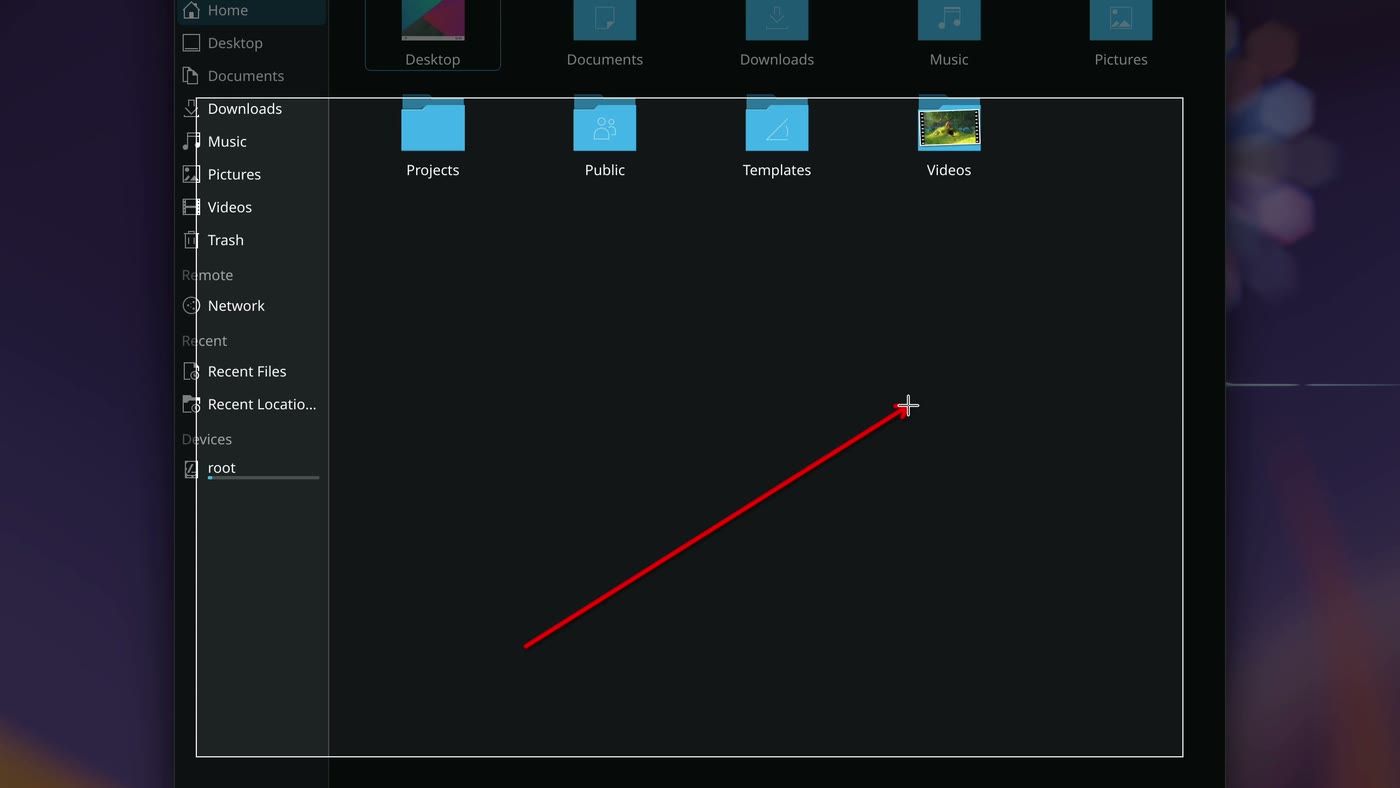
The print screen key opens Spectacle, the screenshot app, which is close to the Snipping Tool. Drag over part of the screen, draw on it with tools like the arrow, and press Save. The file lands in Pictures, in a Screenshots folder.
A double click on a clip in Dolphin played it in Haruna, the video player, with nothing extra to install. Our clip was an MP4 of Big Buck Bunny, a Blender Foundation film under a Creative Commons Attribution license.
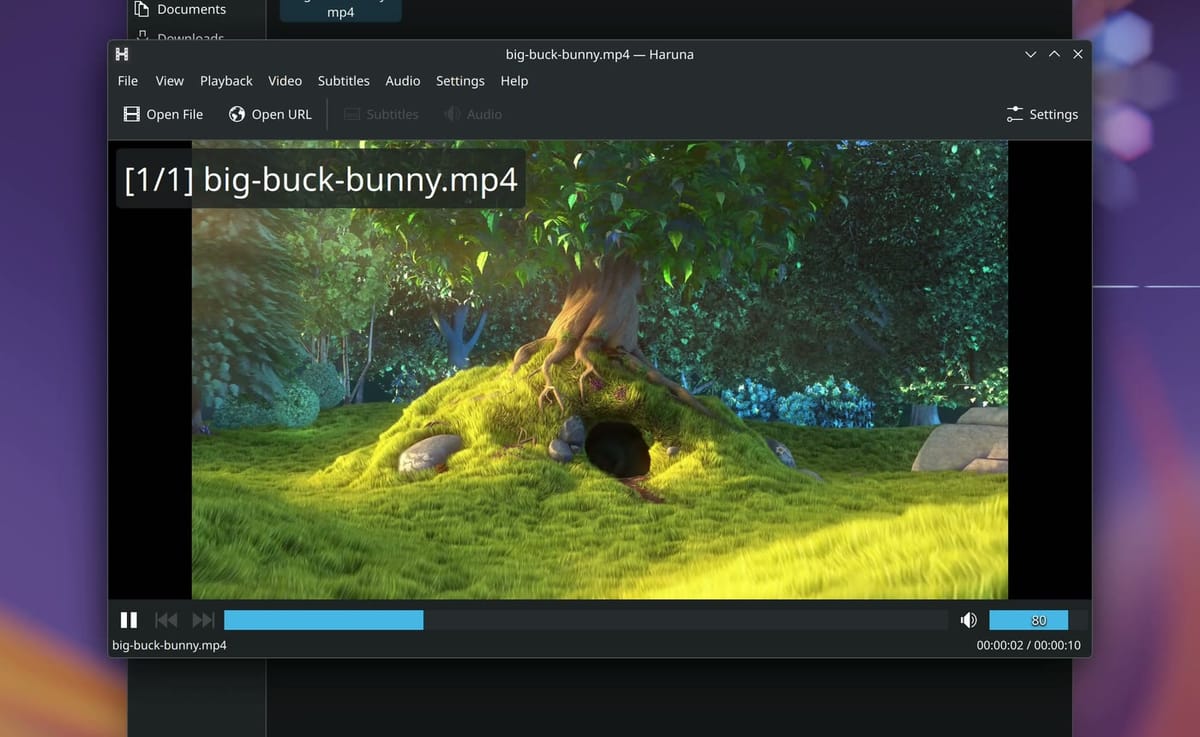
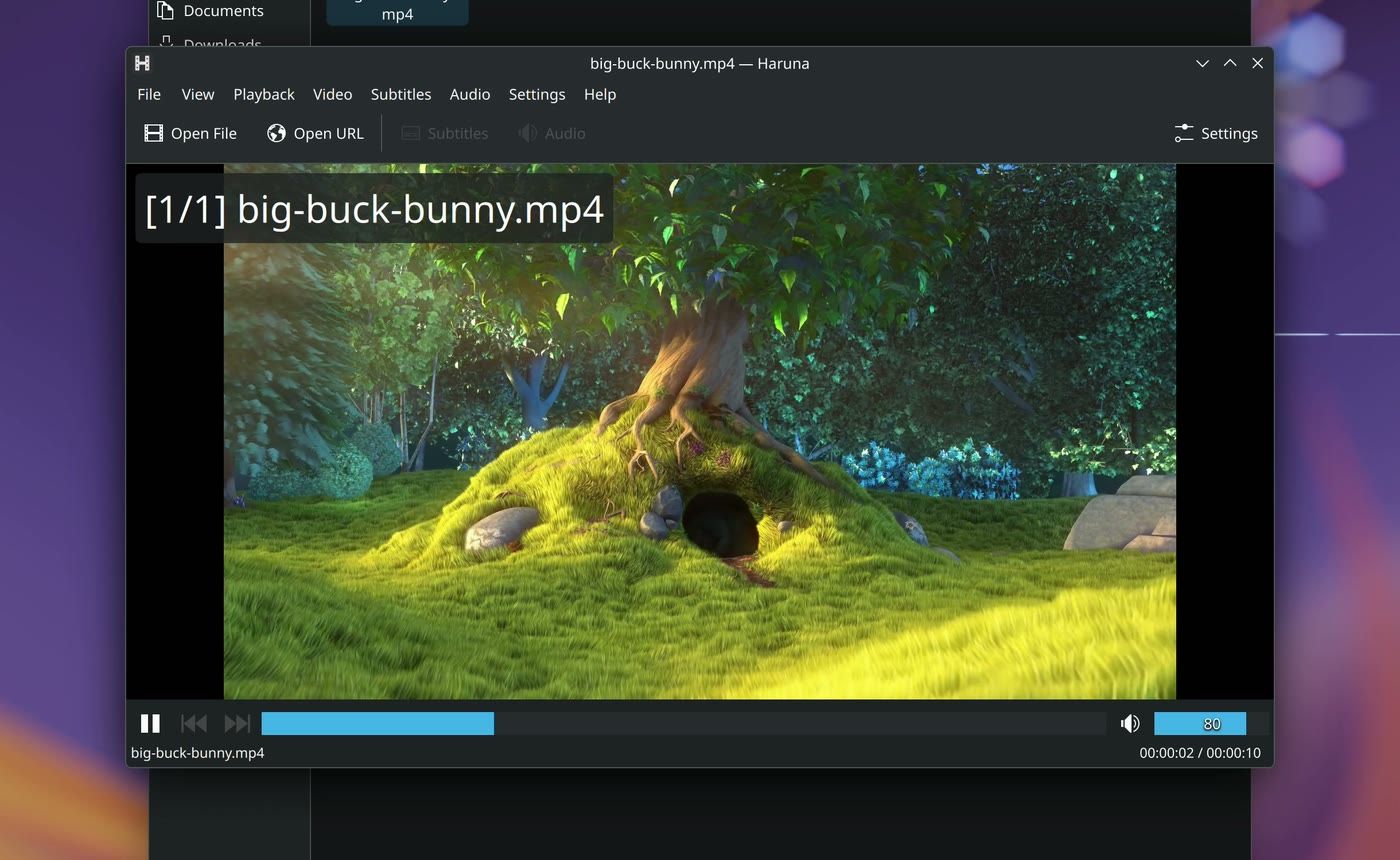
KDE makes most of these, and CachyOS picks the list. It leaves out an office suite and an email app, so those are your first additions if you need them. FOSS Force listed the missing email client as a drawback last year.
New apps come from Shelly
Shelly finds and installs software the way an app store does, with no terminal involved. Seafoam Labs makes it, and CachyOS has included it since its April 2026 release. Open the menu, type shelly, and press enter .
The first run asks which sources to use. We turned on Recommended, a curated list, and left the others off. One of them is the AUR, which holds build scripts uploaded by users, and our AUR guide goes through what to check before you tick it. Shelly then opens on a plain list of developer tools, so click the star on the left to get to Recommended.
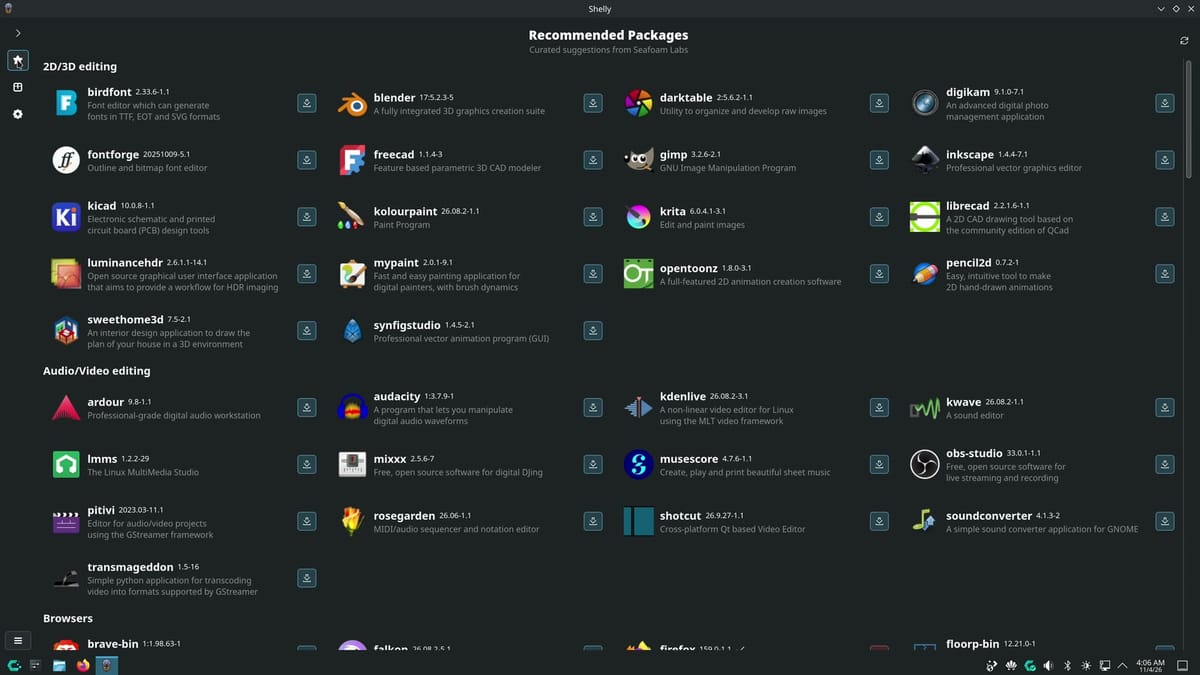
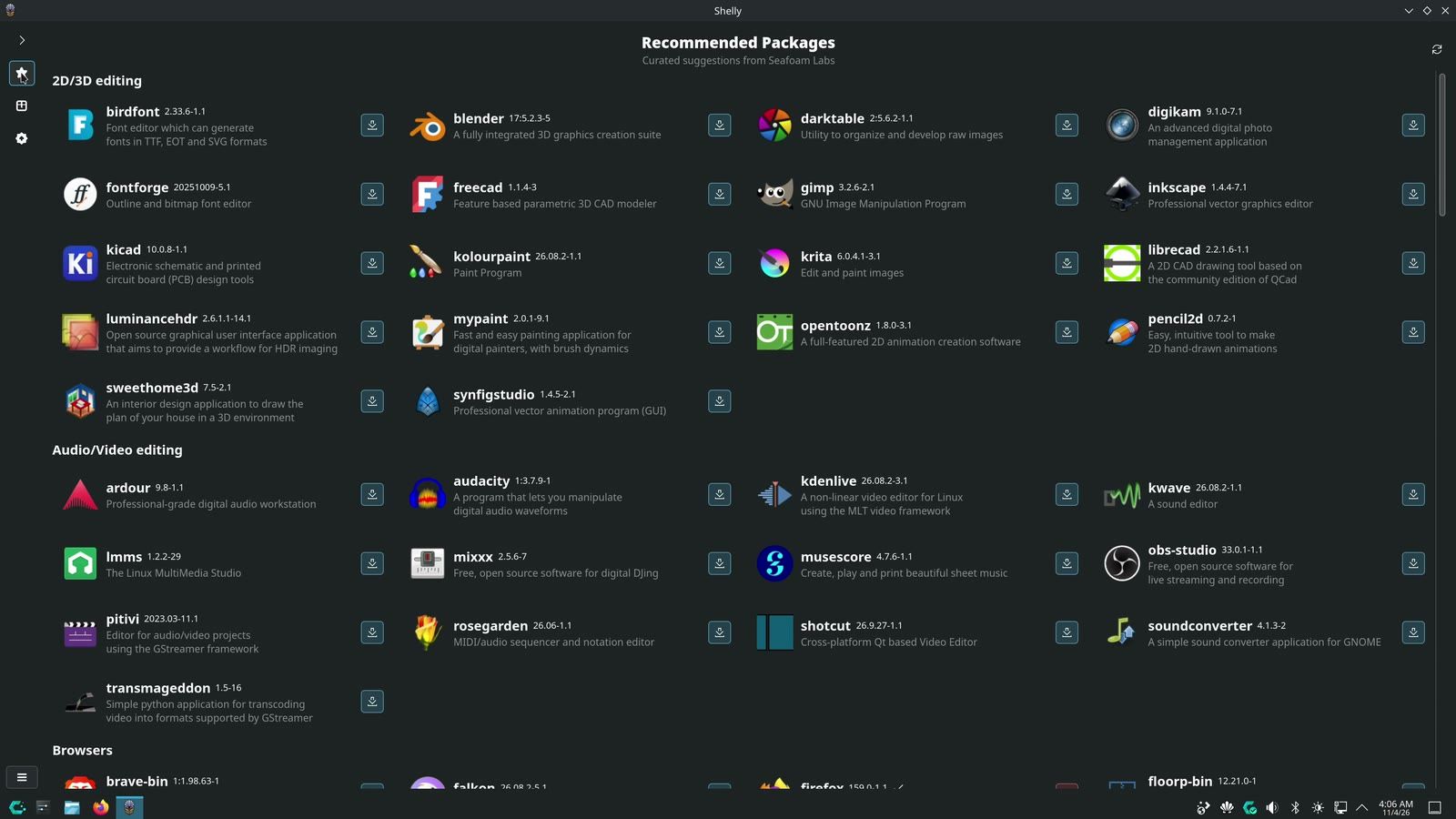
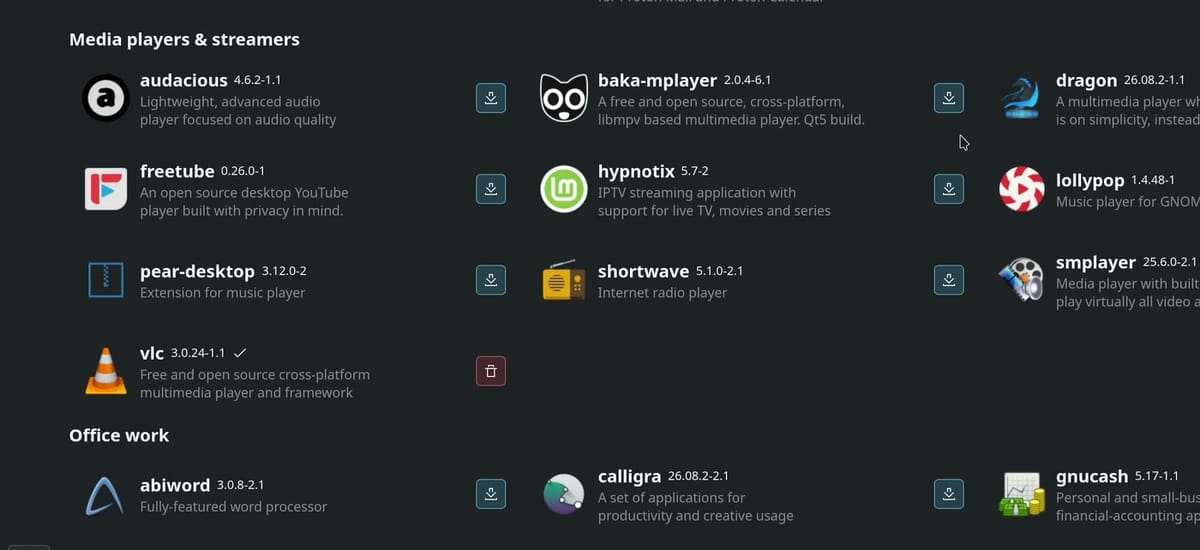
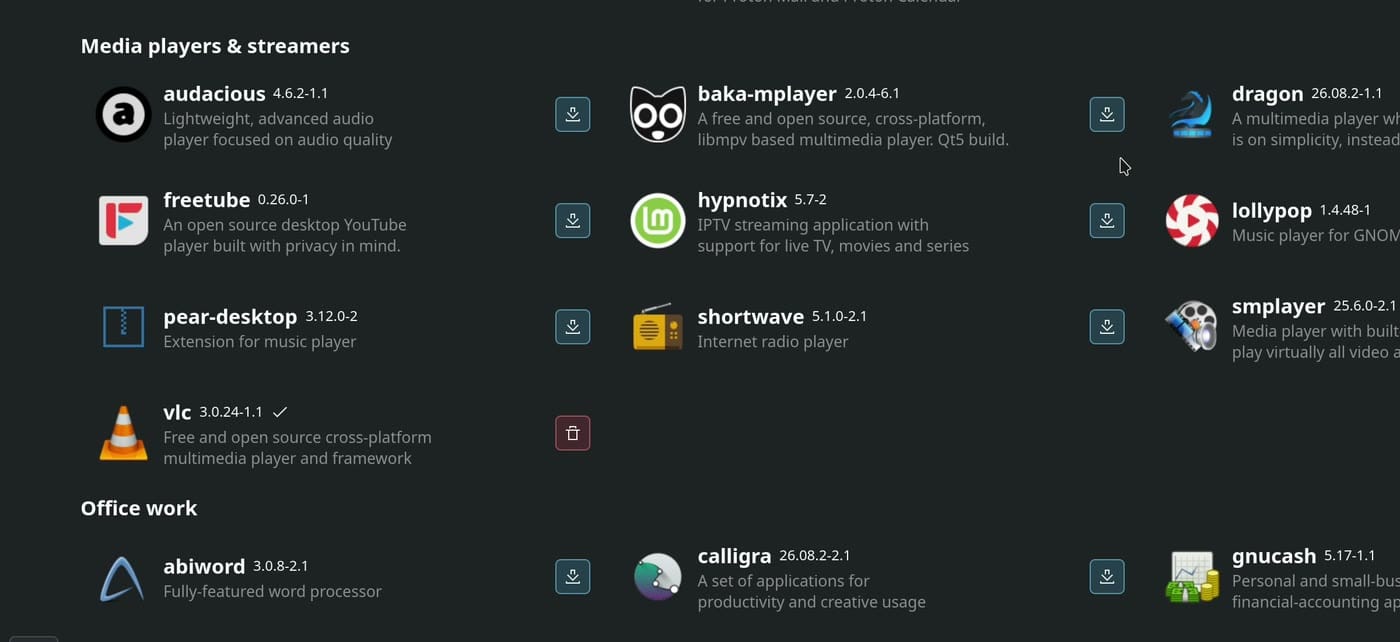
Apps are sorted by what they’re for, from image and video editing to browsers, mail, and office work. Names you may know are here: Thunderbird for email, GIMP for editing images, and LibreOffice, the free office suite.
We added VLC, a free video player, with the button beside its name. Shelly asks for your password, since this changes the system. After a couple of Confirm buttons, a log scrolls by, and you can ignore it. When it finished, VLC was in the menu, and the clip from earlier played in it after a right click and Open With. If you change your mind, the red bin beside the app removes it.
Gaming starts with one button in Hello
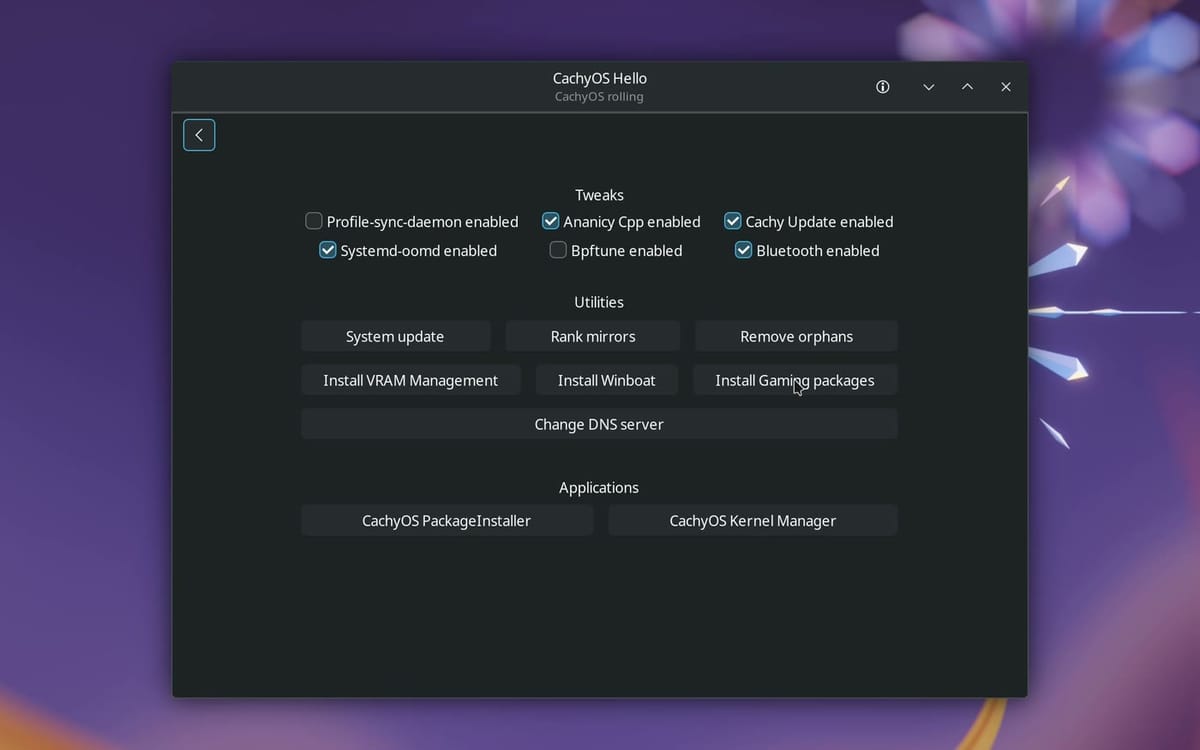
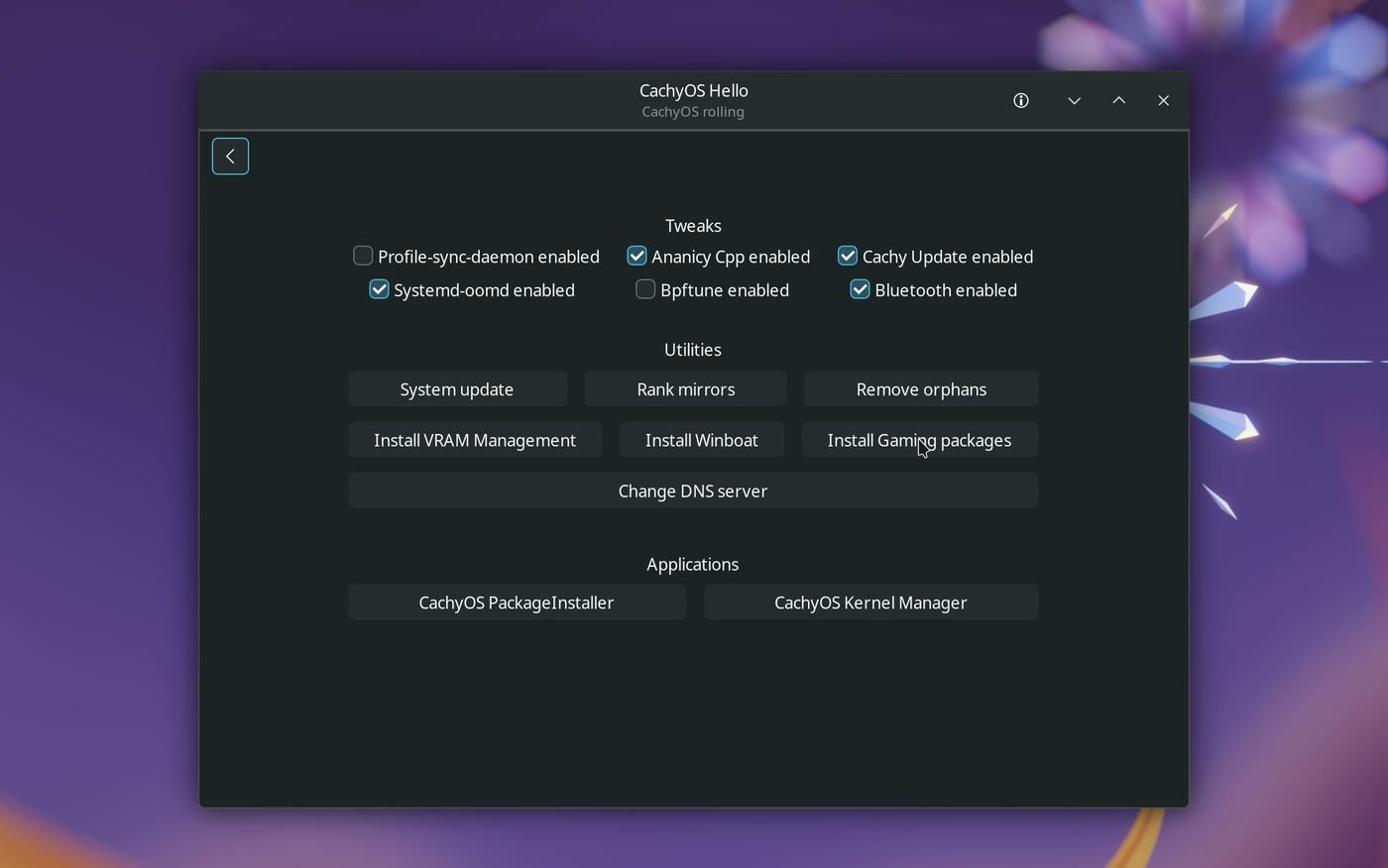
Open Hello, click Apps/Tweaks, and press Install Gaming packages. That one button saves you from looking up what games need.
This is the one place on our tour that needs a terminal, the window where text commands run. It opens by itself and asks for your password. It then lists what it’s about to add, and enter starts the install. Ours was 162 packages, the pieces of software that make up a system, at about 900 MB to download and about 4 GB on the drive. Your count may differ.
Those packages include Steam, plus Wine, a tool for running Windows programs on Linux. Opened from the menu, Steam runs its updater first and then asks you to sign in with your own account. We stopped at that sign-in, so we can’t tell you how any game runs here.
What is CachyOS, what is Plasma, and what is Arch
A lot of what this tour shows comes from Plasma, and you can get Plasma on other Linux systems. It helps to see the system as three layers:
| Layer | What it gives you |
|---|---|
| KDE Plasma (top) | The part you look at and click: the bar, the menu, search, Overview, System Settings, and apps like Dolphin and Spectacle |
| CachyOS (middle) | Its own builds of the programs, plus Hello, the Package Installer, the gaming button, a long list of wallpapers, an update icon, the CachyOS Nord theme, and a Kernel Manager |
| Arch (base) | The rolling updates |
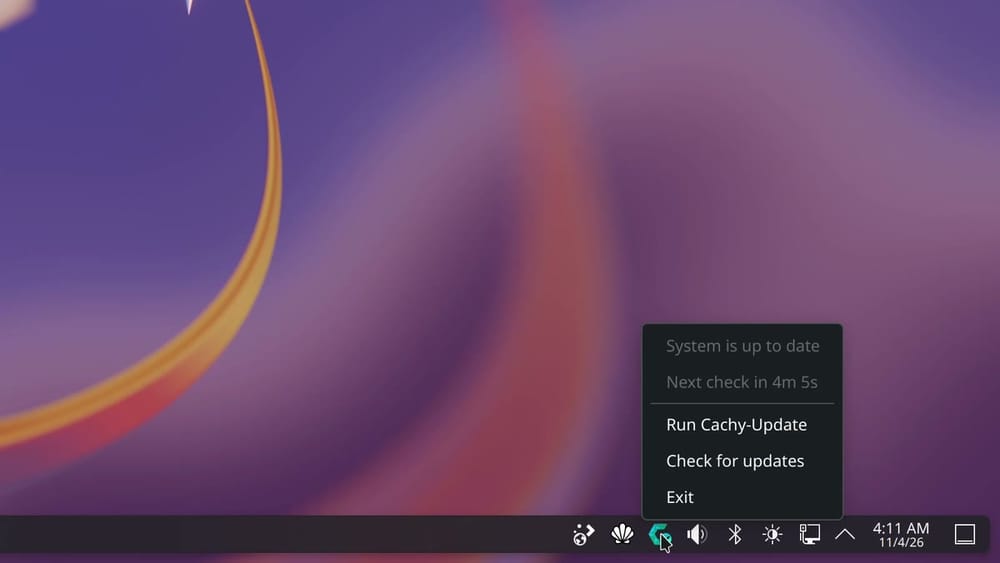
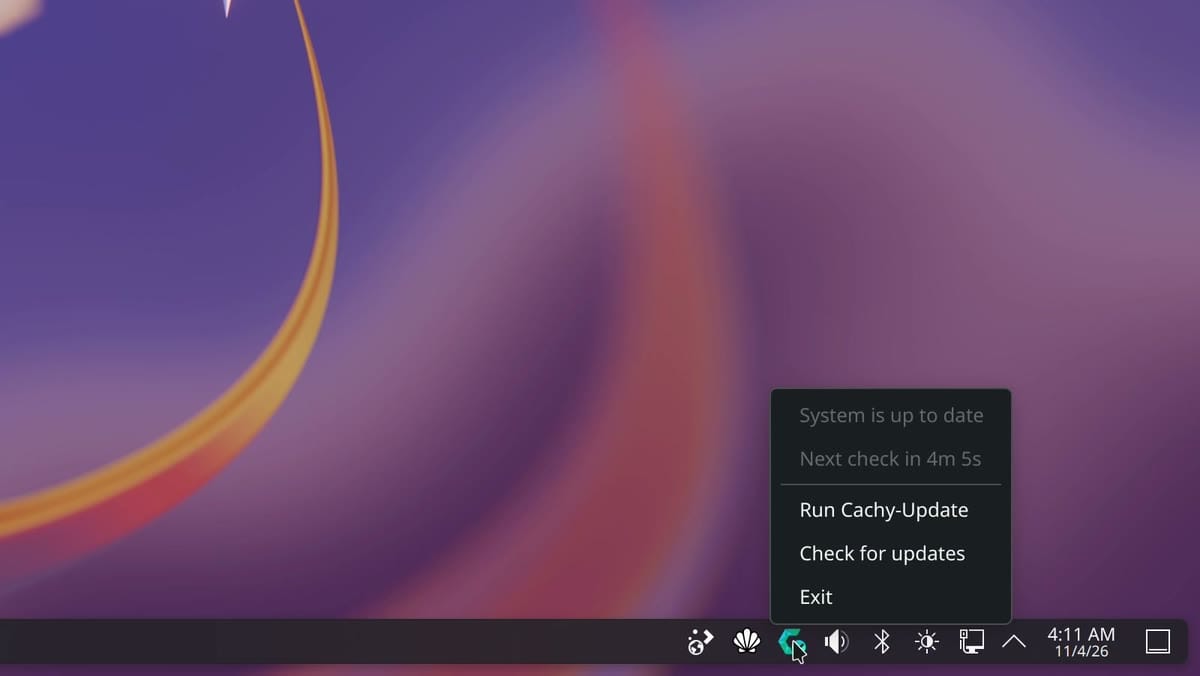
The update icon sits in the tray and checks by itself. Hover over it or right click it to see the status, which read “System is up to date” for us. A left click opens a terminal, so use Shelly for the update itself. In Shelly, click the gear on the left side to open the Update page. One Upgrade button there installs what’s waiting, and updates install only when you say so. Nothing was waiting on our install, so we saw that button greyed out and didn’t watch an update run.
The kernel is the core of the system, and the Kernel Manager, also under Apps/Tweaks, lets you pick another build of it. You can leave it alone, as we did.
Make it yours in System Settings
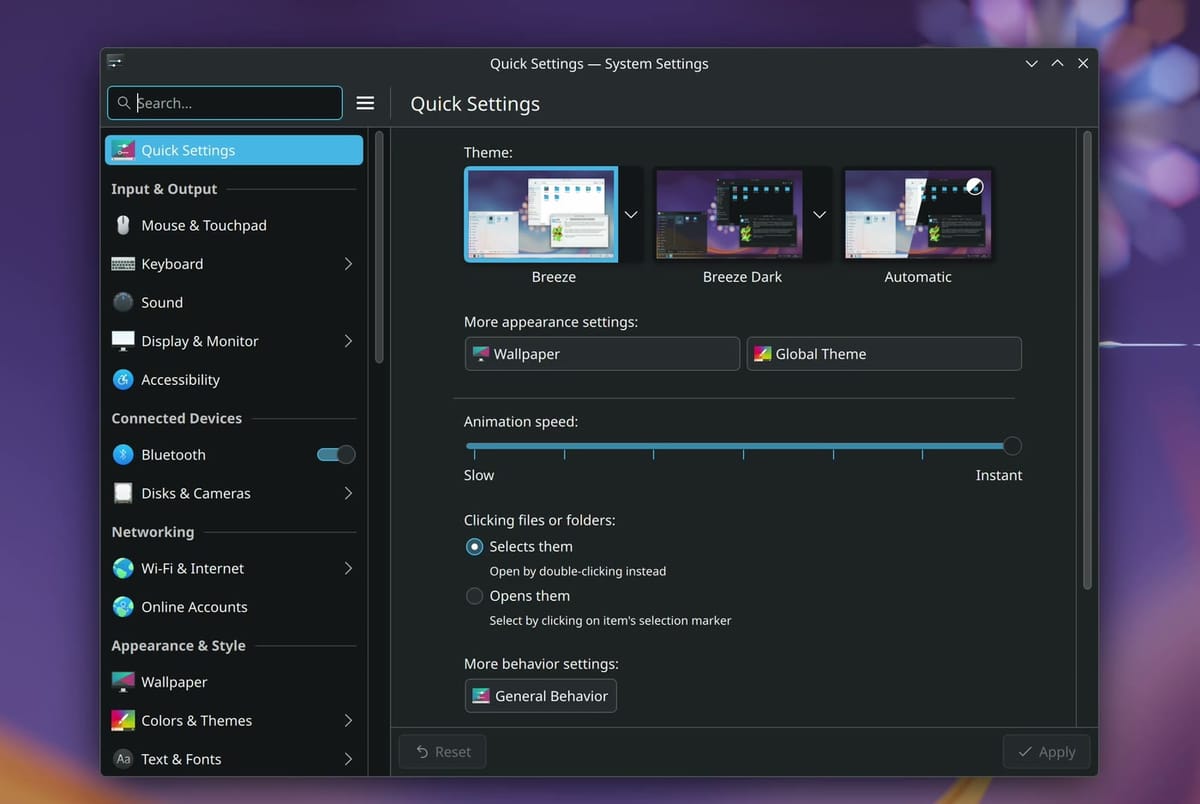
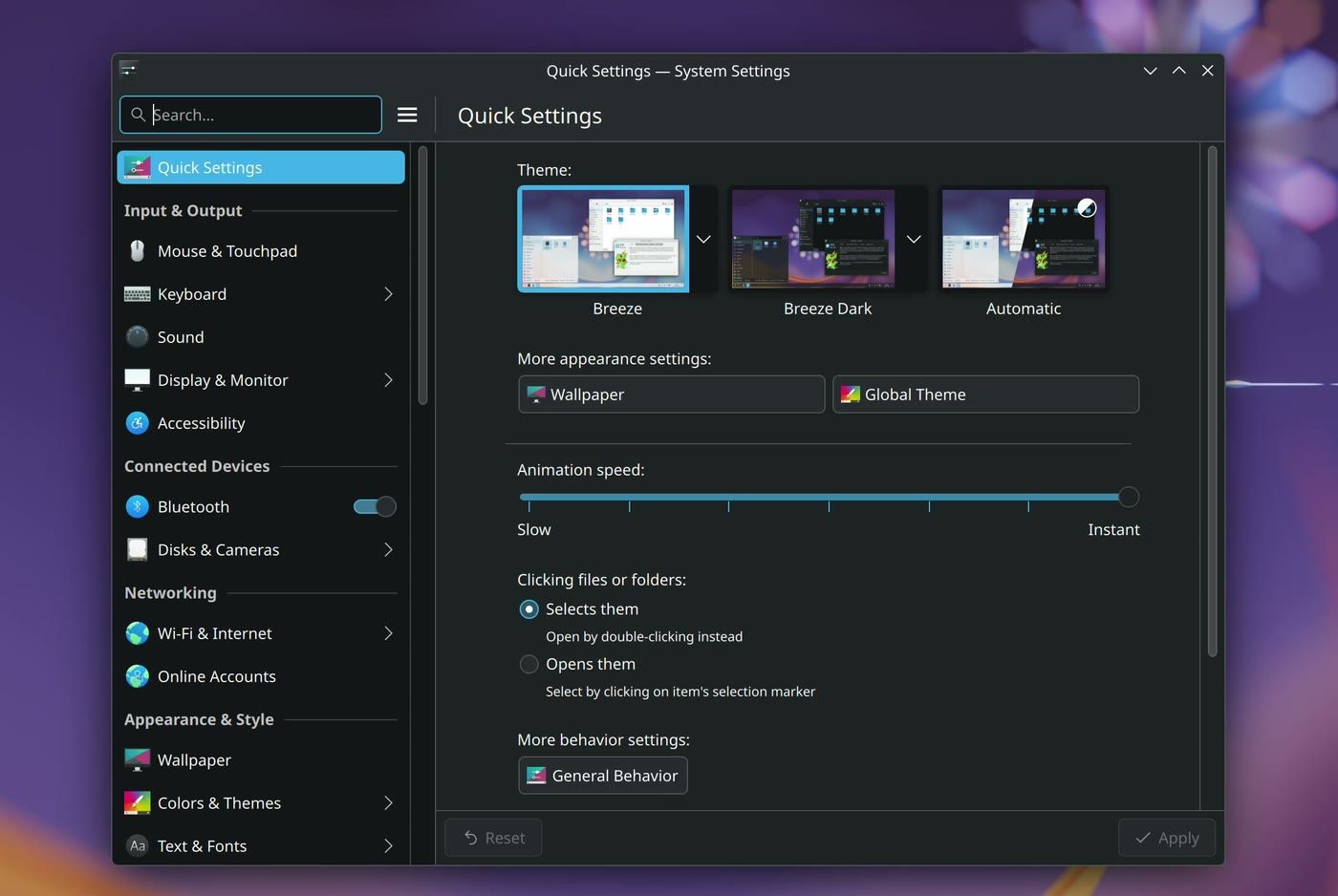
Most of this starts in System Settings, pinned on the bar. It does the job of Settings on Windows, and its first page, Quick Settings, keeps the common changes together. None of this is required, since the system works as it comes.
Screen scale. Plasma picked 165% on our 4K screen, and we used 200% so text read easily. Right click the desktop, choose Display Configuration, set the scale, then press Apply and Keep. Plasma goes back by itself if you don’t press Keep.
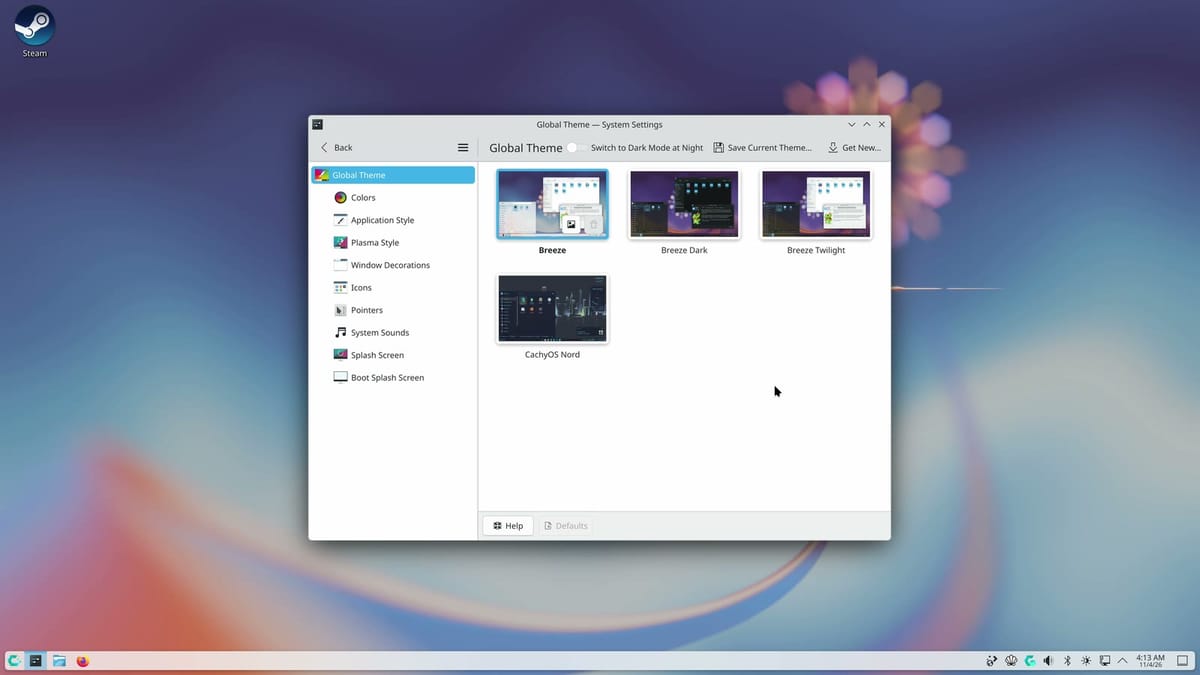
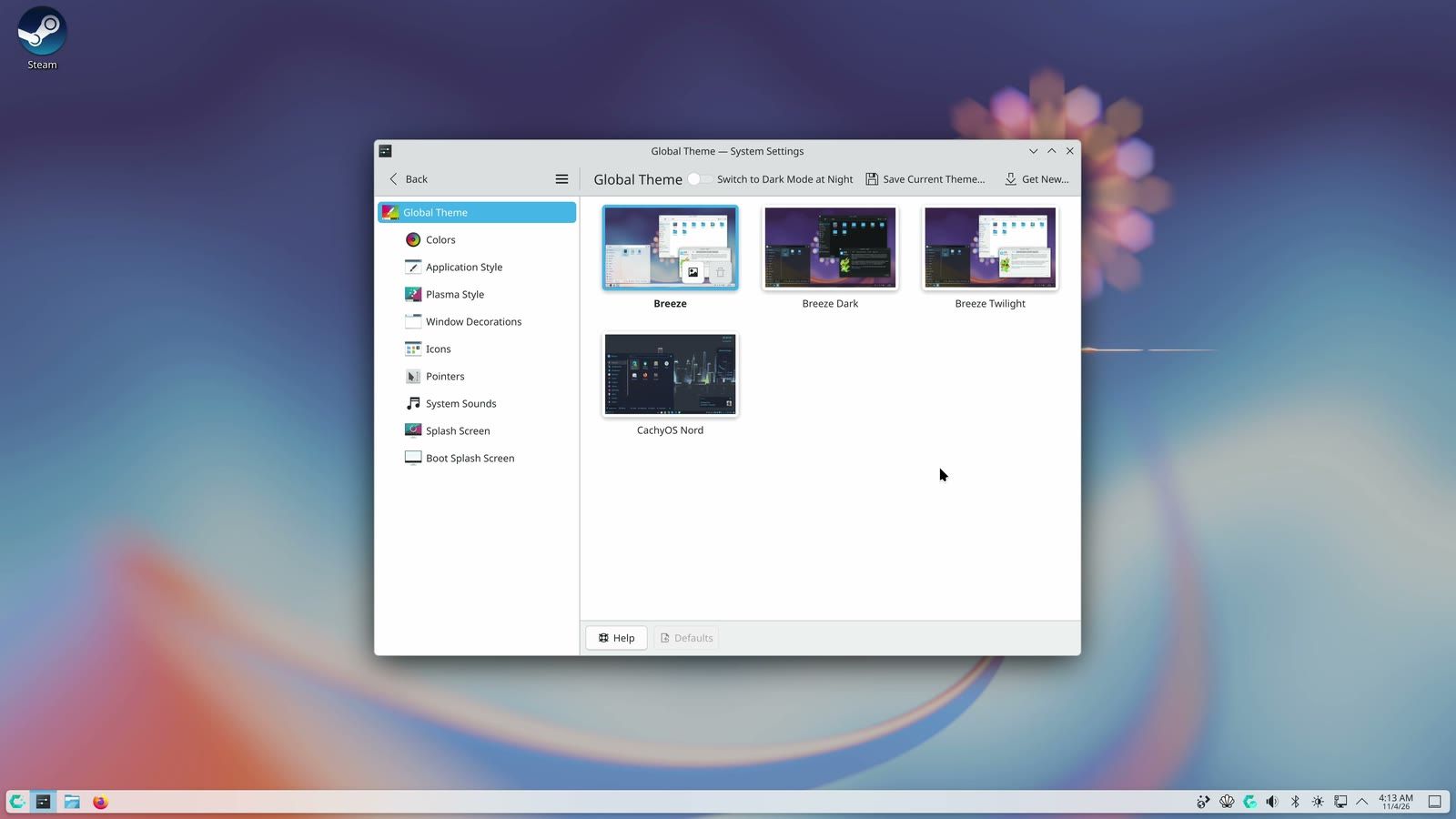
Light or dark. Under Colors & Themes, picking Breeze and pressing Apply turned every window light, and the wallpaper switched to a light version too. Breeze Dark switched back.
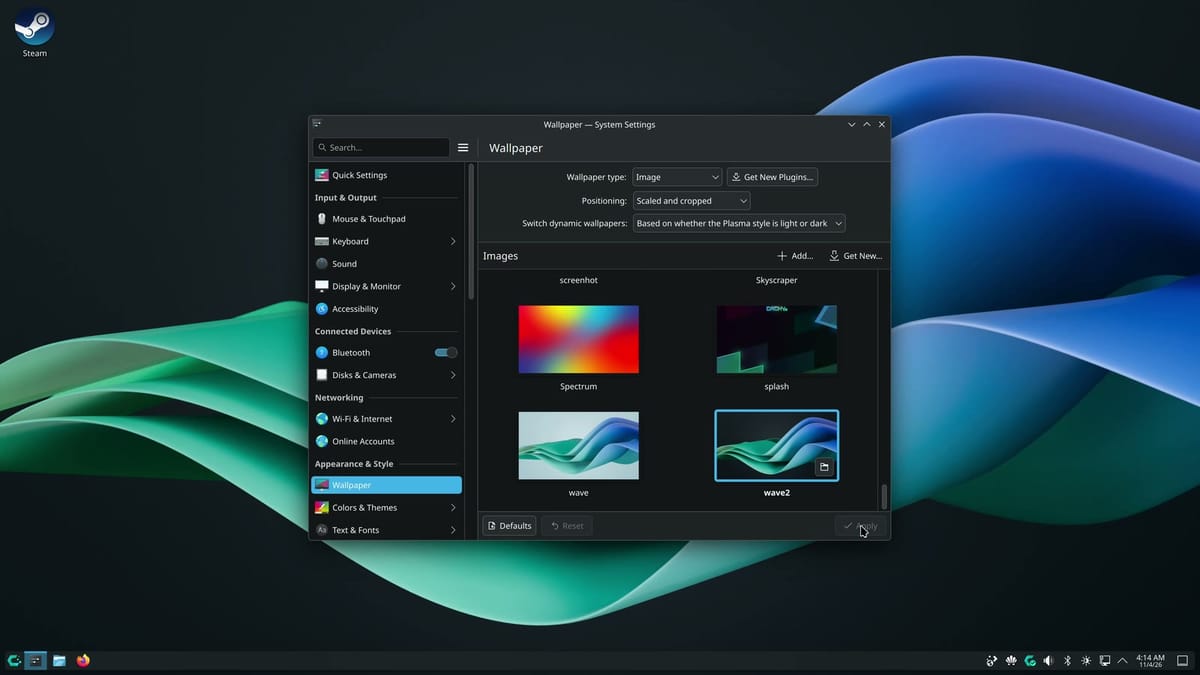
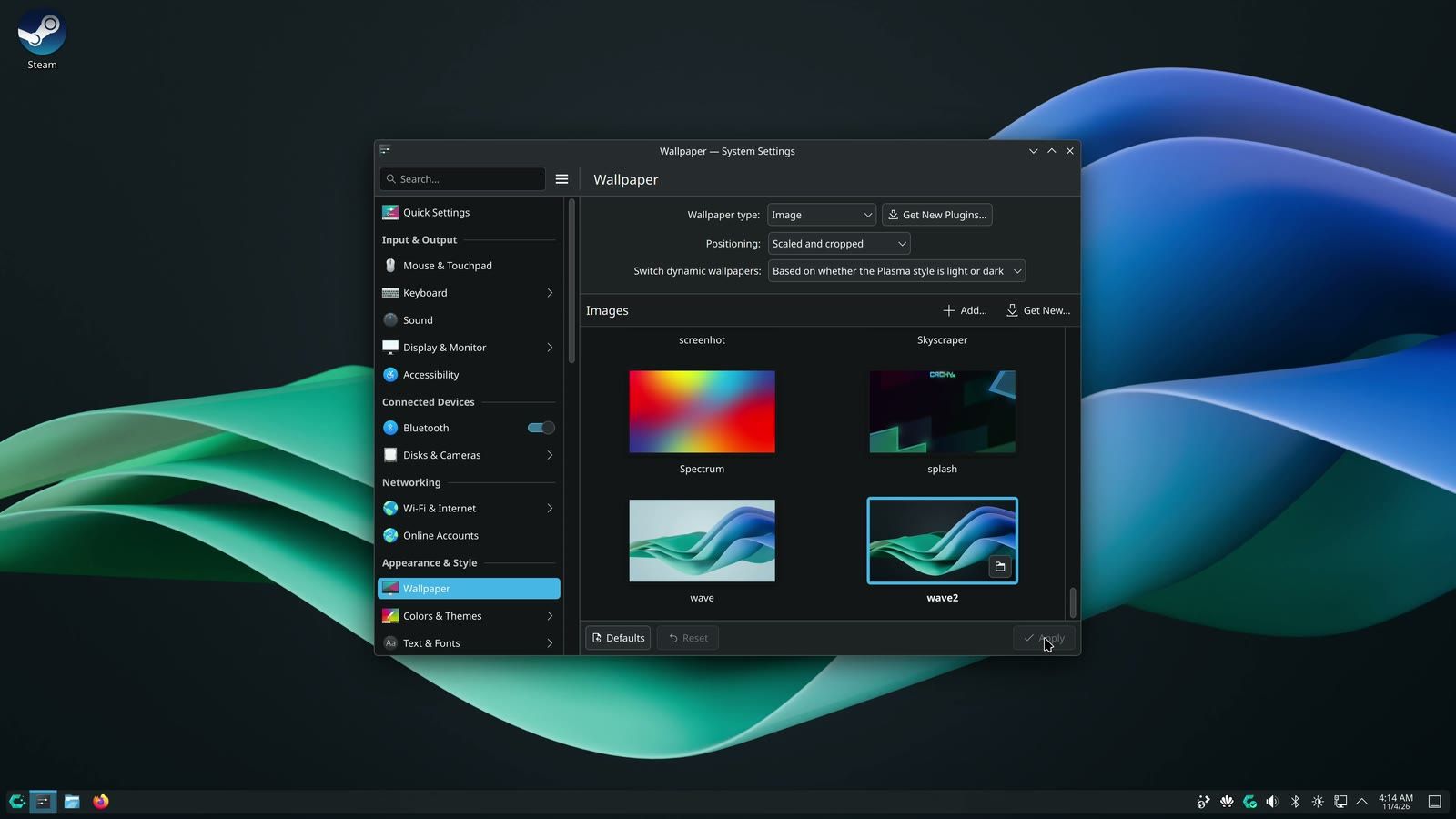
Wallpaper. The Wallpaper page is a long grid, with CachyOS’s own set next to Plasma’s. The change lands when you press Apply. We picked wave2, a dark swirl of teal and blue.
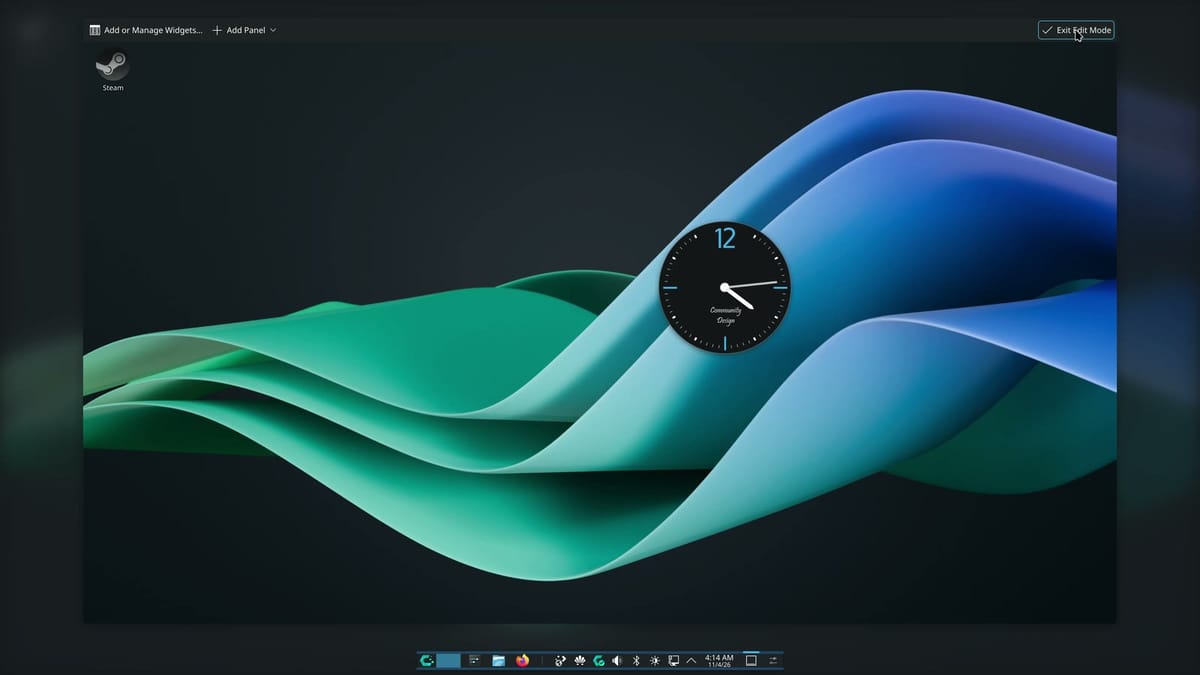
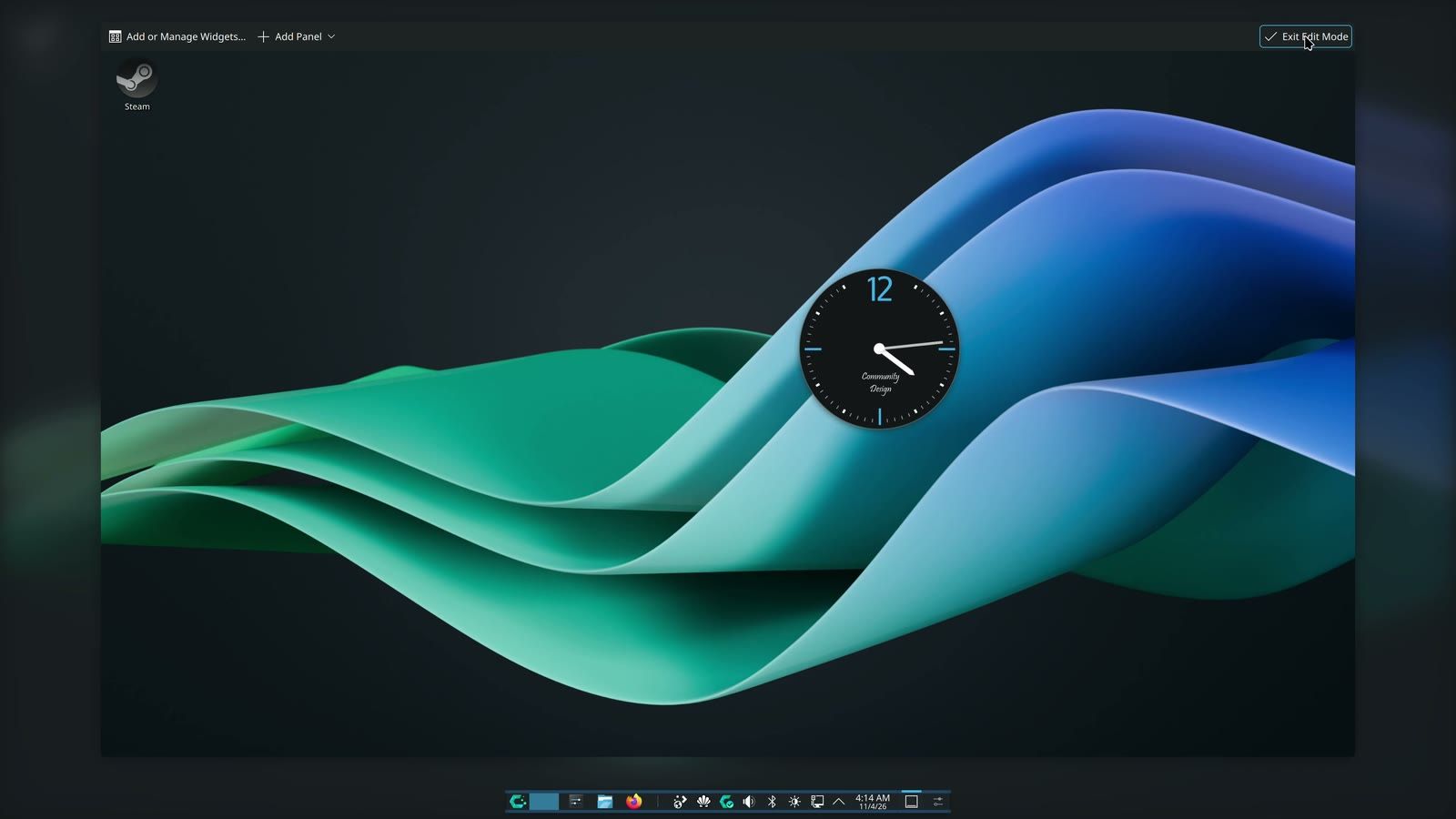
The bar and widgets. Right click the desktop and choose Enter Edit Mode. Open the bar’s settings and set Width to Fit content, and the bar shrinks to a small centered dock. Add or Manage Widgets opens a list you can drag from, which is how the clock below got onto the desktop.
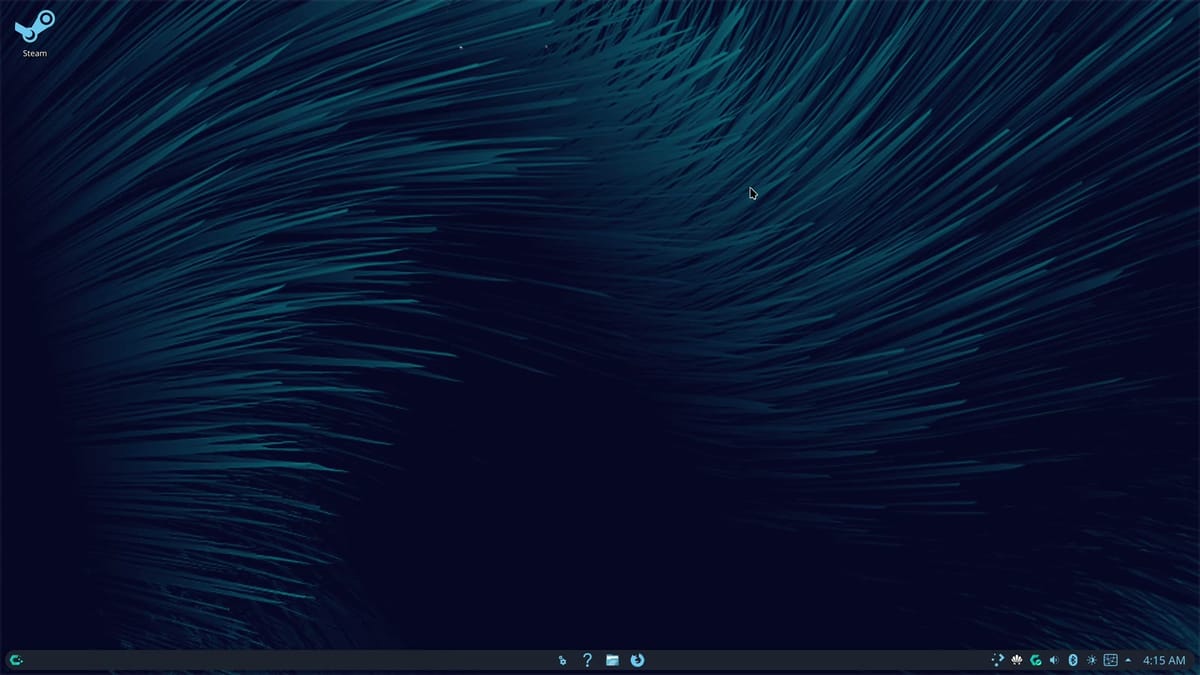
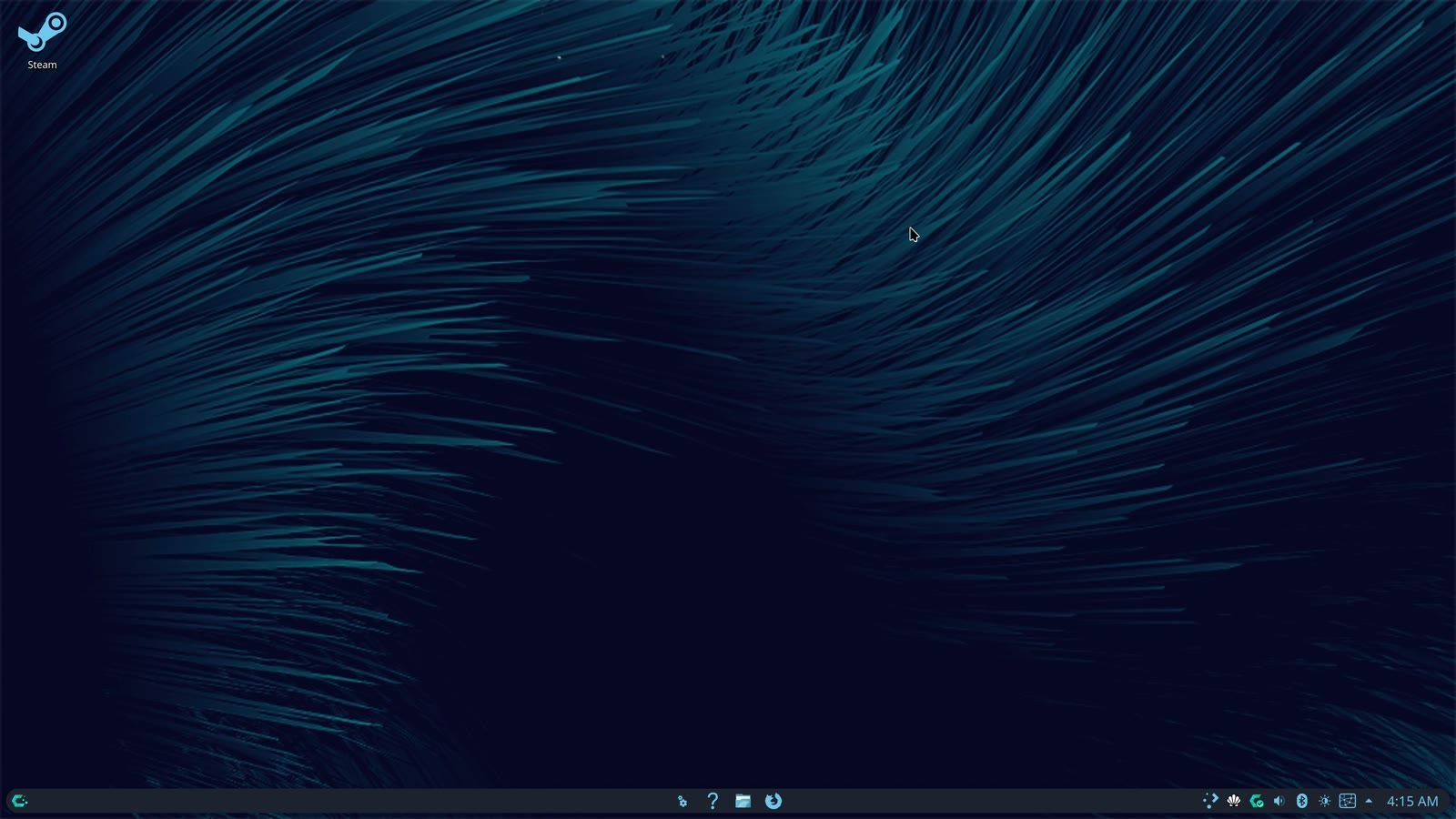
CachyOS Nord. This is CachyOS’s own theme, under Colors & Themes. With Desktop and window layout ticked, it replaces the bar and the widgets too, and the dialog warns that it deletes your current panels and widgets. The result was a new wallpaper, a centered row of apps, and a bigger clock. We didn’t test going back, so try it last.
Every app on this tour and what it does
| App | What it does | Comes from |
|---|---|---|
| Hello | Welcome window with help links and setup buttons | CachyOS |
| Package Installer | A picked list of popular programs, in folders | CachyOS |
| Cachy-Update | The tray icon that checks for updates | CachyOS |
| Kernel Manager | Lets you pick another build of the kernel | CachyOS |
| Firefox | Web browser | Mozilla |
| Dolphin | File manager, like File Explorer | KDE |
| KRunner | Search bar for apps, sums, and conversions | KDE |
| Spectacle | Screenshots you can draw on, like the Snipping Tool | KDE |
| Haruna | Video player | KDE |
| System Settings | All the settings, like Settings on Windows | KDE |
| Shelly | Finds, installs, updates, and removes apps | Seafoam Labs |
| VLC | Free video player, added from Shelly | VideoLAN |
| Alacritty | The terminal window Hello’s gaming button opens | Its own project |
| Steam | Valve’s game store and launcher, added by the gaming button | Valve |
| Wine | Runs Windows programs on Linux, added by the gaming button | The Wine project |
Who CachyOS suits, and where reviews split
Everything above took a mouse and a little typing, plus one terminal window for the gaming install. Arch’s updates keep coming, and if one breaks something, you may need to look up a fix. Samir Bashir at Igor’s Lab puts it this way: “rolling release means constant updates, potentially unstable packages and a certain amount of personal responsibility.”
Reviews split on it as a first Linux system. Larry Cafiero at FOSS Force wrote in 2025 that the default Plasma version “would be a shoo-in for new users”. Bashir’s conclusion the same year was “not (yet) for beginners”. Zei, who makes Linux videos, suggests Linux Mint or Zorin OS for people who don’t know a terminal. All three came out before Shelly arrived in April 2026, and Bashir and Zei both named installing apps as a sticking point for new users.
So it suits someone who likes this Plasma desktop, wants new software soon after it ships, plays Steam games or plans to, and is fine searching for a fix now and then. If that last part sounds like too much for a first Linux system, take Zei’s suggestion. Our guide for people leaving Windows covers Mint and Zorin OS. And if you want a mini PC for any of these, our Linux mini PC guide matches chips to the kernels they need.


