
LordOS is a new Linux system built on Debian 13. Debian supplies the software underneath, and on top sits a desktop that looks like a Mac until you click one setting, and then it looks like Windows. The display server is new as well, written by the project in C, and the desktop itself is drawn with React.
It comes from iPERFEX, a technology company in Argentina, and it’s still a beta. Updates arrive every few days, and the screens change with them. This tour ran on LordOS 0.8.8.9, the newest update on November 15, 2026, from the virtual machine image the project publishes.
What LordOS is
LordOS takes Debian 13 (trixie) as its base and replaces the parts you see and touch. The project’s home page describes its own desktop environment, display server, and Wayland compositor. Debian’s packages stay, so its large catalog of Linux apps is there from the first login, and the Store shows them next to the apps LordOS makes itself.
The project is free software under the MIT license, and the code and releases are on GitHub.
The desktop
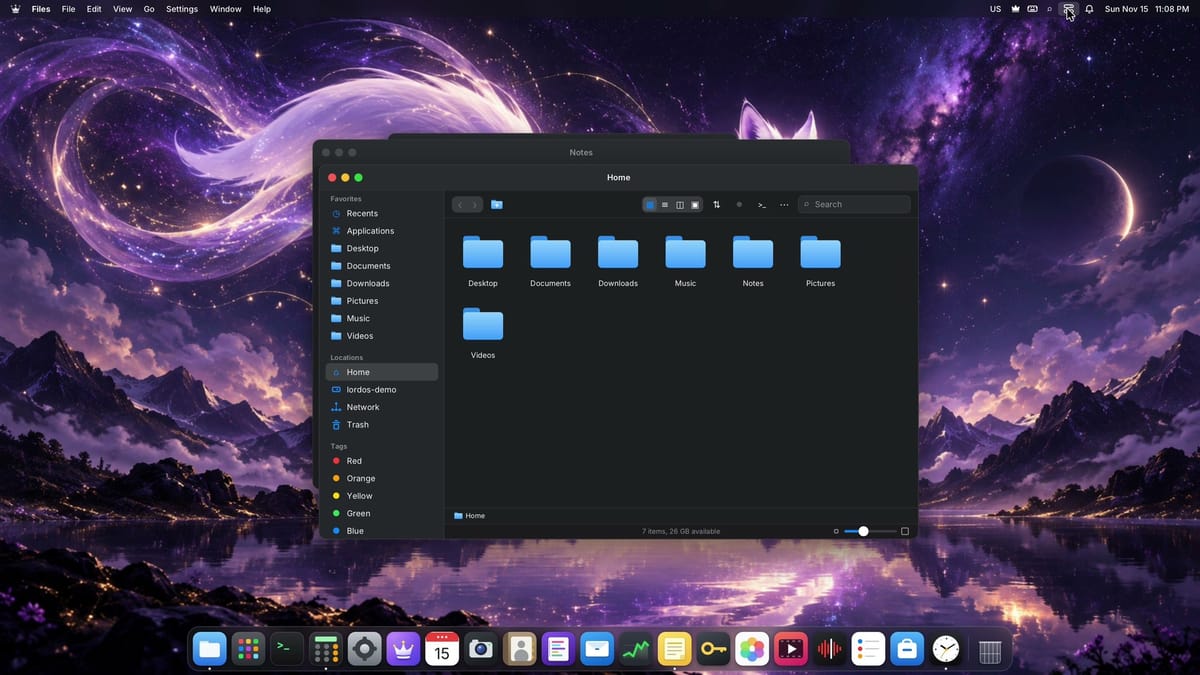
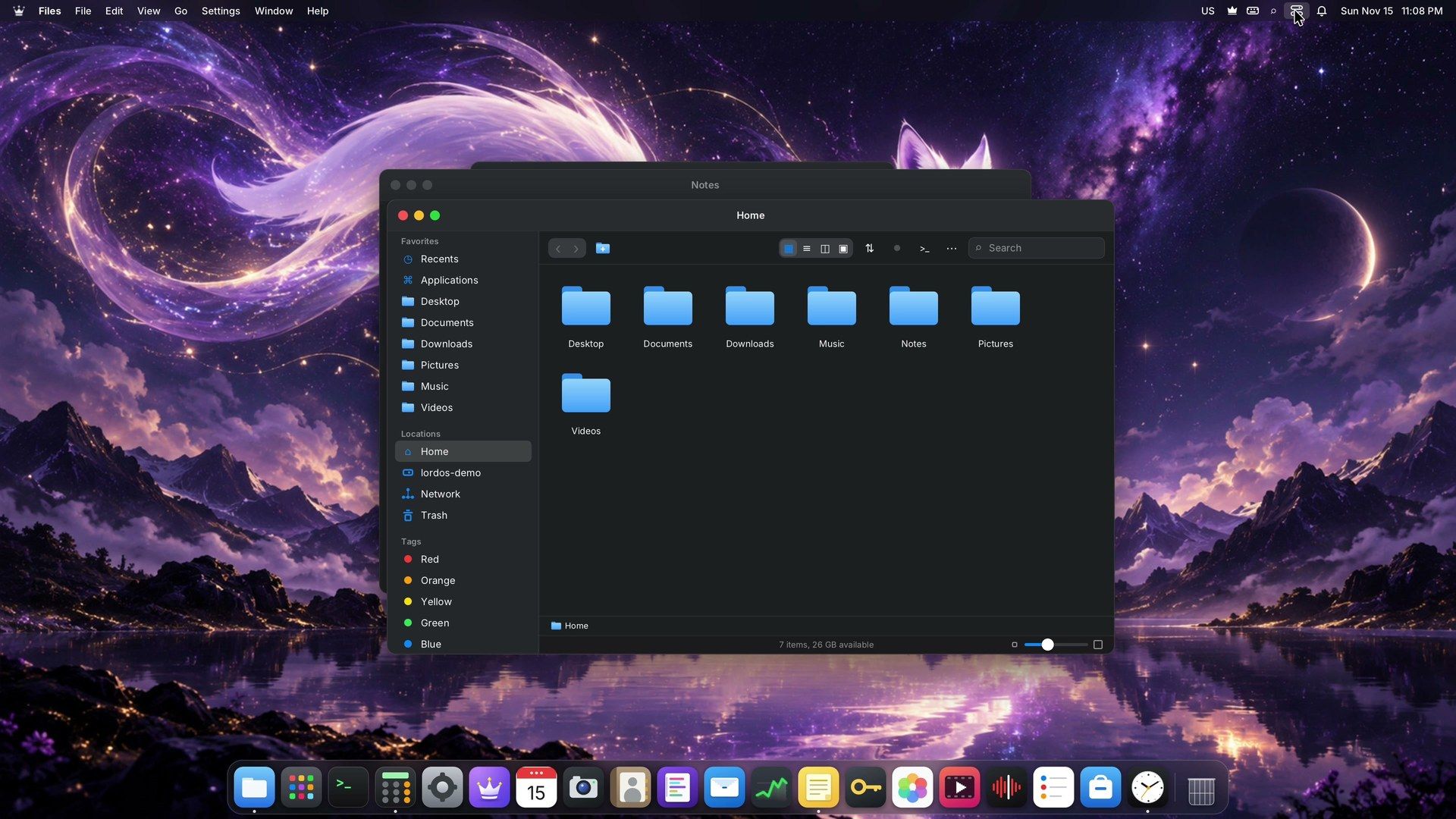
The desktop starts in a style called Lord Flow. A menu bar runs across the top and a Dock sits along the bottom. The crown in the top left corner opens the main menu, with Settings, the Store, Force Quit, and the power options. The Dock icons grow as the pointer passes over them, which makes a small icon easier to hit.
f4 , or a single tap on the Super key, opens the app grid across the whole screen. Chips along the top filter it by category, from Audio and video to Utilities, and a search field narrows the grid as you type.
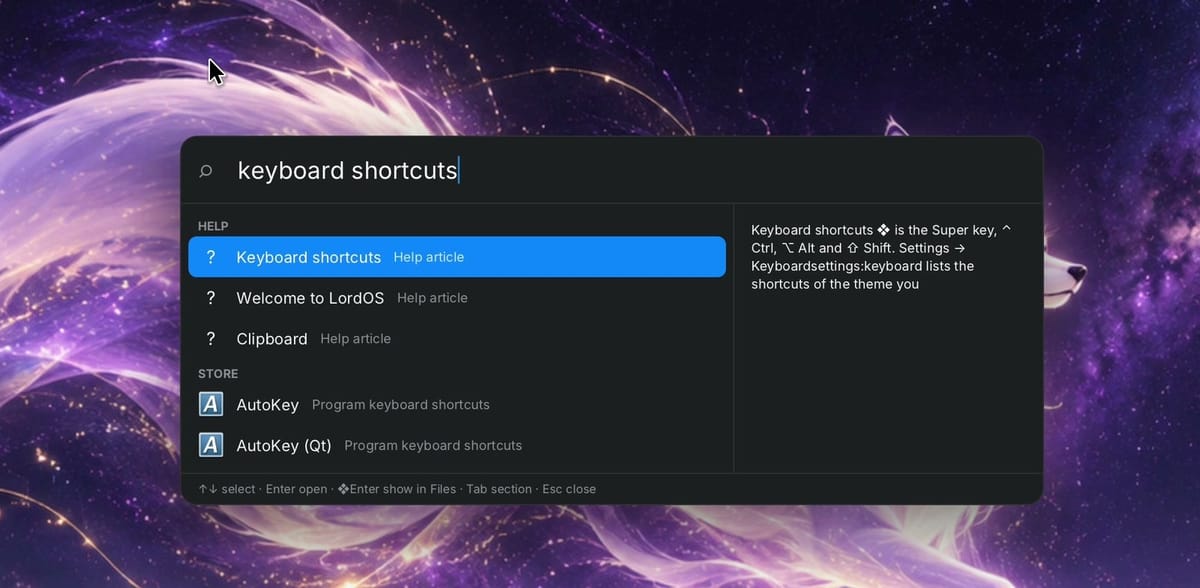
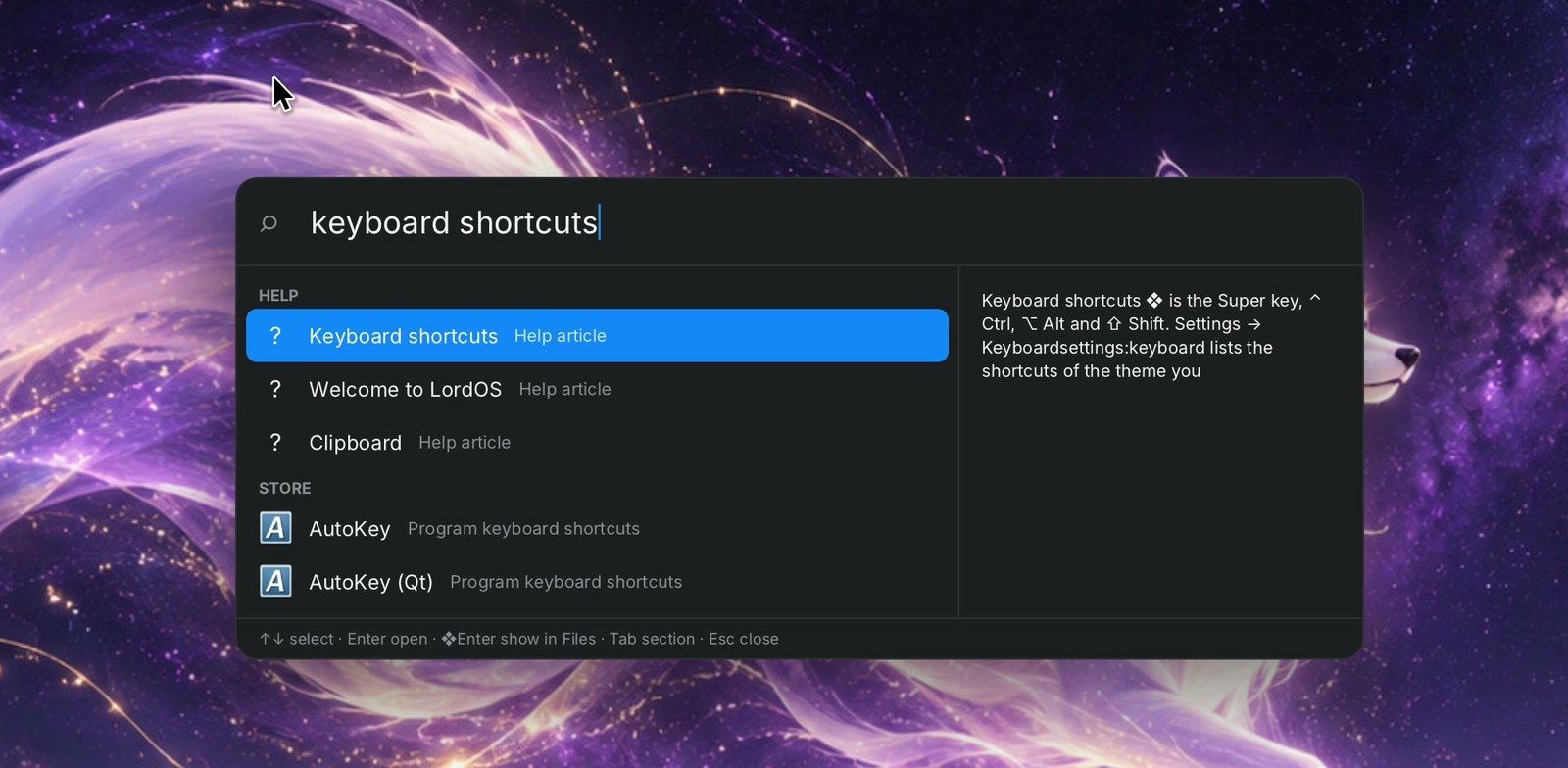
super space opens Search. One list holds apps, files, settings, math, Help pages, and apps from the Store. Typing “keyboard shortcuts” put the Help article at the top with a preview on the right, and below it AutoKey from the Store, a tool for building your own shortcuts.
Control Center is the icon beside the bell in the menu bar. One panel holds Dark Mode, sound, the network, accent colors, wallpapers, and live CPU and memory meters.
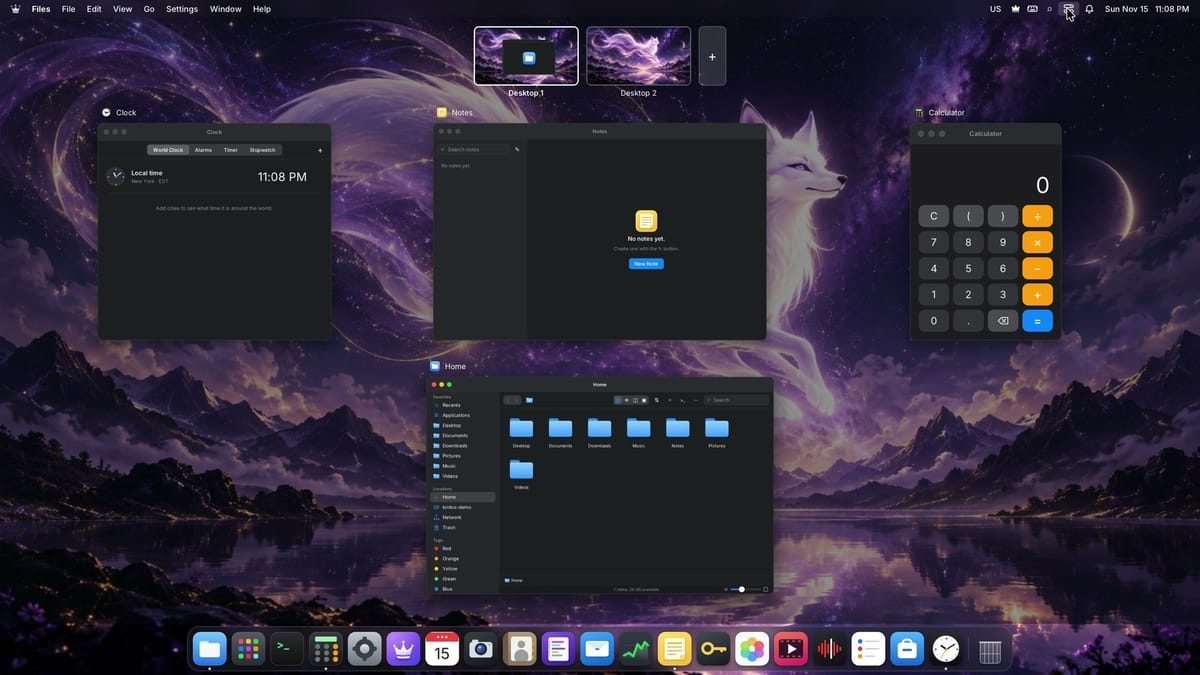
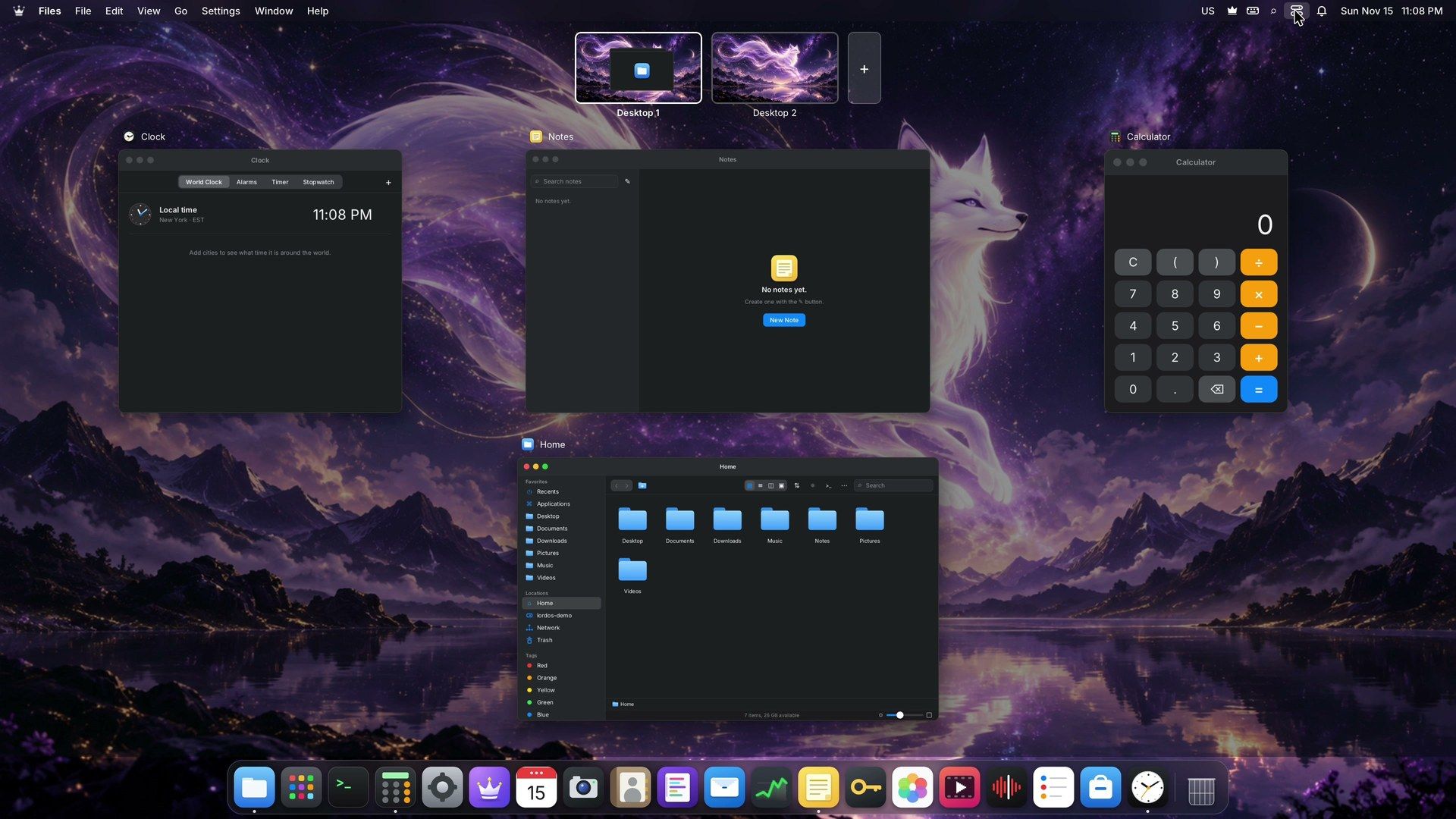
ctrl opens the Overview, where every open window becomes a tile with its app name above it. A strip along the top shows your desktops.
Windows and desktops
In Lord Flow, windows follow the Mac pattern, with three colored buttons at the top left of each LordOS window. Dragging the title bar moves a window, and Move and Resize in the Window menu puts it on half of the screen. The green button makes a window as big as the screen allows, and a second click brings it back to its old size.
super q quits the app in front. ctrl q doesn’t quit LordOS apps, so this one takes a little getting used to. Browsers such as Chromium and Firefox draw their own title bars, so they look a little different from the LordOS apps beside them.
Desktops keep separate jobs on separate screens. ctrl and ctrl move between them, and the plus box in the Overview’s strip adds another. In Settings, the Desktop and Dock page sets how many desktops you get and lets you name each one. The same page moves the Dock to the left or right edge of the screen.
Two desktop styles, colors, and wallpaper
The Appearance page in Settings starts with Desktop style. One click on Lord Classic turns the Mac-like layout into a Windows-like one. The page itself says “Both styles have the same apps. The change is applied right away, without logging out; open windows come back.”
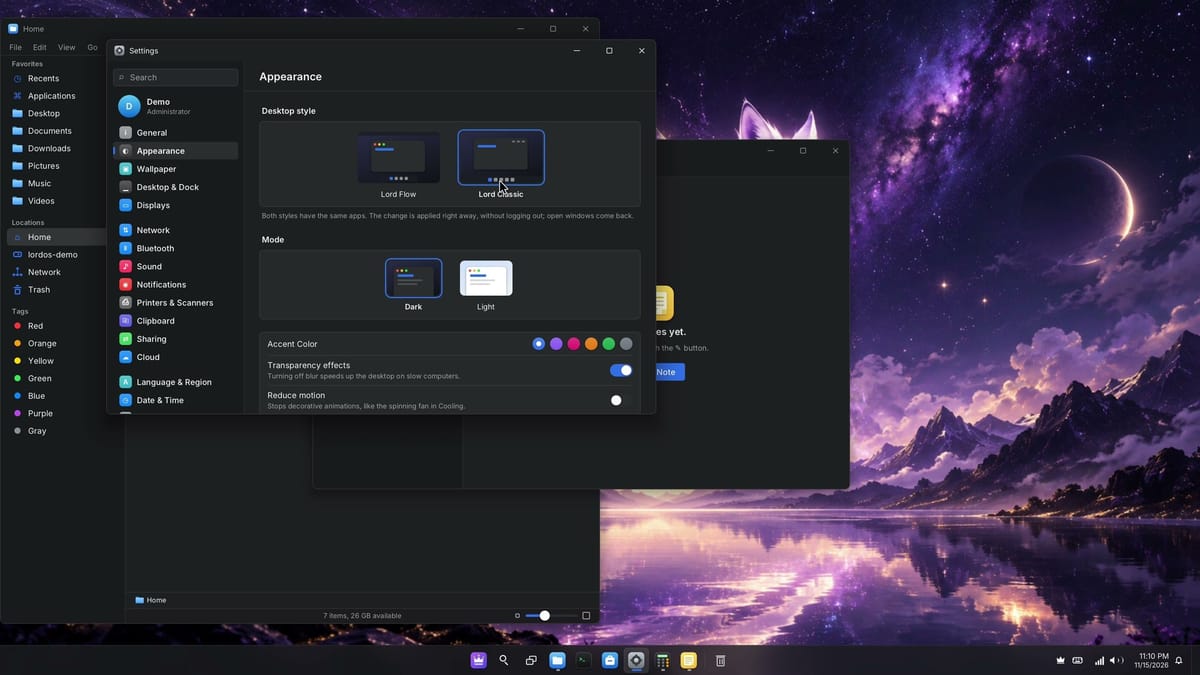
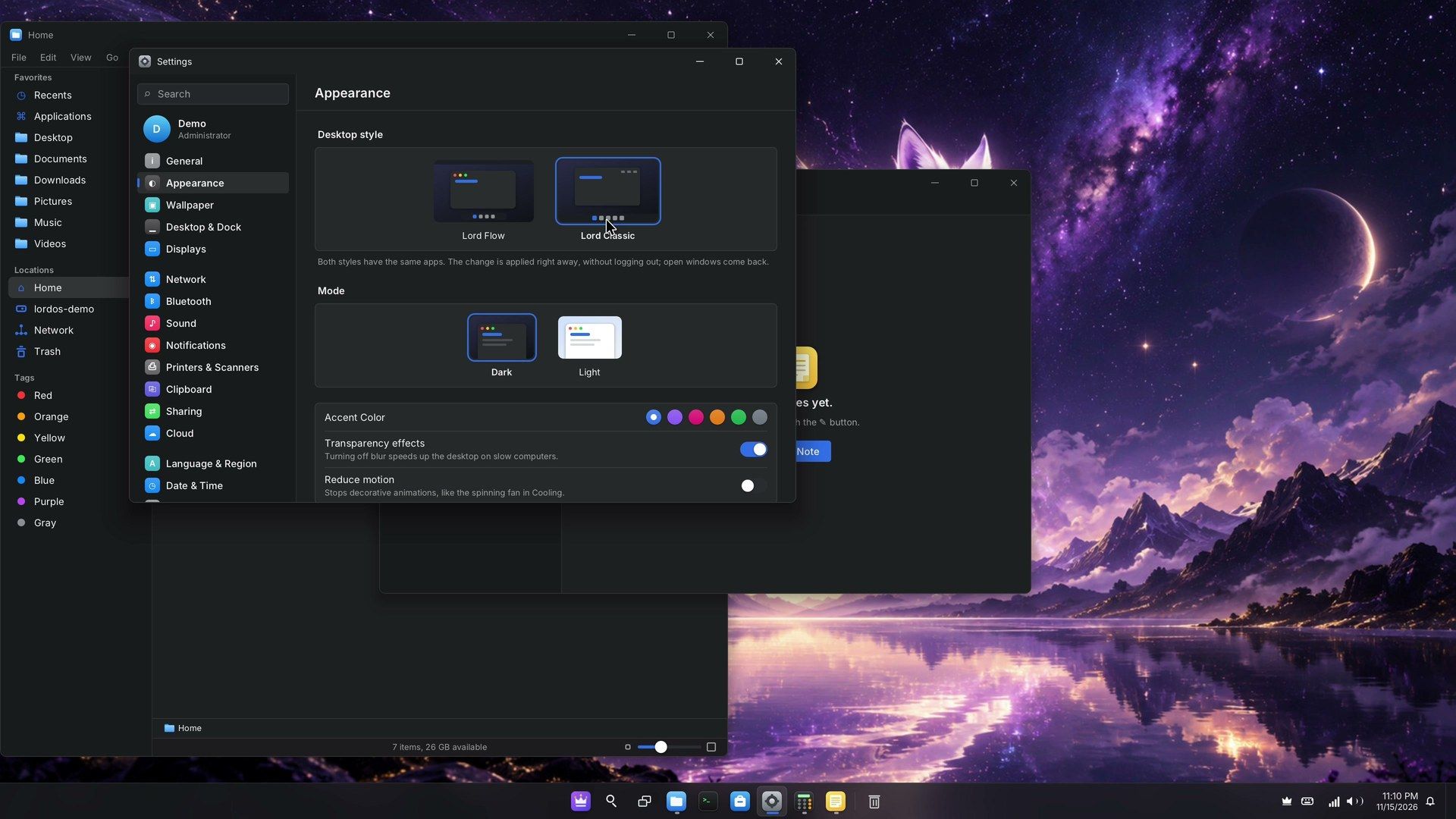
In Lord Classic, a taskbar runs along the bottom with a crown start button, search, task view, your pinned apps, and the clock. Title bars change too, with minimize, maximize, and close on the right. Open windows stay where they were. Lord Classic also adds Super plus the arrow keys for snapping a window to one side. One more click on Lord Flow brings the Mac look back.
The rest of the page covers the look of every LordOS window:
- Mode switches between Dark and Light.
- Accent Color offers six colors: blue, purple, pink, orange, green, and grey.
- Transparency effects can be turned off to remove the blur, which speeds up the desktop on slow computers.
The Wallpaper page has separate tabs for the desktop and the login screen. Celestial, the purple night sky in these pictures, is the default, and Choose picture adds a photo of your own.
The apps
Files is the file manager, with Favorites, Locations, and colored Tags in the sidebar. Passwords keeps your logins in an encrypted vault, stored as a single file you can copy to a USB flash drive. You choose what unlocks the vault: a password, a security key, a key file, or a password plus a key file.
Cleaner shows what’s taking up your space. Its start page says “A scan only reads. Nothing changes until you confirm it,” and its pages sort the results into large files, duplicates, and apps. Backups copies your files to a folder or a disk, hourly, daily, weekly, or by hand with Back Up Now, and it can encrypt the copies.
Clock has world clocks, alarms, a timer, and a stopwatch. Mail connects to an IMAP account. Remote Desk opens RDP and VNC connections to other computers, and Databases is a client for database servers.
The network map and the firewall
Monitor, the system monitor, draws the map on its Network tab. Every app with a connection gets a row on the left, and the map in the middle draws a line from your computer to each country the apps reach. The country for each address comes from a local database (DB-IP Lite) on the computer.
We opened a Japanese news site in Firefox, and a new line ran across the map to Japan. An app that talks to somewhere unexpected stands out the same way.
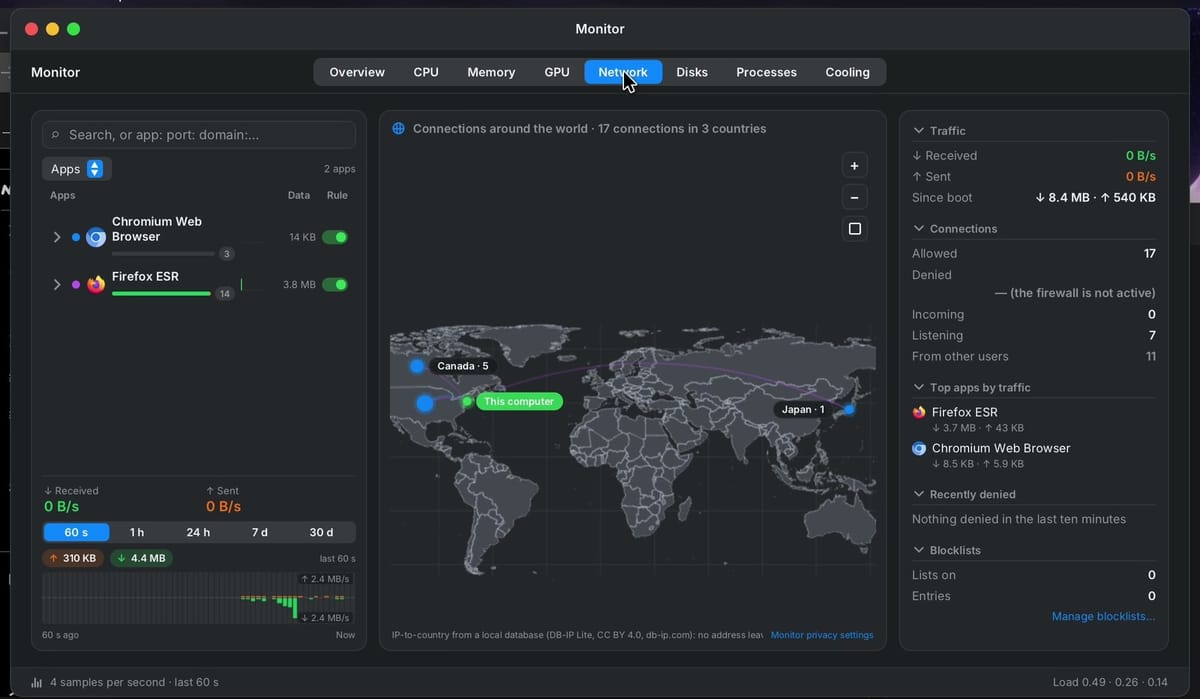
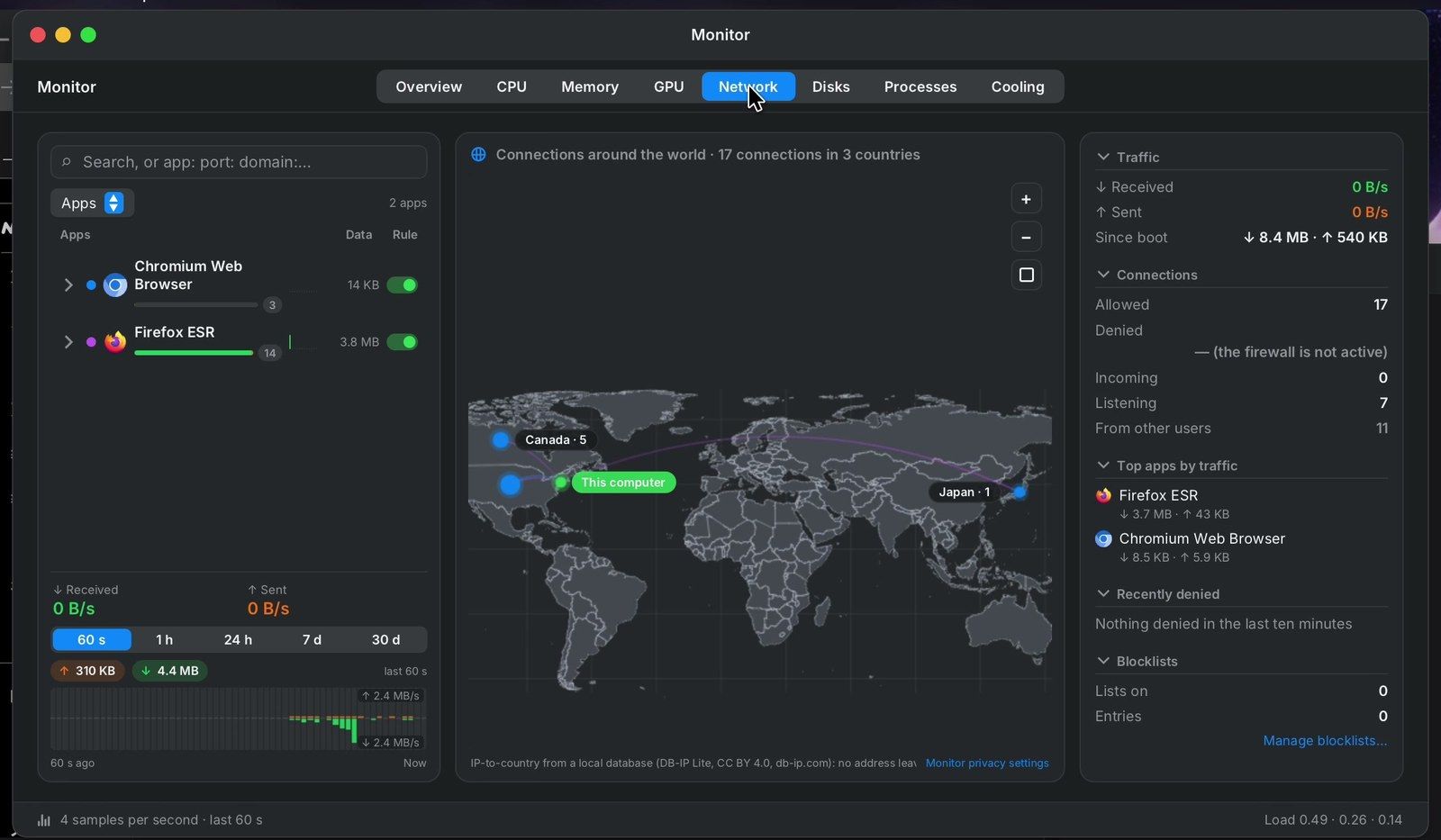
Each app row has a Rule switch for the firewall. One click turned Chromium’s switch red, and the Denied count jumped as its requests failed. Recently denied lists each address the firewall refused. Chromium then couldn’t load debian.org, and because the block stops address lookups too, the error page said the server’s address could not be found rather than “blocked”.
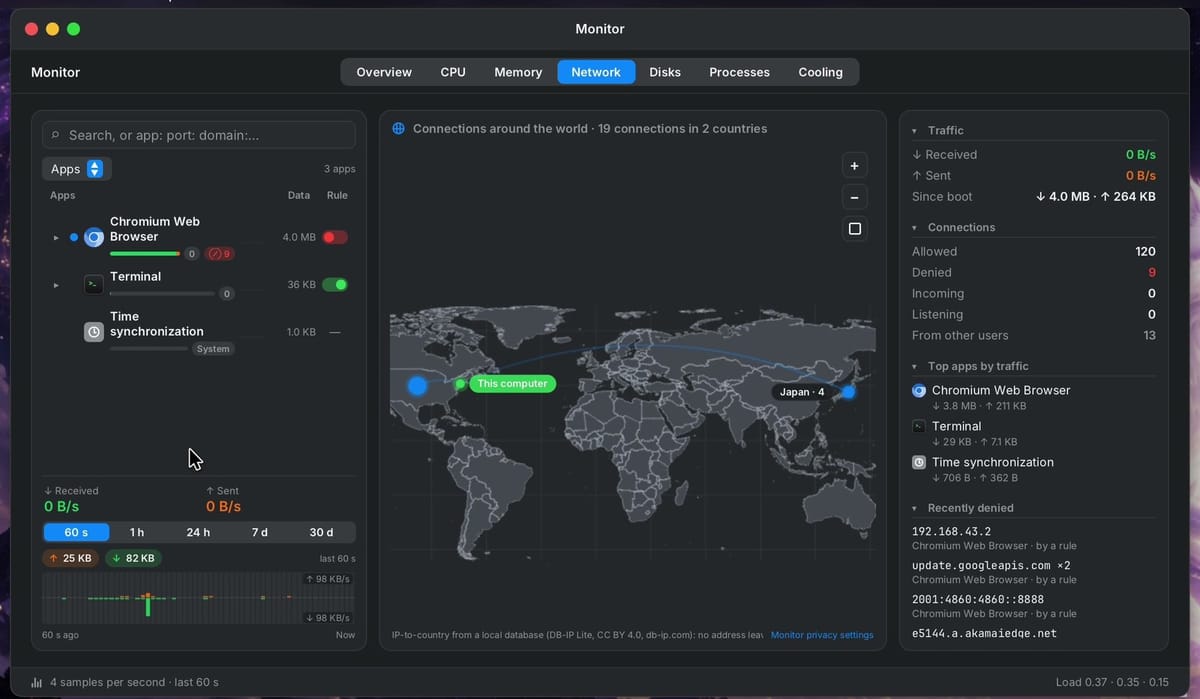
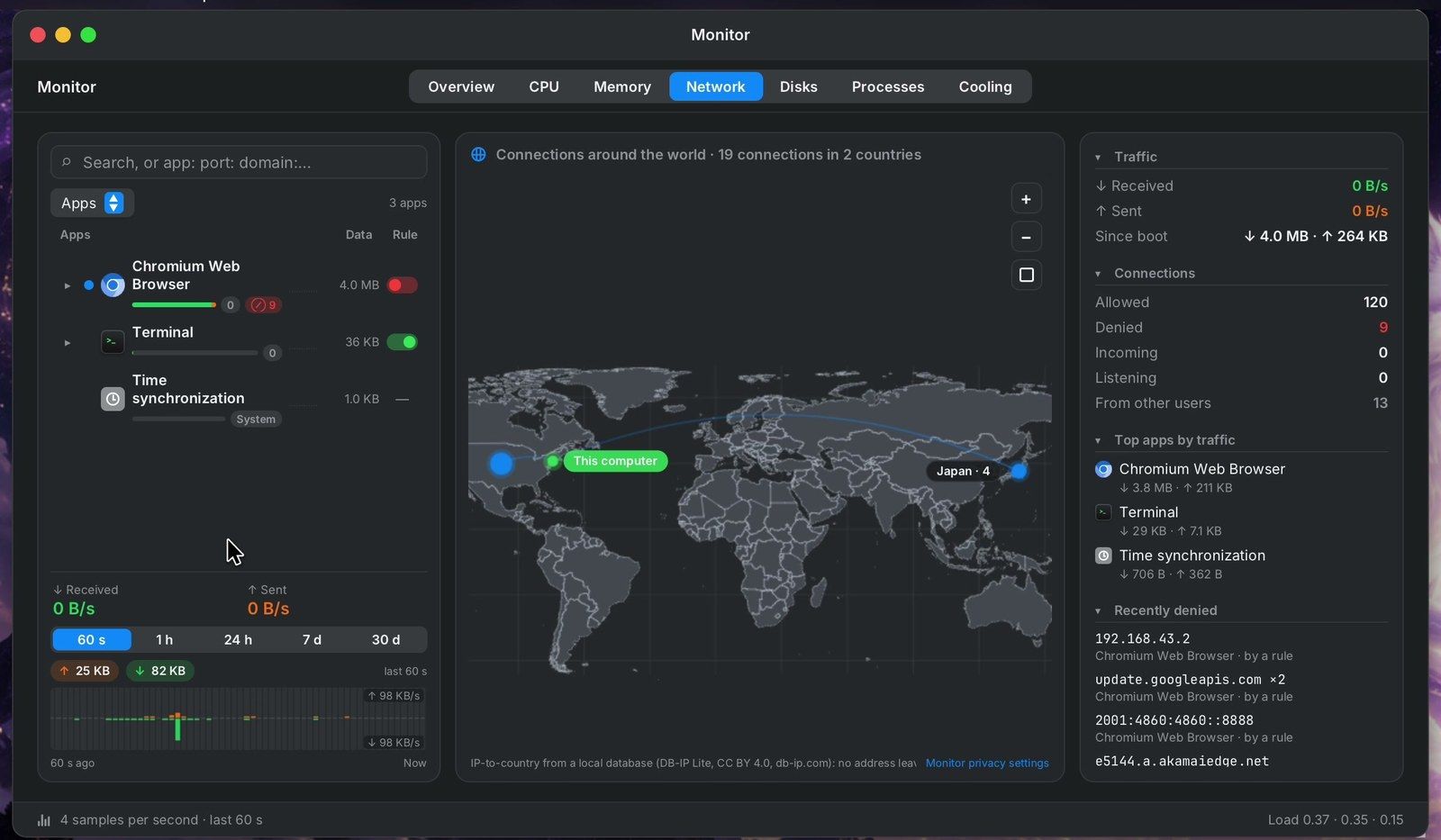
The small arrow beside an app opens one row for each place it connected to, and every row has its own switch. We turned off example.com for the Terminal, then requested example.com and debian.org from the command line. The request to example.com was refused, while debian.org still answered.
In our tests in November 2026, those two blocks worked on LordOS 0.8.8, the version the downloadable images ship with. On the updates 0.8.8.8 and 0.8.8.9, the switches still turned red, but nothing was blocked, and Monitor showed “the firewall is not active” next to the Denied count. If blocking matters to you, check that line after each update.
Sandbox checks
System Information runs the sandbox checks from its Checks tab. LordOS can run an app isolated, walled off from your files and the rest of the system. Run tests starts a test app the way any isolated app starts, then has it try things it must not be able to do. The page says the run takes about a second and nothing leaves the computer.
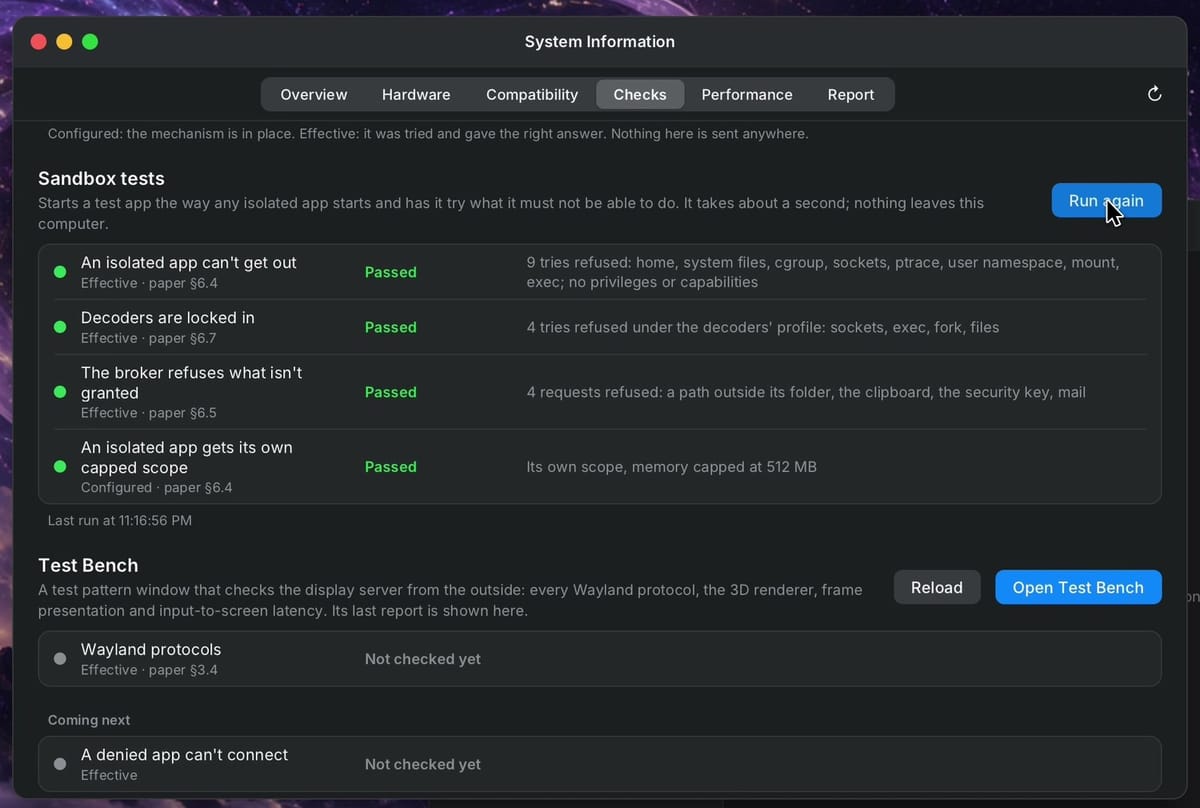
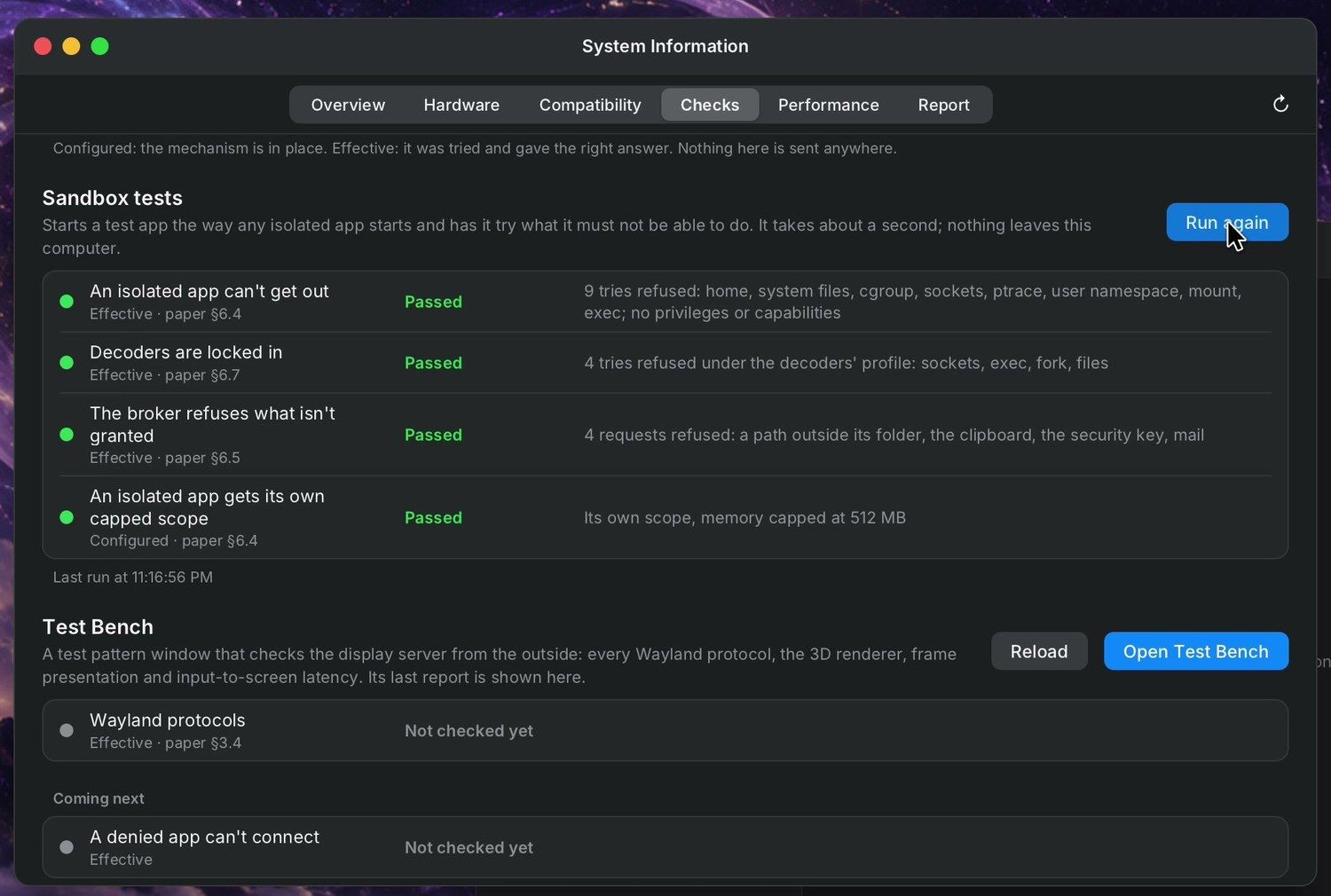
All four tests passed on our run:
- An isolated app can’t get out. Nine tries at the home folder, system files, other processes, and similar targets were refused.
- Decoders are locked in. Decoders, the parts that read media files, failed at their tries to reach the network or other files.
- The broker refuses what isn’t granted. The broker handles an isolated app’s requests, and it refused a path outside the app’s folder, the clipboard, and the security key.
- An isolated app gets its own capped scope. Each isolated app has a memory limit (512 MB on our run), so one runaway app can’t fill the computer’s memory.
The Store
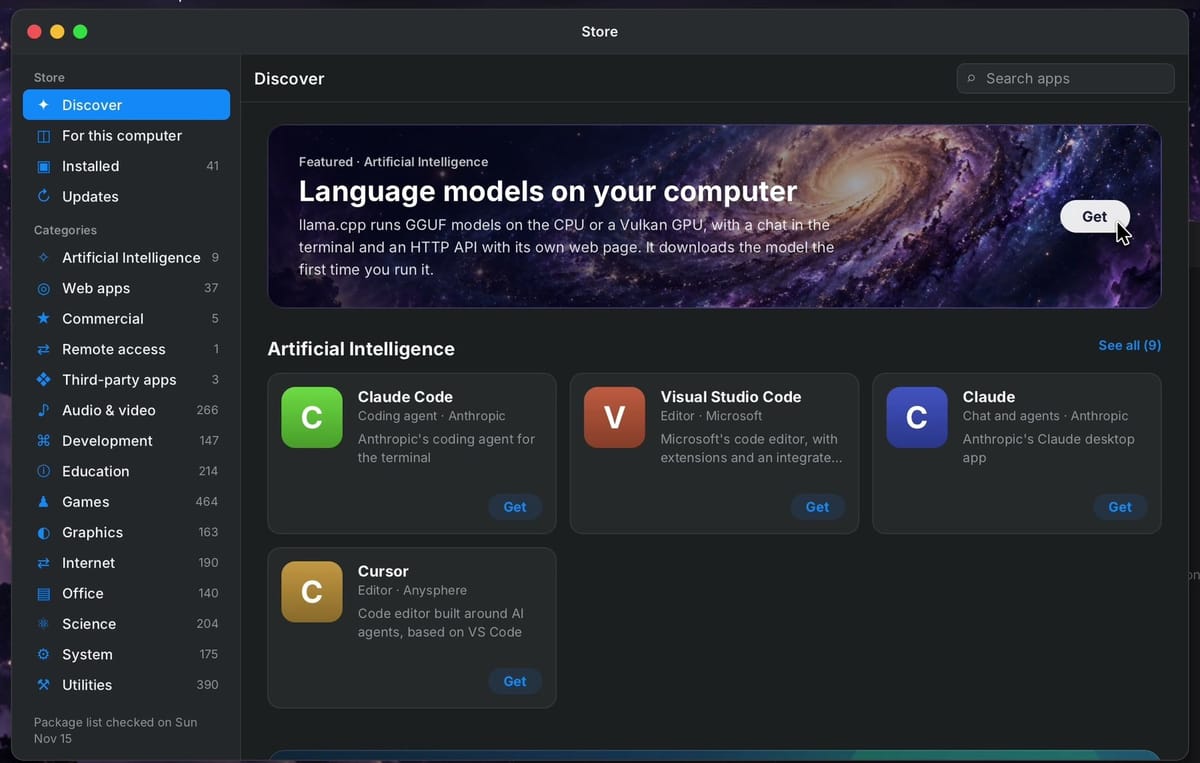
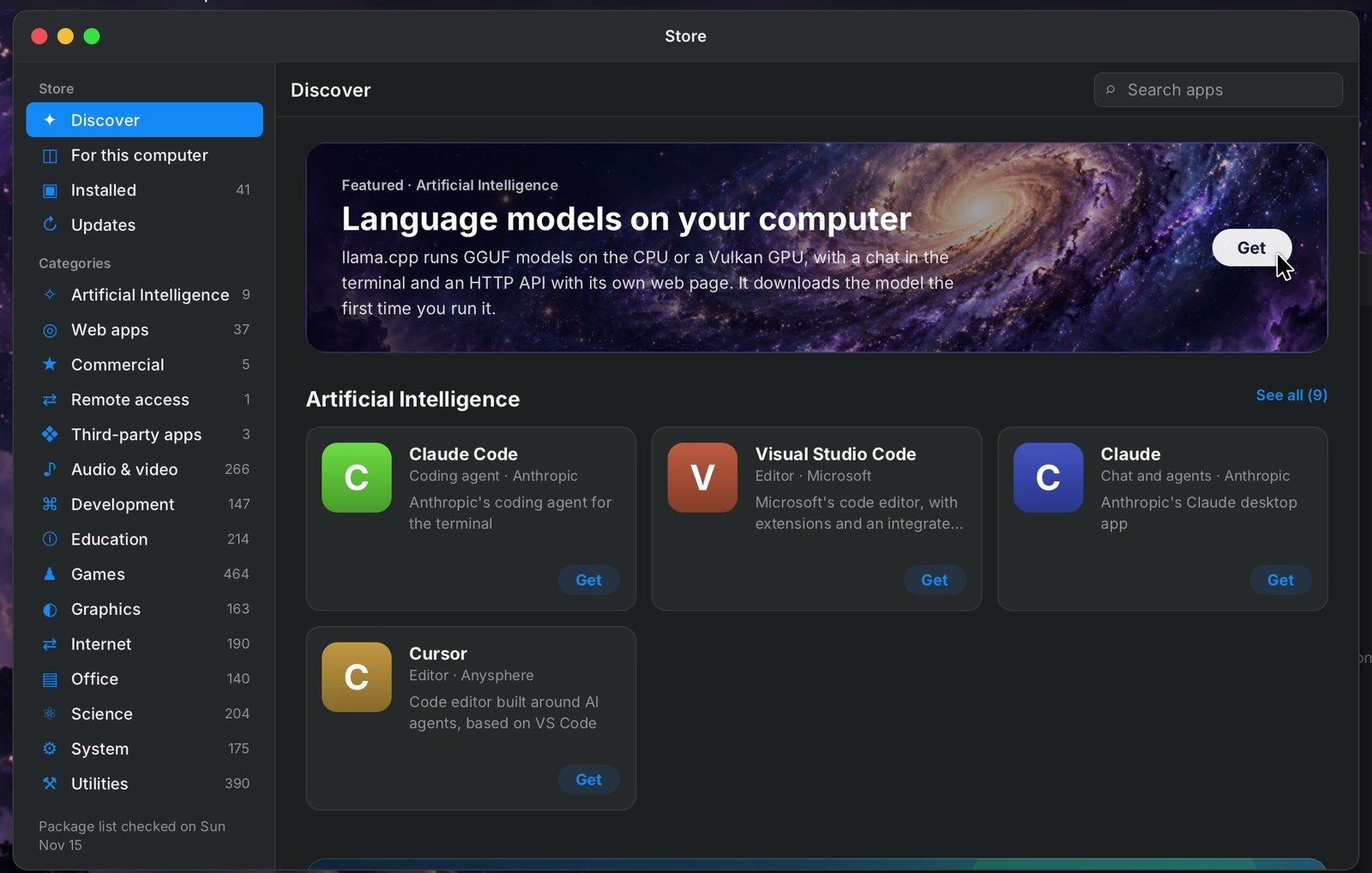
New apps come from the Store, and its catalog draws on Debian. On November 15, 2026, its Updates page counted 73,805 packages. The sidebar sorts them into categories like Games, Office, and Graphics, and Discover opens with a shelf of AI tools: Claude Code, Visual Studio Code, Claude, and Cursor, each with a Get button.
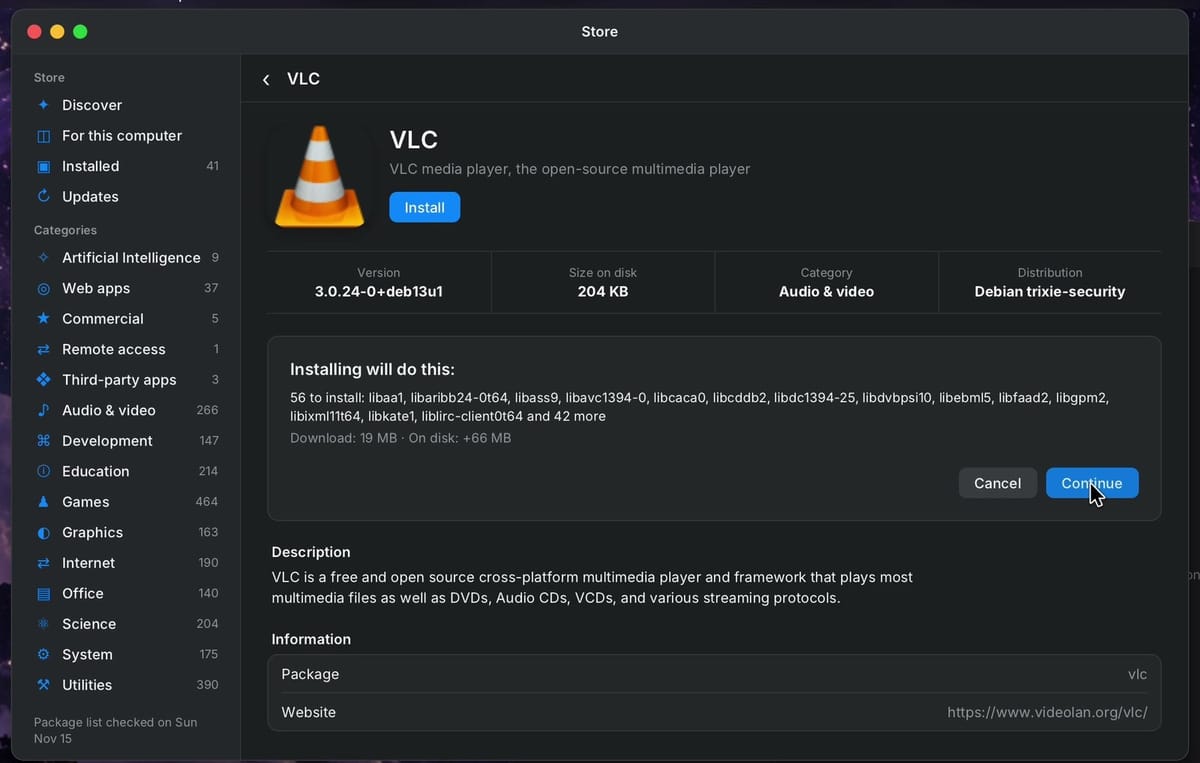
To install an app, search for it and press Install on its page. For VLC, the video player, a plan opened first: 56 packages to install, a 19 MB download, and 66 MB on disk. Continue started the install, and VLC was ready in under half a minute.
Some apps come straight from their maker instead. Claude Code’s page says it comes from Anthropic’s own repository, and it shows that repository’s address and the signing key that LordOS pins, with a button to add the maker’s repository.
On the Updates page, Check for updates automatically is on from the start. Its note says it checks “Once a day, and only to tell you. Nothing is installed without asking.”
How to try LordOS in a virtual machine
The easiest way in is the ready-made virtual machine image, an .ova file with no installer to run. The project’s virtual machine page names VirtualBox 7 (tested on 7.2) and VMware Fusion or Workstation. It asks for a 64-bit Intel or AMD computer with hardware virtualization turned on in the firmware, at least 4 CPUs and 4 GB of memory for the machine, and room for a 32 GB virtual disk that grows as you use it. ARM computers need the arm64 ISO instead.
-
Open the project’s releases on GitHub. On November 16, 2026, the newest full images were in LordOS 0.8.8-beta (
lordos-0.8.8-amd64.ova, about 1.3 GB). The newer releases, up to 0.8.8.9, carry updates only. -
Download the
.ova,SHA256SUMS, andSHA256SUMS.siginto one folder, and check the download there:shasum -a 256 -c SHA256SUMS --ignore-missing“OK” next to the file name means it matches the published file. On Linux,
sha256sum -c SHA256SUMS --ignore-missingdoes the same. -
Import the image. In VirtualBox, choose File, Import Appliance, pick the
.ova, and click Finish. In VMware Fusion, choose File, Import. In VMware Workstation, choose File, Open, and click Retry if it says the file doesn’t meet the OVF specification. -
Start the machine. Set up LordOS opens by itself: set the language and keyboard, create your user, check the summary, click Create account, then Restart and sign in.
-
Open the Store’s Updates page to bring the system up to the newest update.
The requirements page also lists an ISO for PCs (4 GB of memory minimum, 8 GB recommended, Secure Boot turned off), an image for the Raspberry Pi 5, and a script that adds LordOS to an existing Debian 13 system. If something breaks, the project asks you to run lordos-issue in the Terminal and paste what it writes into a GitHub issue.
Every app on this tour and what it does
| App | What it does |
|---|---|
| Settings | Appearance (Lord Flow or Lord Classic, Mode, Accent Color), Wallpaper, Desktop and Dock |
| Search | One list of apps, files, settings, math, Help pages, and Store apps ( super space ) |
| App grid | Every installed app, with category chips and a search field ( f4 ) |
| Control Center | Dark Mode, sound, network, accent colors, wallpapers, CPU and memory meters |
| Overview | Every open window as a tile, plus the desktops strip ( ctrl ) |
| Files | File manager with Favorites, Locations, and colored Tags |
| Passwords | Encrypted password vault in a single file |
| Cleaner | Shows what’s using your disk space and frees it only when you confirm |
| Backups | Hourly, daily, weekly, or manual backups to a folder or disk, with encryption |
| Clock | World clocks, alarms, timer, and stopwatch |
| Email for an IMAP account | |
| Remote Desk | RDP and VNC connections to other computers |
| Databases | Client for database servers |
| Monitor | System monitor, with the network map and the per-app firewall switches |
| Terminal | Command line, used here for the per-site block test |
| System Information | System details and the Checks tab with the sandbox tests |
| Store | Debian’s catalog, the AI tools shelf, maker repositories, and updates |
| Firefox and Chromium | Web browsers that come installed |
| VLC | Video player, installed from the Store |
Who LordOS suits today
LordOS suits people who like trying a new desktop and want one that can look like a Mac or like Windows without changing systems. Debian underneath means the familiar Linux apps install from the Store. The network map and the sandbox checks show what the system is doing, on your own computer.
It’s a beta that changes with each update, so a virtual machine or a spare computer is the right place for it for now. If you’d rather start with something settled, our guide to the best Linux distros for beginners compares the established choices.


