
niri is a Linux desktop where your windows line up on a strip that scrolls sideways. Strictly, niri is the window manager: the program that places and moves every window. Its own release notes describe it this way: “Opening a new window never causes existing windows to resize.” Windows that don’t fit on the screen wait off to the side until you scroll to them.
DMS is the shell that turns niri into a full desktop: the bar, the launcher, the panels, the lock screen, and the settings. niri’s Getting Started page recommends it in its Quick start, for “a fairly out-of-the-box experience.” The letters first stood for Dank Material Shell, and the project is now called Dux Modular Shell. The command you type is still dms.
This guide installs both on Arch Linux, sets up the login screen, and then goes through the desktop in the order you’d meet it: the bar and launcher, windows on the strip, the everyday panels, colors and blur, and the tools for learning the keys. Everything here was done with niri 26.04 and DMS 2.1.2 on a GMKtec NucBox G2 mini PC with a 4K screen.
Install niri and DMS on Arch
Start from a minimal Arch Linux install with no desktop, logged in at the text console. niri’s Quick start lists two commands for Arch. The first uses pacman, Arch’s package manager, to install niri, DMS (the dux-shell package), the Alacritty terminal, and a few helpers:
sudo pacman -Syu niri xwayland-satellite xdg-desktop-portal-gnome xdg-desktop-portal-gtk alacritty dux-shell matugen cava qt6-multimedia-ffmpegThe second tells the system to start DMS whenever niri starts:
systemctl --user add-wants niri.service dmsIts reply says it created a symlink for dms.service. Now start niri from the console:
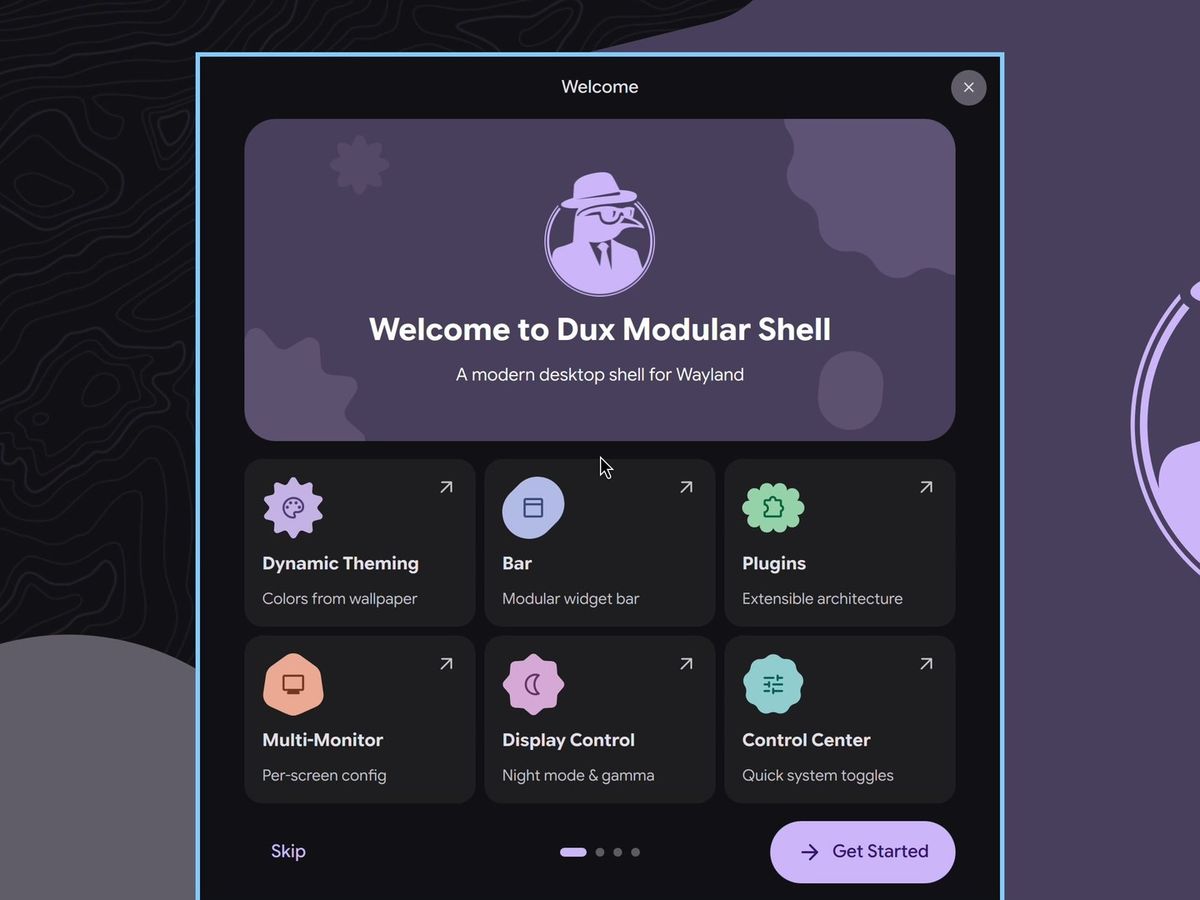
niri-sessionThe DMS bar appears across the top of the screen. On the first login, niri shows its Important Hotkeys overlay as well, and one click on the desktop closes it. Behind it, DMS opens a Welcome window. Get Started leads to a System check page that should read “All checks passed”; the warnings it lists are optional features. The next page suggests popular plugins you can add, and the last one, “You’re All Set!”, picks a layout (Standard, Frame, or Island) and how much room goes around each control. Finish closes the window.
Run dms setup, or the DMS keys do nothing
DMS’s install docs say to run dms setup “to create a starter configuration with DMS keybinds and autostart.” The two Quick start commands leave niri on its own stock settings, so the DMS shortcuts in the rest of this guide don’t work yet, and niri keeps its own shortcuts. Open a terminal with super t (Super is the Windows key on most keyboards) and run:
dms setupIt asks a few questions, one at a time:
- Which tool to use for admin rights, when it finds more than one:
[1] sudoor[2] run0. Pick 1 for sudo. - Your window manager:
1) Niri,2) Hyprland,3) Mango, or4) None. Pick 1. - Your terminal:
1) Ghostty,2) Kitty,3) Alacritty, or4) None. Pick 3 if you installed Alacritty with the command above. - Whether to use systemd for session management. Pick
1) Yes, which it marks as recommended for most distros. - A last check: “Existing configurations will be backed up with timestamps. Proceed with deployment? (y/N)”. Type
y.
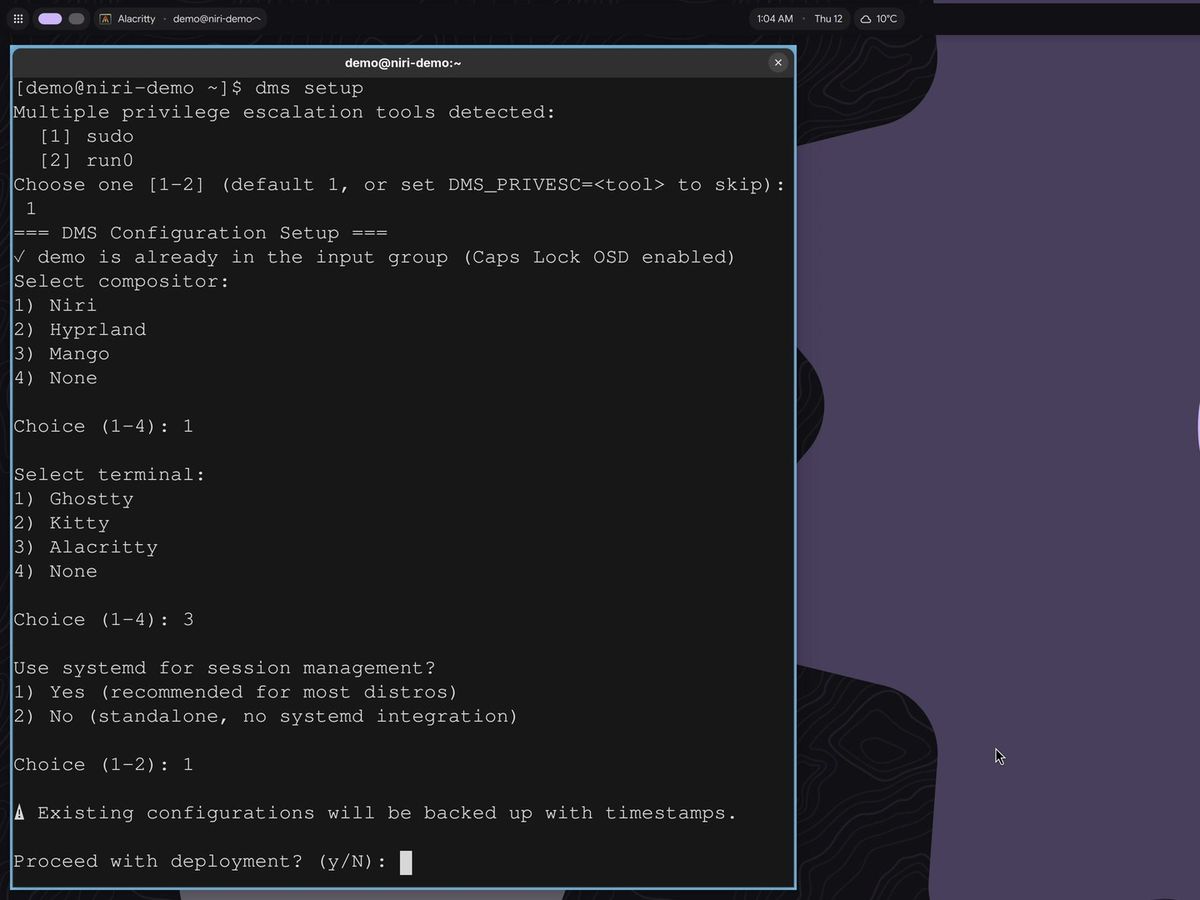
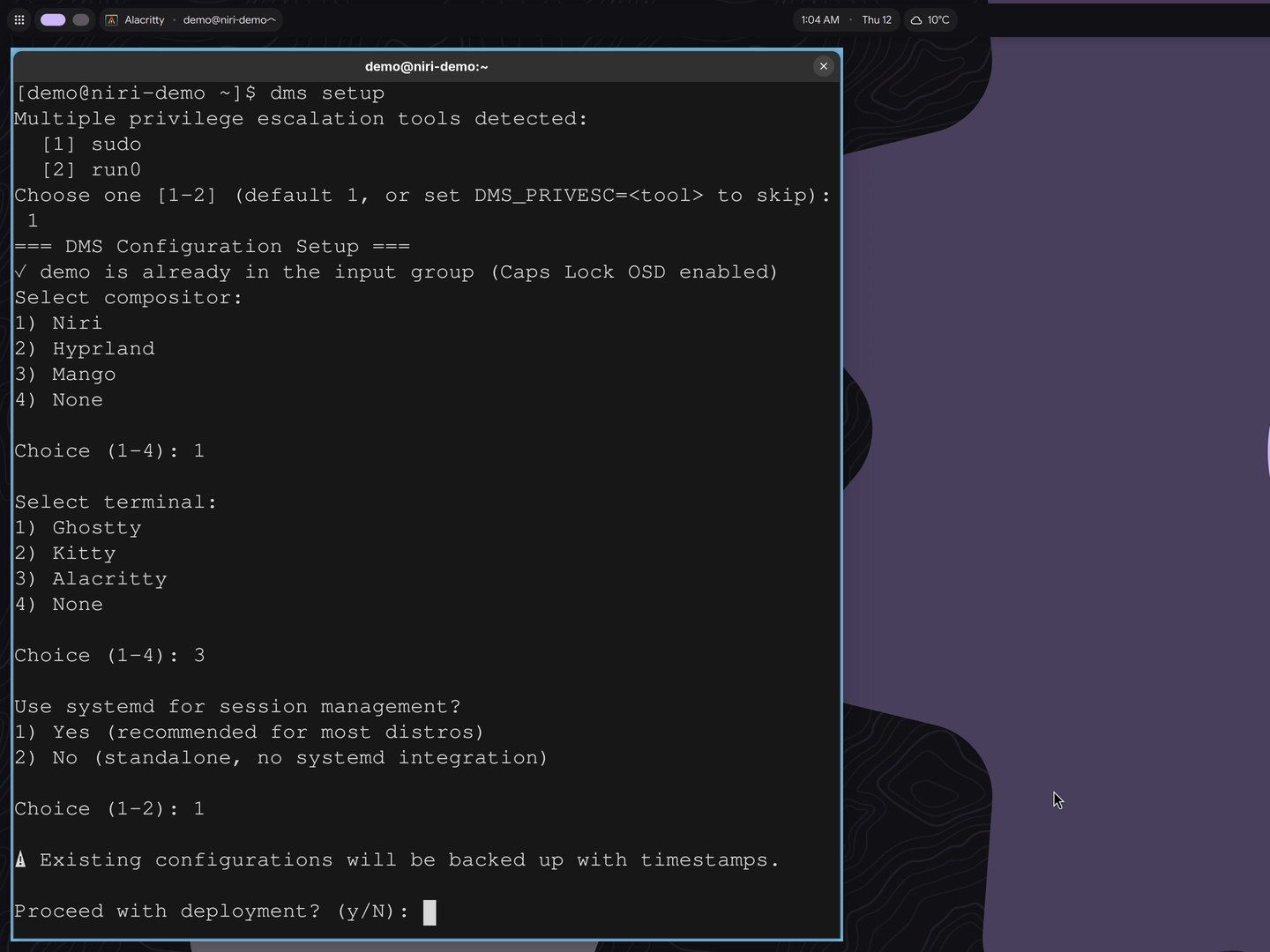
If you already had niri settings, they aren’t lost. dms setup copies ~/.config/niri/config.kdl to a backup file named with the date and time, then writes a new one that pulls in the DMS keyboard shortcuts. It also writes an Alacritty config and the matching color theme. It may add you to the input group, which takes effect at your next login. When it prints “Deployment Complete”, niri reloads its settings, and the DMS shortcuts work from then on.
Add the login screen
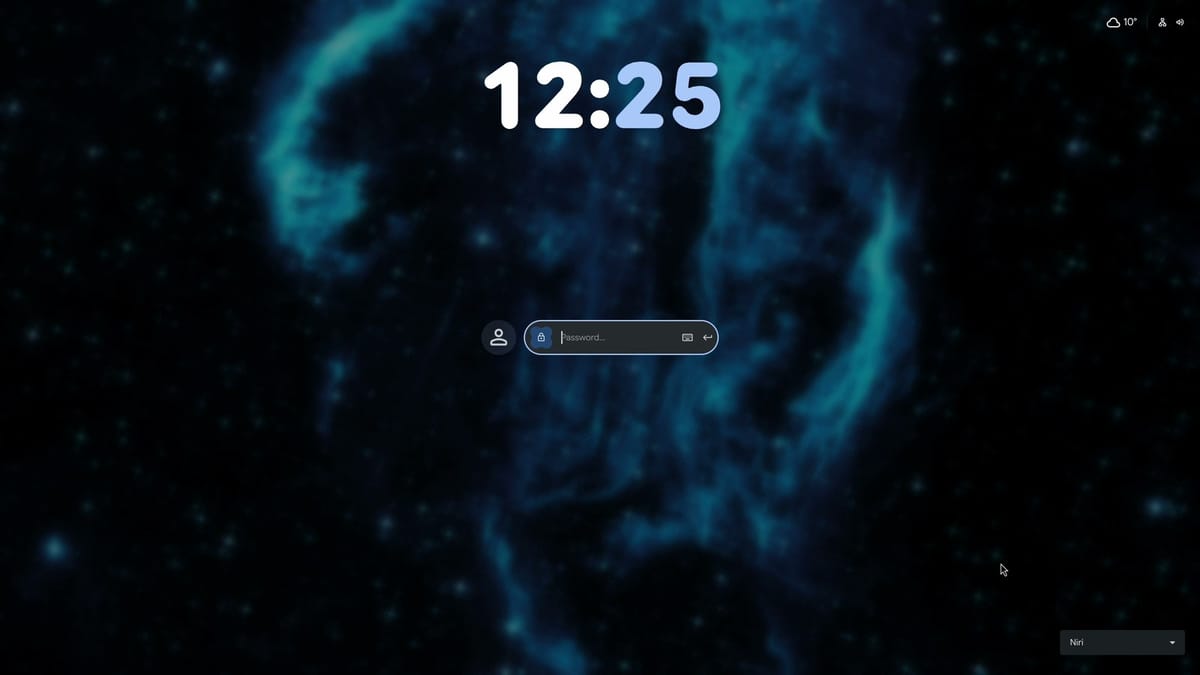
At this point niri starts only when you type niri-session at the console. The login screen in the screenshot below is a separate package called dux-greeter, from the same people as DMS. It lives in the AUR, Arch’s collection of community packages, as dux-greeter-bin. With an AUR helper such as paru, DMS’s greeter docs give paru -S dux-greeter-bin. On a minimal install with no AUR helper, build it by hand:
sudo pacman -S --needed git base-devel
git clone https://aur.archlinux.org/dux-greeter-bin.git
cd dux-greeter-bin
makepkg -si
makepkg -si builds the package and installs it along with greetd, the login service it runs on. Then turn it on and copy your look to it:
dms-greeter enable
dms-greeter sync
dms-greeter enable makes greetd the program that shows the login screen at boot. The docs warn that “enabling dms-greeter will replace your current display manager,” so on a system that already boots to GDM or SDDM, the greeter takes over from it. dms-greeter sync links your theme and wallpaper to the login screen. The docs say it can be re-run after theme changes, which keeps the login screen matching your desktop. Restart, and the computer boots to the new login screen.
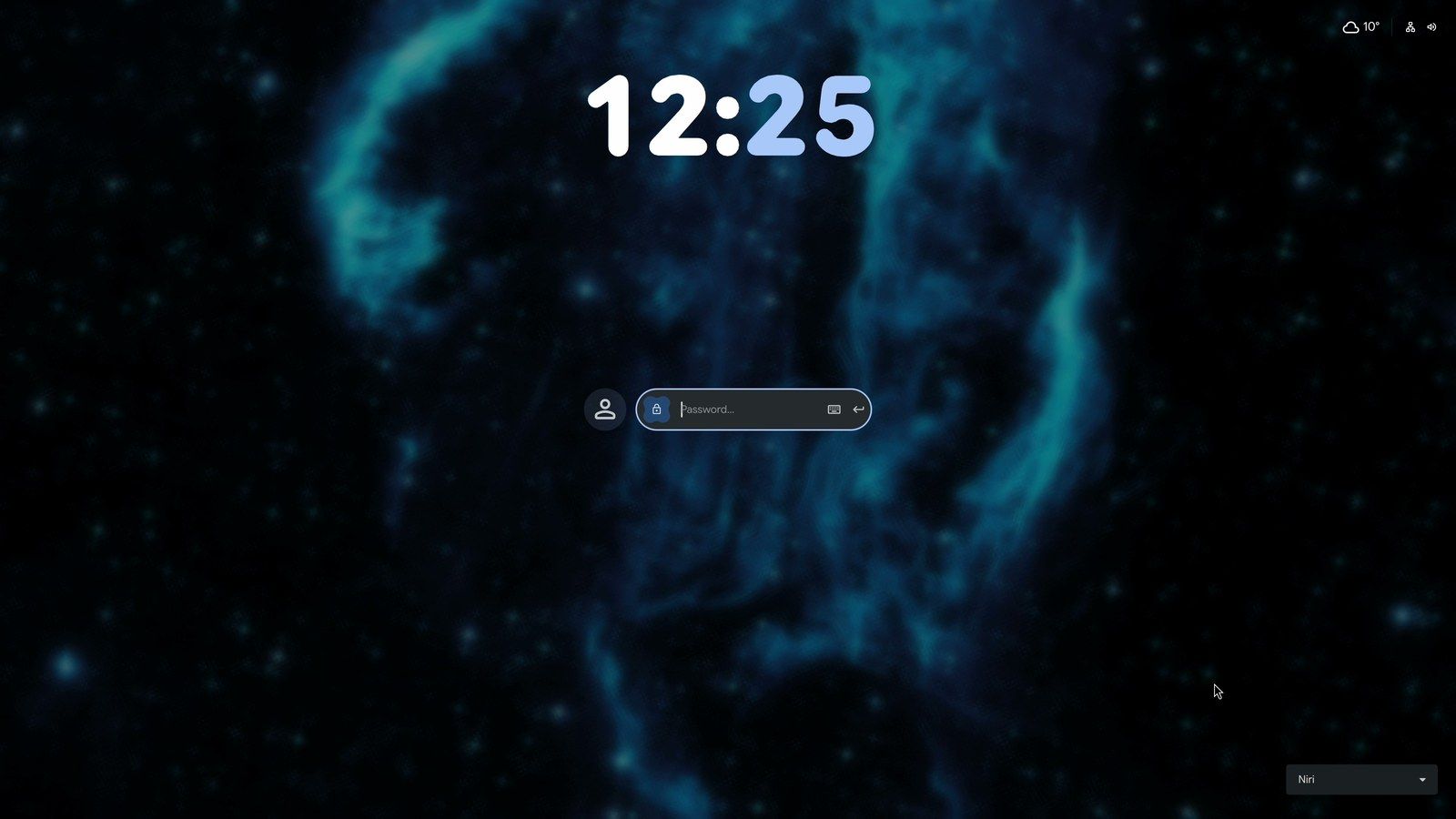
The first time, it shows a “Select user…” list, and after one login it remembers you and shows only the password box. There’s a big clock, the weather, and a session menu at the bottom right that lists Niri.
The bar and the launcher
After the password, the bar runs along the top of the screen. On the left are the launcher button and the workspace pills. A workspace is a separate screen for a separate job, and each pill is one of them; next to them is the name of the window you’re in. The middle shows the clock, the date, and the weather. On the right are processor and memory use, next to the clipboard, notification, power, network, and sound icons. The weather starts on DMS’s default location, New York, and Settings has a Dashboard page for tabs and weather.
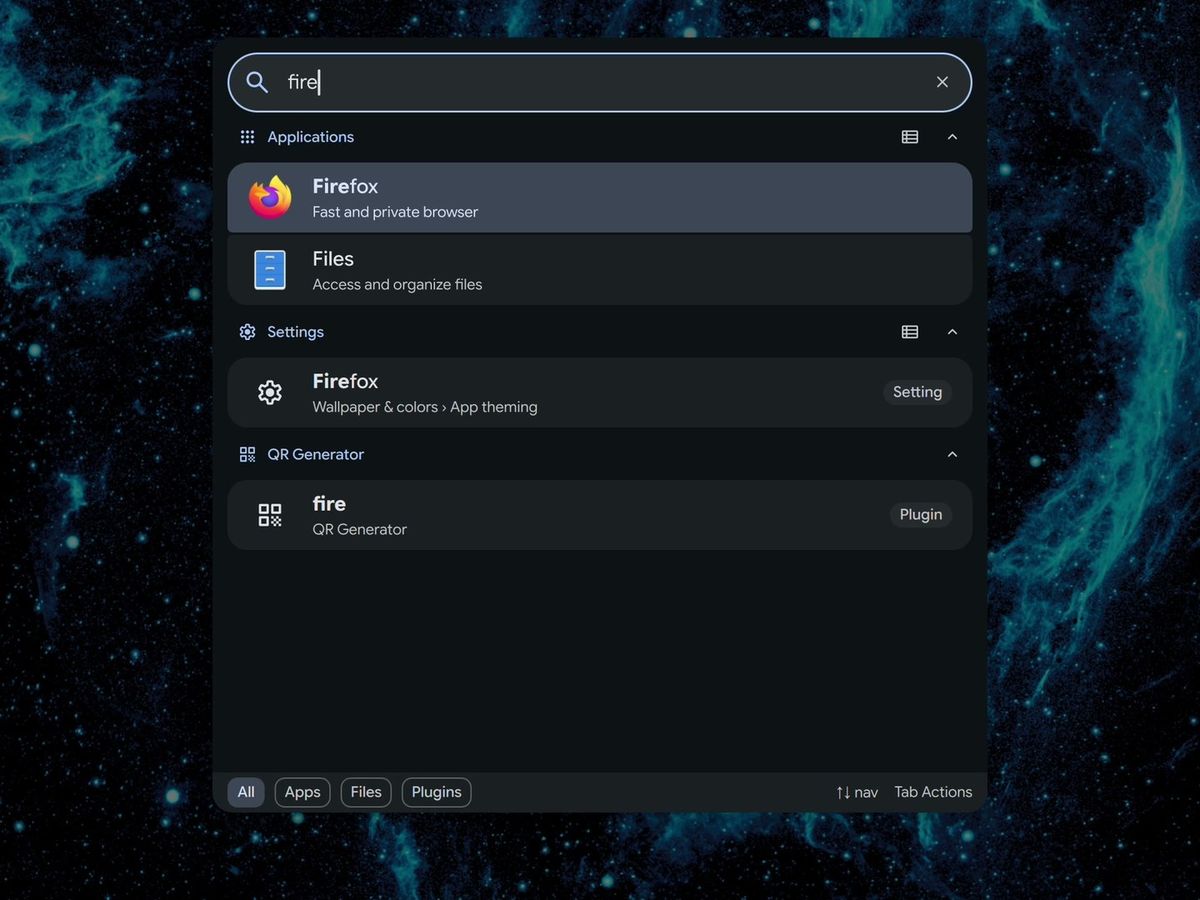
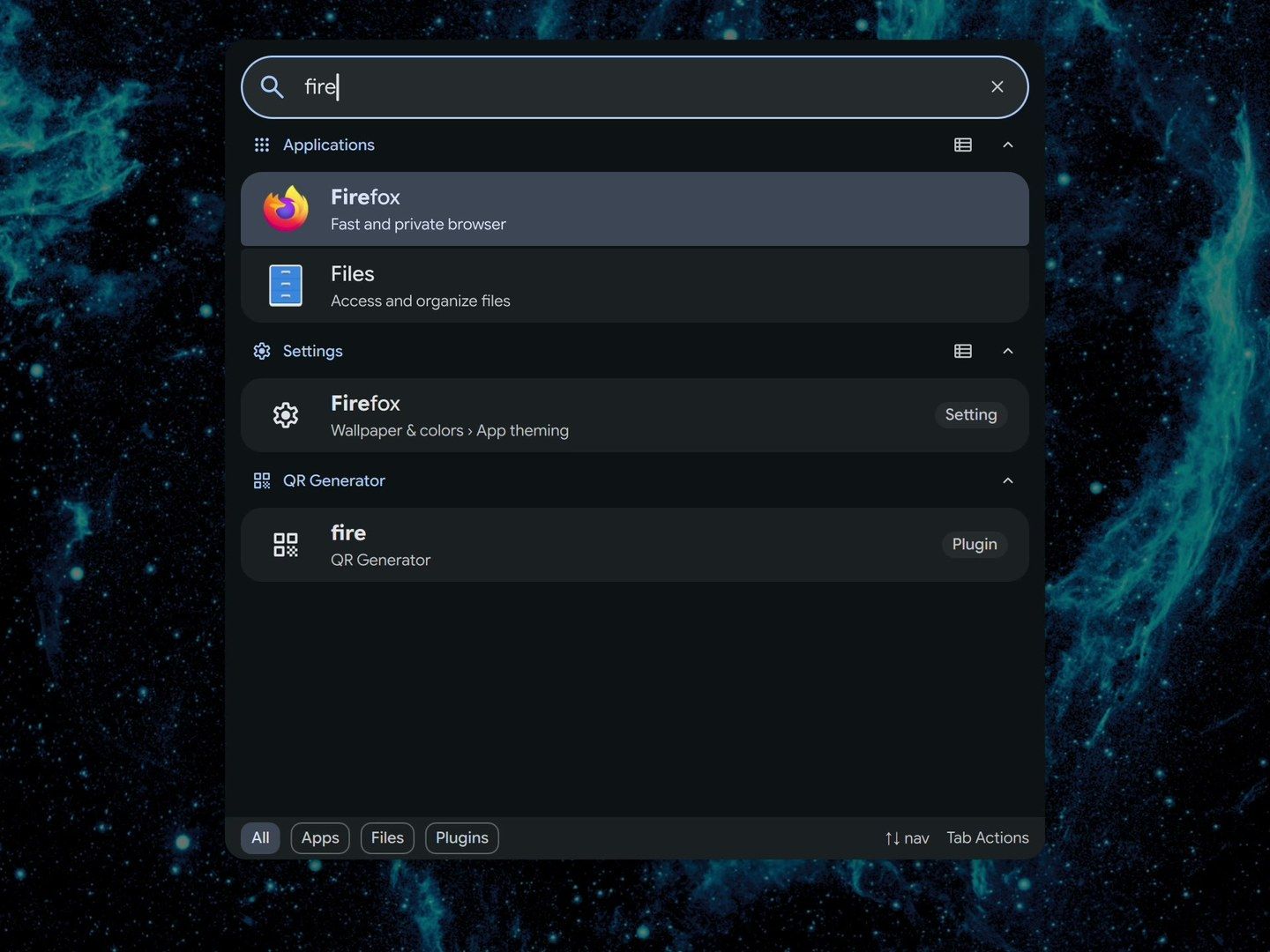
super space opens the launcher, one search box for apps, files, and plugins, with a filter for each along the bottom. A few letters are enough: typing fire puts Firefox at the top, and enter opens it.
Windows on the strip
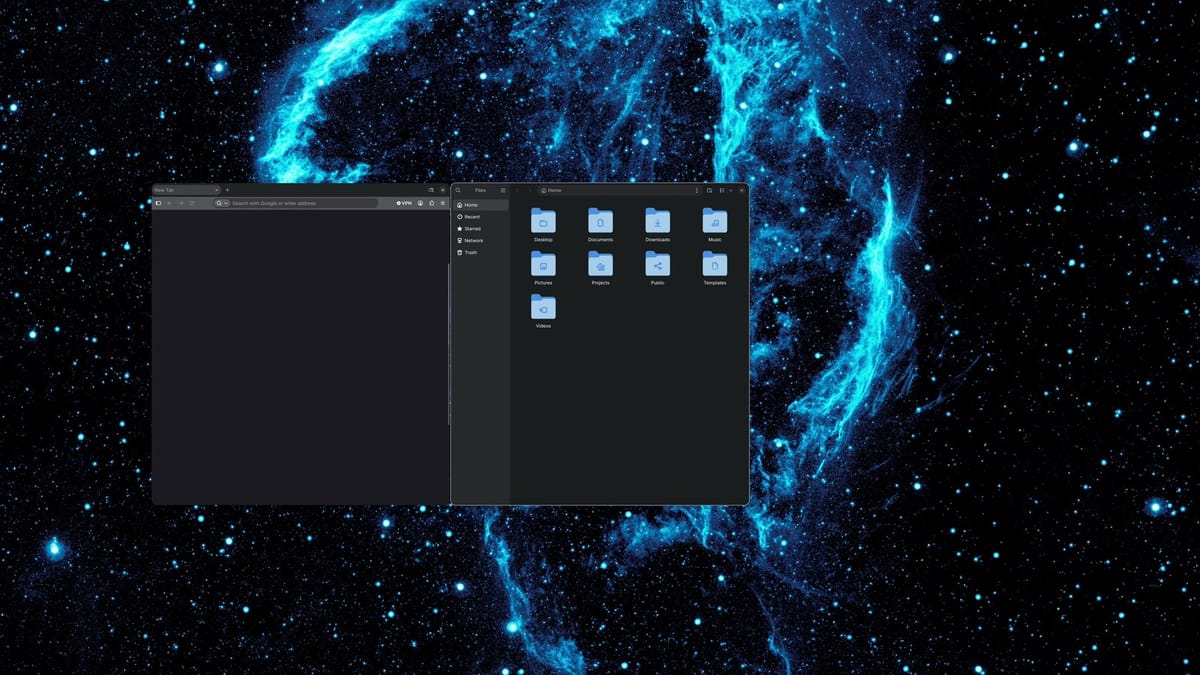
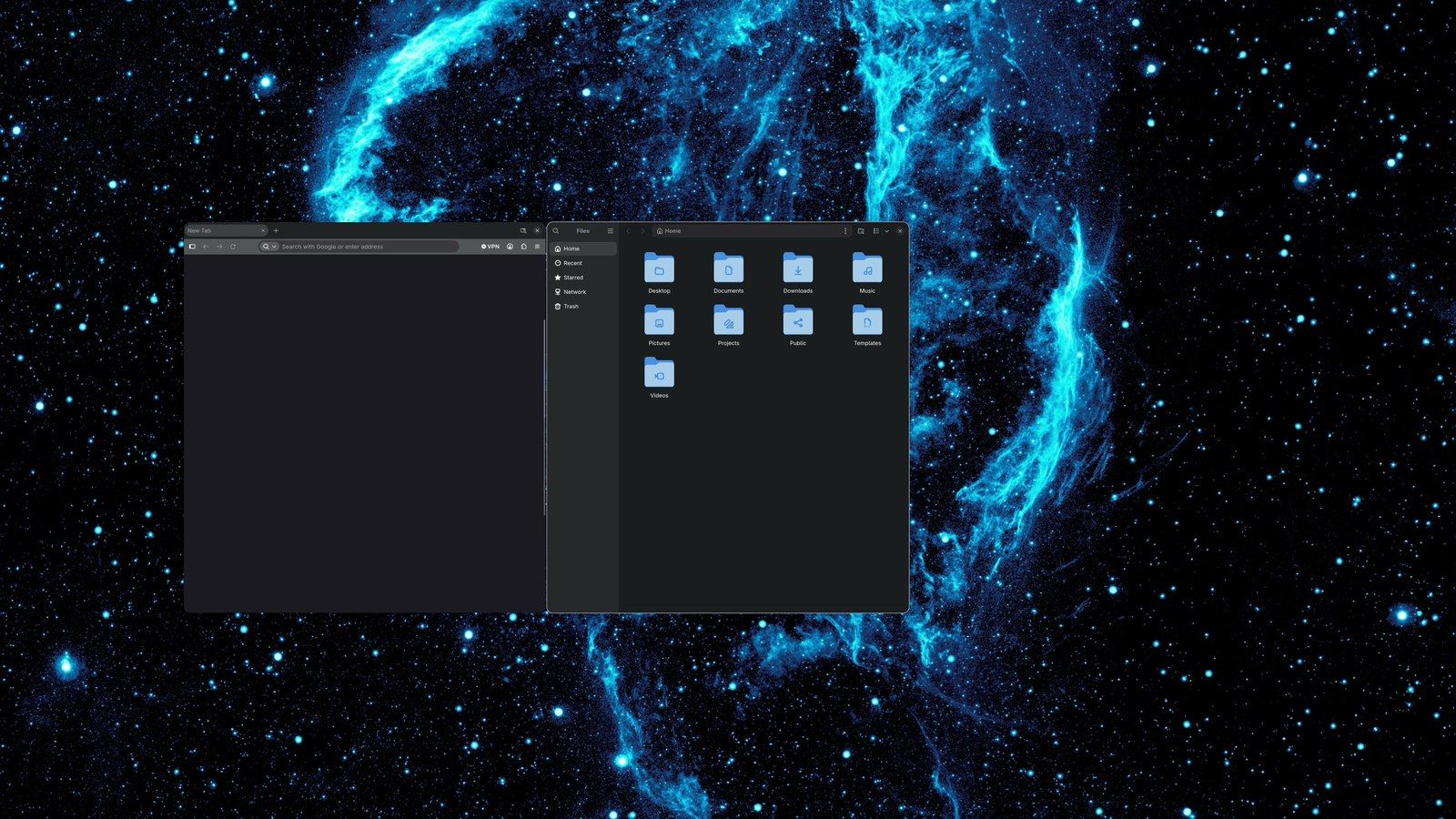
Each window opens in its own column, a slot on the strip with its own width. Open Firefox, and it gets a column. Open Files from the launcher, and it gets a second column beside Firefox, while Firefox keeps its width. super t opens a terminal in a third column, and the strip scrolls to show it. Nothing gets squeezed to make room: Firefox moves off the left edge of the screen instead.
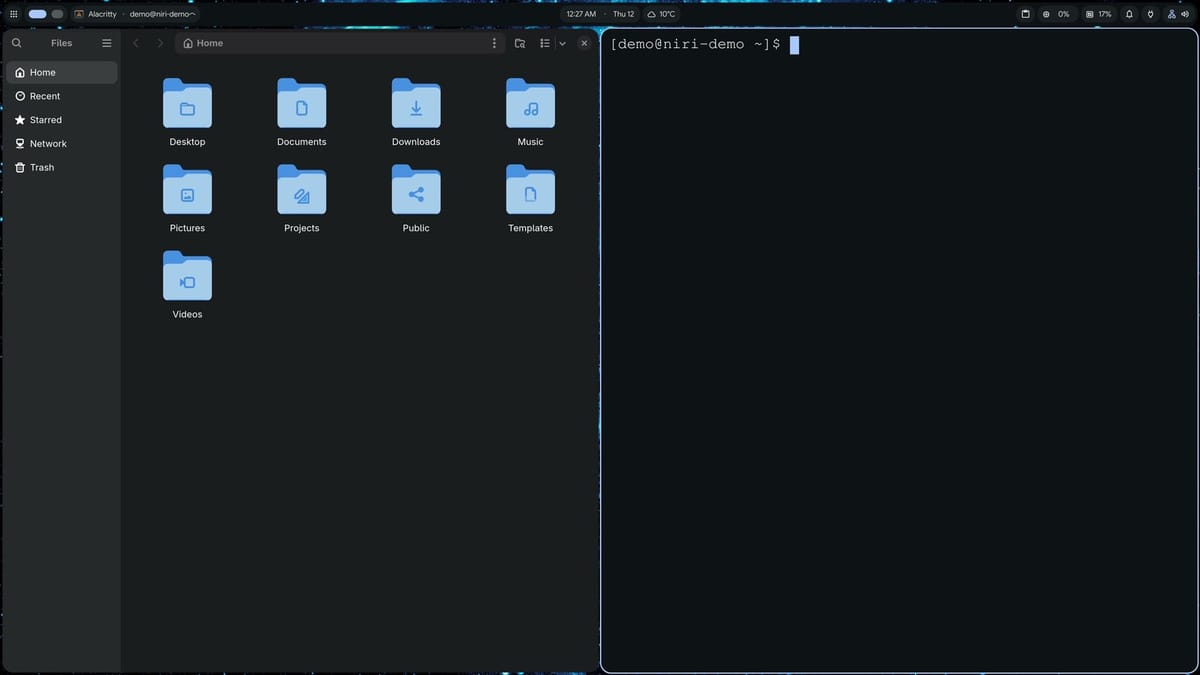
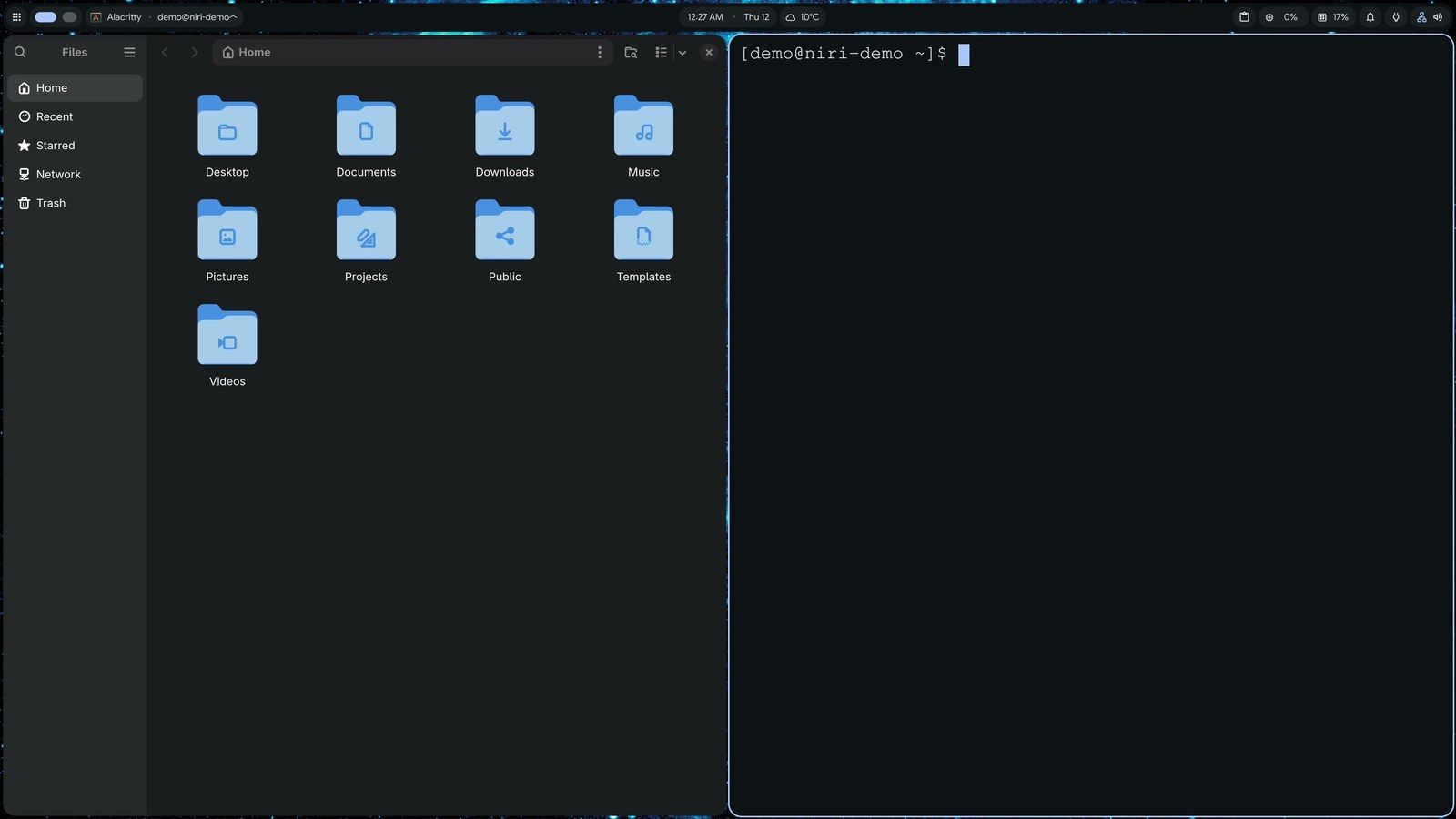
super and super move along the strip one column at a time. When the column you want is already on screen, the first press moves the focus to it; the strip scrolls when you go past the edge.
When a window needs more room, super r changes the width of its column. Each press steps from half the screen to two thirds, then one third, then back to half. super c centers the column you’re in.
A column can hold more than one window. With the terminal in the column to the right of Files, super [ pulls the terminal into the Files column, stacked under Files. super w switches that column to tabs: the windows share the slot, and each one gets the column’s full height. super goes back to the Files tab in the same column.
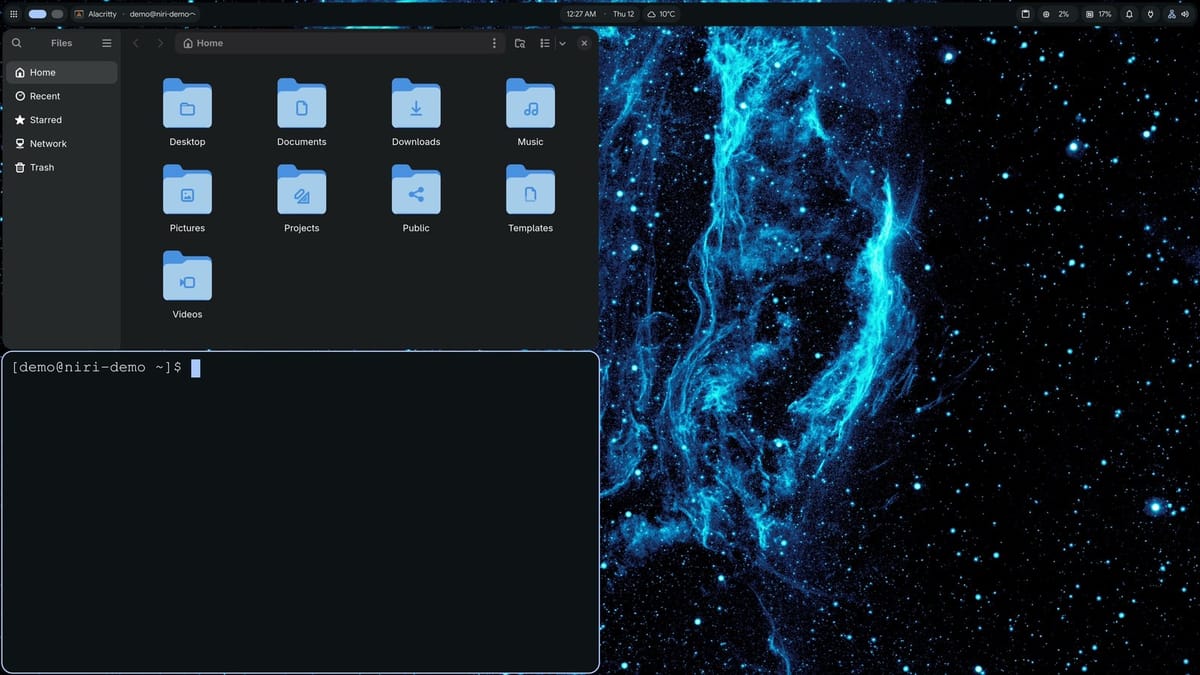
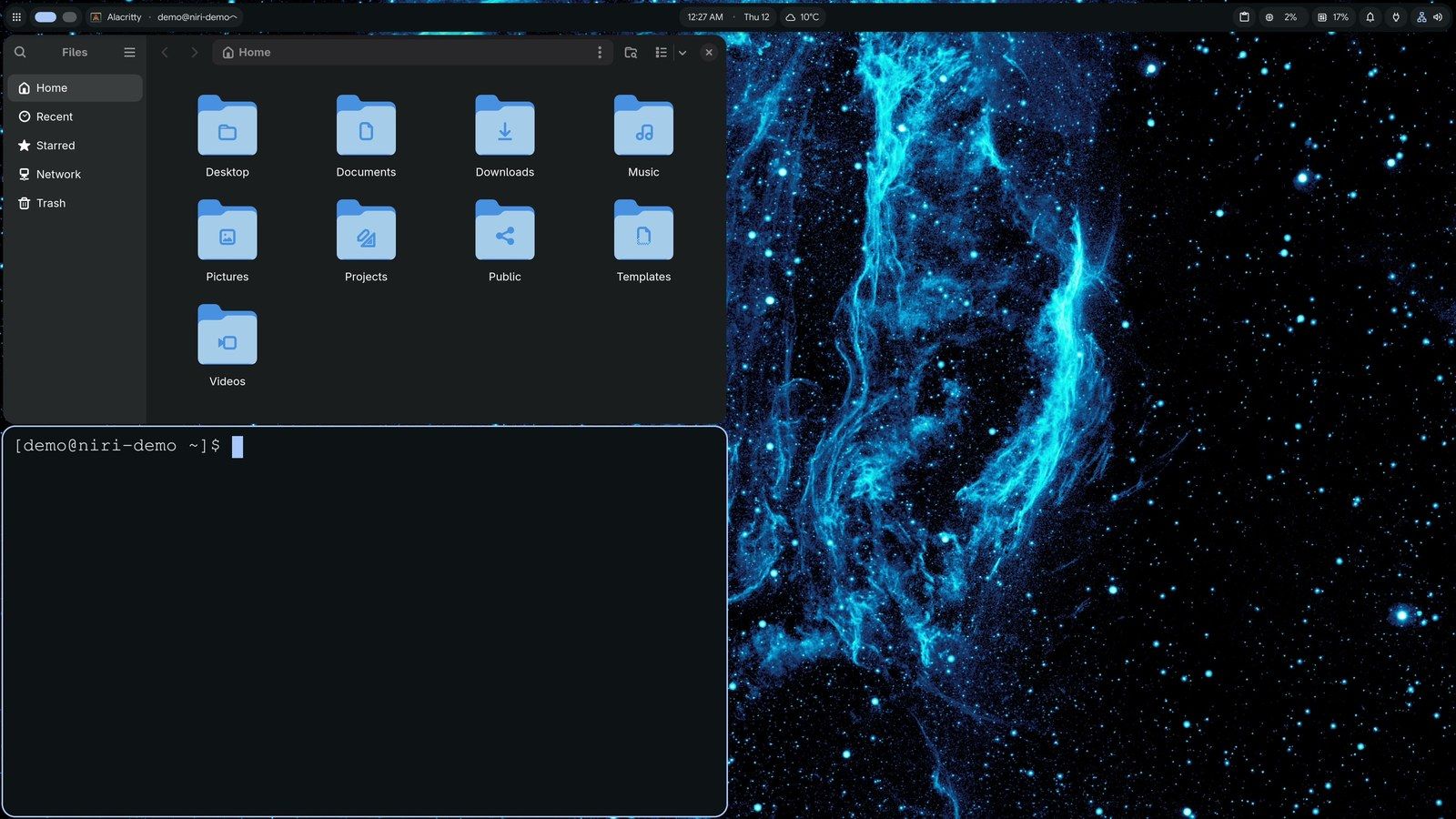
Workspaces in niri stack up and down, and each one has its own strip. super o opens the overview, which zooms out to show the workspaces and their windows at once. From there, super ctrl moves the column you’re in to the workspace below, and the view follows it. Press super o again to close the overview; the bar now shows three workspace pills.
Everyday panels
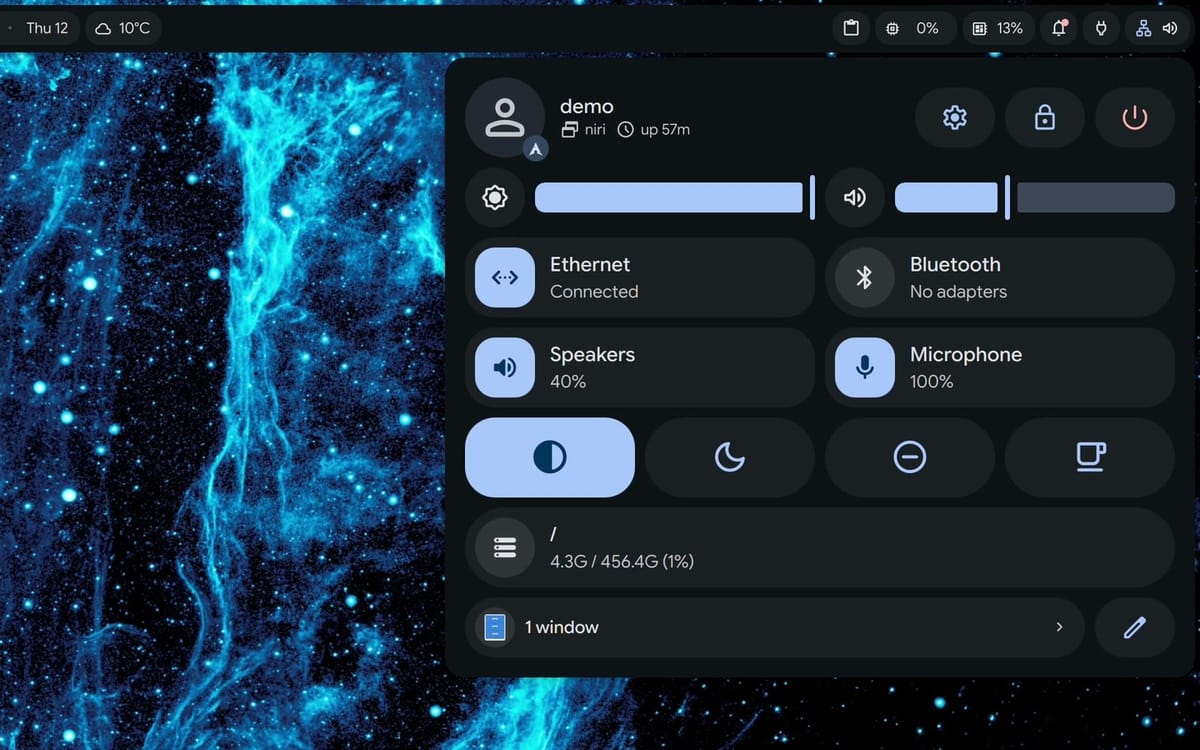
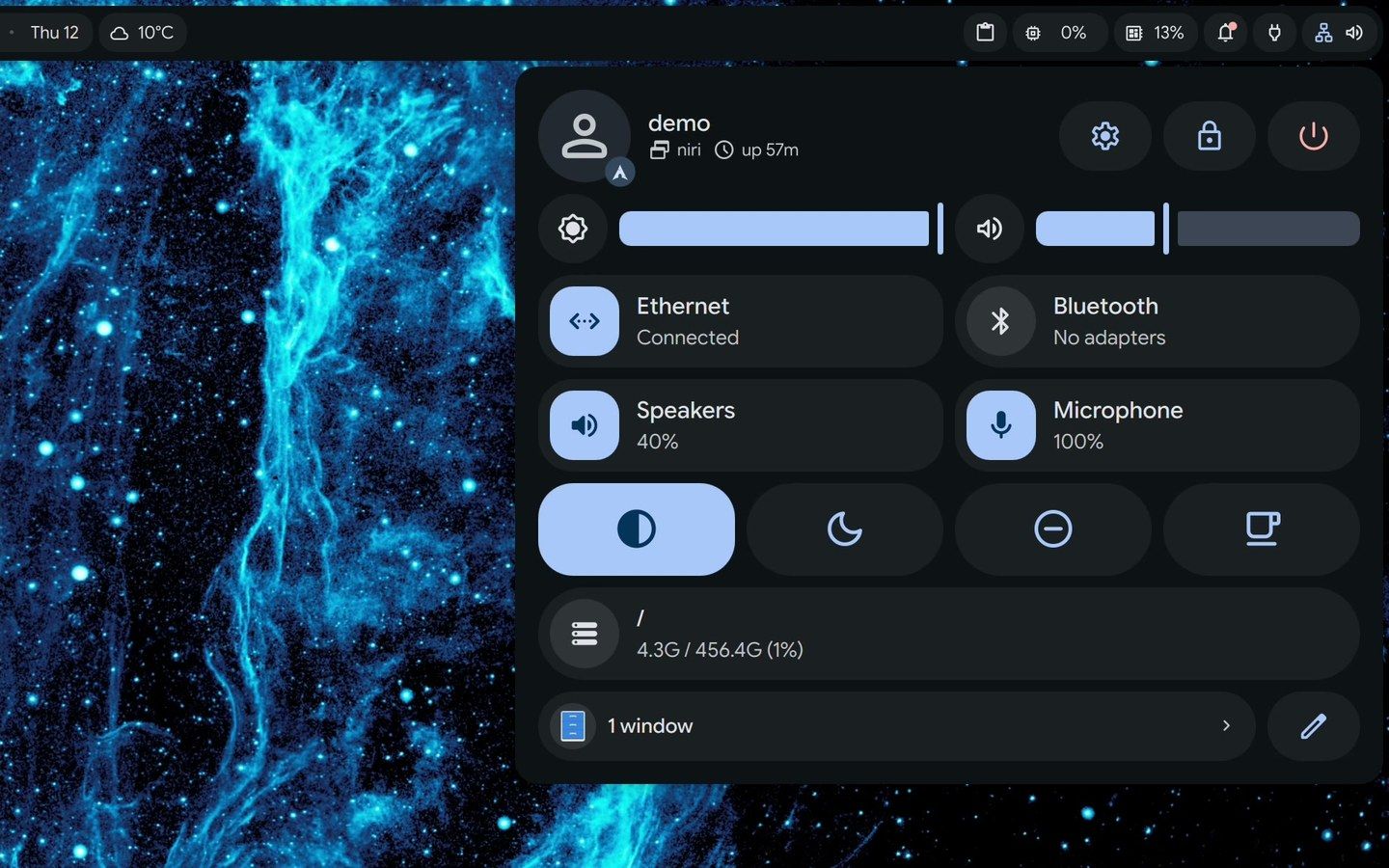
DMS adds a set of panels, each on its own shortcut, and they open over whatever you’re working on. super a opens the Control Center. The top row shows your user name, niri, and how long the computer has been on, with buttons for Settings, the lock screen, and power. Below that are the brightness and volume sliders, the network, Bluetooth, and sound devices, and four round toggles. From the left, they switch dark mode, night mode, do not disturb, and keep awake, which stops the screen from going to sleep. The panel also shows how full your disk is.
super d opens the Dash, with the clock, the weather, a calendar, and your media controls, so you can check your day without opening an app. Its tabs along the top hold Overview, Media, Wallpapers, Weather, and Digital wellbeing.
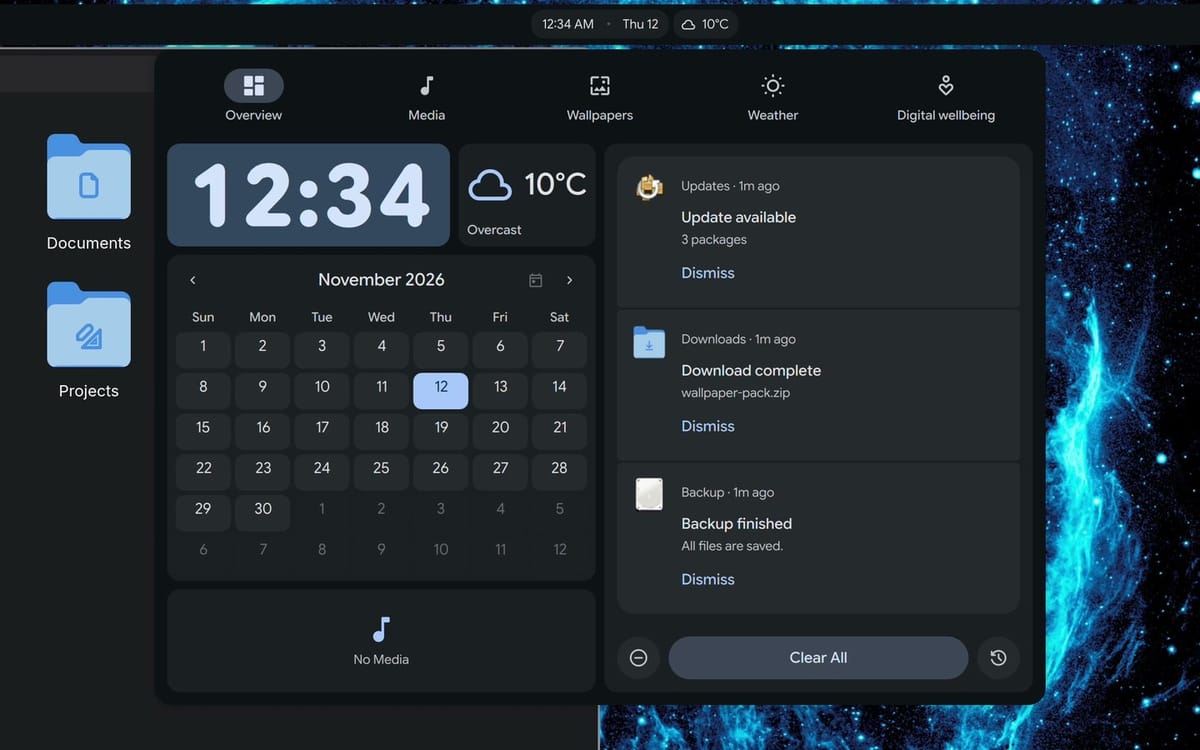
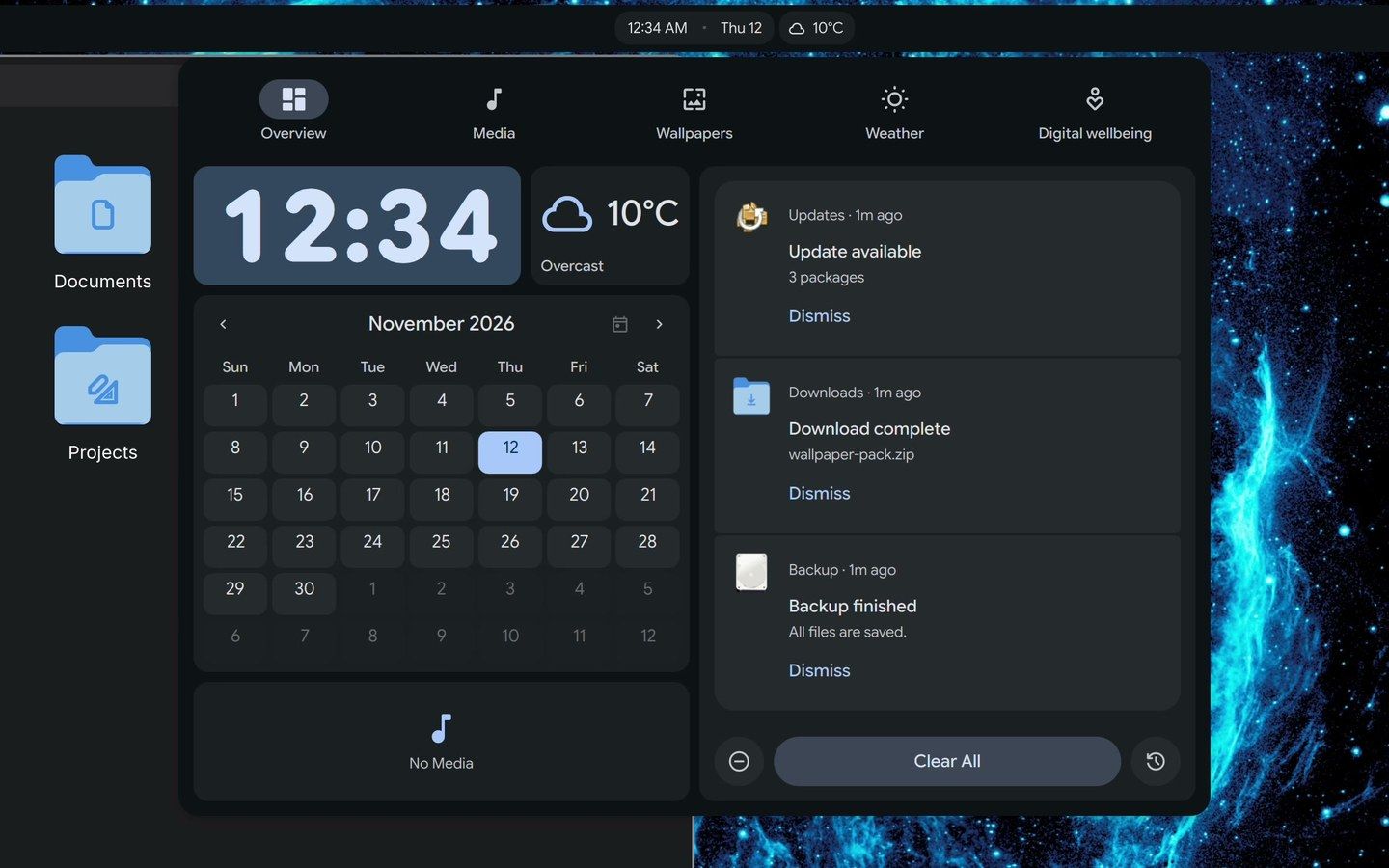
super ctrl n opens the notifications list, so a message you missed is still there to read or clear. super v opens your clipboard history, the things you copied lately, from a web address to a command. Its search box finds an older one, ready to paste again.
Colors from your wallpaper, and blur
DMS can build the whole color scheme from your wallpaper. The Wallpapers tab in the Dash shows the pictures in your Wallpapers folder (~/Pictures/Wallpapers); with nothing there, it offers a button to choose a folder. Pick a picture, and after a moment the bar, the panels, the window borders, and the terminal take its colors. On a blue nebula the accents are a deep blue; an orange rock turns them orange, and a green leaf turns them green.
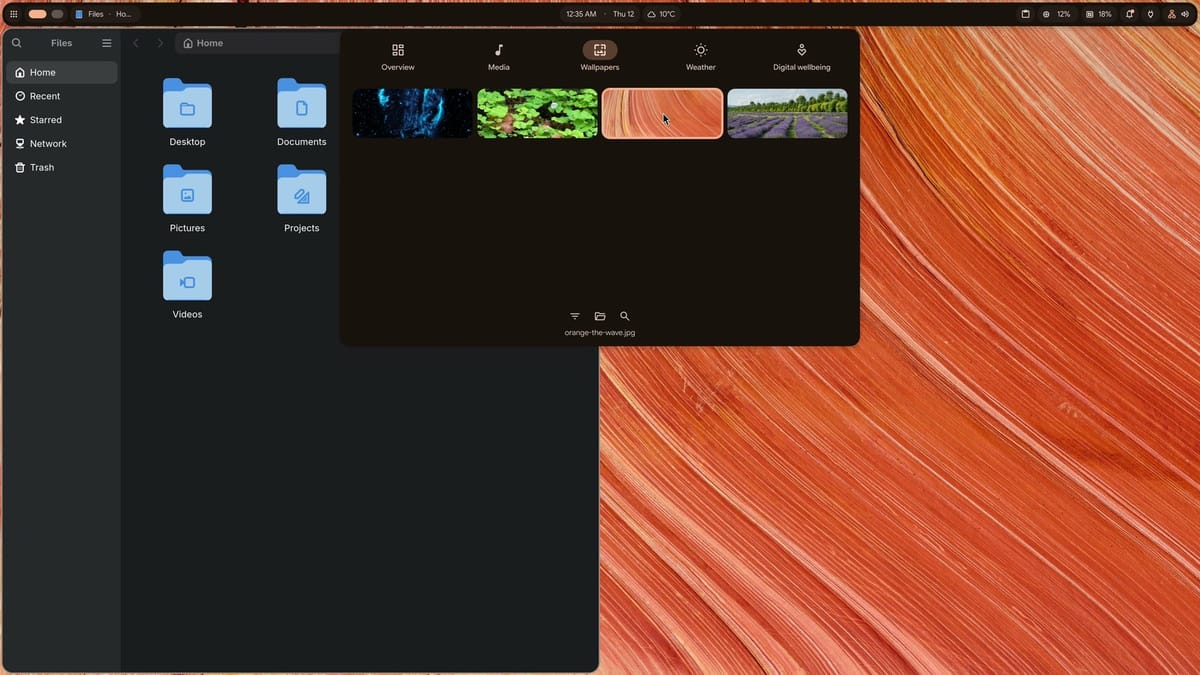
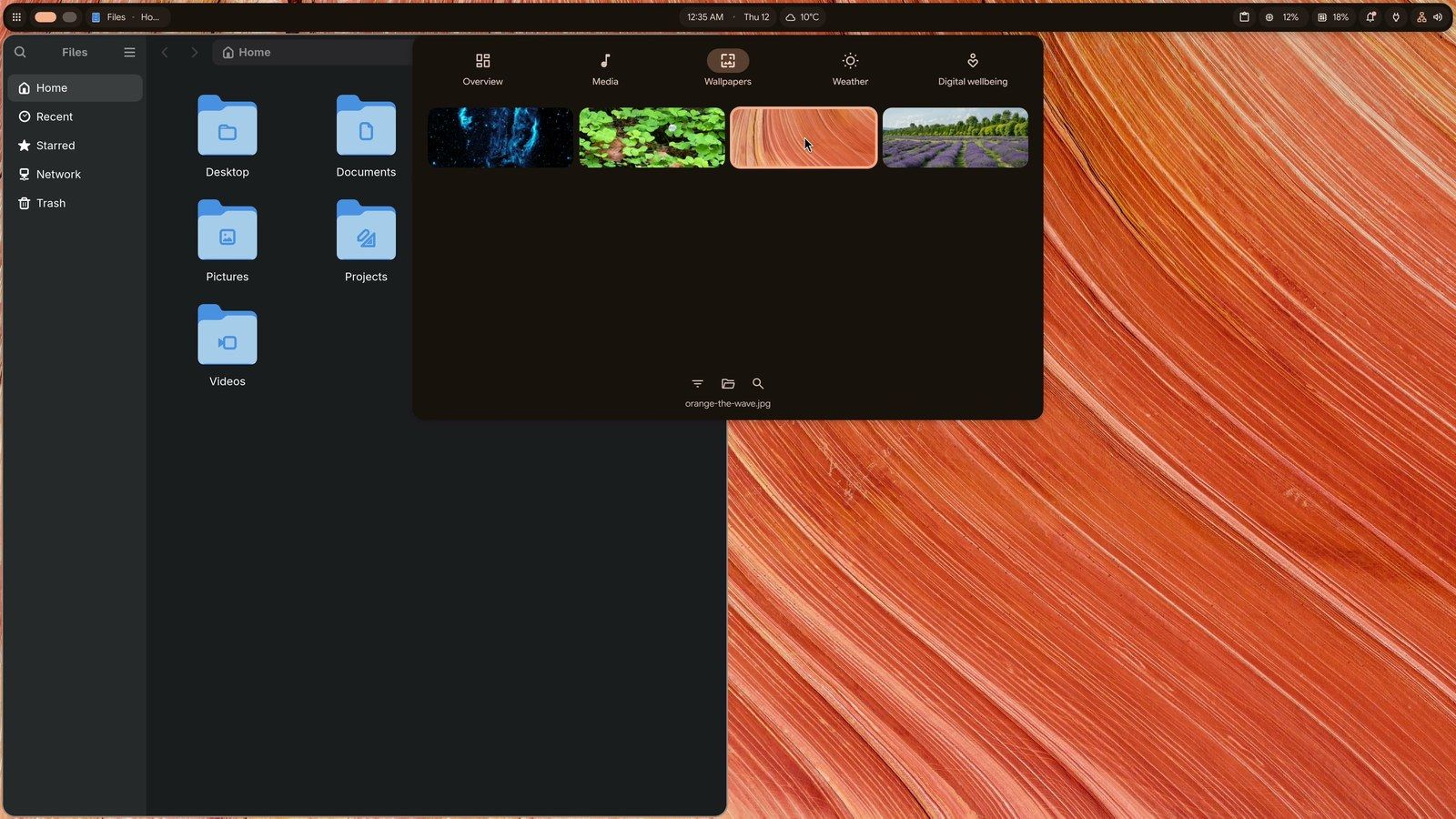
This only works with the theme set to follow the wallpaper. A fresh install starts on a preset called Purple, and a new wallpaper alone won’t change the colors. Open Settings with super , , go to Wallpaper & colors, and under Theme & colors pick the Auto tab. The page then reads “Current Theme: Dynamic”, with colors generated from the wallpaper.
Settings also has an Interface style page that changes how the panels look. Lowering Opacity there makes the panels and the Settings window see-through. Background blur is off when you install DMS. Switch it on, and the wallpaper behind the panels softens, so their text stays easy to read; DMS turns on Border at the same time, an edge around the panels. With Opacity left at 100, the panels stay solid and there’s nothing to blur. The same page sets the interface density, from Spacious to Dense, for more or less room around each control.
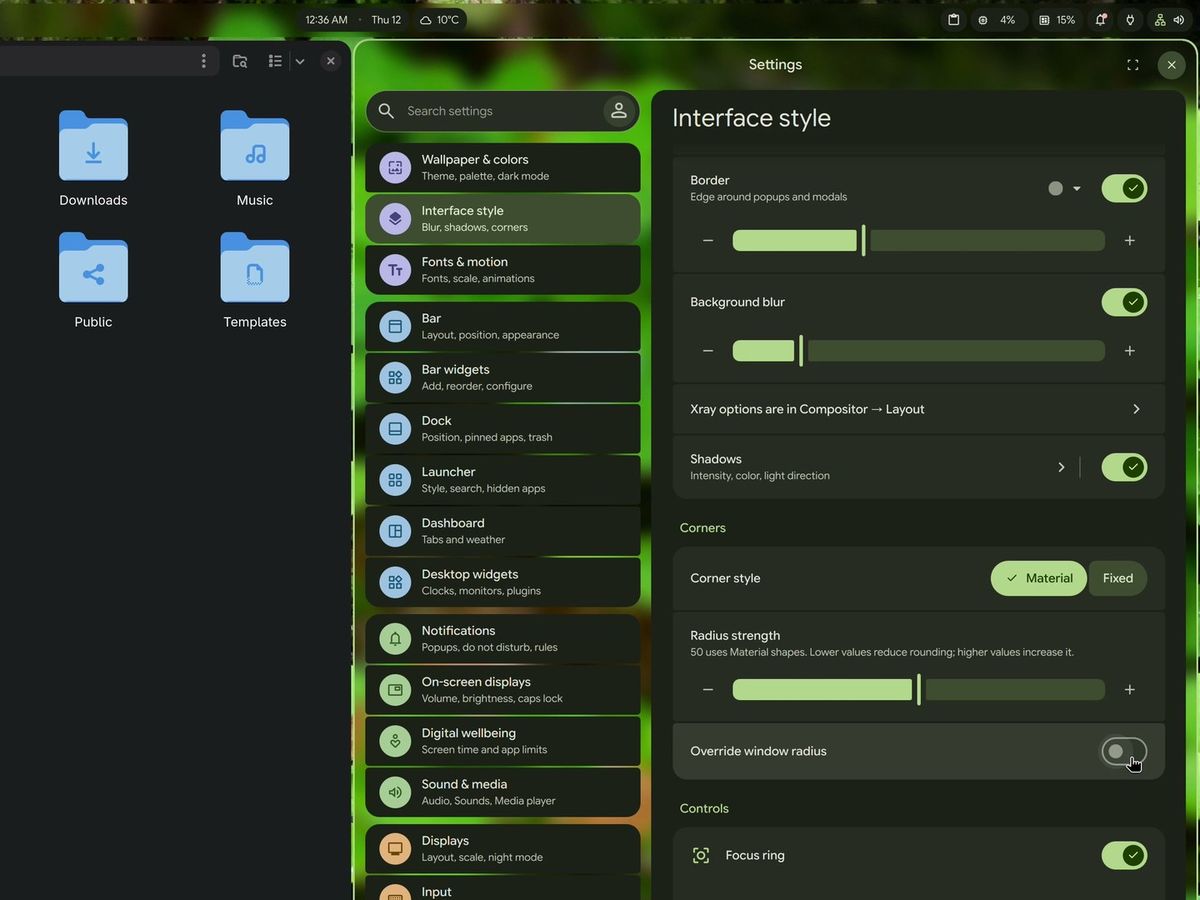
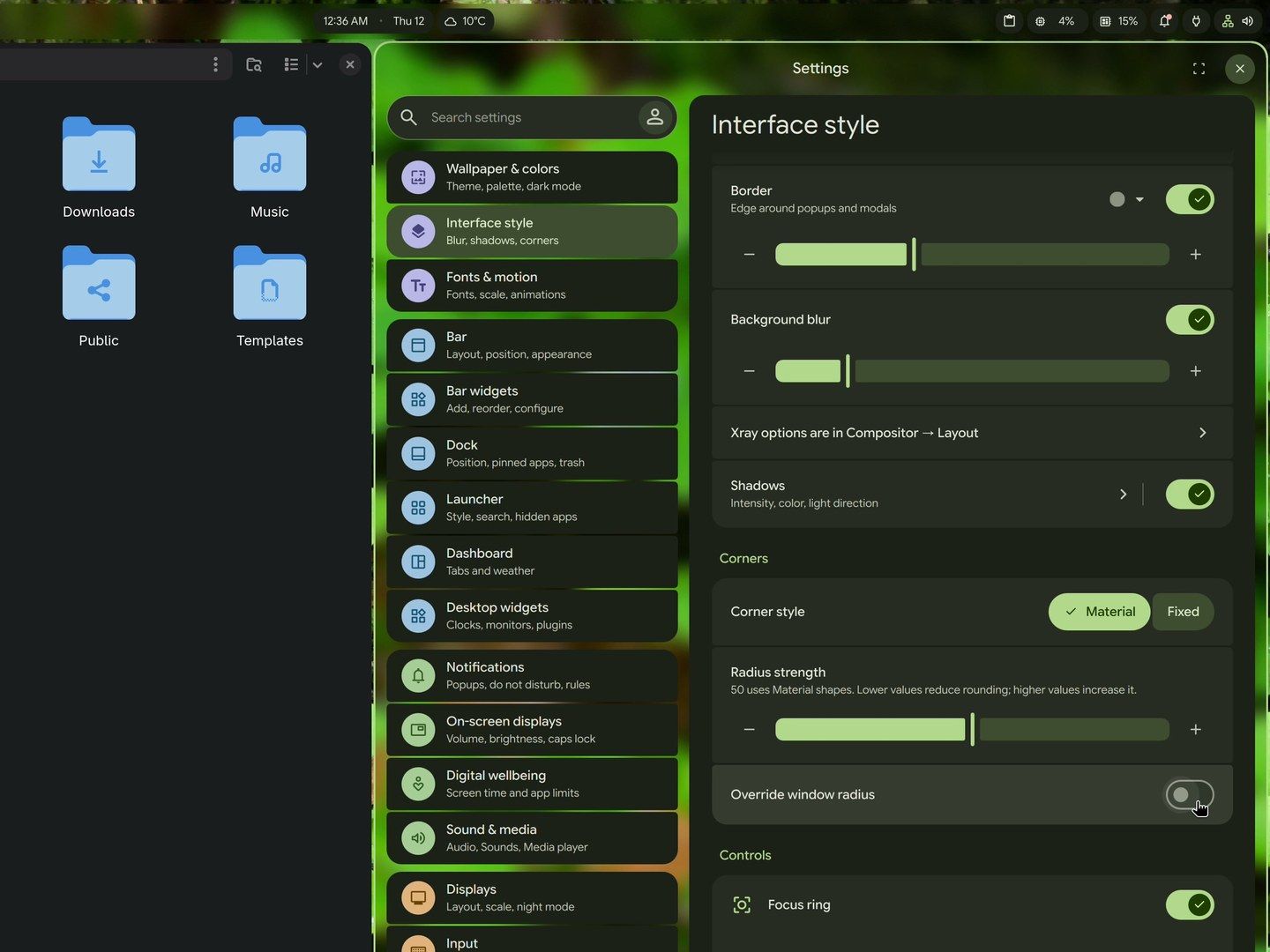
Once blur is on, the Control Center gets the same glassy look. Its night mode toggle, the moon, warms the screen’s colors for the evening.
Learn the keys
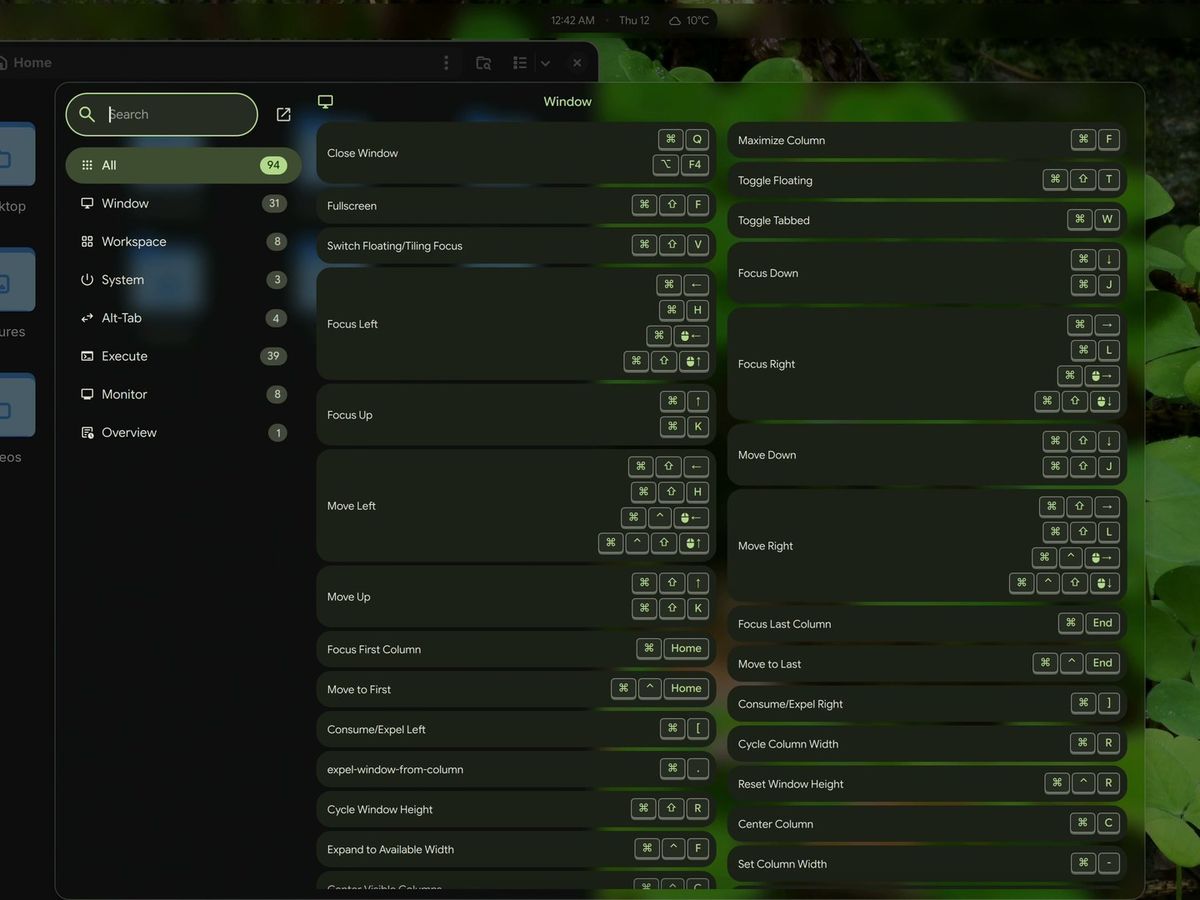
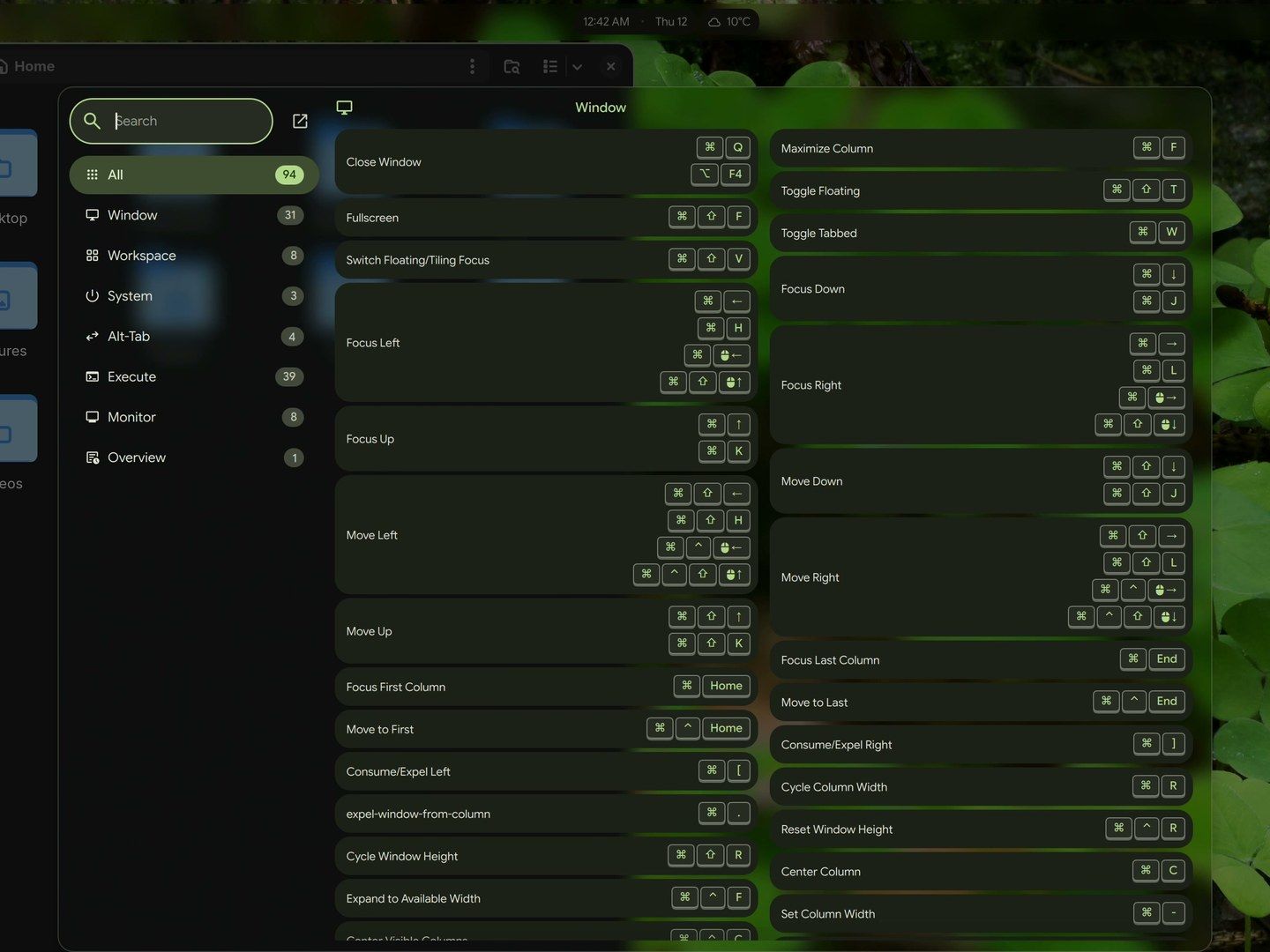
super shift / (Super with the question mark key) opens the DMS shortcut cheatsheet. It lists 94 shortcuts, sorted into groups such as Window and Workspace, with a search box at the top. The edit button beside the search opens Niri Keybinds, the same list in a window where you can change the shortcuts.
ctrl alt m opens System Monitor on its Processes page. It lists the running programs with the processor and memory each one uses, which helps when something slows the computer down. Its other pages cover performance, disks, and the system.
super x opens the power menu, with Lock, Suspend, Log out, Reboot, and Power off, plus a button to restart DMS. Lock shows a lock screen in the login screen’s style: the password box sits in the middle, with a big clock that DMS places to suit the wallpaper.
Here are the shortcuts from this guide in one place:
| Keys | What it does |
|---|---|
| super space | Launcher for apps, files, and plugins |
| super t | Open a terminal |
| super , super | Move along the strip, one column at a time |
| super r | Change the column width: half, two thirds, one third |
| super [ | Pull the window into the column on its left |
| super w | Show the column’s windows as tabs |
| super o | Overview of the workspaces |
| super ctrl | Move the column to the workspace below |
| super a | Control Center |
| super d | Dash |
| super ctrl n | Notifications |
| super v | Clipboard history |
| super , | Settings |
| super shift / | Shortcut cheatsheet |
| ctrl alt m | System Monitor |
| super x | Power menu |
Keep your current desktop, or try niri in a virtual machine
You don’t have to give up the desktop you use now. niri is a separate session, so you pick Niri at the login screen when you want it, and your usual desktop when you want that back. niri’s own page says to “log out, choose Niri in your display manager, and log back in.” If you install dux-greeter, it replaces GDM or SDDM, and its session menu at the bottom right lists the other desktops installed on the computer too.
If you’d rather test niri in a virtual machine first, turn on 3D acceleration in its settings before you start. niri’s page says “To run niri in a VM, make sure to enable 3D acceleration.” Without it, niri doesn’t draw a desktop at all: niri-session leaves the screen sitting on the text console.
If you’d like to compare niri’s strip with a scrolling layout on another desktop, our guide to the scrolling layout in Omarchy covers Omarchy’s version, and our first look at Pond shows another Arch-based system built on niri.


