
Omarchy is a ready-made Linux desktop built on Arch and Hyprland, and omarchy is the one command that reaches much of it from a terminal. It changes themes, sets reminders, takes screenshots, and restores settings. Many rows in the Omarchy menu run these same commands, so typing one yourself means you can repeat a change, put it in a script, or bind it to a keyboard shortcut.
Our video, embedded above, shows the command in use. This guide starts with how to find your way around the command. Then it changes the whole look, sets a reminder, puts your own word on the screensaver, and restores a config file to its default after you break it. The last sections list every group and explain what omarchy reinstall replaces, because it overwrites your configs with no backup.
What you need
You need Omarchy 4.5 and a terminal, which super enter opens. Super is the Windows key on a PC keyboard. The steps below ran on Omarchy 4.5. The refresh table and the omarchy reinstall section come from reading the scripts, and each says so.
Look around without memorizing anything
Start with the command on its own. It prints a long help page, so send it through less, a program that shows one page at a time:
omarchy | lessPress space for the next page and q to leave. The common commands come first, then 73 groups, which are families of commands with a short description each. The full list of groups is further down this page.
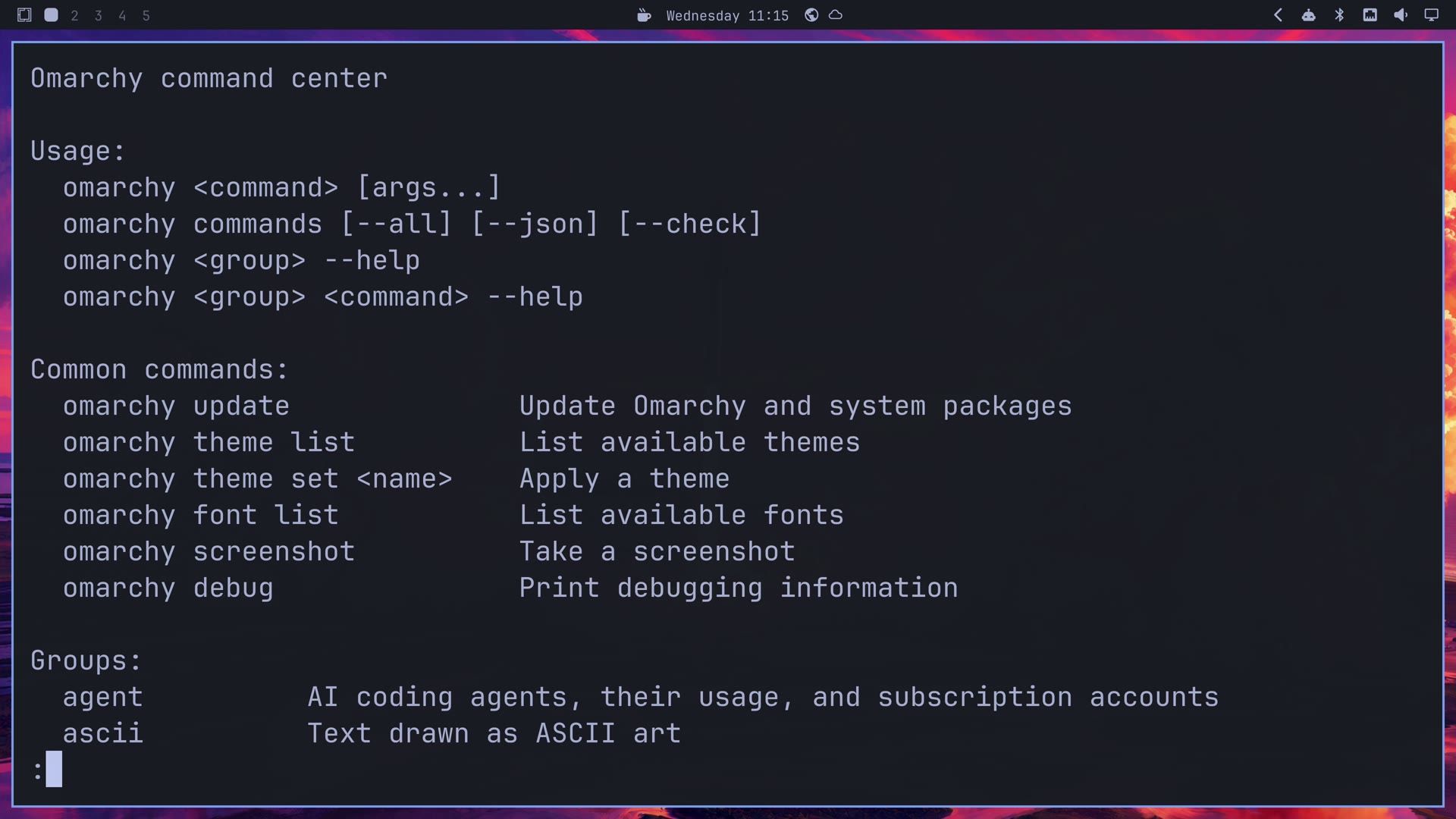
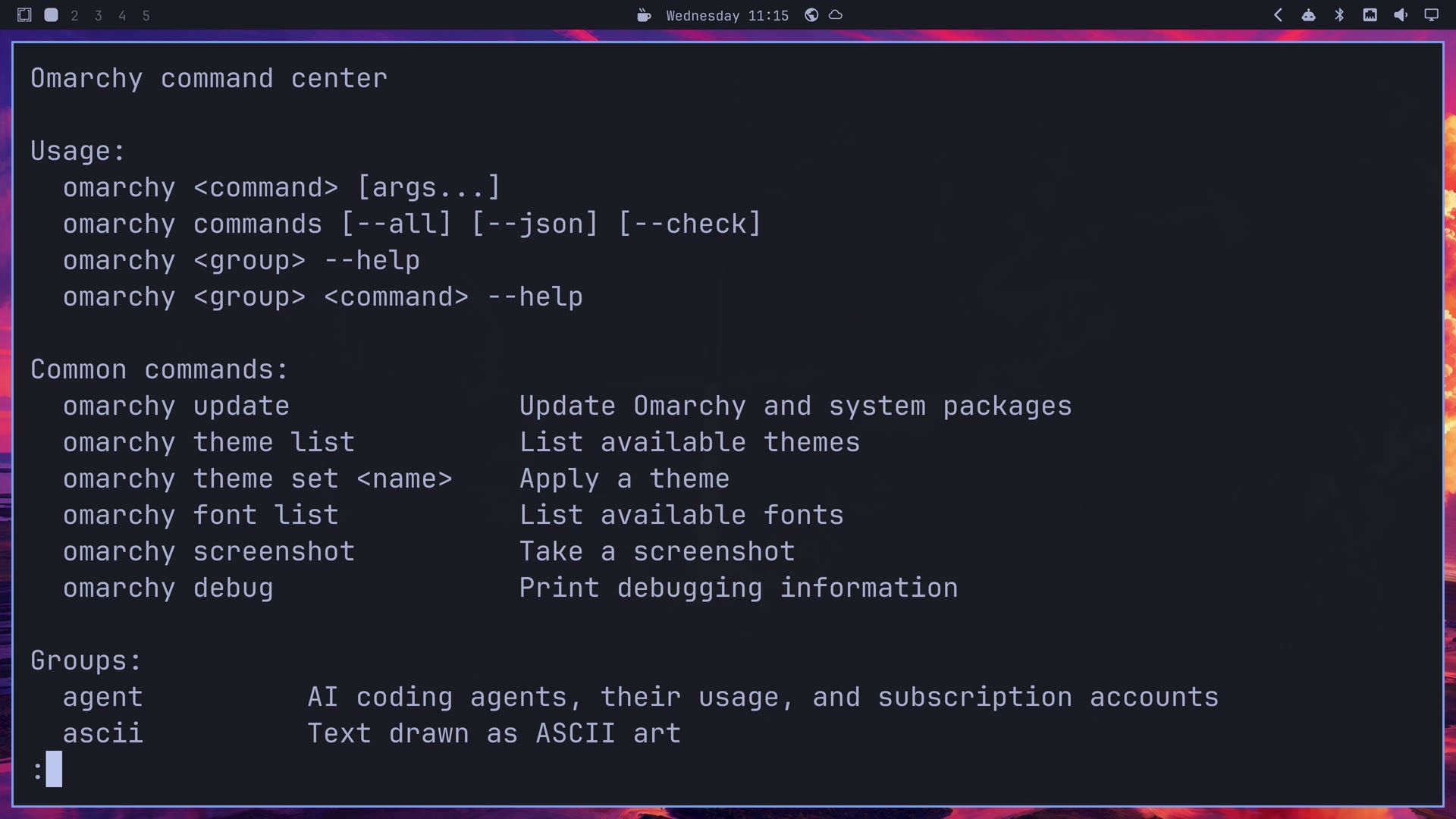
A full command reads like a short sentence. In omarchy theme set Gruvbox, theme is the group, set is what to do, and Gruvbox is the theme to use.
Tab fills in the rest. Type omarchy with the trailing space and press tab twice, and every word that can come next appears on one screen. That list also has names the main help leaves out, like apply, chromium, and upload, which are mostly Omarchy’s own internal parts. Part of a word works too: after omarchy re, two Tabs list refresh, reinstall, reminder, remove, and restart. Press ctrl c to leave the line without running it, because further Tabs cycle through those words and enter runs whichever one is showing.
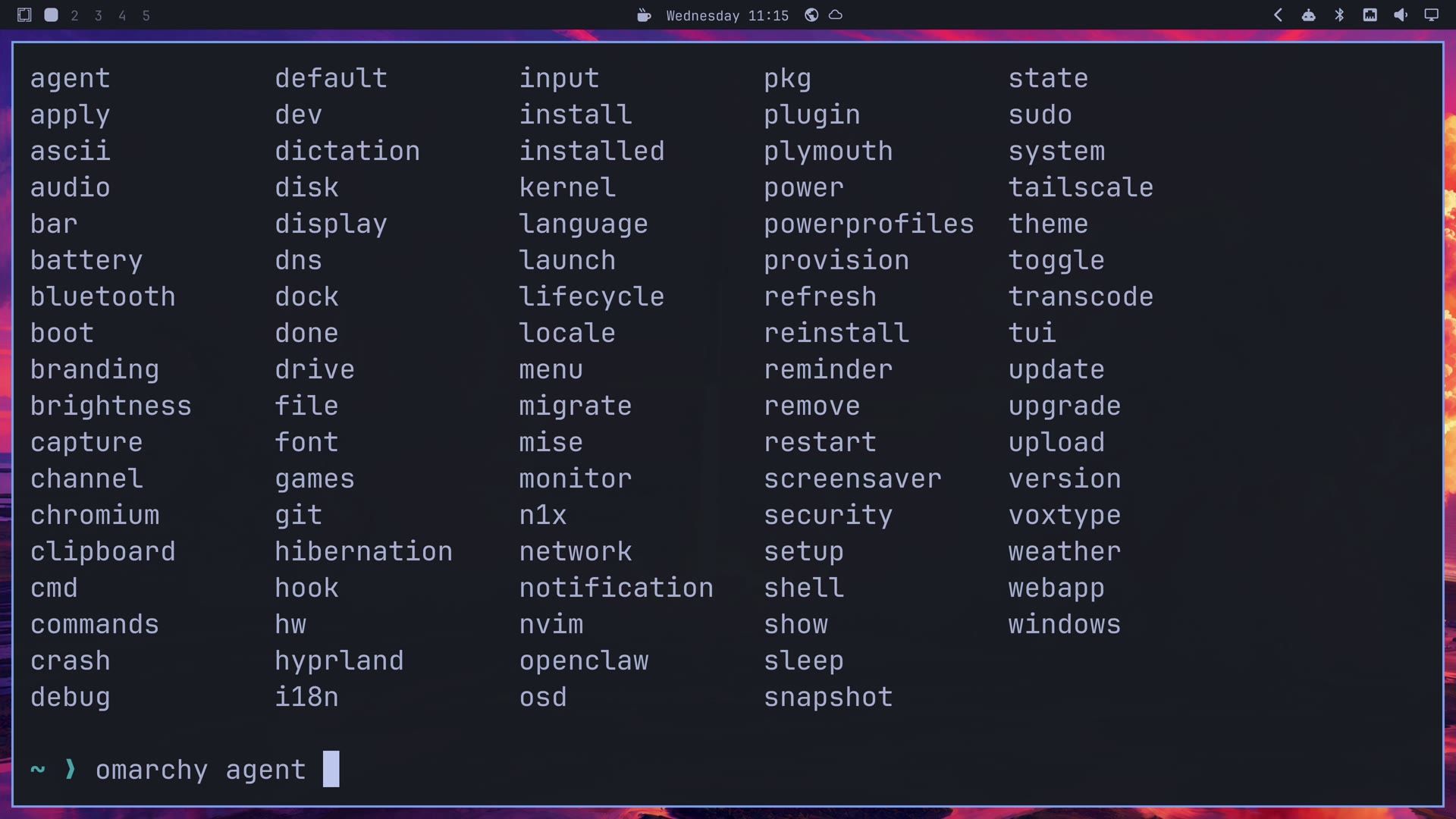
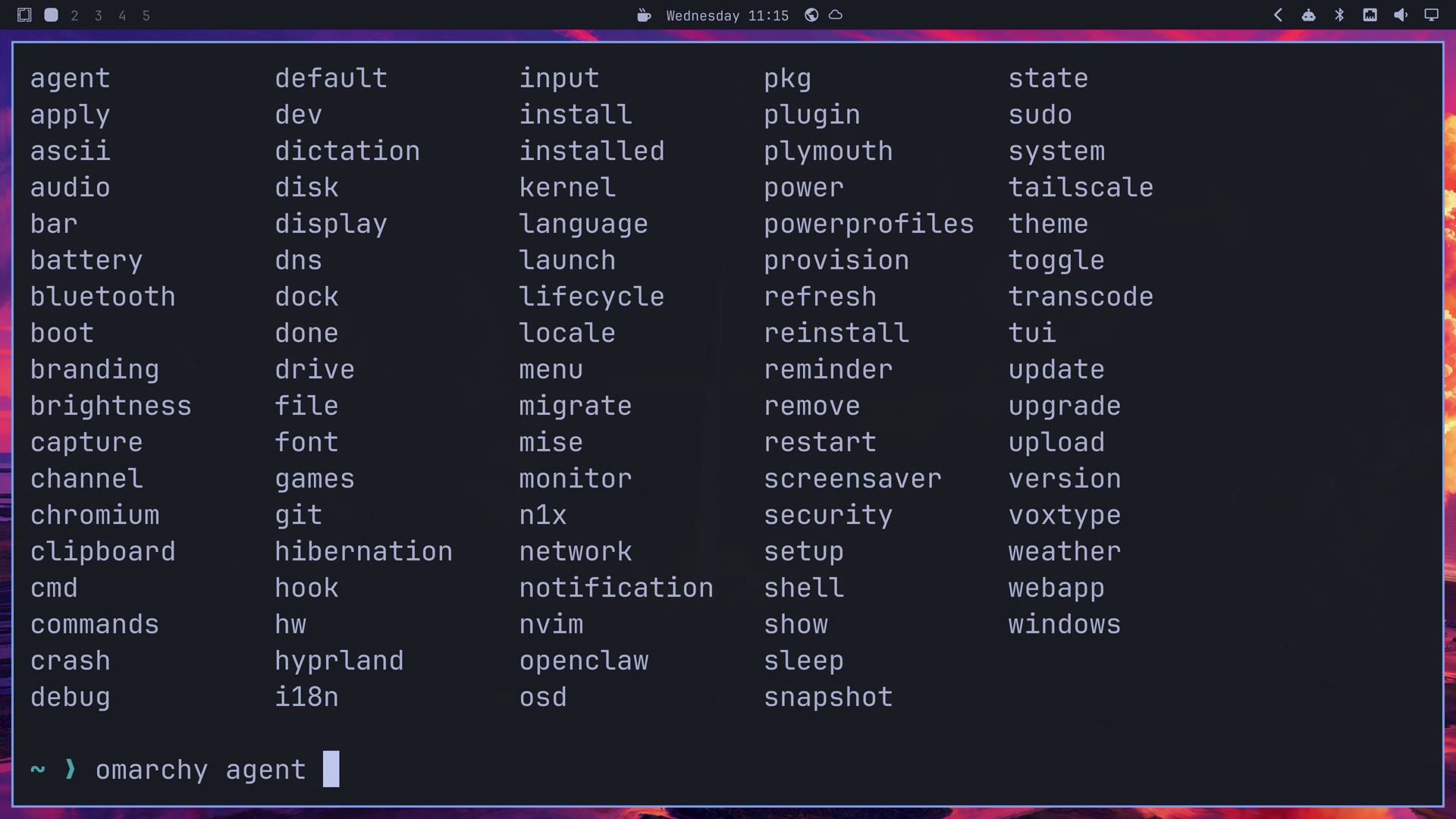
Each group has its own page, and each command has a help page with examples:
omarchy theme | less -S
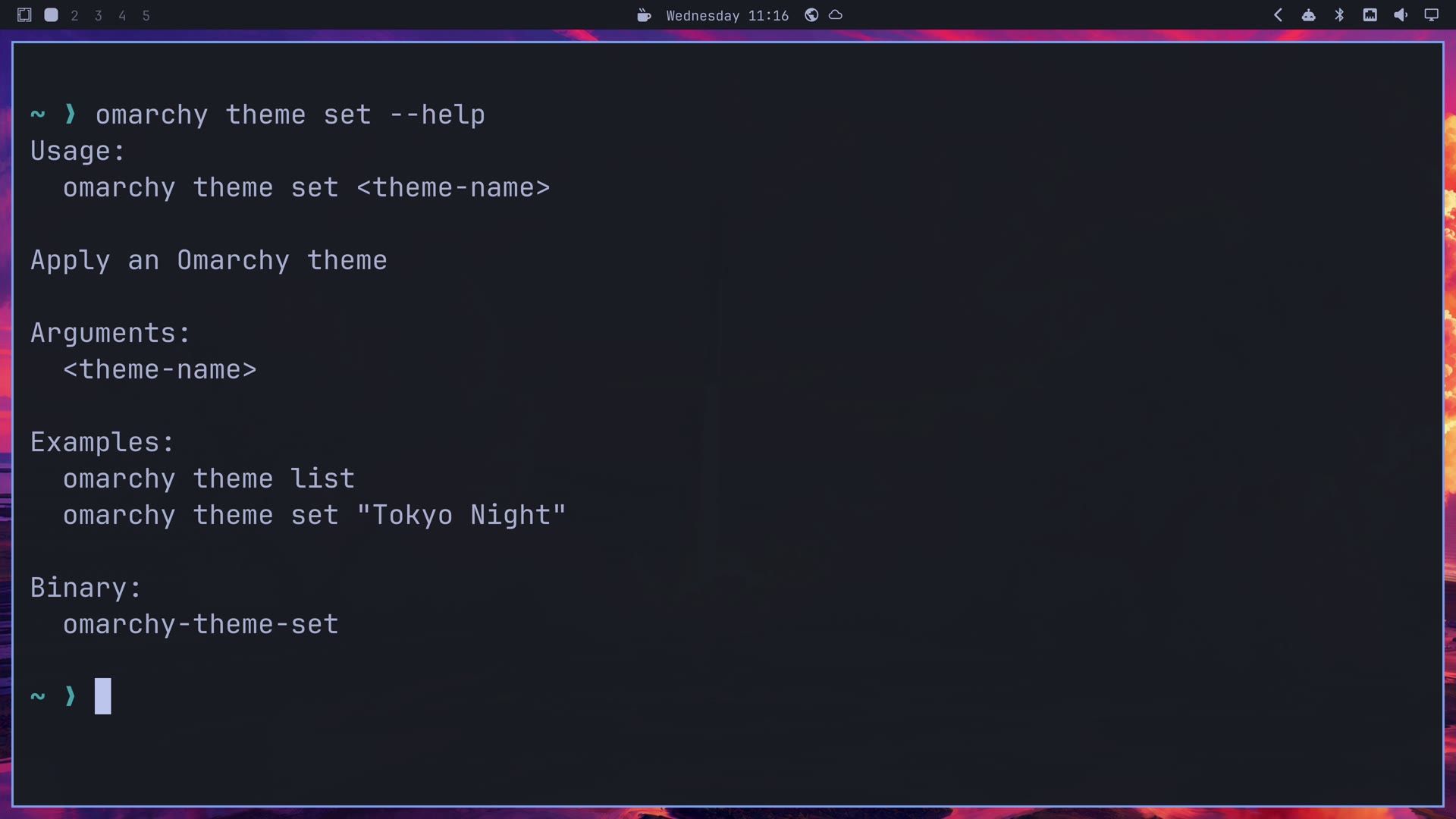
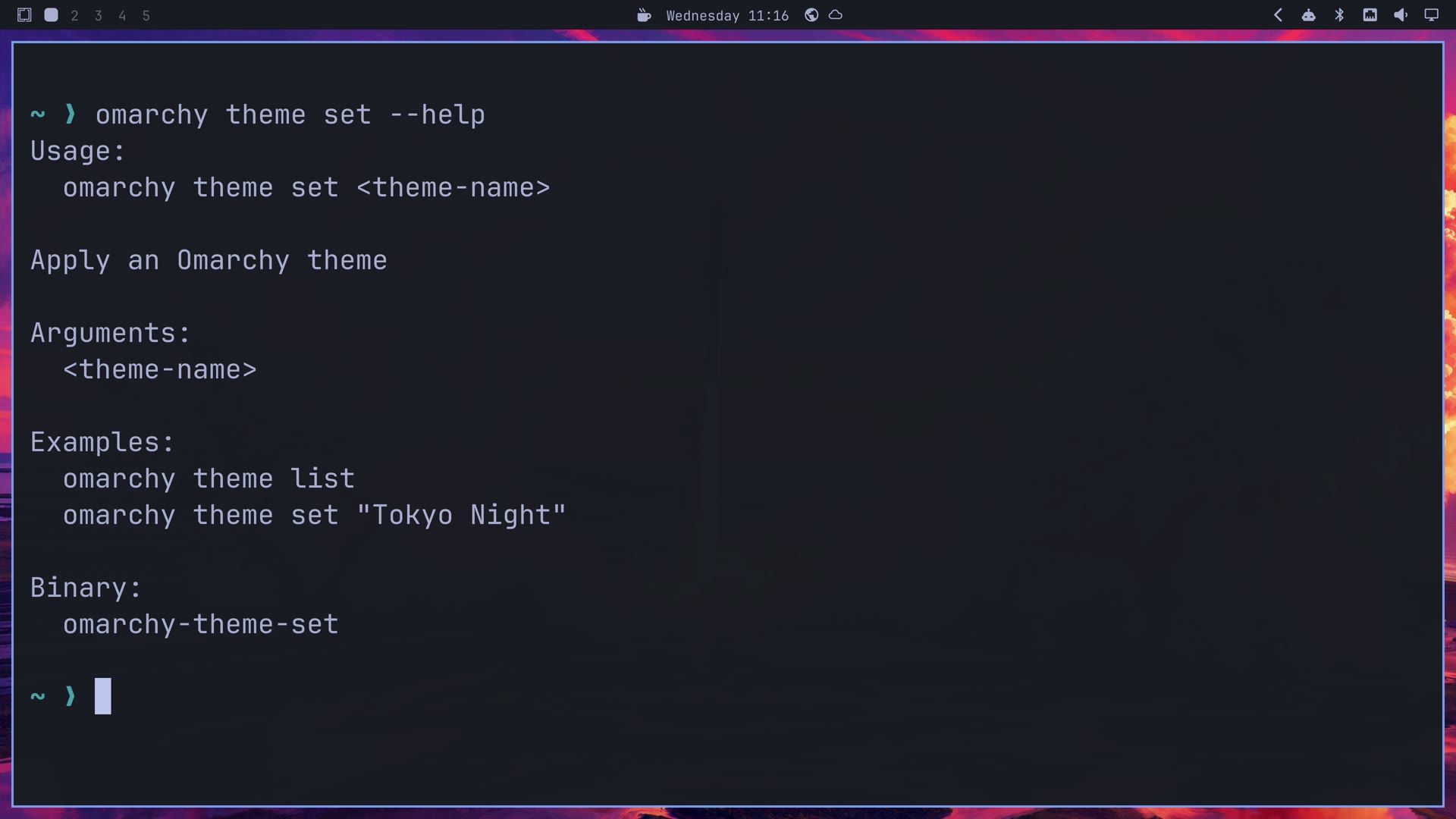
omarchy theme set --help
The -S tells less to cut long rows at the edge of the window instead of wrapping them. Some group pages have rows of 126 to 191 characters, and they turn into a mess without it.
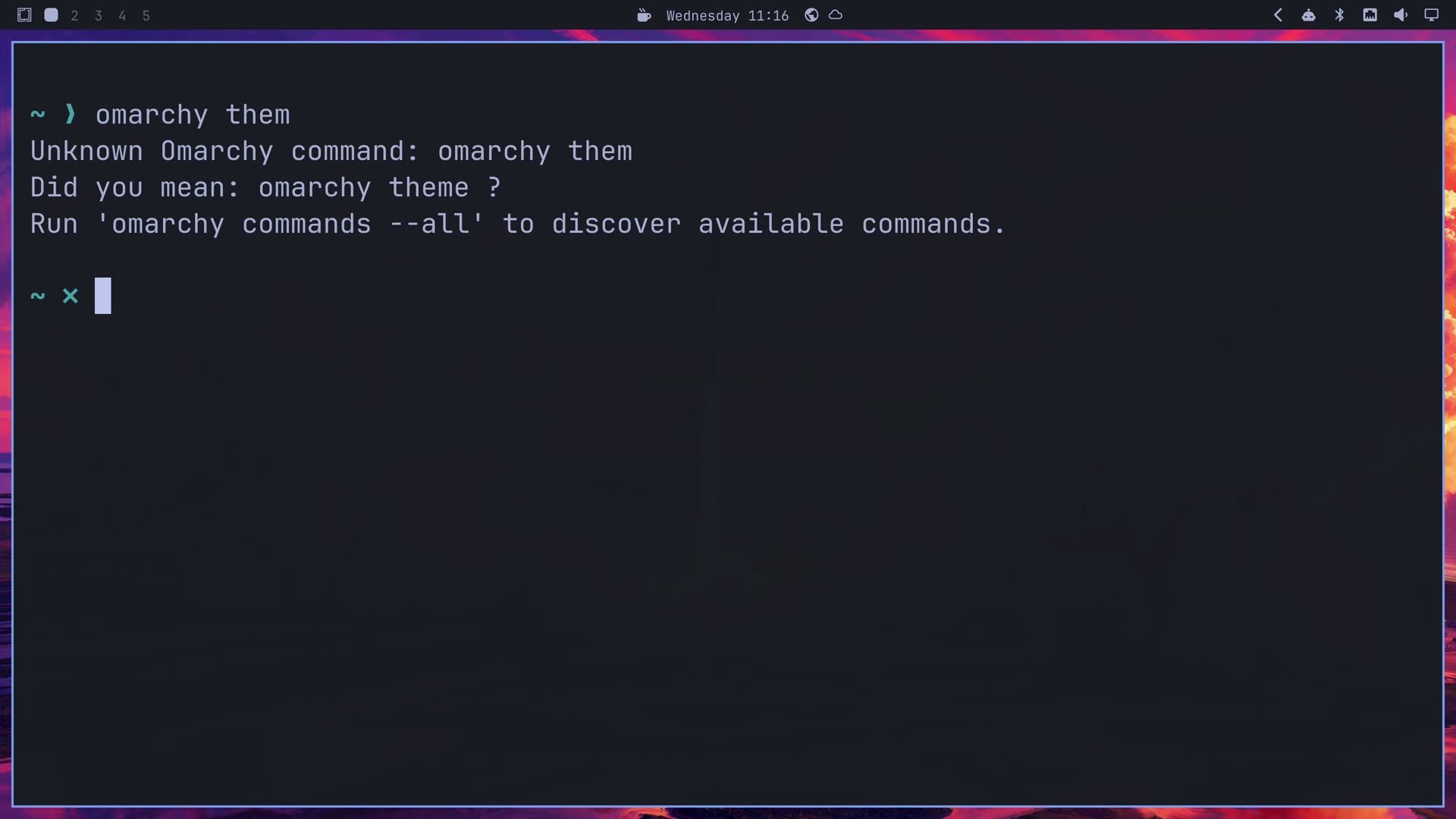
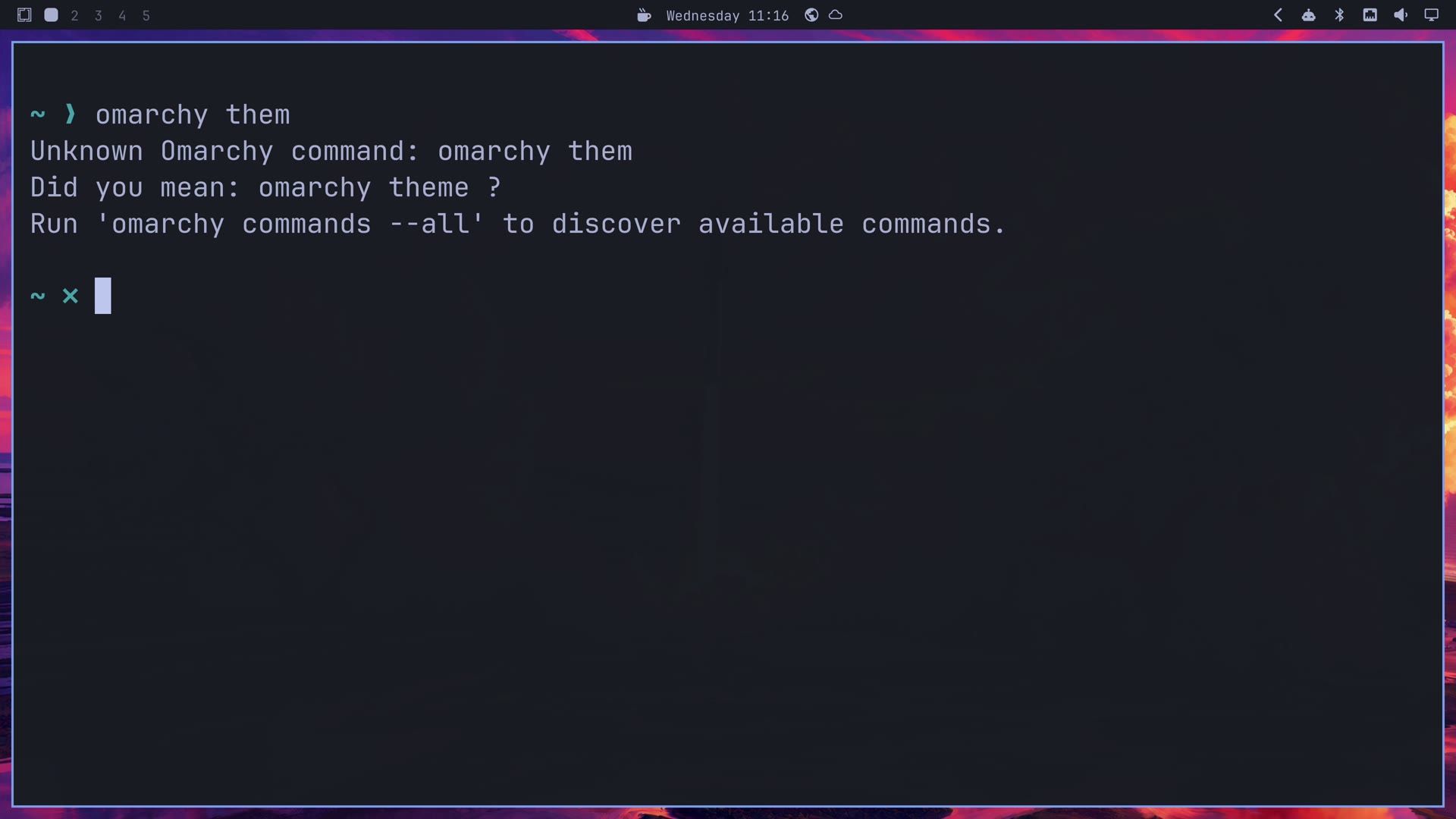
A typo gets help too. omarchy them answers with Did you mean: omarchy theme ?.
A command that needs an argument shows its help when you leave the argument off, as omarchy refresh config does. A command that needs no argument starts when you press enter , and that includes omarchy update, omarchy reinstall, and omarchy reboot. When you want to read about one of those, type --help before you press enter .
Change the whole look from the terminal
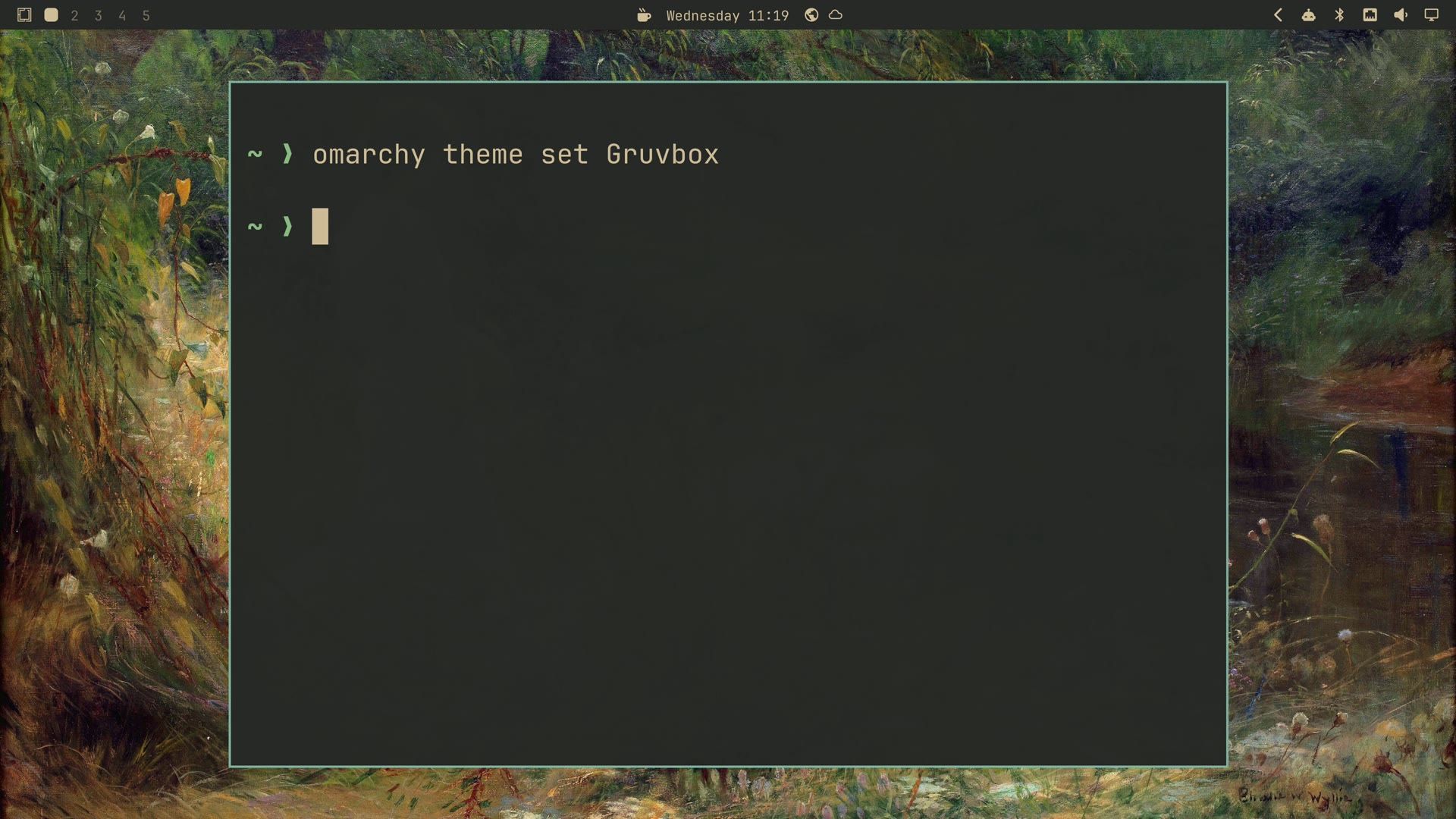
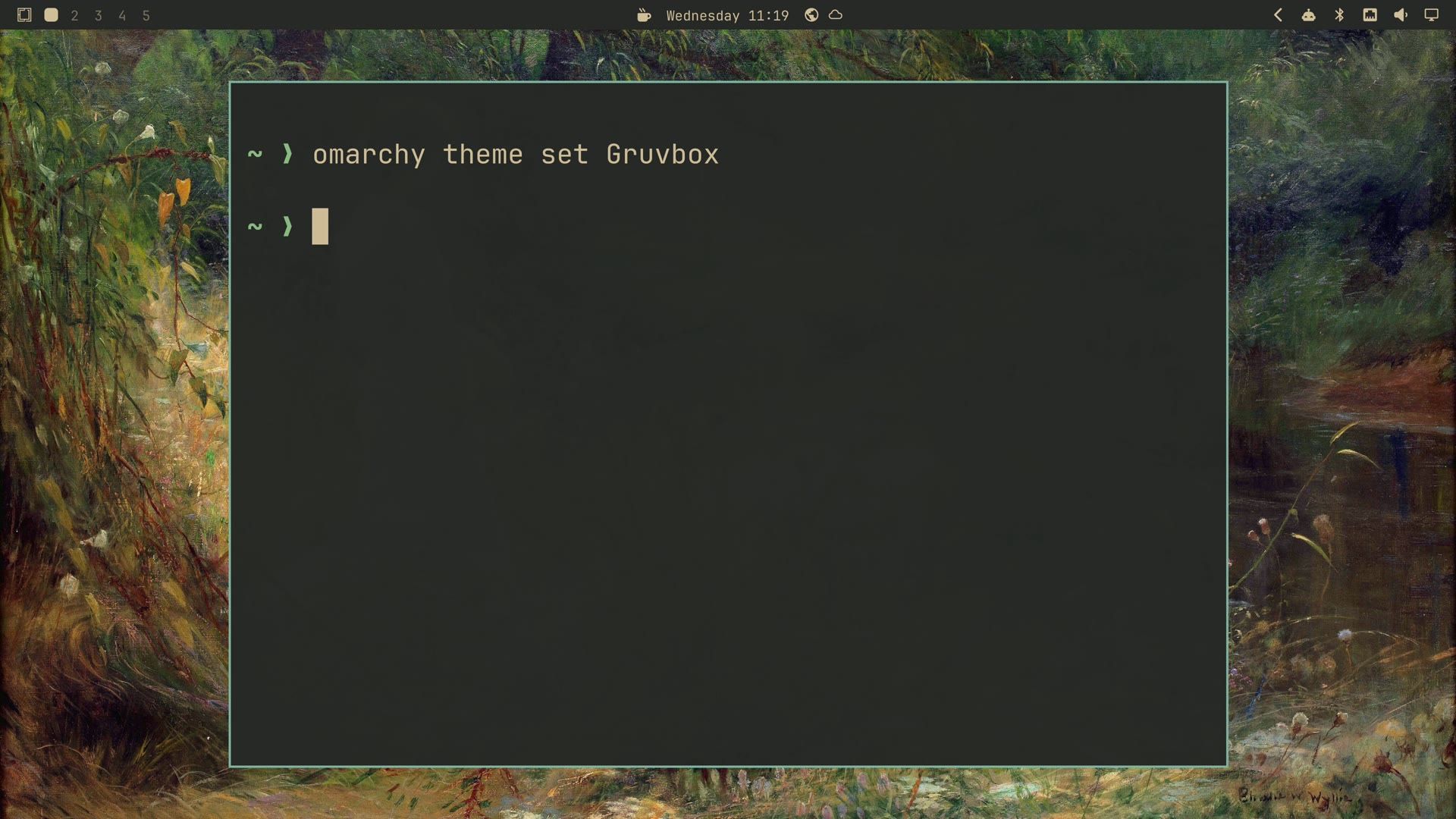
omarchy theme set swaps the wallpaper, the window border, the bar, and the terminal colors together. omarchy theme list prints the names, 24 of them on Omarchy 4.5. Put quotes around a name with a space in it.
omarchy theme set Gruvbox
omarchy theme bg next
The second line moves to the theme’s next background, since Gruvbox has more than one. Wait a few seconds after a theme change before you type again, because keys pressed during the switch can get lost.
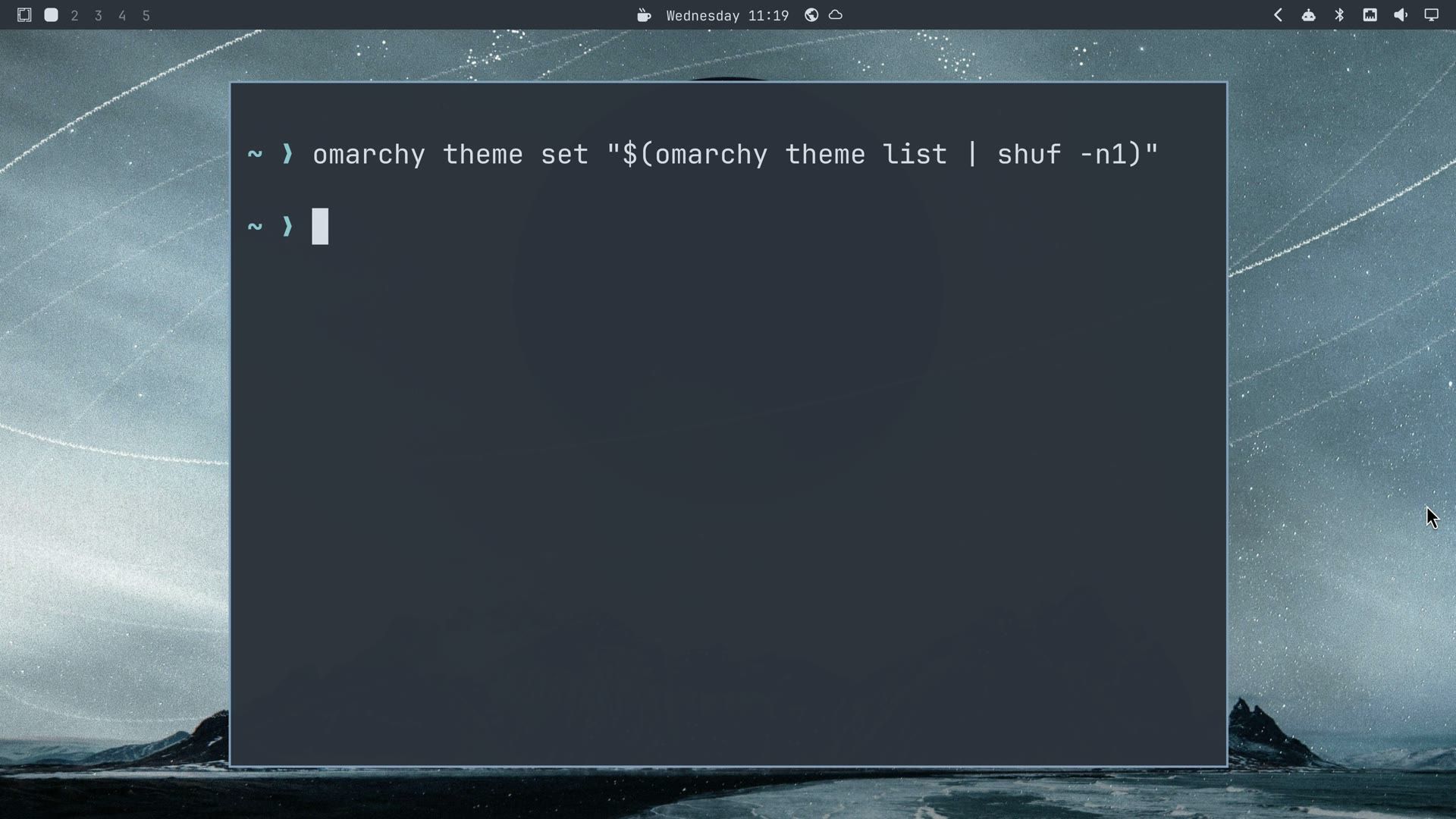
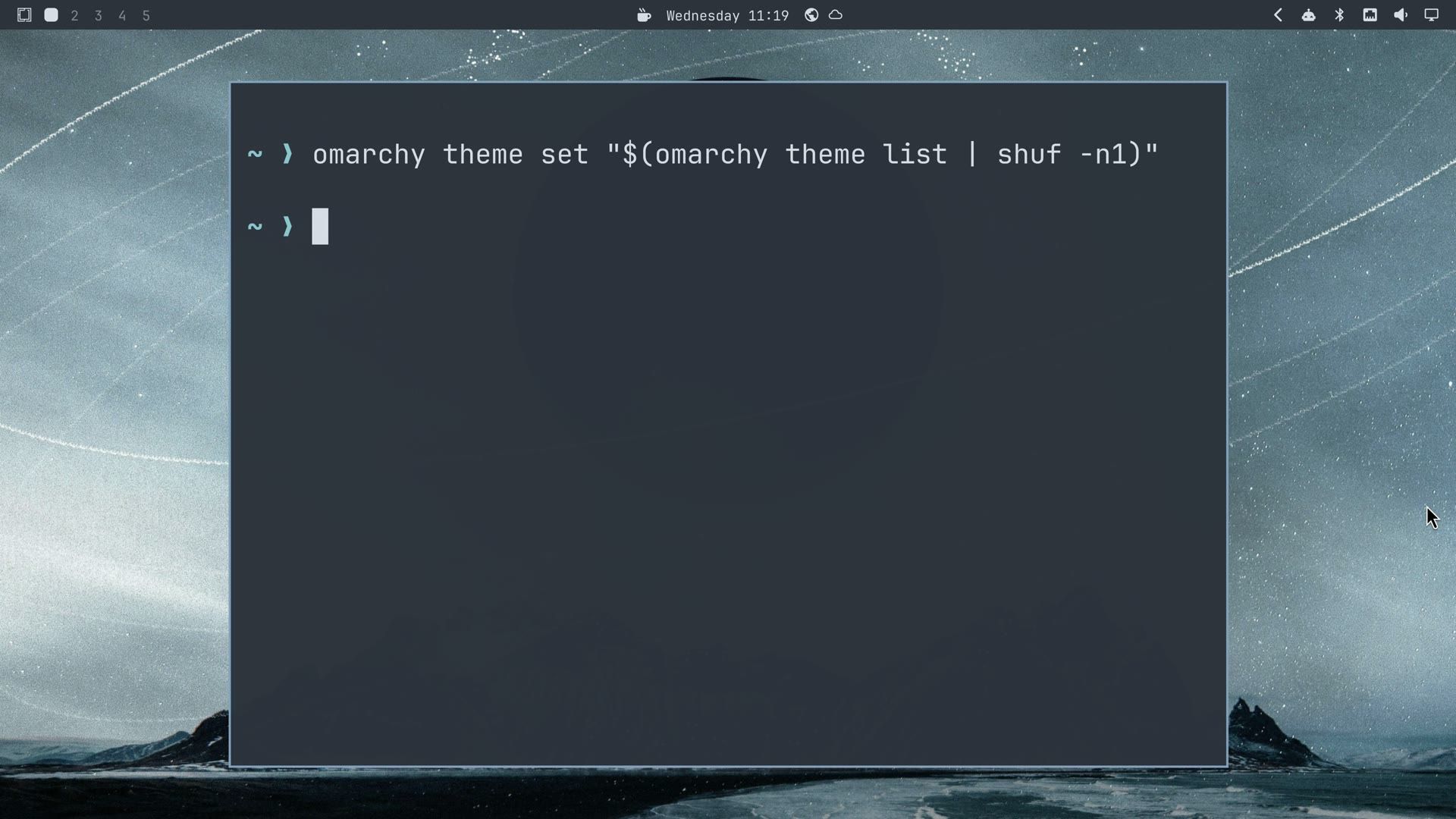
Since it’s a plain command, it can use another command’s answer. This line lists the themes, lets shuf pick one at random, and applies it:
omarchy theme set "$(omarchy theme list | shuf -n1)"
omarchy theme current
The second line names the pick, which was Nord on our try. Our guide to custom keybindings on Omarchy shows how to bind a line like that to a keyboard shortcut, so one press picks a surprise theme.
Back on Tokyo Night with omarchy theme set "Tokyo Night", two more lines change the windows and the bar:
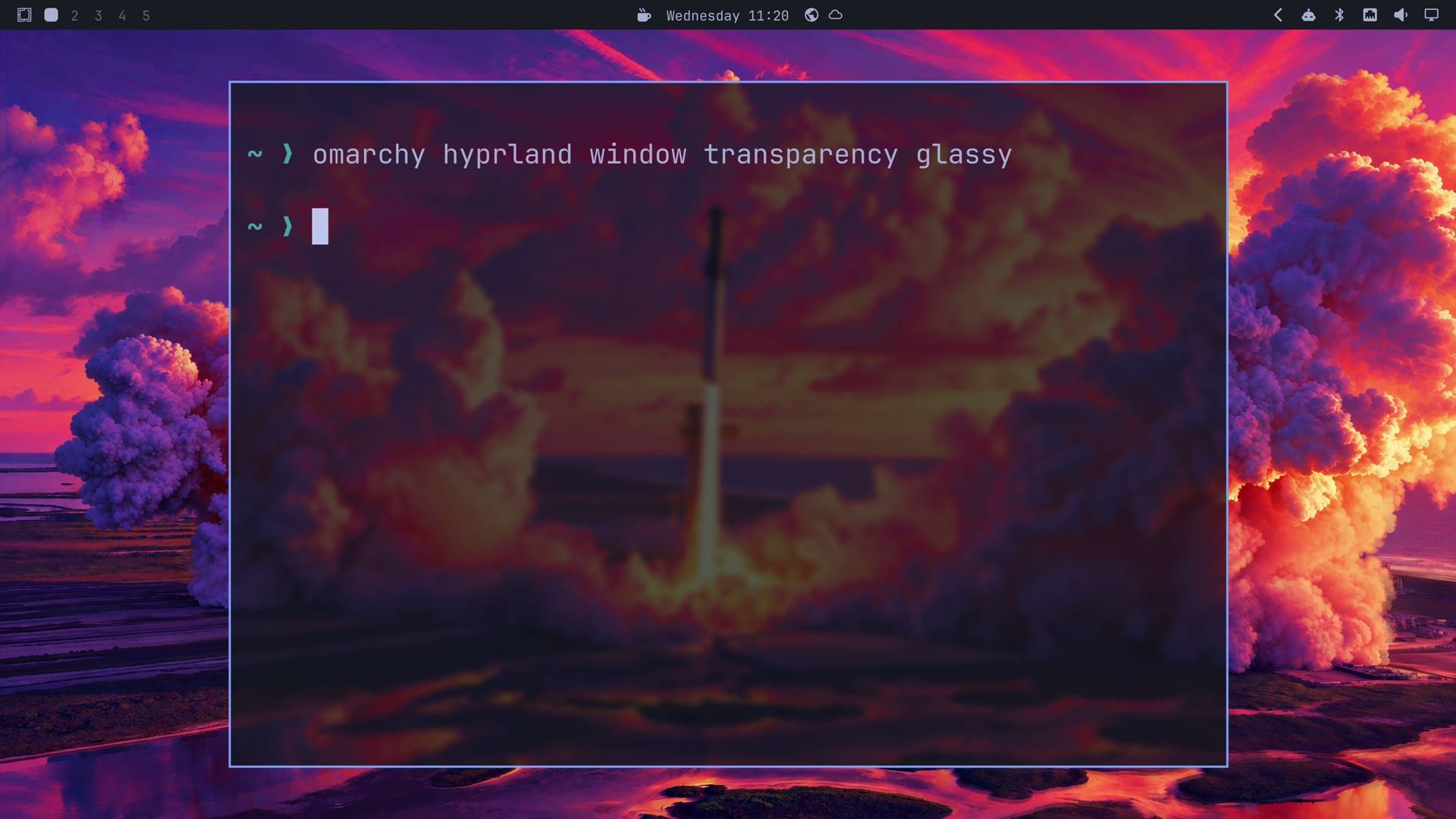
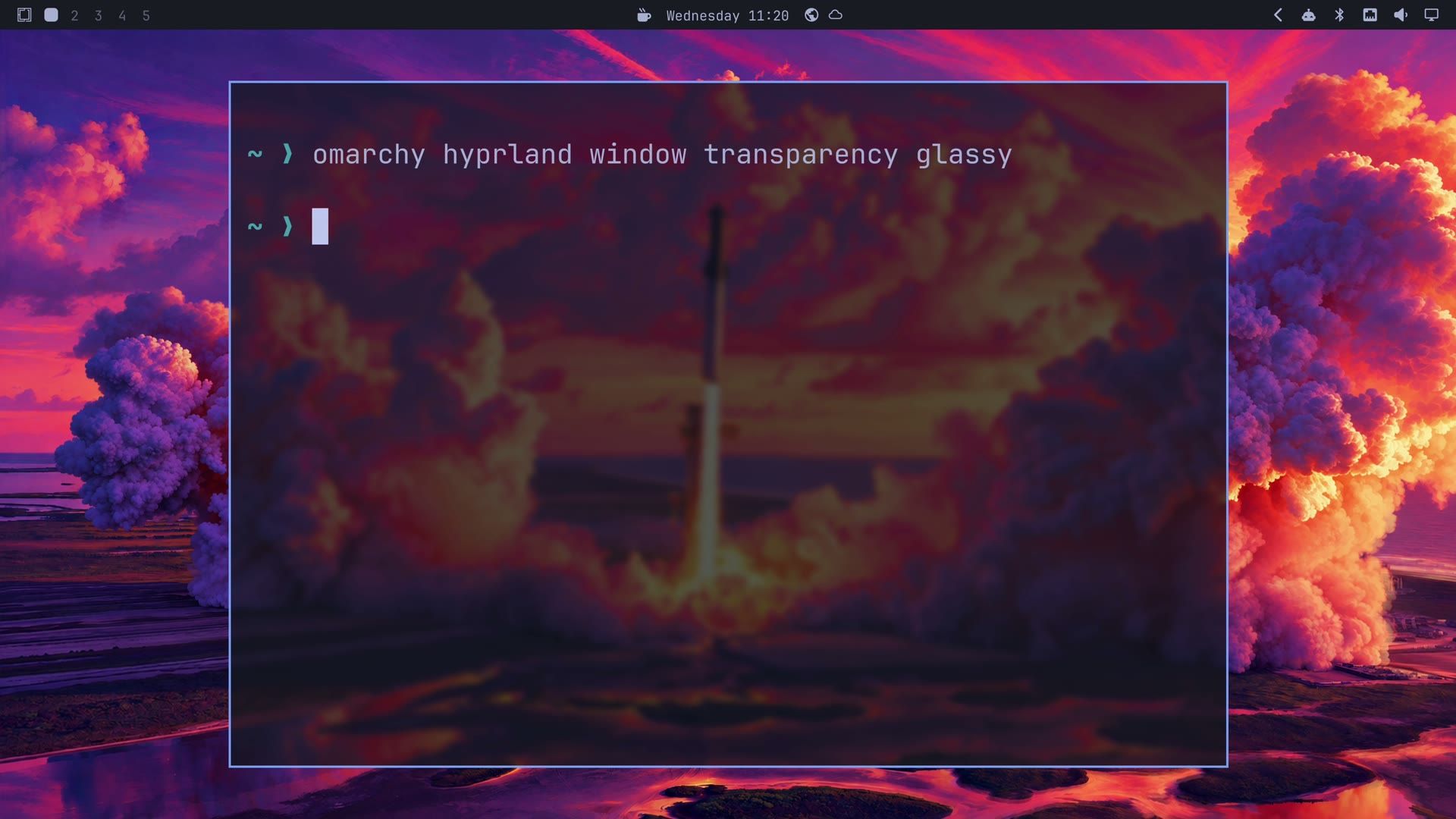
omarchy hyprland window transparency glassy
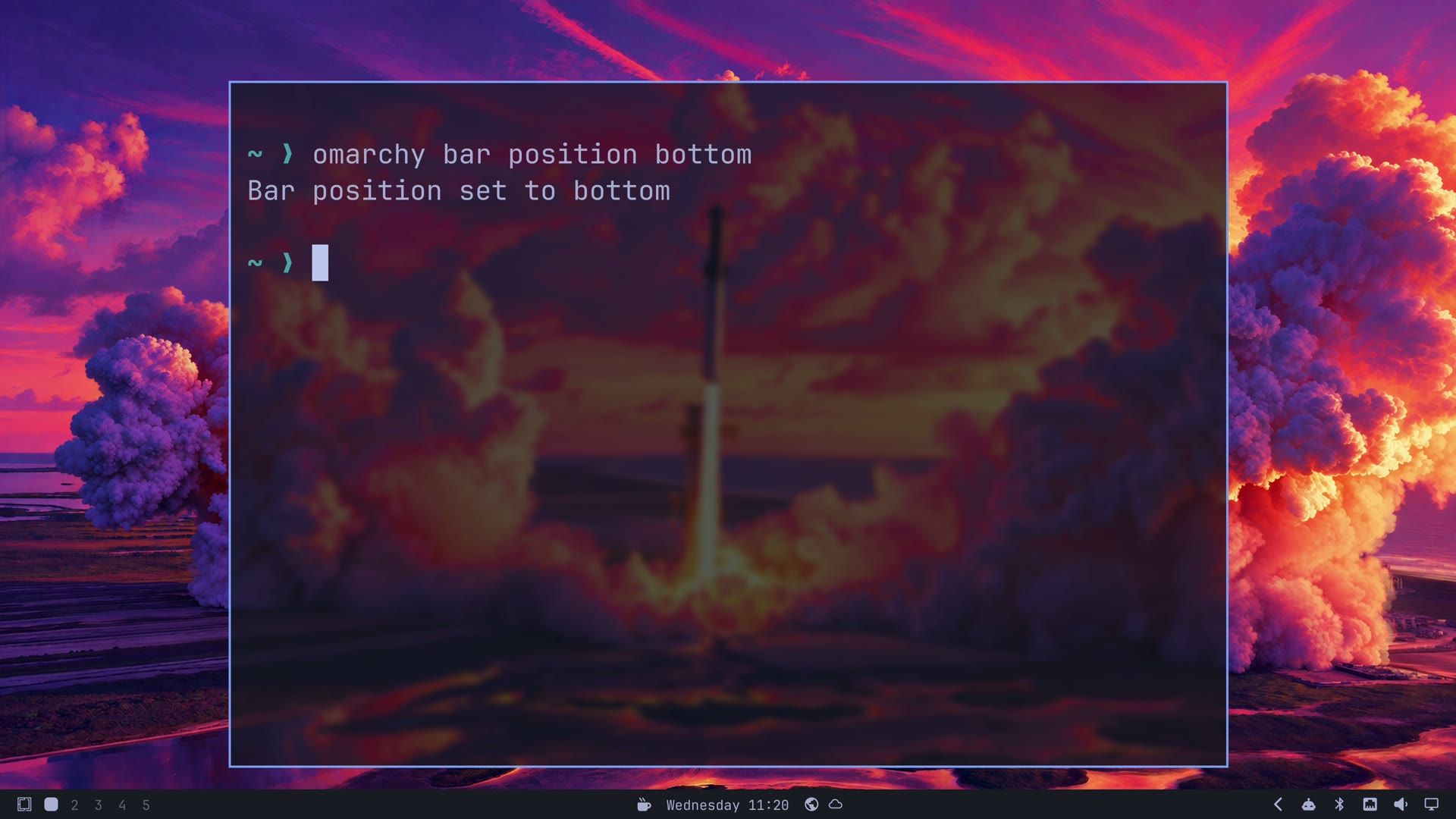
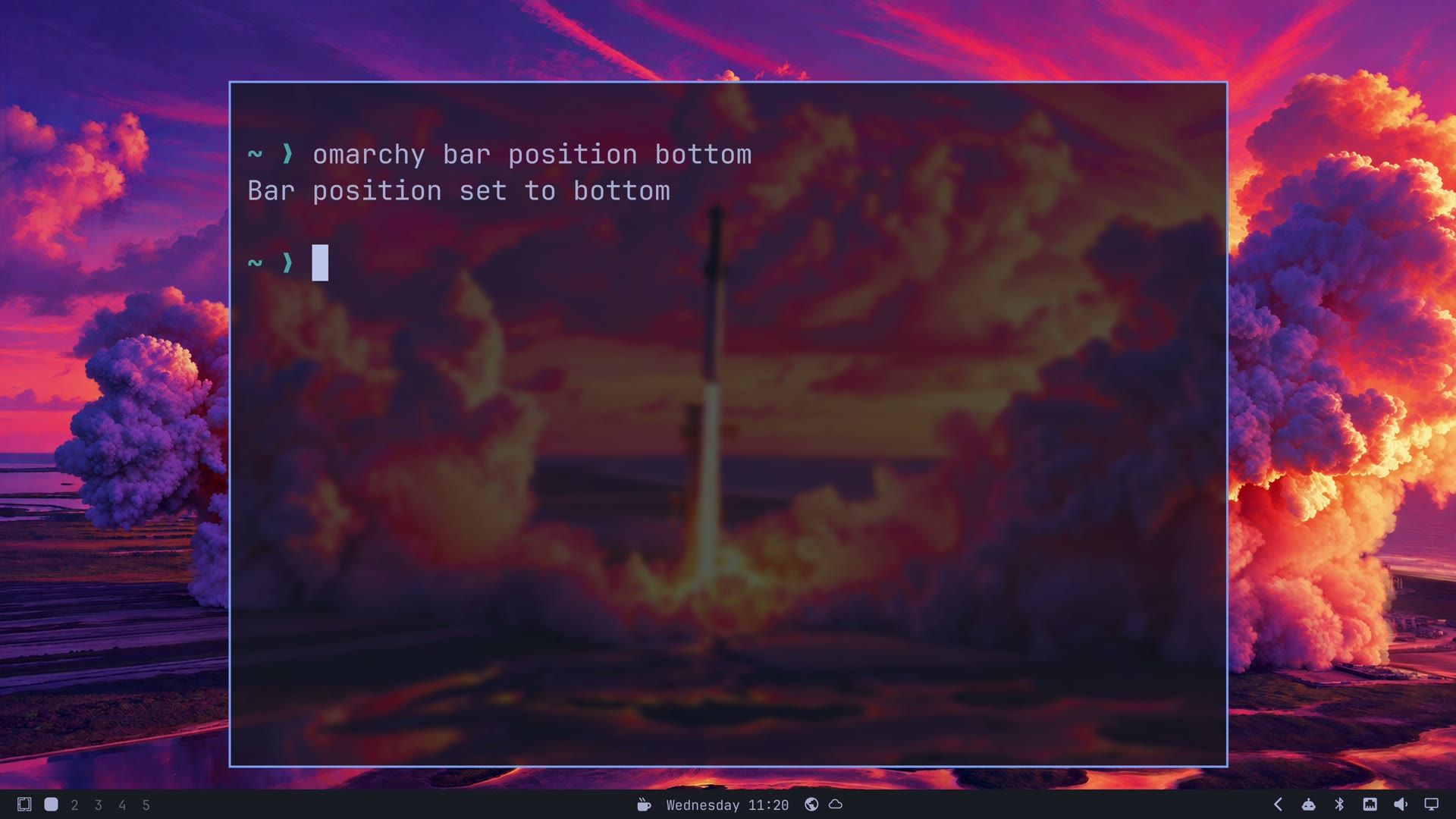
omarchy bar position bottom
Glassy lets the wallpaper show through the terminal, blurred, and the text stays sharp. Run the transparency command with no word after it and it prints the current mode; the other two modes are opaque and transparent. Our guide to glassy windows on Omarchy has more on those. omarchy bar position top puts the bar back. For rounded windows, omarchy hyprland corners rounded shows a notice, Rounded corners for all themes.
Set a reminder with no app to open
omarchy reminder takes a number of minutes and a message:
omarchy reminder 1 "Check the oven"A notice shows the time it will fire, and a small hand icon stays on the bar until then. The notice is gone in under five seconds, so watch for it.


When the time comes, a second notice appears with your words on it.


Don’t use it where a minute matters, because a reminder can fire up to about a minute late. Ours for one minute fired after about 100 seconds on one run and about 70 seconds on another. The script sets a systemd timer with systemd-run --on-active=1m and no accuracy setting, and systemd’s default accuracy is one minute, so that slack is the likely cause. We didn’t test it further. The command’s own summary also lists omarchy reminder show and omarchy reminder clear.
Put your own word on the screensaver
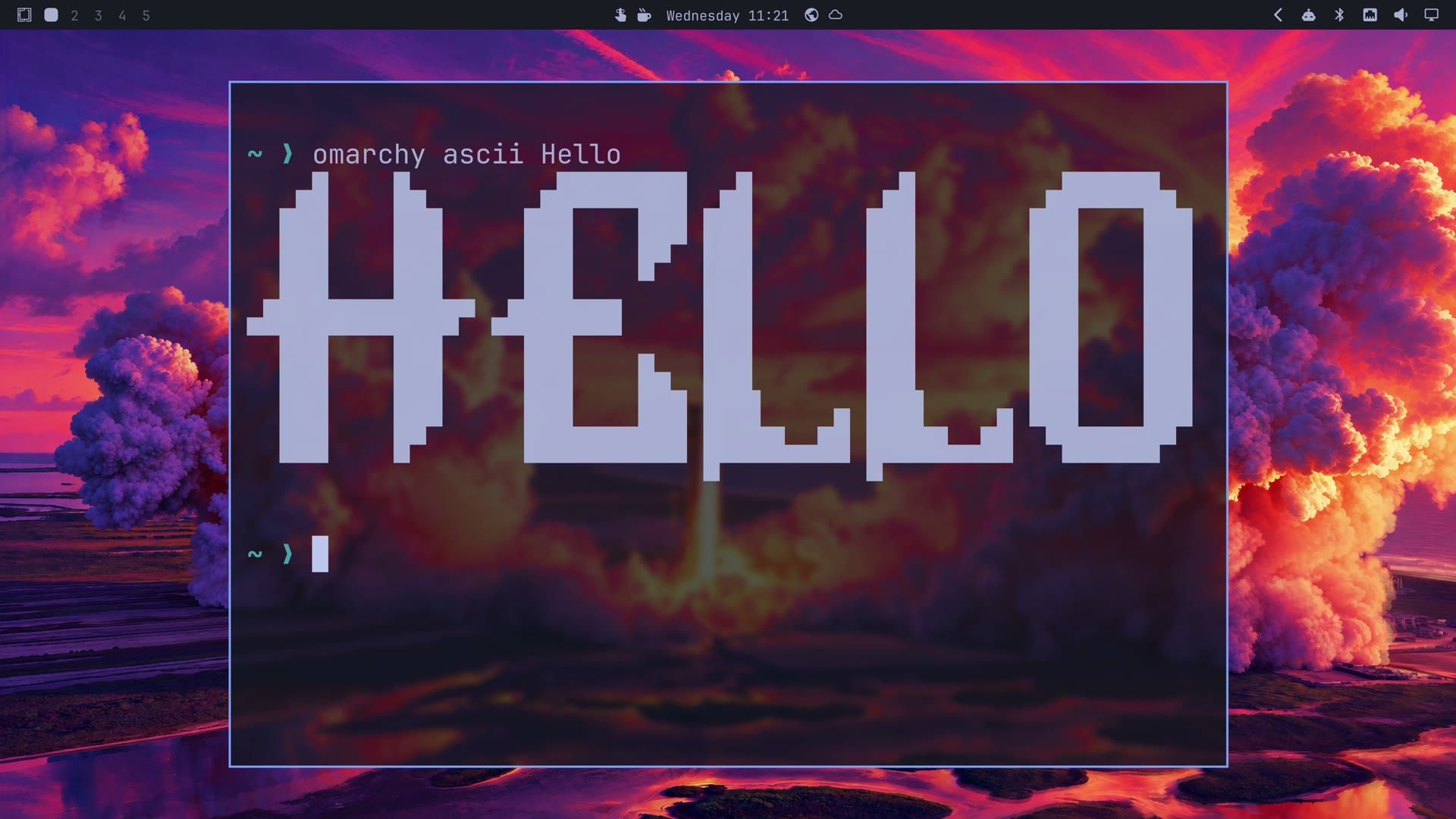
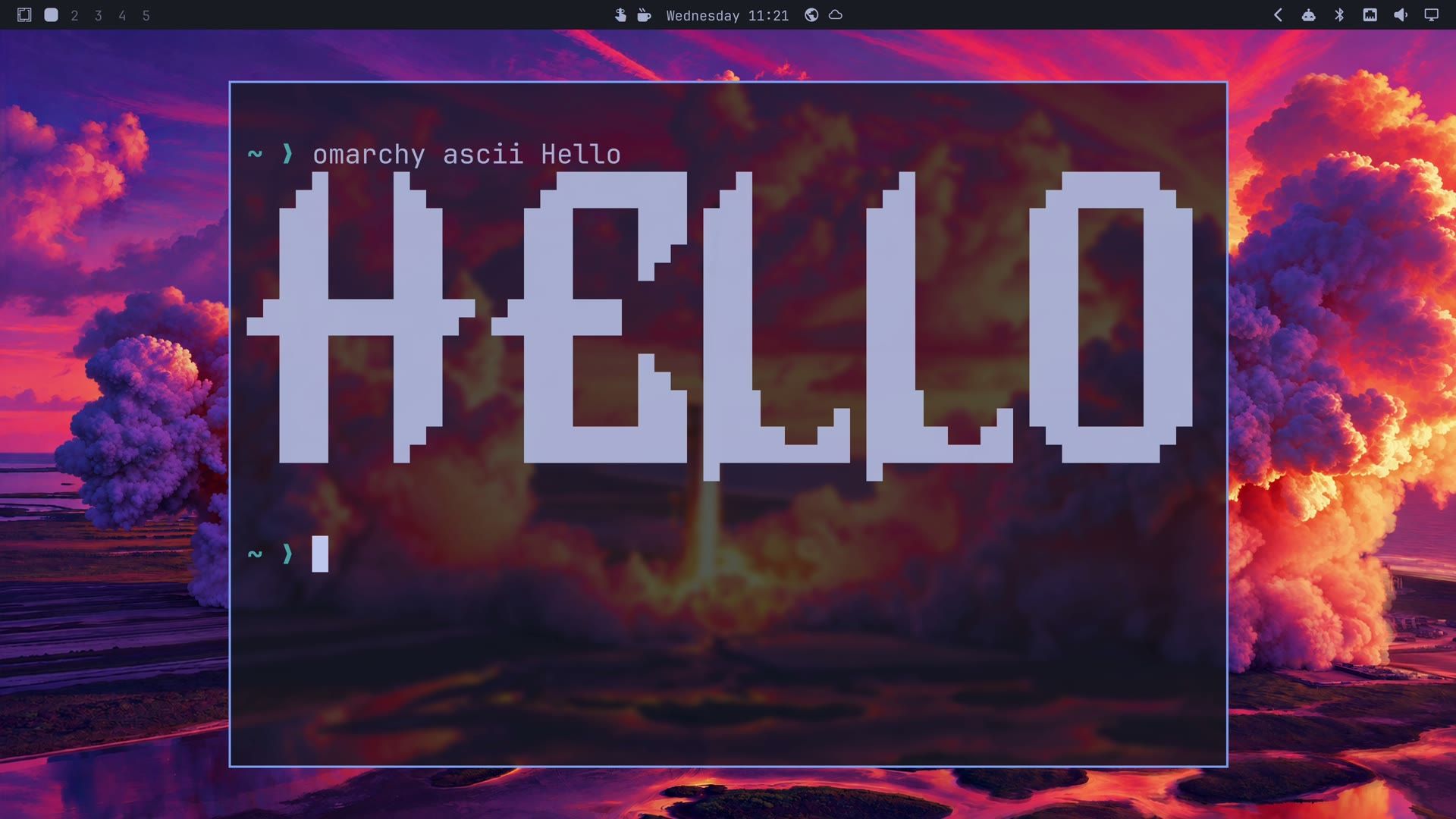
The ascii group draws a word in big block letters, in the font of the Omarchy logo:
omarchy ascii HelloShort words work best, because a long one wraps into noise. At the terminal size we used, Hello fit a small window, while Omarchy is 88 characters wide and Starry Hope is 130.
The screensaver draws its picture from one text file, so sending a word into that file changes it. The > replaces whatever the file held:
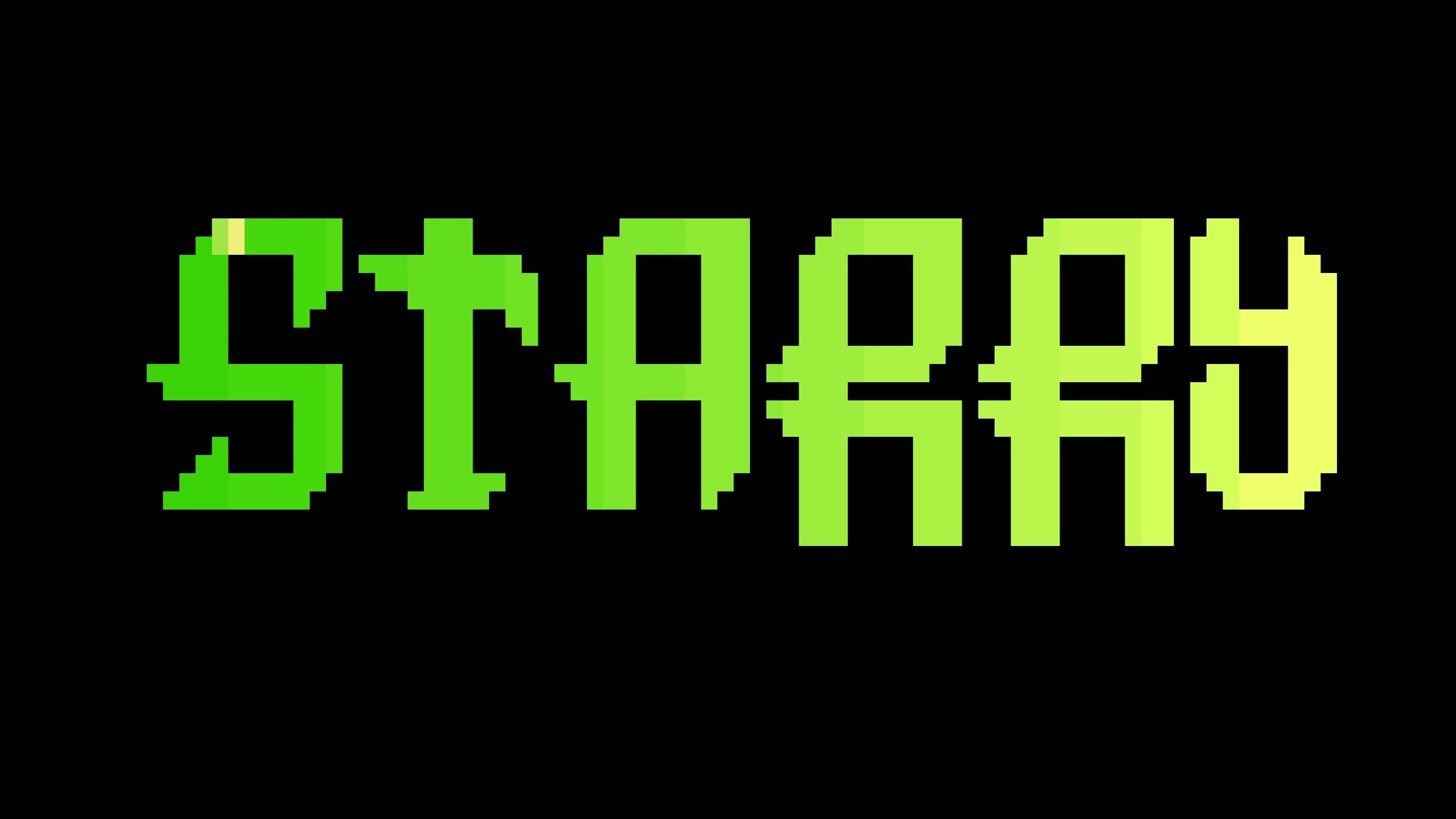
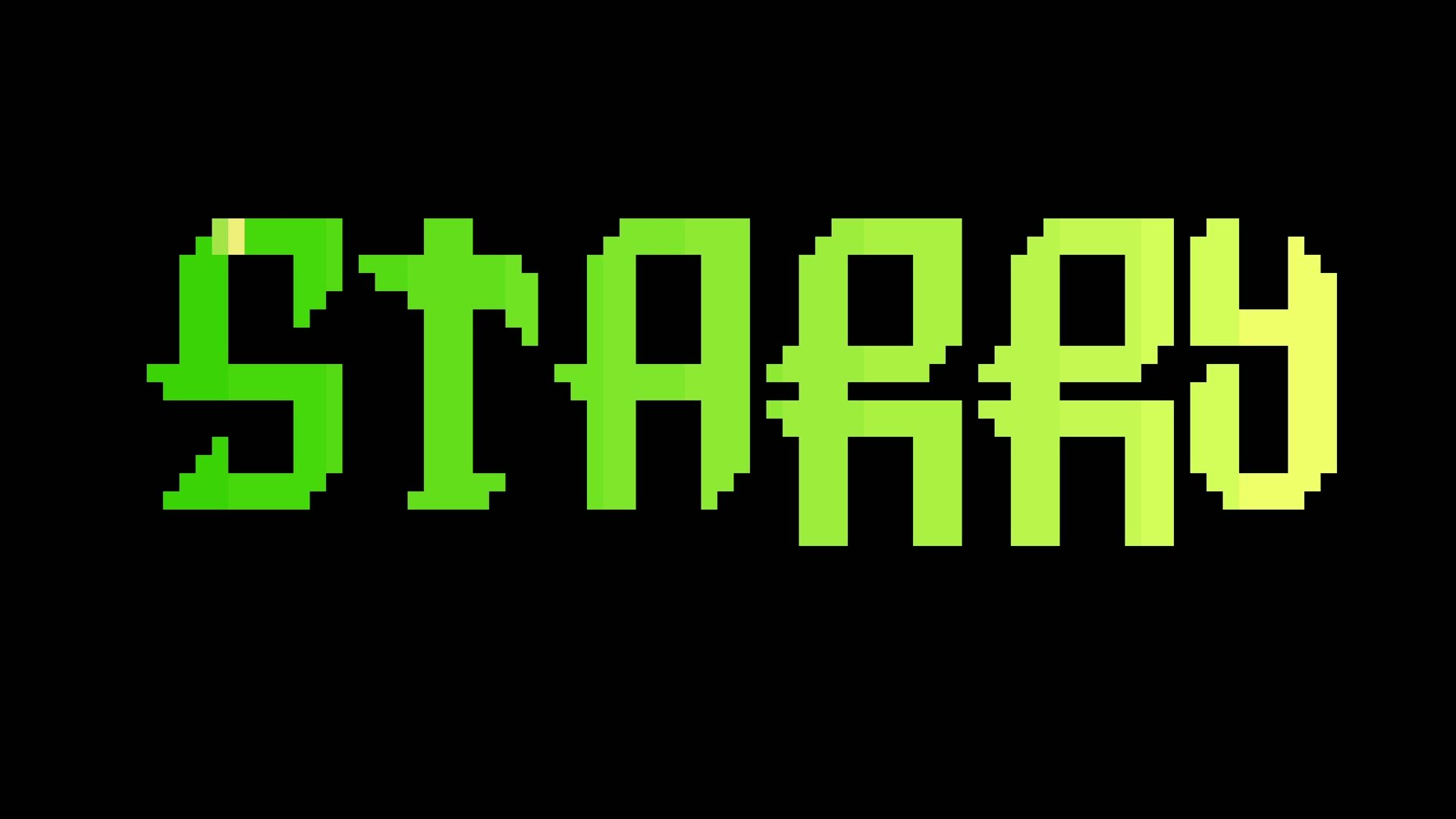
omarchy ascii Starry > ~/.config/omarchy/branding/screensaver.txt
omarchy launch screensaver
The second line starts it right away, with no idle wait. The word arrives in a different animation each time, and some take longer than others to draw it. Any key exits within about two seconds; wait a moment before you type, since keys pressed sooner can get lost. Starry fit our full screen at 73 characters, and Starry Hope clipped at both sides.
To go back, restore the default art. This command also starts the screensaver, as a preview:
omarchy branding screensaver resetFind a command by a word
omarchy commands lists every command, 429 of them on Omarchy 4.5, or 561 with --all, which adds the hidden ones. Search it with grep. Rows are padded to 266 characters, so tr squeezes out the extra spaces:
omarchy commands | grep -i screenshot | tr -s " "That finds omarchy capture screenshot and its short form omarchy screenshot, plus two more: omarchy capture qr decodes a QR code from a part of the screen, and omarchy capture text copies the words from a part of the screen.
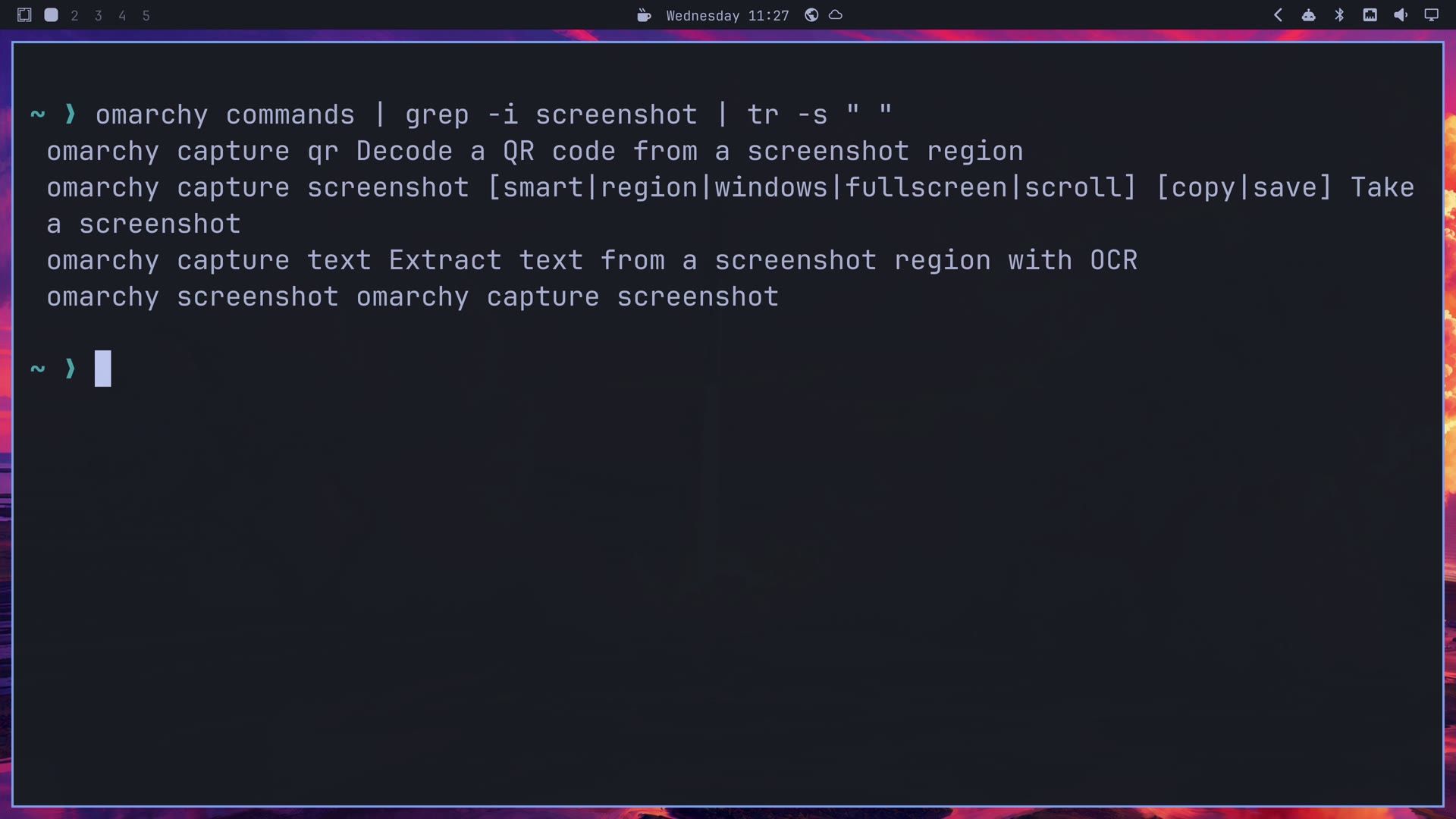
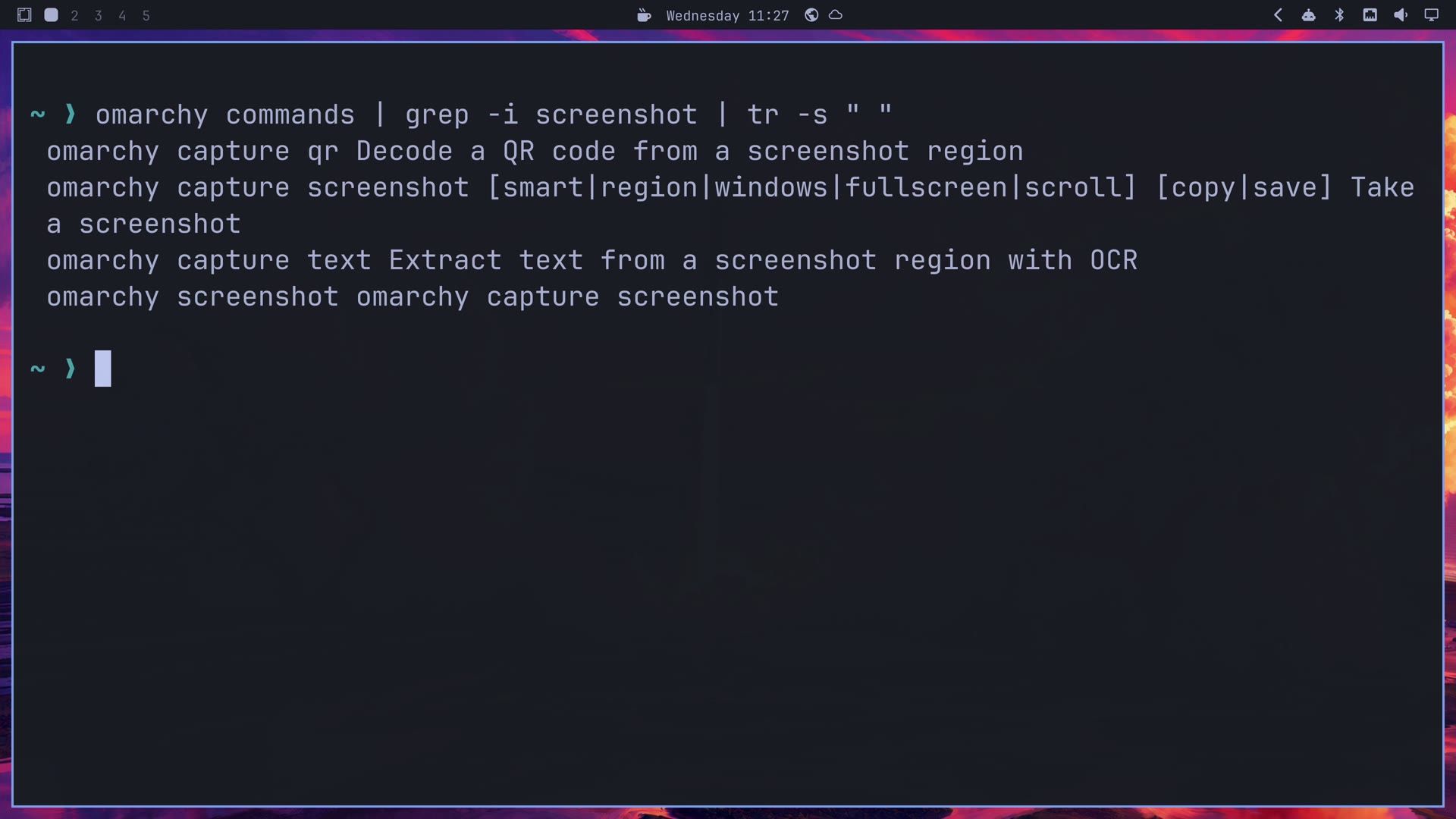
Search with Omarchy’s words. It says “background”, so a search for wallpaper finds nothing and leaves an x in the prompt, which only means the search came back empty.
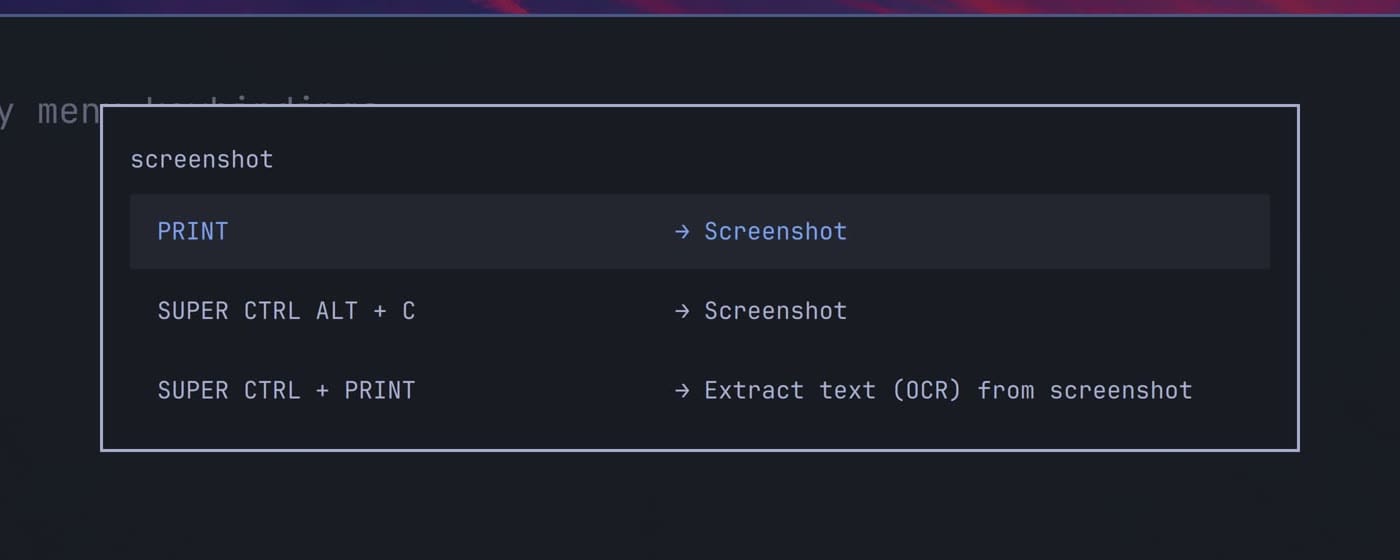
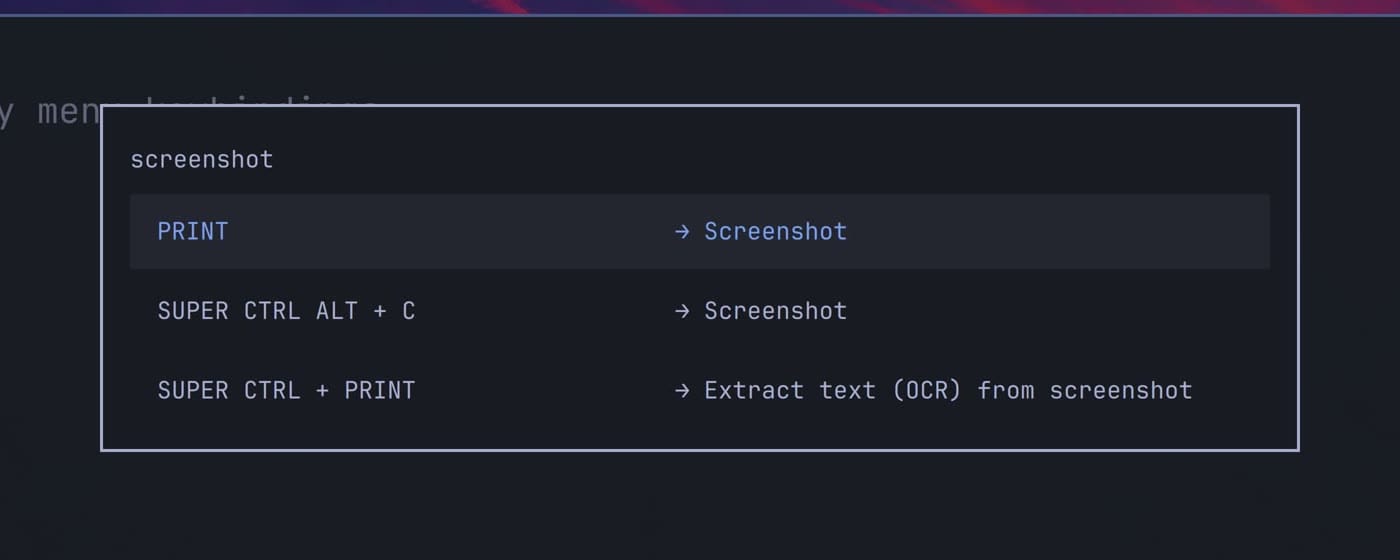
Keyboard shortcuts have their own search. omarchy menu keybindings opens the list, and super k opens the same one. Typing screenshot narrows it to three rows.
Restore the defaults when you break something
If you break a config file, omarchy refresh config puts Omarchy’s default copy of that one file back, and it keeps yours as a backup. To see it work, make a bad edit on purpose. This line adds a setting to the file that controls how windows look, and a wide gap opens around the window as soon as Hyprland reloads:
echo 'hl.config({ general = { gaps_out = 60 } })' >> ~/.config/hypr/looknfeel.lua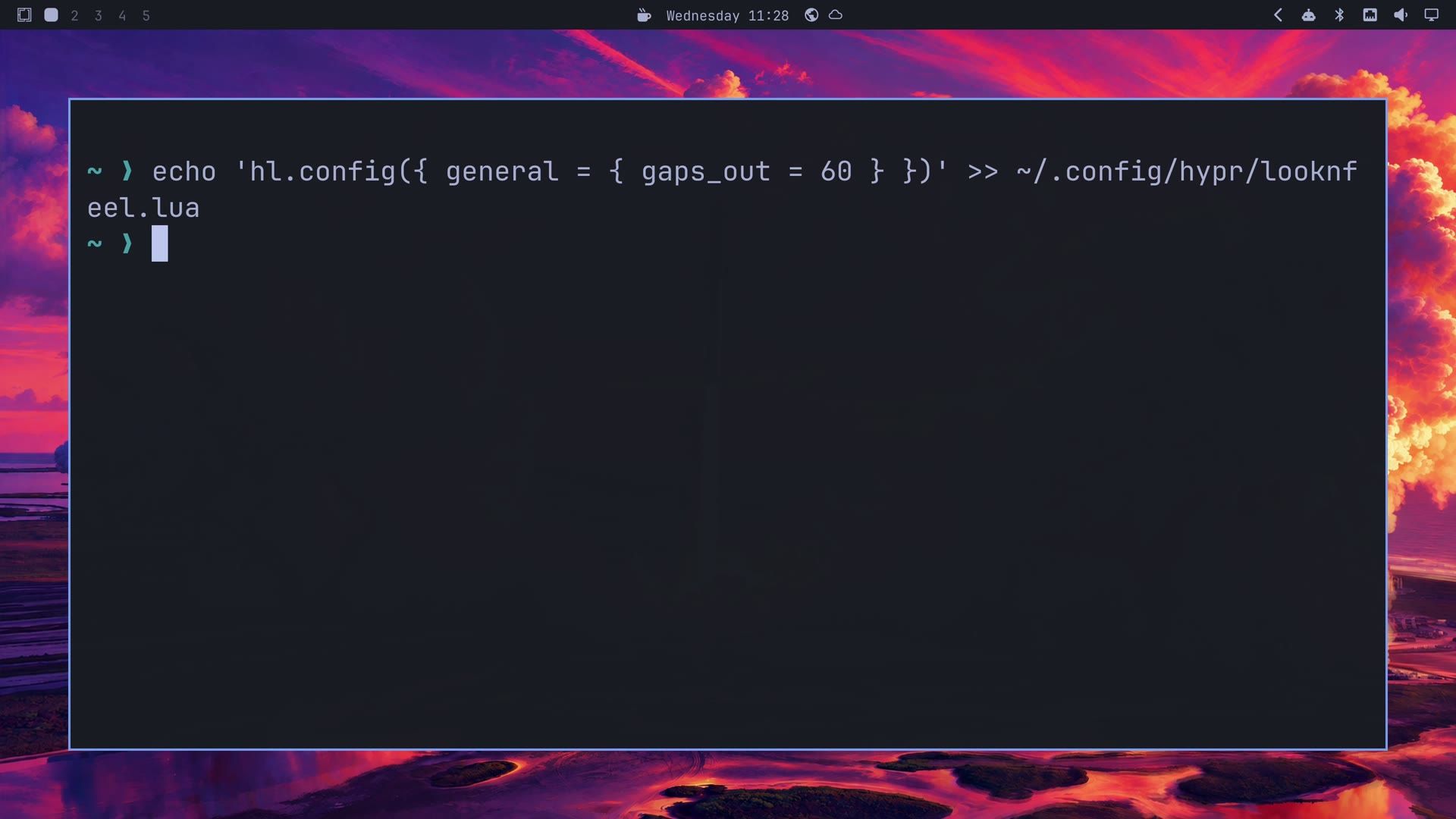
Now restore it. The path is relative to ~/.config:
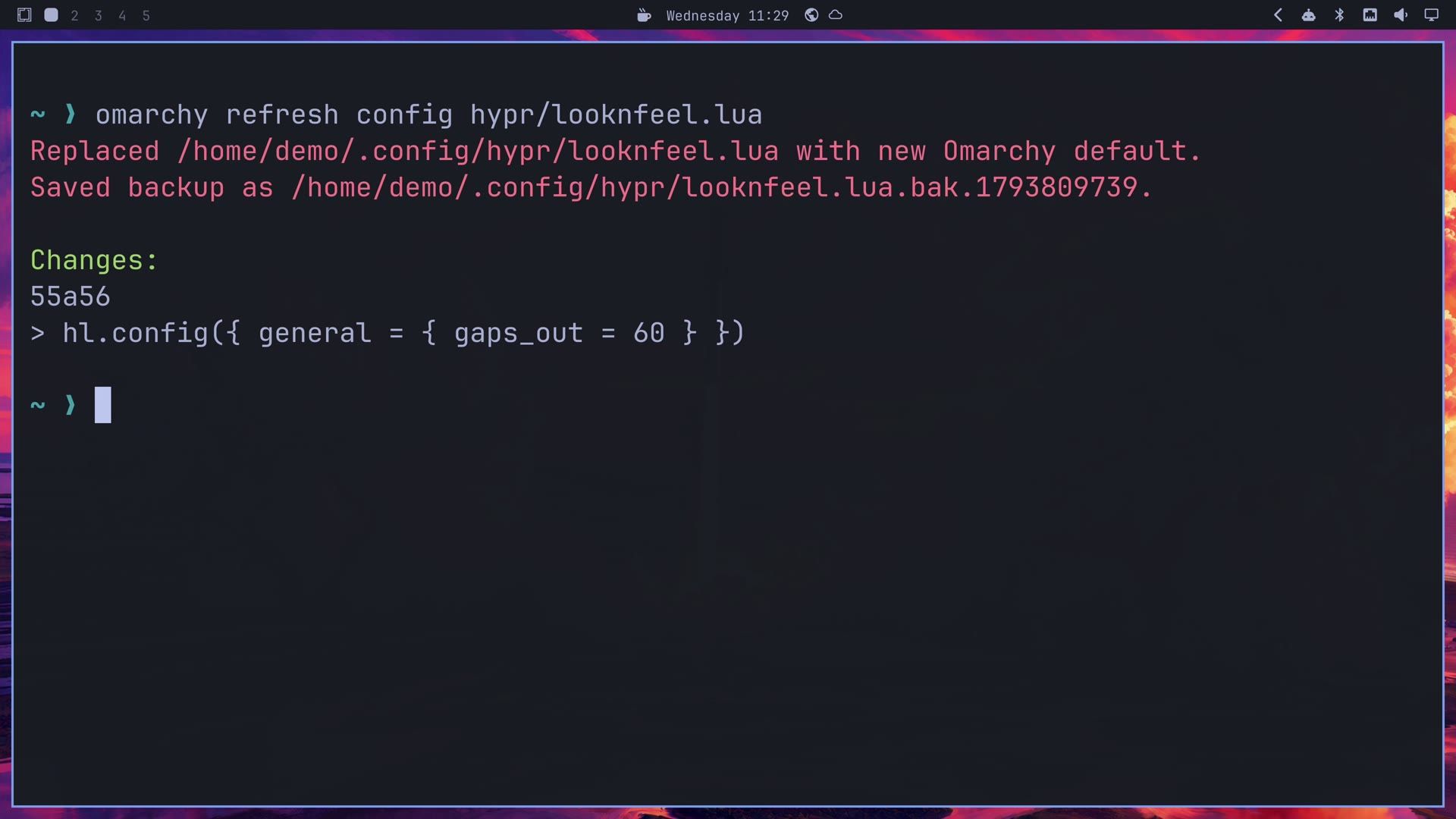
omarchy refresh config hypr/looknfeel.luaThe gap closes at once. The red lines say the file was replaced and your version was saved, and under Changes: is a diff between the two. A line starting with > is from your old file and a line starting with < is from the default, so the > line here is the edit we added.
The backup sits beside the original, ending in .bak and a number. To undo the reset, copy it back, using your own number:
cp ~/.config/hypr/looknfeel.lua.bak.1793809739 ~/.config/hypr/looknfeel.lua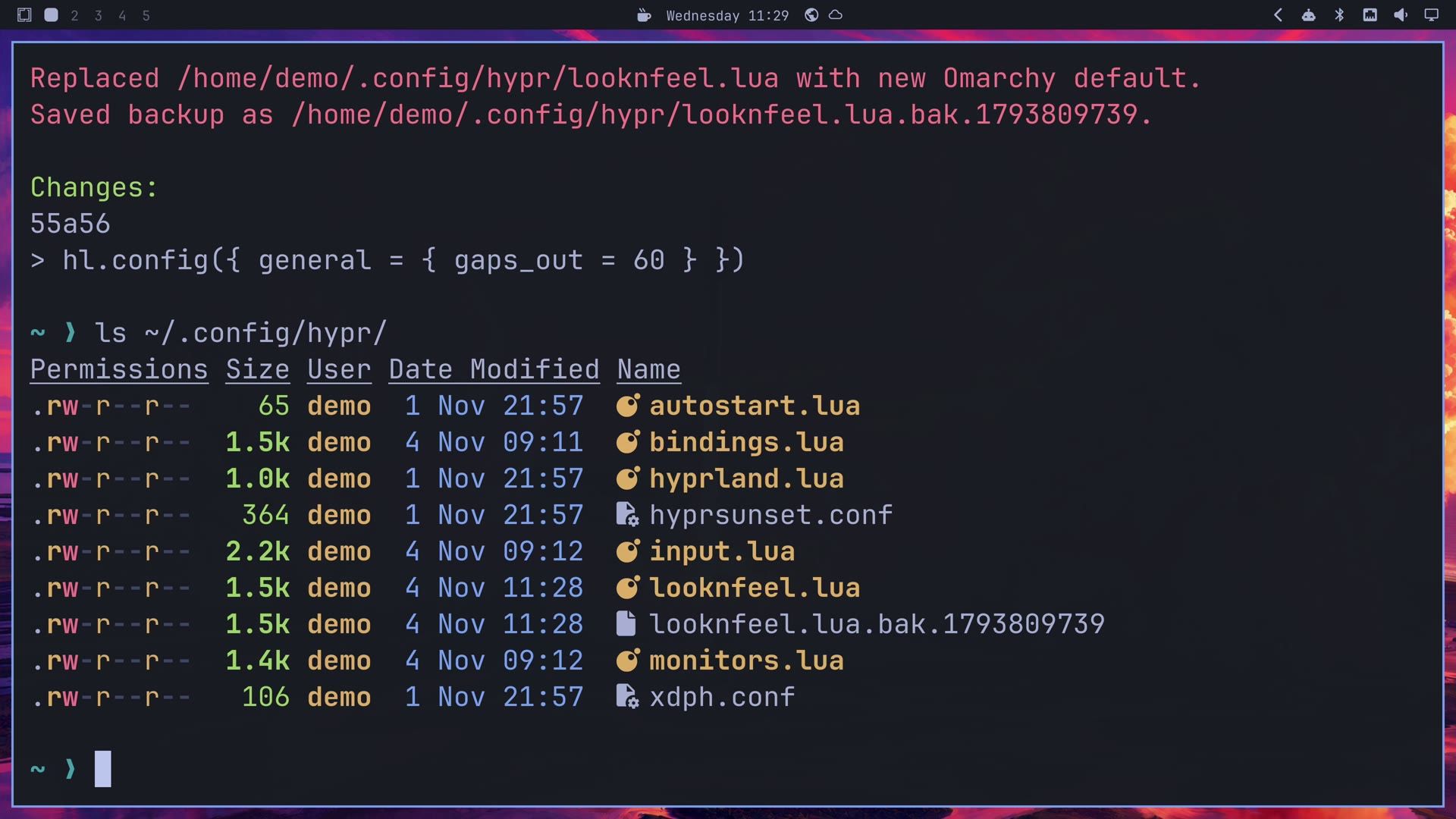
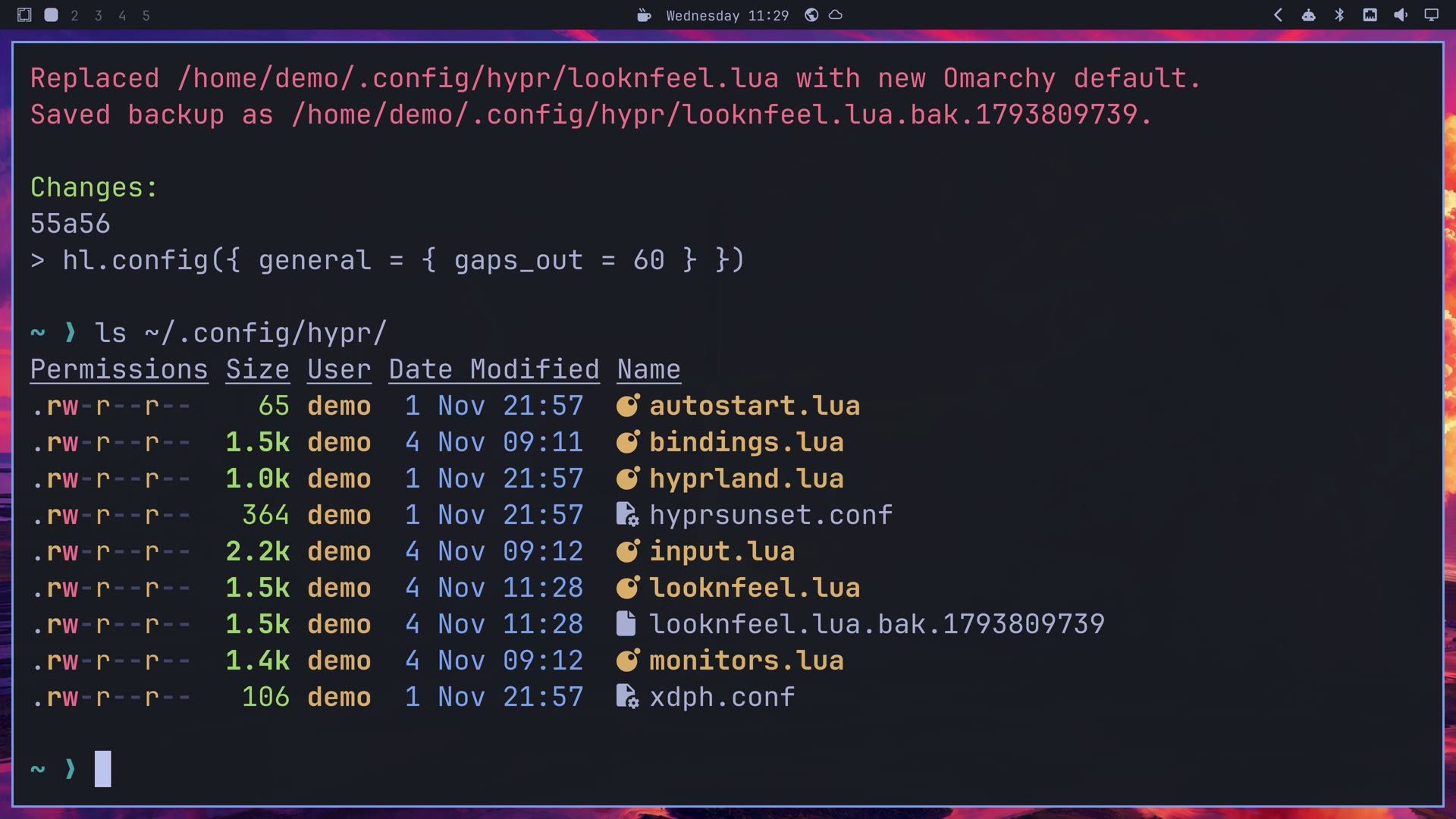
A backup appears only when your file differs. A second run on an unchanged file prints nothing and keeps nothing. Nothing cleans up old backups either, so they pile up until you delete them. To see which paths you can restore, run ls -R /usr/share/omarchy/config, where Omarchy keeps the shipped copies; any other path gets Not a shipped user config.
The rest of the refresh group
The group also has commands for whole apps and for system files. The table is read from the scripts on Omarchy 4.5; of these, we used only refresh config and the Shell reset from the menu.
| Command | What it puts back | Also |
|---|---|---|
omarchy refresh config <path> | One file under ~/.config | Keeps a .bak when your file differs |
omarchy refresh hyprland | All your Hyprland Lua files, monitor and input settings included | Keeps a .bak per changed file |
omarchy refresh hyprsunset | The night light config | Restarts hyprsunset |
omarchy refresh tmux | tmux.conf | Reloads tmux |
omarchy refresh shell | omarchy/shell.json, which holds the bar and idle timers | Restarts the shell |
omarchy refresh herdr | Herdr’s config | Restarts Herdr |
omarchy refresh chromium | chromium-flags.conf | Reinstalls its two native messaging hosts |
omarchy refresh applications | The shipped app launchers | No backup |
omarchy refresh plymouth | The boot screen theme | Needs your password, rebuilds the boot image |
omarchy refresh sddm | The login screen theme | Needs your password |
omarchy refresh limine | /boot/limine.conf | Needs your password, moves the old file to .bak |
omarchy refresh pacman | Package manager settings and mirrors | Needs your password, then updates all packages |
Take care with omarchy refresh hyprland, because your monitor scale goes back to the default along with everything else.
refresh isn’t the same as restart. refresh restores the default config, and restart starts the program again with your config left alone. When the bar misbehaves, omarchy restart shell is the one to try first.
Do the same reset from the menu
Press super space , then go to Update, then Config. The row is called Config, and the list it opens is titled “Reset to default”.
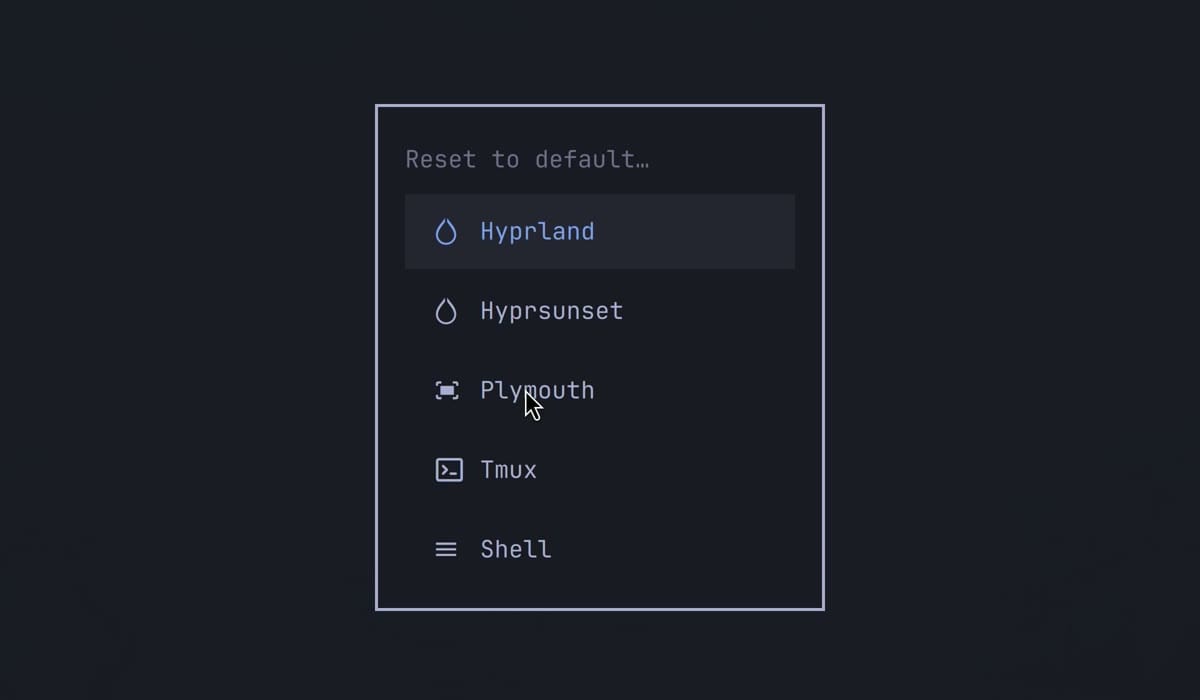
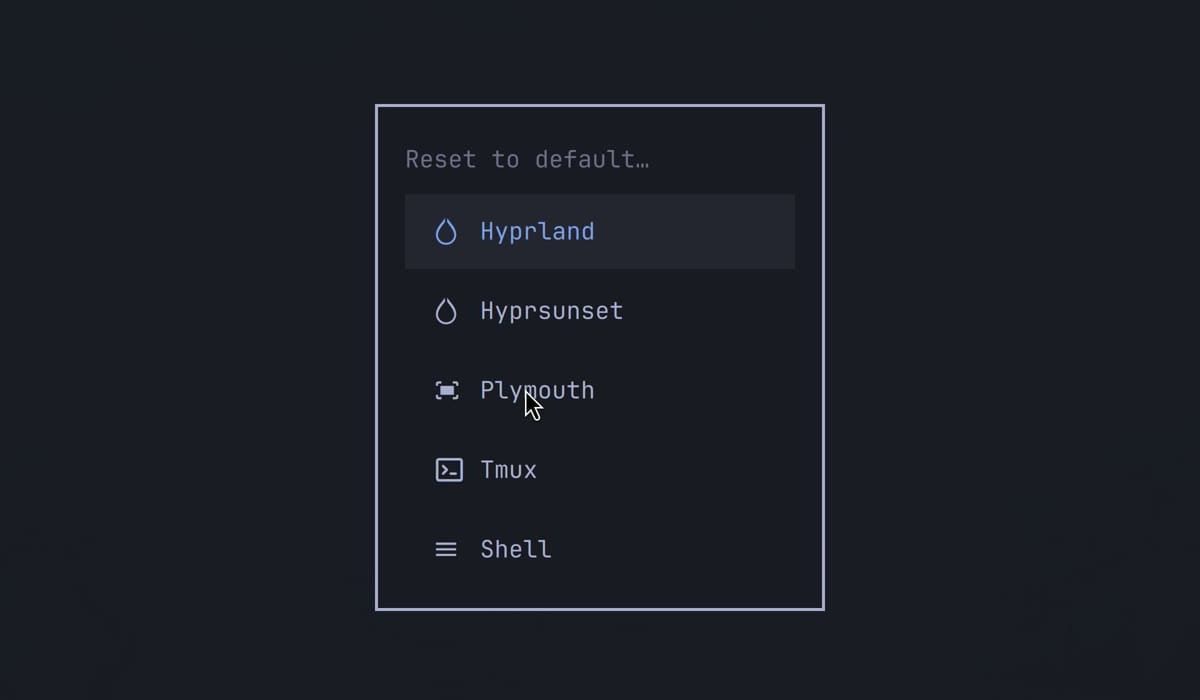
Each row opens a small terminal and runs one of the refresh commands above by its script name, so omarchy-refresh-hyprland is the same as omarchy refresh hyprland.
| Row | Runs | What it covers |
|---|---|---|
| Hyprland | omarchy-refresh-hyprland | All your Hyprland Lua files |
| Hyprsunset | omarchy-refresh-hyprsunset | The night light |
| Plymouth | omarchy-refresh-plymouth | The boot screen |
| Tmux | omarchy-refresh-tmux | The tmux config |
| Shell | omarchy-refresh-shell | The bar and the rest of the shell settings |
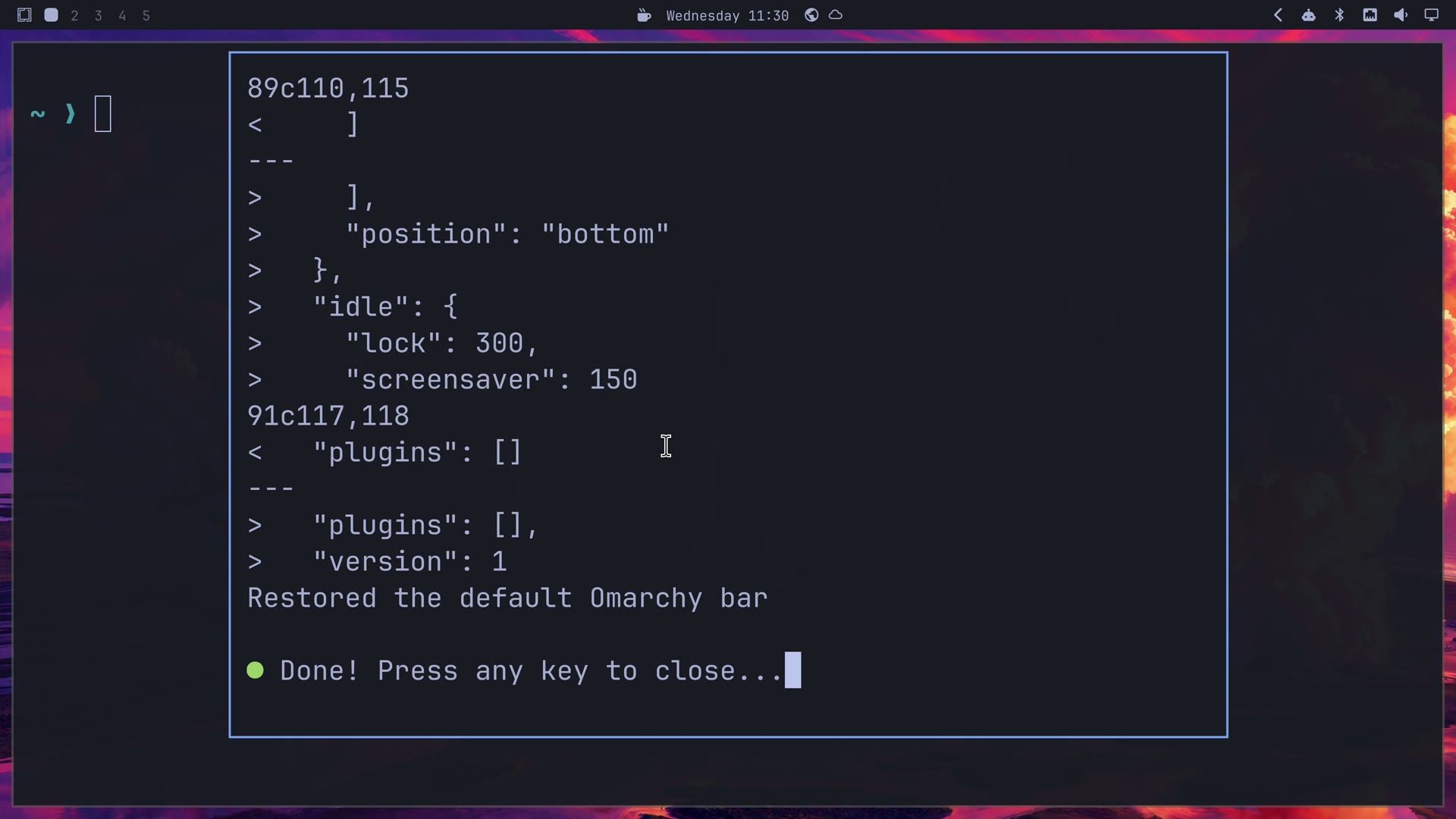
We tried the Shell row with the bar moved to the bottom. The bar returned to the top, and the terminal ended on Restored the default Omarchy bar. The diff shows that this row replaces the whole settings file, so the lock and screensaver timers we had there reset too. Your old file stays as a backup.
What omarchy reinstall replaces, and what it keeps
We did not run omarchy reinstall. Everything in this section comes from reading the scripts on Omarchy 4.5 and the two help pages, which are safe to open. Treat the “keeps” list as our reading of those scripts, not a test result.
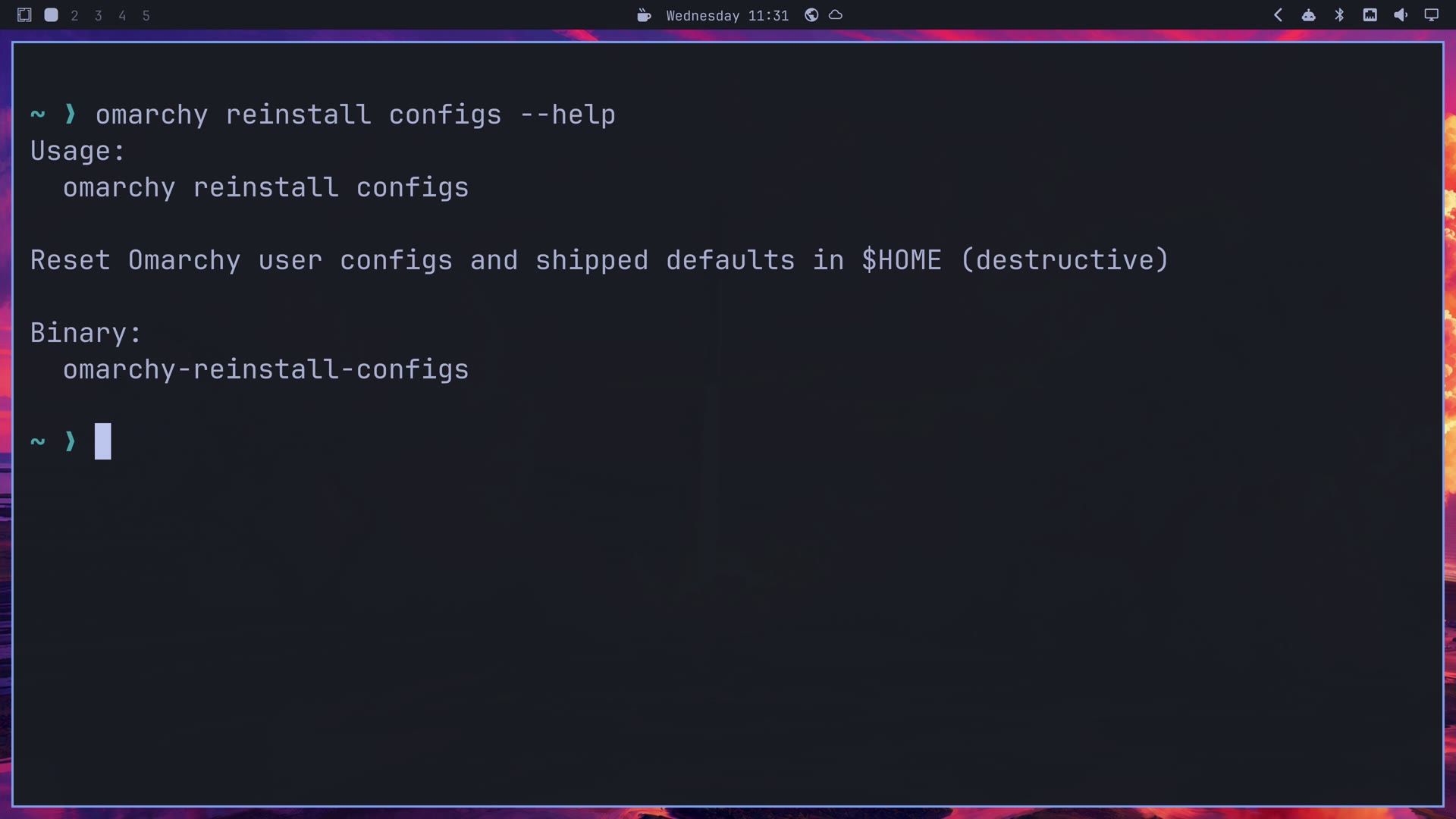
Bare omarchy reinstall starts the job. It prints “This will reinstall all default Omarchy packages and reset default configs.” and “Warning: user config changes will be overwritten.”, then asks “Are you sure you want to reinstall and lose config changes?” with Yes already selected. Bare omarchy reinstall configs starts with no question at all. A singular omarchy reinstall config should reach the full reinstall prompt, because the command treats leftover words as arguments. That comes from the command’s routing rules, and we didn’t try it.
The job has two parts. The packages part points the package manager back at Omarchy’s default source, downgrades anything newer than that source, and installs any default package you’re missing, all without asking. The configs part runs cp -af /etc/skel/. ~/, which copies Omarchy’s defaults over your home folder. Omarchy’s file layout document puts it plainly: existing files “are clobbered without backup”.
It replaces:
~/.bashrc,~/.bash_profile, and~/.bash_logout. Omarchy’s manual says updates leave.bashrcalone, and reinstall doesn’t.- Every Hyprland file in
~/.config/hypr:autostart,bindings,hyprland,hyprsunset.conf,input,looknfeel,monitors, andxdph.conf. Any custom keybindings inbindings.luago with it. omarchy/shell.json(the bar and idle settings) and your own menu entries inomarchy/extensions/omarchy-menu.jsonc.- The terminal configs,
starship.toml,tmux.conf, andgit/config. - The Neovim config. Your
~/.config/nvimis moved to a datednvim.backupfolder, but the defaults are copied first, so that folder likely holds the defaults plus any extra files you added. The Neovim data, cache, and state folders are deleted. - The shipped app launchers in
~/.local/share/applications, and the About and screensaver art, including the word you set above. - The boot files.
/boot/limine.confmoves to/boot/limine.conf.bakand a default takes its place, and the Plymouth boot screen is rebuilt.
Your Git name and email can go too. Omarchy’s setup stores them with git config --global, and on a default install that writes to ~/.config/git/config, which the shipped copy replaces with a file that has no [user] section. That’s our inference from Git’s rules for where it writes, so note your name and email before you start.
It keeps: your documents, ~/.ssh, any file /etc/skel doesn’t ship, your own themes in ~/.config/omarchy/themes/, and the packages you added. cp -af adds and overwrites but doesn’t delete, and the package step installs only missing defaults, though a default can replace a package that conflicts with it. Your home folder isn’t wiped.
Two open bug reports are worth reading first if they match your machine. Issue 7867 says omarchy-refresh-limine, which reinstall runs, drops the Windows entry on a dual-boot machine. Issue 9853 says omarchy-refresh-pacman drops the hardware-specific repository on Intel T2 Macs, and that the same loss reaches omarchy reinstall.
Copy your configs first
This line packs your ~/.config folder and your bash settings into one dated file in your home folder:
tar czf ~/omarchy-config-$(date +%F).tgz ~/.config ~/.bashrctar prints a note about removing the leading / from names, which is normal. Add ~/.bash_profile to the line if you’ve changed it. ~/.config can hold browser data too, so the file may be large. To put everything in it back, overwriting what’s there now, use your file’s date:
tar xzf ~/omarchy-config-2026-11-09.tgz -C /Both lines worked on a throwaway folder; neither has followed a real reinstall.
Pick the smallest reset that fixes it
| Tool | What it touches | Copies of your configs |
|---|---|---|
omarchy refresh config <path> | One file | A .bak beside it |
Update > Config row, or omarchy refresh <app> | One app’s files | A .bak per config file it copies |
omarchy reinstall configs | Every config Omarchy ships, plus the boot files | None, apart from the Neovim folder and /boot/limine.conf, which are moved aside |
omarchy reinstall | All of that, plus packages | The same as reinstall configs |
| Snapshot rollback | The system, not your home folder | Your ~/.config stays as it is, so this won’t fix a bad config |
| Setup > Reset Computer | The whole machine, every account and home folder | None. You must type reset to confirm |
Reset Computer is the factory reset, and reinstall isn’t one. Omarchy’s script for it also says a machine upgraded from an earlier version “has no baseline to return to and is turned away”.
Every group in the main list
These are the 73 groups omarchy prints on Omarchy 4.5, with its own description for each; the notes in parentheses are ours. Run omarchy <group> | less -S to see what’s inside one.
| Group | Description |
|---|---|
agent | AI coding agents, their usage, and subscription accounts |
ascii | Text drawn as ASCII art |
audio | Audio input and output controls |
bar | Omarchy shell bar layout and settings |
battery | Battery status helpers |
bluetooth | Bluetooth device controls |
branch | Omarchy git branch management (empty on 4.5) |
branding | About and screensaver branding |
brightness | Display and keyboard brightness |
capture | Screenshots and screen recording |
channel | Omarchy release channel management |
clipboard | Clipboard helpers (no documented commands on 4.5) |
cmd | Command and shortcut helpers |
config | System configuration helpers (empty on 4.5) |
crash | Crash notification controls |
debug | Diagnostics and support logs |
default | Default application selection |
dev | Omarchy development tools |
dictation | Dictation recording |
disk | Disk performance helpers |
display | Display and text scaling |
dns | DNS resolver configuration |
dock | Dock shown on floating workspaces |
drive | Drive selection and encryption |
file | File selection helpers |
finalize | Finalize user setup (empty on 4.5) |
font | Font management |
games | Game launchers and helpers |
hibernation | Hibernation setup and removal |
hook | User hook runner |
hw | Hardware detection and controls |
hyprland | Hyprland window, monitor, and toggle controls |
install | Optional software installers |
installed | Installed optional service checks (no documented commands on 4.5) |
kernel | Default boot kernel selection |
language | Display language and system locale |
launch | Application launchers |
menu | Omarchy menu commands |
migrate | Migration runner |
mise | Mise tool wrappers |
monitor | Monitor status helpers |
network | Network status helpers |
notification | Notification helpers |
openclaw | OpenClaw agent platform setup |
osd | On-screen display status helpers |
pkg | Package management helpers |
plugin | Omarchy shell plugin and bar widget management |
plymouth | Plymouth boot theme management |
power | Power supply detection |
powerprofiles | Power profile management |
refresh | Reset config to defaults |
reinstall | Reinstall and reset workflows |
reminder | Desktop notification reminders |
remove | Removal workflows |
restart | Restart Omarchy components |
screensaver | Screensaver branding and animation |
setup | Interactive setup wizards |
shell | Omarchy shell IPC helpers |
snapshot | System snapshots |
sudo | Sudo configuration helpers |
system | System status, reboot, shutdown, logout, and lock |
tailscale | Tailscale helpers |
theme | Theme management |
toggle | Toggle Omarchy features |
transcode | Image and video transcoding |
tui | Terminal UI launchers |
update | Omarchy and system updates |
version | Version and channel information |
voxtype | Voxtype dictation |
weather | Weather status |
webapp | Web app launchers |
wifi | Wi-Fi helpers (empty on 4.5) |
windows | Windows VM management |
Other commands to try
A few more work and didn’t fit above: omarchy notification time and omarchy notification weather show small panels, and omarchy hyprland workspace layout toggle cycles the current workspace through its layouts, which super l also does. omarchy launch webapp <url> opens a site in its own window, though Chromium prints errors into the terminal when it does. omarchy network speedtest down and omarchy disk speedtest print columns of bare numbers, since they feed the bar.
Be careful with three others. omarchy debug gathers logs that may hold names and keys, and it offers to upload them, so read them before you share. omarchy network password prints your Wi-Fi password, and any omarchy agent account command can print your account email, so keep those off a shared screen.
Troubleshooting
omarchy launch screensaver does nothing. If the screensaver is switched off in your settings, the command exits unless you add force: omarchy launch screensaver force.
socat ... Broken pipe appears after the screensaver. It sometimes prints when you exit. ctrl l clears the terminal, and the desktop carried on as normal when we saw it.
A group says Unknown Omarchy command. branch, config, finalize, and wifi are listed in the main help but have no commands on Omarchy 4.5. clipboard and installed answer No documented commands found.
omarchy commands --check reports failures. On a stock Omarchy 4.5 it says Missing metadata summary: omarchy-nvim-setup and Command metadata check failed (2 issues), so a failure here doesn’t point to anything you did.
A menu opens instead of a help page. omarchy-menu-keybindings --help opened the menu and left the shell waiting, because called directly the script doesn’t read the flag. Use the spaced form, omarchy menu keybindings --help.
Wrapping up
For a bad edit, reach for refresh on one file or the menu row for one app. Keep reinstall for when those fail, with your configs copied first. If you’re new to Omarchy, the first keys to learn pair well with the commands here.


