
Omarchy is DHH’s Linux desktop, built on Arch Linux and Hyprland, where windows tile side by side instead of overlapping. On a Mac with Apple’s own chip (M1 or newer), you can run it in a virtual machine and keep macOS running around it. We set it up in four apps that do this: Try Omarchy, UTM, VMware Fusion, and Parallels Desktop. Then we ran the same tests in each, on the same M4 Mac mini with 16 GB of memory.
The Parallels Desktop links on this page are affiliate links; Starry Hope may earn a commission if you buy through them. See our FTC Disclosure.
The versions in this guide are Try Omarchy 1.2.0, UTM 5.0.8, VMware Fusion 26H1u1, and Parallels Desktop 27.0.3. The three general apps ran Omarchy 4.5.0 release candidate 2 from the official ARM installer. If you run Windows on your Mac too, our Windows 11 comparison of UTM, Parallels Desktop, and VMware Fusion covers the same three apps with Windows.
Two ways to get Omarchy onto a Mac
Try Omarchy is a Mac app that runs only Omarchy. It downloads a ready-made Omarchy image on its first launch and starts it, with no installer to run. Our guide to trying Omarchy on a Mac walks through that first launch step by step.
The other route is Omarchy’s official installer, an ISO disc image that you start in a general virtual machine app, one that also runs Windows and other systems. Macs with Apple’s chips need the ARM (aarch64) version of the installer. It is linked in the release notes of Omarchy 4.5.0-rc2 on GitHub, and we used that one file in UTM, Fusion, and Parallels.
The two routes start on different update channels. Omarchy offers four: Stable gets tested releases, RC (release candidate) gets the next release while it is still being tested, Edge gets new changes first, and Dev is for development. Try Omarchy’s image runs Edge. The ARM installer is a release candidate, and no Stable ARM installer exists yet, so an install from it starts on RC. Omarchy’s Update menu lists Stable too, for when the next stable release ships.
Omarchy’s installer notices when it runs in a virtual machine and turns off window animations, blur, and transparency. Try Omarchy’s image ships with the same settings, so the desktop looks plainer than on a PC in all four apps.
The four apps compared
| Try Omarchy | UTM | VMware Fusion | Parallels Desktop | |
|---|---|---|---|---|
| Price | Free | Free, or $9.99 on the Mac App Store | Free | Standard $99.99 a year or $219.99 once; Pro $119.99 a year |
| Account to download | None | None | Broadcom account | Parallels account for the trial |
| Omarchy channel at the start | Edge (can switch to RC) | RC | RC | RC |
| Extra steps to a working desktop | None | Remove the ISO before the first restart | Two fixes (boot entry, shell setting) | None |
| Guest tools | Built into the image | spice-vdagent, one package | open-vm-tools, built from source | Parallels Tools, from a disc |
| Command key as Super | Yes | Yes | Yes, with some shortcuts remapped | Yes |
| Copy and paste | Both ways, text and pictures | Did not work | Did not work | Mac to Omarchy only |
| Shared Mac folder | Shows up by itself, read and write | Mount command, read only for your user | Mount command, read and write | Shows up by itself, read and write |
| Screen follows the window | Yes, at Retina sharpness | No (fixed size, see below) | No (fixed size, see below) | No (fixed size, see below) |
| Browser uses the graphics chip | Yes | No | No | Yes |
| Disk encryption | None | Installer default, password at each start | Installer default, password at each start | Installer default, password at each start |
| Snapshots | None (Omarchy’s own before updates) | On request | On request, or on a schedule with AutoProtect | On request |
Prices are US list prices from each maker’s site in November 2026. Every feature result comes from our tests on the M4 Mac mini.
Test results
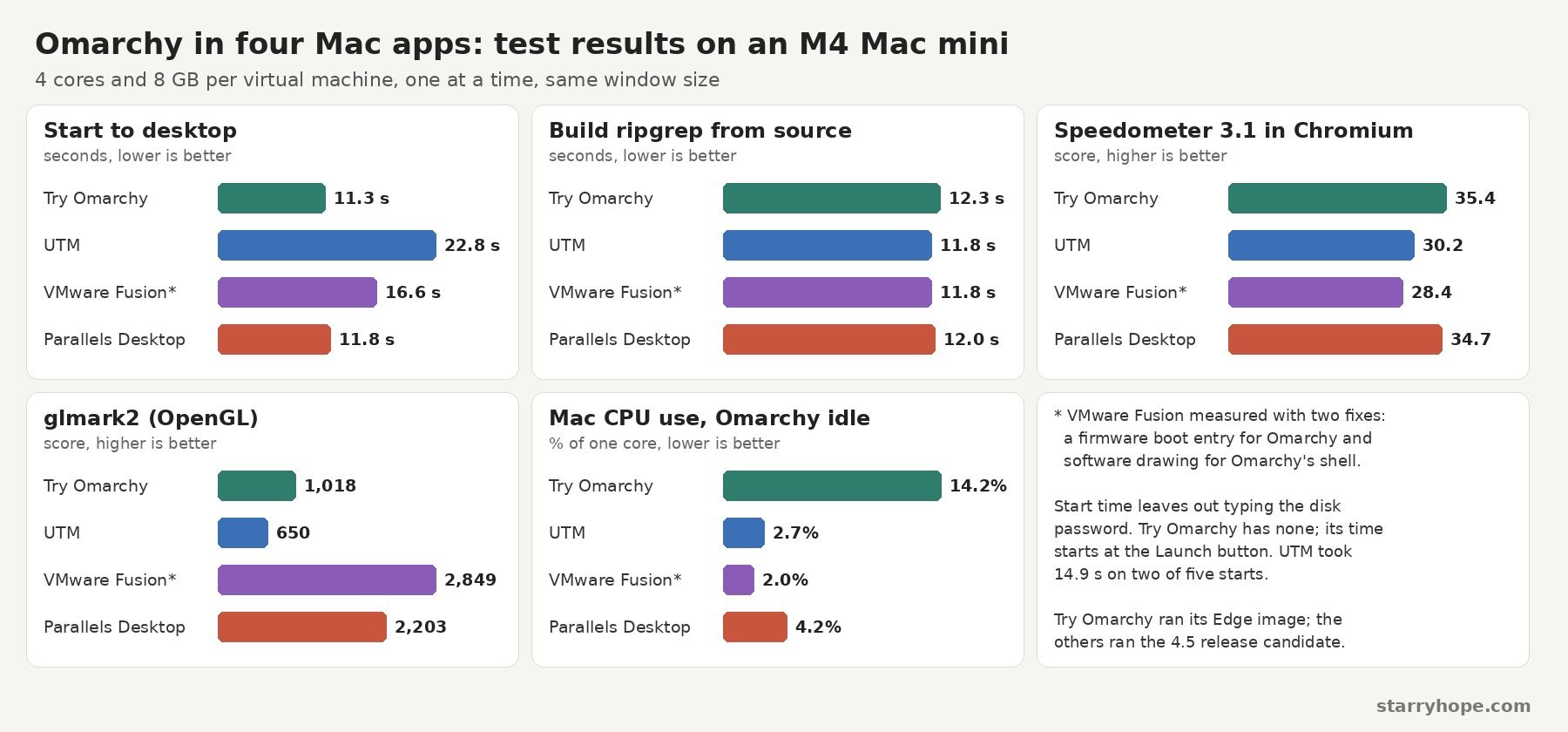
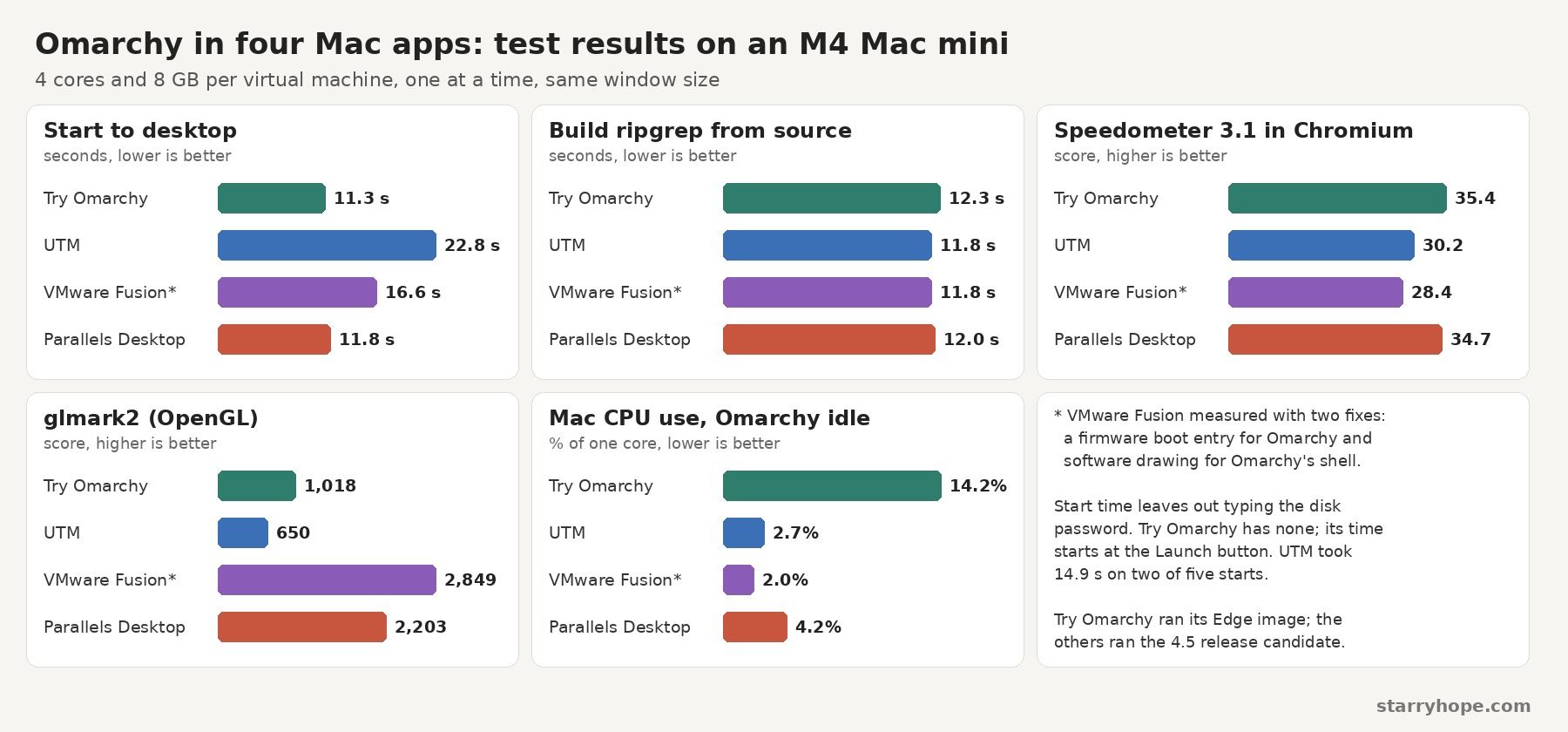
Every app ran the same tests on the same Mac, one virtual machine at a time, with nothing else open. Each virtual machine had 4 cores and 8 GB of memory and filled the same window at the same sharpness. Try Omarchy starts with 8 cores by default, so we set it to 4 in its Virtual Machine pane.
| Test | Try Omarchy (Edge) | UTM | VMware Fusion (with two fixes) | Parallels Desktop |
|---|---|---|---|---|
| Start to desktop, median, without typing the disk password | 11.3 s (no password; from the Launch button) | 22.8 s (14.9 s on two of five starts) | 16.6 s | 11.8 s |
| Build ripgrep from source (hyperfine, 3 runs) | 12.3 s | 11.8 s | 11.8 s | 12.0 s |
| 7-Zip benchmark, total rating (median of 3) | 45,099 MIPS | 47,143 MIPS | 47,081 MIPS | 46,515 MIPS |
| sysbench CPU, 4 threads (median of 3) | 49,557 events/s | 51,158 events/s | 51,079 events/s | 51,007 events/s |
| Speedometer 3.1 in Chromium (median of 3) | 35.4 | 30.2 | 28.4 | 34.7 |
| glmark2, full window (median of 3) | 1,018 | 650 | 2,849 | 2,203 |
| WebGL Aquarium, 30,000 fish | 24 to 25 fps | Does not run | Does not run | 21 to 22 fps |
| Vulkan out of the box | No | No | No | No |
| Mac CPU use with Omarchy idle (two-minute average) | 14.2% of one core | 2.7% of one core | 2.0% of one core | 4.2% of one core |
Try Omarchy ran its Edge image as it ships, and the other three ran the release candidate. We repeated Try Omarchy’s processor and glmark2 tests after switching it to RC, and the results came within about 1 percent of the Edge runs.
All four apps built ripgrep, a code search tool, in about 12 seconds, so processor speed is close in every app. Try Omarchy came out about 2 to 5 percent behind the other three on the 7-Zip, sysbench, and build tests, on both channels; UTM, Fusion, and Parallels were within 2 percent of each other.
Start time runs from the start command to the Omarchy desktop, and it leaves out the time you spend typing the disk password. Try Omarchy and Parallels started fastest, and Fusion was steady at about 17 seconds. UTM was slowest on three of five starts, at about 23 seconds, and took about 15 seconds on the other two. In the slow starts, UTM’s window showed “Display output is not active.” for about 8 seconds before Omarchy appeared; we did not find what decides which way it goes.
Speedometer measures how fast a browser runs web apps. Try Omarchy and Parallels both scored about 35, with Chromium drawing on the Mac’s graphics chip. UTM and Fusion scored about 30 and 28, with Chromium drawing on the processor alone.
The idle row counts every process of each app on the Mac, averaged over two minutes with Omarchy sitting untouched at the desktop. Try Omarchy used about 14 percent of one Mac core, and the other three stayed under 5 percent. On a MacBook, less processor use while idle means longer battery life, so shut Omarchy down when you are done with it.
Try Omarchy needs the fewest steps
Try Omarchy is free, open source under the MIT license, and needs no account. Download TryOmarchy.dmg from the Try Omarchy releases page, drag the app to Applications, and click Launch Omarchy. The first launch downloads a 3.2 GB image and asks for Accessibility, a macOS permission, so Command shortcuts reach Omarchy instead of macOS.
It needs no guest tools: its Mac features come built into its image. Copy and paste worked both ways, for text and for pictures. The Mac folder you pick in the launcher’s Sharing pane shows up in Omarchy as ~/share, ready to read and write. The Omarchy screen resizes with the window at Retina sharpness, and the disk has no password, so Omarchy goes straight to the desktop.
Try Omarchy starts full screen, so Omarchy fills the Mac’s display and the Dock and menu bar hide. Turn off Immersive Mode on the launcher’s Home pane to open Omarchy in a window instead. The other three apps open in a window, and each has its own full screen mode. Try Omarchy has no machine snapshots, but Omarchy saves its own system snapshot before each update and lists them in Limine’s boot menu.
Move Try Omarchy from Edge to the release candidate
Try Omarchy’s image follows Edge, the least tested channel. To move it to the release candidate, open the Omarchy menu with command space , then choose Update, Channel, and RC.
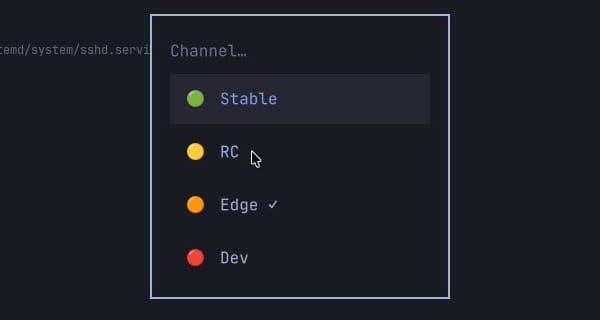
A terminal opens and runs the switch. It asked for the Omarchy password nine times and took about 6.5 minutes in our test, and many packages moved back from newer Edge builds to the RC builds. Restart when it asks. After the restart, Try Omarchy’s launcher read “Omarchy 4.5.0rc2-1 · rc”, and copy and paste, the shared folder, resizing, and graphics acceleration all kept working.
The virtual machine kept booting the kernel that came with Try Omarchy’s image, not the newer kernel the update installed. Everything still worked.
UTM needs the ISO removed before the first restart
UTM is free and open source, and it runs other operating systems on a Mac. Download it from getutm.app with no account; the Mac App Store copy costs $9.99, has the same features, and updates itself.
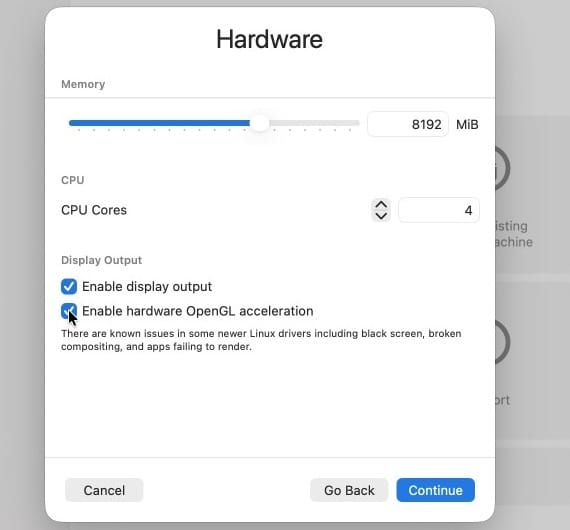
Click the plus button and pick Virtualize, which runs the system on the Mac’s own chip, then Linux. On the Hardware page, type the memory and cores you want; we used 8192 MiB and 4 cores. Tick “Enable hardware OpenGL acceleration”, which is off by default, so Omarchy can draw with the Mac’s graphics chip. On the next page, leave “Use Apple Virtualization” unticked (it has no 3D graphics for Linux), click Browse, and pick the Omarchy ISO. UTM’s default 64 GiB disk is fine.
The installer, the same in every app
The official installer runs on the keyboard only. It asks for a language, a keyboard layout, a time zone, a user name, a password, and a host name, then shows a summary and picks the disk. By default, that one password is your account password and also unlocks the encrypted disk at every start. To install without disk encryption, press ctrl c on the screen that confirms the disk will be overwritten, as its small print says. The install itself took 20 to 31 seconds by the installer’s own count in all three apps.
Remove the ISO before the first restart
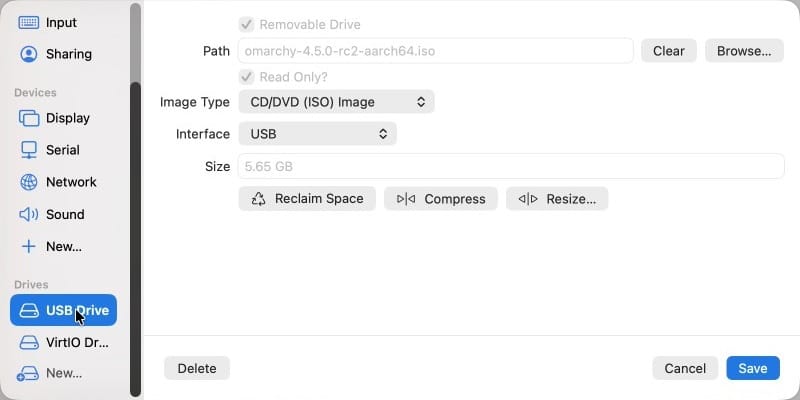
In our test, UTM’s first restart after the install hung on UTM’s boot screen while the ISO was still attached. Stop the virtual machine, open its settings, select USB Drive under Drives, click Clear next to the ISO’s path, and click Save. With the ISO removed, the machine started normally every time.
Guest tools and sharing in UTM
UTM’s guest tools for Linux are one package from Omarchy’s package manager. Open a terminal with command enter and run:
sudo pacman -S spice-vdagentUnder Omarchy, one paste from the Mac arrived once in our tests, then nothing more, and copying from Omarchy to the Mac never worked. The screen did not follow the window either. Treat the clipboard as not working.
To share a Mac folder, stop the virtual machine, open its settings, go to Sharing, keep Directory Share Mode on VirtFS, and pick the folder. Then mount it in Omarchy:
sudo mkdir -p /mnt/utm
sudo mount -t 9p -o trans=virtio,version=9p2000.L share /mnt/utm
Your own Omarchy user can read those files but not change them, because they keep the Mac’s owner. Only sudo could write to the folder in our test.
Next to Virtualize, UTM’s first screen offers Emulate, which runs systems built for other processors, such as Intel PCs. It is slower than Virtualize. UTM 5 also has a Snapshots tab: stop the virtual machine, click New on Current State, and name the snapshot; Restore on each row takes you back.
VMware Fusion needs a boot fix and a desktop fix
Fusion is free for personal and commercial use from Broadcom, the company that now owns VMware. The download is on Broadcom’s support portal and needs a Broadcom account; Broadcom’s download steps walk through it.
Press command n , choose “Install from disc or image”, then “Use another disc or disc image…” and pick the Omarchy ISO. Fusion detects no system in it, so pick Linux and then the newest “Other Linux 6.x kernel 64-bit Arm” at the end of the list. Fusion starts a new Linux machine with 2 cores, 768 MB of memory, and an 8 GB disk. Click Customize Settings, then raise them under Processors & Memory and Hard Disk; we used 4 cores, 8192 MB, and 64 GB.
Under Display, tick Accelerate 3D Graphics. It is off by default for this machine type, and Omarchy’s desktop does not start without it.
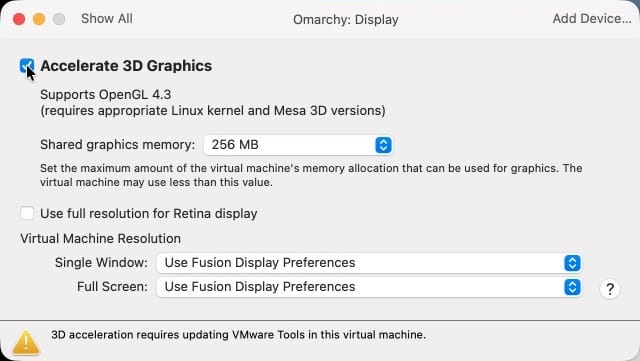
The installer runs as it does in UTM. After the install, Omarchy needs two fixes in Fusion: one to boot from the disk and one to show Omarchy’s desktop. Every Fusion result on this page was measured with both fixes in place.
Fix 1: add a boot entry for Omarchy
After the install, Fusion’s firmware starts Omarchy’s boot loader, Limine, and Limine stops with a “Could not meaningfully match the boot device handle with a volume” warning and then a panic. Later starts fall through to Fusion’s boot manager. The fix starts Omarchy’s kernel image directly once, then adds a firmware entry for it:
- Choose Virtual Machine, then Power On to Firmware.
- In Fusion’s Boot Manager, pick “EFI Internal Shell (Unsupported option)” and press esc at the startup countdown.
- At the
Shell>prompt, typefs0:and press enter , then typeEFI\Linux\omarchy_linux-omarchy.efiand press enter . Omarchy starts and asks for the disk password. - Type the disk password. Once Omarchy is up, open a terminal with command enter (the screen may still be black, see fix 2), and add the boot entry:
sudo efibootmgr --create --disk /dev/nvme0n1 --part 1 --label "Omarchy UKI" --loader '\EFI\Linux\omarchy_linux-omarchy.efi'The new entry goes first in the boot order, and every later start went straight to the disk password. The entry skips Limine, so Limine’s menu of Omarchy’s system snapshots does not show at boot. A kernel update rewrites the same file in place, so the entry should keep working, but we did not test one.
Fix 2: draw Omarchy’s shell in software
With 3D on, the Hyprland window manager starts, but Omarchy’s own shell (the bar, wallpaper, notices, and menus) closes on its first frame, so the screen stays black. A terminal still opens with command enter . Run this line there to make the shell draw with the processor, then restart:
echo 'hl.env("QT_QUICK_BACKEND", "software")' >> ~/.config/hypr/hyprland.luaAfter the restart, the full Omarchy desktop appeared on every start. Hyprland still uses the Mac’s graphics chip to compose the screen; only the shell draws in software.
Guest tools in Fusion
VMware’s guest tools, open-vm-tools, have no ready package for ARM Linux: Arch Linux’s package and the AUR versions are built for Intel and AMD only. We compiled them from Arch Linux’s own build recipe. If you build them yourself, have an AI coding agent read through the build recipe first. These commands fetch the recipe, turn off two GTK 4 parts that failed to compile, build and install the package, and start the tools:
sudo pacman -Sy
git clone https://gitlab.archlinux.org/archlinux/packaging/packages/open-vm-tools.git
cd open-vm-tools
sed -i 's/--without-kernel-modules/& --without-gtk4 --without-gtkmm4/' PKGBUILD
makepkg -siA --nocheck
sudo systemctl enable --now vmtoolsd vmware-vmblock-fuse
The -A flag tells makepkg to ignore the recipe’s x86-only architecture line. Each sudo step asks for your password, and the whole route took about 5 minutes. The tools gave Fusion shared folders and a pointer that moves in and out of the window without a click. Copy and paste did not work in either direction.
To share a folder, open the virtual machine’s Settings, then Sharing, tick Enable Shared Folders, and add a Mac folder. Then mount it in Omarchy:
sudo mkdir -p /mnt/hgfs
sudo vmhgfs-fuse .host:/ /mnt/hgfs -o subtype=vmhgfs-fuse,allow_other,uid=1000,gid=1000
Your user can read and write the files there. A matching line in /etc/fstab did not mount the folder at boot in our test, so run the mount after each start or put it in a systemd mount unit.
Command works as Omarchy’s Super key in Fusion with no setup. Fusion’s key mappings change some Command shortcuts before Omarchy sees them: command c and command v become Control shortcuts, and command w becomes alt f4 . Untick Enable Key Mappings under Fusion’s Settings, Keyboard & Mouse to send them to Omarchy as Super shortcuts.
Snapshots on a schedule with AutoProtect
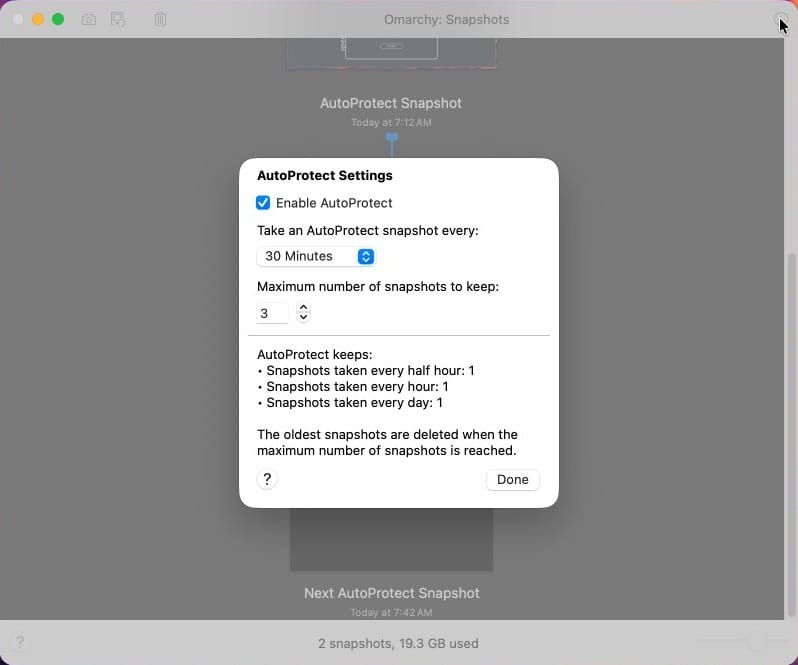
Fusion’s AutoProtect saves snapshots on a schedule, every half hour, hour, or day. Click Snapshots in the toolbar of the virtual machine window, then the clock icon. Each AutoProtect snapshot also keeps the machine’s memory, so one snapshot of our 8 GB machine took about 8 GB of disk.
Parallels Desktop installs with no extra steps
Parallels Desktop is the one paid app here. Its 14-day trial includes the Pro edition and needs a Parallels account. Download it from Parallels’ site.
Click the plus button in the Control Center, choose “Install Windows, Linux, or macOS from an image file”, click Choose Manually, and pick the Omarchy ISO. Parallels does not recognize it, so click Continue and pick Other Linux from the list. Tick “Customize settings before installation”. Parallels suggested 4 cores and 4 GB of memory on our Mac, and we raised the memory to 8 GB under Hardware, CPU & Memory. Graphics acceleration is already on.
The installer ran with no extra steps, and the restart went straight to the disk password. On the first start, Parallels may say that the virtual machine cannot use the camera and microphone because of macOS privacy settings; click OK.
Install Parallels Tools
Parallels Tools come as a disc from the Actions menu: choose Actions, Install Parallels Tools, and click Continue. Nothing opens in Omarchy by itself, so open a terminal with command enter and run this line, which mounts the disc with permission to run its installer and installs the tools:
sudo mkdir -p /mnt/prl && sudo mount -o ro,exec /dev/sr0 /mnt/prl && sudo /mnt/prl/install --install-unattended-with-deps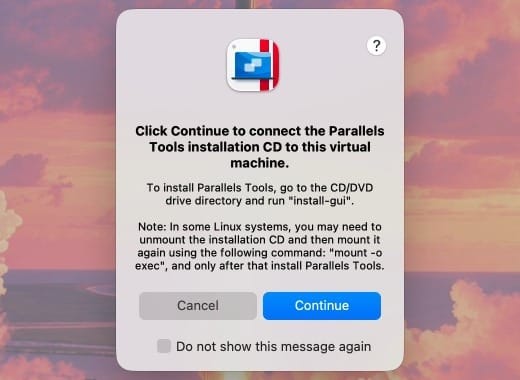
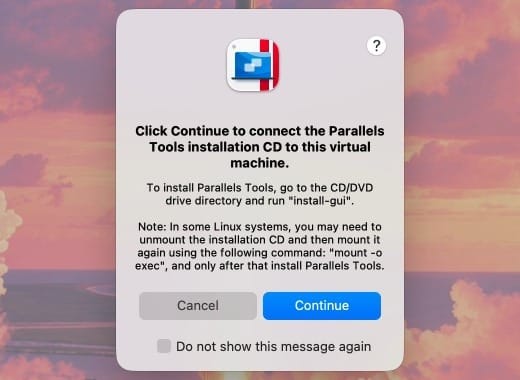
It finished in under 20 seconds with “Parallels Guest Tools were installed successfully!”. Restart Omarchy so the tools start. They turn on shared folders and pasting text from the Mac. A Mac folder you share in the virtual machine’s configuration shows up by itself under /mnt/psf/, ready to read and write. Copying from Omarchy back to the Mac did not work.
Parallels also shares removable drives with the virtual machine by default (SmartMount). With the tools in, a USB drive plugged into the Mac showed up whole inside Omarchy. If that drive holds files Omarchy should not see, turn SmartMount off; we did it in the Mac’s Terminal with prlctl set Omarchy --smart-mount off, where Omarchy is the virtual machine’s name.
Parallels is the one general app where Omarchy’s browser draws with the Mac’s graphics chip. In Chromium’s chrome://gpu page, Canvas, WebGL, and WebGPU all read “Hardware accelerated”, with no flags. Try Omarchy’s browser does the same.
Get a sharp picture that fills the window
In the three general apps, Omarchy keeps the screen size it started with, even with their guest tools, and the picture is soft on a Mac’s display. A sharpness setting in each app, plus one line in Omarchy’s monitor settings, gives a sharp picture that fills the window. Set these with the virtual machine stopped:
- UTM: the virtual machine’s settings, Display, Retina Mode.
- VMware Fusion: Settings, Display, “Use full resolution for Retina display”.
- Parallels Desktop: Configuration, Hardware, Graphics, Resolution set to More Space.
Start the machine and choose Window, Fill on the Mac to size the window. The mode in Omarchy is the window’s size in points times two. Our Fill window was 1920 by 922 points on a 1080p display, so the mode is 3840x1844. Try the line live in an Omarchy terminal first:
hyprctl eval 'hl.monitor({ output = "Virtual-1", mode = "3840x1844@60", position = "0x0", scale = 2 })'If the picture is sharp and fills the window, add the same hl.monitor({ ... }) call as a line at the end of ~/.config/hypr/monitors.lua so it stays after a restart. With the line in place, the window grew to that size by itself at each start in all three apps; UTM placed it partly off the screen, so choose Window, Fill again there. The picture then stays the same size when you resize the window; change the mode to match a new window size. Omarchy 4.5’s Hyprland settings are written in Lua, so the older hyprctl keyword monitor form no longer works.
How each app draws Omarchy
Omarchy’s desktop and many Linux apps draw with OpenGL. Try Omarchy, UTM, and Parallels pass OpenGL to the Mac’s graphics chip with the same open-source method, VirGL. VMware Fusion uses VMware’s own virtual graphics card and driver instead. Run glxinfo -B | grep 'renderer string' in a terminal to see which one your machine uses: “virgl (Apple M4)” in Try Omarchy and UTM, “virgl (Apple M4 (Compat))” in Parallels, and “SVGA3D” in Fusion.
In glmark2, a benchmark that draws a set of 3D scenes, Fusion scored highest at about 2,800 and Parallels came next at about 2,200. Try Omarchy scored about 1,000, and UTM about 650. Fusion’s glxinfo also prints “Accelerated: no”, which is how Mesa’s VMware driver reports itself; the glmark2 score shows the Mac’s graphics chip does the work.
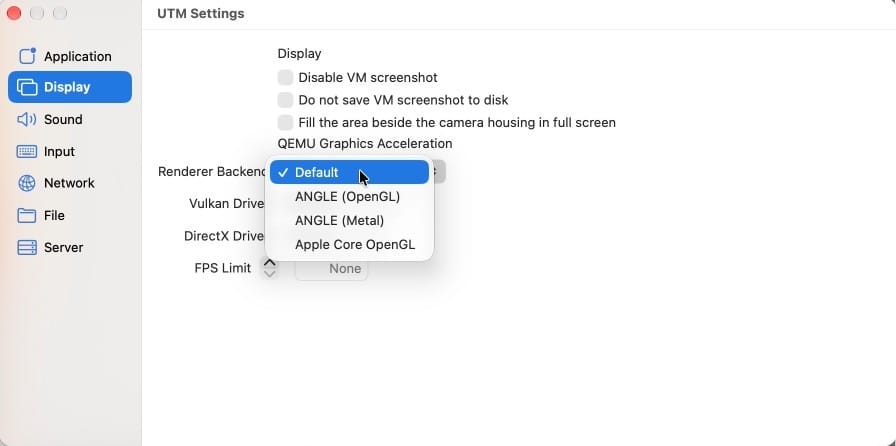
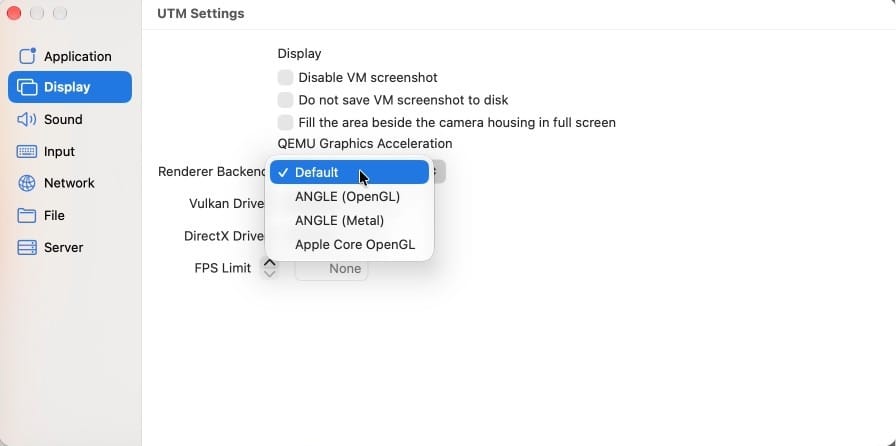
UTM’s renderer is an app-wide setting: UTM, Settings, Display, Renderer Backend. Its Default gives Omarchy OpenGL 2.1. Apple Core OpenGL gives OpenGL 4.1, the same level as Try Omarchy, and our UTM graphics tests used it. Stop every virtual machine before you change it.
In Try Omarchy and Parallels, Chromium uses the graphics chip, and the WebGL Aquarium page drew 30,000 fish at 21 to 25 frames per second. In UTM and Fusion, Chromium’s graphics process does not start, so the browser draws on the processor and WebGL pages do not run. Starting Chromium with --ignore-gpu-blocklist did not change that in UTM, and it made Chromium crash on start in Fusion.
Vulkan works in UTM with one package and a renderer change
Out of the box, none of the four apps gives Omarchy Vulkan, the newer graphics system, so programs that need Vulkan will not run. In UTM, Vulkan worked in our test after two changes. Set UTM’s Renderer Backend to ANGLE (Metal), then install the Vulkan driver for virtual machines in Omarchy:
sudo pacman -S vulkan-virtioThen vulkaninfo listed “Virtio-GPU Venus (Apple M4)”, and vkmark scored 1,882. The trade-off is a lower OpenGL version. Under ANGLE (Metal), Omarchy gets OpenGL 2.1 instead of the 4.1 it gets under Apple Core OpenGL, and Vulkan does not work under Apple Core OpenGL. The renderer setting covers every UTM machine, so you choose between OpenGL 4.1 and Vulkan for all of them. We did not test a Vulkan app beyond vkmark.
Cost
Three of the four apps are free: Try Omarchy, UTM from its website, and VMware Fusion. Omarchy itself is free in all four.
Parallels Desktop Standard is $99.99 a year, or $219.99 to buy once, and caps each virtual machine at 4 cores and 8 GB, the size every app got in our tests. Pro, at $119.99 a year, raises that cap. The 14-day trial includes Pro.
Which one fits
For a first look at Omarchy, start with Try Omarchy. It needs no installer, and its Mac features work from the start.
A fresh install from the official installer suits someone who wants a standard Omarchy setup that starts on the release candidate and can move to Stable when the next stable release ships. Parallels Desktop is the shortest route for someone who already pays for it, and its browser uses the graphics chip. UTM costs nothing, needs only the ISO cleared before the first restart, and is the one app where Vulkan worked. VMware Fusion fits someone who already runs it and wants AutoProtect’s scheduled snapshots, as long as the two fixes and a source build of its tools are acceptable.
Any of the three general apps you already run Windows in can run Omarchy from the same ISO, with the two fixes in Fusion. As a daily desktop, Omarchy runs on a PC with no virtual machine in between; our overview of what Omarchy is explains how it is put together.


