
This guide covers five more community plugins for Omarchy: Exposé, Workspace Layout, Omaland, Omagen, and Radio Atlas. Each section has the install command, the keys, and the cleanup when you take the plugin off. Between them they add a window overview, a layout per workspace, a look panel, a theme maker, and a radio.
Four of the five come from the Omarchy plugin marketplace, where each plugin’s page has its install command. Workspace Layout is not on the marketplace, so its command comes from its GitHub README. None of the five asked for a password or installed a system package.
Everything here ran on Omarchy 4.0.4 on October 16, 2026, with Exposé 5.0.0, Workspace Layout 1.3.0, Omaland 1.0.0, Omagen 2.0.0, and Radio Atlas 0.1.9. Our first guide, five Omarchy plugins, covers Spaces, Fathom, Lock Screen Explorer, Gona Launcher, and Shan Shui.
Read the code before you add a plugin
A plugin runs as your user account inside omarchy-shell, the program that draws the Omarchy desktop. There is no sandbox around it, so it can read your files and reach the network like any program you start yourself. The install command says so before it clones anything: “Plugins run as arbitrary, unsandboxed code inside your long-lived omarchy-shell process. Only add repos you trust, and review the code before you enable it.” Then it asks Clone and add this plugin?
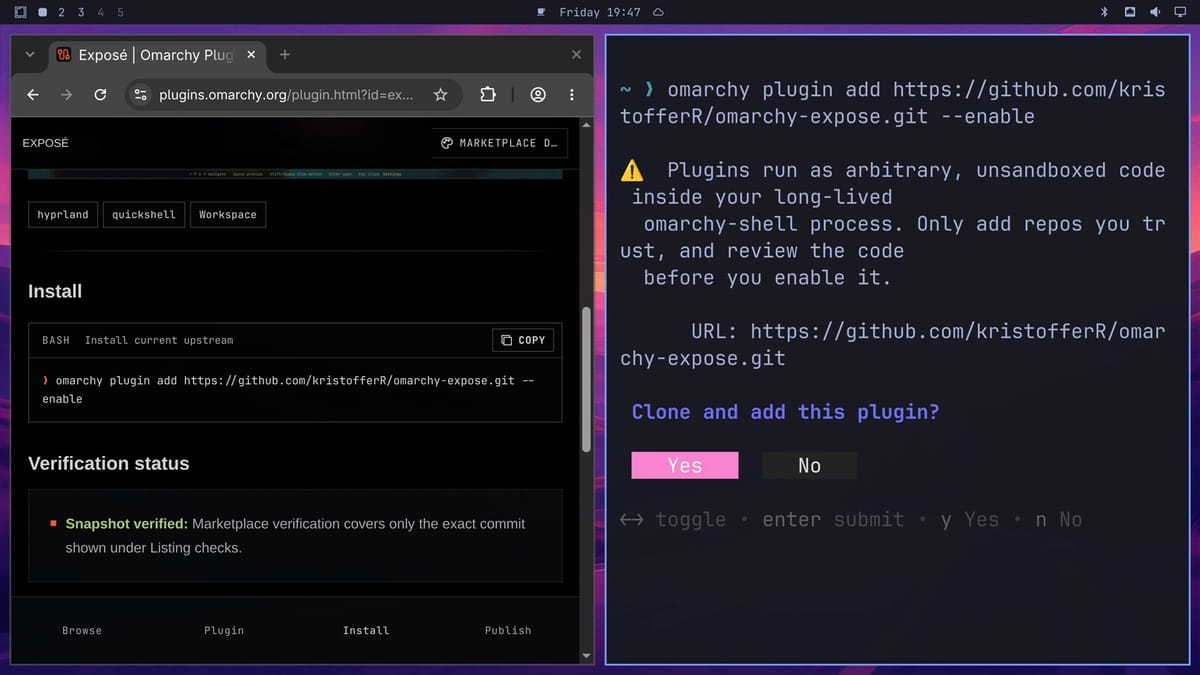
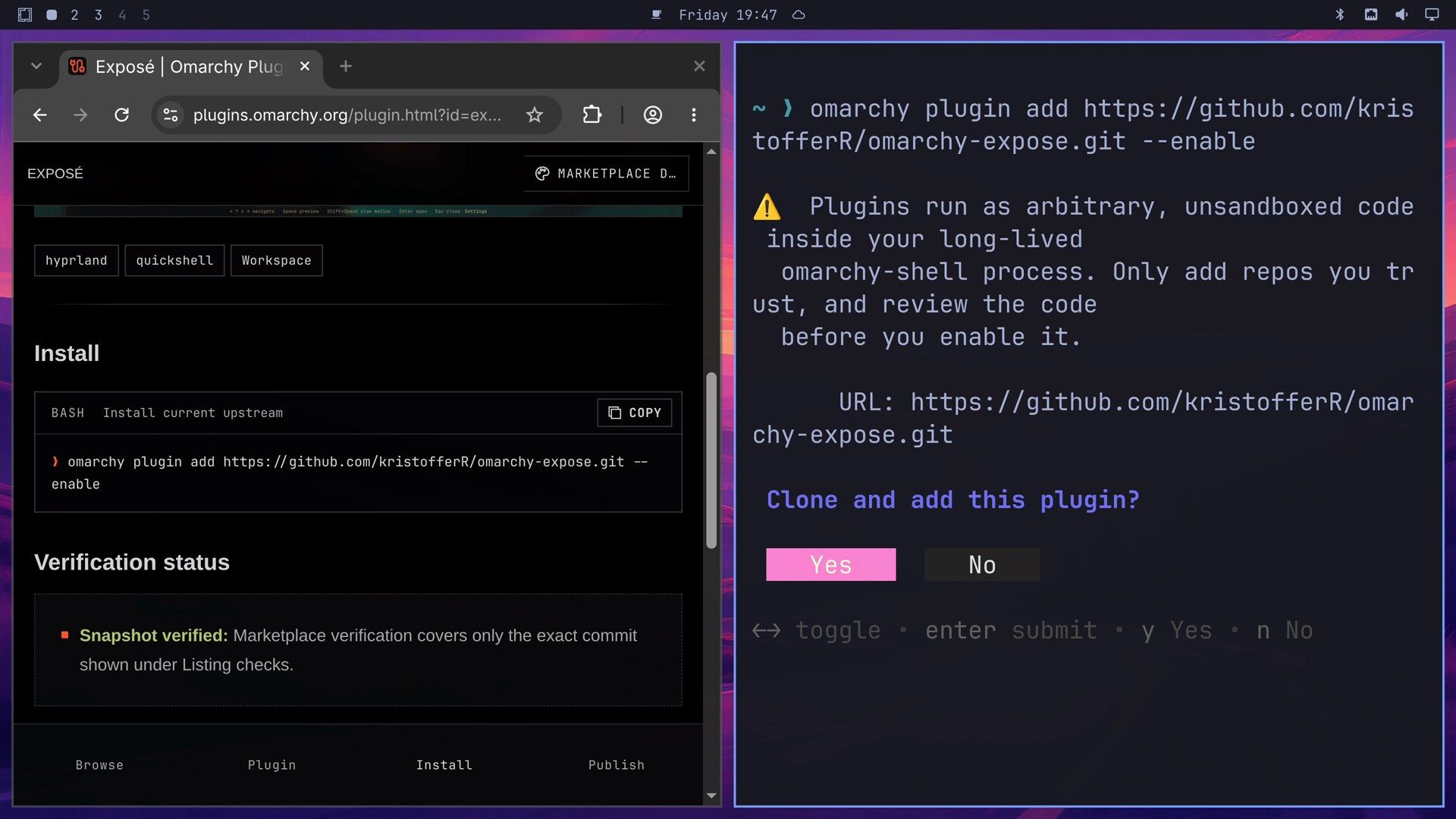
Open the plugin’s GitHub repository before you answer. Look for commands that download or run other code, anything that asks for sudo, and web addresses the plugin has no reason to contact. If you do not want to read it all yourself, an AI coding agent can read the repository and list what it does. The marketplace badges help too. “Snapshot verified” means the marketplace checked one exact commit, and a red “Update unverified” means newer code has landed since that check. The install command always clones the newest code. Our guide to finding, checking, and installing Omarchy plugins walks through that check step by step.
Omagen ships ready-built programs in its bin folder. Their Go source is in the repository’s backend folder, but reading that source does not show that the binaries match it. Radio Atlas contacts the Radio Browser station directory, downloads station logos, and plays streams from the internet; it runs the player in its own network space behind a proxy that blocks addresses on your home network.
Each marketplace install follows the same steps. Open the plugin’s page, click Install in the bar along the bottom to jump to the command, and click Copy. Paste the command into a terminal with super v (or ctrl shift v ) and press enter . Read the warning, then press enter again to answer Yes. A plugin with a top bar icon then asks which part of the bar it goes in, with its usual place already selected.
Exposé shows every window at once
Exposé is by Kristoffer Risanger (GitHub), and the README credits Bird’s Eye by Harel Malka as its starting point. Like the Mac feature it is named after, it covers windows from every workspace, not only the one you are on.
omarchy plugin add https://github.com/kristofferR/omarchy-expose.git --enableIt has no bar icon, so the install asks no bar question and ends with “Enabled expose.window-overview”.
Open Exposé from the hot corner
Push the pointer into the top left corner of the screen and the grid opens, with each window’s title, app, and workspace number on its card. Fathom, from our first plugins guide, stacks windows by when you last used them behind Alt Tab; Exposé lays them all out flat at once.
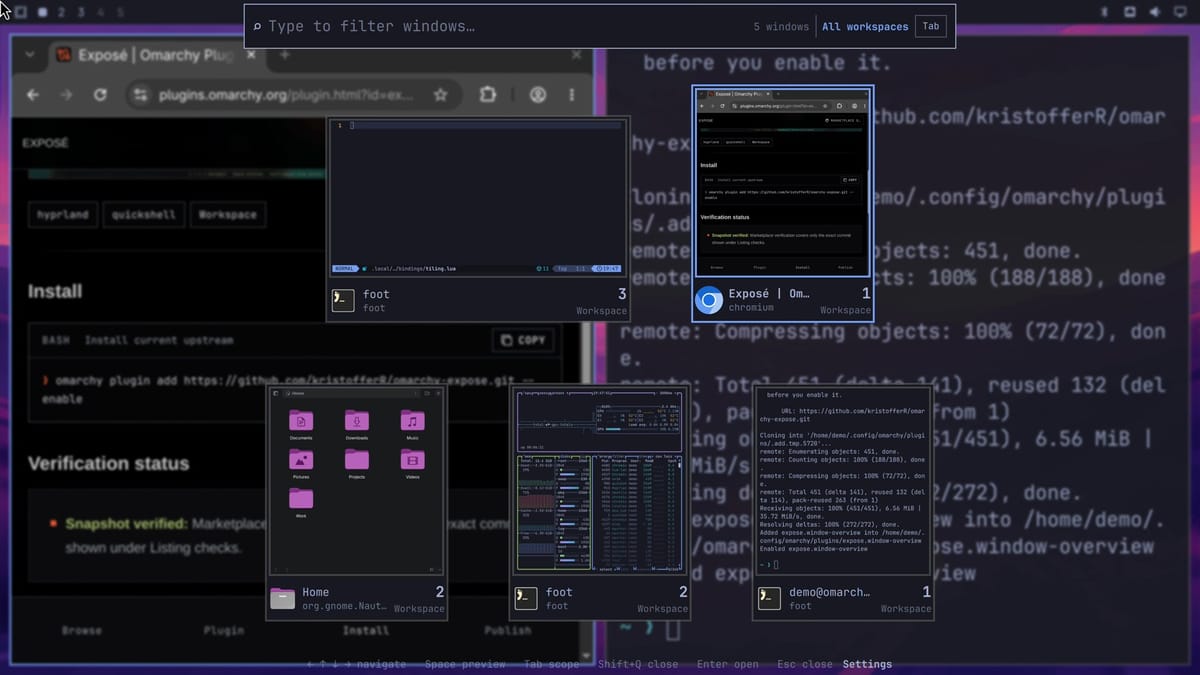
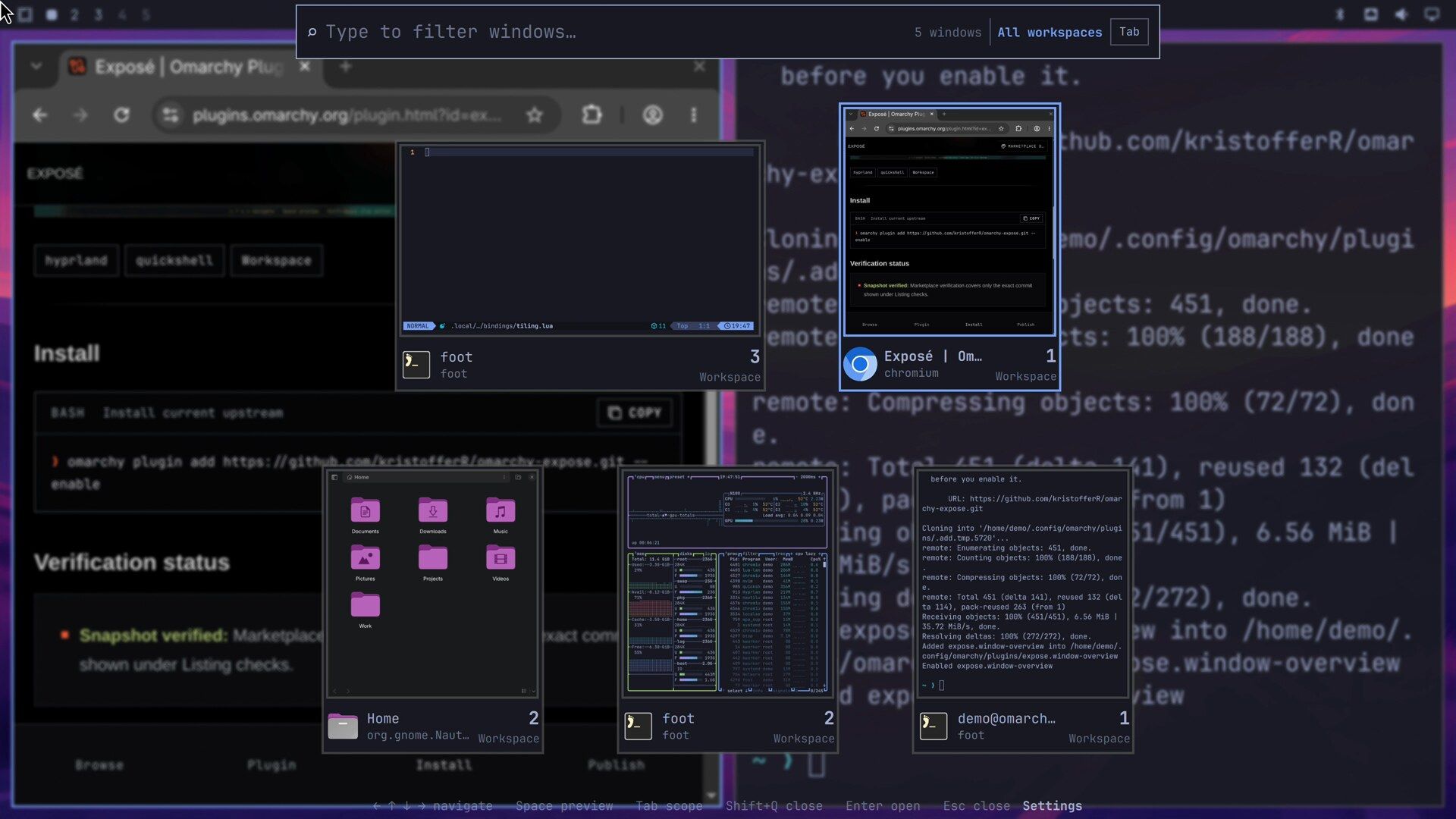
Start typing to filter the cards by window title or app name. In our grid, typing home left only the file manager. Press enter to jump to that window, even when it sits on another workspace.
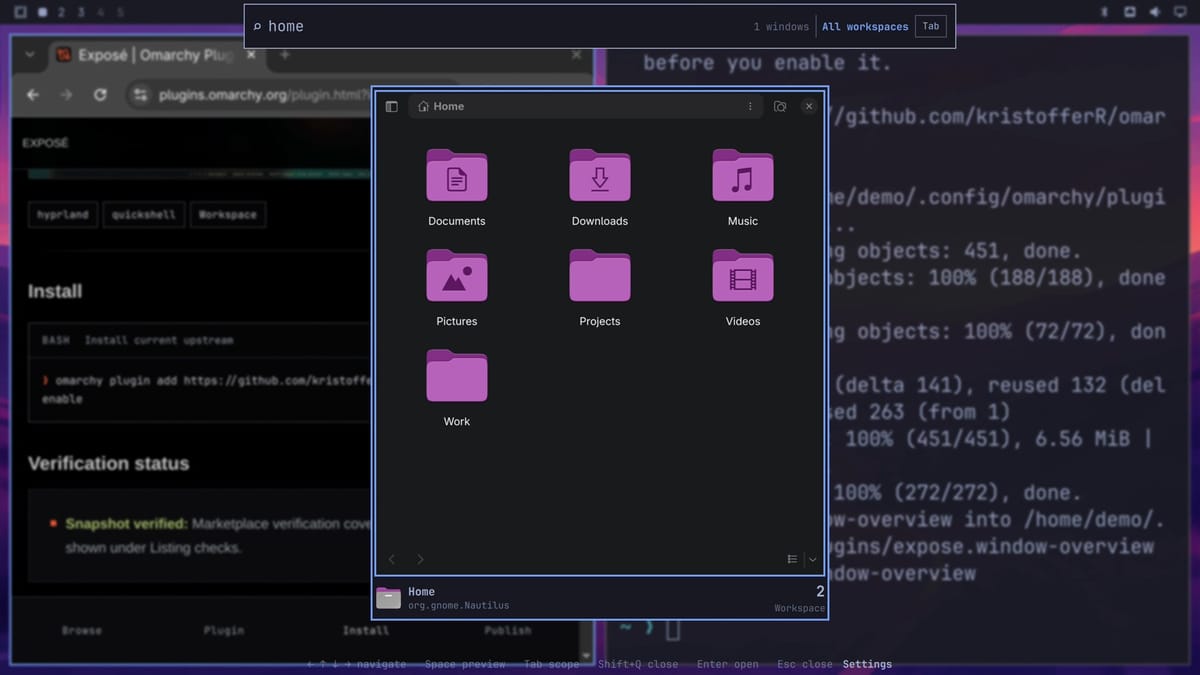
While the grid is open, the arrow keys move between cards, and space gives the selected window a larger Quick Look preview; press it again to shrink it. tab switches the grid between all workspaces and the current one, shift q closes the selected window, and esc closes the grid.
Add a key or turn off the hot corner
The top left corner is also where the Omarchy menu button sits, so a quick move to the menu can open Exposé instead. To turn the corner off, run:
omarchy-shell expose hotCorner offTo open Exposé with a key instead, the README gives this line for ~/.config/hypr/bindings.lua (we added it at the end). super a is free on a stock Omarchy 4.0.4 install. After you add the line, reload Hyprland with hyprctl reload.
o.bind("SUPER + A", "Exposé", hl.dsp.event("expose.window-overview:toggle"))Workspace Layout picks a layout for each workspace
Workspace Layout is by Bjarne Øverli (GitHub, @iamdothash on X). Its layouts include three even columns and one main window with the rest stacked beside it. It is not on the marketplace, so the command comes from the Install section of its README:
omarchy plugin add https://github.com/bjarneo/omarchy-workspace-layout --enableAfter the clone question it asks where its icon goes in the top bar. We kept the default, right. The README says what the install changes: “On first run the plugin appends one guarded line to ~/.config/hypr/hyprland.lua that loads its generated layouts.” It also writes ~/.config/hypr/omarchy-workspace-layout.lua. No workspace gets a layout until you pick one, so the install alone changes nothing about how your windows tile. The author built and tested it on Hyprland 0.56.2 and Omarchy 4.0.2.
Pick a layout from the panel
Open three windows on one workspace so the layouts have something to arrange. super shift f opens the file manager if you need a third. The plugin’s bar icon is a small picture of the current layout; click it to open the panel down the right side of the screen.
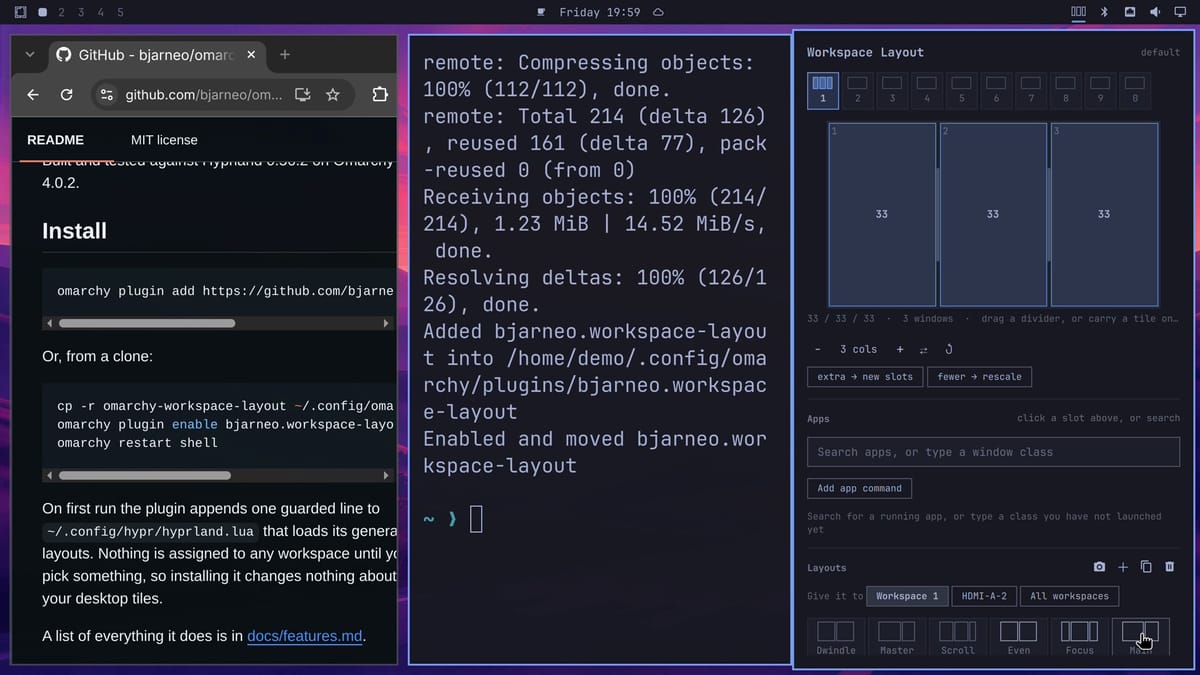
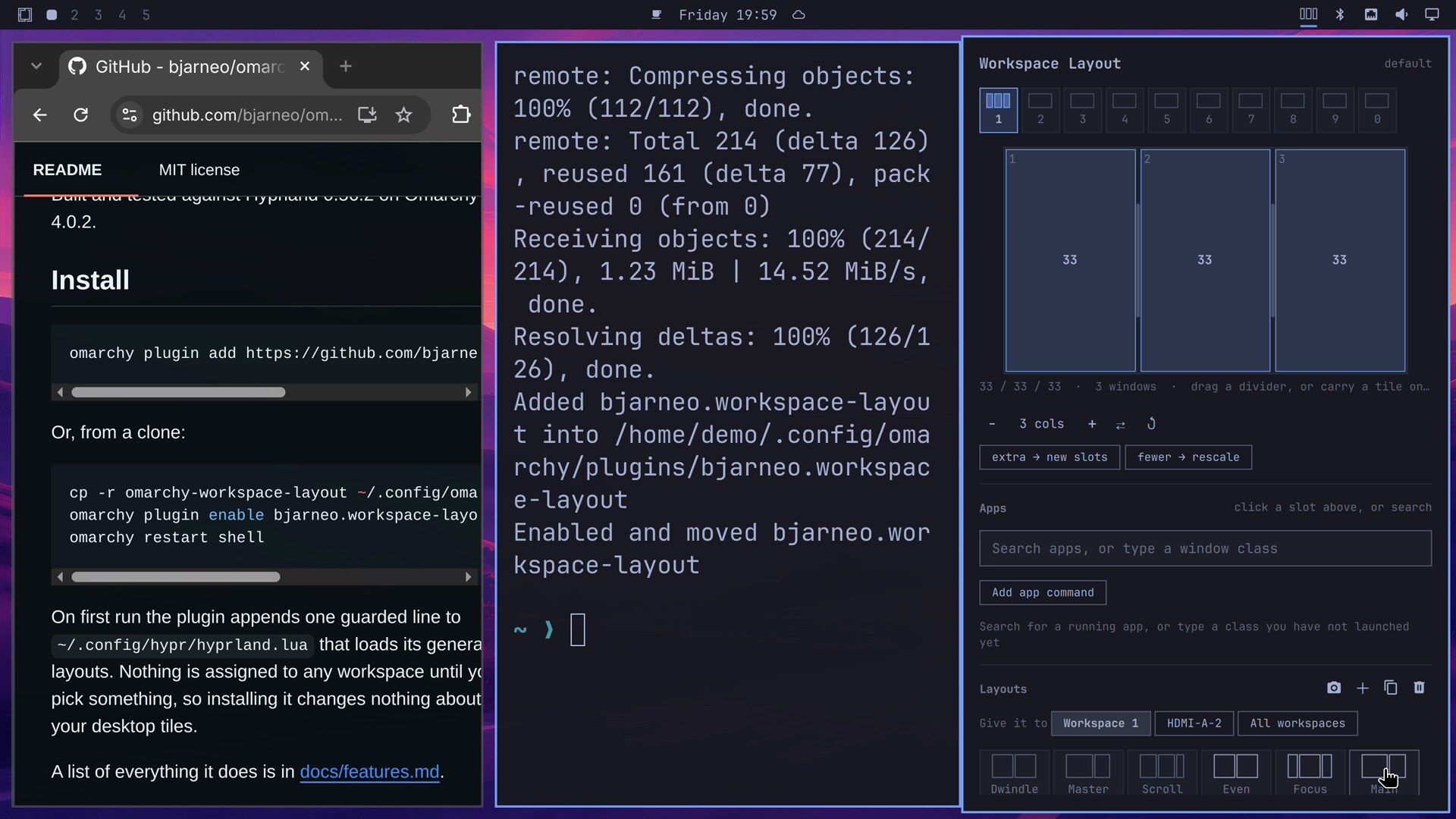
The layouts sit in two rows at the bottom of the panel, and Thirds is in the second row. After your first pick the canvas grows, so scroll the panel down to reach the second row again. Thirds turns the screen into three even columns, and the real windows move at once. Main gives one window 60 percent of the width and stacks the other two beside it. On the canvas at the top you can also drag a divider, and the windows follow; it snaps to even fractions like halves, thirds, and quarters, and shift drags it freely. The layout you pick stays after you close the panel.
esc closes the panel, but only while the panel has keyboard focus. After a layout moves the windows, one of them can take focus back, and esc then goes to that window. Click a plain label in the panel first, such as the status line under the canvas (“60 / 40 · 3 windows”), then press esc .
To open the panel with a key, the README gives this line for ~/.config/hypr/bindings.lua:
o.bind("SUPER + ALT + L", "Workspace layout", "omarchy-shell workspace-layout toggle")Inside these layouts, super plus a right-drag does not resize windows (the README notes this). Drag the dividers in the panel instead.
Omaland is a live panel for gaps, borders, and corners
Omaland is by Bobby Nicholas (GitHub). It also covers opacity, dimming, blur, shadows, and animations. Colors are not in it, because your theme sets those.
omarchy plugin add https://github.com/bobby-nicholas/omaland.git --enableIt asks only the clone question and adds an Omaland app entry. Open it with super space , type omaland, and press enter . A “Launching Omaland…” notice can sit over the bottom of the panel for several seconds after it opens.
Change a setting and watch it apply
The sections run down the left side: Windows, Layout, Corners, Opacity, Dimming, Blur, Shadow, Glow, Animations, and Groups. and (or k and j ) move between rows, and and (or h and l ) change a value. tab moves to the next section, backspace resets the selected row, and esc closes the panel.
Raising Inner gaps in the Windows section from 5 to 15 pixels spreads the windows apart as you press the key. Under Corners, a Rounding of 12 pixels rounds every window, and the bar, the menus, and the panel follow it too.
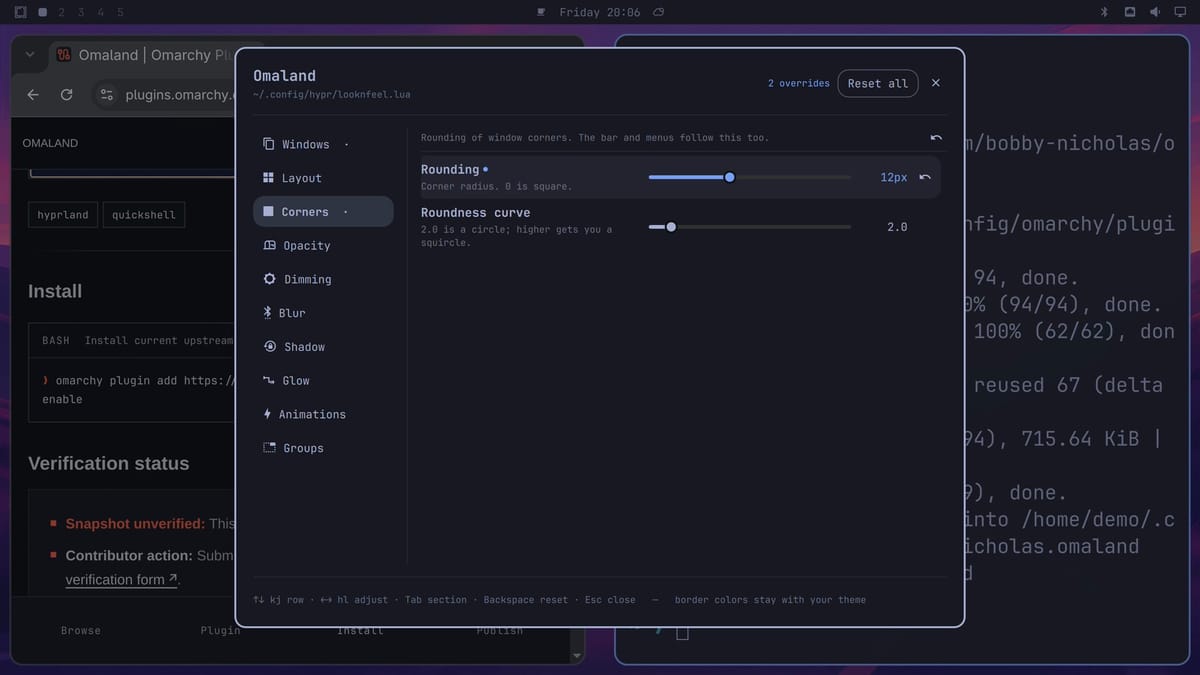
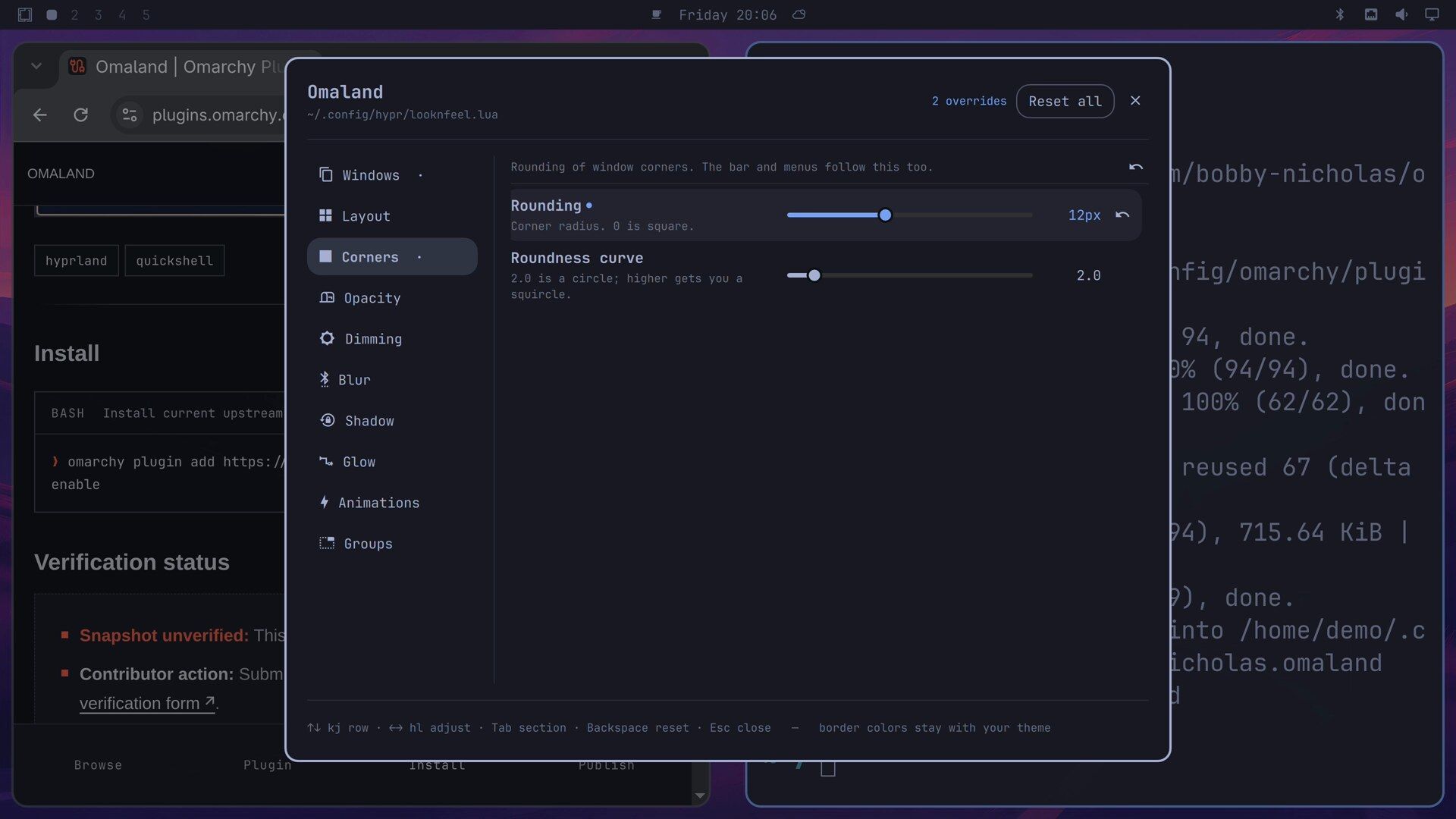
Omaland saves each change as you make it, into a marked block in ~/.config/hypr/looknfeel.lua between -- >>> omaland managed block >>> and -- <<< omaland managed block <<<. The header counts your changes (“2 overrides”). The Full opacity switch also adds its own block to ~/.config/hypr/hyprland.lua. Reset all at the top clears every change and puts both files back as they were.
Omagen builds a theme from a photo
Omagen is by Prettyletto (GitHub). It takes a PNG or JPEG image, builds six color palettes from it, and lets you try each one on the whole desktop before you save anything.
omarchy plugin add https://github.com/prettyletto/omagen.git --enableThe clone is about 72 MB, because the repository carries Omagen’s ready-built programs; nothing is compiled during the install. We kept the default bar position, right. The README’s “Get started” section has a longer command that also adds an optional full replacement bar. The marketplace command above is enough for the theme studio.
Try a palette on the whole desktop
Click Omagen’s icon in the top bar. The first time, a welcome screen offers an optional setup for its advanced styles, which installs a theme-set hook in ~/.config/omarchy/hooks/theme-set.d/. Use native mode skips it, and the studio works without it.
Choose Choose image and pick a photo in the file picker. We used a CC0 sunset photo of layered orange and pink ridges by simon_berger on Flickr, from Wikimedia Commons. Then choose Continue to Workflow, pick Fast, and continue to Palette.
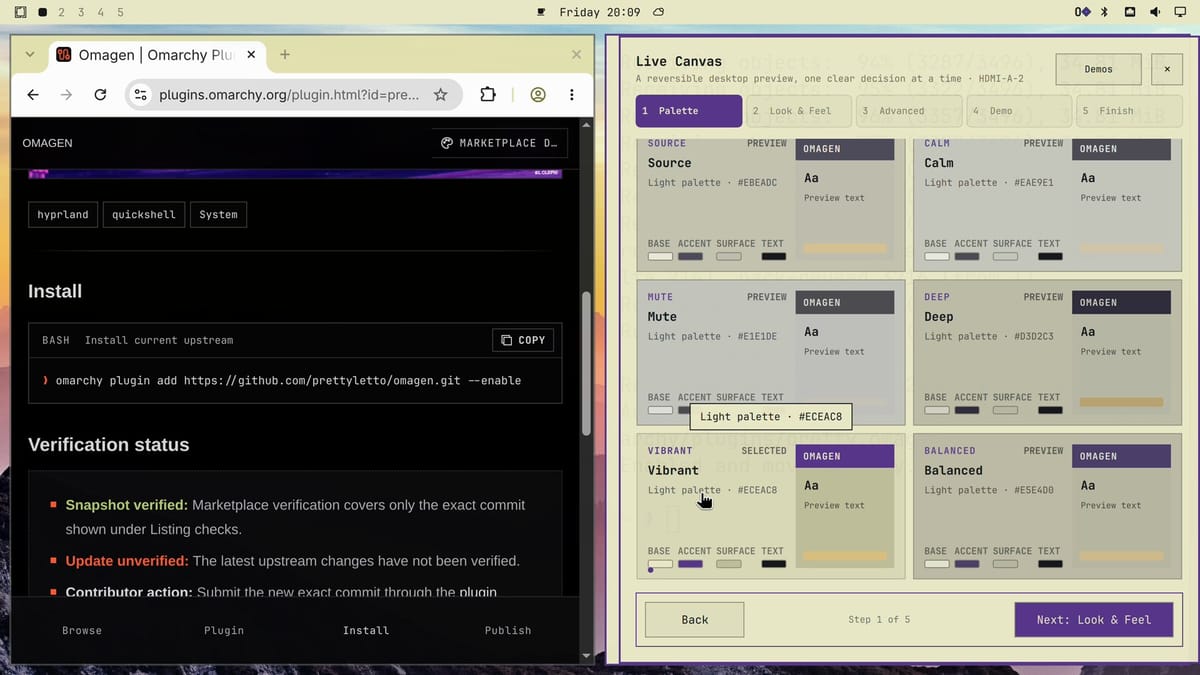
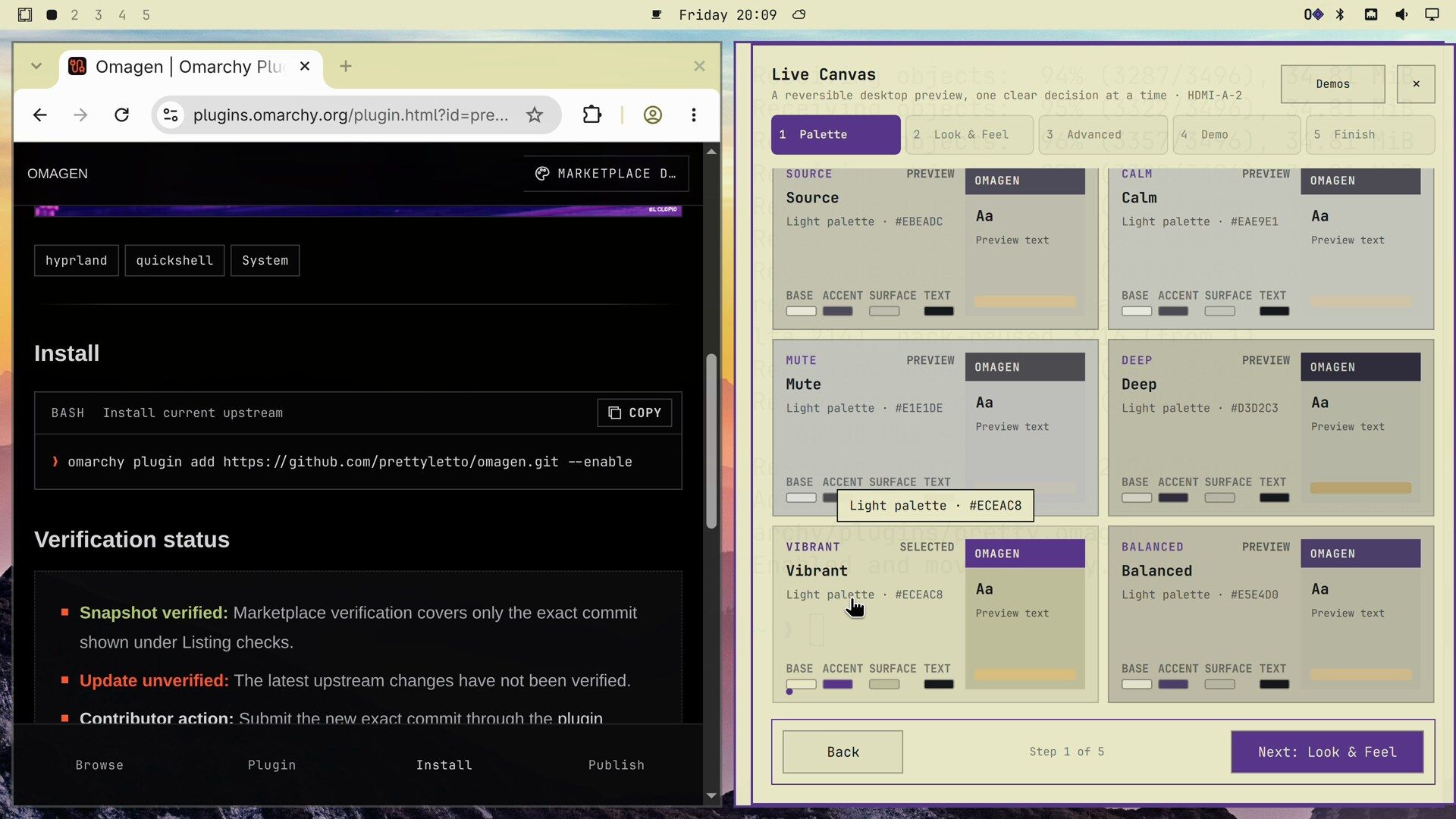
A few seconds later the whole desktop takes the first palette, with the photo as the wallpaper. The six directions are Source, Calm, Mute, Deep, Vibrant, and Balanced, and each pick re-themes the bar and the windows. With our photo all six were light palettes; Vibrant had the clearest change, with purple accents.
The later steps are Look & Feel, Advanced, Demo, and Finish. The Finish page has Save & Apply, which saves the theme and switches to it, and Restore & close, which puts your old theme and wallpaper back.
Aether, the theme app that comes with Omarchy, also makes a theme from a photo. It works like a palette editor, where you change each color by hand. Omagen gives you whole palettes to try on and back out of.
Radio Atlas plays live radio from a globe
Radio Atlas is by Akshar Patel (GitHub). It won first place in the first Omarchy plugin competition.
omarchy plugin add https://github.com/AksharP5/omarchy-radio-atlas.git --enableIts globe icon goes on the left of the top bar by default, next to the workspace numbers. The README lists the programs it needs, such as mpv, curl, and bubblewrap, and says Omarchy ships them; the ones we checked (mpv, curl, bubblewrap, socat, and jq) were all on our install.
Find a station and play it
Click the globe icon to open the atlas. The globe draws at once, and about five seconds later the station dots fill in, close to a thousand of them. Each dot is a live station from the Radio Browser community directory. Drag or flick the globe to spin it, use the mouse wheel or the plus and minus buttons to zoom, and click a dot to play that station, or click a country to list its stations.
Press / to search by name. Click a result ( enter on a result did not start it for us), and the globe turns to that station and starts the stream. We searched for KEC49, NOAA Weather Radio for Monterey on the California coast.
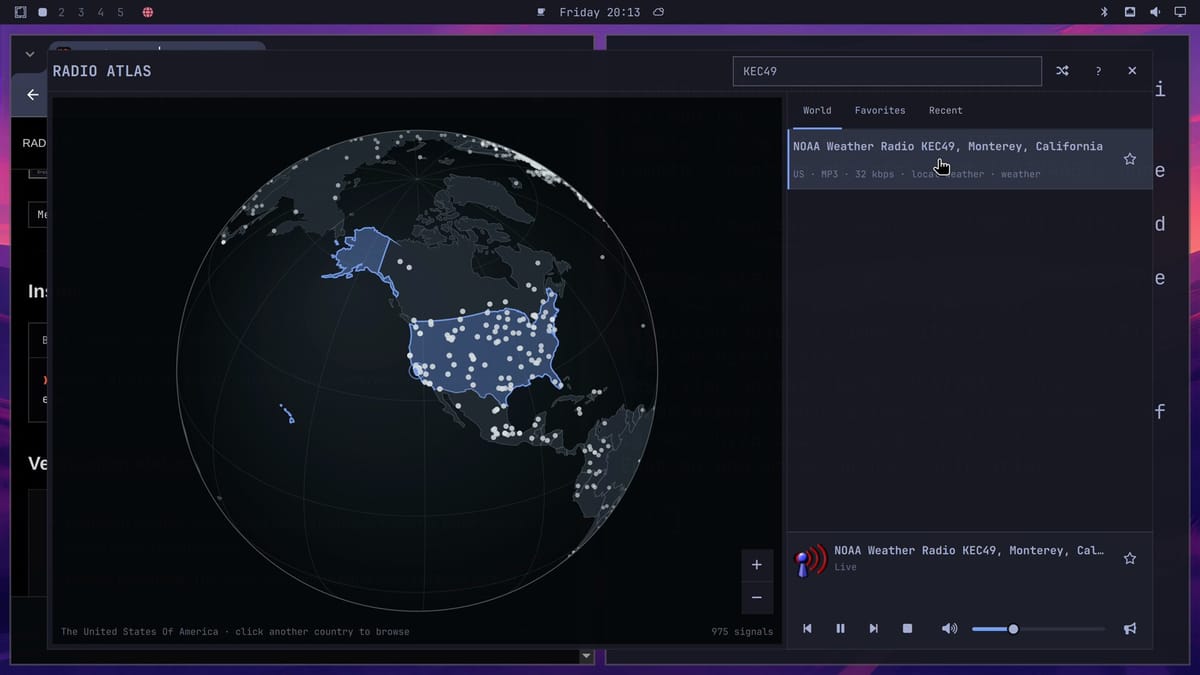
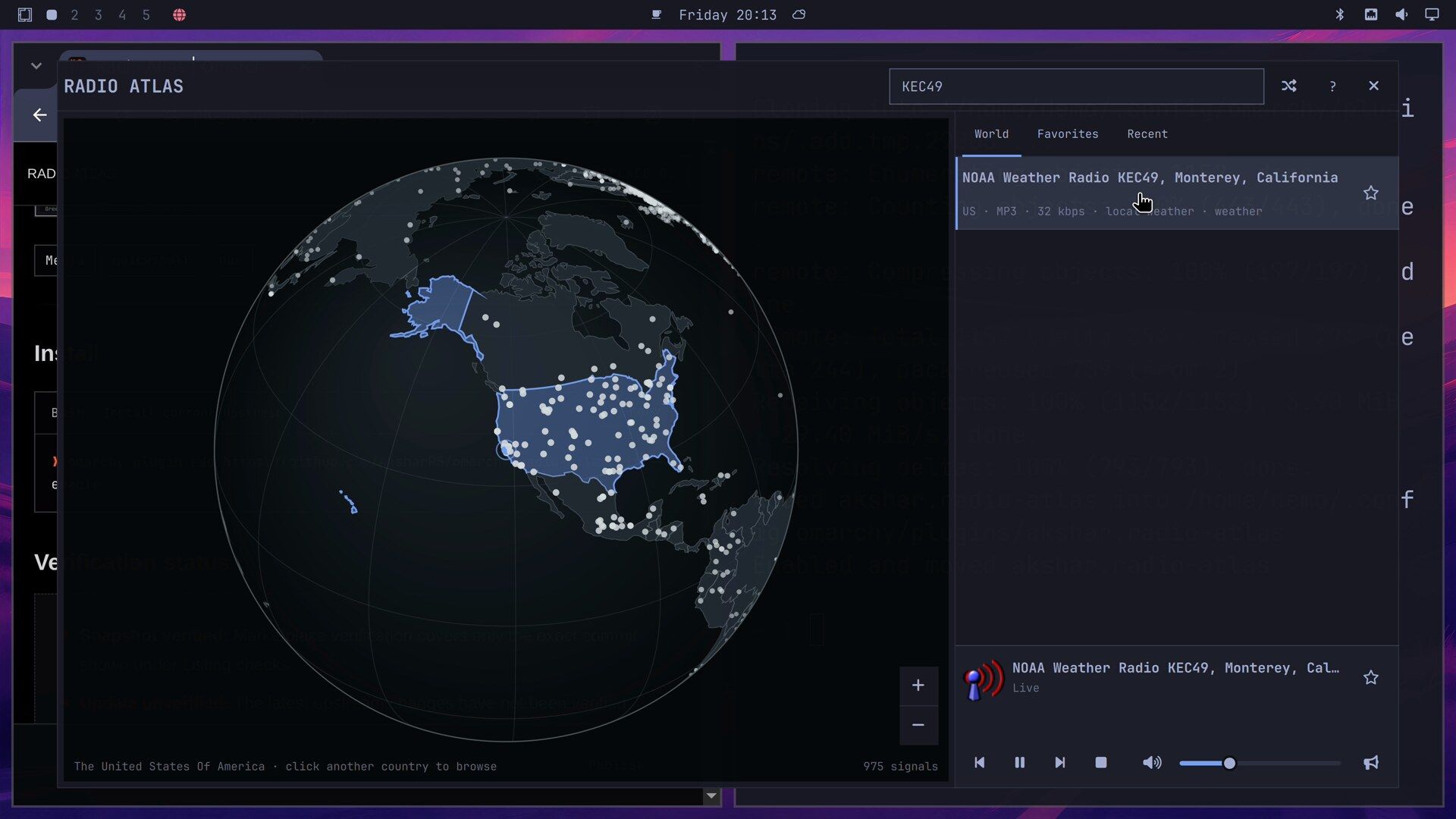
Inside the window, space pauses and plays, r tunes a random station, f marks a favorite, m mutes, and ? lists the keys. The volume slider sits in the player at the bottom.
esc closes the window, and the radio keeps playing in the background. The bar icon controls it from there: a right click stops or resumes the station, a middle click tunes a random one, and the mouse wheel over the icon changes the volume.
Remove each plugin and clean up after it
Run omarchy plugin remove with the plugin’s ID to take any of these off. For Exposé it asks “Delete ‘expose.window-overview’? Its git repo remains upstream.” Choose Yes. The remove deletes the plugin’s folder and its entry in ~/.config/omarchy/shell.json; files a plugin wrote anywhere else stay, and the steps below cover them.
| Plugin | ID | Files left after the remove |
|---|---|---|
| Exposé | expose.window-overview | Only your own key line, if you added one |
| Workspace Layout | bjarneo.workspace-layout | Two files and three lines in hyprland.lua |
| Omaland | bobbynicholas.omaland | Its block in looknfeel.lua, and one in hyprland.lua if Full opacity was on, unless you press Reset all first |
| Omagen | pretty.omagen | Settings, state, and cache folders, which its uninstall script removes |
| Radio Atlas | akshar.radio-atlas | Favorites, history, and a logo cache |
Exposé
If you added the super a line, delete it from ~/.config/hypr/bindings.lua first. Then remove the plugin and reload Hyprland:
omarchy plugin remove expose.window-overview
hyprctl reload
The README says nothing else is left behind.
Workspace Layout
Remove the plugin, then delete its two files:
omarchy plugin remove bjarneo.workspace-layout
rm ~/.config/hypr/omarchy-workspace-layout.lua ~/.config/omarchy/workspace-layout.json
Open ~/.config/hypr/hyprland.lua and delete the three lines at the end that the plugin added: a blank line, the comment -- Added by the Omarchy Workspace Layout plugin: registers its Lua tiling layouts., and the line that starts do local path = and loads omarchy-workspace-layout.lua. The README says that line does no harm if you leave it, because it checks the file exists first. If you added the super alt l line to bindings.lua, delete that too. Then run hyprctl reload, and your workspaces tile the way they did before.
Omaland
Open Omaland and press Reset all first. It removes Omaland’s blocks and puts looknfeel.lua and hyprland.lua back the way they were. Then remove the plugin, which also deletes its launcher entry:
omarchy plugin remove bobbynicholas.omalandIf you remove it without the reset, your settings stay in looknfeel.lua, and in hyprland.lua if Full opacity was on, because they are plain Hyprland settings. Delete the lines between the omaland managed block fence lines in each file to undo them by hand.
Omagen
Omagen has its own uninstall script. It removes the plugin, the optional full bar if you installed it, the theme-set hook, and Omagen’s settings, state, and cache, and then restarts the shell:
"$HOME/.config/omarchy/plugins/pretty.omagen/uninstall.sh"The script keeps any theme you saved with Save & Apply. To delete one, switch to another theme from the Omarchy menu first, then delete that theme’s folder in ~/.config/omarchy/themes/.
Radio Atlas
Stop the player, remove the plugin, then delete the saved stations and the logo cache:
~/.config/omarchy/plugins/akshar.radio-atlas/radio-player stop
omarchy plugin remove akshar.radio-atlas
rm -rf ~/.local/share/radio-atlas ~/.cache/omarchy-radio-atlas
Radio Atlas keeps favorites, history, and volume in ~/.local/share/radio-atlas/state.json (the README says so), so a reinstall brings them back; skip the last line if you want that. rm -rf deletes without asking, so check the paths before you press enter .
More settings and more plugins
Each plugin’s README, linked from its page, lists more settings than we used here. If you are new to Omarchy, our guide to the first Omarchy keyboard shortcuts to learn covers the keys used above, and the marketplace at plugins.omarchy.org lists thousands more plugins to try.



