
DEsk is a Wayland compositor whose whole desktop is a wooden desk in a ray-traced room. Windows are sheets of paper, the dock is a drawer, your apps sit in binders on a bookshelf, notifications arrive in a post box, and the system controls are knobs and levers on a panel at the back of the desk. The name is “Desktop Environment” and “desk” in one word, and the project spells it with a capital D and E. It is free, MIT licensed, and still marked beta.
This guide is the written companion to our first look at DEsk. It covers the install on Ubuntu 26.04 LTS from the v0.2.0 release, the scaling fix that makes apps readable on a 4K screen, the keys you need on the first day, the limits you will run into, and how to go back to GNOME. DEsk suits Linux fans who like to try unusual desktops and have a spare machine or a second disk for it. It is not ready to replace a daily desktop yet: bars such as waybar do not run on it, and a 4K screen needs manual scaling for apps.
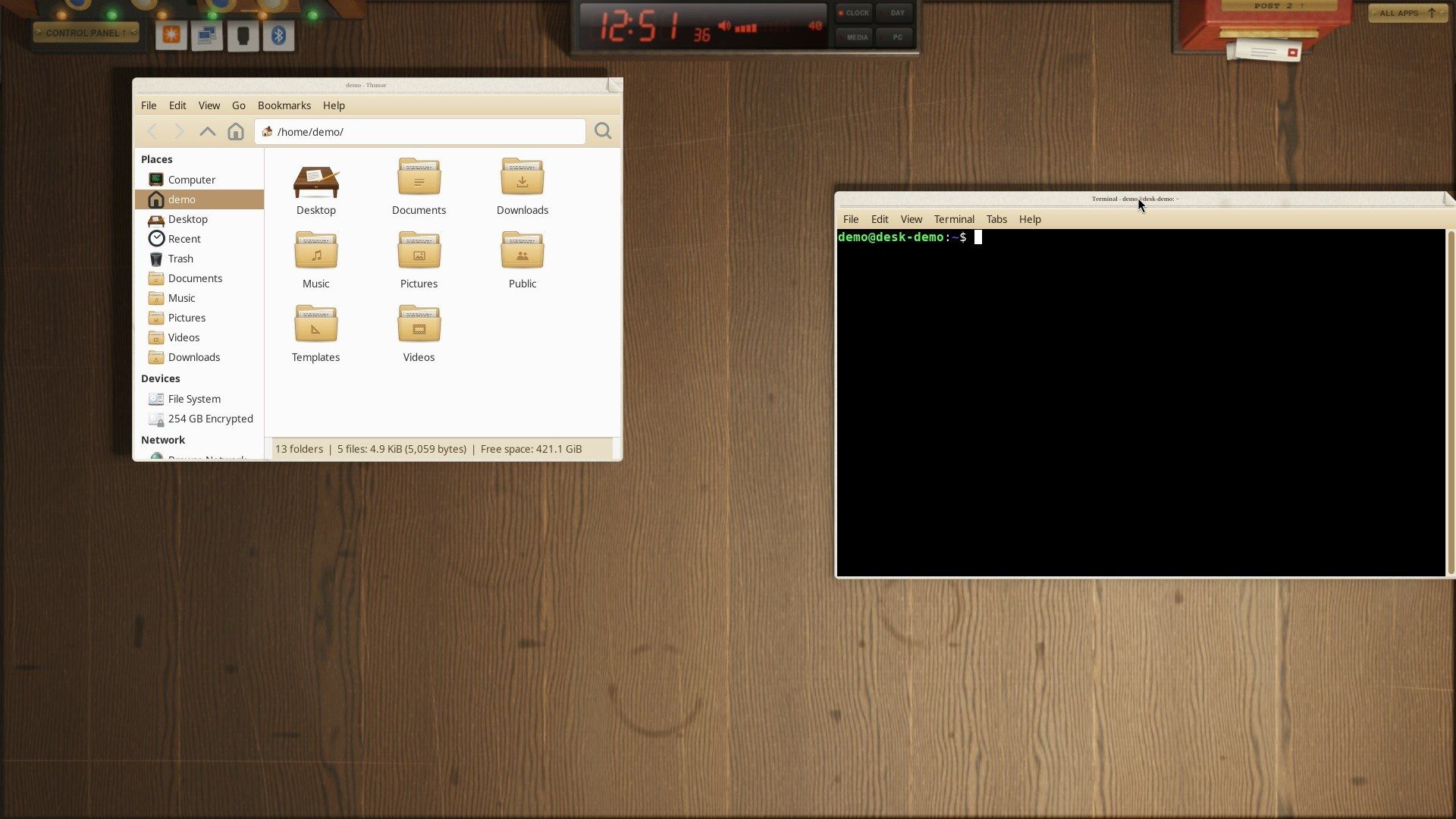
What you need
You need Ubuntu 26.04 LTS on a machine you can experiment on, an account with sudo, and an internet connection. The installer pulls a few hundred packages from Ubuntu’s archive and compiles DEsk and its graphics libraries, so plan on several minutes. A GPU helps: DEsk ray-traces its room the first time it starts at a given screen size, which the project puts at a few seconds on a GPU and longer on the processor. On a small Intel Alder Lake-N mini PC, tracing on its built-in graphics, the desk was up about 20 seconds after the first login, and under a second on later logins, because the traced room is kept on disk.
DEsk ships install scripts for Ubuntu 24.04 and 26.04, Debian 13, Arch, and Fedora 43 and 44. Everything below was done on Ubuntu 26.04.1. If you are still on 24.04, our guide to upgrading Ubuntu 24.04 to 26.04 covers the move, and checking your Ubuntu version tells you which one you have.
Download the release and check its checksum
The current release is DEsk v0.2.0, published on November 16, 2026, as a pre-release. Open a terminal with ctrl alt t , make a folder for the source, and download the tarball into it:
mkdir -p ~/desk-src && cd ~/desk-src
wget https://github.com/fyzugx/DEsk/releases/download/v0.2.0/DEsk-v0.2-BETA.tar.gz
Before you unpack it, check that the file is the one the project published. The SHA-256 below matches the .sha256 file on the release page and the digest GitHub shows for the asset:
echo "1092459cc0247fc2c34529cbce5cbffbd977733830ae959718e4172ba4c4672f DEsk-v0.2-BETA.tar.gz" | sha256sum -c -The line must end in OK. If it says FAILED, delete the file and download it again. Then unpack it and move into the folder:
tar xzf DEsk-v0.2-BETA.tar.gz
cd DEsk-v0.2-BETA
Read what the installer changes
The installer is a shell script, scripts/install_ubuntu.sh, and it runs with root rights, so it is worth reading before you run it. We read the v0.2 script before running it.
It installs packages from Ubuntu’s archive with apt, and it enables the universe section to get them. On a fresh 26.04 install that came to 348 new packages. DEsk is built on wlroots 0.18, and Ubuntu 26.04 ships 0.19, so the script downloads the wlroots 0.18.3 release tarball from freedesktop.org (on 24.04 it also downloads newer Wayland libraries). Each download is pinned by its SHA-256, and the build goes into /opt/desk-wlroots, where only DEsk looks for it. Before it builds DEsk itself, the script checks every file in the source folder against the SHA256SUMS list that ships with it.
DEsk goes into /usr/local. The script also writes a PAM file at /etc/pam.d/desk, a session entry so “DEsk” shows up on the login screen, and /etc/xdg/desk/shell.conf, which holds the graphics level it picks for your machine. It does not change your display manager, so GDM stays. If it finds files from DEsk’s older name (DeskWM), it asks before it removes them, and it removes nothing else. It also installs a set of classic desktop programs that go with the desk, including xfce4-terminal, Thunar, wdisplays, nwg-look, lxqt-admin, hardinfo2 and Back In Time. Run it with --no-apps if you want DEsk without those extra programs.
Run the installer
From the DEsk-v0.2-BETA folder, run:
sudo sh scripts/install_ubuntu.shThe script shows what it will install and asks before it starts. Adding --yes takes its suggested answers without asking. On our install, sudo sh scripts/install_ubuntu.sh --yes finished in a few minutes with exit code 0. At the end it checks your graphics and writes a graphics level for every user. It chose “medium” for our hardware, and that is the level to keep: on the Intel mini PC, “high” cut the frame rate of the paper fold animation by about a third.
Keep the DEsk-v0.2-BETA folder. The uninstall script, covered at the end of this guide, has to run from the folder you installed from.
Fix app scaling on a 4K screen
On a 1080p screen you can skip this section. On a 4K screen, DEsk draws its own objects at the size set by the scale line in its settings, but it does not tell other programs a scale, so a terminal or Thunar opens tiny. The project lists this as a known limitation.
First, set DEsk’s scale. Open ~/.config/desk/shell.conf in a text editor and make sure it has this line (add it if it is missing, and keep only one scale line):
scale = 2Next, add four lines to /etc/environment. Back up the file first, then append the lines:
sudo cp /etc/environment /etc/environment.pre-desk
printf 'GDK_BACKEND=x11\nGDK_SCALE=2\nQT_SCALE_FACTOR=2\nXCURSOR_SIZE=48\n' | sudo tee -a /etc/environment
GDK_SCALE=2 alone does nothing here, because GTK 3 ignores it on Wayland. GDK_BACKEND=x11 makes GTK apps run through Xwayland, where GDK_SCALE=2 does work, so they come up at double size and sharp, and they still lie on the desk as paper sheets with the folding corner. QT_SCALE_FACTOR=2 does the same job for Qt apps, and XCURSOR_SIZE=48 gives the pointer a matching size. We checked the GTK apps (the terminal and Thunar); we did not check how Qt apps, such as lxqt-admin from the installer’s set, look with these lines.
The lines have to go in /etc/environment. We also tried ~/.profile and ~/.config/environment.d, and neither reached the DEsk session under GDM. The file is read at login, so the change takes effect at your next login. If you are already in DEsk, log out ( super esc ) and log in again to load the new settings.
Windows that DEsk draws itself, such as Shell Settings, stay at their 1x size even with these lines.
Never use wlr-randr —scale on DEsk
The --scale option of wlr-randr does not scale your apps on DEsk. It sets DEsk’s point size and writes that value into ~/.config/desk/shell.conf. Running wlr-randr --scale 1 after the scale was set to 2 wrote scale = 1 into the file, and the next login drew the whole desk at half size. Set the scale in shell.conf as shown above.
wlr-randr without --scale is fine for picking a screen mode, and DEsk remembers the mode in ~/.config/desk/displays.conf. You may not need it: on our 4K screen, DEsk picked 3840x2160 at 60 Hz by itself.
Log in to DEsk
Log out of GNOME. On the login screen, click your name, then the gear button in the lower right corner, and pick DEsk. GDM remembers the choice for your next login.
The first login shows a dark room while the clock radio counts how much of the room is traced. Then the lamp comes on and you are at the desk, and a note called “Setting out the desk” stays in the middle until the rest of the room is traced. Later logins skip the wait.
If your account logs in automatically, the machine skips the login screen at boot and keeps starting GNOME. Turn off automatic login in Settings under System, then Users, or make DEsk the session it logs in to. Writing Session=desk into the AccountsService file by hand did not hold for us, because accounts-daemon wrote its own value back. What worked was setting the session through AccountsService over D-Bus and adding a default session to GDM. Check your user number with id -u first; the path below ends in User1000 for the first account on the machine:
sudo busctl call org.freedesktop.Accounts /org/freedesktop/Accounts/User1000 org.freedesktop.Accounts.User SetSession s deskThen open /etc/gdm3/custom.conf with sudo and add DefaultSession=desk.desktop under the [daemon] line. Reboot, and the machine logs straight in to DEsk.
The keys to learn first
DEsk uses the Super key (the Windows key on most keyboards) for its views. These are the ones you will use in the first hour:
- super enter opens a terminal, drawn on the desk as a sheet of paper.
- super d opens and closes the drawer, which is the dock.
- super a turns the view up to the bookshelf with your apps.
- super c swings the view to the Control Panel.
- super n opens the post box, where notifications collect.
- super m folds the focused sheet into a letter, and unfolds it again.
- super q closes the focused window.
- alt tab , with Alt held, spreads every window over the desk with a label for each.
- print raises the camera for a screenshot, and shift print records a video instead.
- super l locks the screen, and super esc logs out.
If the desk gets stuck, ctrl alt delete pressed twice sets it right again, and three times logs you out. The full list is in the Keys section of the DEsk README.
Windows are paper with a folding corner
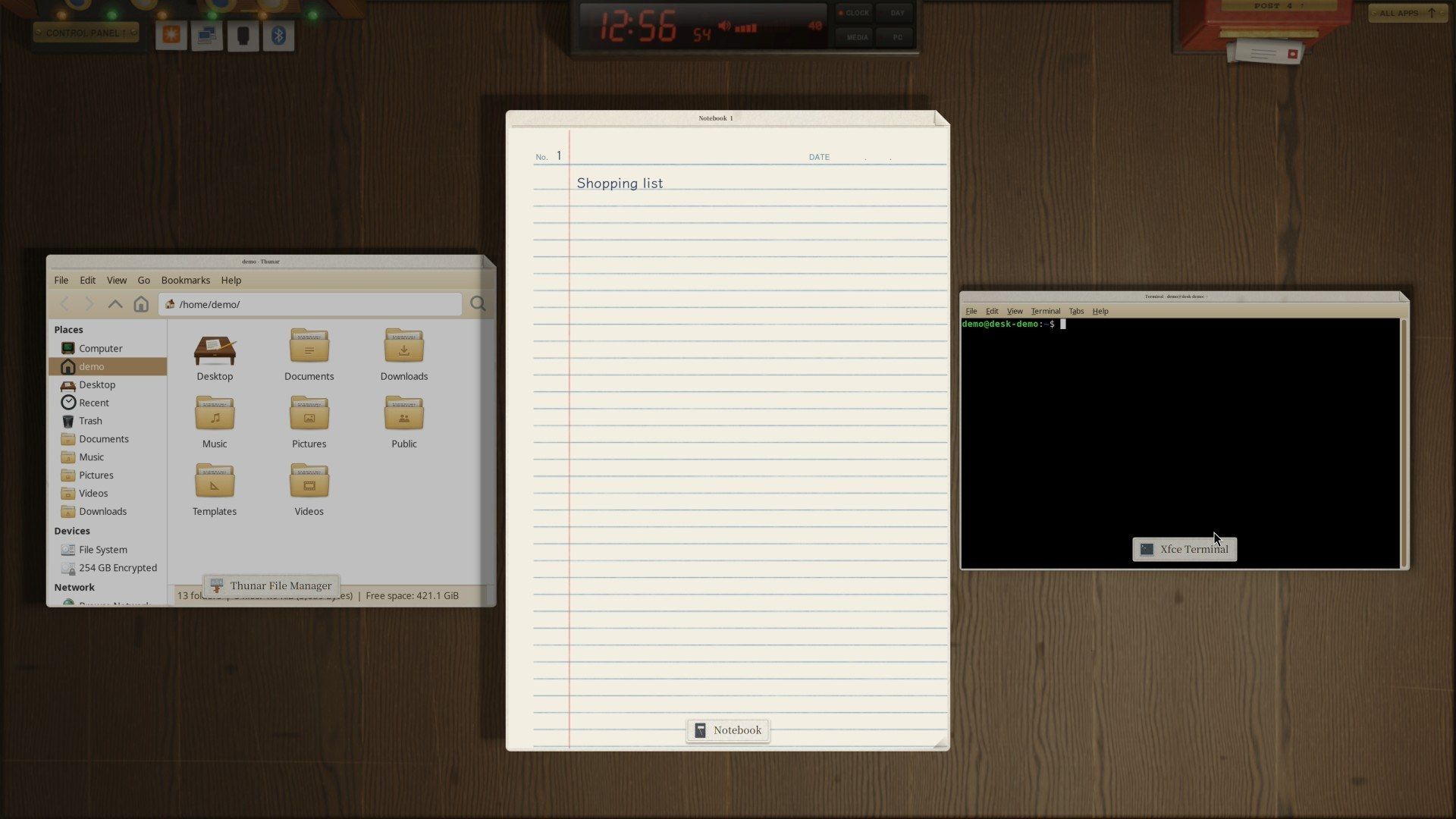
Every sheet has a dog-ear at its top right corner. Rest the pointer on it, and the corner lifts to show three choices. Fold puts the window away as a folded letter at the bottom left of the desk, with the app’s icon and name on it; click the letter to put the sheet back where it was. Unfold spreads the sheet across the screen under the strip at the top, and the corner then reads Refold. Discard closes the window, and the sheet crumples into a paper ball and is tossed away.
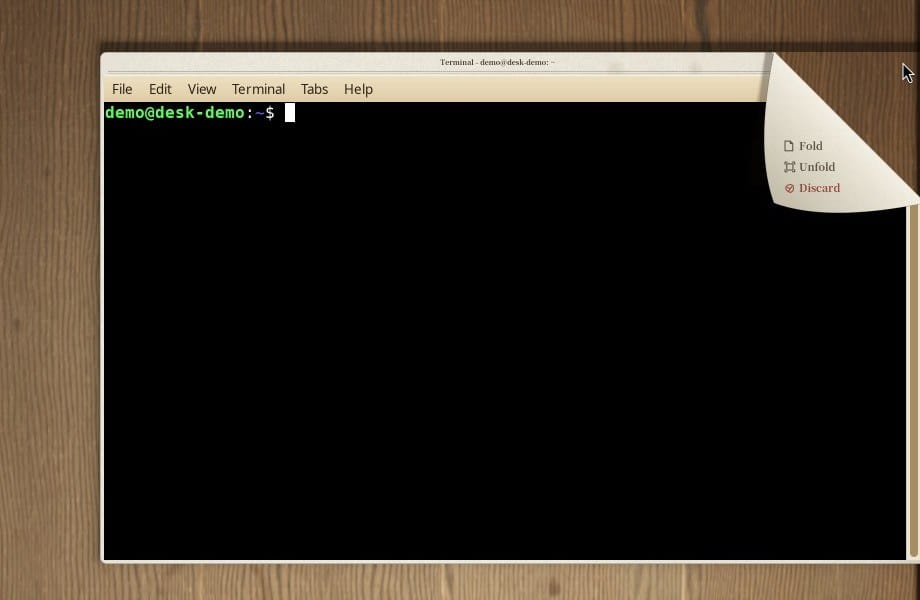
Discard does not ask about unsaved work in the DEsk notebook. When we discarded a notebook page with text on it, the page closed at once; the text was still kept in ~/.local/share/desk/notebook/.
The drawer, the bookshelf and the desk objects
The drawer holds the things you reach for most: a clock radio, a compass, a folder that opens Thunar, the notebook, the calculator, a clipboard, the camera, and a screwdriver that opens Shell Settings. Clicking an item opens it and closes the drawer.


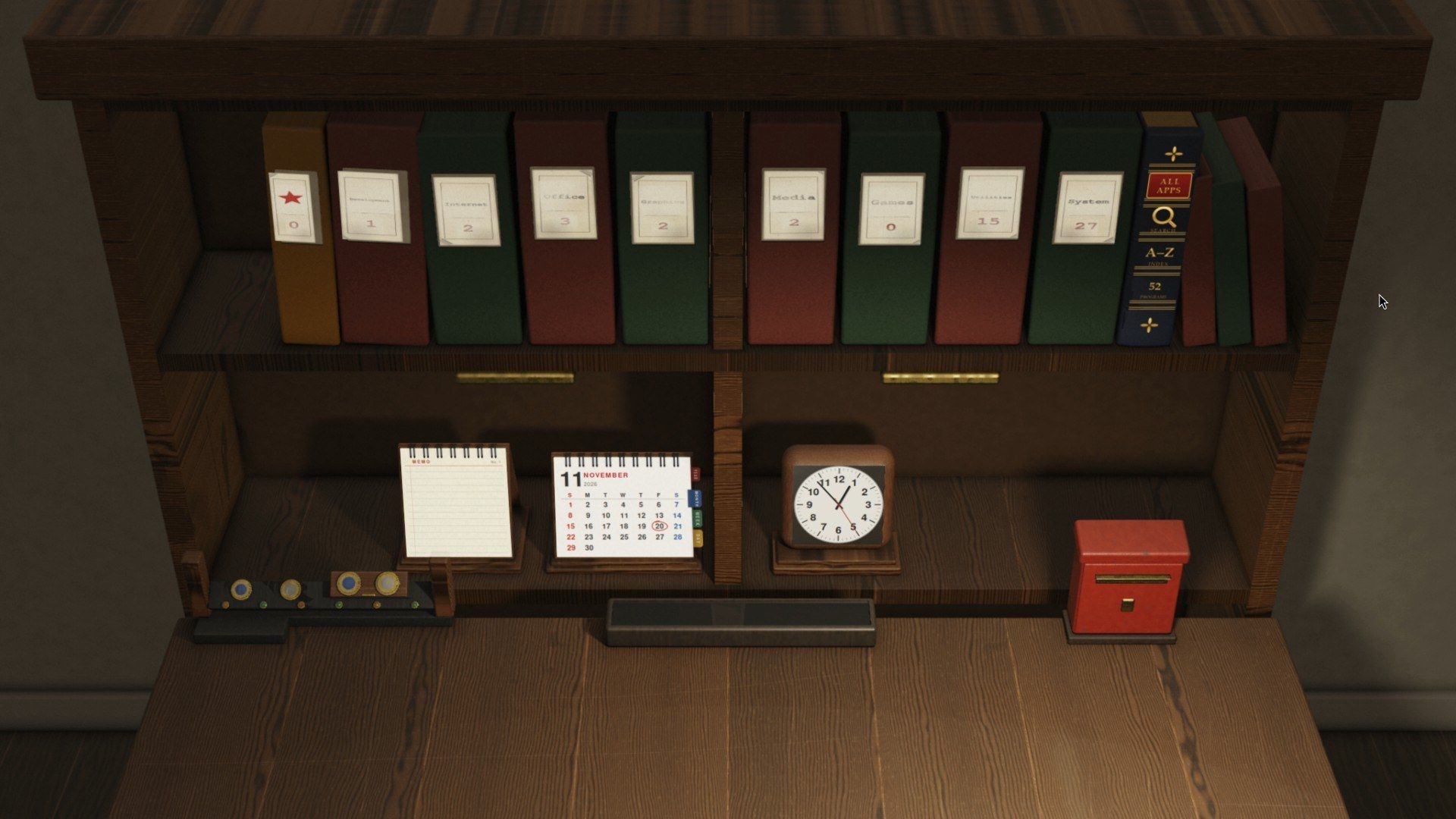
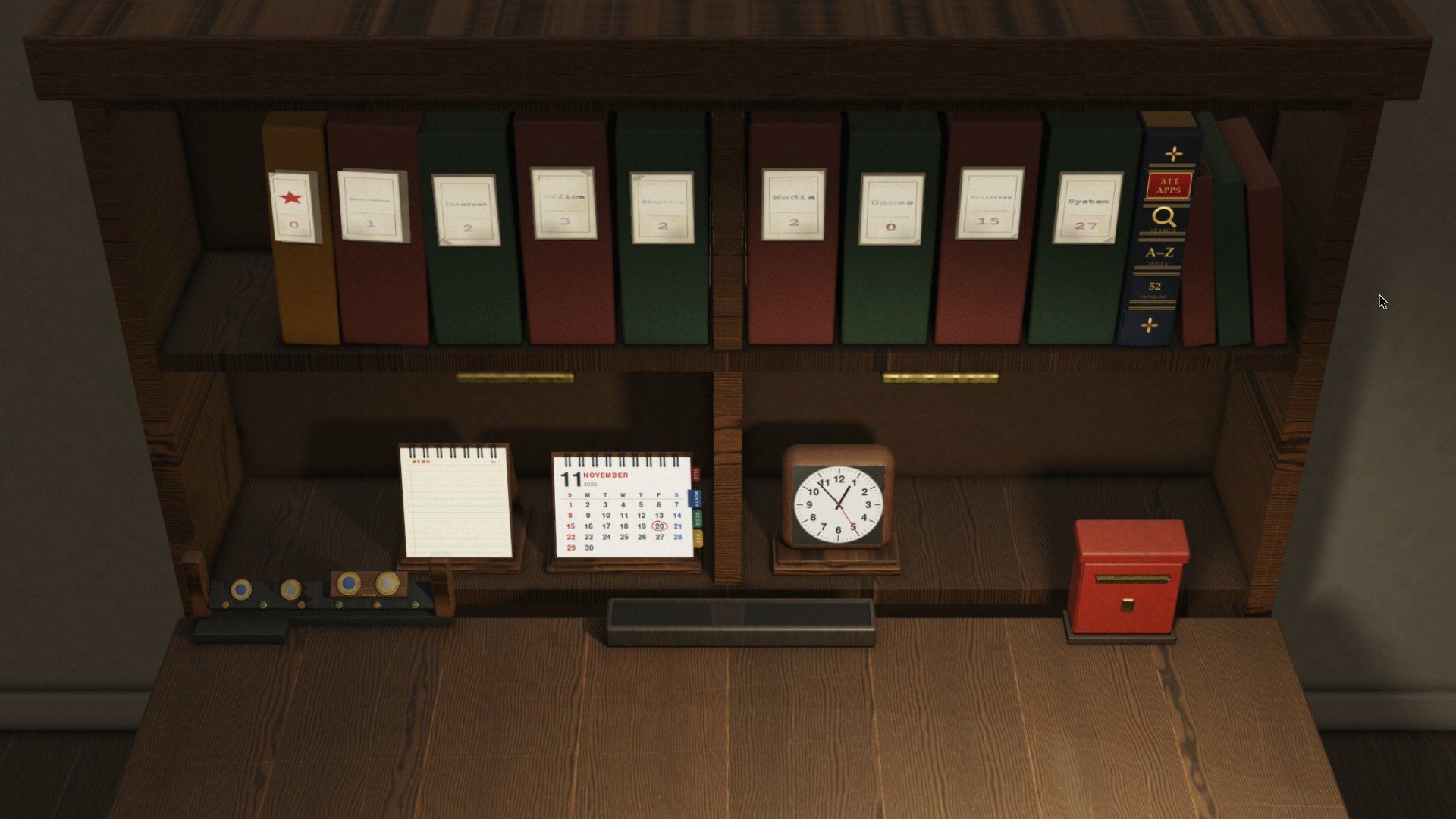
Above the desk, the bookshelf files your programs in binders by category, and each spine shows how many it holds. The ALL APPS book at the end of the shelf is an index of every program, with thumb tabs from A to Z and a search line at the top. On the bottom shelf sit a memo pad, a desk calendar, a clock and the post box.
Version 0.2 added the calculator and the camera to the drawer and rebuilt the notebook. The calculator opens like a folding pocket calculator, prints each sum on a paper tape on its left lid, and has scientific keys under the tape. The notebook is a lined page for notes. Typing goes on the page in round handwritten letters, ctrl t switches to typewriter letters and back, and the page’s corner opens a card of pens for drawing with the mouse. The camera on print holds the screen still behind a viewfinder; drag over an area and let go to take the shot. The picture lands in ~/Pictures/Screenshots/, and a copy goes to the clipboard.
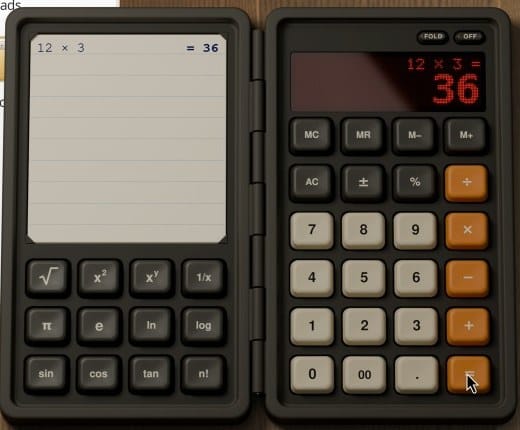
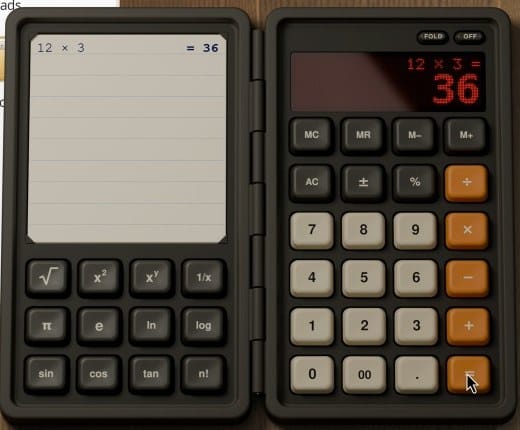
alt tab spreads the open windows over the desk, each with a small label. The notebook counts as a window and joins the spread; the calculator is a desk object and stays where it is.
The Control Panel, the lock and Shell Settings
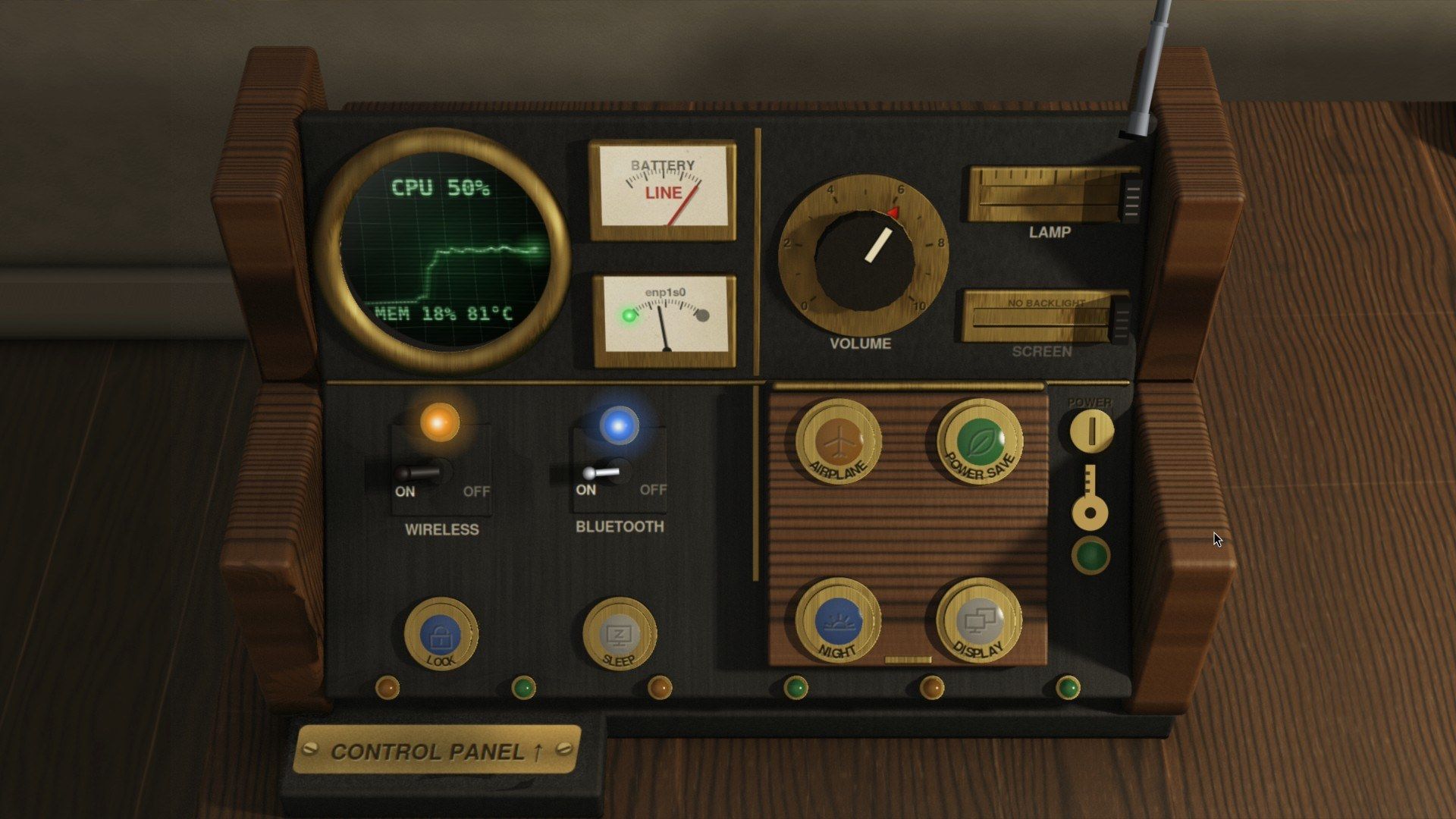
super c shows the Control Panel. A green oscilloscope draws processor use, with memory and temperature underneath, and needle meters show power and the network. VOLUME is a knob, LAMP and SCREEN are sliders, and WIRELESS and BLUETOOTH are levers. Round buttons handle AIRPLANE, POWER SAVE, NIGHT, DISPLAY, SLEEP and LOCK. On a desktop PC with no battery, the BATTERY meter reads LINE, and on a monitor with no backlight control, the SCREEN slider reads NO BACKLIGHT.
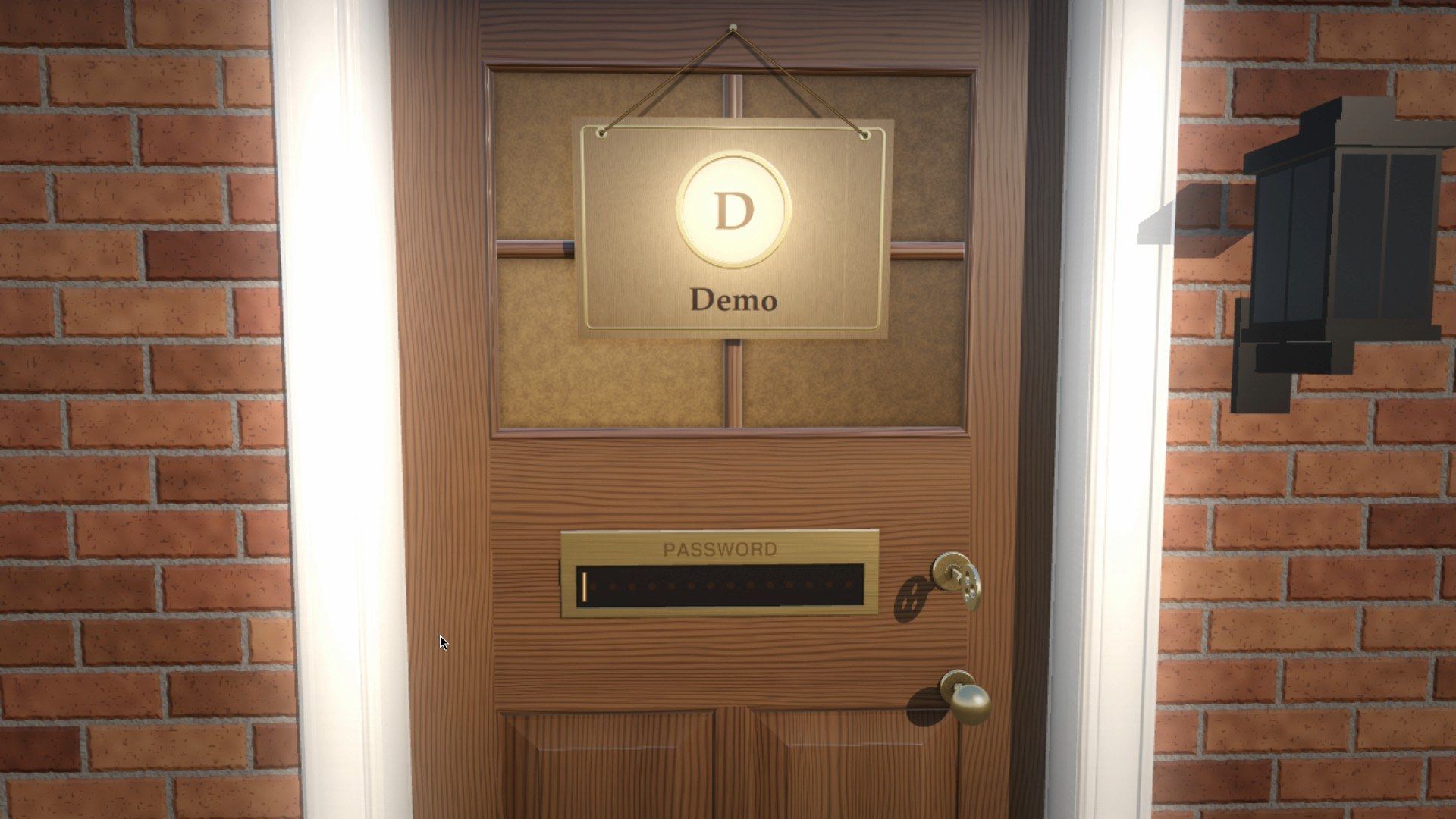
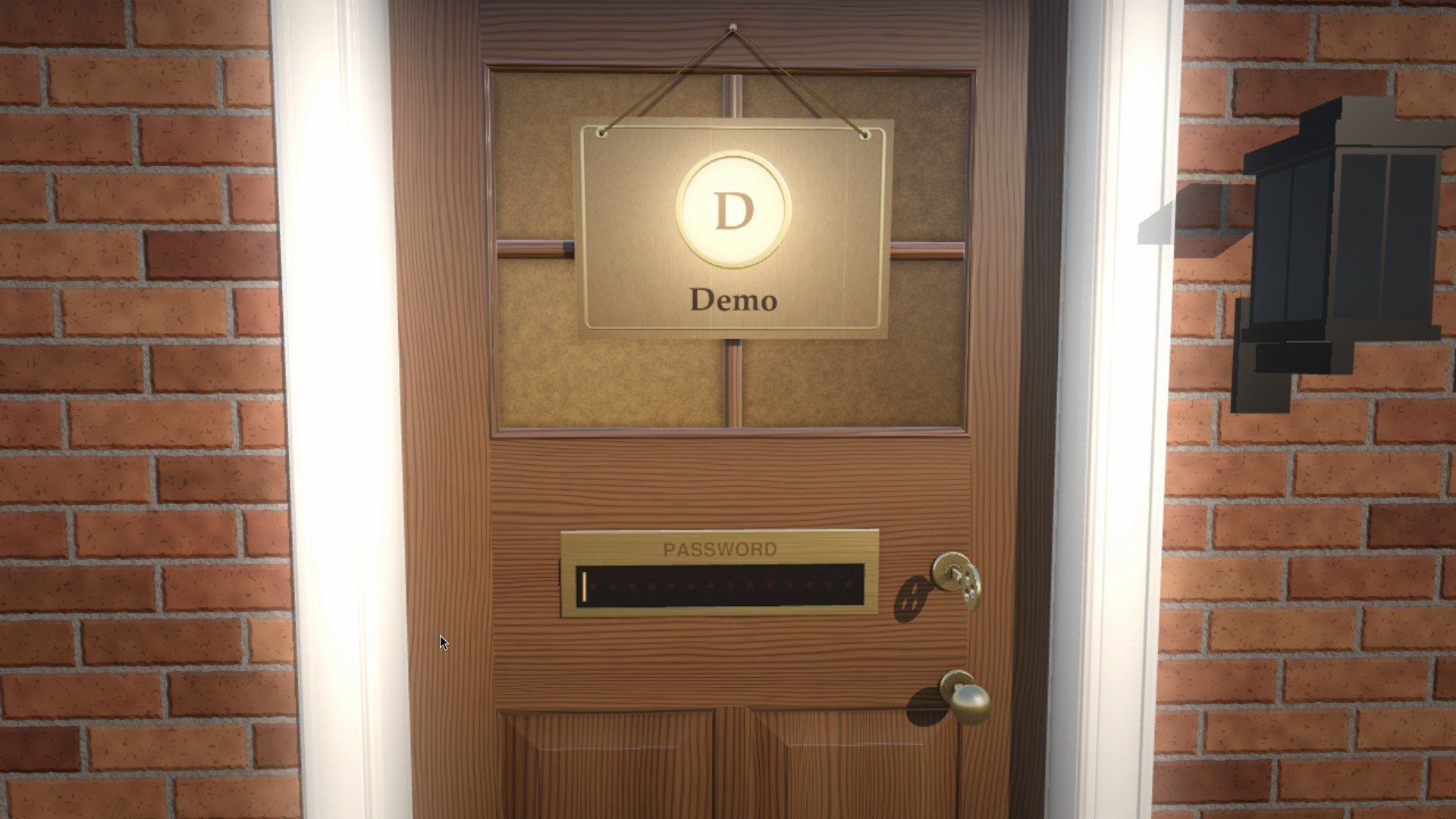
LOCK sends you out of the room to a front door with your name on a sign and a brass password plate. Type your password and press Enter, the key turns, the door swings open, and the view moves back through the room to where you were. DEsk also locks the door by itself after ten minutes with no input.
The screwdriver in the drawer opens Shell Settings, a spiral notebook with a tab for each group of settings. The MATERIAL tab lets you pick walnut, oak, cherry, maple or ebony and a stain color; click a wood sample, then “Sign here” to apply it. The room goes dark while DEsk traces it again, which took about ten seconds on the mini PC. The MAT tab lays a desk mat under your windows straight away, with no retrace.
Limits to know before you switch
DEsk does not support the layer-shell protocol yet. Panels and bars that depend on it, such as waybar, do not run, and neither does slurp, the area picker some screenshot tools use. External screen lockers and night-light tools that need the session-lock or gamma-control protocols do not work either; DEsk has a built-in lock and a NIGHT button instead. There is no fractional scaling, and apps need the environment lines above to be readable on a HiDPI screen.
Screen sharing shares whole screens only, not single windows, and it does not start at all when DEsk is drawing on the processor without a GPU driver. On a second monitor you get a plain desk for windows; the bookshelf, the Control Panel and the post box stay on the main screen. Dragging from an X11 program onto a Wayland one does not work, which matters more once GDK_BACKEND=x11 puts your GTK apps on Xwayland. The project’s release notes list these limits in full, and the README says to expect rough edges and changes while DEsk is in beta.
Go back to GNOME, or remove DEsk
To go back to GNOME, log out ( super esc ), click your name on the login screen, use the gear button to pick Ubuntu, and log in. If you set DEsk up to log in automatically, remove the DefaultSession=desk.desktop line from /etc/gdm3/custom.conf first, then pick Ubuntu at the login screen once.
The four scaling lines in /etc/environment apply to every session you log in to, GNOME included. If you no longer use DEsk, put the original file back from the backup you made:
sudo cp /etc/environment.pre-desk /etc/environmentTo remove DEsk itself, log out of it, then from GNOME (or a text console) go to the folder you installed from and run the project’s uninstall script:
cd ~/desk-src/DEsk-v0.2-BETA
sudo sh scripts/uninstall.sh
The script lists what it will remove and asks first. It takes out DEsk’s programs and files, the “DEsk” entry on the login screen, /etc/xdg/desk, and the wlroots build in /opt/desk-wlroots (--keep-wlroots leaves that). It leaves the packages the installer brought from Ubuntu’s archive, since other programs may use them, and it leaves your own DEsk settings and notes. To remove those too, the project gives this line:
rm -rf ~/.config/desk ~/.local/share/desk ~/.local/state/desk ~/.cache/deskWe did not run the uninstall script on our install, so the steps above come from the script and the README rather than from our own test.
Wrapping up
The calculator, the notebook and the camera are useful tools, not props, and DEsk works well enough to try on a spare machine today. If you would like to compare it with a more conventional Wayland setup, our tour of niri with DMS shows a scrolling desktop with a full bar and launcher.


