
These five apps are new to Omarchy, and each one does a different job. Files is Omarchy’s own file manager, written by DHH, Omarchy’s creator. Quiet.md is a local notes app, RAWmakase develops RAW photos from a camera, Wayscriber draws over anything on the screen, and Concat is a free video editor.
This guide follows the video above, one app at a time: what the app is, how to install it, the keys we used, and what to know before you rely on it. Each install command is quoted from the app’s own README or from Omarchy’s packages, and each section says which. If you are new to Omarchy itself, start with what Omarchy is.
Everything here ran on Omarchy 4.5 on November 11, 2026, with Files 0.4.0, Quiet.md 0.1.10, RAWmakase 0.4.12, Wayscriber 0.9.29, and Concat 0.2.10. All five are below version 1.0, and they change fast: Files had six releases in about a day. Install the newest version, and expect some menus and keys to differ from the video.
Files, the file manager that replaces Nautilus
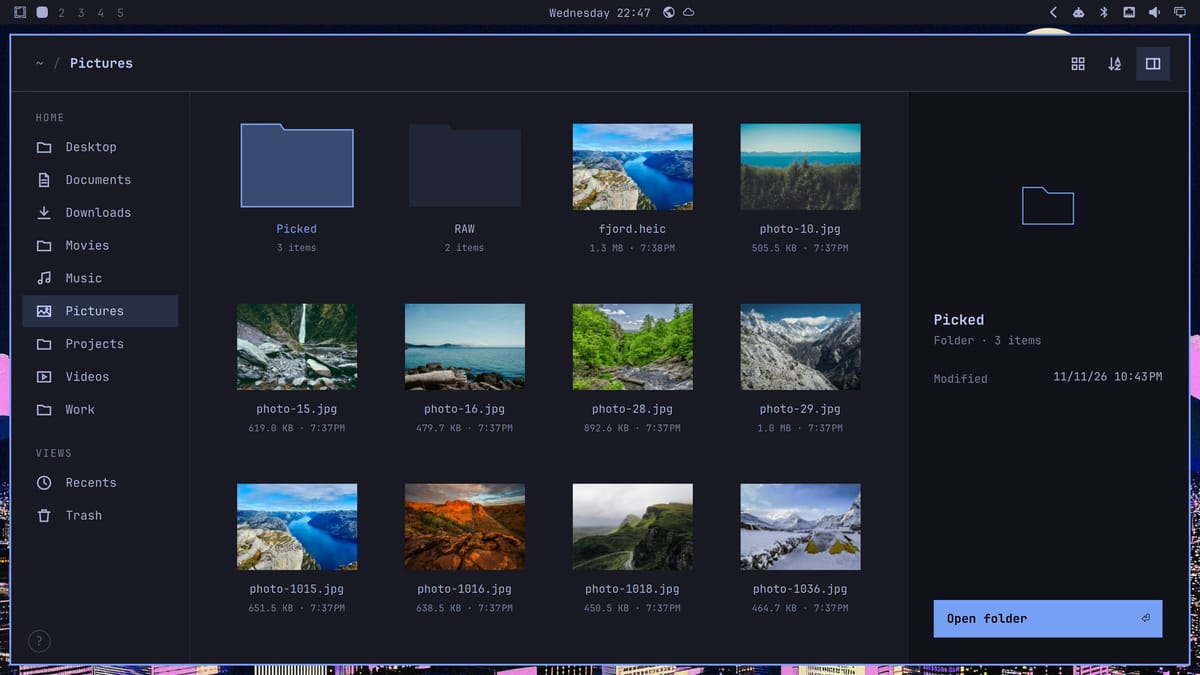
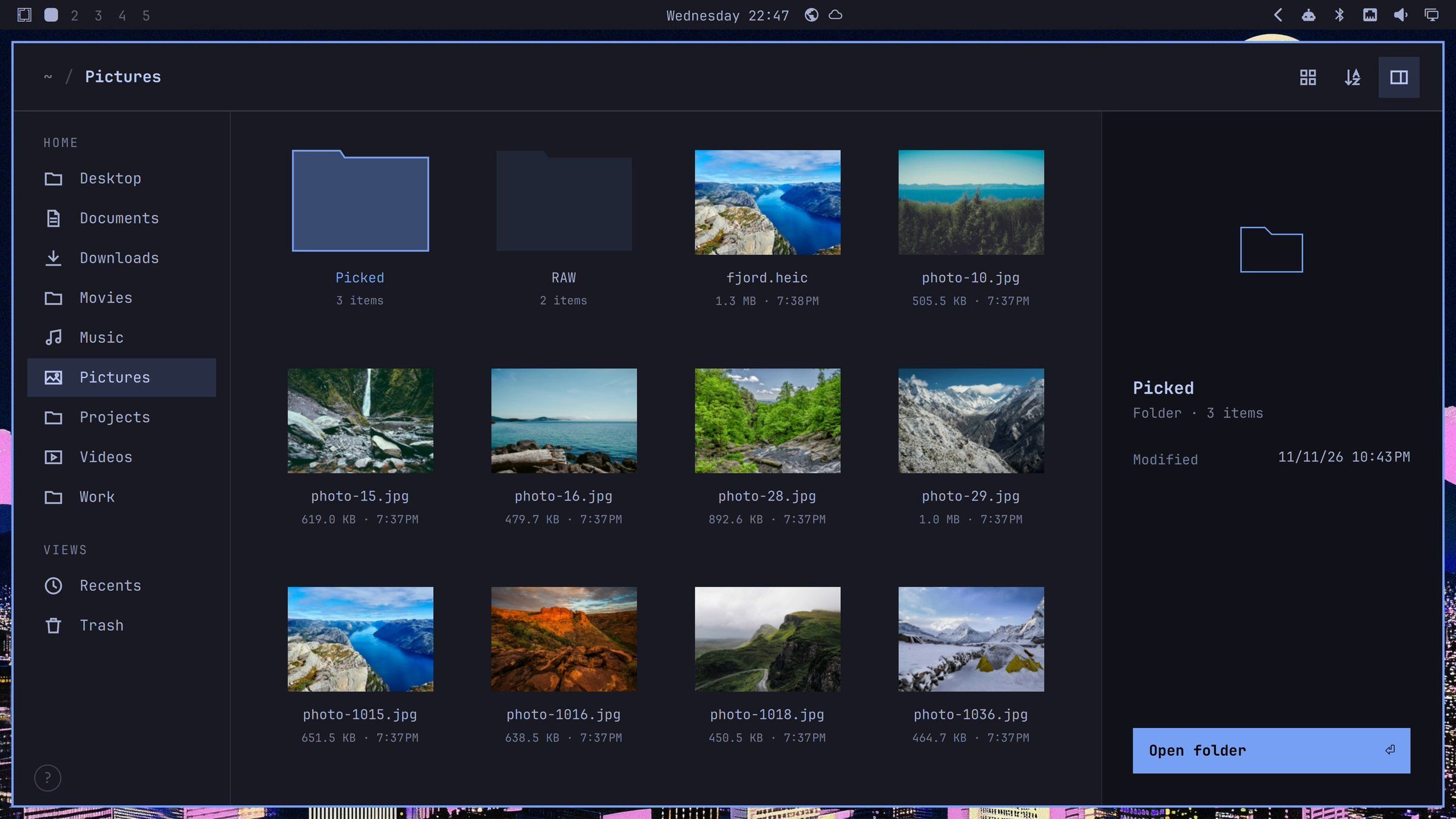
Files is a file manager built for the keyboard, with one plain window that follows your Omarchy theme. Its GitHub page describes it as “Omarchy’s file manager: airy, keyboard-first, and following the theme.” The package and the command are both named folio, and the window title says Files. Mouse clicks and a right-click menu work too.
On November 10, 2026, a change titled “Replace Nautilus with Files” (omarchy#18378) was merged into the branch Omarchy’s next feature release comes from, and the 4.6.0 milestone describes that release as the “Feature release from quattro”. So Files is set to become the default file manager in Omarchy 4.6. As of November 12, 2026, 4.6 is not out: the newest release is 4.5.0, which still ships Nautilus.
Install Files on Omarchy 4.5
Files is in Omarchy’s edge package channel only, not in the stable channel that 4.5 uses. A box on the edge channel already has it. On a stable box, you can install the single package file from the edge repository. On November 12 the newest one was folio-0.4.0-2:
curl -LO https://pkgs.omarchy.org/edge/x86_64/folio-0.4.0-2-x86_64.pkg.tar.zst
sudo pacman -U ./folio-0.4.0-2-x86_64.pkg.tar.zst
New versions replace that file often, so the version in the name changes. If the download fails, the name has moved on, and the Files releases page shows the newest version. Don’t use yay -S folio: the AUR package named folio is a different program, a Markdown notes app for GNOME.
A package installed this way does not update with the rest of the system while you stay on the stable channel. When 4.6 arrives with Files as the default, the regular update takes over.
To make super shift f , Omarchy’s file manager shortcut, open Files on 4.5, add this line to ~/.config/hypr/bindings.lua:
o.rebind("SUPER + SHIFT + F", "File manager", { launch = "folio" })On 4.5, also add this line to ~/.config/hypr/hyprland.lua, so the space preview opens as a floating window, as it will on 4.6:
o.window("folio-preview", { float = true, center = true })To have other apps open folders in Files too, set it as the default for folders:
xdg-mime default folio.desktop inode/directoryViews, preview, and two folders side by side
In a folder of photos, ctrl 1 shows a grid with real previews, HEIC photos included. ctrl 2 switches to a list, and ctrl 3 to columns. space opens the selected file at full size in its own floating window, so a quick look needs no other app.
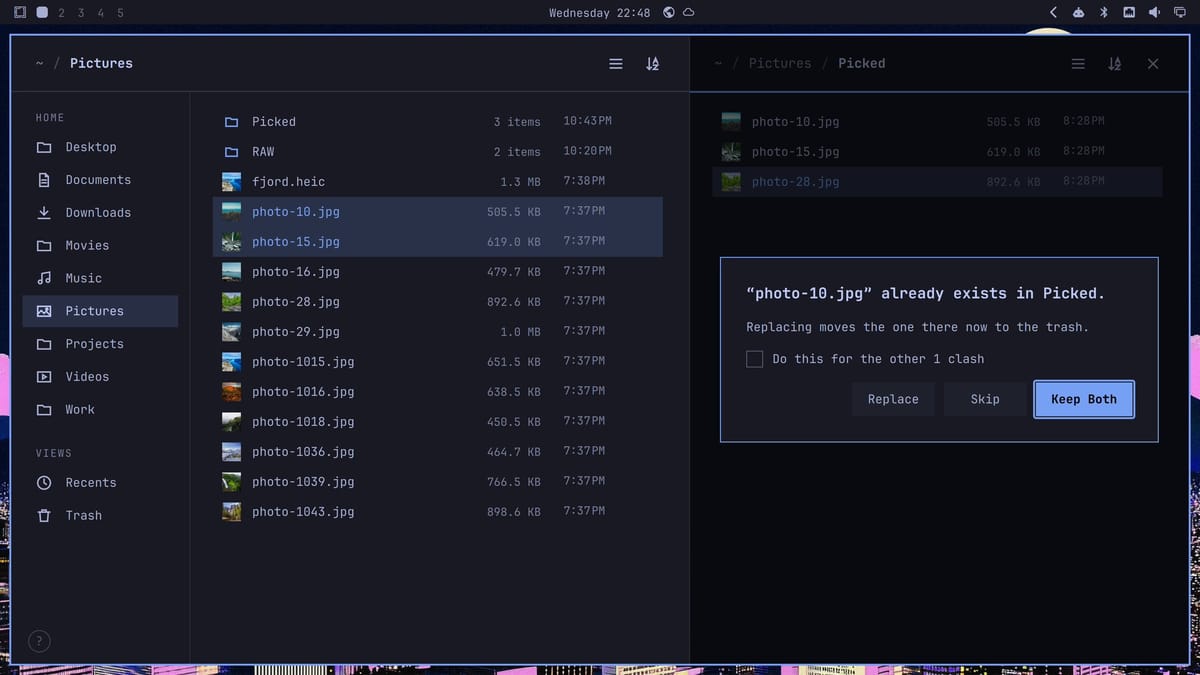
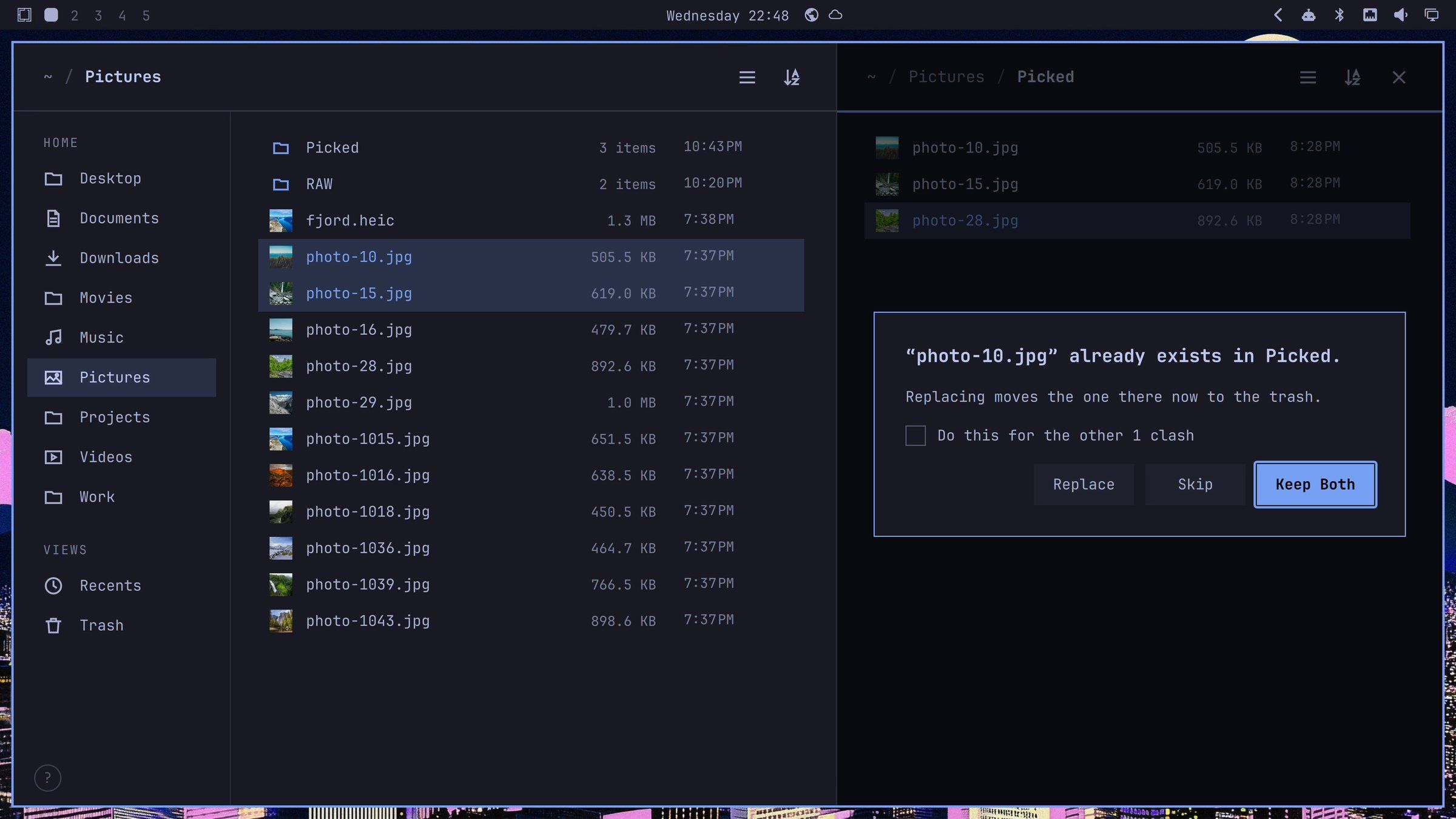
ctrl alt n splits the window into two folders side by side, which helps when you sort photos into a folder. When you paste a file into a folder that already has one with the same name, Files stops and asks: Replace, Skip, or Keep Both. The dialog explains what Replace does: “Replacing moves the one there now to the trash.” So a paste never deletes a file outright, and you can get the old one back from the Trash.
Compress in the right-click menu zips the selected files right away, with no name to type. alt enter opens the same menu from the keyboard, and ? lists every other shortcut. For another keyboard-first file manager on Omarchy, see our guide to Flea.
Quiet.md for fast local notes
Quiet.md is a notes app and rich-text editor that keeps your notes on your own computer. Its README says it “is in beta and changing quickly,” and it marks the Linux build as experimental, with testing that “so far covers Omarchy on Wayland.”
Install the Quiet.md AppImage
The README’s download table lists one Linux file, quiet-md-x86_64.AppImage, which needs glibc 2.35 or later. Download it from the Quiet.md releases page. The README’s Linux steps are to run chmod +x quiet-md-*.AppImage and then run the file, and “without FUSE, add --appimage-extract-and-run.” The Omarchy 4.5 install we used had no FUSE 2, the library AppImages mount themselves with, so add the flag:
chmod +x quiet-md-*.AppImage
./quiet-md-*.AppImage --appimage-extract-and-run
The README says versions from 0.1.10 on can update themselves from inside the app. An AUR package, quiet-md-bin, also exists; a community member maintains it, not the Quiet.md developer.
Writing with Markdown shortcuts
ctrl n starts a new note, and Markdown formats as you type. Two hash marks and a space make a heading, a dash starts a list, and an angle bracket makes a quote. Type a slash to open a menu of blocks, and pick table to add a table of three rows and three columns. tab moves from cell to cell, so there are no pipe characters to line up. ctrl j finds any note by a word inside it.
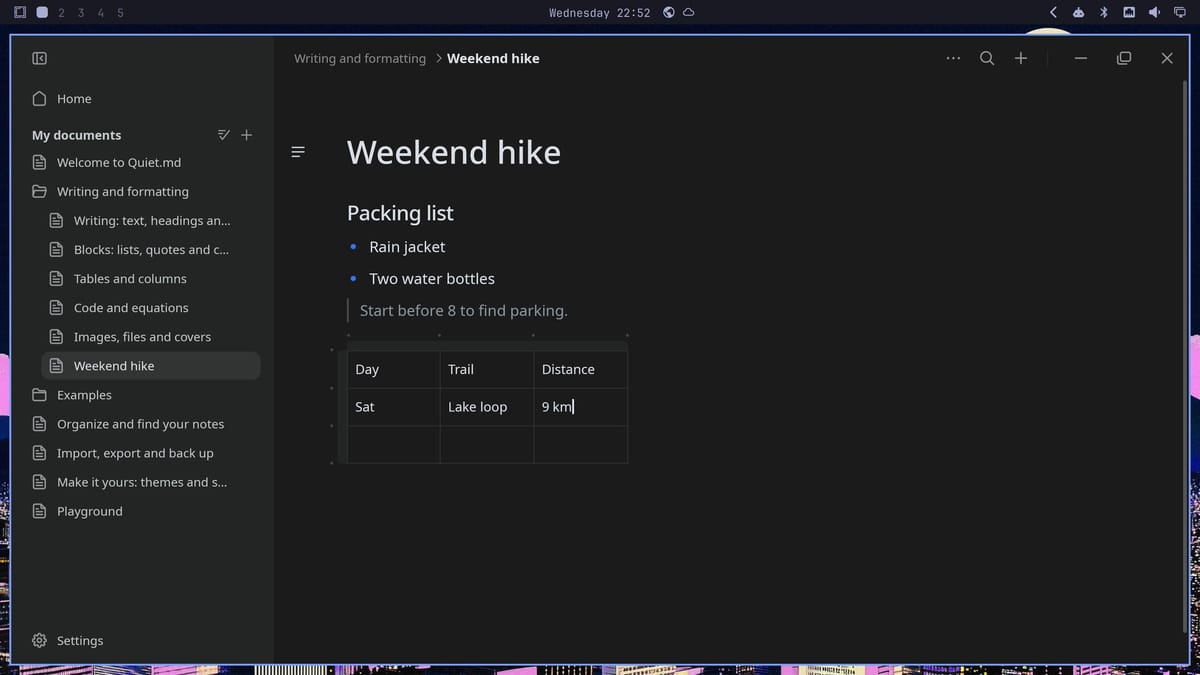
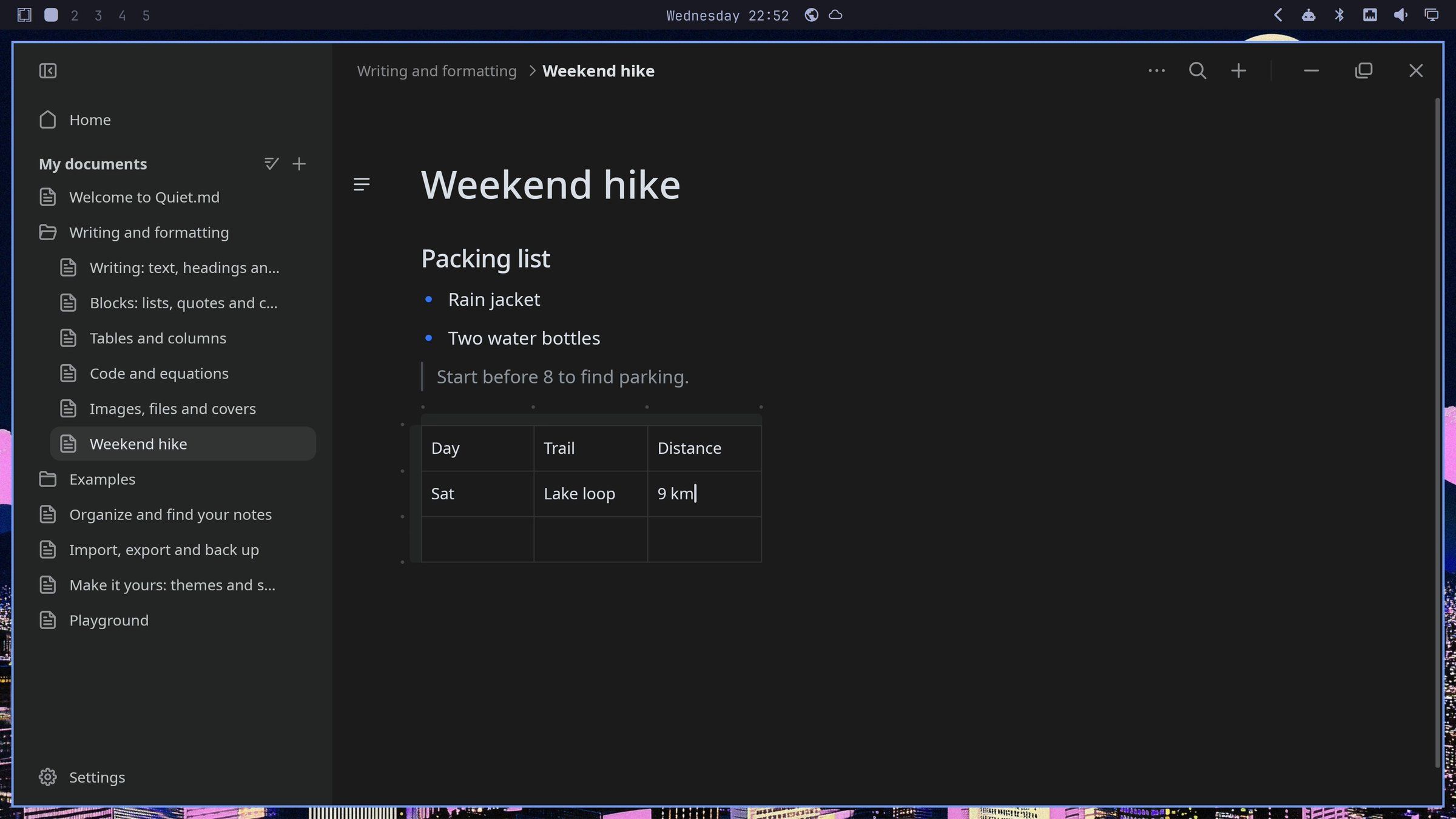
Notes you start with ctrl n are saved in Quiet.md’s own format, not as Markdown files. ctrl o opens a Markdown file you already have, and Quiet.md lists it apart from your notes, under Files on this computer. To take a note to another editor, choose Download as in the note’s menu to save a Markdown copy.
RAWmakase for developing RAW photos
RAWmakase is a RAW photo developer with a set of controls in the style of Lightroom. A RAW file is the unprocessed image from a camera’s sensor, and developing it turns it into a finished photo. Edits are non-destructive: the RAW file is never changed. The README calls it “early software in active development” and says “Until 1.0, backwards compatibility is limited and not guaranteed.”
Install RAWmakase from Omarchy’s packages
RAWmakase is in Omarchy’s own package repository, so it needs no AUR or download. The README’s Omarchy section says to install rawmakase-bin from Omarchy menu > Install > Package, or from a terminal:
omarchy pkg add rawmakase-binAs the README puts it, “It updates with the rest of the system.” It also points out that Omarchy makes windows slightly see-through by default, “which changes how photos look.” To keep RAWmakase fully opaque, the README gives this line for ~/.config/hypr/looknfeel.lua:
-- Keep RAWmakase fully opaque (opt out of Omarchy's default window opacity)
o.window("^RAWmakase$", { tag = "-default-opacity", opacity = "1 1" })
From Auto to a JPEG
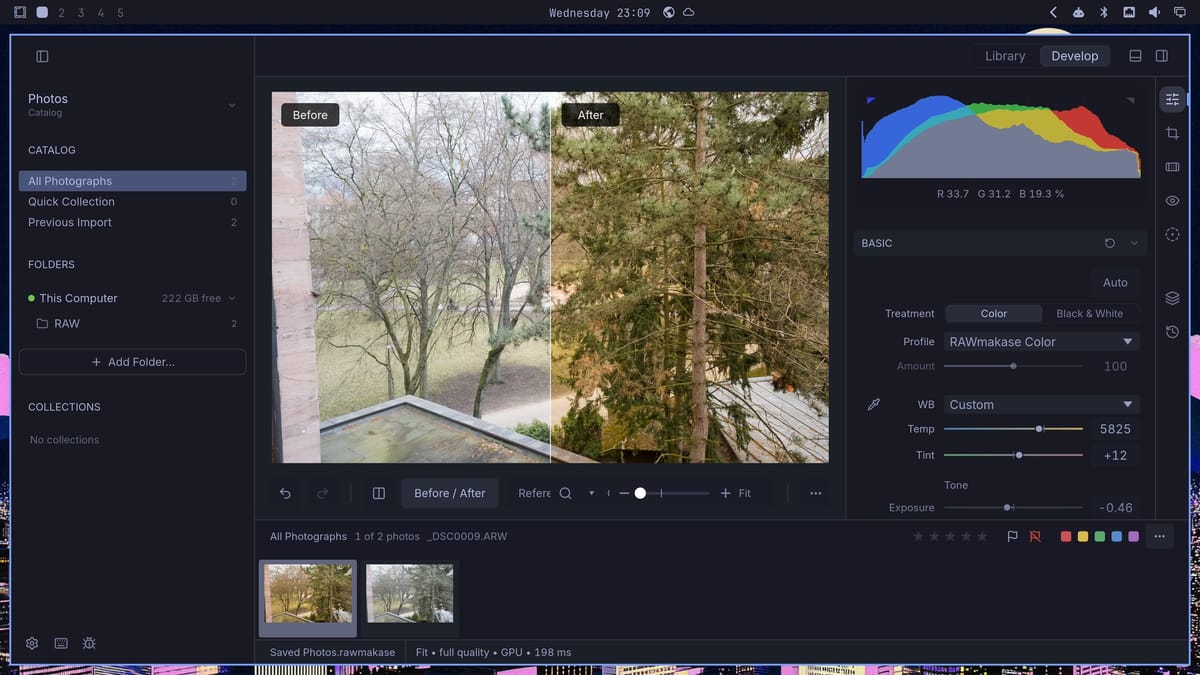
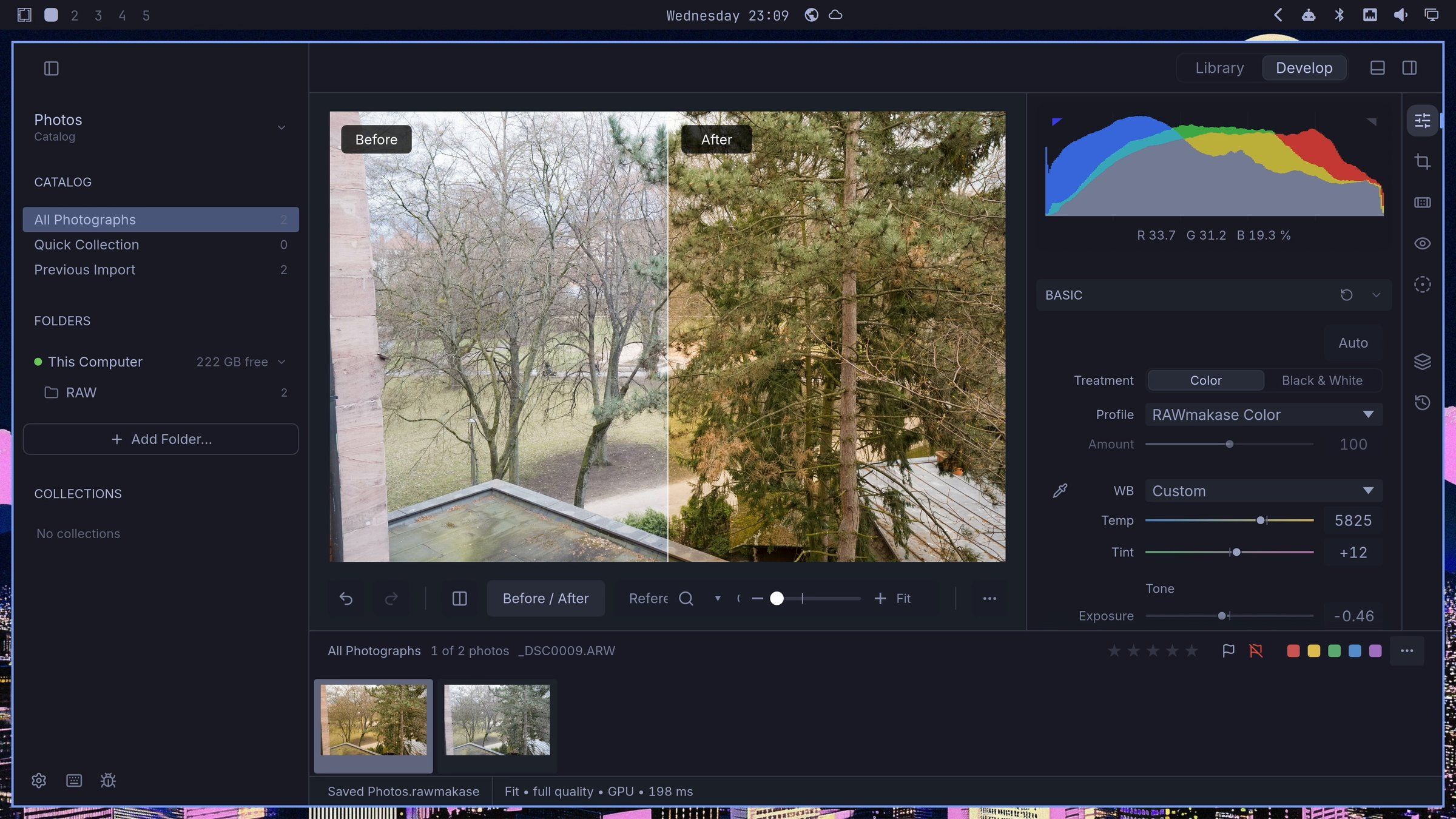
Add photo folder points RAWmakase at photos you already have; nothing is copied, moved, or changed. Develop renders the selected photo at full quality on the graphics chip, which took about two seconds on our Intel N100 mini PC. Auto makes a first pass, and dragging the Temp slider warms or cools the photo live.
shift y splits the view into Before and After, which shows what your edits changed. ctrl shift e exports a JPEG next to the RAW file, and the RAW file stays as it was.
Wayscriber for drawing on the screen
Wayscriber lays a drawing layer over any app, so you can scribble, box, and point at things while you present or record. Its GitHub page describes it as a “Live overlay for drawing, annotating, presenting with zoom, hiding text, and capturing screenshots on Linux.” It can also zoom in and freeze the screen.
Install Wayscriber from the AUR
Wayscriber comes from the AUR, the community package collection for Arch Linux. The README recommends the AUR for Arch-based systems and lists the prebuilt package first:
yay -S wayscriber-binThe README also lists yay -S wayscriber to build it from source, and yay -S wayscriber-configurator for an optional settings window. As of November 12, the newest version is 0.9.30.
Wayscriber has no shortcut of its own on Omarchy. We added super alt d with this line in ~/.config/hypr/bindings.lua. The --no-tray flag is the README’s option for desktops without a system tray, and --active opens the drawing layer right away:
o.bind("SUPER + ALT + D", "Draw on screen", "wayscriber --active --no-tray")For more on adding your own keys, see our guide to custom keybindings in Omarchy.
Pen, shapes, steps, and the laser
f picks the pen for a quick scribble, and ctrl z undoes it. Hold ctrl while you drag to draw a rectangle, and hold ctrl shift to draw an arrow. The step marker on the toolbar stamps numbered circles, 1, 2, 3, which suits a how-to or a bug report. It has no default key: click its icon on the toolbar, or press ctrl k and search for “step”.
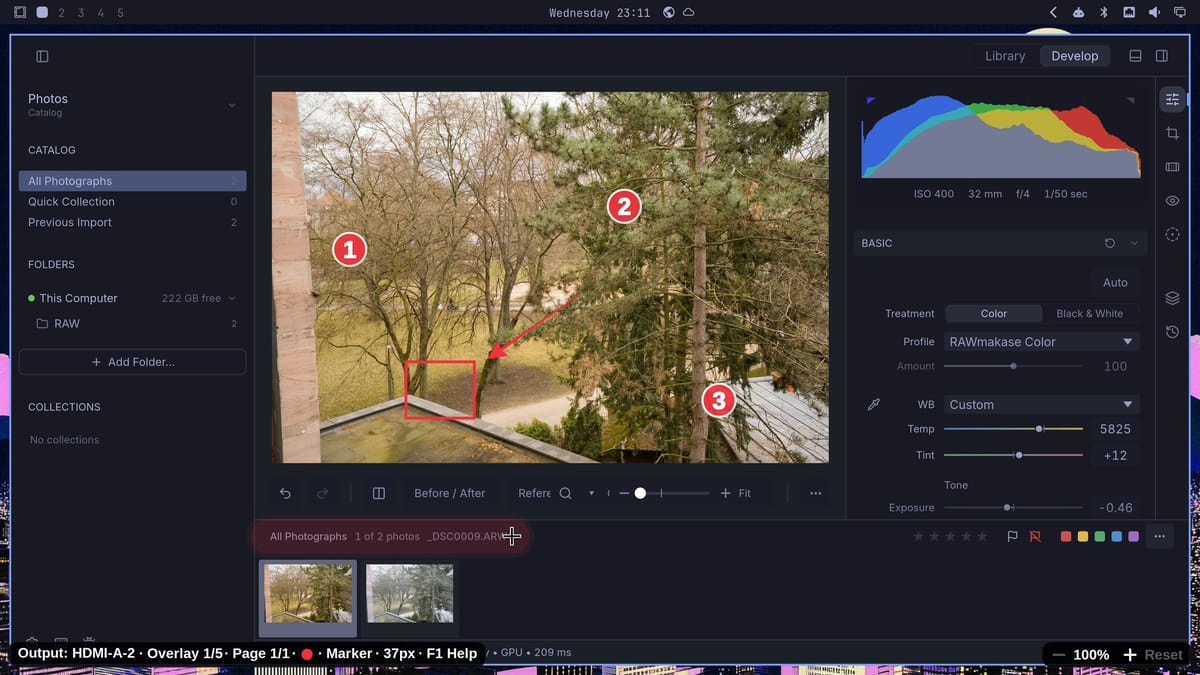
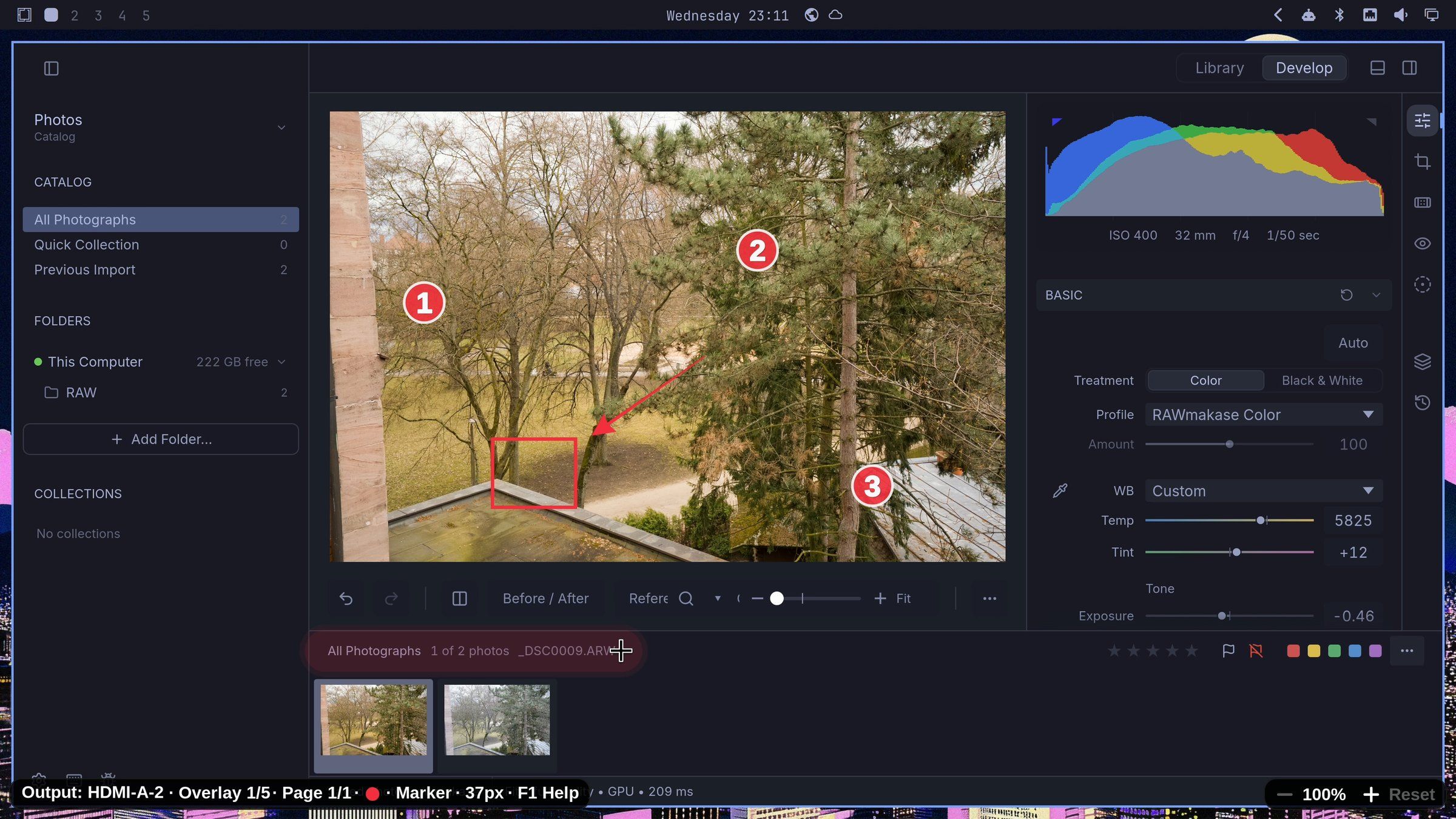
h switches to the marker, and l turns the pointer into a laser for pointing while you talk. e wipes the screen clean.
Concat for editing video
Concat is a free, open-source video editor that runs entirely on your computer, under the AGPL license. The README is clear about its stage: “Concat is in beta: it works, and it still has edges.”
Install the Concat package
The README lists Linux downloads for x86_64 and ARM: “.deb, .rpm, .AppImage and an Arch package.” For Omarchy, take the Arch package from the Concat releases page. The newest on November 12 was 0.2.10:
curl -LO https://github.com/jub0t/Concat/releases/download/v0.2.10/Concat-0.2.10-linux-x86_64.pkg.tar.zst
sha256sum Concat-0.2.10-linux-x86_64.pkg.tar.zst
sudo pacman -U ./Concat-0.2.10-linux-x86_64.pkg.tar.zst
The releases page shows a SHA-256 digest next to each file; check that it matches what sha256sum prints before you run pacman. A package installed from a file does not update with the system, so check the releases page for new versions.
Shape, cuts, titles, and export
A new project asks for its shape first, so a vertical video for a phone is one click, with no cropping later. Add clips to the timeline, and ctrl b splits a clip at the playhead. The Title style, under Text & Captions, puts words over the video, and they appear on the preview as you type.
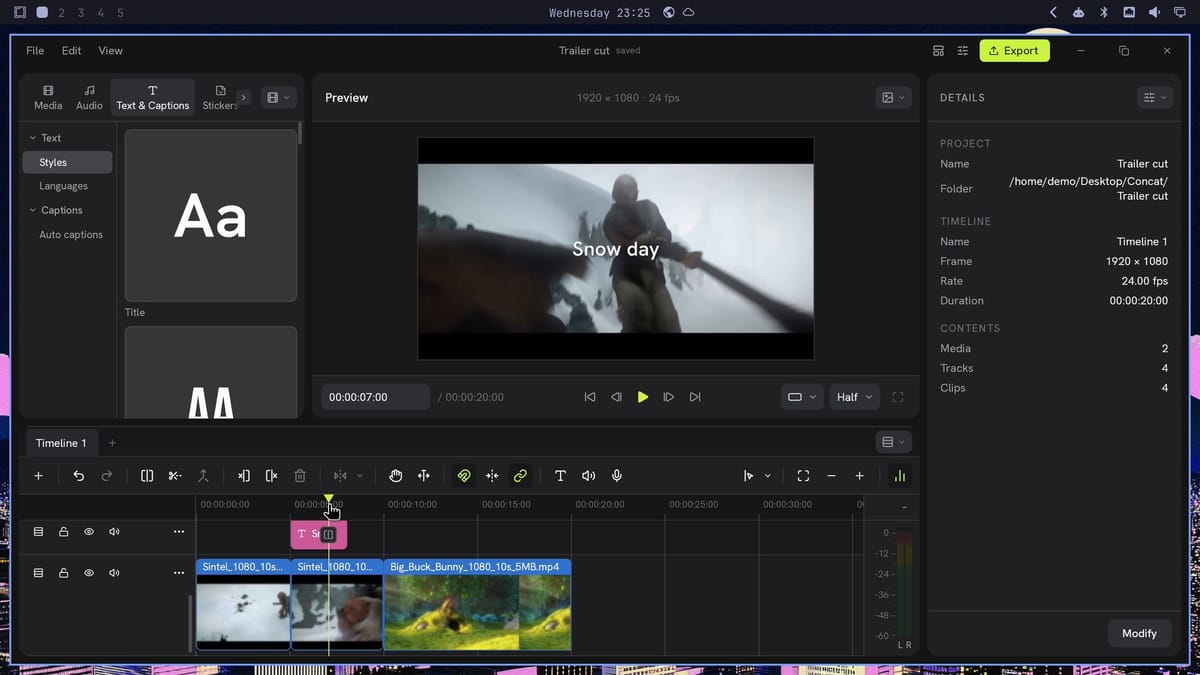
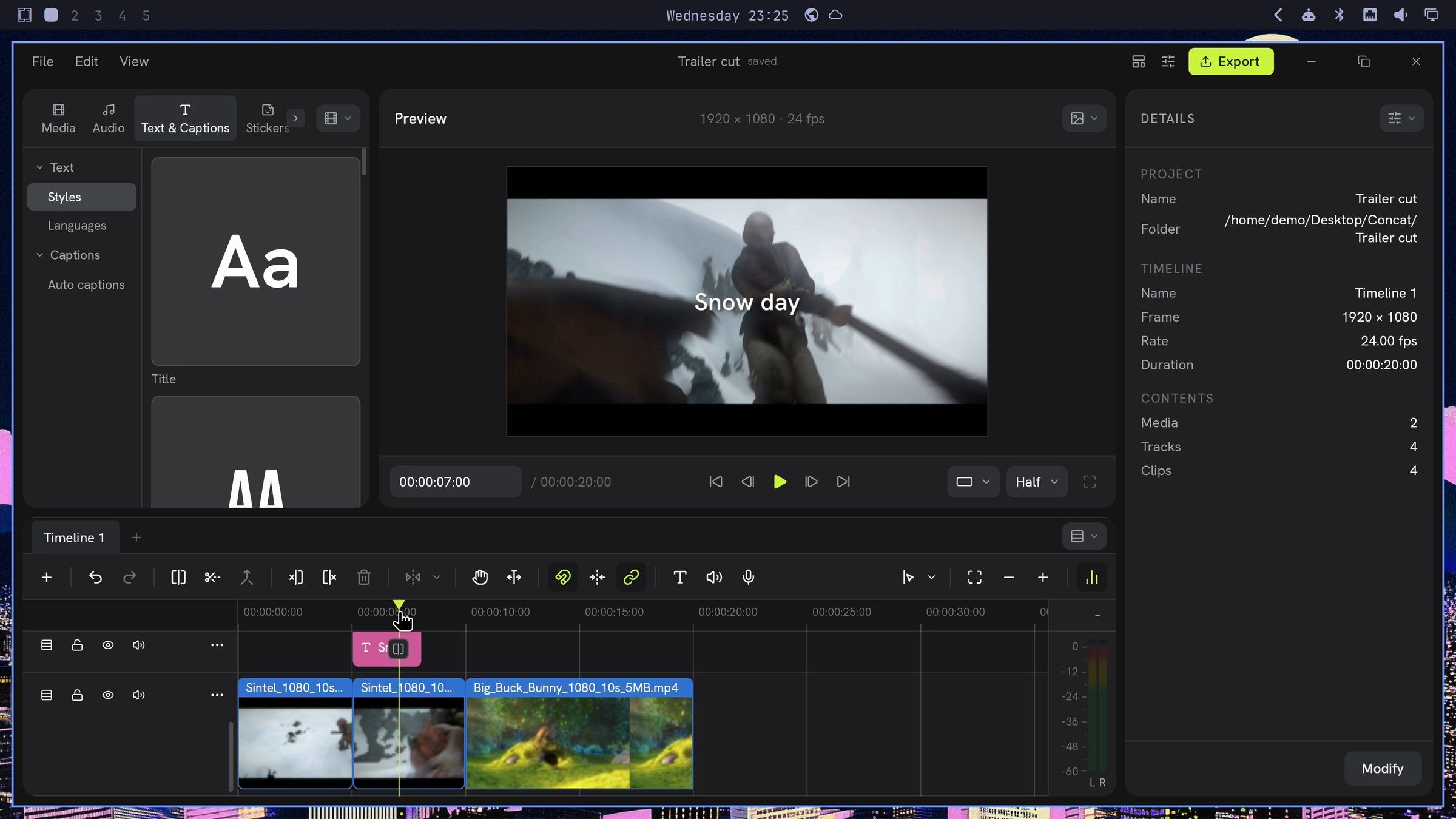
Export writes an H.264 file at 1080p with the processor’s built-in video encoder.
Have an AI agent read the install recipe
Three of these installs come from outside Omarchy’s own packages: the Quiet.md AppImage, Wayscriber from the AUR, and the Concat package file. Files comes from Omarchy’s edge repository and RAWmakase from its stable one. For the other three, read what you are about to run first; our guide to installing AUR packages safely shows how to read an AUR recipe.
An AI coding agent, such as the Codex CLI, can do a second reading for you. For Wayscriber, download the AUR recipe without installing it, then start the agent in that folder:
yay -G wayscriber-bin
cd wayscriber-bin
codex
Then ask:
Review this PKGBUILD before I install it: what it downloads and from where, the checksum, what it installs, and any install script. One short line each.For Concat, start the agent in the folder with the downloaded file and ask it to list what the package installs and whether it has an install script (pacman -Qip and bsdtar -tf show both without installing). For Quiet.md, ask it to compare the AppImage’s SHA-256 with the digest on the GitHub release. An agent can miss things, so use its answer as a check next to your own reading, not instead of it.
Which to try first
RAWmakase is the easiest start: one command from Omarchy’s own packages, and it updates with the system. Files lets you use the file manager Omarchy 4.6 is set to ship before 4.6 is out, or you can wait for 4.6 and get it as the default. Wayscriber suits anyone who presents or records the screen, Quiet.md suits quick notes kept on your own computer, and Concat covers short edits with no upload. Keep in mind that every one of them is below 1.0, and Quiet.md and Concat call themselves beta.


