
Paint.NET is a free image editor for Windows, with layers, adjustments, and a long list of effects. Its developer, Rick Brewster, now publishes a free Paint.NET package for Linux on GitHub. It isn’t a native port. In his words, “It’s not a ‘Linux port,’ it’s a rewrite of Direct2D so it doesn’t use the WINE version of Direct2D (which doesn’t work).”
This guide installs that package on Omarchy, sizes it for your screen, and adds it to the app grid. It also lists what worked and what didn’t in the full photo edit, shown in the video embedded above. The edit finished on an Intel N100 mini PC with no crash, but Brewster’s README calls the package “definitely ‘pre-alpha’” and says it’s for “early adopters who are comfortable with sharp edges.” Whether it becomes an officially supported version of Paint.NET, he writes, “is yet to be figured out.”
Why a .NET app needs Wine
Wine is a free tool that lets Windows programs run on Linux. Paint.NET is written for .NET, but it also draws with Direct2D, a part of Windows, and Brewster says, “Direct2D is what WINE can’t do. It handles Direct3D just fine (DXVK).” So this package is the Windows app in a “Wine mode” with its own Direct2D replacement written in C#. It carries its own copy of the Windows .NET runtime too, so Omarchy’s .NET packages play no part.
A native version isn’t close, by his account: he puts it at “5 years of concentrated work.” He credits Claude with writing the Direct2D replacement and the install scripts, and he moved that code out of the Windows package into this separate download. Paint.NET is free to use but not open source: its license forbids changes and derivative works, and the GitHub project holds only downloads and the issue tracker.
The versions used here
The steps below work from “the newest release,” because Brewster ships new builds often and each one expires.
| Item | Version |
|---|---|
| Paint.NET-on-Wine build | 5.200.9793.3533, published October 24, 2026 (from Paint.NET 5.2 Beta) |
| This build expires | January 16, 2027 |
| Wine this build requires | 11.20 or newer |
| Wine we ran | 11.20, the version Omarchy’s packages offered on November 4, 2026 |
| DXVK | 3.1.1, the version the install script downloaded |
| Omarchy | 4.5 with Hyprland 0.56.2 |
Brewster plans the final Paint.NET 5.2 for about the time of Microsoft’s .NET 11 release, and .NET Conf runs November 10 to 12. He has promised a new Wine build for every update of the standard package, so check the releases page for something newer than the table. Past builds have raised the Wine they require, and Arch’s own packages already have Wine 11.21, so if a new build asks for more than Omarchy offers, see “Update to a new build” below. Some other builds of Wine 11.20 have a known crash, fixed in 11.21. We didn’t hit it with Omarchy’s package.
What you need
You need Omarchy on an Intel or AMD 64-bit machine and your password, because the install runs sudo. The Paint.NET 5.2 release notes ask for a processor with AVX2 and at least 4 cores, plus a Direct3D 11 graphics chip. Under Wine, DXVK draws through Vulkan, so the chip should support it too. The download is about 150 MB, and it unpacks to about 360 MB, before Wine and its helpers.
Omarchy uses the Super key for its shortcuts, which is the Windows key on a PC keyboard. Our list of Omarchy shortcuts to learn first covers the menu and the terminal.
Install Wine and its helpers first
Omarchy doesn’t include Wine. The package’s install.sh can fetch what it needs, but it does so with sudo pacman -Sy, which refreshes Arch’s package list without upgrading the rest of the system. An open issue warns that this can break an Arch system. Putting the packages in yourself leaves the script nothing to install, though it still runs its pacman -Sy refresh.
Update Omarchy first with its own command. Omarchy refuses a plain sudo pacman -Syu. Then install the packages in the same sitting, in a terminal ( super enter ):
omarchy update
omarchy pkg add wine wine-mono winetricks cabextract wget vulkan-swrast vulkan-tools
wine --version
wine runs the app, and winetricks and cabextract let the script add DXVK, which turns Direct3D calls into Vulkan calls your graphics chip understands. vulkan-swrast is Mesa’s Vulkan driver for the processor, which shows up as llvmpipe. The README explains that Paint.NET uses it for software rendering, because the software Direct3D device on Windows doesn’t exist under Wine.
Don’t skip wine-mono. Without it, install.sh stopped on a dialog that says “Wine could not find a wine-mono package…”, with Cancel and Install buttons, and it waited there until someone answered. With the package in place, the dialog never appeared.
If you installed Lutris from Omarchy’s menu, you already have wine-staging, which conflicts with wine. Run pacman -Q wine-staging to check, and leave wine out of the line above if it’s there.
Download and unpack the zip
Open the releases page and download the newest file ending in portable.x64.wine.EXPERIMENTAL.zip, not the arm64 one. The zip has no top folder, so give it one of its own. The folder has to stay writable, because the app keeps its settings beside its program files.
mkdir -p ~/.local/share/paintdotnet/app
cd ~/Downloads
unzip -q paint.net.*.portable.x64.wine.EXPERIMENTAL.zip -d ~/.local/share/paintdotnet/app
cd ~/.local/share/paintdotnet/app
If an older zip is still in ~/Downloads, that pattern matches both files, so type the full name of the new one instead.
Read install.sh, then run it
The script runs package commands with sudo, so read it first with less install.sh. If you have an AI coding agent installed, it can read the script as a second check, for example with this prompt: “Review install.sh and paintdotnet.sh before I run them: what they download, what they run with sudo, and what they change. One short line each.” An agent can miss things, so treat its answer as a check next to your own reading.
On Omarchy, install.sh does these things in order:
- Looks for Wine and compares it with the minimum version, and installs
winewithpacman -Syif it’s missing or too old. - Runs
pacman -Sy --neededforwinetricks,cabextract, andwget. - Runs the same for
vulkan-icd-loader,vulkan-swrast, andvulkan-tools, then checks thatvulkaninfolists llvmpipe. - Creates a Wine prefix at
~/.local/share/paintdotnet/wineprefix. A prefix is a folder that holds a private Windows setup for one app. - Sets that prefix to Windows 11 and turns on ClearType text.
- Runs
winetricks -q dxvk, which downloads DXVK from GitHub. If that step fails, the script only warns, but people without DXVK reported crashes at startup. - Prints a summary.
With the packages already in, it took 24 to 25 seconds here.
./install.sh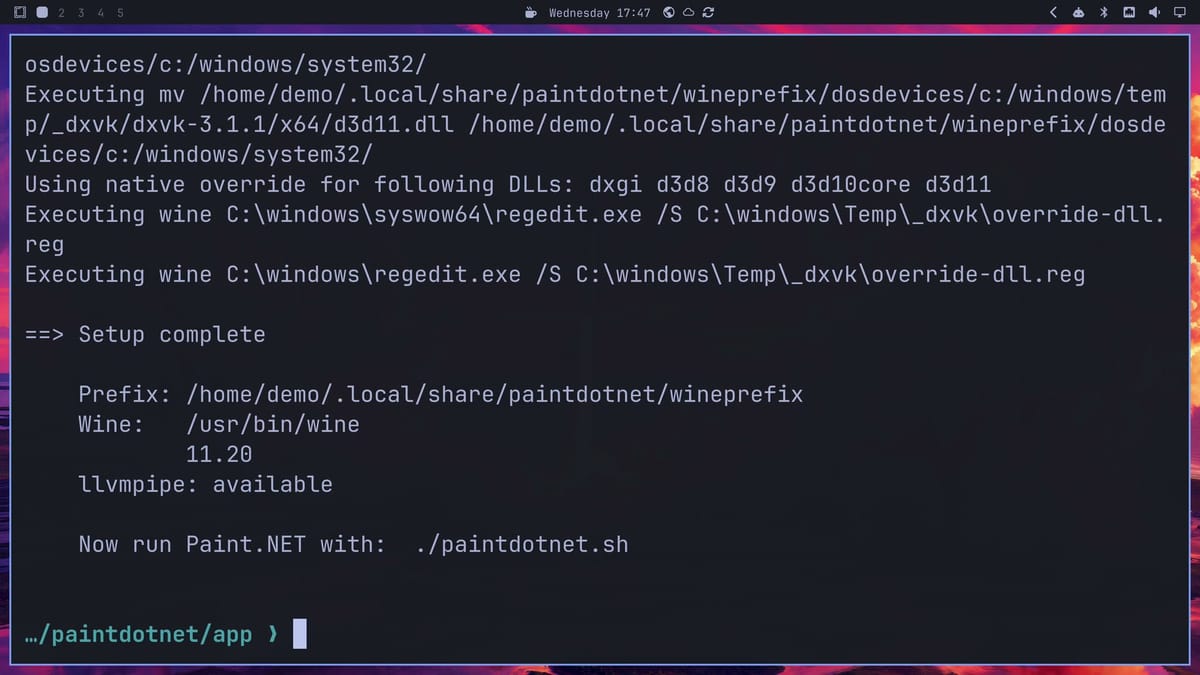
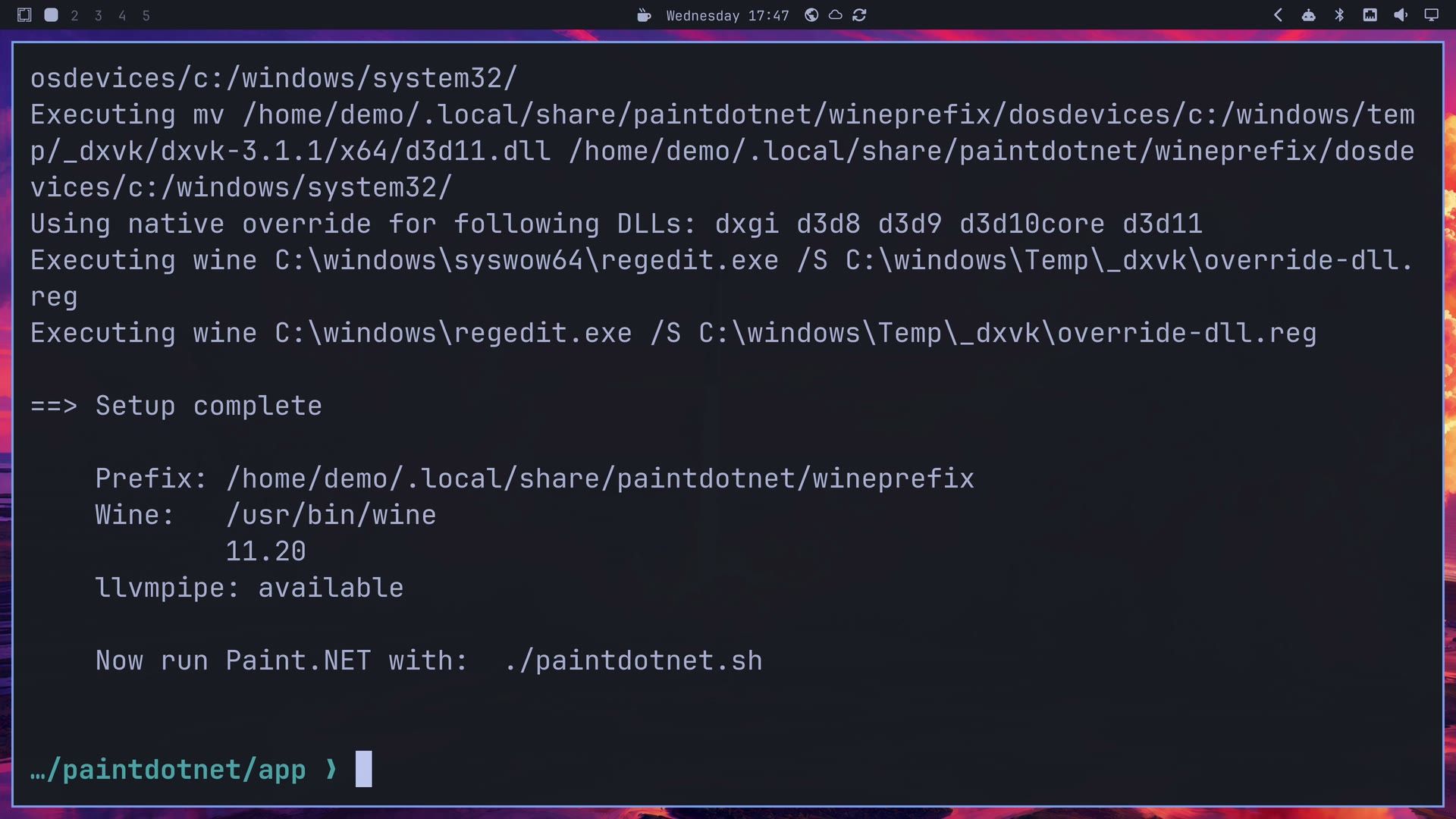
You want “Setup complete” and llvmpipe: available at the end. A prefix doesn’t wall the app off from your files: Wine shows your whole Linux file system as drive Z:, and Windows programs can read it. That’s why the file dialog can reach your Pictures folder, and it’s also why the usual care about what you run still applies.
Size it for your screen before the first launch
Wine draws Paint.NET at 96 DPI unless told otherwise, and Omarchy doesn’t scale these windows for you, so on a 4K screen the app would draw small. Set Wine’s DPI to 96 times your Omarchy scale. Run hyprctl monitors | grep scale to read the scale.
| Omarchy scale | Value |
|---|---|
| 1 | 96 |
| 1.25 | 120 |
| 2 | 192 |
| 3 | 288 |
We used 288 on a 4K screen at scale 3, and that’s the only value we tried. Text came out sharp, and Paint.NET reported “3.00x (288 DPI)”. We set it before the first launch, so we never saw the default size. Change the 288 here if your scale differs:
export WINEPREFIX="$HOME/.local/share/paintdotnet/wineprefix"
wine reg add 'HKCU\Control Panel\Desktop' /v LogPixels /t REG_DWORD /d 288 /f
wineserver -w
To start the app from this folder, run ./paintdotnet.sh. For a dark look, click the gear icon for Settings, open User Interface, and set Color Scheme to Dark. It changes at once, and we used it to suit our Omarchy theme.
Add Paint.NET to the app grid
Neither script adds a menu entry or an icon, so write them yourself. The zip has only a Windows icon file. Its frame 4 is the 256 pixel one in the build we used, and magick is already on Omarchy. If a later build’s icon looks small, magick identify lists the frames.
cd ~/.local/share/paintdotnet
magick 'app/paintdotnet.ico[4]' paintdotnet.png
mkdir -p ~/.local/share/applications
cat > ~/.local/share/applications/paintdotnet.desktop <<EOF
[Desktop Entry]
Type=Application
Name=Paint.NET
Comment=Image and photo editor (experimental Wine build)
Exec=$HOME/.local/share/paintdotnet/app/paintdotnet.sh %f
Icon=$HOME/.local/share/paintdotnet/paintdotnet.png
Categories=Graphics;2DGraphics;RasterGraphics;
MimeType=image/png;image/jpeg;image/bmp;image/gif;image/tiff;image/webp;
StartupWMClass=paintdotnet.exe
Terminal=false
EOF
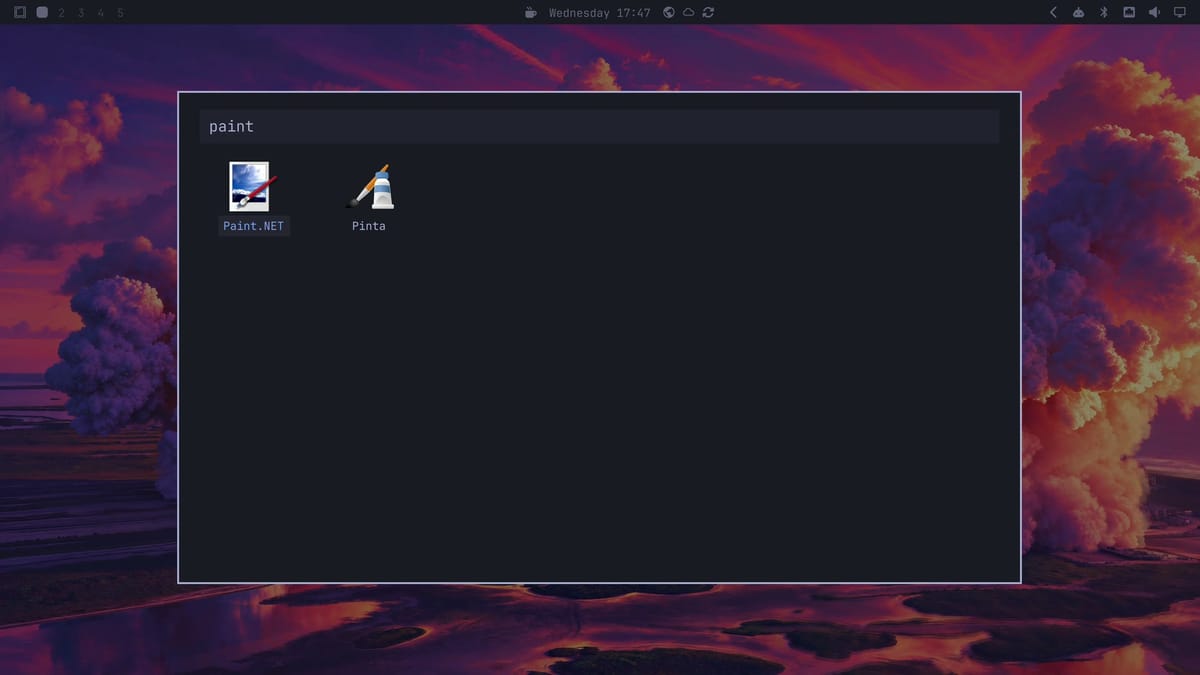
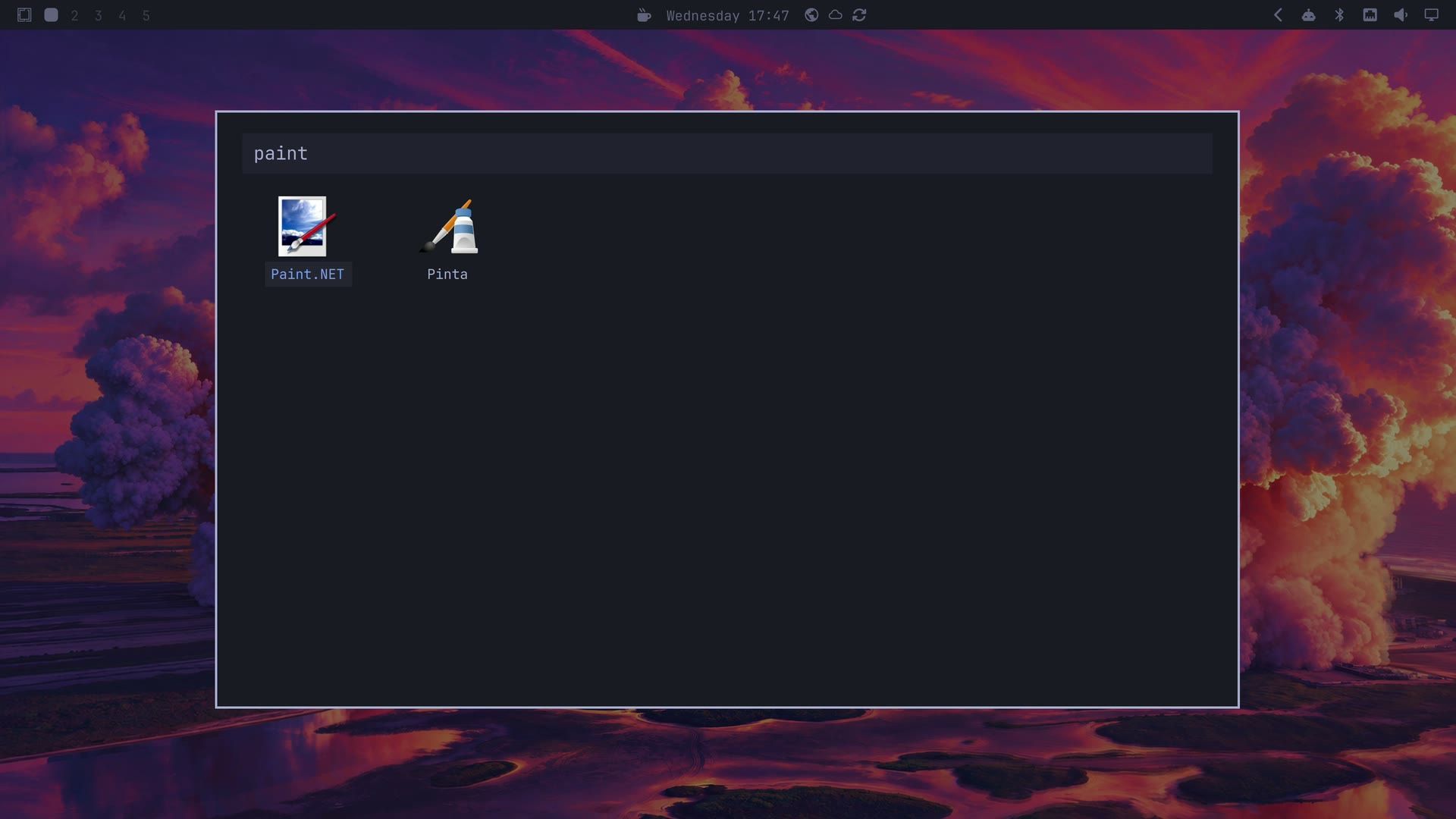
Press super alt space to open the app grid and type paint. Paint.NET shows up beside Pinta, and enter starts it. The entry also lists Paint.NET as an option for those image types, untested from Files’ Open With, and it doesn’t set itself as their default.
What worked in a full photo edit
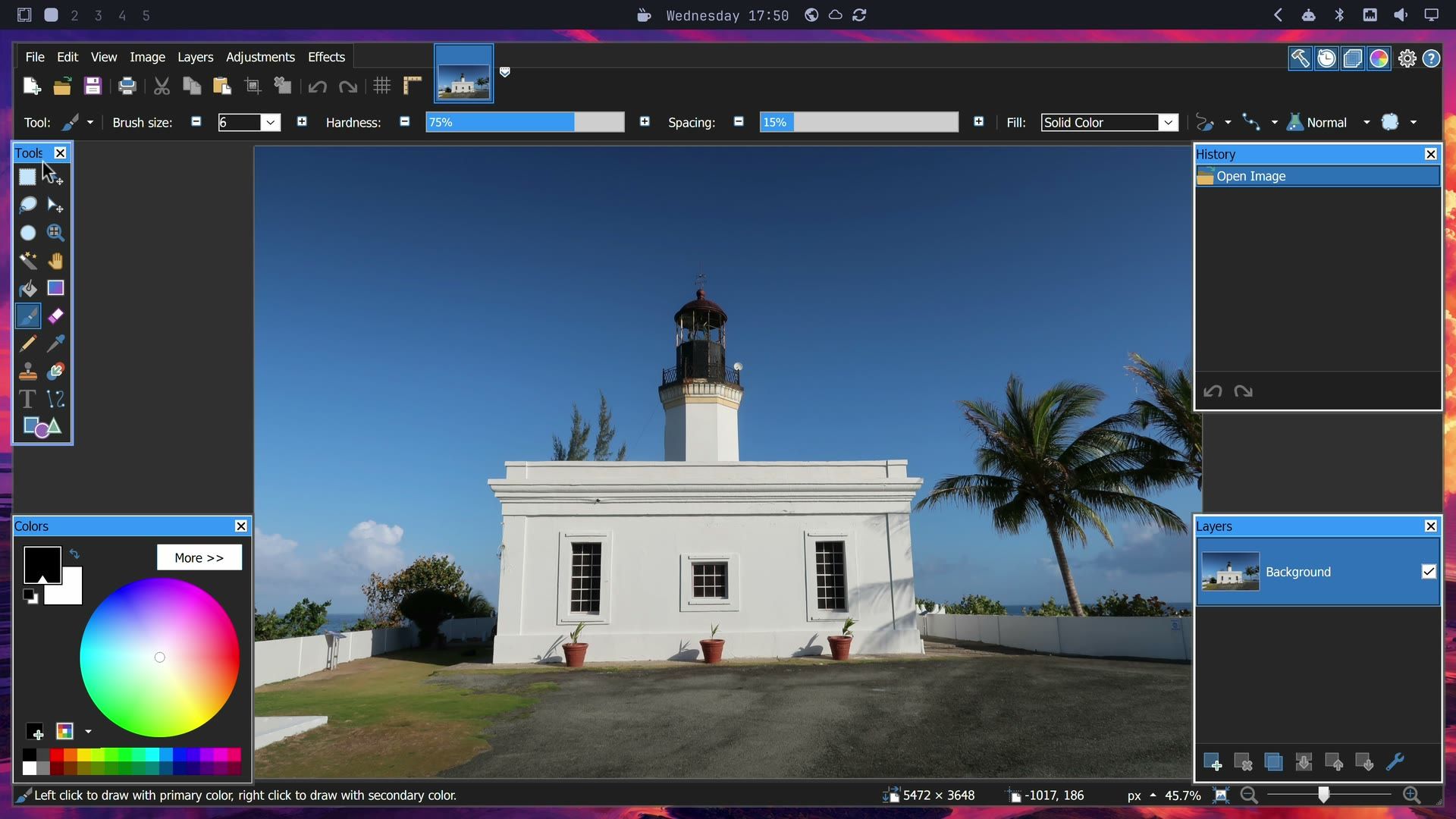
We took one 20 megapixel JPEG through a complete edit several times, with no crash. It’s the same Paint.NET, with the same menus and shortcuts. The Tools, History, Colors, and Layers windows float over the main window, and every click on them worked where they open. Wine’s file dialog looks old but reads fine at this size.
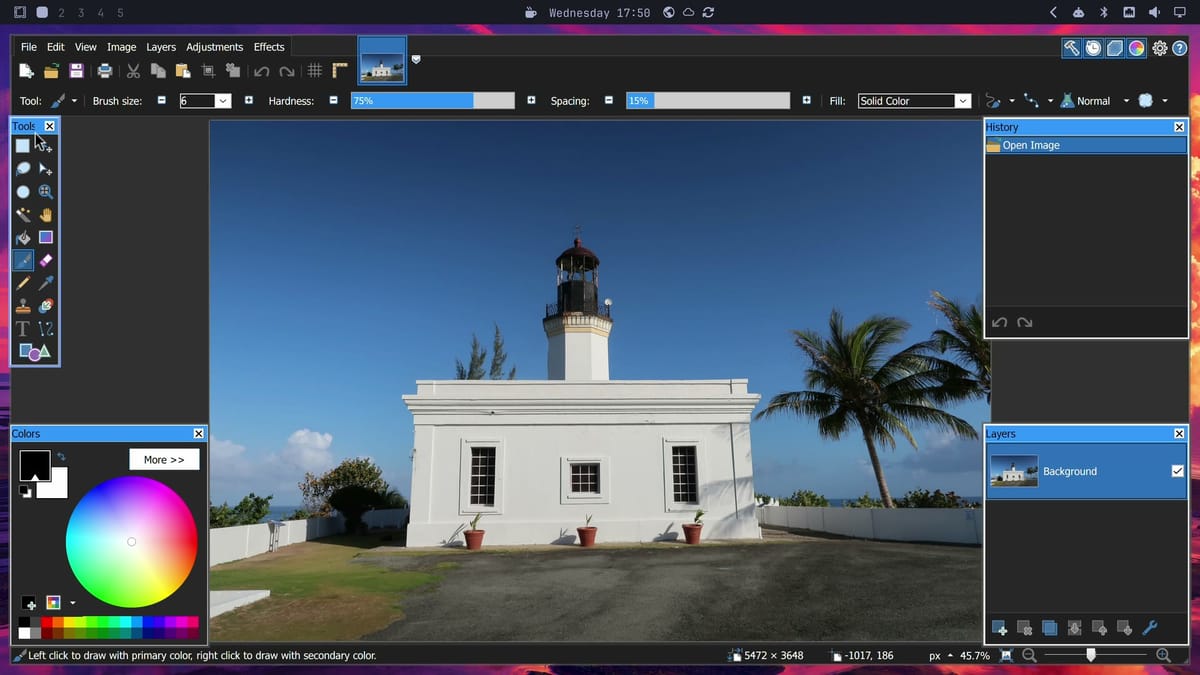
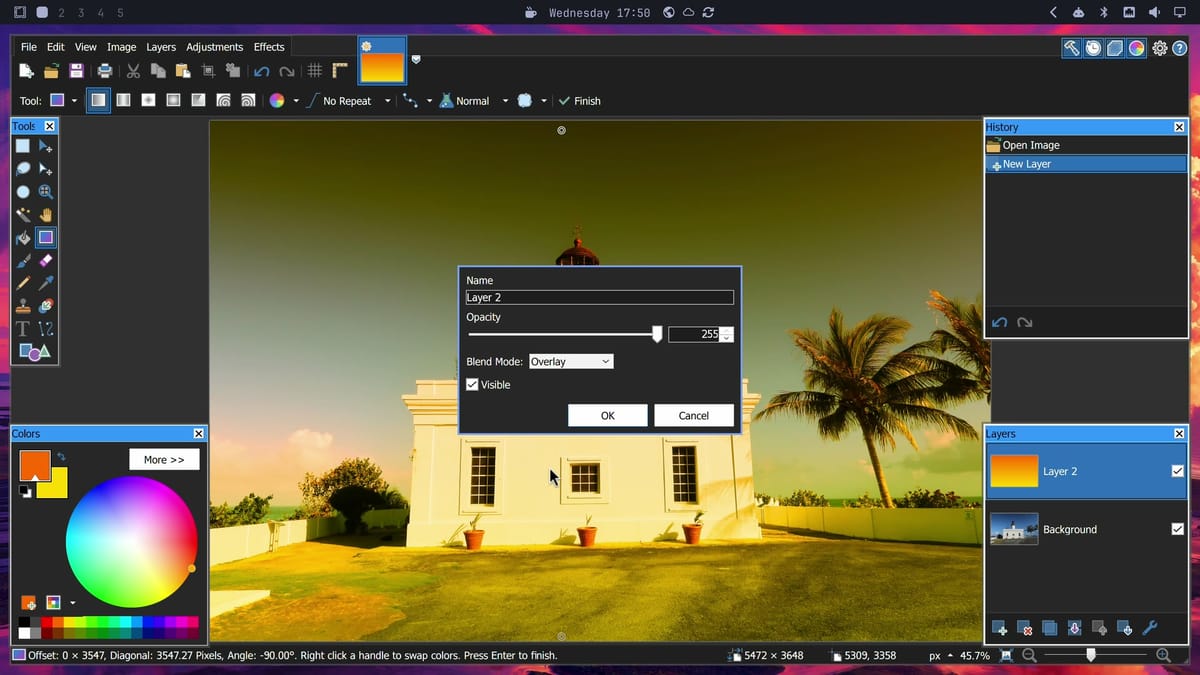
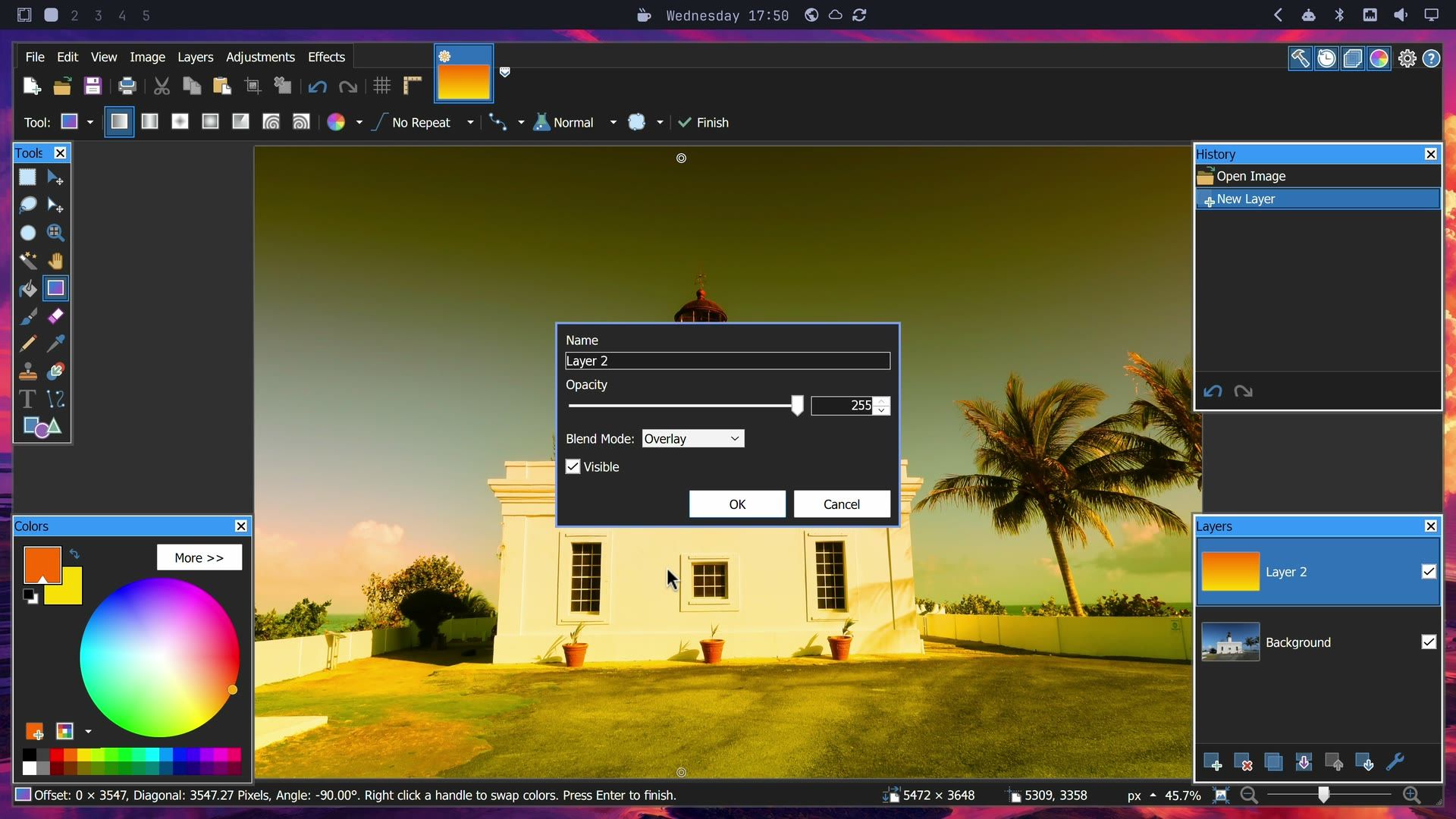
Layers and blend modes work, and Layer Properties shows each mode on the photo before you click OK. We added a layer, filled it with an orange to yellow gradient, and set it to Overlay. The list runs from Normal to Xor, 14 modes in all.
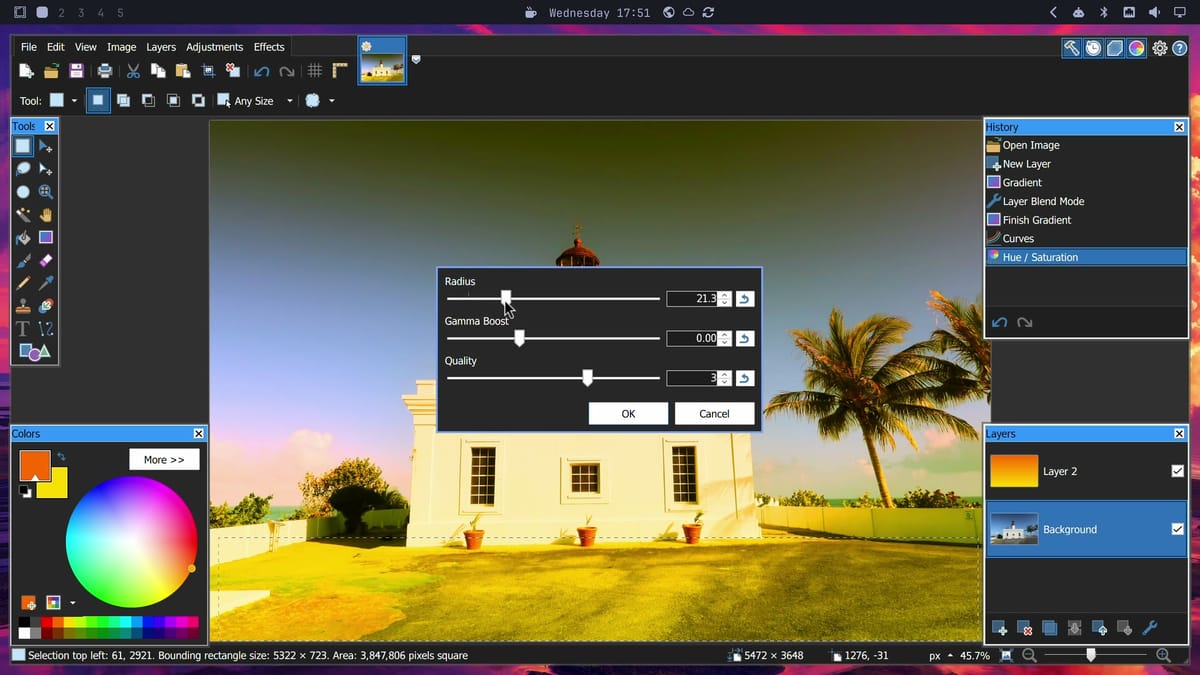
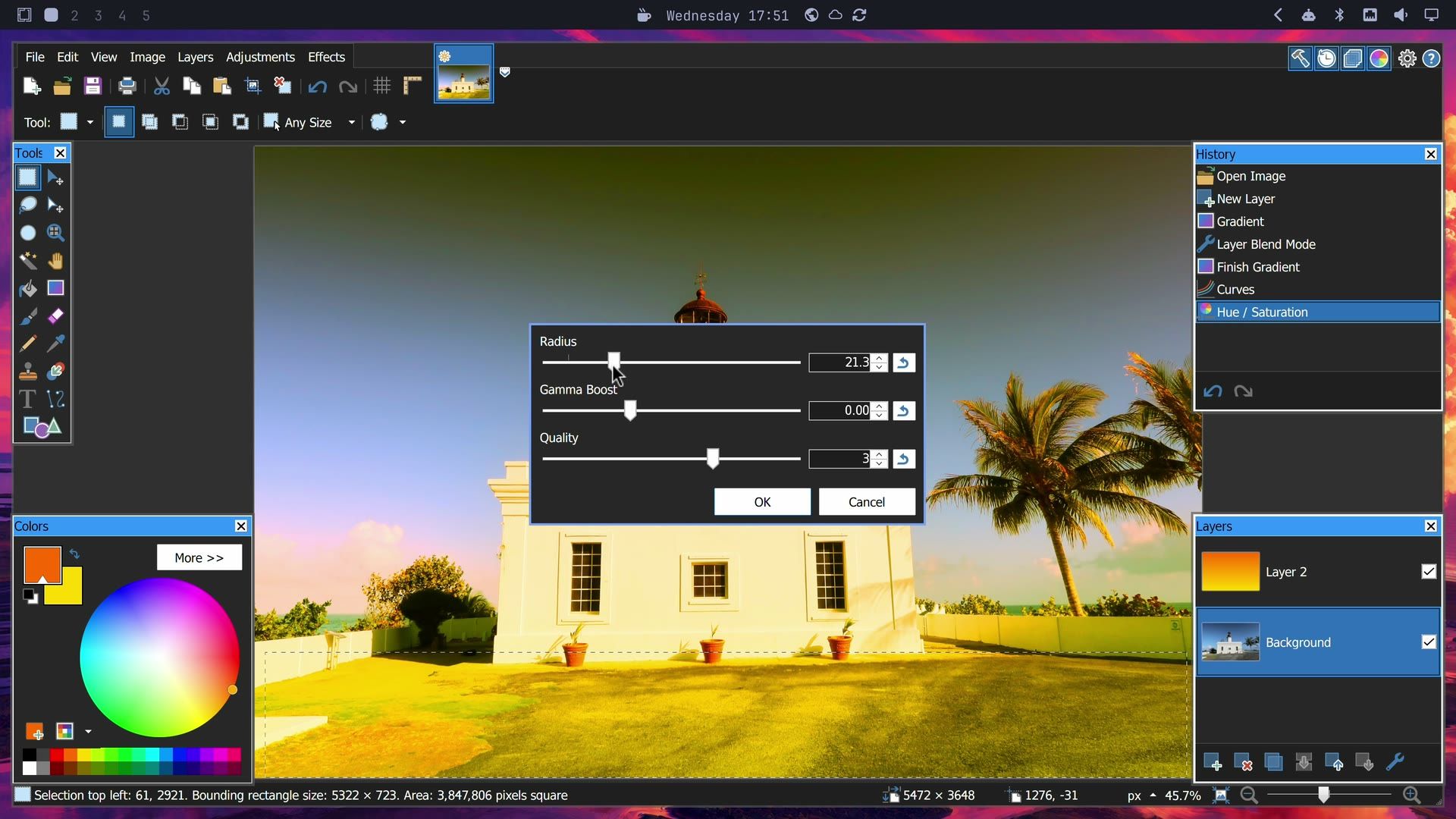
In Adjustments, Curves and Hue / Saturation both redrew the photo as we dragged. A small lift is enough: the finished photo below raised the middle of the curve from 127 to 149, and about twice that lift blew out the white walls. Auto-Level ran and Levels opened with no crash, though both had crash reports earlier (#37, #38, now closed). The Effects menu has nine groups, and Blurs alone has ten. Gaussian Blur on a selection redrew live under its dialog. On the whole 20 megapixel image at radius 74, it took 2 to 3 seconds to redraw after each drag.
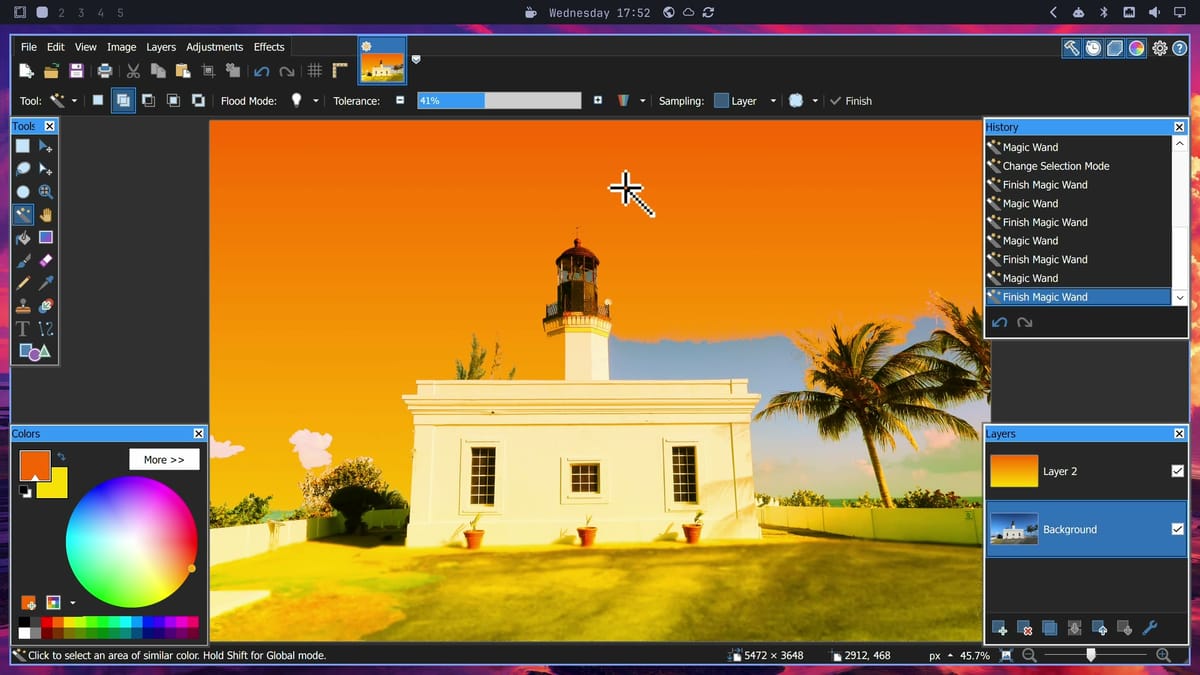
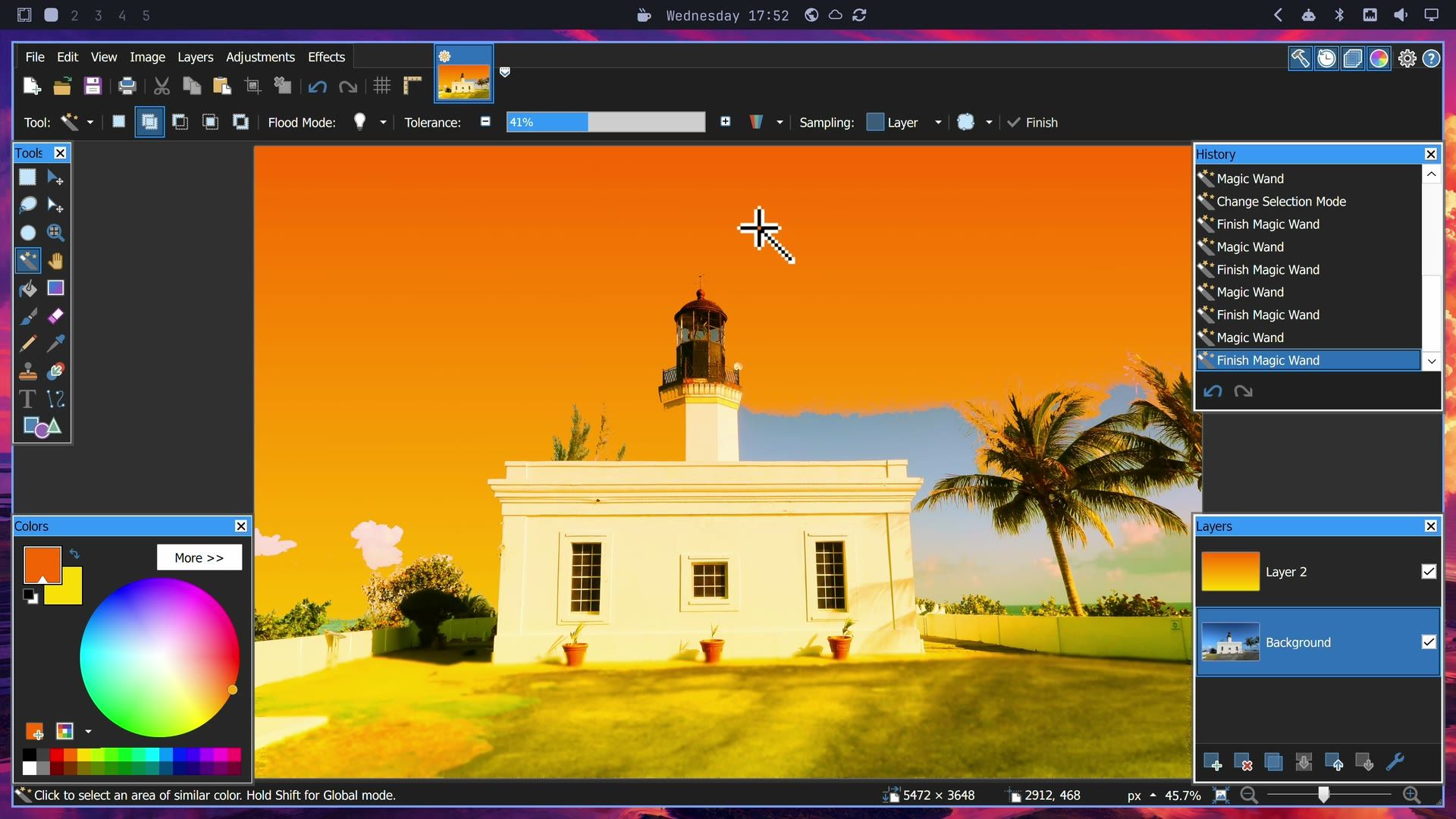
Magic Wand selects by color, with Tolerance and an Add mode for building up a selection, and Delete erased the sky so the gradient layer showed through. The wand left a small cloud and a pale band of sky at the Tolerance we used.
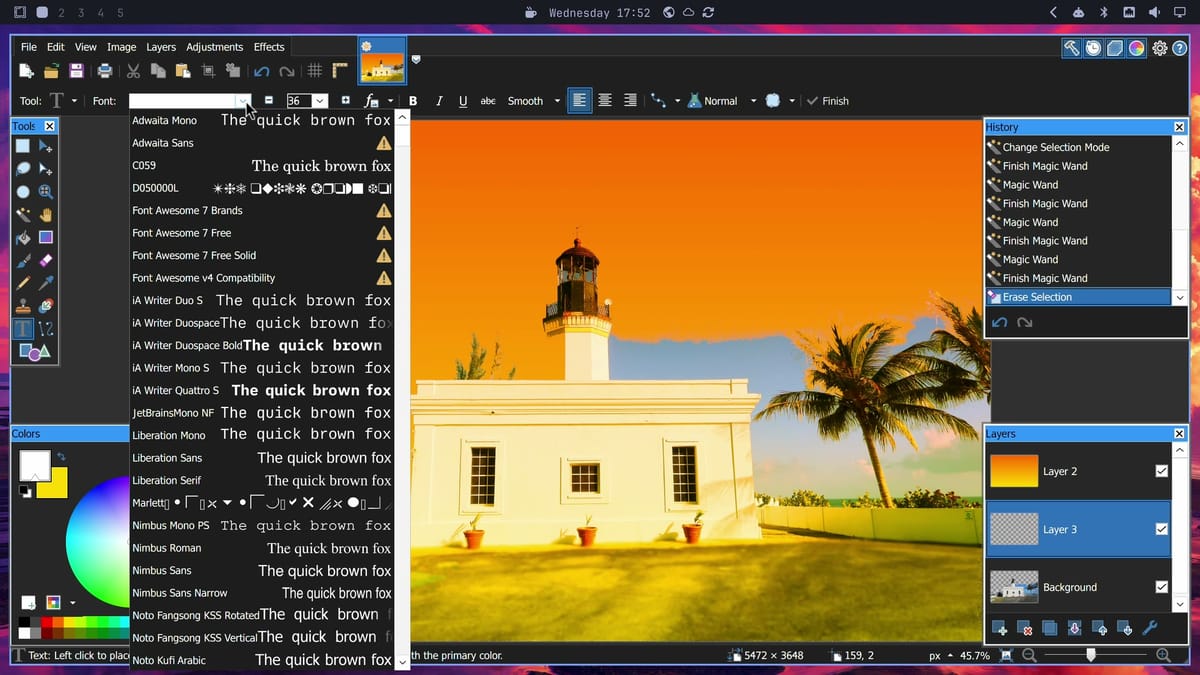
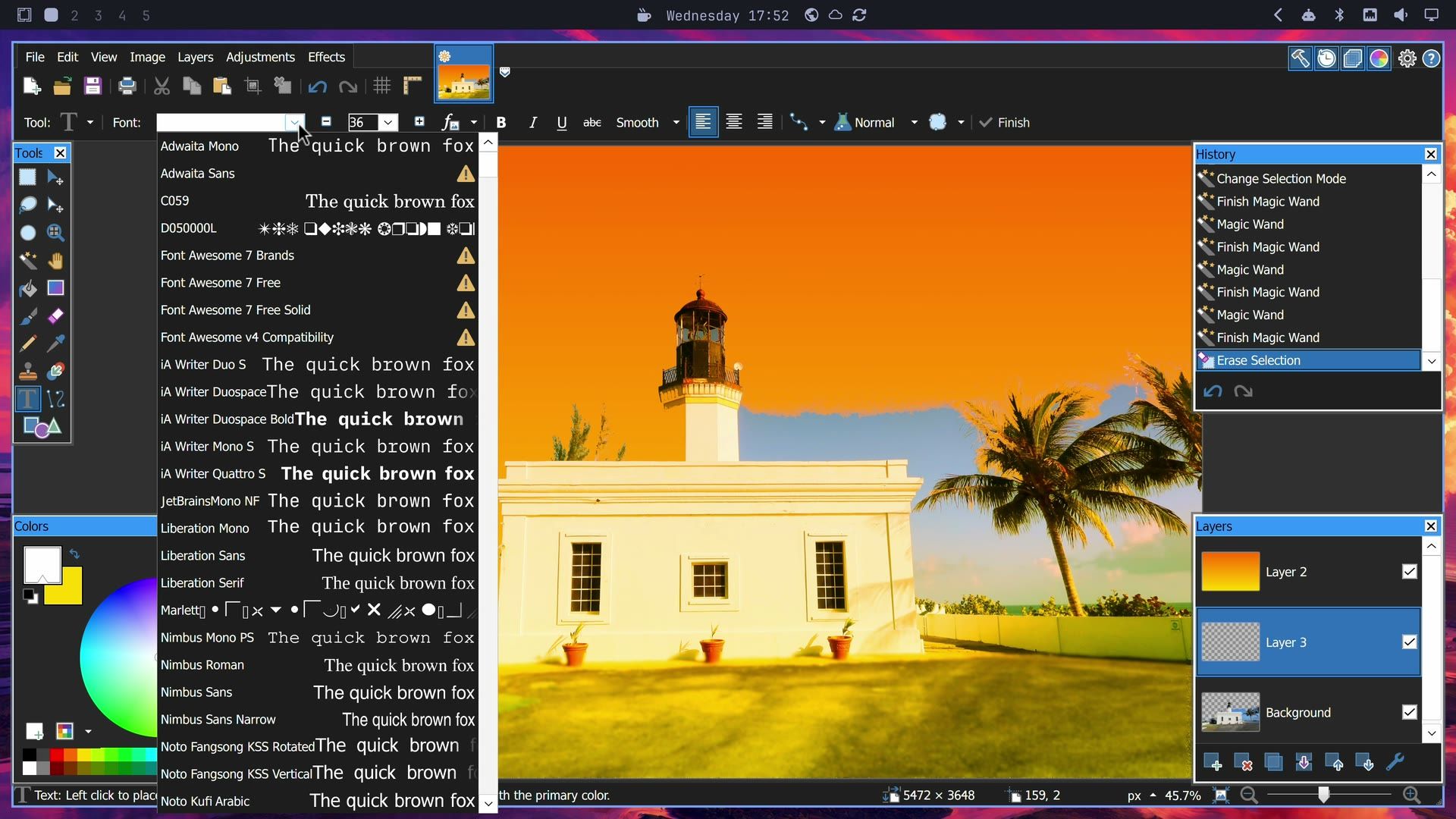
The Text tool lists your Linux fonts, most with a sample line. Liberation, Noto, iA Writer, and JetBrainsMono NF were all there, and we used the last for a title on its own layer. A few rows carry a warning triangle, and Font Awesome fell back to a plain sans face, so pick another font if a row shows one.
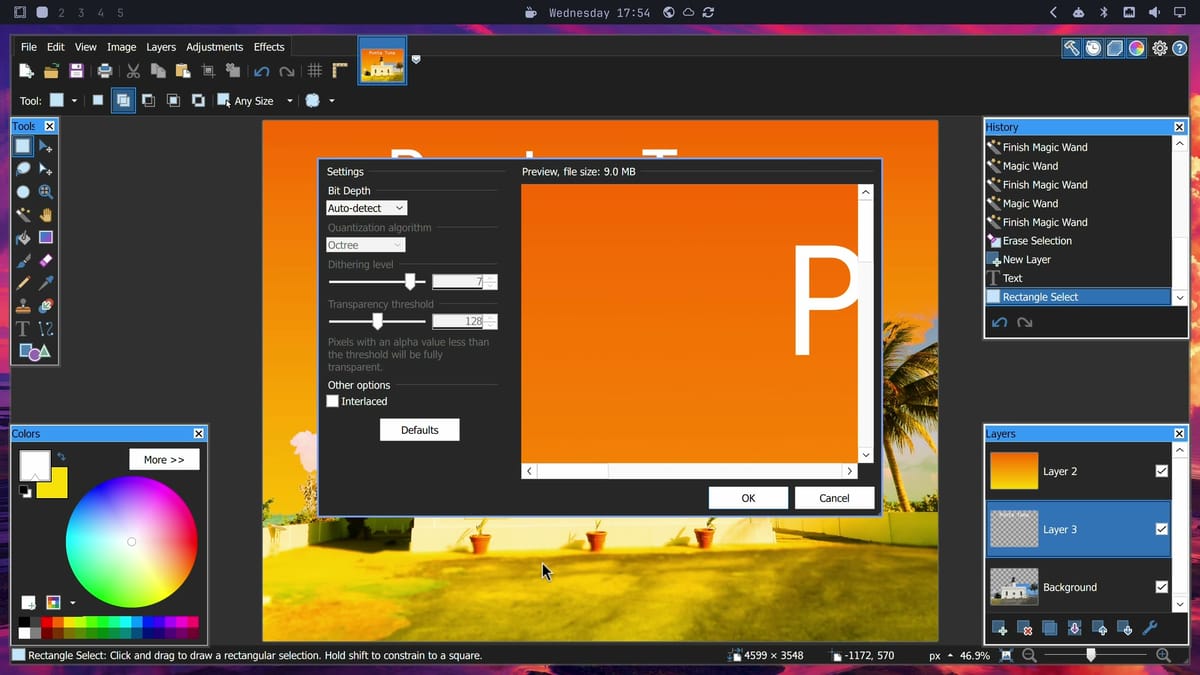
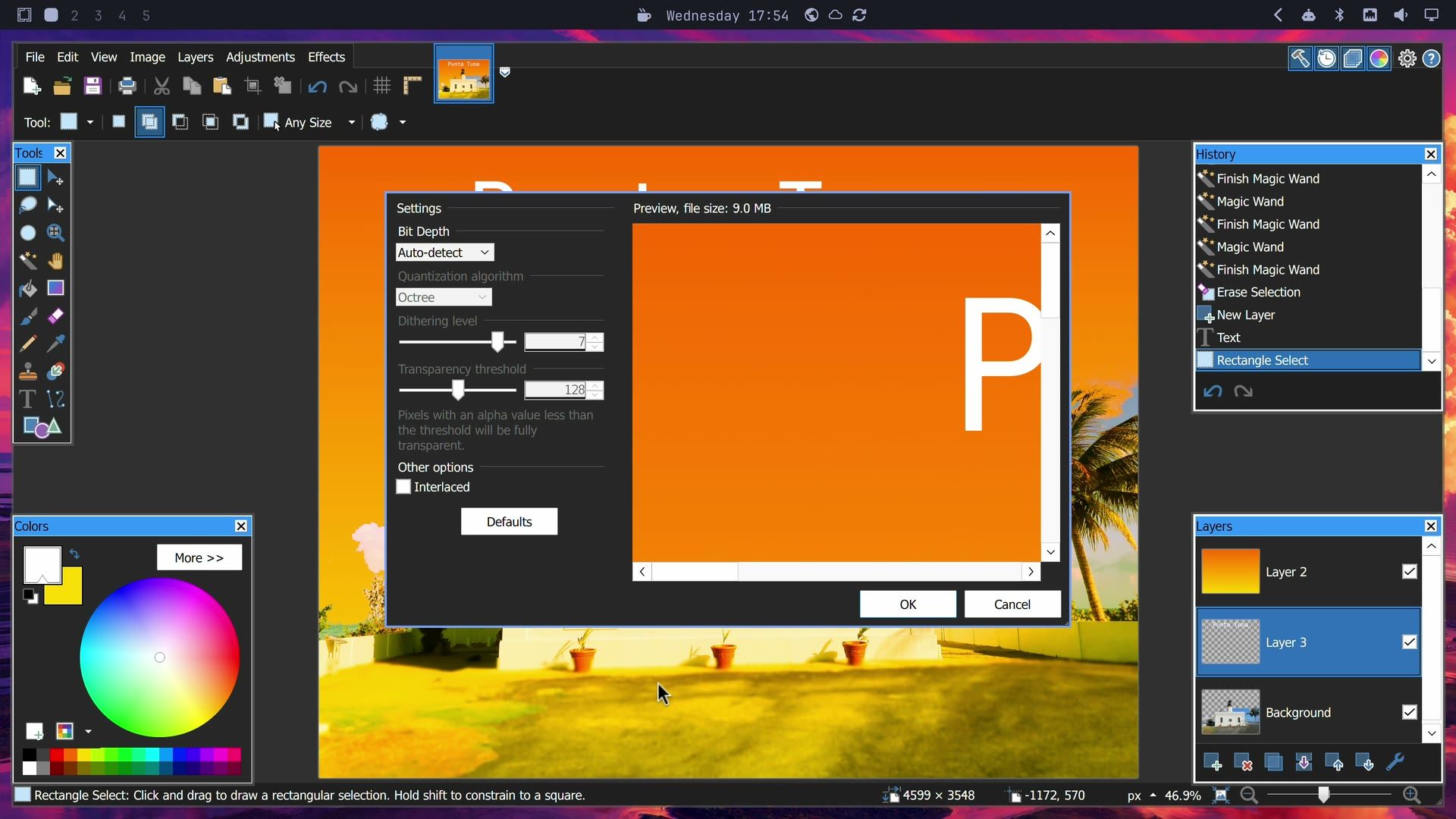
Crop to Selection is ctrl shift x , as the Paint.NET documentation lists it for Windows. Save the layered .pdn file first, because PNG and JPEG hold one layer and prompt you to flatten. Both of those formats open Save Options, with a preview and the file size before anything is written.
The three files landed in Pictures, and the PNG and the JPEG both came out right when we checked them. Brewster said only in late October that “PNG and JPEG are now fully operational.” We saved only as PDN, PNG, and JPEG; Save As also lists JPEG XL, AVIF, WebP, DDS, TIFF, GIF, BMP, and TGA.


The clipboard works from Linux into the app. Print Screen opens Omarchy’s screenshot tool, and dragging over an area saves it and copies it. Back in Paint.NET, ctrl alt v pastes it as a new image at full size, and the photo stays open as a thumbnail along the top. Red brush strokes on that screenshot followed the pointer with no visible stall. We didn’t measure a frame rate.
The lighthouse photo is Punta Tuna Lighthouse by BrickLightning, released under CC0.
Brewster says GPU plugins work, and we didn’t test them
Paint.NET takes third-party plugins, and the package has empty Effects, FileTypes, and Shapes folders for them. The release notes for the build we used say “GPU effect plugins that use ComputeSharp.D2D1 will now work,” though the README still says those plugins aren’t supported yet. We didn’t run a GPU plugin, so this is Brewster’s claim.
How it runs on an Intel N100
We ran all of this on a GMKtec NucBox G2, a small PC with a low-cost Intel N100 and 12 GB of memory, driving a 4K screen. The memory numbers come from free, and the swap stayed unused in every run.
| What | Result |
|---|---|
| App start, from Settings, Diagnostics | 3.7 to 4.1 seconds |
| Memory used, desktop alone | 2.5 GB |
| Memory used, Paint.NET open with an empty canvas | 4.2 to 4.5 GB |
| Memory used, the edited photo and a screenshot open | About 7 GB, with 4.3 GB available |
| Most memory we saw, at the crop | 8.0 GB used, 3.6 GB available |
| Opening a 20 MP JPEG | Part filled at 10 seconds, complete by about 18 seconds |
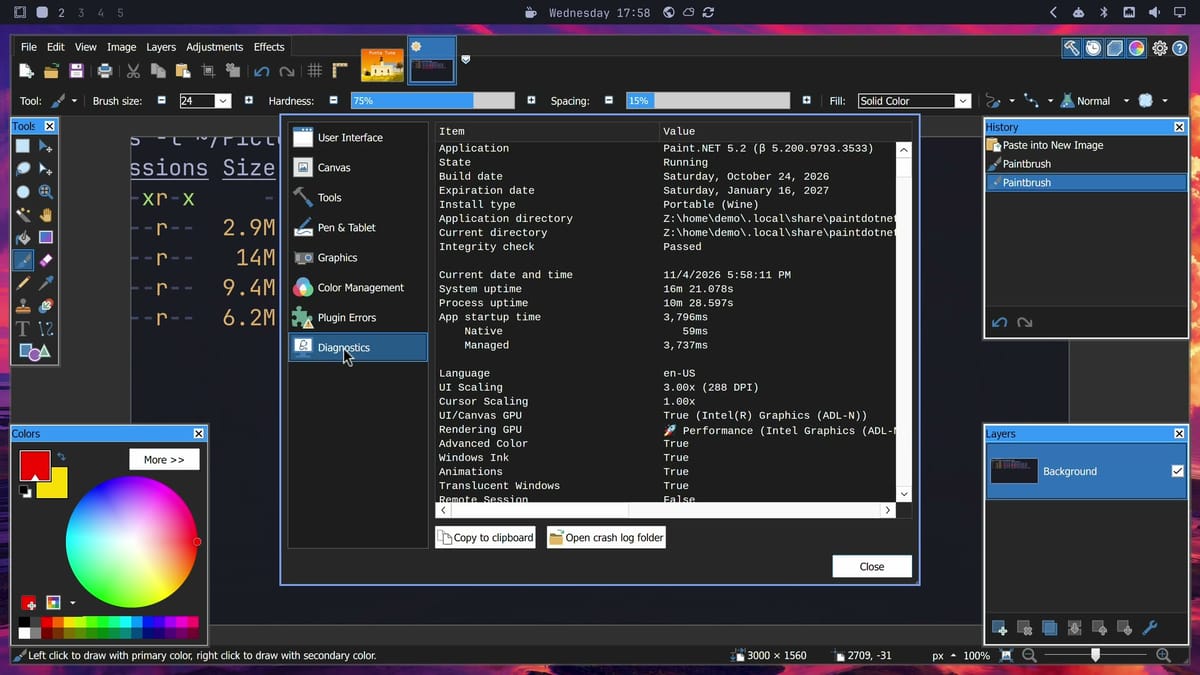
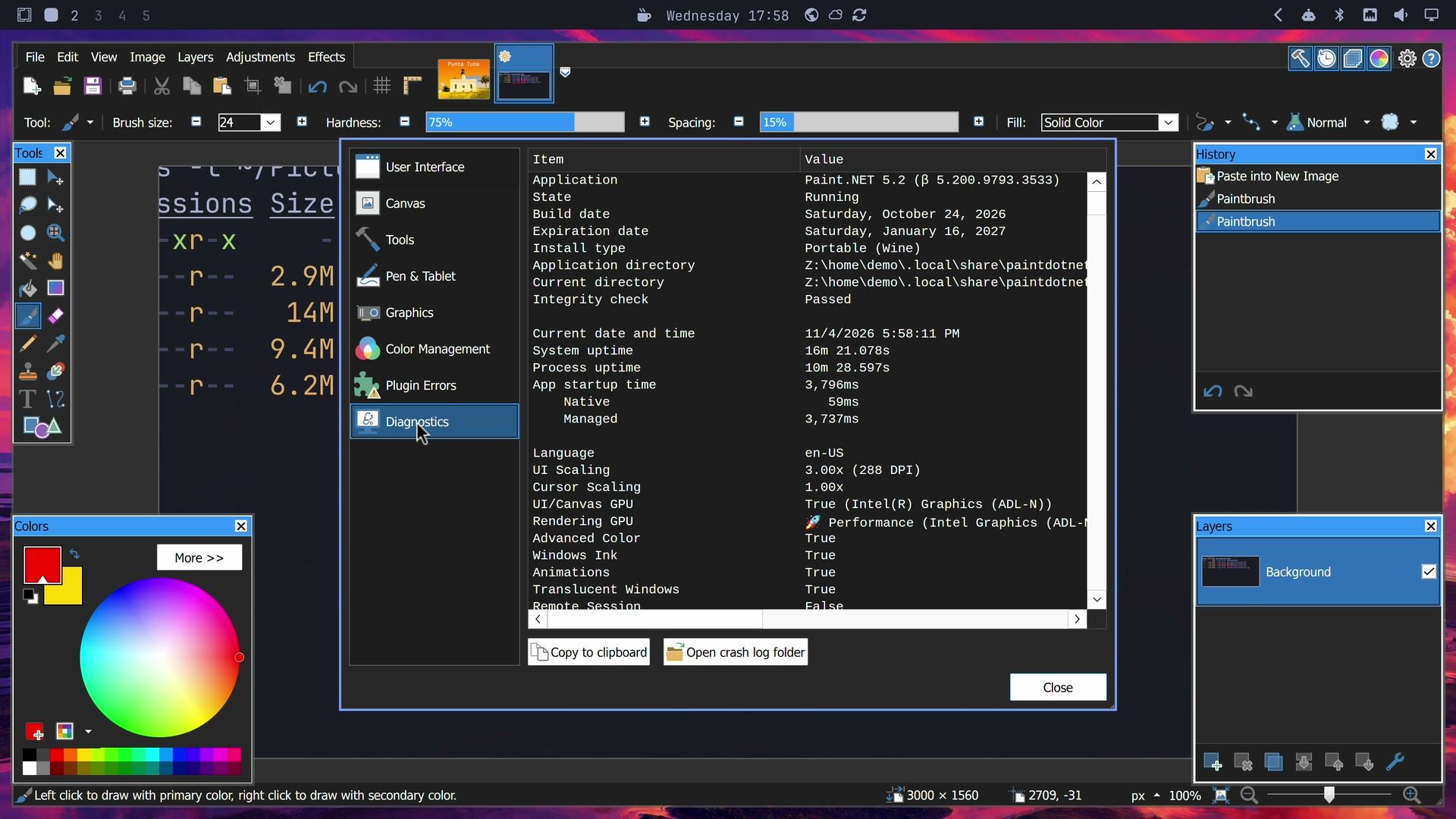
Diagnostics also shows whether the canvas is on your graphics chip. Ours read True (Intel(R) Graphics (ADL-N)). We didn’t test a long session, so memory after hours of work is unknown. The README says “Performance isn’t as good as the native Windows build, but has also been making rapid progress.”
What is rough, and what doesn’t work
These are the things we saw ourselves on the build listed under “The versions used here.” The drag and drop hang forced us to close the app; the others didn’t stop the edit, and nothing crashed.
| What we saw | Details | What to do |
|---|---|---|
| Drag and drop from Files | The “What would you like to do with the file?” prompt appears, then ignores every click. After more than 80 seconds we forced the app closed. #59 reports a freeze and then a crash | Use File, Open |
| A photo fills in pieces | A grey checkerboard fills in stages after opening, cropping, or undoing on a 20 MP photo | Wait |
| The canvas waits for input | The wand’s outline and a part-filled view sometimes stayed as they were until the pointer moved | Move the pointer a little |
| Dragging a tool window | Dragging the Tools window by its title bar didn’t move it, 2 of 2 tries. Clicks in it kept working | Leave them where they open |
| Tool window edges | A drag that started right next to the Colors window appears to have grabbed its border and made it fill the screen | Start drags away from the edges |
| Changing the layout | The Colors wheel went black until a redraw, and a floating layout added title bars to every tool window | Stay on one layout |
| Zoom Blur on a selection | The selected strip came out flat in the one case we tried. We didn’t work out why | Try it on a copy |
| Layers thumbnail | After an undo, one thumbnail still showed the erased version, once | Ignore it |
| Dark scheme | The Close button and scrollbars stay white | Ignore it |
| Pointer | The move and hand pointers draw large | Ignore it |
Full screen with super f looked fine going in and coming back out here, even though the issue list has open reports about it. super w closes the app and asks about unsaved changes.
These come from Brewster or the issue tracker, and we didn’t test them, apart from seeing Print drawn dim in the File menu:
- Printing and scanning are turned off, because both rely on a Windows part that Wine lacks (release notes).
- Automatic updates don’t work in this package, per the README.
- Red Eye Removal is hidden, because Wine lacks the part it needs.
- HEIC and JPEG XR can’t load or save without their codecs, and Brewster says he can’t legally include an HEIC codec without paying for a license.
- 12-bit JPEG isn’t supported (#46).
- Maximized windows have open reports of lag spikes (#24), of windows that don’t refresh (#31, #35), and of New Image fields that can’t be edited (#36).
- Tool windows over the canvas can stop taking clicks, according to #30. We didn’t see that at their default places.
- Smaller open reports cover redraws one frame behind (#26), strokes stopping at an image border (#51), the color picker showing the previous color (#54), and the mouse wheel changing brush size only over one button (#2).
Update to a new build
Each build expires 12 weeks after its build date, and Settings, Diagnostics shows both dates. Nothing updates by itself, so plan on downloading the newest release by hand at least that often. To swap builds, replace the app folder, keep the prefix, and copy your settings across. We haven’t made this swap ourselves yet, so keep the old folder until the new build starts.
cd ~/.local/share/paintdotnet
mv app app-old
mkdir app
unzip -q ~/Downloads/paint.net.NEW-BUILD.portable.x64.wine.EXPERIMENTAL.zip -d app
cp app-old/PaintDotNet.AppSettings.json app/
Put the new file’s name in the unzip line. If you changed no settings, that file may not exist, and the cp line can go. When a new build raises the Wine it requires, paintdotnet.sh stops with “This Wine version does not meet the minimum requirement of” and the version it needs. Run omarchy update to see whether Omarchy has a newer Wine. If it doesn’t yet, stay on your current build until its expiry date, and check again.
Troubleshooting
If the app crashes soon after startup, the project’s issue tracker names two causes: a prefix that isn’t set to Windows 11, and a missing DXVK. Run cd ~/.local/share/paintdotnet/app first, then ./install.sh to set both. To see which graphics devices DXVK found, start the app with DXVK_LOG_LEVEL=info ./paintdotnet.sh.
If the app hangs, as ours did on drag and drop, this stops it and everything else in its prefix, and any unsaved work goes with it:
WINEPREFIX="$HOME/.local/share/paintdotnet/wineprefix" wineserver -kTo report a bug, first check that you’re on the newest build. Brewster also asks in the README that you use the latest versions of things like Wine and DXVK. Then file it on the issue tracker, and add a trace from WINEDEBUG=+loaddll ./paintdotnet.sh, run from the same folder, if it’s asked for. He doesn’t use Linux himself, he writes, so he asks people not to assume a problem is already known.
Uninstall it
These lines remove the app, its prefix, and the menu entry. The last one removes the packages, so skip it if Lutris or another Wine app is installed, and keep any package something else needs.
rm -rf ~/.local/share/paintdotnet
rm -f ~/.local/share/applications/paintdotnet.desktop
rm -rf ~/.cache/winetricks
omarchy pkg drop wine wine-mono winetricks cabextract vulkan-swrast vulkan-tools
The AUR package and other options
The AUR has a community package, paintdotnet-wine-experimental, which adds its own menu entry. We used the official zip instead, because Brewster documents it, and because of what the AUR package’s files show: it depends on mesa rather than vulkan-swrast, and its launcher doesn’t point DXVK at the shipped dxvk.conf. We didn’t run it, so what that changes in use is untested. If you try it, our guide to installing AUR packages safely shows how to read the recipe first.
Pinta is already on Omarchy as a native Linux app. It’s a separate open-source editor, and its README calls it “a GTK clone of Paint.Net 3.0.” For the full Windows build of Paint.NET, Omarchy’s built-in Windows VM can run it inside Windows itself, at the cost of running a whole second system.
For now, this package suits someone who knows Paint.NET from Windows and wants to try it on Linux, and who doesn’t mind a new download at least every 12 weeks. Use File, Open rather than drag and drop, and keep your originals somewhere safe.


