

On July 7, 2026, Lenovo put a new configuration of the IdeaPad Slim 3 Chromebook on Best Buy shelves for $249, and that price is where most family Chromebook purchases happen. Wirecutter, CNET, and Tom’s Guide own the $400-and-up lists, but the machine a parent buys for a seventh grader to carry to school and back for the next three to five years almost always sits between $249 and $349. At that price the decision is about which corners the manufacturer cut to hit the number, and which of those cuts a student will feel three years into ownership. This guide walks through the corners that matter, then names the three machines worth buying at this tier.
A $249 Chromebook shows what the budget tier cuts
Writing for Chrome Unboxed, Robby Payne described the $249 configuration as the same chassis as Lenovo’s pricier Slim 3, scaled down where it counts: “Instead of the 8GB of RAM and 128GB of faster UFS storage found on the higher-end model, this budget-friendly configuration scales down to 4GB of LPDDR5x RAM and a standard 64GB eMMC storage drive.” Payne noted the display survived the cut, calling it a “14-inch WUXGA (1920x1200) IPS touchscreen” whose “crisp 2K resolution and 16:10 aspect ratio make reading articles and managing web apps a fantastic experience.” The screen, the battery, and the Wi-Fi 6E radio carried over; the memory and the storage did not.
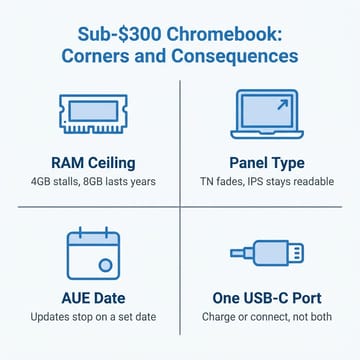
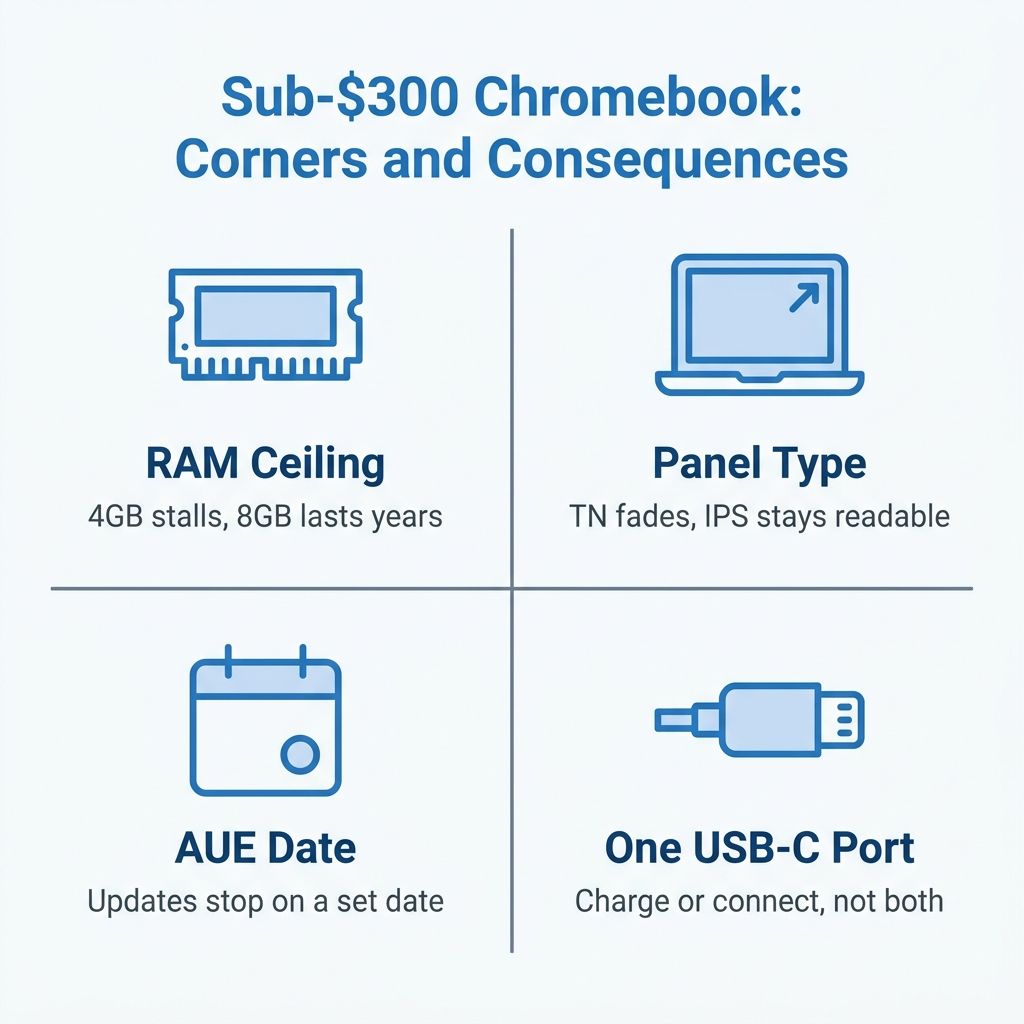
That is the shape of nearly every sub-$300 Chromebook decision. The panel and the battery are the parts a buyer inspects in the store, so manufacturers protect them. The RAM ceiling, the storage, and the software support window are the parts nobody notices until the machine is a year old and a kid has fifteen tabs open, so those are where the budget goes to die. The announcement gave no Auto Update Expiration date, and that date decides when the laptop stops being safe to use.
8GB of RAM is the spec worth insisting on
If you change only one number on the spec sheet, change the RAM from 4GB to 8GB. On r/chromeos, a parent shopping for a Chromebook to last a middle or high schooler put the question to the forum, and the answers converged fast. As one commenter, u/AFuzzyCat, put it, “4gbs of ram is ‘useable’ but only if it’s a single task kind of device (literally like 2 tabs of youtube or 2 google docs pages open.)” A parent in the same thread, u/Salty_Expert_6847, was blunter: “8gb should be minimum.” A student on a school-issued machine, u/kaden_ae, offered the flip side of the same coin: “8GB of RAM is plenty for school work.”
The reason the gap bites is that a real school workload is not a single task. It is a Google Docs tab, a Classroom tab, a research article or two, a YouTube video for a project, Spotify in the background, and a Meet call, all at once. ChromeOS has gotten better at swapping idle tabs to disk, but 4GB of soldered memory still hits a wall the moment a teenager treats the browser the way teenagers do. This is the same trap covered in depth in our look at why a 4GB budget Chromebook disappoints: the machine works fine in the store demo and chokes in October. Because Chromebook RAM is soldered and cannot be upgraded later, the number you buy is the number you keep for the life of the device. Eight gigabytes is also the floor Google sets for its Chromebook Plus certification, which is a decent shorthand: a Plus badge guarantees at least 8GB, so it is one way to avoid the 4GB trap without reading every listing.
64GB of storage fills up within a school year
Storage is the second corner that gets cut, and 64GB goes further on a spec sheet than it does in real life. ChromeOS itself, its recovery partition, and the buffer the system reserves for updates eat into the total before a student saves a single file, and Android apps from the Play Store are the fast way to fill the rest. A handful of games, an offline video or two, and a folder of downloads and the “storage almost full” warnings start. We broke the math down in detail in the piece on how little of a 64GB Chromebook you get to use, and the short version is that half the drive can be gone on day one.
Storage, unlike RAM, has a cheap workaround. Most budget Chromebooks include a microSD slot, and a card handles offline media, photo backups, and Android app data without touching the internal drive. If a machine you like ships with 64GB, check for that slot before you buy, and budget another $10 or $15 for a card. That is a corner you can accept. Buying 4GB of RAM to save the same $50 is not, because no accessory fixes it.
A TN panel is a compromise you can usually accept
Display quality is where the sub-$300 tier splits. The cheapest Chromebooks ship a 1366x768 TN panel, which is dim, washes out at an angle, and looks tired next to a phone screen. Step up a little and you get a 1920x1080 (or the taller 1920x1200) IPS panel, which stays readable off-axis and is easier on the eyes for a full day of reading. The Lenovo $249 configuration is unusual in keeping the good IPS screen while cutting memory instead; most machines at that price make the opposite trade.
A TN panel is a downgrade, but it is a downgrade a student adapts to, and it does not shorten the machine’s usable life the way a RAM ceiling does. If your budget forces a choice between an 8GB machine with a middling TN screen and a 4GB machine with a beautiful IPS screen, take the 8GB machine every time. If you can afford both, an IPS panel is the single nicest upgrade for a reader, and it is worth paying for.
Keyboards and hinges are the parts that break
For a machine that gets stuffed into a backpack every day, the data on cheap Chromebooks is not encouraging. In its Chromebook Churn report, the U.S. PIRG Education Fund documented just how expensive the failure points are: “10 of the 29 keyboards we reviewed cost $89.99 or more, which is nearly half the cost of a typical $200 Chromebook,” and the group found 14 of those 29 Acer replacement keyboards out of stock, with backorders estimated at 28 days or more. PIRG scored the Chromebooks it reviewed at an average parts-availability rating of 3.3 out of 20, against 9 out of 20 for the average non-Chromebook laptop. The parts that break most, the report notes, are screens, hinges, and keyboards, which are exactly the parts a student’s daily commute puts under stress.
The forum accounts line up with the report. A retired K-12 IT manager, u/Billh491, said the pattern held at the small school where he ran the Chromebook fleet: “Screens and keyboards were the things that broke the most and could be had used on ebay or new on amazon for a low cost. I felt the case and hinges were better then most.” A parent, u/Salty_Expert_6847, offered the fix that comes up in every one of these threads: buy “a case and screen protector for the Chromebook because my son broke his laptop in school multiple times and the price was hefty.” A $20 case and a screen protector are the highest-return $20 you will spend on the whole purchase, because the alternative is a $90 keyboard or a cracked panel that costs half the price of the laptop. If you are weighing a repair against a fresh purchase down the road, our breakdown of when a Chromebook battery is worth replacing walks through the same math for the other common wear item.
The Auto Update Expiration date sets the usable life
The Auto Update Expiration date, the point at which Google stops shipping ChromeOS updates to a given board, is what usually ends a Chromebook’s life. After that date the hardware keeps working, but the browser ages out, and modern sites begin to refuse it. That story played out in a second r/chromeos thread from an owner of a 2017 Asus Chromebook Flip C302, u/IcyCrew2150, who wrote that the machine “still works great, just getting some warnings from some websites that my browser is too old.” Another commenter in the same thread, u/Rem1991wl, described what finally forced an upgrade: “Some financial websites would no longer work.”
That is why the update date deserves as much attention as the price. PIRG’s report found schools budgeting on the assumption that Chromebooks last roughly four years, and in its survey of school IT technicians, 9 of 13 had “stopped using a Chromebook because its software expired (Automatic Update Expiration), although it was otherwise functional.” The report estimates that doubling that lifespan across the 48.1 million K-12 public school students in the United States could save $1.8 billion. For a family, check the AUE date on Google’s official schedule before you buy, and treat it as the number of years of safe use you are paying for. A machine with a 2033 or 2035 date has years of runway left; one that is quietly two years from expiration is a bad deal at any price. We keep a full explainer on how the Auto Update Expiration date works and a companion piece on how long a Chromebook really lasts, and both are worth a read before you spend.
What you give up by skipping Chromebook Plus
The other reason to know the tiers is that the standard tier and the Plus tier now diverge in software, not just specs. Three days after covering the $249 Lenovo, Robby Payne spent 48 hours on a standard, non-Plus Chromebook and catalogued what he missed. “Living on a standard Chromebook for the past 48 hours has made me realize just how many tiny, quality-of-life platform features I’ve subconsciously started taking for granted with Chromebook Plus,” he wrote. The gaps he named were software, not speed: “the loss of system-wide camera controls is a tougher pill to swallow. On a Chromebook Plus device, you get baked-in OS-level adjustments for lighting, background blur, and touch-ups, regardless of what video app you open.” The one he ranked highest was the built-in AI: “By far the biggest hurdle I’ve encountered, however, is the absence of the awesome Gemini in Chrome feature that arrived in the last 6 months on Chromebook Plus.”
Payne was testing an 8GB Plus-class machine, so his complaints are about the Plus feature set, not about a 4GB unit under load. Read them as a straight description of what the Plus badge adds, and weigh that against the price. For a middle schooler who mostly writes papers and joins video calls, the missing camera polish and the absent in-browser Gemini are nice-to-haves, not reasons to spend $150 more. For a high schooler leaning on AI study tools or doing a lot of camera work, they start to matter. Payne’s own verdict was unambiguous: “If you are shopping for a new ChromeOS device and you care about getting every single ounce of efficiency out of your laptop, I can’t recommend Chromebook Plus enough.” Just know you are buying software conveniences, not a machine that lasts longer.
The three picks worth buying
With the corners mapped, here are the machines that get the important ones right. Each has an update date confirmed on Google’s schedule and can be bought today, and each states what it gives up so there are no surprises in October.
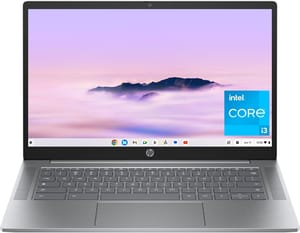
HP Chromebook 14a (14a-nf series)
- ✓8GB of RAM clears the multitasking bar
- ✓128GB UFS storage
- ✓Intel N100 outruns budget Celerons
- ✓up to 12-hour battery
- ✓standout keyboard
- ✗1366x768 TN panel is the weak point
- ✗no HDMI
- ✗single USB-C
- ✗no keyboard backlight
The HP Chromebook 14a in its 8GB, 128GB configuration is the pick I would hand most families first, because it clears the one bar that matters and does it under $300. Watch the configuration when you buy: HP sells this same chassis with 4GB, and the cheaper listing (around $230 as I write this) is the 4GB model. The 8GB, 128GB configuration is the one worth having. The Intel N100 is a step up from the Celeron chips that used to define this price, the keyboard is a pleasure for the price, and the battery goes the distance of a school day. It carries a June 2033 Auto Update Expiration date, so a machine bought in 2026 has roughly seven years of runway. The compromise is the 1366x768 TN screen, which is the least pleasant part of the machine and the reason it is this cheap. If your student reads for hours a TN panel costs them comfort over long sessions, but they will adapt to it, and 8GB of RAM is worth more over five years than a nicer panel wrapped around 4GB.
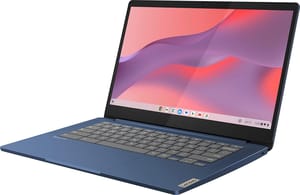
Lenovo IdeaPad Slim 3 Chromebook
- ✓14-inch Full HD IPS touchscreen
- ✓fanless and silent
- ✓13.5-hour battery
- ✓Wi-Fi 6
- ✓webcam privacy shutter
- ✗4GB of RAM caps heavy multitasking
- ✗64GB eMMC fills fast
- ✗no keyboard backlight
- ✗single USB-C
The Lenovo IdeaPad Slim 3 Chromebook is the machine to buy if the screen matters most and the workload stays light. The $249 configuration in the headlines is a Best Buy listing built on Lenovo’s newer MediaTek Kompanio 540 board; the version sold on Amazon runs the Kompanio 520, updates through June 2033, and sells closer to $320. Either way the appeal is the same: a good 14-inch Full HD IPS touchscreen, a fanless design that runs silent, a battery rated at 13.5 hours, and a webcam privacy shutter that is rare this cheap. The limit is the 4GB of RAM. If your student runs a light, focused tab load and values a silent, all-day machine with a lovely screen, this is the one. If they are a heavy multitasker, the HP above and its 8GB will serve them longer.
Acer Chromebook Plus 514
- ✓Chromebook Plus certified
- ✓8GB RAM and 512GB SSD
- ✓Intel Core 3 N355
- ✓WiFi 6E
- ✓backlit keyboard
- ✓updates to June 2035
- ✗Closer to $450
- ✗plastic chassis
- ✗thin speakers
- ✗heavier at about 3 pounds
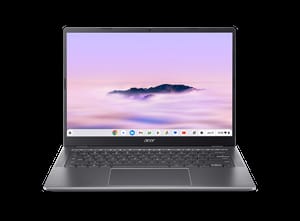
The Acer Chromebook Plus 514 is the pick for a family that would rather buy once and be done. The current CB514-6H board runs an Intel Core 3 N355 with 8GB of RAM, a 512GB SSD, WiFi 6E, and a backlit keyboard, and its June 2035 Auto Update Expiration date is the longest runway of anything here, close to nine years from now. It is also a full Chromebook Plus machine, so it includes the camera controls and in-browser Gemini that Payne missed on the standard tier. It runs around $450, the chassis is plastic, and the speakers are forgettable. But for a high schooler who will carry it into a first year of college, the extra two years of updates and the Plus feature set can be worth the stretch.
How to choose
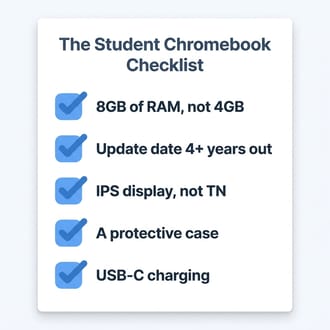
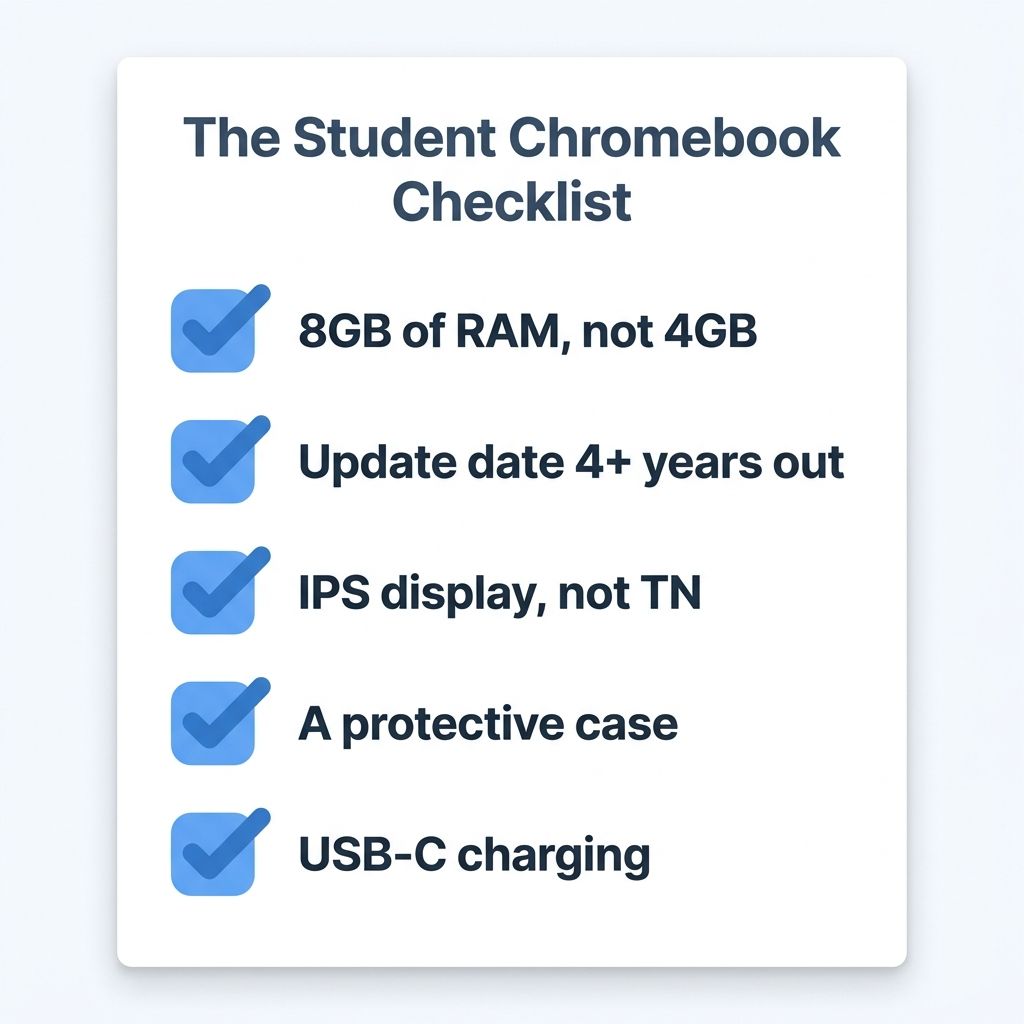
Strip the marketing away and the budget Chromebook decision comes down to a short checklist. Insist on 8GB of RAM, because it is soldered in and it is the difference between a machine that lasts five years and one that stalls in one. Read the Auto Update Expiration date and treat it as the number of safe years you are buying, favoring anything with a 2033 or 2035 date. Accept a TN panel or a 64GB drive if the budget demands it, since a microSD card fixes storage and a student adapts to a dimmer screen, but do not accept a short update runway or 4GB of memory to save the same money. And whatever you buy, spend the extra $20 on a case and a screen protector, because the keyboards and hinges are what break, and the replacements cost close to half the price of the laptop.
For most middle and high schoolers, that points to the HP Chromebook 14a in its 8GB configuration: it is the cheapest machine here that gets the corners that matter right. Move up to the Acer Chromebook Plus 514 when you want the longest support runway and the Plus software, and choose the Lenovo IdeaPad Slim 3 when a silent, all-day machine with a great screen fits a lighter workload. If you are shopping for a younger child rather than a teenager, our guide to the best Chromebooks for kids covers the smaller, more rugged options built for elementary hands.


