
Oh My Pi is a coding agent for the terminal from Stencil Labs. Its command is omp. It is a fork of Pi, the small agent by Mario Zechner that you grow with extensions you build yourself. Oh My Pi ships those extras built in: a second model that reviews the work, subagents, plan mode, a debugger, a browser, web search, git tools and a way to share the live session. They all come in the same install, so there is nothing to find and set up as an extension first.
This guide follows our video tour. It installs Oh My Pi from the Omarchy menu, picks the models, and then tries each feature on a small job in one folder: a line-counting script, a C program that crashes, a web page and a wallpaper image. Every command and prompt we typed is here, so you can copy them.
We used Omarchy 4.5.0-3 and Oh My Pi 19.1.0 in November 2026, with Claude Sonnet as the main model and Claude Opus as the advisor. The agent writes different code and answers each time, so your results will not match ours word for word. The commands and the screens stay the same.
What you need
You need Omarchy 4.5 and an Anthropic API key with credit on it, from the Claude Console. Every request is billed by the token, and the whole tour in this guide cost $1.80. Oh My Pi reads the key from the ANTHROPIC_API_KEY environment variable, so set it in your shell before you start Oh My Pi, for example by exporting it in ~/.bashrc from a file only you can read.
Use the API key, not a Claude plan sign-in. Oh My Pi’s setup lists an OAuth sign-in for Claude Pro and Max, but Anthropic’s terms for Claude Code say it does not permit routing requests through Free, Pro, Max or Ultra plan credentials in third-party apps. Google Antigravity is the same: Oh My Pi offers its OAuth sign-in, and the Antigravity terms call using third-party tools with Antigravity OAuth a breach that can get your Antigravity and Gemini CLI accounts suspended. Oh My Pi is a third-party tool for both, so we left those rows alone.
The debugger section needs gdb and a C compiler. Omarchy installs gcc and make with its base packages. Our machine already had gdb; if which gdb prints nothing on yours, install it with sudo pacman -S gdb.
Install Oh My Pi from the Omarchy menu
Omarchy knows about Oh My Pi already, so there is no install script to download. Press super space to open the Omarchy menu and go to Setup, Defaults, Agent. The list holds the coding agents Omarchy can set up, and Oh My Pi is the omp row. You can also type omp in the menu to jump to it.
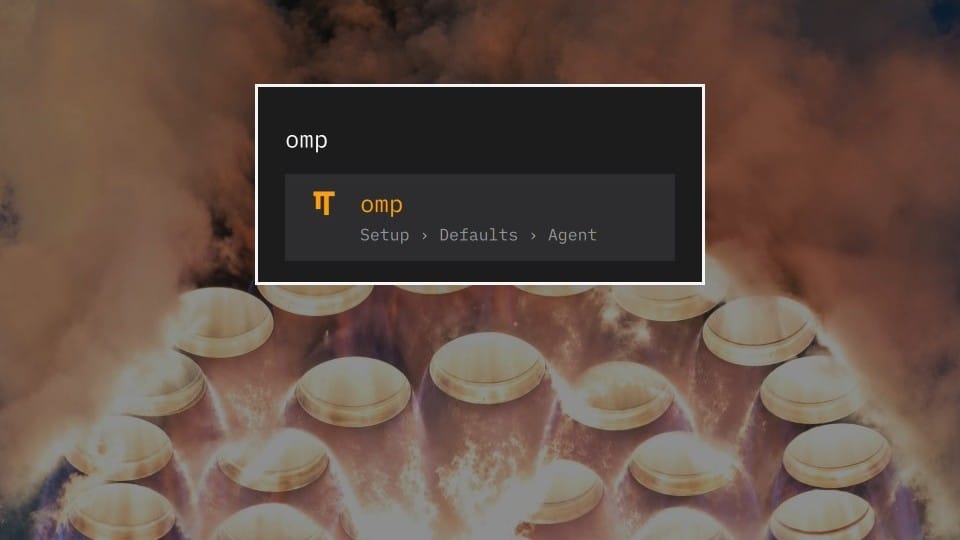
Picking omp opens a floating terminal, installs Oh My Pi with mise, and makes it your default agent. The same step from a terminal is omarchy default agent omp. Our Pi guide covers the default agent shortcut in more detail.
Omarchy declares Oh My Pi with a four-hour auto-update, so the version on your machine moves on its own. Run omp --version to see which one you have.
Run the first-time setup
The first time it runs, Oh My Pi opens a setup with six steps: providers, the default model, glyphs, the composer shape, a theme, and updates. esc skips a step, and ctrl c leaves the setup.
The floating terminal from the menu may not have your key in its environment. If the Anthropic row in step 1 does not read “logged in”, press ctrl c and close that window. Open a terminal with super enter , delete ~/.omp/agent/config.yml, and run omp there to start the setup again.
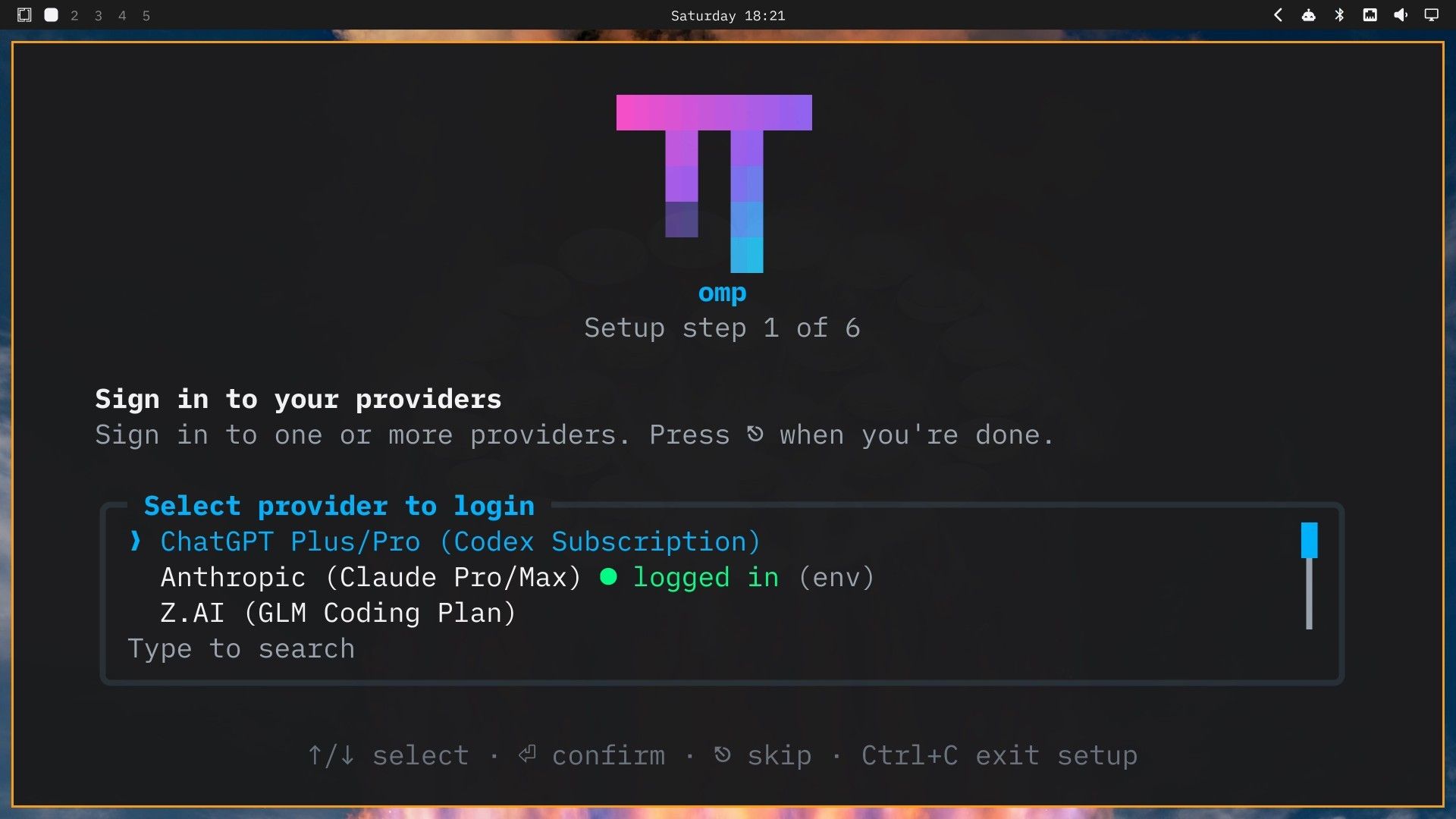
With the key in place, the Anthropic row reads “logged in”; do not pick an OAuth row. On the model step, type sonnet-5-5 to filter the list and press enter on anthropic/claude-sonnet-5-5. On the glyph step, press to pick Nerd Font, since the cursor starts on Unicode. We kept the defaults for the rest: the Status Band composer, no theme (the list has no Omarchy theme), and “Notify me” for updates.
Oh My Pi works in the folder you start it from. We made one folder for the whole tour with two small text files in it, put it under git with a first commit, and started Oh My Pi there:
mkdir -p ~/Work/omp-tour && cd ~/Work/omp-tour
printf 'one\ntwo\n' > a.txt
printf 'milk\neggs\nbread\n' > 'my notes.txt'
printf 'WATCHDOG.yml\navg\nwall.jpg\n' > .gitignore
git init && git add . && git commit -m "Starting files"
omp
The .gitignore keeps three files out of git: the advisor’s settings file (below), the compiled C program from the debugger section and the wallpaper copy from the image section. If git has never been set up on this computer, set your name and email with git config --global user.name and git config --global user.email first, or the commit fails. On the start screen, the status line under the prompt shows the model, the folder, the git branch and what the session has cost so far, starting at $0.00.
Slash commands and model roles
Type / to list every command. Some rows show their live state, such as plan Plan: off and goal Goal: off, so settings, plan mode and the rest are one slash away. Press backspace to clear the slash.
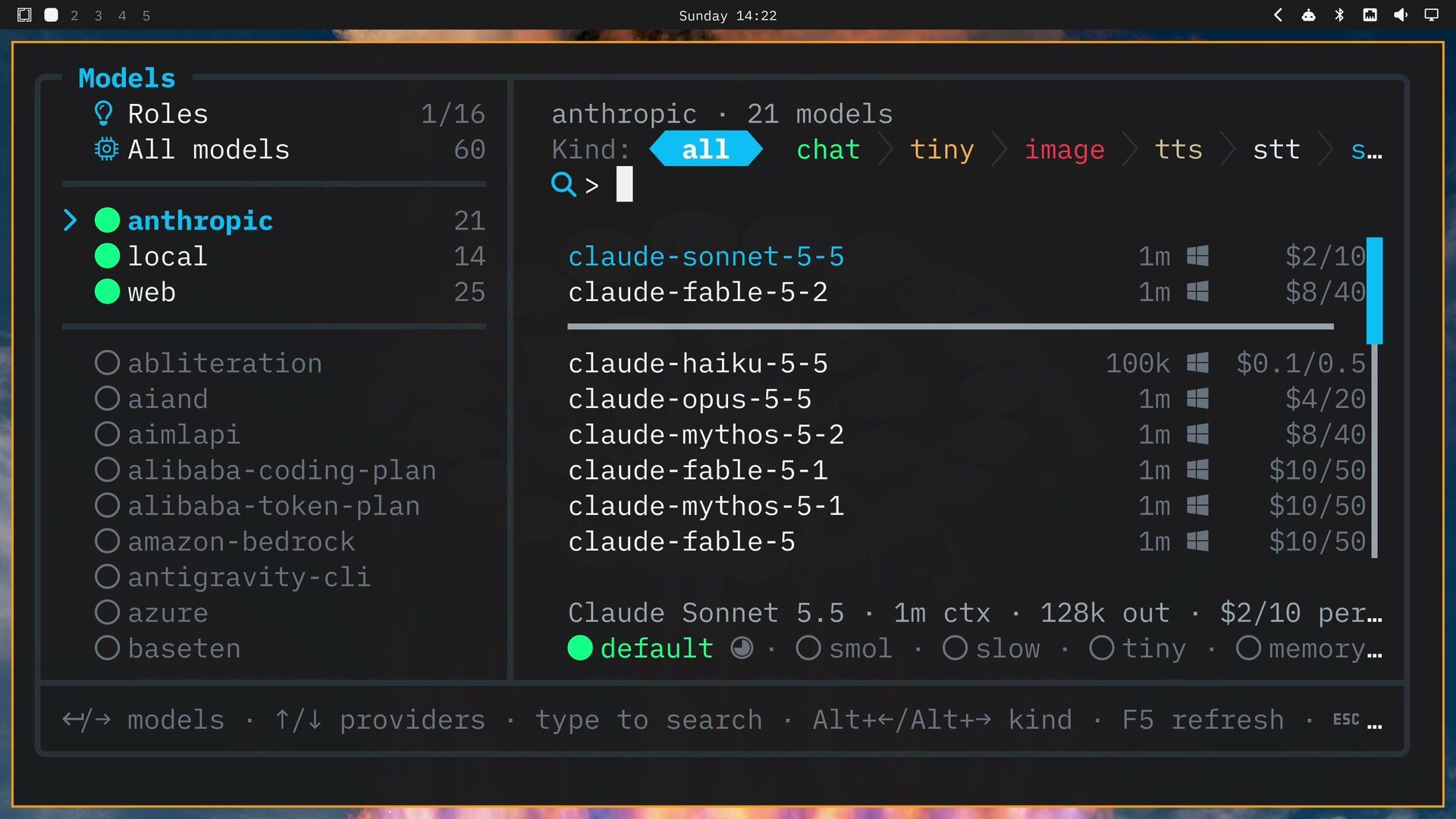
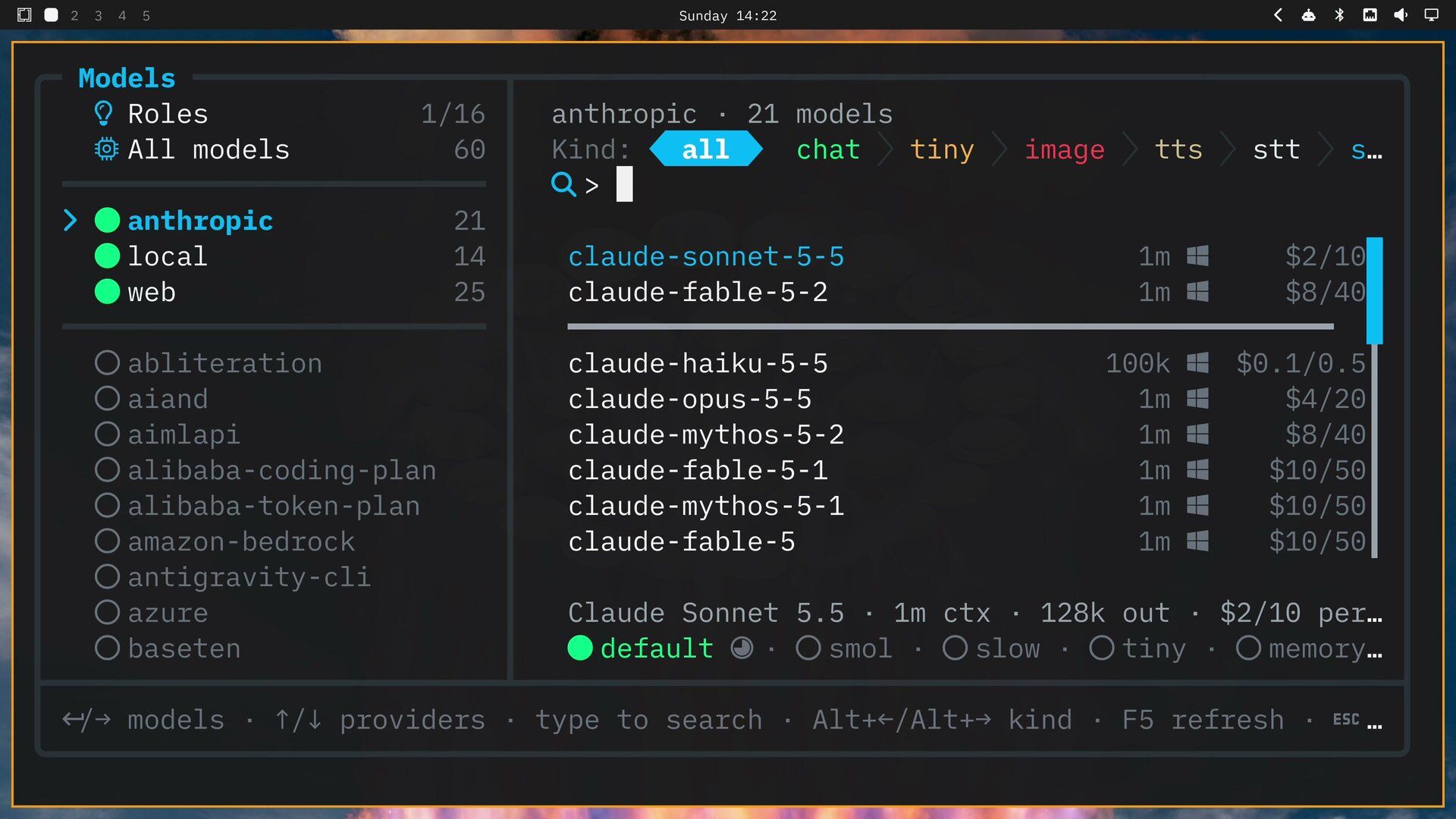
alt m opens the model picker. Its rail has a Roles list with 16 roles, such as default, smol, slow, plan, advisor and commit, and each role can use its own model. Each model row shows its context size and its price per million tokens in and out. On our key, Sonnet was $2 in and $10 out, Opus $4 and $20, and Haiku $0.10 and $0.50. That way a cheap model can take the small jobs while a stronger one plans or reviews. Press esc to close the picker.
Set up the advisor
The advisor is a second model that reads along and reviews each turn of the main agent. It stays off until you turn it on, and its default model is Claude Fable, which costs $8 in and $40 out per million tokens. We switched it to Opus.
Type /advisor, then a space, wait a second, then type configure and press enter . When we typed the whole command in one go, Oh My Pi sent it to the agent as a prompt instead of opening the editor. Type /advisor on and /advisor status the same way.
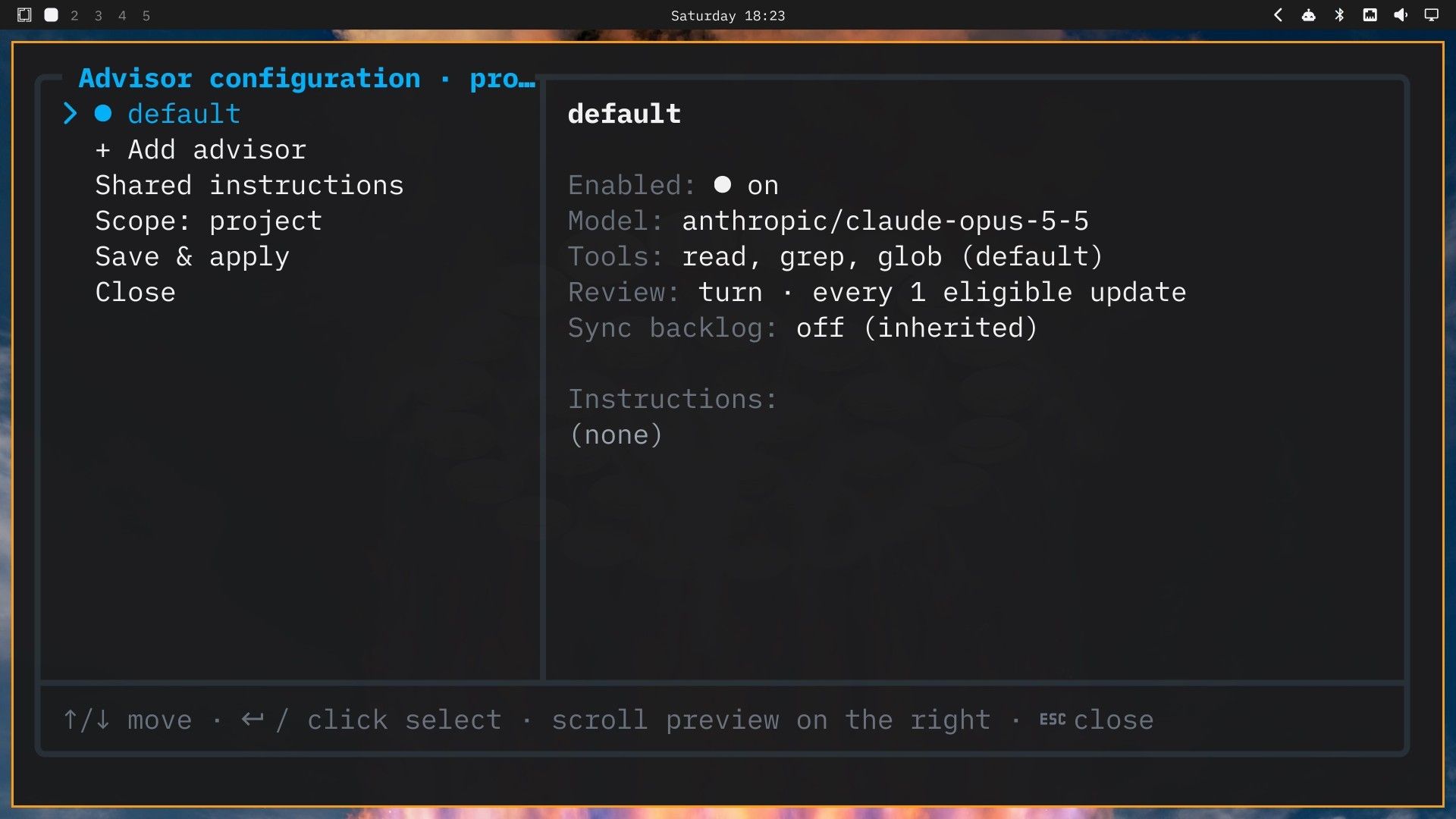
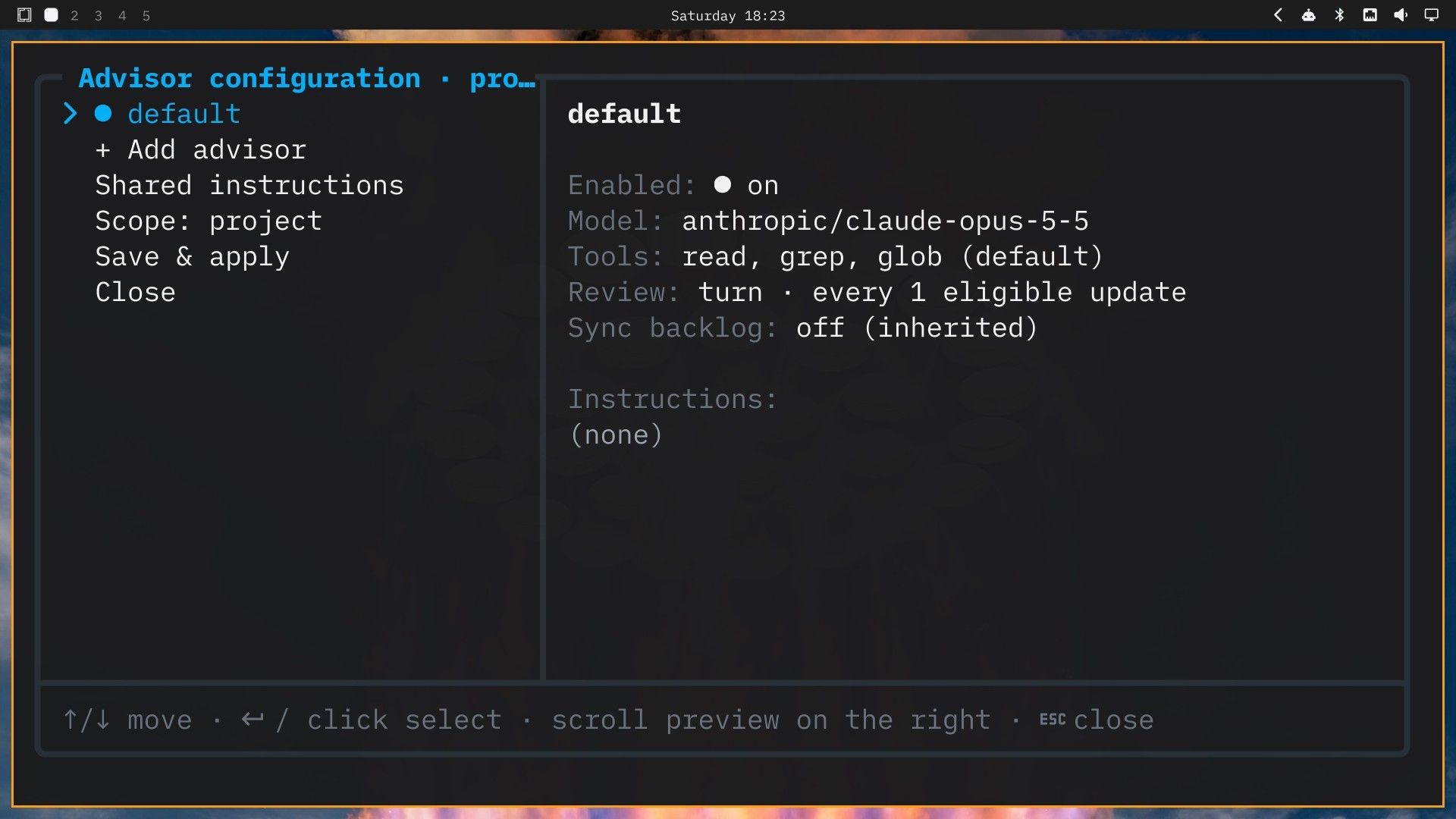
/advisor configureThe Advisor configuration editor sets the advisor’s model, how often it reviews, its tools and its instructions. Select the default advisor, open Model, type opus-5-5, and pick anthropic/claude-opus-5-5. Its tools are read, grep and glob, so it can read your files but not change them. Go back and choose Save & apply. The scope is the project, so the save writes a WATCHDOG.yml file into your folder; that is why the .gitignore above lists it.
Then start the advisor and check it:
/advisor on
/advisor status
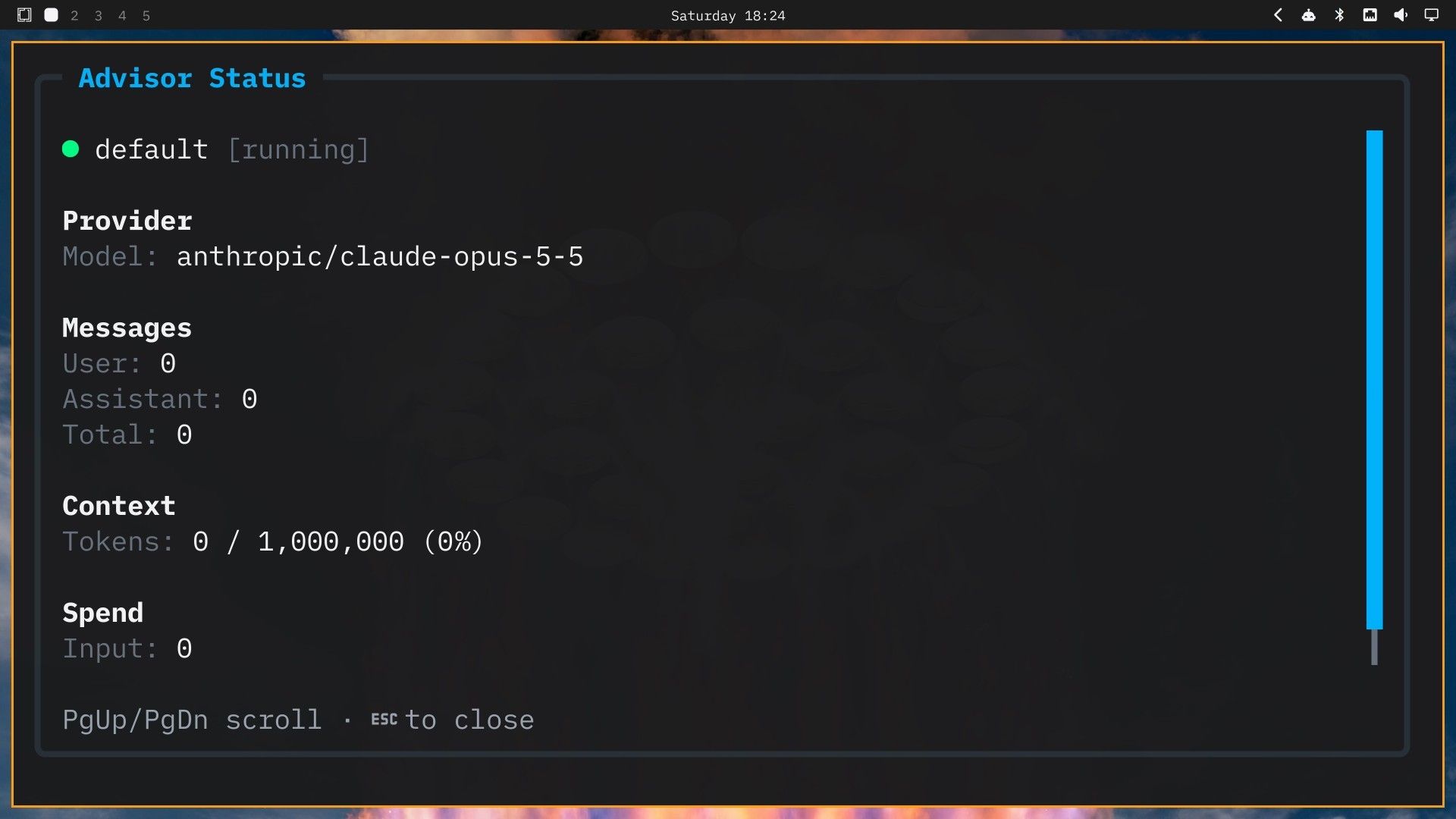
Oh My Pi answers “Advisor enabled.”, and the status line still shows Sonnet as the main model. /advisor status opens a panel with the advisor’s state, model, messages, context and spend. Ours showed default [running] with anthropic/claude-opus-5-5. Press esc to close it. From now on, the status line shows two costs: the main agent’s, then the advisor’s after an eye icon.
Accept a predicted prompt
The first prompt gives the other features something to work on:
Write count.sh, a bash script that prints the total number of lines in the .txt files in this folder. Run it to check the total.The agent wrote the script, ran it, and checked its answer of 5 against wc -l. After the reply, gray text in the prompt box proposed the next prompt: “Now make it count lines in subfolders too.” Press to accept a suggestion like that, then enter to send it. Read the suggestion before you accept it: once, in an earlier session, one named a file that did not exist.
Run subagents and watch the Agent Hub
A subagent is a worker the main agent runs in parallel, with its own tools and context. This prompt asks for two at once:
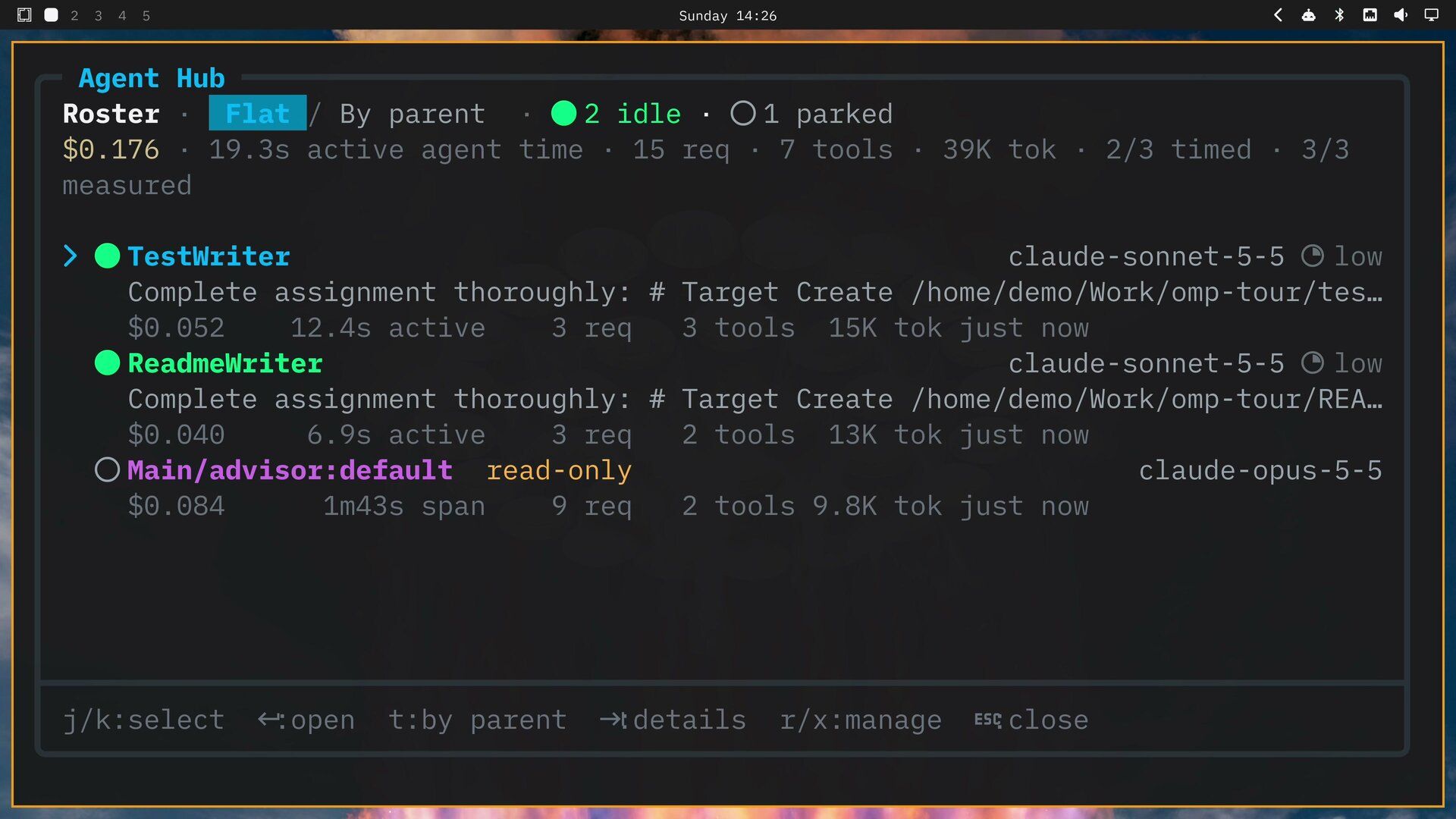
Use two subagents at the same time: one writes README.md for count.sh, the other writes test.sh that checks count.sh. Do not change count.sh.The agent started a task with two subagents, ReadmeWriter and TestWriter, and a “Subagents” line under the task lists them while they run. Press alt a while they work to open the Agent Hub. It lists each subagent and the advisor with its model, cost, active time, requests and tokens, so every worker and what it spends sit on one screen. esc closes it.
When both finished, the main agent checked their work. The README showed a made-up 42 as the example output, so the agent changed it to 5, the real total. It ran TestWriter’s test.sh, and all five of its cases passed.
Review the new files with /review
/review runs a code review with a reviewer subagent:
/reviewThe menu offers five modes: a base branch (PR style), uncommitted changes, a specific commit, a specific PR or MR, and custom review instructions. Mode 2 skips files git does not track yet, so with our three new files it found nothing to review. Pick the fifth, “Custom review instructions”, instead. The input starts with “Review the following:”, and we finished the line like this:
the new files count.sh, README.md and test.sh.A reviewer subagent read the files and ran its own checks, for 7 cents. Each finding came back with a priority label, such as P3 for “test.sh: it never checks count.sh’s exit code.” The agent summed up the findings, and because one of them changed how count.sh behaves, it asked before changing anything.
Read the advisor’s notes
The advisor’s notes land under the agent’s reply, each tagged as a nit, a concern or a blocker. A concern or a blocker sends the main agent back to work at once; a nit stays on screen as a note that the agent can act on in a later turn.
In our tour, the advisor posted one note, a concern, right after the review summary: “Your summary to the user gets two things wrong.” The agent’s summary had doubted the reviewer’s awk command and offered a replacement with the same newline bug, and it had said test.sh does not use mktemp -p when it does. The note named the lines and gave a corrected command.
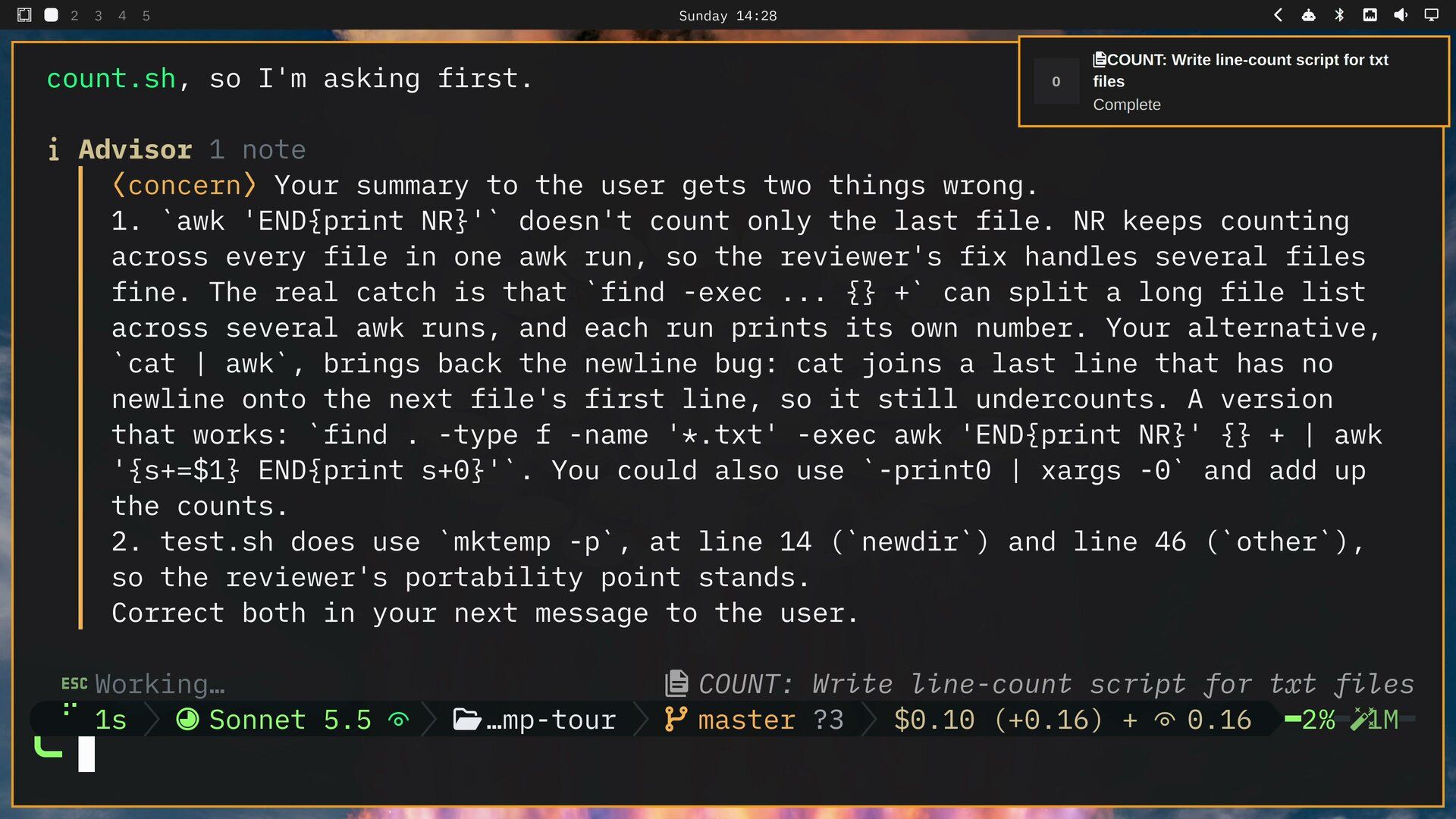
The agent went back to work without a prompt from us. It ran a quick check in an eval cell titled “Verifying advisor’s claims”, which confirmed the awk point, and posted a corrected reply that accepted both. It still had not changed any files, and it asked again before it would.
Let the agent ask with the ask tool
The ask tool lets the agent stop mid-turn and put a small form in front of you, with choices and an “Other” line for your own answer. You can ask for it in the prompt:
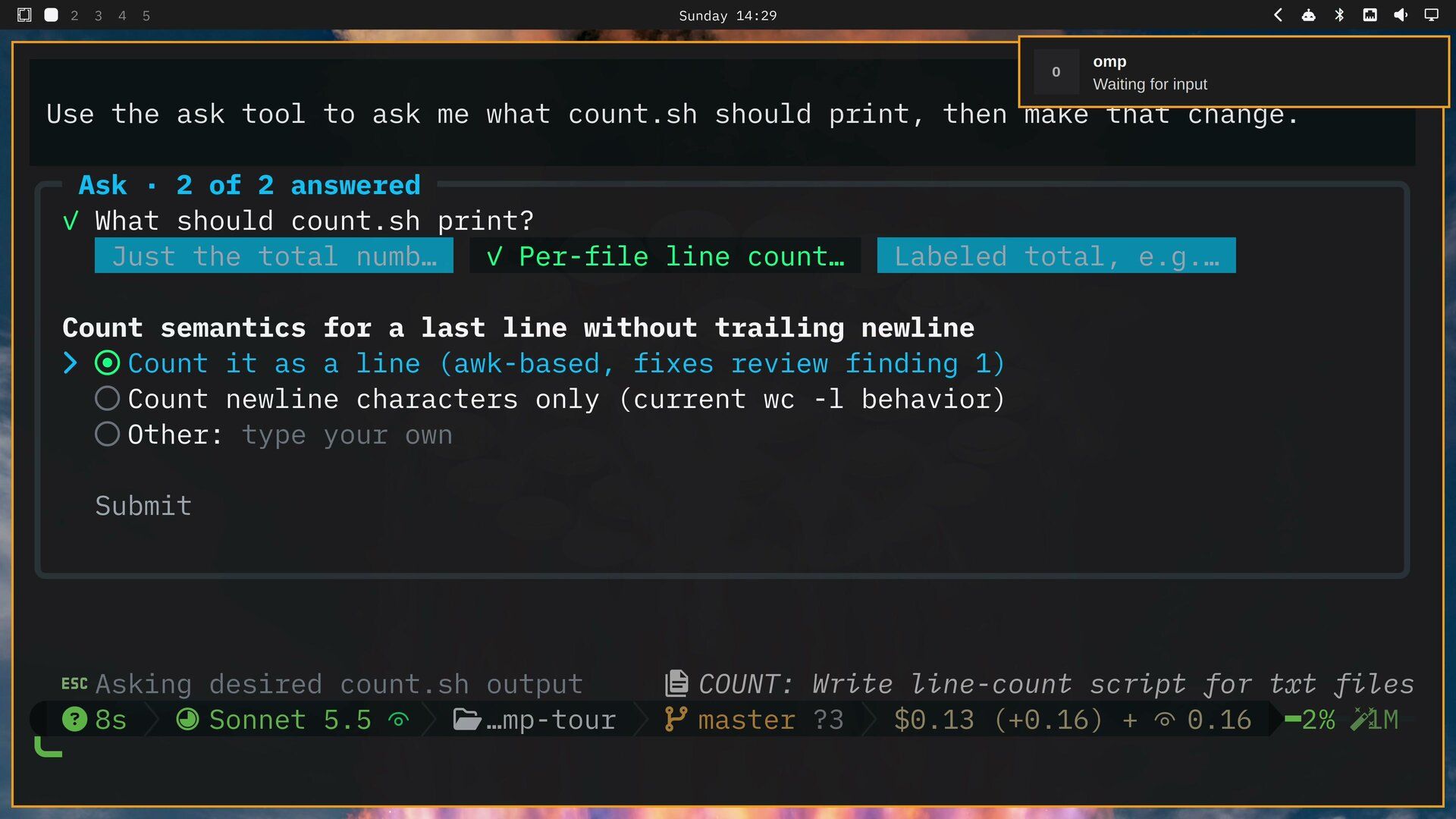
Use the ask tool to ask me what count.sh should print, then make that change.The form asked “What should count.sh print?” with four choices: just the total number, per-file line counts then the total, a labeled total, and Other. We picked per-file counts. It added a second question that came from the review, about a last line with no newline at the end, and we chose to count it as a line. Submit sends the answers, and the agent carries on with that format.
Ask a side question with /btw
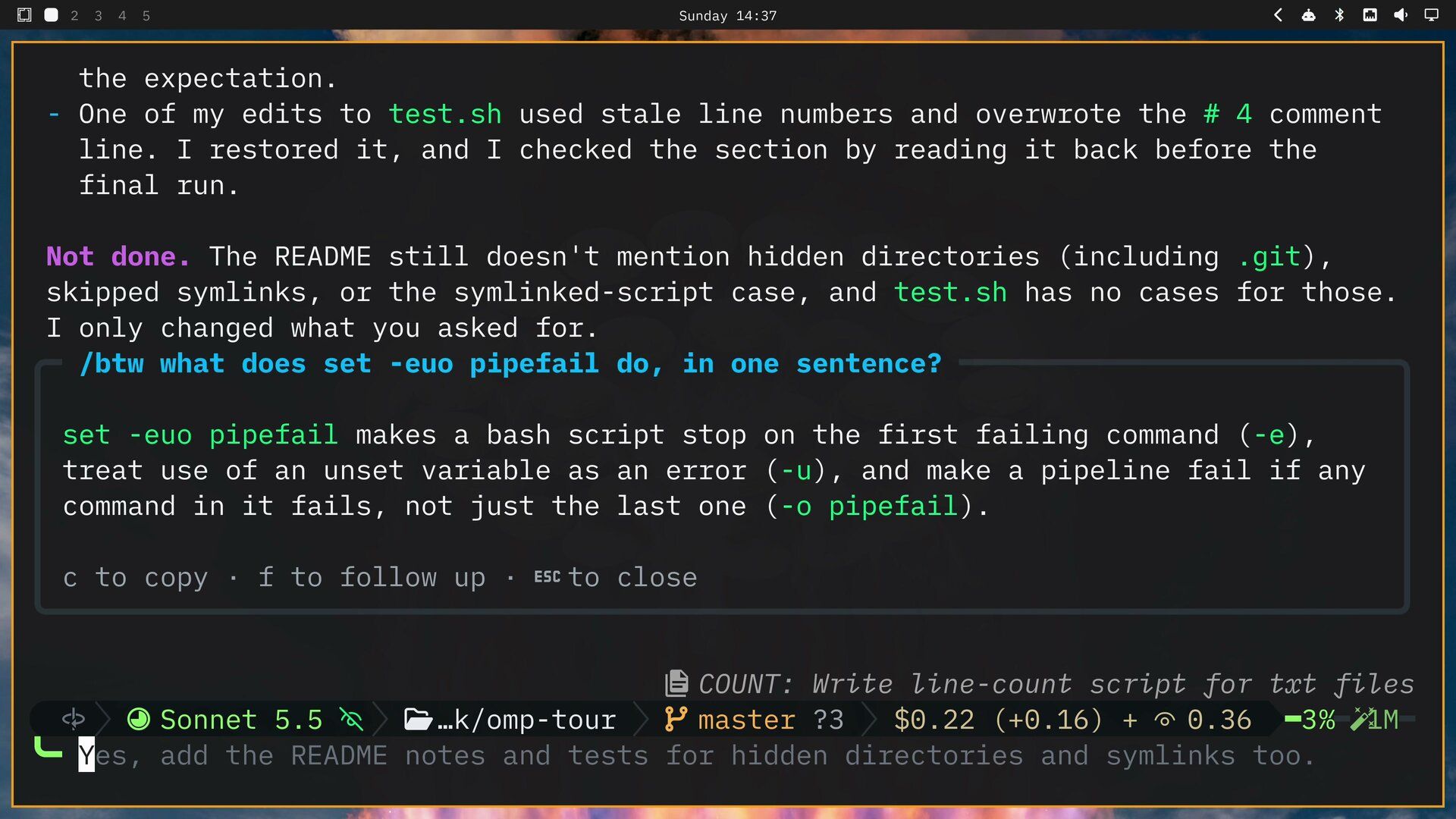
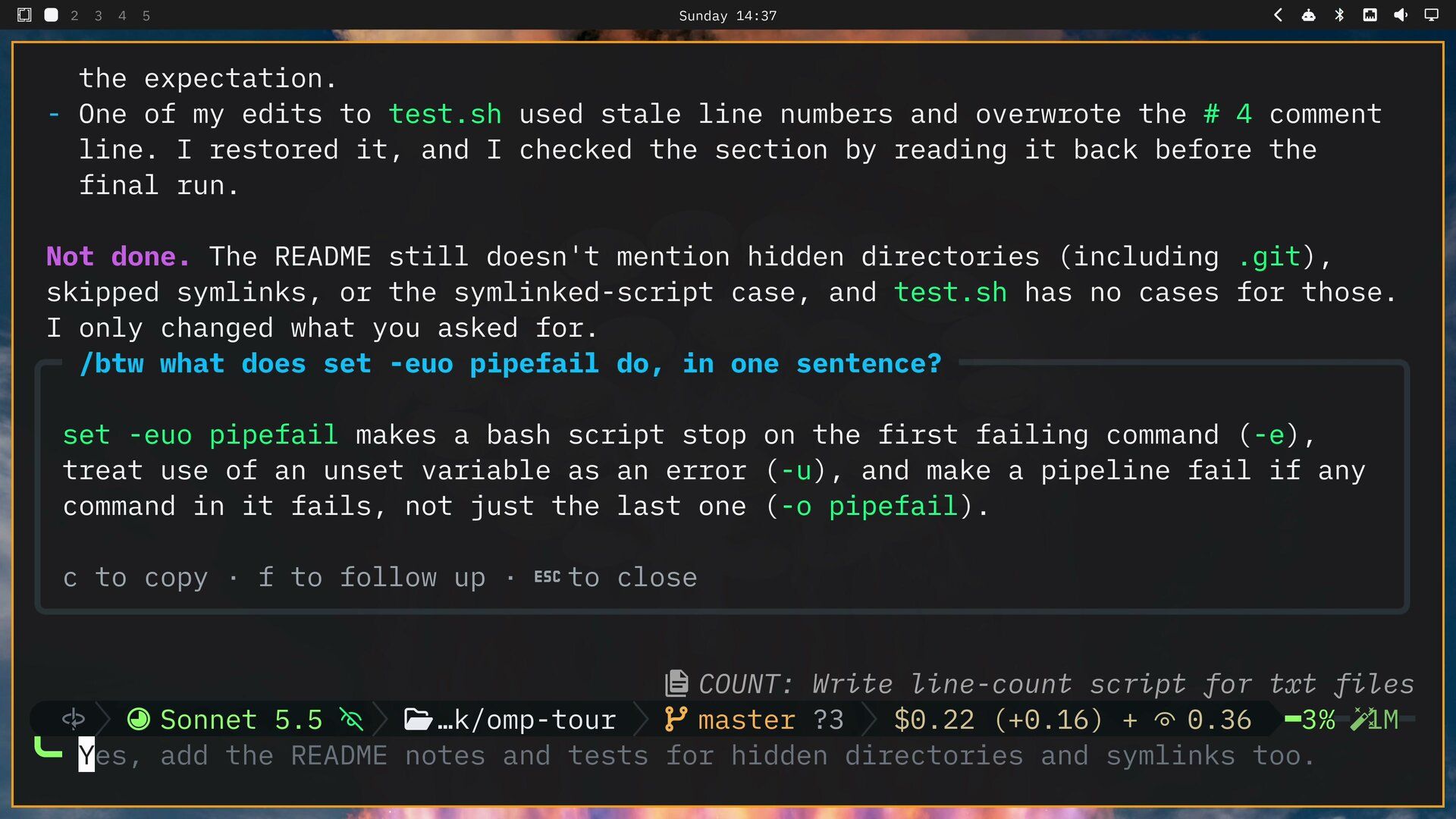
/btw, as in “by the way”, answers a quick question in a separate panel that stays out of the main conversation, so it does not fill the task’s context:
/btw what does set -euo pipefail do, in one sentence?The answer showed in its own box with three keys under it: c to copy, f to follow up, and esc to close. The conversation under it did not change.
Plan before editing with /plan
In plan mode, the agent reads the code and writes a plan, but it edits no files. Turn it on, then send the change you want:
/planAdd an --ext option so count.sh can count files with any one extension, with or without a leading dot. Keep txt as the default.Oh My Pi answers “Plan mode enabled”, and the status line shows Plan. Be specific in the prompt. When we asked for “any extension” with no more detail, the agent first put up an ask form about how many extensions to allow and the leading dot.
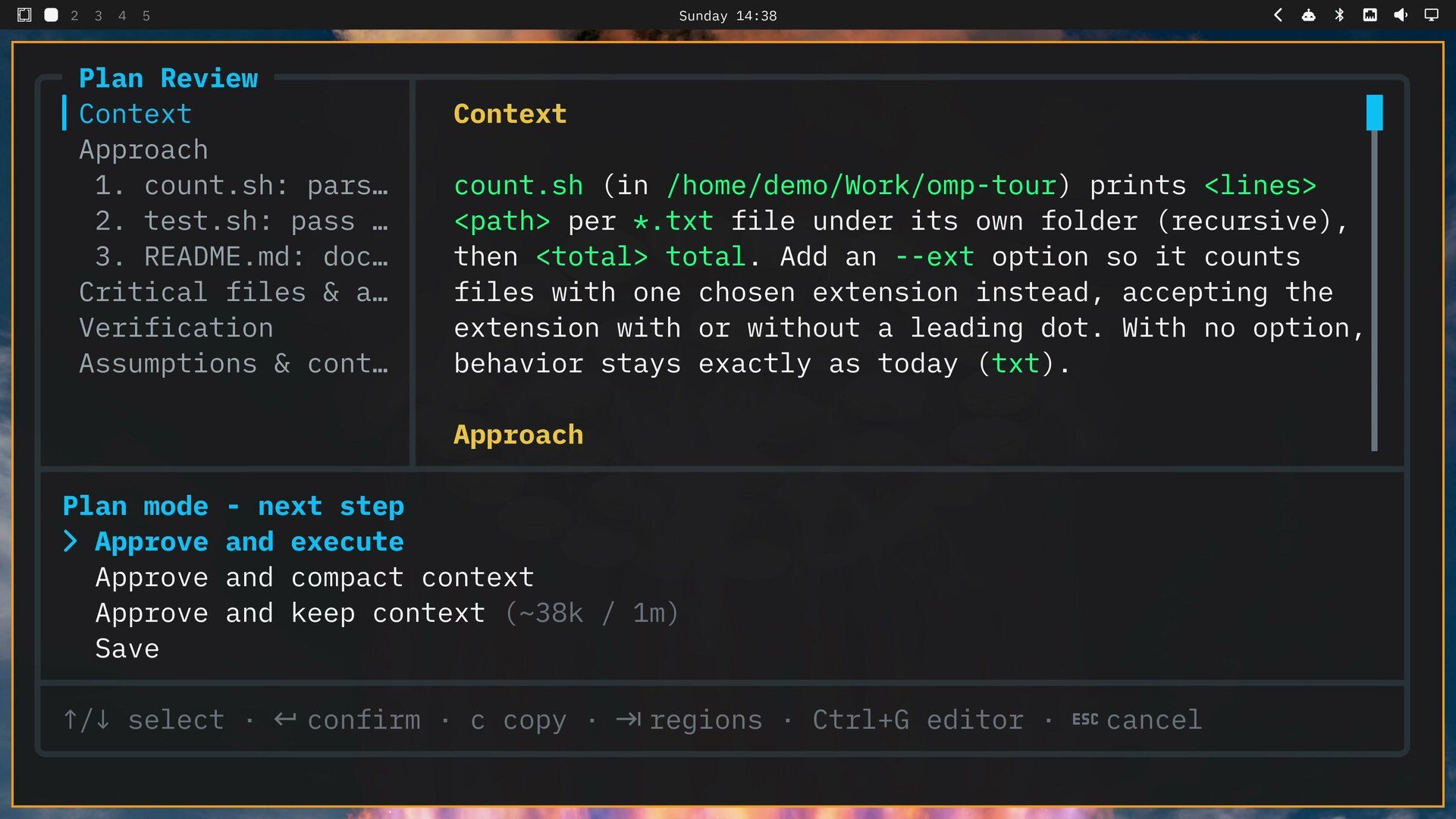
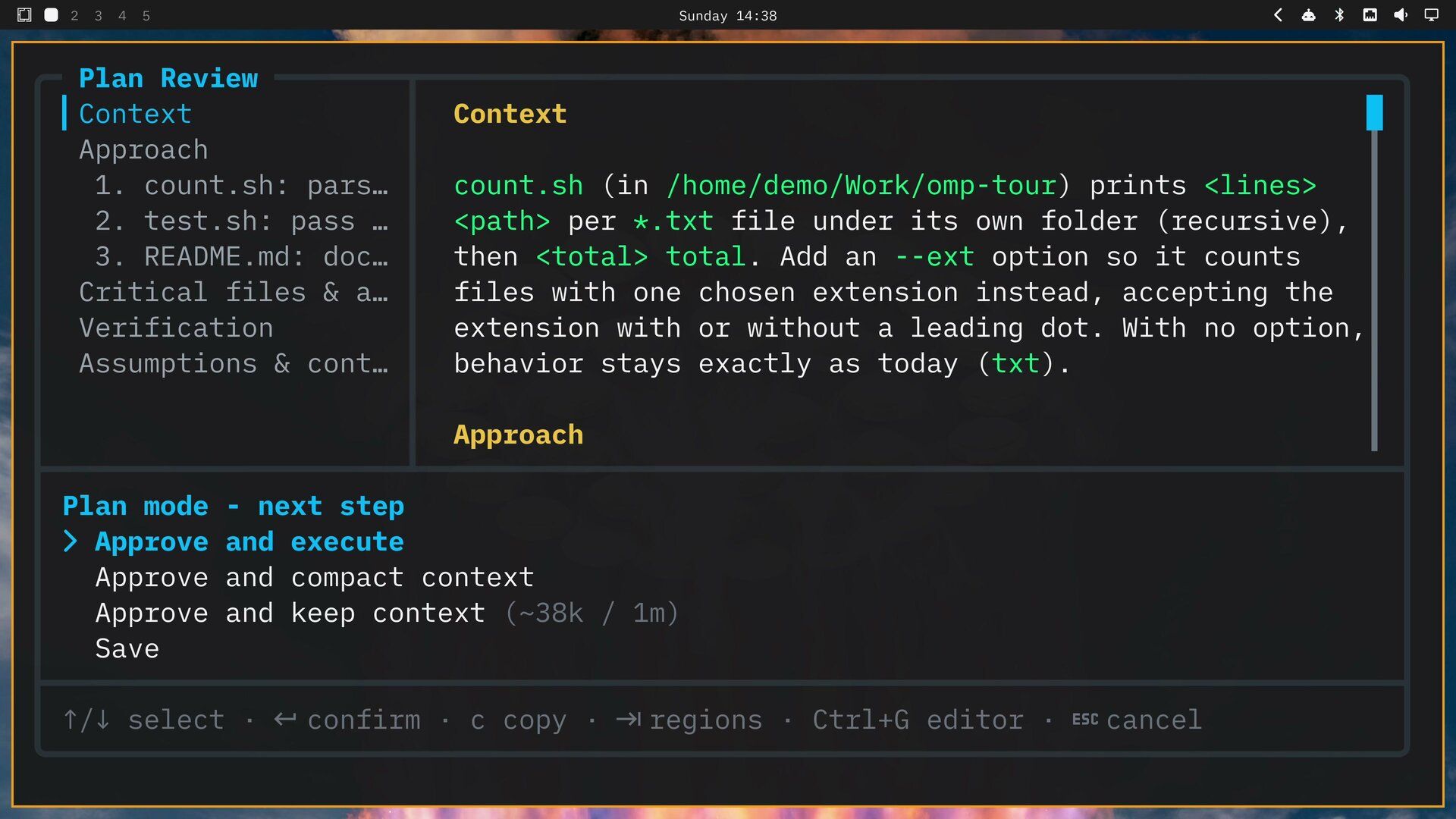
When the plan is ready, the Plan Review screen shows it in sections, so you can read it before any file changes. We chose Approve and keep context, which keeps the same session and what the agent read while planning. Approve and execute starts a new session instead, and the cost counter starts over. The agent then worked through a four-item TODO list: the --ext option in count.sh, new cases in test.sh, the README, and a final check.
Find a crash with the debugger
Oh My Pi has a debug tool that drives a real debugger, here gdb, so the agent can run a program, stop at a crash and read the values there. To try it, save this small C program as avg.c in the folder. It averages test scores for three students, and it crashes:
#include <stdio.h>
#include <stdlib.h>
#include <string.h>

typedef struct {
    const char *name;
    int *scores;
    int count;
} Player;

static int *parse_scores(const char *csv, int *count) {
    int n = 1;
    for (const char *p = csv; *p; p++)
        if (*p == ',') n++;
    *count = n;
    if (*csv == '\0')
        return NULL;
    int *out = malloc(n * sizeof(int));
    char *copy = strdup(csv);
    int i = 0;
    for (char *tok = strtok(copy, ","); tok; tok = strtok(NULL, ","))
        out[i++] = atoi(tok);
    free(copy);
    return out;
}

static double average(const Player *p) {
    int sum = 0;
    for (int i = 0; i < p->count; i++)
        sum += p->scores[i];
    return (double)sum / p->count;
}

int main(void) {
    const char *names[] = {"ada", "linus", "grace"};
    const char *data[]  = {"90,85,77", "100,92", ""};
    Player players[3];
    for (int i = 0; i < 3; i++) {
        players[i].name = names[i];
        players[i].scores = parse_scores(data[i], &players[i].count);
    }
    for (int i = 0; i < 3; i++)
        printf("%-6s %.1f\n", players[i].name, average(&players[i]));
    return 0;
}
Open a second terminal with super enter , run cd ~/Work/omp-tour, and build it there with debug info, then commit the source so the agent’s fix shows up as a change later:
gcc -g -O0 -o avg avg.c
git add avg.c && git commit -m "Add avg.c"
Then ask the agent to find the cause without print statements:
The program avg crashes when I run ./avg. Do not add printf. Use the debugger to find out why, then fix it.The agent ran ./avg first to see the crash, so Omarchy showed its “Process crashed: avg” notice in the corner. Then it launched the program under gdb, let it run to the crash, read the stack trace and inspected the values in that frame. Each step showed as a card titled by the agent, such as “Launching avg under debugger” and “Inspecting locals at crash”. One read failed on the expression syntax, and the next one worked.
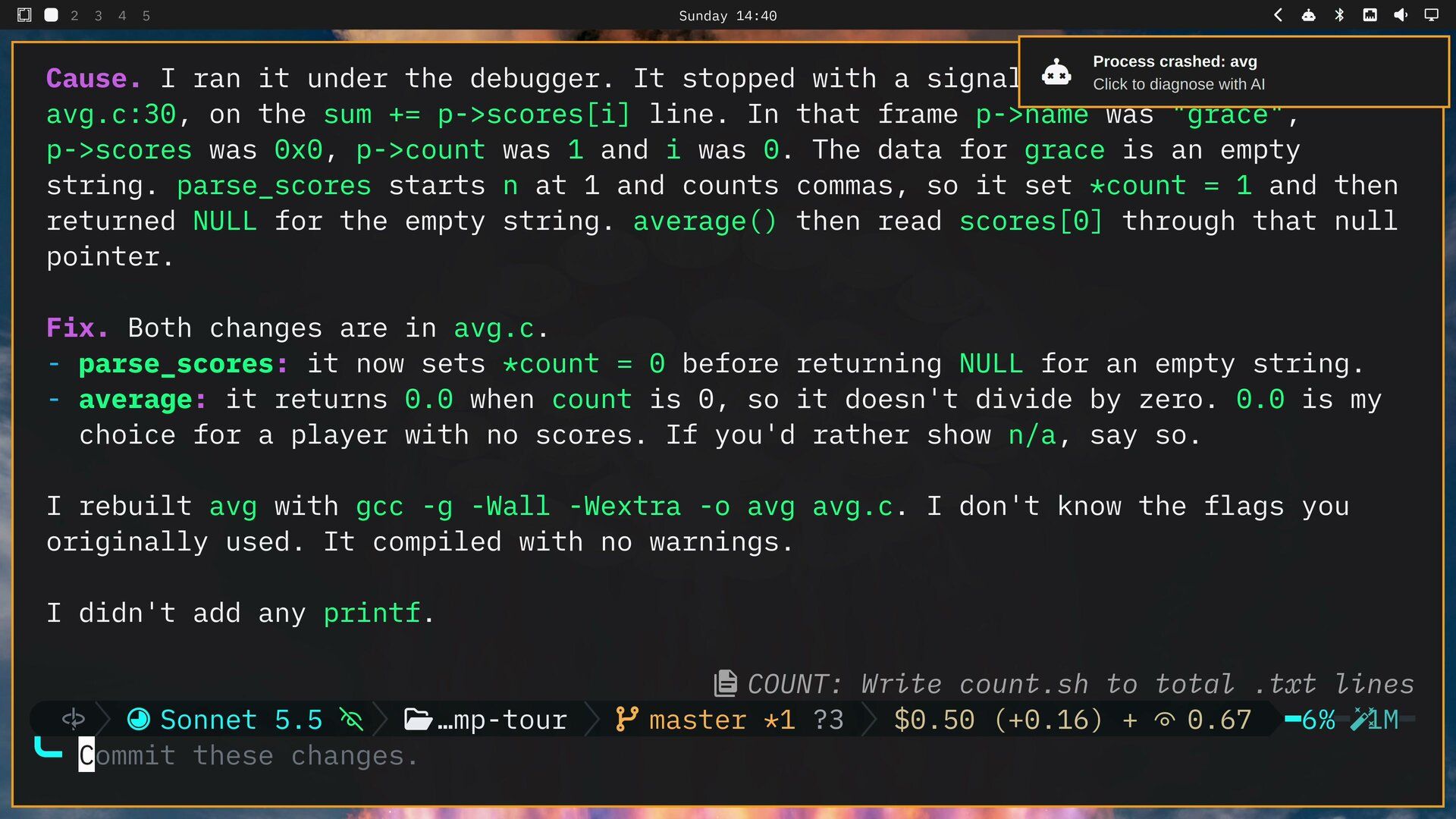
The program stopped at avg.c:30, on the sum += p->scores[i] line. In that frame p->name was “grace”, p->scores was a null pointer and p->count was 1: parse_scores counts one score for an empty string but returns no array. The agent made an empty list count as zero scores, had average return 0.0 when there are none, rebuilt with gcc -g -Wall -Wextra, and the program ran to the end.
Run code with the eval tool
The eval tool keeps a Python or JavaScript session open between calls, and that code can call Oh My Pi’s other tools. The agent can check a number or try an idea without writing a file first:
Use the eval tool with Python to draw a text bar chart of the line count of each .txt file here.The output card drew a bar each for a.txt (2) and my notes.txt (3) with a total of 5, which matched count.sh. Matplotlib was not installed on our machine, so we asked for a text chart.
Search the web
Web search finds pages and reads them, so the agent can use facts newer than its model. It worked with the Anthropic key alone:
Search the web for the newest Oh My Pi release. Reply with only the version and the date.The search card named its provider, Parallel, and listed the sources it found above the answer. The agent took the version from the search results, then read the latest release from GitHub’s API to get the date, and answered v19.1.0, 2026-11-21.
Drive a browser
The browser tool runs Chromium for the agent. /browser visible shows that window next to the terminal, so you can watch it work:
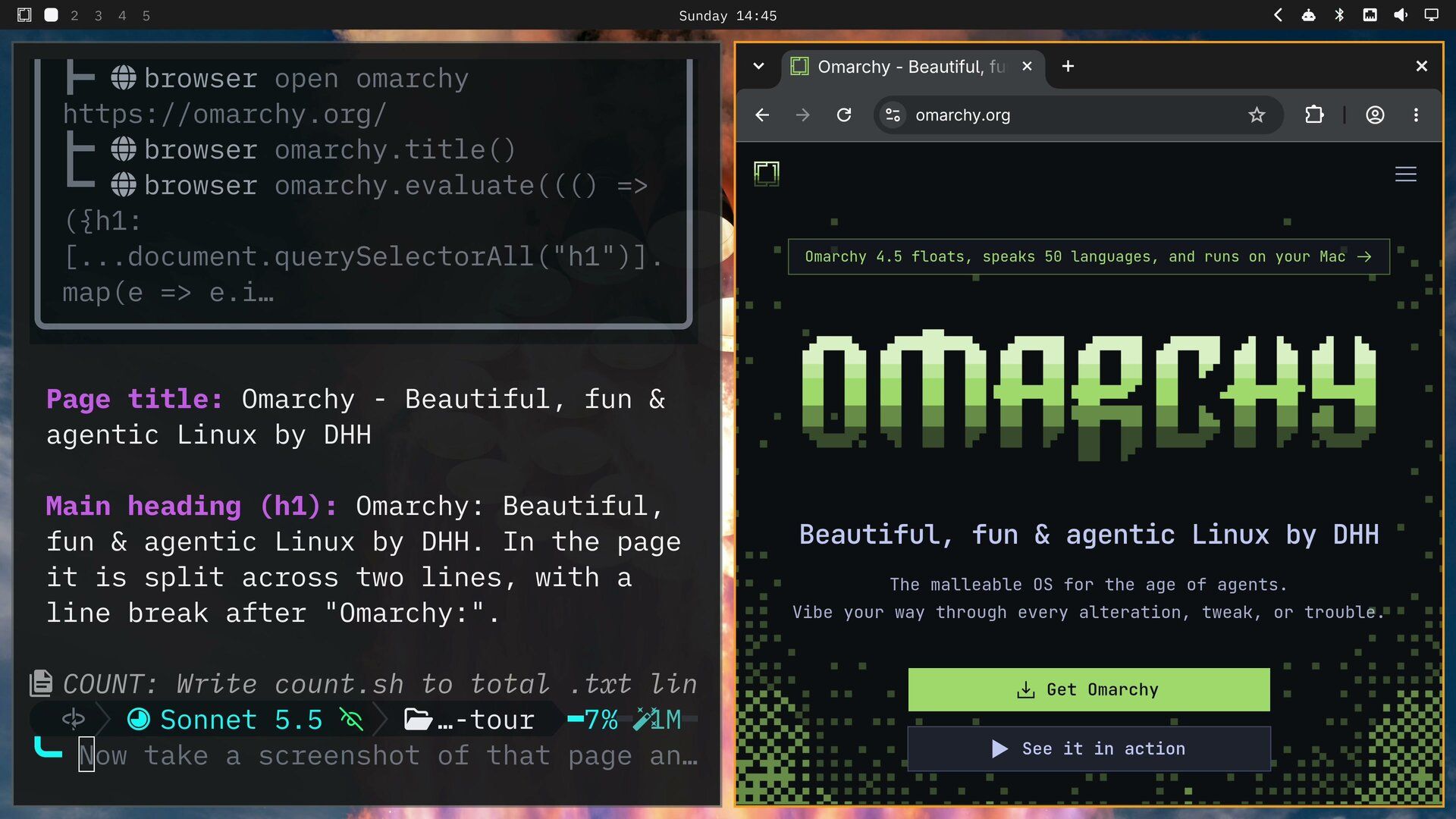
/browser visibleUse the browser to open https://omarchy.org and tell me the page title and the main heading.The agent opened the page, read the title and queried the first heading. It reported “Omarchy - Beautiful, fun & agentic Linux by DHH” as the title and “Omarchy: Beautiful, fun & agentic Linux by DHH” as the main heading, which match the page. The Chromium window stays open after the answer; close it yourself.
Give the agent an image
Images go in with an at sign touching the file name. Showing the agent a screenshot is quicker than describing it. In that second terminal, we copied the current Omarchy wallpaper into the folder at 1920 pixels wide, since the API refuses an image over 8,000 pixels on a side:
magick "$(readlink -f ~/.local/state/omarchy/current/background)" -resize 1920x wall.jpgDescribe @wall.jpg in one sentence.The agent read the image and described rocket engines firing at liftoff, with purple and orange flames under a deep blue sky. That is the wallpaper of the theme we used.
Review changes with /git
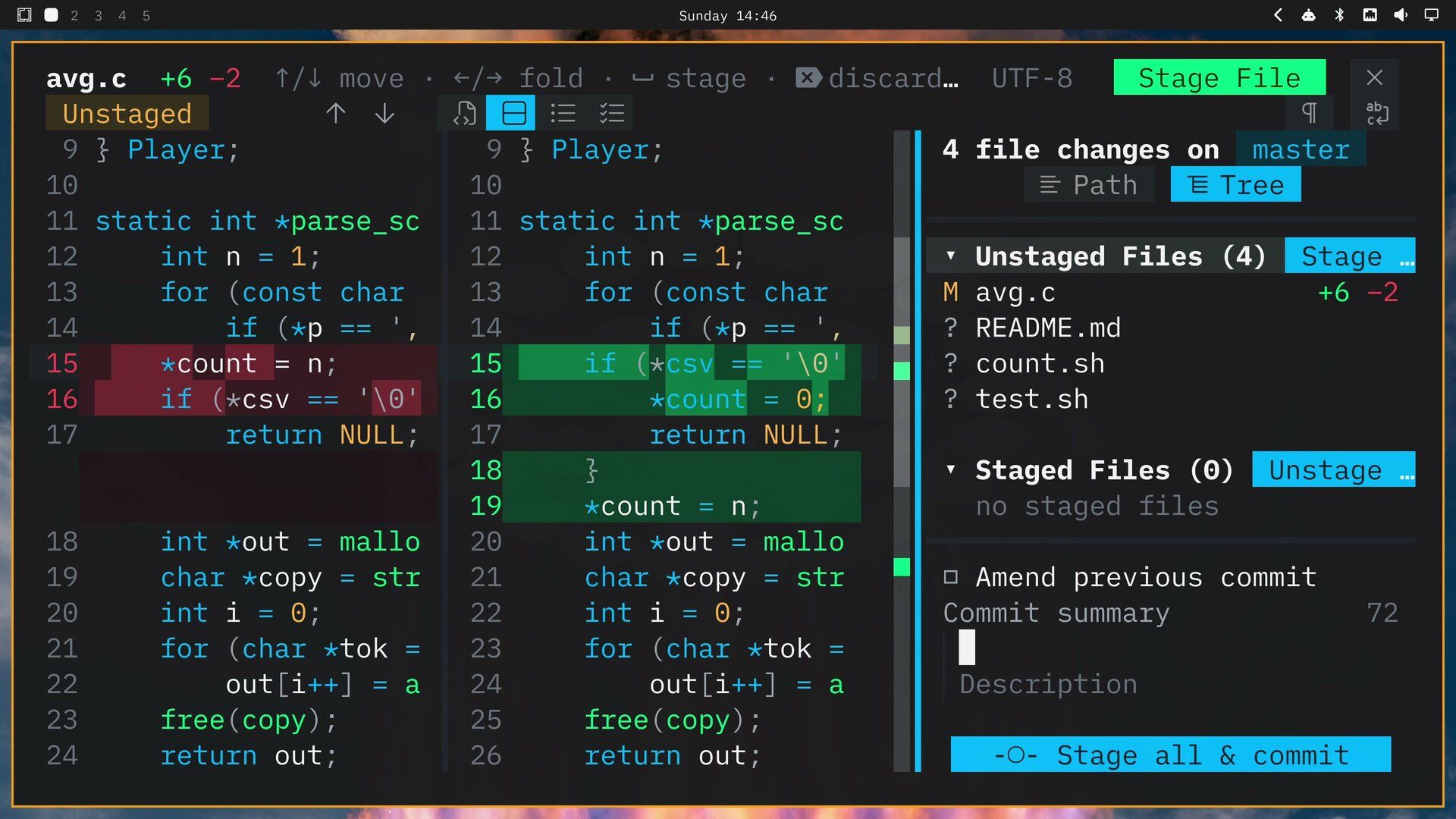
/git opens a full-screen git view inside Oh My Pi, with a split diff, a staging sidebar and a commit box, so you can review and stage changes without another tool:
/gitOurs showed the agent’s fix to avg.c in the diff, with avg.c, README.md, count.sh and test.sh under Unstaged Files. Press q to close it. Open it before you commit: after a commit, with a clean tree, it shows the last commit instead.
Commit with /commit
/commit commits only the changes this agent and its subagents made, with messages it writes:
/commitThe agent made two commits: “Fix avg crash on empty score list” with avg.c, and “Add count.sh with —ext, tests and README” with the other three files. That keeps each change in its own commit, and git status showed nothing left over.
Pick up a session with /resume
/resumeThe picker lists the sessions in this folder, each with a title the agent gave it, such as “COUNT: Write count.sh to total .txt lines”. Press tab to list the sessions from all projects, enter to open one, or esc to cancel. F2 renames a session and alt k pins it.
Share the session with /collab view
/collab view shares the live session as a read-only link:
/collab viewOh My Pi prints a join command, a browser link and a QR code, with the line “Anyone with this link can watch the session but cannot prompt the agent.” In a narrow window it hides the QR code. To open the link from the foot terminal, press ctrl shift o and the hint letter next to the link. In the browser, the guest sees the transcript as it streams, marked read-only, and the terminal reports that a guest joined.
The session goes through Oh My Pi’s relay at my.omp.sh, so both sides need internet access. The collab docs for Oh My Pi 19.1.0 say each message is encrypted before it leaves your computer, and the key rides in the part of the link after the #, which the browser does not send to the server. Anyone who has the link can still watch while the share is open, so treat it like a password. The same docs say plain /collab makes a full-control link that can also send prompts and interrupt the agent. Use /collab view unless you want a guest to drive.
End the share when you are done:
/collab stopLoad rules and skills from other agents with /extensions
Oh My Pi can load the rules and skills you wrote for other agents as they are:
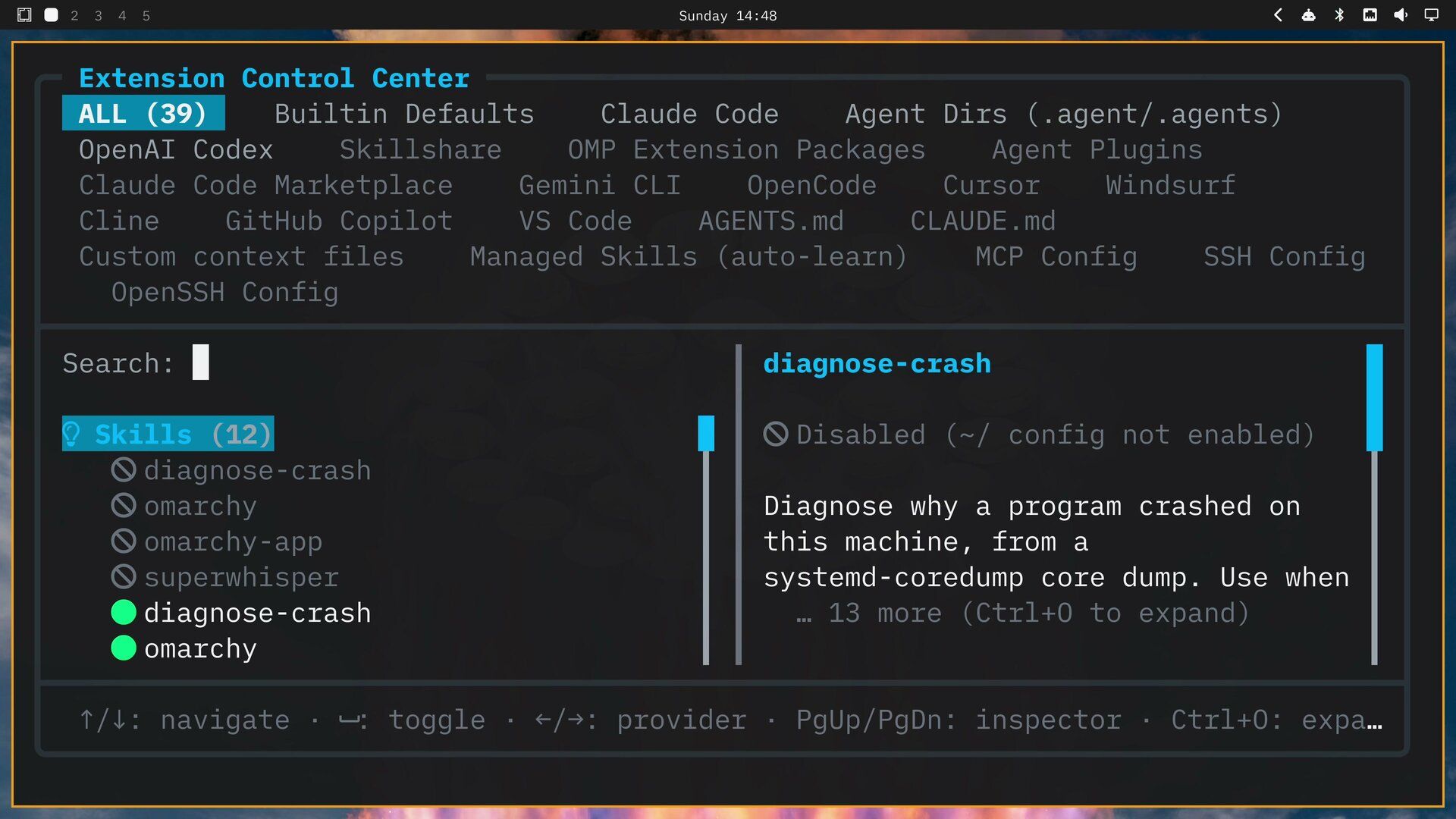
/extensionsThe Extension Control Center lists the places Oh My Pi loads rules, skills and MCP settings from. Its tabs name the sources, among them Claude Code, OpenAI Codex, Cursor, Gemini CLI, AGENTS.md, CLAUDE.md and MCP config files. Below the tabs, it lists the skills it found. Omarchy’s own skills show up there too, such as omarchy and diagnose-crash, and the inspector on the right says whether each one is enabled. The footer lists space to toggle an entry and esc to close.
See the cost with /stats
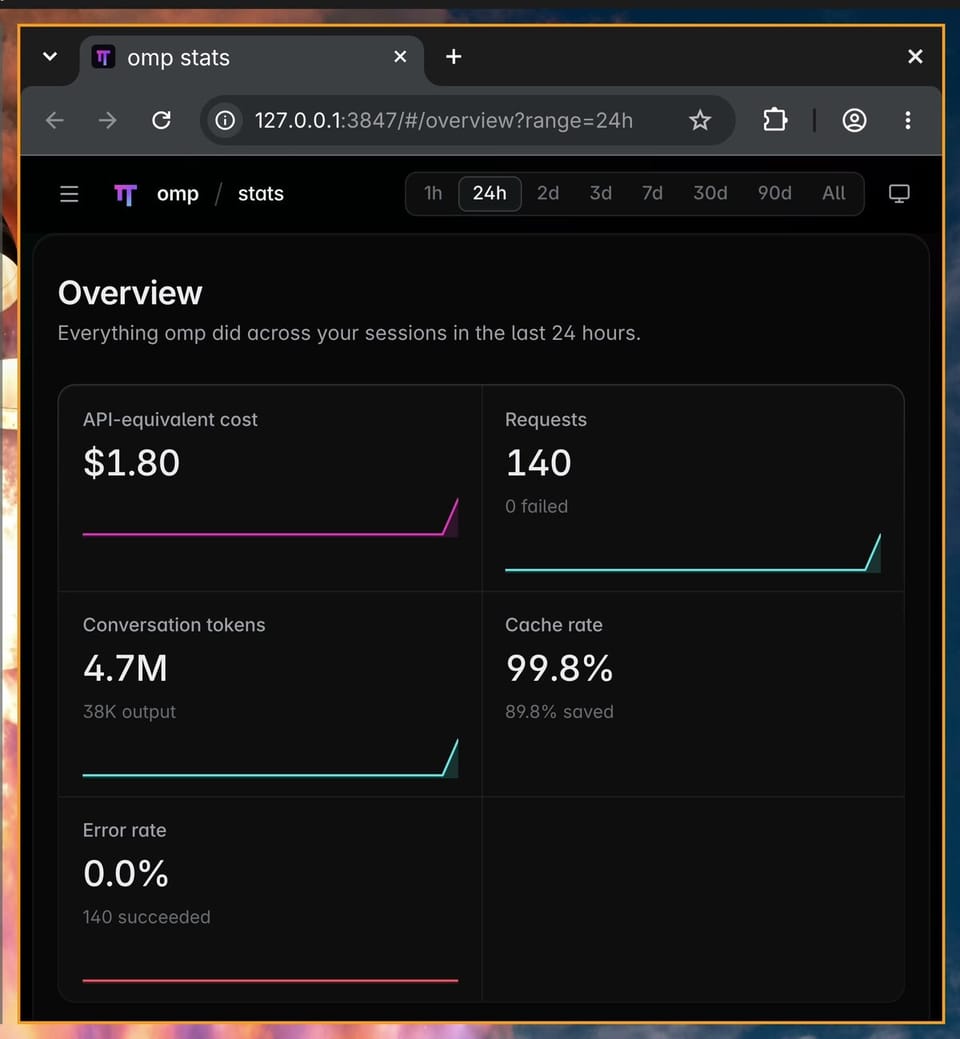
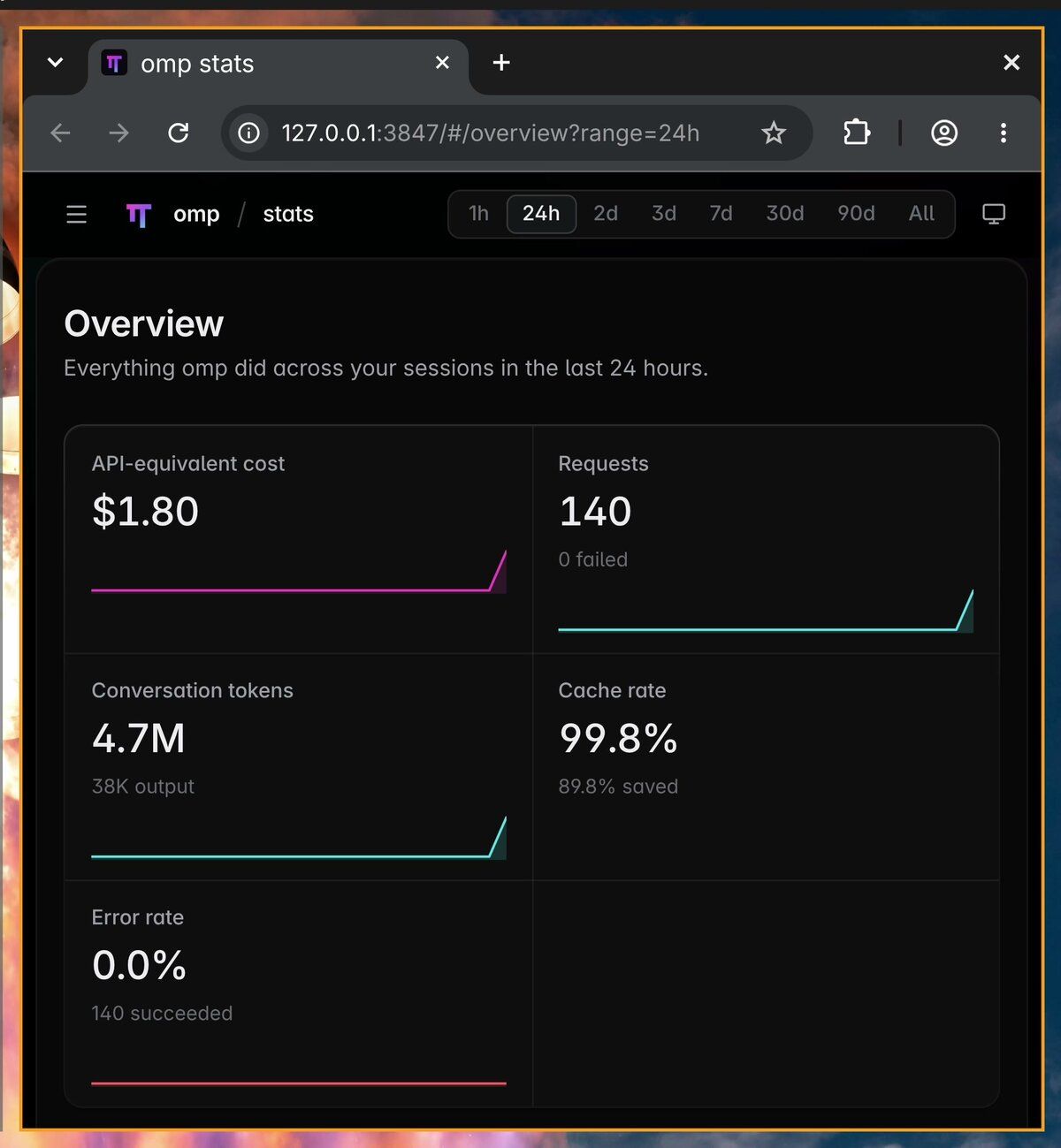
/stats/stats opens a local dashboard in the browser at 127.0.0.1:3847. It shows the API-equivalent cost, the requests, the tokens and the cache rate for a time range you pick. We cleared Oh My Pi’s sessions before the tour, so the 24-hour view held only the tour: $1.80 for 140 requests, none of them failed, 4.7 million conversation tokens and a 99.8 percent cache rate. From a shell, omp stats opens the same page.
The status line splits the cost between the main agent, its subagents and the advisor. These are the running totals it showed after each step:
| After | Main agent | Subagents | Advisor | Running total |
|---|---|---|---|---|
| First prompt | $0.02 | $0.05 | $0.07 | |
| Subagents | $0.07 | $0.09 | $0.12 | $0.28 |
/review | $0.12 | $0.16 | $0.16 | $0.44 |
Ask, /btw and plan mode | $0.41 | $0.16 | $0.54 | $1.11 |
| Debugger | $0.50 | $0.16 | $0.67 | $1.33 |
| Eval and web search | $0.57 | $0.16 | $0.80 | $1.53 |
| Browser and image | $0.63 | $0.16 | $0.87 | $1.66 |
/commit | $0.68 | $0.16 | $0.95 | $1.79 |
The Opus advisor cost 95 cents, more than the main agent and its subagents together at 84 cents, and it posted one note in the whole tour. That note did catch two wrong claims. To keep the cost down, leave the advisor off for small jobs and turn it on with /advisor on when a change needs a second reader.
Troubleshooting
/advisor configure goes to the agent as a prompt. Typed in one go, the command was sent as a prompt, and the agent tried to change the settings itself. Type /advisor, a space, pause, then the subcommand.
/review says there are no uncommitted changes. Mode 2 ignores files git does not track. Use mode 5 and name the files, or git add them first.
A / stays in the prompt box. Pressing esc in the slash list leaves the slash in the composer. Delete it with backspace before you type, or the next command goes in with two slashes.
Chromium stays open after the browser tool or /stats. Close the window, or run pkill -x chromium.
The agent refuses an image. Images over 8,000 pixels on a side are refused. Resize the file first, as in the image section.
The status line shows no cost. In a narrow window, such as a half-width tile next to the browser, the status line drops the cost. Make the Oh My Pi window wider.
Related guides
Our Pi guide shows the agent Oh My Pi is forked from, writing an Omarchy extension for itself. For more terminal agents on Omarchy, see Codex on Omarchy, Crush building a terminal game and Grok Build and Grok Bot.


