
Caelestia is a desktop shell for the Hyprland window manager. Hyprland arranges your windows in tiles, and a shell adds everything around them: the bar, the app launcher, notifications and panels. Caelestia is free and open source (GPL-3.0), made by a developer who goes by soramane, and its shell repository has more than 13,000 stars on GitHub. It is built on Quickshell, the toolkit our Quickshell guide explains.
Next to the shell, Caelestia ships matching settings for Hyprland, the foot terminal, the fish shell, Thunar, btop and other apps, and a command-line tool called caelestia installs and updates all of it. The result is a complete Hyprland desktop from one installer, with colors that can follow your wallpaper. It installs on a fresh Arch Linux system with two commands, and three small files hold your own changes, which updates leave alone.
Everything here ran with caelestia-shell 2.5.0, caelestia-cli 1.1.3 and Hyprland 0.57.2 on a GMKtec NucBox G2 mini PC (Intel N100) with a 4K screen, in November 2026.
What you need
Caelestia installs on Arch Linux, with help from the AUR (the Arch User Repository, where the community shares packages). Start from a minimal Arch install with no desktop, logged in at the text console as a normal user with sudo rights. We used archinstall’s Minimal profile with NetworkManager and PipeWire.
Install it on its own system, not on top of another Hyprland setup such as Omarchy. The installer writes its own config files into ~/.config/hypr, and the shell needs the quickshell-git package, which conflicts with the plain quickshell package that Omarchy uses for its own shell.
You also need an AUR helper, a tool that builds and installs AUR packages. We used paru. If you don’t have it yet, build it from the AUR:
sudo pacman -Syu --needed base-devel git
git clone https://aur.archlinux.org/paru.git
cd paru
makepkg -si
cd ..
rm -rf paru
On a 4K screen, the console text is tiny. The Terminus font fixes that: install terminus-font, then double the largest Terminus size for the current console.
sudo pacman -S terminus-font
setfont -d ter-132n
Install Caelestia
First, install the caelestia tool from the AUR:
paru -S caelestia-cliparu asks which provider to use (Enter keeps 1, the stable caelestia-cli), then asks Proceed to review and Accept changes, and then sudo asks for your password.
The next command hands a script your password, and it writes over the config files for Hyprland, the terminal and more. That is a lot to hand a script, so read it, or have an AI tool check it, before you run it. The installer is install.py in the CLI repository, and our guide to installing AUR packages safely covers how to read a PKGBUILD before you build it. When you’re ready, run:
caelestia install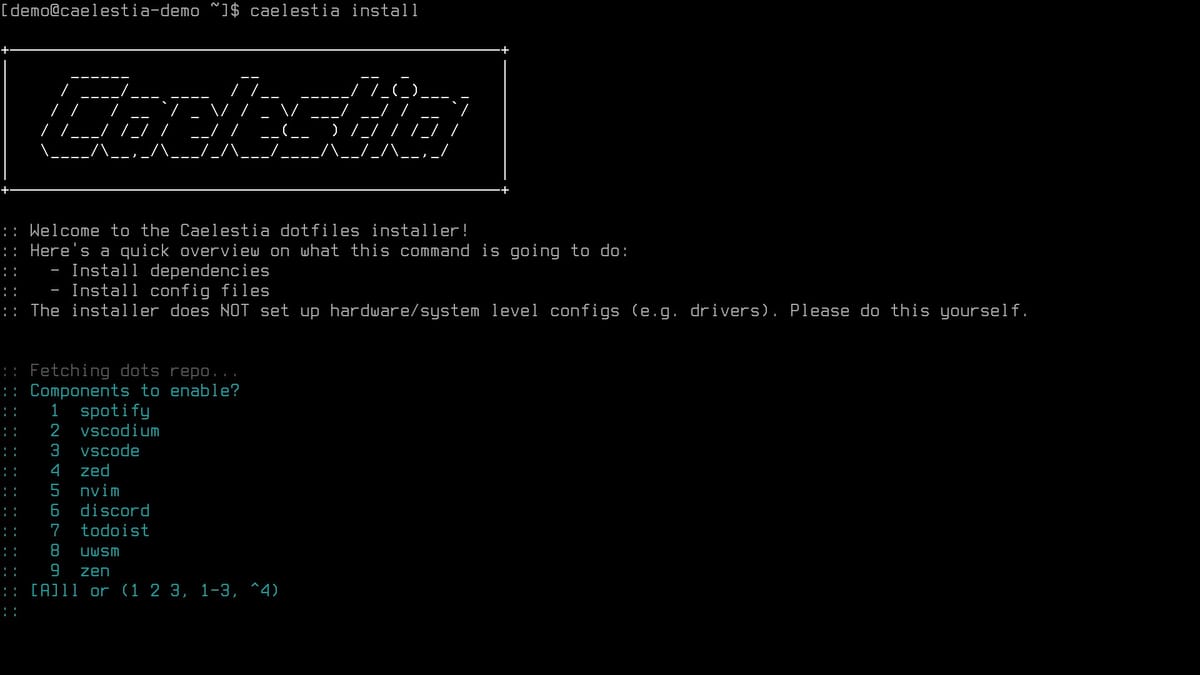
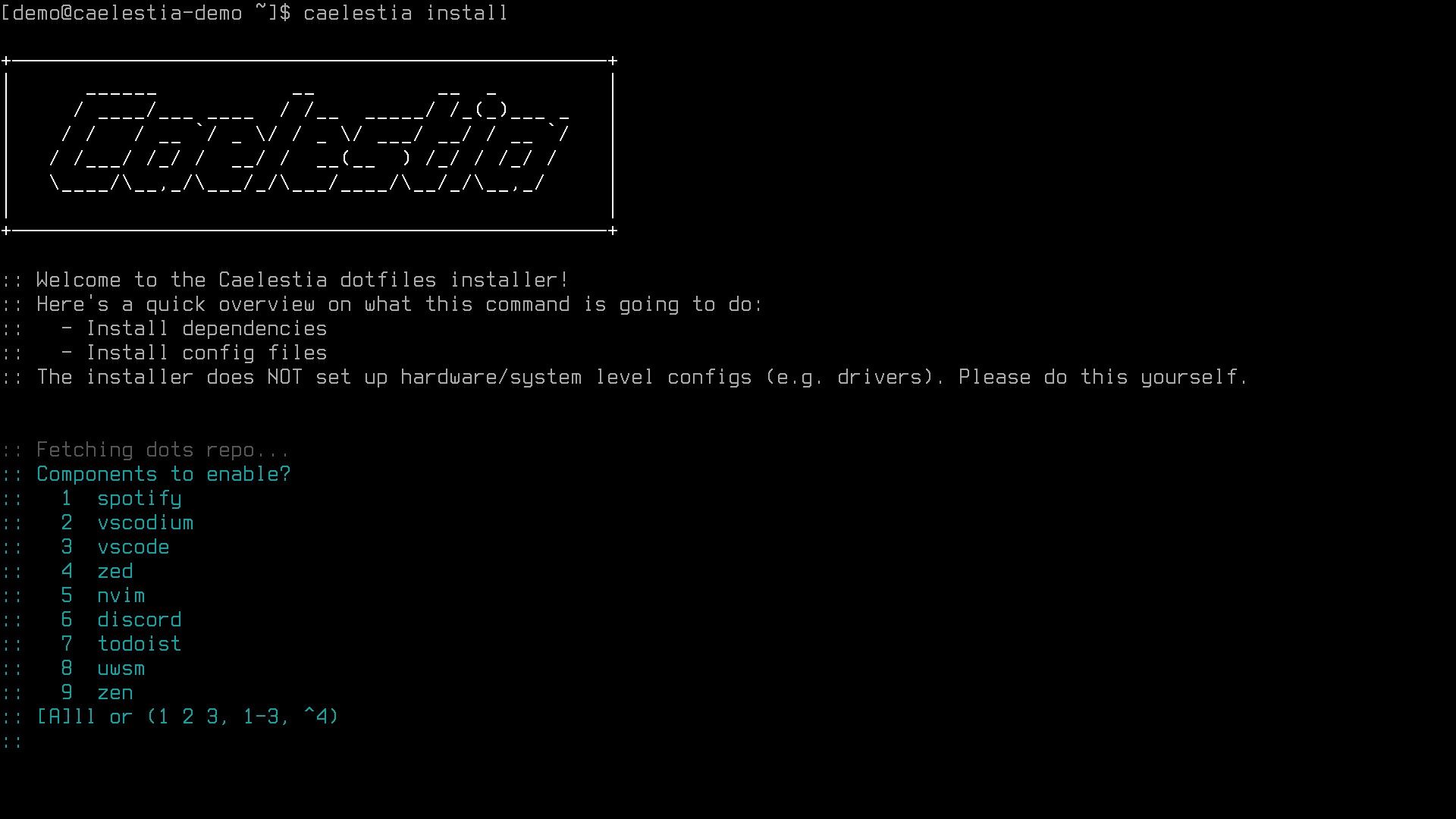
The installer opens with a note that it doesn’t set up drivers or other hardware, so those stay your job. Press Enter to go on. If you already have a ~/.config folder, it then asks “Back up the config directory?” (the default is yes), which copies the whole folder to ~/.config.bak. Say yes. On our fresh user there was no ~/.config yet, so this prompt did not show.
The next screen offers optional apps: Spotify, VSCodium, VS Code, Zed, Neovim, Discord, Todoist, uwsm and Zen. An empty answer picks none of them; type numbers such as 1 4 to add some.
Then the prompts come in a row, and Enter answers each one:
- pacman lists the packages from the official Arch repositories (170 on our run) and asks Proceed with installation.
- paru asks three provider questions, for
caelestia-shell,papirus-foldersandqtengine. Enter keeps the default 1, which is the stablecaelestia-shell. - paru shows its plan, with ten packages from the AUR, and asks Proceed to review. Answer yes: a no stops the whole install with “Fatal: failed to install packages”. If that happens, run
caelestia installagain; it starts over cleanly. - Accept changes, then a signing key import for
papirus-folders.
The AUR builds take a while on a small PC. On the N100 they took about 15 to 17 minutes, and compiling quickshell-git was the longest part. Partway through, the build stops once to ask for your password again, because sudo’s timer ran out, so keep an eye on the console. Near the end, pacman asks Proceed with installation a few more times, and then the installer prints “All done! Caelestia has been installed.” A few warnings about Firefox and hyprctl reload just before that are expected on a text console, because Firefox has no profile yet and Hyprland isn’t running.
Start Hyprland
The installer suggests a restart:
rebootCaelestia adds no login screen. After the restart, log in at the text console and start Hyprland:
start-hyprlandHyprland starts and launches the shell with it. If you’d rather have a login screen, the Caelestia dots README recommends greetd with tuigreet and leaves the choice to you.
On a 4K screen the whole desktop starts at scale 1, so the bar and text are very small. Set the scale in ~/.config/caelestia/hypr-user.lua (more on that file below). Run hyprctl monitors to find your output’s name, then add a line like this one, with your name in place of HDMI-A-2:
hl.monitor({output="HDMI-A-2", mode="preferred", position="auto", scale=2})The bar and the launcher
The bar runs down the left edge of the screen. Workspaces are near the top, the clock and tray icons are near the bottom, and a power button ends the column.
Tap the Super key on its own (the Windows key on most keyboards) to open the launcher at the bottom of the screen. Start typing to filter the apps, and enter opens the highlighted one. Common apps have their own keys: super t opens the foot terminal, super e the Thunar file manager, and super w Firefox. super q closes a window.
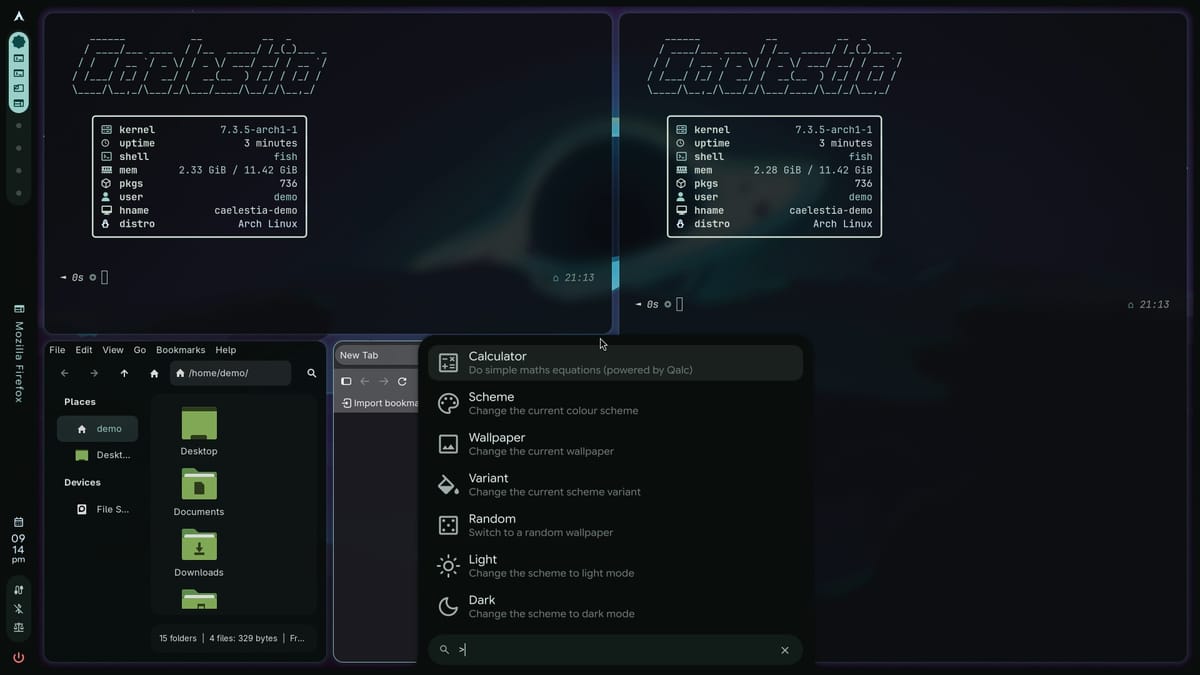
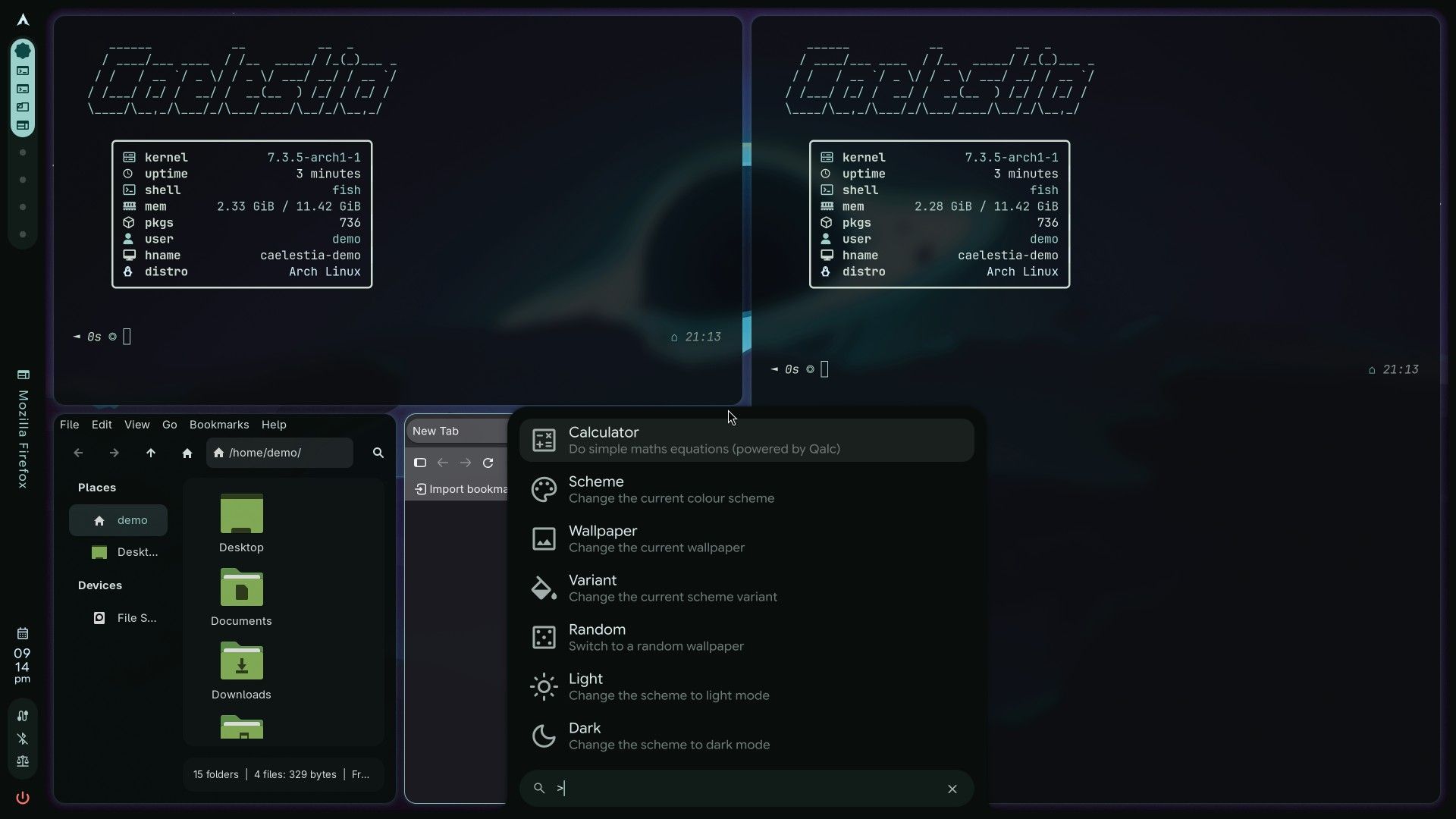
Type a greater-than sign (>) in the launcher, and it switches to actions: Calculator, Scheme, Wallpaper, Variant, Random, Light and Dark. Typing >calc 12*7 shows 84 right in the launcher, without opening another app.
Windows
Windows tile by default, so each new one splits the space with the windows already open. super alt space makes the focused window float, so you can place it anywhere, and holding Super while you drag with the left mouse button moves it.
super f makes a window fill the screen, and super f again puts it back in its tile. super , turns a window into a group, a single tile with a tab bar on top. A window you open next joins the group as another tab, which keeps related windows together; alt tab moves between the tabs.
The dashboard and the sidebar
Move the pointer to the top edge of the screen, and the dashboard drops down. Its first tab gathers the weather, a calendar, the clock, gauges for the computer’s resources and a media card. The Performance tab shows the processor, storage, network and memory, which helps when a program slows the computer down. The Weather tab has a seven-day forecast.
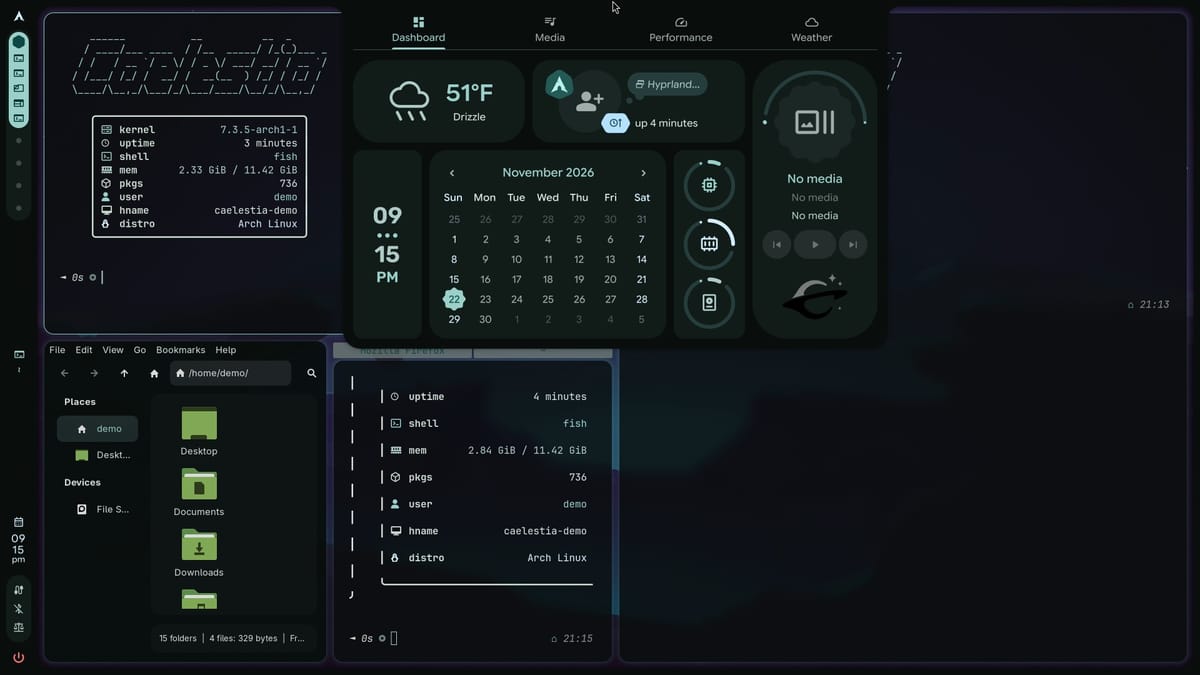
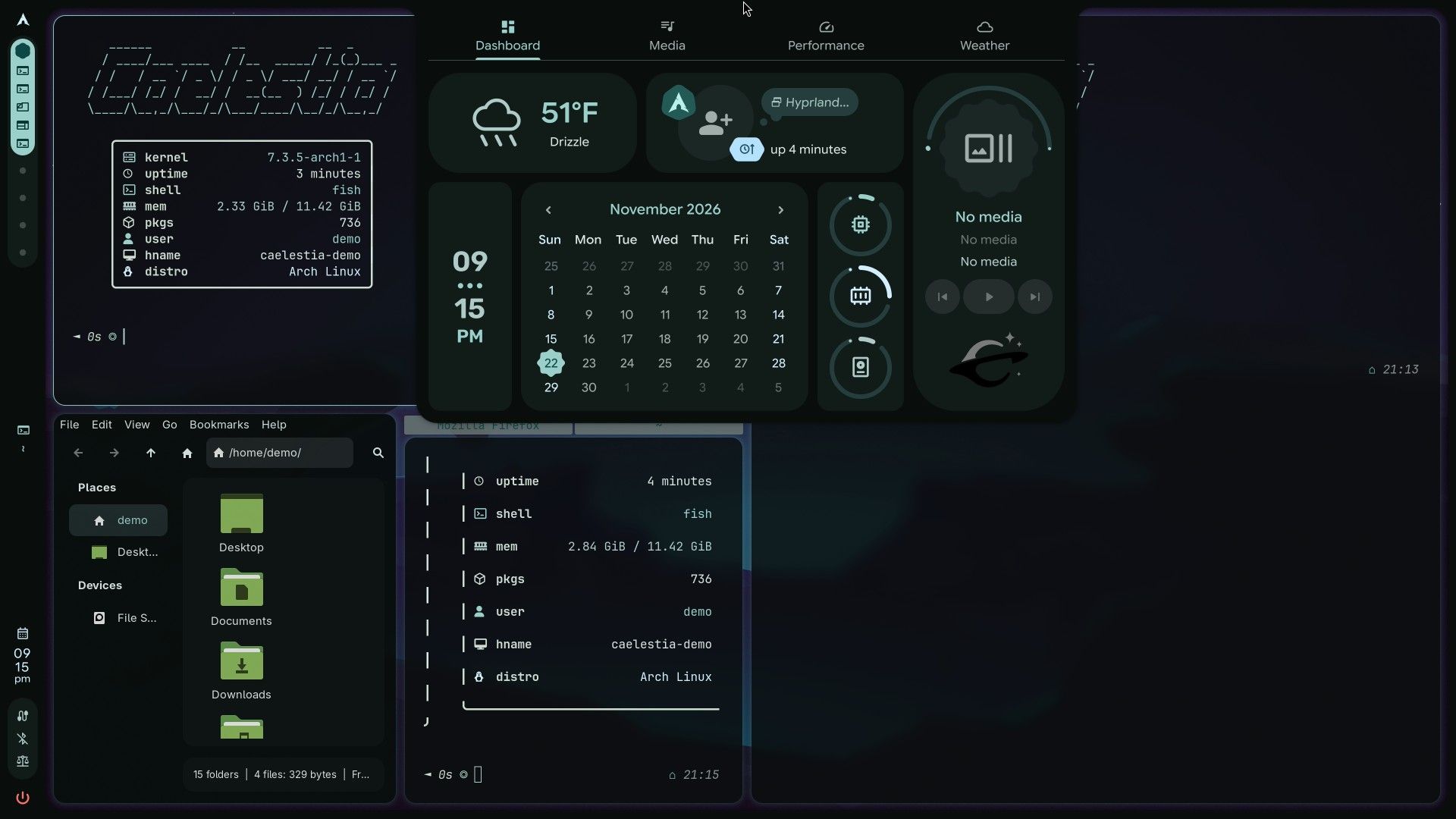
Without a city set, the weather widget asks an online service for your location based on your IP address. To pick the city yourself, set services.weatherLocation in shell.json (the file is covered below):
{
    "services": {
        "weatherLocation": "Indianapolis"
    }
}
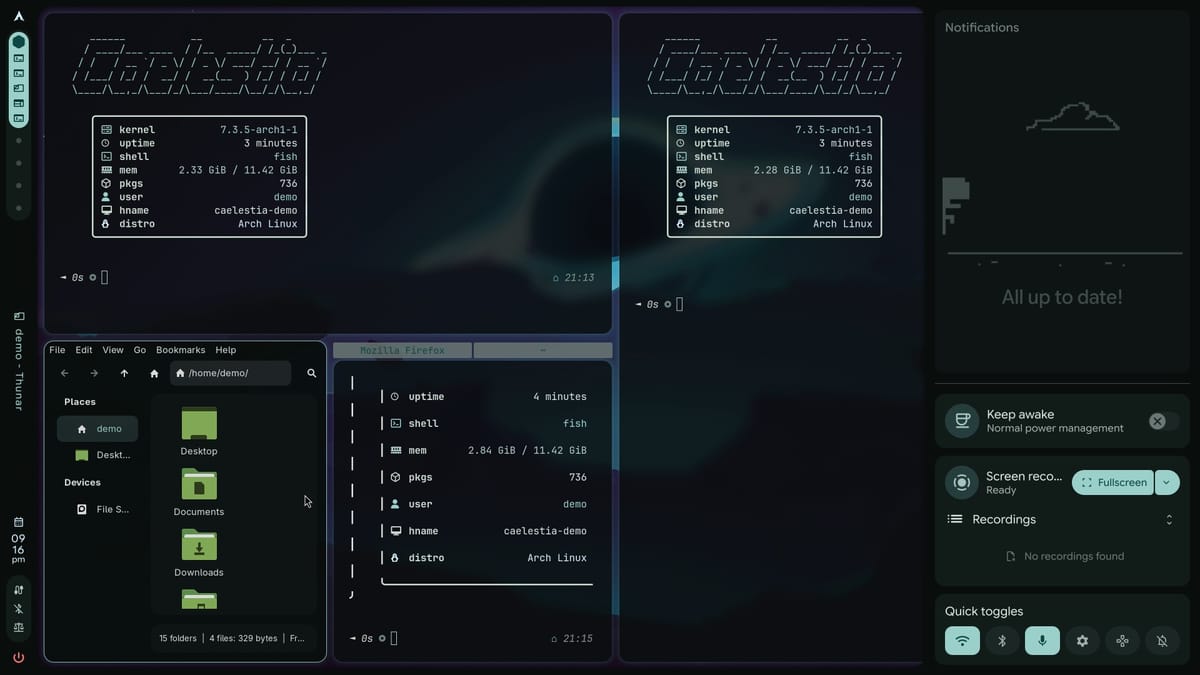
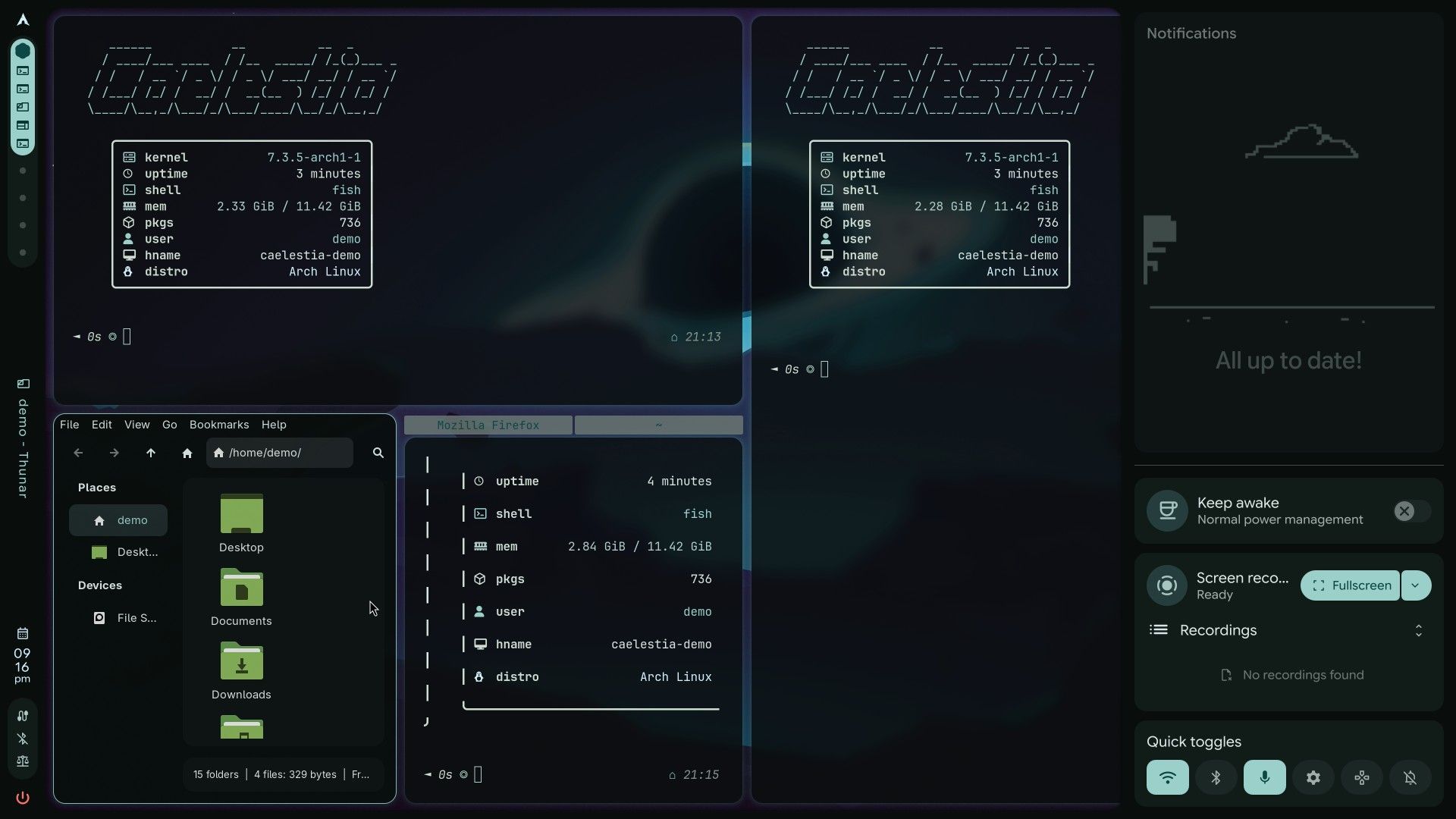
super n opens the sidebar on the right, with your notifications at the top; ctrl alt c clears them. Below the notifications, Keep awake stops the computer from going to sleep while you watch or read. The screen recorder is here too, and finished clips appear in the Recordings list. Quick toggles along the bottom switch Wi-Fi, Bluetooth, the microphone, game mode and do not disturb, and the gear among them opens the settings app.
Wallpapers and colors that follow them
Wallpapers come from the Wallpapers folder inside Pictures. Create it and copy a few images in:
mkdir -p ~/Pictures/WallpapersType >wallpaper in the launcher and press enter on the Wallpaper action. A carousel opens and previews the highlighted image as your wallpaper. Typing part of a file name filters the carousel, and enter sets the highlighted wallpaper. In our tests the arrow keys did not move the carousel, so typing a name is the reliable way to pick one.
After the install, the colors come from a fixed scheme called caelestia. To make them follow the wallpaper, type >scheme dyn in the launcher. It lists two dynamic schemes, hard and default; pick default. The bar, the window borders and the terminal change to match the wallpaper within about a second, and they change again each time you set a new wallpaper.
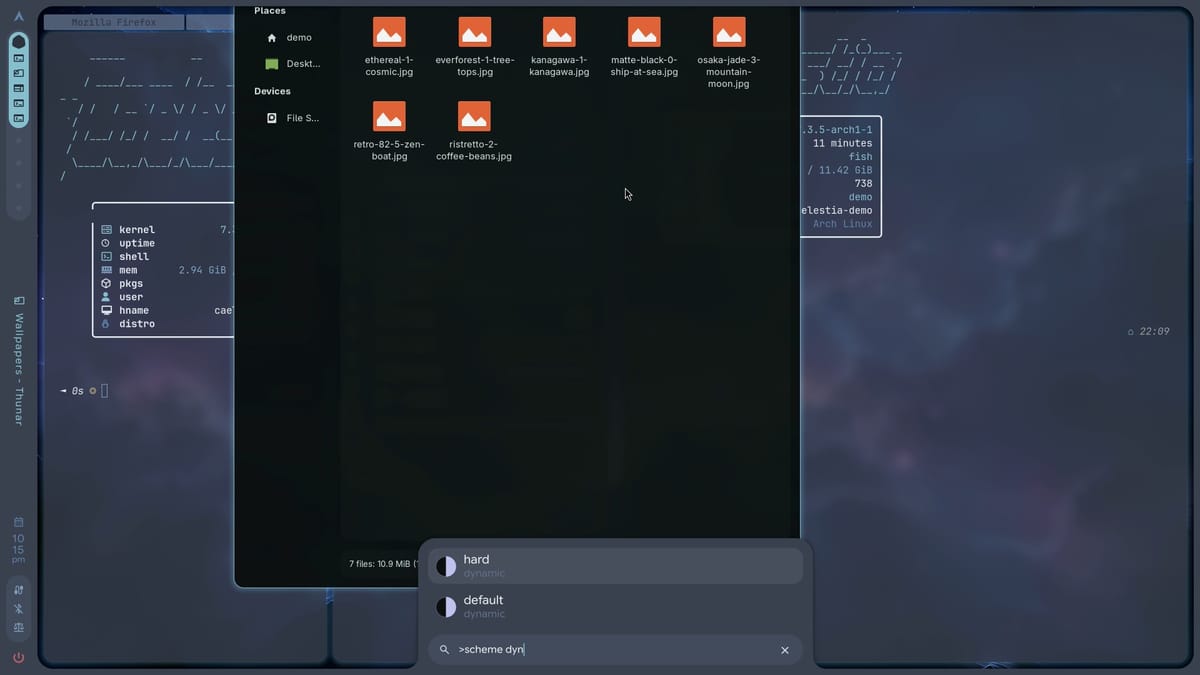
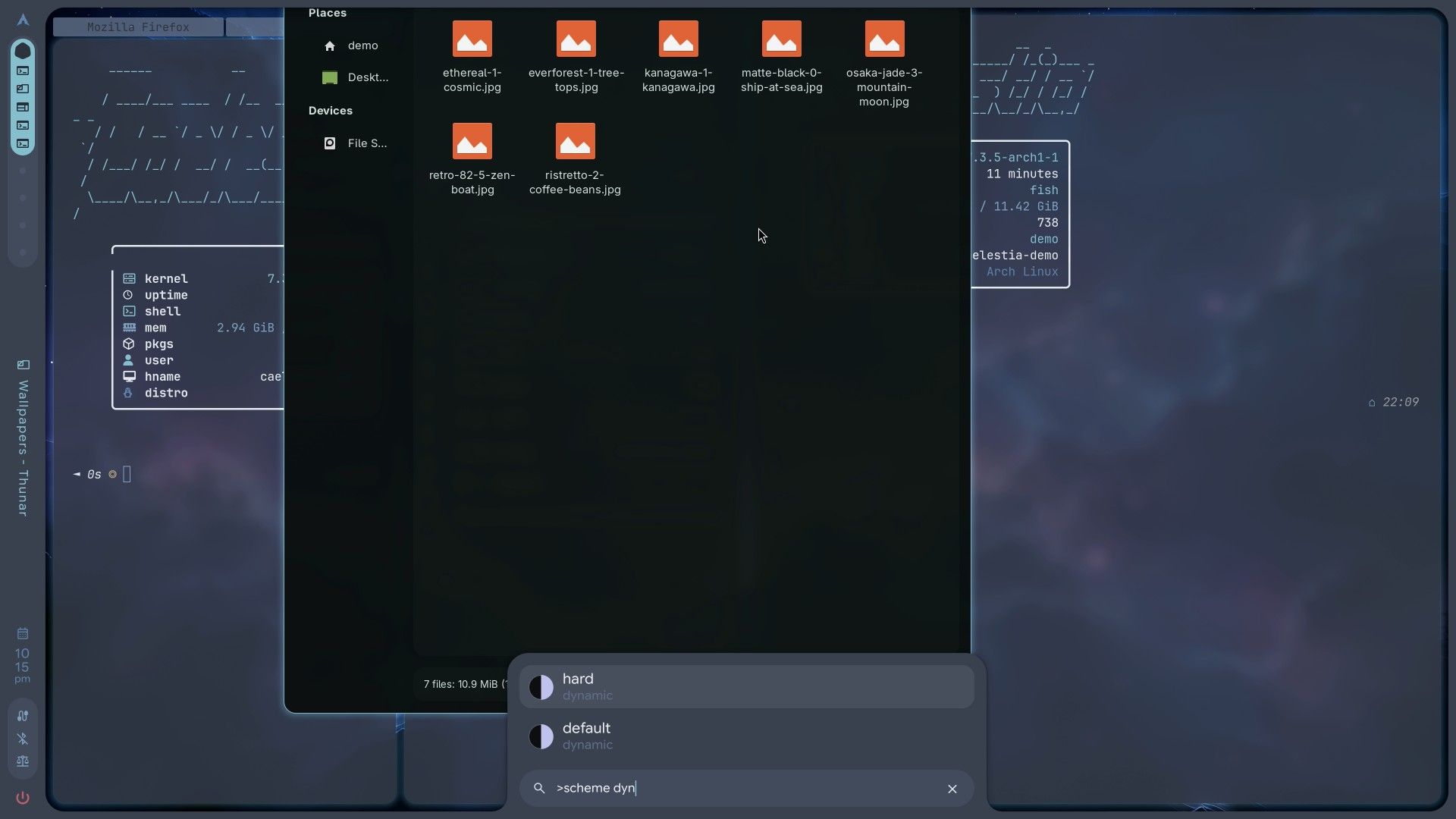
Variants change how the colors are picked from the wallpaper. Type >variant and a space to list them: Vibrant, Tonal Spot, Expressive, Fidelity, Content, Fruit Salad and Rainbow. Tonal Spot is the default, and Vibrant gives a stronger palette. In these lists, click the entry you want.
If you’d rather use a familiar palette, type >scheme and a space. The list has built-in schemes such as Catppuccin, Gruvbox, Nord, Everforest, Tokyo Night and Rosé Pine. Type >scheme dyn and pick default again to go back to wallpaper colors. The >light action turns the bar and the terminal light, and >dark switches them back. Thunar keeps its dark theme either way.
The settings app
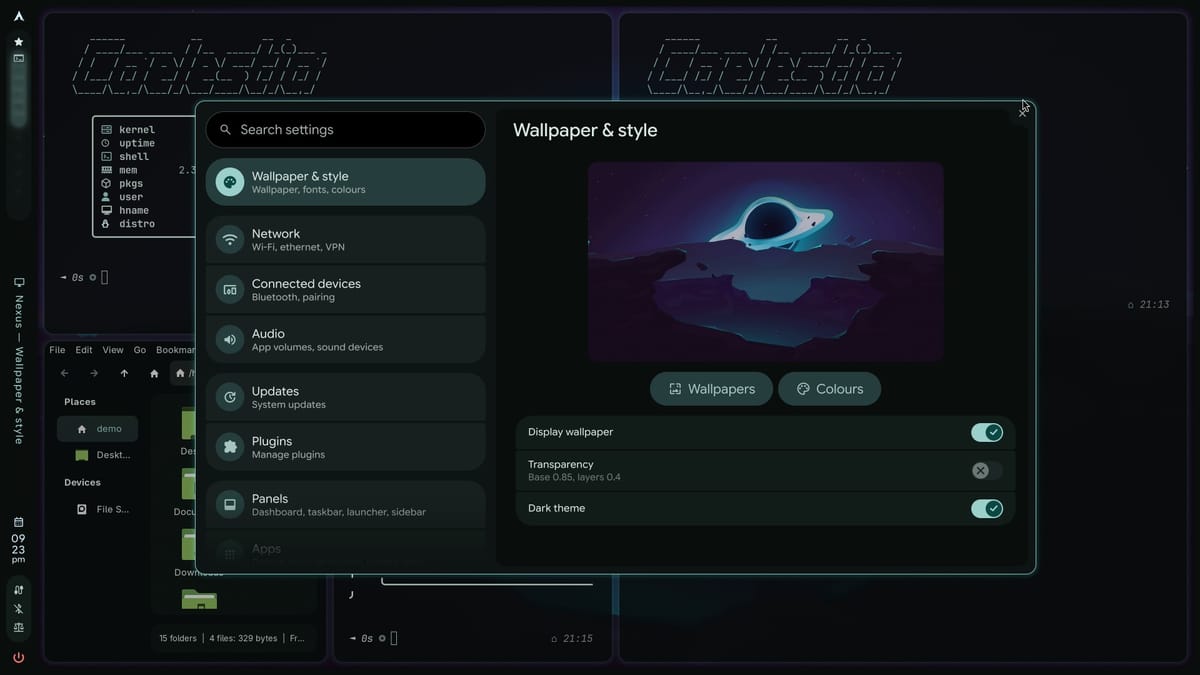
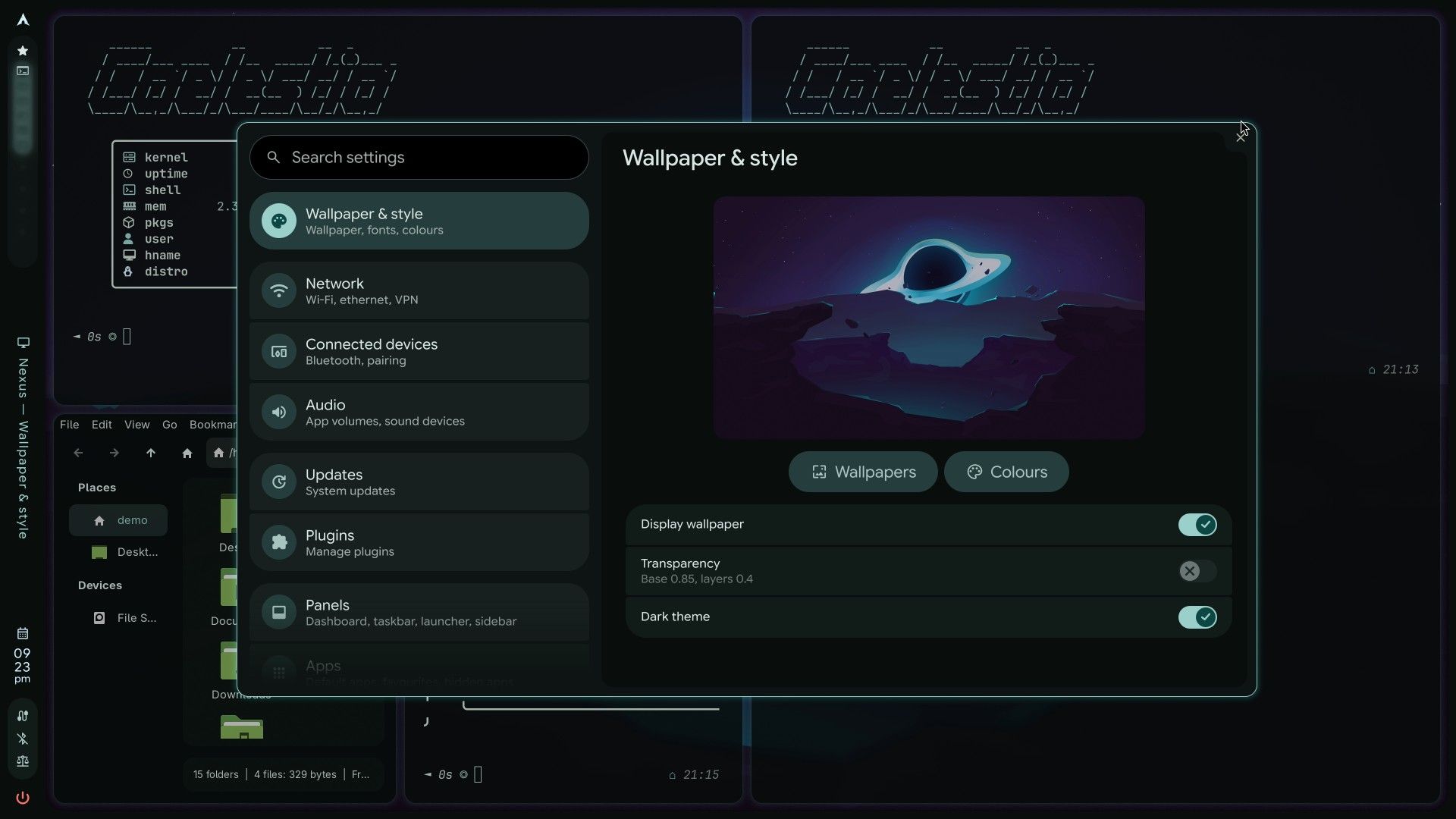
Type >settings in the launcher, or click the gear in the sidebar’s quick toggles, to open Caelestia’s settings app. Its pages are listed on the left:
- Wallpaper & style has the wallpaper and color pickers, plus switches for transparency and the dark theme.
- Network covers Wi-Fi, Ethernet and VPN.
- Connected devices handles Bluetooth pairing.
- Audio sets the volume and picks your sound devices, with per-app volumes in an App volumes row.
- Panels changes how the dashboard, the taskbar, the launcher and the sidebar behave.
The list also has Updates, Plugins and Apps pages. The Search settings box at the top did not filter anything in our tests with version 2.5.0, so open pages from the list.
Your changes go in three files in ~/.config/caelestia
Run this after the install to see them:
ls ~/.config/caelestiaDon’t edit the files in ~/.config/hypr. Caelestia manages that folder, and its README warns that changes made there “will prevent new updates from being applied.” The install and update steps never touch the files below.
hypr-vars.lua overrides Caelestia’s settings for Hyprland, such as keyboard shortcuts, default apps and looks. After the install it holds only return {}. This version turns off the frosted-glass blur behind windows:
return {
    blurEnabled = false,
}
The change shows as soon as you save, with no restart. The dots README has more examples, such as browser, editor and kbTerminal, and its hypr/variables.lua lists every variable with its default.
hypr-user.lua takes any other Hyprland settings, such as your monitor setup (the scale line from earlier goes here), extra keys and window rules. It loads last, after Caelestia’s config.
shell.json holds the options for the shell itself. The install does not create it, so make it yourself. This file hides the bar until the pointer touches the left edge of the screen:
{
    "bar": {
        "persistent": false
    }
}
The shell reloads it on save. Put all your options in one JSON object: to keep the weather city from earlier as well, add the "services" block next to "bar", with a comma between them. The shell README lists every option with its default.
Screenshots, clipboard, emoji and the lock screen
super shift s freezes the screen for a screenshot. Because the screen is frozen, a right-click menu stays put while you drag over the part you want, and the capture opens in the swappy editor; esc closes it. super v opens the clipboard history, a searchable list of what you’ve copied. super . opens the emoji picker, with more than twelve thousand emoji and symbols to search.
super l locks the computer. The lock screen shows the weather, system details, the clock and your notifications, and your password unlocks it again. ctrl alt delete opens the session menu on the right edge, with buttons to log out, shut down, hibernate and reboot.
Keep it up to date
When you want the latest version, one command updates the system and the Caelestia files together:
caelestia updateTroubleshooting
The screen recorder doesn’t start. On our minimal Arch system, the recorder failed with “vaInitialize failed” until we installed the video driver for the Intel N100. Install the VA-API driver for your graphics; on recent Intel chips that’s sudo pacman -S intel-media-driver.
The Recordings list stays empty. Recordings save to ~/Videos/Recordings. If that folder didn’t exist when the shell started, the list kept saying “No recordings found.” Create it with mkdir -p ~/Videos/Recordings and log in again.
The shell won’t start after a system update. quickshell-git is built against the Qt version you had when it compiled. A Caelestia contributor’s fix in issue #536 is to rebuild it against the current Qt:
paru -S --rebuild quickshell-gitThe bar and text are tiny. Set the monitor scale in hypr-user.lua, as in “Start Hyprland” above.
Remove Caelestia
Caelestia has no uninstall command, and these steps were not part of our test run. They follow the file list and package names the installer records in ~/.local/state/caelestia/dots-state.json. Run them from the text console after you log out of Hyprland (the session menu’s log out button).
First, keep a copy of that record, because a later step deletes its folder:
cp ~/.local/state/caelestia/dots-state.json ~/caelestia-state.jsonList the config files the installer placed, read the list, then delete them:
jq -r '.deployed_files | keys[]' ~/caelestia-state.json
jq -r '.deployed_files | keys[]' ~/caelestia-state.json | xargs -d '\n' rm -f
Remove the shell, the tool, Quickshell and the Firefox theme package:
paru -Rns caelestia-shell caelestia-cli quickshell-git caelestia-firefox-themeThen remove the Caelestia folders. ~/.config/caelestia holds your hypr-vars.lua, hypr-user.lua and shell.json, so copy them somewhere first if you want them later:
rm -rf ~/.config/caelestia ~/.local/state/caelestia ~/.cache/caelestia ~/.local/share/caelestiaIf the installer made a backup, your old config folders are in ~/.config.bak; copy back the ones you want, for example cp -a ~/.config.bak/hypr ~/.config/. The other packages the installer added (Hyprland, foot, fish, Thunar, Firefox and the rest) stay installed. jq -r '.packages[]' ~/caelestia-state.json lists them if you want to remove some of those too; check each one first, since other programs may need it.
Wrapping up
The tradeoff for a finished desktop from two commands is a long first build and a Hyprland config folder that belongs to the installer. If you want to see what the shell is built from, our guide to what Quickshell is builds a first bar by hand, and our niri and DMS tour covers another full shell that starts from the same minimal Arch install.


