
Quickshell is a toolkit for building the parts of a Linux desktop that sit around your windows. Those parts are the bar across the top, the app launcher, the notifications and the volume pop-up, and together they are called the desktop shell. With Quickshell, you describe those parts in a few text files, and Quickshell draws what you described. If you run Omarchy, you already use it: the bar, the menus, the notifications and the lock screen on Omarchy 4 all come from one Quickshell program.
Below, the first bar from the Quickshell docs runs on Omarchy and changes while it runs, so you see the edit, save and reload loop for yourself. Claude Code then builds a larger example: a desk card on the wallpaper with a big clock, the date and the track that is playing, in Omarchy’s theme colors. Everything below, and in the video embedded above, ran on Omarchy 4.5 with Quickshell 0.3.2 on a 4K screen. Both prompts we sent are below in full, along with the parts of the config that matter.
Quickshell is a toolkit that runs on top of a compositor
A compositor is the program that draws your windows and moves them around. Hyprland and niri are compositors. Quickshell runs on top of one and draws the shell parts, so it is neither a desktop environment nor a compositor, and it brings no apps of its own. The project describes itself as a “flexible toolkit for making desktop shells with QtQuick, for Wayland and X11” on its GitHub page. It is not tied to Omarchy or to Hyprland: it runs on other Wayland compositors that support the layer-shell protocol, and on X11.
You describe each part in QML, the layout language from the Qt toolkit. In QML, windows, text and colors are blocks nested inside each other. Properties can be bound to each other, so a label tied to the clock updates whenever the clock changes, with no code to push the new value. Quickshell also ships services for desktop data, such as media players (MPRIS), PipeWire audio and the network, so a widget can show what is playing or the volume without calling outside tools.
A Quickshell config is a folder with a file called shell.qml in it. Quickshell reads that file, draws what it describes, and watches it for changes. When you save an edit, the parts on screen reload in place, usually within a second. The Quickshell introduction walks through the same model from the first bar to a clock.
The current release is 0.3.2, from October 2026. Quickshell has not reached version 1.0, and its install page says “There will be breaking changes before 1.0, however a migration guide will be provided.” A config written today may need fixes after an update, and that applies to the examples on this page too.
Shells built on Quickshell
Omarchy 4 replaced its separate bar, launcher, notification and lock screen programs with one Quickshell process, and Omarchy 4.5 still ships it that way; what Omarchy is and how it is built covers the rest of that stack. Omarchy’s own add-ons are plugins inside that process, which is a different route from the standalone config on this page.
Several other shells are Quickshell configs, the same kind of folder you start below. DMS, now called Dux Modular Shell and formerly DankMaterialShell, is a full shell for niri, Hyprland, Sway and other compositors, with a bar, a launcher, panels and a settings app; our tour of niri with DMS shows it running. Caelestia and end-4’s illogical-impulse are two more, both made for Hyprland. Noctalia began on Quickshell as well, and version 5 moved to its own C++ code with no Qt, so current Noctalia is no longer a Quickshell shell.
What you need
On Omarchy 4.5, Quickshell is already installed. Check the version in a terminal ( super enter opens one):
pacman -Q quickshellquickshell 0.3.2.r7.g2b4501a-1qs is the short name of the quickshell command; the package installs both. qs --version prints the same version and notes that Omarchy built the package. On Omarchy, update the system with omarchy update, never with a plain pacman -Syu. On plain Arch, pacman -S quickshell installs the release, and the AUR’s quickshell-git builds the latest code. The install page also lists packages for Fedora, Debian, Ubuntu, Gentoo, Guix and Nix.
The examples use mpv, which Omarchy ships with MPRIS support, so the card can read what it plays. The desk card section also needs Claude Code installed and signed in. We used only Claude Code; another agent that can run shell commands and look at a screenshot should be able to follow the same prompts.
Omarchy’s whole shell is one Quickshell process
qs list --all lists every Quickshell instance that is running. On a fresh Omarchy 4.5 session, it shows one:
qs list --allThe output names an instance ID, a Config path: /usr/share/omarchy/shell/shell.qml line and the launch time.
Omarchy starts its shell with file watching turned off, so the live reload shown below is for configs you start yourself. Omarchy’s shell files are also not yours to edit, since an Omarchy update can replace them. Your own experiments belong in a folder of your own, started as a second instance beside Omarchy’s.
Run the first bar from the Quickshell docs
The opening example in the Quickshell docs is a bar of about fifteen lines. Make a folder for it and save this as ~/qs-demo/shell.qml:
import Quickshell
import QtQuick

PanelWindow {
  anchors {
    top: true
    left: true
    right: true
  }

  implicitHeight: 30

  Text {
    anchors.centerIn: parent
    text: "hello world"
  }
}
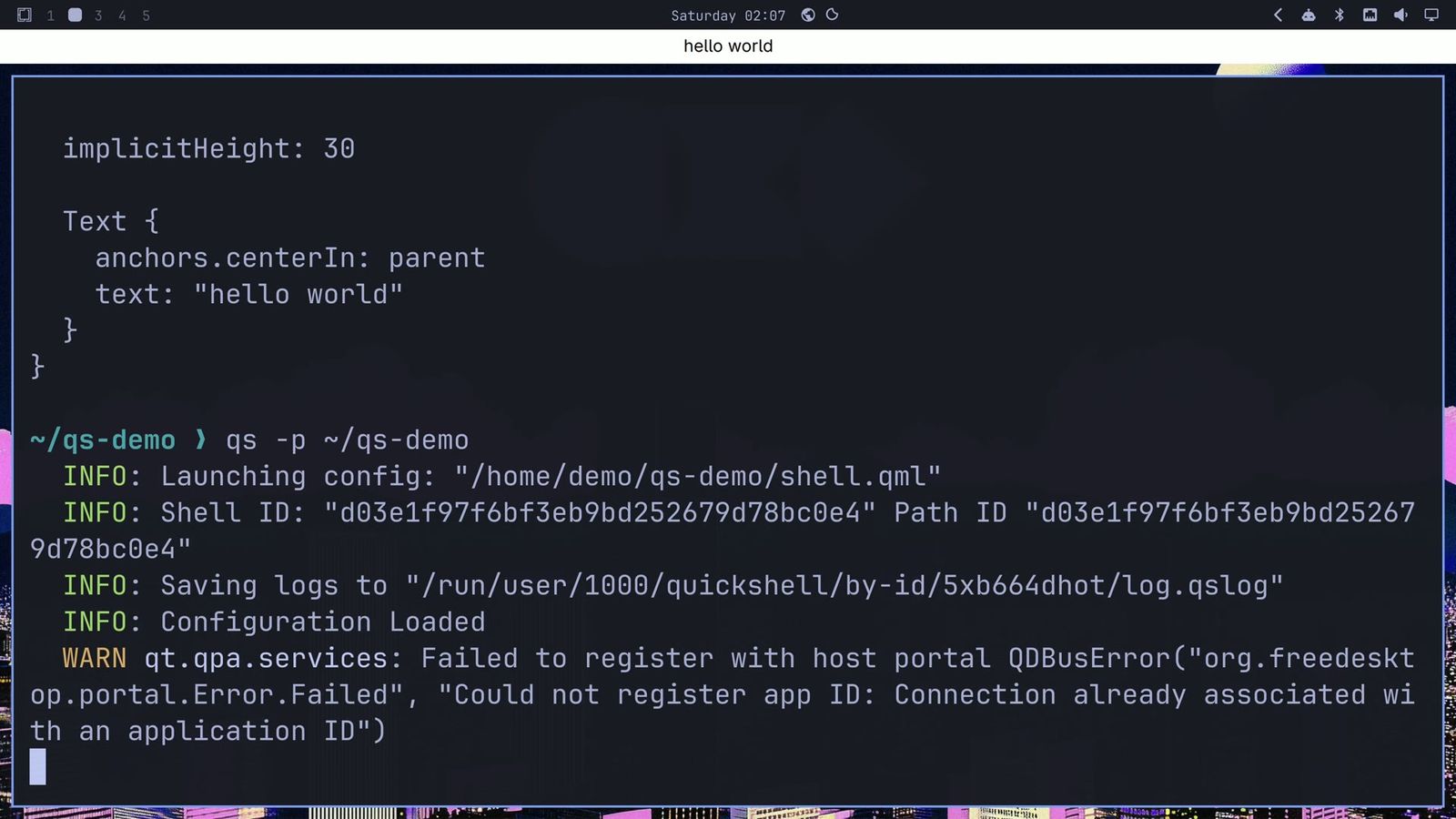
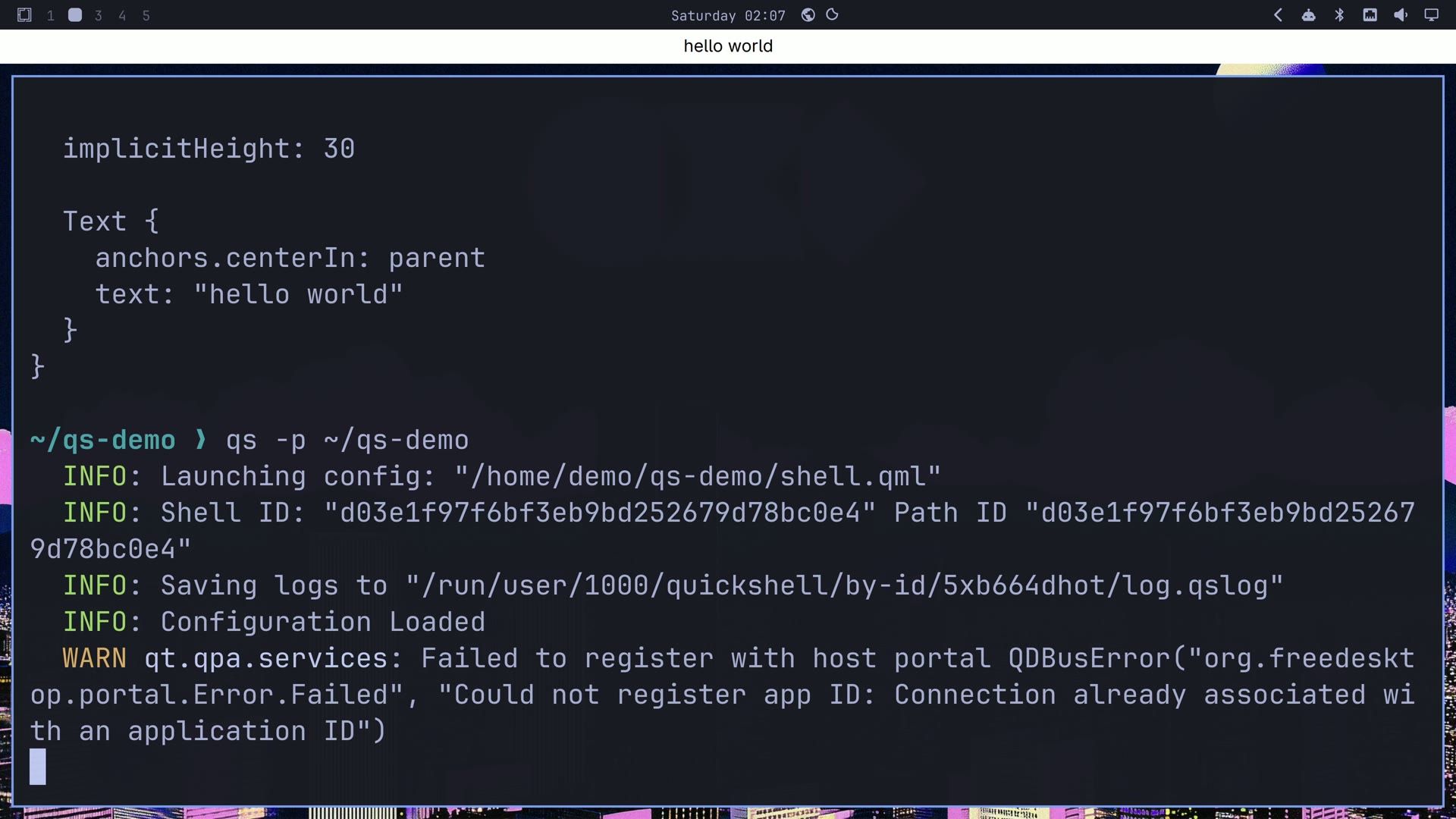
PanelWindow is Quickshell’s type for bars and widgets: a window that pins itself to edges of the screen. Its anchors pin this one to the top, left and right edges, implicitHeight makes it 30 pixels tall, and a line of text sits in its center. By default a panel reserves space for itself, the way a bar does, so tiled windows move down to make room.
Start it with -p and the folder:
qs -p ~/qs-demoA plain white bar that says “hello world” appears under Omarchy’s bar. That bar is a second Quickshell instance, running beside the one that draws Omarchy’s shell. The terminal prints a few INFO lines, ending in Configuration Loaded, and a WARN qt.qpa.services: Failed to register with host portal line. That warning shows on every start on Omarchy and does no harm.
Edit the bar and watch it reload
Leave that terminal running and open a second one with super enter . Open the same file in your editor (Omarchy ships Neovim as nvim), change world to Omarchy and save. As soon as the file is saved, the first terminal prints INFO: Reloading configuration... and INFO: Configuration Loaded, and the bar says “hello Omarchy”. A small “Config reloaded” note can also show at the top left of the screen for a moment.
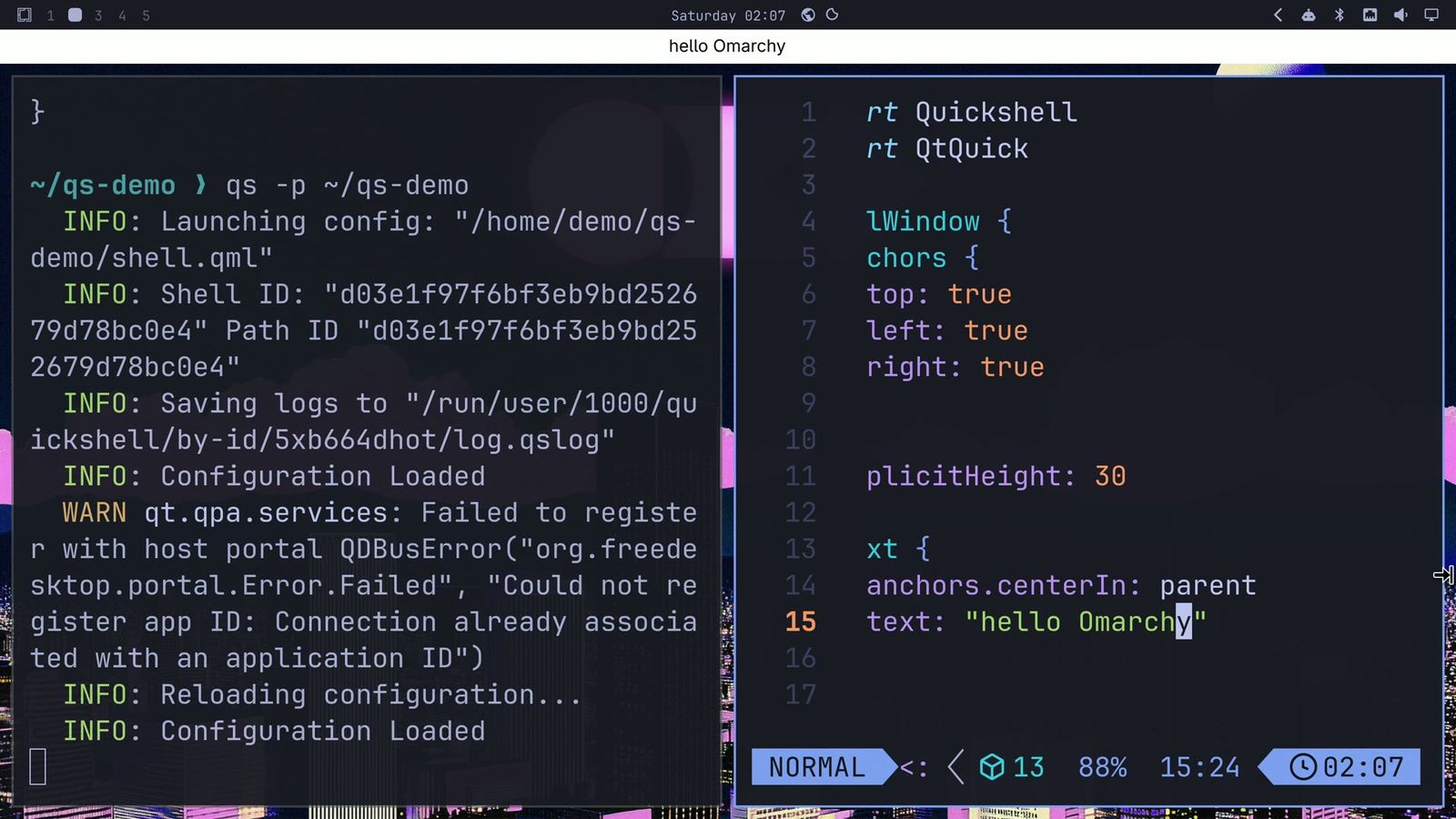
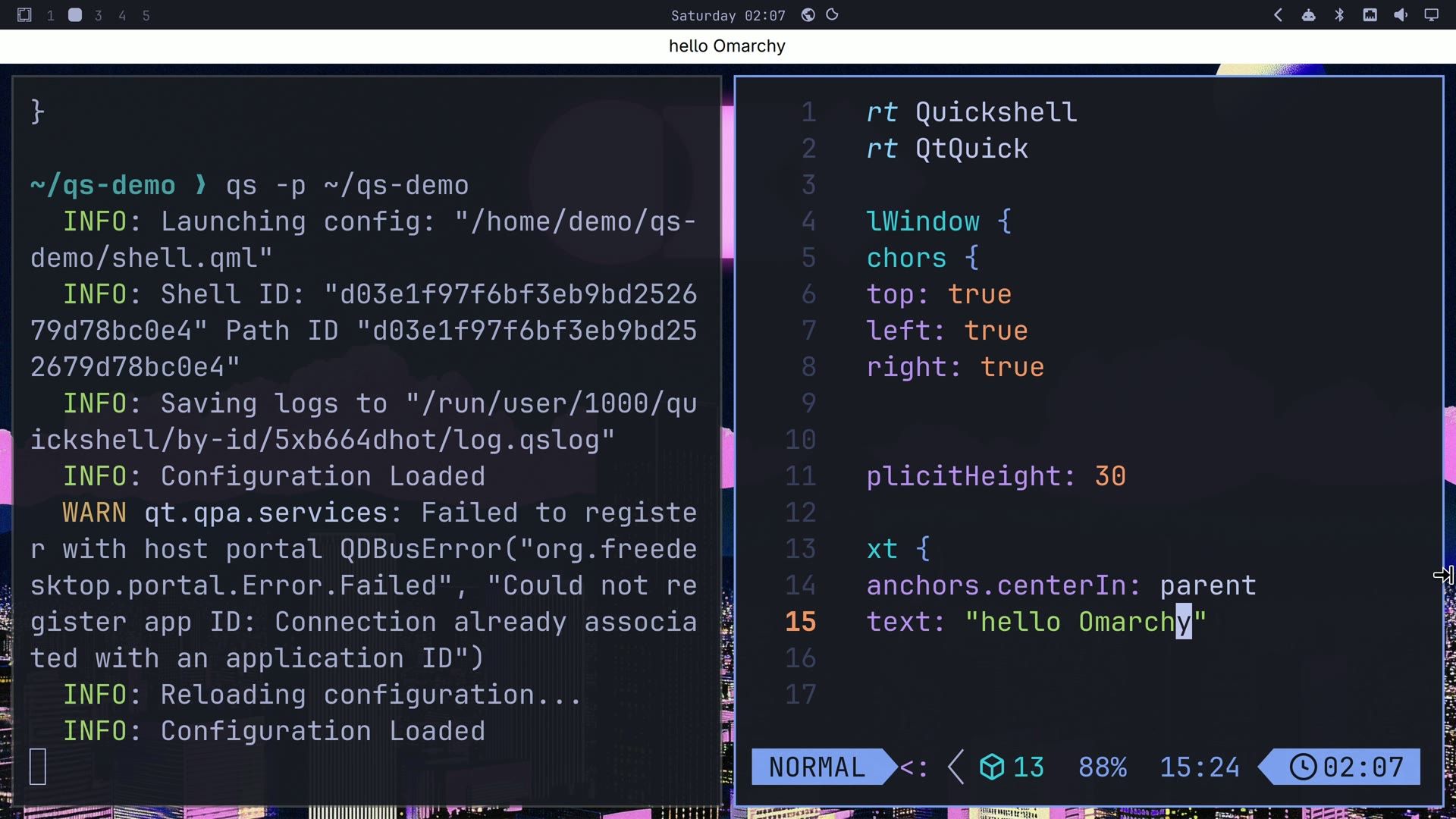
That loop is how you work on a Quickshell config: change the QML, save, and see the result within a second. Errors show up in the same terminal log.
In a small test of our own, writing into the existing file reloaded the config 3 times out of 3, and writing a new file and moving it over the old one reloaded it only once out of 2. A Neovim save reloaded it every time we tried. Claude Code’s edits in our run used sed -i, which replaces the file. If a change does not show up, stop the config and start it again with the commands below. Press ctrl c in the first terminal to stop this bar; that ends only your instance, and Omarchy’s bar stays.
The qs commands to know
Every command that works on one config takes -p and the folder. Leave it off and qs looks for a default config in ~/.config/quickshell, which does not exist on a stock Omarchy, so the command fails with a “Could not find “default” config directory” message. Always pass -p <folder> to qs kill and qs log, so the command reaches the config you mean and nothing else.
qs -p ~/qs-demo        # run the config in this terminal
qs -p ~/qs-demo -d     # run it in the background
qs log -p ~/qs-demo    # print that instance's log
qs kill -p ~/qs-demo   # stop that instance only
qs list --all          # list every running instance
qs kill -p ~/qs-demo prints Killed and an instance ID, and Omarchy’s shell keeps running. qs log -p is how you read errors from a config you started with -d, since it has no terminal of its own.
Ask Claude Code for a desk card
For a larger example, we asked Claude Code to build a desk card for the wallpaper: a big clock, the date and the track playing in any MPRIS player, the standard Linux media players use to report what they play. The card had to sit under the windows and take no space from them, use Omarchy’s theme colors and follow them on a theme switch. The prompt also tells the agent to start the card, read the log, look at a screenshot and fix what looks wrong, and to stay out of Omarchy’s files.
We started Claude Code in the empty ~/qs-demo folder and sent this, as one message:
In ~/qs-demo, write a standalone Quickshell config, not an Omarchy plugin: do not touch $OMARCHY_PATH or ~/.config/omarchy. Make a desk card that sits on the wallpaper in the top right, below windows, and reserves no space: a big clock, the date, and the track playing in any MPRIS player. Use the Omarchy theme colors from ~/.local/state/omarchy/current/theme/colors.toml and follow them when I switch themes. This is a 4K screen at scale 3: keep the card about 440 px wide so it fits beside my terminal on the left, make the text big enough to read, and make the card solid enough to read over the wallpaper. Use the Quickshell v0.3.2 docs at quickshell.org/docs/v0.3.2. Start it with qs -p ~/qs-demo -d, check qs log -p ~/qs-demo for errors, look at it in a grim screenshot, and fix what is wrong. Only ever stop it with qs kill -p ~/qs-demo.The width and the “4K screen at scale 3” line fit our screen and the terminal on its left; change them for yours. Naming the docs version matters for a project before 1.0, where type names can change between releases. Claude Code ran on an Opus model, in auto mode, so it ran its commands without asking first.
It first read the Quickshell type files installed on the machine, to check the API against version 0.3.2, then wrote shell.qml and started the card in the background with qs -p ~/qs-demo -d. It read the log, took screenshots of the card with grim, and played a silent test stream in mpv to check the music line. From the screenshots, it made the card more solid (the wallpaper’s moon showed through at 94% opacity, so it went to 98%) and tightened the gap between the clock and the date. The whole request took 2 minutes 12 seconds.
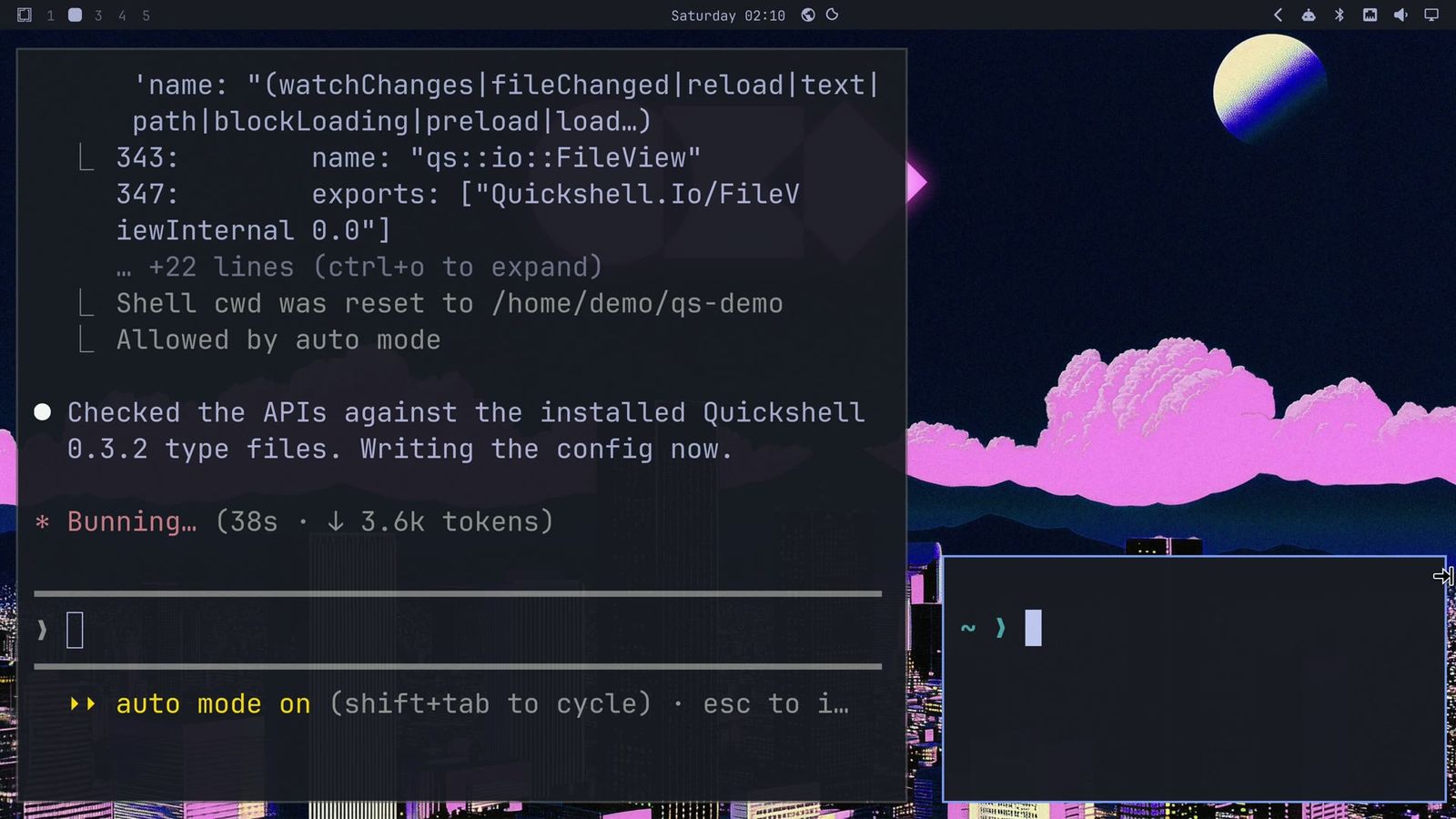
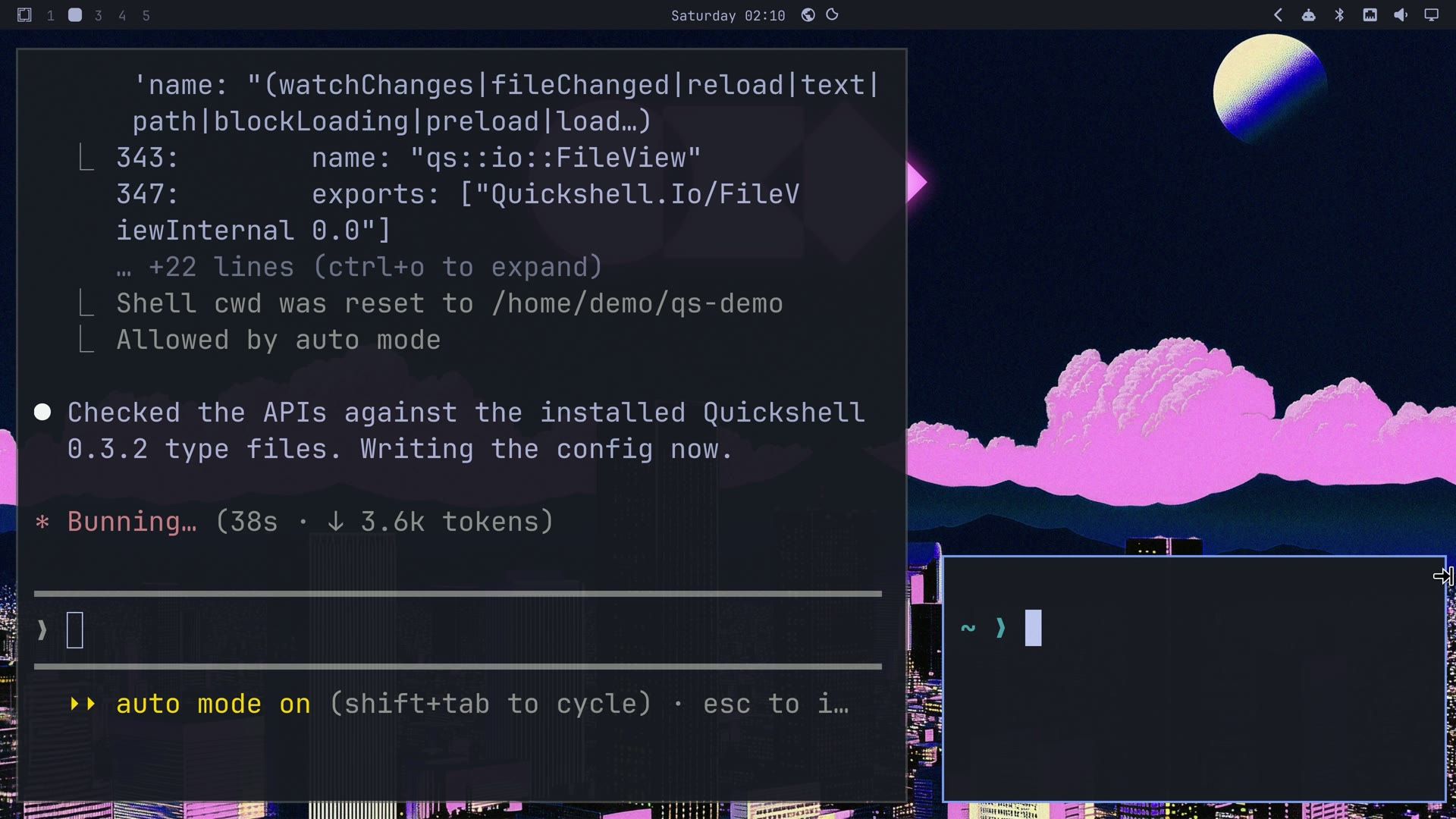
After its own edits, Claude Code restarted the card with qs kill -p and qs -p ... -d rather than waiting for a reload, and its summary said Quickshell did not pick up its edits on its own. That matches the replaced-file case above; a save from an editor reloads, as the hello bar showed.
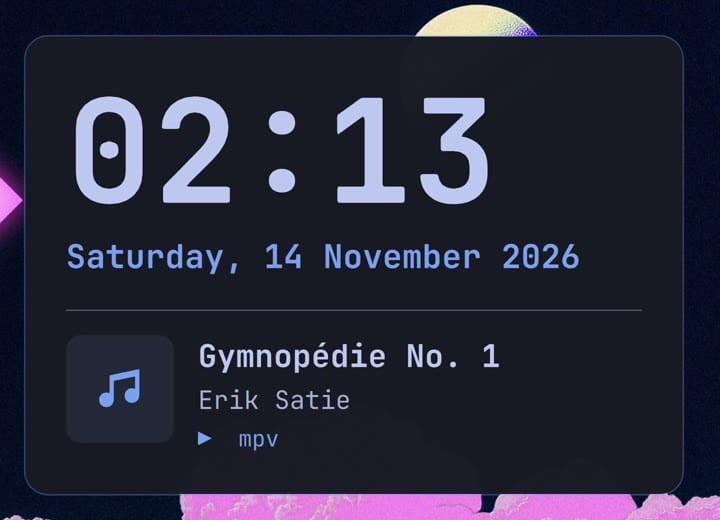
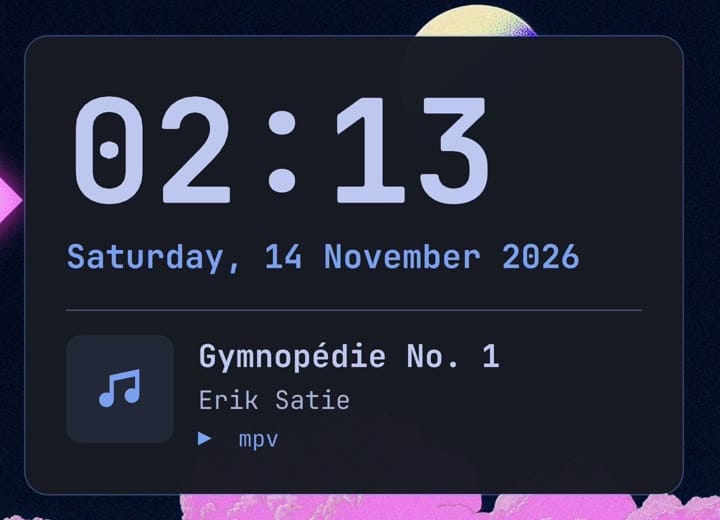
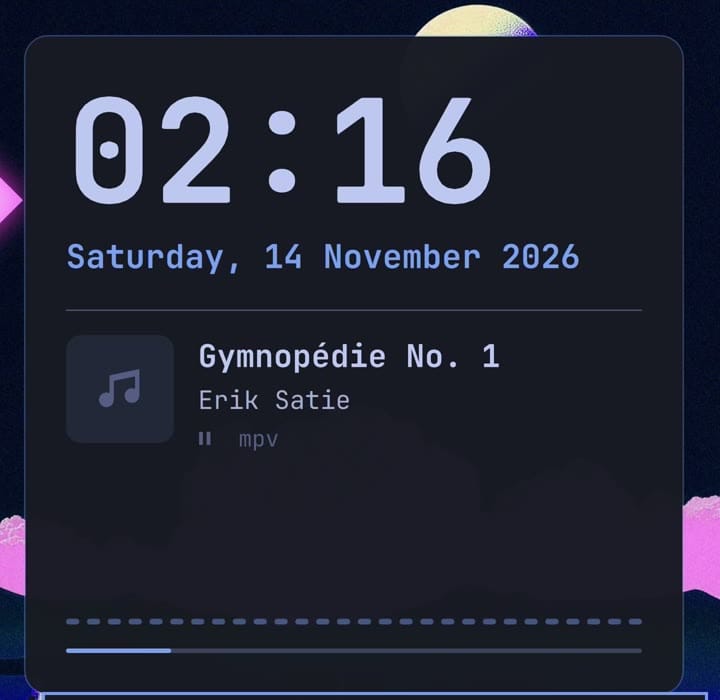
The finished card has a large clock, the date in the theme’s accent color, and a music tile that says “Nothing playing”. To check the music line, play any track in mpv from a second terminal:
mpv --no-video ~/Music/your-track.oggWe played Erik Satie’s Gymnopédie No. 1. A second after mpv started, the card showed the title, the artist and mpv as the player, all read through MPRIS. When mpv quit, the card went back to “Nothing playing”. The card also shows the album and cover art when a file has them; our file had neither, so a music note filled the tile.
How the card’s config works
The file Claude Code wrote is 327 lines. Your agent will write a different file each time, so read your own, but the parts below are the ones any card like this needs. Each excerpt is quoted from that file and trimmed to the lines that matter.
A panel window on the bottom layer
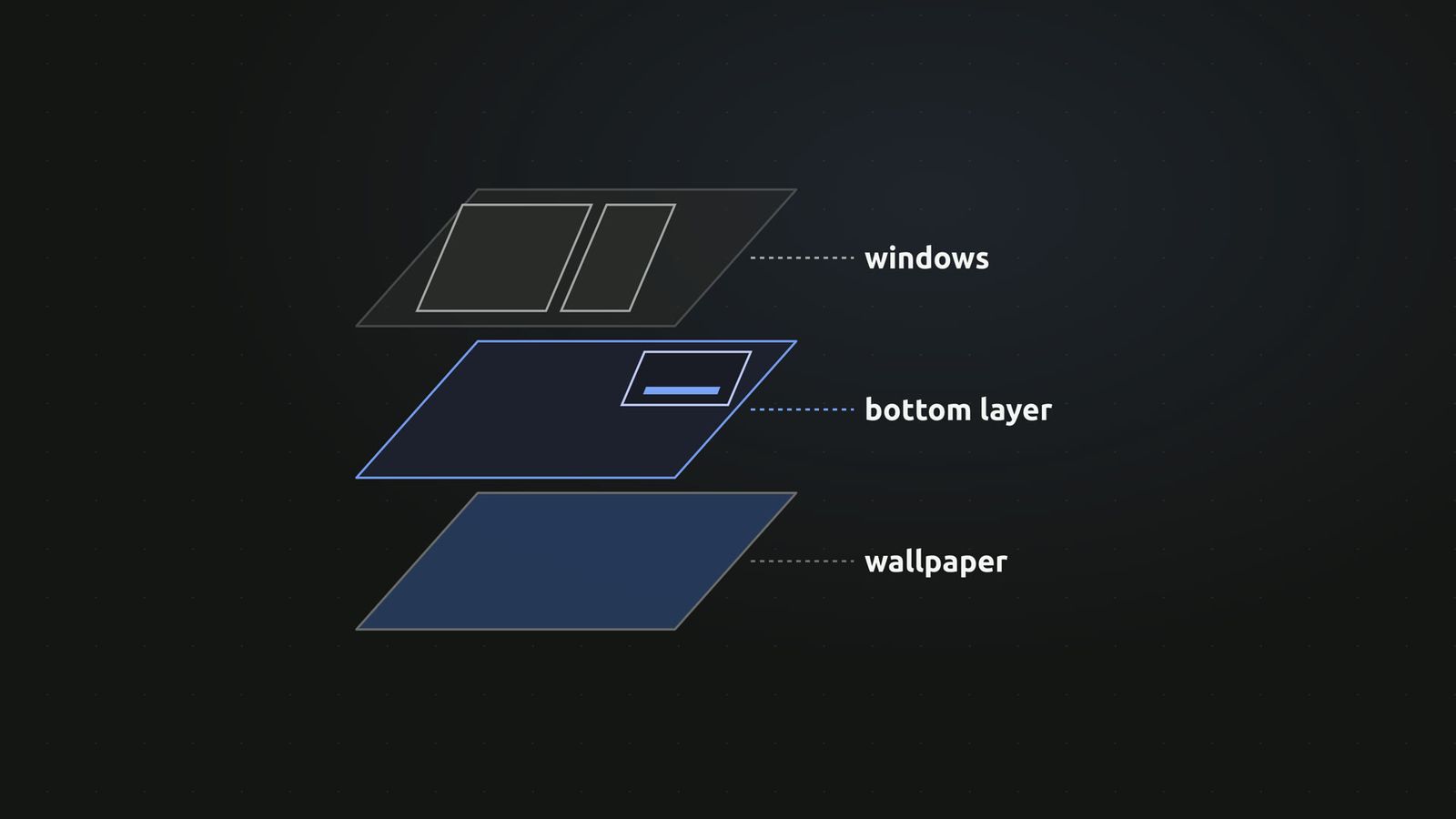
Wayland compositors stack shell parts in layers. The bottom layer is above the wallpaper and below every window, which keeps the card under any window you open. The card is a PanelWindow like the hello bar, anchored to the top right, with zero exclusive zone so it reserves no space, and an empty input mask so clicks pass through it:
PanelWindow {
    // ...
    WlrLayershell.layer: WlrLayer.Bottom
    WlrLayershell.namespace: "qs-desk-card"
    // ...
    exclusionMode: ExclusionMode.Normal
    exclusiveZone: 0

    anchors.top: true
    anchors.right: true
    margins.top: 24
    margins.right: 24

    implicitWidth: 440
    // ...
    color: "transparent"
    mask: Region {}   // click-through; it's decoration
    // ...
}
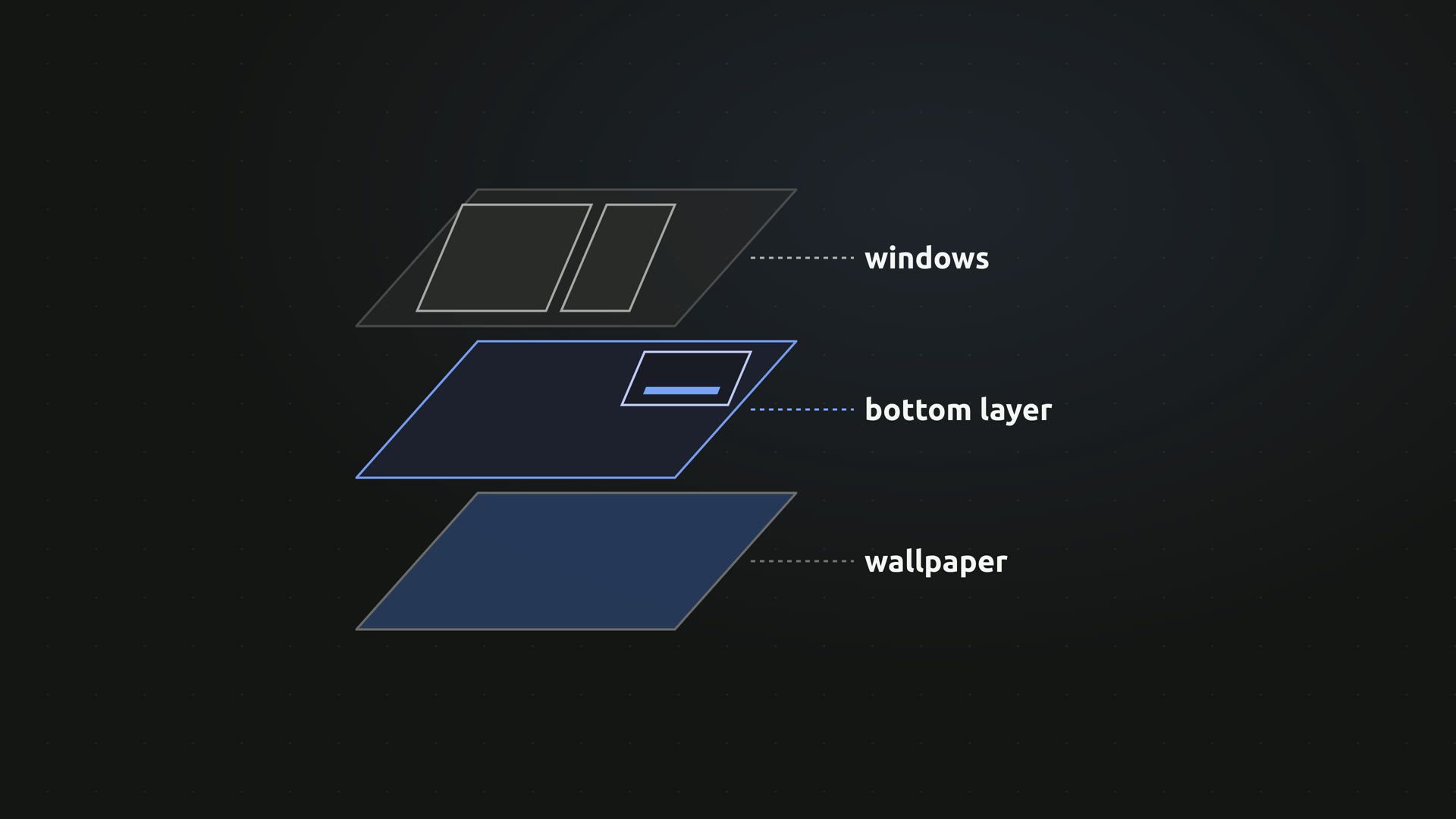
The clock
SystemClock is a Quickshell type that ticks at the precision you ask for. The clock text is bound to it, so it updates on its own every minute:
SystemClock {
    id: clock
    precision: SystemClock.Minutes
}

Text {
    text: Qt.formatDateTime(clock.date, "HH:mm")
    font.family: "JetBrainsMono Nerd Font"
    font.pixelSize: 96
}
The MPRIS player
Mpris.players lists every media player on the session bus. The card picks the one that is playing, or else one with a track loaded, and binds its text to that player’s trackTitle, trackArtist and identity:
readonly property var player: {
    const list = Mpris.players.values;
    for (const p of list) if (p.isPlaying) return p;
    for (const p of list) if (p.trackTitle) return p;
    return list.length > 0 ? list[0] : null;
}
The theme colors
Omarchy writes the current theme’s colors to ~/.local/state/omarchy/current/theme/colors.toml, with keys such as accent, background and foreground. A FileView reads that file and watches it. On Omarchy 4.5, a theme switch replaces the whole theme folder rather than editing the file, so a watch on colors.toml alone can fire while the new file is not there yet and keep the old colors. The card also watches theme.generation, a file Omarchy rewrites after each switch, and re-checks every 5 seconds in case both watches are lost:
FileView {
    id: colorsFile
    path: root.themeDir + "/theme/colors.toml"
    watchChanges: true
    onFileChanged: reload()
    onLoaded: root.parseColors(text())
}

FileView {
    id: generationFile
    path: root.themeDir + "/theme.generation"
    watchChanges: true
    onFileChanged: reload()
    onLoaded: colorsFile.reload()
}
Here themeDir is ~/.local/state/omarchy/current, and parseColors reads each name = "#rrggbb" line into a table the card’s colors come from. If you write a Quickshell config that follows Omarchy’s theme, watch theme.generation or reload on a short timer.
Make the card fun to watch
The second request went to the same Claude Code session:
Now make it fun to watch. While a track plays, add a row of tall equalizer bars across the card in the theme's accent color that bounce, and let them settle flat when it pauses; it is an animation, it does not need real audio levels. Add a thin progress line for the track position. When the theme changes, fade to the new colors over half a second instead of snapping. To test it, play ~/Music/satie-gymnopedie-1.ogg in mpv with no video, check a grim screenshot, then quit mpv.This time Claude Code played the track itself and looked at screenshots of the card while it played and after a pause. In those screenshots, it found the pause symbol drawn as a color emoji and swapped in a matching Nerd Font icon, and it found the bars too short and made the row taller. This round took 1 minute 30 seconds.
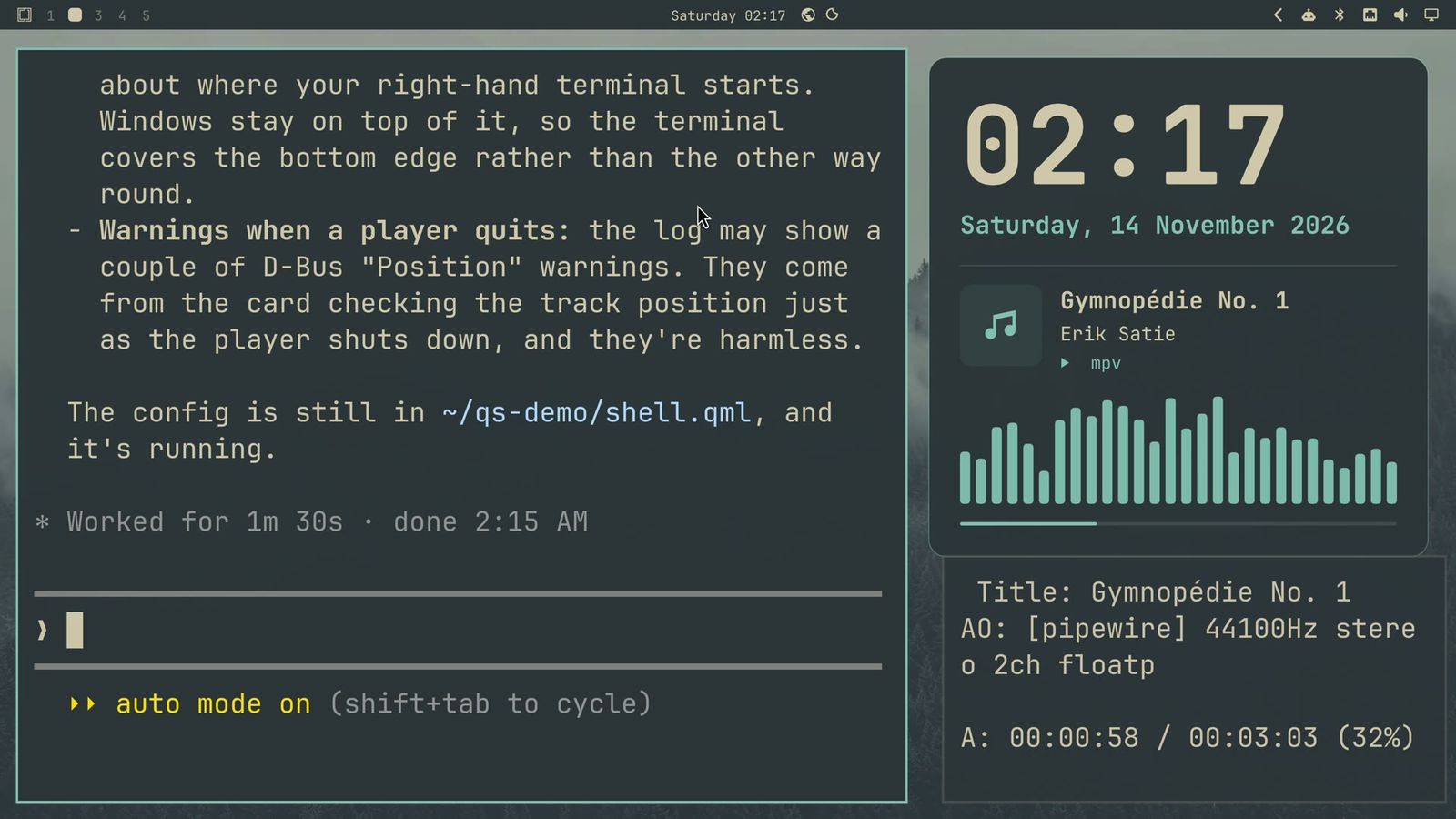
With a track playing, the card grows to make room for a row of 28 bars in the accent color. Each bar runs on its own timer, so they bounce out of step, and the bars in the middle reach a little higher. A thin progress line underneath fills as the track plays. The bars are an animation tied to playback, not audio levels, as the prompt asked.
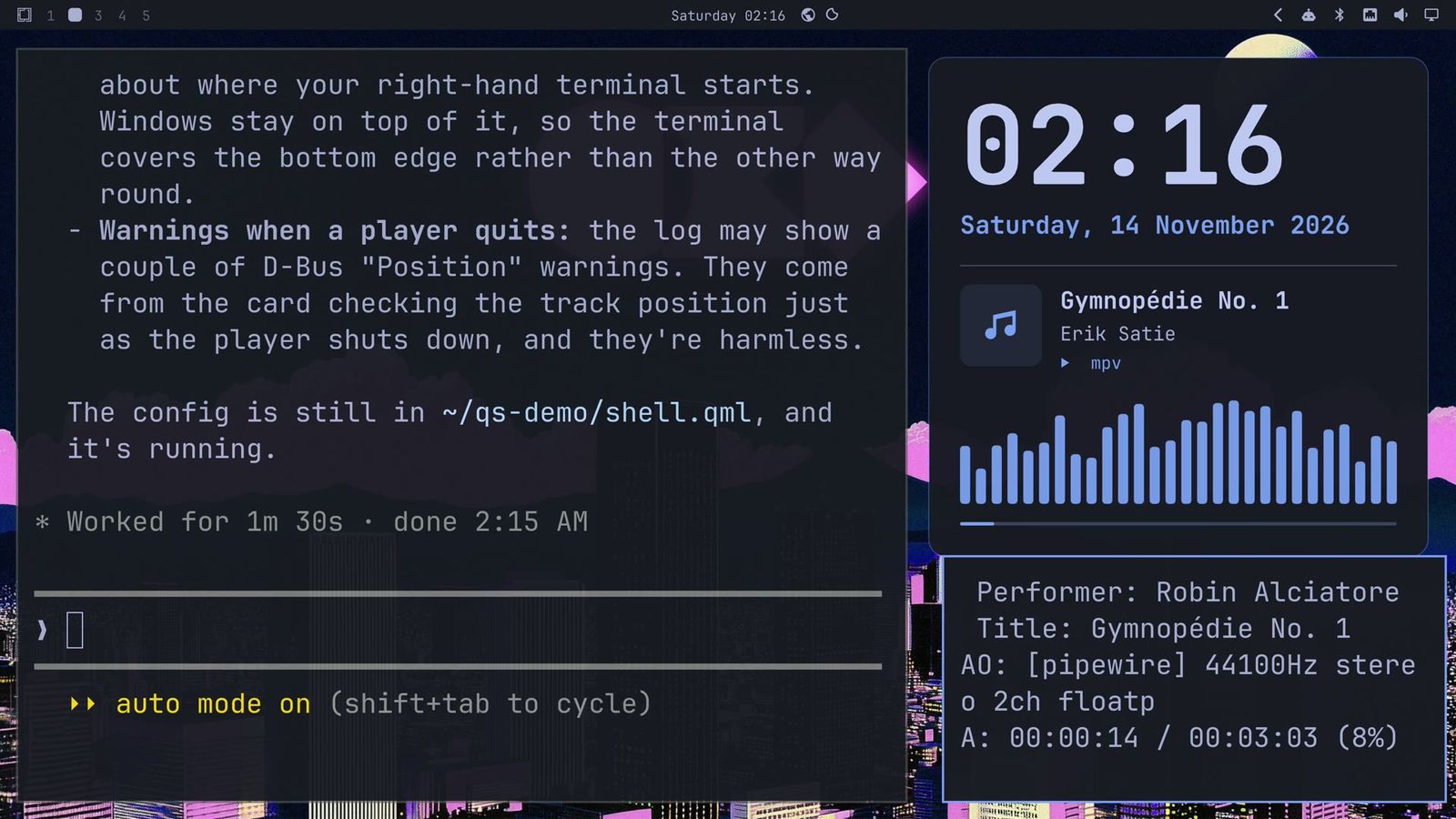
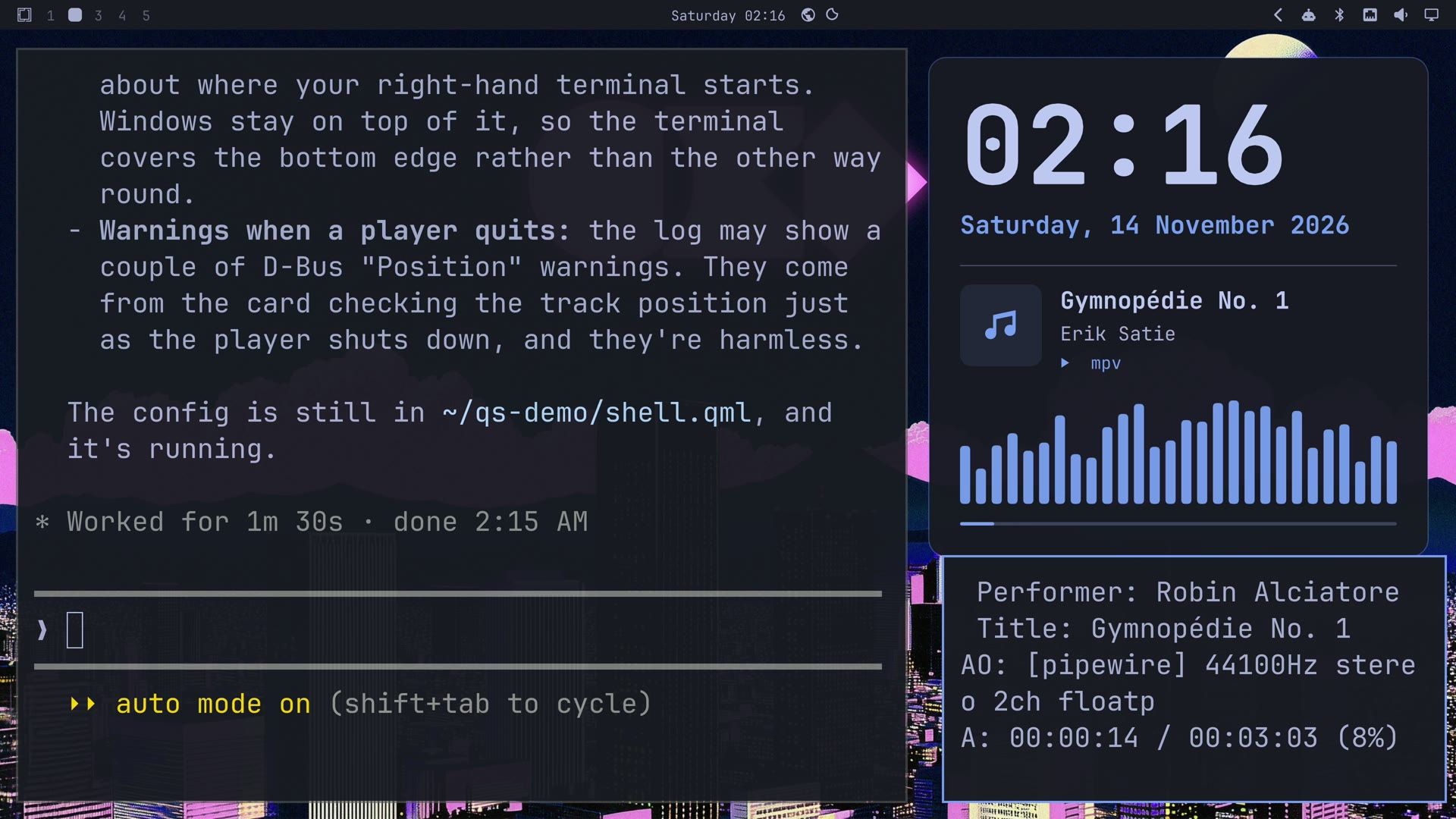
Pause mpv with space and the bars sink to a flat, dimmed row while the progress line stops where it is. Press space again and they start bouncing. When the player quits, the bars and the line go away and the card shrinks back.
The bars come from a Repeater of 28 rectangles. Each has a timer with a random interval between 110 and 200 milliseconds that runs only while the player plays, and each new height is shaped by a curve that peaks in the middle of the row:
Timer {
    id: kick
    interval: 110 + Math.floor(Math.random() * 90)
    repeat: true
    running: root.playing
    onTriggered: {
        const r = Math.random();
        bar.level = bar.envelope * (0.3 + 0.7 * r * (2 - r));
    }
    onRunningChanged: if (!running) bar.level = 0.04
}
The half-second fade is a Behavior with a ColorAnimation on each of the six theme colors, so any change to a color animates instead of jumping. The progress line is a rectangle whose width is bound to the player’s position divided by the track length; a 500 millisecond timer asks the player for its position while it plays.
Switch the theme with the card running
Claude Code never switched the theme while it worked, and both of its summaries said following a theme switch was untested. Test it yourself with a track playing: super space opens the Omarchy menu, then pick Appearance and Theme, type the first letters of a theme name (we typed “ever” for Everforest) and press enter .
The wallpaper, the bar and the windows change, and the card comes back in Everforest’s colors with the bars still bouncing. We asked for a half-second fade, but what shows is a quick blink of the card, then the card in the new theme’s colors. Quit mpv and the card shrinks back to “Nothing playing”.
Before you keep a card running
A Quickshell config is a program that runs with your permissions. It can read files, run commands and talk to services on the session bus, the same as anything else you start in a terminal. Read what an agent wrote before you leave it running, and check what it reads, what it runs and what it writes. Ours reads two small theme files and the list of media players, and it runs no commands.
When an update breaks a config like this, qs log -p shows the error, and you can hand that log to the agent that wrote the config.
To stop the card, run qs kill -p ~/qs-demo; Omarchy’s bar stays. To remove it, delete the folder. Nothing in Omarchy’s folders changed, since the prompt kept the agent out of them.
A standalone config is one of two ways to add to an Omarchy desktop. The other is an Omarchy plugin, which loads inside Omarchy’s own shell process and can sit in its bar and panels; building an Omarchy plugin with a coding agent walks through that route, and finding and installing Omarchy plugins covers ones other people wrote. A standalone config like this card stays out of Omarchy’s shell, so a mistake in it cannot take down your bar, which makes it a low-risk place to try Quickshell first.


