
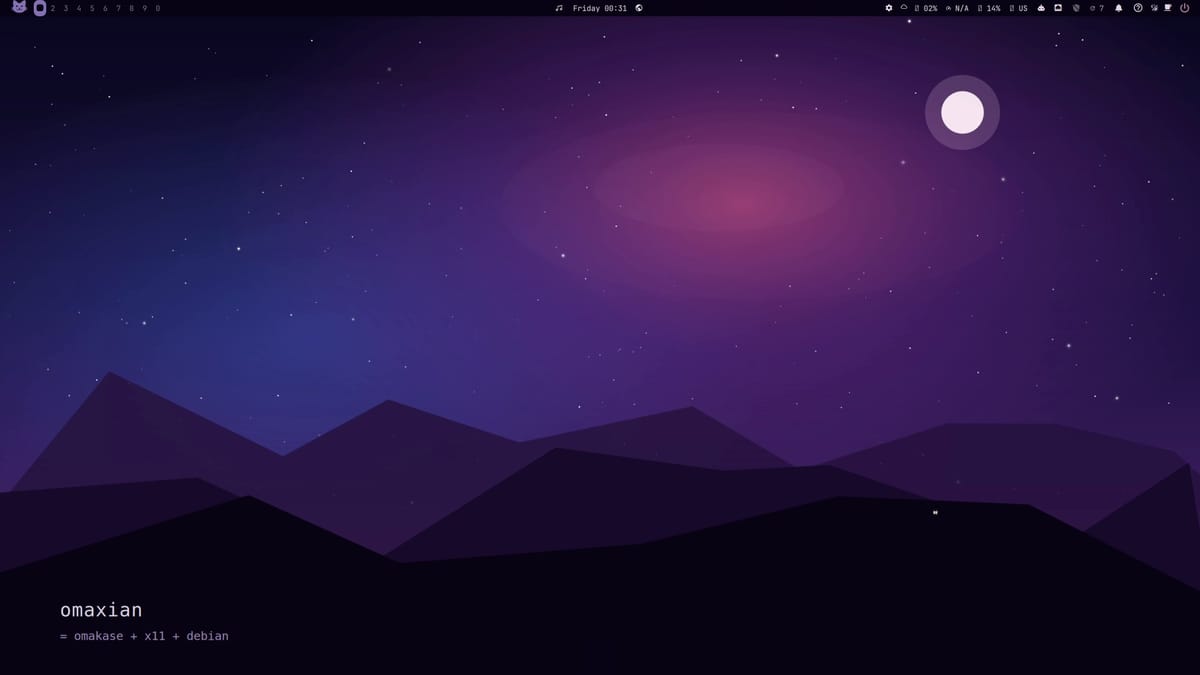
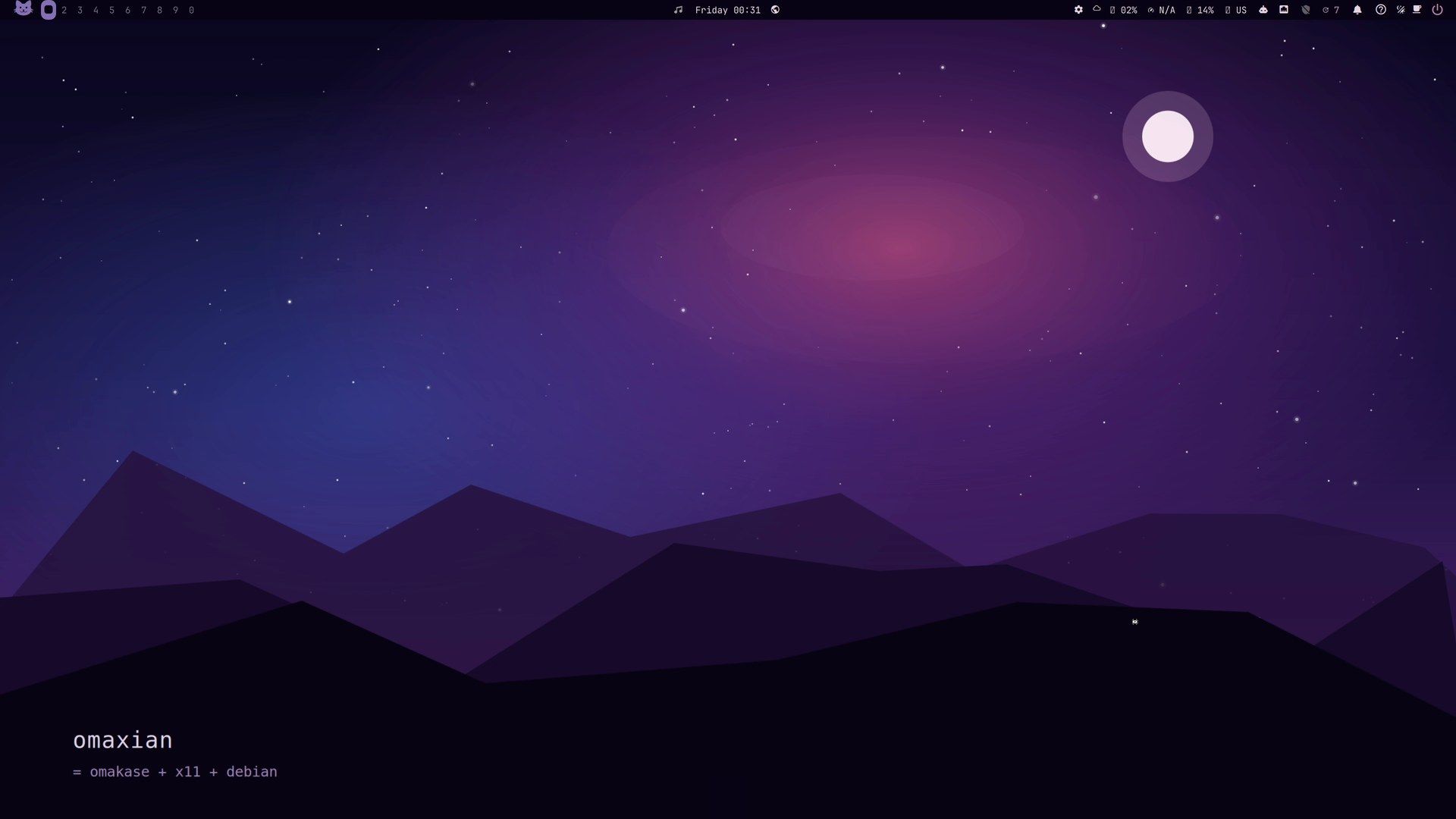
Omaxian OS is a Linux distro that puts the Omarchy desktop on a Debian-family base. Its default wallpaper spells out the name: “omaxian = omakase + x11 + debian”. Omakase is Japanese for leaving the choices to the chef.
The base is Devuan 6 “Excalibur”, a version of Debian without systemd. Omarchy runs the Hyprland compositor on Wayland; Omaxian runs i3 instead, a tiling window manager for X11. Version 0.1 comes from a young project with one developer. Its download page sums up the relationship: “Omaxian is built on Omarchy by DHH and 37signals, and reuses its shell, themes and omarchy-* command set under the MIT licence. Omarchy is the original; Omaxian only carries it to X11.” The same page says Omaxian “is not affiliated with or endorsed by Omarchy, Devuan, or Debian.”
This guide goes through the desktop in the same order as our tour: which parts come from Omarchy, the bar and menu, tiling and workspaces, the everyday tools, themes, two bundled apps, installing and updating, what to know before you try it, and how to download and check the ISO. Everything here was done with Omaxian OS 0.1 on a GMKtec NucBox G2 mini PC at 4K, and compared with Omarchy 4.5.
Which parts are Omarchy’s code, and which are look-alikes
Omaxian uses Omarchy’s files where it can. Its install script clones Omarchy at a pinned release (4.5.0) and copies Omarchy’s themes and default settings as they are. The shell, the program that draws the bar, menus, and panels, is Omarchy’s Quickshell code ported to X11. Of the 209 shell files that sit at the same path in both projects, 155 are byte for byte the same and 54 are changed, mostly to swap Hyprland and Wayland parts for i3 and X11. The project’s README calls Omaxian “a port of Omarchy for Devuan / Debian + X11/XLibre + i3.”
Other parts look like Omarchy but are new code written for this system, and a few are new in Omaxian, with no Omarchy version at all:
| Part | Where it comes from |
|---|---|
| 23 of the 25 themes, with their wallpapers | From Omarchy, copied as they are |
| Nebula Ridge (the default) and Transiberian themes | New in Omaxian, in Omarchy’s theme format |
| The shell engine, the bar, and the super space menu | Omarchy’s code, adapted for X11 and i3 |
| World clock, calendar, weather, and AI agents panels | Omarchy’s code with few or no changes |
| Theme picker grid | Look-alike, rebuilt by Omaxian |
| Dock | Look-alike, rebuilt by Omaxian |
| Keyboard shortcuts | Omarchy’s scheme, rewritten for i3 |
| Control Panel and Settings window | New in Omaxian |
| Notifications (dunst), lock screen (i3lock), installer (Calamares) | Not from Omarchy |
| Devuan, apt, sysvinit, and XLibre | Not from Omarchy |
XLibre is a fork of the standard X11 display server, and sysvinit is the startup system that takes the place of systemd. The window manager’s starting config comes from Archcraft, which Omaxian’s site credits, with the shortcuts rewritten to match Omarchy’s.
The bar and the main menu
The bar runs along the top of the screen, laid out the way Omarchy’s is. On the left are the menu button and the numbered workspaces; a workspace is a separate screen for a separate job. The middle holds the clock, with a small globe beside it for the world clock. On the right are a gear for the Control Panel, the weather, system stats, and a count of waiting updates.
Shortcuts use the Super key, the Windows key on most keyboards. super space opens the main menu, the same shortcut Omarchy uses. The menu comes from Omarchy, trimmed for this system: it has 132 entries against 425 in Omarchy 4.5. The Install and Remove sections, which run Arch’s package tools on Omarchy, are gone. The top level reads Apps, Learn, Trigger, Style, Setup, Update, About, and System.
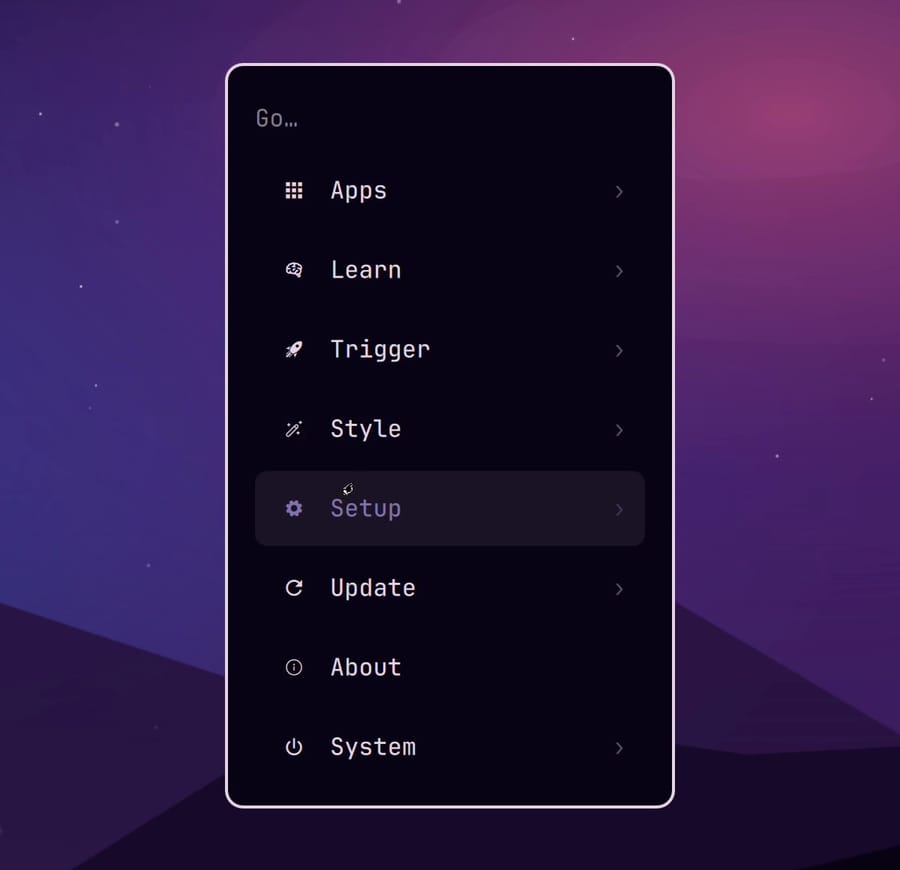
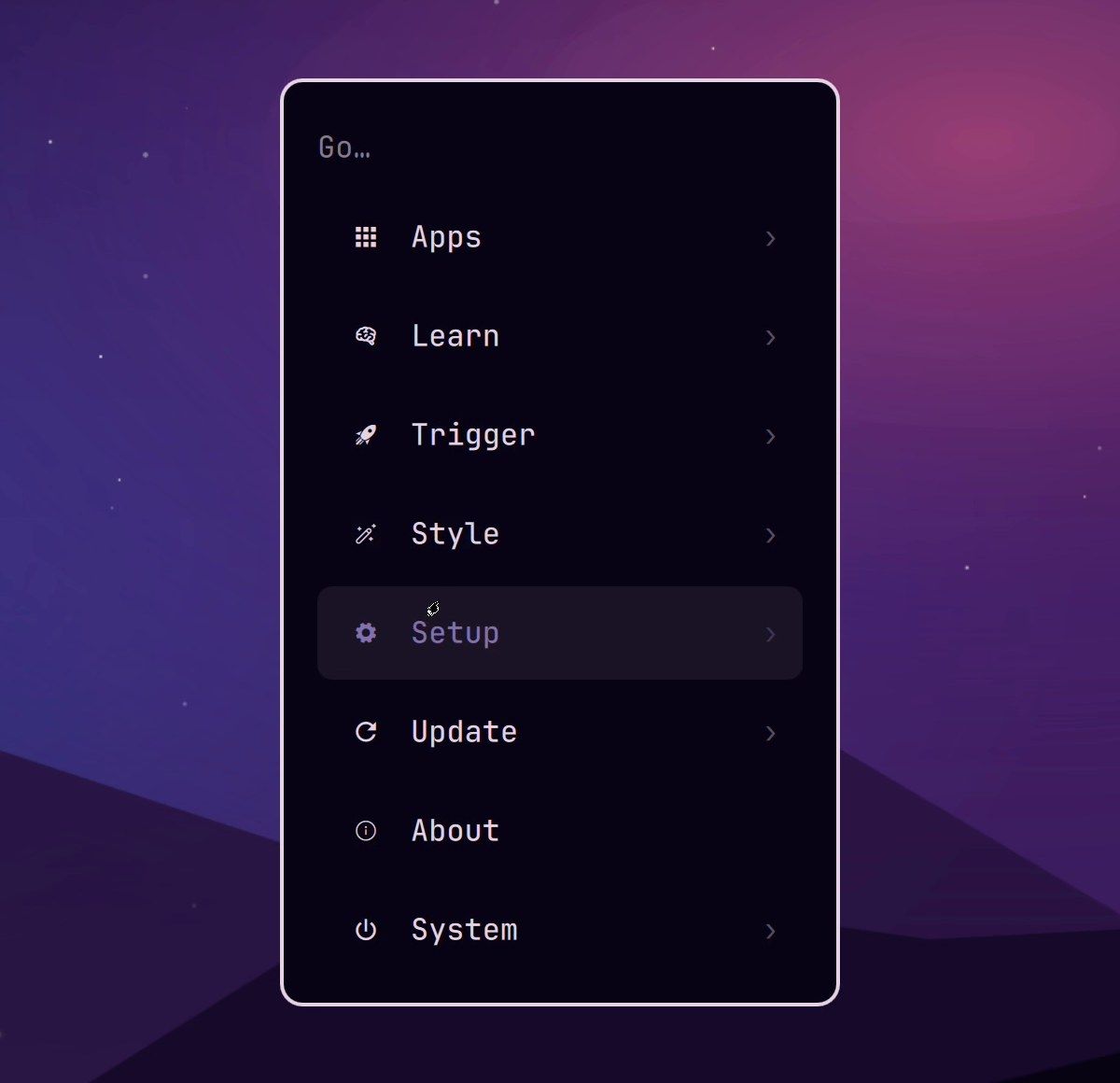
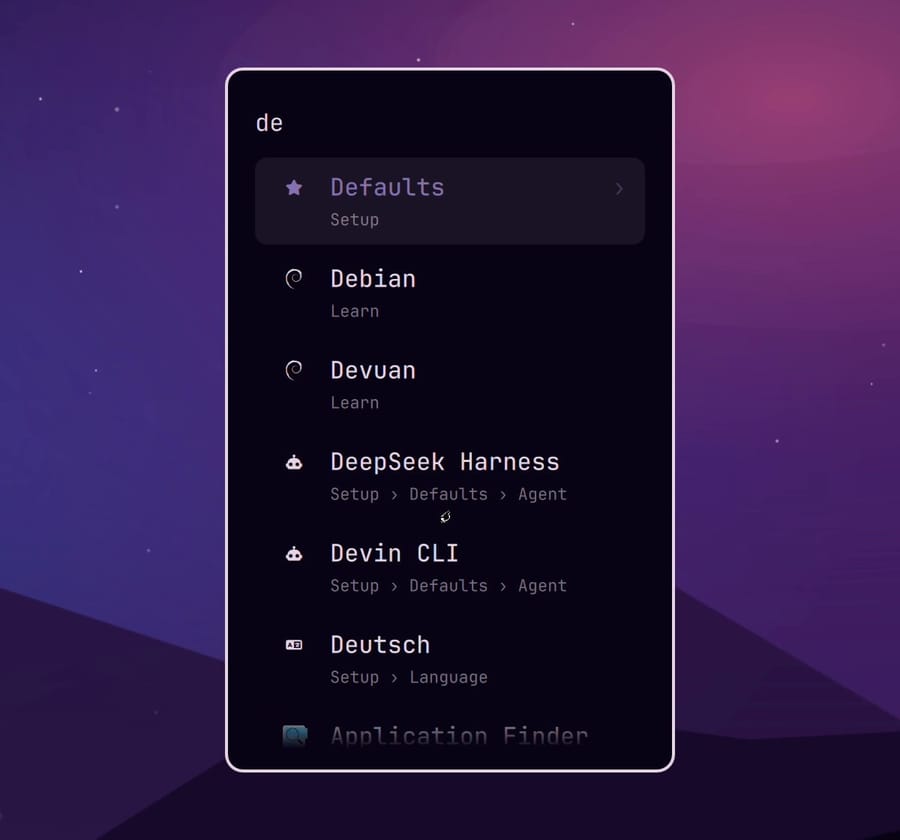
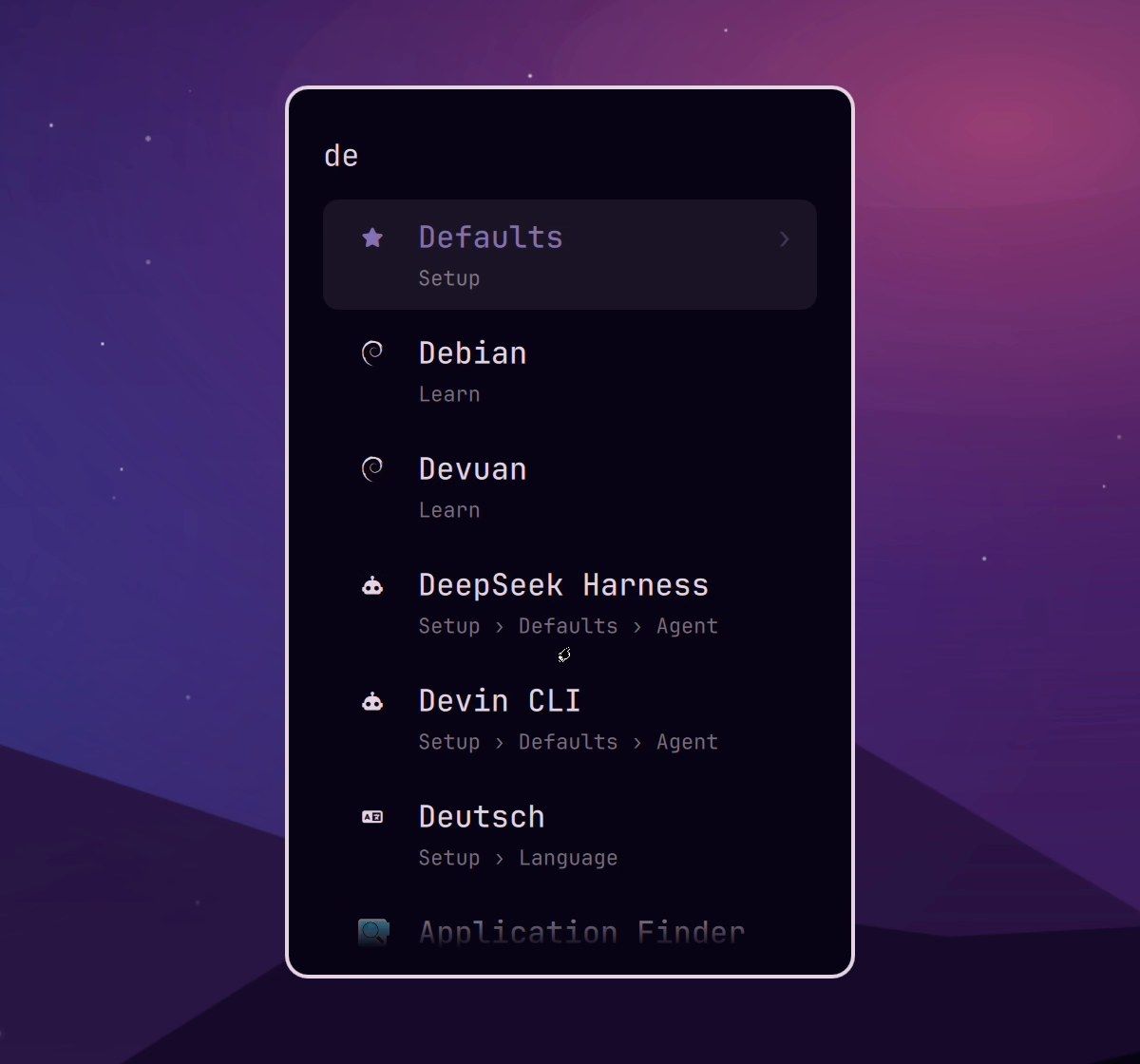
Typing in the menu searches apps and menu entries together. A short search such as de turns up the Debian and Devuan links that Omaxian adds to the Learn section. Typing librewolf finds LibreWolf, a second web browser that comes installed next to Brave, and enter starts it from the search.
The key help and the shortcuts that differ
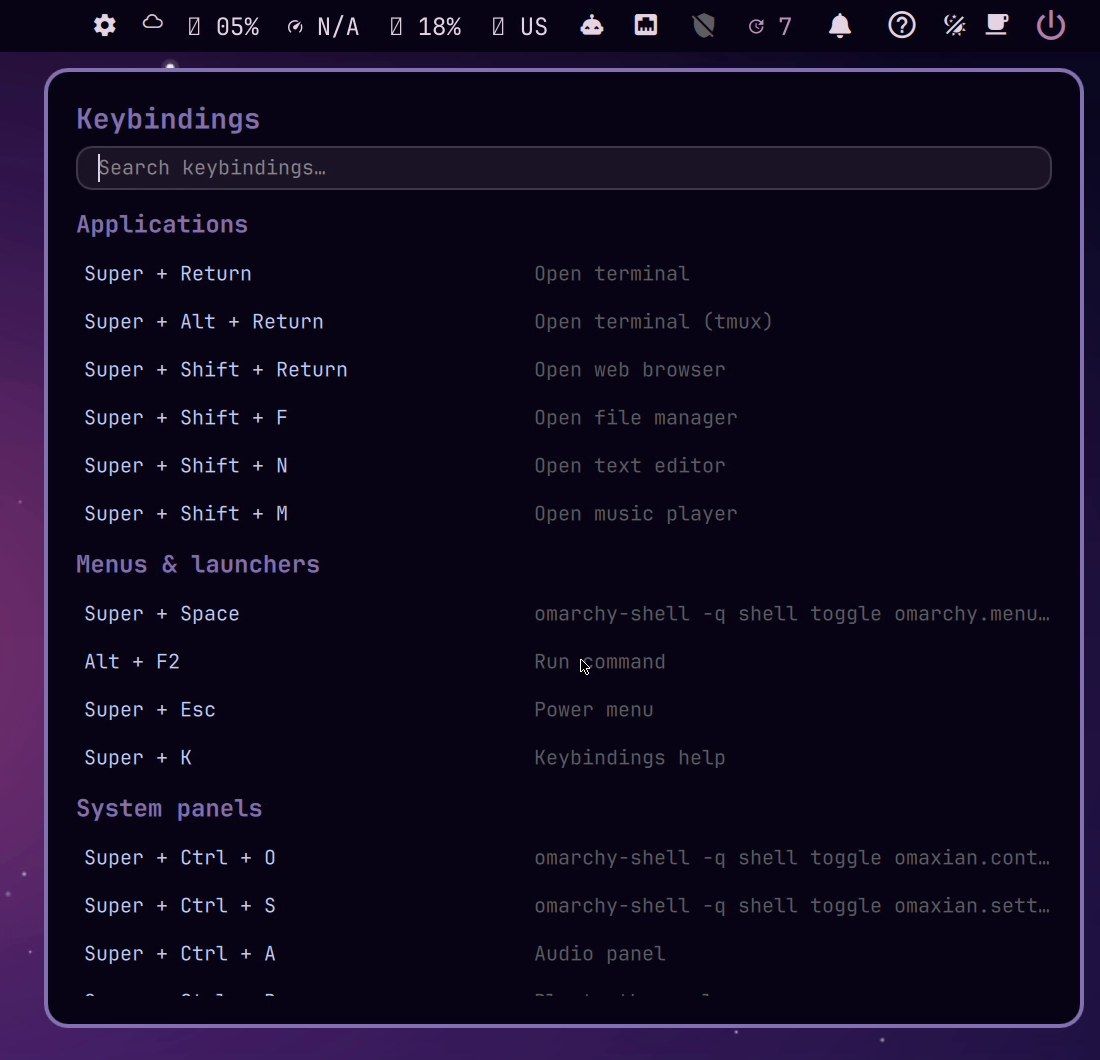
super k opens the key help, a searchable list of the shortcuts grouped by what they open: applications, menus and launchers, and system panels. Most shortcuts match Omarchy’s. super enter opens a terminal (the list calls it Super + Return), super shift f opens the file manager, and super esc opens the power menu.
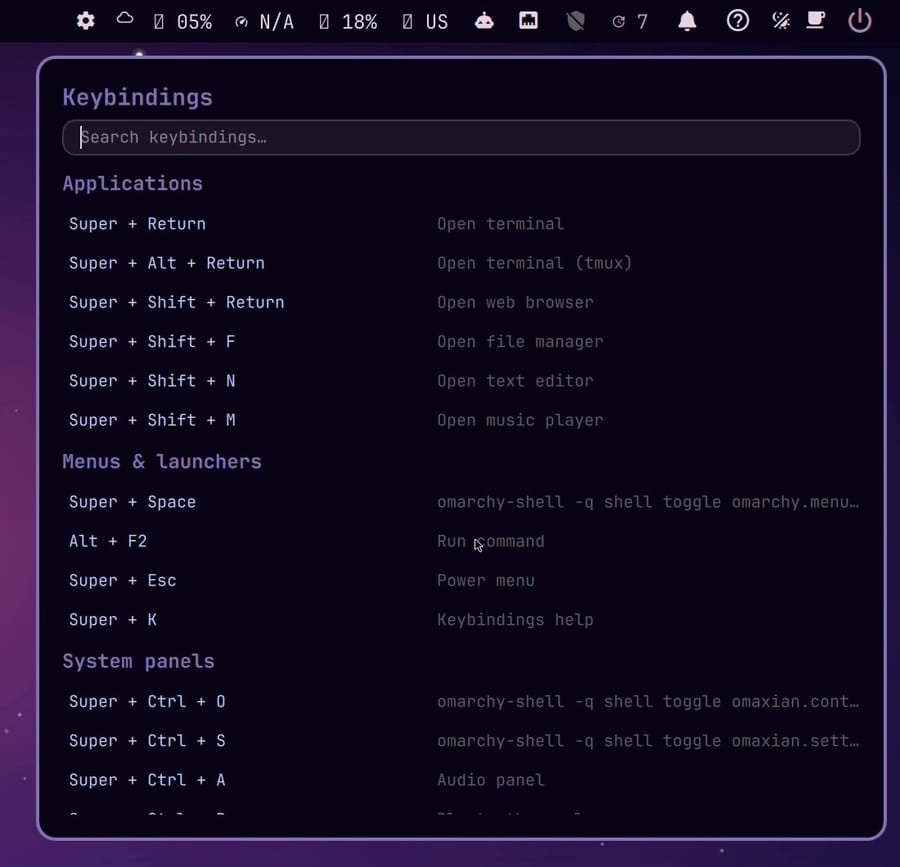
A few Super and Control shortcuts open different things than on Omarchy. On Omaxian, super ctrl o opens the Control Panel, where Omarchy uses it to open its Toggle menu. super ctrl s opens Settings, where Omarchy uses it for sharing. super ctrl t opens the btop system monitor, where Omarchy opens its theme menu; the theme picker here is alt ctrl t .
Tiling windows and workspaces with i3
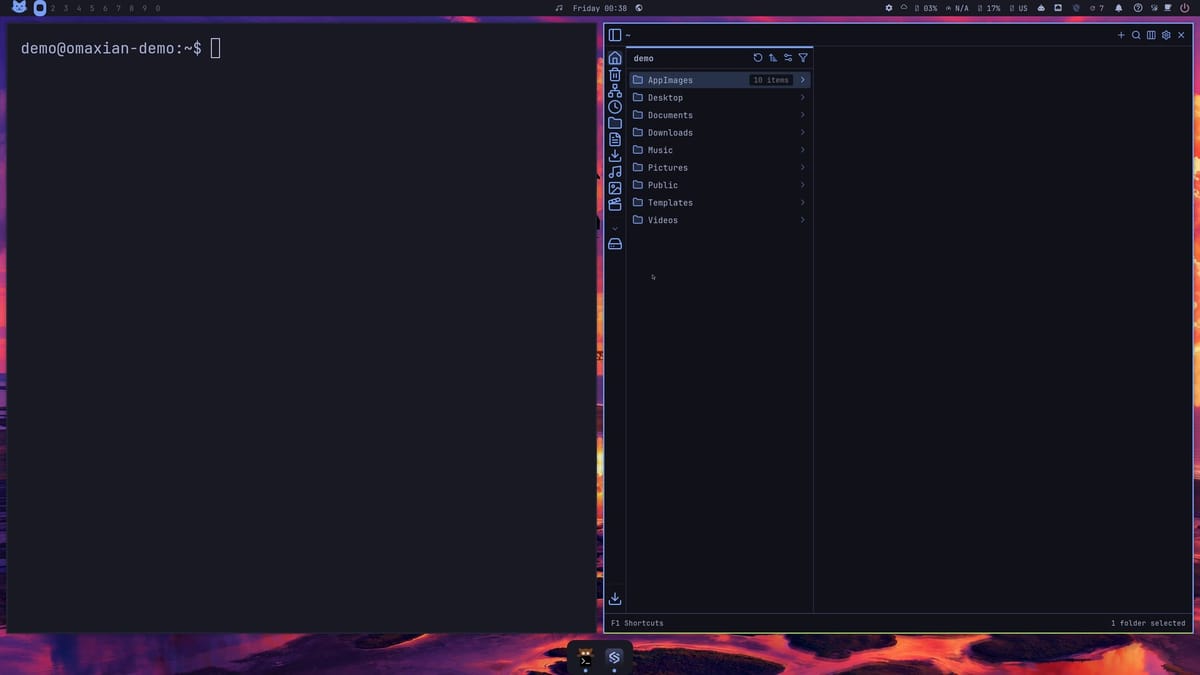
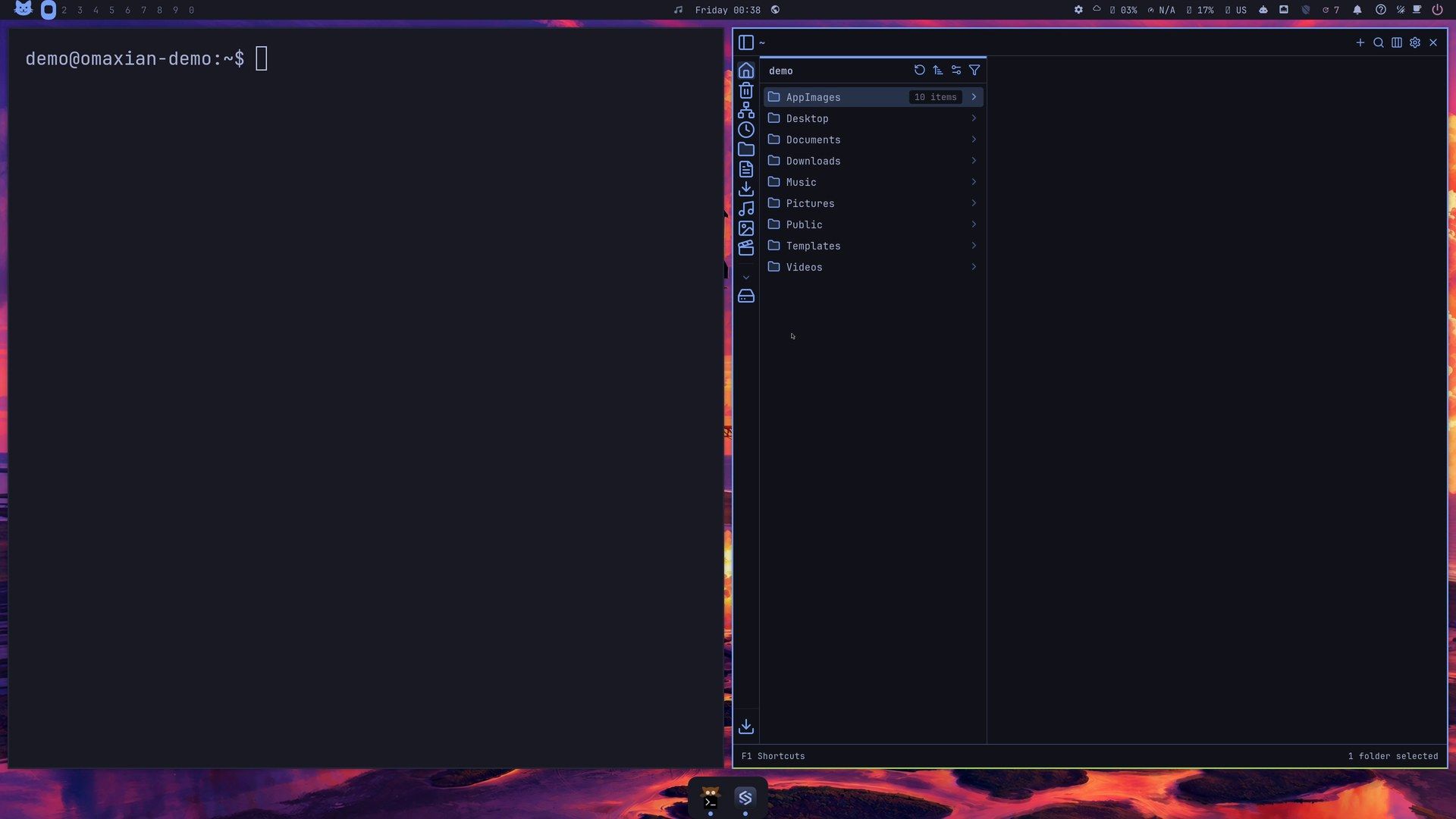
Placing windows is i3’s job on Omaxian, with Omarchy’s shortcuts on top. super enter opens a terminal that fills the screen. A second terminal splits the space beside the first, and super shift f opens the Strata file manager under the second terminal. Each new window splits the one in focus, side by side and then top to bottom, in turn, so the layout grows the way Omarchy’s does.
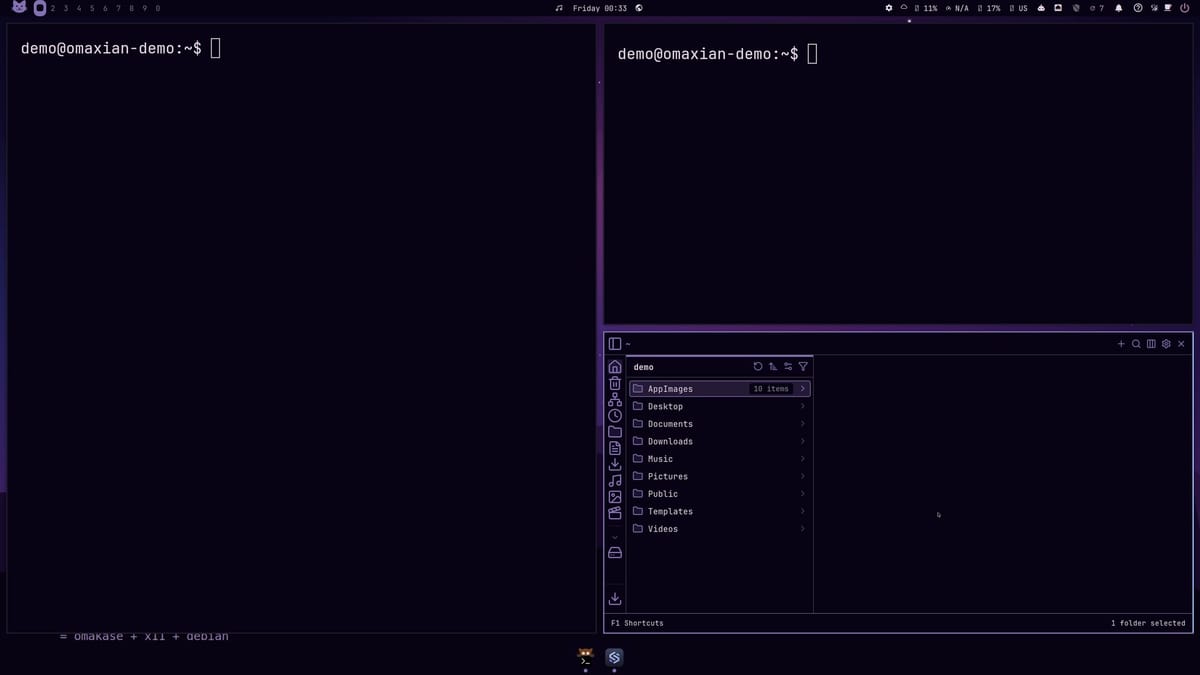
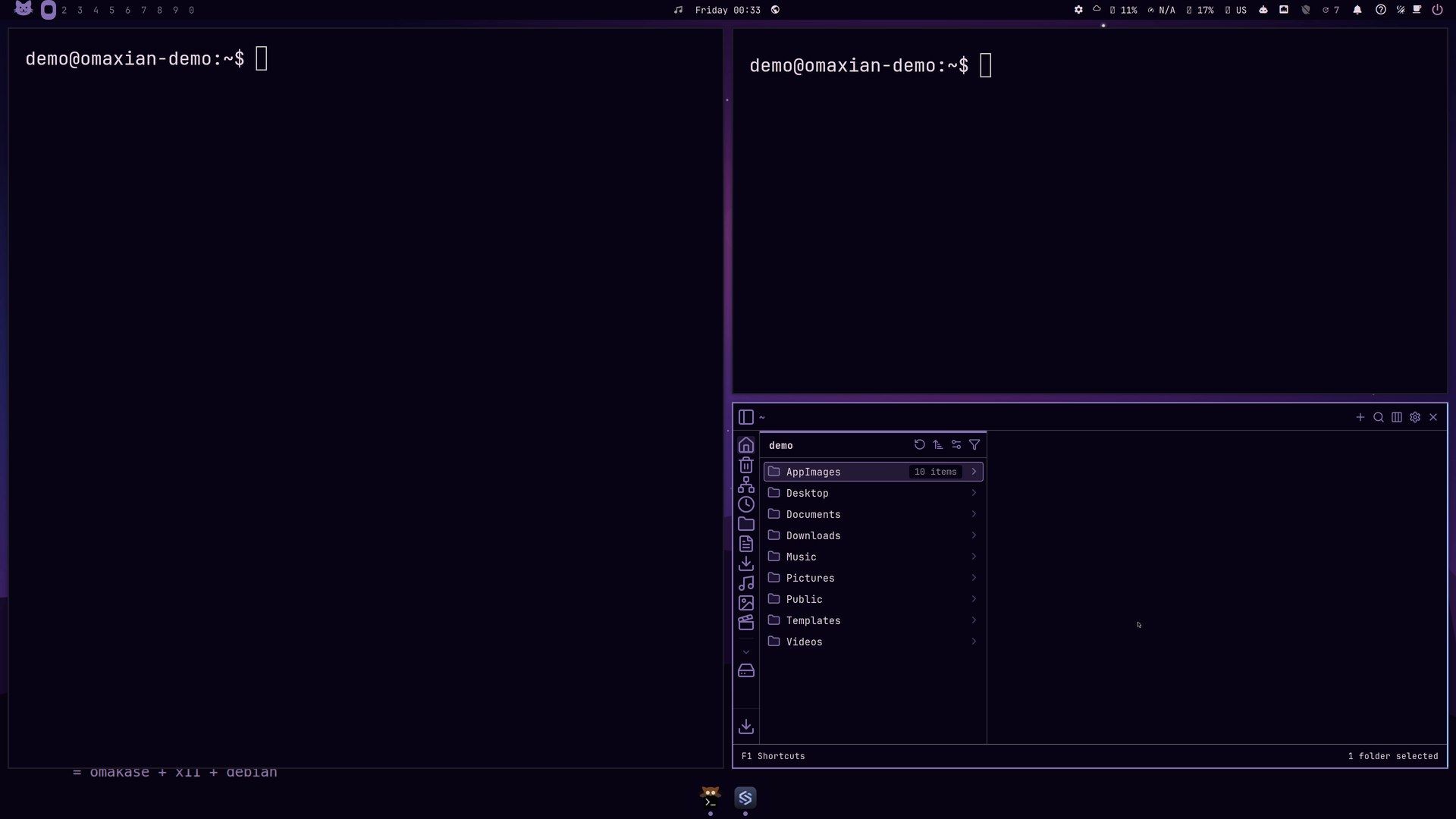
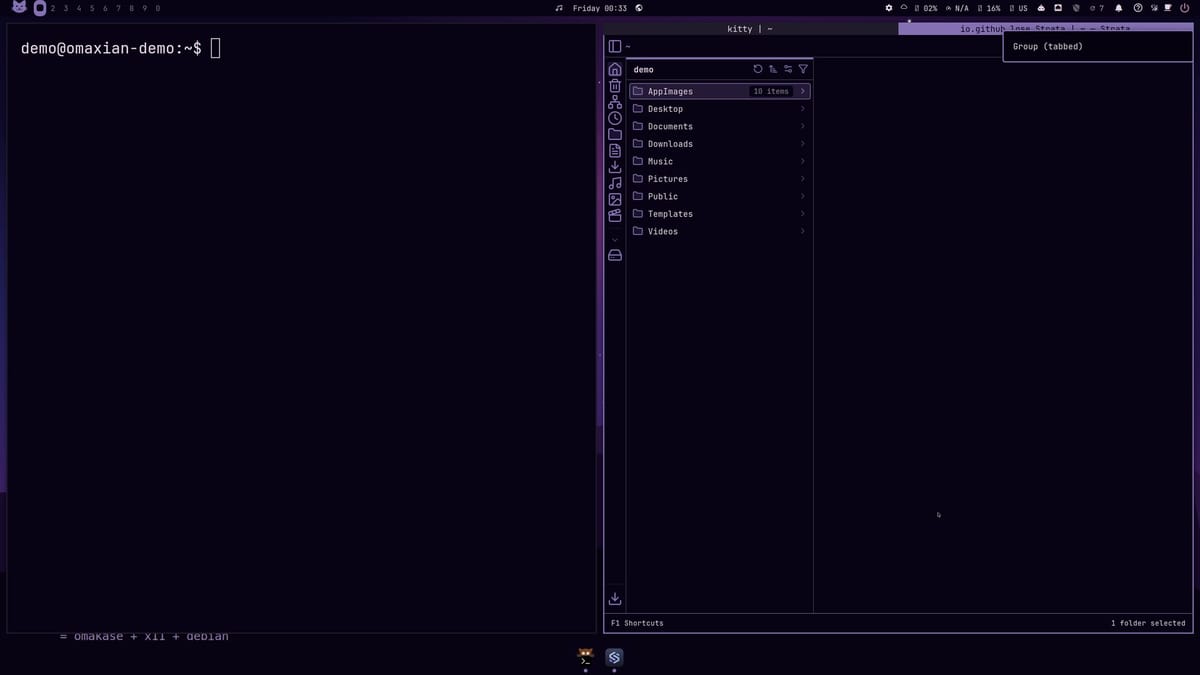
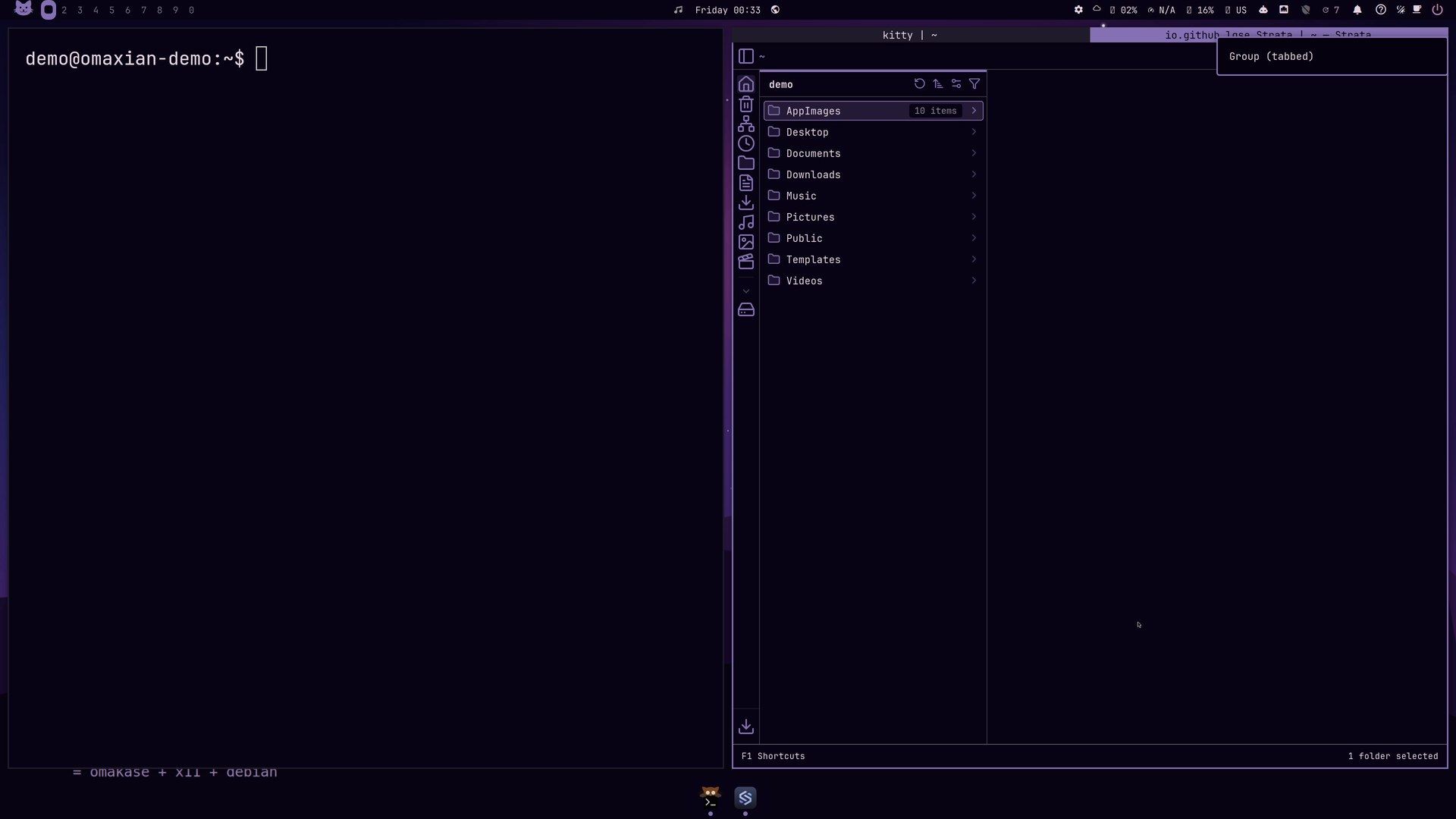
super and the other arrow keys move the focus from window to window. Every layout shortcut shows a small note in the corner that names the change. super g groups the windows into tabs, and the note reads “Group (tabbed)”. super f makes the window in focus full screen, super t lets it float, centered above the others, and super w closes it.
super 1 through super 0 switch workspaces, and the numbers on the bar light up as you use them. super shift 2 sends the window in focus to workspace two, and the view follows the window there.
The Control Panel and the Settings window
super ctrl o opens the Control Panel, the same panel as the gear on the bar. Its tabs hold Audio, Bluetooth, Wallpaper, Theme, and Display in one popup. This panel is new in Omaxian; Omarchy keeps those settings in separate panels. The Wallpaper tab shows the wallpapers that come with the current theme in each size, and a second tab picks pictures from a folder of your own.
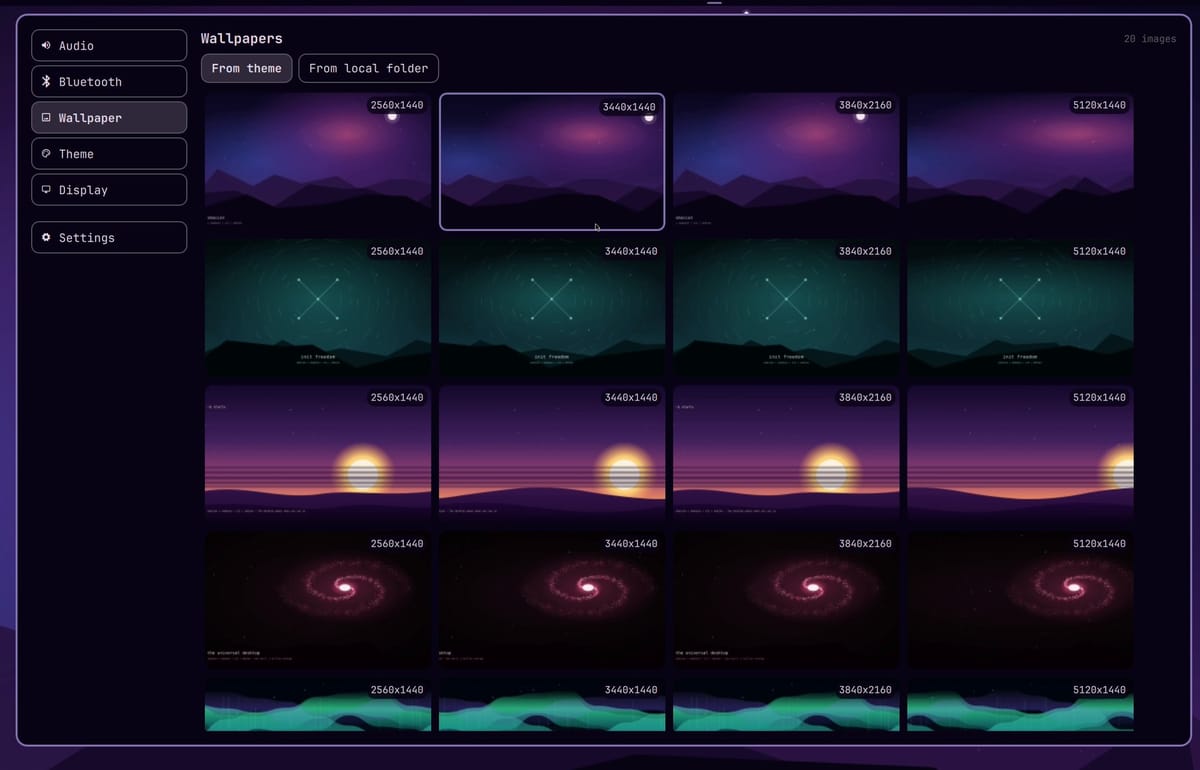
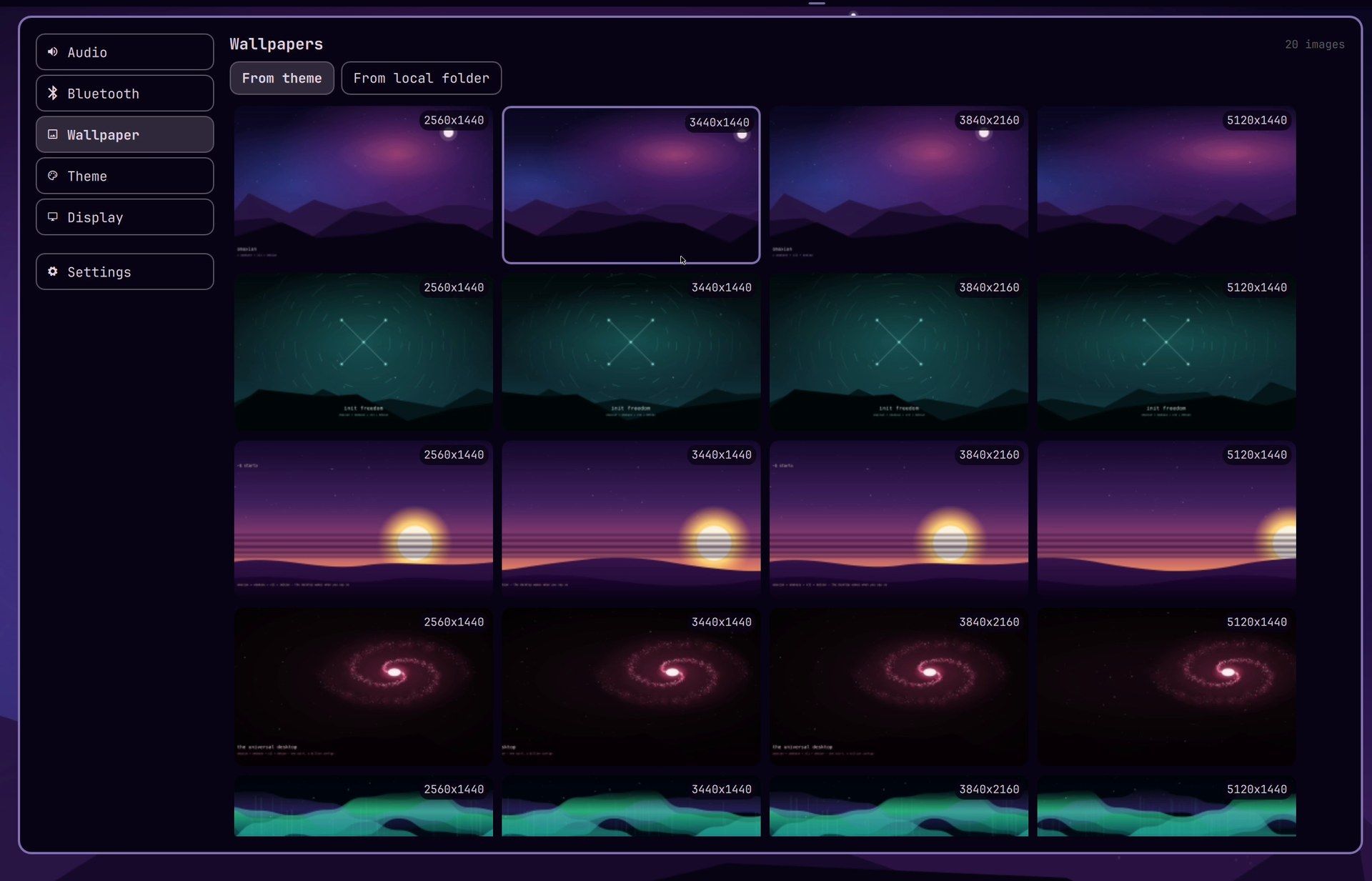
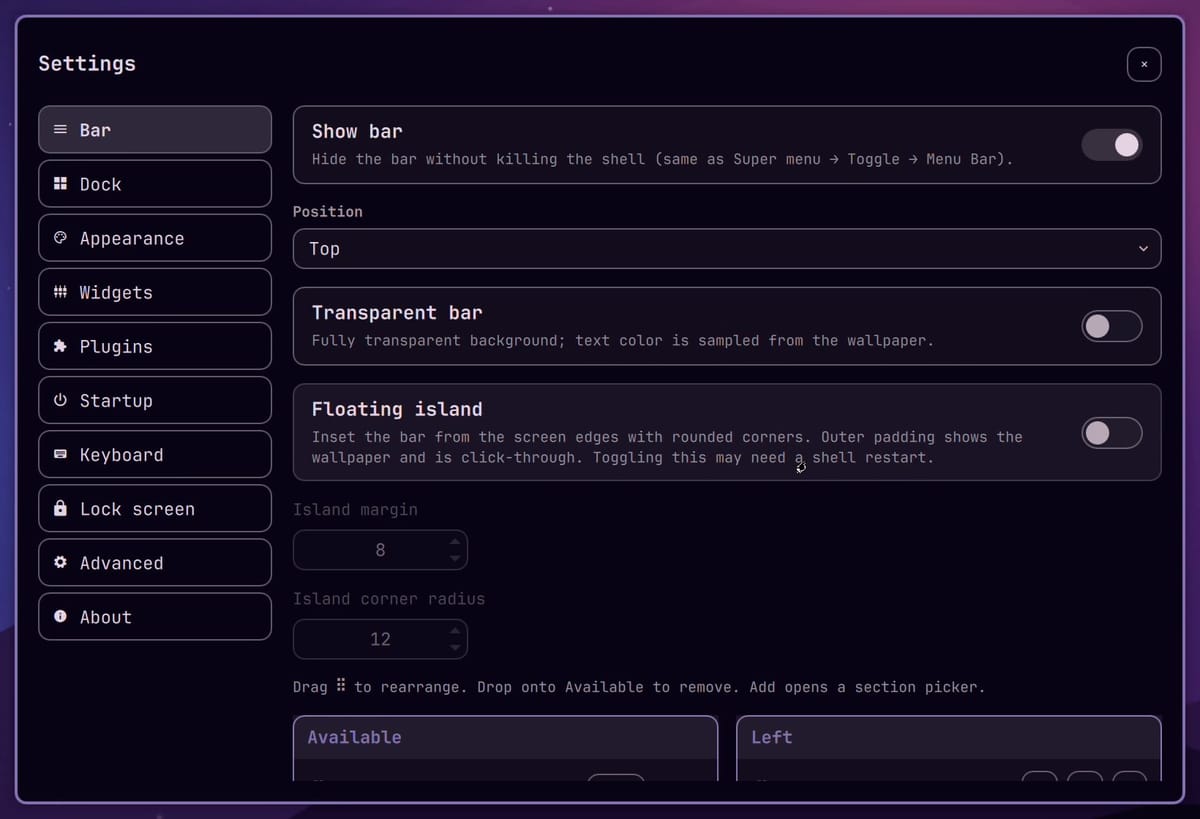
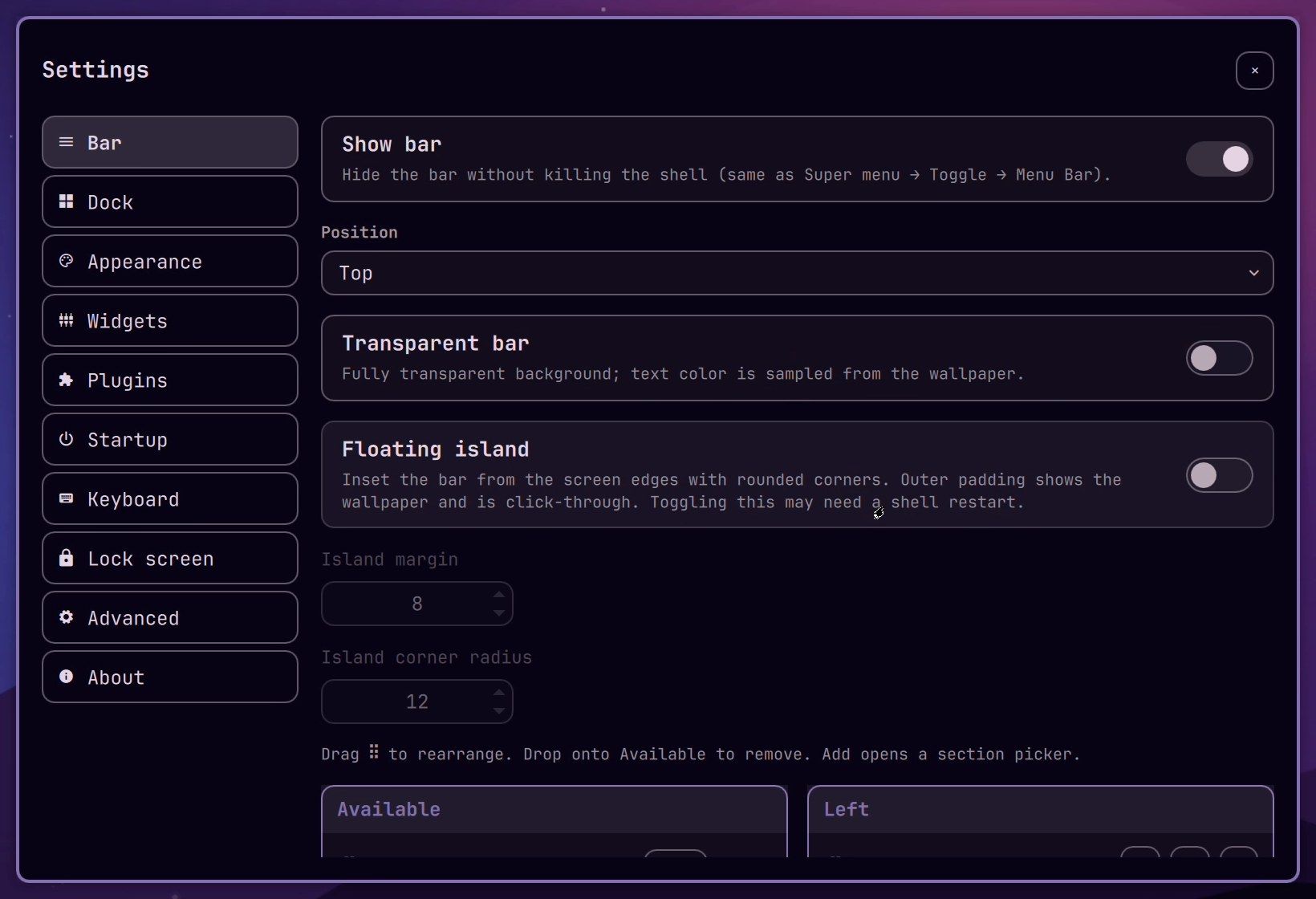
super ctrl s opens the Settings window, another Omaxian piece. Omaxian’s README notes that Omarchy edits its bar with drag gestures and has no settings editor like this one. The Bar page shows or hides the bar, moves it, makes it transparent, or turns it into a floating island inset from the screen edges. Other pages set up the dock, the widgets, the plugins, the keyboard, and the lock screen.
World clock, weather, files, and the browser
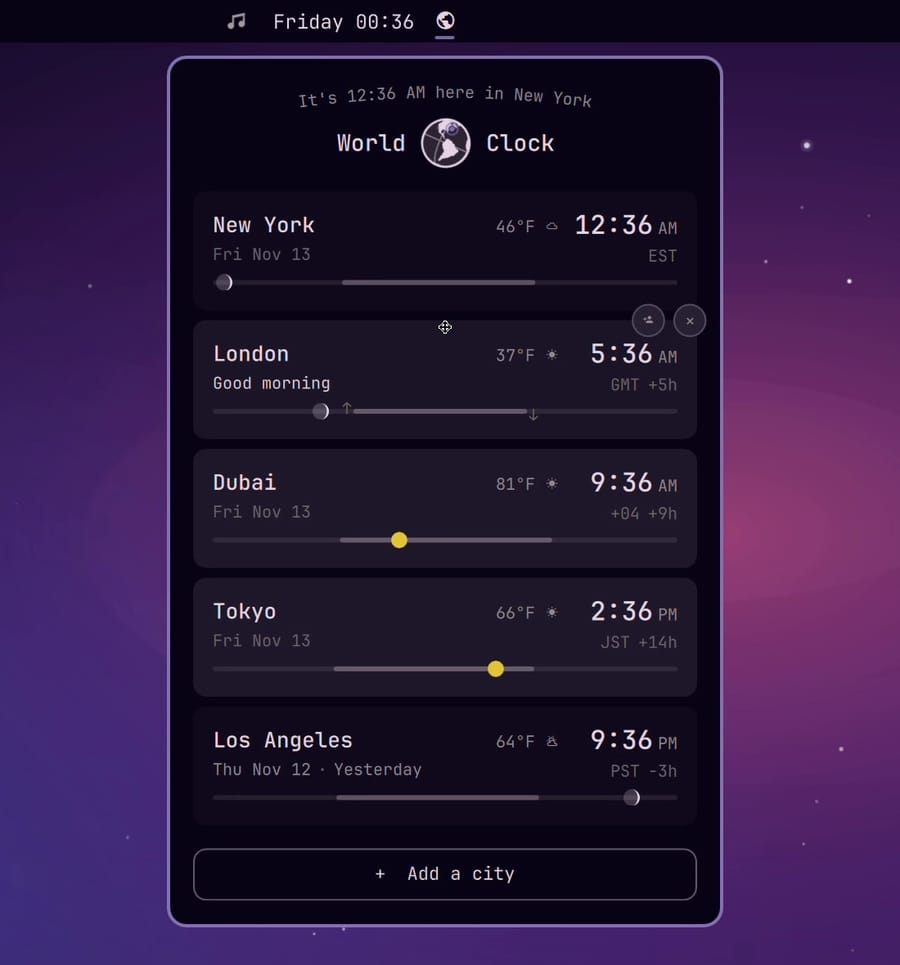
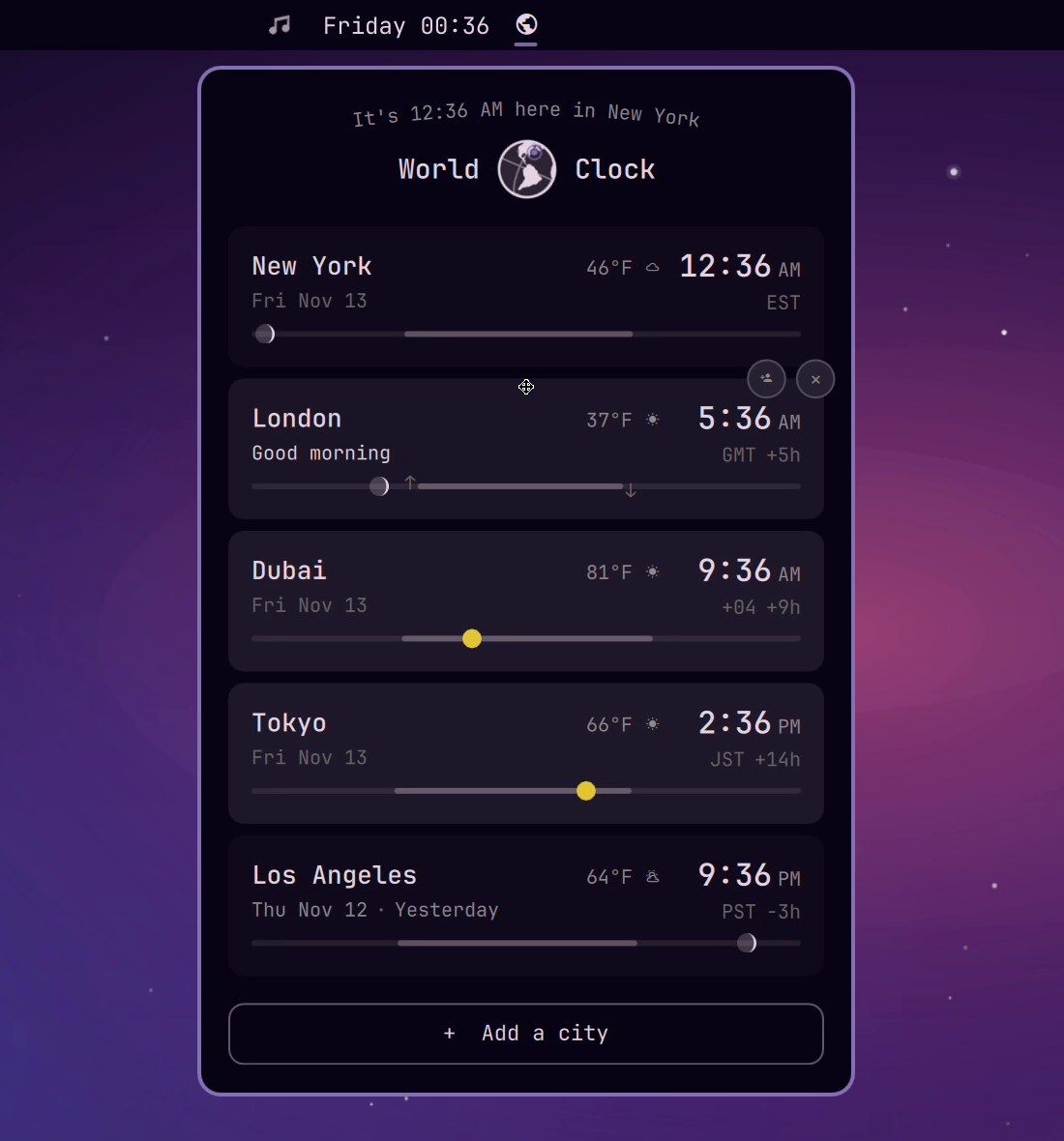
Clicking the globe beside the clock opens the World Clock, a panel that comes straight from Omarchy. New York, London, Dubai, Tokyo, and Los Angeles each show their time, date, and weather, and Add a city at the bottom puts your own places on the list. The weather next to the gear comes from Omarchy’s weather panel, unchanged, with today’s conditions and a three-day forecast.
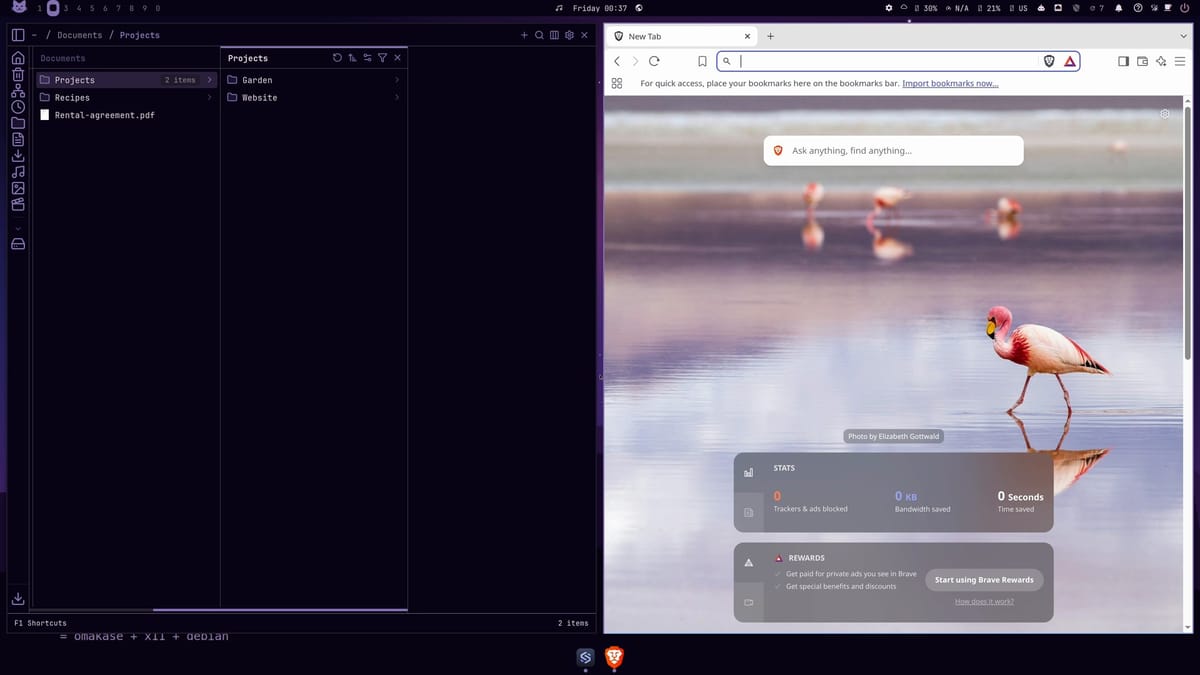
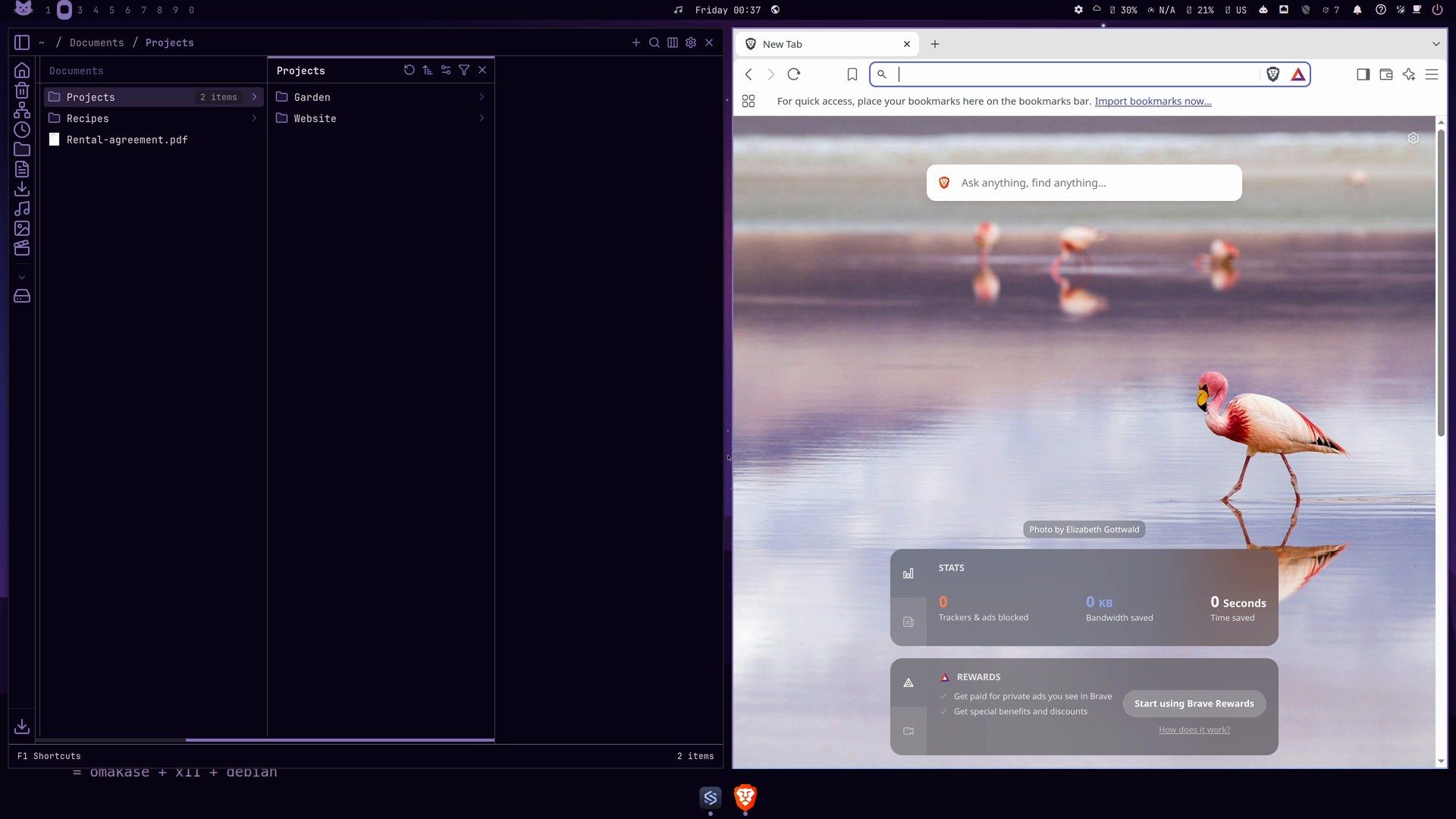
The file manager is Strata, made for Omarchy users by another developer; Omarchy itself ships Nautilus. Strata shows folders in columns, so each folder you open appears to the right of the one before.
For the web, Brave opens from the main menu with a quick search for brave. The dock at the bottom of the screen is Omaxian’s rebuild of Omarchy’s dock, and it shows the apps that are open.
Themes
Themes are where Omaxian takes the most from Omarchy. alt ctrl t opens the Theme tab of the Control Panel, a grid of theme previews. There are 25 themes: 23 come from Omarchy, copied as they are, from Catppuccin to White. The other two, Nebula Ridge and Transiberian, are Omaxian’s. The grid itself is Omaxian’s version of the Omarchy theme picker, which on Omarchy 4.5 lives on super ctrl t .
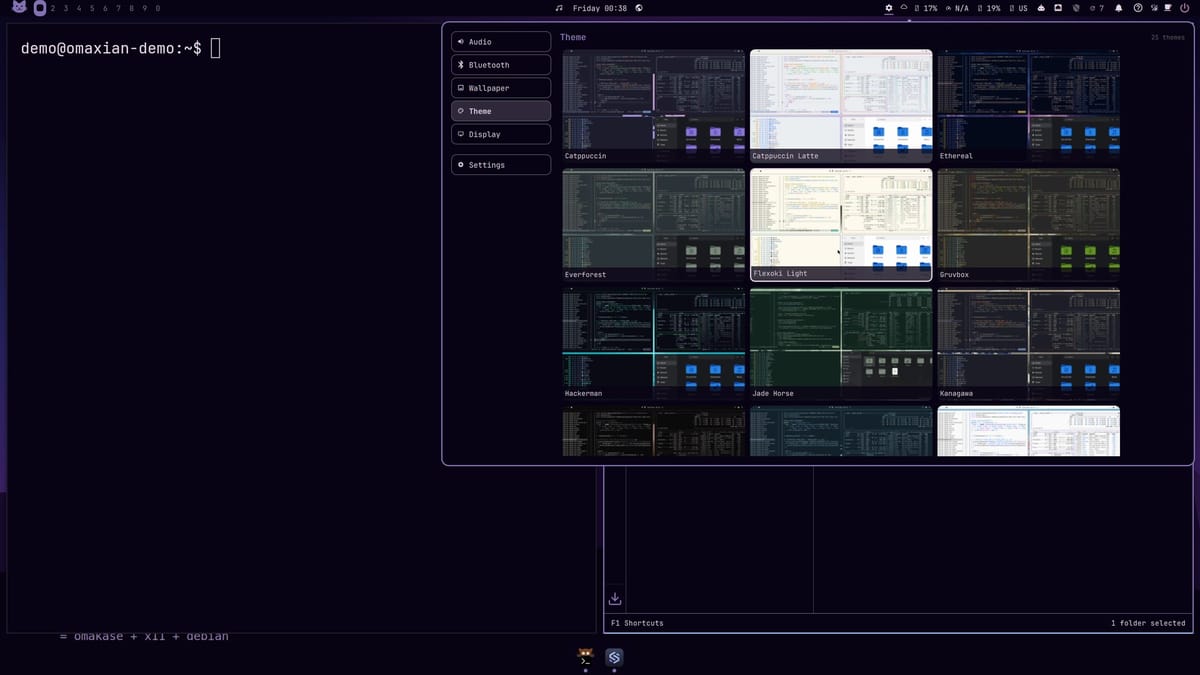
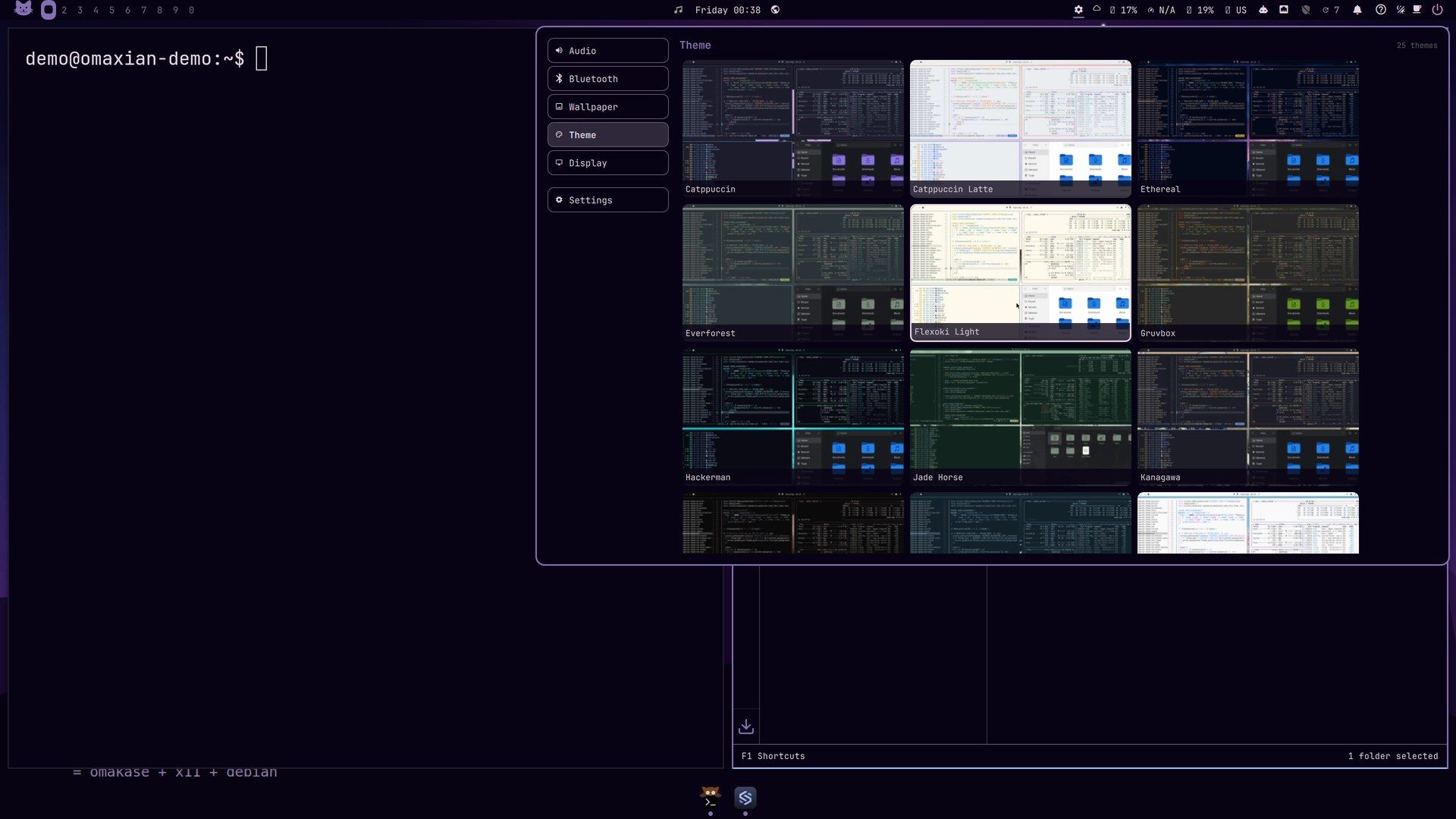
Click a theme, and the whole screen changes at once. With a terminal and the file manager open, picking Tokyo Night switches the bar, the terminal, the wallpaper, and the file manager to the new colors together. Picking Nebula Ridge again restores the default look.
Disktree and Signed
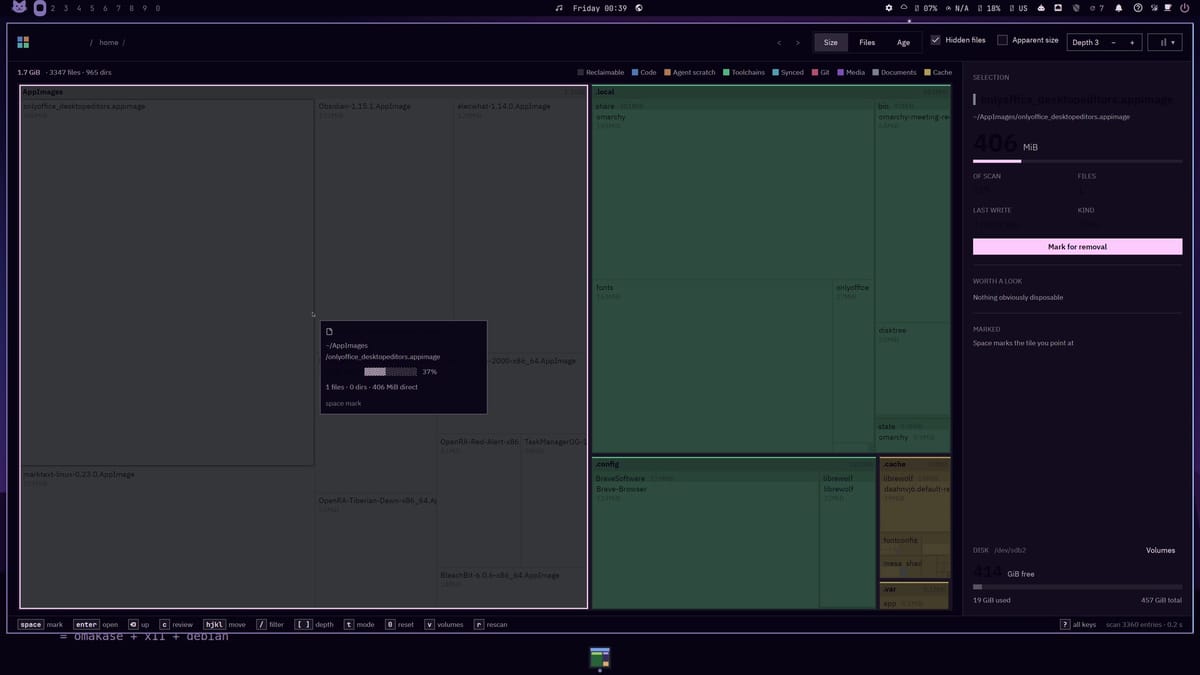
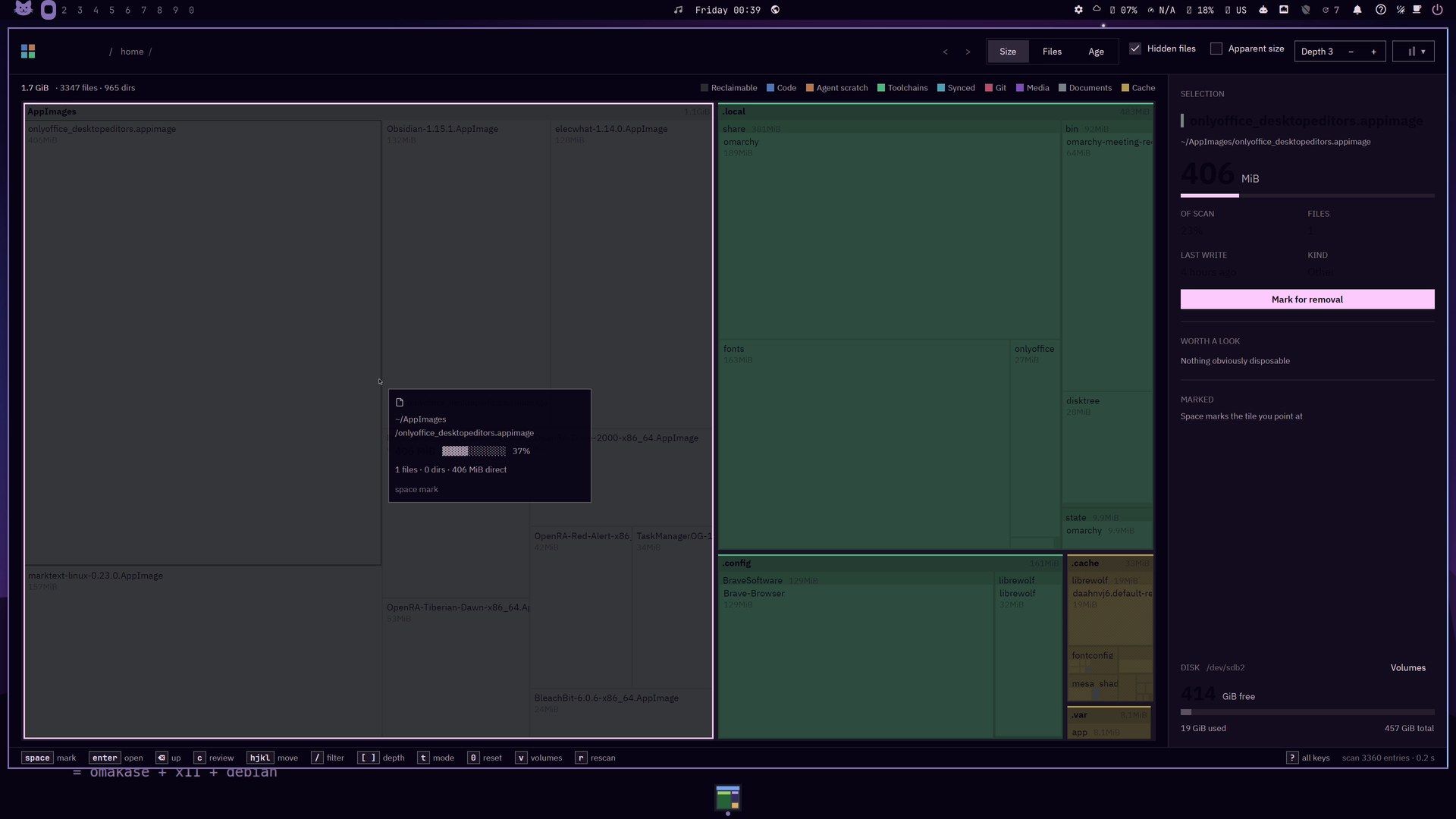
Two of the bundled apps are worth opening, and both come from Omarchy 4.5 (our guide to Omarchy 4.5’s new apps covers them on Omarchy). Disktree, by Tobi Lütke, ships with Omarchy and is rebuilt here for X11. Search for disktree in the menu, and it scans your home folder and draws each folder as a block, sized by the space it uses. The biggest folders stand out at a glance, which helps when the drive fills up.
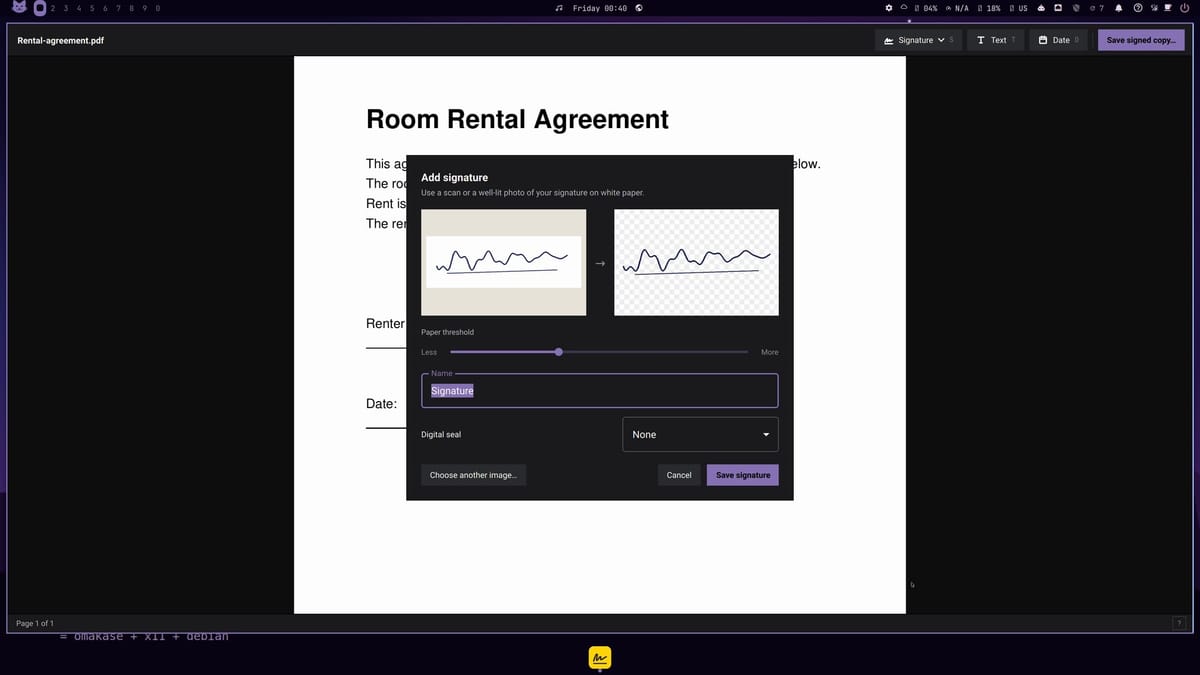
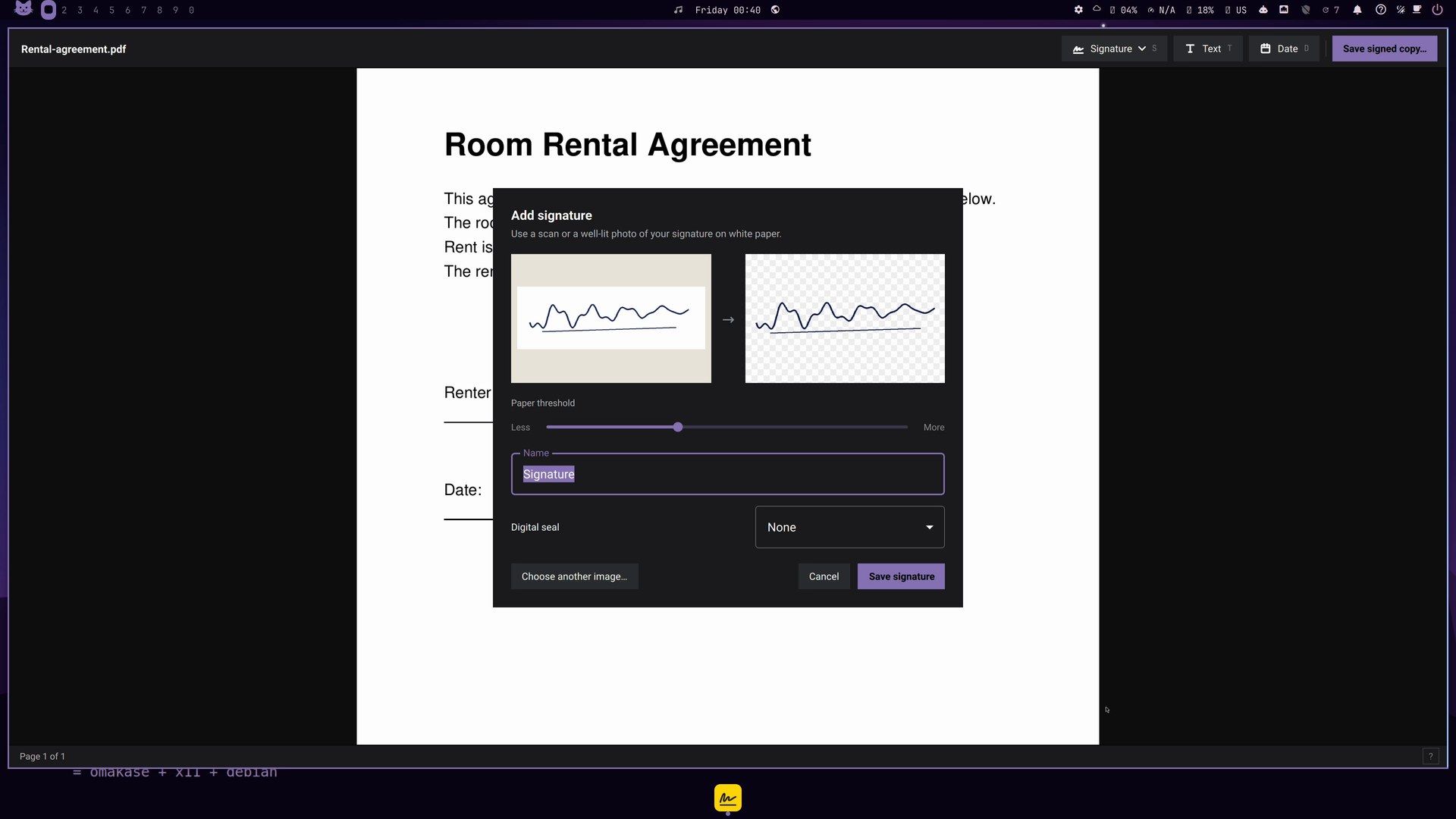
Signed is Omarchy’s own app for signing PDFs without a printer, also rebuilt for X11. Open a PDF, then add a picture of your signature, such as a scan or a well-lit photo on white paper. Signed removes the paper background and then places the signature on the page, ready to save as a signed copy.
Installing apps and updating
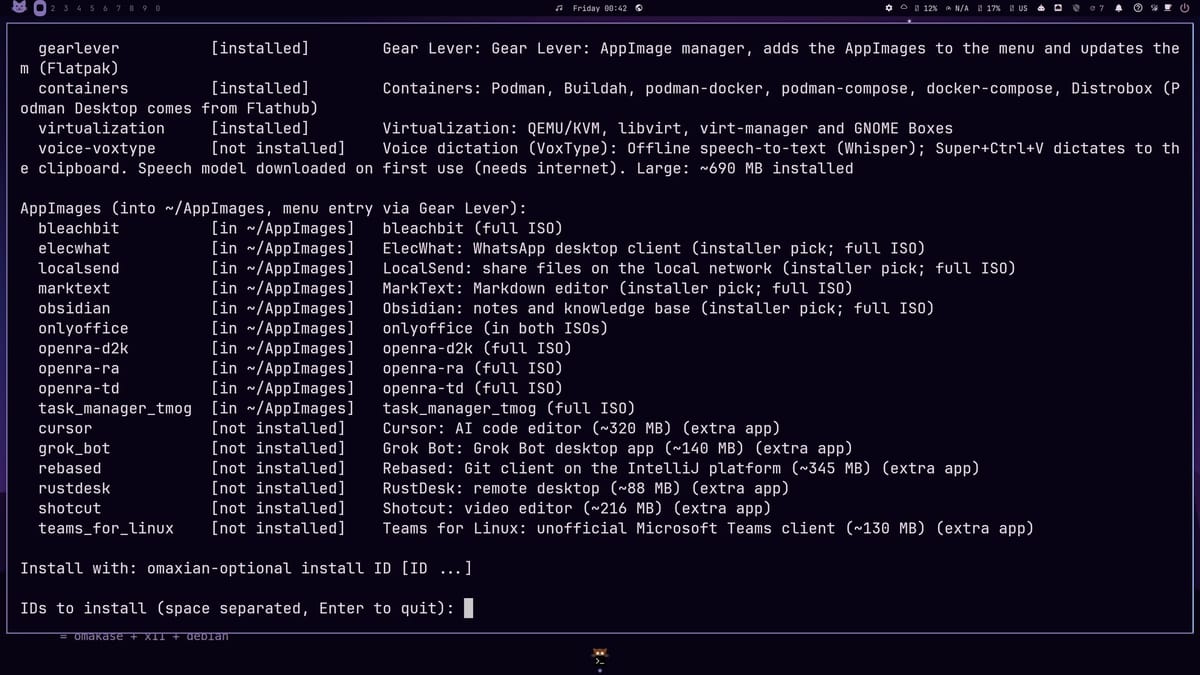
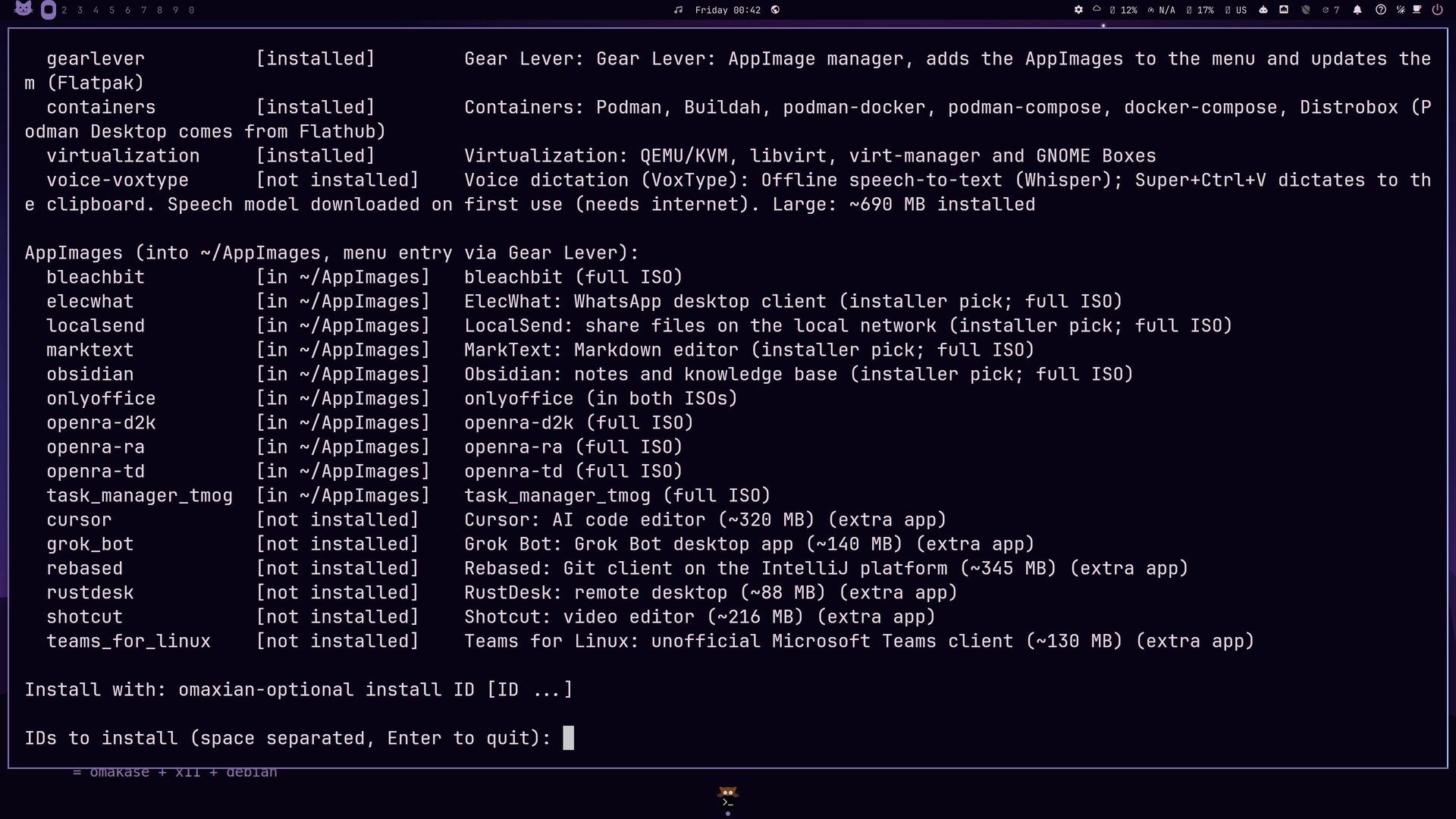
Installing and updating happen in a terminal for now. In the menu, a search for optional finds the entry Add optional apps. It opens a terminal list of extra apps and app groups, each marked installed or not installed, and installs the ones whose IDs you type. The list includes AppImages such as Obsidian and LocalSend, and apps such as Cursor and RustDesk.
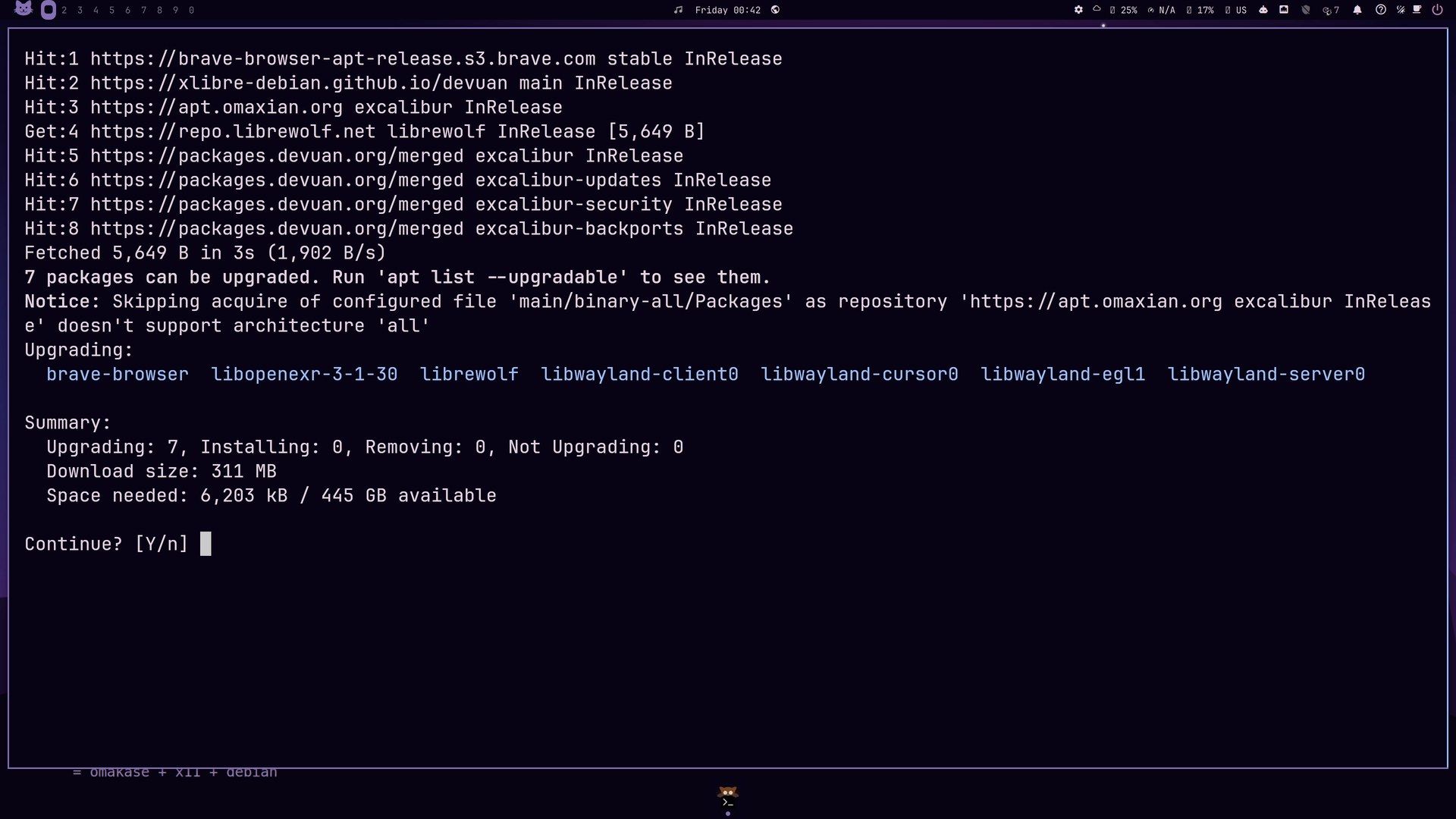
Clicking the update count on the bar opens a terminal that runs sudo apt update && sudo apt upgrade. apt lists the waiting updates and asks before it installs them. There’s no graphical updater, and the menu’s Update section holds Omarchy-style restart and setup items rather than a system update.

What to know before you try it
Omaxian suits you if you like Omarchy’s look and shortcuts but want Debian-family packages, X11, and no systemd. In daily use, the big changes from Omarchy are i3 placing your windows and Omaxian’s own Control Panel and Settings window. Not every Omarchy shortcut carries over: Omaxian’s porting notes list screen zoom, the scrolling layout, and the universal clipboard keys among those i3 can’t match.
Version 0.1 has rough edges. On our install, these didn’t work as shipped:
- The browser shortcut, super shift enter , opens nothing. The shortcut calls
brave, and the program is installed asbrave-browser. Open Brave from the menu instead. - Monologue, another Omarchy app, doesn’t start: its menu entry closes the menu and nothing opens.
- ONLYOFFICE comes installed as an AppImage in
~/AppImages, but its menu row starts nothing. Running~/AppImages/onlyoffice_desktopeditors.appimagefrom a terminal opens it. - There’s no graphical updater; updates run in a terminal, as above.
Download, check, and install Omaxian OS
The download page offers two ISOs for 64-bit PCs: Base (3.06 GB) and Full (8.96 GB). The page lists the requirements as “64-bit x86 PC (amd64), BIOS or UEFI, 2 GB RAM, 20 GB disk,” and adds that “Base ISO installs want a network.” We used the Base ISO.
The 0.1 files have been re-published several times under the same file names, so check the download against the .sha256 file next to it on the download server rather than a hash you saw somewhere else. Put both files in one folder and run:
sha256sum -c omaxian-base-*.iso.sha256It prints the ISO’s file name followed by OK when the two match. The Base ISO we installed had this sha256, which the download page and its .sha256 file still showed on November 13, 2026:
66e87240f3452107e83e200cec8143fb9f884f2c348ff9c364fa6a99cab5d108Write the ISO to a USB stick and boot from it. The live session lets you try the desktop first, and the Calamares graphical installer puts it on a drive. Its pages ask for the language, the time zone, the keyboard, the drive, your user, and the app groups. On the drive page, Erase disk wipes the drive you pick, so read the drive’s name and size before you go on; the download page also lists encryption, LVM, and btrfs as options. On the user page, “Require strong passwords” is ticked by default. The Applications page has optional app groups, all ticked except Extra apps.
We installed on a spare drive with Erase disk, and the install itself took under four minutes. The first login isn’t the end of it: Omaxian keeps installing Flatpak apps and AppImages in the background, which took about eight minutes on our machine. Let it finish before you judge the menu, since apps keep appearing until it’s done.
To see the original that Omaxian builds on, our guide to what Omarchy is goes through Omarchy layer by layer, from Arch Linux up to its settings.


