

Every August the same question lands in Chromebook shopping carts, and 2026 is no different. You have narrowed to the Chromebook Plus tier, whose certification sets a floor of 8GB of memory and 128GB of storage alongside a 1080p display and webcam. Now you are staring at two rows on the same spec sheet: the 8GB configuration and the 16GB one, typically about $100 apart. The usual way to settle this is to count the tabs you keep open and guess. You can do better than guessing, because ChromeOS itself treats 8GB as a threshold, and the threshold is written into the source code that ships on every Chromebook.
What ChromeOS does when memory runs short
Start with the part that makes Chromebooks different from Windows laptops and MacBooks. When a Windows machine runs out of memory, it pages the overflow out to the SSD; things get slow, but your work stays where you left it. ChromeOS avoids that trade. It leans on zRAM, a kernel feature that compresses memory in place rather than swapping it out to slower storage, which About Chromebooks notes has been on by default since ChromeOS 27. Compression buys real headroom, but it has a ceiling, and when the system passes it, ChromeOS does not slow down; it throws things away.
The thing it throws away is a background tab. Google’s own Memory Saver settings describe the tame version of this: three levels (Moderate, Balanced, and Maximum) that make unused tabs inactive after longer or shorter idle periods, with an exemption list covering tabs that are playing audio, sharing your screen, downloading a file, or holding a partly filled form. Google’s description of what happens next is one plain sentence: when you access an inactive tab, it automatically reloads.
That reload is the whole cost. The Chrome team’s own developer guidance on Memory Saver is blunt about it, warning that “a reload in the middle of that flow could be extremely frustrating if the site is not able to restore the page to exactly where the user left off,” and noting that “there is no event that fires when a tab is discarded, so there’s no way for developers to react to the fact that it’s happening.” Well-built web apps save your draft; plenty of others do not. A discarded tab has to be rebuilt from scratch, and whatever state the site did not persist is gone.
The 8GB cutoff written into ChromeOS
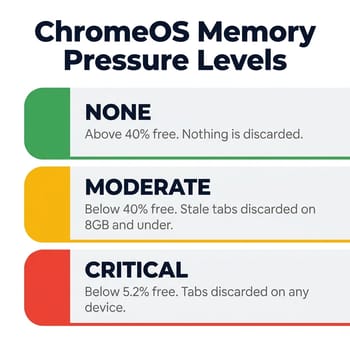
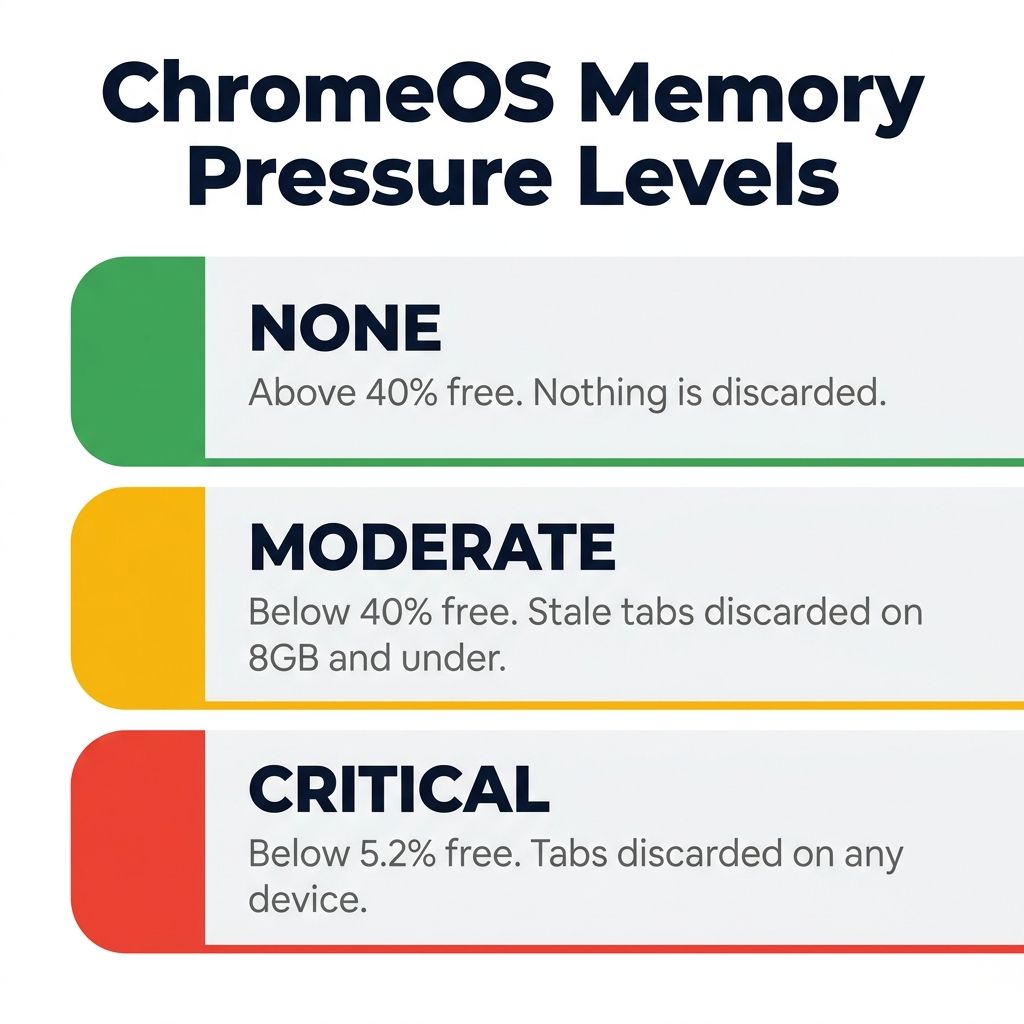
ChromeOS runs a daemon called resourced that watches memory and decides when to intervene, and its source is public. Two thresholds govern the behavior, spelled out in a comment near the top of the file: the critical margin is 5.2 percent of total memory, and the moderate margin is 40 percent of total. Once available memory drops below that 40 percent line, the system is in moderate pressure and starts trimming stale background tabs. Below 5.2 percent it is in critical pressure and trims aggressively.
Who gets trimmed at the moderate level is decided a few lines further down, by a constant named DISCARD_STALE_AT_MODERATE_HIGH_RAM_CUTOFF_KB, set to 8 GiB, with a one-line comment above it: “Devices which have more RAM than this will not discard stale tabs at moderate pressure.” The code that uses it is equally direct, with a comment reading “Never enable moderate pressure discards on devices with high ram.” A Chromebook whose total memory sits above 8 GiB simply does not participate in moderate-pressure discarding. It holds every background tab until pressure goes critical.
One qualification belongs alongside that constant. The 8 GiB cutoff is fixed in the code, but the discarding it gates is a ChromeOS feature that ships switched on by default and that Google can retune, or switch off, remotely for any group of devices. So the exemption you buy above the line is the durable half of the arrangement, and the trimming below it is the half Google controls.
So the 8-versus-16 question is less about whether 8GB is “enough” in the abstract and more about which side of a hard-coded line your machine lands on. An 8GB Chromebook Plus begins shedding stale tabs once about 3.2GB of its memory is still available. A 16GB Chromebook Plus discards nothing at that same point, and only starts dropping tabs when it is down to roughly 830MB.
By default, resourced treats a tab as stale, and fair game, once it has been out of view for two hours, matching Chrome’s own Memory Saver threshold, and the code allows Google to tighten that window remotely as pressure deepens. Two hours sounds generous until you picture a Tuesday: the syllabus PDF you opened at nine, the lab spreadsheet from ten, the three sources you pulled for an essay before lunch. None of those have been touched in two hours, so all of them are fair game.
Adding up what 8GB has to cover
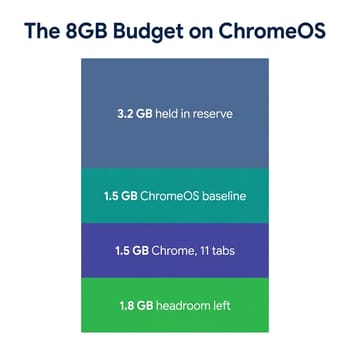
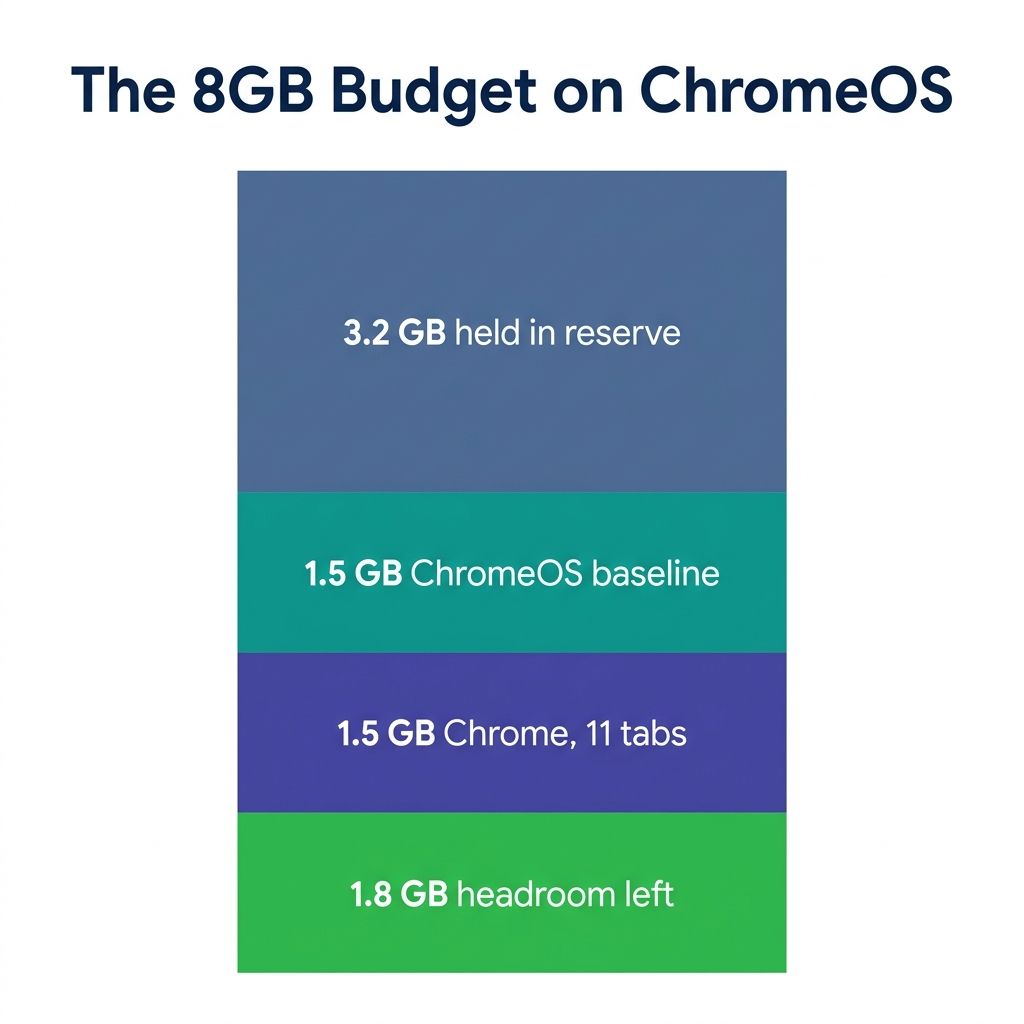
The arithmetic behind that cutoff is unforgiving. About Chromebooks puts the ChromeOS baseline at 1.0 to 1.5GB before you open anything, and Chrome itself at roughly 1.4GB across ten active tabs, down from 1.8GB in Chrome 135 for the same load. Those figures describe Chrome 140, released in September 2025, and the discard constants quoted above are still the ones in the current ChromeOS source. The outlet also cites Google internal data putting the average Chrome session at 11.4 open tabs, which is a useful reality check on anyone who insists they only ever run three.
Stack those numbers against an 8GB machine. Take 3.2GB off the top as the point where trimming starts, give the operating system the top of its range at 1.5GB and a typical Chrome session another 1.5GB, and you are left with something under 2GB of genuine slack. About Chromebooks, citing SuperchargeBrowser testing, puts individual tabs at 70 to 100MB for simple pages and 100 to 180MB for the web apps students live in, naming YouTube, Gmail, and Google Docs. A dozen more of those is a gigabyte and a half. Add an Android app or the Linux development environment (both fully supported on a Plus, and both real memory consumers) and the slack is gone. The same outlet’s crash-rate analysis concludes that freezes and tab crashes on Chromebooks “trace most directly to memory saturation,” and calls it a hardware-specification problem rather than an operating system bug.
A 16GB machine changes both halves of that equation at once. It has twice the raw capacity, and because it clears the 8 GiB cutoff, it never enters the moderate-pressure discard path at all.
What the cutoff looks like from the user’s side
In November 2025 a Chromebook owner filed Chromium issue 463748015, titled “Tab discarding is occurring when it shouldn’t,” after noticing something backwards on their own hardware: “A Chromebook that I have with 8GB (Lenovo Duet 5) is showing greater tab discarding than one with 4GB (Lenovo Duet 1st gen).” Same tabs, Memory Saver switched off on both. Digging through the system log turned up the moderate-pressure discard messages, and reading the resourced source turned up the 40 percent margin. The reporter watched seven of fifteen tabs disappear one after another until the diagnostics panel showed 3.2GB free, which is exactly 40 percent of 8GB.
Their write-up states the tier decision in one line: the policy “penalizes 8GB Chromebooks more than 4GB because the former needs more free in order not to lose critical tabs.” Because the margin is a percentage of total memory rather than a fixed number, a bigger machine below the cutoff has to keep a bigger cushion. The report also notes that the tabs going first were not the idle ones a user would sacrifice: “The system discards interactive tabs before static tabs, frequently discarding Google Calendar and Mail before e.g. game rule books that I have open.”
Two caveats before anyone reads that as a scandal. The issue is a single reporter’s account, filed against Chrome build 142, and it remains open and assigned rather than confirmed as a defect, so the interactive-tab behavior in particular may be specific to that setup. And the underlying policy is a defensible engineering choice: dropping one stale tab early is a gentler failure than letting the whole session thrash. But defensible or not, it is a real behavior with a real threshold, and the threshold sits precisely where the Chromebook Plus tier starts.
When 8GB is the right buy
Plenty of buyers should still take the cheaper configuration, and the cost side is not trivial in 2026. About Chromebooks reports that memory and storage costs have risen $90 to $165 per device since early 2025, which is exactly why the capacity upcharge feels steeper this year than it did last. That same piece places the Plus tier at roughly $349 to $699 against $200 to $400 for standard Chromebooks, and cites Canalys projecting that NPU-equipped Chromebooks (the bracket the higher-end Plus models sit in) will grow from about 7 percent of shipments in 2025 to more than 40 percent by 2028.
If your day looks like a document, a mail tab, a music tab, and a browser window with four or five things in it, an 8GB Plus will never touch the moderate-pressure path and the extra money buys you nothing. The same is true if you close tabs as you finish with them, which is a habit, not a hardware feature. And if the budget is fixed, spending the delta on storage instead is often the better call; a 128GB Plus fills up faster than most people expect, which is the argument in our piece on the 64GB Chromebook storage trap applied one tier up.
Two real downsides to the 16GB purchase deserve naming. First, memory on the Plus models below is fixed at purchase rather than user-upgradeable, so the upcharge is a one-shot decision, and for a light user it is dead money. Second, more memory does nothing for the two things students complain about most: sustained processor performance and battery life. A 16GB machine with a modest chip is still a modest machine.
When to spend past 8GB
The threshold argument cuts the other way for anyone whose tabs are their workspace. If you write with sources open, if you keep a course portal and a calendar and a mail tab live all day, if you run video calls alongside a shared doc, or if you use Android apps or the Linux development environment for coursework, you are the buyer the cutoff was written about. You will hit moderate pressure regularly on 8GB, and you will pay for it in reloaded tabs and lost scroll positions rather than in a spinning cursor.
The code checks for total memory greater than 8 GiB, not for 16GB specifically, and that nuance can save you money. A 12GB Chromebook Plus clears the cutoff just as completely as a 16GB one. If a 12GB configuration is cheaper and its storage is adequate, it buys you the same exemption from moderate-pressure discarding.
Three Plus models at the decision point
If you want the 16GB tier without hunting for it, the Lenovo Chromebook Plus 14” OLED is the straightforward pick. Its top configuration is 16GB/256GB, it is fanless, and its update runway runs to June 2035, the longest of anything here. It also offers a 12GB/128GB configuration, which is the cheaper way over the 8 GiB line if storage is not your constraint.
Lenovo Chromebook Plus 14" OLED
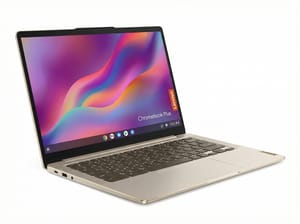
- ✓16GB top configuration
- ✓fanless and silent
- ✓17-hour rated battery
- ✓OLED display
- ✓updates through June 2035
- ✗Glossy screen is reflective outdoors
- ✗no HDMI or card reader
- ✗ARM chip complicates some Linux apps
For a picture of what the step up costs, look at a single model sold at both capacities. The ASUS ExpertBook CX54 ships as an 8GB/128GB configuration listing at $699 and as a 16GB/256GB touch configuration at $799. The step up bundles a touchscreen and double the storage alongside the memory, so the $100 is not purely a capacity charge, but it is the closest thing the current lineup has to a direct price on the 8-versus-16 choice.
And a fair counterexample, because premium does not automatically mean roomy. The Acer Chromebook Plus Spin 714 is a nice convertible with USI pen support and a 1440p webcam, and its current configuration ships with 8GB, which is the ceiling on this trim. It is a good machine that lands on the wrong side of the line.
Acer Chromebook Plus Spin 714
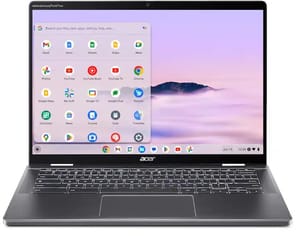
- ✓Premium aluminum convertible
- ✓USI pen support
- ✓excellent 1440p webcam
- ✓Thunderbolt 4
- ✓updates through June 2034
- ✗8GB is the ceiling at this configuration
- ✗all USB-C ports on one side
- ✗no card reader
What to check on the spec sheet
The practical version of all this fits on an index card. Find the memory figure and ask a single question: is it larger than 8GB? If yes, the machine sits outside ChromeOS’s moderate-pressure discard path and your background tabs survive until things are dire. If no, budget your tab habit accordingly, or plan on closing things as you go. Then check the automatic update expiration date, because a Plus bought in August 2026 with a 2034 or 2035 runway is a machine you will still be using when your tab habits have changed. Our Black Friday Chromebook guide covers memory, storage, and update dates on discounted models.
If you are still deciding whether the Plus tier is the right bracket at all, our buyer’s decision guide on Chromebooks in 2026 works through that question first, and the Chromebook Plus explainer covers what the certification does and does not guarantee. The bundled AI Pro subscription is worth folding into the price comparison too. And if the machine you are cross-shopping is a budget model rather than a Plus, the 4GB Chromebook trap is the version of this argument one tier down, where the math is considerably less forgiving.


