
hypruse is a free, open source MCP server that gives a coding agent computer use: the agent can see and work the apps on your Hyprland desktop. Hyprland is the window manager under Omarchy, the part that arranges your windows and workspaces. An agent that drives your mouse and keyboard would fight you for them, so hypruse gives the agent workspaces of its own, numbered 99 down to 90. The agent opens apps there, takes screenshots of them, presses buttons by name and sends keys, while you keep working on your own workspace and your pointer stays where you left it.
hypruse comes from a developer who goes by IlyasKhallouki on GitHub, under the MIT license. It runs on stock Hyprland with no compositor plugin and no root access.
From its shell, Claude Code can write a desktop app and start it, but it cannot see the window or click anything in it. hypruse covers that part. This guide sets it up on Omarchy and walks through the two jobs from our video: Claude Code builds a small memory card game and plays it to test it, then it configures a laptop on a website that has no public API and reads back the total.
We followed these steps on Omarchy 4.5.0-3 (Hyprland 0.56.2) with hypruse 0.15.1, Claude Code 2.1.330 and Chromium 155 in November 2026, with Claude Code on Sonnet 5.5. The agent writes its own code and replies each time, so your runs will differ from ours in the details.
What you need
You need Omarchy 4.5 (or another Hyprland desktop), Claude Code signed in to a Claude plan, and a terminal. On Omarchy, the screenshot and typing tools hypruse uses (grim and wtype) are already installed. Make an empty project folder for the agent session. hypruse gets registered in that folder only, so it is not in every Claude Code session you start:
mkdir -p ~/hx && cd ~/hxInstall hypruse
hypruse is in the AUR, the Arch User Repository. Install it with yay, then run its self-check:
yay -S hypruse
hypruse doctor
yay asks a couple of menu questions (press enter to take the defaults), then your password, then whether to proceed. It also pulls in python-mcp. hypruse doctor checks each part hypruse needs. On Omarchy every line came back [ok], ending with “All checks passed. hypruse is ready.”
hypruse also has a hypruse init command that finds your MCP clients and registers itself for your whole user account after asking. We registered it by hand instead, for one project folder.
Connect hypruse to Claude Code
Run this in the project folder:
cd ~/hx
claude mcp add -s project hypruse -e HYPRUSE_BACKGROUND=1 -- /usr/bin/hypruse
Claude Code adds a stdio MCP server called hypruse to ~/hx/.mcp.json. HYPRUSE_BACKGROUND=1 turns on background mode: the agent can only act on windows on its own workspaces, and anything that would move your pointer, switch your workspace or take your focus is refused.
Keep the server name (hypruse) before the -e flag. The hypruse README shows -e first, and Claude Code 2.1.330 rejected that order with “missing required argument ‘commandOrUrl’”, because -e takes the name as one of its values.
Pre-allow the hypruse tools
By default, Claude Code asks before every hypruse tool call. For the two jobs below we allowed the hypruse tools ahead of time, so the agent never stopped to ask. Create ~/hx/.claude/settings.local.json with this content (this is the file from the game job):
{
  "enabledMcpjsonServers": ["hypruse"],
  "permissions": {
    "allow": [
      "mcp__hypruse",
      "Read",
      "Write",
      "Edit",
      "Bash(python3:*)",
      "Bash(python:*)",
      "Bash(ls:*)",
      "Bash(cat:*)",
      "Bash(mkdir:*)",
      "Bash(pkill:*)",
      "Bash(kill:*)",
      "Bash(find:*)",
      "Bash(head:*)",
      "Bash(sleep:*)",
      "Bash(hyprctl clients:*)",
      "Read(//run/user/1000/hypruse/**)",
      "Read(//tmp/**)"
    ],
    "deny": ["WebFetch", "WebSearch"]
  }
}
What each part does:
enabledMcpjsonServerstells Claude Code to trust the hypruse entry in.mcp.json, so the first start in the folder shows no “New MCP server found in this project” dialog.mcp__hypruseallows every hypruse tool: launch, screenshot, click by name, keys and the rest.Read,Write,Editand theBash(...)rules let the agent write the game and run it with Python. Only the game job needs them.Read(//run/user/1000/hypruse/**)lets Claude Code open the screenshots hypruse saves there. The path starts with two slashes on purpose: with one, Claude Code reads it as a path inside the project. The1000is your user ID; check yours withid -u.
For the website job we swapped in a shorter file: the same enabledMcpjsonServers line, an allow list of only mcp__hypruse and the two Read(//...) rules, and a deny list of WebFetch, WebSearch, Bash(curl:*), Bash(wget:*), Bash(python3:*), Bash(python:*) and Bash(chromium:*). That leaves the agent one way to reach the site: through the browser window, with hypruse.
Add two Hyprland lines
Omarchy 4.5 uses a Lua Hyprland config. Add these lines at the end of ~/.config/hypr/hyprland.lua:
-- hypruse: keep windows on the agent workspaces drawing while hidden, so screenshots are live
hl.window_rule({ name = "hypruse-live", match = { workspace = "r[90-99]" }, render_unfocused = true })

-- hypruse: a click in a web field on the agent workspace must not pull our screen there
hl.config({ misc = { focus_on_activate = false } })
Add them before any agent app is open on workspaces 90 to 99. Hyprland reloads the file when you save it, and in our tests a reload moved windows on a hidden workspace 99 over to workspace 2. Changing the Omarchy theme reloads Hyprland too.
The first line is a window rule named hypruse-live. A window on a workspace you are not looking at stops redrawing, so the agent’s screenshots of it showed how it looked when it was last on screen. With the rule, windows on 90 to 99 keep drawing (at up to 15 frames a second) and the agent’s screenshots match the app. In our test without the rule, a hidden test window still showed its red start color after hypruse had clicked its button four times.
The second line turns off focus_on_activate. Omarchy turns it on by default, so Hyprland focuses any window that asks to be focused. Chromium asks when a text field on the page takes focus, and with the default, a hypruse click in a web form’s text field switched our screen to workspace 99 three times out of three. With the line, the same click left us on workspace 1. The setting applies to every app: a window that asks for focus no longer gets it, and you switch to it yourself.
Check the result with hyprctl getoption misc:focus_on_activate (it should read false) and hyprctl configerrors (it should print nothing).
Turn on stay-awake for long runs
An agent run can take several minutes with no input from you, and Omarchy blanks the screen after 150 idle seconds and locks it after 300. Once the screen locks, hypruse refuses to take window screenshots, and in one of our runs the agent stopped with no answer. Turn on Omarchy’s stay-awake before a long run:
omarchy-toggle-idle stay-awakeOmarchy’s menu has the same toggle. systemd-inhibit --what=idle does not work for this: Omarchy 4.5’s idle service only respects Wayland idle inhibitors and ignores systemd’s. Turn idle back on afterwards with omarchy-toggle-idle allow-idle.
Start Claude Code
Start Claude Code in the project folder. We picked Sonnet:
cd ~/hx
claude --model sonnet
With enabledMcpjsonServers set, the start screen goes straight to the input box.
The agent builds a game and plays it to test it
A button that does nothing, or text that does not fit, shows only on the screen. To give the agent something to look at, we asked for a small memory card game and told it to play the game itself. Send this prompt:
In ./app, build a memory card game in GTK 4 with Python: a 4x4 grid of 8 face-down symbol pairs, a moves counter, a New game button and a big win message. Fixed 480 by 560 window. Make all symbols and text easy to read. Launch it with hypruse on workspace 99, play to the win screen by clicking, and check with screenshots. If hypruse warns my focus changed, that's me watching: keep going. Fix anything that looks or works wrong, then relaunch and play to the win screen again.Keep the line about the focus warning. Whenever you change focus during one of the agent’s actions (clicking the 9 in the bar to watch, or clicking back into your own window), hypruse adds a warning to its next reply that the human’s focused window changed, and tells the agent to stop and say so. Without that line, the agent stopped to ask in about one run in three, even when the prompt said we might look in. With it, the agent noted “The focus warning is you watching” and carried on.
The agent writes the game first. Then hypruse launches it on workspace 99, and your terminal keeps the focus. Omarchy’s bar shows the new workspace as a 9 after the 1 to 5.
Every card in the game window has an accessible name, like Card 1 or Card 3. The agent pressed the cards by those names from its first move, through the accessibility interface that screen readers use, so the pointer never moved. Between moves it took screenshots of the window to see which cards were face up.
To watch, click the 9 in the bar. Go back to your own workspace with super 1 . While the agent played, we typed notes in Neovim on workspace 1, and our cursor stayed in Neovim. Omarchy’s focus follows the pointer, so click into your own window before you type.
When the agent reached the win screen, its screenshot showed two faults: the win panel was see-through, with the cards showing through it, and the window had grown to 480 by 615, taller than the 480 by 560 we asked for.
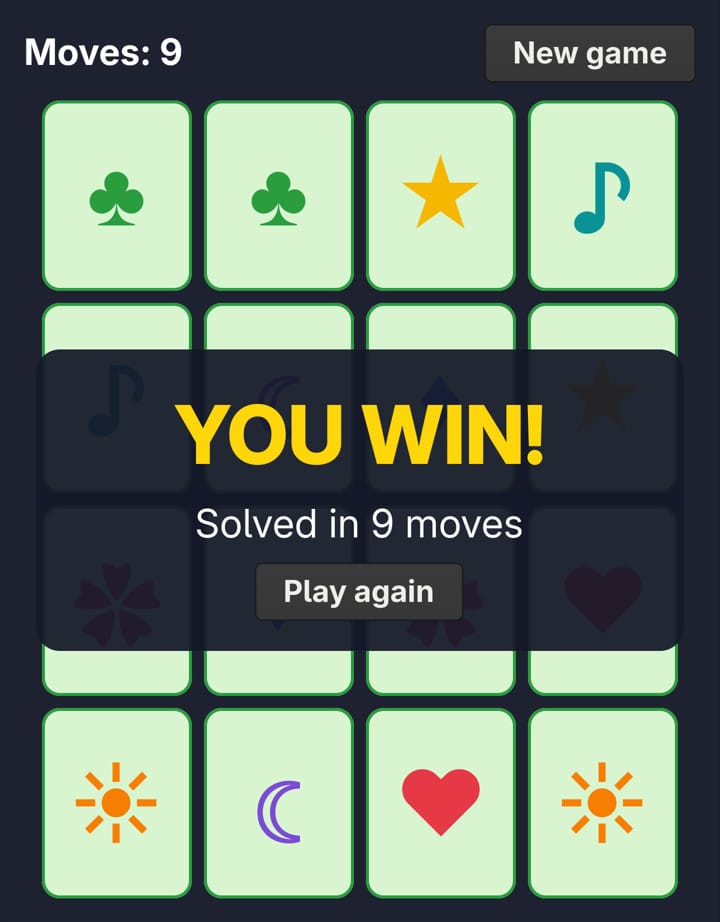
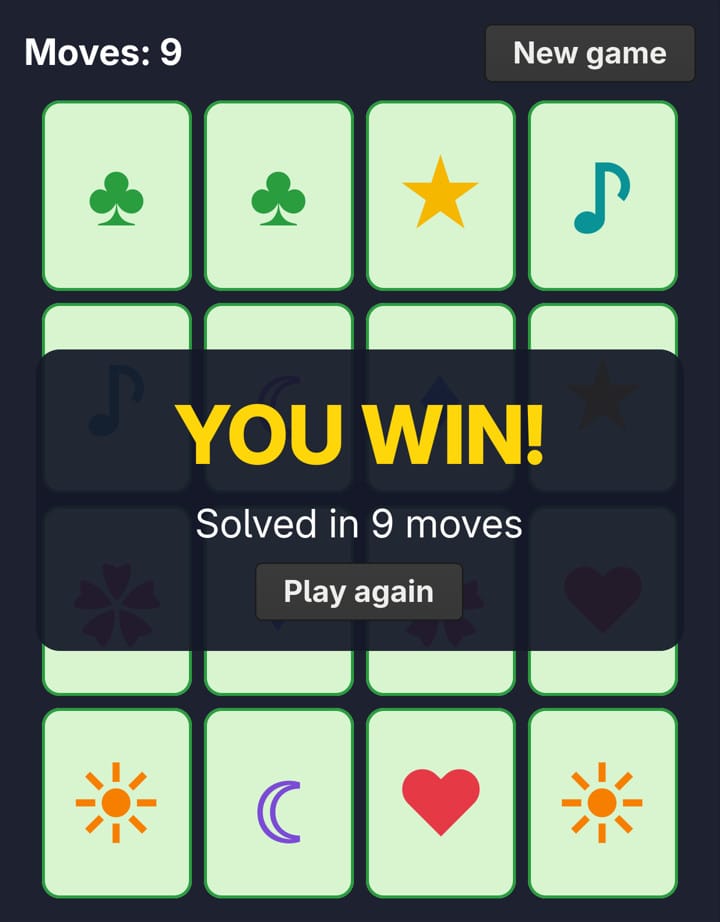
The agent fixed the code, closed the old window, and launched the game again on workspace 99. It played a second game to the win screen and checked that screen in a fresh screenshot before it called the job done. This time the panel was solid and the window stayed at 480 by 560. Its last reply listed the two problems it had fixed: the window that grew and the see-through panel.
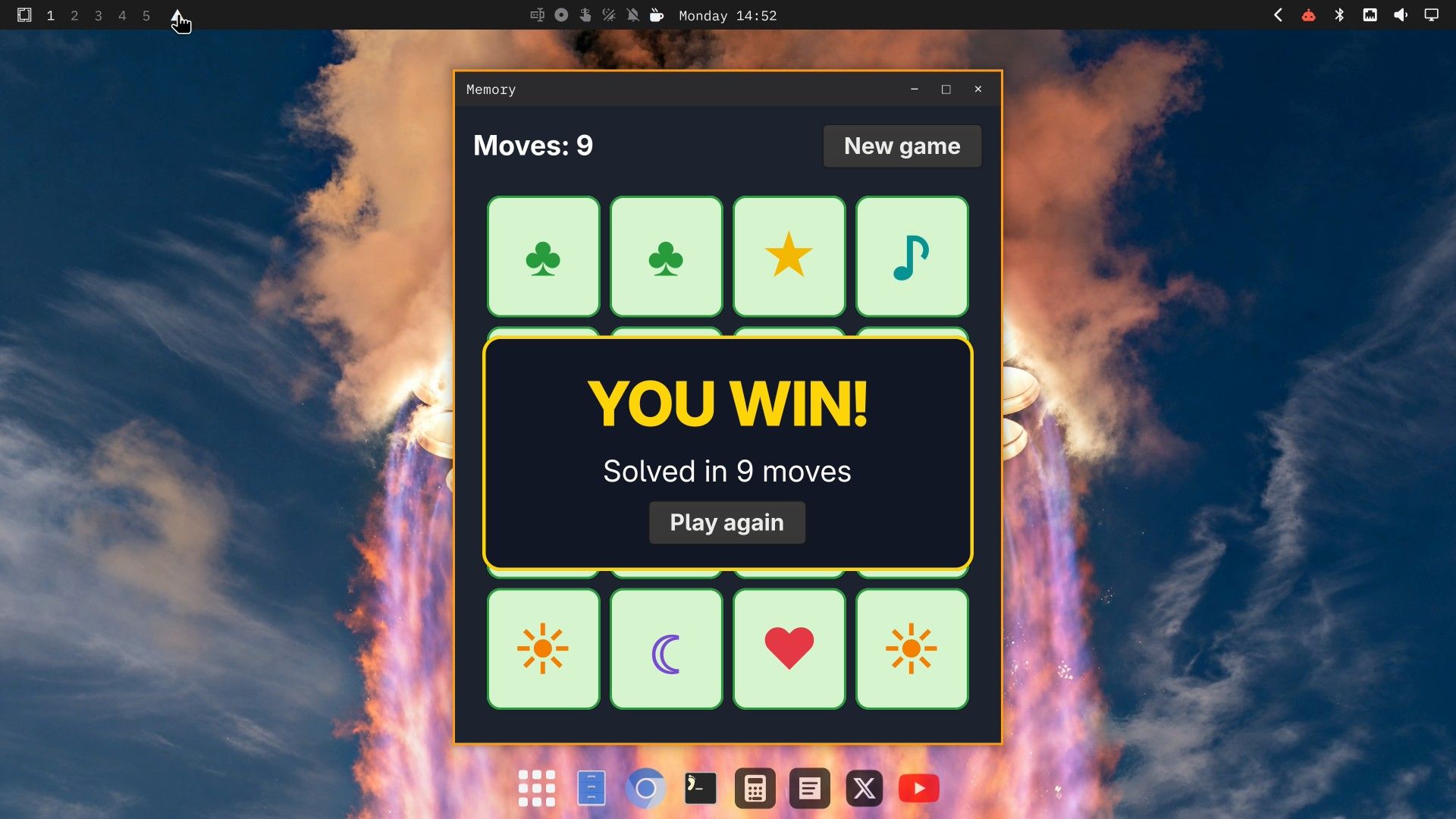
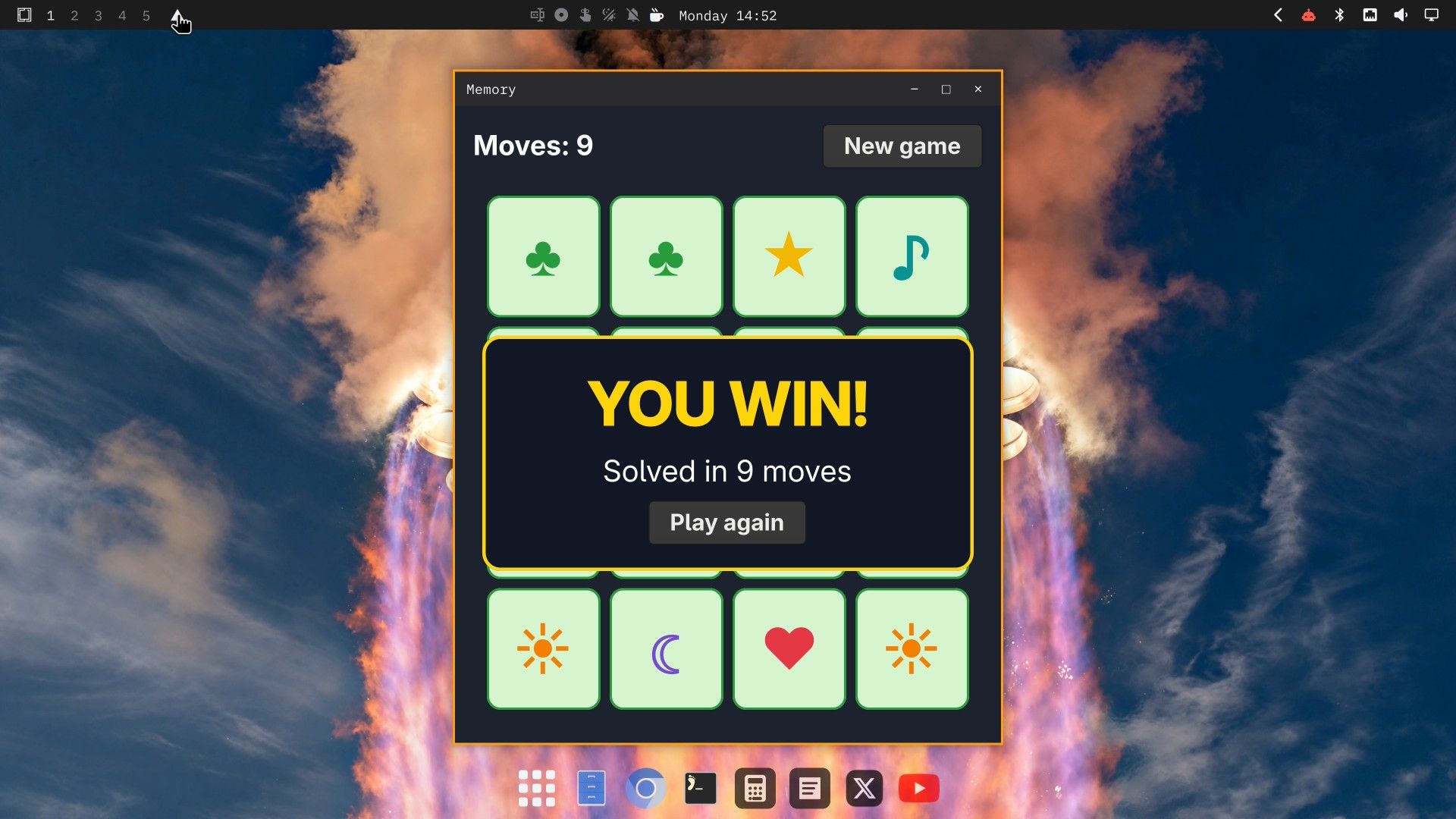
The whole job, from Enter to the agent’s last line, took about one and a half minutes in the run from the video, and up to about five and a half minutes in other runs. The faults differ from run to run. In other runs the agent also found a diamond symbol drawn smaller than the others, a dark New game button, and pale symbols on matched cards. Check its claims against the window yourself: in the video run it called the symbols all easy to read, while the diamond was still the smallest.
The agent configures a laptop on a website with no public API
Framework sells the Laptop 13 DIY Edition through a configurator on its website, where you pick each part and the estimated price updates. We found no public API for Framework’s store, so the way through is the page itself, one click per choice.
Close Claude Code with /exit, switch to the shorter settings file from earlier, and start Chromium on workspace 99 with this command:
HYPRUSE_BACKGROUND=1 hypruse launch --workspace 99 --wait 10 -- env ACCESSIBILITY_ENABLED=1 chromium --user-data-dir=/tmp/hxchrome --force-renderer-accessibility --no-first-run --no-default-browser-check --password-store=basic --disable-search-engine-choice-screen "https://frame.work/products/laptop13-diy-amd-ai300/configuration/new"What the parts of that line do:
ACCESSIBILITY_ENABLED=1and--force-renderer-accessibilitymake Chromium build the accessibility tree for the page, so hypruse can see its buttons and sections by name. Without them, Chromium shows hypruse no accessibility tree, and the agent has only screenshots to go on.--user-data-dir=/tmp/hxchromegives this Chromium its own empty profile, with no history, saved logins or autofill data. Never point the agent at your own browser profile.- The other flags skip Chromium’s first-run, default-browser and search-engine screens, and keep it away from your keyring.
Chromium opens as a floating window on workspace 99. Tile it: in our first run, the small floating window made the agent stop partway. Find the window’s address with hyprctl clients (the Window ... line for the Chromium window on workspace 99), then run hypruse hypr toggle_floating 0x<address>.
Start claude --model sonnet again and send this prompt:
Chromium on your workspace shows the Framework Laptop 13 configurator. Using only hypruse, build it with the Ryzen AI 7 350, 32 GB of memory, a 1 TB drive and expansion cards: two USB-C, one USB-A, one HDMI. Pick the 2.2K display; leave the rest at the defaults. Close any FAQ dialog with Escape. Never check out, sign in, add to the bag or type personal data. If hypruse warns my focus changed, that's me watching: keep going. Check with screenshots; end with the page total.Two lines in it come from failed runs:
- “Pick the 2.2K display”: on the configurator, the Memory, Storage and Expansion Cards sections stay closed until a display is picked. When the prompt said only “leave the rest at the defaults”, the agent left the display unset, could not open the next sections, and stopped to ask.
- “Close any FAQ dialog with Escape”: clicking a section heading sometimes opens an FAQ dialog. In one run the agent pressed “Close” by name to dismiss it, and hypruse pressed Chromium’s own window close button instead. Chromium was gone.
On the hidden workspace, the agent scrolled the page, opened each section and picked each part by its name. Where it needed the keyboard, hypruse sent Page Down, Space, Page Up and Escape straight to the hidden window. When we looked in partway through, the estimated price had climbed from $904 to $1,874. For the expansion cards, the agent used the page’s Quick select button, which sets all four in one go.
It finished with a total of $1,926 on November 23, 2026, the same as the page showed: the 2.2K display, 32 GB as two 16 GB modules, a 1 TB SanDisk SN7100 drive (on backorder that day) and four expansion cards for $52. Framework’s prices and stock change, so your total will likely be different. The agent’s picks can differ too: in one of our test runs it chose a single 32 GB module and an in-stock 1 TB drive instead, and that run ended at $1,980. The agent named both alternatives in its reply, so read its list of choices along with the total.
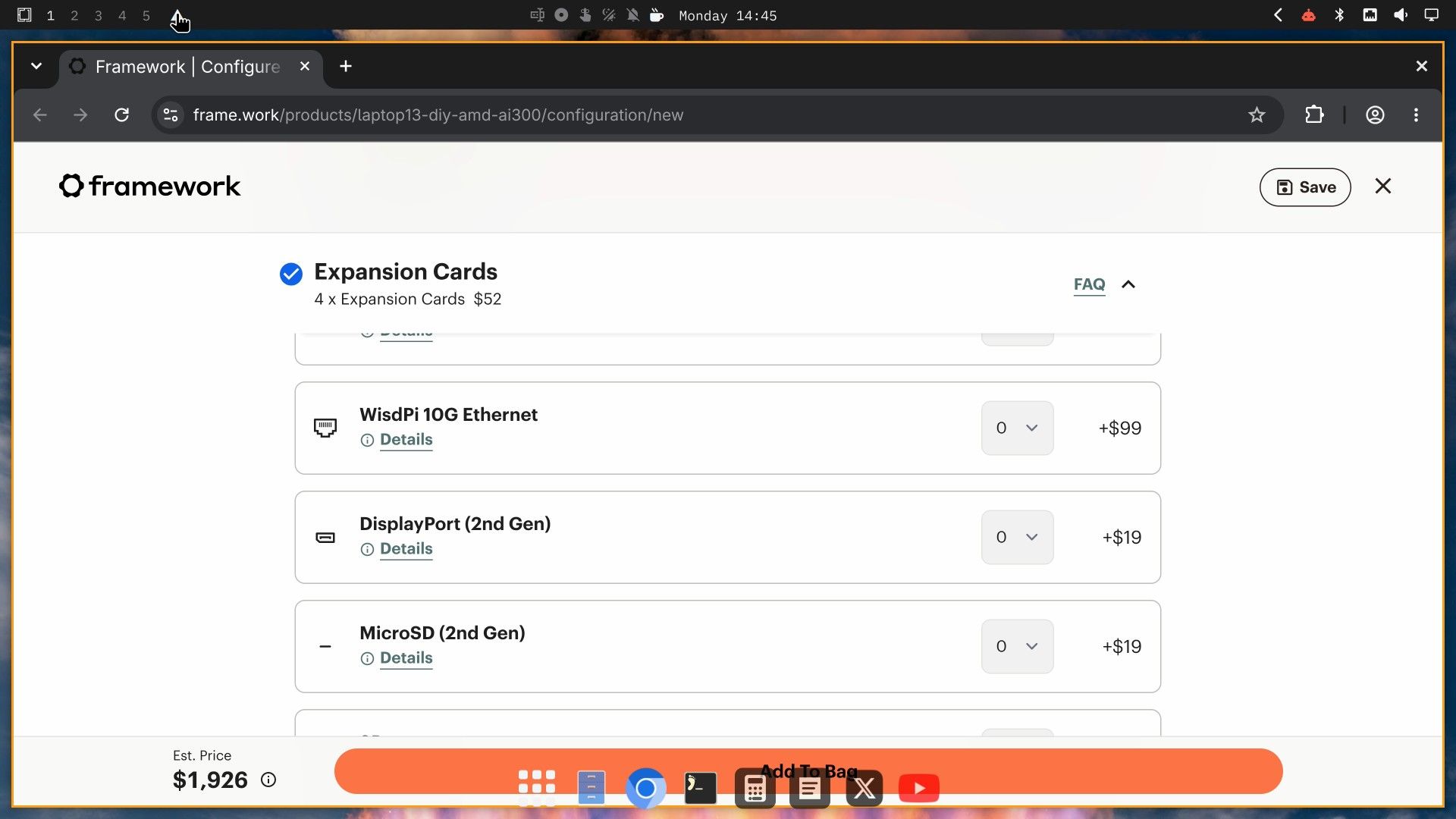
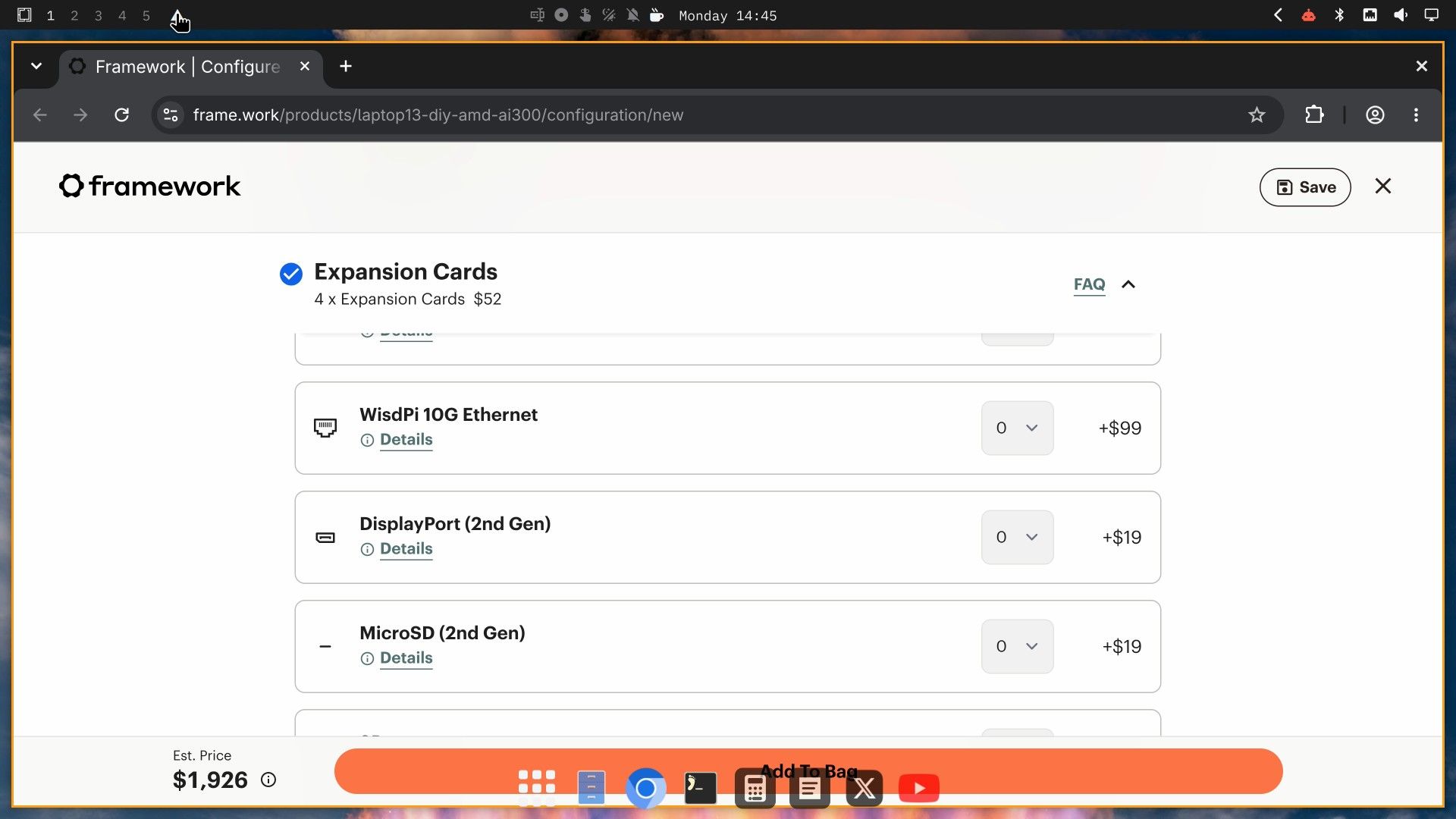
The agent’s summary also said that everything else was left at the defaults. On the page, Bezel, Keyboard and Power Adapter still read “Choose an option”. The page total is the number to trust.
This job took under two minutes in the run from the video, and up to about six minutes in other runs. Our workspace did not move once while it worked.
Limits we hit
- hypruse can press a control by name only when the app exposes it through the accessibility tree. GTK apps do. Chromium, Omarchy’s web apps and Obsidian need
--force-renderer-accessibilityandACCESSIBILITY_ENABLED=1in their environment, as in the launch command above. A control with no accessible action, or a click at a point on the page, cannot be done in the background. The README says background support for web pages comes later, through a browser bridge. - Some apps open their main window from another process and ignore the workspace hypruse asks for. In our tests, LibreOffice and Pinta opened on workspace 1, our own, instead of 99.
- hypruse keeps only the last 20 screenshots in
/run/user/1000/hypruse/, so a long run loses its first ones. - hypruse adds a note to each screenshot of a hidden window that it may show the window as it last looked. With the
hypruse-liverule the screenshots were current in every run, and the agent read them that way. - If you stay on workspace 99 after the agent closes its window, workspace 99 is on your screen, and hypruse refuses to launch the next app there. The agent picked another of its workspaces. Go back to your own workspace when the agent’s window closes.
Remove hypruse
Take hypruse out of the project, then remove the package. Run the first two lines in the project folder:
cd ~/hx
claude mcp remove -s project hypruse
sudo pacman -Rns hypruse
rm -rf /tmp/hxchrome
Then delete ~/hx/.claude/settings.local.json (or the whole ~/hx folder if you made it for this), remove the two hypruse lines and their comments from the end of ~/.config/hypr/hyprland.lua, and turn idle back on with omarchy-toggle-idle allow-idle if you left stay-awake on. The screenshot cache in /run/user/1000/hypruse is in memory and is cleared when you log out. If you used hypruse init instead of the project command, remove the user entry with claude mcp remove -s user hypruse.
Related guides
For an agent that edits your Omarchy settings and runs commands rather than using apps, see Claude Code on Omarchy. For another way to give an agent the desktop, with a cursor of its own through a Hyprland plugin, see the Cua driver on Omarchy. If you are new to the desktop itself, What Is Omarchy? covers the basics.


