
Amp is a coding agent made by Amp Frontier Corporation, which spun out of Sourcegraph. You describe a job in plain words, and Amp reads your files, runs commands and makes the changes. It comes as a terminal app (the Amp CLI) and as a desktop app called Amp Desktop. Both sign in to the same Amp account, so a thread you start in the terminal also shows up in the desktop app, and while that terminal session runs, you can work on the thread from either one.
This guide installs both from the Omarchy menu and connects your own Anthropic API key, so Amp’s free Hobby tier costs you only the tokens Anthropic bills. Then it tries the parts of Amp we liked most: the model picker, the command palette, subagents, steering a running agent, one-shot prompts with amp -x, the Desktop views, sending a message from Desktop to the terminal, and pulling one thread into another. The last section removes all of it again.
We followed these steps on November 22, 2026, on Omarchy 4.5.0-3 with Amp CLI 0.0.1795386756-g408c18 and Amp Desktop 0.1.29917801. The Amp CLI publishes new builds several times a day, and Omarchy updates it every four hours, so some labels may have moved by the time you read this.
What you need
You need Omarchy 4.5, an Amp account (sign up at ampcode.com), and an Anthropic API key from the Claude Console. The key is billed by Anthropic for the tokens Amp uses. Our whole session, with about ten prompts on Anthropic’s Claude Opus model, came to roughly a dollar of API use. You also need your password once, for the Amp Desktop install.
Omarchy’s shortcuts use the Super key, which is the Windows key on a PC keyboard. If you’re new to Omarchy, our list of Omarchy shortcuts to learn first covers the terminal and the menus.
What is free, and what spends Amp credits
Amp’s pricing page lists the Hobby tier as free: “Hobby has no monthly fee, and you can use your own model subscription or key and buy Amp credits as needed.” With your own key connected, Amp adds no token fees on top. Amp credits are a separate balance you buy from Amp, and Hobby starts you with none.
Some features bill Amp credits whatever key you bring, so keep away from them if you want the Hobby tier to stay free:
- Web search and reading web pages. Amp’s pricing docs say “Non-model tools such as web search also consume paid credits,” and its model docs add that reading web pages uses Amp credits too. Prompts that ask Amp to look something up or read a URL fall in this group.
- Image generation (Painter) and voice. The same model docs say Painter and voice use Amp credits.
- Models your key doesn’t serve. With only an Anthropic key, the GPT and GLM models in the picker, and Puck (Amp’s agent that runs other agents), bill Amp credits.
- Orbs. An orb is a computer Amp hosts for you, billed by the minute. The command palette’s first row starts a thread in one.
- Ship and Review. In one test, a review started from the Ship button’s menu in Amp Desktop was followed by a one-cent drop in our credit balance. We could not pin down the cause, so we left Ship and Review alone after that, and the balance did not move again.
amp usage in a terminal shows your Amp credit balance. Check it before and after a session if you want to confirm nothing billed. Ours read the same before and after the whole tour.
Install Amp from the Omarchy menu
Press super space and choose Setup, then Defaults, then Agent. Amp is the first row in the list of agents. Picking it installs the Amp CLI and makes it your default agent, so Omarchy’s agent shortcuts start Amp from then on. The same thing works from a terminal with omarchy default agent amp.
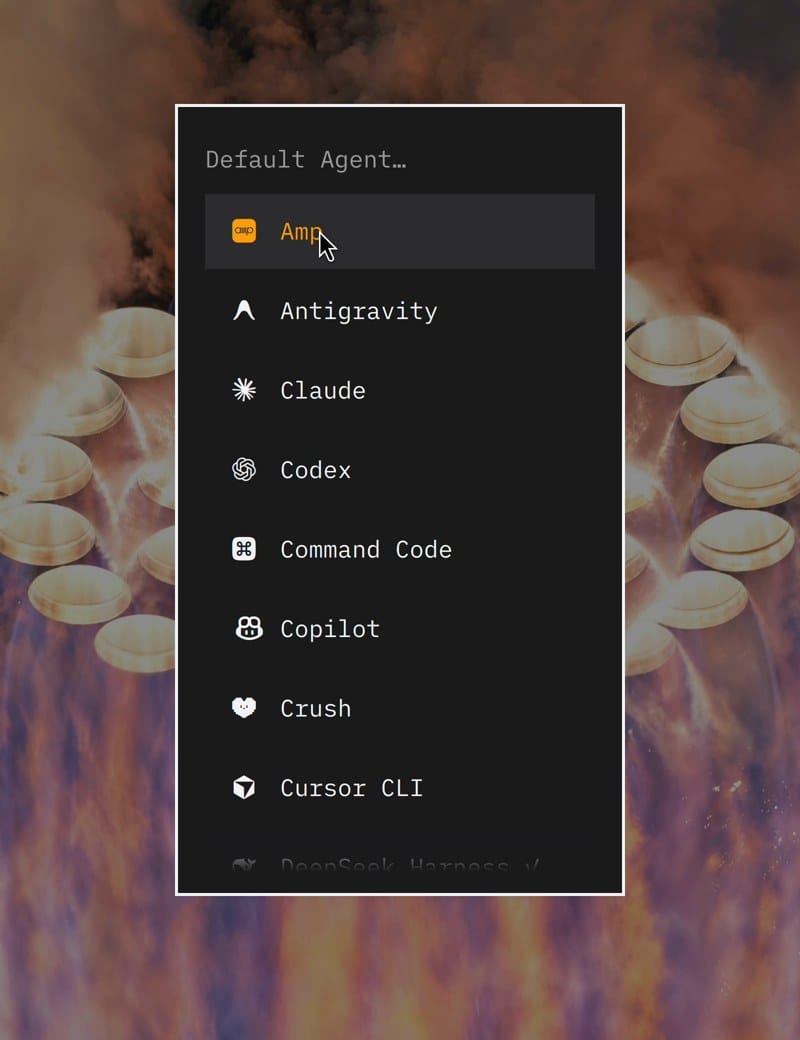
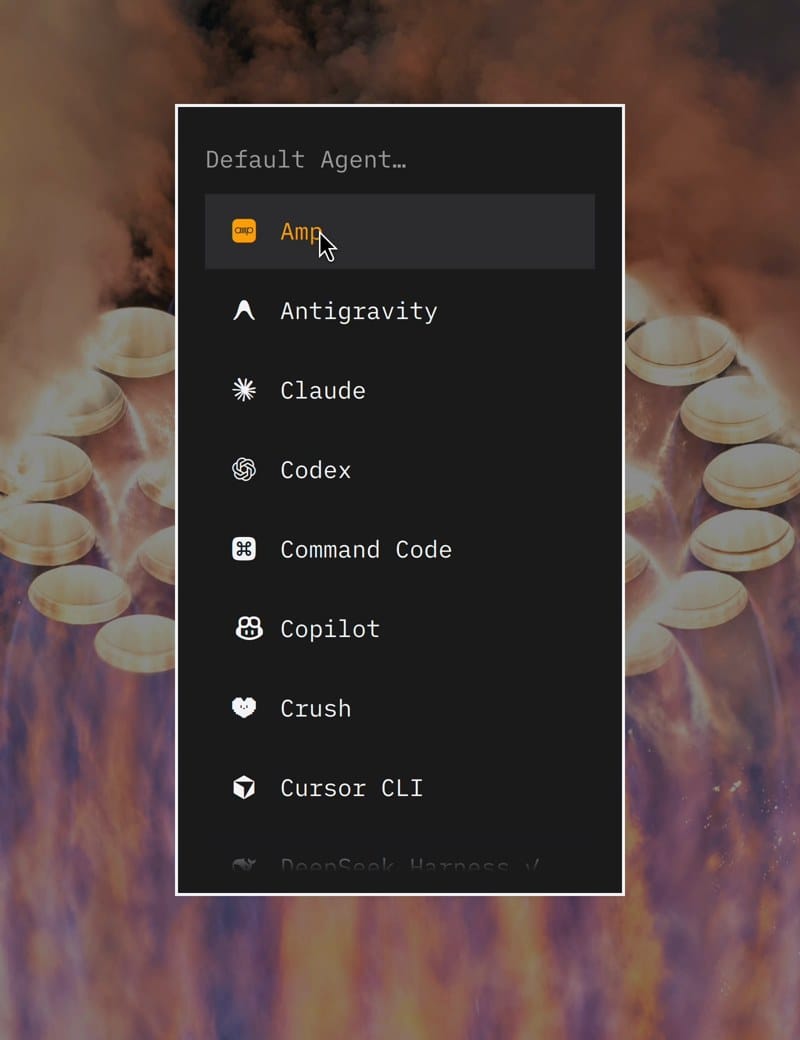
There was no install output to watch. About a second and a half after the click, a floating terminal showed the Amp welcome screen. Omarchy’s agent launcher starts Amp with --dangerously-allow-all, which turns off Amp’s approval prompts. We closed that window and ran Amp ourselves in a normal terminal instead, for the reason in “Start Amp in a project folder” below.
Sign in to your Amp account
The first time Amp starts, it says it found no API key and asks “Would you like to log in to Amp?” Type y. Amp prints a sign-in link with a one-time code and opens the page in your browser. Confirm that the code matches, sign in, and the terminal picks up the session. You can also start this any time with:
amp loginThe link works from any browser, so you can open it on another computer if you like.
Connect your Anthropic API key
Amp sends model requests through your own key once you add it to your account as a model provider. The key lives in your Amp account, not on the computer. The command reads the key from the ANTHROPIC_API_KEY variable, so the steps below put it there without writing it into your shell history:
read -rs ANTHROPIC_API_KEY
export ANTHROPIC_API_KEY
amp config model-providers add-key anthropic --personal
unset ANTHROPIC_API_KEY
After the first line, paste the key and press enter ; nothing shows while you paste. --personal adds the key to your own account. Without it (or --workspace for a team workspace), the command stops with “Specify exactly one of —personal or —workspace”. You can also pass the key from a file with --api-key-file <path>.
To check it, run:
amp config model-providers listThe list shows the new Anthropic connection as active. From then on, Amp’s Claude requests go through your key. You can also add or check the key on the web, under Model Routing in your ampcode.com settings.
Start Amp in a project folder
Amp works on whatever folder you start it in. To follow along, we used a copy of Omarchy’s Starship theme as a small throwaway project, in a git repository so Amp Desktop can show the changes later:
mkdir -p ~/Work/starship
cp -r /usr/share/omarchy/themes/starship/. ~/Work/starship/
cd ~/Work/starship
git init -q && git add -A && git commit -qm "Starship theme"
Then start Amp with one flag:
amp --remote-control-terminal--remote-control-terminal lets Amp Desktop open a shell for this thread in its Terminal view. Without the flag, that view only says terminal access is off and tells you to restart Amp with it. We started amp ourselves rather than through Omarchy’s launcher because the launcher adds --dangerously-allow-all, which turns off every approval prompt. In our session, plain amp still created and edited files inside the project folder without asking, so the difference did not show in this tour. Wait for “Welcome to Amp” before you type; a prompt typed into the window too early got lost once in our tests.
Pick a model with Ctrl+S
Anthropic’s Claude Opus sits at the top of the picker that ctrl s opens, marked Staff Pick, which is what new threads start on. The Effort row below it runs from Low to Max; the left and right arrow keys change it, and the prompt box shows the setting you picked. Press esc to close the picker.
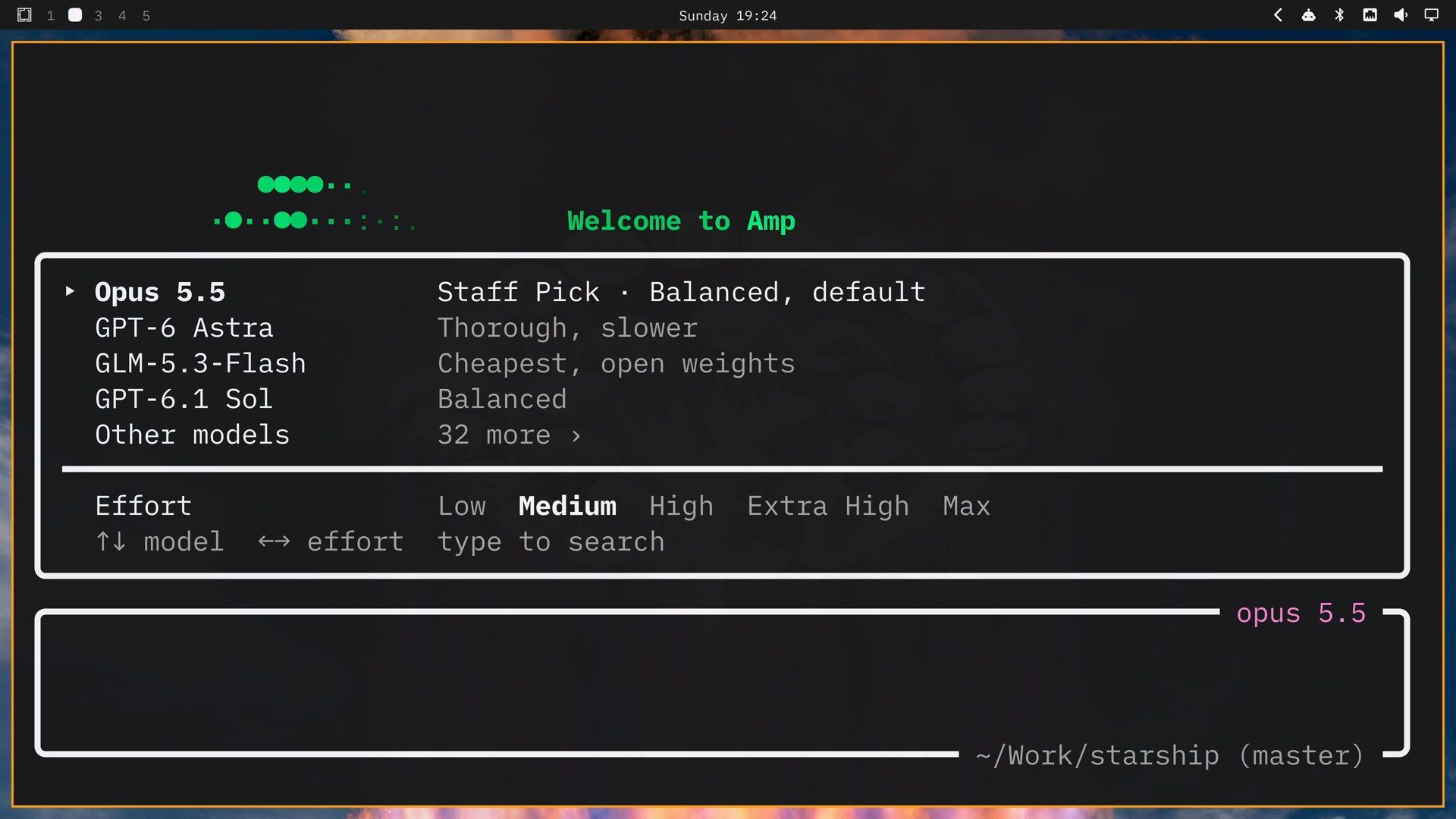
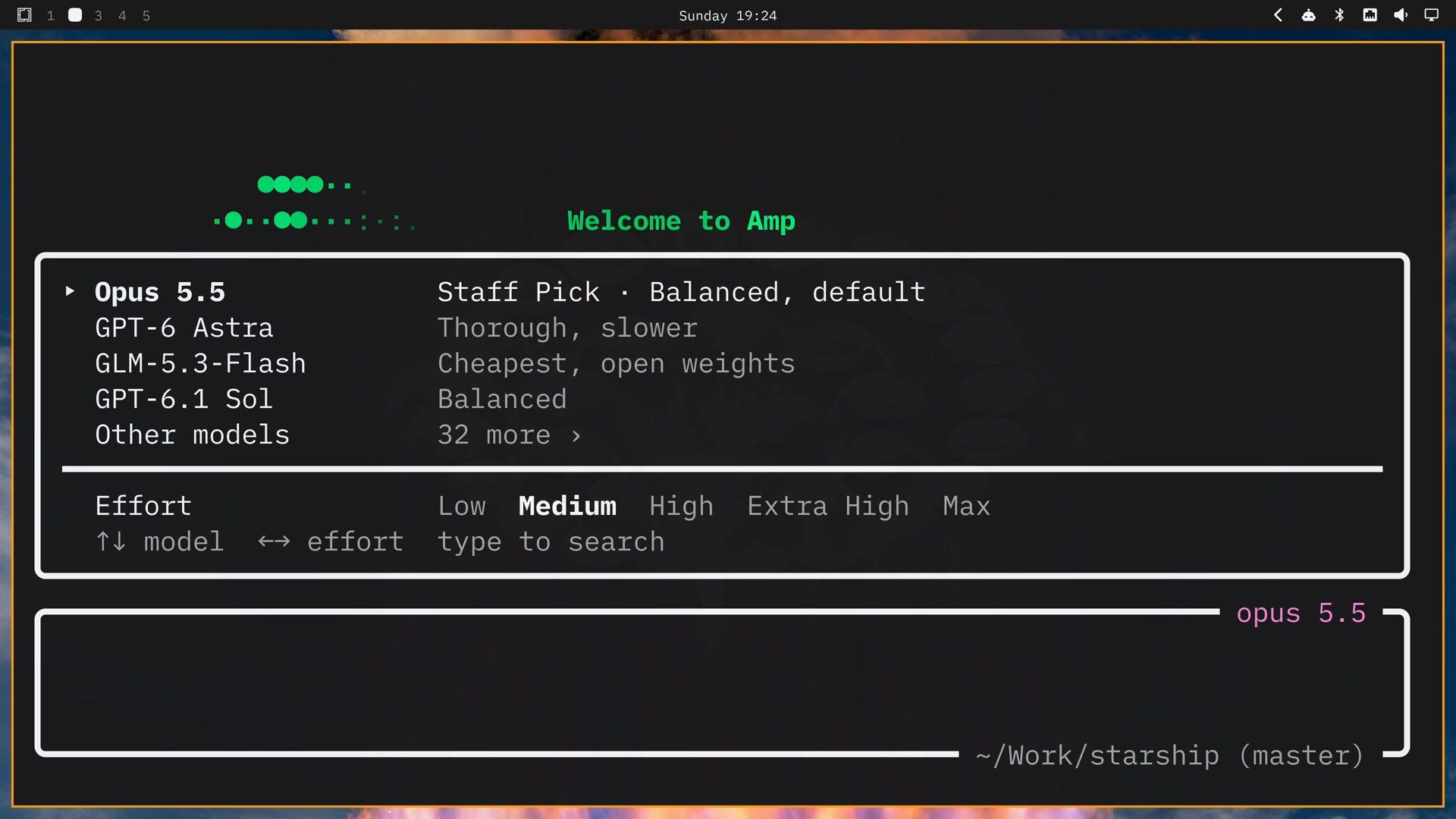
GPT and GLM models are in the list too, with 32 more under Other models. With only an Anthropic key connected, a GPT or GLM model would bill Amp credits, so we stayed on Claude.
Find any command with Ctrl+O
Every command Amp has sits in one searchable list behind ctrl o . Switching threads, help and quit are all in it, and typing a few letters filters the list. Type cred and the first row is end credits, which rolls movie-style credits for the Amp team across the whole terminal. esc once jumps to “THE END”, and a second esc takes you back to work.
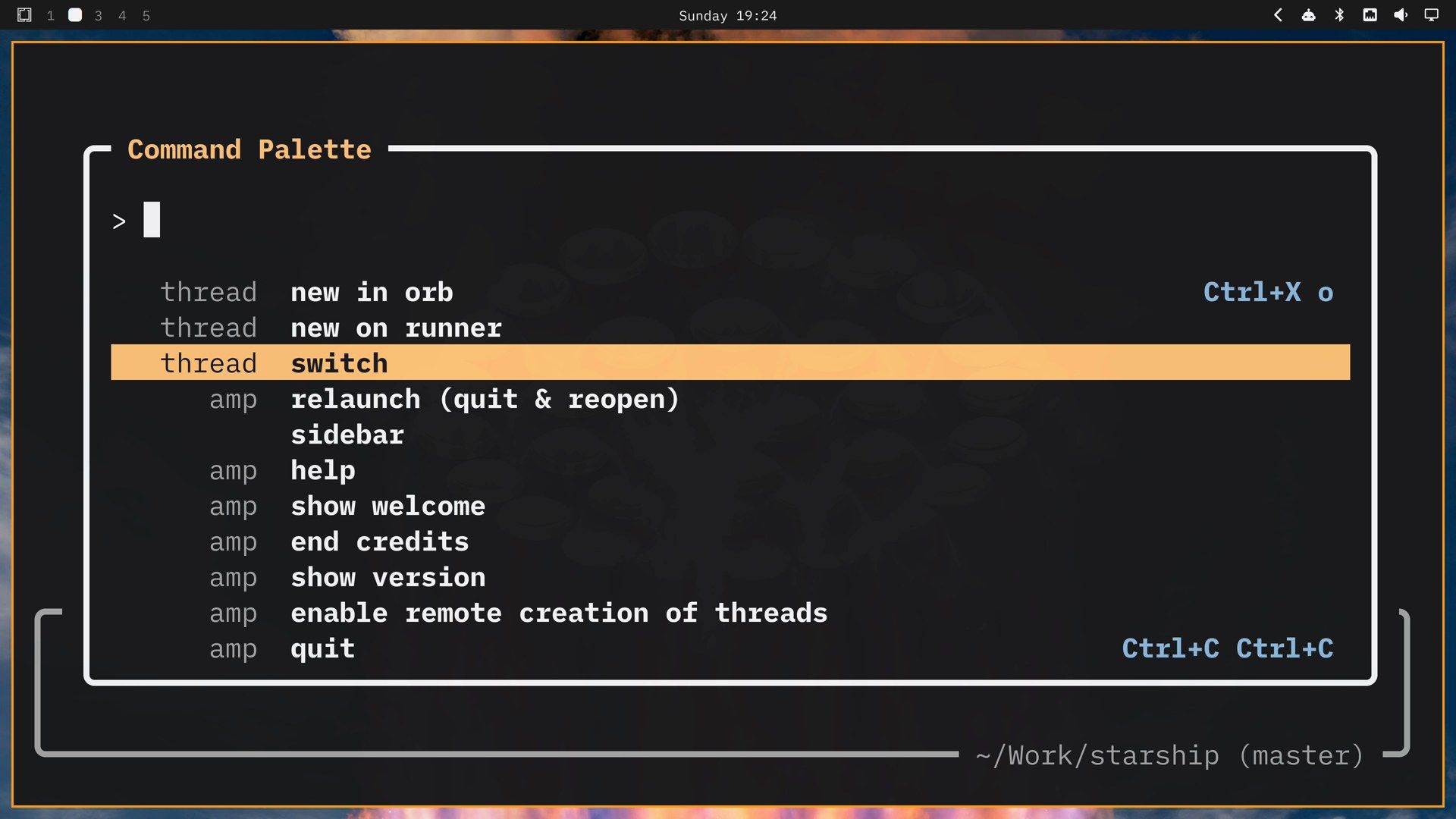
The palette opens with “thread new in orb” highlighted, and orbs bill Amp credits by the minute. Type your filter before you press enter , so you don’t start an orb by accident.
Hand a job to subagents
Subagents are workers the main agent starts, each with its own context and on the same model. They keep a big job from filling up the main thread, and they can run side by side. We asked for two at once:
Use two subagents at the same time: one writes the theme's main colors from colors.toml to palette.txt, one name and hex code per line; the other writes a short README.md for this theme.Amp printed both task prompts, then the header “Writing palette and README in parallel”, and the status line at the bottom read “2 subagents working: Write palette.txt, Write README.md”. Both files landed in the folder in under a minute.
Steer the agent while it works
You don’t have to wait for a turn to end to change your mind. While the subagents ran, we pasted a short note and pressed enter :
Put the theme name, Starship, as the first line of the README.Amp passed it on mid-run and said so: “I sent the ‘Starship as first line’ requirement to the README subagent, which was still running.” The finished README started with # Starship.
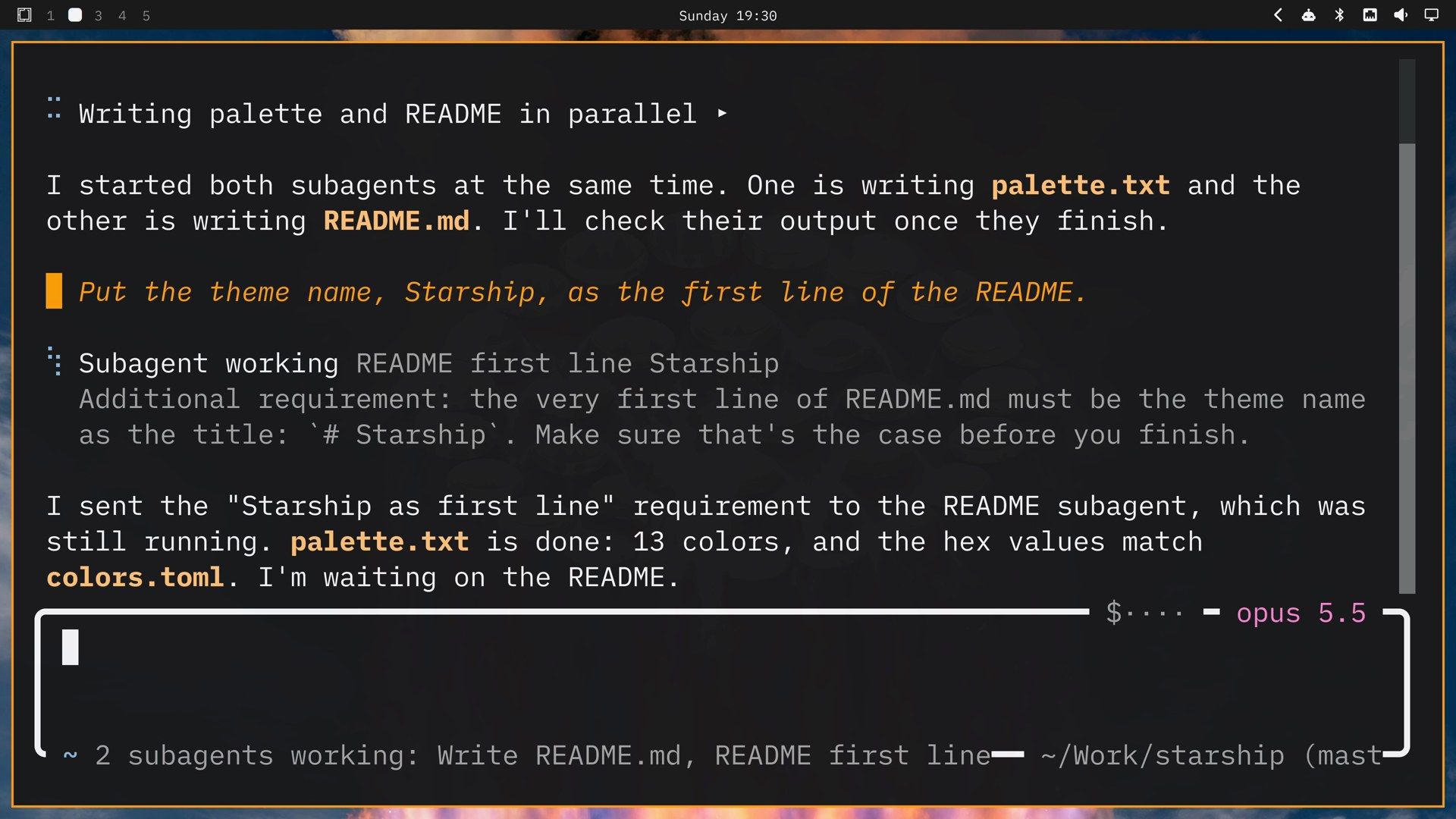
To stop a turn instead, press esc twice. We sent “Describe colors.toml in two sentences.” and stopped it that way. The turn ended with no reply and no “stopped” label, and the message stayed in the thread. In our session, Amp answered it later along with the next request.
Run one prompt with amp -x
Scripts and CI jobs have nobody there to type, so Amp has an execute mode that takes one prompt, prints the answer and exits. In a second terminal in the same folder:
amp -x "How many lines are in palette.txt? Answer with the number only."It printed 13 about ten seconds later, which matched the file. Amp archives these one-shot threads by itself, but they still show in Amp Desktop’s Activity list for a while.


Install Amp Desktop
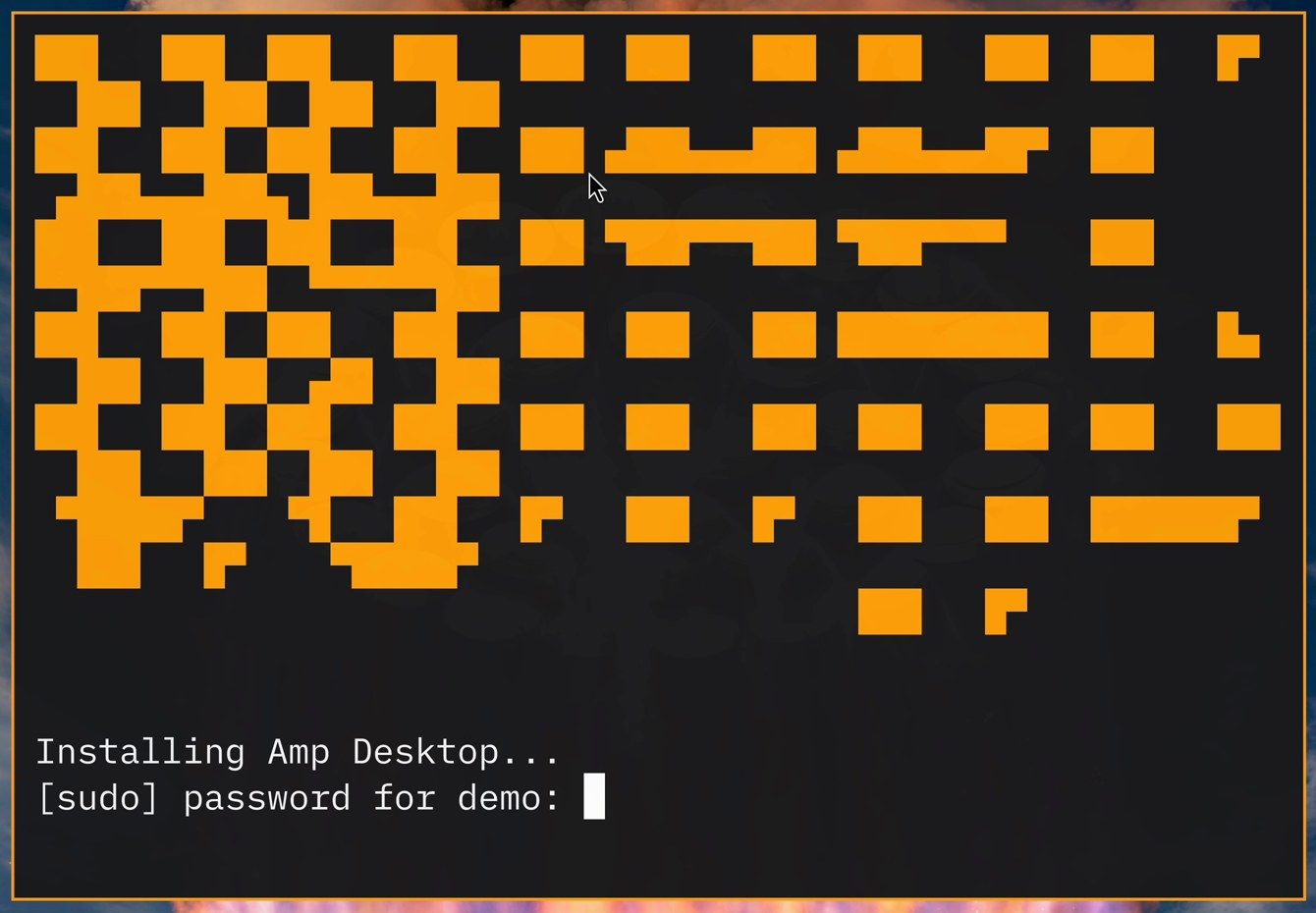
Amp Desktop is in the Omarchy menu too. Press super space and choose Install, then AI; Amp Desktop is the first row. A terminal shows Amp’s orange pixel logo, asks for your password, and installs the amp-desktop-bin package. That took about 30 seconds on our machine. When it prints “Done! Press any key to close…”, click that terminal first, because Amp Desktop opens behind it and takes the keyboard.
The first window has a Sign In button. It opens the ampcode.com sign-in page in the browser on this computer, and after you sign in there, the app picks it up. Amp’s Linux app page says the app “takes its colors from your Omarchy theme and follows it when you switch themes”, and ours matched the rest of the desktop from the first screen.
Open the terminal’s thread in Amp Desktop
The thread we started in the terminal was already in the sidebar, under its project folder (starship, then Theme palette and README). Opening it shows the whole conversation: the prompt, the steer, the “Writing palette and README in parallel” step and each “Subagent finished” line with the replies. The terminal session keeps running in its own window.
The Views menu, top right, opens more tabs beside the thread, each with a shortcut:
| View | Shortcut | What it shows |
|---|---|---|
| Files | ctrl shift f | the project folder as a tree; a click opens a file |
| Changes | ctrl shift g | each file the agent touched, with the new lines marked |
| Terminal | ctrl shift t | a shell on this computer, in the project folder |
| Artifacts | ctrl shift s | files the agent made as artifacts |
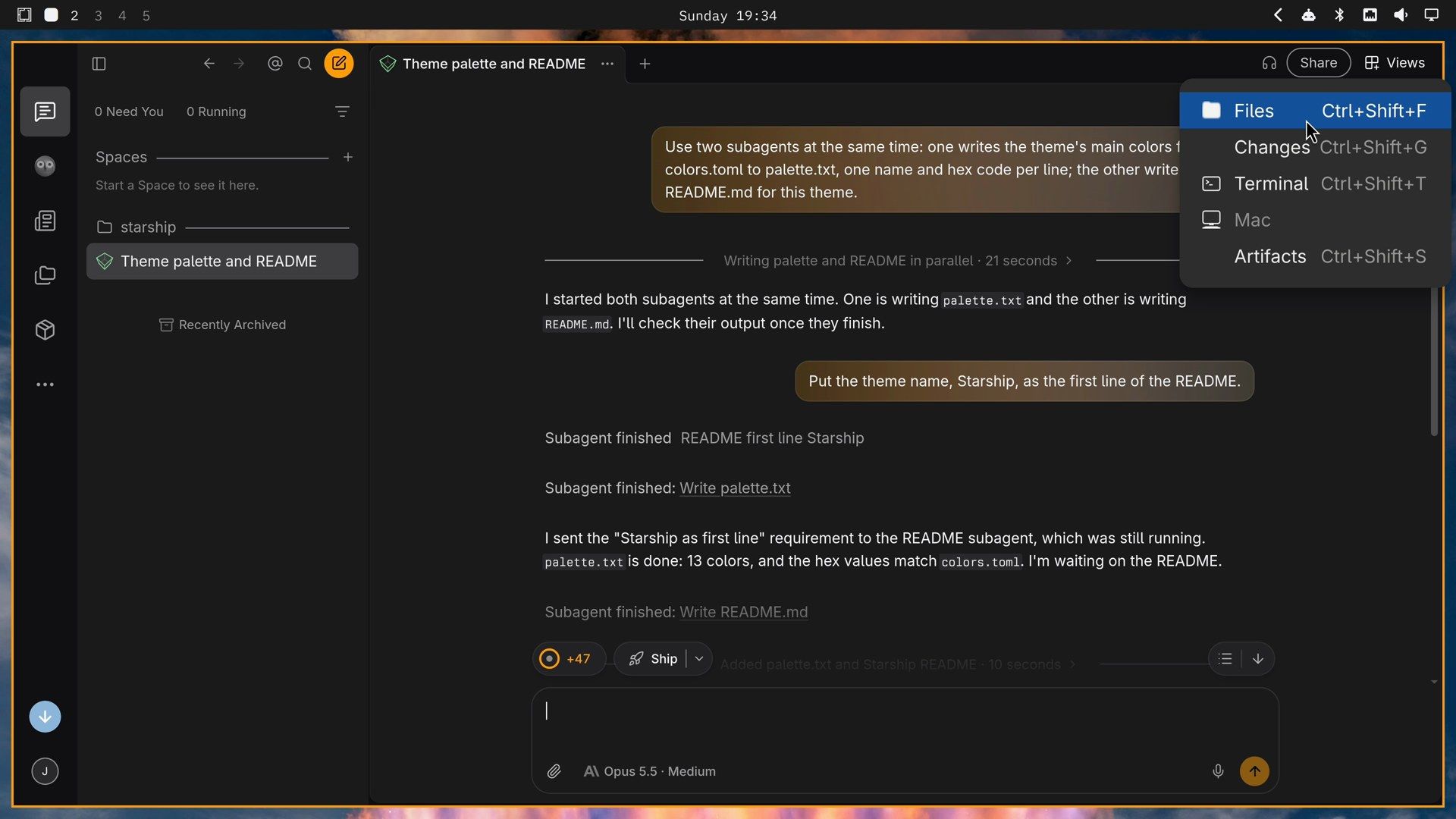
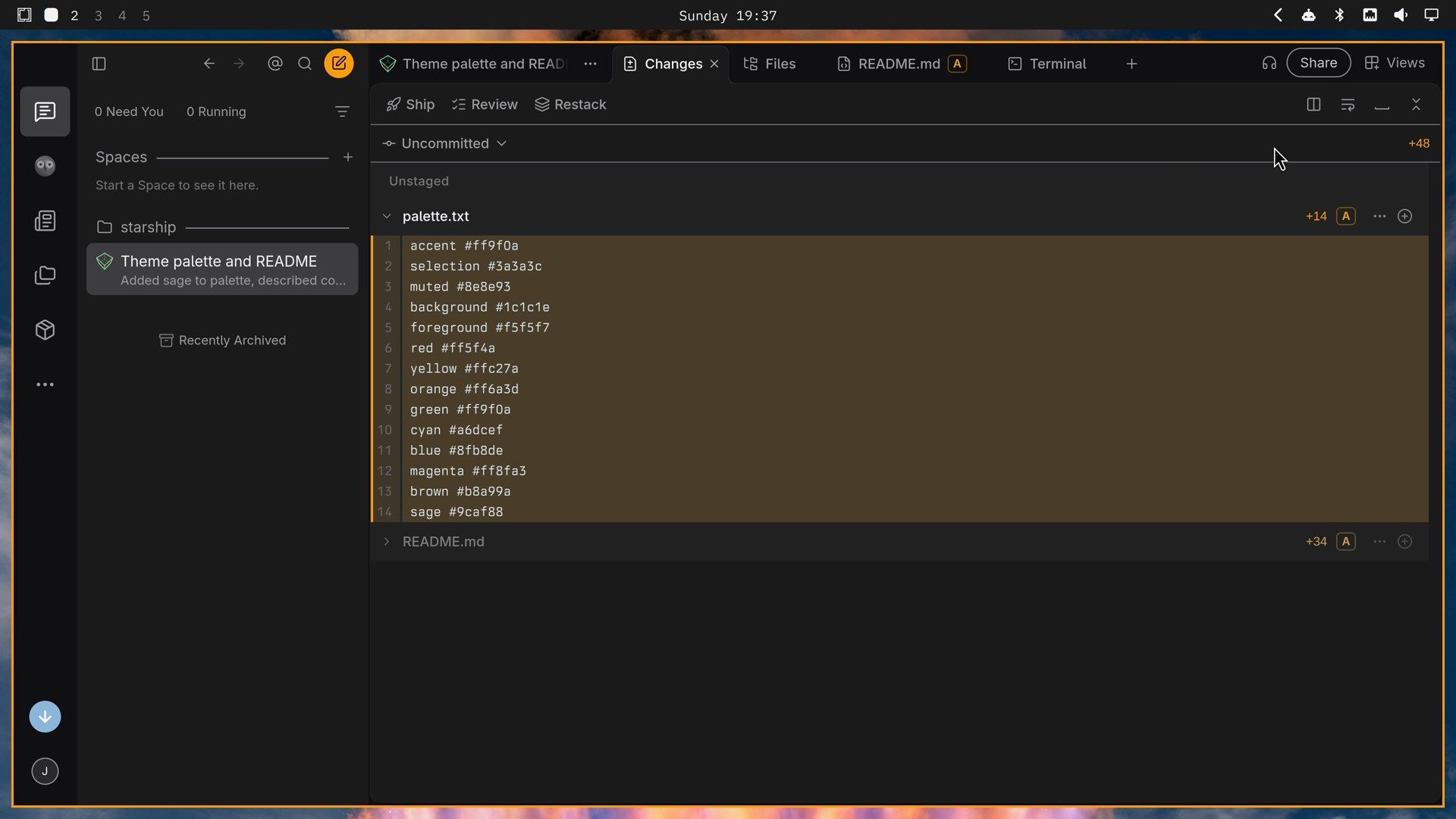
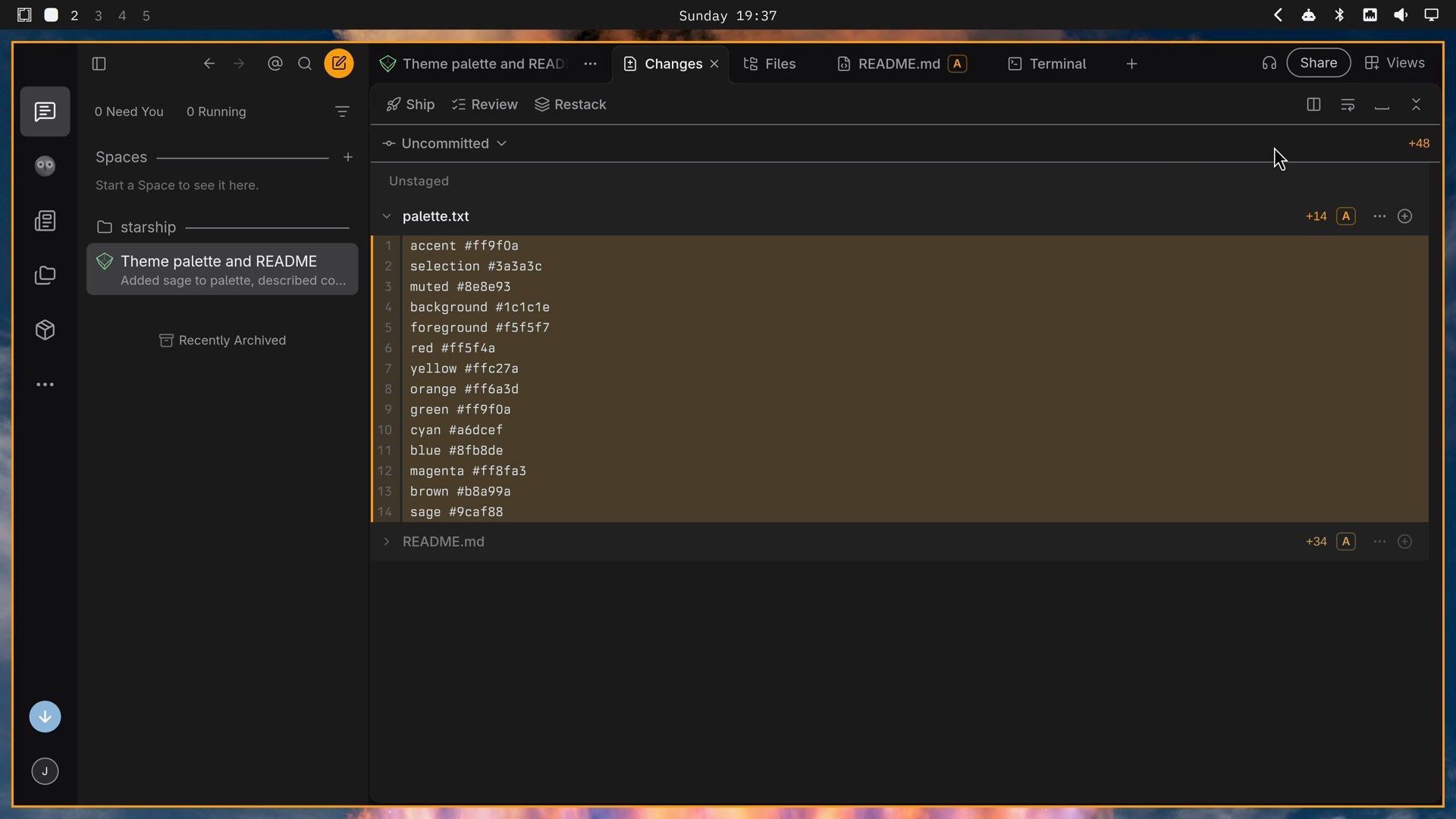
Changes is the one we used most. It listed palette.txt and README.md under Uncommitted, and a click on a file showed the diff, so you can read what the agent did before you commit. Files opened README.md rendered, with the theme’s preview image inside.
The Terminal view opened a real shell in ~/Work/starship on our machine, under an Amp banner that reads “Welcome to the Orb.” even though nothing runs in an orb. Type clear if the banner bothers you. ls there listed the two new files next to the theme’s own.
Activity, in the icons on the left, counts the threads that are waiting and running, with a list of threads from the last day below the counts. Archived threads show in that list too, including the amp -x ones. With several threads going, the Waiting count shows which ones need an answer from you.
Send the next step from Amp Desktop
A message typed into Amp Desktop joins the same thread, and the work runs in the terminal session on this computer. We typed this in Desktop’s prompt box:
Add a line for a soft green named sage to the end of palette.txt.Within a few seconds the terminal showed the message and started working. The agent added sage #9caf88 as the last line, and in the same turn it also answered the “Describe colors.toml” request we had stopped with Escape.
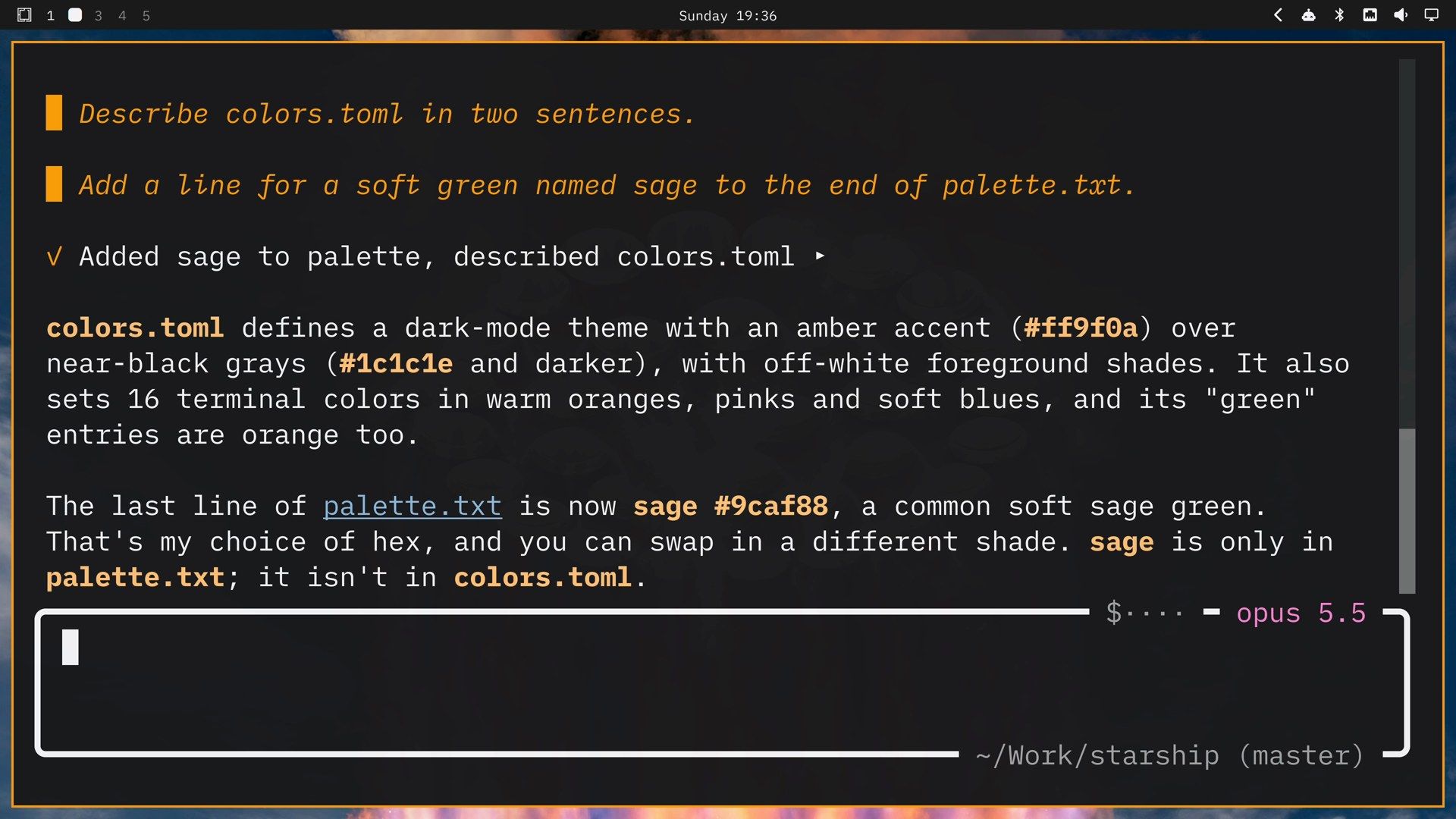
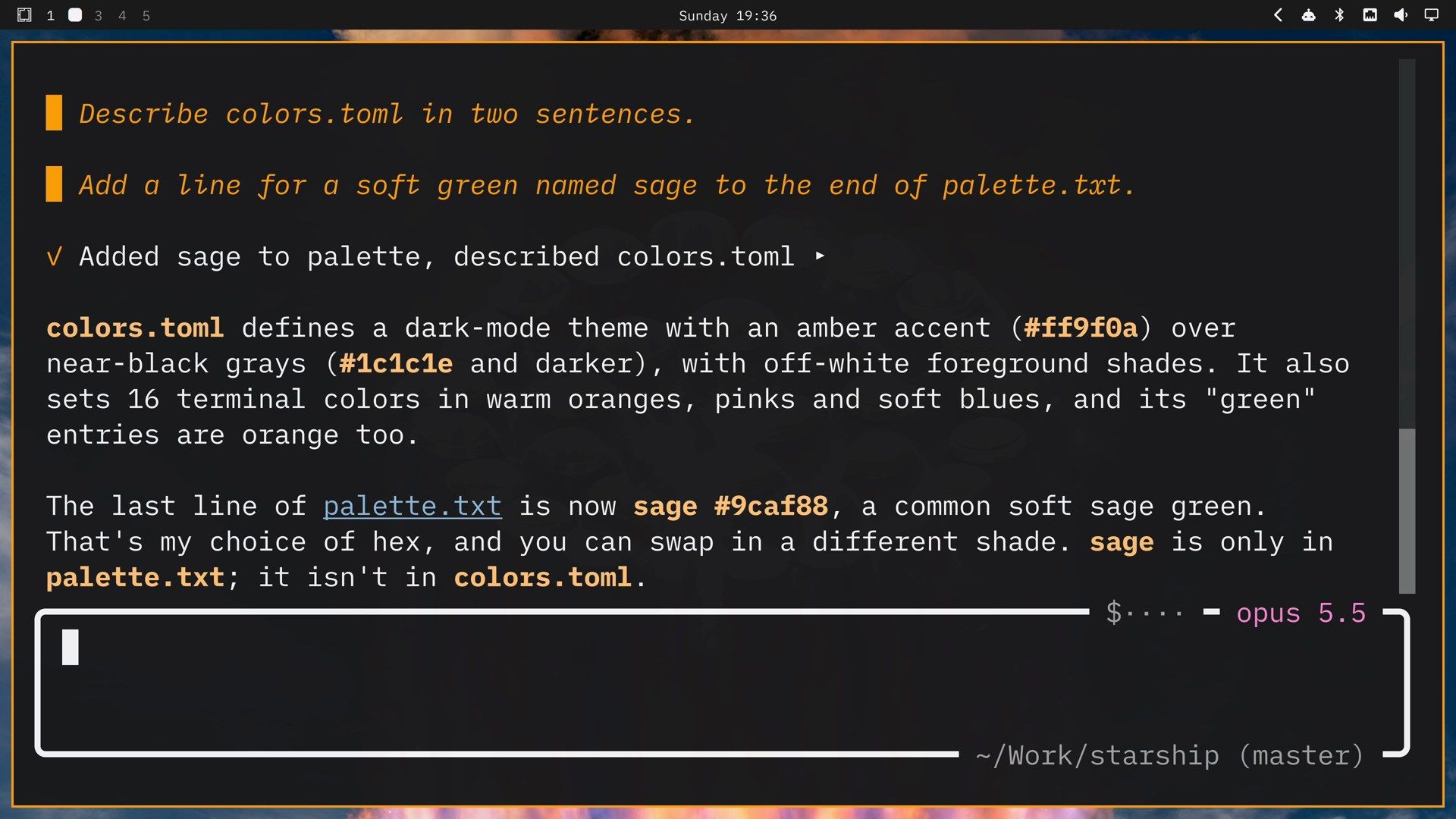
Back in Amp Desktop, the Changes view showed palette.txt with 14 lines and sage as line 14. You can keep going from whichever window is in front of you.
This needs the terminal session to stay open. When we quit the CLI and then sent a message from Desktop, the message waited, and the thread showed “Reconnect Amp CLI to Continue” with an amp threads continue command to copy. Run it in the project folder with --remote-control-terminal added, so Desktop’s Terminal view keeps working:
amp --remote-control-terminal threads continue T-<thread-id>The CLI reopened the thread, and the waiting message ran at once.
Pull one thread into another with @@
A new thread can stay small and still use earlier work. In the terminal, press ctrl o , type thread new and press enter . The new thread’s welcome reads “Welcome to your Agent”, and the first thread is not archived.
A single @ mentions a file. Two at signs, @@, open Mention Thread, a list of your other threads with a preview box. Pick one with enter , and Amp puts its id (@T-...) into the prompt so the new thread can read it.
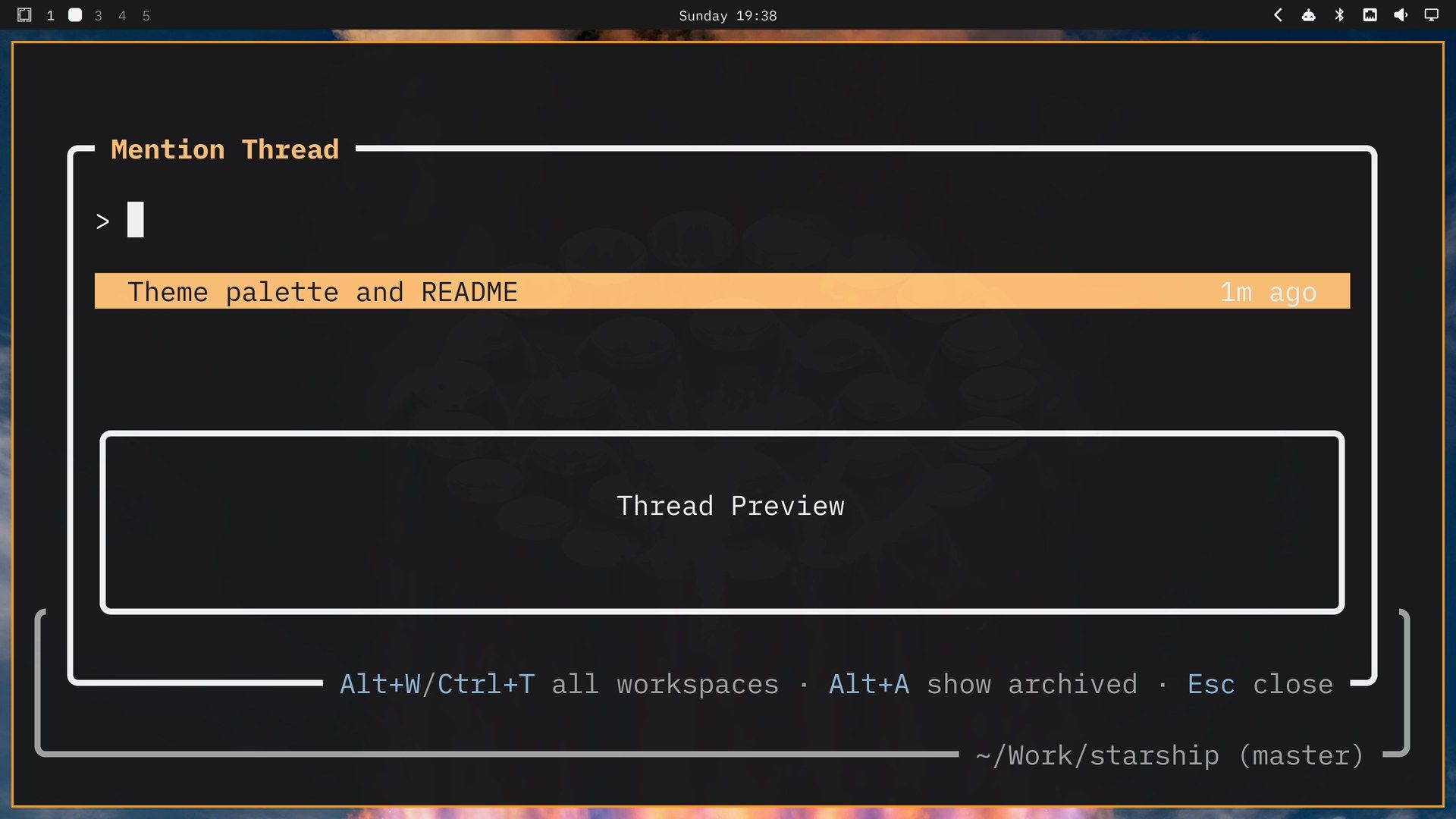
After the id, we typed:
Which colors did this thread save to palette.txt? Answer in one short sentence.Amp showed a “Read thread” step, then listed all 14 colors, sage included.
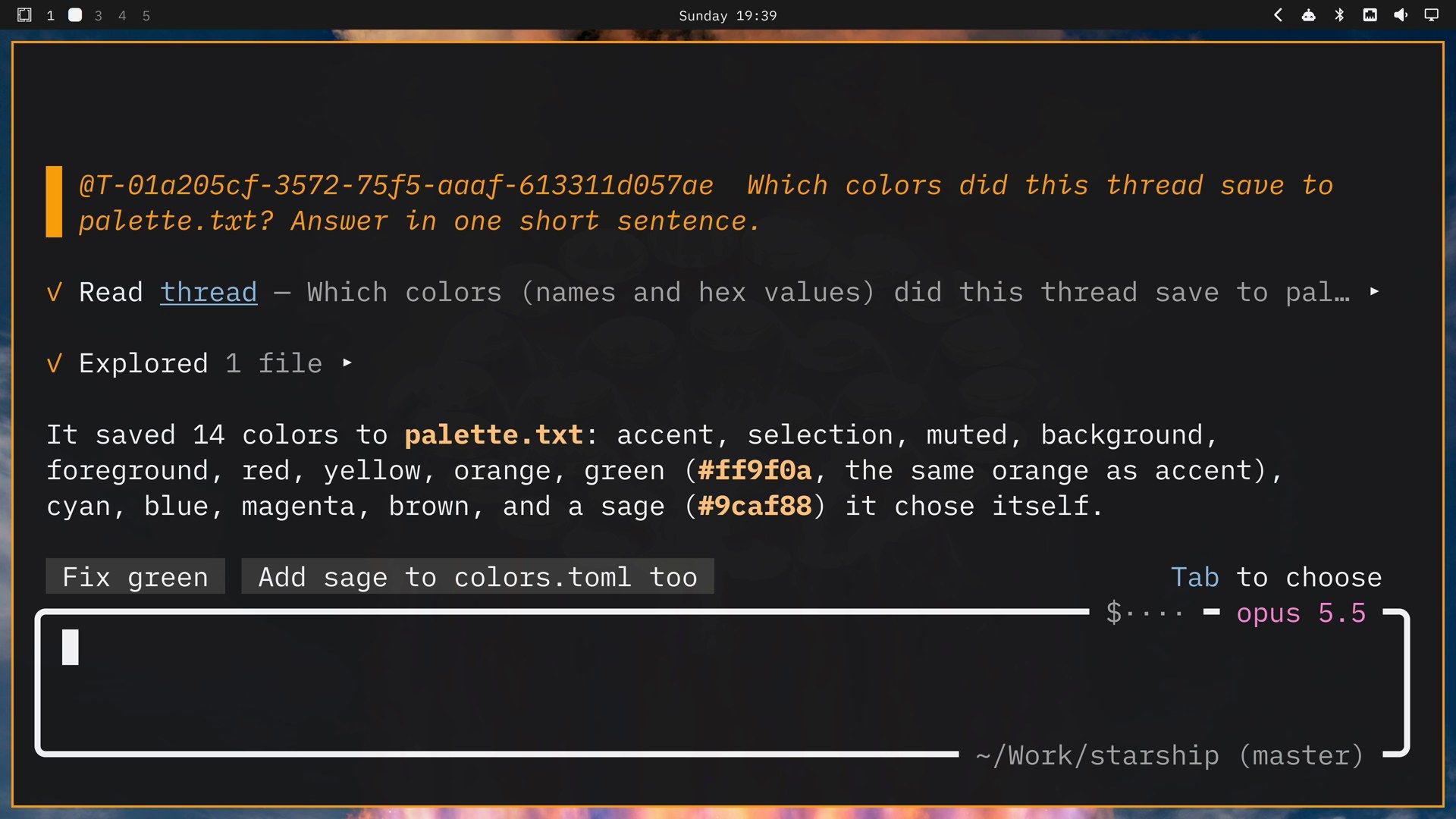
To go back to the first thread, open the palette, type switch and pick thread switch. The Switch Thread list shows your threads with the current one marked.
Troubleshooting
Desktop’s Terminal view says terminal access is off. The CLI was started without the flag. Quit Amp in that terminal and start it again with amp --remote-control-terminal, or reconnect the thread with the threads continue command above.
A message from Desktop sits on “Waiting”. The terminal session for that thread has closed. In the project folder, run amp --remote-control-terminal threads continue T-<thread-id> with the thread id Desktop shows.
add-key stops with “Specify exactly one of —personal or —workspace”. Add --personal for your own account.
Amp Desktop says it is a few days out of date. Omarchy’s package can trail Amp’s own releases by a few days. Dismiss the notice; the older build ran every step in this guide.
Your credit balance moved. Check whether the session used web search, a web page, images, voice, a non-Anthropic model, an orb, or Ship and Review. Those are the features that can bill Amp credits.
How to remove Amp
To remove Amp Desktop, press super space and choose Remove, then AI, then Amp Desktop, or run omarchy-remove-ai-amp; it asks for your password. It removes the package and deletes ~/.config/amp-desktop and ~/.cache/amp-desktop-updater, and leaves the CLI alone.
To remove the CLI, pick another default agent first (for example omarchy default agent claude), then uninstall it and delete its files:
mise uninstall amp
rm -rf ~/.config/amp ~/.local/share/amp ~/.cache/amp
Omarchy lists amp as an on-demand tool, so typing amp again later installs it again.
To disconnect your Anthropic key from your Amp account, find its id and delete it:
amp config model-providers list
amp config model-providers delete <connection-id>
You can also delete the key itself in the Claude Console, so it stops working everywhere. Your threads stay in your Amp account after you remove the apps; archiving a thread hides it from the thread lists but does not delete it.
Related guides
For other coding agents on Omarchy, see Codex on Omarchy, letting Claude Code run your computer, and Crush on Omarchy. To run several agents from one terminal, our Herdr guide covers that, and five AI tools for Omarchy rounds up more.


