
omacast is an Omarchy plugin that adds a launcher in the style of Raycast, a launcher app for the Mac. It was made by the developer typecraft, and the code is on GitHub at typecraft-dev/oma-cast under the MIT license. Press alt space , and one search bar finds your apps and every action in the Omarchy menu, answers math and unit questions, and opens built-in commands for themes, your clipboard history and emoji. The regular Omarchy menu stays on super space , and it works as before.
This guide covers the install, the hotkey step that needs a manual fix on Omarchy 4.5, every feature we showed in the video with its keys, and Script Commands, which turn your own shell scripts into launcher commands. It ends with the commands to remove omacast again.
We followed these steps on Omarchy 4.5.0-3 in November 2026, with omacast at commit 283fee5 (the plugin calls itself version 0.1.0). omacast is young and changes often, so a newer version may look a little different.
What you need
You need Omarchy 4, which runs its menus and bar in a program called omarchy-shell, and a terminal. omacast adds no packages and starts no background services. It runs inside omarchy-shell like any other Omarchy plugin, which is why the window opens at once: it waits hidden in the background between uses.
One feature reaches the internet. When rates are more than 12 hours old, the calculator downloads the European Central Bank’s daily exchange rates for currency conversion. The README says this is the only network request omacast makes, and "currencyRates": false in ~/.config/omacast/config.json turns it off.
The Ask Claude script near the end is optional and needs Claude Code and an Anthropic API key. omacast itself has no AI features.
Install the plugin
The install pulls code from GitHub and runs it inside your desktop shell, so read the code first, or have an AI coding agent such as Claude Code or Codex read it for you. Give the agent the repository address and ask what the plugin downloads, what it runs, which files it changes, and whether it sends data anywhere. Our guide to finding and installing Omarchy plugins covers the plugin commands in general.
Open a terminal with super enter and add the plugin:
omarchy plugin add https://github.com/typecraft-dev/oma-cast --enableOmarchy shows its standard warning before it downloads anything: “Plugins run as arbitrary, unsandboxed code inside your long-lived omarchy-shell process. Only add repos you trust, and review the code before you enable it.” Then it asks Clone and add this plugin? with Yes selected, so enter goes ahead. The clone took a couple of seconds for us, and the terminal printed “Enabled typecraft.omacast”.
The second command comes from the plugin’s folder. It puts the omacast command in ~/.local/bin, so you can run it from any terminal:
~/.config/omarchy/plugins/typecraft.omacast/bin/omacast installOurs printed “Rust not found; skipping the helper build”, then a line saying it linked ~/.local/bin/omacast, and “omacast is running”. The skipped helper is an optional faster search matcher that builds only when Rust is installed. Without it, omacast uses its built-in matcher. We saw no lag with it, though an open issue in the repository reports slow typing without the helper on a fresh install.
You can also install omacast from the Omarchy plugin marketplace. The hotkey step below is the same either way.
Bind Alt+Space by hand on Omarchy 4.5
The README’s third command is omacast setup hyprland, which is meant to write the Alt+Space hotkey for you. On Omarchy 4.5 it stops before it changes anything:
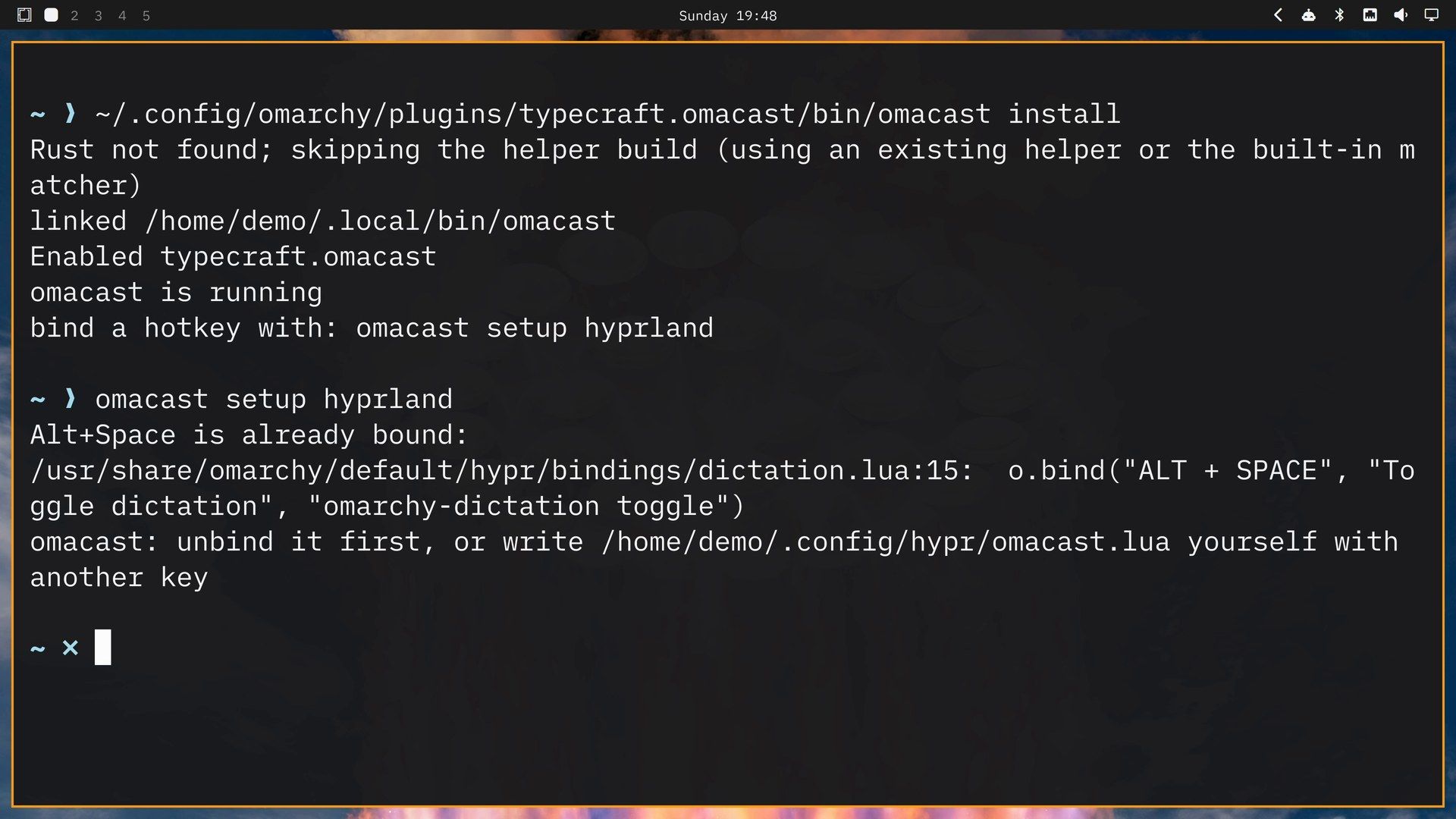
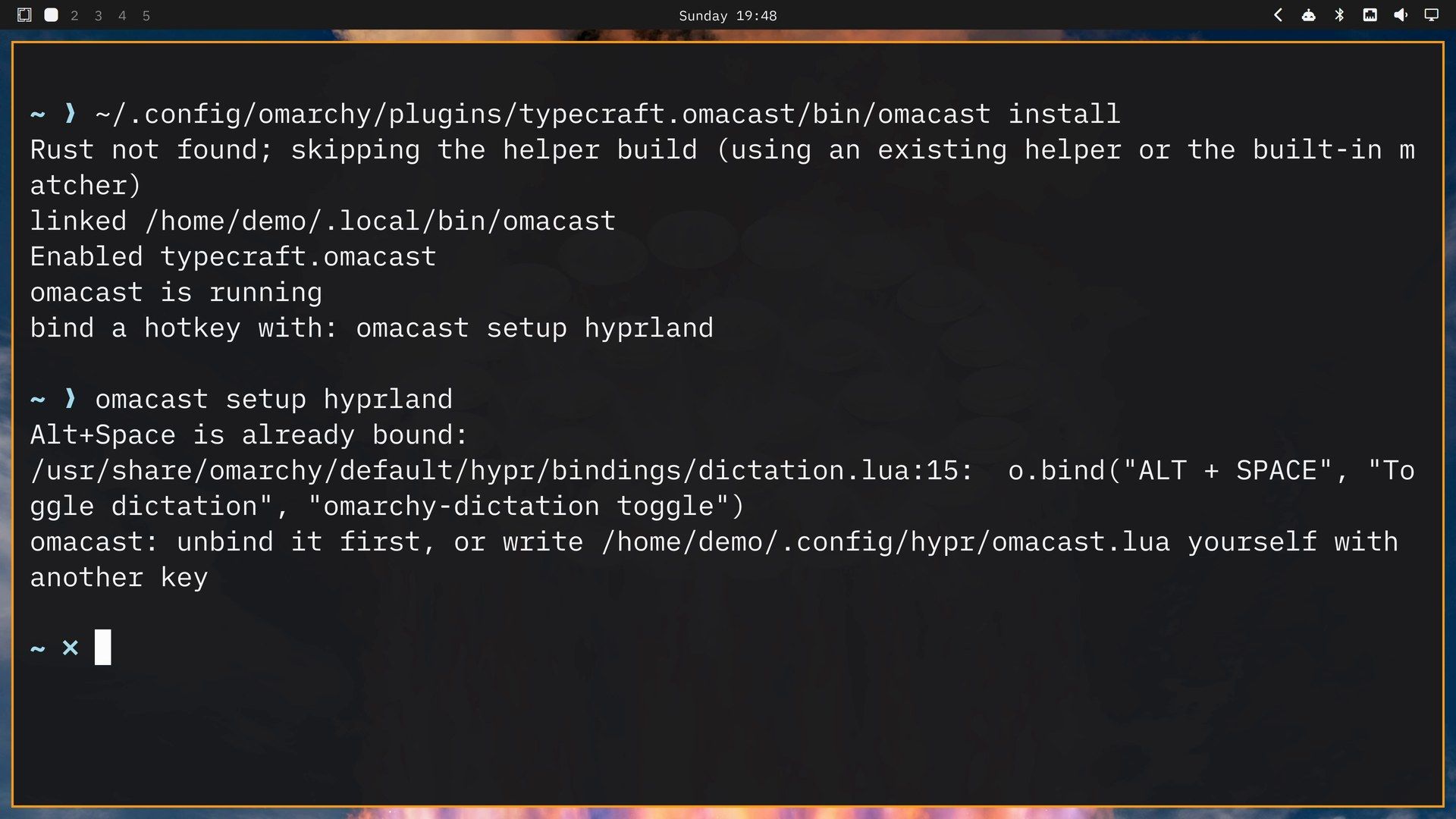
The setup looks for the text ALT + SPACE in your Hyprland config files and in Omarchy’s default ones. Omarchy 4.5 binds Alt+Space to dictation in /usr/share/omarchy/default/hypr/bindings/dictation.lua, and that line sits inside a check for whether dictation is installed. The search cannot see that check, so setup reports the key as taken even when dictation is not set up. Adding hl.unbind("ALT + SPACE") does not help either, because the search counts that line as one more match. This is issue 77 in the omacast repository, and a fix was still open as a pull request when we wrote this.
Until the fix lands, write the hotkey file yourself. Create ~/.config/hypr/omacast.lua in any editor with these lines. The first line frees Alt+Space from dictation, and the rest is the block from the omacast README:
hl.unbind("ALT + SPACE")
o.bind("ALT + SPACE", "omacast launcher", hl.dsp.global("omacast:toggle"), { submap_universal = true })
-- While omacast is open it switches Hyprland to this submap, so Super+J/K reach the launcher.
hl.define_submap("omacast", function()
  hl.bind("SUPER + F24", hl.dsp.no_op()) -- a submap needs one bind to exist
end)
-- Blur behind the launcher under Glassy Windows.
hl.layer_rule({ match = { namespace = "^omacast$" }, blur = true, ignore_alpha = 0.3 })
If you use Omarchy’s dictation on Alt+Space, leave out the first line and change ALT + SPACE in the second line to a free key instead. Then load the file from your main Hyprland config, reload Hyprland, and run the omacast check:
printf '\nrequire("hypr.omacast")\n' >> ~/.config/hypr/hyprland.lua
hyprctl reload
omacast doctor
omacast doctor checks the shell, the plugin, the backend and the hotkey file. Ours printed ok on every line and one info line about the optional search helper. If Hyprland reports a problem with the new lines, hyprctl configerrors lists it.
Open the launcher and search
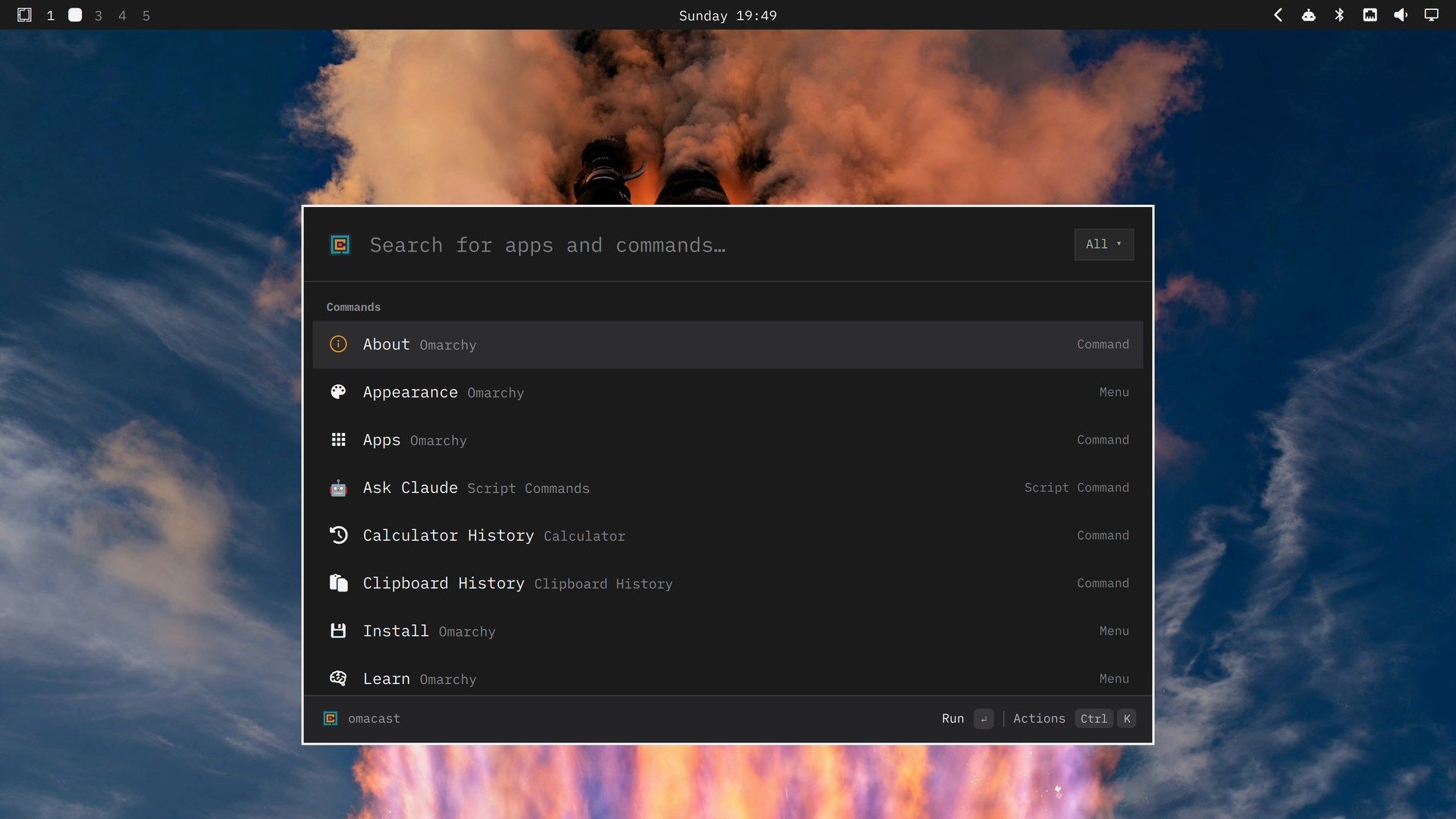
Press alt space . A card opens in the middle of the screen in your theme’s colors. Before you type, it lists your favorites, suggestions and commands, and the footer shows the keys for the selected row. alt space again, or esc , closes it.
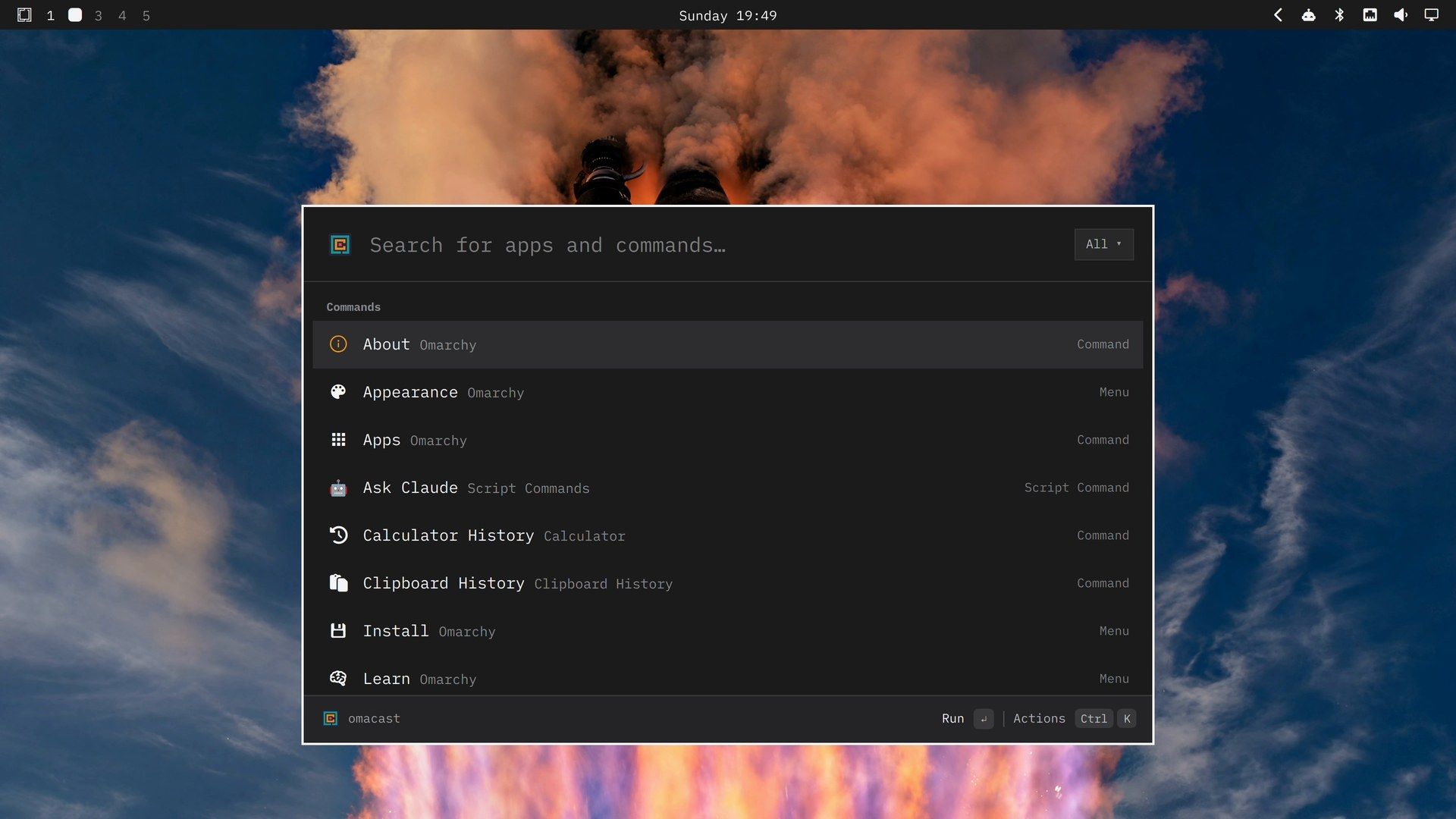
The launcher remembers your last search for 90 seconds after it closes. If old text is still in the bar, super backspace clears it.
Math, units, currency and time
Type math straight into the search bar, and a calculator card shows the answer above the results. 20% off 50 gives 40. 5 ft 3 in to cm gives 160.02 cm. 100 usd in eur converts at the day’s European Central Bank rate, time in tokyo shows the time there, and days until christmas counted 33 days on the day we recorded.
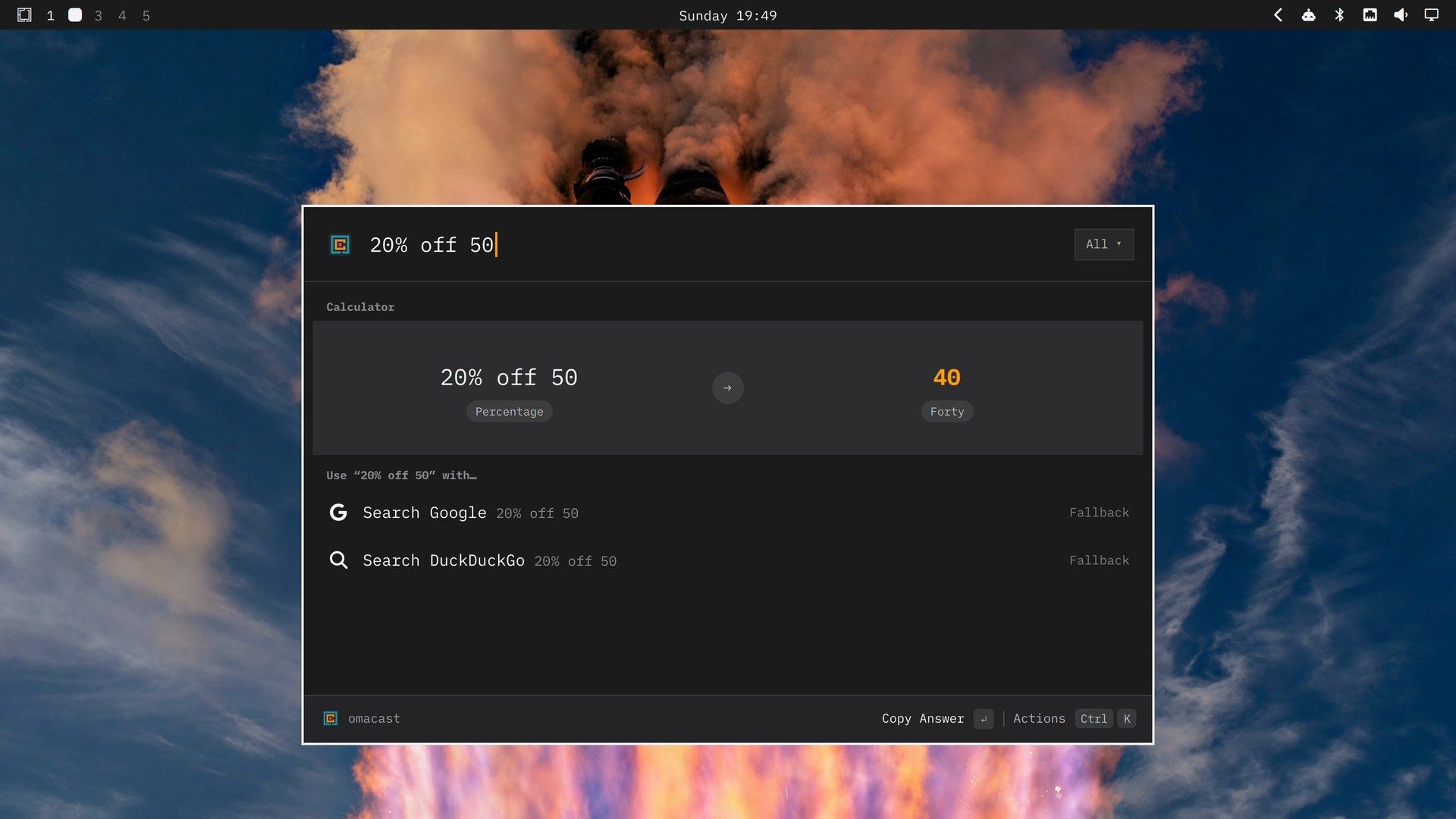
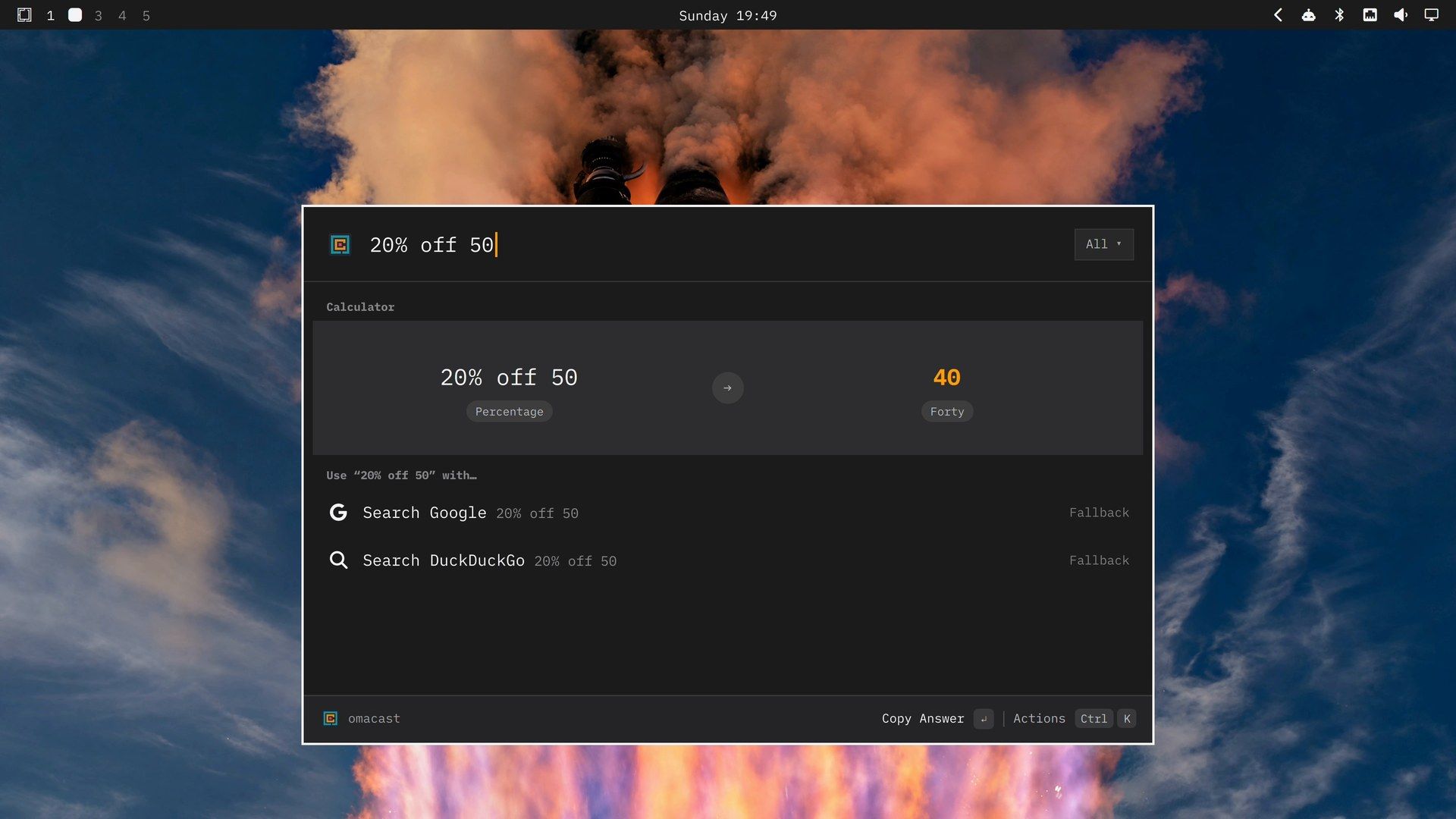
enter copies the answer and closes the launcher with a “Copied to Clipboard” message. Each copied answer also goes into Calculator History, which you open by searching for it. The README lists more forms to try, such as 255 to hex, 3pm london to nyc and 40 hours in work days.
The Omarchy menu
The same search covers the Omarchy menu, about 400 actions in all. Typing screen finds the screen recorder, the screensaver settings and the screenshot tool. Each row carries a breadcrumb, such as Trigger › Capture, that shows where the item lives in the regular menu, which helps when you later use super space .
Submenus open in place, and you can search inside them. enter on Appearance lists Background, Font, Menu Bar and the rest, and typing fo there narrows the list to fonts. esc goes back one level.
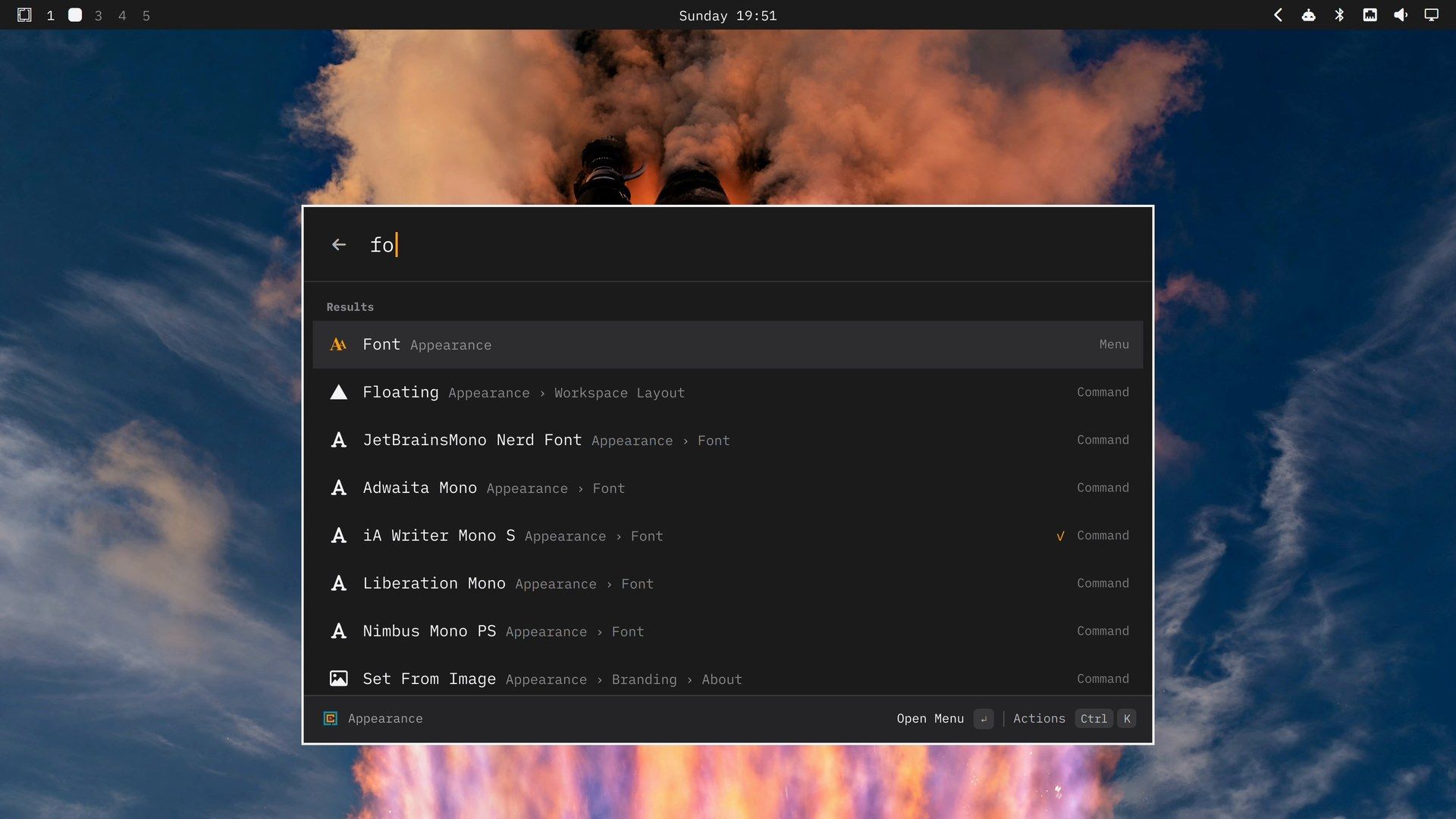
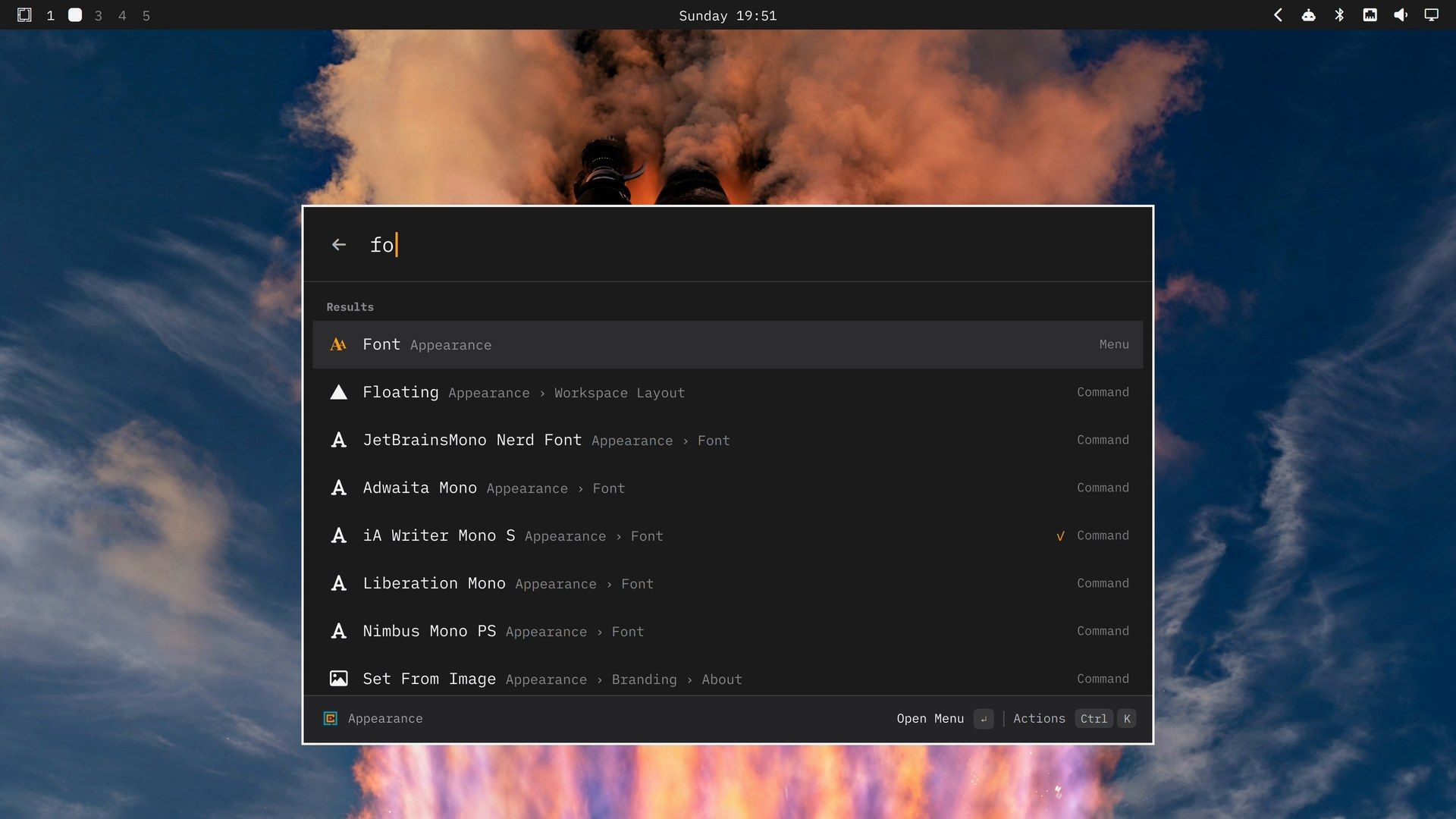
Choices show their current state with a check mark. In the screenshot, iA Writer Mono S is the active font. Search for terminal, and the Terminal list checks the terminal Omarchy uses by default, which was Foot on our machine.
Switch themes with a preview
Switch Theme lists every Omarchy theme, your own included, with a screenshot preview of the highlighted theme beside the list. The current theme carries a check mark and the word Current. Move through the list with the arrow keys and the preview changes, so you see each theme before you commit to it.
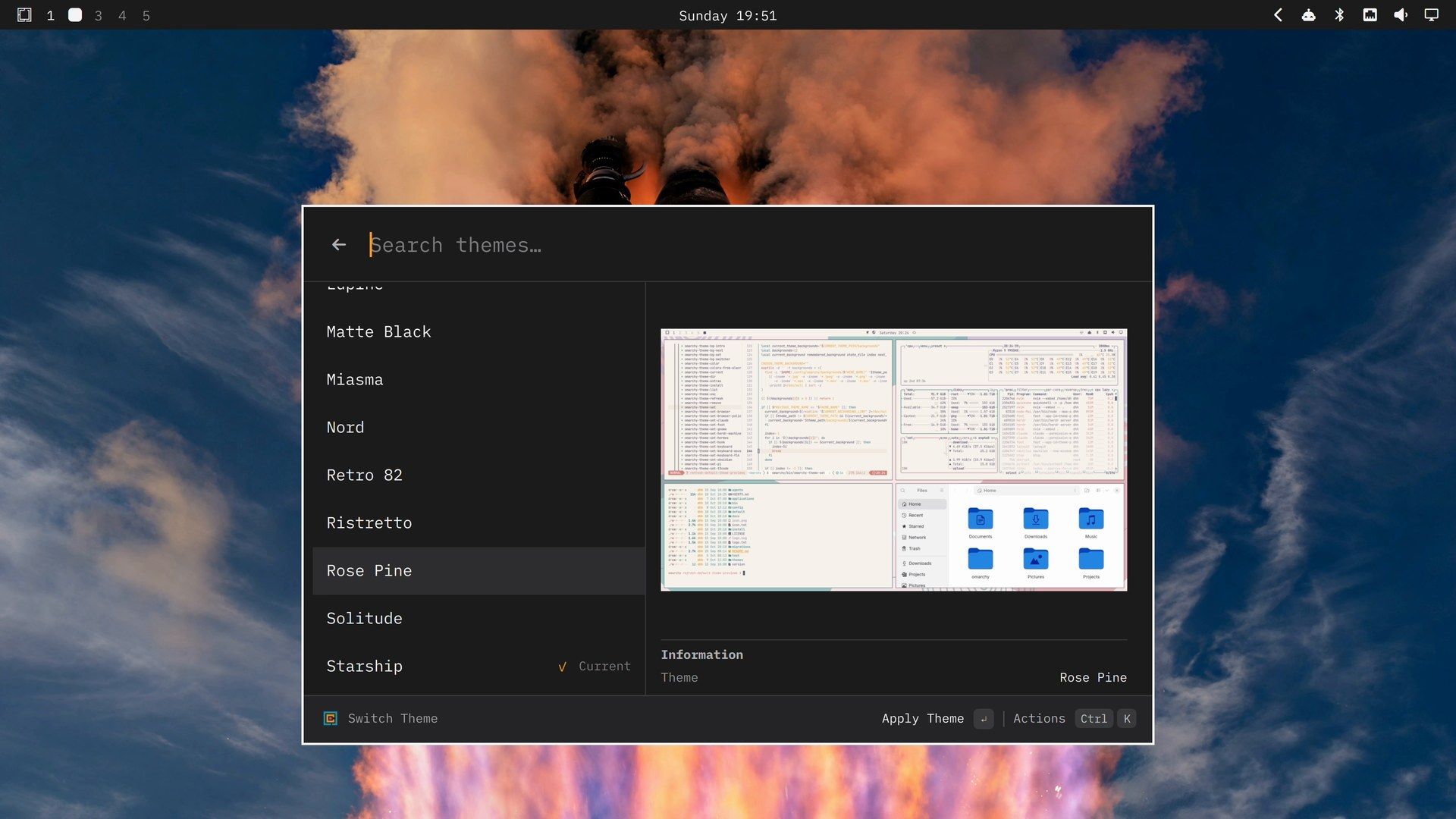
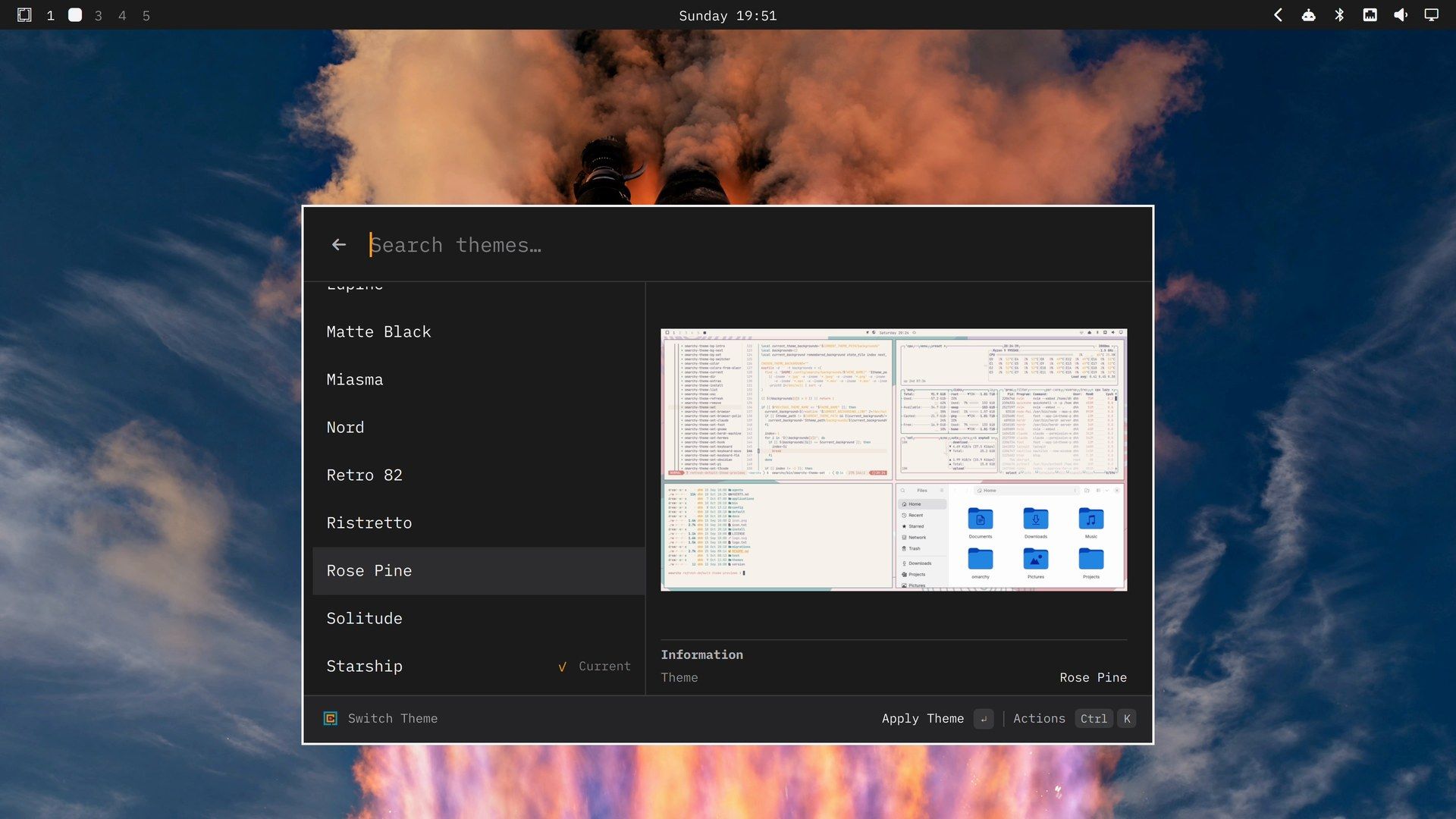
enter applies the theme with Omarchy’s omarchy-theme-set command. We picked Tokyo Night, and the wallpaper, bar and windows changed within a few seconds. The next time we opened omacast, it was in Tokyo Night colors too. omacast replaces Omarchy’s own theme picker in its results, so this is the theme entry you see when you search for theme.
Clipboard History
Type clipboard history and open omacast’s Clipboard History row. Omarchy has a clipboard picker of its own, and it can show up in the results as Clipboard History (Trigger); check which row is selected before you press enter .
omacast records the text, links, colors, files and images you copy, with the time and how many times you copied each one. The list is on the left, in Pinned, Today, Yesterday and Earlier sections. The right side shows a preview and the details. A copied color code such as #7aa2f7 shows as a color swatch.
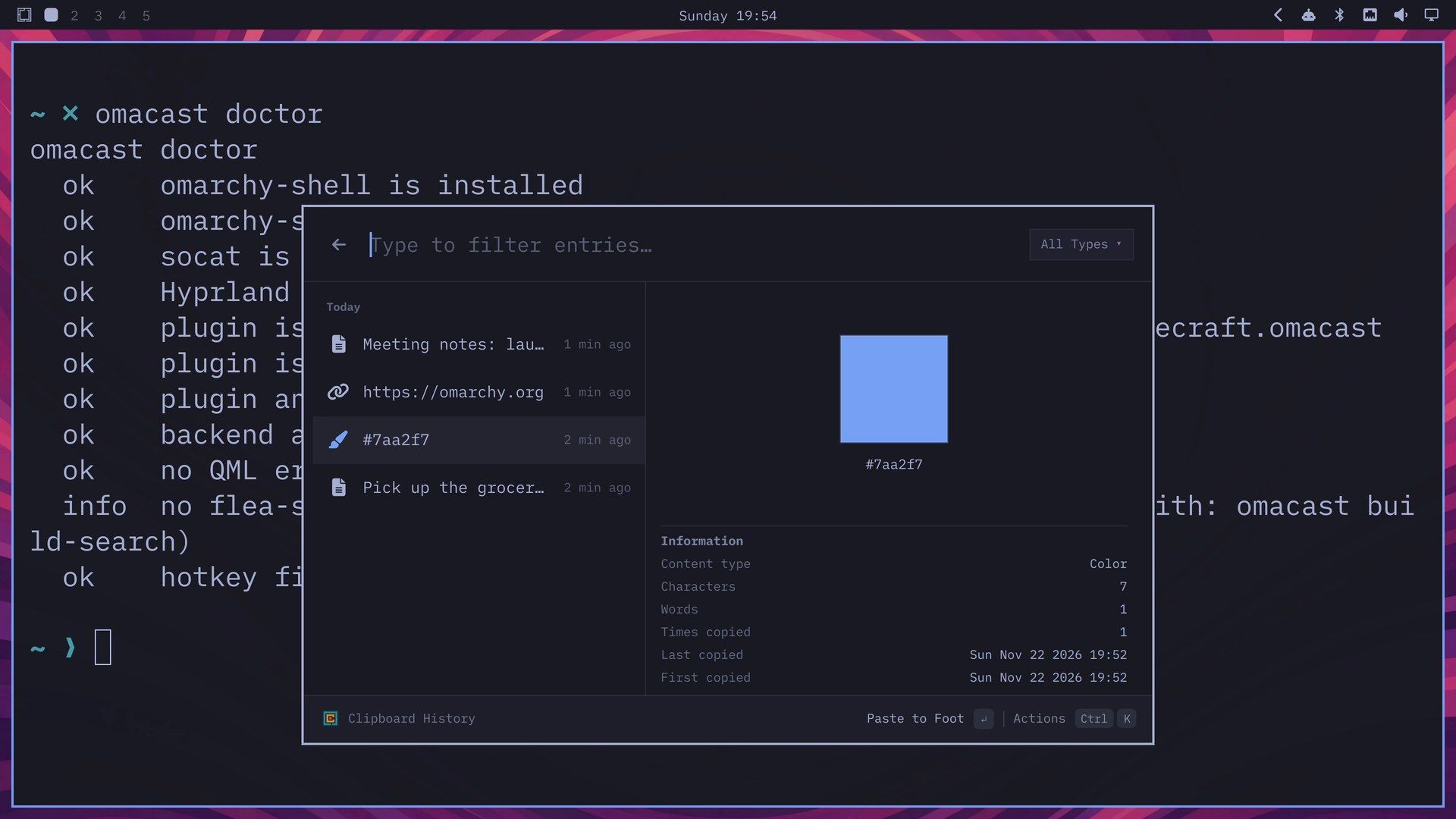
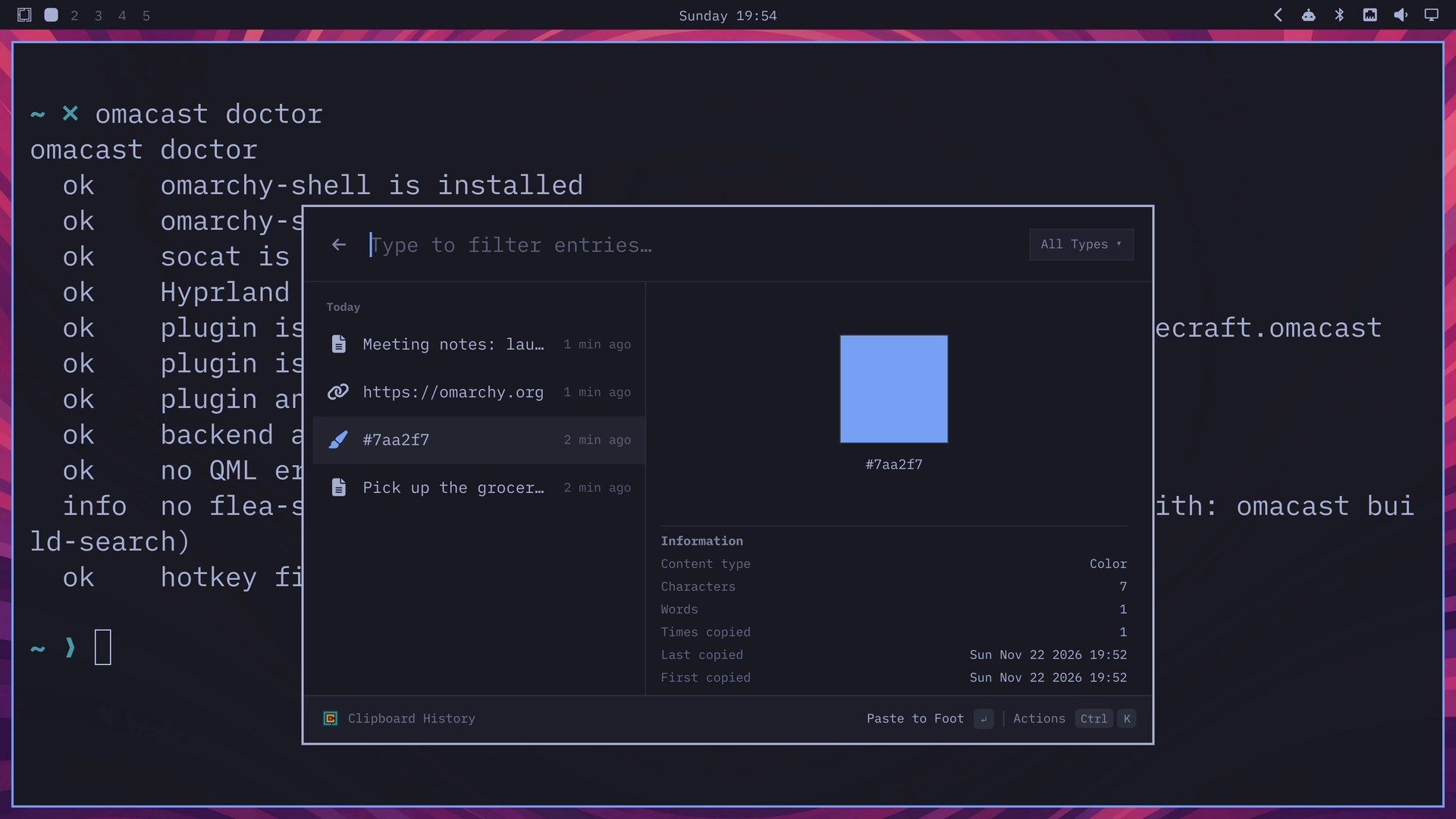
ctrl p opens a filter by type: All Types, Text, Images, Files, Links or Colors. enter pastes the entry into the app you came from (the footer names it, such as “Paste to Foot”), ctrl enter only copies it, and ctrl d deletes an entry.
Entries stay for a week, and pinned ones stay until you unpin them. Copies from password managers are never recorded: anything an app marks as sensitive, plus KeePassXC, Bitwarden, 1Password and Seahorse by default. The README lists the config.json settings that change how long entries last or turn recording off.
Emoji and symbols
Type search emoji and open Search Emoji & Symbols. Like the clipboard, Omarchy has its own emoji picker that can show up as Emoji (Trigger), so the longer search goes straight to omacast’s. You get a grid of every emoji, eight to a row, with recently used ones at the top.
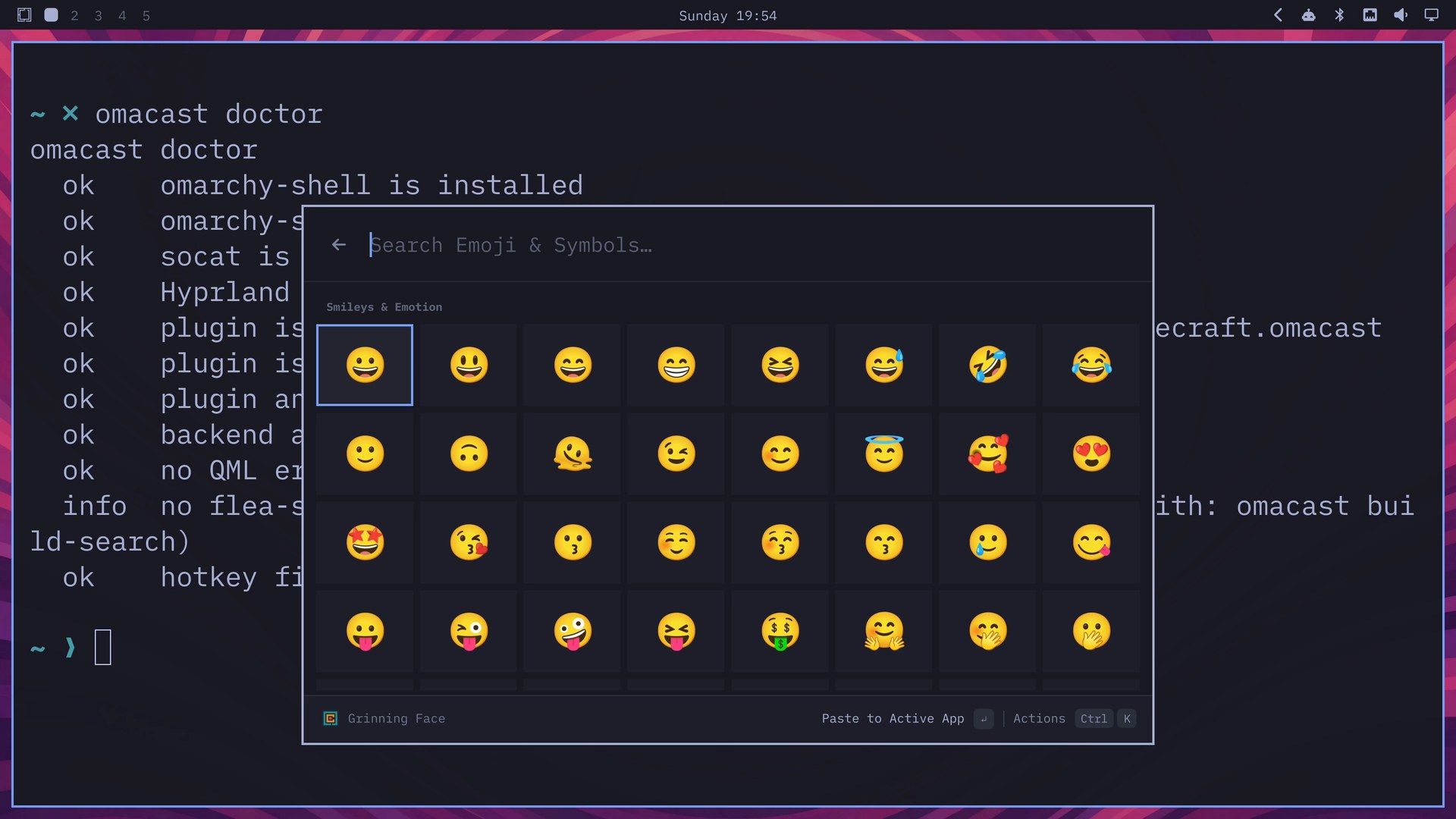
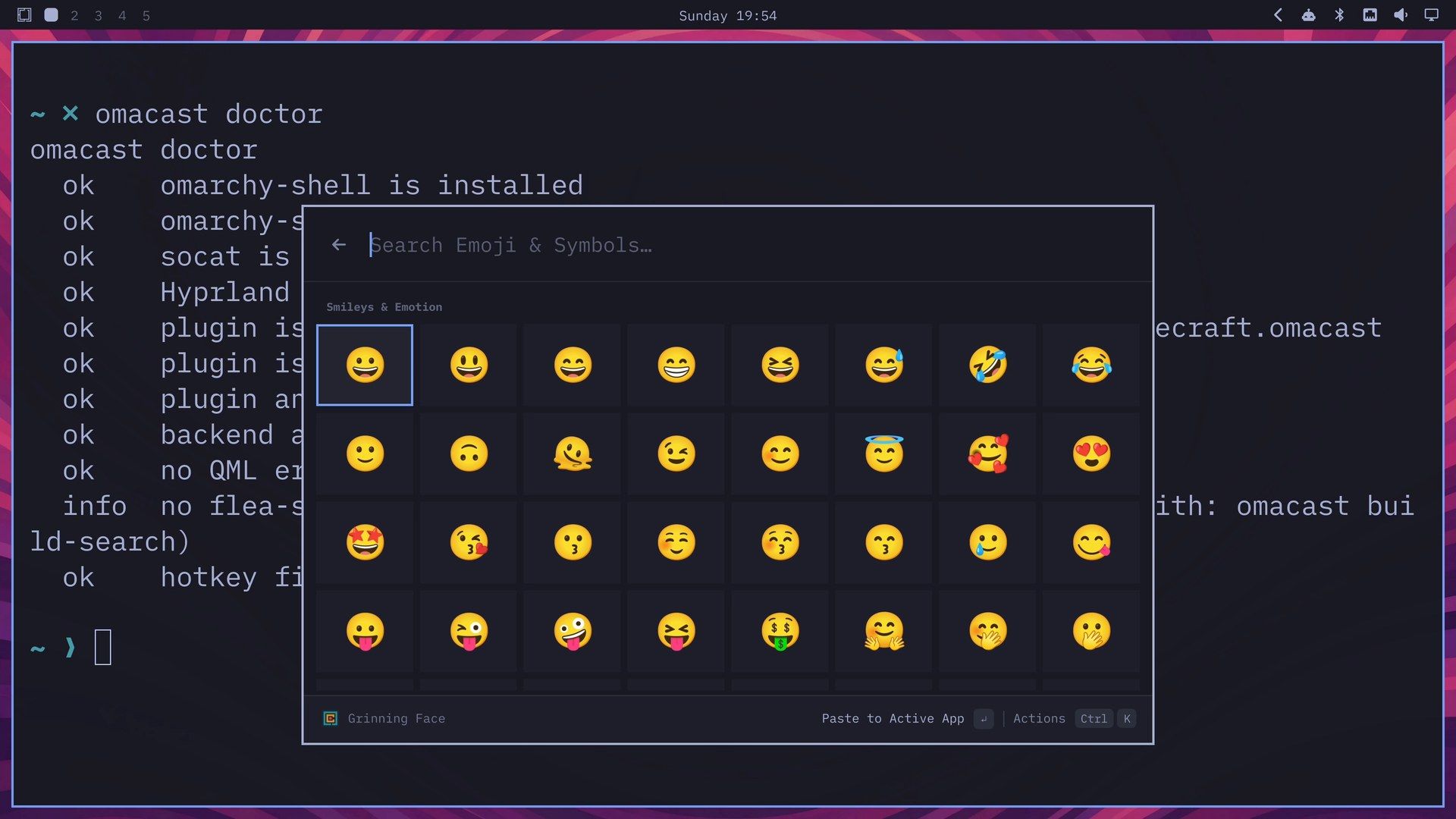
Type a name to search, such as rocket. The arrow keys move around the grid, and enter pastes the emoji into the app you came from. We pasted it at a terminal prompt. ctrl k on an emoji has a skin tone choice that applies to every emoji that has one.
Open apps and find open windows
Apps open from the same bar. When an app already has a window, enter switches to it, even on another workspace, instead of starting a second copy. We had a Foot terminal open on workspace one, searched for foot from workspace three, and enter took us to workspace one. shift enter opens a new window when you want one.
The action panel, aliases and favorites
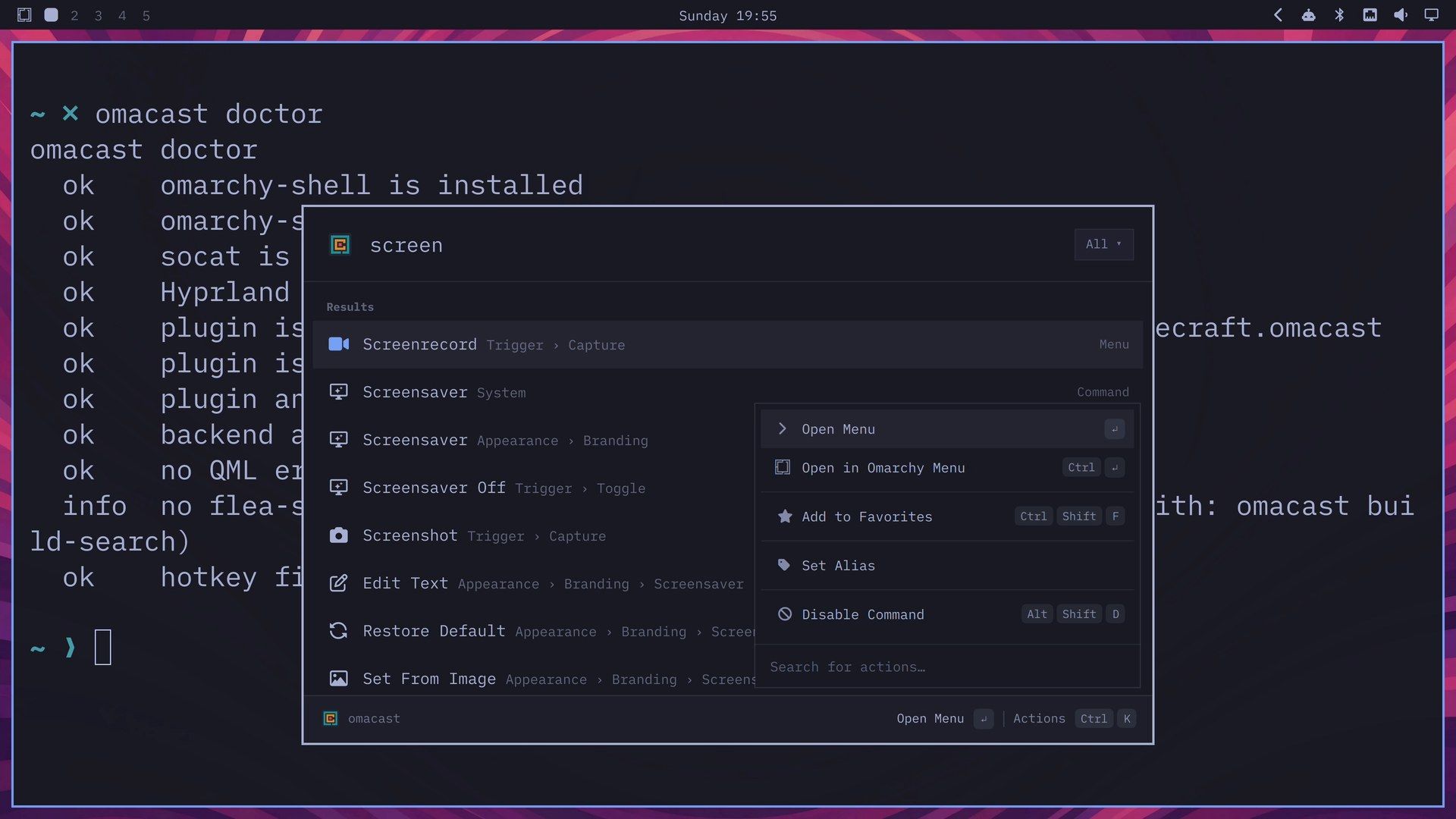
ctrl k opens the action panel on any result. It lists what you can do with that result and the keys for most actions. On the screen recorder row, the panel offers Open Menu, Open in Omarchy Menu, Add to Favorites, Set Alias and Disable Command. Type in the panel to filter it.
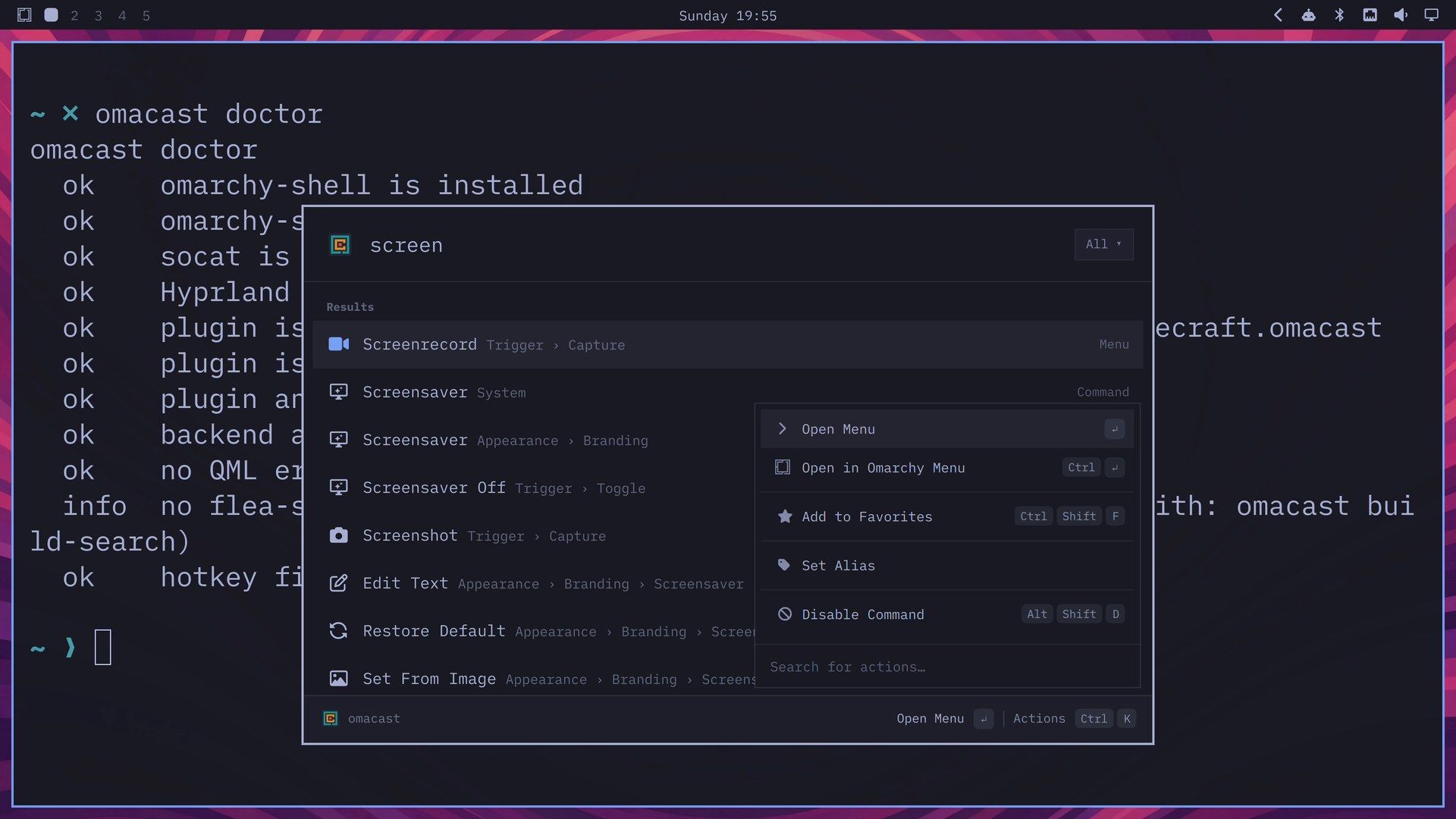
Set Alias gives a result a short name of your choice. We searched for Foot, pressed ctrl k , typed alias, pressed enter and entered tt. A message said “Alias saved”, and from then on typing tt put Foot at the top of the results. omacast also learns on its own: if you type a few letters and pick the same result every time, those letters keep finding it.
ctrl shift f adds the selected result to Favorites, the first section of an empty search. Below it, Suggestions lists what you use most.
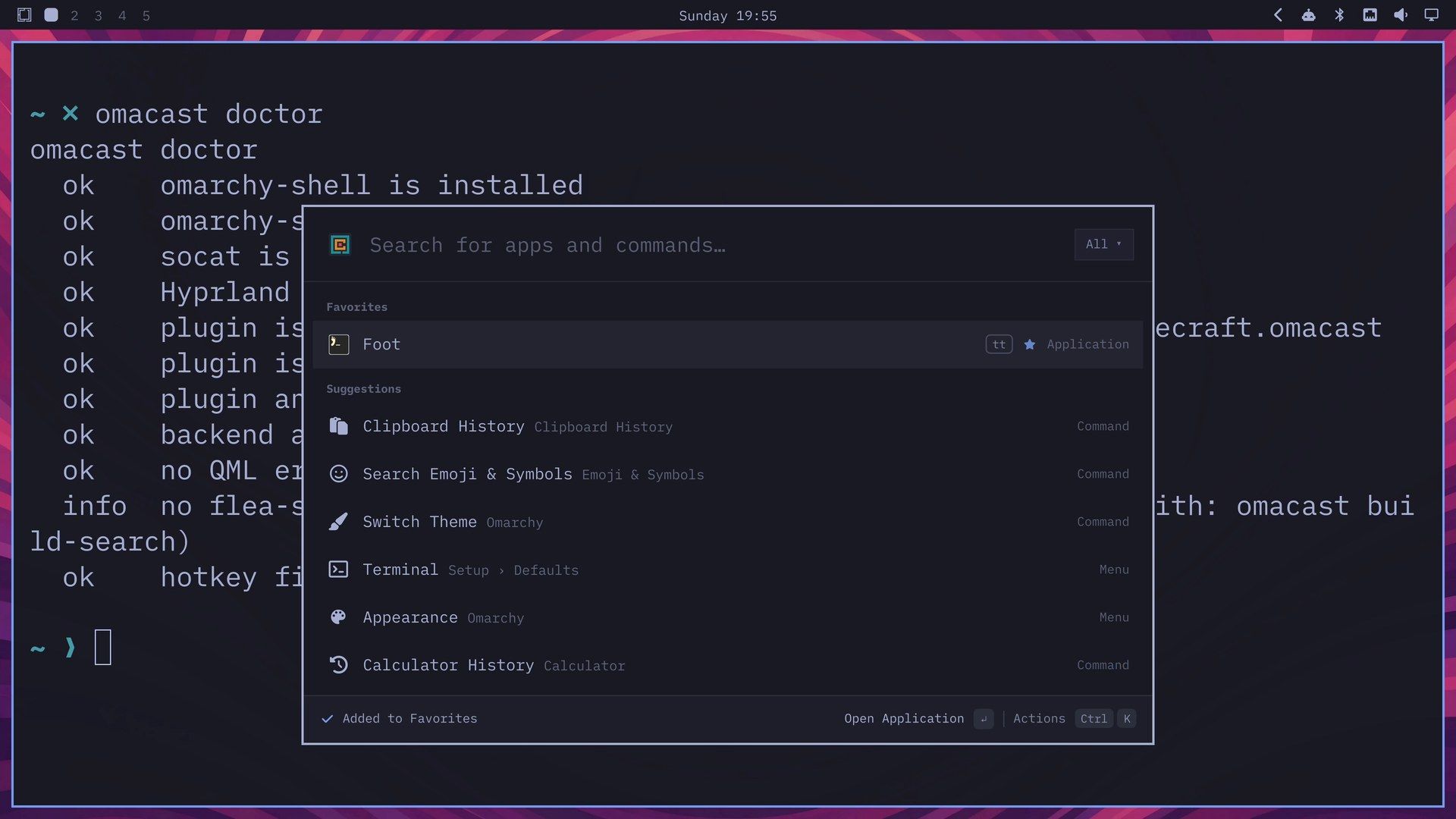
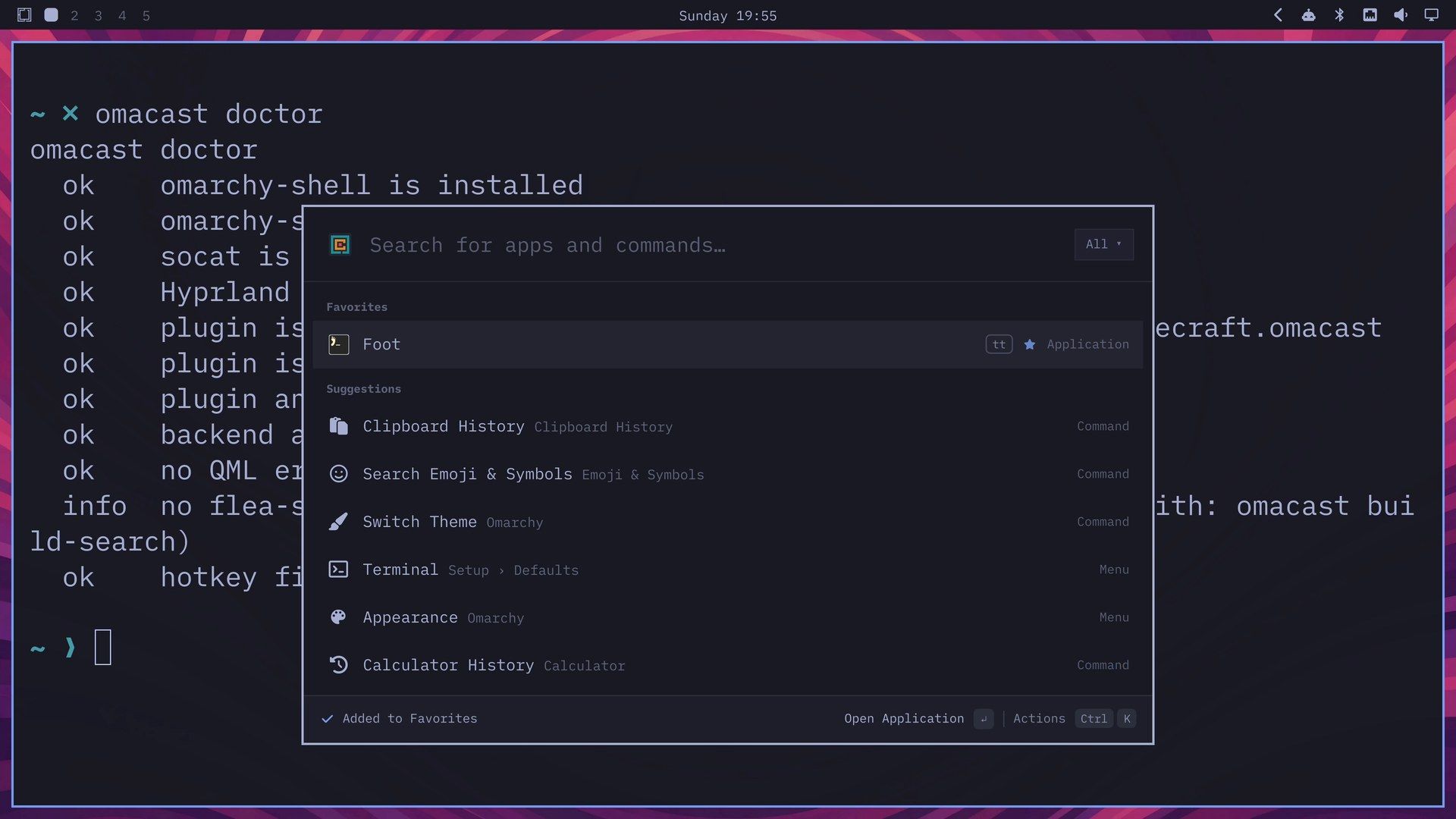
Disable Command hides a result you never use. To bring one back, use Undo on the message that appears ( ctrl t ), or see the README’s Settings section.
Smaller keys worth knowing
These work anywhere in the launcher:
- on an empty search brings back your last search.
- ctrl + makes the whole launcher bigger, ctrl - makes it smaller, and ctrl 0 sets the size back. One step is small, so press it twice to see the change.
- ctrl 1 to ctrl 9 pick a result by its position.
- When nothing matches, the last rows offer the same search on Google or DuckDuckGo. enter on one opens your browser.
- shift esc goes straight back to the top level from a submenu or a built-in command.
Script Commands
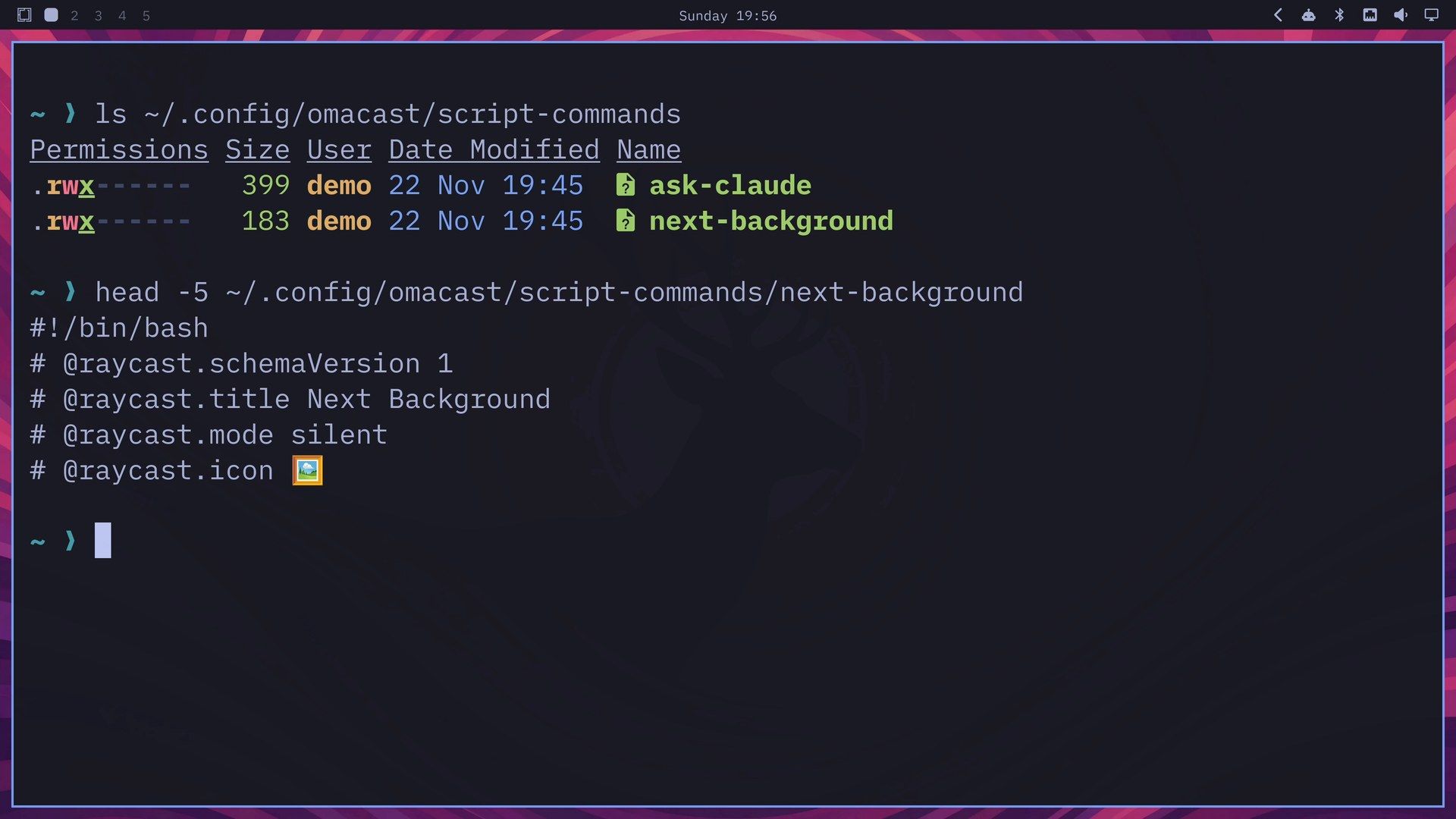
Put an executable script with a shebang line in ~/.config/omacast/script-commands/, and the search lists it the next time you open the launcher. A few comment lines at the top give it a title, an icon and a mode, using the same headers as Raycast’s Script Commands.
The mode decides where the output goes. In silent mode, the last line the script prints shows as a short message on screen after the launcher closes. In compact mode, it shows in the launcher’s footer. A script can also take up to three arguments, which appear as fields after the command name.
Create the folder first:
mkdir -p ~/.config/omacast/script-commands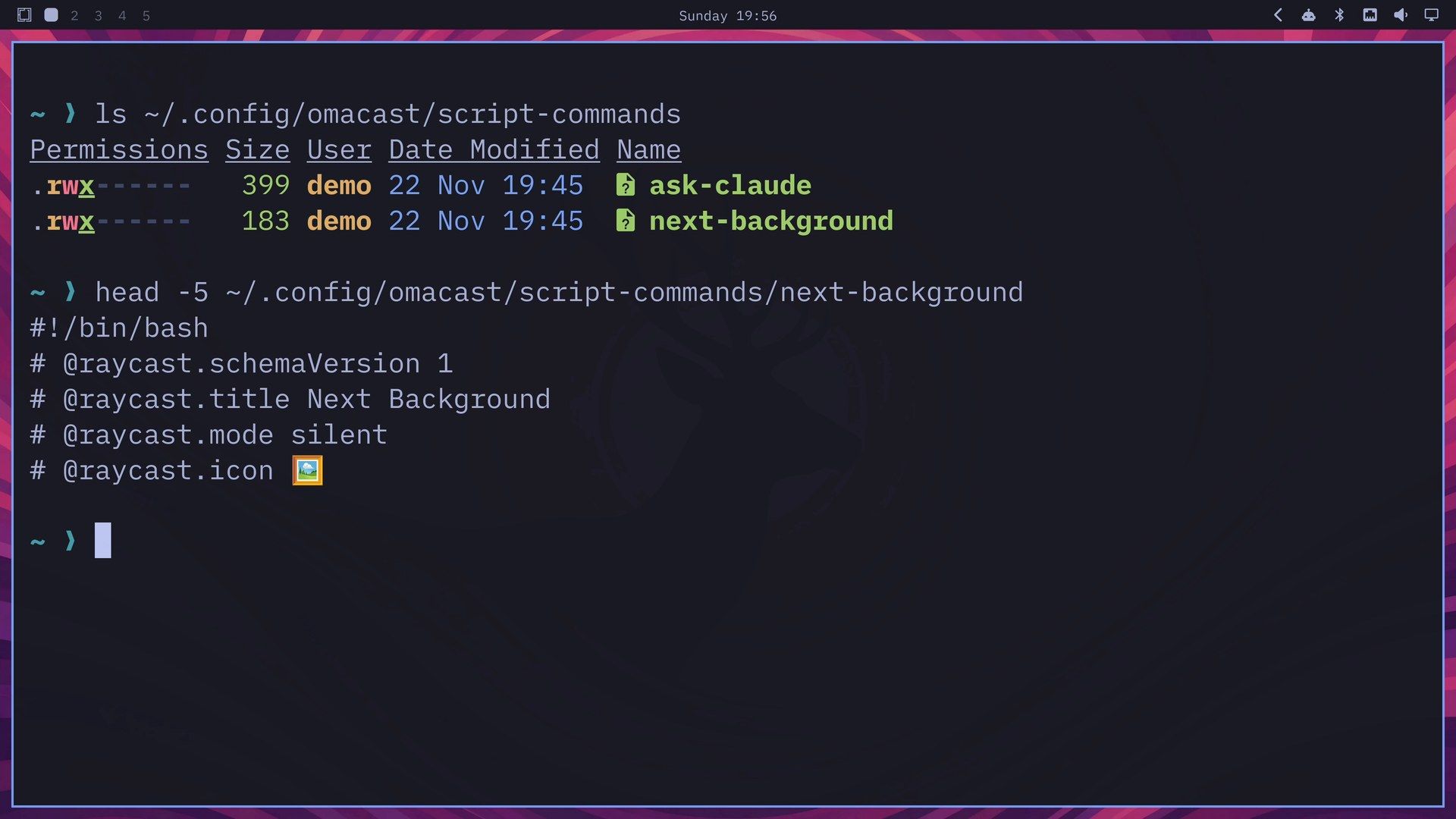
Next Background
Our first script switches to the next wallpaper of the current theme. Save it as ~/.config/omacast/script-commands/next-background:
#!/bin/bash
# @raycast.schemaVersion 1
# @raycast.title Next Background
# @raycast.mode silent
# @raycast.icon 🖼️

omarchy-theme-bg-next >/dev/null 2>&1
echo "Wallpaper changed"
Make it executable:
chmod +x ~/.config/omacast/script-commands/next-backgroundOpen the launcher, type next back, and press enter . The launcher closes, a “Wallpaper changed” message appears, and the wallpaper changes a moment later. Keep the last line short: the message has room for only a few words, and a long line gets cut off.
Ask Claude (our script, using Claude Code)
A script can run anything, so we wrote one that sends a question to Claude Code and shows the answer. This script is ours, not part of omacast. It runs Claude Code in print mode (claude -p), which answers once and exits, and it pays per question through an Anthropic API key rather than a Claude subscription. Each question cost us about one cent on the Sonnet model.
You need Claude Code installed; our Claude Code on Omarchy guide covers that. You also need an API key from the Anthropic Console. Keep the key in a file that only you can read, outside the script folder. Create the folder and the file:
mkdir -p ~/.config/omacast-demo
chmod 700 ~/.config/omacast-demo
touch ~/.config/omacast-demo/env
chmod 600 ~/.config/omacast-demo/env
Open ~/.config/omacast-demo/env in an editor and paste one line with your own key in place of the placeholder:
export ANTHROPIC_API_KEY=your-key-hereThen save the script as ~/.config/omacast/script-commands/ask-claude:
#!/bin/bash
# @raycast.schemaVersion 1
# @raycast.title Ask Claude
# @raycast.mode compact
# @raycast.icon 🤖
# @raycast.argument1 { "type": "text", "placeholder": "Question" }

. "$HOME/.config/omacast-demo/env"
answer=$("$HOME/.local/share/mise/shims/claude" -p --model sonnet \
  "Answer in one plain sentence of at most 14 words: $1" 2>/dev/null)
notify-send "Claude" "$answer"
echo "$answer"
Make it executable with chmod +x ~/.config/omacast/script-commands/ask-claude. The script uses the full path to claude, because the launcher may not see the same PATH as your terminal. On our machine, Claude Code was installed through mise, the tool manager Omarchy uses; run command -v claude in a terminal and put your own path there if it differs. The 2>/dev/null hides a warning Claude Code prints when an API key overrides a Claude sign-in on the same machine.
The prompt asks for one short sentence because both places that show the answer are small. The @raycast.argument1 line adds a Question field after the command name. Open the launcher, type ask claude, press tab to move into the field, type your question, and press enter . We asked “What is Hyprland?” The footer said “Running Ask Claude…” for about four seconds, then showed the start of the answer.
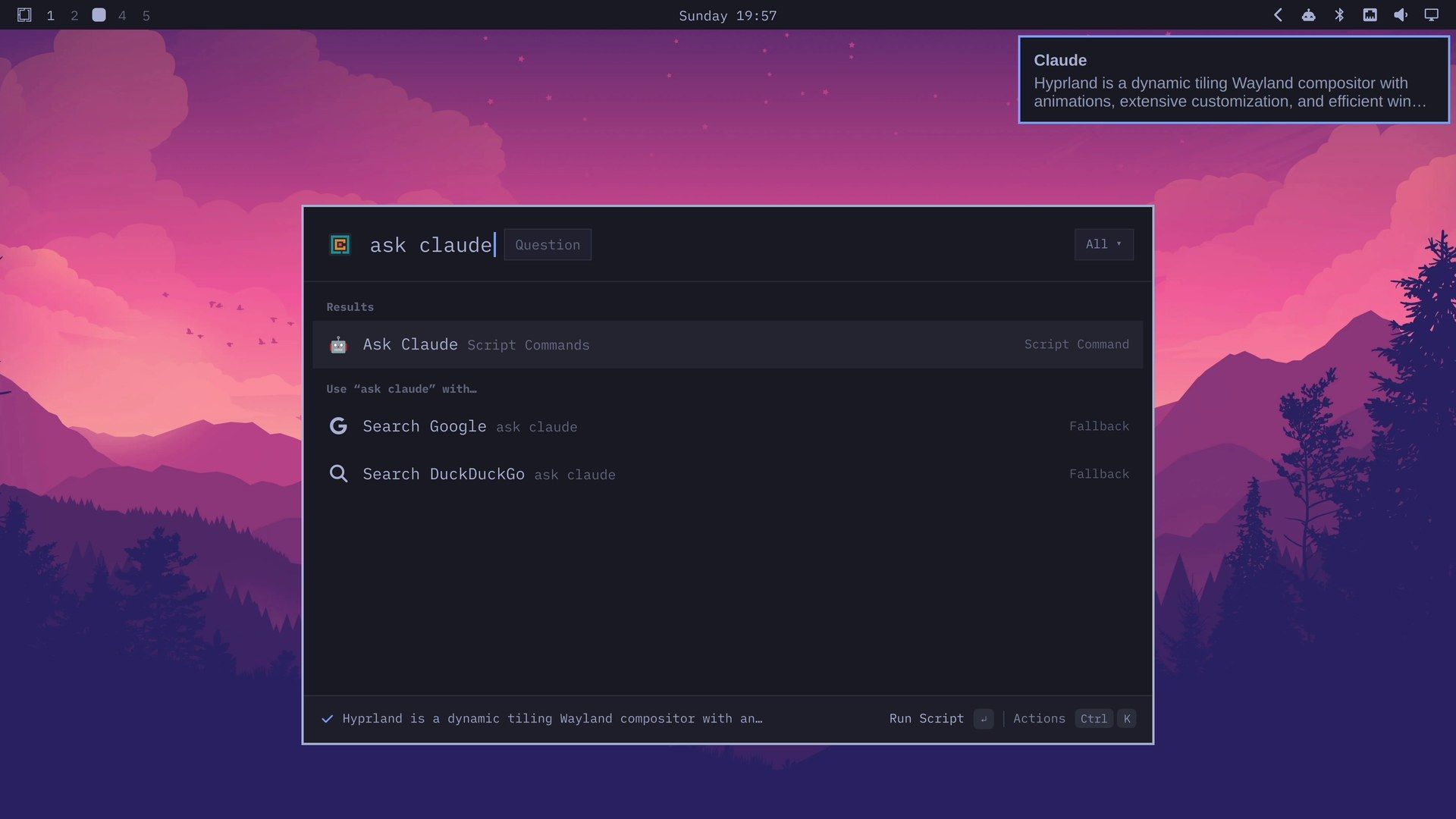
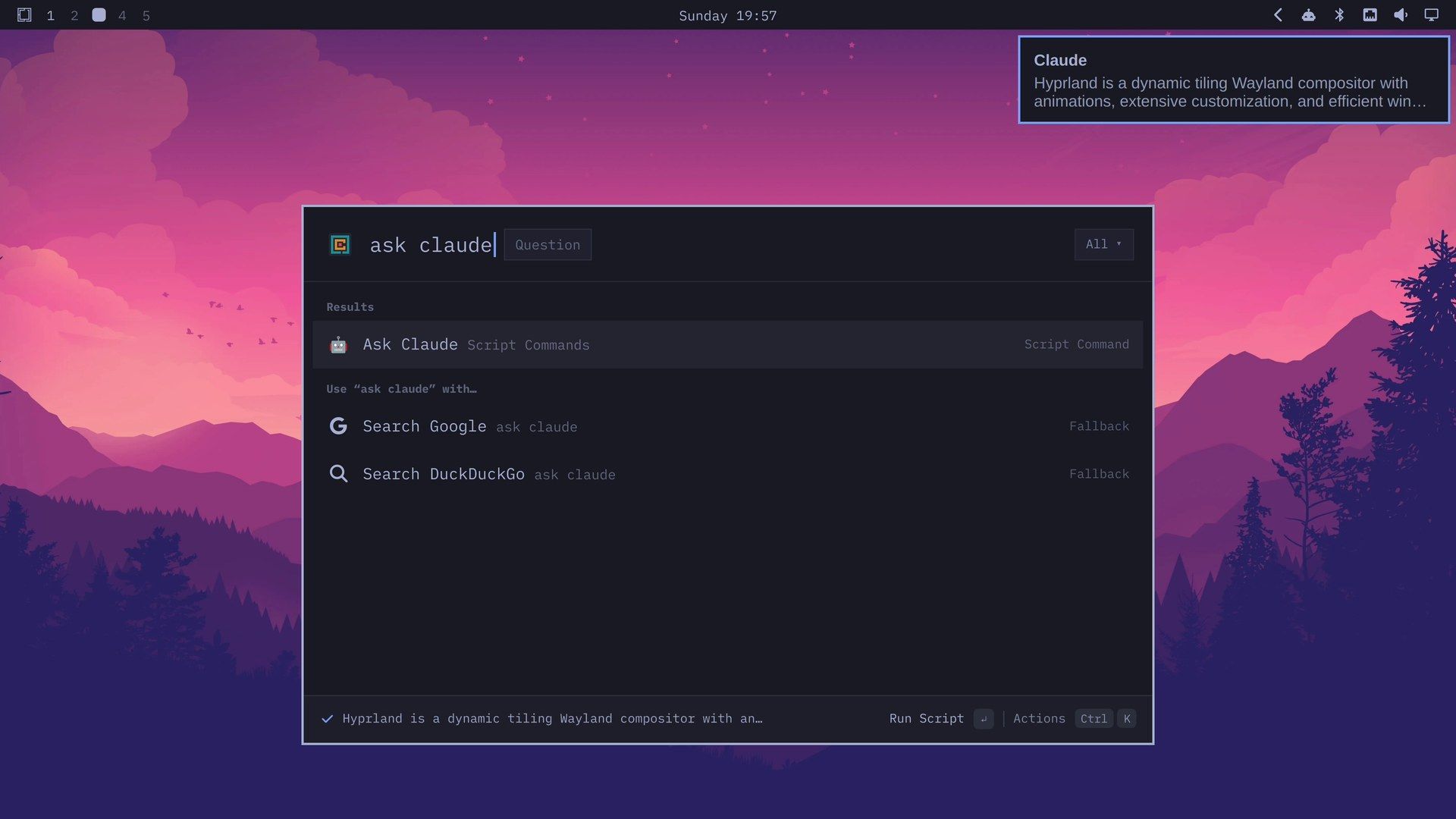
The footer cuts a long answer short and clears after a few seconds, which is why the script also sends the answer as a notification with notify-send. The notification stayed for about eight to ten seconds. Ours still cut the last words: the full answer was “Hyprland is a dynamic tiling Wayland compositor with animations, extensive customization, and efficient window management.”
omacast passes a script’s arguments on its command line, and this script passes the question to claude the same way, so another user logged in to the same computer could see the question in the process list while it runs. The omacast README says so too. On a one-person desktop that matters little, but keep passwords and other secrets out of the question.
Remove omacast
omacast has its own uninstall command. It asks whether to remove the hotkey file and its require line, then removes the plugin:
omacast uninstallTo do it by hand instead, remove the plugin, delete the hotkey file and the command link, and delete the require line from ~/.config/hypr/hyprland.lua:
omarchy plugin remove typecraft.omacast
rm ~/.config/hypr/omacast.lua ~/.local/bin/omacast
sed -i '/^require("hypr\.omacast")$/d' ~/.config/hypr/hyprland.lua
hyprctl reload
Either way, removing omacast.lua also removes the hl.unbind line we added, so Alt+Space goes back to Omarchy’s dictation shortcut after the reload. Your omacast data stays until you delete it: the clipboard history, aliases, favorites and scripts live in ~/.config/omacast, ~/.local/share/omacast, ~/.cache/omacast and ~/.local/state/omacast. Delete the ~/.config/omacast-demo folder too if you made the Ask Claude key file.
Troubleshooting
Alt+Space does nothing. Run omacast doctor. If it reports no hotkey file, check that ~/.config/hypr/omacast.lua exists and that hyprland.lua ends with the require("hypr.omacast") line, then run hyprctl reload. hyprctl configerrors shows a typing mistake in the Lua file.
The launcher opens with old text or in a sub-view. For 90 seconds after it closes, omacast reopens where you left it. super backspace clears the search, and shift esc goes back to the top level.
A search runs the wrong clipboard or emoji tool. Omarchy’s built-in pickers show up as rows with (Trigger) in the name. Type the full name, clipboard history or search emoji, and check the selected row.
The launcher stops opening after the computer wakes from sleep. That is an open bug in the omacast repository (issue 109).
Wrapping up
omacast puts your apps, the whole Omarchy menu, a calculator, clipboard history and an emoji picker behind one key, and aliases, favorites and Script Commands add your own shortcuts and commands. It is early software, and the hotkey setup needs the manual step on Omarchy 4.5 for now, but the rest worked as described in our tests. For more ways to change Omarchy, see our guides to Omarchy plugins and adding your own keyboard shortcuts.


