
OmaEar is a podcast player made for Omarchy. It takes its colors from your Omarchy theme, so it looks like part of the desktop, and it keeps playing after you close its window. With Omarchy’s media widget turned on, you can pause and play the episode from the bar. OmaEar is free and open source under the MIT license, from an independent developer, Allan Dehn, who builds it with help from AI coding agents.
This guide installs OmaEar after reading its install script, adds shows by search and from a file of subscriptions, and goes through the player, the queue, and the bar widget. It ends with the limits we found and how to remove OmaEar again. We followed these steps with OmaEar 0.4.0 on Omarchy 4.5 in November 2026.
What you need
You need Omarchy on an x86_64 computer, since OmaEar ships packages for x86_64 only, and an internet connection. The install asks for your password once. OmaEar needs no account: show search and the top charts use Apple’s public podcast directory, and episodes stream from each show’s feed.
Omarchy shortcuts use the Super key, which is the Windows key on most PC keyboards. If those shortcuts are new to you, start with our list of Omarchy shortcuts to learn first, or the full Omarchy tutorial.
Update Omarchy first
OmaEar’s installer syncs the package lists and installs the app, but it does not upgrade the rest of the system. Installing a new package on top of out-of-date ones is a partial upgrade, which Arch Linux warns against. So bring the system up to date first. Open a terminal with super enter and run:
omarchy updateAnswer the prompt with y and type your password. When the system is already current, it prints “there is nothing to do” and finishes in a few seconds.
Download the install script and read it
OmaEar’s README gives a one-line install that pipes a script from GitHub straight into bash. That works, but you never see what runs with your password. Download the script to a file first:
curl -fsSL -o omaear-install.sh https://raw.githubusercontent.com/allandehn/omaear/main/install.sh
cat omaear-install.sh
The whole script is fourteen lines. It downloads OmaEar’s signing key and tells pacman to trust it, adds an [omaear] section to /etc/pacman.conf that points at OmaEar’s package source on GitHub, syncs the package lists, and installs the omaear package. It writes no service, no autostart entry, and no keybinding. We also had a coding agent read the script and the package first, and it found no system changes beyond those steps and the files of the app itself.
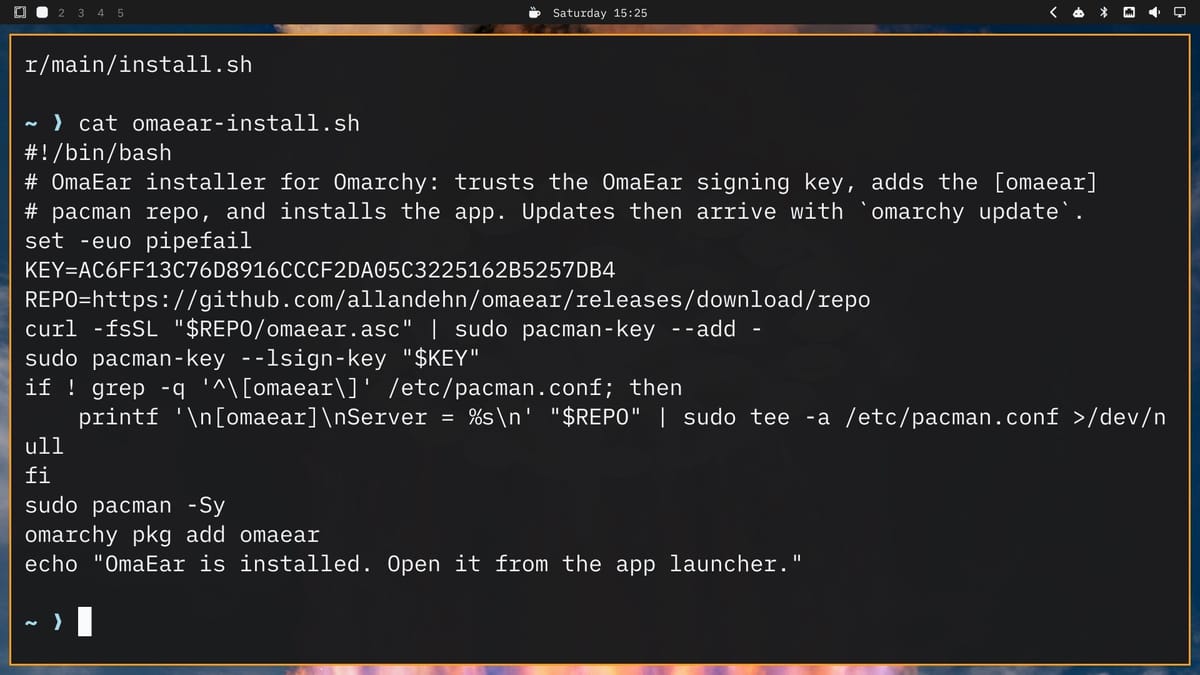
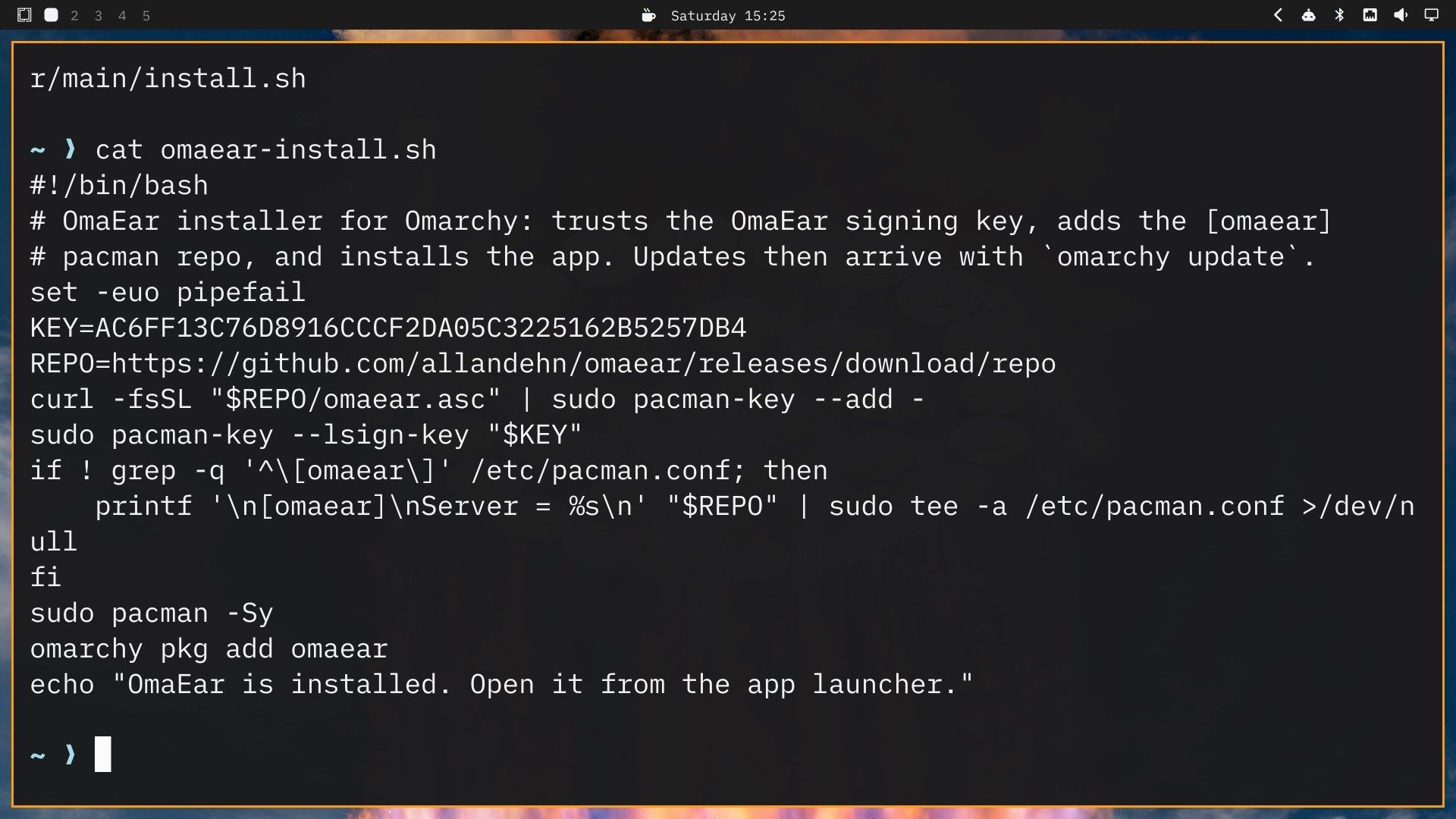
The script signs OmaEar’s key locally, which tells pacman to trust that key for any package, the same as with any third-party pacman repository. Because the [omaear] section goes at the end of the file, it cannot replace a package that the Arch Linux repositories already carry. The key’s fingerprint, AC6F F13C 76D8 916C CCF2 DA05 C322 5162 B525 7DB4, matches the one in OmaEar’s README and the GPG key on the developer’s GitHub account.
Install OmaEar
Run the script you just read:
bash omaear-install.shIt asks for your password, imports the key, and installs OmaEar. The run takes well under a minute and ends with “OmaEar is installed. Open it from the app launcher.” With the package source in place, omarchy update updates OmaEar along with everything else from now on.
Add a show by search
Press super space , type omaear, and press enter . OmaEar opens on an empty start screen with a short hint: “Press + to add a podcast.” Click the + button at the top right to open Find new podcasts.
The page starts on the top podcasts for a region, which was the United States for us. The flag next to the search field changes the region. Each chart tile has its own + button, so you can subscribe straight from the chart. To find a show by name, type it in the search field and press enter . You can also paste a feed URL there to subscribe to a show the directory does not list.
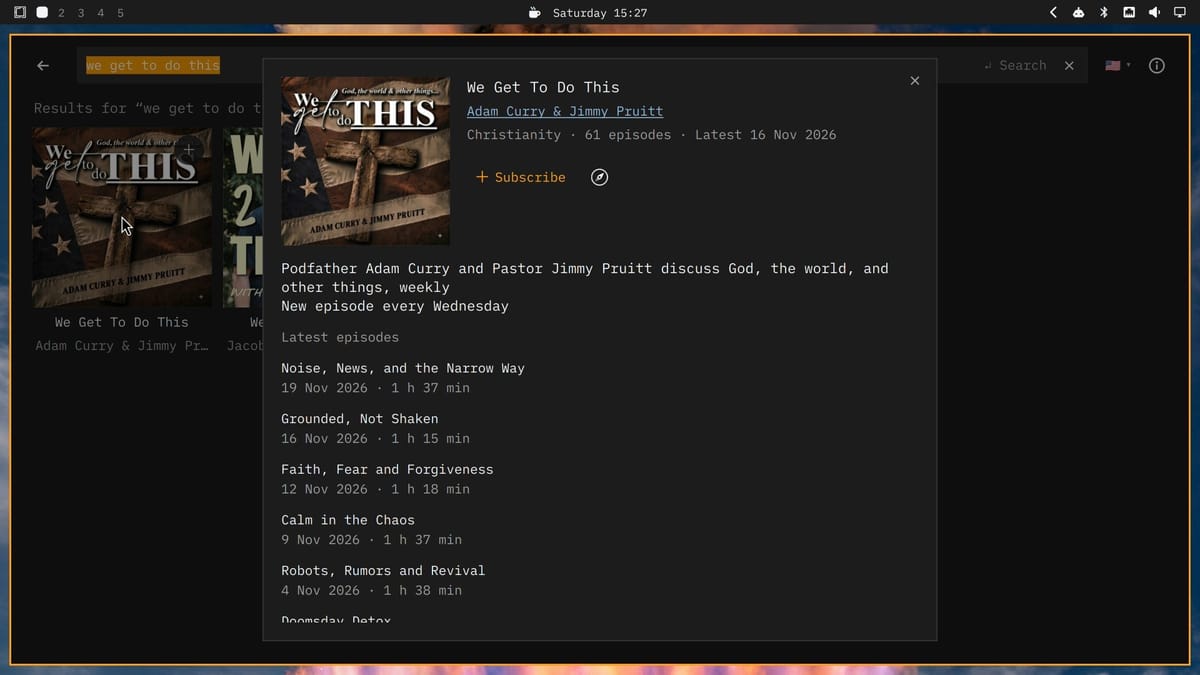
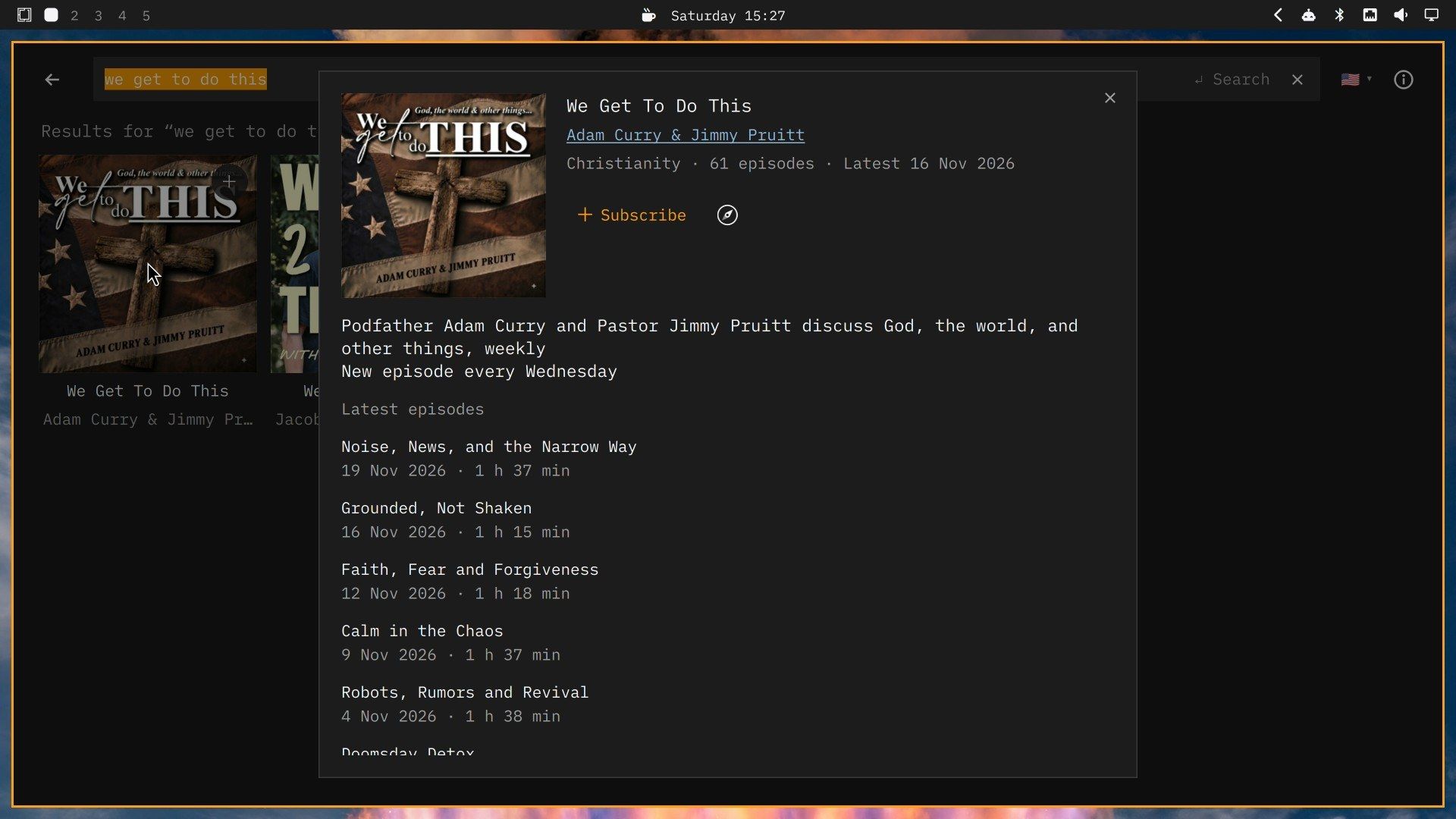
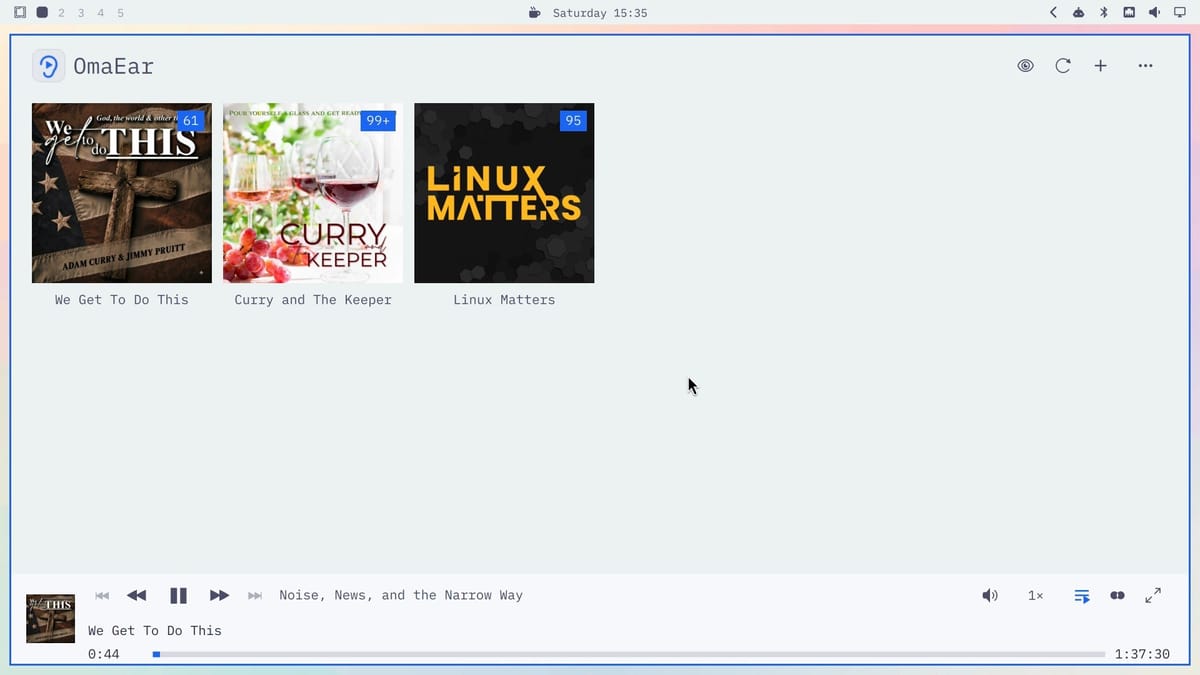
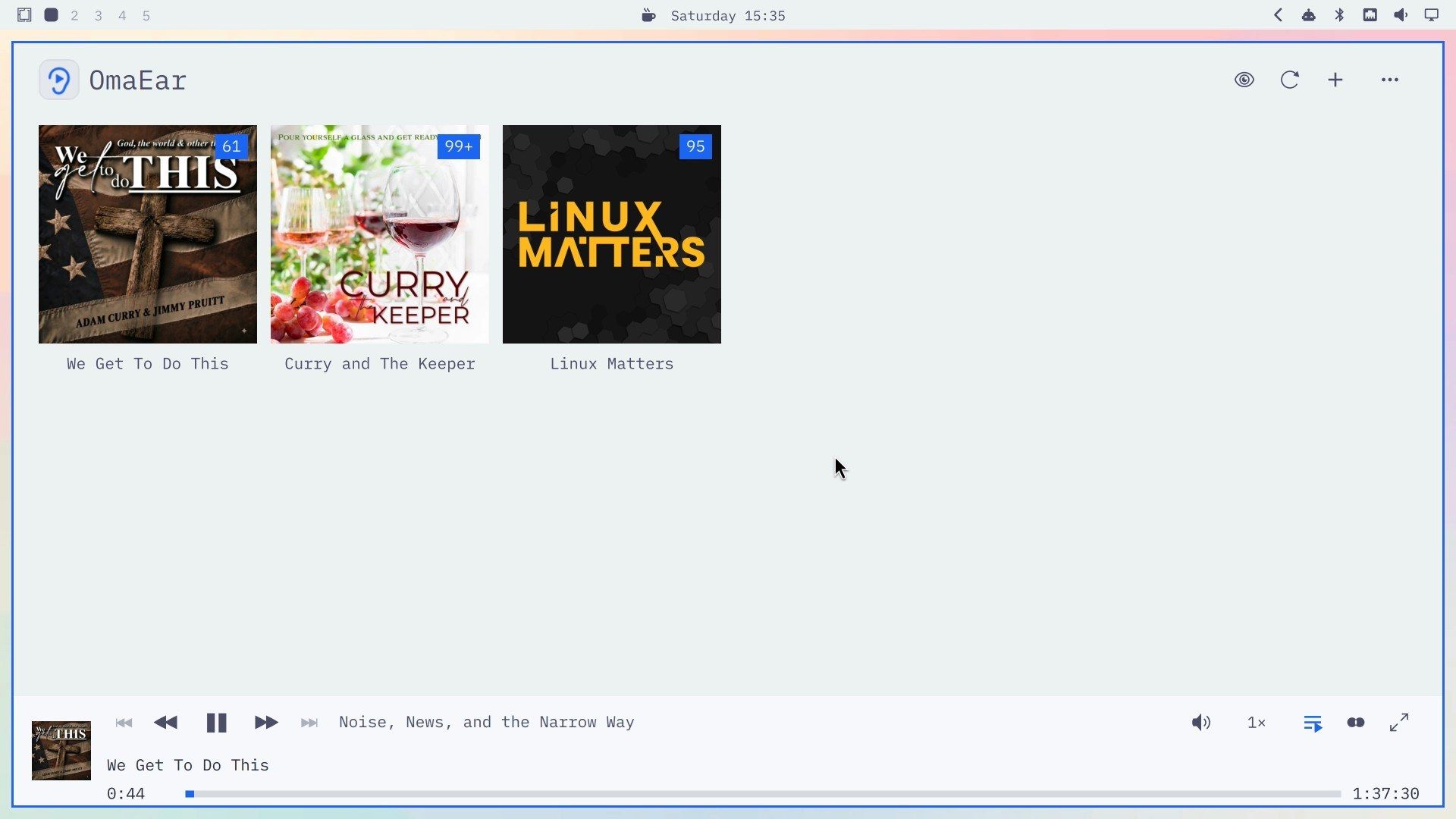
In the video we searched for We Get To Do This, a weekly show with Adam Curry and Pastor Jimmy Pruitt. Click a show’s cover to open a preview with the category, the number of episodes, and the latest ones. Subscribe adds the show to the start screen, and its cover gets a badge with the number of unplayed episodes.
Import your shows from another app
If you already use a podcast app, it can probably export your subscriptions as an OPML file, a plain list of your shows and their feeds. In OmaEar, open the ⋯ menu at the top right and choose Import OPML…. Pick the file in the file dialog and click Open. The shows appear on the start screen after a few seconds, each with its unplayed count. One show in the file was already on our start screen from the search, and OmaEar merged the two instead of adding it twice.
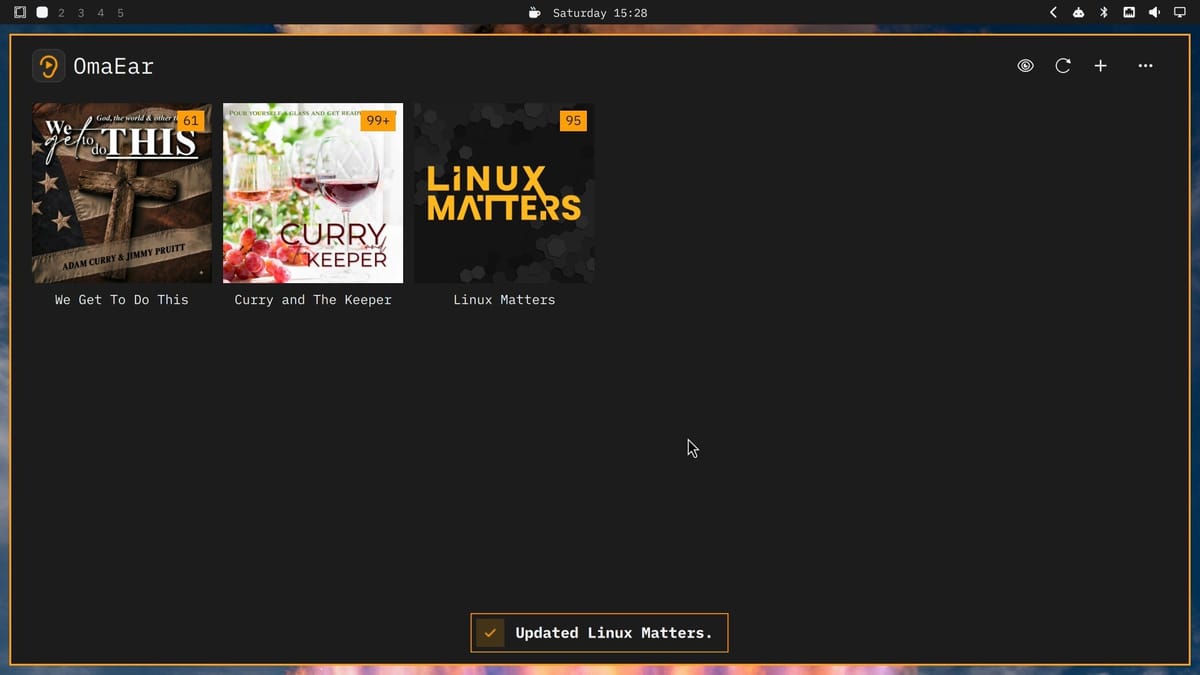
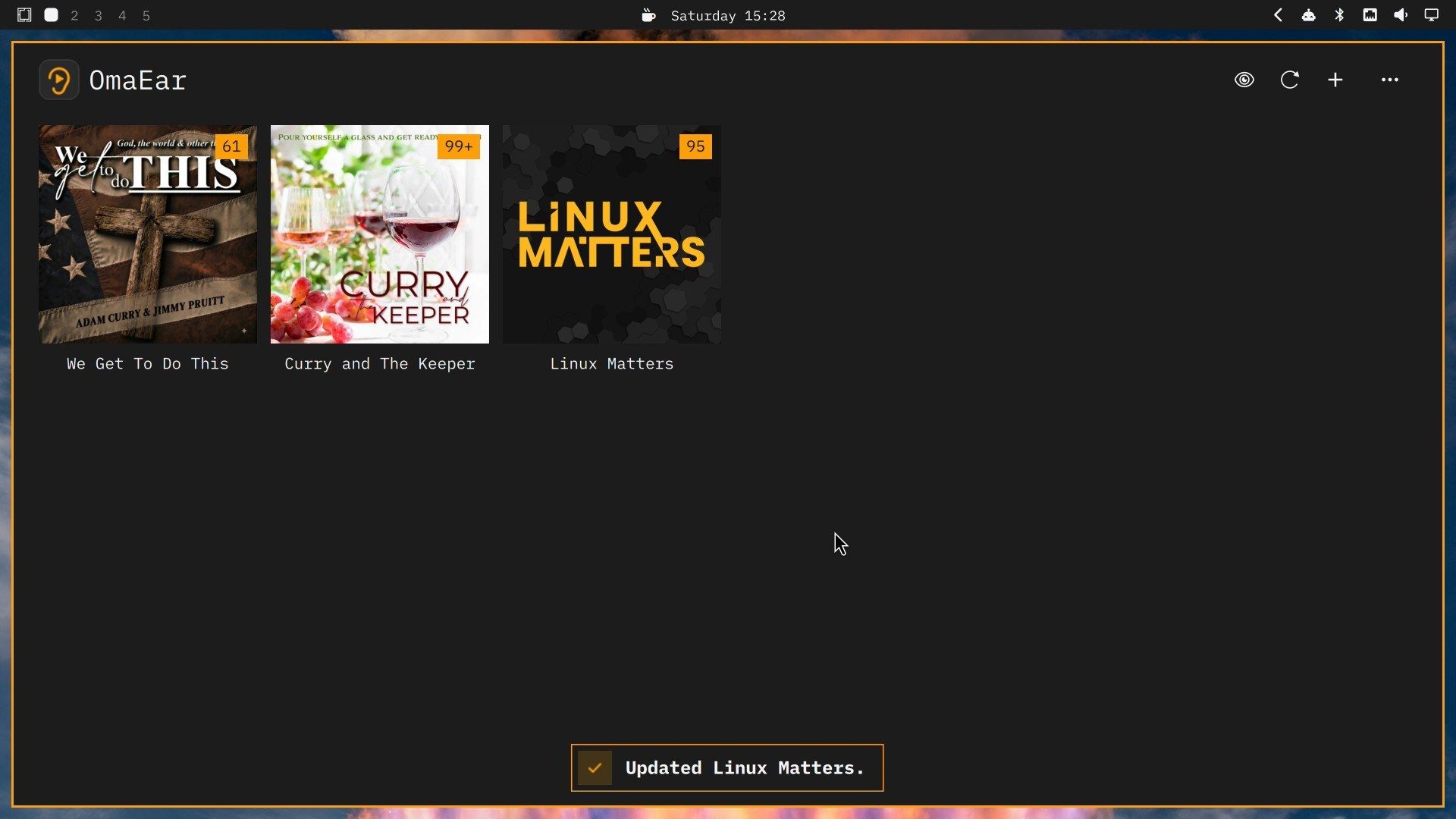
The same menu has Export OPML…, which saves your list for a backup or for another app. If you also follow sites by RSS, our guide to omafeed covers an RSS reader for Omarchy that imports OPML the same way.
Play an episode
Click a show on the start screen to open its page. Each episode row shows the date, the length, and a line of notes. Click the play button on an episode’s cover, and a player bar appears along the bottom of the window.
The player bar skips back 15 seconds or forward 30. The speed label steps up by a quarter with each click, from 1× to 1.25×, 1.5×, 1.75×, and 2×, and the next click after 2× wraps to 0.75×. The bar also has volume, an Autoplay toggle, and a Mono toggle for recordings where one voice sits in one ear.
To choose what plays next, right-click another episode and pick Play next. The same menu marks an episode played or unplayed, or marks every older or newer episode as played. The Queue page, in the ⋯ menu, lists what is up next, and you can drag episodes there to change the order. With Autoplay on, which is how it starts in 0.4.0, OmaEar moves on to the queue when an episode ends.
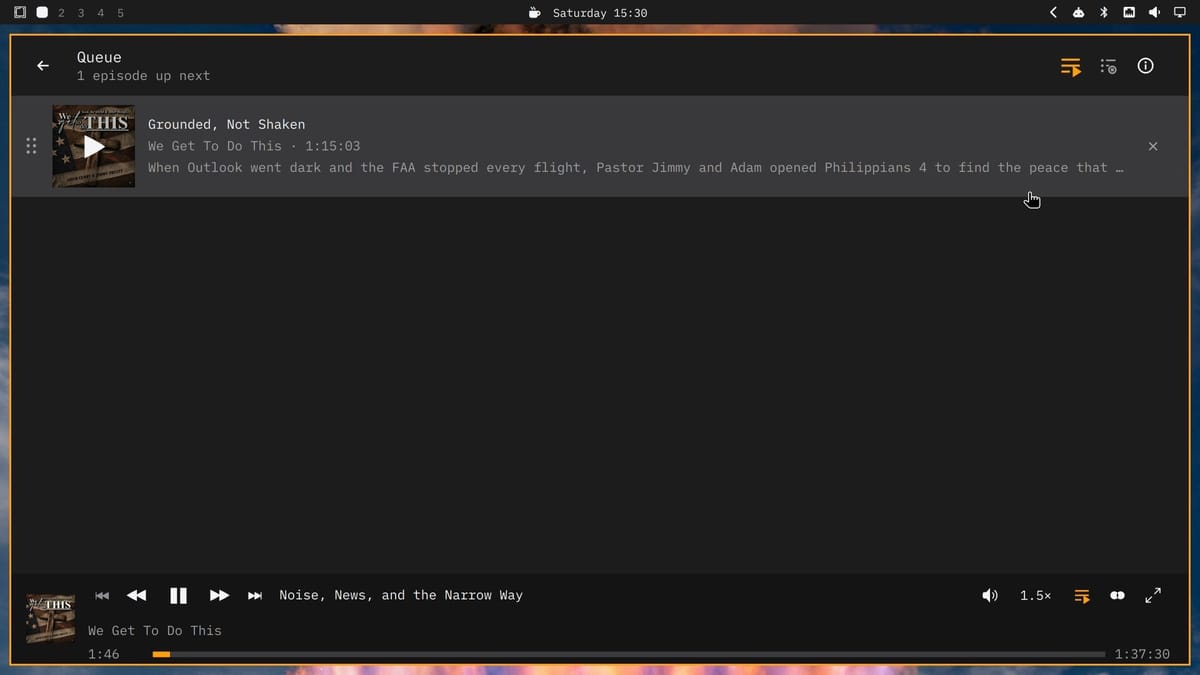
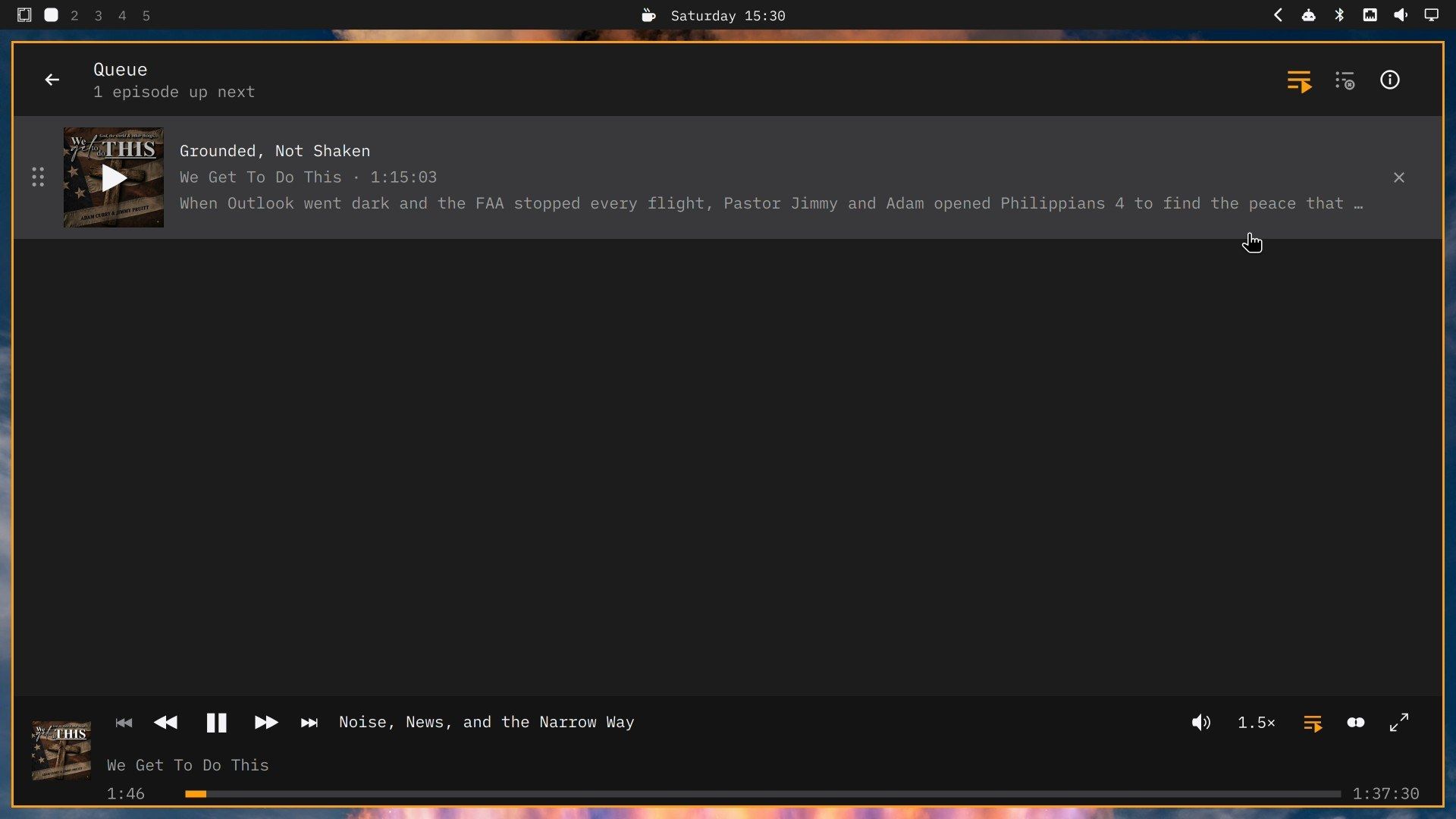
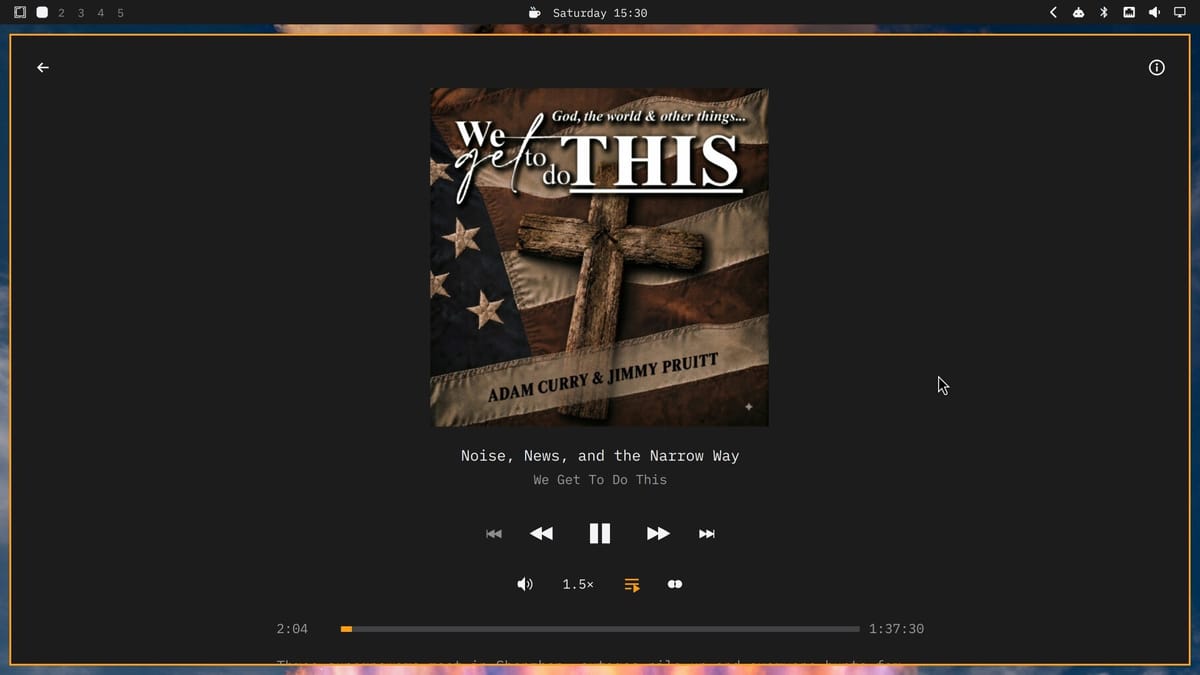
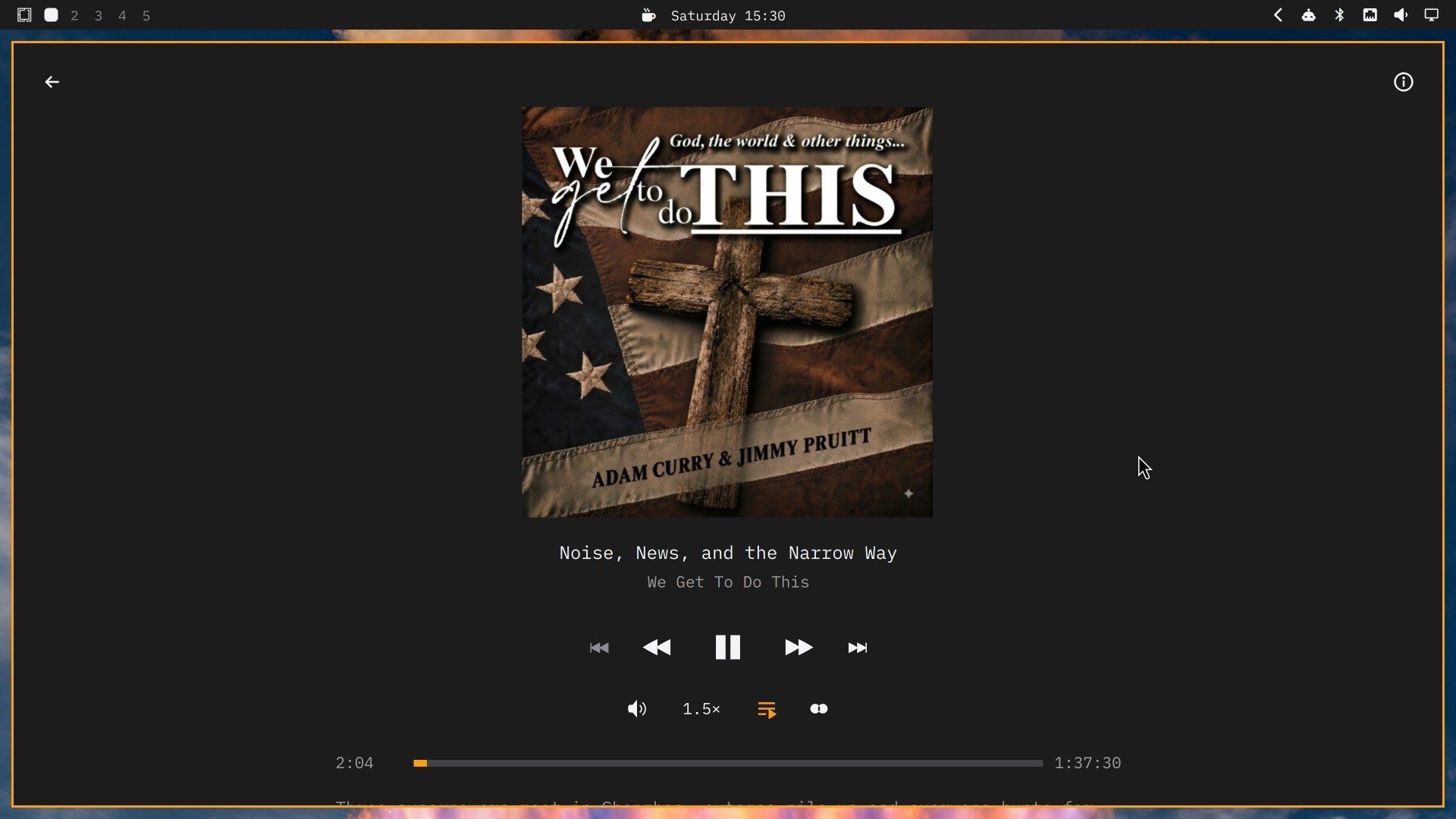
The expand button at the right end of the player bar opens Now Playing, with a large cover and the same controls.
Keep listening with the window closed
Press super w or ctrl q to close OmaEar, and the episode keeps playing. OmaEar runs its player as a separate background process, so the audio does not depend on the window. Open OmaEar again from the launcher and it shows the start screen with the player bar, still on the same episode.
Control the episode from the bar
Omarchy has a media widget for the bar that shows what is playing. It is off by default. This command turns it on and places it in the middle of the bar:
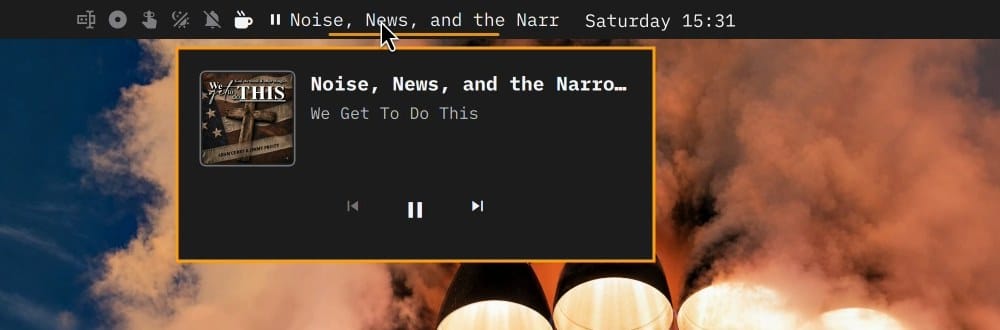
omarchy plugin enable omarchy.media centerBeginIt prints “Enabled and moved omarchy.media”. The episode title then scrolls across the middle of the bar, next to a pause icon. centerBegin is the bar position; our guide to Omarchy plugins covers the plugin commands in general.
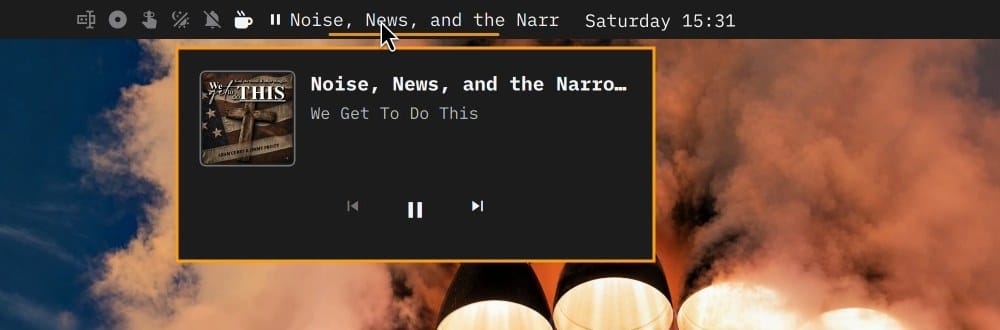
A left click on the widget pauses the episode, and another click plays it again. A right click opens a small player with the cover, the title, and buttons for previous, pause, and next. The OmaEar window can stay closed the whole time. To turn the widget off again, run omarchy plugin disable omarchy.media.
Switch themes and find the shortcuts
OmaEar follows a theme change while it is open. Press super ctrl shift space to open the theme menu, type part of a theme name, and press enter . When we picked Catppuccin Latte, the OmaEar window turned light at once, with blue badges, accents, and logo, and the episode kept playing.
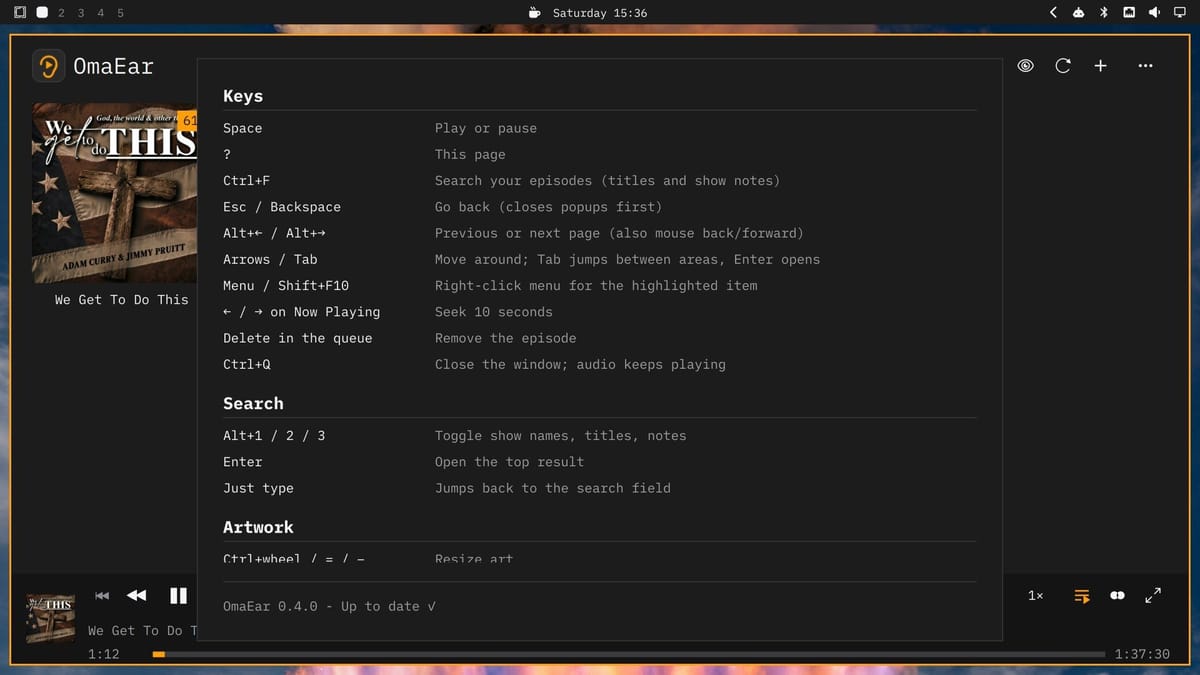
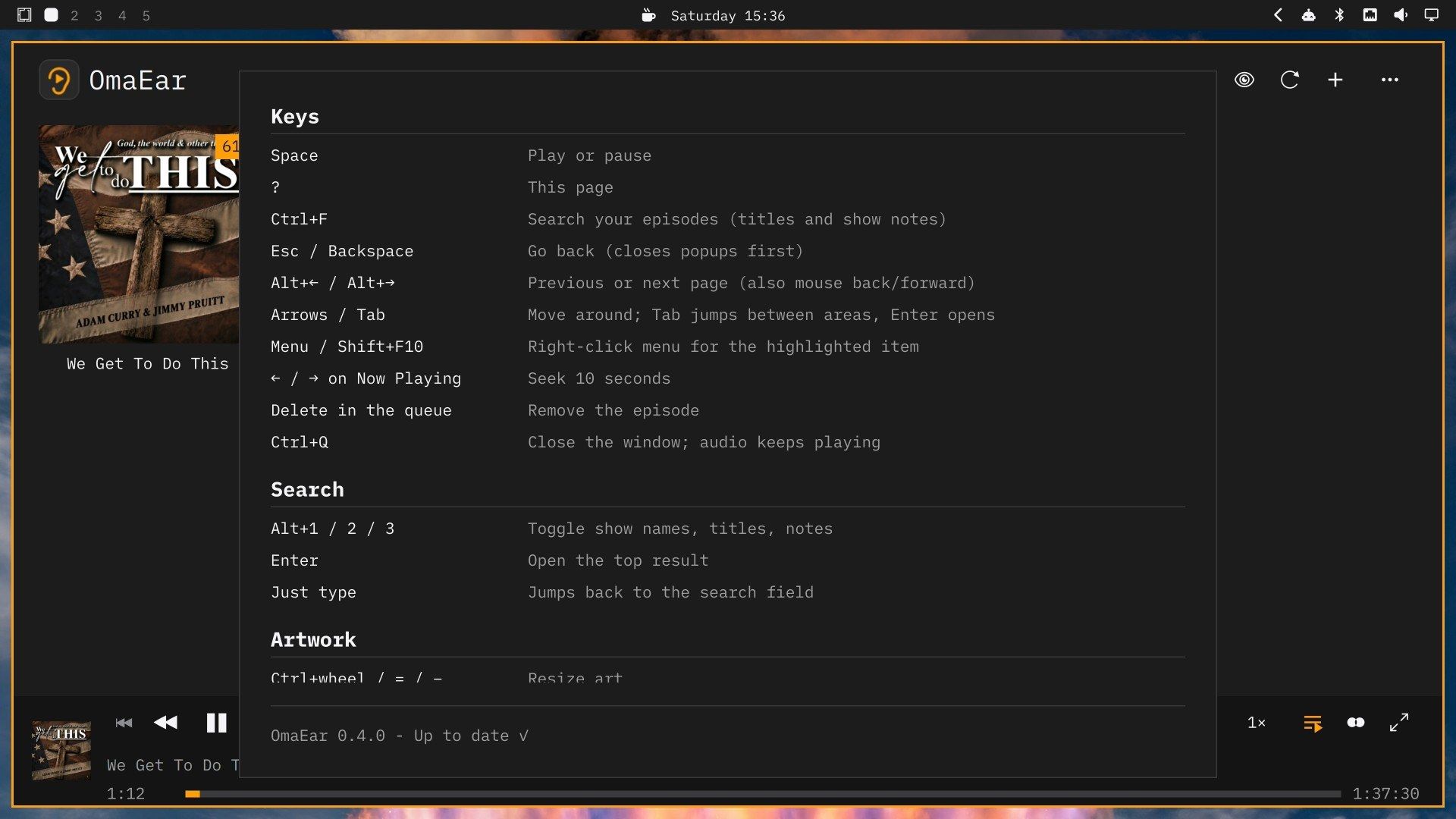
Press ? in OmaEar for its page of keyboard shortcuts. space plays or pauses, the arrow keys move a focus ring around the window, ctrl f searches the episodes you subscribe to, and ctrl q closes the window while the audio keeps playing. A section called “Hidden tricks” lists mouse moves too, such as clicking a timestamp in the show notes to jump to it and dragging in the queue to reorder it. The bottom of the page shows the version and whether an update is available.
Troubleshooting
The audio keeps going and you want it to stop. With the window closed, no OmaEar control stops the player process, and the bar widget’s small player has previous, pause, and next only. Pause from the widget, or open OmaEar and pause there. The player process exits by itself only when no episode is loaded and the window is closed.
OmaEar stopped getting updates. Switching Omarchy’s update channel or running omarchy-reinstall-pkgs rewrites /etc/pacman.conf from Omarchy’s template and keeps a copy as /etc/pacman.conf.bak. The [omaear] section is gone after that. The app stays installed, but omarchy update no longer updates it. Run grep -n omaear /etc/pacman.conf to check, and run the install script again to put the section back; it skips the parts that are already in place.
You want episodes for a trip without internet. OmaEar streams episodes and keeps a capped cache, but it has no feature to download episodes for offline listening.
Limits to know
OmaEar has no account and no sync, so a second computer does not share your shows or your place in an episode. Export an OPML file to move your list of shows. It is also a young project from one developer: the repository was created in September 2026, and 0.4.0 came out on November 13. The README notes that its screenshots are from an earlier version.
Remove OmaEar
To remove the app, run:
sudo pacman -Rns omaearThat keeps your shows, progress, and settings, so a reinstall picks up where you left off. To delete those too:
rm -rf ~/.local/share/omaear ~/.cache/omaear ~/.config/omaear.confTo remove the package source as well, open /etc/pacman.conf with sudo, delete the two lines of the [omaear] section ([omaear] and the Server line under it), then remove the key and the cached package list:
sudo pacman-key --delete AC6FF13C76D8916CCCF2DA05C3225162B5257DB4
sudo rm -f /var/lib/pacman/sync/omaear.db*
If you turned on the bar widget only for OmaEar, run omarchy plugin disable omarchy.media.
Where to go next
For more apps to add to Omarchy, see the new apps in Omarchy 4.5 and omafeed, a local RSS reader. If you are new to Omarchy, the Omarchy tutorial covers the desktop from install to daily use.


