
This guide covers five more community plugins for Omarchy: Hotkey Wheel, a wheel of shortcuts on your mouse; preamp, an equalizer for all the sound on your computer; Omastorm, live weather radar in the top bar; OmaFire, a tiny campfire for the bar; and Machine Mark, an About window drawn from your computer’s specs.
Hotkey Wheel, Omastorm, and OmaFire are on the Omarchy plugin marketplace. preamp and Machine Mark are not, so their commands come from their GitHub READMEs. Four of the five install with omarchy plugin add. preamp installs as a system package with a background service, so it asks for your password.
Everything here ran on Omarchy 4.5.0 (stable channel) on November 7, 2026, with Hotkey Wheel 0.7.3, preamp 0.1.4, Omastorm 0.1.25, OmaFire 0.2.0, and Machine Mark 0.1.0. Our two earlier guides cover ten more plugins: five Omarchy plugins (Spaces, Fathom, Lock Screen Explorer, Gona Launcher, and Shan Shui) and five more Omarchy plugins (Exposé, Workspace Layout, Omaland, Omagen, and Radio Atlas).
Read the code before you add a plugin
A plugin runs as your user account inside omarchy-shell, the program that draws the Omarchy desktop. There is no sandbox around it, so it can read your files and reach the network like any program you start yourself. The install command says so before it clones anything: “Plugins run as arbitrary, unsandboxed code inside your long-lived omarchy-shell process. Only add repos you trust, and review the code before you enable it.” Then it asks Clone and add this plugin?
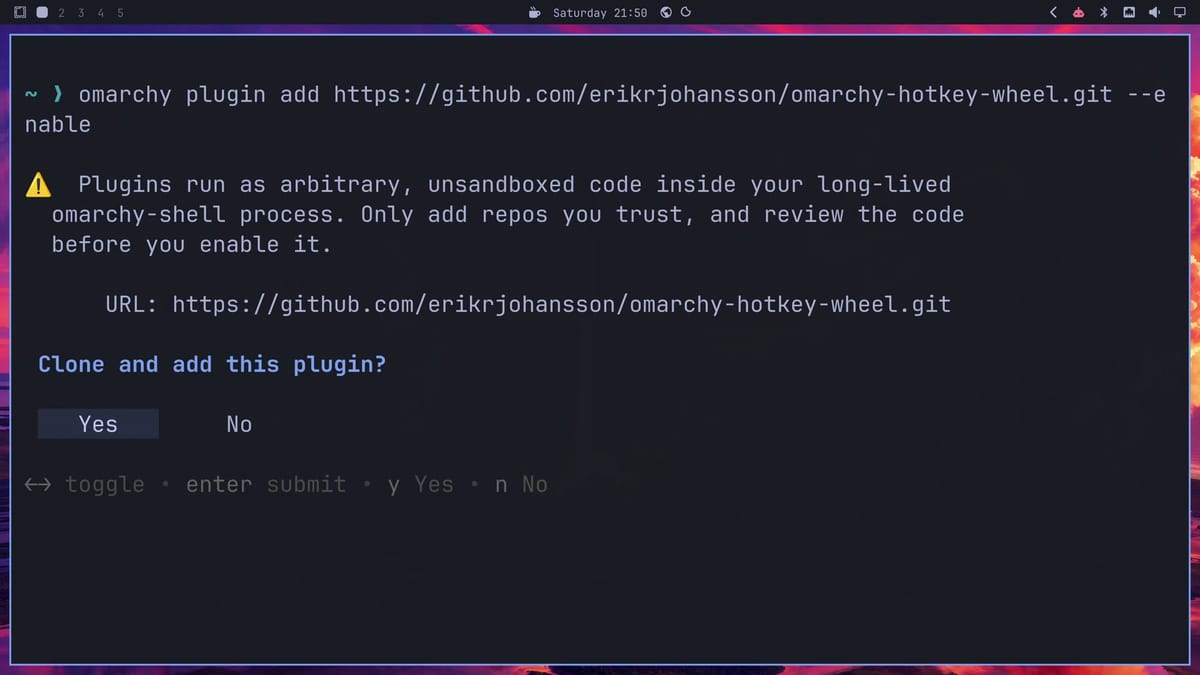
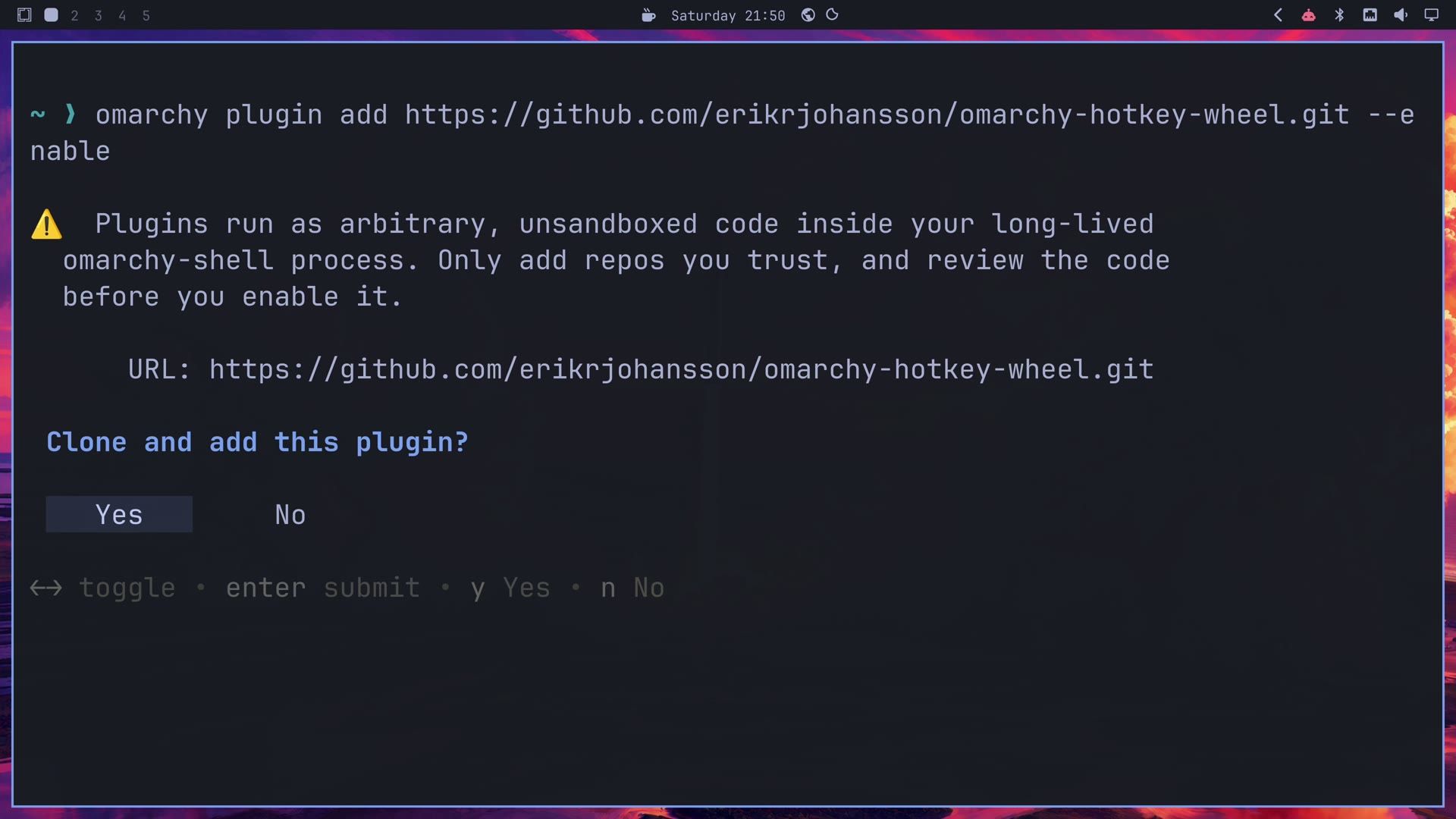
Open the plugin’s GitHub repository before you answer. Look for commands that download or run other code, anything that asks for sudo, and web addresses the plugin has no reason to contact. If you do not want to read it all yourself, an AI coding agent such as Claude Code or Codex can read the repository and tell you what it does. Our guide to finding, checking, and installing Omarchy plugins walks through that check step by step.
Of these five, Hotkey Wheel changes your Hyprland keybindings only when you press its Set up button, and Machine Mark changes the Omarchy menu only when you add its line yourself. preamp needs root for its package and routes all of your computer’s sound through its service; its release package is a ready-built program, so if you want to read the code you run, build it from source instead (the preamp section has the command). Omastorm downloads a radar engine from its GitHub releases on first open and checks it against a stored checksum, and it fetches radar and map data from NOAA, EUMETNET, and OpenFreeMap. OmaFire makes no network connections at all.
In a terminal, omarchy plugin add asks one more question after the clone when the plugin has a bar icon: which part of the bar it goes in. The usual place, right, is already selected, so press enter to keep it. Hold off on omarchy update and omarchy plugin update while you set a plugin up; open Omarchy issues report running plugins breaking while an update replaces the shell’s files, until the shell restarts (#16126) and bar widget settings lost after a plugin update (#16804).
Hotkey Wheel puts a wheel of shortcuts on your mouse
Hotkey Wheel is by Erik Johansson (GitHub). You hold a mouse button, a wheel of up to twelve slots opens under the pointer, and letting go over a slot runs it: an app, an Omarchy action, one of your keybindings, or your own command.
omarchy plugin add https://github.com/erikrjohansson/omarchy-hotkey-wheel.git --enableIts icon, a ring of dots, appears in the top bar. Click it to open the drawer, which shows the wheel’s slots and says NOT SET UP YET at first.
Set up the mouse button
The drawer’s Set up button adds a short marked block to the end of ~/.config/hypr/bindings.lua and reloads Hyprland. Nothing else in the file changes. Without that block the drawer works, but holding the button does nothing. After the click, the drawer header reads MIDDLE-CLICK · 8 SLOTS.
Now hold the middle mouse button anywhere on the screen. The wheel opens right under the pointer, in your theme’s colors. Move toward a slot, and its wedge lights up with its name in the center; let go and it runs. The eight default slots are Terminal, Browser, Files, Screenshot, Clipboard, Night light, Play / pause, and Omarchy. To cancel, let go where you started, press esc , or right-click.
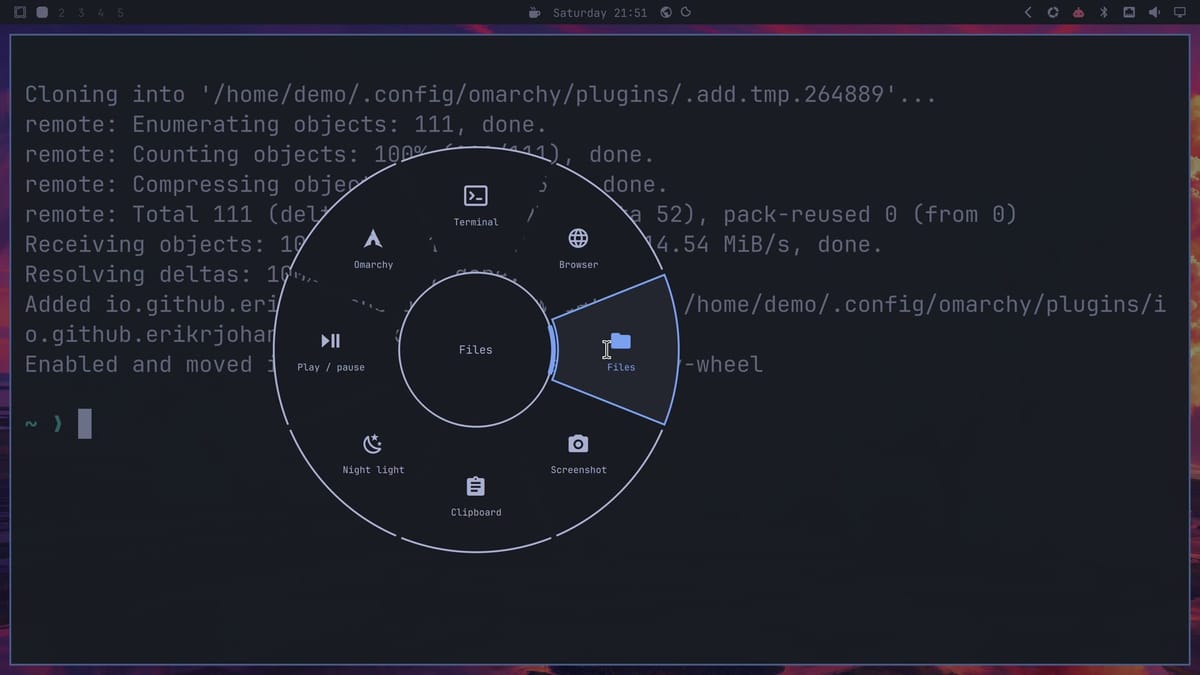
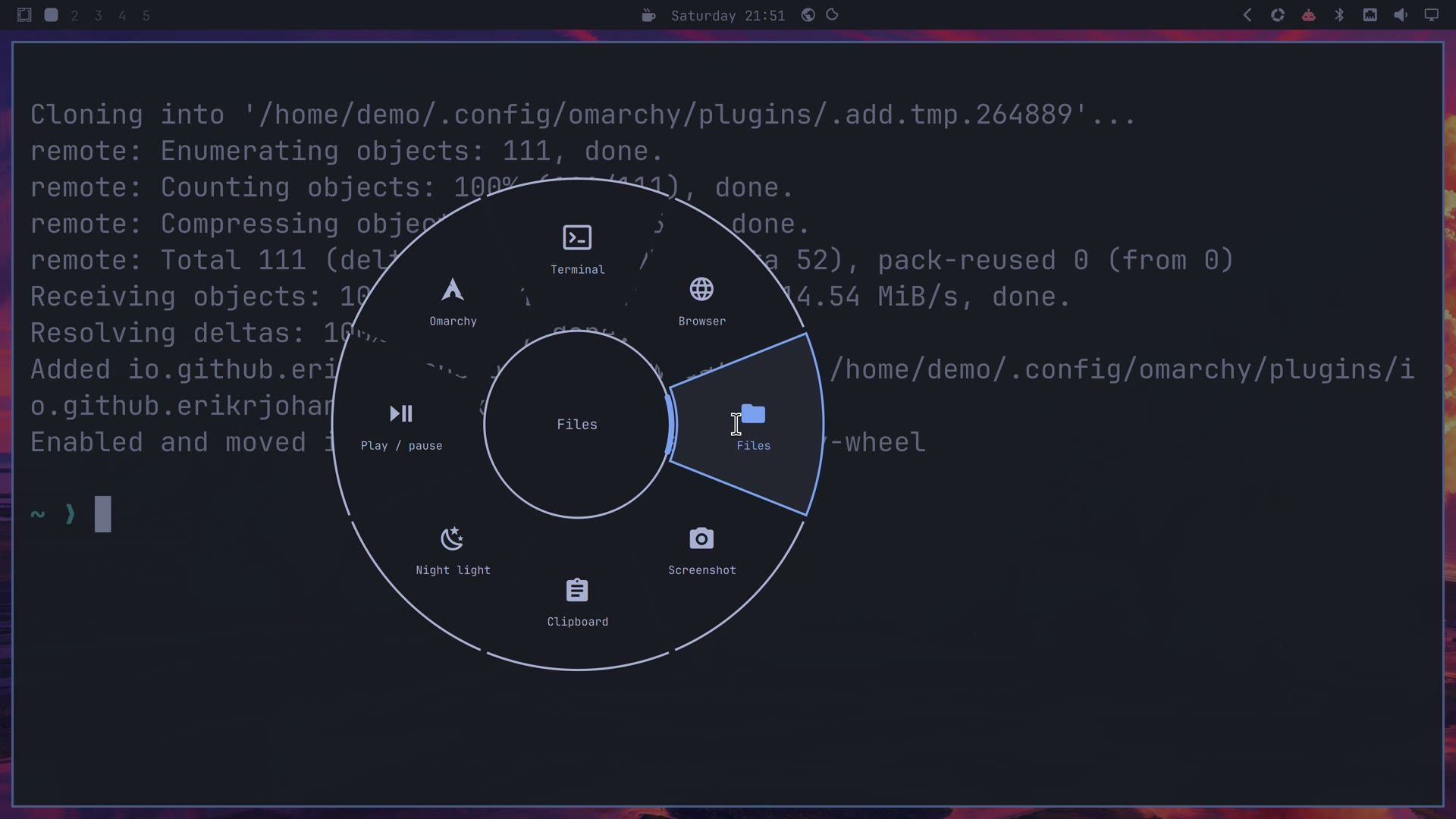
The README lists the plugin as tested on Omarchy 4.0.0 alpha. On our 4.5.0 install the wheel, the drawer, and the picker all drew in the Tokyo Night theme’s colors, and after a switch to Everforest the wheel redrew in Everforest’s colors.
Change a slot
Click a slot in the drawer to open the picker. It has four searchable tabs: Apps for your installed apps, Omarchy for actions such as screenshots, the color picker, and the Omarchy menus, Keybindings for every keybinding your Omarchy setup has, and Custom for your own commands. A custom command shows you the command and its script before it runs or saves.
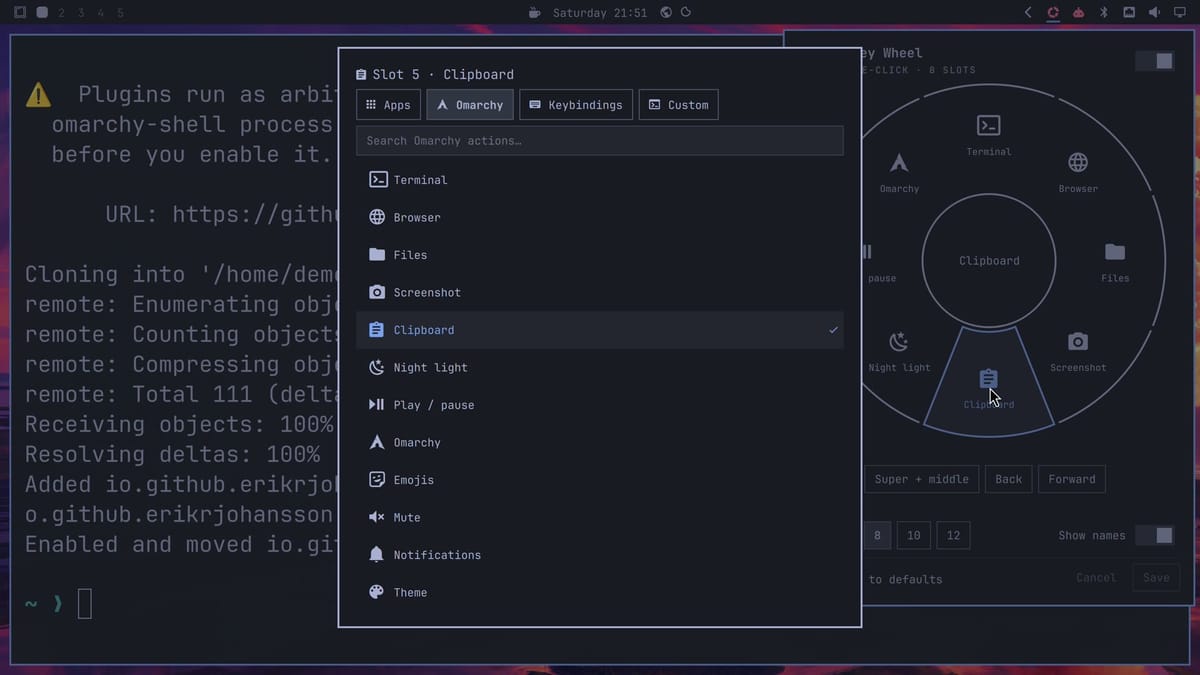
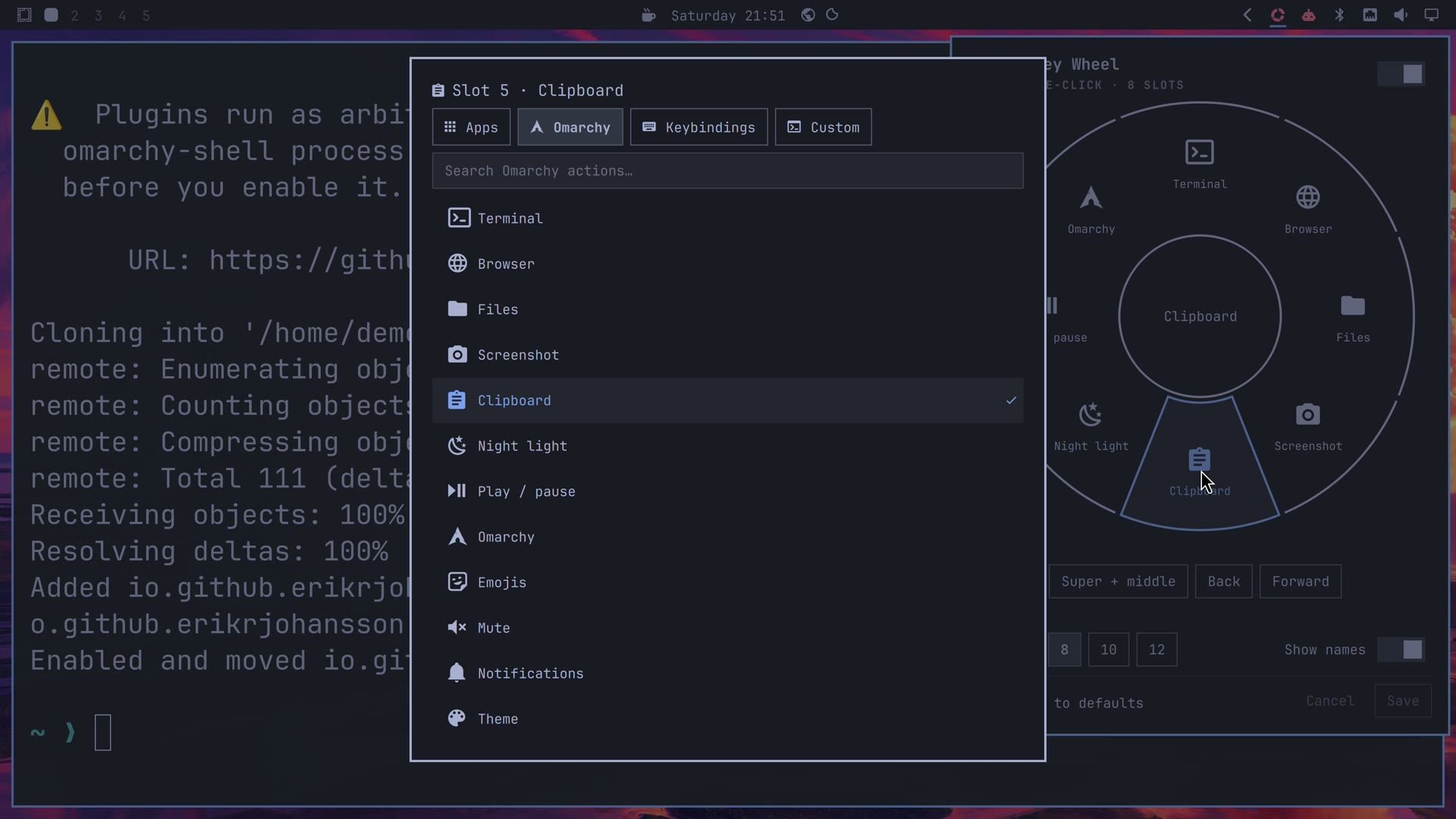
We traded the Clipboard slot for Theme on the Omarchy tab, then pressed Save in the drawer (or ctrl s ). Clipboard is the bottom slot, so from then on a flick down on the wheel opens Omarchy’s theme picker. If you click outside the drawer before you save, it closes and the change is lost. Slots in the drawer sets how many slots the wheel has (4 to 12), and Show names hides or shows the labels.
Keep your normal middle-click
While the wheel uses the middle button, a plain middle-click no longer reaches your apps, so it stops pasting and stops opening links in a new tab. ctrl plus a middle-click still does. To keep plain middle-click, pick another button under Open with in the drawer: Super + middle opens the wheel only while you hold super , and Back and Forward use a mouse’s side buttons. The On switch at the top right of the drawer turns the wheel off without removing anything.
Remove Hotkey Wheel
Run the plugin’s unsetup first, which takes its block out of bindings.lua and reloads Hyprland, then remove the plugin:
~/.config/omarchy/plugins/io.github.erikrjohansson.hotkey-wheel/hotkey-wheel unsetup && omarchy plugin remove io.github.erikrjohansson.hotkey-wheelYour slots and custom actions stay in ~/.config/omarchy/extensions/. If you do not plan to come back, delete them too:
rm ~/.config/omarchy/extensions/hotkey-wheel*On our install, bindings.lua came back byte for byte the same as before Set up.
preamp is an equalizer for all the sound on your computer
preamp is by Bjarne Øverli (GitHub). Every app plays through it on the way to your speakers or headphones, so one setting shapes everything you hear. It needs Omarchy 4.0.6 or later, and the release package is for x86_64 computers; on an ARM computer, build it from source.
Install the package and the bar widget
These are the four commands from the README for version 0.1.4:
curl -LO https://github.com/bjarneo/preamp/releases/download/v0.1.4/preamp-0.1.4-1-x86_64.pkg.tar.zst
sudo pacman -U preamp-0.1.4-1-x86_64.pkg.tar.zst
systemctl --user enable --now preamp.service
preamp shell install
The first downloads the package, and the second installs it; it asks for your password and then “Proceed with installation? [Y/n]”. The package holds the preamp program, a user service, a launcher entry, and an icon. The third command starts the service now and at each login, and from then on preamp is your default sound output. The last one puts the preamp widget, two small bars, in the top bar to the left of the volume icon. When a newer release is out, its README has the matching file name.
The release package is built by the author, not by a public build system. To build and install it from the source you can read instead, the install docs give:
git clone https://github.com/bjarneo/preamp.git
cd preamp
./bin/install
Pick a preset from the bar
Play some music, then click the widget. The popover shows your outputs, the volume, the preset chips Flat, Bass boost, Vocal, Loudness, and Night, a small ten-band equalizer, and the apps playing right now. Click Bass boost and the sound changes at once. A right-click on the widget bypasses the equalizer, and a second right-click turns it back on.
Correct your headphones in Studio
Open preamp from the app launcher ( super space , type preamp, enter ). The window starts on the Presets view, with one card per preset. Press tab to reach Studio, which draws the equalizer curve over a live analyzer of what you’re hearing, with the ten bands below it.
To load a correction for your own headphones, press : to open the command bar and type the model name. The matches come from the AutoEq project, which has profiles for more than 6,000 headphones. We typed hd 650, got five Sennheiser HD 650 profiles, and pressed enter on the first. The curve changed to a +6.4 dB bass shelf at 105 Hz and a +5.1 dB peak at 8.8 kHz, preamp lowered the input by 6.5 dB so the loudest point of the curve stays at 0 dB, and the profile was saved as preset 7, “HD 650 · AutoEQ”.
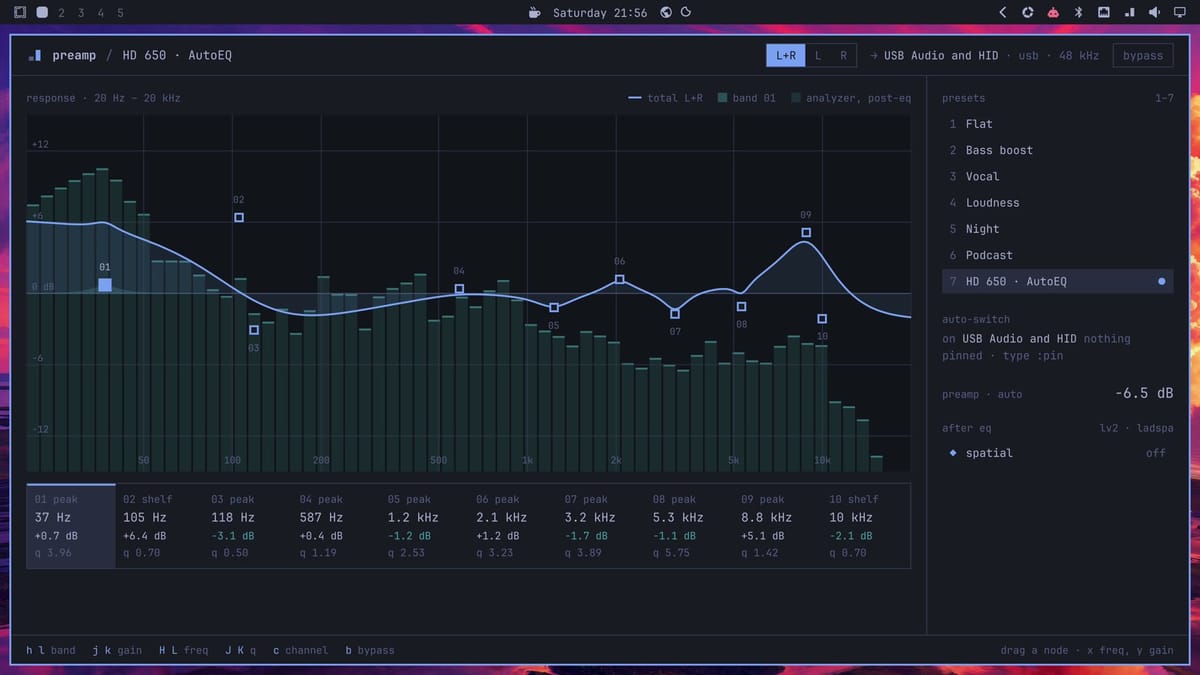
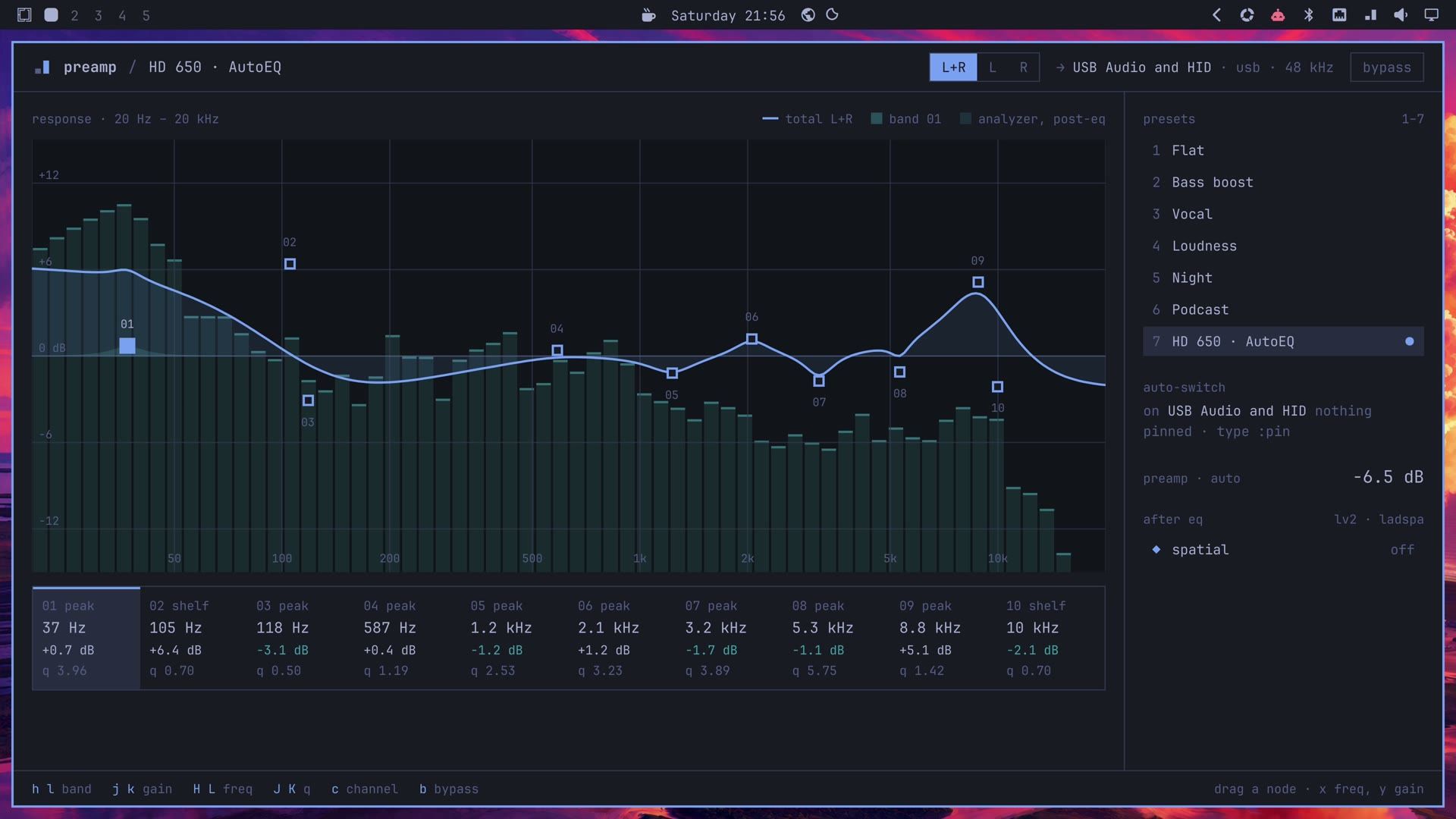
Profiles download from GitHub the first time, so this step needs a network connection; preamp keeps the AutoEq index for a week in ~/.cache/preamp/. From a terminal, preamp autoeq "hd 650" does the same with your model’s name.
Press b to bypass the equalizer. The button at the top right turns amber and reads bypassed, the curve turns dashed, and the same song plays with no correction. Press b again to bring the curve back and compare the two. With a correction on, the music plays a few decibels quieter than in bypass, because of that automatic cut, so match the volume before you judge which sounds better.
Remove preamp
Stop the service, which gives the sound output back to your device, and remove the package:
systemctl --user disable --now preamp.service
sudo pacman -R preamp
rm -rf ~/.config/omarchy/plugins/preamp ~/.config/preamp ~/.cache/preamp
The last line deletes the bar widget, your settings and presets, and the cached AutoEq index; rm -rf deletes without asking, so check the paths before you press enter . The widget’s entry in the bar layout stays behind. Open ~/.config/omarchy/shell.json, find {"id": "preamp"} in the bar’s list of widgets, and delete that entry, along with the comma that separates it from its neighbor. You can also delete the downloaded preamp-0.1.4-1-x86_64.pkg.tar.zst file.
Omastorm puts live weather radar in the top bar
Omastorm is by Wes Grimes (GitHub). Its README calls it a beta. The radar covers the United States, from NOAA’s NEXRAD radars and the NOAA MRMS mosaic, and Europe, from the EUMETNET OPERA mosaic. Other regions have no radar in it.
omarchy plugin add https://github.com/wesleygrimes/omastorm.git --enableIts icon, a square with a radar sweep, appears in the top bar. It draws a little dimmer than its neighbors until its radar feed is live, which is normal before you first open it. The first time you open it, Omastorm downloads its radar engine, which adds a few seconds.
Choose your location by hand
The first click on the icon asks where you are, with two buttons: Use approximate location and Choose manually. If you have set a city for Omarchy’s weather, the map opens there and this question does not appear.
Use approximate location sends a request to wttr.in, which guesses your city from your public IP address. Nothing is sent until you click it, but that guess can land close to your home. The map-marker button at the top left of the map and the m key do the same lookup later. We chose Choose manually, typed a city in the search field, and picked it from the list. Search also takes a radar site name or coordinates.
We searched for Boston. Omastorm picked the nearest radar station, KBOX, and drew its latest scan over the map, with the time of the scan below.
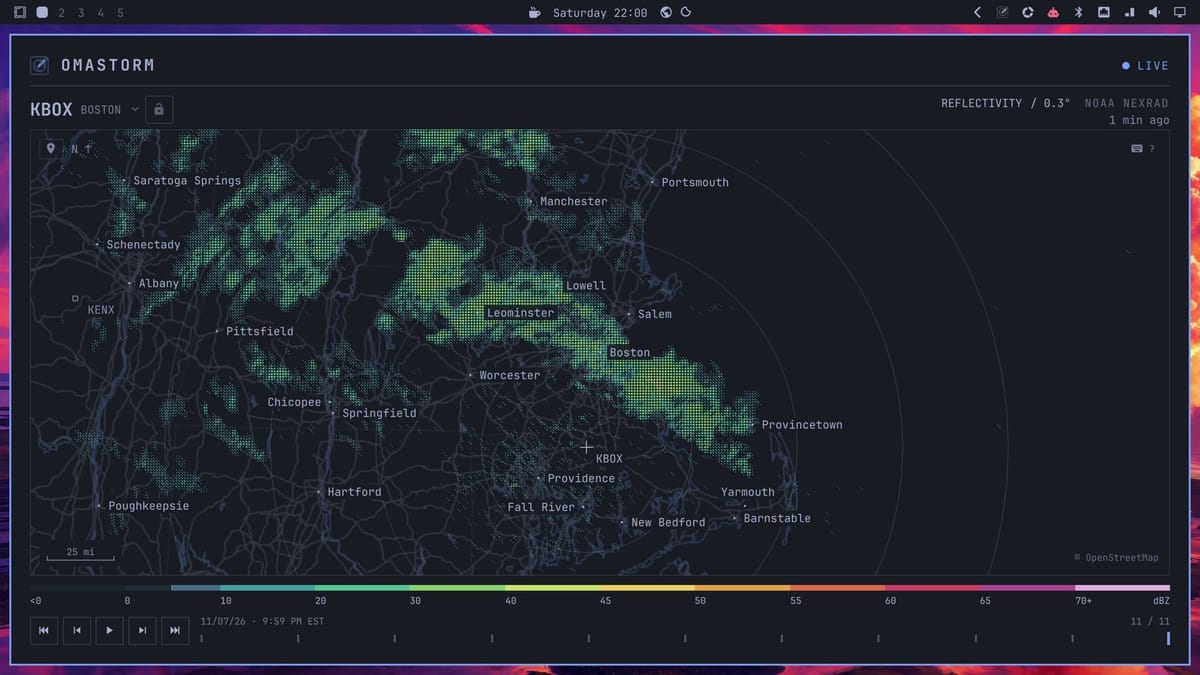
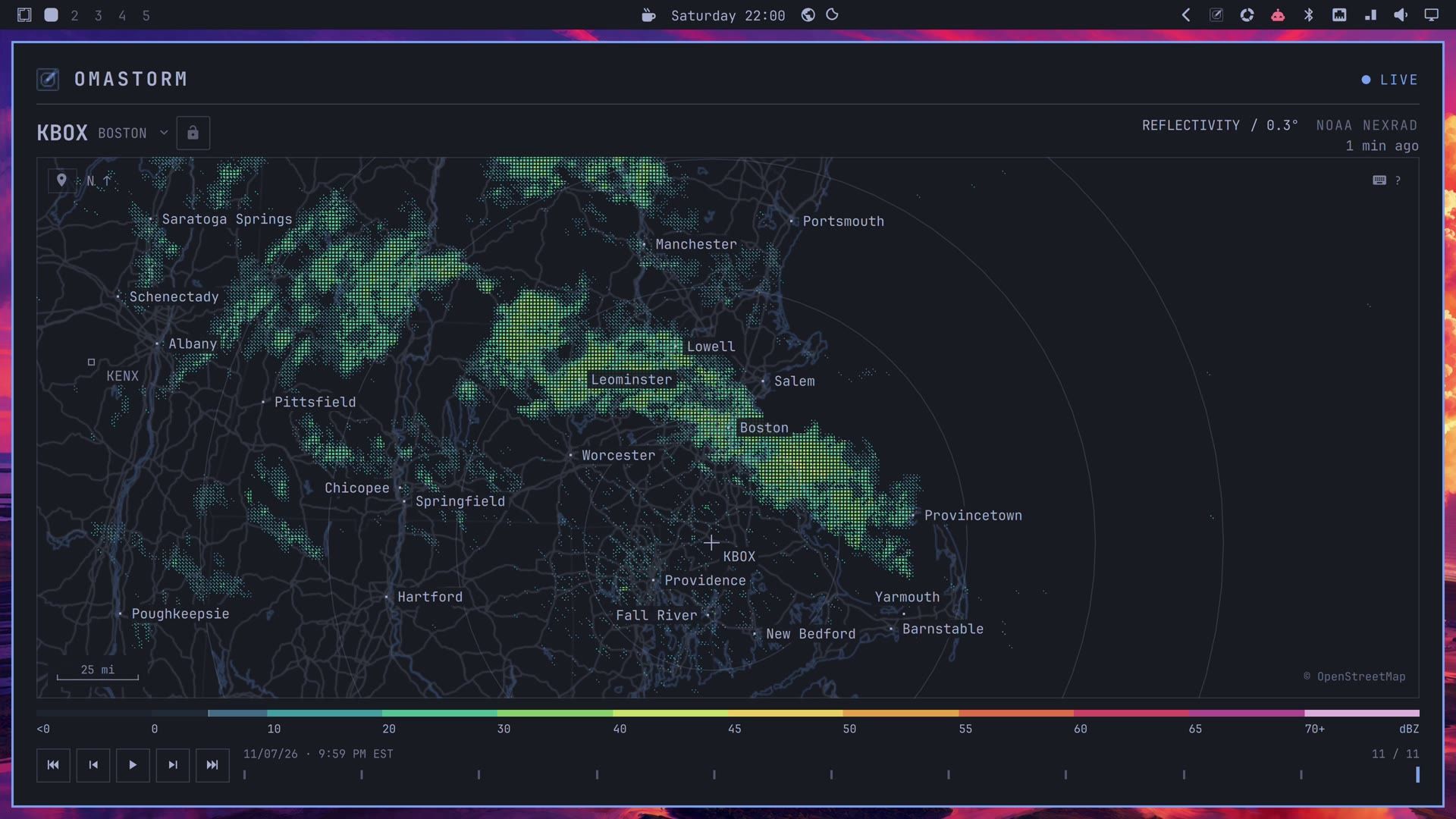
The window and the map take your theme’s colors. The rain keeps radar colors on a scale from blue and green to red and pink, which show how strong each echo is (the scale under the map is in dBZ).
Loop the radar and switch to the mosaic
Make the window full screen with super f , then press space . The recent scans play as a loop, so you can see which way the rain is moving; space again pauses.
shift n switches to a mosaic: every U.S. radar joined into one map (the MRMS mosaic), or the European mosaic over Europe. The mosaic opened paused for us, so press space to start the loop again. The - key zooms out and + zooms in; four presses of - showed the rain band stretching from Pennsylvania to Maine. ? lists every key.
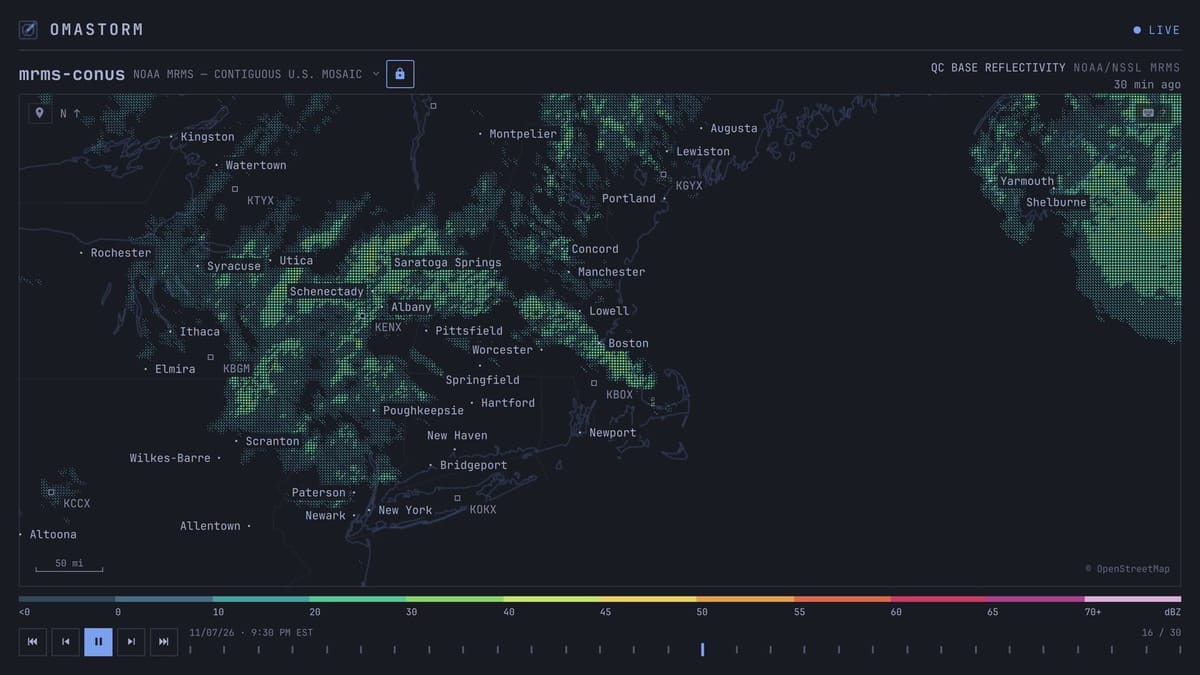
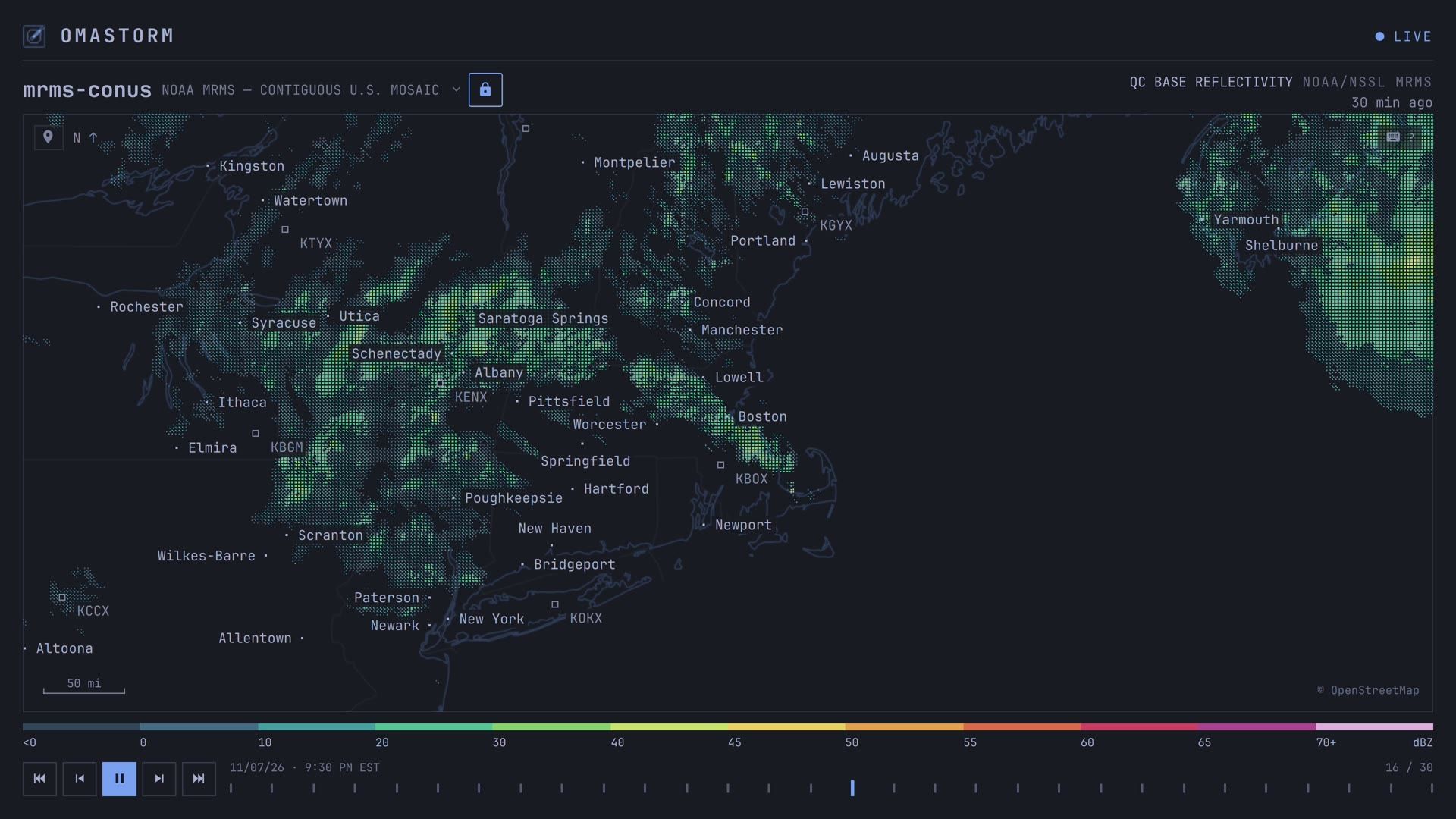
esc closes the window. The bar icon keeps the same view in a small popover, with play controls and a time slider, so a glance there shows the rain without opening the full window. Omastorm remembers the view for next time.
To toggle the window with a key, the README gives this line for ~/.config/hypr/bindings.lua; Omastorm never writes that file itself:
o.bind("SUPER + SHIFT + R", "Omastorm", "omarchy shell shell toggle com.omastorm.radar '{}'")Remove Omastorm
The README’s steps remove the plugin, stop the engine, and delete its data, cache, and settings:
omarchy plugin remove com.omastorm.radar
~/.local/share/omastorm/bin/omastorm-engine stop
rm -rf ~/.local/share/omastorm ~/.cache/omastorm ~/.local/state/omastorm
rm -rf ~/.config/omastorm
Skip the last line if you want to keep your settings for a reinstall, and delete the o.bind line if you added one. On our install, the running shell still remembered the last map view after all of that: a reinstall opened straight to it without asking for a location. Restart the shell to clear it:
omarchy-restart-shellOmaFire is a tiny campfire for the top bar
OmaFire is also by Wes Grimes (GitHub). It’s a little campsite to tend between tasks. In the README’s words, it “doesn’t track anything, doesn’t nag you, and won’t tell you how productive you were.”
omarchy plugin add https://github.com/wesleygrimes/omafire --enableA pixel campfire appears in the top bar, and a new install starts with the fire already burning. OmaFire needs qt6-imageformats for its artwork and, for sound, qt6-multimedia; both were already on our Omarchy 4.5.0 install. If either is missing, install it with sudo pacman -S qt6-imageformats qt6-multimedia.
Tend the fire
Click the flame icon to open the campsite, beside a lake under the moon. Drag a log from the woodpile at the lower left onto the fire, or click + Add log; one log is about three more minutes of fire, and the flames grow. Stoke makes the fire flare up for a while without adding wood. A click on the coals throws a shower of sparks, which does nothing useful but is fun to watch.
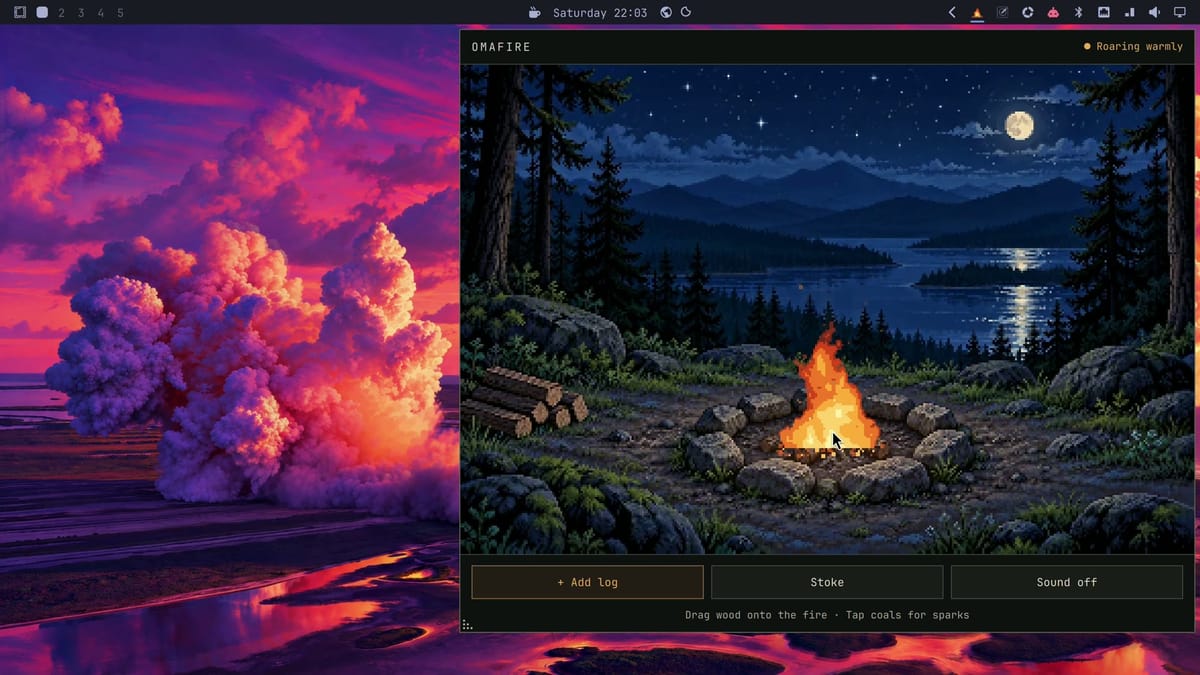
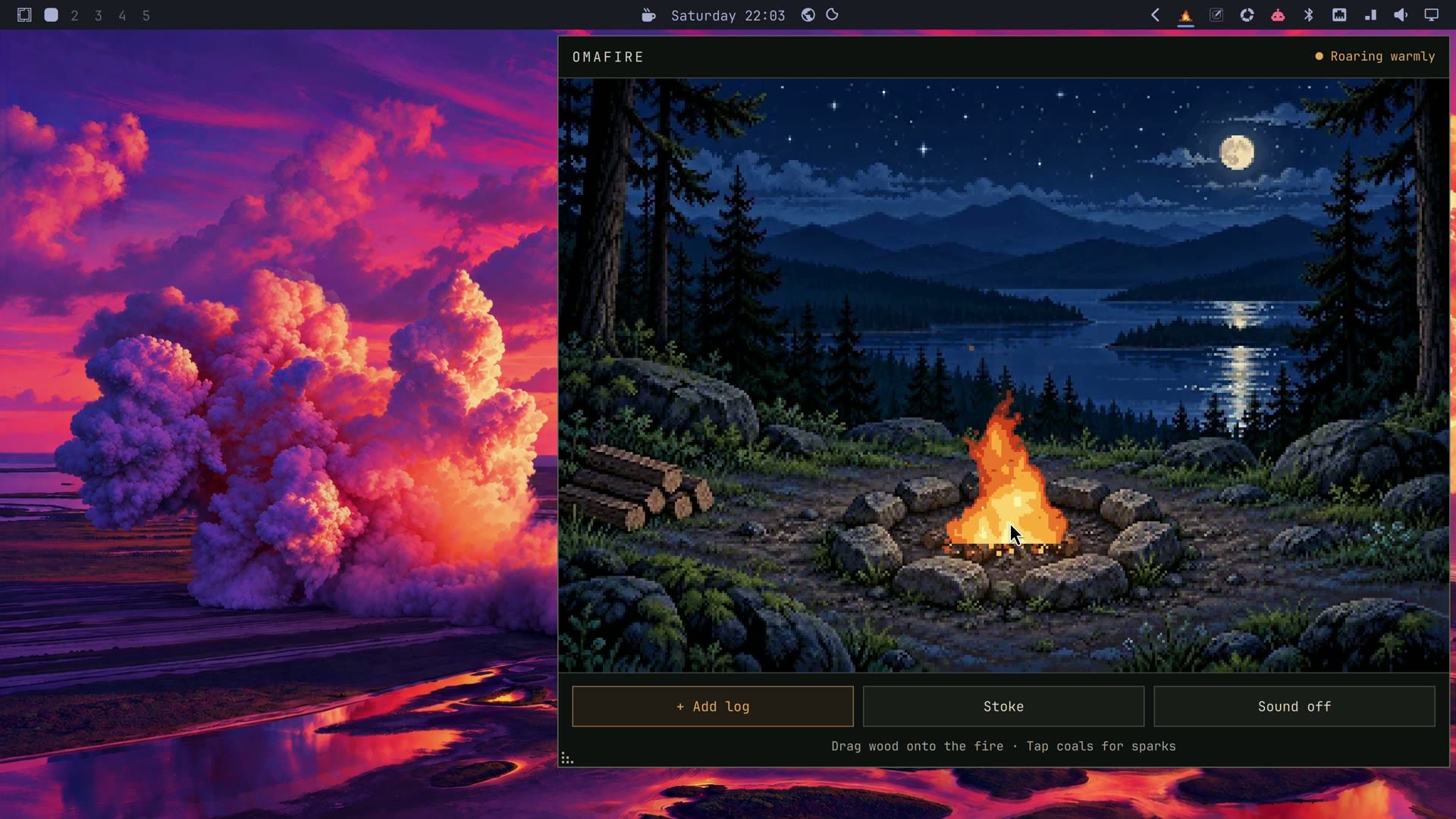
The sound button reads Sound off until you click it. Then you hear the fire, and the sound follows the heat, from soft embers to a roar, with crickets off in the trees and a frog now and then. The sound stops when the popup closes and starts off each time you open it, so there’s no surprise fire noise in a meeting.
While the popup is open, a adds a log, s stokes, m turns the sound on or off, and esc closes it. To make the scene bigger, drag the grip at its lower-left corner; OmaFire remembers the size.
Let it burn down
The fire keeps burning while the popup is closed. A full load lasts about 13 minutes, down through embers to coals, and after a restart or a suspend it picks up where it would have been. The little pixel fire in the bar follows along, so a glance tells you when it needs another log; hover it to see the status.
Remove OmaFire
omarchy plugin remove wesleygrimes.omafire --yes
rm -rf ~/.local/state/omafire
The second line deletes the saved fire and panel size. On our install that folder came back once, a second or two after the remove, because the shell saves the fire as the plugin unloads. If ~/.local/state/omafire is still there, run the rm -rf line again. To keep OmaFire installed but hide it, run omarchy plugin disable wesleygrimes.omafire instead.
Machine Mark draws an About window from your computer’s specs
Machine Mark is by Erik Johansson, who also made Hotkey Wheel. It can stand in for Omarchy’s About screen, showing a round drawing made of dots, where every ring is one fact about the computer. It has no bar icon.
omarchy plugin add https://github.com/erikrjohansson/omarchy-machine-mark.git --enableYou can open it from a terminal with omarchy-shell shell summon io.github.erikrjohansson.machine-mark '{}'. To open it from the main menu’s About entry instead, add this line inside ~/.config/omarchy/extensions/omarchy-menu.jsonc, before the file’s last closing brace:
"about": {"icon":"","label":"About","action":"[[ $(omarchy-shell shell summon io.github.erikrjohansson.machine-mark '{}' 2>/dev/null) == ok ]] || omarchy-launch-about"},If the plugin is off or removed, that line opens Omarchy’s original About instead. With the line in place, press super space , type About, and press enter . Machine Mark opens as a floating window.
Read the rings
The window shows the drawing on the left and the facts it is drawn from on the right, in three groups. Blue rings are hardware, like the cores and memory. Yellow rings are software, like packages, upgrades, themes, and plugins. The third group, age and uptime, drew in purple with our Tokyo Night theme (the README calls it pink). Hover a ring and the footer at the bottom of the window says what each of its marks stands for, while the matching row in the list lights up.
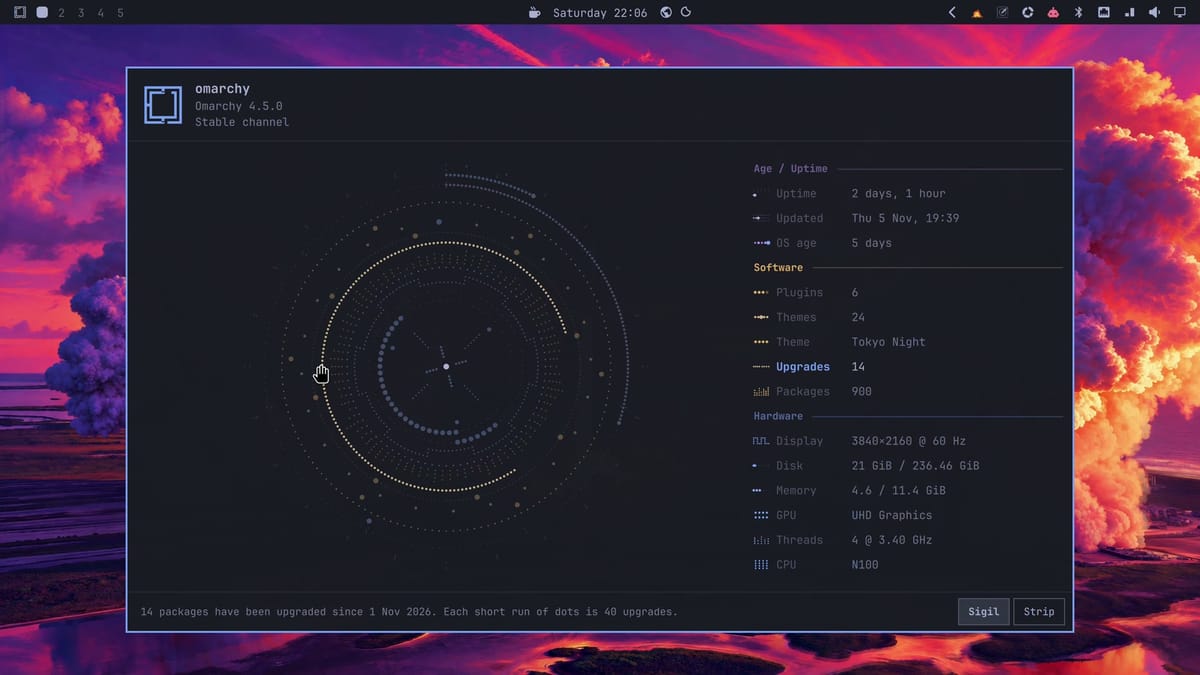
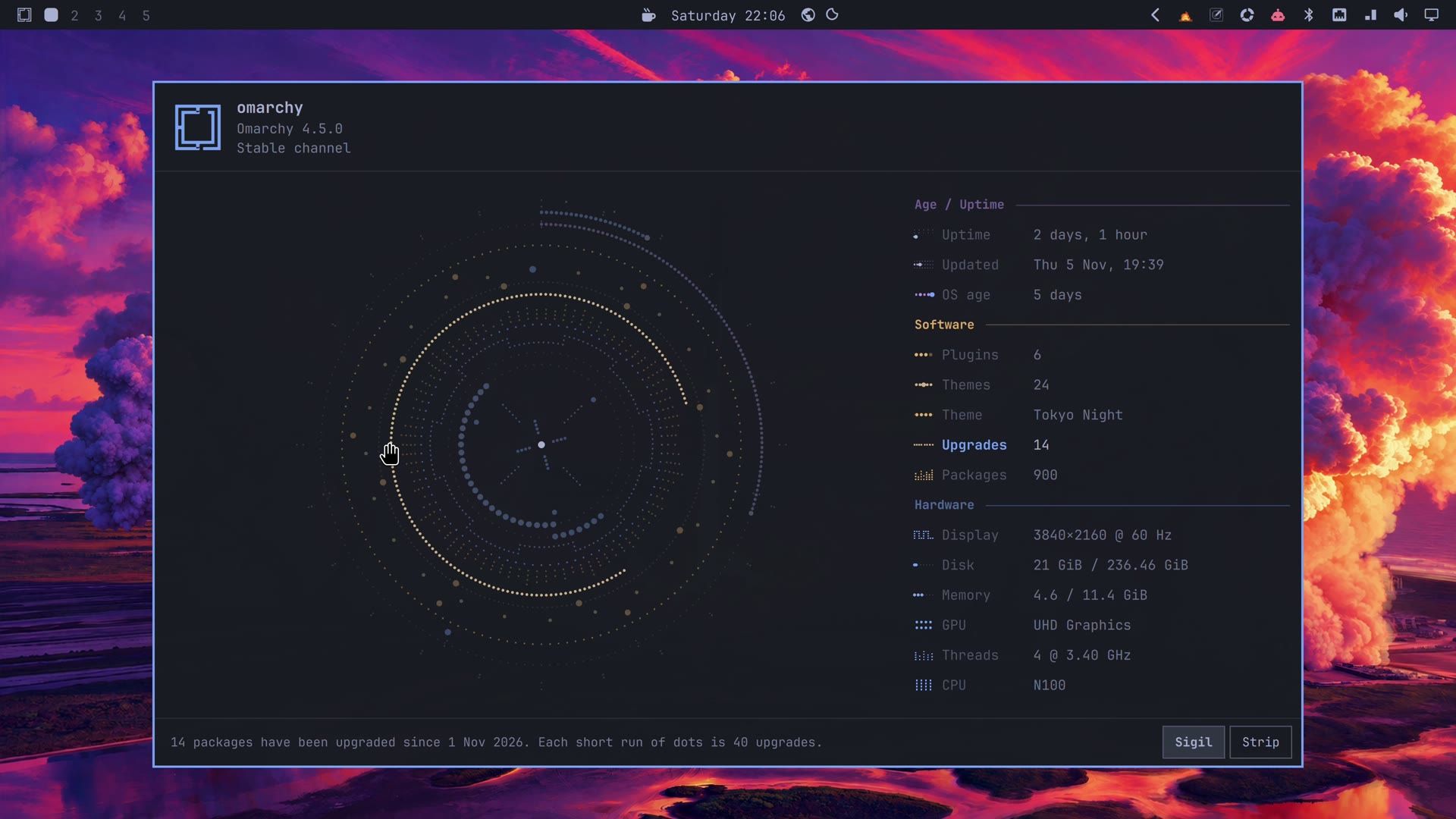
The colors follow your theme and change with it, while the shape is seeded from your hostname and hardware, so every computer gets its own. The rings turn slowly while the window is open.
Knead it into rows
The Strip button at the bottom right kneads the whole drawing into rows of dots, one row per fact, a different way each time; the README lists animations that burst, weave, reel, spin like a coin, ring out like a harp, or break like a cue ball. Sigil, the button beside it, rolls the rows back into the round drawing. Each change takes about ten seconds. space or a click on the drawing does the same, and the keys 1 to 6 keep it to one animation ( 0 goes back to a random one).
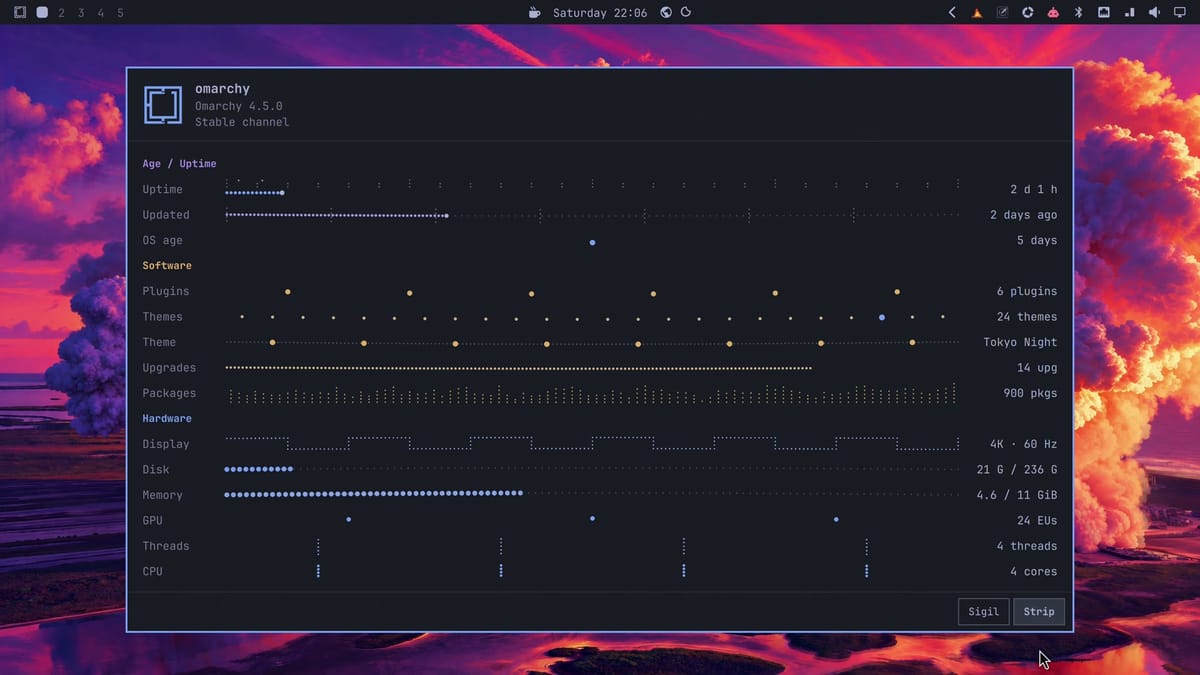
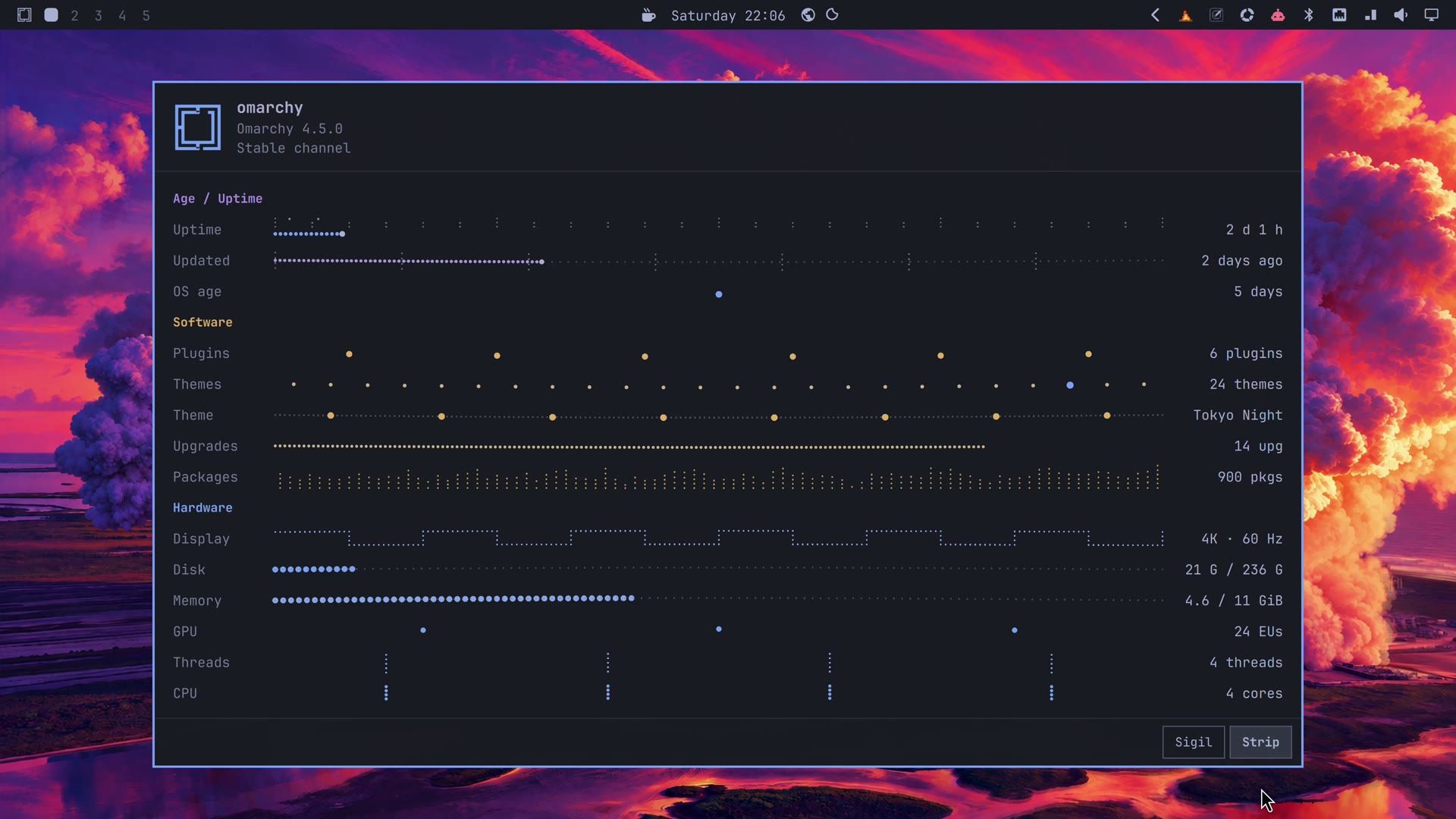
Machine Mark only reads: fastfetch, the pacman log and package database, the root filesystem’s creation date, Omarchy’s theme folders, the output of Omarchy’s version commands, and the shell’s plugin list. It changes no settings, writes no files of its own, and nothing leaves the computer.
Remove Machine Mark
omarchy plugin remove io.github.erikrjohansson.machine-markThen delete the About line from ~/.config/omarchy/extensions/omarchy-menu.jsonc. If you leave it in, it opens the original About, so nothing breaks either way.
More settings and more plugins
Each plugin’s README, linked above, lists more keys and settings than we used here: Hotkey Wheel’s custom actions, preamp’s effects and auto-switch rules, and Omastorm’s aviation observations, for example. If you are new to Omarchy, our guide to the first Omarchy keyboard shortcuts to learn covers the keys used above, and plugins.omarchy.org had more than 6,000 plugins listed in November 2026.


