
WayShare is a small service for Omarchy that the Mac’s built-in Screen Sharing app connects to. Your Omarchy desktop opens in a window on the Mac, and there is nothing to install on the Mac. The Mac’s keyboard and mouse drive the PC, and Omarchy’s shortcuts for a terminal, the menu, workspaces and closing a window work from the Mac keyboard with Command in place of Super.
Omarchy already ships Gliff for one Omarchy machine to control another over SSH. WayShare is an option for a Mac. This guide follows the video embedded above and adds what the video leaves out, such as the setting a low-power PC needs for High Performance mode.
We followed these steps on Omarchy 4.5 (4.5.0-3, stable channel) with WayShare 0.4.0 (package 0.4.0-2), on an Intel N100 mini PC, and connected from an M4 Mac mini running macOS 27.2.
What you need
You need an Omarchy 4.5 PC and a Mac on the same home network. WayShare needs Hyprland 0.56 or newer, which Omarchy 4.5 includes. Setup shows the PC’s address on the network, so you don’t need to look it up first.
Screen Sharing is part of macOS. It lives in the Utilities folder: in Finder, open the Go menu, choose Utilities, and double-click Screen Sharing. Spotlight finds it too.
Install WayShare
WayShare is in the Omarchy package repository. Open a terminal with super enter and run:
omarchy pkg add wayshareThe command asks for your Omarchy password, then installs the package. Its last lines include this notice:
:: Wayshare enables RDP on TCP 3389 by default.RDP is a second server that WayShare turns on. It is how Windows PCs connect, and how the Windows App on an iPhone or iPad connects. Mac Screen Sharing doesn’t use RDP, so this guide switches it off after setup. If you also connect from Windows, an iPhone or an iPad, keep RDP on and skip that step.
Run wayshare setup
Setup asks a few questions in the terminal. Start it with:
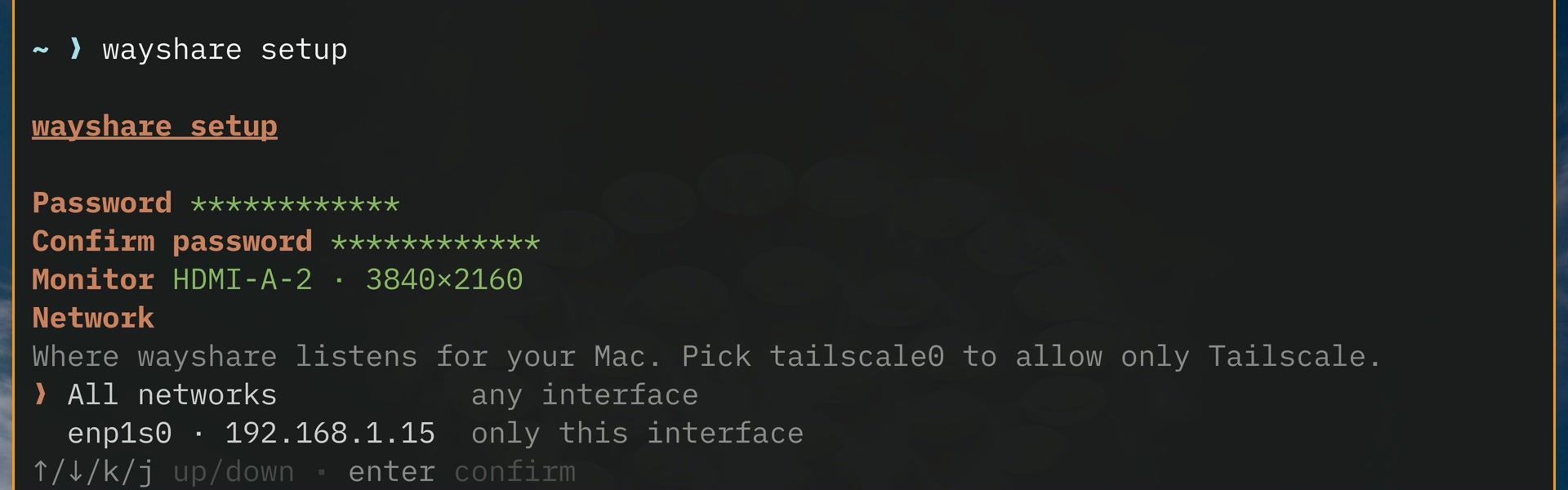
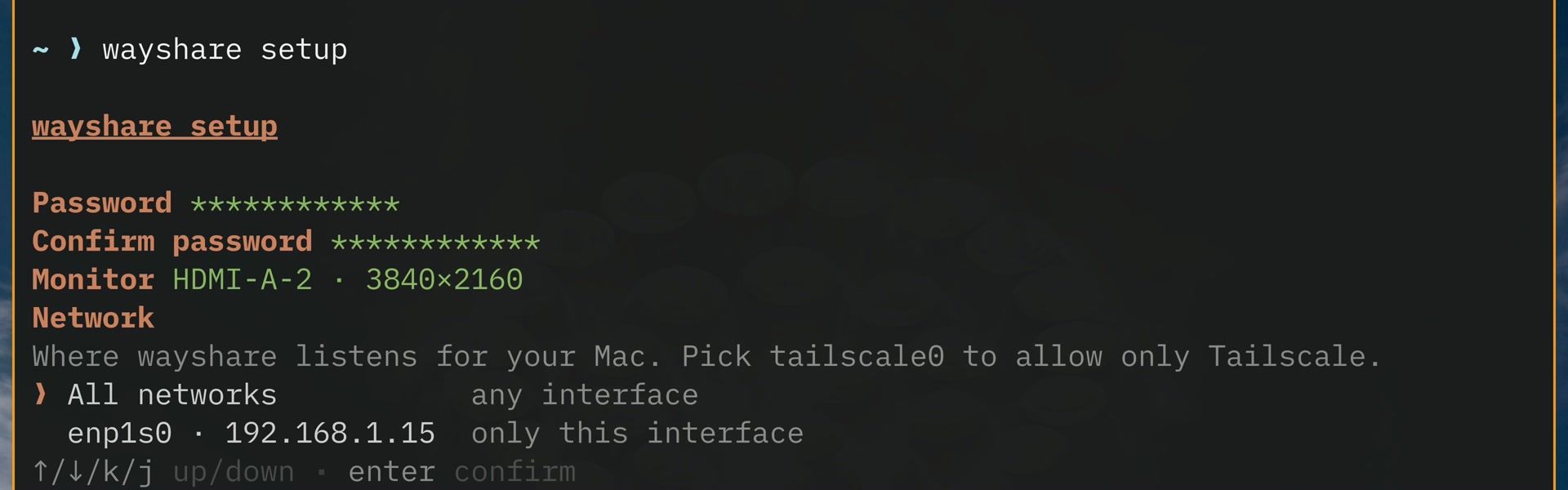
wayshare setupPassword. The first question is a password, which the Mac asks for along with your Omarchy user name. The screen names the user for you (“Screen Sharing asks for this with the user name demo” on our PC, whose user is demo). Type the password twice. Give WayShare a password you don’t use anywhere else, including your Omarchy login.
Monitor. With one monitor, setup picks it by itself and shows its name and size.
Network. Setup then asks where WayShare listens. All networks is the default. Pick the row with your wired home connection and the PC’s address instead, so WayShare answers only on the home network. Press the down arrow, then enter . If you use Tailscale, the help line says to pick tailscale0 to allow only Tailscale.
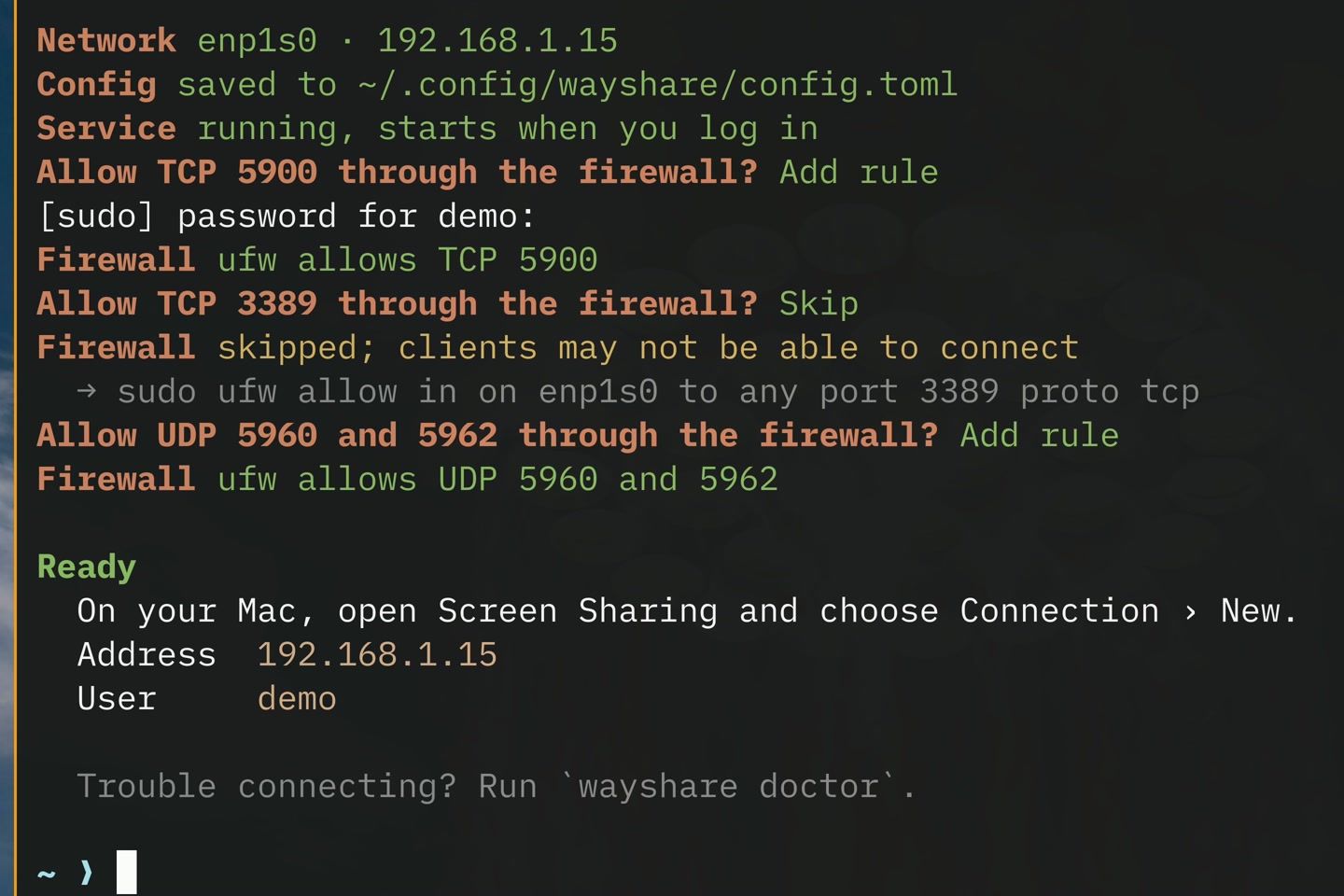
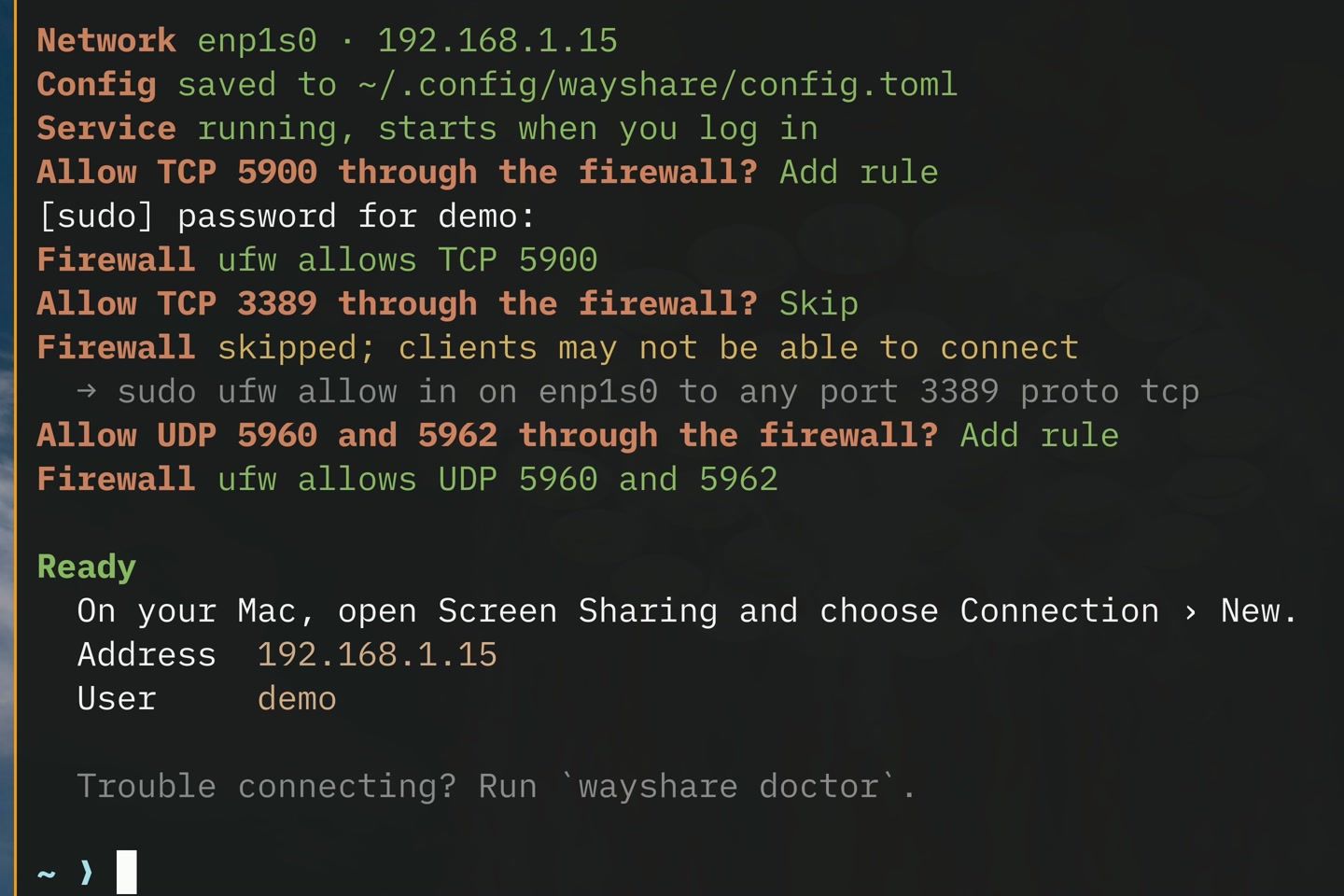
Setup saves its settings to ~/.config/wayshare/config.toml and starts the service, which starts again whenever you log in.
Firewall rules. Omarchy’s firewall, ufw, is on, so setup offers rules one at a time, each with Add rule and Skip:
- TCP 5900, the Mac Screen Sharing port. Choose Add rule. It opens the port only on the connection you picked. Adding a rule asks for your Omarchy password.
- TCP 3389, for RDP. If you are switching RDP off, choose Skip. Setup then prints “Firewall skipped; clients may not be able to connect”. That warning only concerns RDP.
- UDP 5960 and 5962, for High Performance mode. Choose Add rule. Without it, the sound in High Performance starts a few seconds late.
The Ready panel at the end lists the two things the Mac needs, the PC’s address and the user name, and says where to start on the Mac: Screen Sharing, then Connection, then New.
Switch RDP off
Setup has no question for RDP, so add two lines to the end of WayShare’s config file. Open it in an editor:
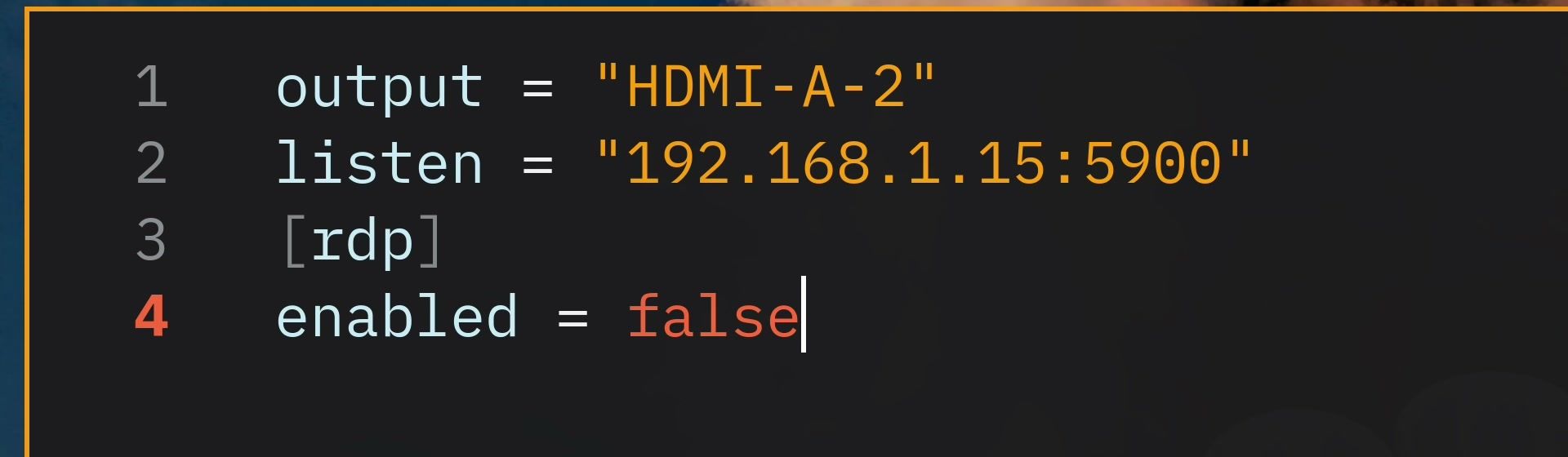
nvim ~/.config/wayshare/config.tomlThe file setup wrote names your monitor and the address WayShare listens on. Add an [rdp] heading and enabled = false at the end, so the file reads like this (your monitor and address will differ):
output = "HDMI-A-2"
listen = "192.168.1.15:5900"

[rdp]
enabled = false
Save the file, then load the change:
wayshare restartIt prints wayshare restarted. From then on, RDP no longer listens on port 3389, and TCP 5900 is the only port waiting for a connection.
Check the setup with wayshare doctor
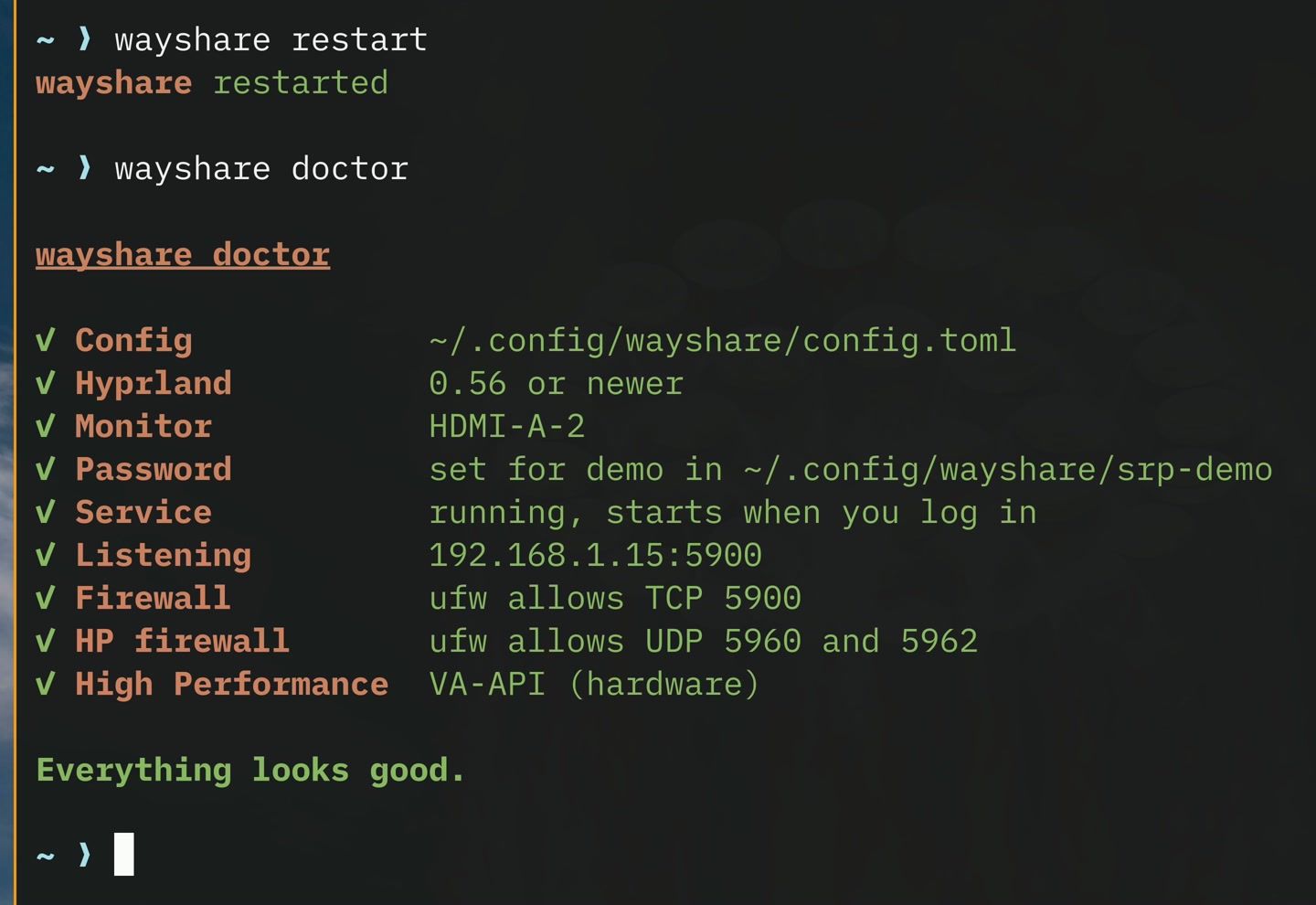
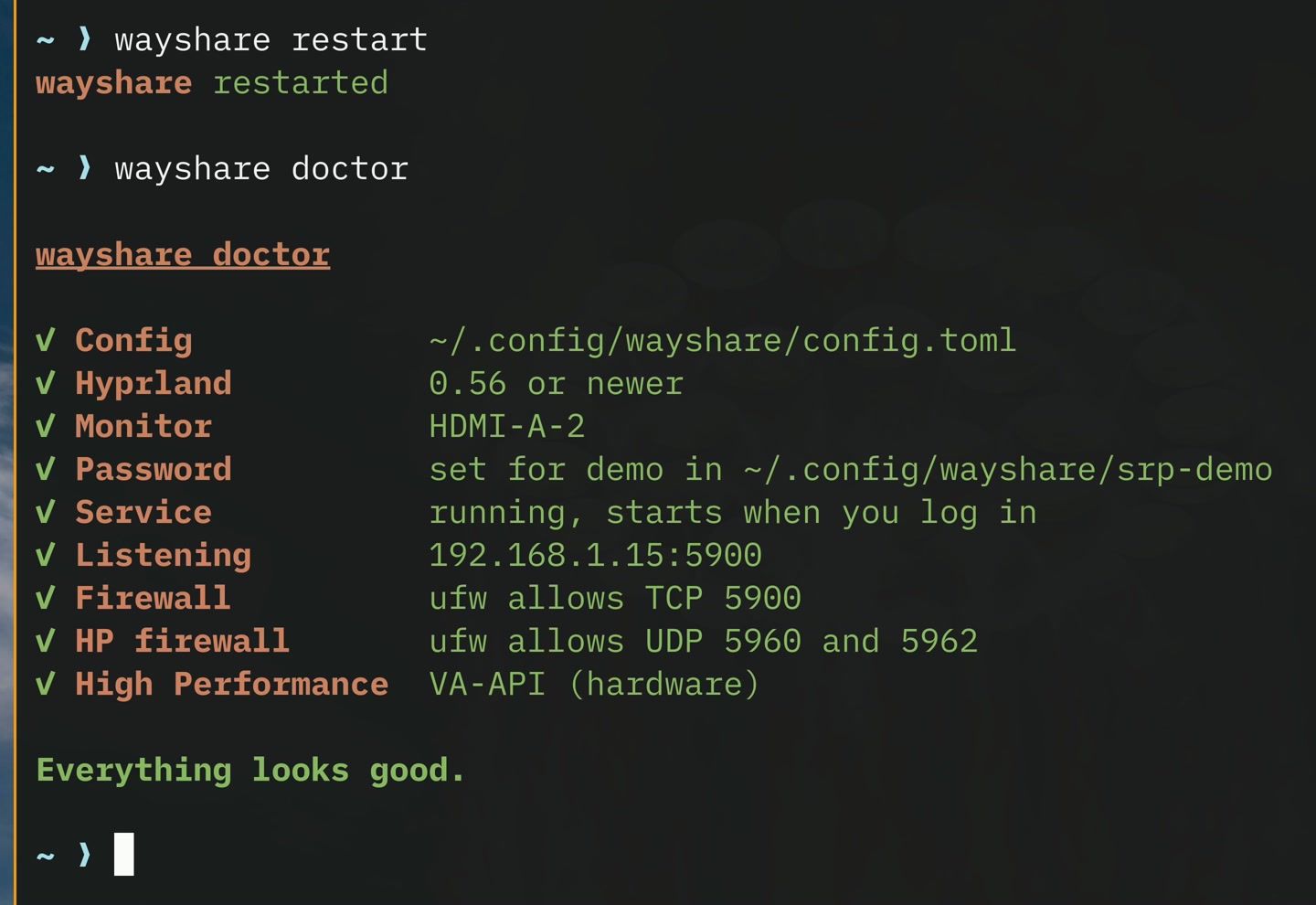
wayshare doctorIt prints one line per part of the setup. Each line gets a check mark, or a fix to try when something is wrong. Ours, with RDP off:
✓ Config            ~/.config/wayshare/config.toml
✓ Hyprland          0.56 or newer
✓ Monitor           HDMI-A-2
✓ Password          set for demo in ~/.config/wayshare/srp-demo
✓ Service           running, starts when you log in
✓ Listening         192.168.1.15:5900
✓ Firewall          ufw allows TCP 5900
✓ HP firewall       ufw allows UDP 5960 and 5962
✓ High Performance  VA-API (hardware)

Everything looks good.
The High Performance line confirms that the PC’s graphics chip handles the video for that mode. VA-API (hardware) means the Intel graphics in our mini PC does the work.
How the password login works
The Mac and WayShare log in with SRP, the Secure Remote Password protocol. Setup stores a salt and a verifier in ~/.config/wayshare/srp-<user>, not the password itself. When you connect, the Mac proves that it knows the password without sending it. WayShare’s security notes say: “The password is never sent.”
SRP is built so that someone who records the traffic cannot get enough from it to guess the password offline, and the server proves itself to the client too, so a fake server cannot collect the password. WayShare’s notes add that someone who copies the verifier file from the PC can guess passwords against it offline. That is one more reason to give WayShare a password you use nowhere else.
SRP protects the login. The rest of the session works like this, per the encryption table in the same notes:
- Keyboard and mouse input: encrypted by the Mac.
- The picture in Standard mode: not encrypted.
- The clipboard: not encrypted.
- Video and sound in High Performance mode: encrypted (SRTP).
In Standard, Mac Screen Sharing’s default mode, someone on the same network could see the picture and the clipboard. Use a network you trust, or a VPN such as Tailscale when you are away from home. Don’t forward port 5900 on your router.
Connect from the Mac
Open Screen Sharing on the Mac. In the Connection menu, choose New. The sheet asks for an address: type the one setup showed and press Return.
The Mac then asks for a user name and password. Enter your Omarchy user name and the WayShare password. Leave Remember password off if other people use this Mac. Choose Sign In.
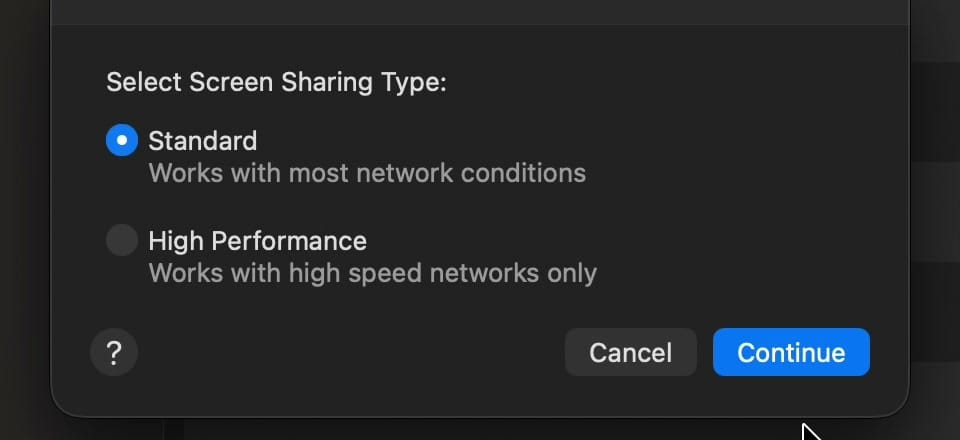
Next, Mac Screen Sharing asks which type of connection to use. Standard works on most networks, while High Performance needs a fast one. Start with Standard and choose Continue.
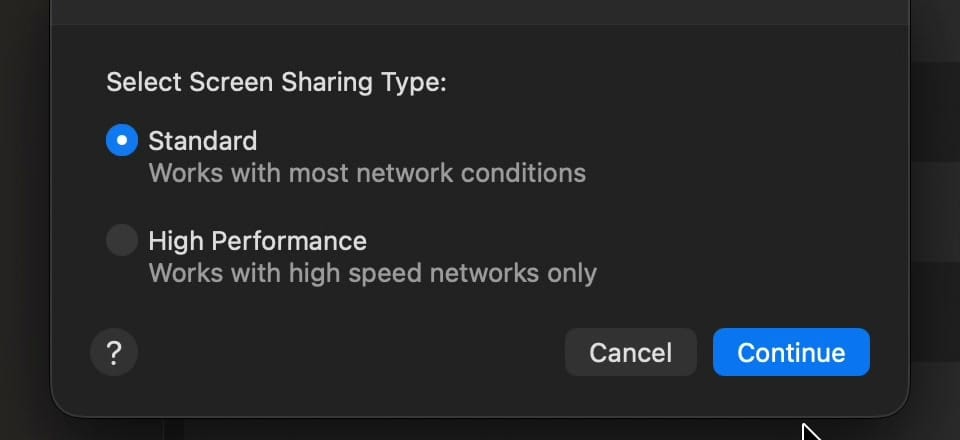
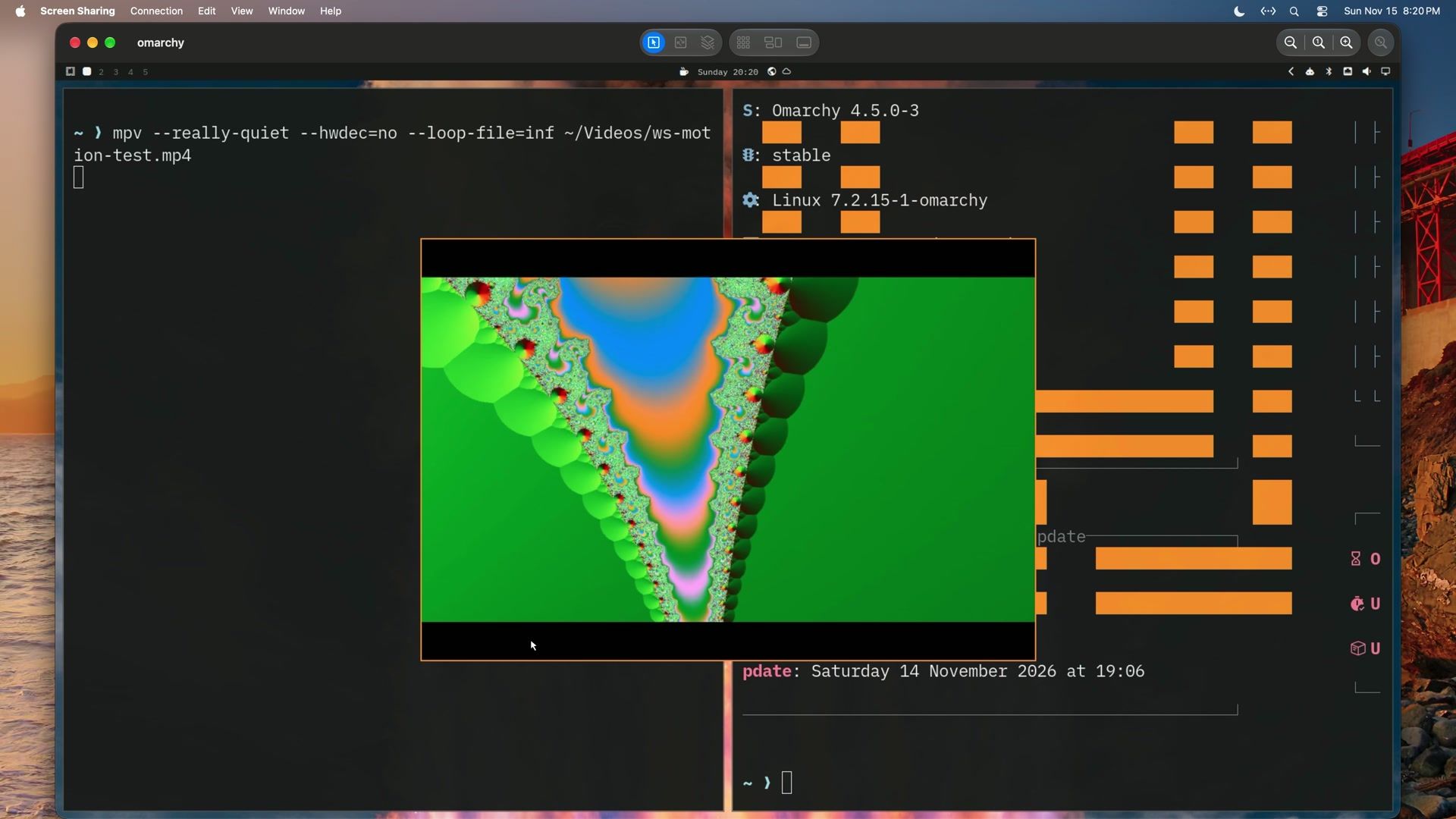
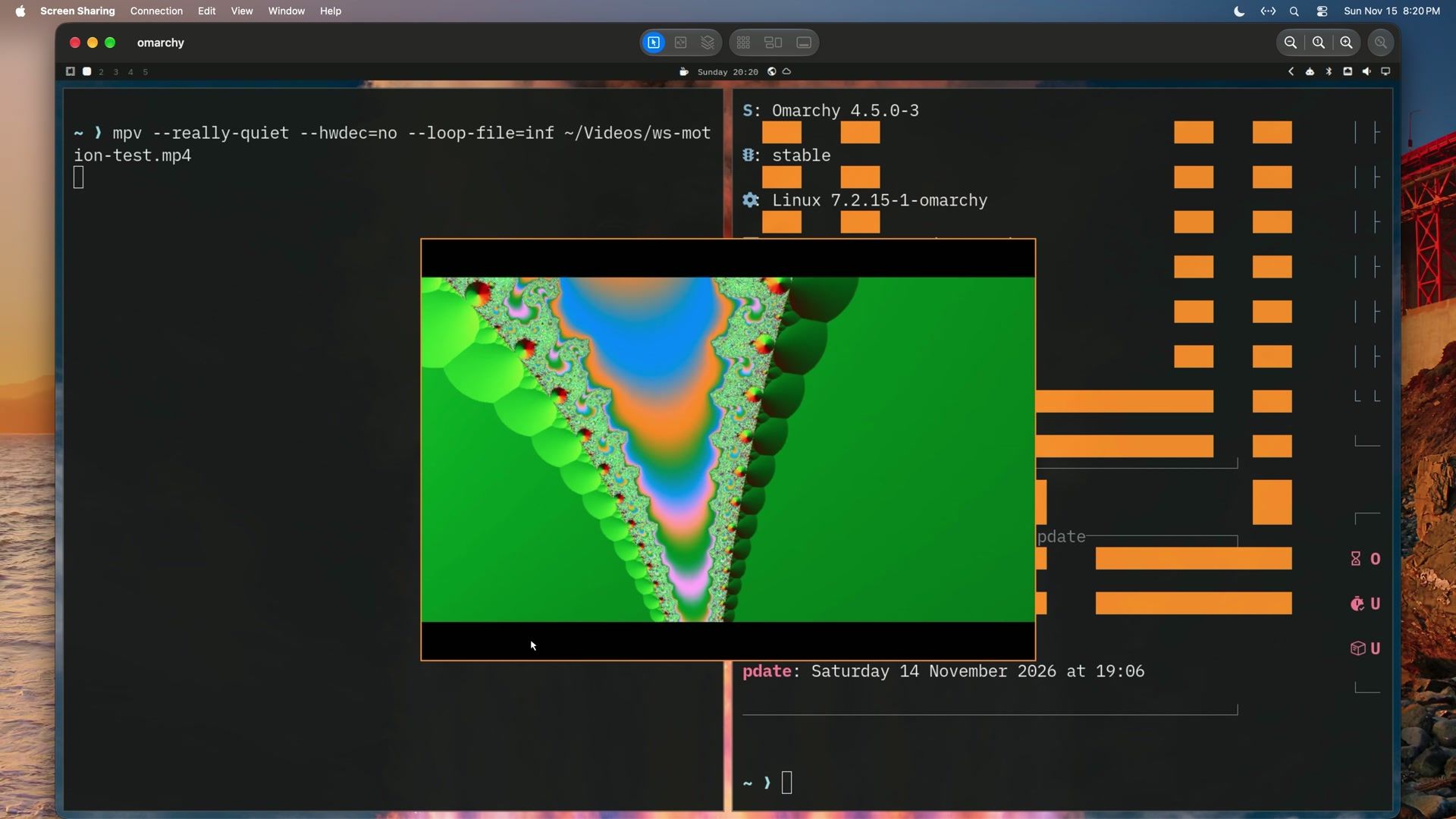
The Omarchy desktop opens in a window named after the PC’s name on the network (ours is omarchy). The Mac’s mouse moves the Omarchy pointer, and clicks land exactly where the pointer is. Each connection is saved in Screen Sharing’s All Connections list, so later you can reconnect from there.
Use Omarchy shortcuts from the Mac keyboard
On the Mac keyboard, Command works as the Super key in Omarchy shortcuts:
- command enter opens a terminal.
- command space opens the Omarchy menu.
- command 2 and command 1 switch workspaces.
- command w closes the window on Omarchy and leaves Mac Screen Sharing open.
Text you type on the Mac arrives exactly, symbols included. Because command w goes to Omarchy while the Screen Sharing window is in front, close the connection with Close in the Connection menu, and close Mac windows with their red buttons.
Copy and paste between the Mac and Omarchy
Text you copy on the Mac can be pasted on Omarchy, which helps with a long command from a web page open on the Mac. Copy the text on the Mac first, then click into the Screen Sharing window. That click sends the copied text across, and command v pastes it into an Omarchy terminal. Text copied while the Screen Sharing window is already in front is not sent until you click away and back.
The other way, from Omarchy to the Mac, did not work reliably with WayShare 0.4.0 and the automatic shared clipboard. This route worked every time we tried it:
- In Screen Sharing’s Edit menu, turn Use Shared Clipboard off.
- Copy the text on Omarchy.
- Choose Get Clipboard in the Edit menu. It is greyed out while Use Shared Clipboard is on.
- Paste in a Mac app. Text copied from a terminal line ends with a line break.
Turn Use Shared Clipboard back on afterwards, since copying from the Mac to Omarchy needs it.
Switch to High Performance mode
High Performance mode can only be picked when you connect; the menus have no switch. Choose Close in the Connection menu, then connect again with Connection, then New. This time choose High Performance on the type sheet. A Display Type menu appears; leave it on 1 Virtual Display and choose Continue.
In this mode the PC’s graphics chip compresses the picture as video, so motion stays smooth. Holding Command and dragging one terminal onto another swaps the two, as Super-drag does on Omarchy. A video plays too, and its sound plays on the Mac. Enter Full Screen, at the bottom of the View menu, gives Omarchy the whole Mac screen.
High Performance on a low-power PC
By default WayShare switches the PC’s monitor to the size the Mac asks for and puts it back when you disconnect. A Mac with a 4K display asks for a 3840 by 2160 picture. On our N100 mini PC, a 4K picture was too much for the graphics chip to compress in time: a video played at about 7 frames a second, because each frame took the encoder 55 to 100 milliseconds.
At 1920 by 1080 the same PC sent a steady 30 frames a second for the video, and scrolling text kept up as well. We measured that on a virtual 1920 by 1080 display, not with the monitor line below on a real monitor. The text was readable, a little soft on the Mac’s 4K screen. To get there, run the Omarchy monitor at 1920x1080 with scale 1, and tell WayShare to keep that size:
-
Set the monitor to 1080p at scale 1. In Omarchy 4.5 the monitor settings are Lua calls in
~/.config/hypr/monitors.lua. Use the monitor name fromhyprctl monitors(or the Monitor line inwayshare doctor):hl.monitor({ output = "HDMI-A-2", mode = "1920x1080@60", position = "auto", scale = 1 }) -
Add
resize = falseto~/.config/wayshare/config.toml, above the[rdp]heading. A key placed under[rdp]belongs to that section in TOML, so it must sit withoutputandlistenat the top:output = "HDMI-A-2" listen = "192.168.1.15:5900" resize = false [rdp] enabled = false -
Run
wayshare restartand connect again in High Performance.
Use resize = false only with scale 1. In our tests at any other scale, such as 3 or 1.333, clicks landed in the wrong place, because WayShare divided the pointer position by the scale. A faster PC may handle the 4K picture with the default setting; leave resize out unless motion stutters.
After an Omarchy update
Update Omarchy as usual with omarchy update from a terminal (or from the Update item in the Omarchy menu). When an update installs a new WayShare, load it with:
wayshare restartThat drops the connection for a moment. The Mac reconnected by itself, still in High Performance, without asking for the password again.
Troubleshooting
The Mac can’t connect. Run wayshare doctor on the PC and follow the fix line under any line without a check mark. Check the Listening and Firewall lines first: the address setup chose must be the one you type on the Mac, and TCP 5900 must be allowed.
Standard mode doesn’t show a command’s output. In Standard, the window sometimes waited to show new text after enter until the pointer moved. Move the mouse a little inside the window and the screen catches up.
Sound starts late in High Performance. Add the UDP 5960 and 5962 rule by running wayshare setup again; wayshare doctor shows it on the HP firewall line.
Motion stutters in High Performance. On a low-power PC, use the 1080p setup above.
Text copied on Omarchy doesn’t reach the Mac. Use Get Clipboard in the Edit menu, with Use Shared Clipboard off, as described above.
Command+Space opens Spotlight instead of the Omarchy menu. Spotlight’s shortcut was off on our Mac. If Spotlight takes the keys on yours, turn its shortcut off in System Settings, under Keyboard, then Keyboard Shortcuts, then Spotlight (we did not walk that path on macOS 27).
Remove WayShare
To remove WayShare, stop and disable the service first, then remove the package:
wayshare uninstall
omarchy pkg drop wayshare
wayshare uninstall asks before it removes anything; choose Remove. Then delete the firewall rules setup added (replace enp1s0 with your connection’s name from the Network question) and the config folder:
sudo ufw delete allow in on enp1s0 to any port 5900 proto tcp
sudo ufw delete allow in on enp1s0 to any port 5960,5962 proto udp
rm -r ~/.config/wayshare
Related guides
To control one Omarchy machine from another, use Gliff instead. For Omarchy itself, see how to install Omarchy on a mini PC, our guide to Omarchy for Mac users, and how to try Omarchy on a Mac without installing Linux.


