
A program made for Windows won’t start on Linux by itself, even on the same computer. The program asks the operating system to open files, make windows and draw on the screen, and Linux answers those requests differently from Windows. Five tools close that gap, each at a different point: Wine, Bottles, Proton, WinBoat and Raven.
This guide installs the same Windows program, the free code editor Notepad++ (version 8.9.9.1, x64), with Wine, Bottles, Proton and WinBoat, and saves a file to your Linux Documents folder from each one. The commands for Wine, Bottles and Proton are for Omarchy, and the WinBoat commands are for Fedora, because a Hyprland bug with display scaling keeps its app windows from working right on Omarchy. On another Arch-based system, use sudo pacman -S in place of omarchy pkg add (umu-launcher needs the multilib repo turned on) and your AUR helper in place of omarchy pkg aur add. Raven has no release yet, so it gets an explanation and a link to our earlier build of it. Wine and Bottles suit everyday apps, Proton suits games, and WinBoat suits a program that needs real Windows.
How the five tools reach Windows programs
Wine is a set of stand-ins for the parts of Windows that a program calls. When Notepad++ asks Windows to open a file, Wine takes that request and turns it into a Linux one. Wine isn’t an emulator: the program’s own instructions run straight on your processor, and Wine only answers the requests that would go to Windows. It has been in development since 1993, according to WineHQ.
Bottles and Proton both run on top of Wine. Bottles is an app that sets up and manages Wine for you, one program at a time. Proton is Valve’s version of Wine, built for games, with extra parts that turn Windows graphics calls into Vulkan. WinBoat takes a different route and runs a real copy of Windows in a virtual machine, then shows that Windows on your Linux desktop. Raven answers the program’s calls itself, one layer lower than Wine, with no Wine runtime at all.
| Tool | Where the Windows program meets Linux | What you install | What it suits |
|---|---|---|---|
| Wine | Stand-ins for the Windows parts a program calls | The Wine packages | Everyday Windows apps, with some terminal work |
| Bottles | The same Wine, with a manager and one bottle per program | A Flatpak from Flathub | Everyday apps, from an app window instead of typed commands |
| Proton | Wine plus a translator from Direct3D to Vulkan | Steam, or umu-launcher | Windows games |
| WinBoat | Only at the window: real Windows runs in a virtual machine | WinBoat, Podman or Docker, FreeRDP, and Windows with your own licence | A program that needs real Windows |
| Raven | A stand-in for the Windows kernel, with no Wine runtime | A build from source | An early project to watch |
What you need
You need Omarchy or another Arch-based Linux on an Intel or AMD 64-bit computer, a terminal ( super enter on Omarchy) and your password for the installs. Download the Notepad++ x64 installer from its releases page into ~/Downloads; every tool below runs that same file. The commands use npp.8.9.9.1.Installer.x64.exe, so change the name if you download a newer version. For WinBoat we used Fedora 45 Workstation on the same computer; its section has the Fedora commands.
WinBoat needs much more than the others: at least 4 GB of memory for Windows, two CPU cores, 32 GB of free disk and hardware virtualization (KVM) turned on, per its README. Wine, Bottles and Proton ran Notepad++ in 270 to 410 MB of memory on our Intel N100 mini PC with 12 GB.
Run a Windows program with Wine
Wine isn’t part of Omarchy’s base install. One line installs Wine, Wine Mono and winetricks. Wine Mono covers programs built on Microsoft’s .NET, and winetricks adds extra Windows parts that some programs need. Having wine-mono on the line also stops a dialog asking to download it the first time a program starts.
omarchy pkg add wine wine-mono winetricksIf you installed Lutris from Omarchy’s menu, you already have wine-staging, which conflicts with wine. Run pacman -Q wine-staging first, and leave wine off the line if it’s there. On other Arch systems, sudo pacman -S wine wine-mono winetricks does the same.
On a high-resolution screen with display scaling, Wine programs draw at 96 dots per inch and look tiny. Set Wine’s DPI before the first program starts: 96 times your scale, so 192 at scale 2 and 288 at scale 3. Skip this on a screen at scale 1.
wine reg add "HKCU\Control Panel\Desktop" /v LogPixels /t REG_DWORD /d 288 /fNow run the installer with wine in front of the file name. You get the pages you’d see on Windows: the language, the license, the install folder and the components. Press enter to take the default on each page, and leave “Run Notepad++” ticked on the last one.
wine ~/Downloads/npp.8.9.9.1.Installer.x64.exe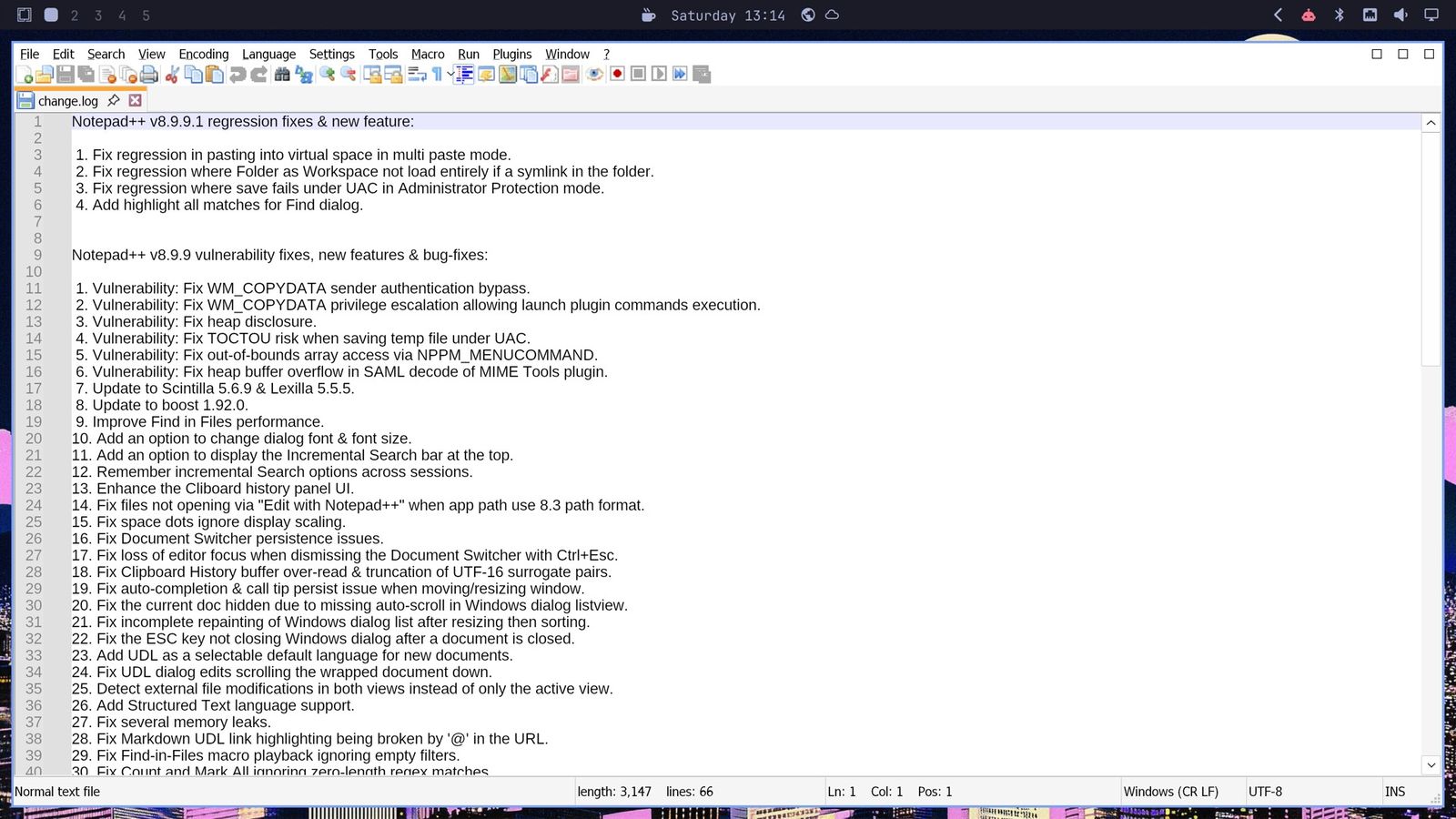
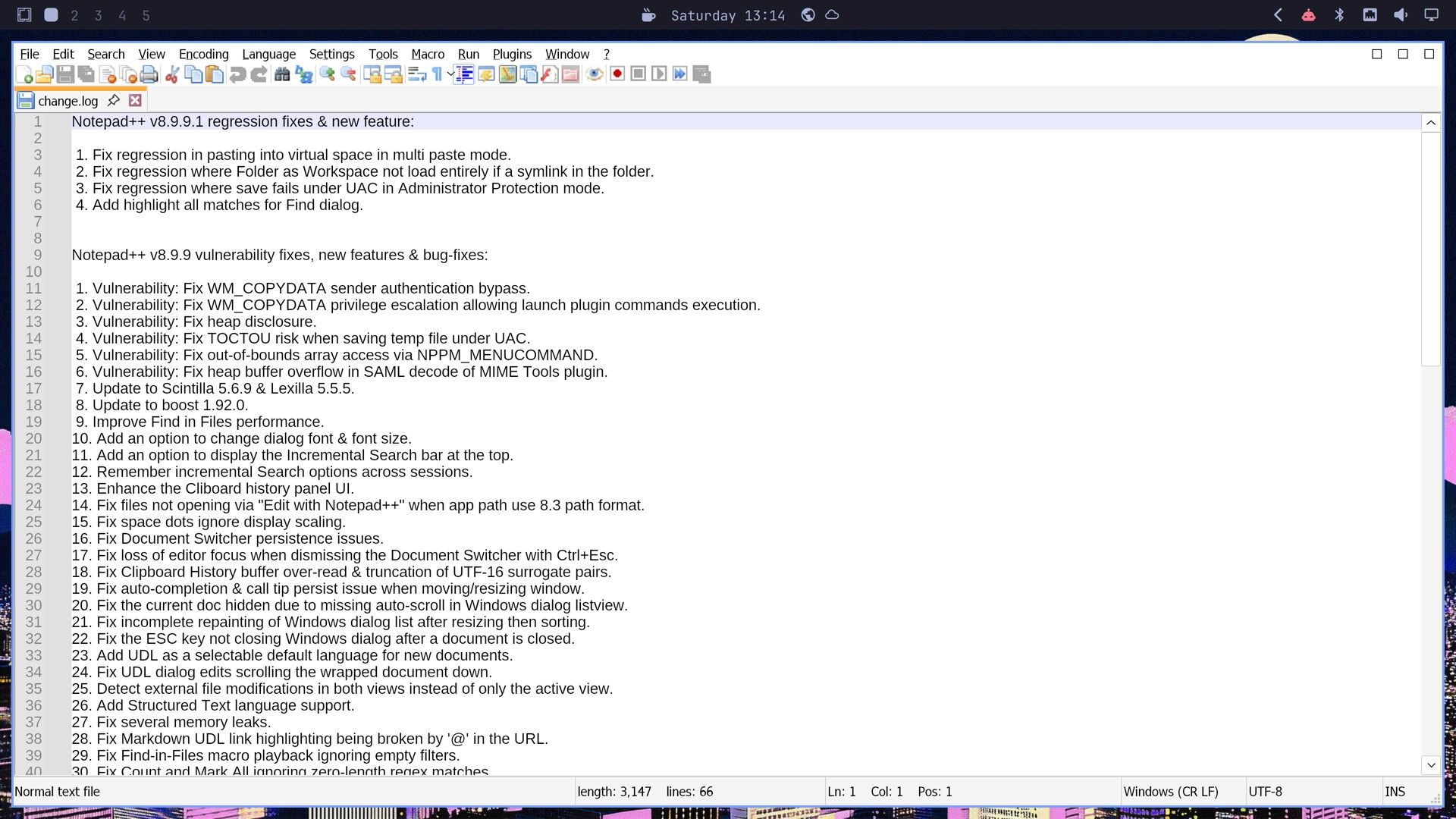
Notepad++ opens as a normal window on the Linux desktop. Notepad++ runs as Administrator under Wine, because Wine runs every Windows program that way. On the Linux side it still runs as your normal user. Save a file with ctrl s : Wine’s Save As dialog looks like an older version of Windows, and its Documents folder is your real ~/Documents. Wine links Documents, Downloads, Music, Pictures and Videos to the matching folders in your home.
Wine didn’t add Notepad++ to Omarchy’s app launcher. To start it again, give wine the program’s path on Wine’s C drive:
wine "C:\Program Files\Notepad++\notepad++.exe"Wine keeps the Windows side of things in a prefix, a folder set up to look like a Windows C drive. The default prefix is ~/.wine, and ~/.wine/drive_c holds Program Files, users and windows. Each prefix is a separate setup, so you can give a difficult program its own with WINEPREFIX=~/some-folder in front of the command. Our default prefix with Notepad++ came to 406 MB.
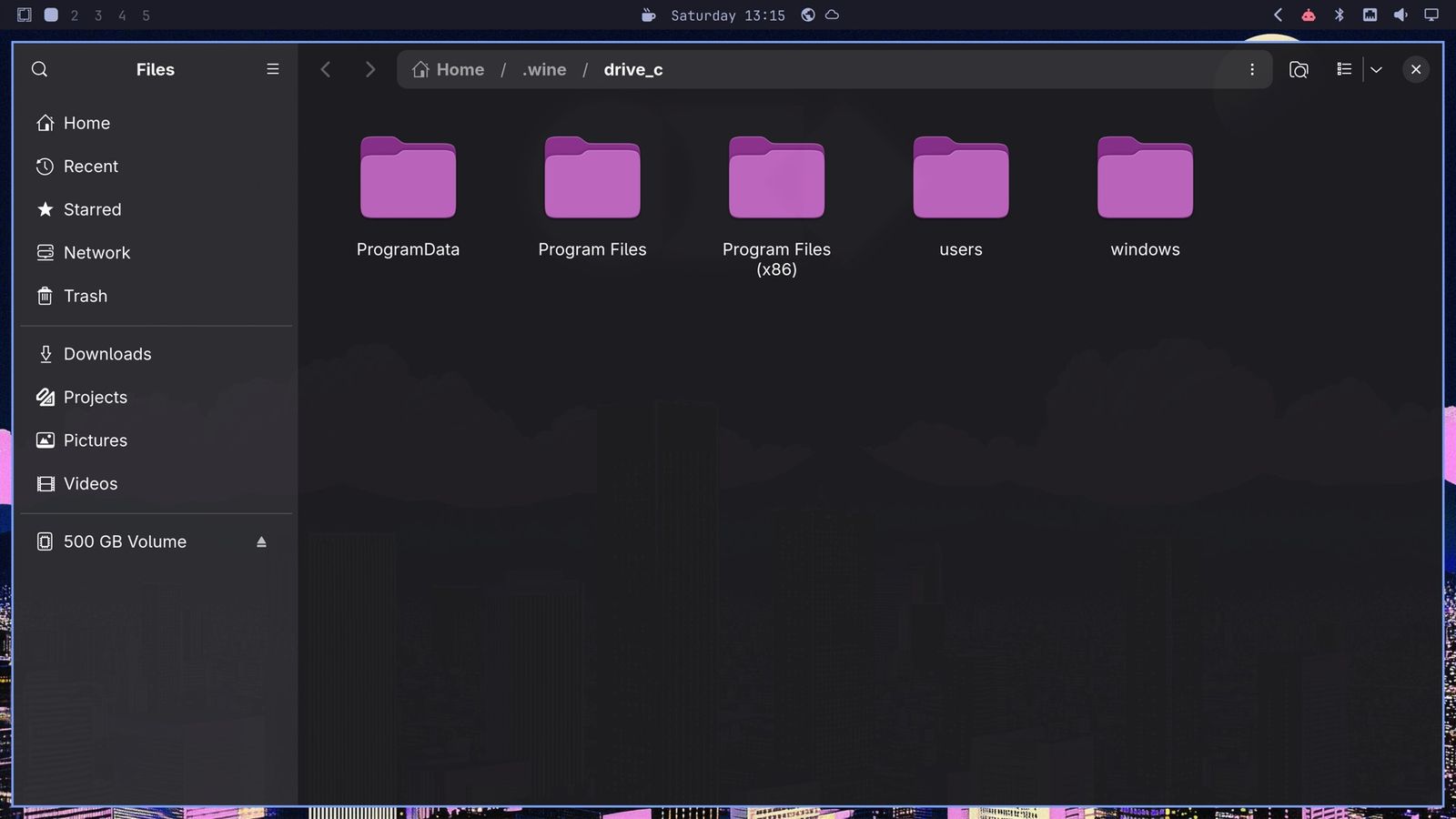
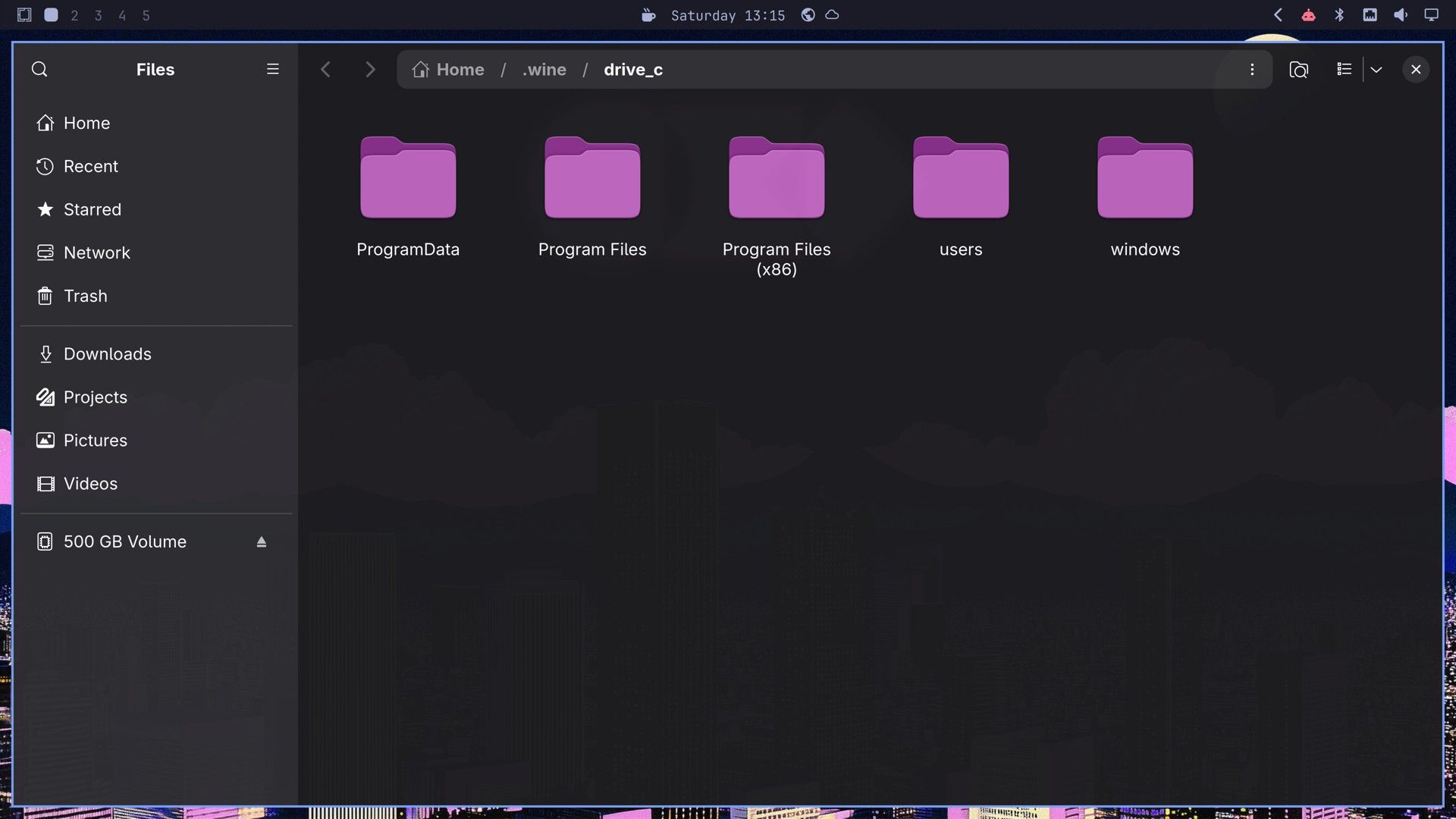
With plain Wine, the prefixes and the commands are yours to manage. That works well for one program. Each new prefix means more paths and commands to keep track of.
Manage each program in its own bottle with Bottles
Bottles runs the same Wine, with a window to click through on top. A bottle is a prefix that Bottles creates and looks after. Each bottle has a runner, the Wine build that bottle uses, and Bottles downloads its runners itself. Notepad++ gets a bottle of its own, and other programs get theirs, so a fix for one program doesn’t touch the others.
Bottles is officially shipped as a Flatpak, a way to install desktop apps that works on any Linux distro, and Flathub is the main store for Flatpaks. Omarchy doesn’t include Flatpak, so add Flatpak and Flathub first, then install Bottles:
omarchy pkg add flatpak
sudo flatpak remote-add --if-not-exists flathub https://dl.flathub.org/repo/flathub.flatpakrepo
sudo flatpak install -y flathub com.usebottles.bottles
Omarchy’s launcher didn’t list Bottles right after the install. Log out and back in, or start it from the terminal:
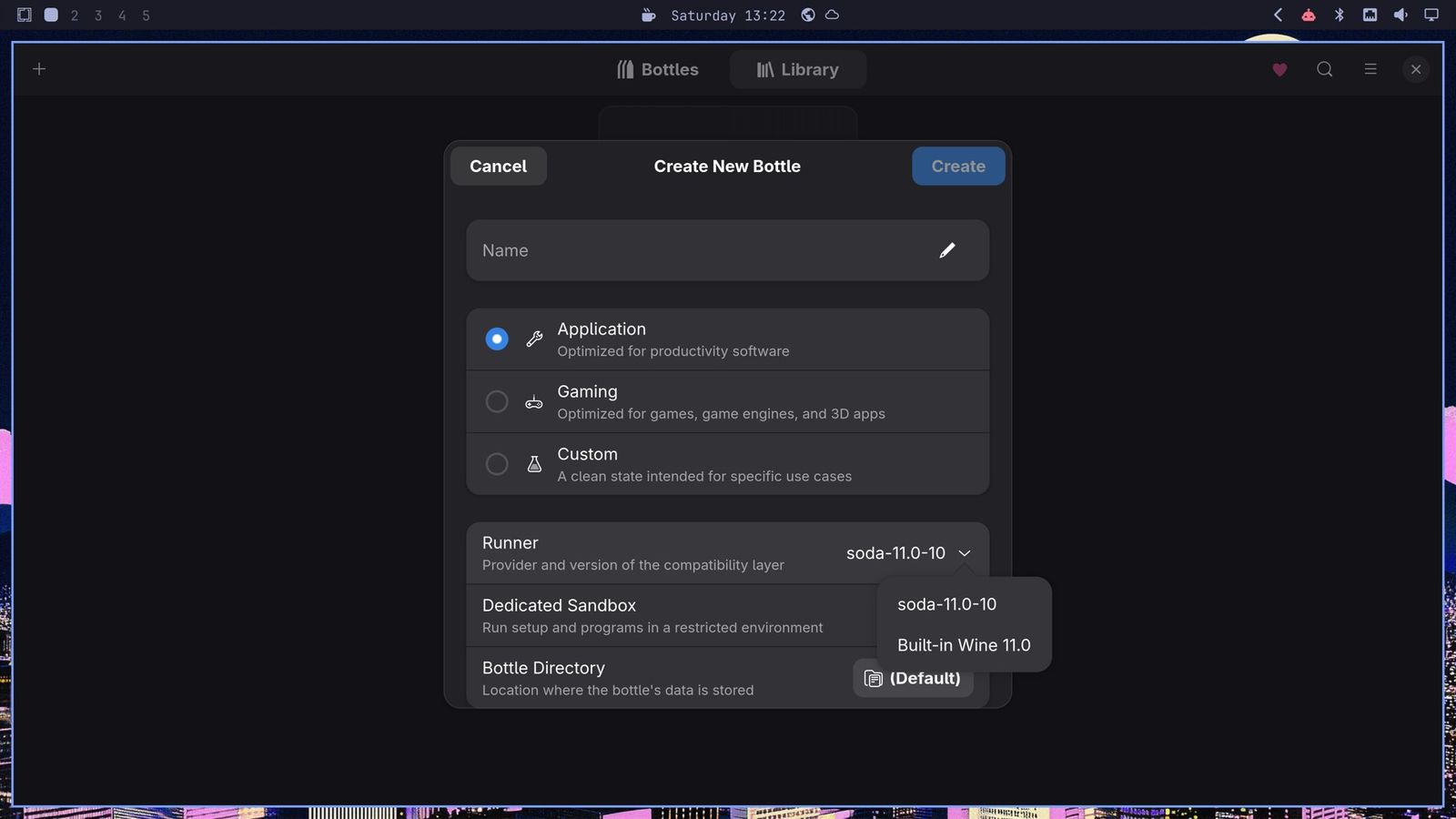
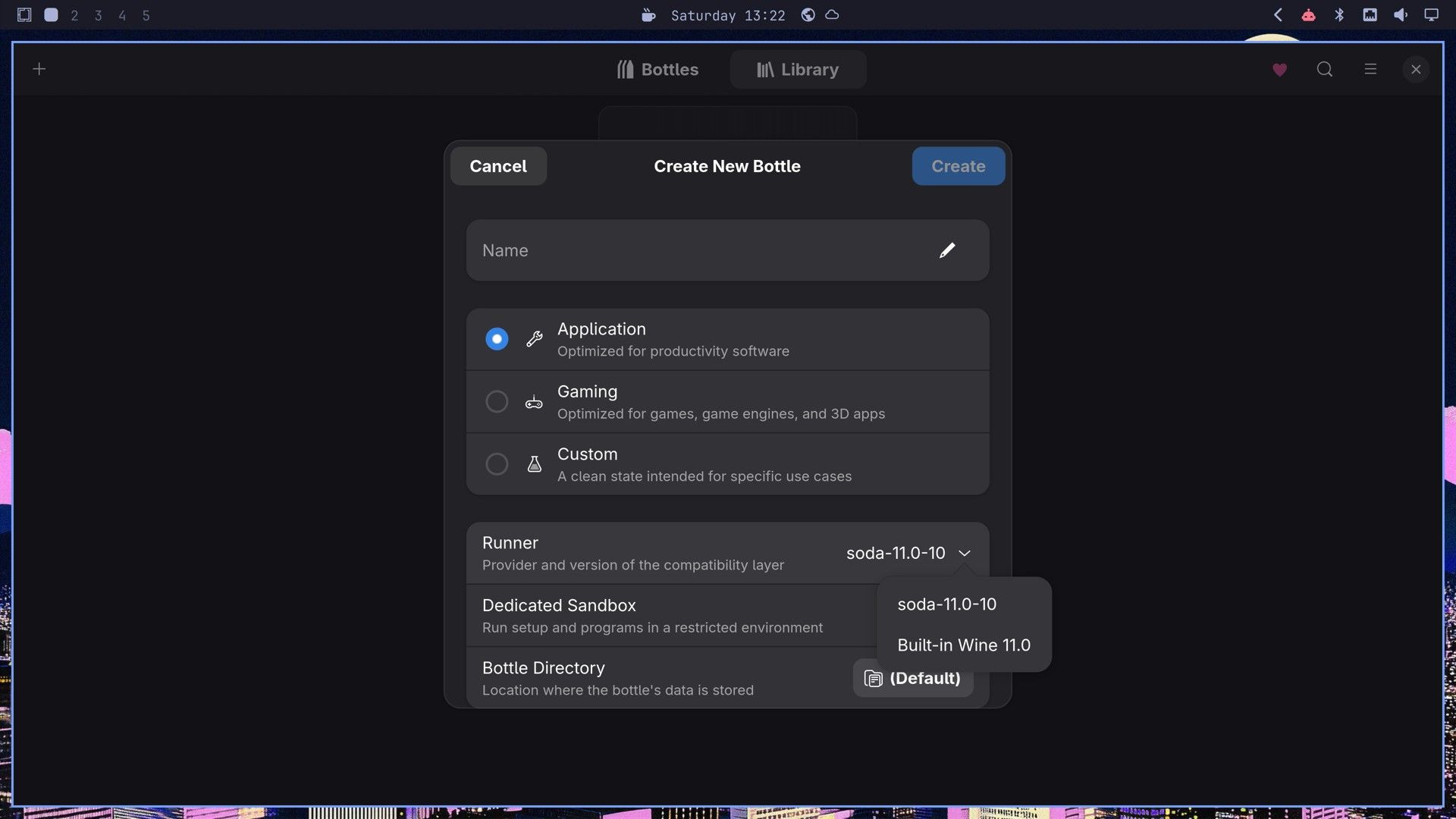
flatpak run com.usebottles.bottlesThe first start shows a short welcome and downloads its components, which took under three minutes for us. Then click the plus button and choose Create a Bottle. Name it Notepad++ and pick one of three types: Application (“Optimized for productivity software”), Gaming or Custom. Application fits an editor. Bottles 67.6 offered two runners, soda-11.0-10 (the default) and the built-in Wine 11.0. Creating the bottle took about a minute.
On the bottle’s page, Run Executable starts a Windows program inside the bottle. Bottles first reminds you that it runs in a sandbox, then a file picker opens; click Downloads in its sidebar and pick the installer. The installer pages are the same as with Wine. With the soda runner, the windows get a Windows-style blue title bar and read well at high scaling with no DPI change.
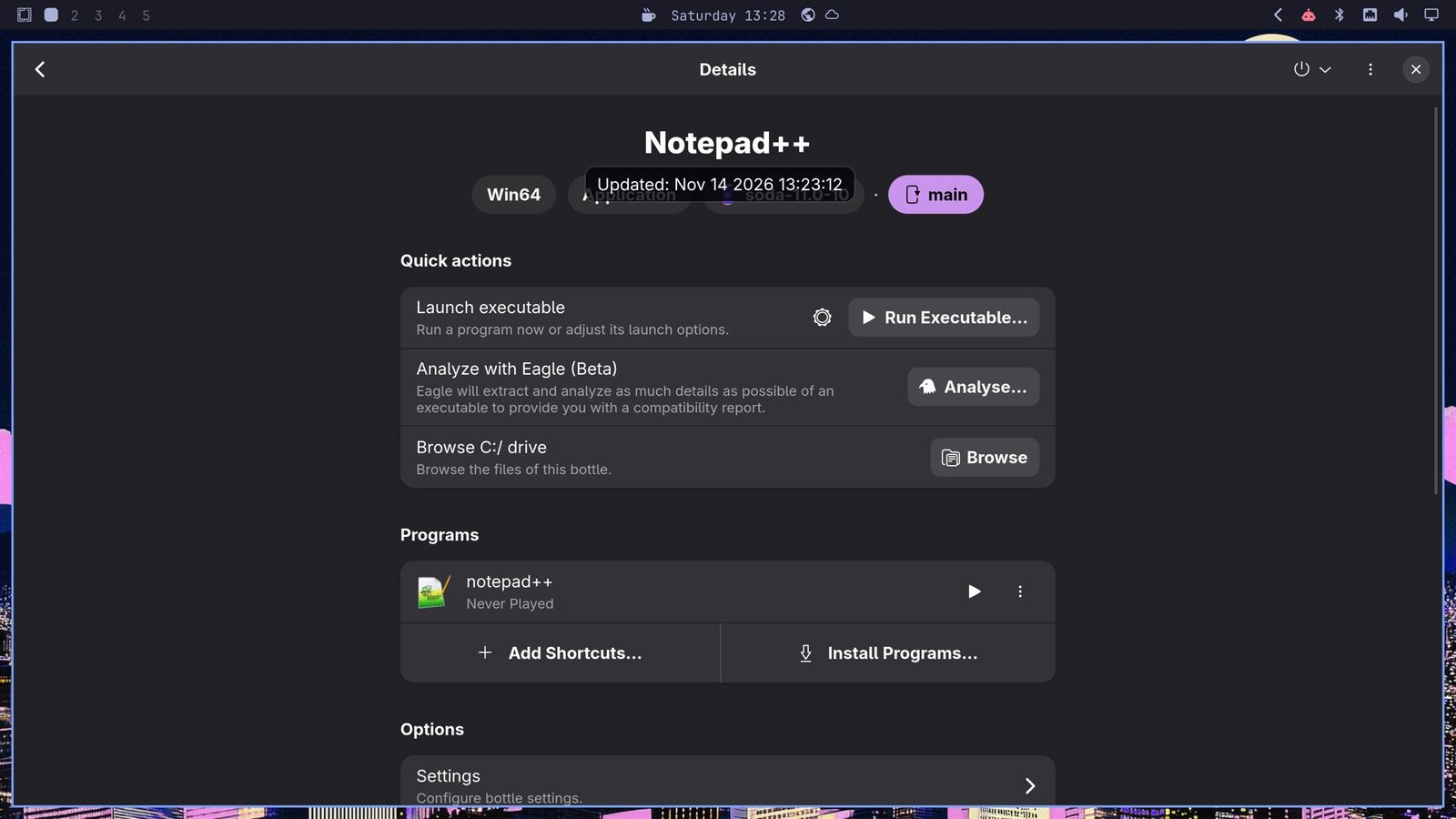
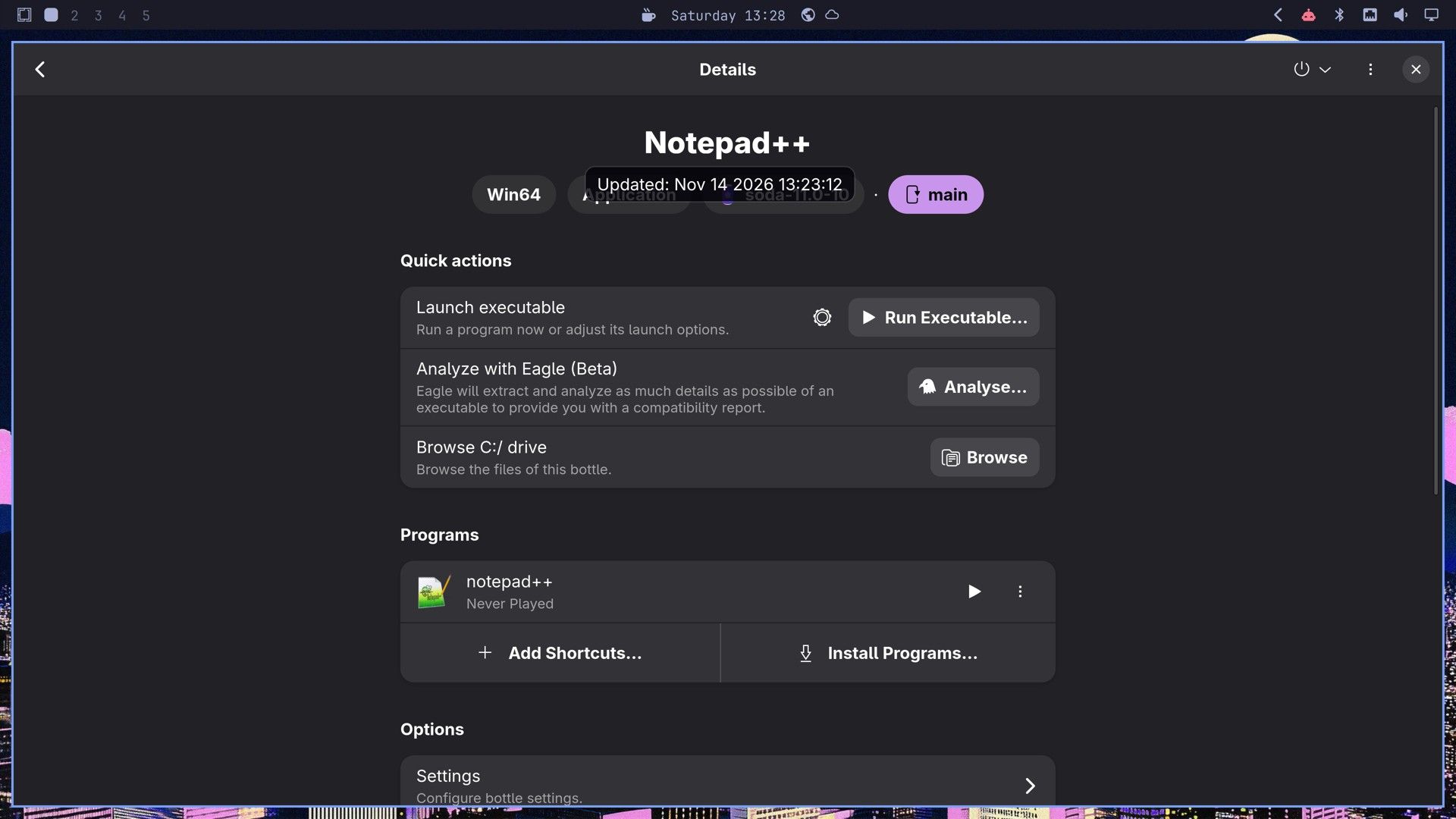
After the install, Notepad++ shows up in the bottle’s Programs list with a play button, so you start it with a click instead of a command. A Flatpak is sandboxed, so by default Bottles can’t see your Documents folder, and the Documents folder in its Save As dialog is inside the bottle. Give Bottles access to Documents once, with this command or the Flatseal app:
flatpak override --user --filesystem=xdg-documents com.usebottles.bottlesStart Notepad++ again from the play button, and a save to Z:\home\<you>\Documents lands in your real Documents folder. Drive Z is the letter Wine gives your whole Linux file system.
Run the same installer with Proton and umu-launcher
Proton is Valve’s version of Wine, made to run Windows games through Steam. Underneath it is Wine, so a program asks for files and windows the same way. The extra parts are on the drawing side: many Windows games draw with Microsoft’s Direct3D, and Proton turns those calls into Vulkan, the graphics system Linux games use to talk to the graphics card.
Proton ships with Steam. A small tool called umu-launcher runs a program with Proton the way Steam would, with no Steam installed and no account. It downloads a Proton build that carries its own copy of Wine, so the Wine packages aren’t needed for this route.
omarchy pkg add umu-launcherThe first run downloads UMU-Proton (10.0-4 for us, 1.4 GB) and a Steam runtime (800 MB), which took about three minutes. WINEPREFIX names the folder Proton uses as its prefix. On a scaled screen, set the DPI in that prefix first, the same way as with Wine:
WINEPREFIX=~/Games/npp umu-run reg add "HKCU\Control Panel\Desktop" /v LogPixels /t REG_DWORD /d 288 /f
WINEPREFIX=~/Games/npp umu-run ~/Downloads/npp.8.9.9.1.Installer.x64.exe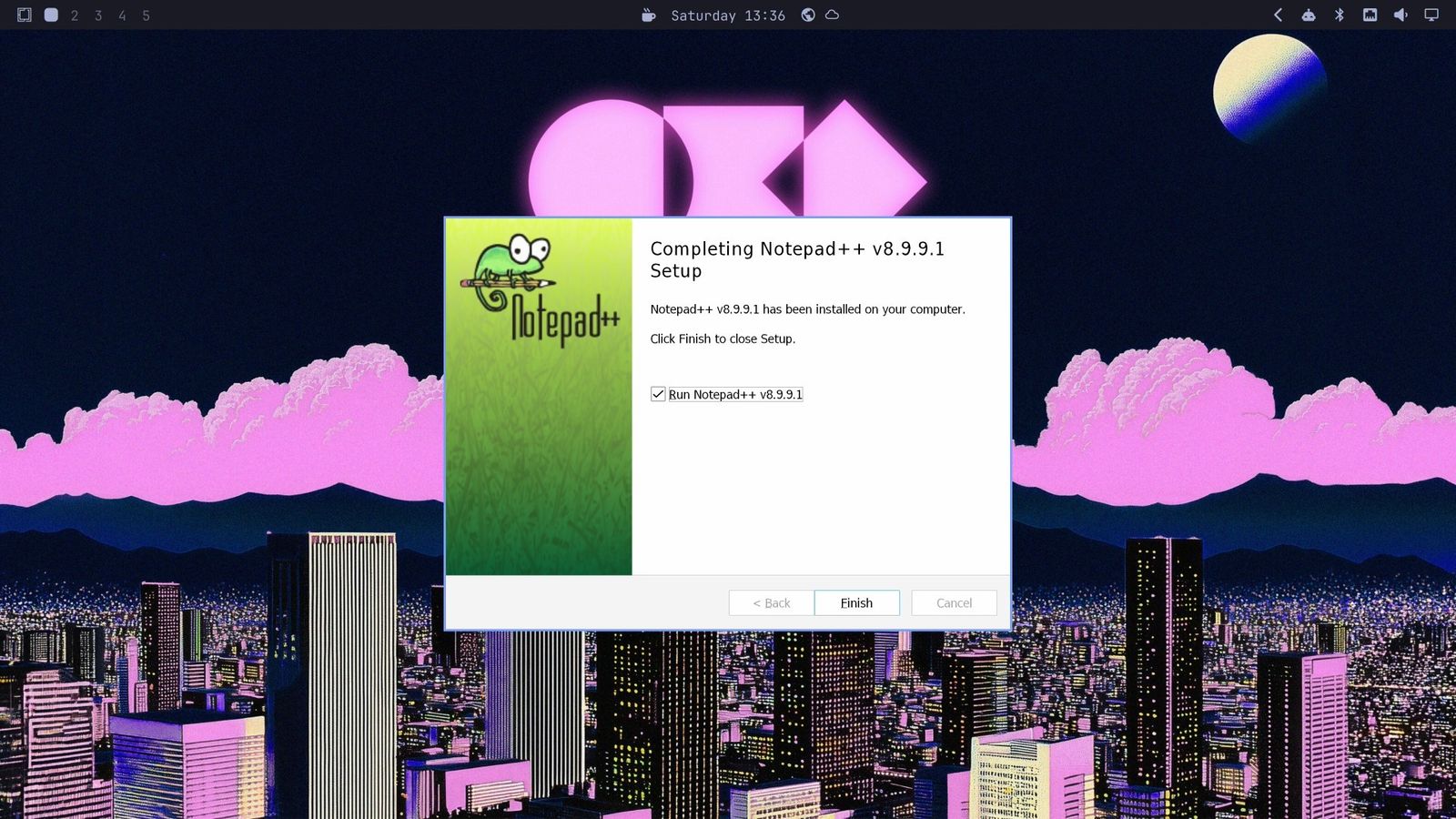
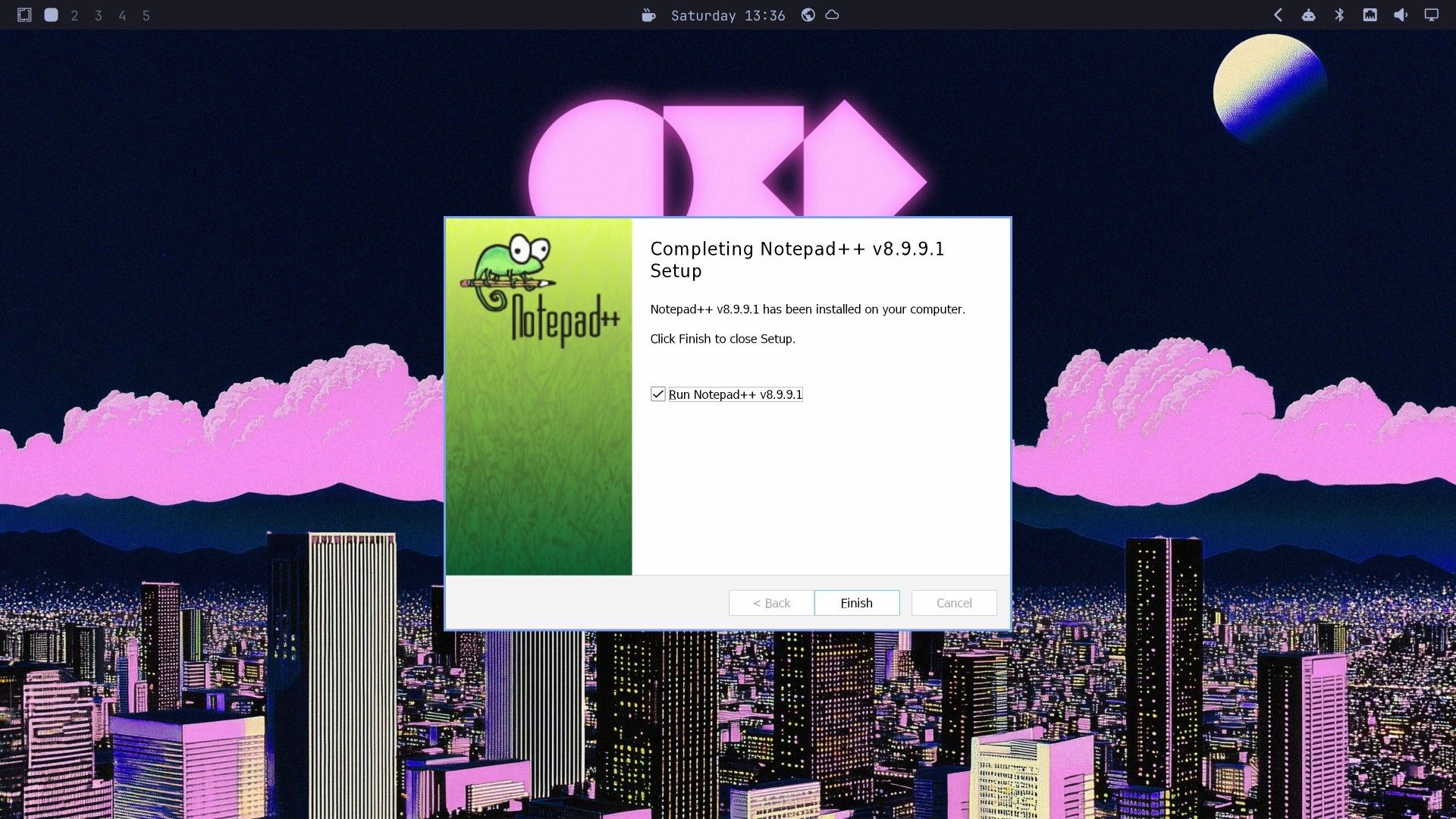
The installer pages come up again, and the last page starts Notepad++, which looks the same as under Wine. Like Wine, umu adds nothing to the app launcher, so start the editor again with its path inside the prefix:
WINEPREFIX=~/Games/npp umu-run ~/Games/npp/pfx/drive_c/Program\ Files/Notepad++/notepad++.exeProton’s Documents folder is a real folder inside the prefix, not a link to your home. To save into your home folder, type a path on drive Z in the File name box, such as Z:\home\<you>\Documents\hello.txt. On a plain app like Notepad++, Proton behaves like Wine; its graphics parts matter in games.
If you use Steam, you get the same result without umu. Add the program to Steam as a non-Steam game, then choose a Proton version for that shortcut in its compatibility settings.
Run real Windows with WinBoat
WinBoat runs a real copy of Windows in a virtual machine, a whole computer made in software, and keeps that machine inside a container, a sealed package that holds a program with everything it needs. When you open a Windows app, WinBoat can send only that app’s window to Linux, using Windows’ remote app feature, and a Linux program called FreeRDP shows that window on your desktop. Windows answers every request, and the two systems meet only at the window. Because it’s real Windows, it can run programs that the Wine-based tools can’t.
WinBoat downloads Windows from Microsoft, but that copy isn’t activated. You need your own Windows licence. The dockur/windows project that WinBoat uses to install Windows says the same: “You are responsible for ensuring that you have a valid Windows license.” WinBoat 0.9.2 calls itself beta and has no GPU acceleration yet; its release notes say that is planned for 1.0. Games aren’t a good fit for now.
A bug on Hyprland, the program that draws windows on Omarchy, keeps WinBoat’s app windows from working right on Omarchy and other Hyprland desktops with display scaling turned on; WinBoat issue #766 tracks it. On our Omarchy screen, Notepad++ came up with tiny text and ignored typing, while the full Windows desktop from the Apps page worked. So this section runs WinBoat on Fedora 45 Workstation, a popular Linux distro with the GNOME desktop, on the same mini PC, where the app windows work.
Install WinBoat on Fedora
Fedora already includes Podman, the container tool WinBoat uses here, so you add FreeRDP and Podman’s compose tool:
sudo dnf install freerdp podman-composeThe WinBoat app comes as an RPM file, the package format Fedora uses. Download winboat-0.9.2-x86_64.rpm from the WinBoat releases page into ~/Downloads, and compare its SHA-256 checksum with the digest GitHub lists next to the file (sha256sum ~/Downloads/winboat-0.9.2-x86_64.rpm). Then install it:
cd ~/Downloads
sudo dnf install ./winboat-0.9.2-x86_64.rpm
dnf doesn’t check the signature of a local RPM; it prints “skipped OpenPGP checks” and installs it. That makes the download source and the checksum your only checks, so get the file from the project’s own releases page. On Omarchy or another Arch-based system, the same parts come from omarchy pkg add podman podman-compose freerdp and the AUR package winboat-bin (the AUR is where community members publish build recipes; see our guide to installing AUR packages safely, or ask an AI agent to read its PKGBUILD, before you install one).
Set up Windows
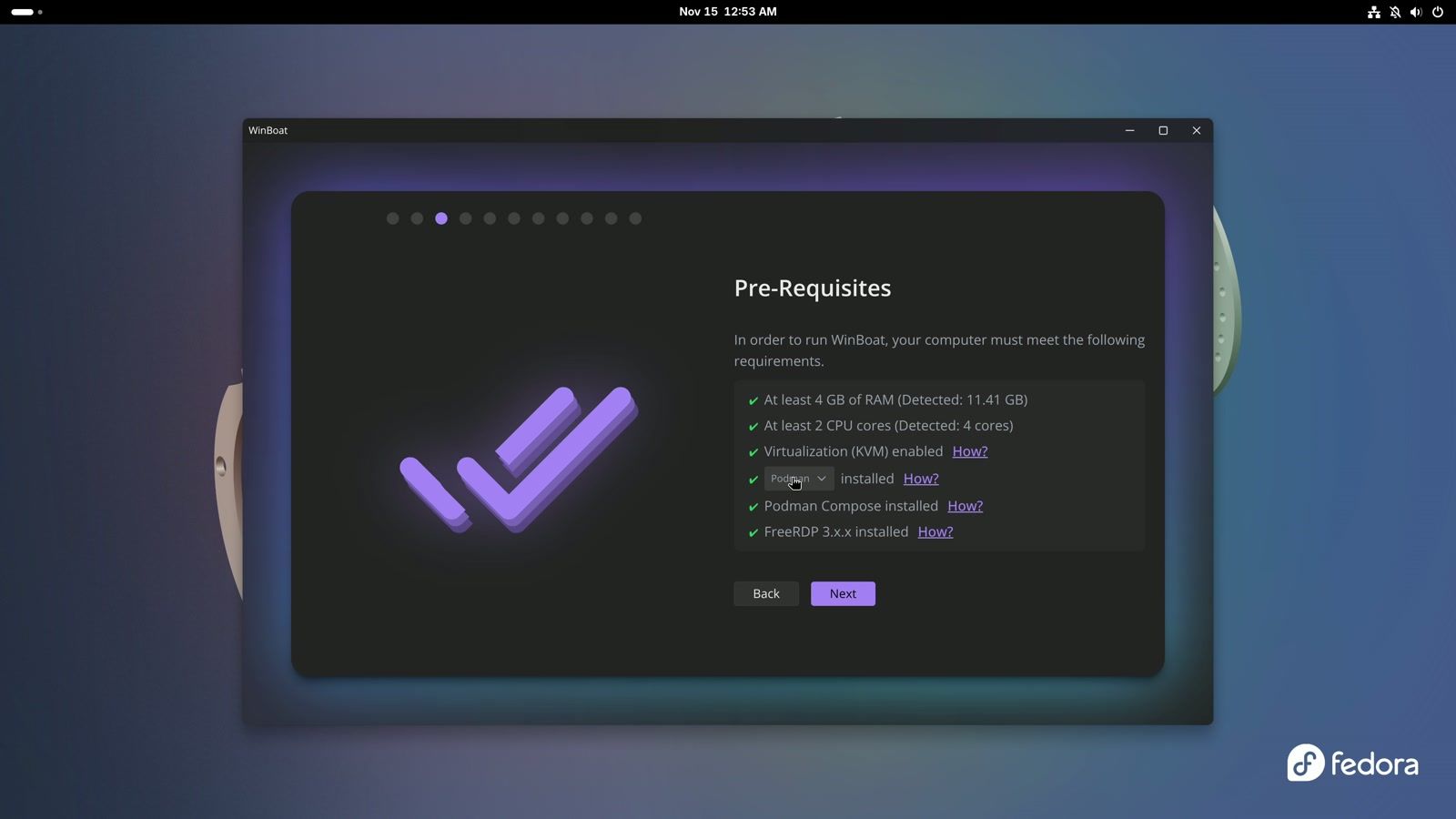
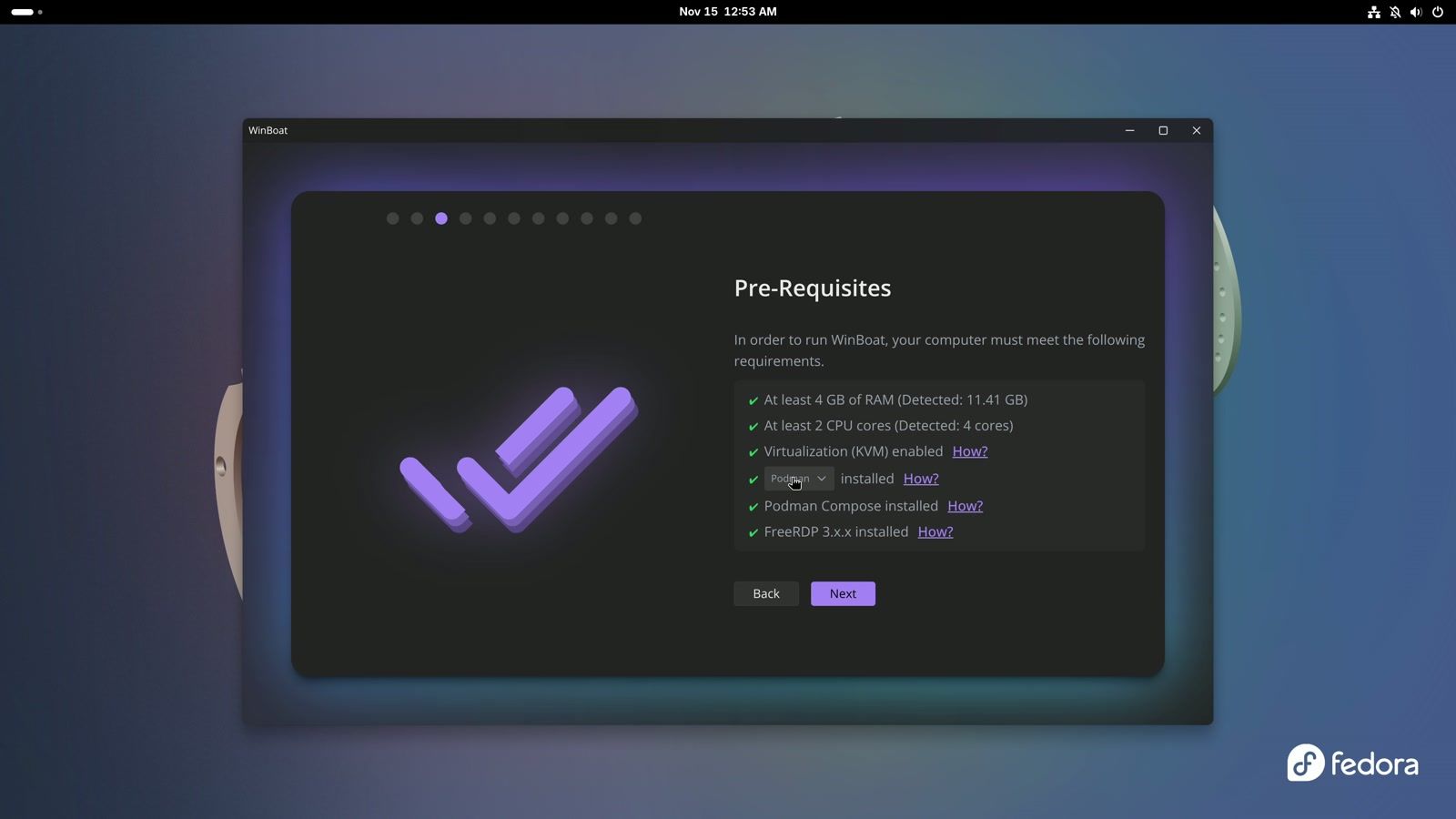
Search for winboat in the GNOME overview and open it. WinBoat’s setup checks your computer first. The container menu on the Pre-Requisites page starts on Docker; pick Podman, and each of the six requirements turns green when your system meets it. Then you pick an install folder (~/winboat by default) and a Windows edition, with Windows 11 Pro as the default. Next comes a user name and password for the Windows account, then the hardware page, which sets the CPU cores, memory and disk Windows gets (2 cores, 4 GB and 32 GB by default); you can change them later. Home folder sharing lets Windows see your Linux files. WinBoat warns that Windows malware could reach them too, so turn it on only if you need it.
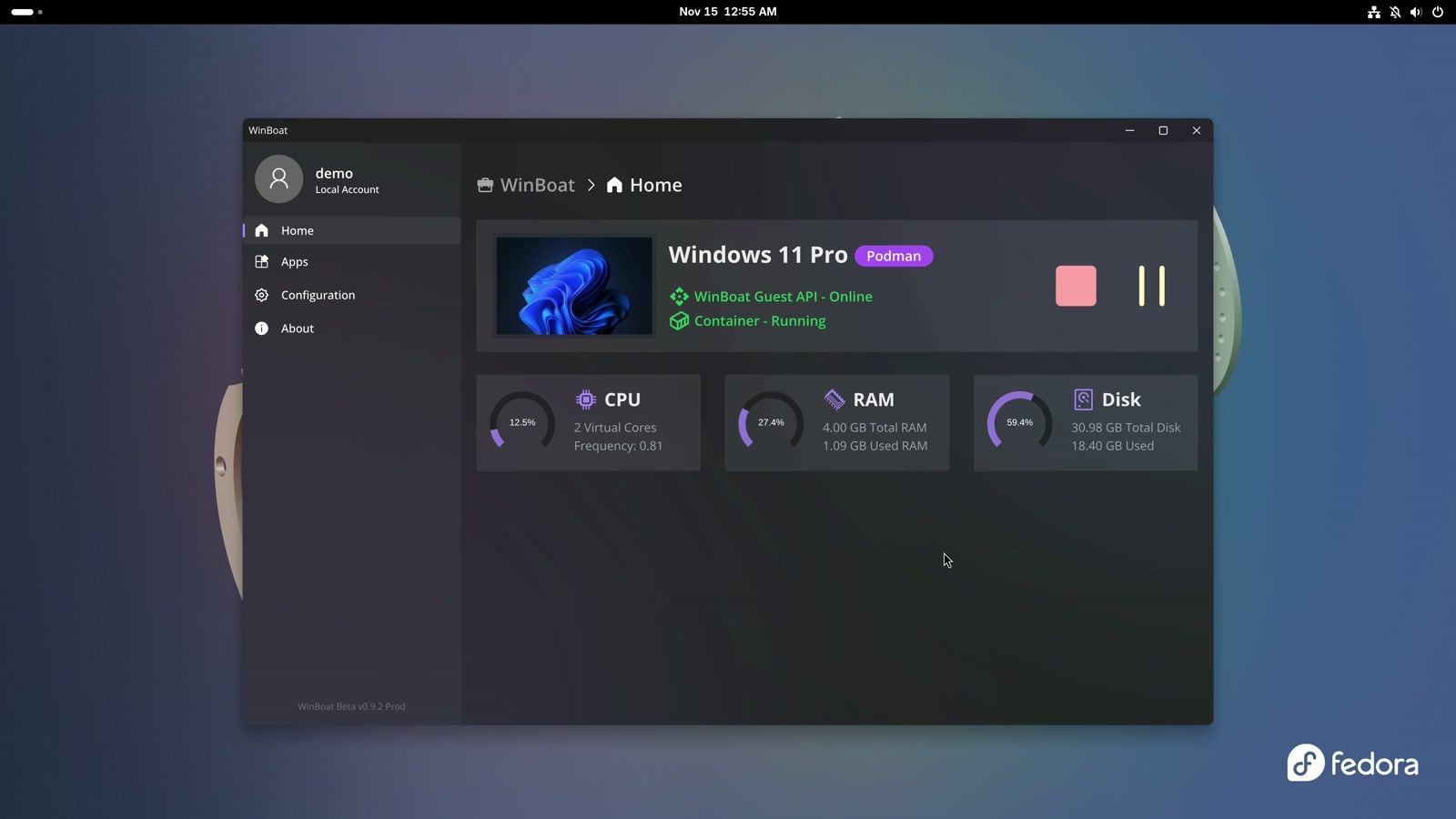
WinBoat then downloads Windows and installs it by itself. On Fedora that took 22 minutes 40 seconds on our mini PC (about 20 minutes on Omarchy); the setup page says it can take up to an hour. When it finishes, the dashboard shows Windows 11 Pro with the WinBoat Guest API online and the container running.
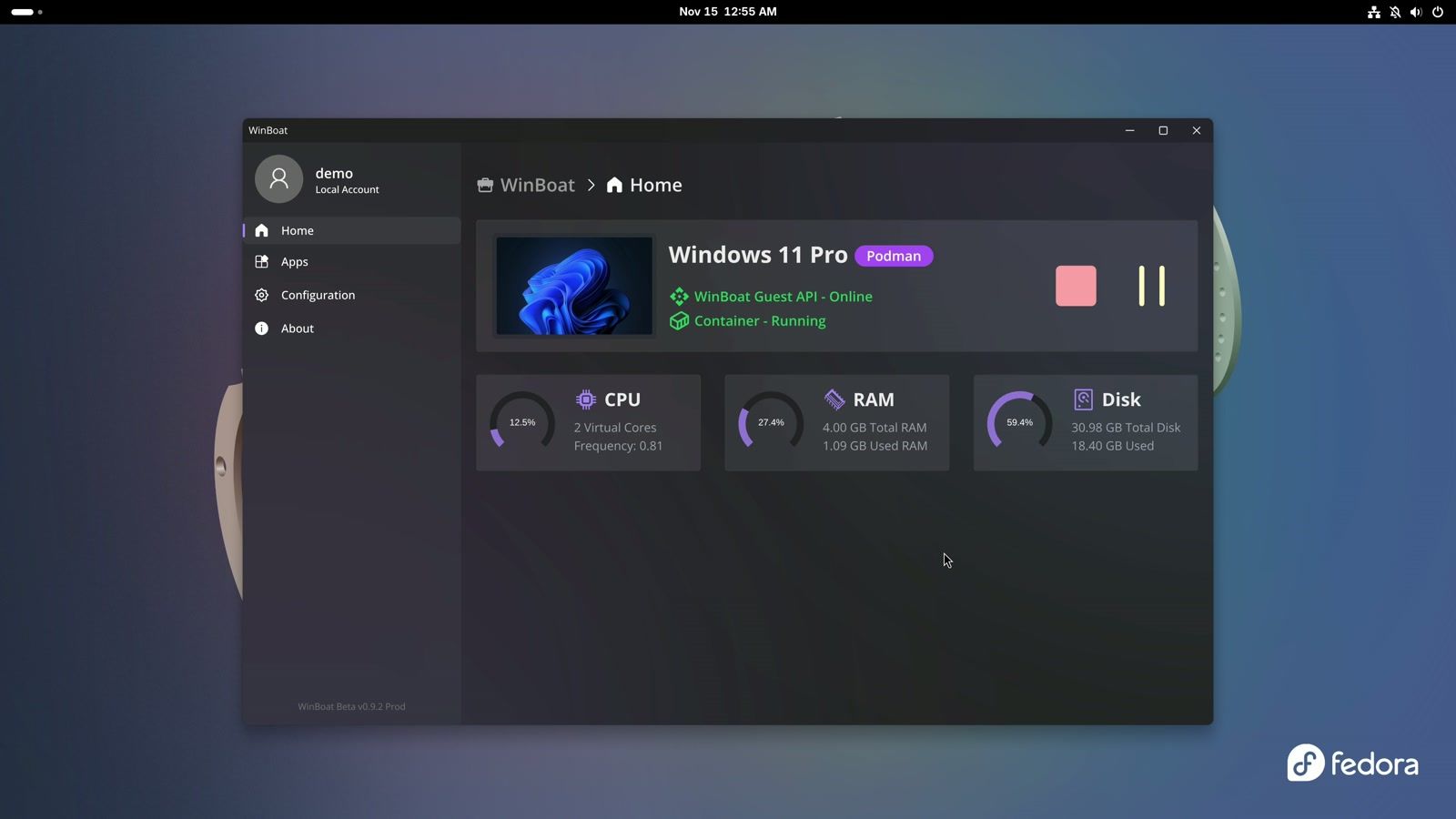
On a high-resolution screen, open Configuration before you start any Windows app. Our 4K screen ran GNOME at 200%, and we set Display Scaling to 180% and Application Scaling to 200; both save as soon as you change them. At 100% the text was too small to read.
Run Notepad++ in its own window
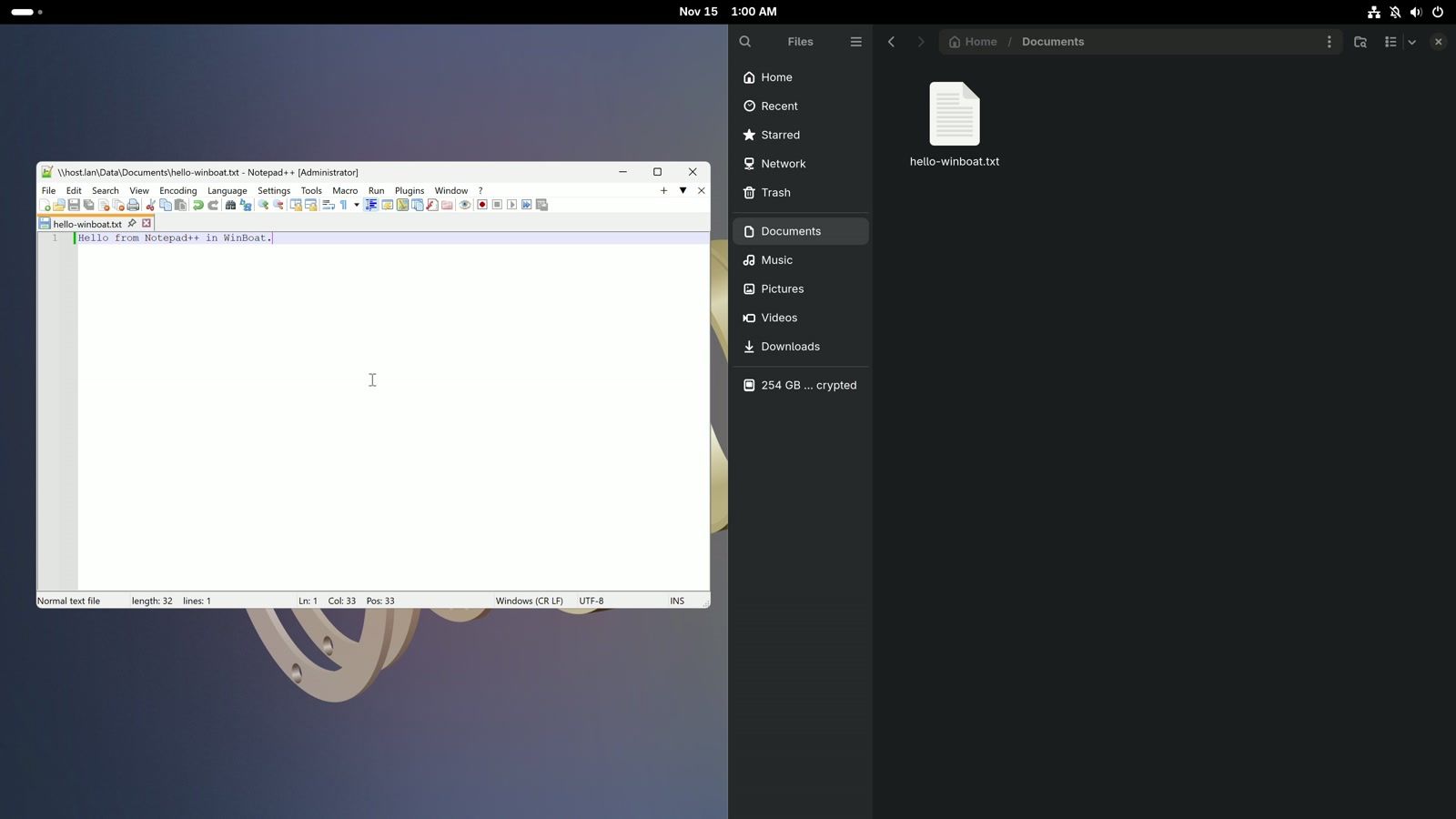
Open Apps and choose Windows Desktop. With home folder sharing on, the Windows desktop has a Shared folder that opens your Linux home, so the same Notepad++ installer runs from Shared, Downloads, in real Windows this time. Untick Run Notepad++ on the last installer page and close the Windows desktop.
Back on the Apps page, a newly installed program showed up only after we clicked Refresh, twice in our run. Type notepad in the search field and click the Notepad++ tile. Notepad++ opens as its own window on the Fedora desktop, next to the Linux apps, with a Windows-style title bar.

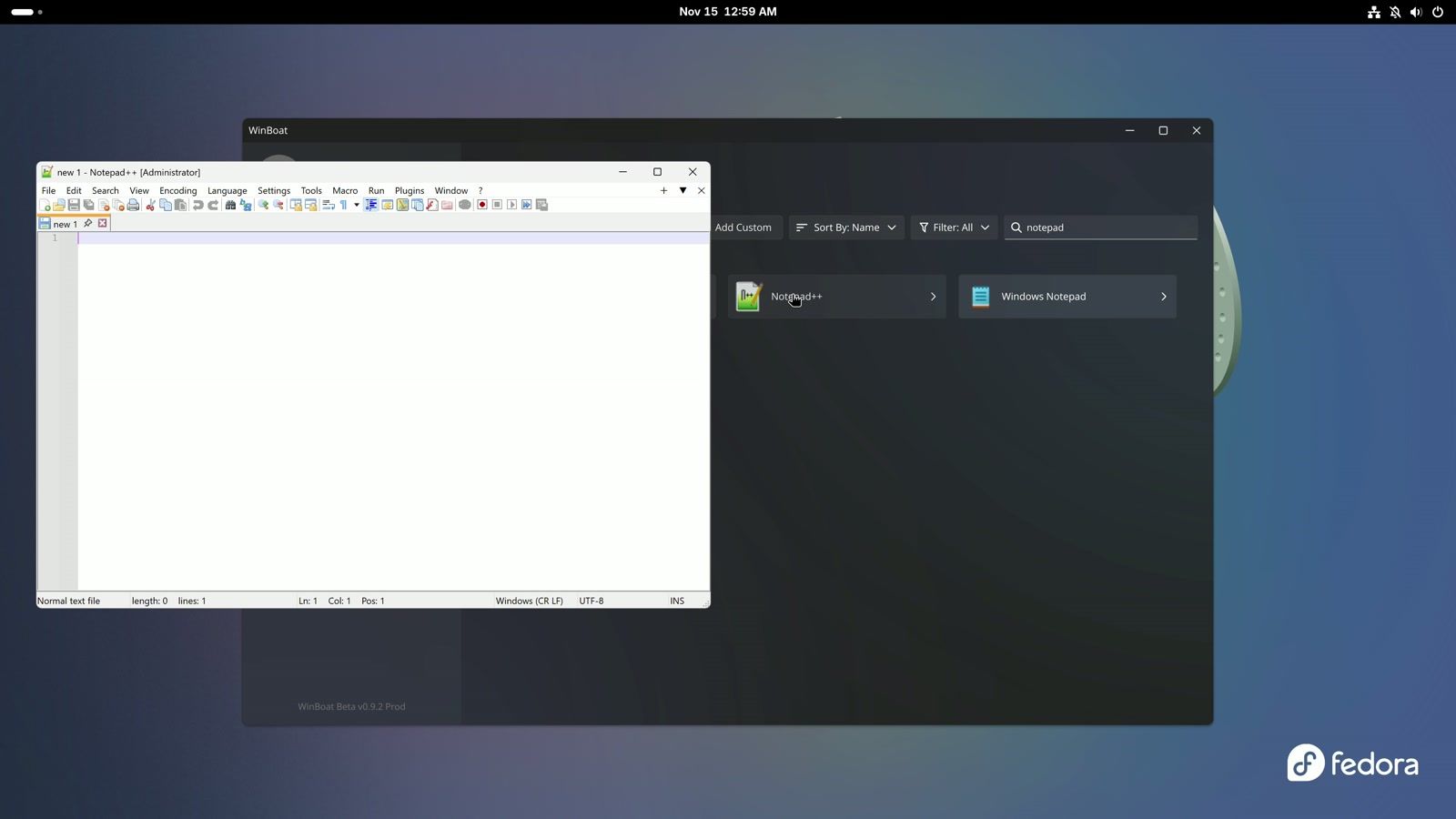
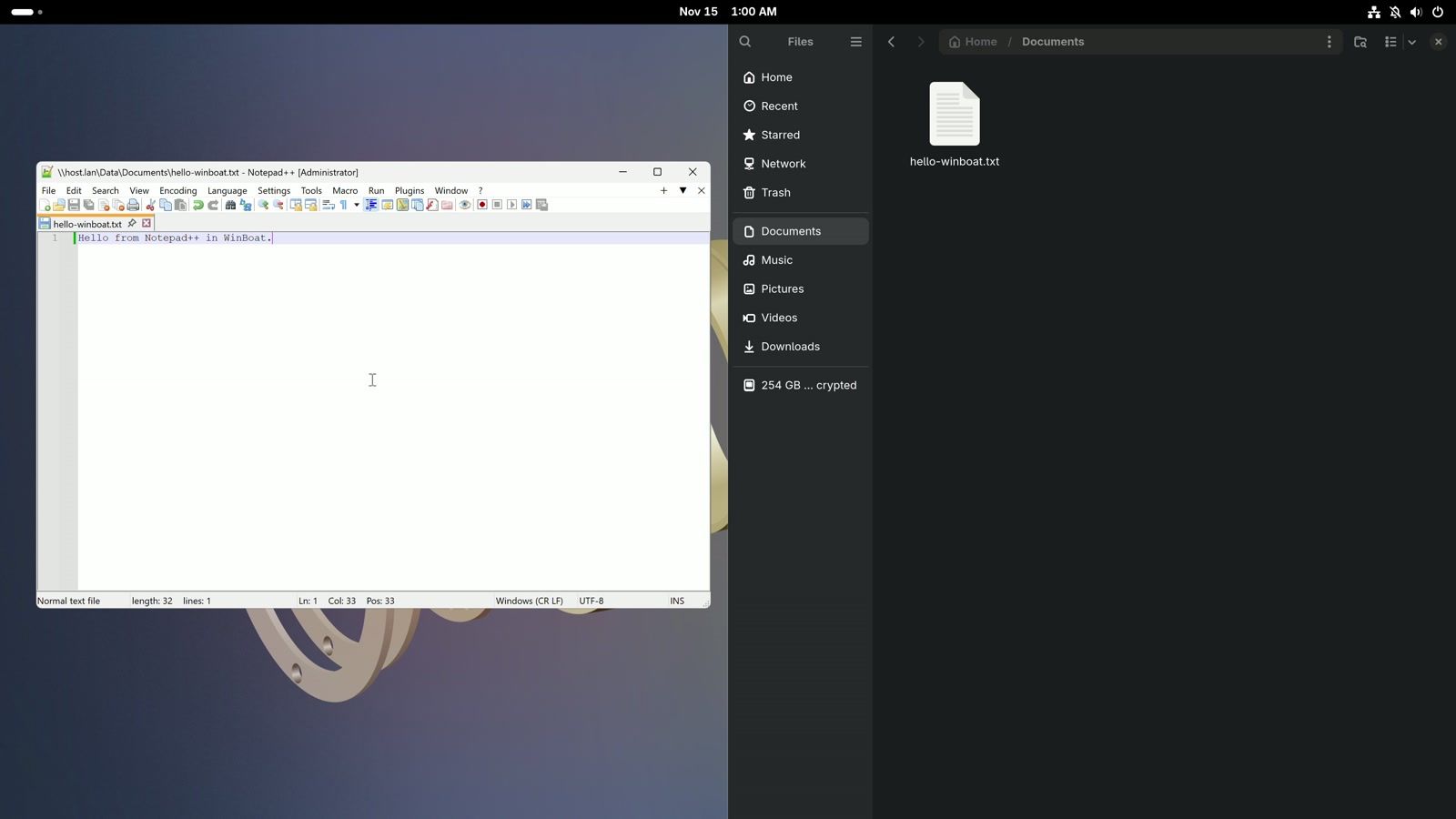
To save into your Linux Documents folder, use the shared path in the Save As dialog: \\host.lan\Data\Documents\hello-winboat.txt. The file appeared in ~/Documents in the Files app at once. SELinux, Fedora’s access-control layer, stayed in its default enforcing mode and blocked nothing.
Shut Windows down from its own Start menu. When we pressed the Stop button on WinBoat’s dashboard, the container stopped before Windows had shut down, and the next start began a fresh Windows install, with Notepad++ gone. WinBoat also starts its container at boot by default (Configuration, Auto Start Container), so Windows takes its memory as soon as you log in. Turn that off if you use WinBoat now and then.
Where Raven fits
Raven is a new project that runs Windows programs with no Wine runtime underneath. It works one layer lower. The kernel is the core of an operating system, the part every program asks for files, memory and windows. Raven runs the Windows program as an ordinary Linux process under its own supervision, and answers every call the program makes to the system the way the Windows kernel would. The program can still read and change your files with your normal user rights, as our first look showed. Wine stands in for the Windows parts a program calls; Raven stands in for the Windows kernel itself.
Raven comes from Mirko Brombin, who also started Bottles. It has no release yet, so you build it from source. Our first look at Raven builds it on Ubuntu, where Notepad++ 8.7.1 installed, ran and saved a file to Documents through drive Z, and six other programs stopped.
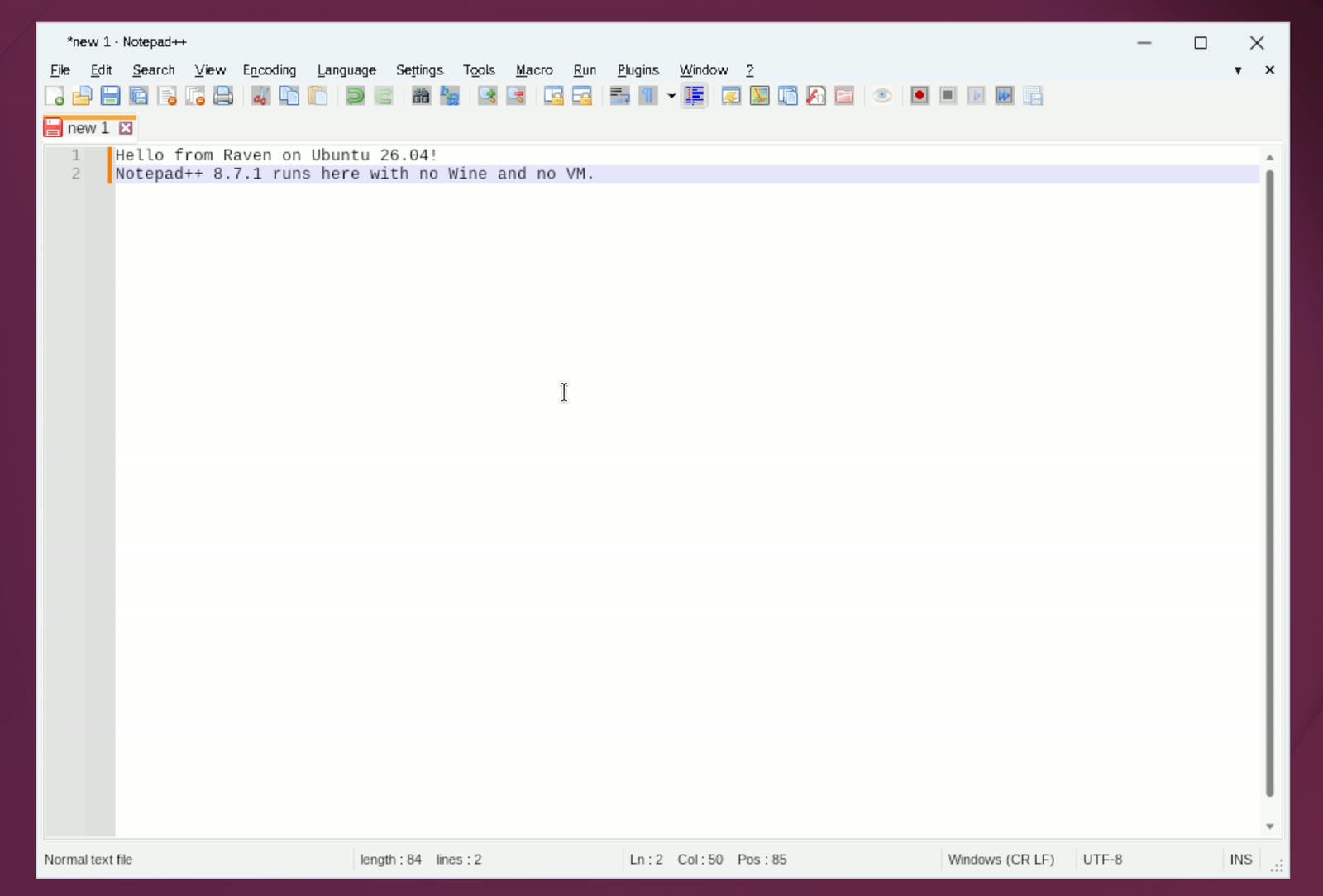
Since then, the developer reports the latest Notepad++ running with its menus, toolbar and tabs, and Chrome running with software rendering, which draws with the processor instead of the graphics card. We haven’t tested those. With no release, Raven isn’t ready for a program you rely on every day.
What each tool used on our test PC
These numbers come from Notepad++ 8.9.9.1 on Omarchy 4.5 with an Intel N100 and 12 GB of memory. Notepad++ is a light program, so a large one will use more memory. The WinBoat row comes from our run on Omarchy, where we used the full Windows desktop.
| Tool | Memory with Notepad++ open | From command or click to window | Disk |
|---|---|---|---|
| Wine | 270 MB | 1.0 s | about 2.1 GB of packages plus a 406 MB prefix |
| Bottles | 409 MB, including the Bottles app | 2.1 s | about 6.7 GB (3.4 GB of Flatpak runtimes, 3.3 GB of Bottles data) |
| Proton (umu-launcher) | 311 MB | 3.4 s | about 2.9 GB (Proton, runtime and prefix) |
| WinBoat | about 5.2 GB (Windows plus the FreeRDP window) | 1.4 to 2.7 s for the window; the Windows desktop drew 10 to 13 s after the click | about 21 GB right after the install (about 9.4 GB after the first shutdown), plus 373 MB for the app and 578 MB for the container image |
Bottles’ disk use looks large partly because of its Flatpak runtimes, which other Flatpak apps can share. WinBoat’s 21 GB was measured right after the install and includes the 7.9 GB Windows installer image; WinBoat deleted that image after the first shutdown from the Windows Start menu, and its folder dropped to about 9.4 GB.
Which tool fits your program
Start with the simplest tool that runs your program. For an everyday Windows app, that is Wine if a few terminal commands don’t bother you, or Bottles if you’d rather use an app window than type commands, with each program in its own bottle. Both use the same Wine underneath, so a program that runs in one usually runs in the other. Bottles costs more disk and adds a sandbox step for your folders, while Wine leaves the prefixes and commands to you.
For a Windows game, Proton is the route, through Steam if you already use it or umu-launcher if you don’t. Its graphics translation is what lets many Windows games run on Linux, and on a plain app it brings nothing over Wine.
A program that only runs on real Windows needs WinBoat, plus a Windows licence, 32 GB of free disk for the install and about 5 GB of memory to spare. It is the one tool here that runs real Windows. On Omarchy and other Hyprland desktops with display scaling, a bug keeps its app windows from working right, so use the full Windows desktop there; on Fedora with GNOME, each app gets its own window. Raven is worth watching, but with no release, it is an experiment for now.
Troubleshooting
Windows programs look tiny. Wine and Proton draw at 96 DPI unless you set LogPixels in the prefix, as in the Wine and Proton sections. Use 96 times your display scale. In WinBoat, raise Display Scaling and Application Scaling in Configuration instead.
Bottles doesn’t appear in the app launcher. A new Flatpak app may not show until you log in again. Until then, flatpak run com.usebottles.bottles starts it.
Bottles can’t save to Documents. The Flatpak sandbox hides your home folders. Run the flatpak override line from the Bottles section, or grant the folder in Flatseal, then restart the program.
The umu-run terminal fills with error text. Proton prints a lot of log lines, including stack traces from its accessibility helper, while the program runs. They didn’t stop Notepad++. Add > /dev/null 2>&1 & to the end of the command to hide them and get the terminal back.
WinBoat’s setup buttons are off the bottom of the window. At high display scaling on Omarchy, the setup pages didn’t fit our screen. Press ctrl - a few times to zoom the WinBoat window out (four presses at scale 3), then make it full screen ( super f on Omarchy).
A program you installed in Windows isn’t in WinBoat’s Apps list. Click Refresh on the Apps page and wait about 15 seconds; it can take more than one try. Add Custom adds an app by its path if it still doesn’t appear.
A WinBoat app window vanished when we maximized it. On Fedora, the Windows maximize button made the Notepad++ window disappear. Size the window inside the full Windows desktop instead ( alt space , Size, the arrow keys, then enter ) and close it; Notepad++ keeps that size, and WinBoat’s app window opens at it next time.
Remove what you installed
Wine and its default prefix:
wineserver -k
rm -rf ~/.wine
omarchy pkg drop wine wine-mono winetricks
Bottles, its runtimes and its bottles:
sudo flatpak uninstall -y --delete-data com.usebottles.bottles
sudo flatpak uninstall -y --unused
rm -rf ~/.var/app/com.usebottles.bottles
flatpak override --user --reset com.usebottles.bottles
Proton through umu-launcher, its downloads and the prefix:
rm -rf ~/Games/npp ~/.local/share/umu ~/.local/share/Steam/compatibilitytools.d/UMU-Proton-*
omarchy pkg drop umu-launcher
WinBoat keeps Windows in ~/winboat and its settings in ~/.winboat and ~/.config/winboat. Shut Windows down from its Start menu first, then remove the container, the dockur/windows image that podman images lists, the folders and the packages:
podman rm -f WinBoat
podman images
podman rmi <the dockur/windows image ID>
rm -rf ~/winboat ~/.winboat ~/.config/winboat
sudo dnf remove winboat podman-compose freerdp
On Omarchy, remove the packages with omarchy pkg drop winboat-bin podman-compose podman freerdp instead of the last line. Fedora ships Podman, so the Fedora line leaves it in place.
Only remove ~/.local/share/Steam as a whole if you don’t use Steam; the line above removes only the UMU-Proton folder inside it.
Wrapping up
Our guide to Paint.NET on Omarchy uses Wine for a bigger program, and Omarchy’s built-in Windows VM is another way to run real Windows, with the same dockur/windows image under it. For a Chromebook, see running Windows apps on a Chromebook.


