
If you are new to Omarchy or to tiling window managers, this guide shows how they place your windows and why your windows move when you open one more. A tiling window manager places every window for you, but tiling compositors do not agree on where a new window goes. That choice decides whether your other windows shrink when you open one more. A second choice decides how you find a window you can’t see: a workspace, a strip you scroll along, or a tag. This guide puts the same four windows through three answers to those questions: dwindle on Hyprland, scrolling on niri, and tags on MangoWM.
Each model runs on a different compositor, the program that draws your windows and moves them around. Hyprland is the compositor under Omarchy, and dwindle is its default layout there. niri is built around scrolling. MangoWM, formerly MangoWC, is a small compositor that groups windows with tags instead of workspaces.
Everything below, and in the video embedded above, ran on Omarchy 4.5 with Hyprland 0.56.2, niri 26.04 and MangoWM 0.18.2, on a GMKtec NucBox G2 at 4K. The four windows are the same each time: three terminals numbered 1, 2 and 3 in the order they opened, and the file manager (Files).
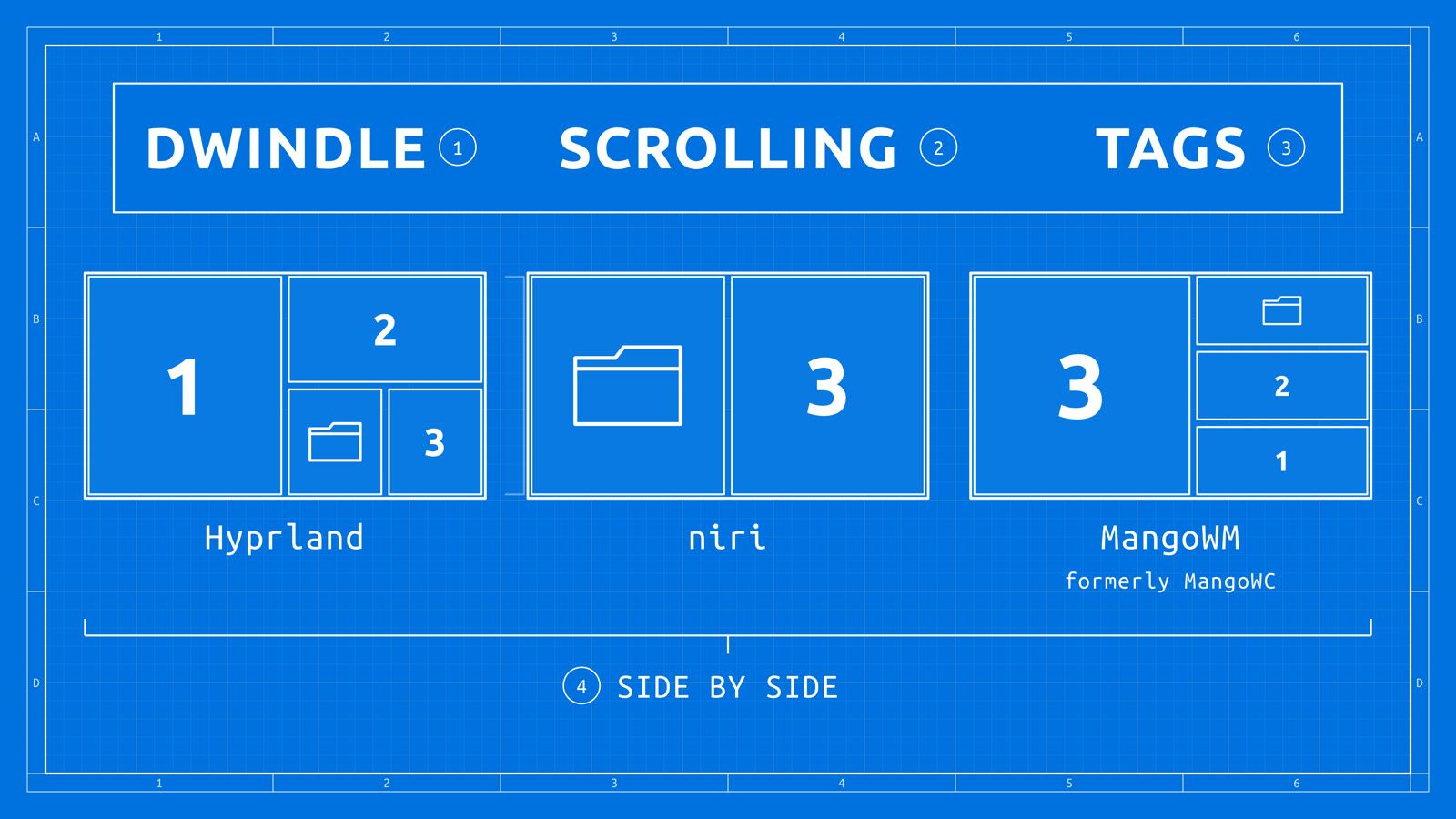
Dwindle on Hyprland splits the focused window
Dwindle is the layout Hyprland uses out of the box on Omarchy. Every window on a workspace belongs to a tree of splits. Each new window cuts the focused window in two, and the pair share the space that window had. Hyprland’s dwindle page states the rule for the split direction: if the space is wider than it is tall, the split is side by side; if it is taller than wide, it is top and bottom. Omarchy sets force_split = 2, so the new window always lands in the right half or the bottom half.
Most of Omarchy’s shortcuts use the Super key, the Windows key on most PC keyboards. On an empty workspace, super enter opens a terminal, and it fills the screen. A second super enter splits it, and terminal 2 opens in the right half. super shift f opens Files: terminal 2 has the focus and is taller than wide, so Files opens below it. A third super enter splits Files, which is wider than tall, so Files and terminal 3 sit side by side. That fourth window gets half of a quarter of the screen, an eighth.
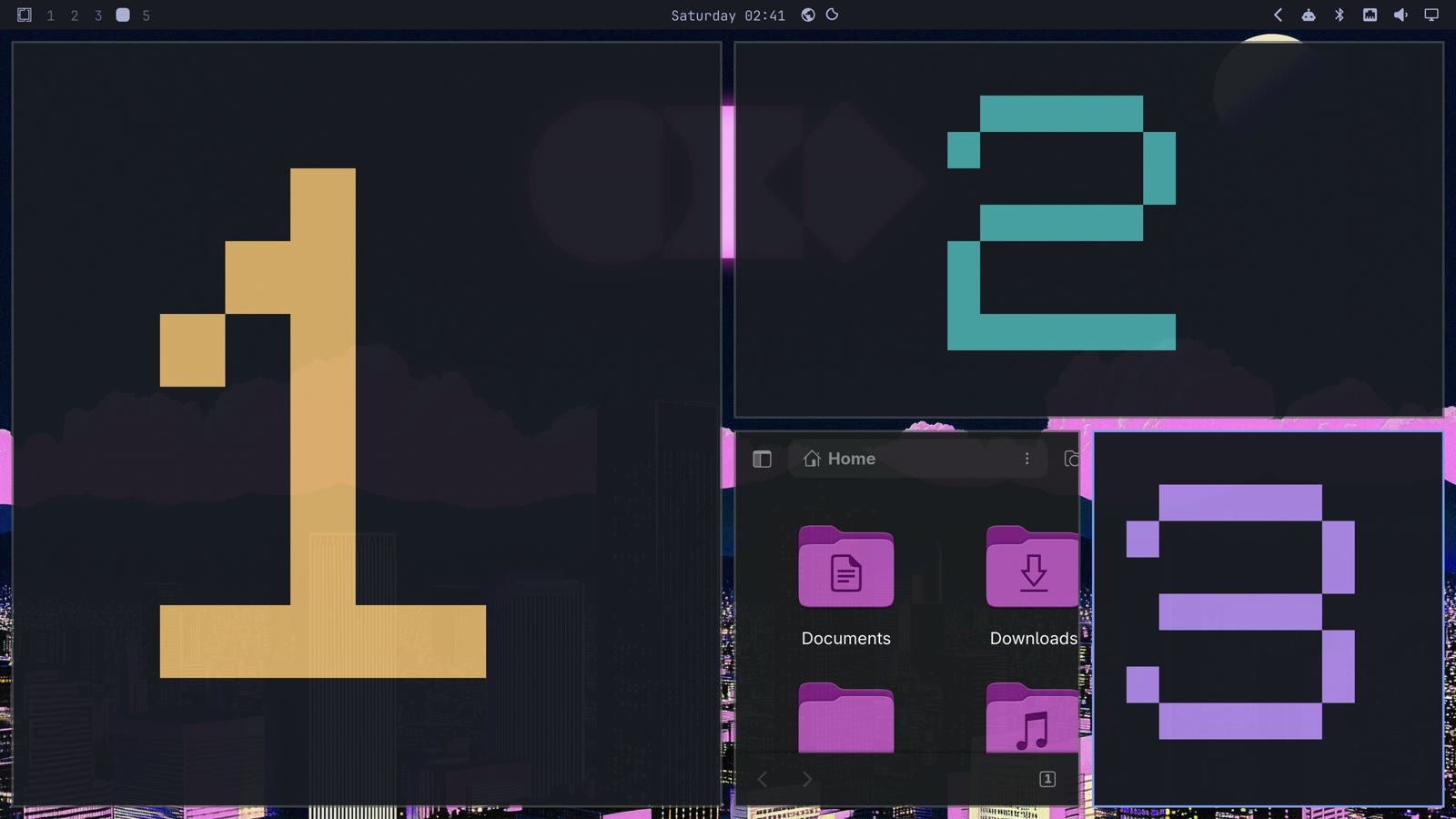
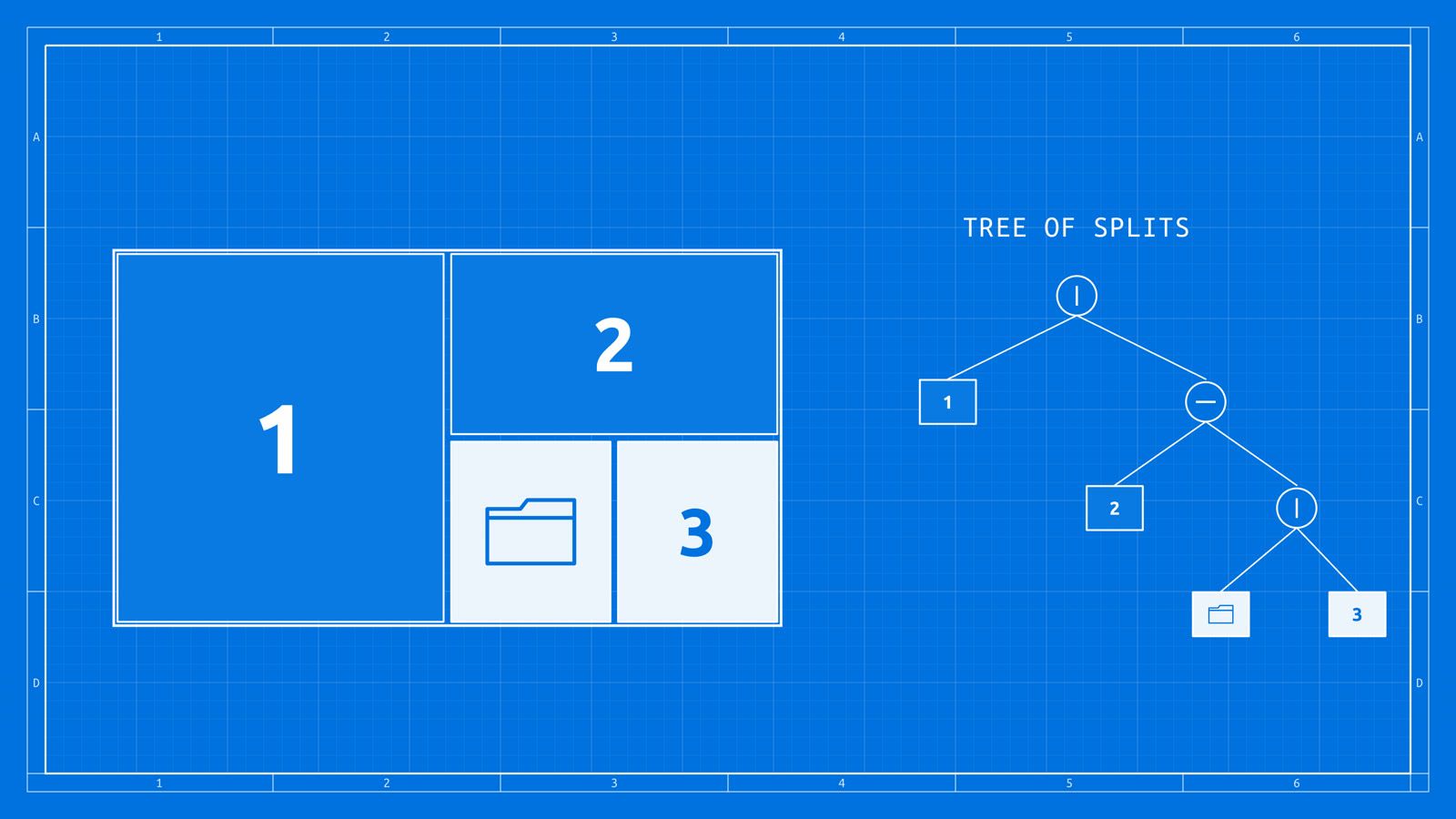
The tree can change after the windows are open. With terminal 3 focused, super j turns its split around, so Files and terminal 3 stack top and bottom; a second press puts them side by side again. super - and super = move a split by 100 pixels: with terminal 3 on the right of the pair, Super Minus grows it to the left while Files gives up the space, and Super Equal moves the split back. super shift swaps terminal 3 with Files, and super shift then swaps it with terminal 2. Each window takes on the size of the slot it moves into.
Every window stays in view and you never place one by hand, but each split halves the space it came from, so new windows keep getting smaller. Two presses of Super Minus on that bottom pair left Files about 100 pixels wide, which is too narrow to use.
| Keys on Omarchy (Hyprland) | What it did |
|---|---|
| super enter | Opens a terminal; it splits the focused window |
| super shift f | Opens Files the same way |
| super j | Turns the focused split from side by side to stacked, and back |
| super - / super = | Moves the split by 100 pixels |
| super shift (any arrow) | Swaps the focused window with its neighbor |
| super (any arrow) | Moves the focus |
| super 1 to super 0 | Switches to workspace 1 to 10 |
| super l | Cycles the workspace through tiling, scrolling and floating |
| super w | Closes the focused window |
To reach a window that’s out of view on Hyprland, you switch to the workspace it is on. A window lives on one workspace at a time.
Scrolling on niri adds a column and resizes nothing
Scrolling is the one layout niri has. Its README puts it this way: “Windows are arranged in columns on an infinite strip going to the right. Opening a new window never causes existing windows to resize.” The screen is a viewport onto part of that strip. When you focus a column that’s off screen, the view slides along the strip to show it.
On niri, super t opens a terminal (after the change to niri’s default config covered in the setup section), and the first one takes half the width of the screen. Terminal 2 opens as a new column to the right, and terminal 1 keeps its size. Files opens as a third column, but there’s no room left on screen, so the view scrolls and terminal 1 slides off the left edge. Terminal 3 opens as a fourth column, and the view scrolls again. All four windows still have the width they opened at.
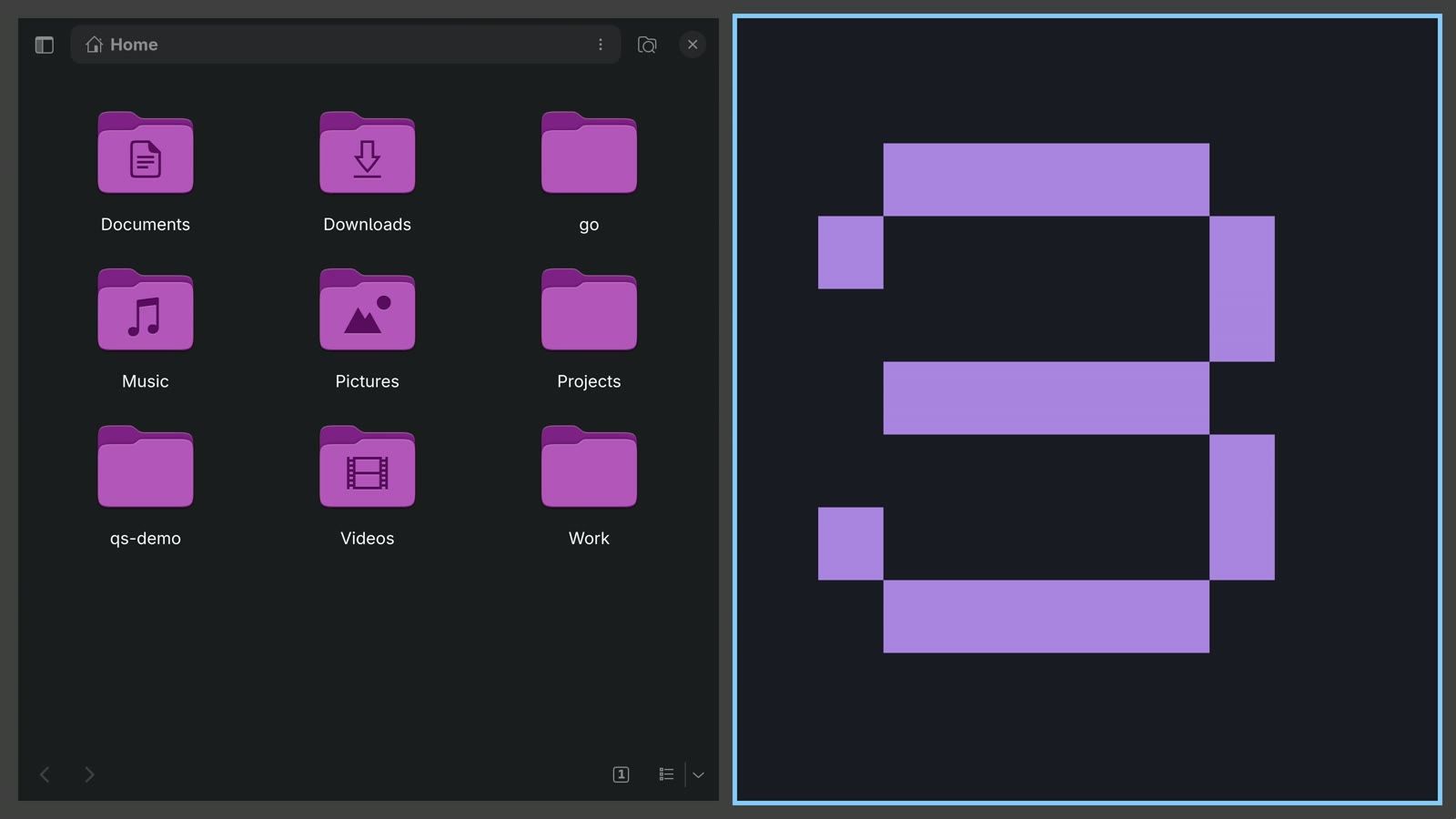
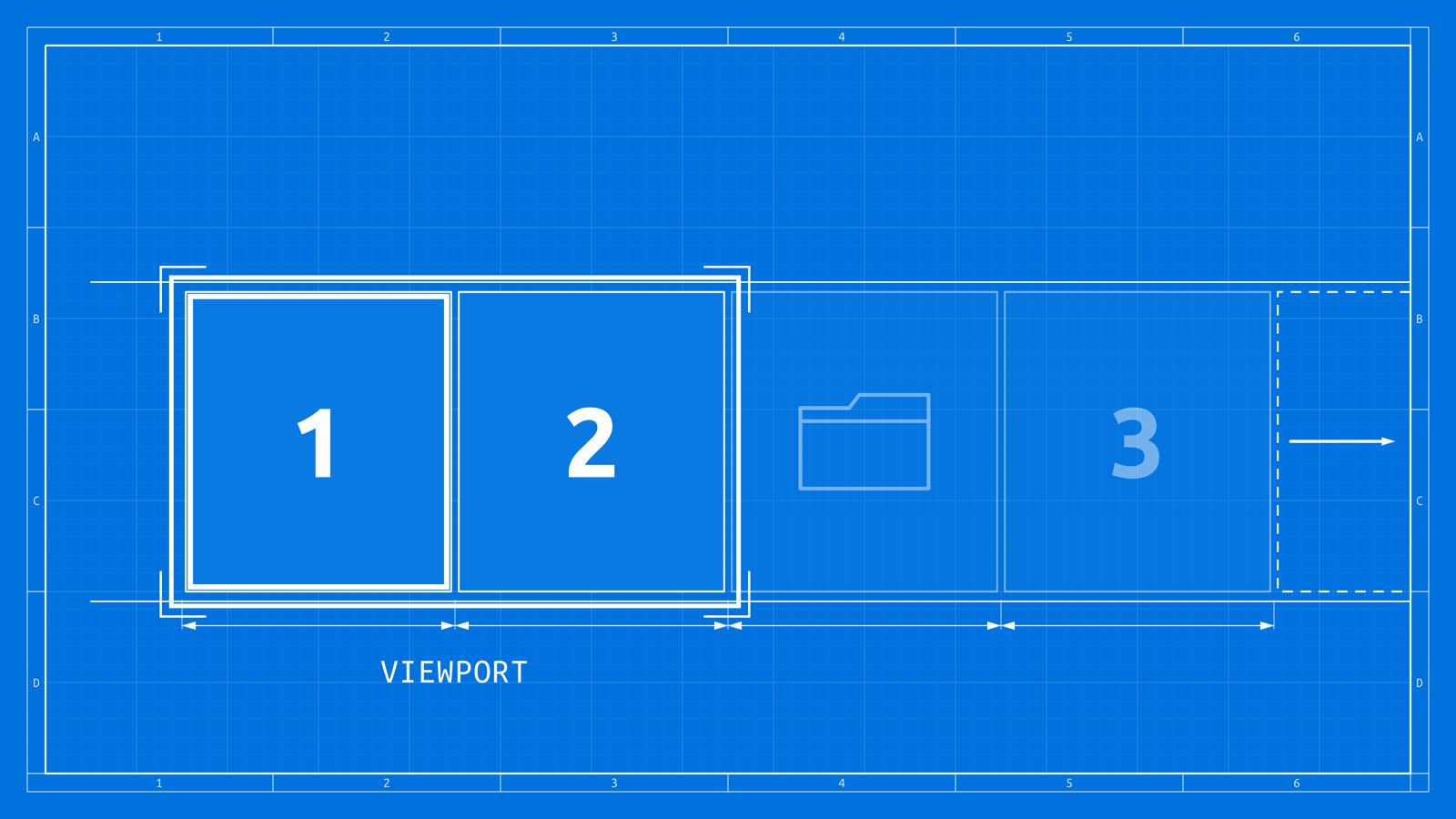
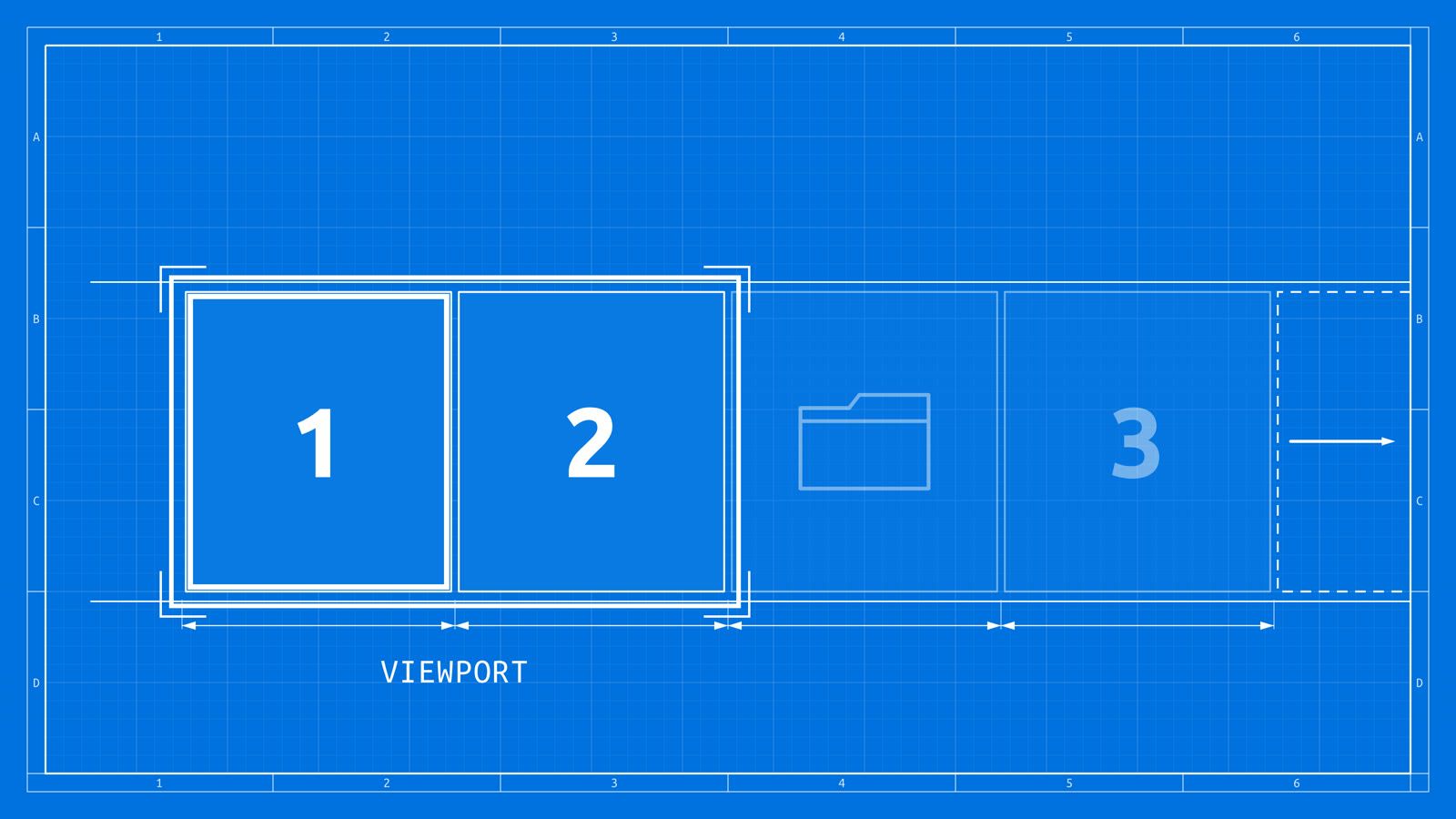
super and super move the focus along the strip. The view scrolls one column at a time to keep the focused window on screen, and a blue ring marks it. super r cycles the focused column through niri’s preset widths: two thirds of the screen, one third, and back to half.
Two windows can share a column. With terminal 3 focused in the last column, super [ pulls it into Files’ column, with Files on top and terminal 3 below, each at half height.
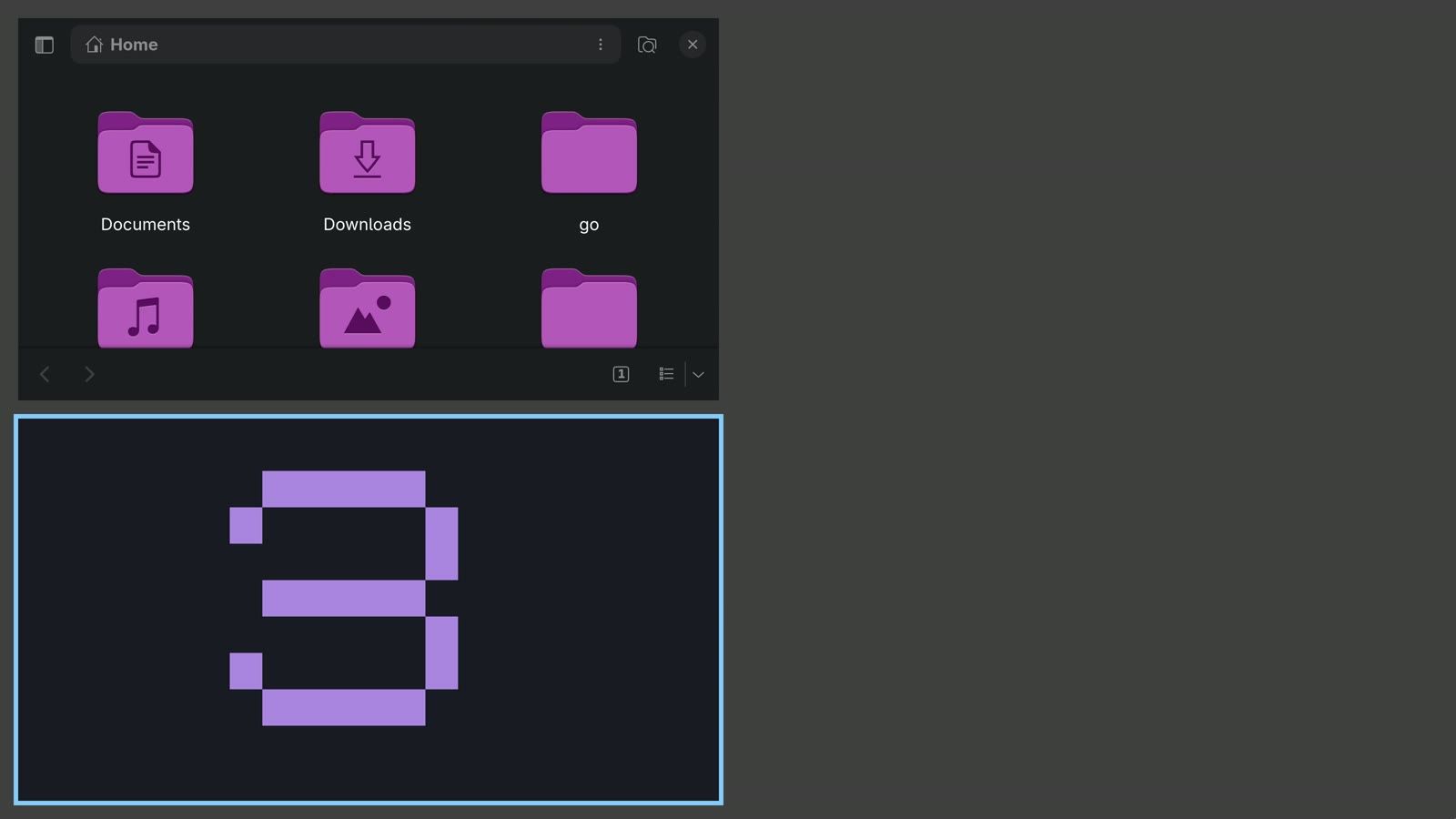
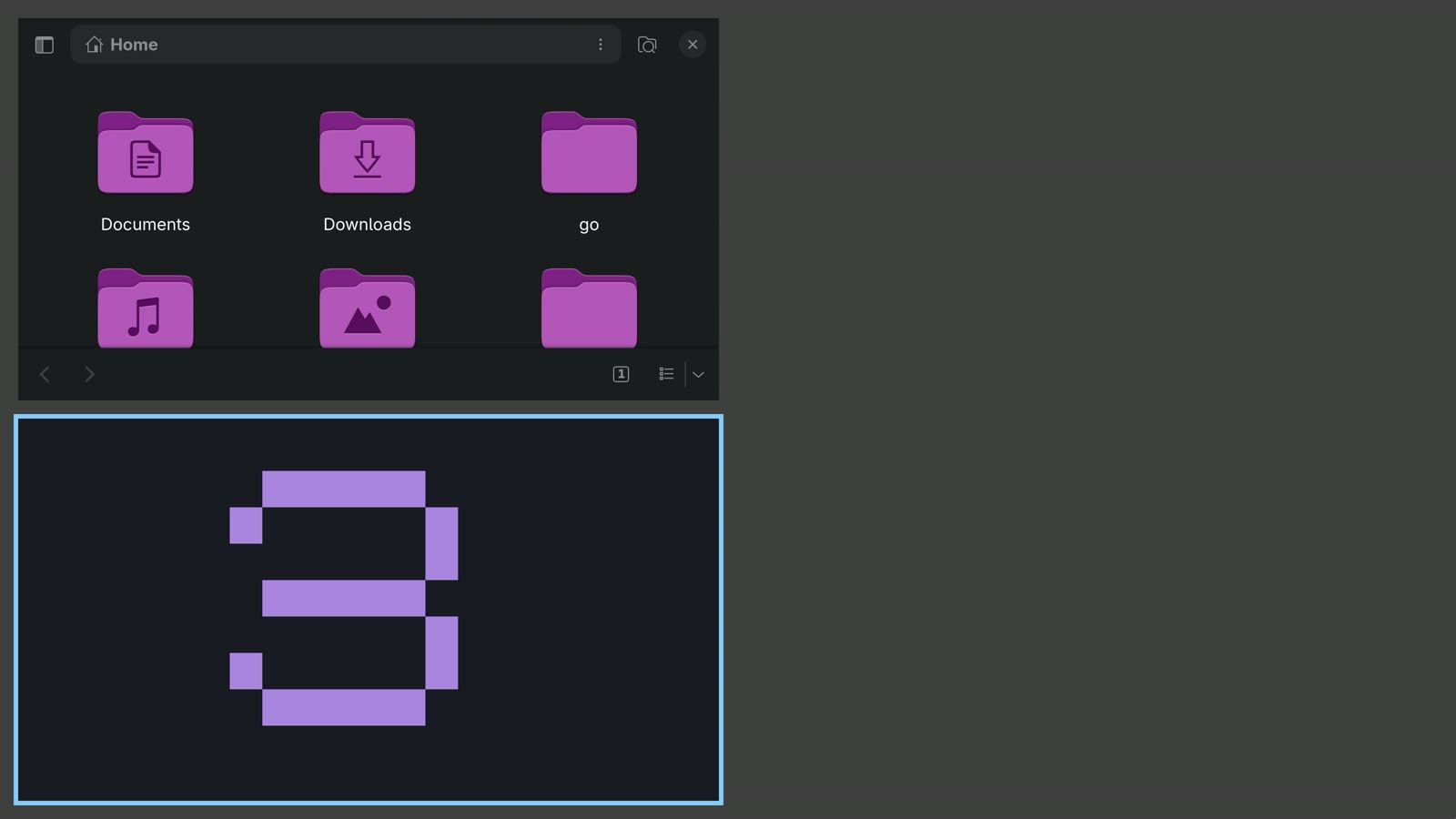
super o opens the overview, which zooms out on the strip. It centers on the focused column, so terminal 1 started out cut off at the left edge; two presses of super inside the overview slid the strip over until all four windows fit in one row. Below the strip, the next workspace waits, empty. niri’s workspaces stack from top to bottom, and there’s always one empty workspace at the bottom. super page down moves down to it, and super page up returns to the strip.
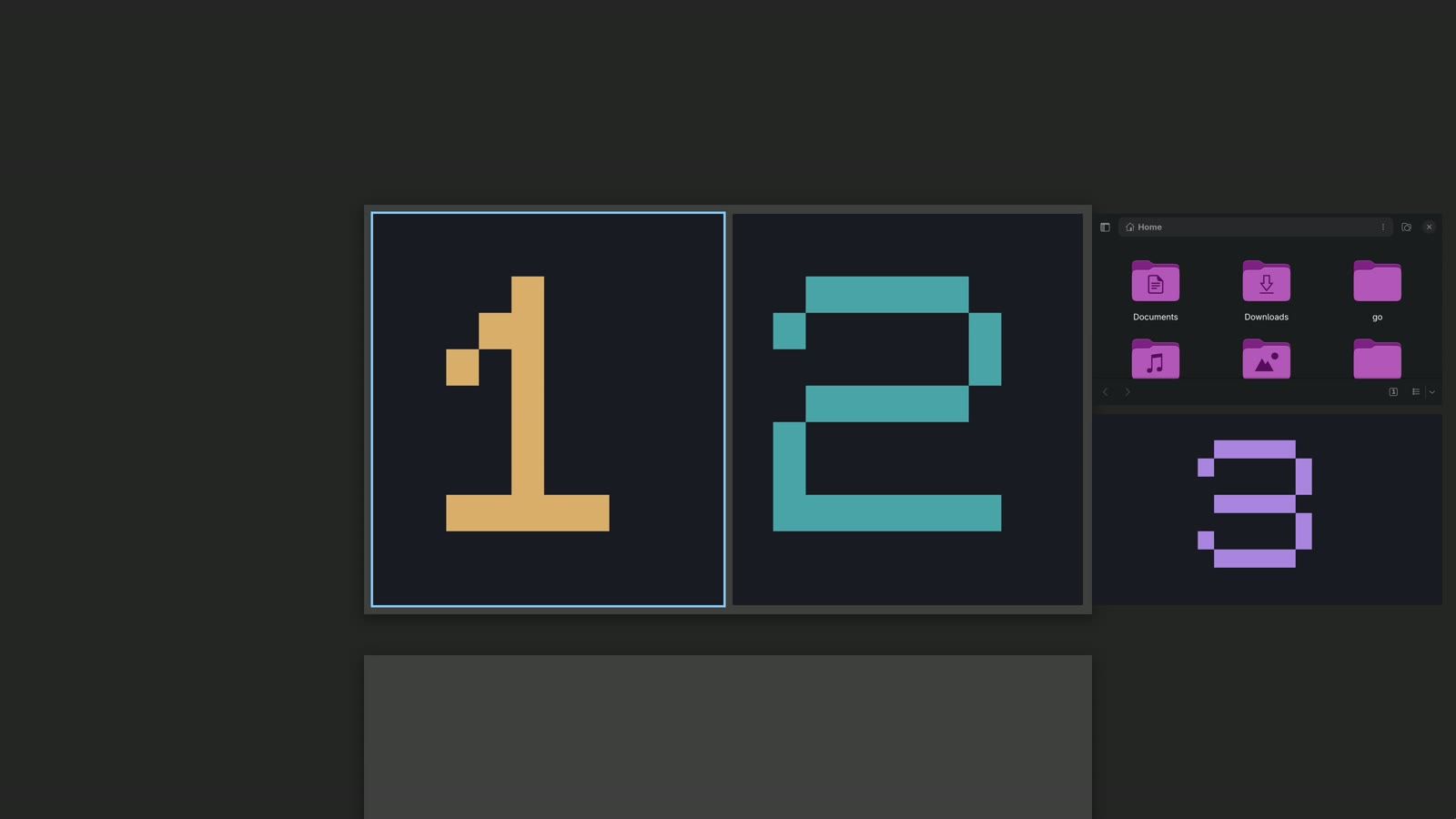
The tradeoff is that only a few columns fit on screen, so the rest are a scroll away.
| Keys on niri (default config) | What it did |
|---|---|
| super t | Opens a terminal as a new column to the right |
| super shift f | Opens Files (a bind we added; see the setup section) |
| super / super | Moves the focus along the strip |
| super r | Cycles the column width: 2/3, 1/3, 1/2 |
| super [ | Moves the focused window into the column on its left |
| super o | Opens and closes the overview |
| super page down / super page up | Moves down or up a workspace |
| super q | Closes the focused window |
If you want the full niri desktop with a bar, launcher and panels, our tour of niri with DMS installs it on plain Arch and covers tabs and more of the strip keys.
Hyprland and MangoWM scroll too
Hyprland has a scrolling layout built in: it was the hyprscrolling plugin until Hyprland 0.54 made it a core layout. On Omarchy, super l switches the current workspace to it, a notice reads “Workspace layout set to scrolling”, and the workspace’s mark in the bar turns into a circle. The same four windows become columns, two on screen at a time (Omarchy sets the column width to 0.49 of the screen), and super and super move along them the way niri does.
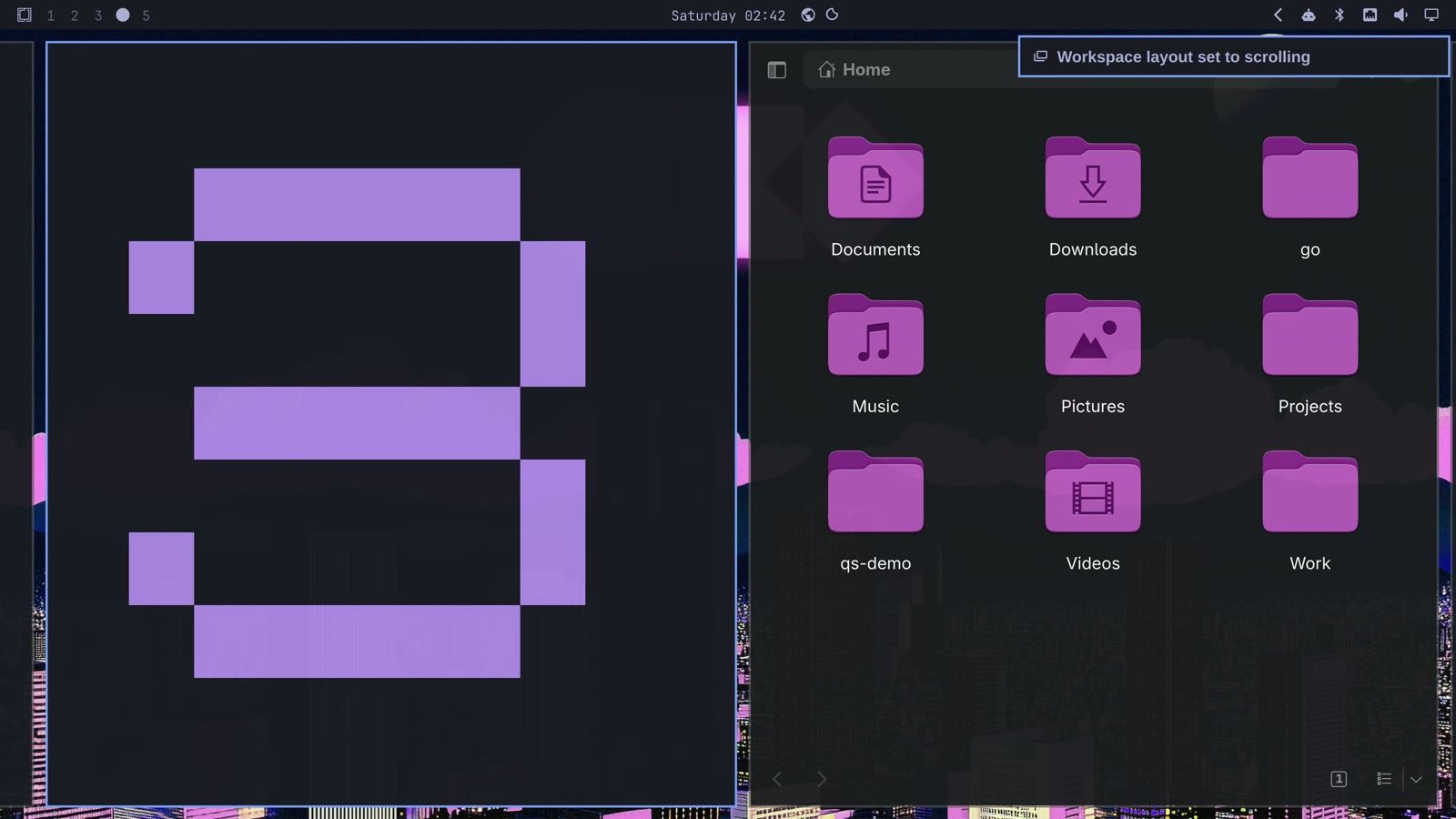
The column order follows the dwindle tree at the moment you switch, not the order the windows opened: ours came out as 1, 3, Files, 2 after the swaps above. Two more presses of Super L float the windows, then set the workspace back to tiling, the name Omarchy uses for dwindle. Floating is a mode Omarchy adds to Hyprland, not one of Hyprland’s layouts; our guide to Omarchy’s floating windows and dock covers it. The tree Hyprland rebuilds when you cycle back to tiling was not the same from one run to the next. For more on scrolling in Omarchy, including how to make it the default, see How to Use the Scrolling Layout in Omarchy.
MangoWM has a scrolling layout as well, called scroller. Its columns are 0.8 of the screen wide in the config MangoWM ships, so they are wider than niri’s. You’ll see it on one tag in the MangoWM section below.
MangoWM’s tile layout gives the newest window the main slot
Before tags, MangoWM’s layout decides where a new window goes. The default layout is tile: one main window on the left and a stack on the right. MangoWM is built on dwl, a Wayland take on dwm, and the tile and tag ideas come from there.
alt enter opens a terminal on MangoWM, and the first one fills the screen. Each new window moves into the main slot, and the window that had it moves to the top of the stack. After the four opens ( alt enter twice, super shift f for Files, alt enter ), terminal 3 is the main window, and Files, 2 and 1 share the stack.
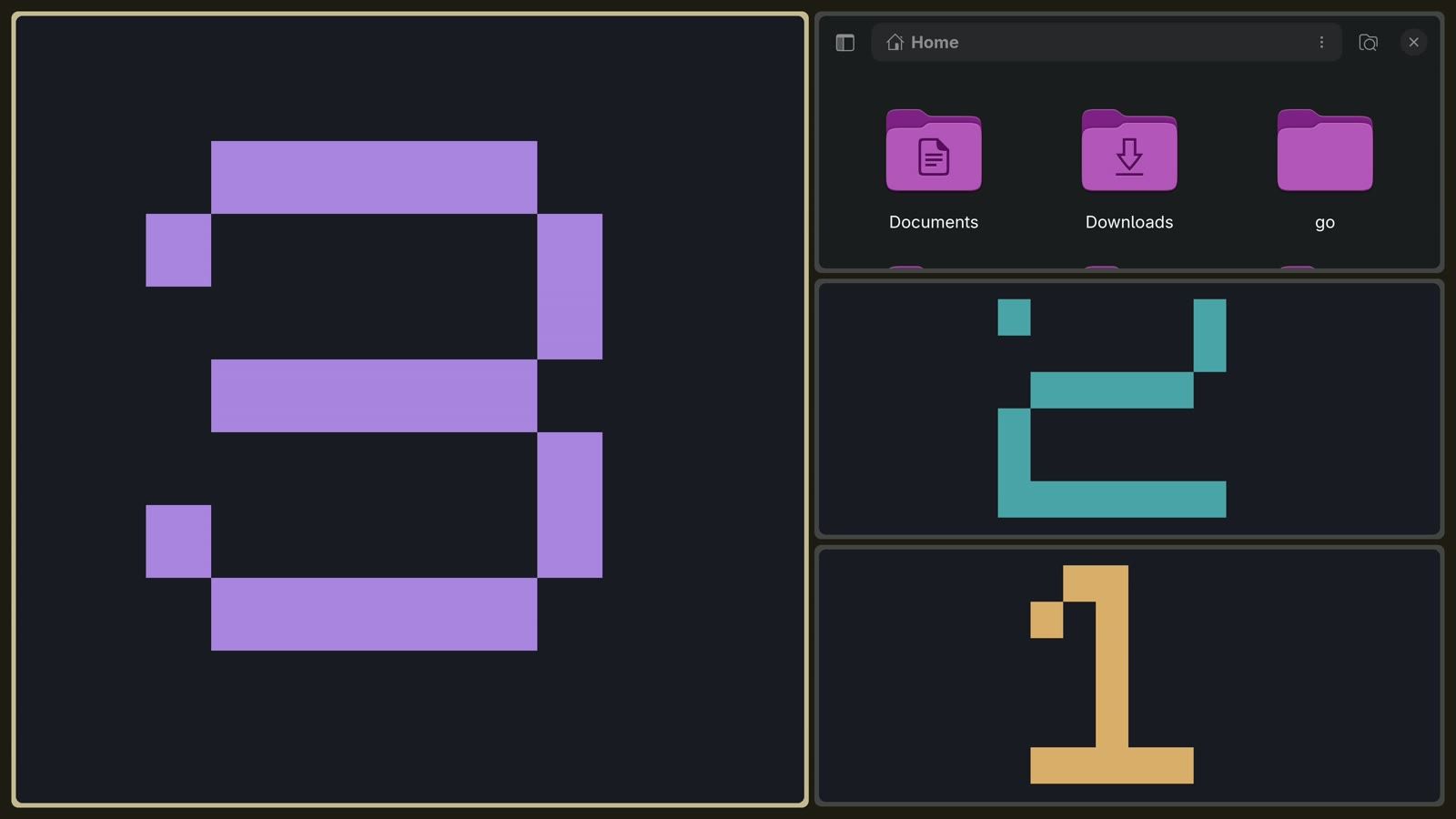
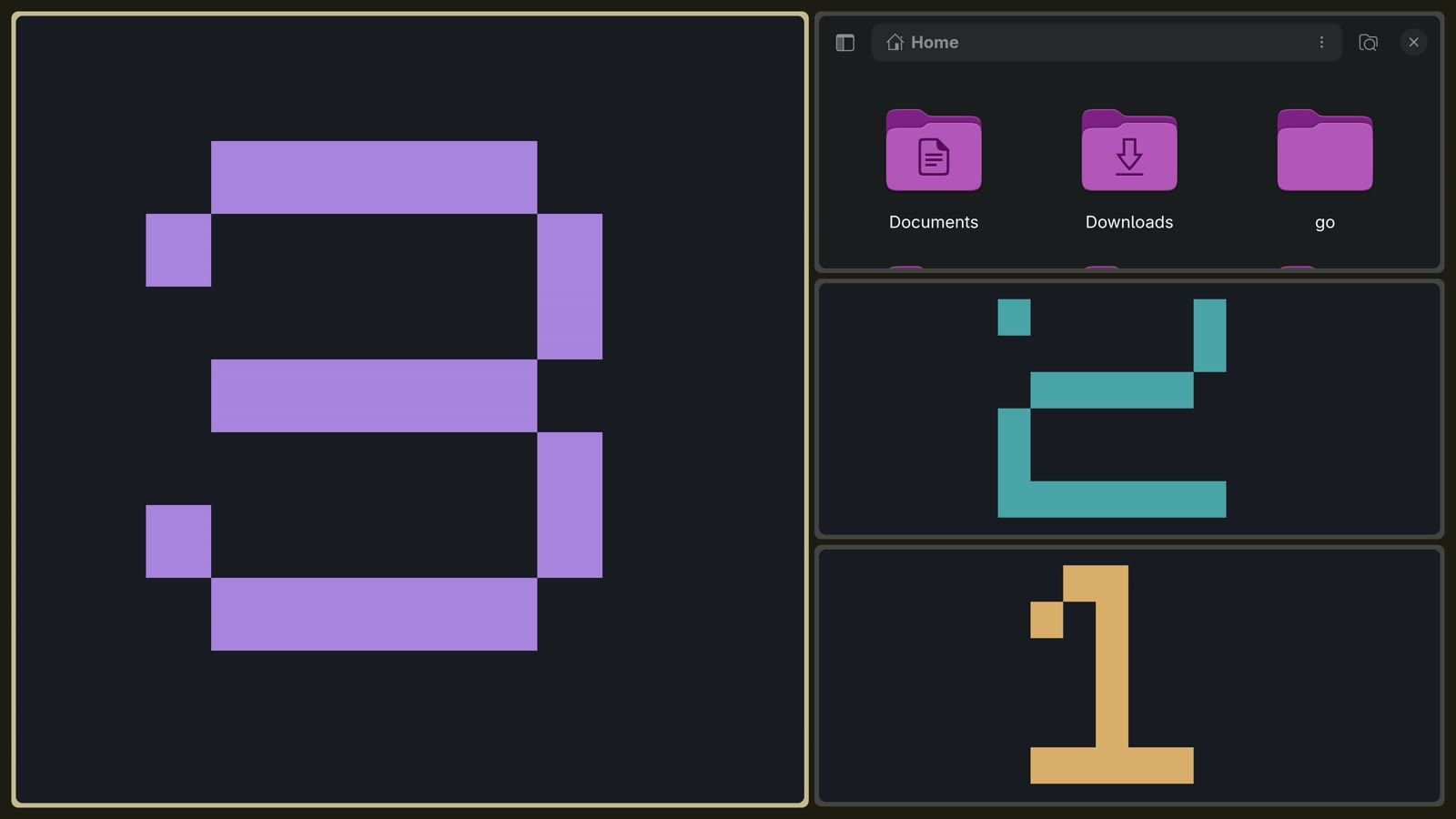
The newest window always gets the most room, and the stack splits the rest evenly. MangoWM has fourteen layouts (mmsg get layouts listed them on our machine), among them tile, scroller, dwindle, monocle, grid and deck. Tile is the default on every tag.
Tags on MangoWM are labels, not workspaces
MangoWM has nine tags, and the screen shows every window that carries a tag you’ve switched on. When each window carries one tag and you view one tag at a time, tags work like workspaces. Unlike workspaces, you can view two tags at once, and one window can carry two tags. The tags pick which windows are on screen, and the layout arranges them.
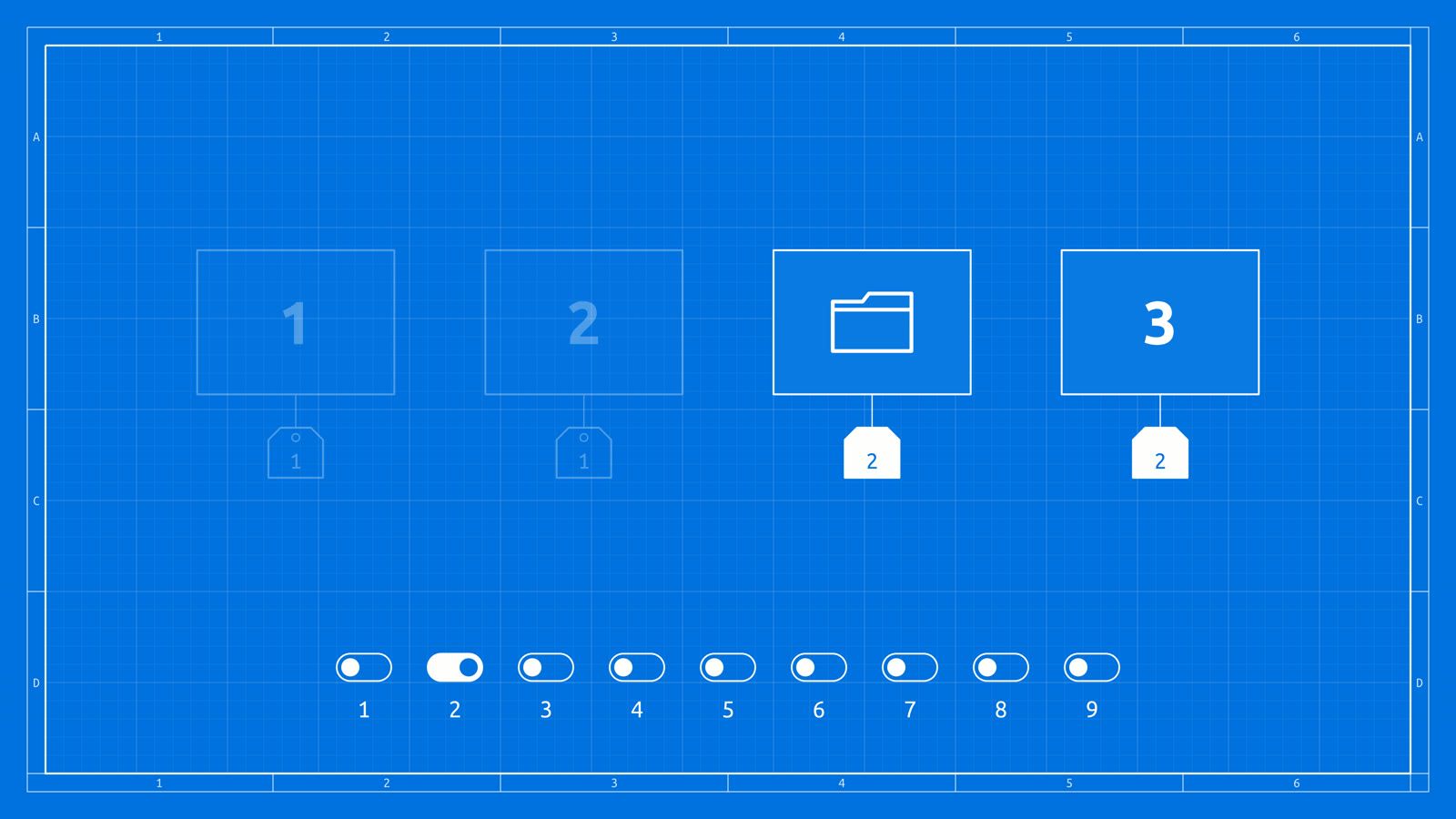
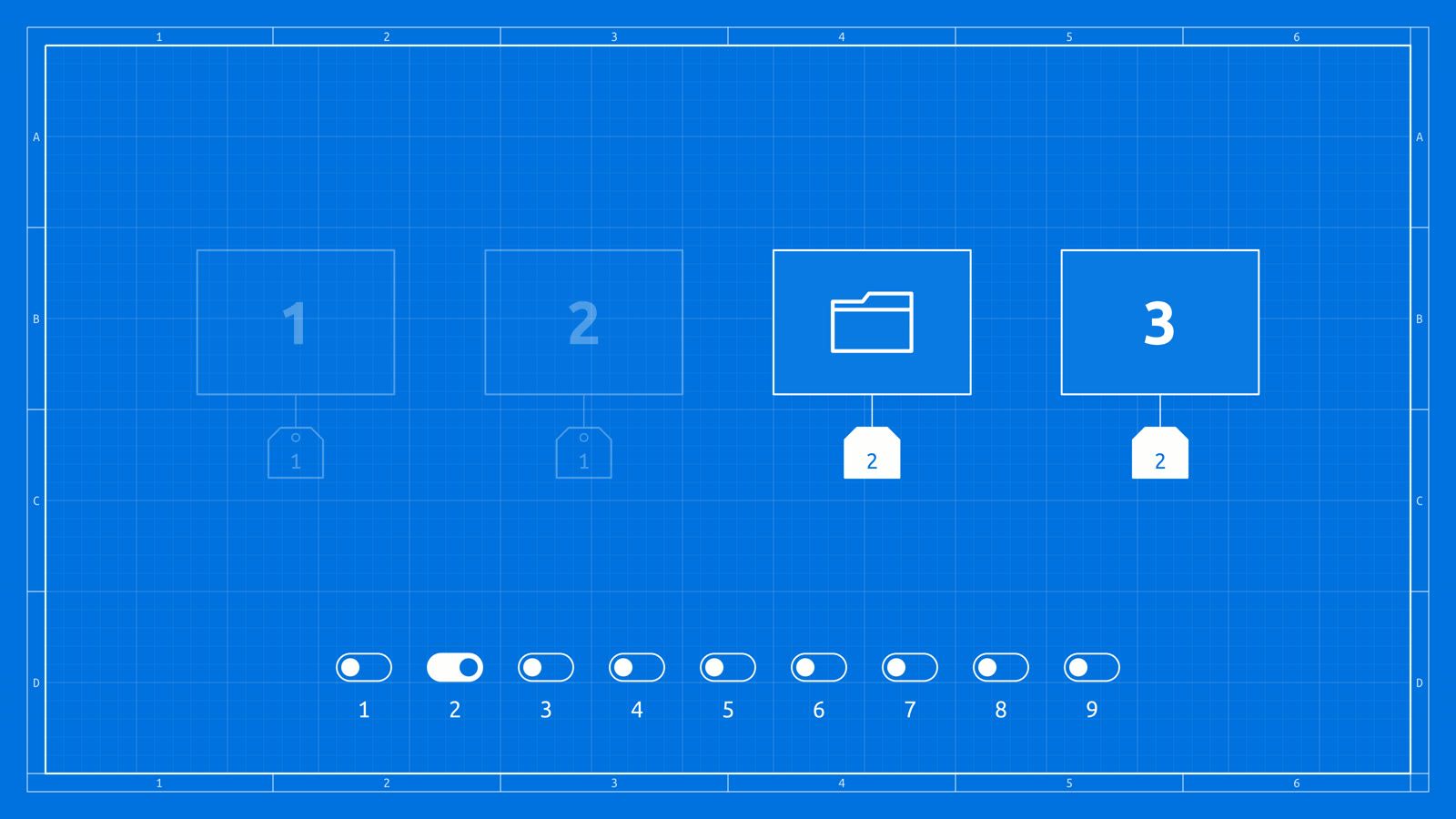
MangoWM’s shipped config binds two kinds of tag key: Control plus a number views a tag, and Alt plus a number sends a window to one. ctrl 2 views tag 2 (it starts out empty) and ctrl 1 goes back to tag 1. alt 2 sends the focused window to tag 2, and the view follows it there. We sent terminal 3 to tag 2, where it was alone and filled the screen. Back on tag 1, Files had the main slot, and alt 2 sent it to tag 2 as well. That left terminal 3 and Files on tag 2, and terminals 2 and 1 on tag 1.
MangoWM shows no tag bar by itself, so nothing on screen tells you which tag you are on. Keep that in mind when a tag switch looks like windows vanishing.
The two MangoWM binds we added
MangoWM can view several tags at once and put a window on several tags (the toggleview and toggletag commands), but its default config binds neither. We added these lines to ~/.config/mango/config.conf. Super Control plus a number adds that tag to the view or takes it out; Super Shift plus a number adds that tag to the focused window or takes it off. All six keys were free in the default config.
bind=SUPER+CTRL,1,toggleview,1
bind=SUPER+CTRL,2,toggleview,2
bind=SUPER+CTRL,3,toggleview,3
bind=SUPER+SHIFT,1,toggletag,1
bind=SUPER+SHIFT,2,toggletag,2
bind=SUPER+SHIFT,3,toggletag,3
From tag 1, super ctrl 2 added tag 2 to the view, so tags 1 and 2 showed together: all four windows in one tile layout, with terminal 3 in the main slot. The same keys took tag 2 out again.
To put one window on two tags, we went to tag 2 with ctrl 2 and focused terminal 3 with alt . super shift 1 then put terminal 3 on tag 1 as well. Nothing moved on screen, because terminal 3 was still on tag 2. Back on tag 1, terminal 3 was there too, in the main slot beside 2 and 1. Pressing Super Shift 1 on a window whose only tag is 1 does nothing: it does not take away a window’s last tag.
Two tags let one window, like a notes terminal, show up beside each group of windows you work with. On Hyprland and niri, a window belongs to one workspace at a time.
Each tag keeps its own layout
On tag 2, super n switched the layout to scroller. The columns were wider than niri’s, and Files ran off the right edge until alt gave it the focus and the strip scrolled. Tag 1 was still in tile, with terminal 3 in the main slot.
Super N steps through MangoWM’s layouts in order, and with fourteen of them that takes a while. We added one line so it cycles only three:
circle_layout=tile,scroller,dwindleWithout that line, the step after tile is still scroller, so the first press does the same thing either way.
| Keys on MangoWM | What it did |
|---|---|
| alt enter | Opens a terminal in the main slot |
| super shift f | Opens Files (a bind we added) |
| alt (any arrow) | Moves the focus |
| ctrl 1 to ctrl 9 | Views one tag |
| alt 1 to alt 9 | Sends the focused window to a tag; the view follows |
| super ctrl 1 to super ctrl 3 | Adds a tag to the view or takes it out (added) |
| super shift 1 to super shift 3 | Adds a tag to the focused window or takes it off (added) |
| super n | Switches the current tag’s layout |
| alt x | Cycles a scroller column’s width |
| alt q | Closes the focused window |
MangoWM’s quit key, super m , is left out of that table on purpose. Read the warning in the setup section before you press it beside a running Hyprland session.
Side by side
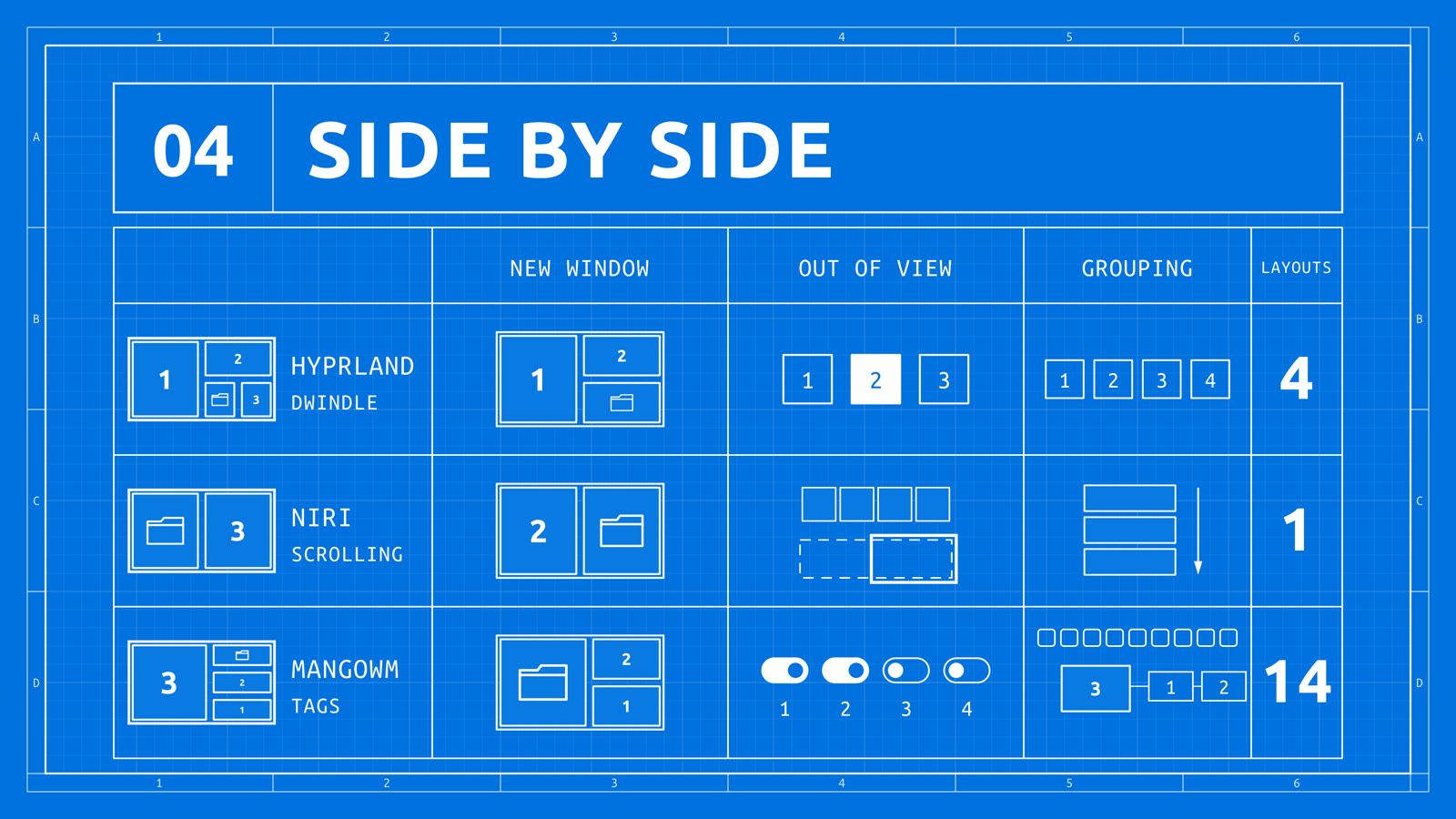
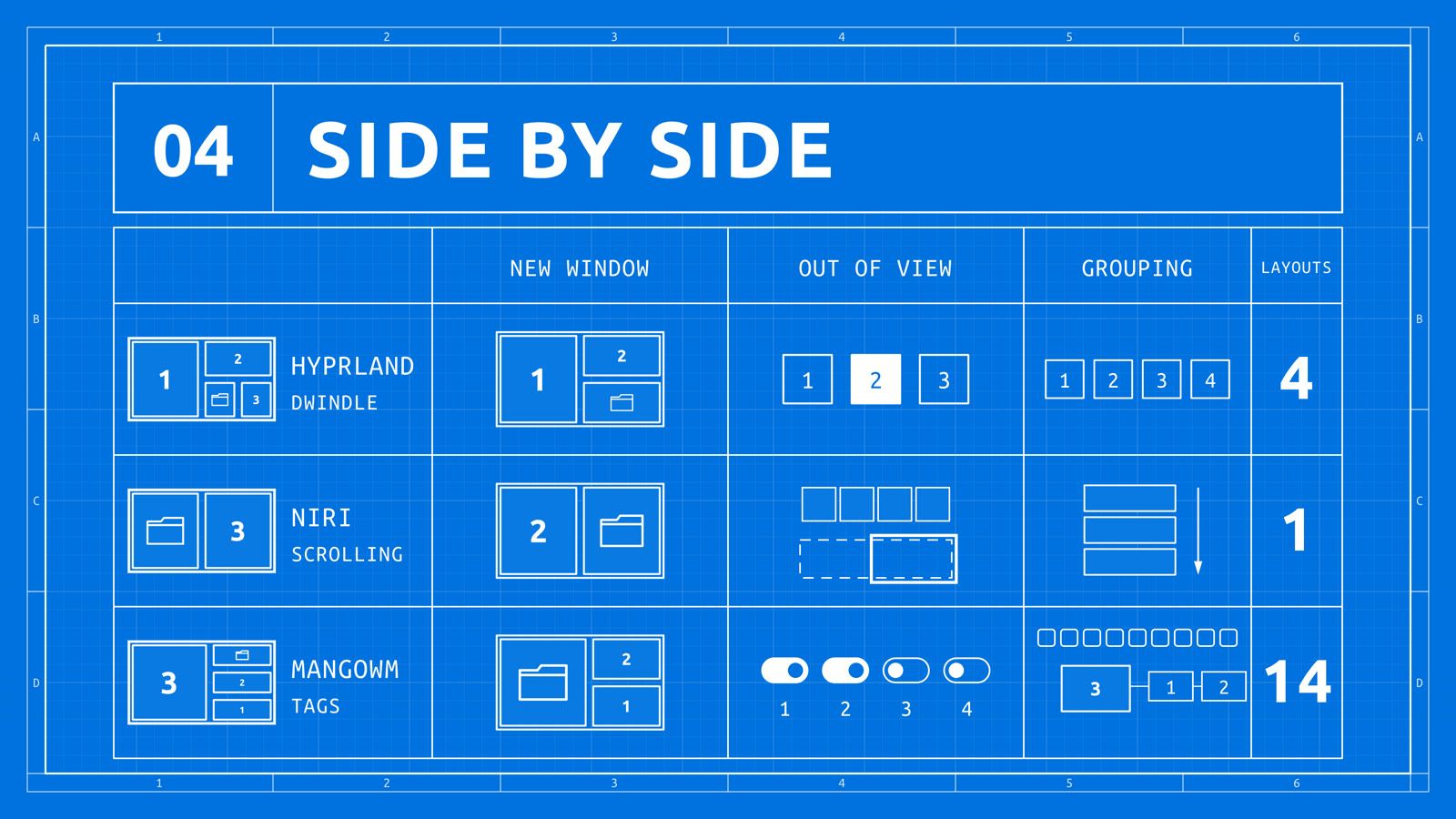
| Hyprland (dwindle) | niri (scrolling) | MangoWM (tile and tags) | |
|---|---|---|---|
| A new window | Splits the focused window | Adds a column beside it | Takes the main slot |
| Other windows | Get smaller | Keep their size | Move down the stack |
| A window out of view | Switch workspace | Scroll the strip, or move down a workspace | View another tag, or add it to the view |
| Grouping | Numbered workspaces | Workspaces stacked top to bottom | Nine tags; a window can carry several |
| Built-in layouts | Four | One | Fourteen |
Two of the three have more than one layout. Hyprland has four built in: dwindle, scrolling, master and monocle, as its README lists. On Hyprland and MangoWM, each workspace or tag can use a different layout; on Omarchy, Super L cycles only tiling, scrolling and floating, so master and monocle need a config change.
Run niri and MangoWM beside Omarchy
niri and MangoWM install from the Arch repos without replacing what you run now, and each starts as a separate session. On Omarchy, install them with pacman:
sudo pacman -S niri mangowmThis adds two packages and a few libraries. It does not update the rest of the system. When you do want updates on Omarchy, run omarchy update, never sudo pacman -Syu. The versions you get follow Omarchy’s package mirror: ours gave niri 26.04 and mangowm 0.18.2, while Arch itself had mangowm 0.18.5 at the time.
Give each one a config
We started each compositor from a copy of its own default config. For niri, copy the example config from the package, then open ~/.config/niri/config.kdl:
mkdir -p ~/.config/niri
cp /usr/share/doc/niri/default-config.kdl ~/.config/niri/config.kdl
niri’s default config opens Alacritty on Super T, starts Waybar, and opens Fuzzel on Super D. Omarchy ships foot, not those three, so we changed the Super T line from alacritty to foot and commented out the spawn-at-startup "waybar" line. niri’s Super Shift F is fullscreen by default; we gave that key to Files so all three compositors open Files the same way, and added a window rule so Files opens as a normal column instead of full width:
Mod+Shift+F { spawn "nautilus" "--new-window"; }

window-rule {
    match app-id="^org.gnome.Nautilus$"
    open-maximized false
    open-maximized-to-edges false
}
That leaves fullscreen with no key. Run niri validate after an edit to check the file.
For MangoWM, copy the shipped config and add the lines from the tags section, plus a Files bind:
mkdir -p ~/.config/mango
cp /etc/mango/config.conf ~/.config/mango/config.confbind=SUPER+SHIFT,f,spawn,nautilus --new-windowWe also added a monitor_rule line for our 4K screen at 3x scaling. Change the output name, size and scale to match yours, or leave the line out:
monitor_rule=name:^HDMI-A-2$,width:3840,height:2160,refresh:60,x:0,y:0,scale:3Run mango -p after every edit. It checks the config and prints any error. A bad line otherwise shows up as a red error banner across the top of the screen when MangoWM loads the config.
Start a session
Both packages add an entry to the login screen’s session list, so you can log out and pick niri or Mango there. We started them from a text console instead, so Hyprland kept running: ctrl alt f3 opens a console, you log in, and you type niri or mango. Each compositor draws in a few seconds. ctrl alt plus the F key of the console Hyprland runs on (F2 on our machine) switches back. We used F3 for niri and F4 for MangoWM.
To leave niri, run its quit command in a terminal inside niri (Super T opens one). It ended niri cleanly and left Hyprland running:
niri msg action quit --skip-confirmationMangoWM’s quit key ends Omarchy’s Hyprland session
Do not quit MangoWM with Super M (or mmsg dispatch quit) while Omarchy’s Hyprland session is running. The mango launcher starts a systemd target called mango-session.target when it opens, and on quit it stops graphical-session.target, the target for the whole graphical session. Omarchy’s Hyprland runs under uwsm in the same user session and is bound to that target. On our machine, quitting MangoWM with Super M stopped Hyprland and every app in it about ten seconds later, and we were back at the login screen.
If you log out of Hyprland and pick Mango at the login screen instead, no Hyprland session is running for its quit to end. If you run MangoWM beside Hyprland from a console, end it from a terminal in the Hyprland session or over SSH instead of its quit key:
pkill -KILL -x mangoThat kill skips MangoWM’s shutdown steps, so the systemd target is never stopped. Hyprland and its apps stayed up when we did this. mango-session.target stays marked active until you log out; leave it alone, since stopping it by hand may reach the graphical session too. niri, started as plain niri from a console, touches no systemd target, and its quit left Hyprland alone.
If something does not work
Files does not open in niri or MangoWM. Nautilus runs one process per login, so if Files is open in your Hyprland session, launching it in niri or MangoWM opens nothing there. Close it first with nautilus -q, then open it in the new session.
Files opens full width in niri. Nautilus asks to open maximized. The window rule in the niri config above stops that.
A red banner appears in MangoWM. The config has a line MangoWM does not know. Run mango -p, fix the line it names, and reload.
The pointer sits in the middle of a MangoWM window. MangoWM moves the pointer onto each window that gets the focus, which can pop up tooltips. warp_cursor=0 in the config turns that off, and cursor_hide_timeout=1 hides the pointer after a second without movement.
Which model fits the way you work
Dwindle suits a few windows you want in view at once: two to four windows on one workspace, each still a usable size. Scrolling suits many windows at a width you choose, which is easier to live with on a wide screen where three or four columns fit. Tags suit sets of windows you want to combine, like a reference window that belongs next to two different projects.
On Omarchy, dwindle and scrolling are both built in, and super l cycles a workspace through tiling, scrolling and floating, so you can try scrolling without installing anything. niri and MangoWM take one pacman command and a config copy each, and they run beside Omarchy as long as you leave MangoWM by the route in the warning above. If the Omarchy keys are new to you, start with our list of Omarchy shortcuts to learn first.


